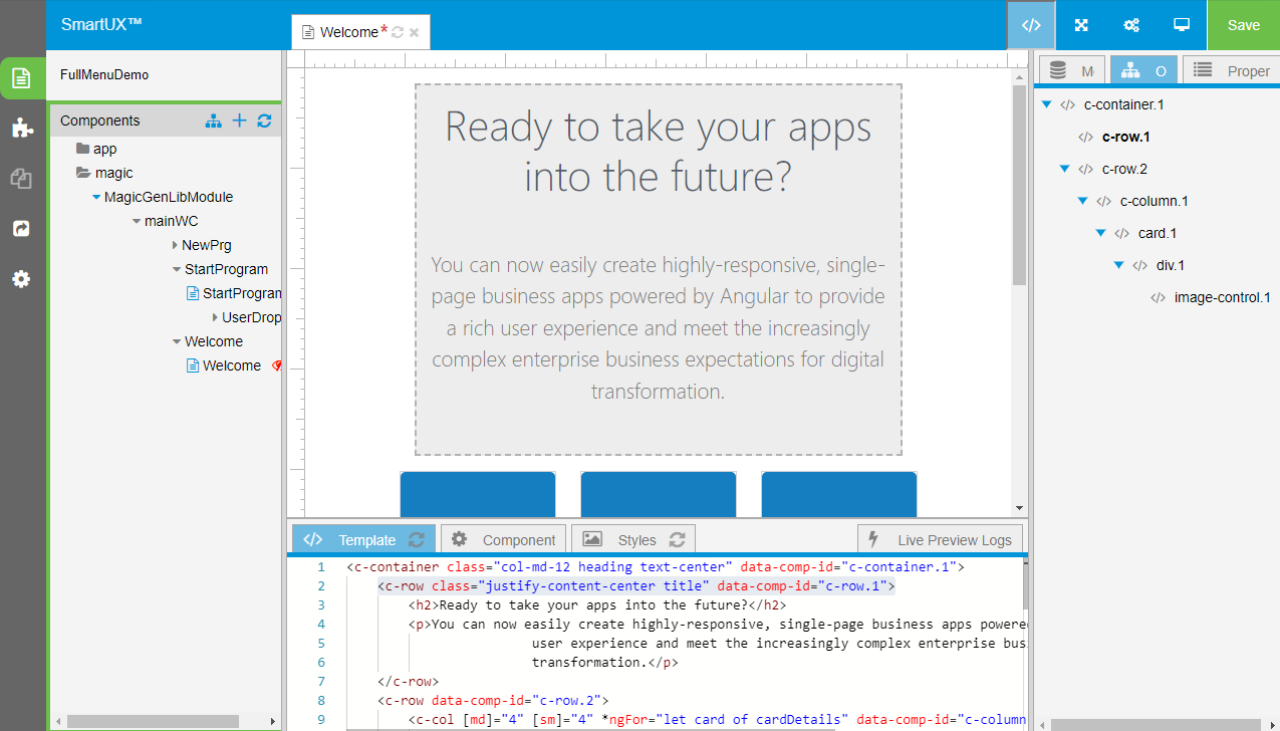
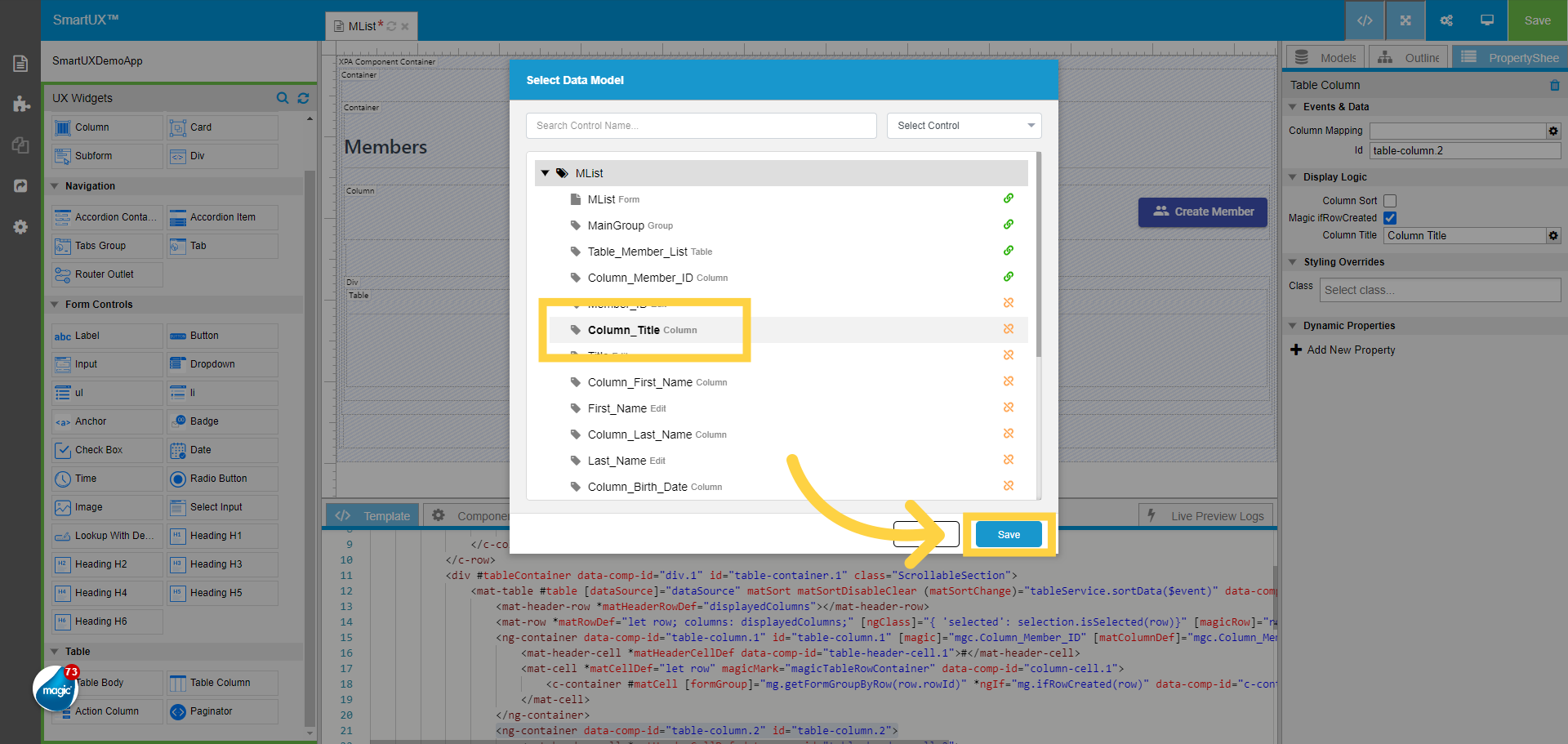
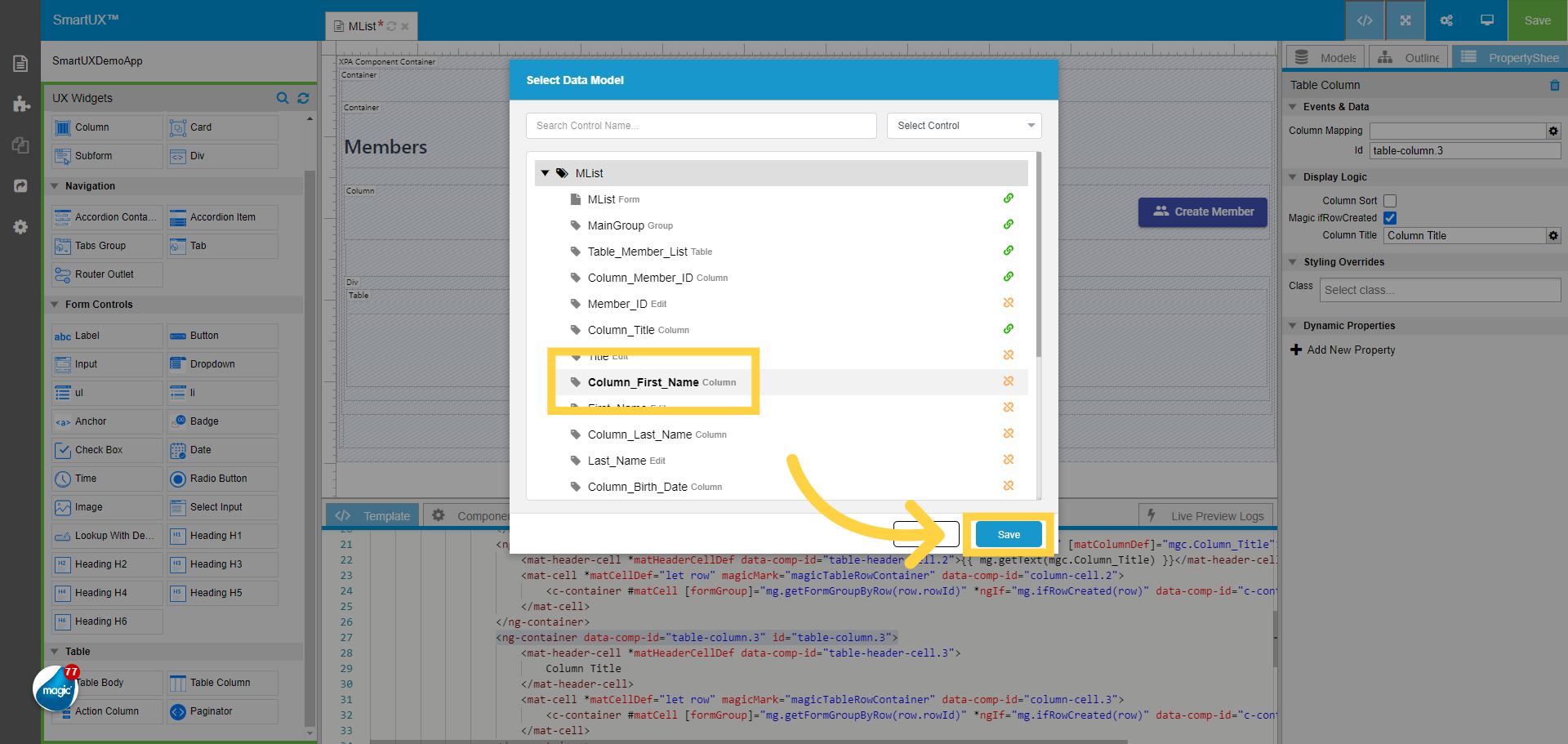
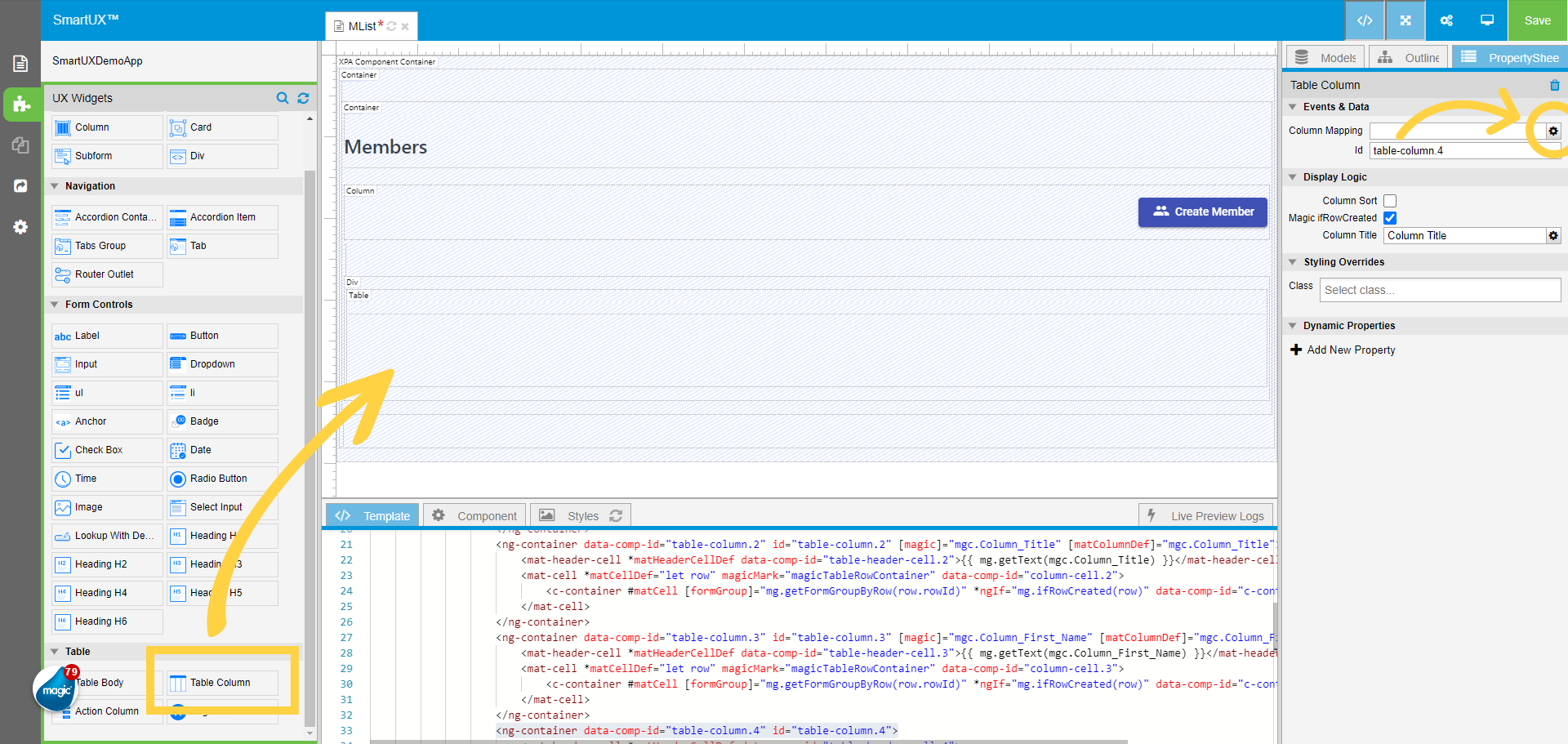
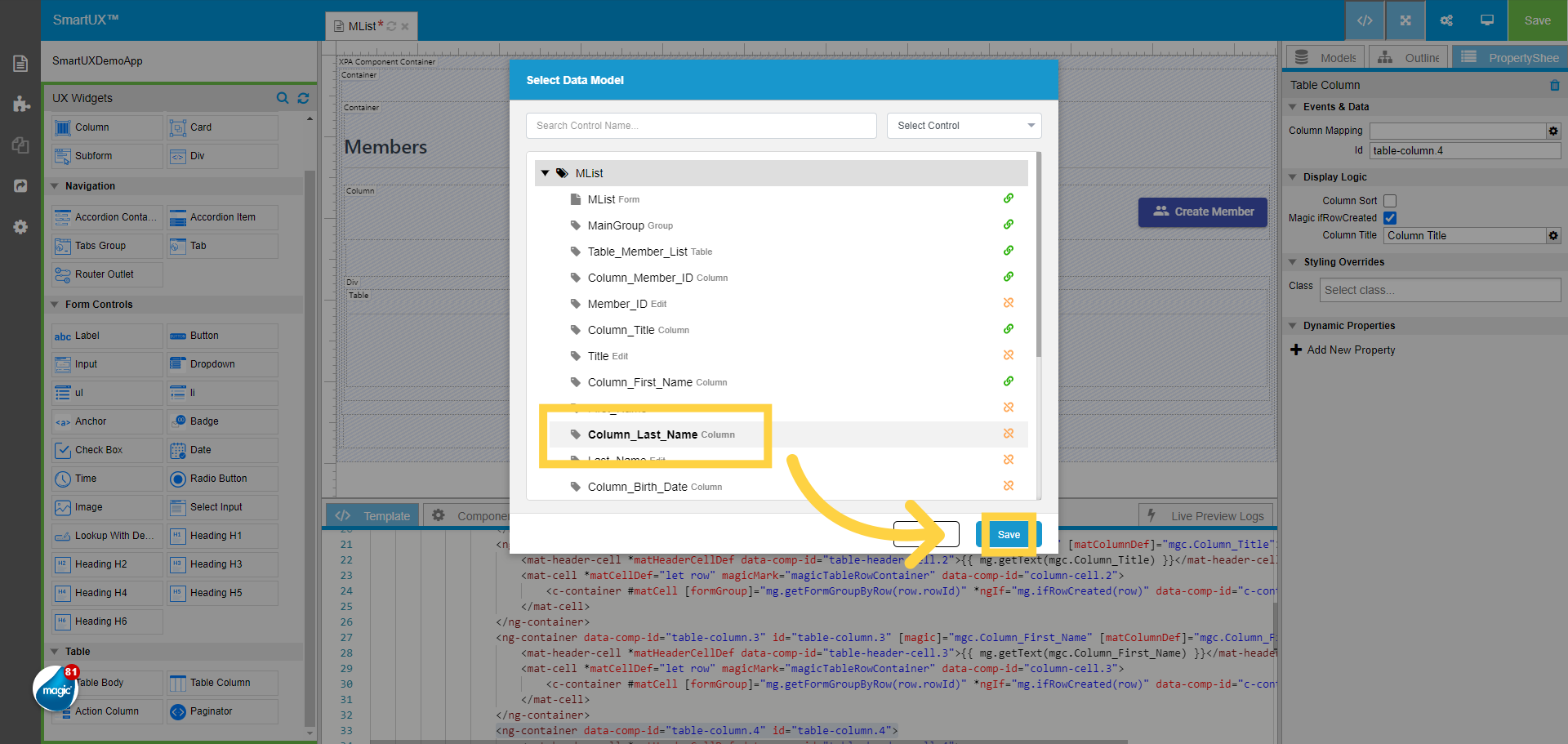
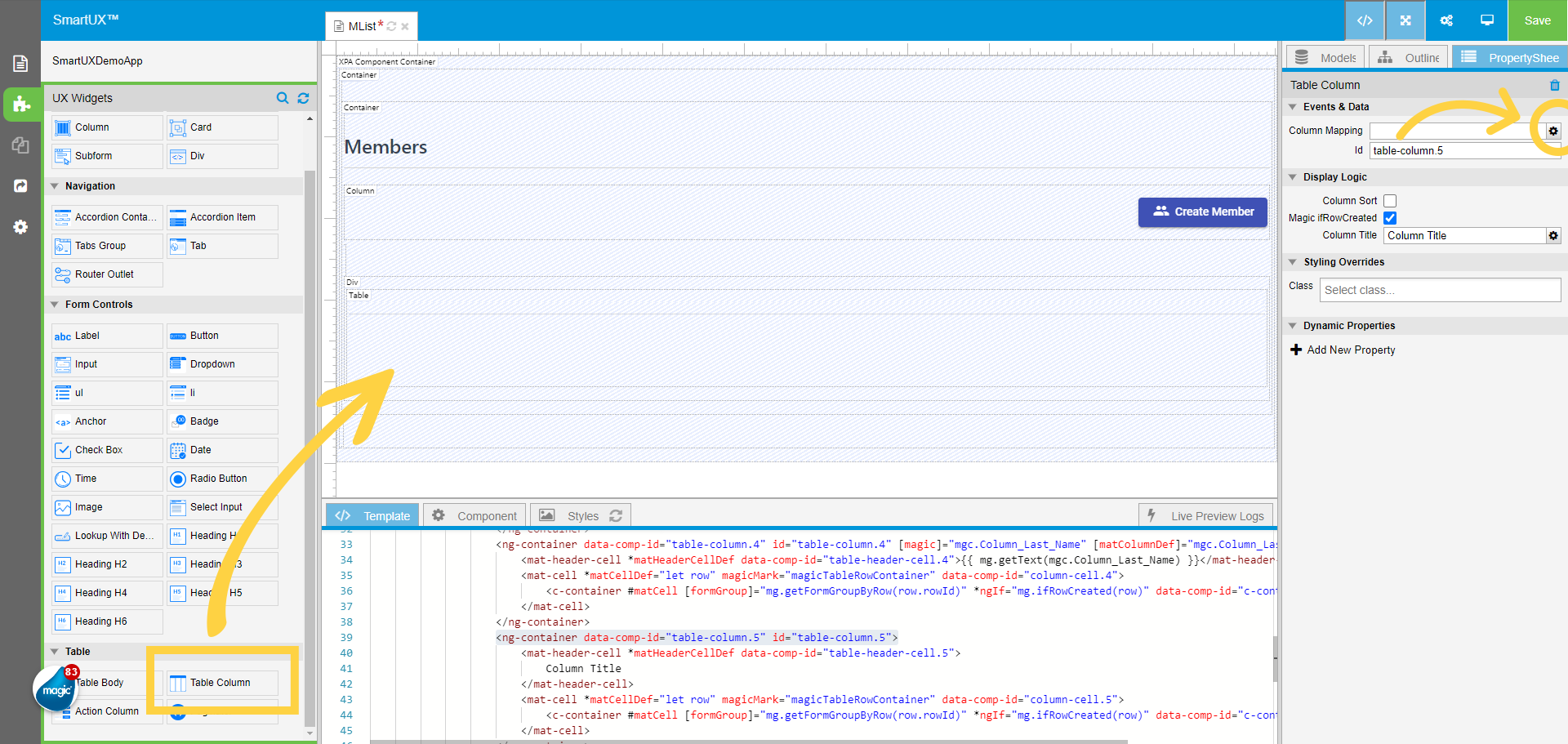
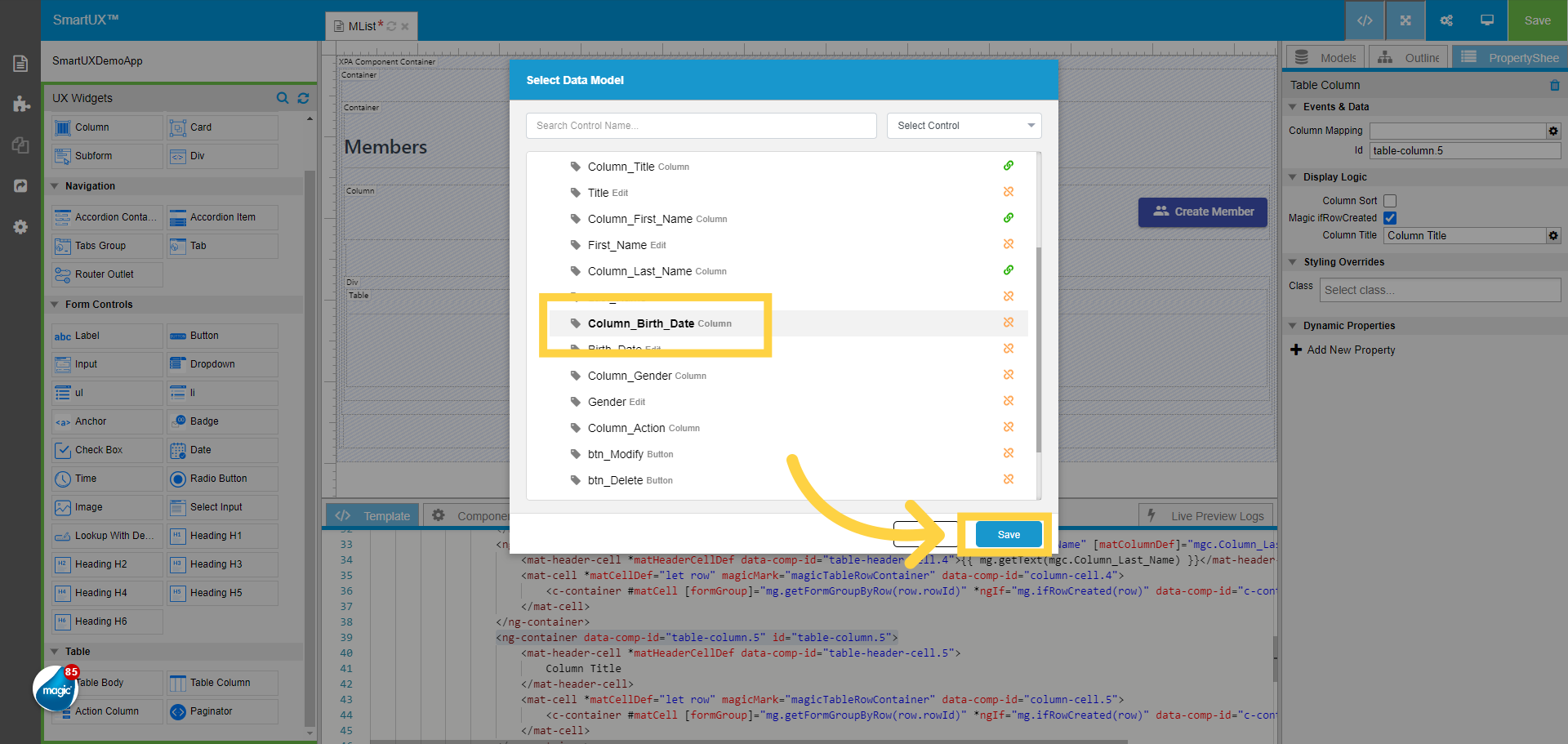
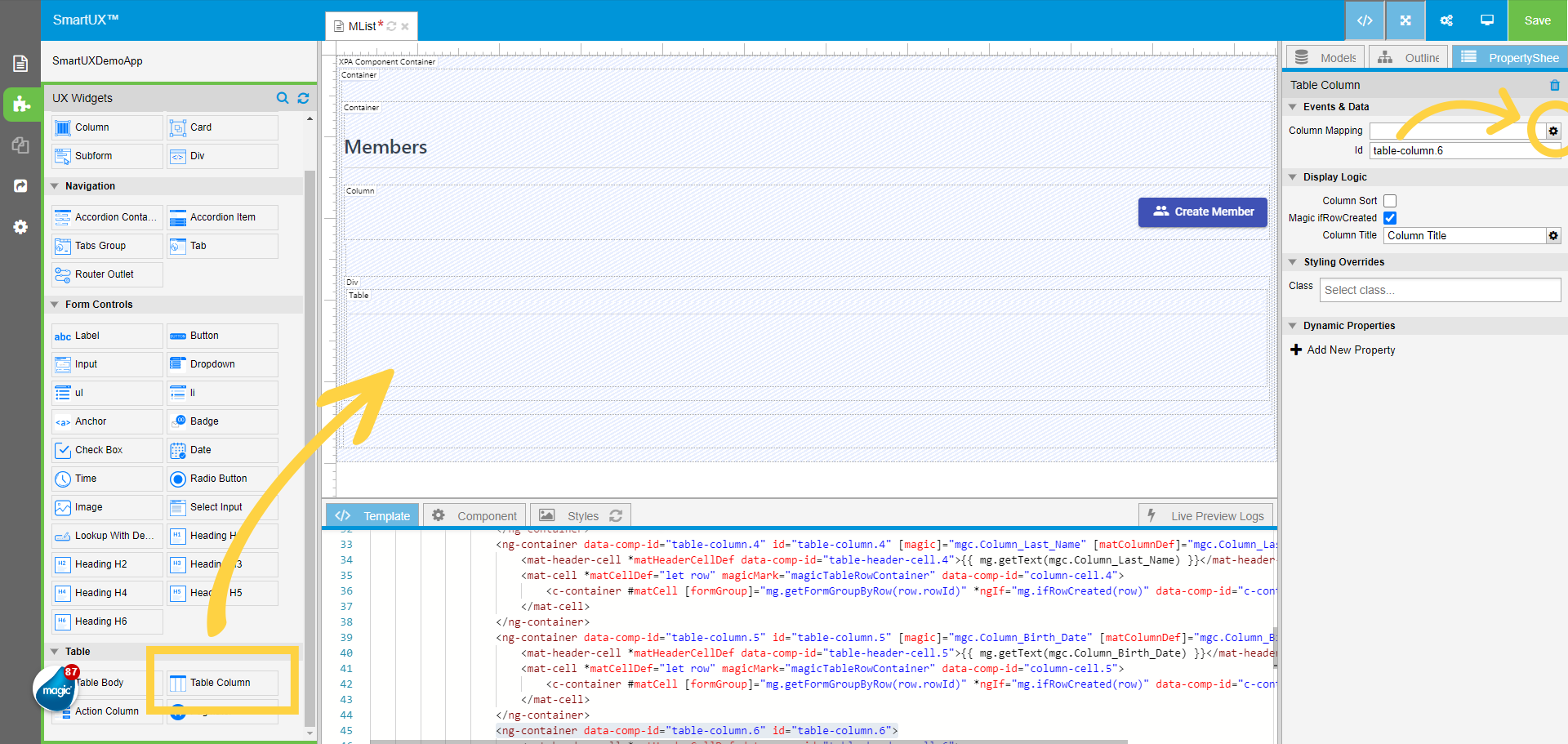
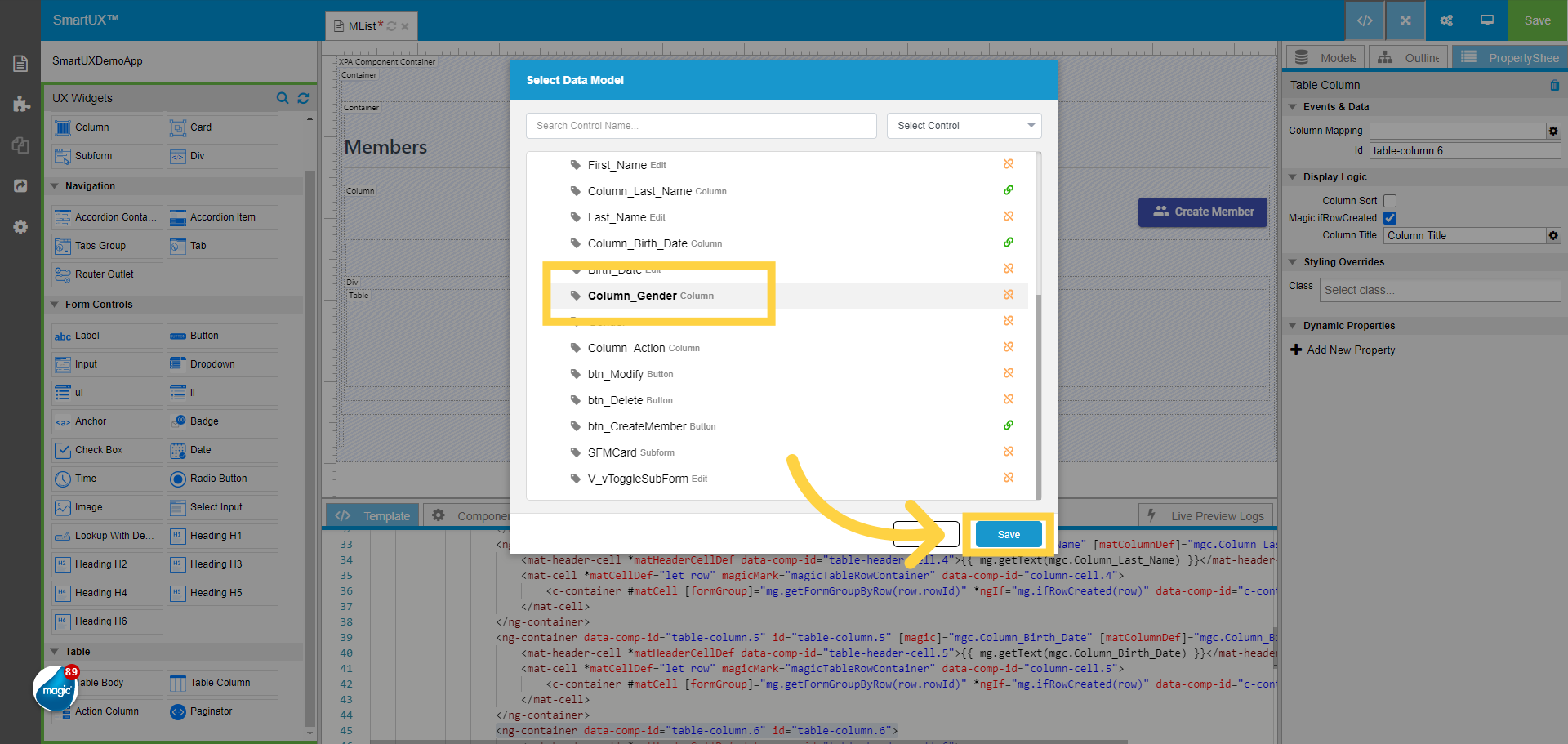
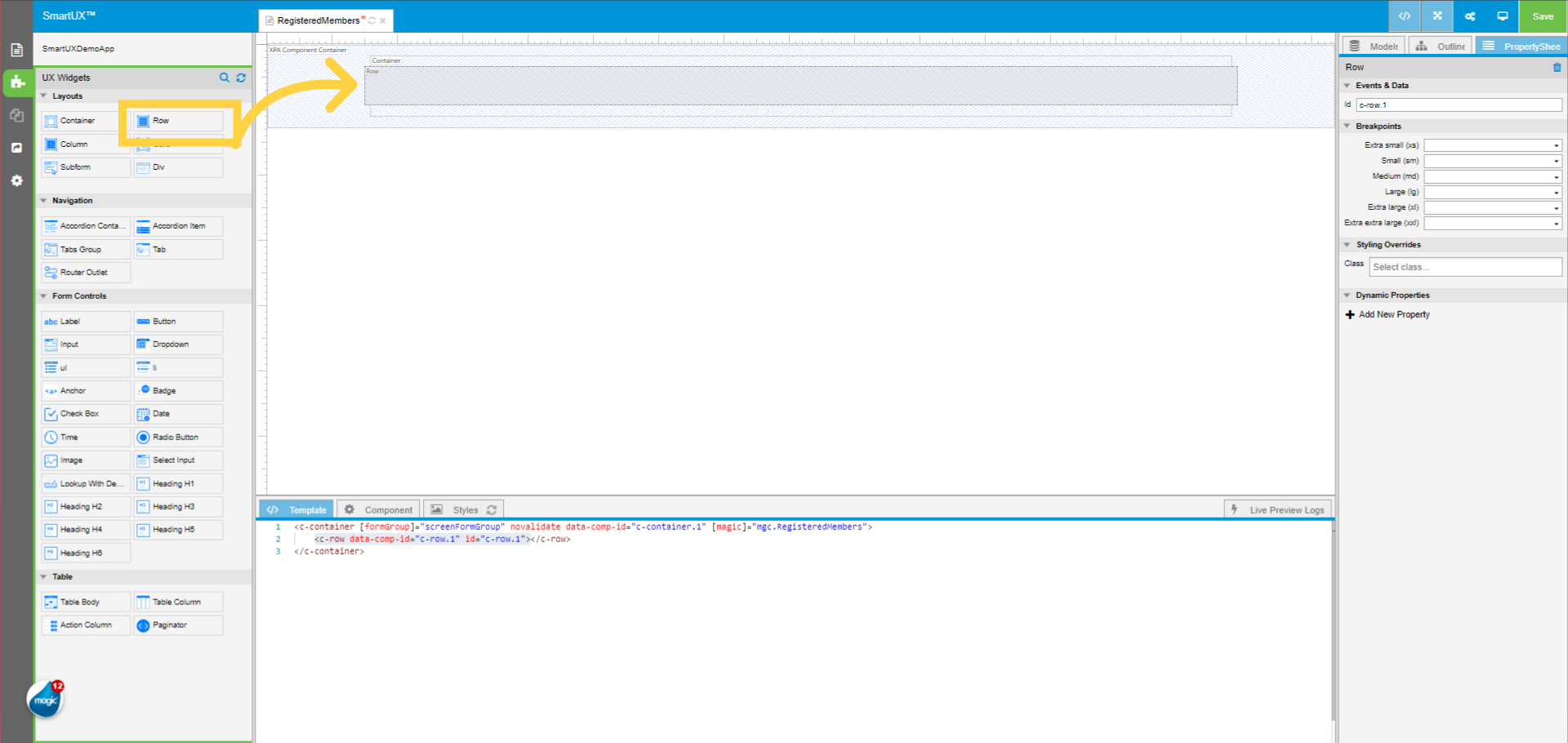
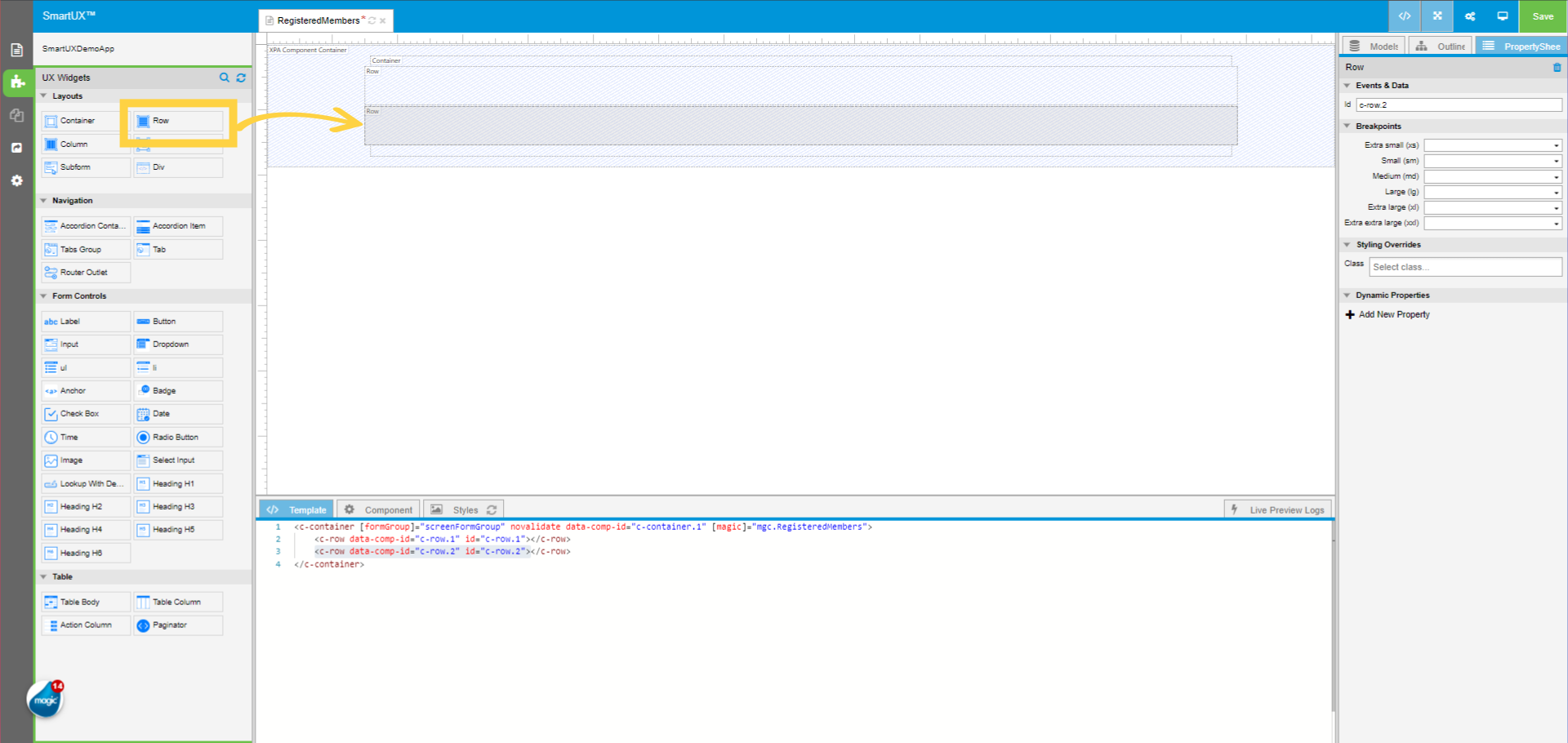
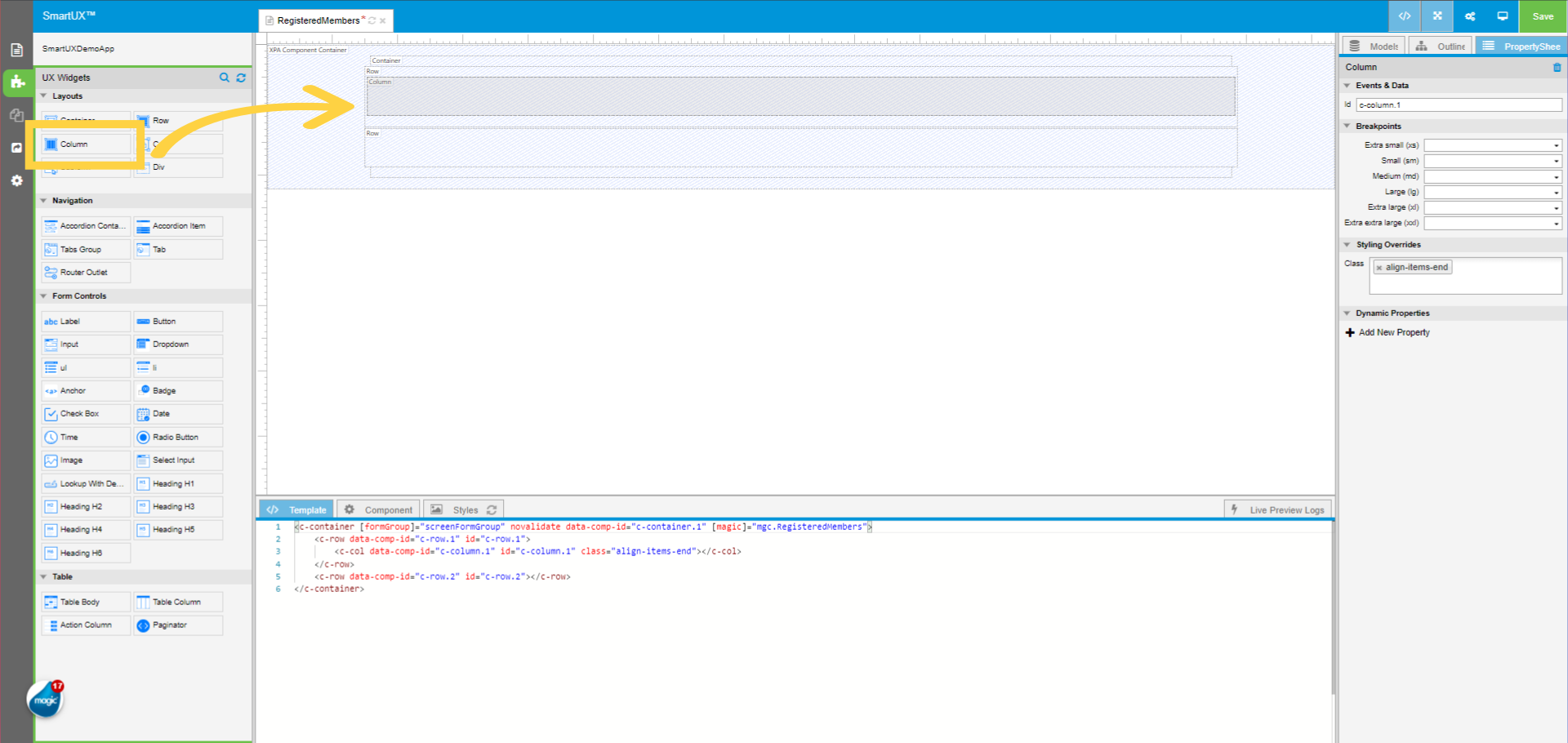
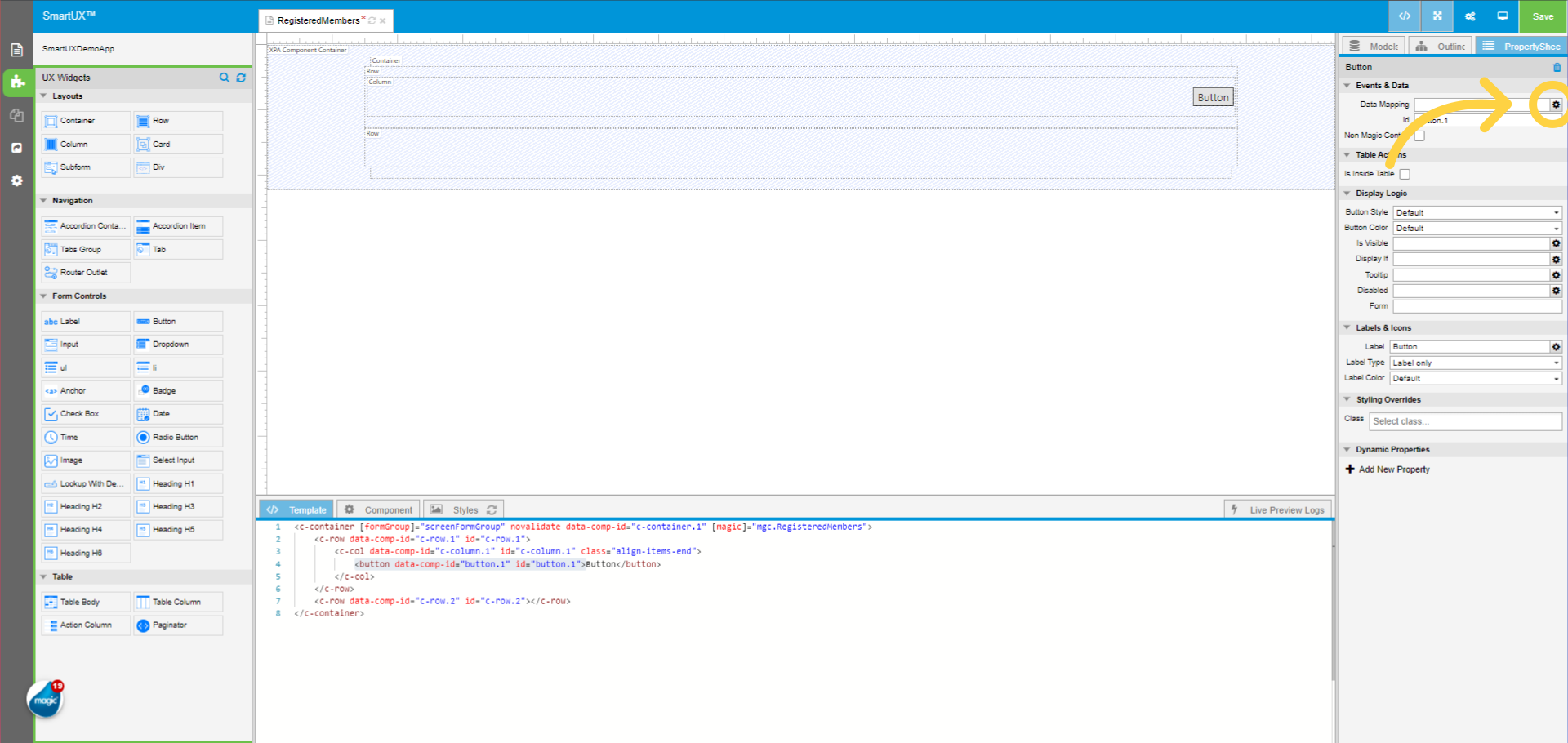
SmartUX Designer and Magic xpa Studio Integration

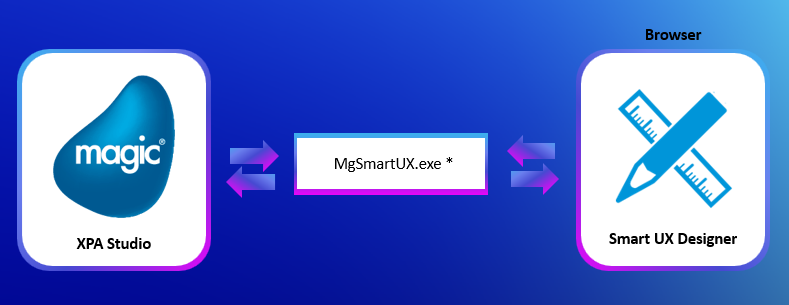
SmartUX Studio and Magic xpa Studio are seamlessly integrated to enhance the development of visually appealing Web Client applications. This video outlines the relationship between SmartUX Designer and Magic xpa Studio, explaining how they work together to streamline the creation and modification of Web Client projects without writing any code.

1. Initiating SmartUX Background Service

For a Web Client application in Magic xpa, a SmartUX Studio Background Service is initiated. In Magic xpa, a setting allows you to choose not to execute the SmartUX Service in the background.

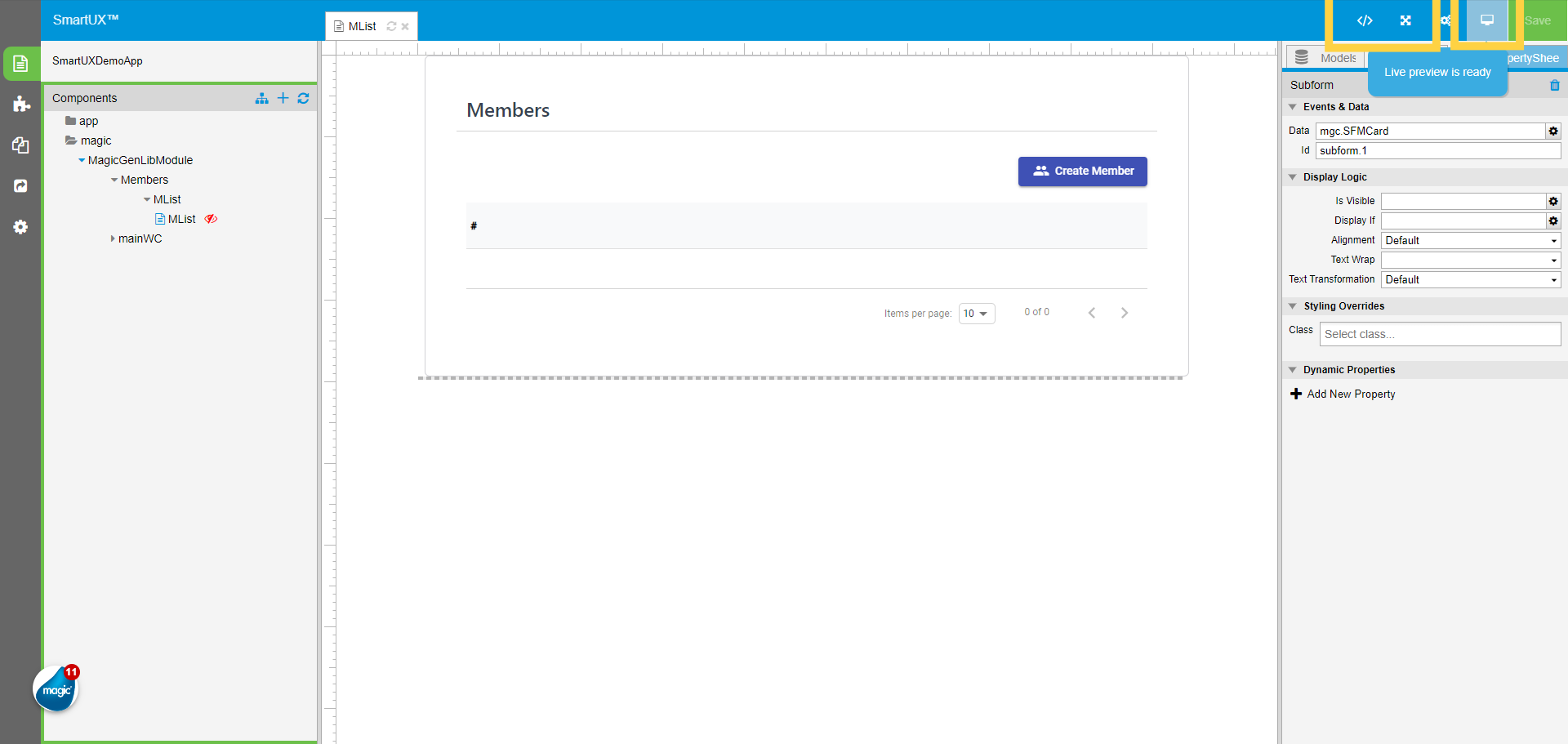
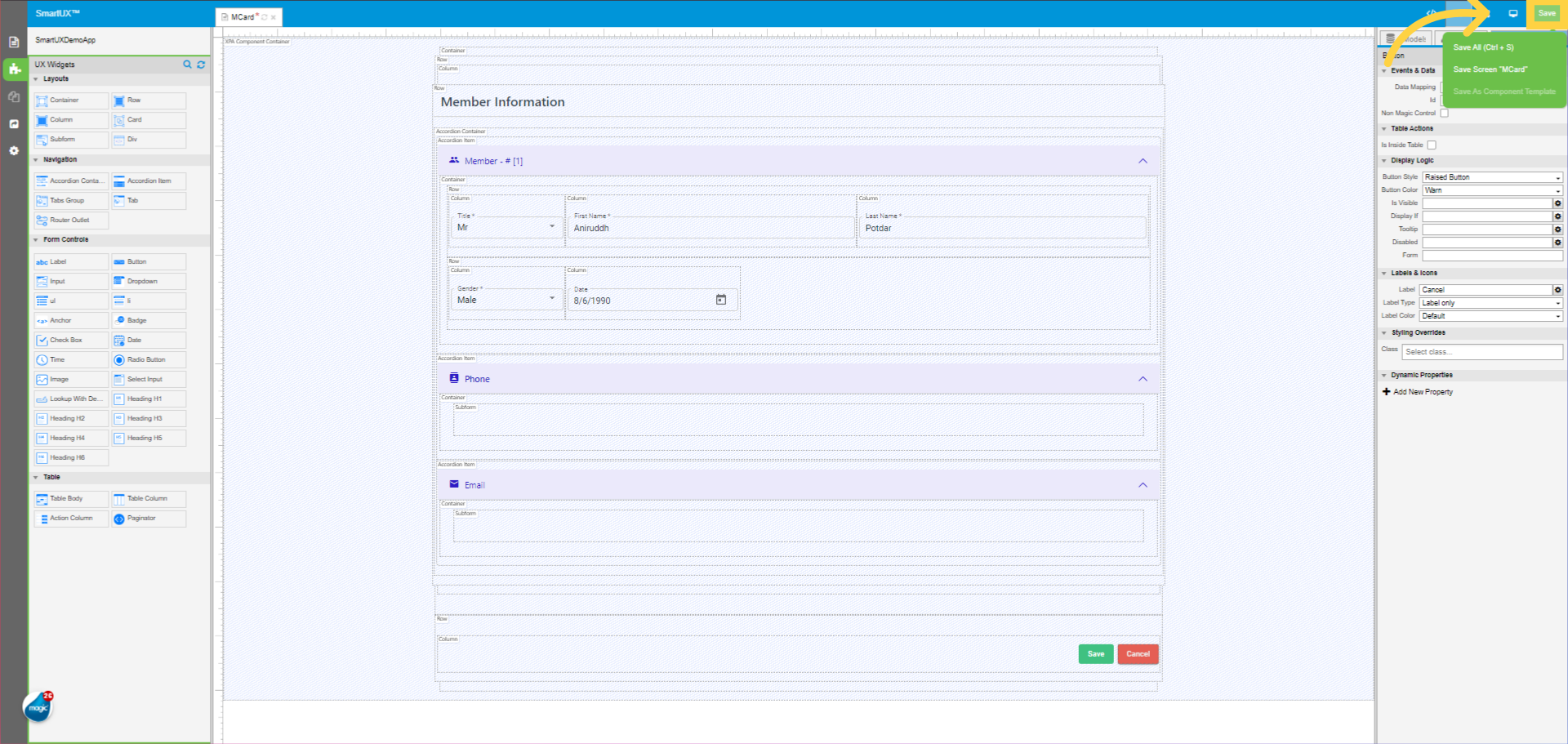
In Magic xpa, the highlighted icon on the toolbar shown below invokes SmartUX Studio.

2. Adding Programs/Forms

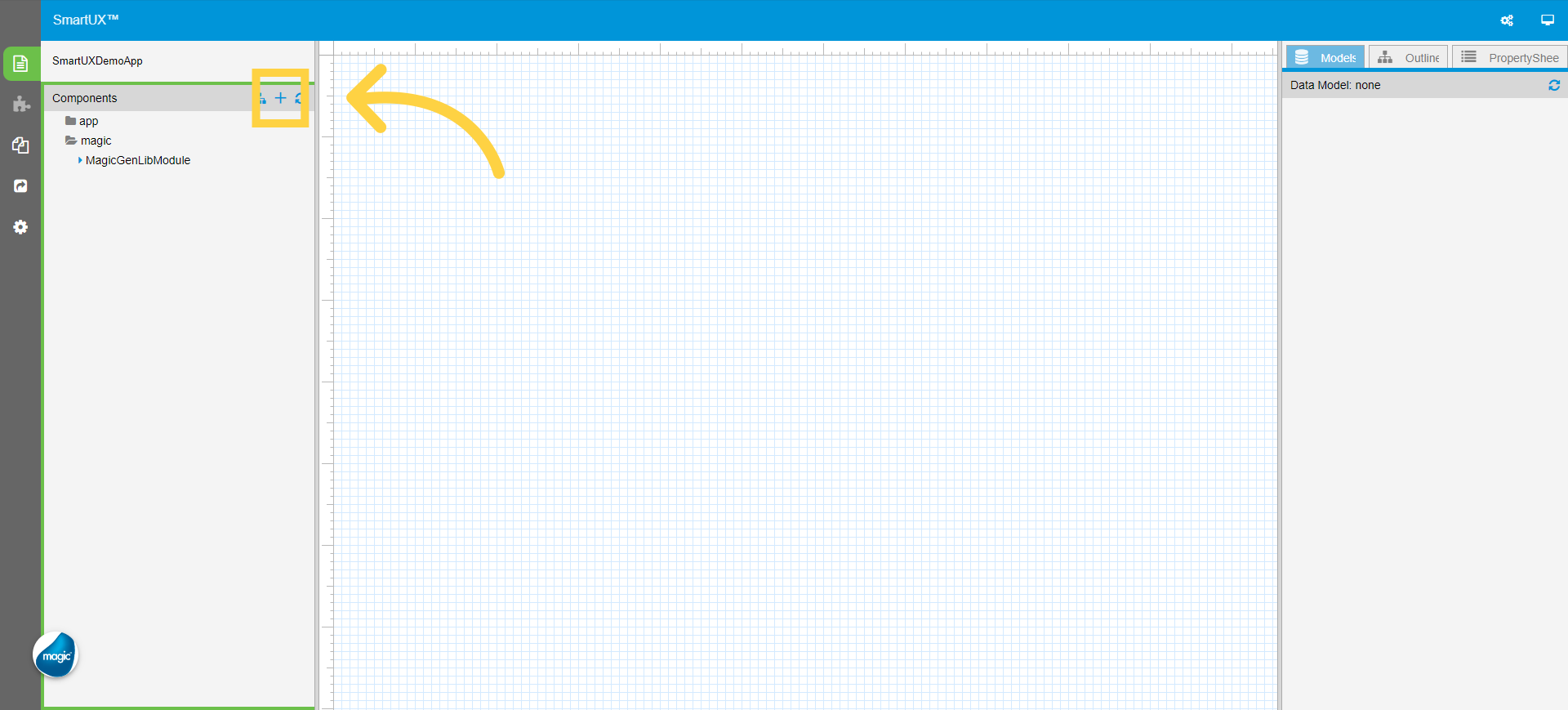
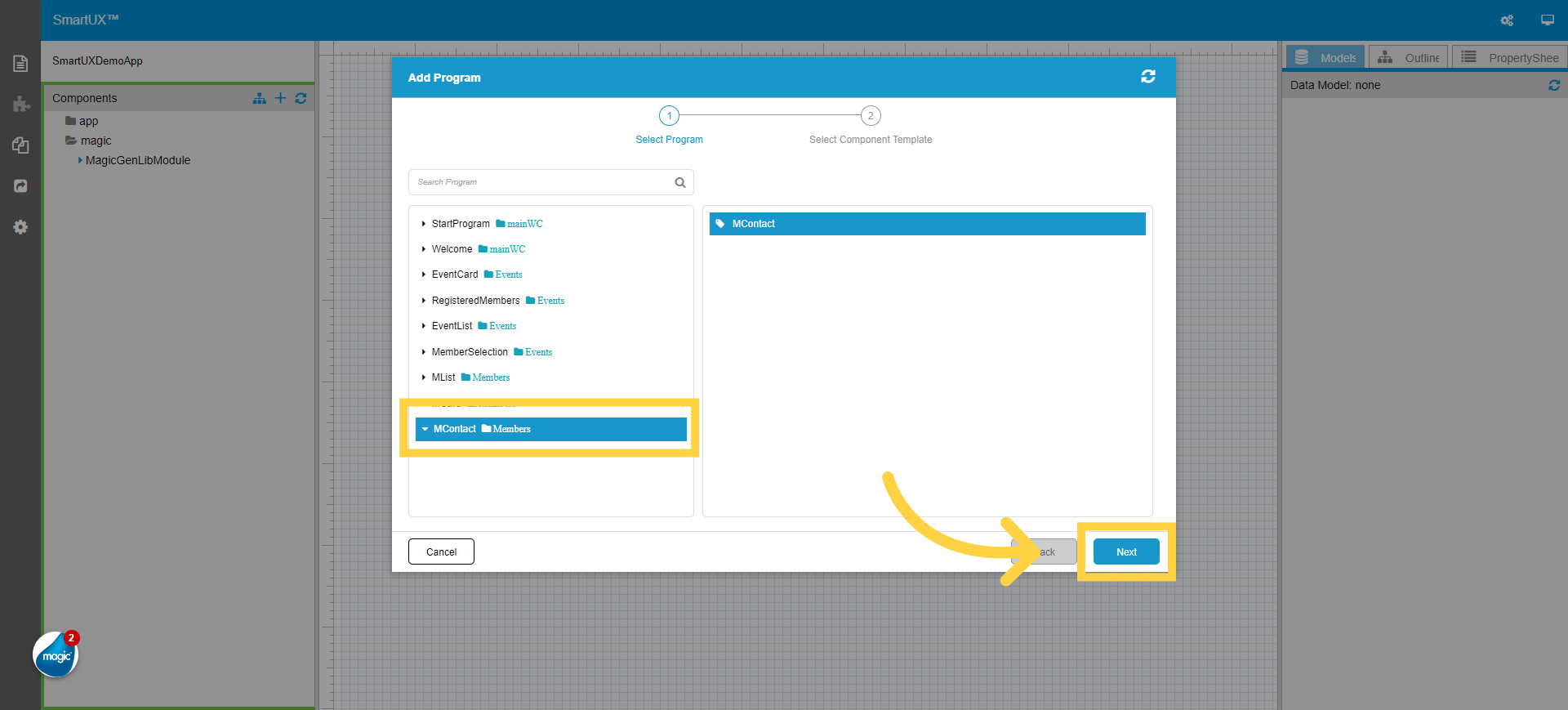
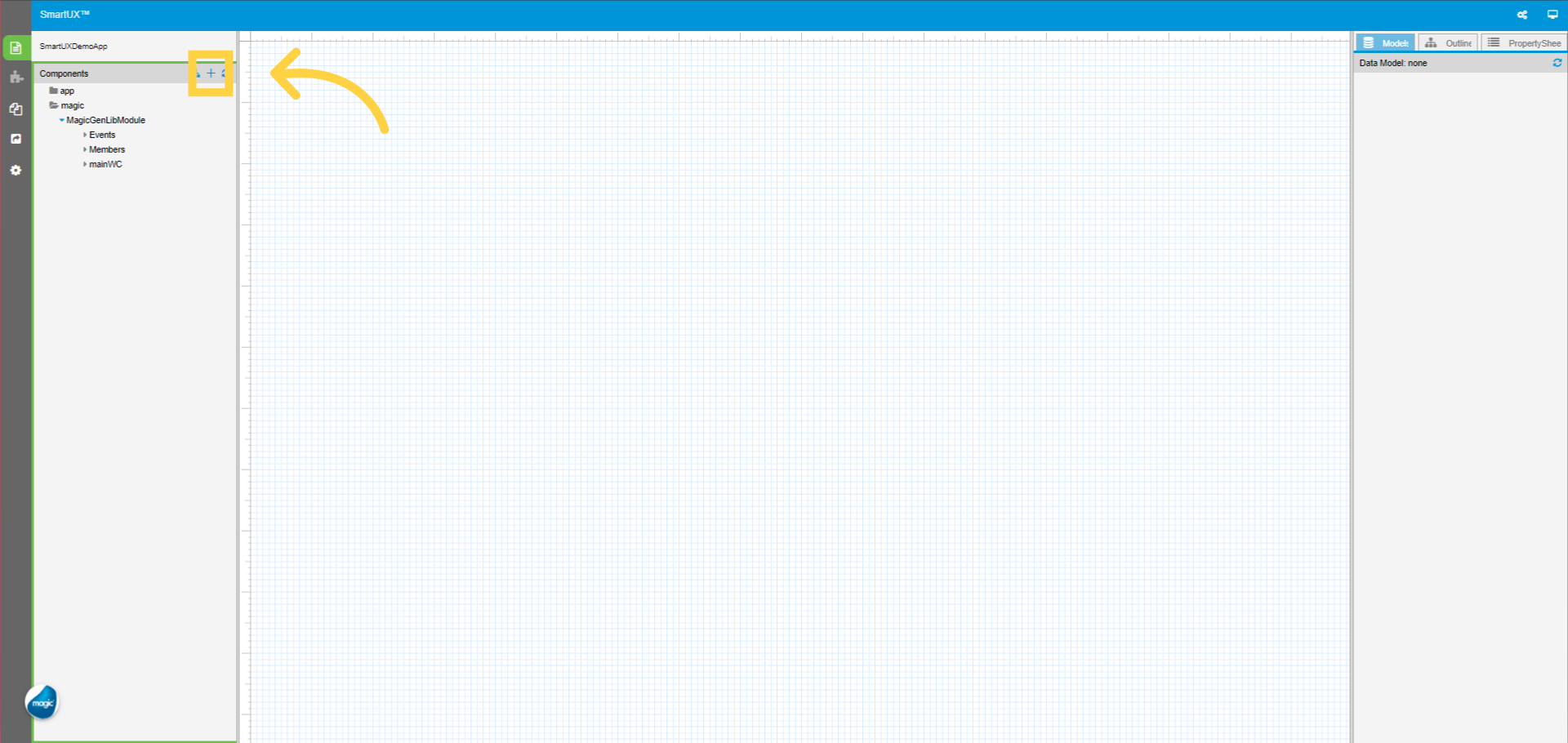
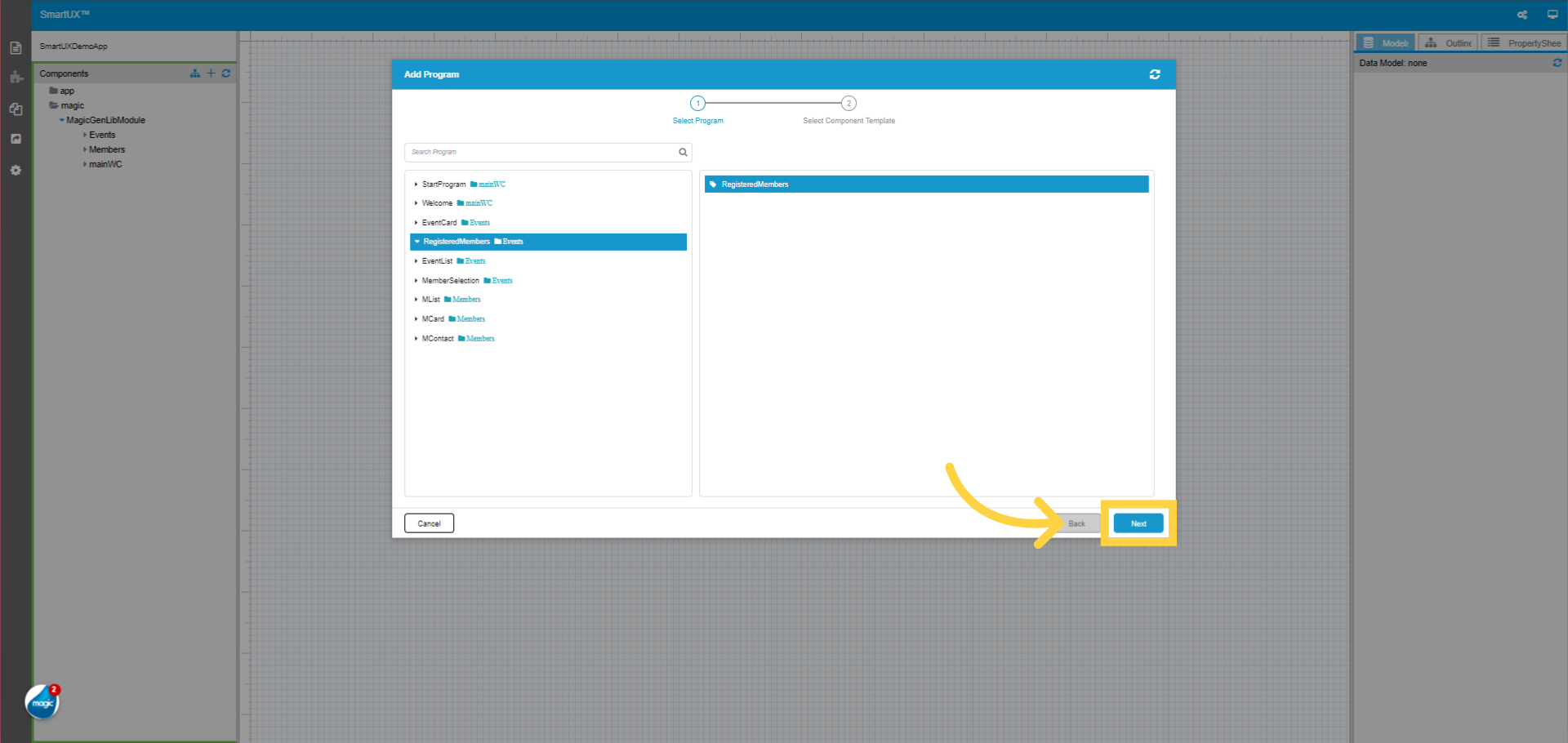
SmartUX promptly updates the Programs/Forms within the Add Program dialog when a new Program/Form is added to Magic xpa.

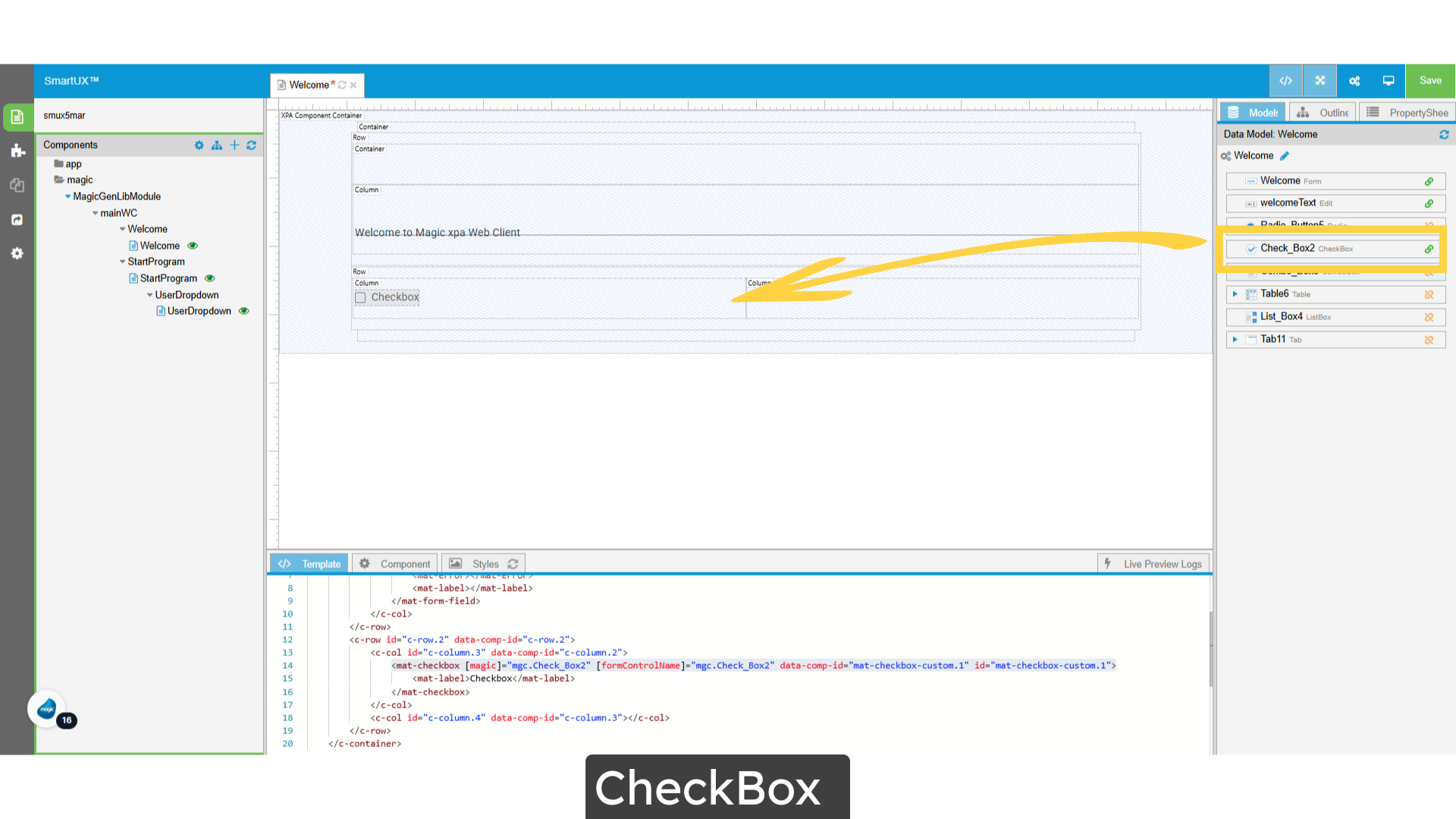
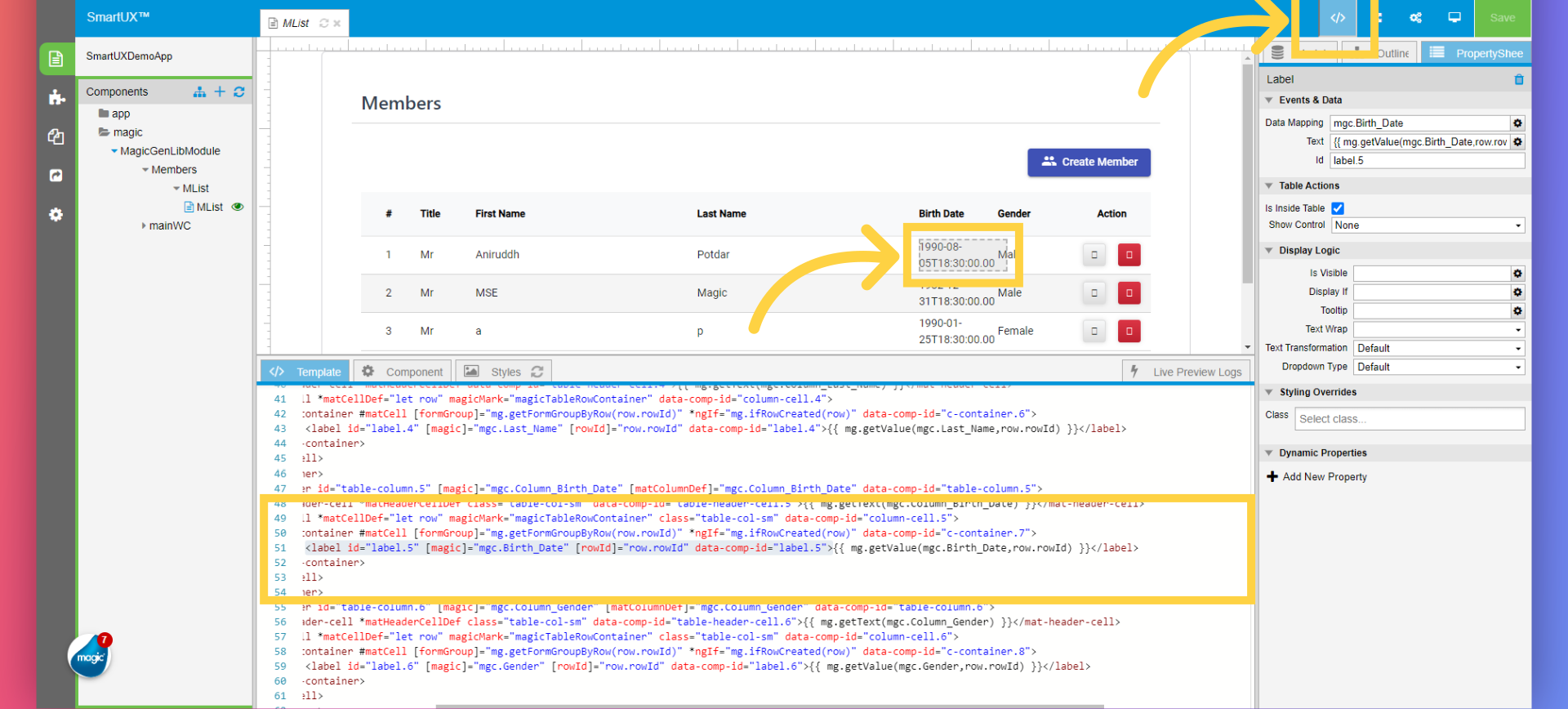
]In Magic xpa Form Editor, when you introduce new controls in a program, they are promptly mirrored in the Models pane of that Component within SmartUX Studio.

5. Viewing Application Live Preview

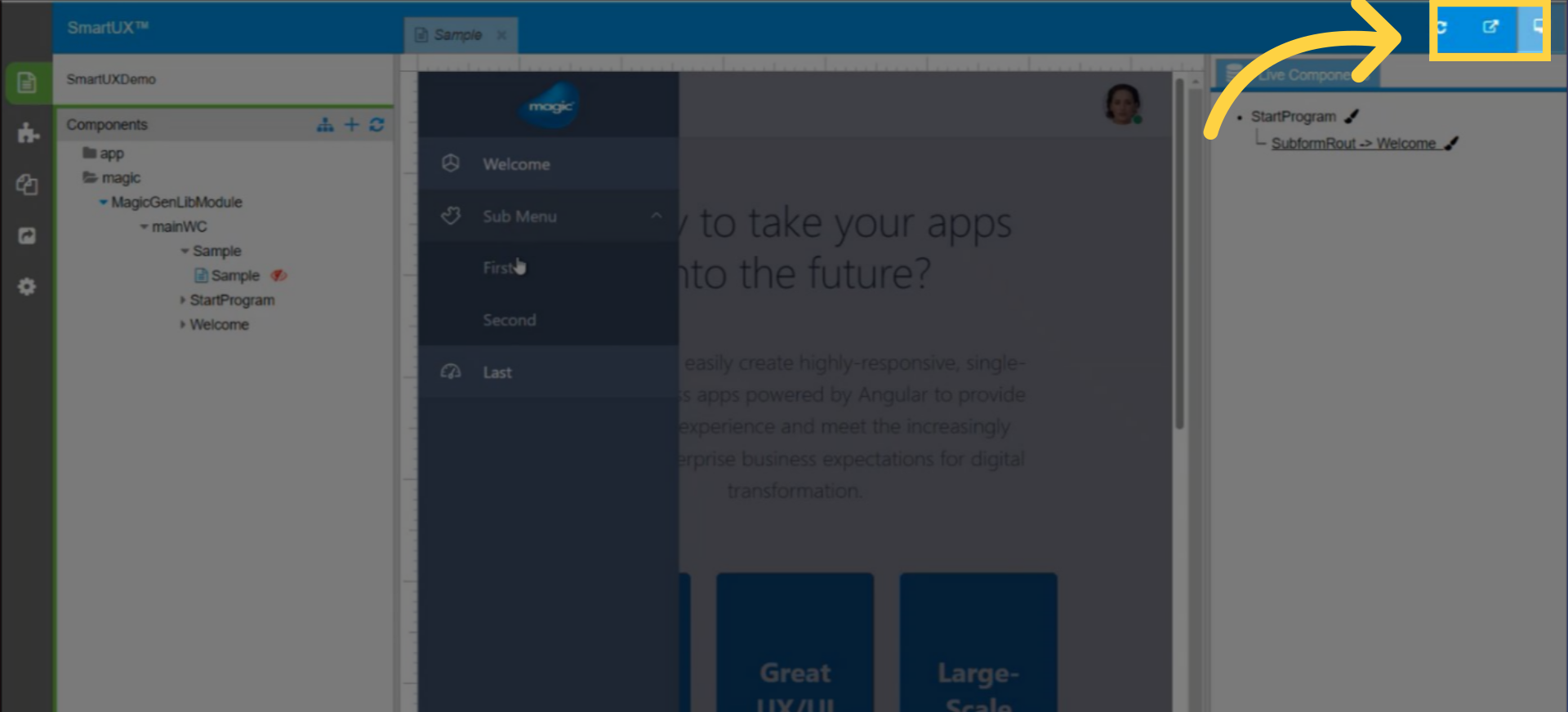
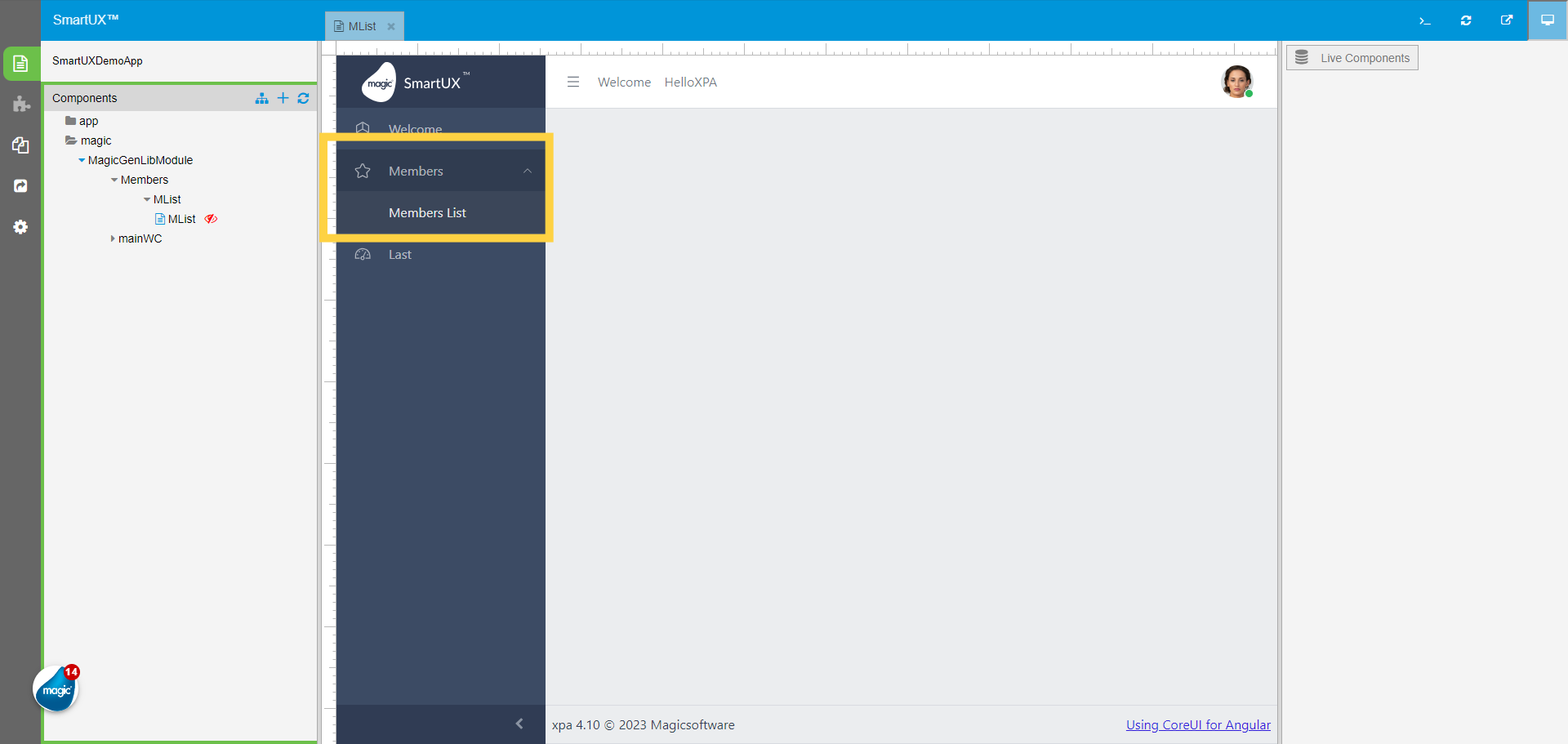
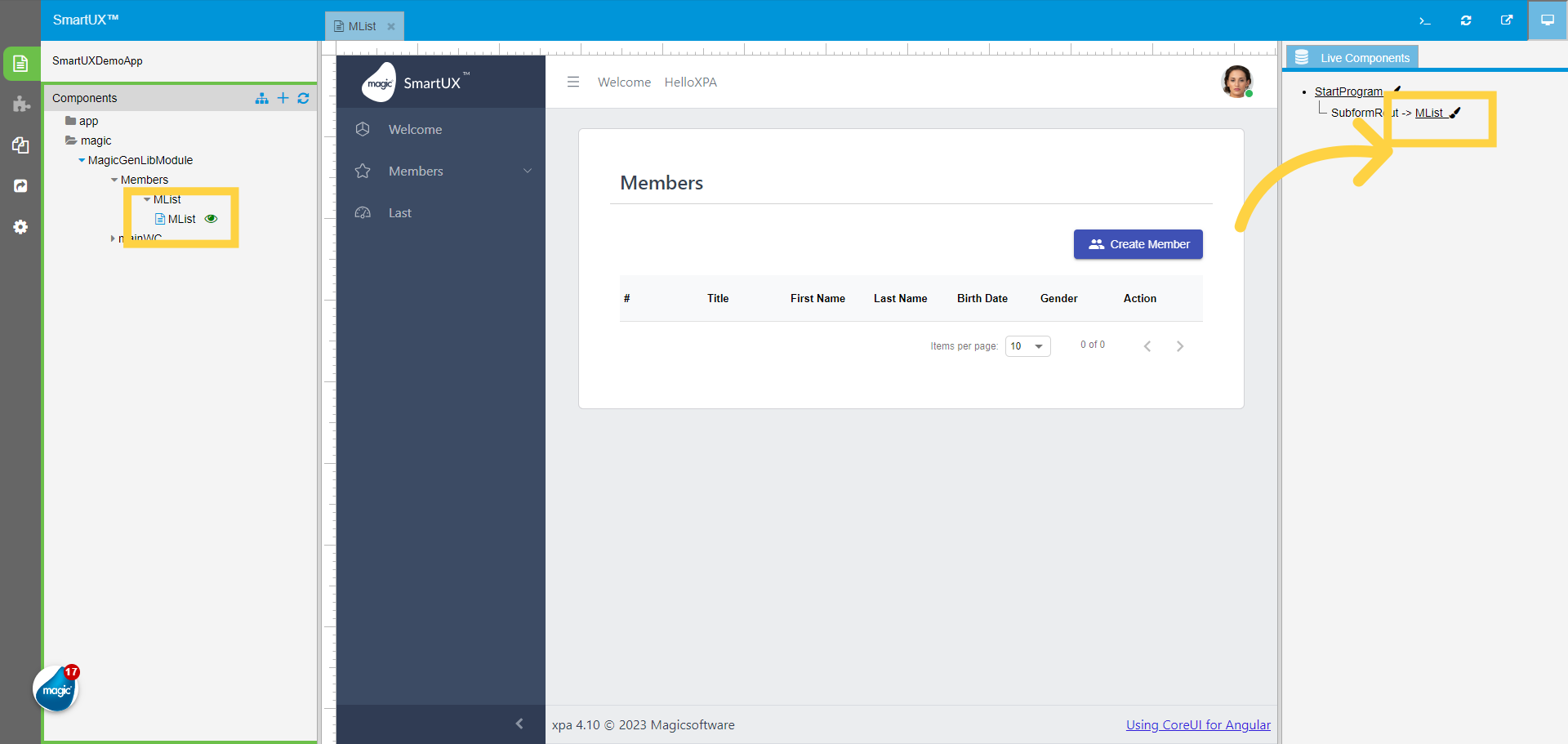
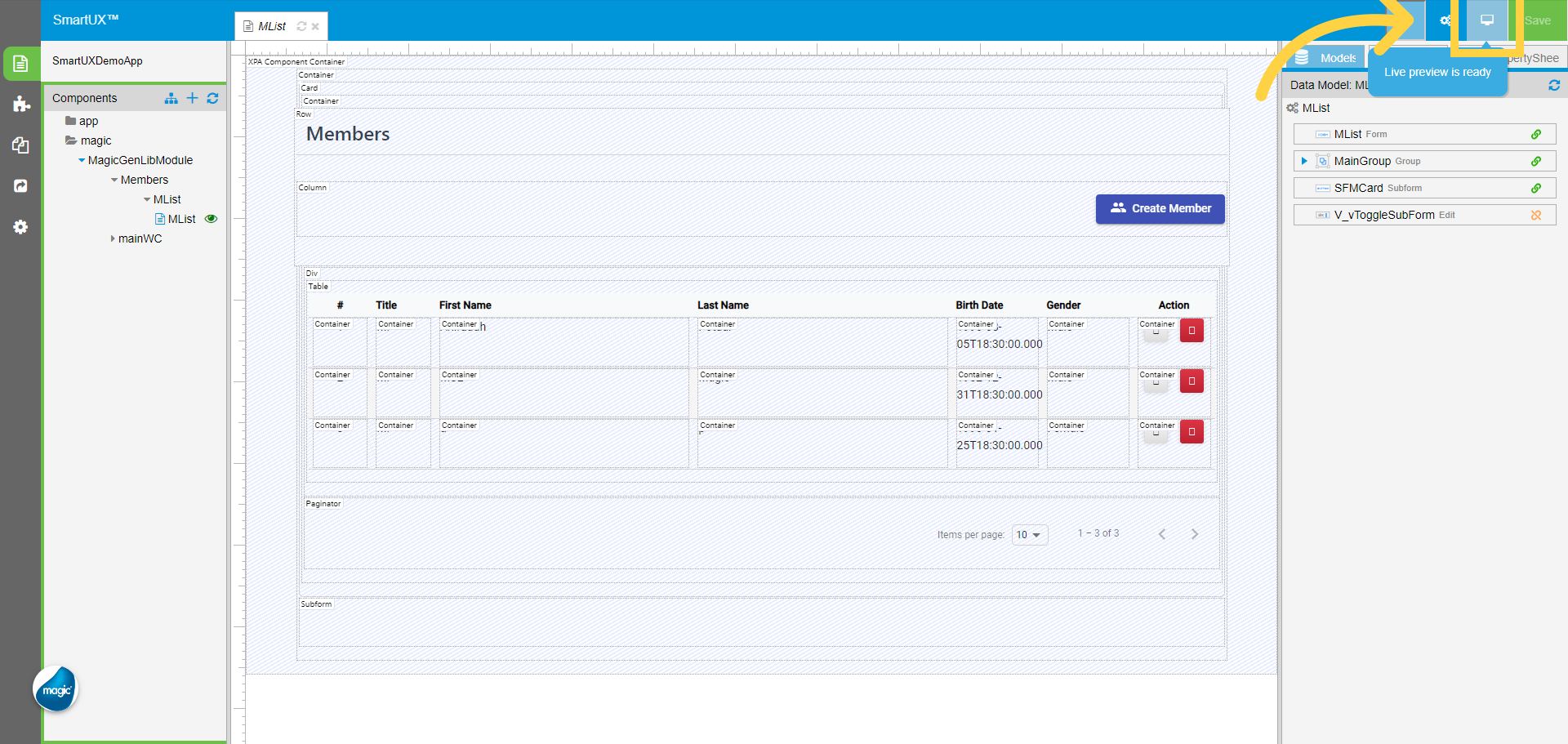
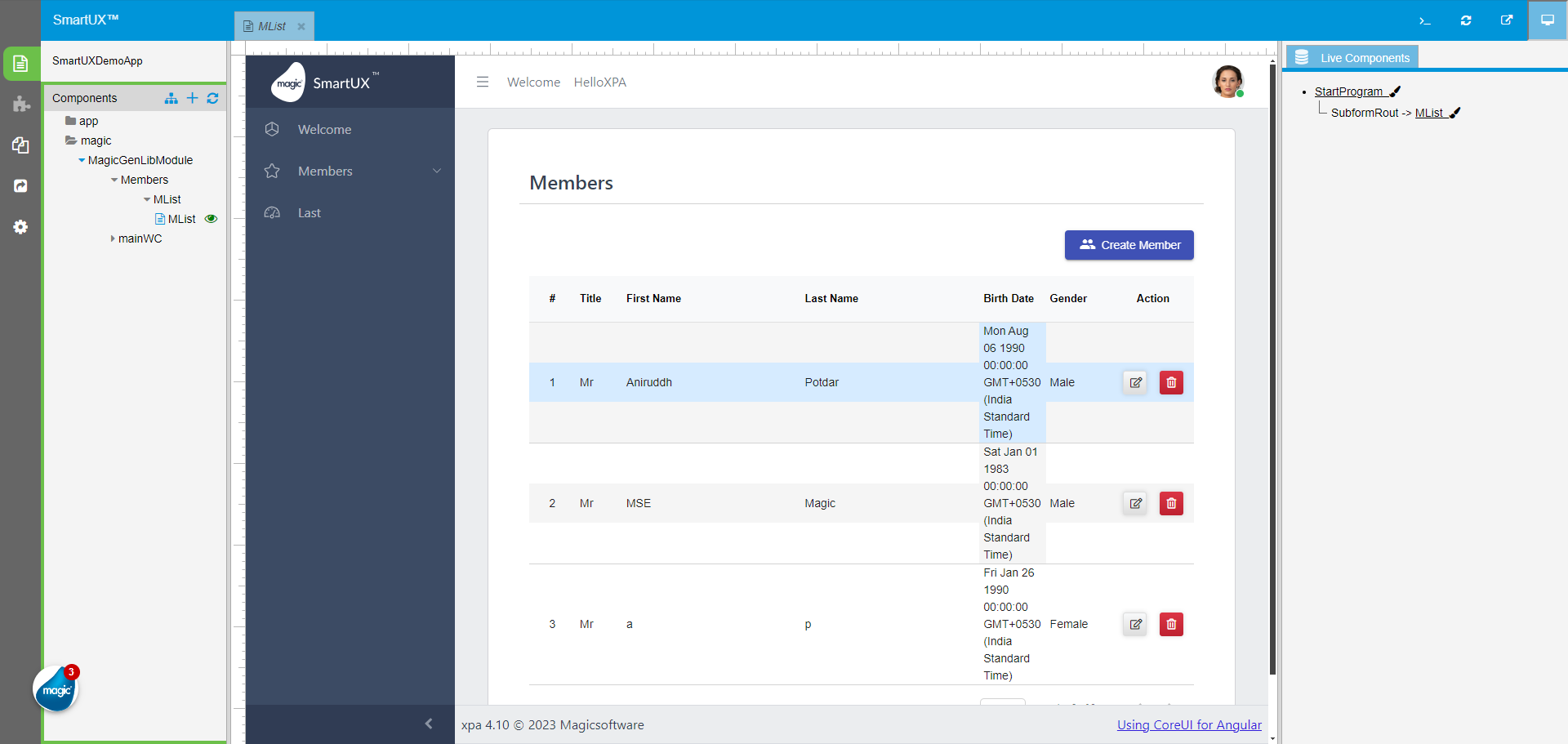
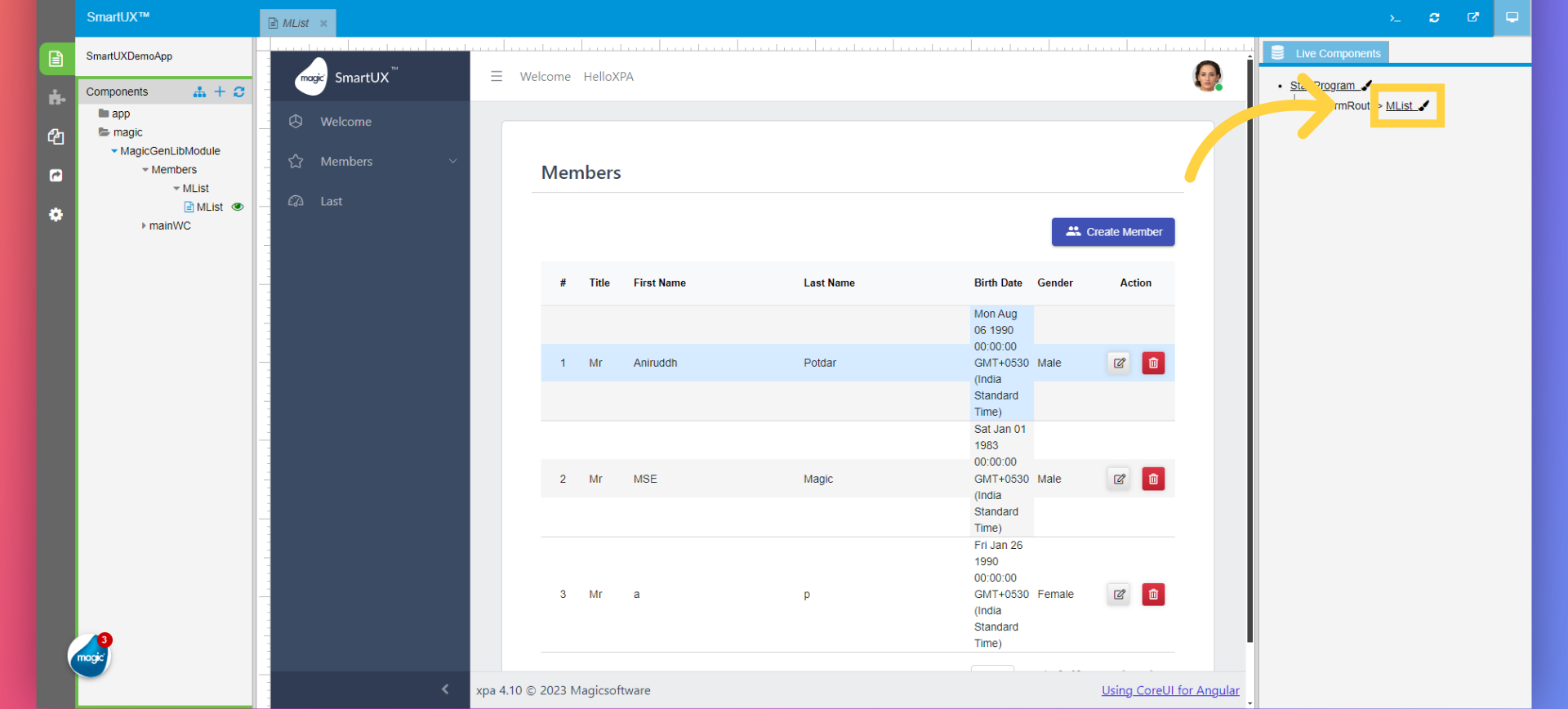
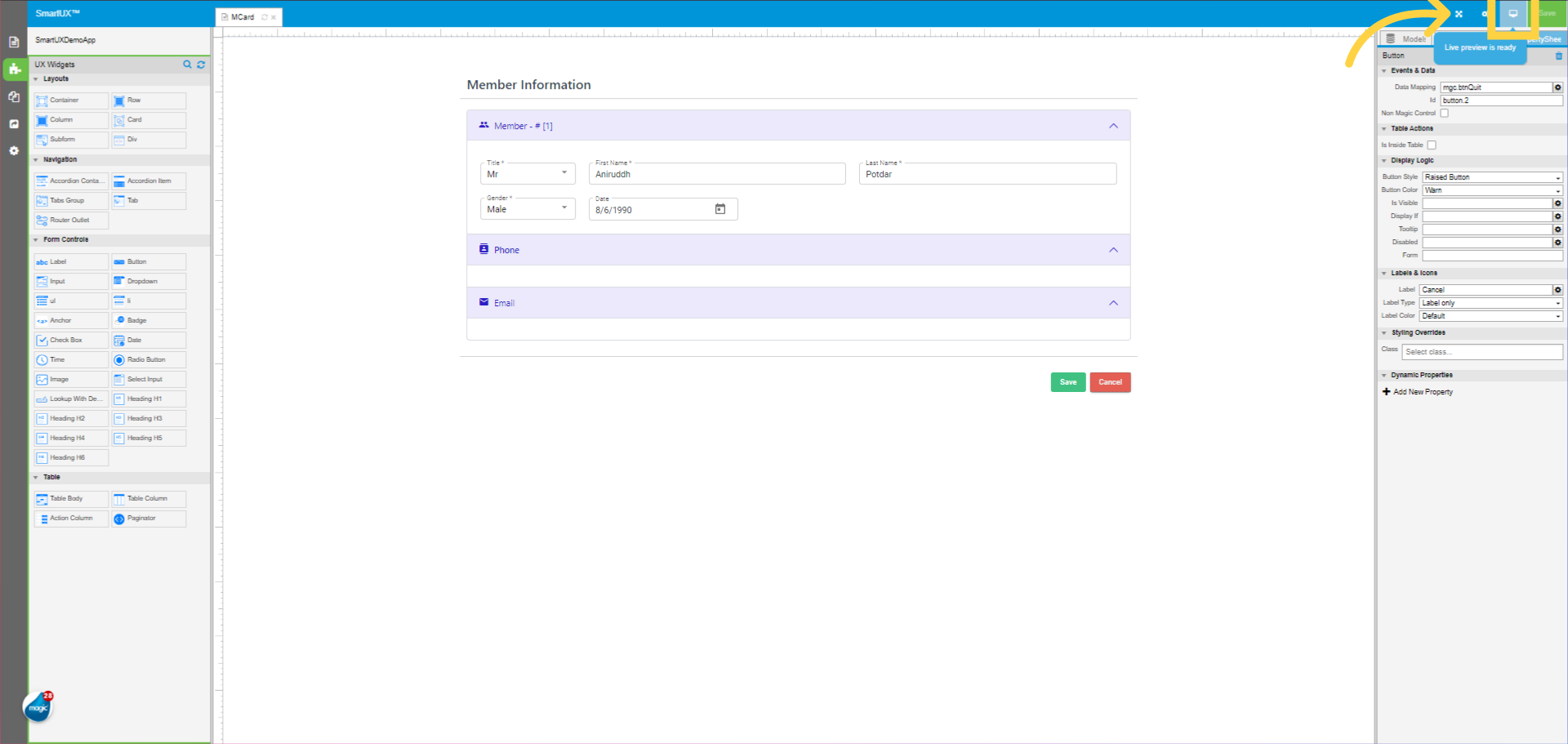
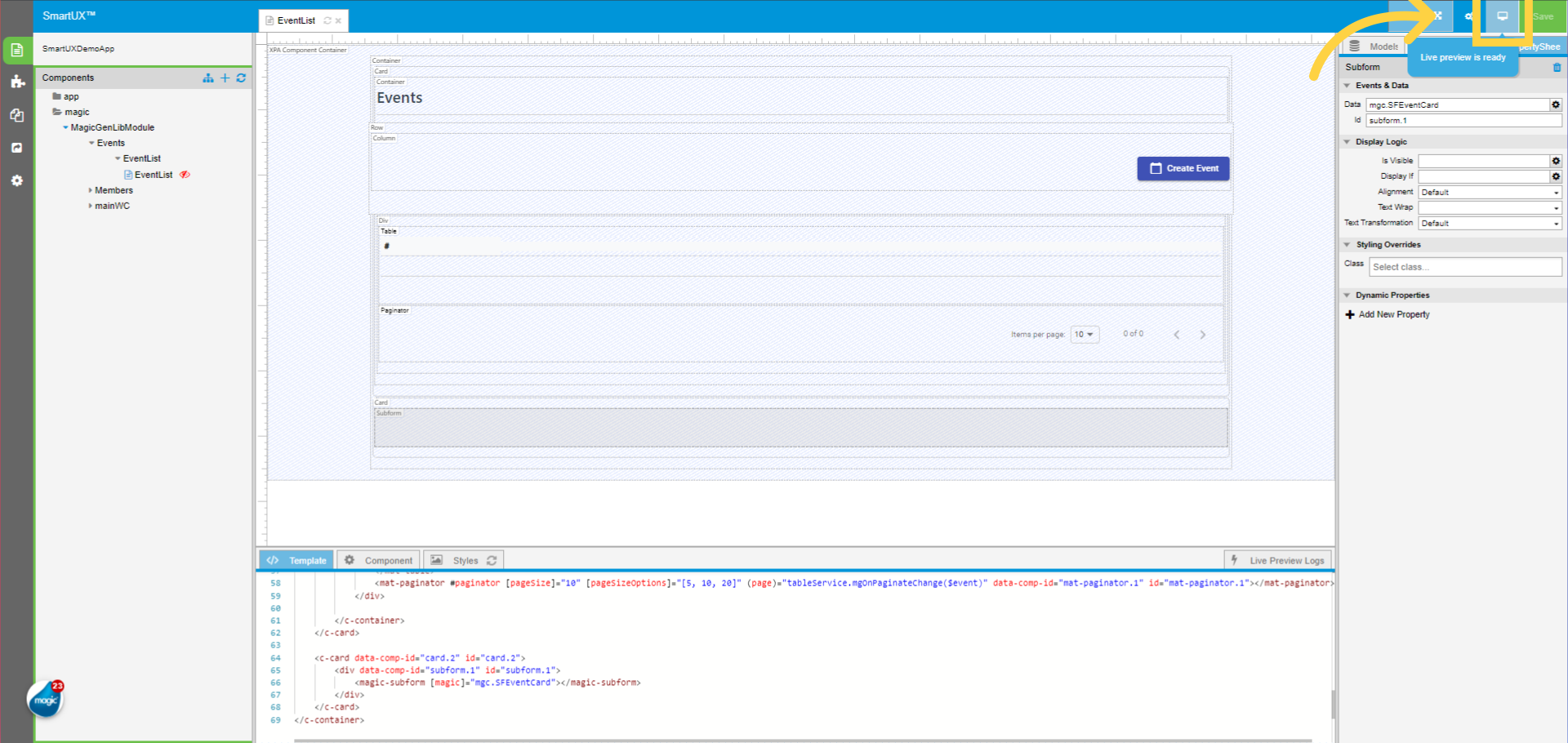
On creating the specified component, you can oversee the Angular application’s runtime by using Live Preview icon located in the upper-right corner of the SmartUX Studio interface.

This is where magic xpa is also active in runtime mode, making it straightforward.
For more information about the Live Preview, Routing, and Adding Programs, you can refer to how-to documents.

Create an empty project in Magic xpa for SmartUX Test Project


Learn how to create an empty project in Magic xpa for the SmartUX Demo Application with this easy-to-follow guide.

1. Click on the Options>>Settings>>Environment

To begin, let’s navigate to the Options menu in the Magic xpa. Click on the Options Menu. Upon clicking, you’ll see the Settings option. Park on the Settings. This will open a list of settings. In this list, you will see Environments Click on “Environments”. It will open a window that shows different environment settings.

2. Change the Deployment mode to Background

In the Environment settings window. You will see the System tab, Go to the Deployment Mode and change it to Background and click on the OK button. If it is already background, you can leave it as is. This setting is specifically required for the Web Client application.

3. Click on the New Project Enter a Project name and click OK

Let’s start by creating a new project in the Magic xpa for the SmartUX demo application. To do this, click on the “New Project” button. After clicking on “New Project,” a dialog box will appear prompting you to enter the project name. With the project name entered, Click “OK” to Create the Project.


4. The empty project

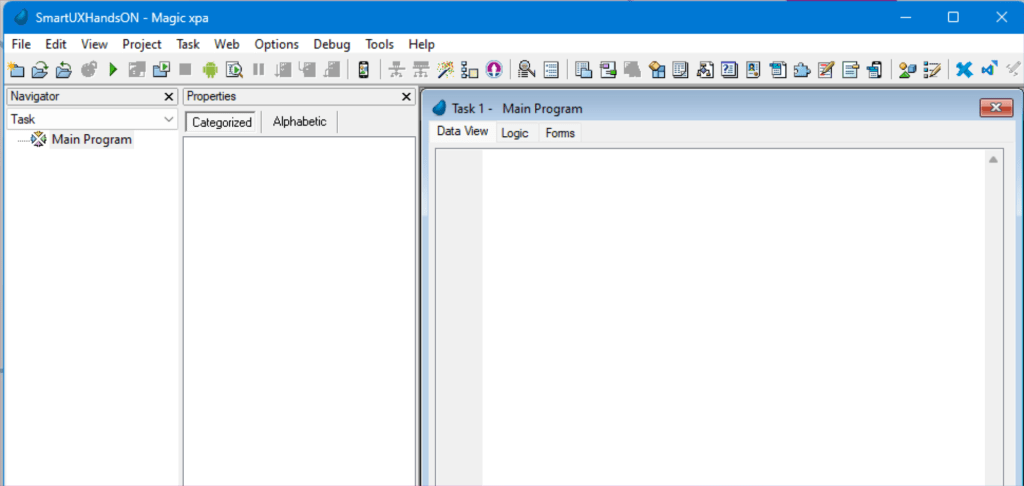
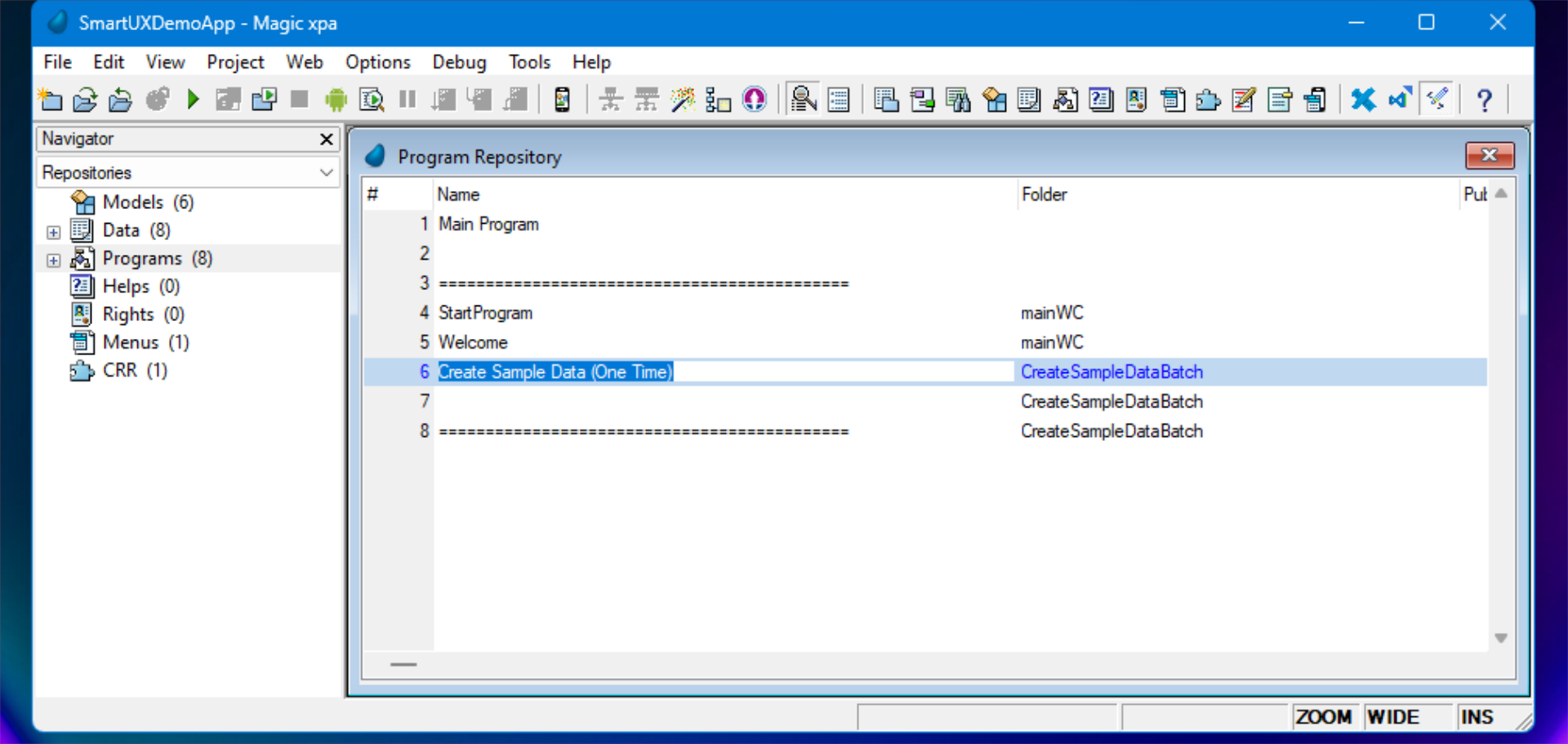
The newly created Magic xpa project will look like this containing a single program that is the Main Program. Double-click on the “Main Program” file in the Program Repository. Or park your cursor on the Main Program and press “F5” on your keyboard. Magic xpa Studio will open the “Main Program” for editing. 

5. The Main Program

Now you can start making changes to the Main Program to work with SmartUX.


6. Open Main Program properties

Right-click on the “Main Program”, then click “Properties”. Or Use Keyboard Shortcuts: Press “ALT+Enter”. or “CTRL+P”. This will open the Properties windows.

7. Goto Interface tab

The properties window will show the Main program Task information. Now, switch to the Interface Tab. 

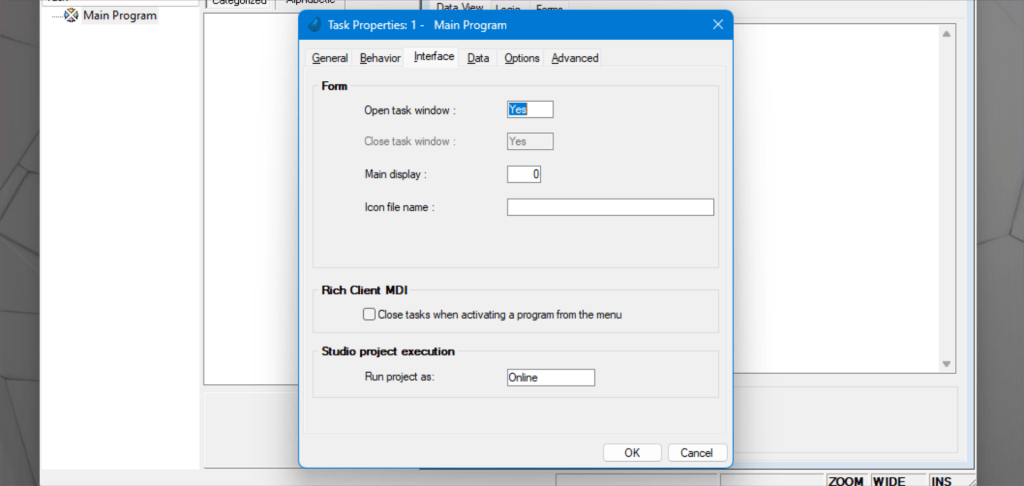
8. Change the – Open Task Window to No Change the – Run Project As to Web Client

Under the Interface Tab, Form section, Change the Open Task Window property to No. Now below, in the Studio Project Execution section, Change the Run Project As to Web Client. After this, click the OK button.

9. Save the Main Program changes

Moving forward, press the Escape key on the keyboard. This will open a confirmation dialog window, to Save the changes. Click on Yes to save the changes, this will take you to the Program repository. 

10. MgSmartUX.exe

As you save the Main Program, it will start the MgSmartUX.exe in the background. You can see the MgSmartUX.exe in the Task Manager Details Tab.

This article covered the process of creating an empty project in the Magic xpa for the SmartUX Demo Application. Follow the steps to set up your project effortlessly.

Getting Started

Welcome to the SmartUX Getting Started section, your gateway to a smooth and enriching journey into the world of SmartUX.

This dedicated section is designed to usher you effortlessly into the core functionalities and benefits of SmartUX, especially if you are a newcomer to the world of designing web applications.

Here, you will find step-by-step guides, tutorials, and resources carefully curated to help you navigate the initial stages of your exploration. From installation to configuration, we have crafted a user-friendly experience to ensure you are up and running in no time.

Empower yourself with the essential knowledge and practical insights needed to make the most of SmartUX, setting the stage for a successful and productive engagement.


SmartUX Studio Prerequisites

You need to install the following software tools before installing SmartUX Studio:

Tool Version Download
Python
2.7

rc9

PowerShell
7

rc9

Node
22.17.0

rc9

npm
10.9.2

rc9

Angular CLI
19.2.5

rc9

Tool Version Download
Python
2.7

rc9

PowerShell
7

rc9

Node
18.20.2

rc9

npm
10.5.0

rc9

Angular CLI
17.3.7

rc9

Tool Version Download
Python
2.7

rc9

PowerShell
7

rc9

Node
16.15.1

rc9

npm
8.17.0

rc9

Angular CLI
15.2.4

rc9

Installing SmartUX Studio Latest Version

Learn how to upgrade SmartUX Studio using a script efficiently.

1. Pre-requisite for Using The Script

  • To upgrade to the latest version of SmartUX Studio, please verify that you have both PowerShell 7 and 7-Zip installed in your environment.

  • Next, rename or relocate the current SmartUX folder from the Magic xpa installation directory to start the upgrade process.

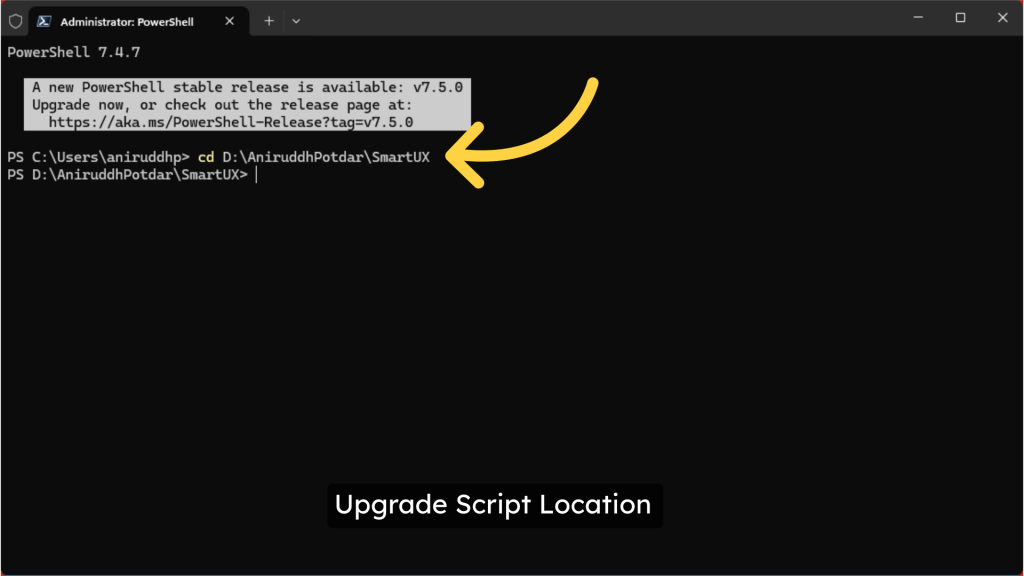
2. Upgrade Script Location

  • Launch PowerShell with Administrator privileges and navigate to the directory where you have downloaded or stored the “UpgradeSmartUXStudio.ps1” script.

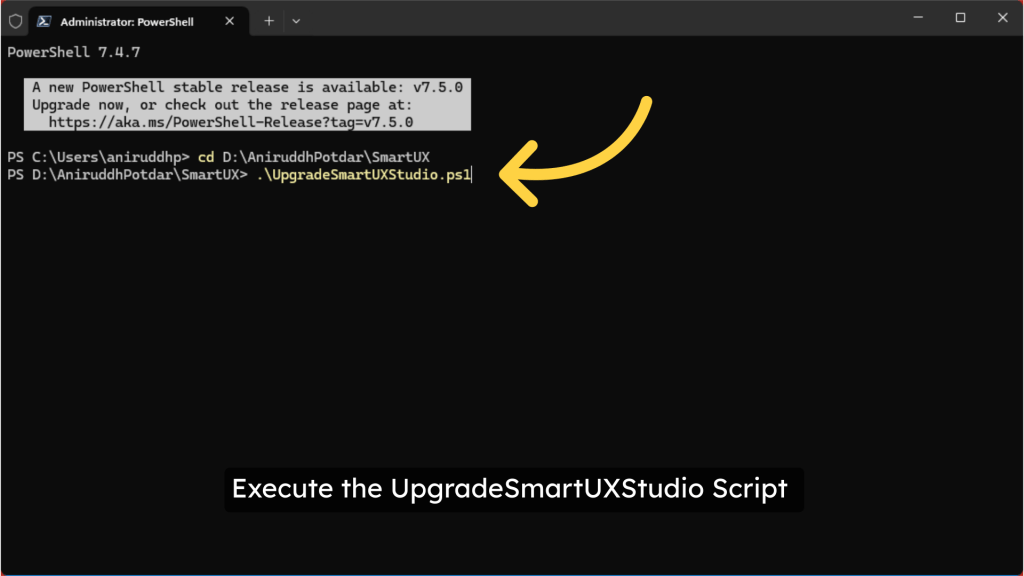
3. Execute the UpgradeSmartUXStudio Script

  • Next, you should proceed to execute the UpgradeSmartUXStudio script to initiate the upgrade process.
  • This step is crucial as it facilitates the transition to the latest version, ensuring that all enhancements and new features are properly implemented.

4. SmartUX ZIP Location

  • When you run the script, you will be prompted to provide the path to the location where you have downloaded the latest version of the SmartUX ZIP file.
  • Please ensure you enter the correct path.

5. Magic xpa Installation Directory

  • You will now be prompted to specify the path to the Magic xpa installation directory.
  • The script will then extract all necessary files to this directory in the appropriate manner.

6. Extraction in Progress

  • After entering both the ZIP and XPA directory paths, the extraction process will commence.

7. Extraction Completed Successfully

  • The extraction process may take a few minutes to complete.
  • Once it finishes, please press Enter.

Congratulations! You have successfully upgraded to the latest version of SmartUX Studio. This guide provided detailed steps to upgrade SmartUX Studio using the Script.

Best of luck with your development!

Welcome to our guide on upgrading the version of SmartUX! If you already have the Magic XPA version installed, this guide will walk you through the necessary steps to upgrade SmartUX to the latest version. Follow the instructions below to ensure a smooth upgrade process.

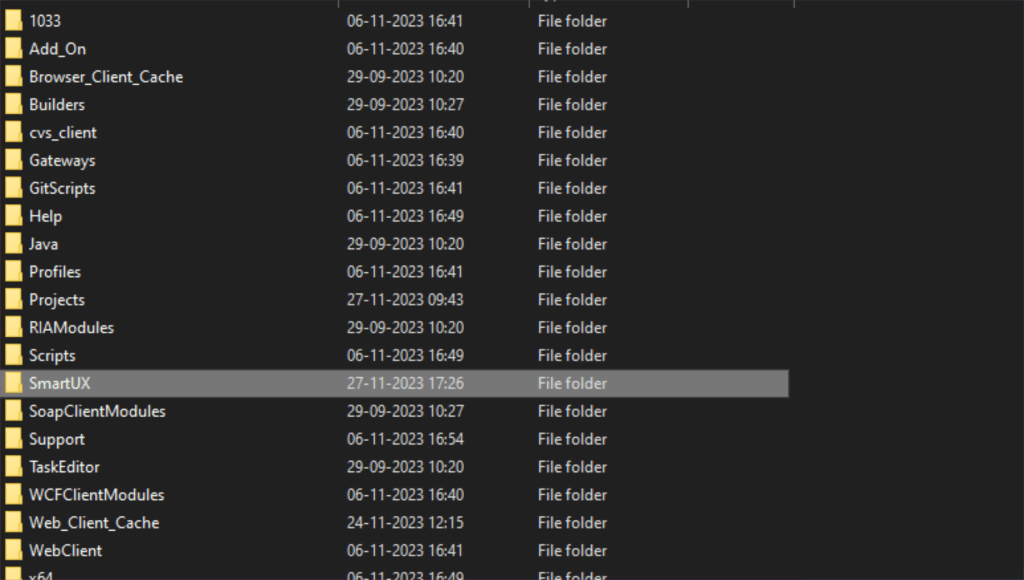
1. Go to your Magic XPA installation folder

oldSmartUXFolder

2. Delete the existing SmartUX folder from the xpa installation path

The first thing you will need to do is to delete the existing SmartUX folder from the Magic xpa installation path.

delete-folder

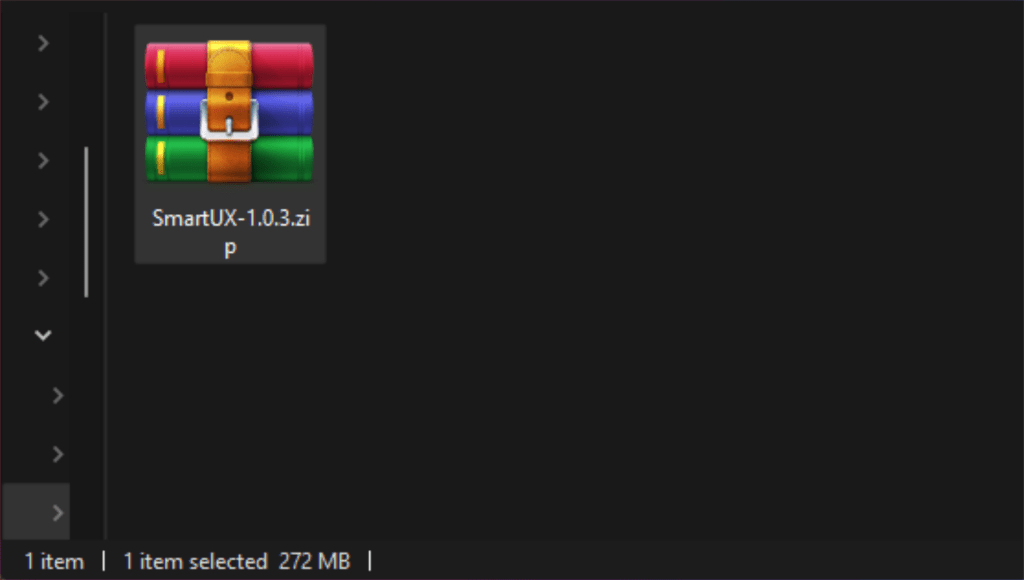
3. Extract the latest SmartUX build zip

Download the latest SmartUX build and extract the build zip at your desired path.

4. After extraction, the folder contains two zip files.

The extracted folder should look like this, which contains two zip files.

  • SmartUX.zip
  • Templates.zip

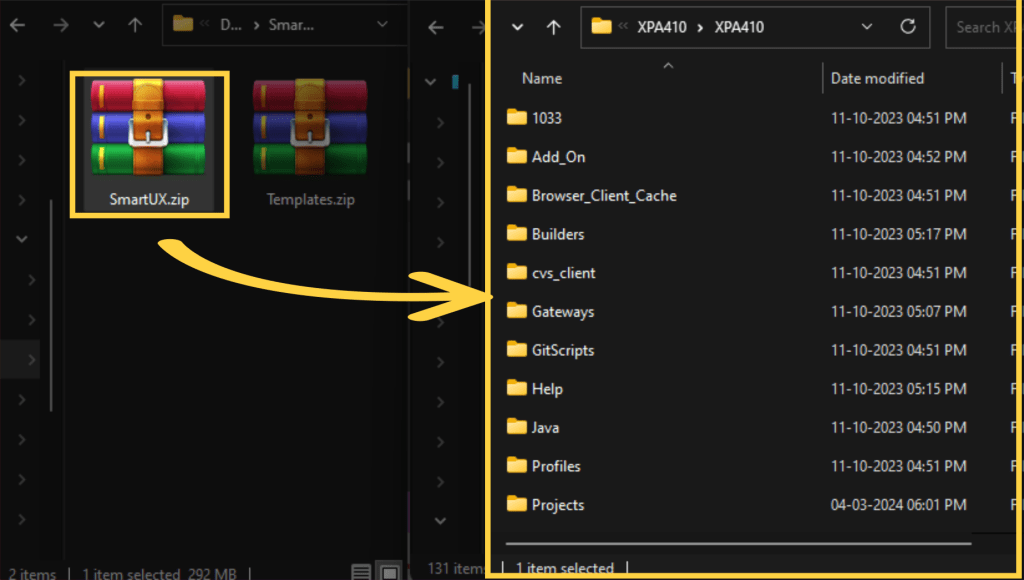
5. Path to extract SmartUX.zip

Now, you need to extract the artifacts, SmartUX.zip, to the XPA installation path. This should create a SmartUX folder in the XPA installation path.

6. After extraction of SmartUX.zip

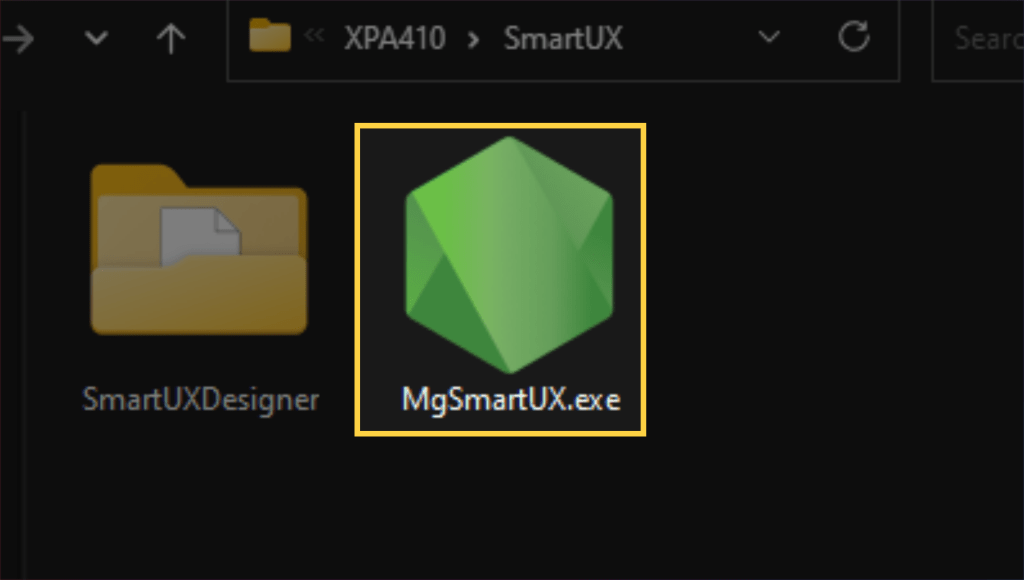
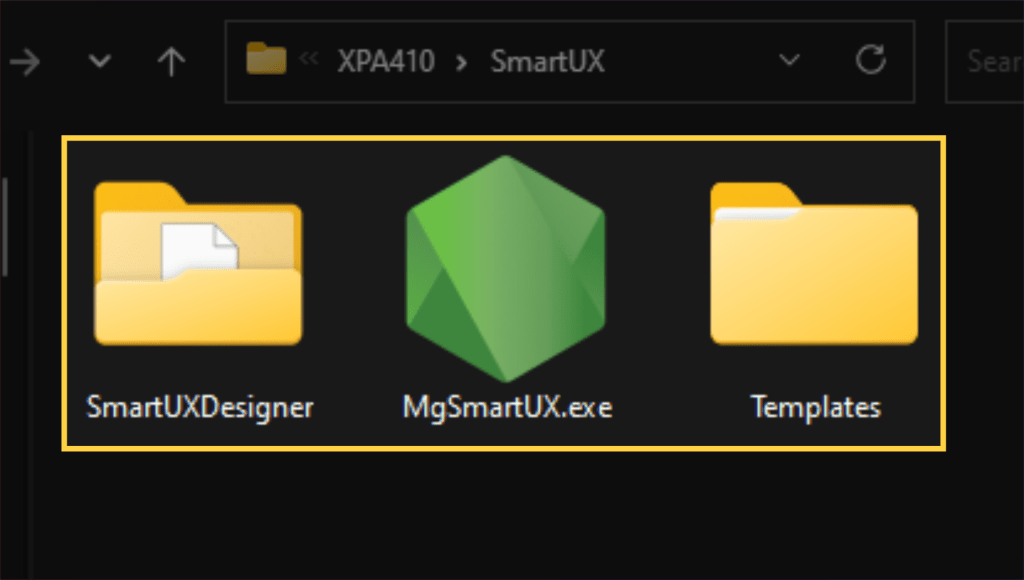
The extracted SmartUX folder should look like this, which contains the artifacts for MgSmartUX.exe that need to run correctly.

7. MgSmartUX.exe

MgSmartUX.exe is the executable that is responsible for starting the SmartUX background engine.

8. Templates.zip from SmartUX build extracted folder

Now, you need to extract the Templates.zip to the XPA installation\SmartUX folder path.

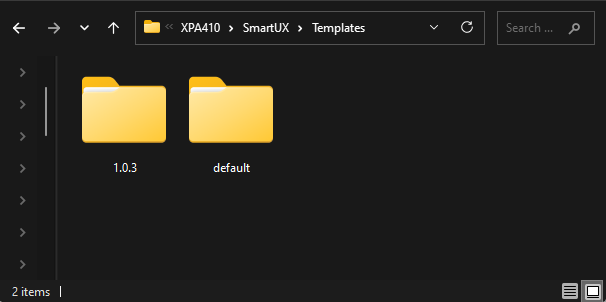
The created Templates folder will contain two folders.

    • A folder with the build number.
    • A default folder.

and these folders contain the required files for:

    • Application Template
    • Component Template
    • Widgets


9. SmartUX folder

Your SmartUX folder should look like this at the end. You are now ready to enjoy the latest version of SmartUX with Magic XPA.

SmartUX Studio UI

To understand the user interface of SmartUX in detail, please watch this video.

This guide will walk you through the steps to using .

1. Left Pane

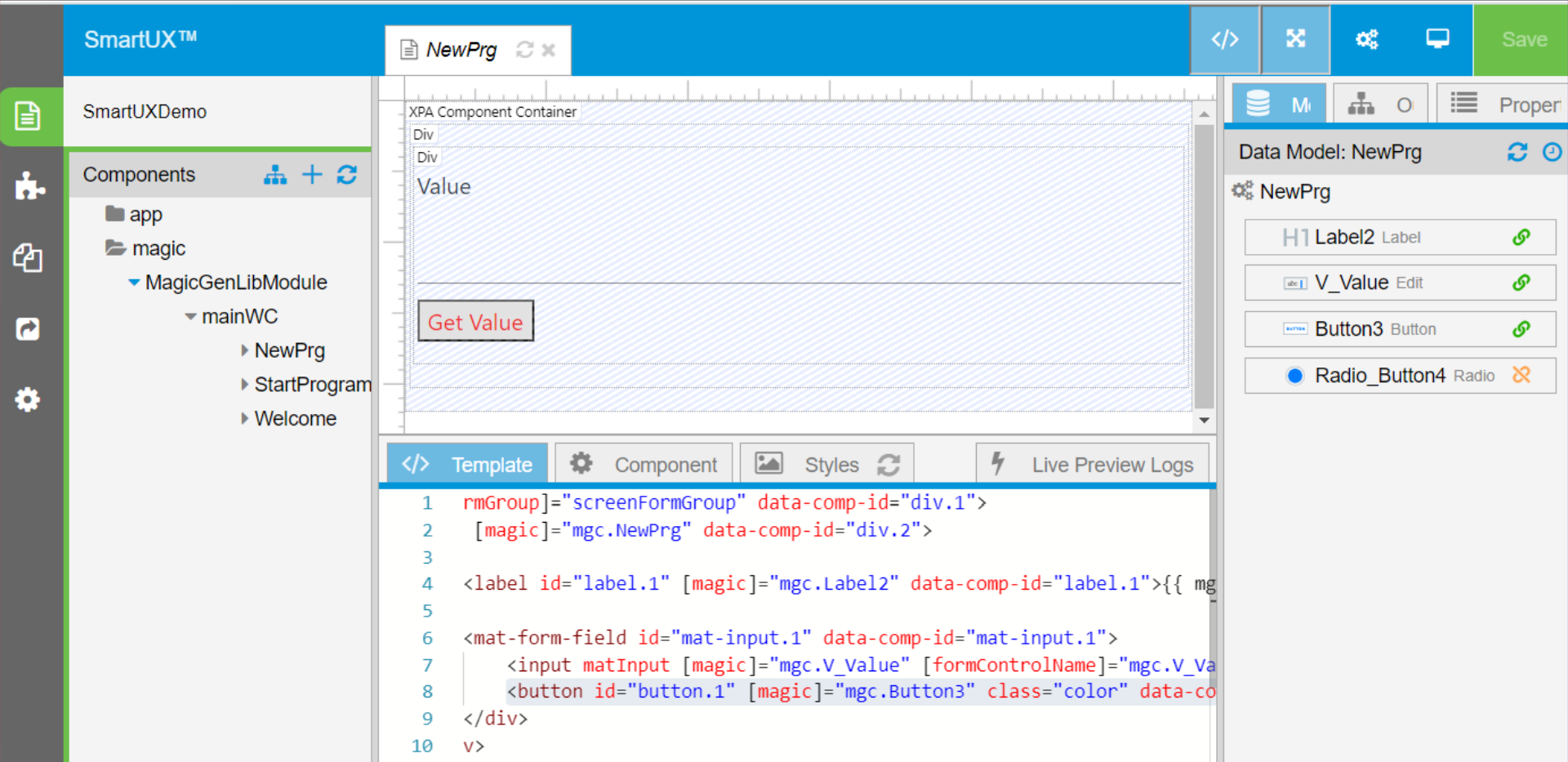
This represents the user interface for SmartUX Studio, which is organized into four sections: the Left Pane, Canvas middle pane, Bottom pane and the Right Pane.

2. Components

Let us know about the left pane.

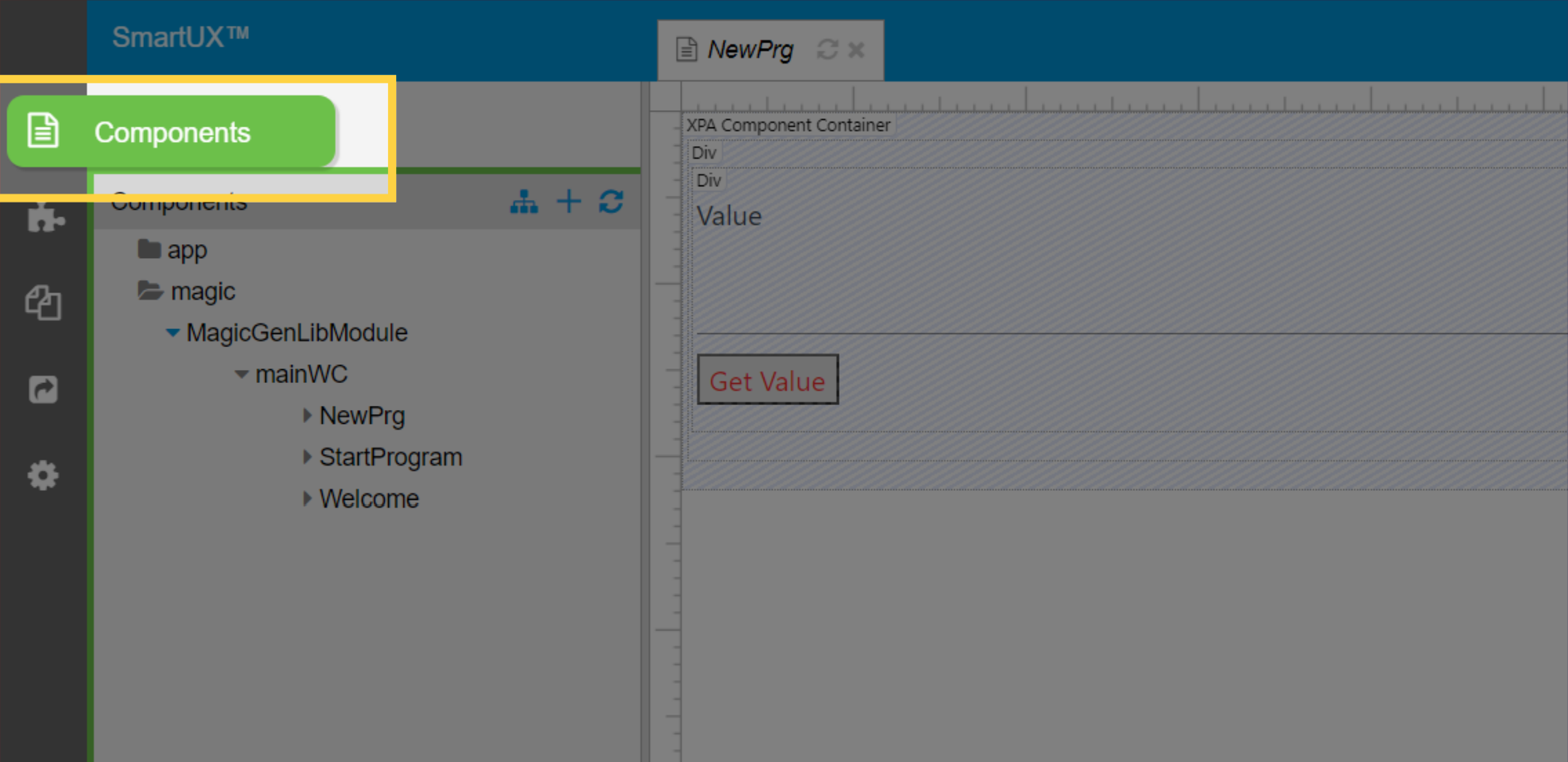
Components: This section showcases the existing components within the application. once, user select one of the components, the bottom pane, canvas and the models pane would showcase details about that specific component.

3. UX Widgets

UX Widgets provides screen arrangements and user experience widgets that can be employed for creating form designs.

4. All Files

All Files: Show all the files utilized in the project with the “All Files” feature.
It also allows you to access and modify the files.

5. Build Application

Initiate Application Build – This prompts the application build dialog to construct the project within the deployment environment.

6. App Settings

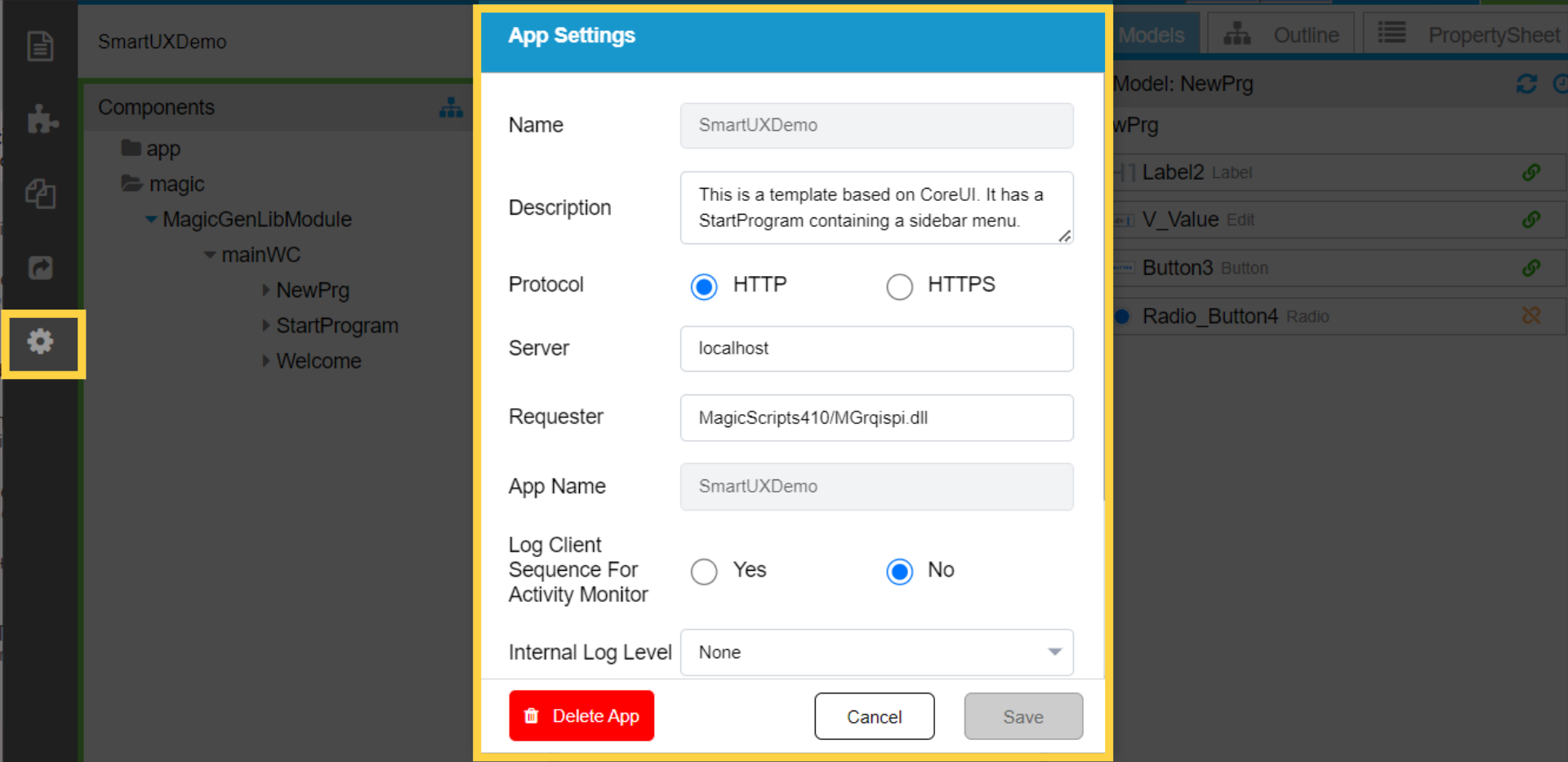
App Settings – This opens the dialogue for configuring project-related settings within the application.

7. Canvas

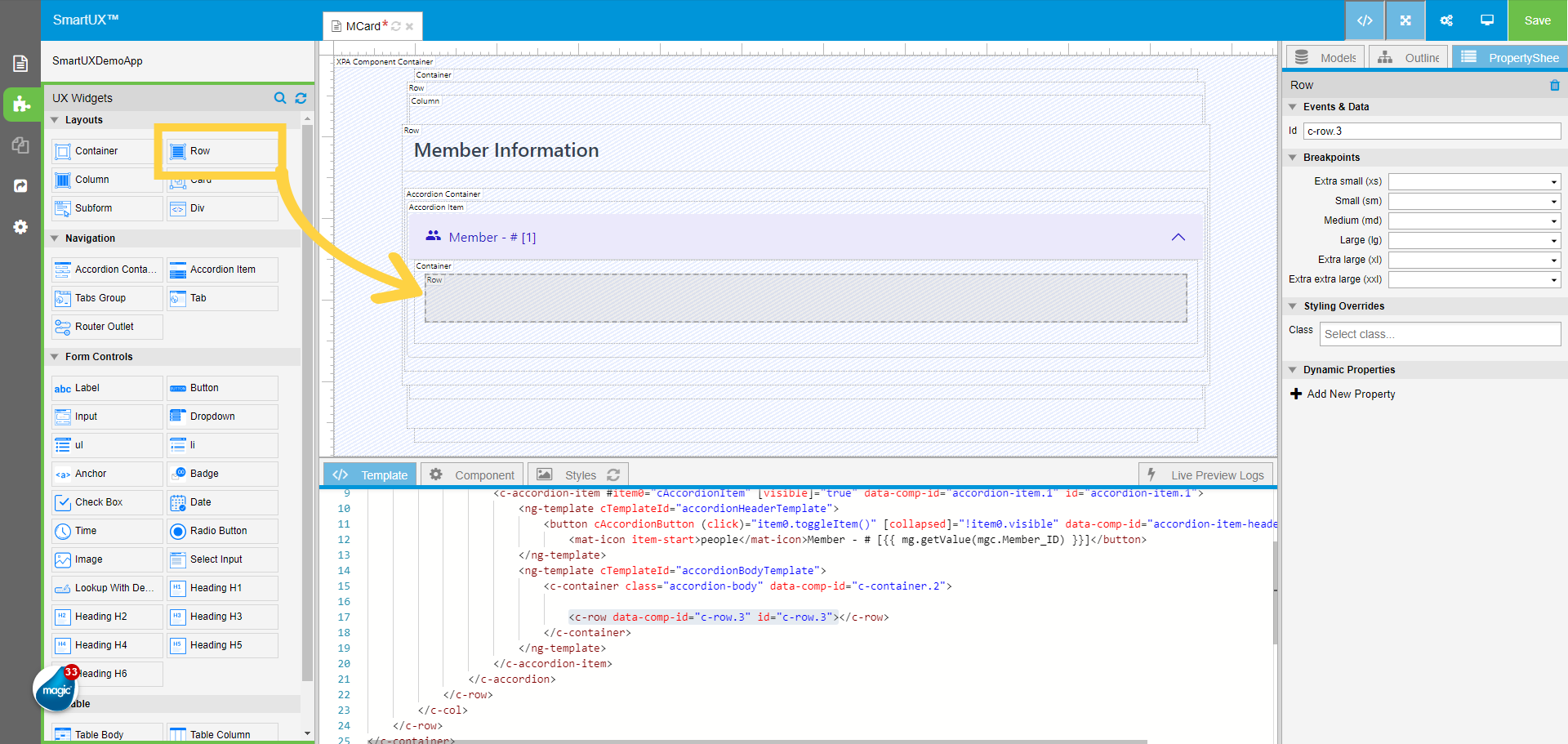
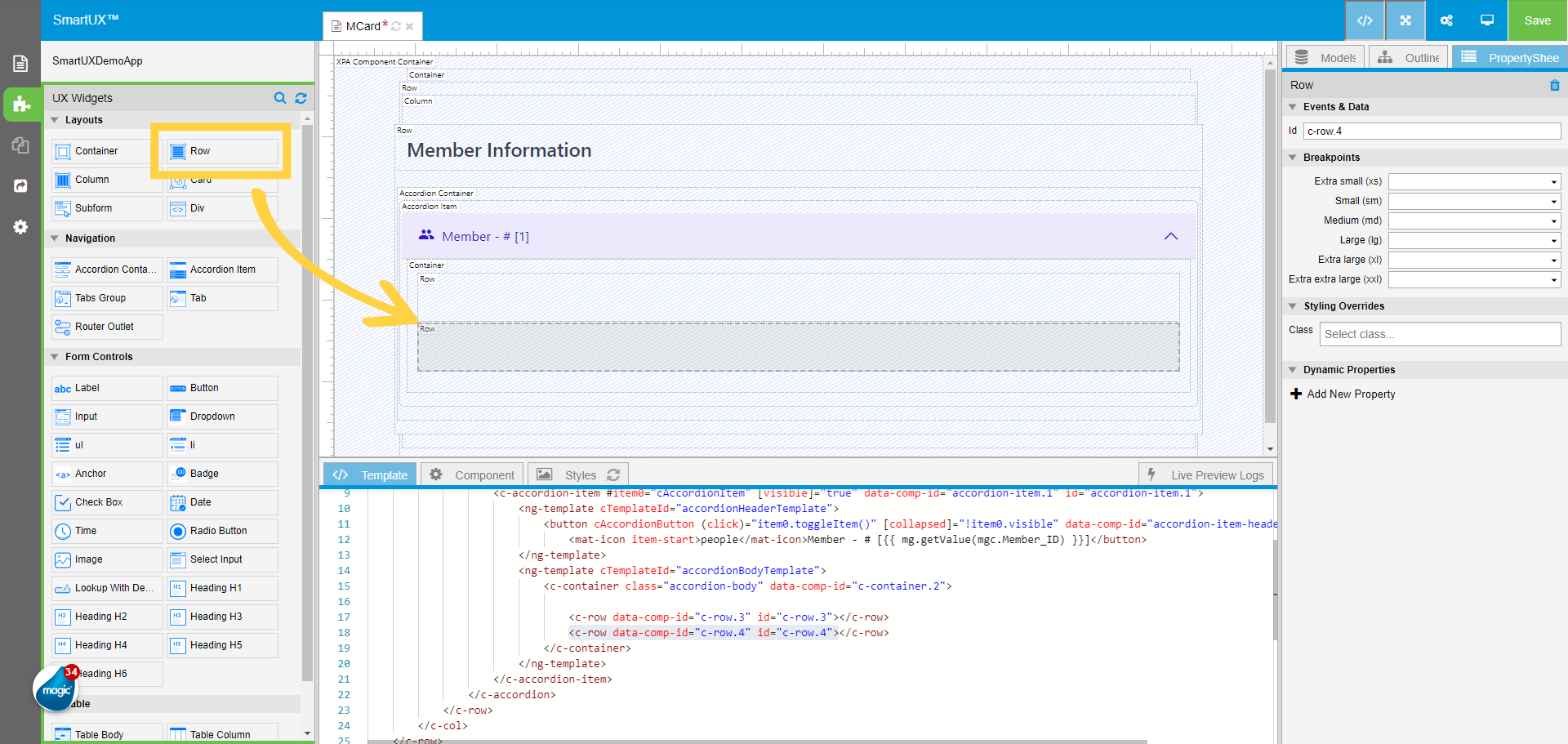
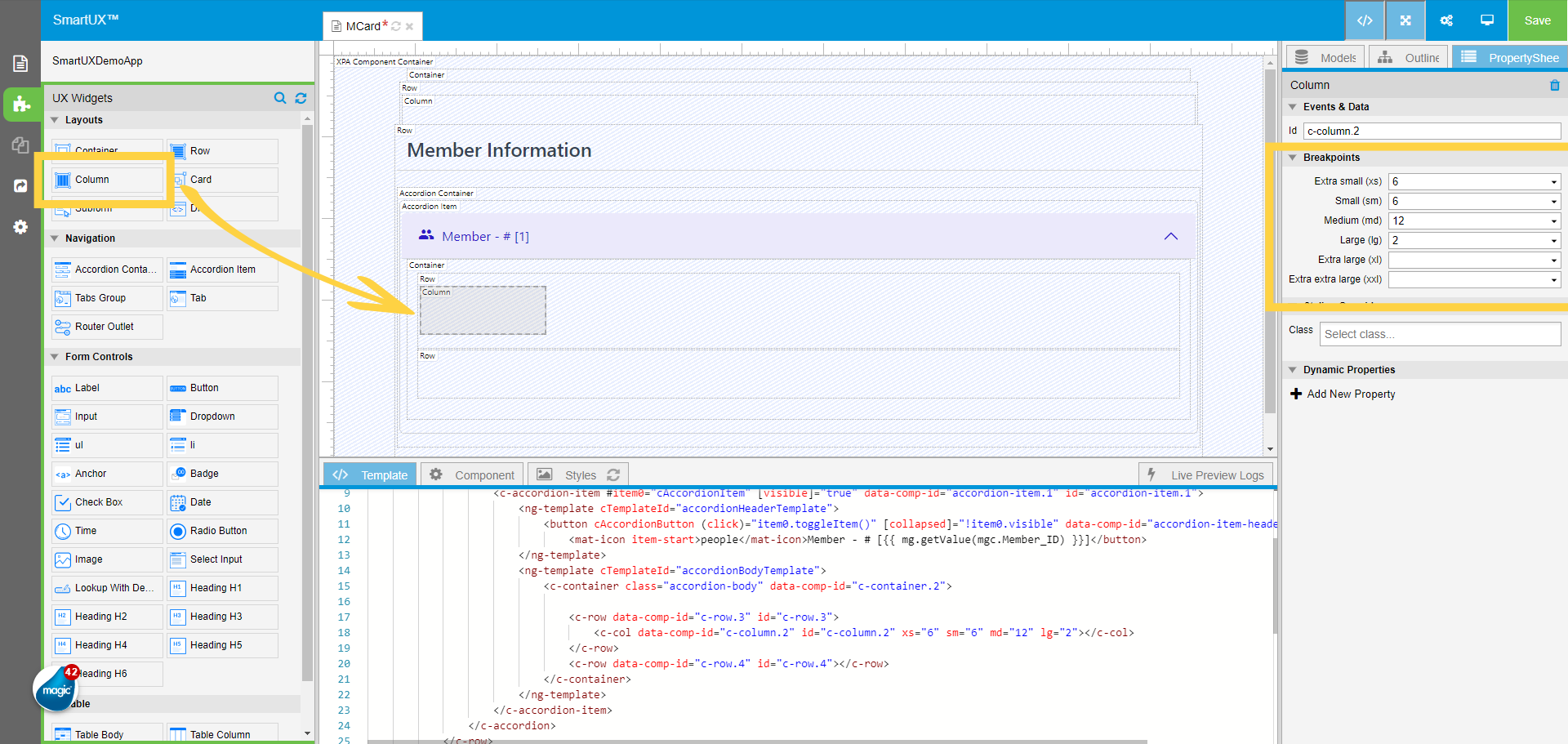
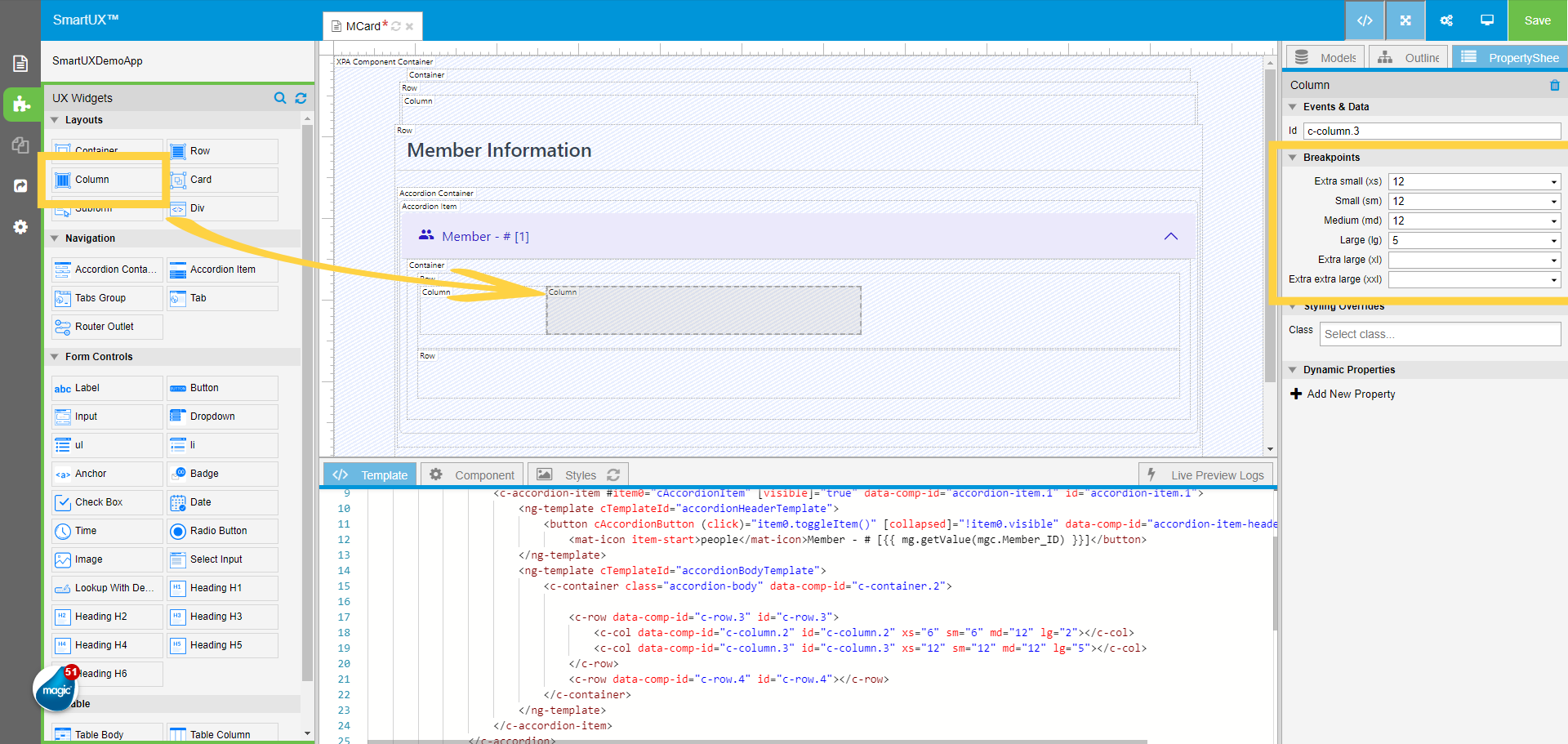
Inform us about the central panel known as the Canvas, which serves as the design area. Within this space, you have the ability to drag and drop UX widgets, enabling you to design a form for your application.

8. Templates

Templates …Displays the HTML representation of the component through templates.

9. Component

Component In this section, you can include the file paths for the behavior and styling of your application. This corresponds to the .ts file of the chosen component in Angular.

10. Styles

Styles You can create and modify Style definitions for the angular component here

11. Live Preview Logs

Live Preview logs exhibit a record of the live preview.

12. Models

Let us know the Right Pane.
Models pane. It is the list of controls of the magic xpa Form.

13. Outline

The outline panel on the right side exhibits the tree structure that outlines the widgets based on your template within the canvas.

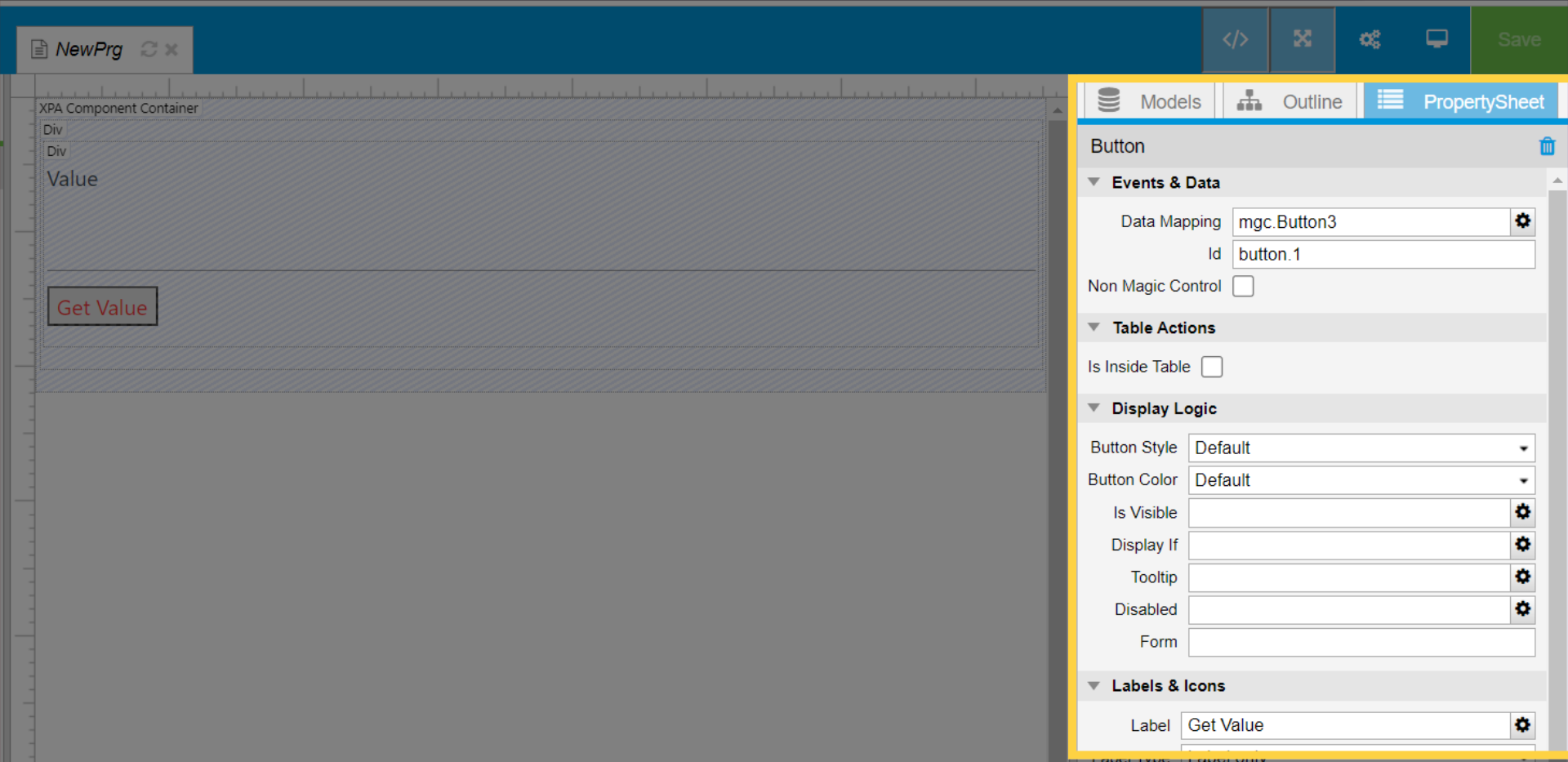
14. Property Sheet

Property Sheet This is a compilation of all the properties associated with the chosen Widget.

This is the brief introduction of SmartUX User Interface

SmartUX Studio Prerequisites

You need to install the following software tools before installing SmartUX Studio:

Tool Version Download
Python
2.7

rc9

PowerShell
7

rc9

Node
22.17.0

rc9

npm
10.9.2

rc9

Angular CLI
19.2.5

rc9

Tool Version Download
Python
2.7

rc9

PowerShell
7

rc9

Node
18.20.2

rc9

npm
10.5.0

rc9

Angular CLI
17.3.7

rc9

Tool Version Download
Python
2.7

rc9

PowerShell
7

rc9

Node
16.15.1

rc9

npm
8.17.0

rc9

Angular CLI
15.2.4

rc9

動画

Installing SmartUX Studio Latest Version

Learn how to upgrade SmartUX Studio using a script efficiently.

1. Pre-requisite for Using The Script

  • To upgrade to the latest version of SmartUX Studio, please verify that you have both PowerShell 7 and 7-Zip installed in your environment.

  • Next, rename or relocate the current SmartUX folder from the Magic xpa installation directory to start the upgrade process.

2. Upgrade Script Location

  • Launch PowerShell with Administrator privileges and navigate to the directory where you have downloaded or stored the “UpgradeSmartUXStudio.ps1” script.

3. Execute the UpgradeSmartUXStudio Script

  • Next, you should proceed to execute the UpgradeSmartUXStudio script to initiate the upgrade process.
  • This step is crucial as it facilitates the transition to the latest version, ensuring that all enhancements and new features are properly implemented.

4. SmartUX ZIP Location

  • When you run the script, you will be prompted to provide the path to the location where you have downloaded the latest version of the SmartUX ZIP file.
  • Please ensure you enter the correct path.

5. Magic xpa Installation Directory

  • You will now be prompted to specify the path to the Magic xpa installation directory.
  • The script will then extract all necessary files to this directory in the appropriate manner.

6. Extraction in Progress

  • After entering both the ZIP and XPA directory paths, the extraction process will commence.

7. Extraction Completed Successfully

  • The extraction process may take a few minutes to complete.
  • Once it finishes, please press Enter.

Congratulations! You have successfully upgraded to the latest version of SmartUX Studio. This guide provided detailed steps to upgrade SmartUX Studio using the Script.

Best of luck with your development!

Welcome to our guide on upgrading the version of SmartUX! If you already have the Magic XPA version installed, this guide will walk you through the necessary steps to upgrade SmartUX to the latest version. Follow the instructions below to ensure a smooth upgrade process.

1. Go to your Magic XPA installation folder

oldSmartUXFolder

2. Delete the existing SmartUX folder from the xpa installation path

The first thing you will need to do is to delete the existing SmartUX folder from the Magic xpa installation path.

delete-folder

3. Extract the latest SmartUX build zip

Download the latest SmartUX build and extract the build zip at your desired path.

4. After extraction, the folder contains two zip files.

The extracted folder should look like this, which contains two zip files.

  • SmartUX.zip
  • Templates.zip

5. Path to extract SmartUX.zip

Now, you need to extract the artifacts, SmartUX.zip, to the XPA installation path. This should create a SmartUX folder in the XPA installation path.

6. After extraction of SmartUX.zip

The extracted SmartUX folder should look like this, which contains the artifacts for MgSmartUX.exe that need to run correctly.

7. MgSmartUX.exe

MgSmartUX.exe is the executable that is responsible for starting the SmartUX background engine.

8. Templates.zip from SmartUX build extracted folder

Now, you need to extract the Templates.zip to the XPA installation\SmartUX folder path.

The created Templates folder will contain two folders.

    • A folder with the build number.
    • A default folder.

and these folders contain the required files for:

    • Application Template
    • Component Template
    • Widgets


9. SmartUX folder

Your SmartUX folder should look like this at the end. You are now ready to enjoy the latest version of SmartUX with Magic XPA.

Open SmartUX Studio

This guide will walk you through a series of interactions within SmartUX Studio. From creating new projects to accessing logs and switching between components, follow the engaging instructions to navigate effectively.

1. Open SmartUX Studio

Now we are set to open the SmartUX studio. Here are the step-by-step instructions: – You can open SmartUX Studio from the Web Menu and click on Open in SmartUX studio Or – Click on the SmartUX studio icon Or – You can use a keyboard shortcut CTRL+Shift+X.

Open SmartUX Studio


2. Select Template

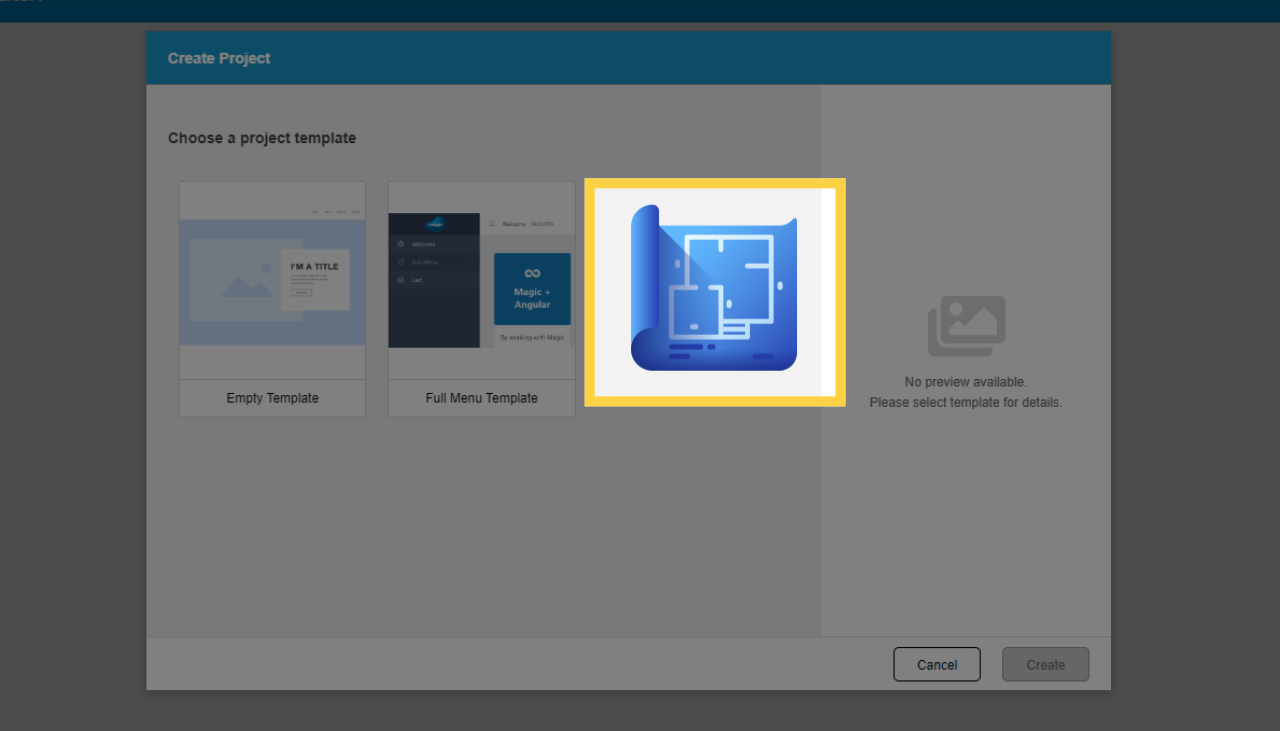
A new browser window will be opened with the Create application screen. Select any template from the template list say Full Menu Template.


3. Click Create

Click on Create.


4. Overwrite the Main Program window in Magic xpa

Switch to XPA Studio. Here the studio is importing the project for the selected application template. Please click on Yes or No as per your preference.


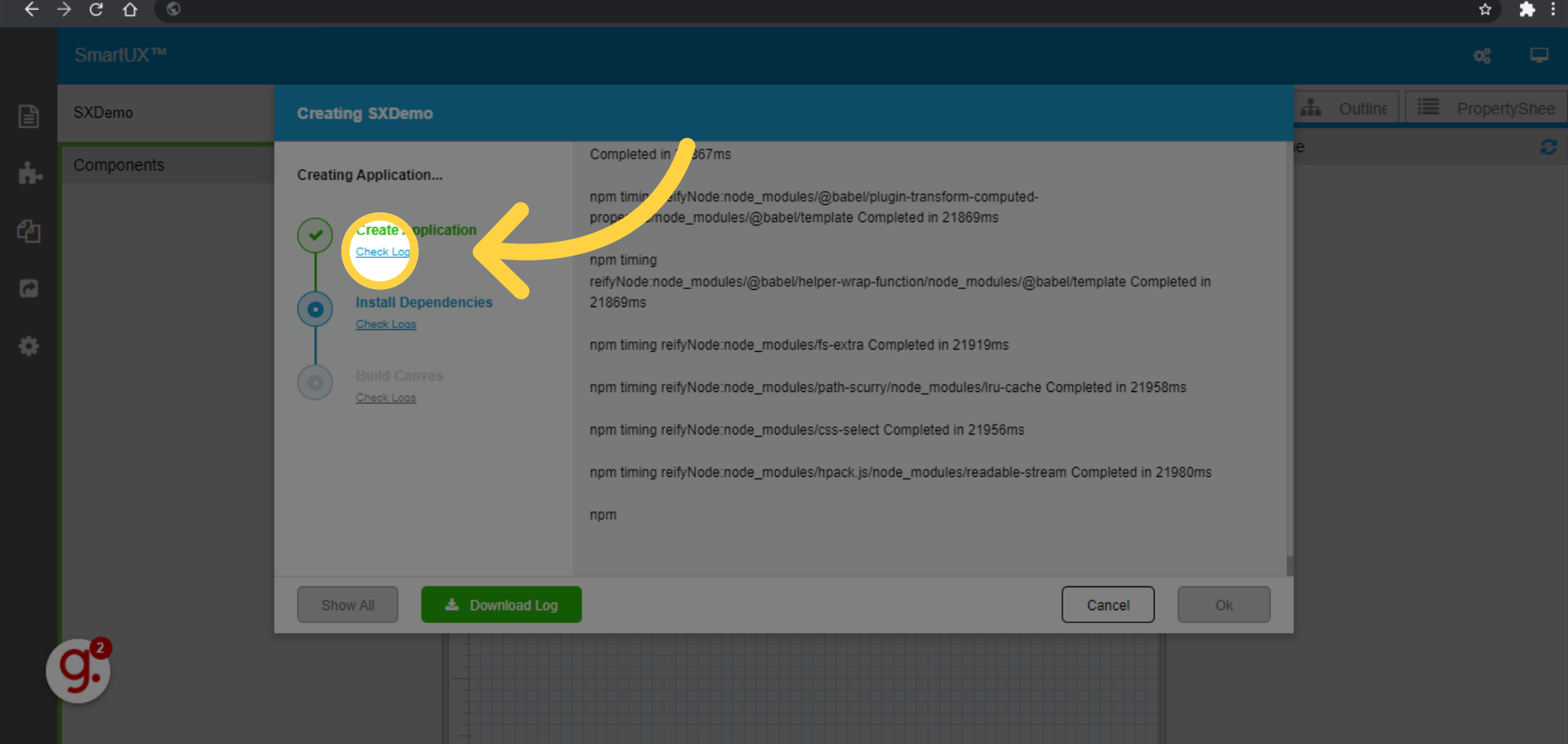
5. App Create Window

Switch to the browser window. This window will show the progress of creating a new application. You can go through different links to see logs for specific steps.


6. App Create Window

You can go back to all logs view by clicking on Show All.


7. App Creation Completed

Once the app is created the OK button gets enabled. Click to complete the process and go to the created application.


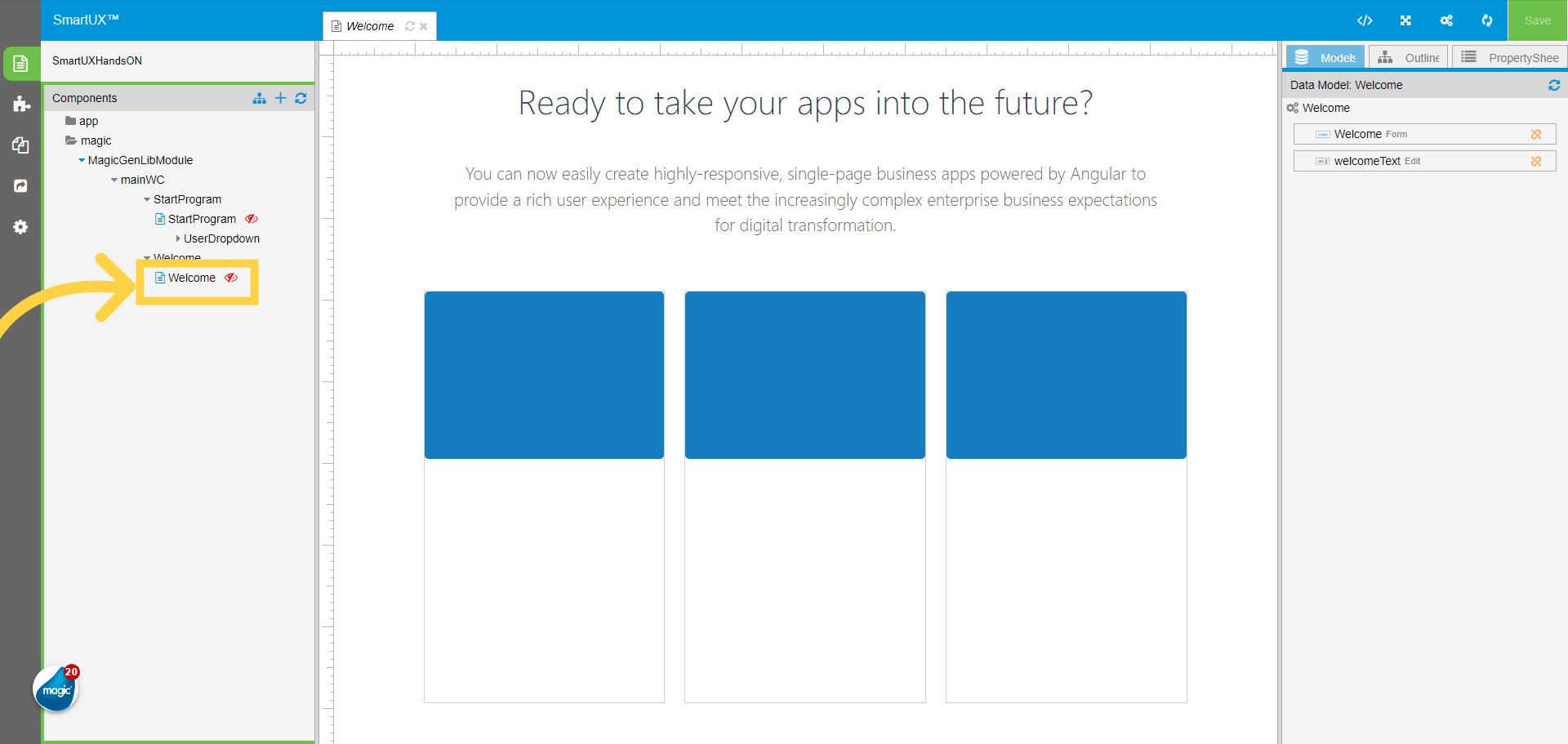
8. Welcome component

Click on the Welcome component to open it in Canvas.


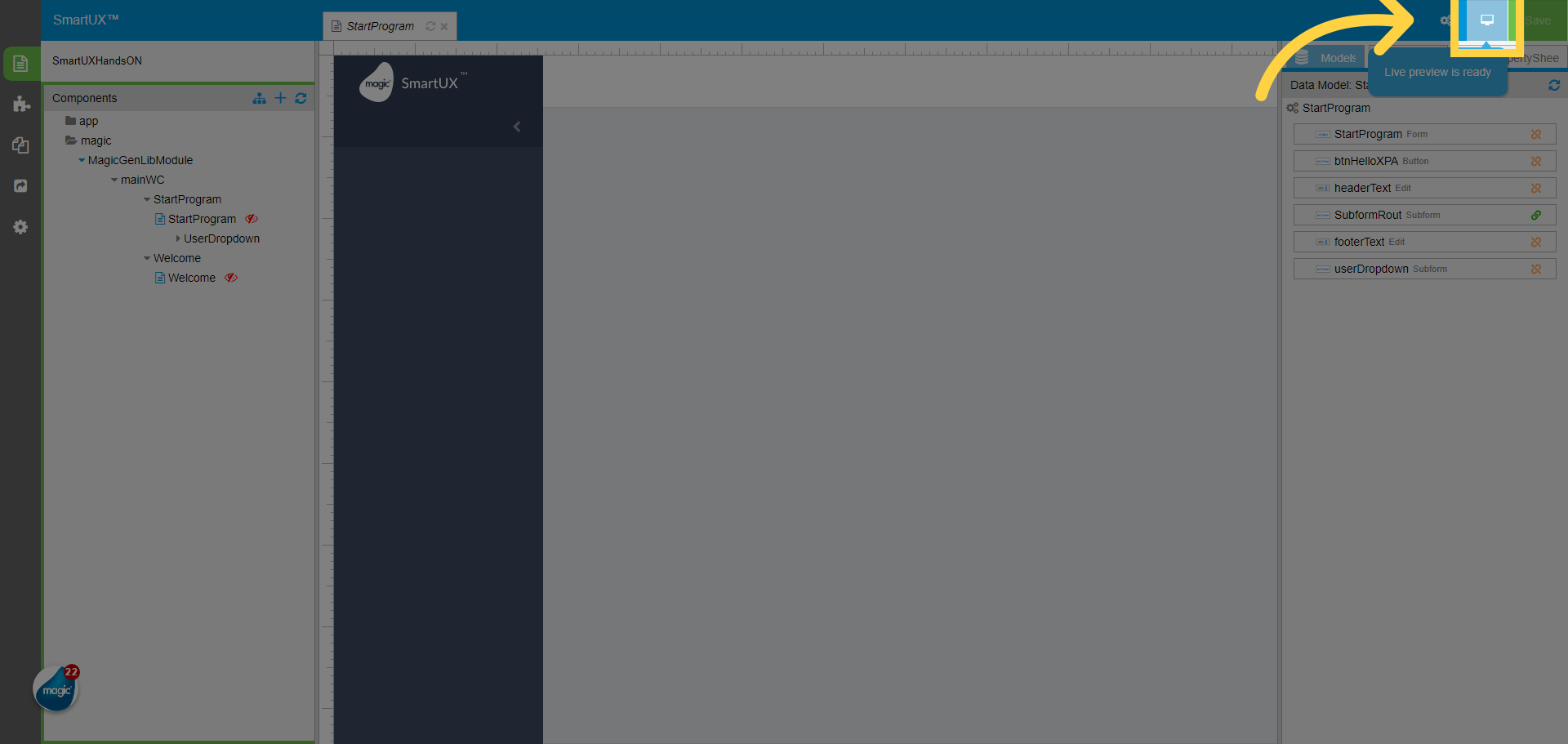
9. Click on Live Preview

To check the runtime of the application, click on the Live Preview icon.


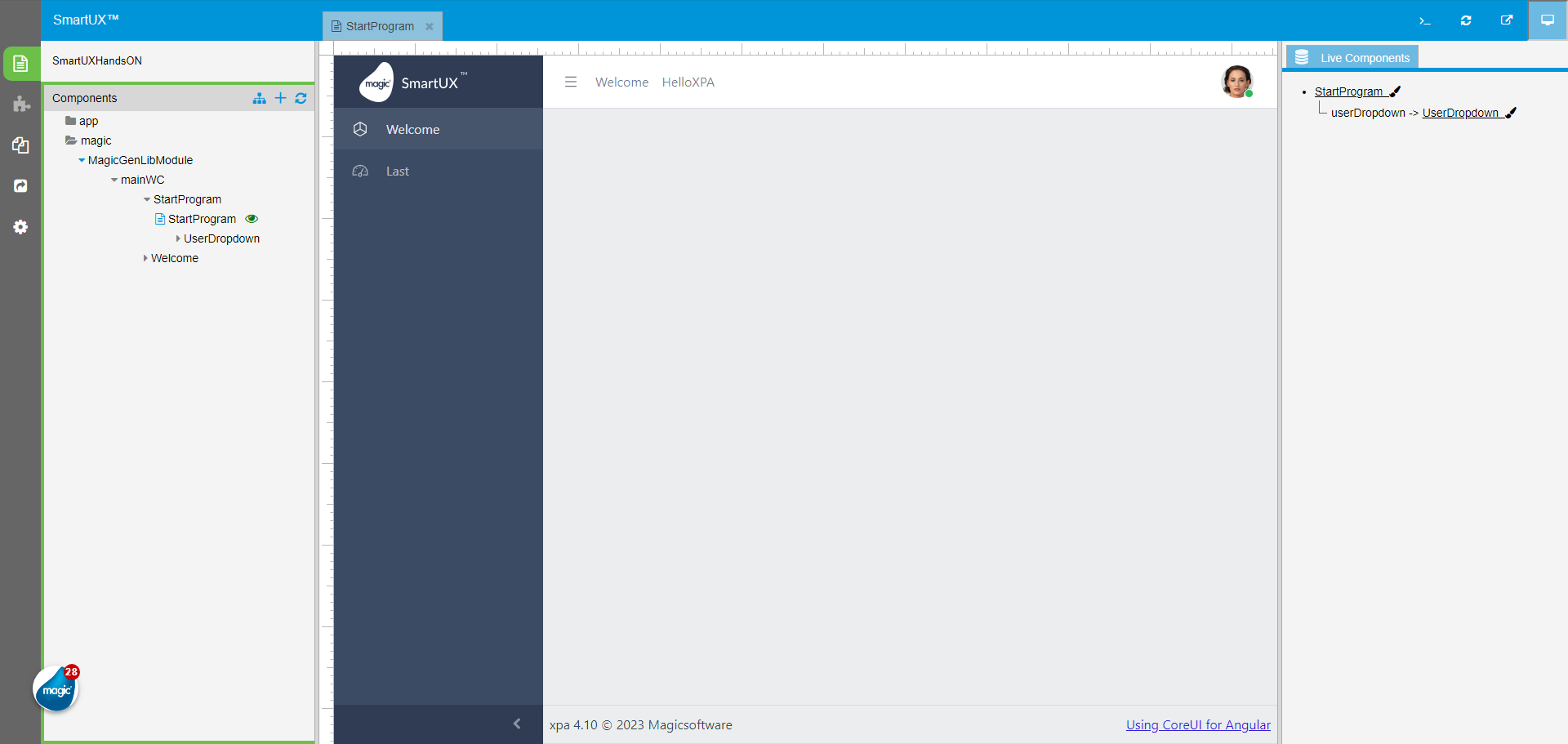
10. Live Preview in SmartUX studio

This is the Live Preview in SmartUX studio.


11. Welcome component in Live Preview

Click on the Welcome in the Sidebar Navigation this will open the Welcome Component.


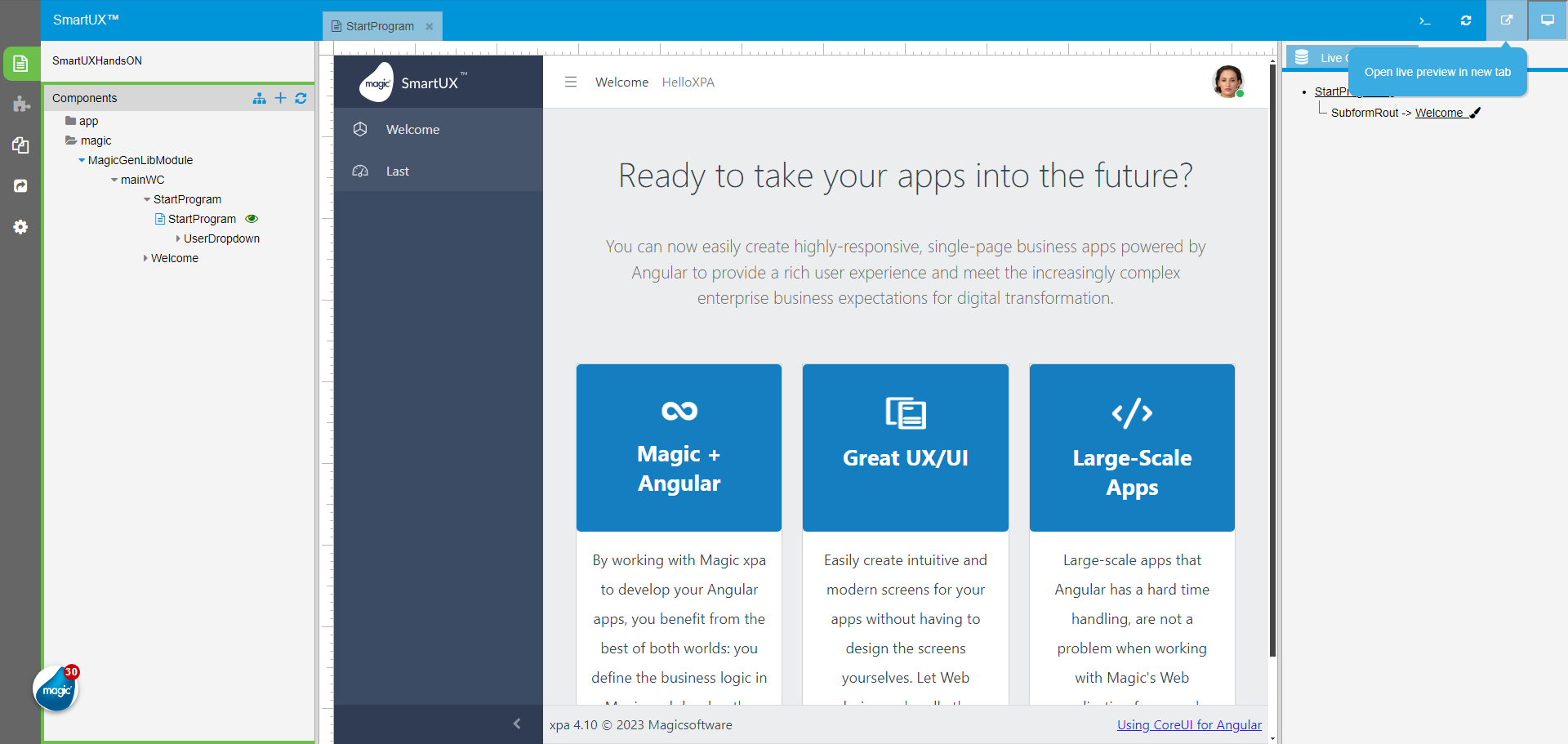
12. Open Live Preview in the New tab

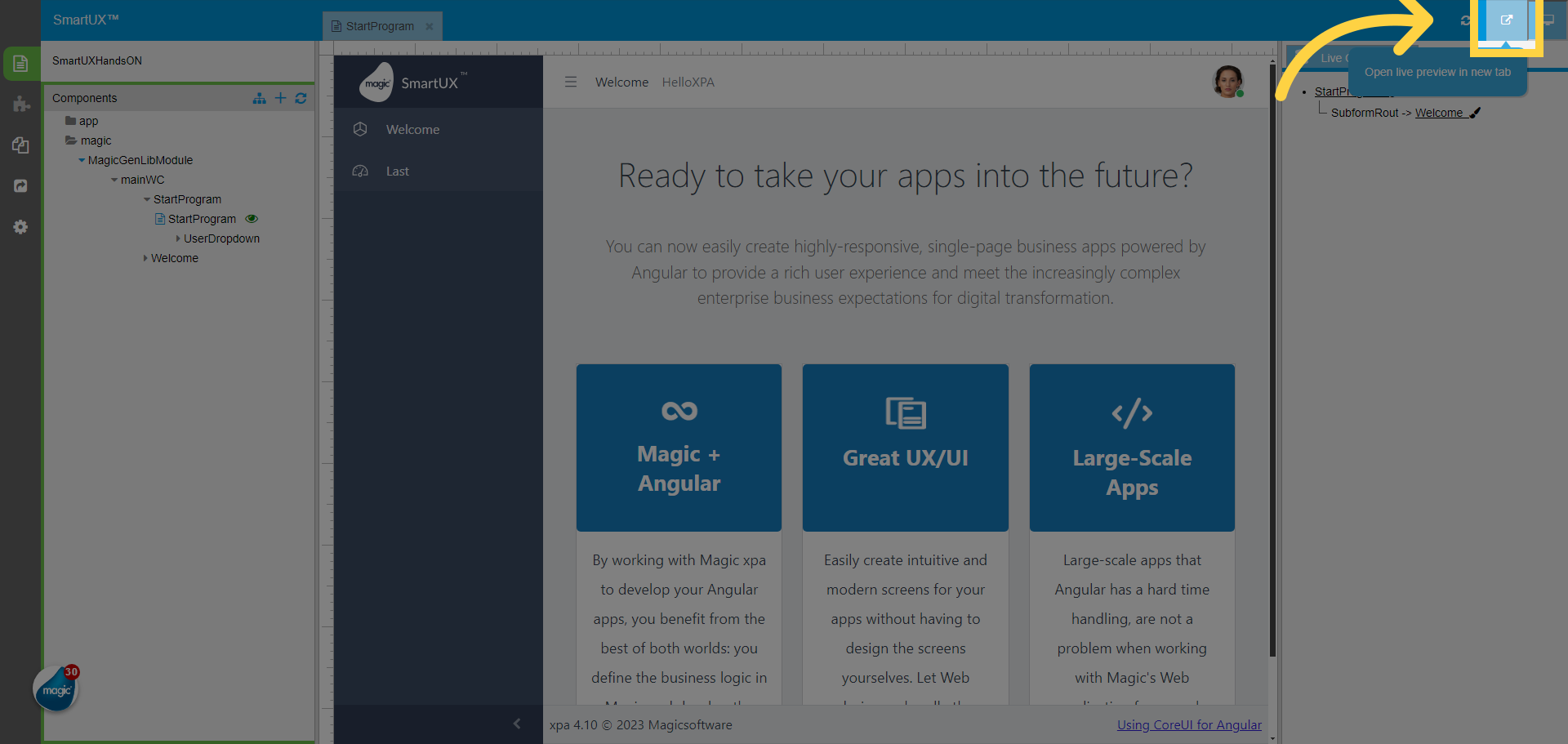
Clicking on this button will open the Live Preview in a new tab without studio panes.


13. Live Preview in new tab

This is the Live Preview in the new tab.


The guide covered various tasks in SmartUX Studio, including creating projects, checking logs, navigating components, and accessing specific screens like the welcome screen. By following the precise and engaging instructions provided, users can efficiently manage tasks within the application.

How Do I...

This section is your go-to resource on SmartUX, providing step-by-step guidance and insights to navigate the intricacies of the tool.

Whether you’re a novice seeking fundamental instructions or an experienced developer looking to explore advanced features, our comprehensive “How do I” section offers detailed tutorials, troubleshooting tips, and best practices to help you effectively harness the full potential SmartUX.

Create Test Project with SmartUX

Create an empty project in Magic xpa for SmartUX Test Project


Learn how to create an empty project in Magic xpa for the SmartUX Demo Application with this easy-to-follow guide.

1. Click on the Options>>Settings>>Environment

To begin, let’s navigate to the Options menu in the Magic xpa. Click on the Options Menu. Upon clicking, you’ll see the Settings option. Park on the Settings. This will open a list of settings. In this list, you will see Environments Click on “Environments”. It will open a window that shows different environment settings.

2. Change the Deployment mode to Background

In the Environment settings window. You will see the System tab, Go to the Deployment Mode and change it to Background and click on the OK button. If it is already background, you can leave it as is. This setting is specifically required for the Web Client application.

3. Click on the New Project Enter a Project name and click OK

Let’s start by creating a new project in the Magic xpa for the SmartUX demo application. To do this, click on the “New Project” button. After clicking on “New Project,” a dialog box will appear prompting you to enter the project name. With the project name entered, Click “OK” to Create the Project.


4. The empty project

The newly created Magic xpa project will look like this containing a single program that is the Main Program. Double-click on the “Main Program” file in the Program Repository. Or park your cursor on the Main Program and press “F5” on your keyboard. Magic xpa Studio will open the “Main Program” for editing. 

5. The Main Program

Now you can start making changes to the Main Program to work with SmartUX.


6. Open Main Program properties

Right-click on the “Main Program”, then click “Properties”. Or Use Keyboard Shortcuts: Press “ALT+Enter”. or “CTRL+P”. This will open the Properties windows.

7. Goto Interface tab

The properties window will show the Main program Task information. Now, switch to the Interface Tab. 

8. Change the – Open Task Window to No Change the – Run Project As to Web Client

Under the Interface Tab, Form section, Change the Open Task Window property to No. Now below, in the Studio Project Execution section, Change the Run Project As to Web Client. After this, click the OK button.

9. Save the Main Program changes

Moving forward, press the Escape key on the keyboard. This will open a confirmation dialog window, to Save the changes. Click on Yes to save the changes, this will take you to the Program repository. 

10. MgSmartUX.exe

As you save the Main Program, it will start the MgSmartUX.exe in the background. You can see the MgSmartUX.exe in the Task Manager Details Tab.

This article covered the process of creating an empty project in the Magic xpa for the SmartUX Demo Application. Follow the steps to set up your project effortlessly.

Open SmartUX Studio

This guide will walk you through a series of interactions within SmartUX Studio. From creating new projects to accessing logs and switching between components, follow the engaging instructions to navigate effectively.

1. Open SmartUX Studio

Now we are set to open the SmartUX studio. Here are the step-by-step instructions: – You can open SmartUX Studio from the Web Menu and click on Open in SmartUX studio Or – Click on the SmartUX studio icon Or – You can use a keyboard shortcut CTRL+Shift+X.

Open SmartUX Studio


2. Select Template

A new browser window will be opened with the Create application screen. Select any template from the template list say Full Menu Template.


3. Click Create

Click on Create.


4. Overwrite the Main Program window in Magic xpa

Switch to XPA Studio. Here the studio is importing the project for the selected application template. Please click on Yes or No as per your preference.


5. App Create Window

Switch to the browser window. This window will show the progress of creating a new application. You can go through different links to see logs for specific steps.


6. App Create Window

You can go back to all logs view by clicking on Show All.


7. App Creation Completed

Once the app is created the OK button gets enabled. Click to complete the process and go to the created application.


8. Welcome component

Click on the Welcome component to open it in Canvas.


9. Click on Live Preview

To check the runtime of the application, click on the Live Preview icon.


10. Live Preview in SmartUX studio

This is the Live Preview in SmartUX studio.


11. Welcome component in Live Preview

Click on the Welcome in the Sidebar Navigation this will open the Welcome Component.


12. Open Live Preview in the New tab

Clicking on this button will open the Live Preview in a new tab without studio panes.


13. Live Preview in new tab

This is the Live Preview in the new tab.


The guide covered various tasks in SmartUX Studio, including creating projects, checking logs, navigating components, and accessing specific screens like the welcome screen. By following the precise and engaging instructions provided, users can efficiently manage tasks within the application.

Test Program to elaborate Route and Build Sidebar Menu in Magic xpa

This guide will walk you through a series of interactions within Magic xpa and SmartUX Studio. From creating a new program and adding it as a component in SmartUX. This also contains Adding Route and Component to SmartUX in the Sidebar navigation. Shows required modification in Start Program in Magic xpa. Follow the engaging instructions to navigate effectively.

1. Create a Test Program

Create a Test Program.


2. Change Task type to Web Client

Open the created Test Program and Change the Task type to Web Client. Now switch to the Interface tab.


3. Provide a Route Name

In the Interface tab Route section, provide a route name for the created Web Client task and click OK.


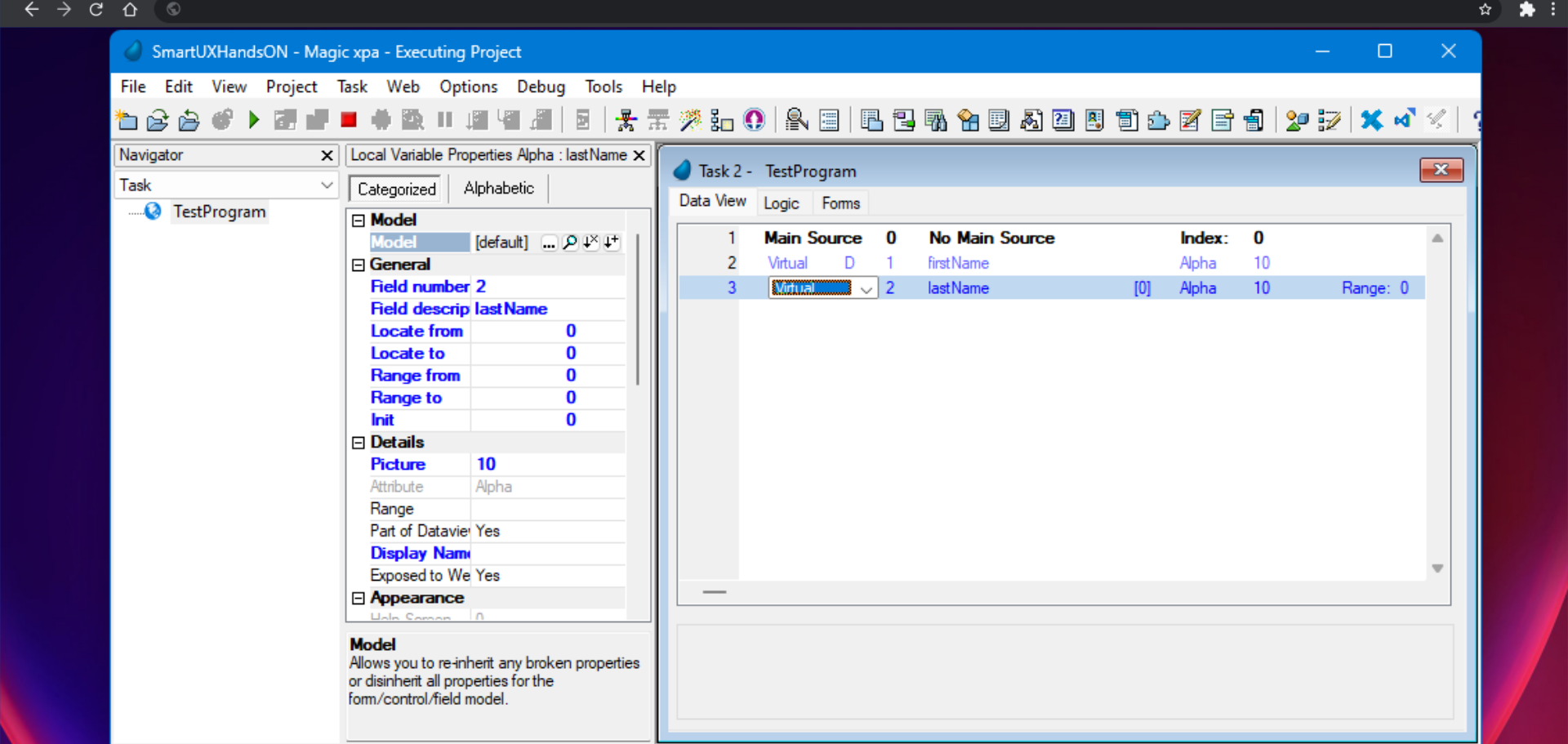
4. Add a few variables

Now create a few variables to add controls on the Magic xpa form.


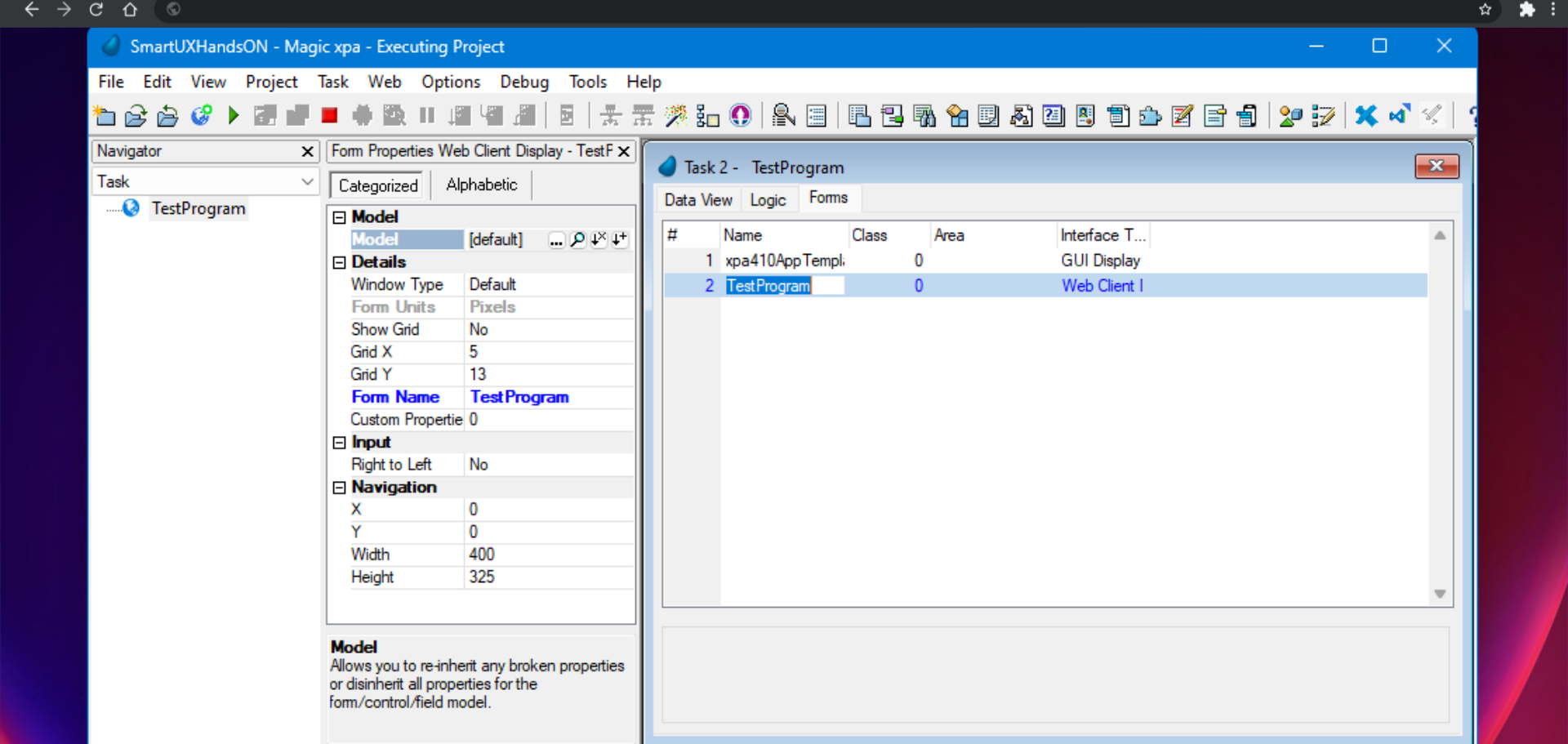
5. Open the Forms tab

Switch to the Forms tab and open the Test Program form to add controls to the form.


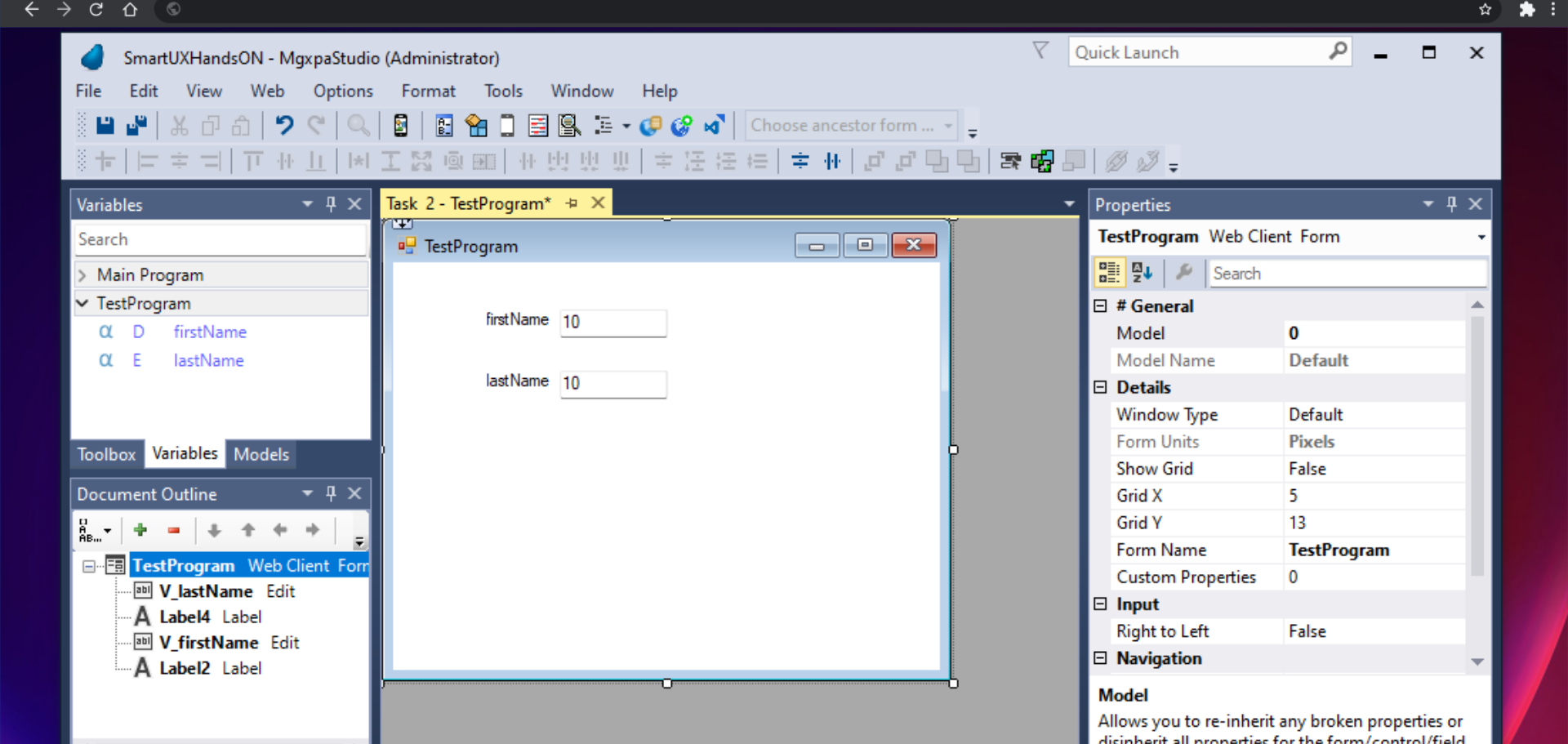
6. Drag and drop controls/variables on the Magic xpa form

Drag and drop the variables or controls on the Magic xpa form. Press escape, save the changes and move to the Program repository.


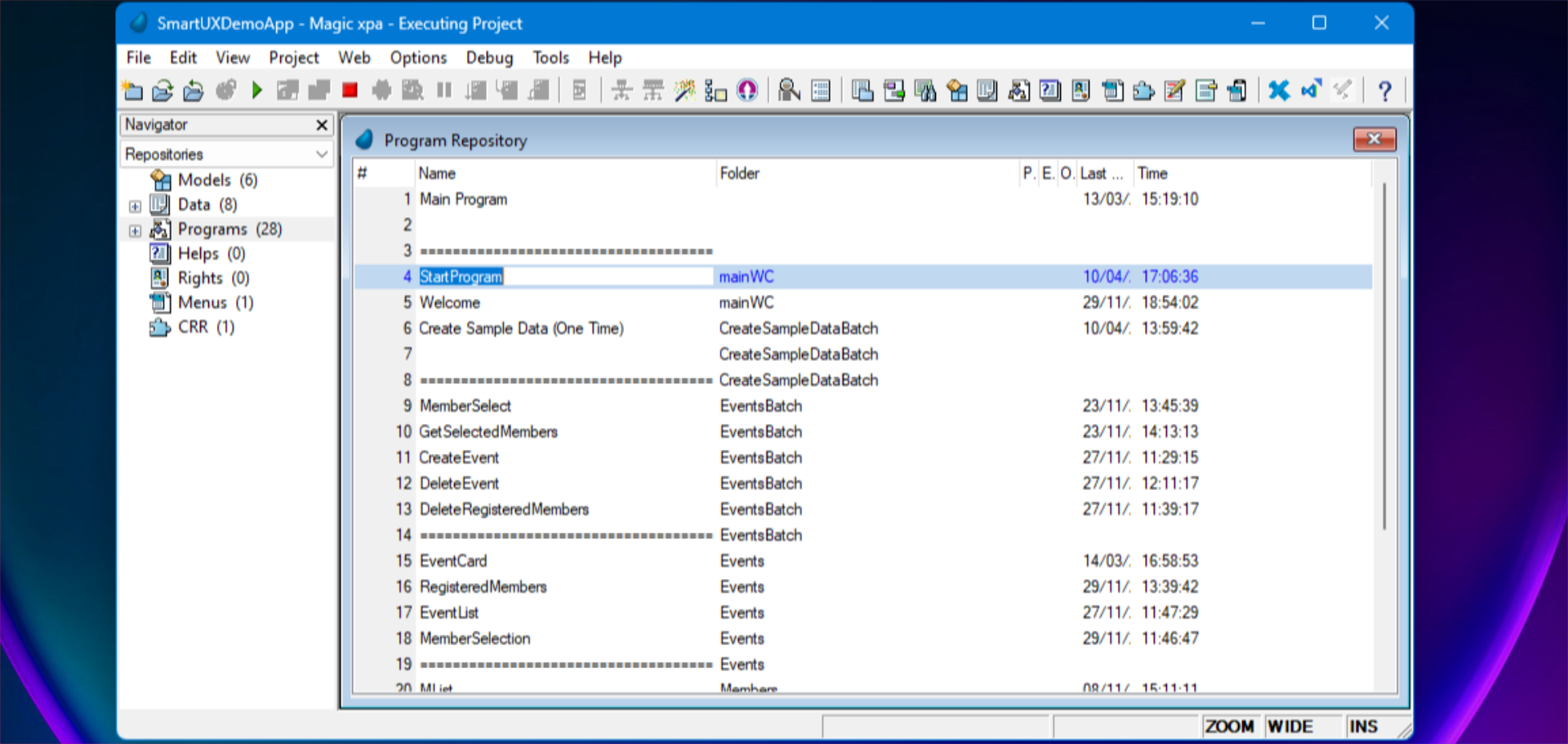
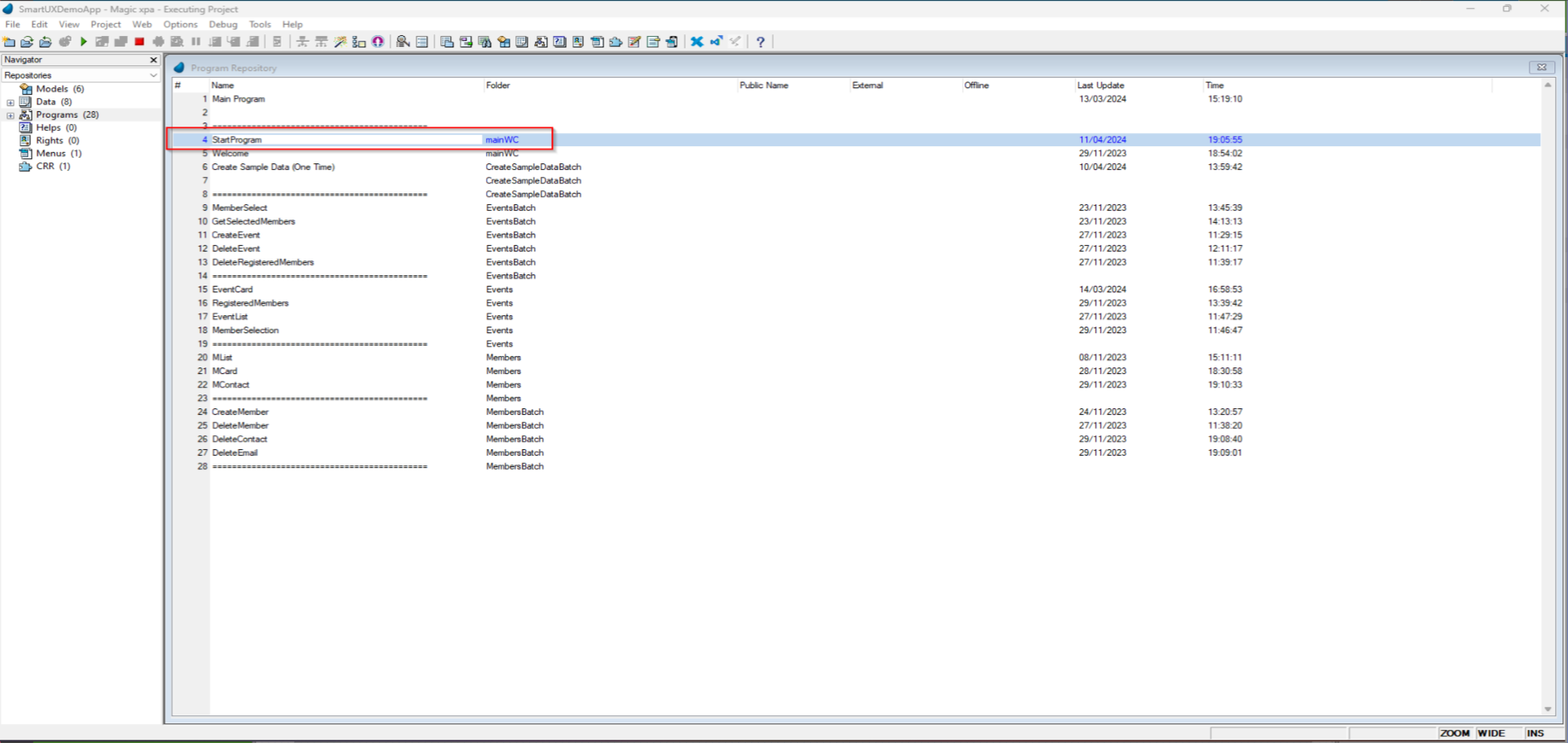
7. Open the Start Program

To add the the created Web Client Task in the route we have the Start Program which contains a route event for programs to call.


8. Add Call Program for Test Program

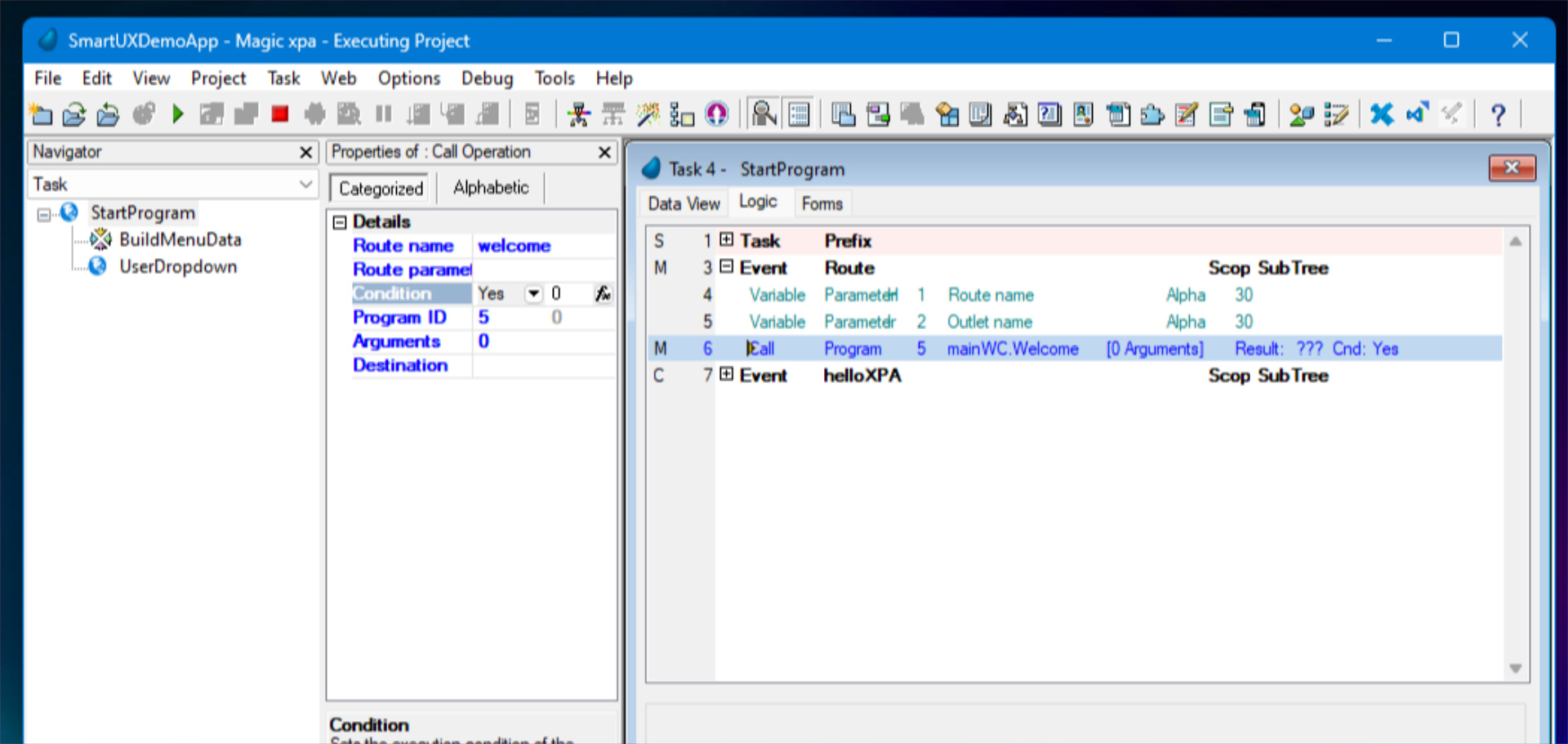
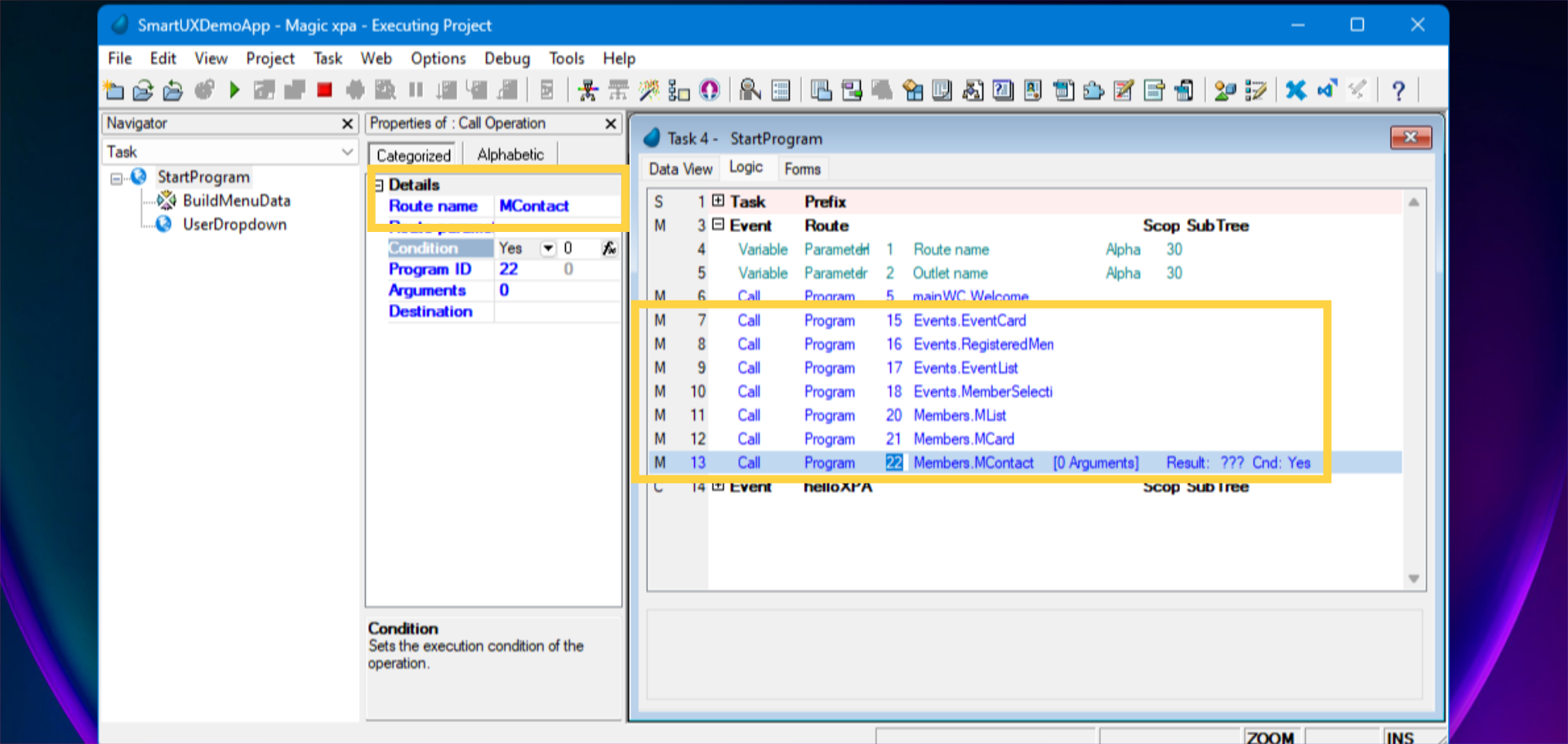
In Start Program switch to Logic Tab. – In Logic Tab, expand Event Route, Park on the Call Program, Line 6. – Press F4 to add a new entry.

  • Select Call Program on the new entry and select the Test Program.
  • After adding a call to the Test Program, in the property sheet you will see the Route name for the Test Program which was provided earlier.
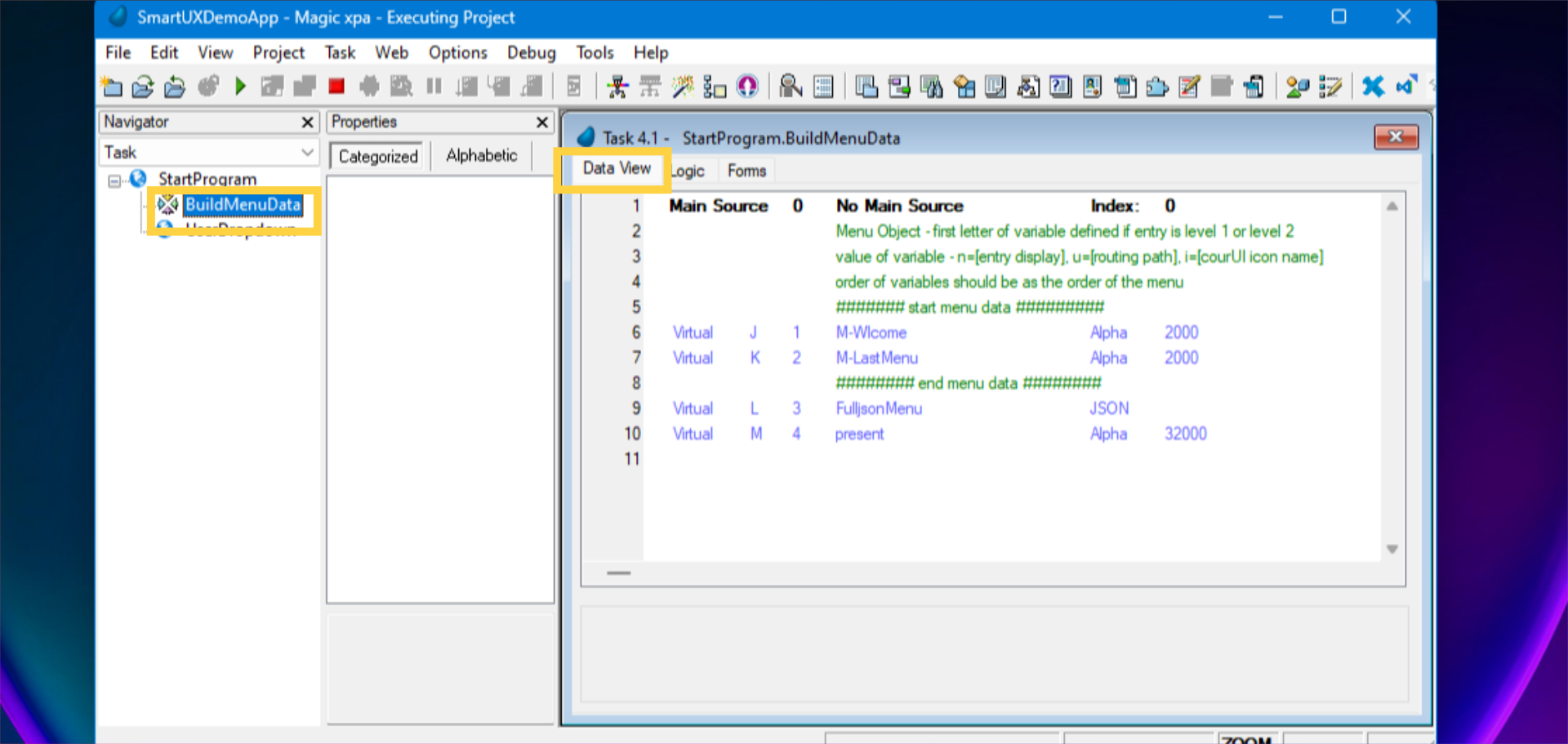
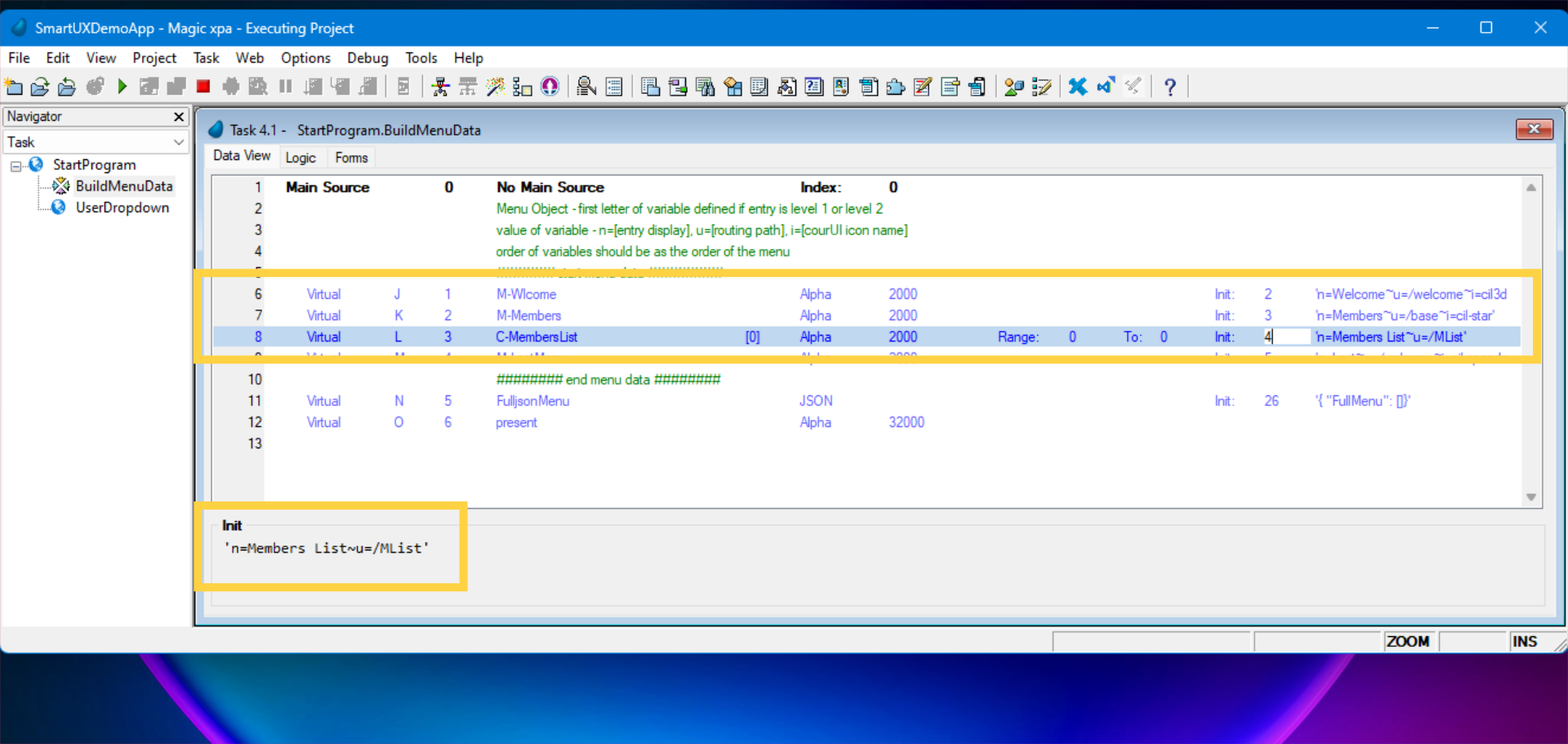
  • Now Switch to the BuildMenuData Subtask.


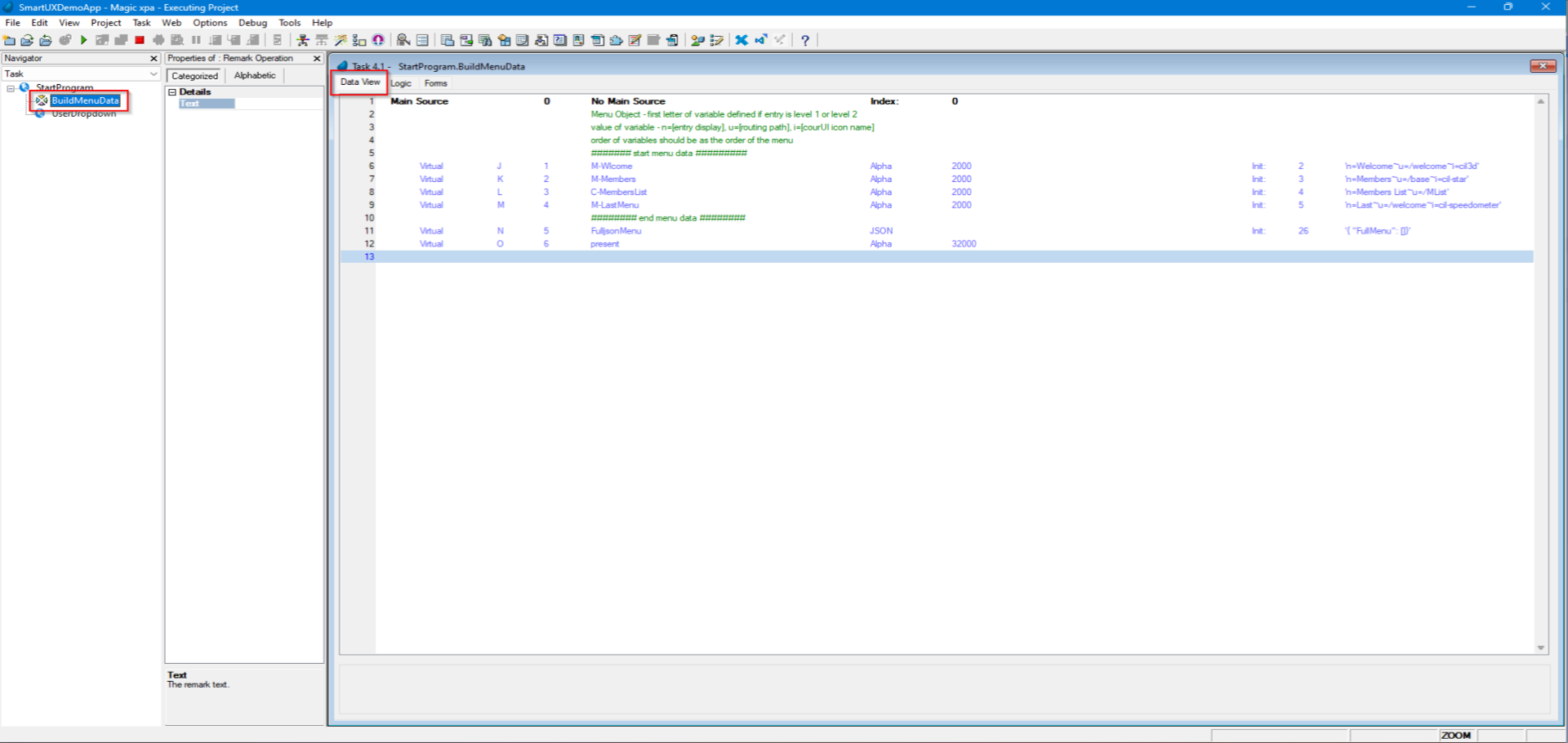
9. Switch to BuildMenuData batch Sub Task

  • Now Switch to BuildMenuData batch Sub Task.
  • Goto Data view tab.
  • Park on the first virtual variable and press F4 to create a new entry.
  • Provide a name in a similar pattern as the first variable which is M-TestProgram and provide a picture.

This BuildMenuData Sub task is created in such a way that it will automatically add a Menu entry to the Sidebar navigation with hassle-free steps.


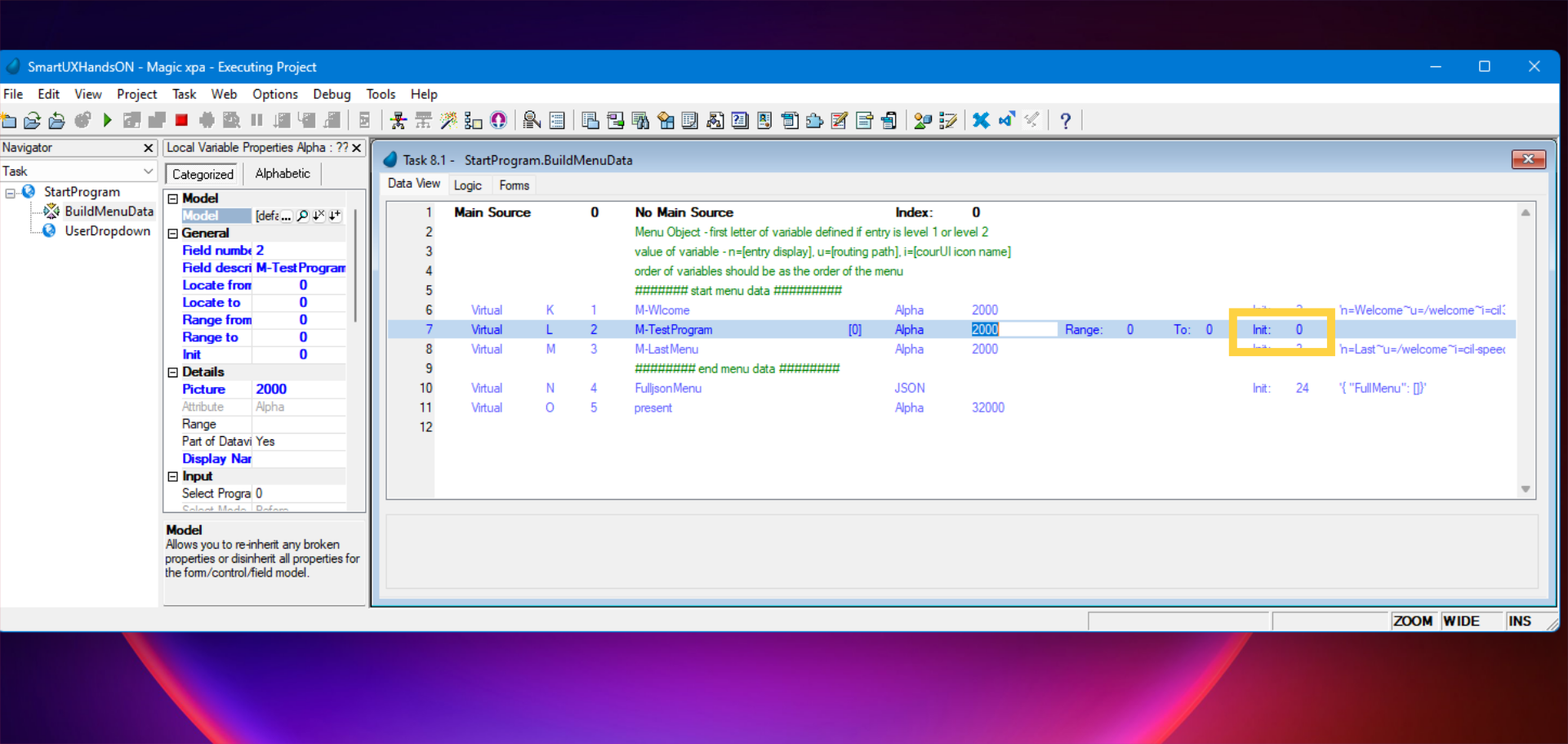
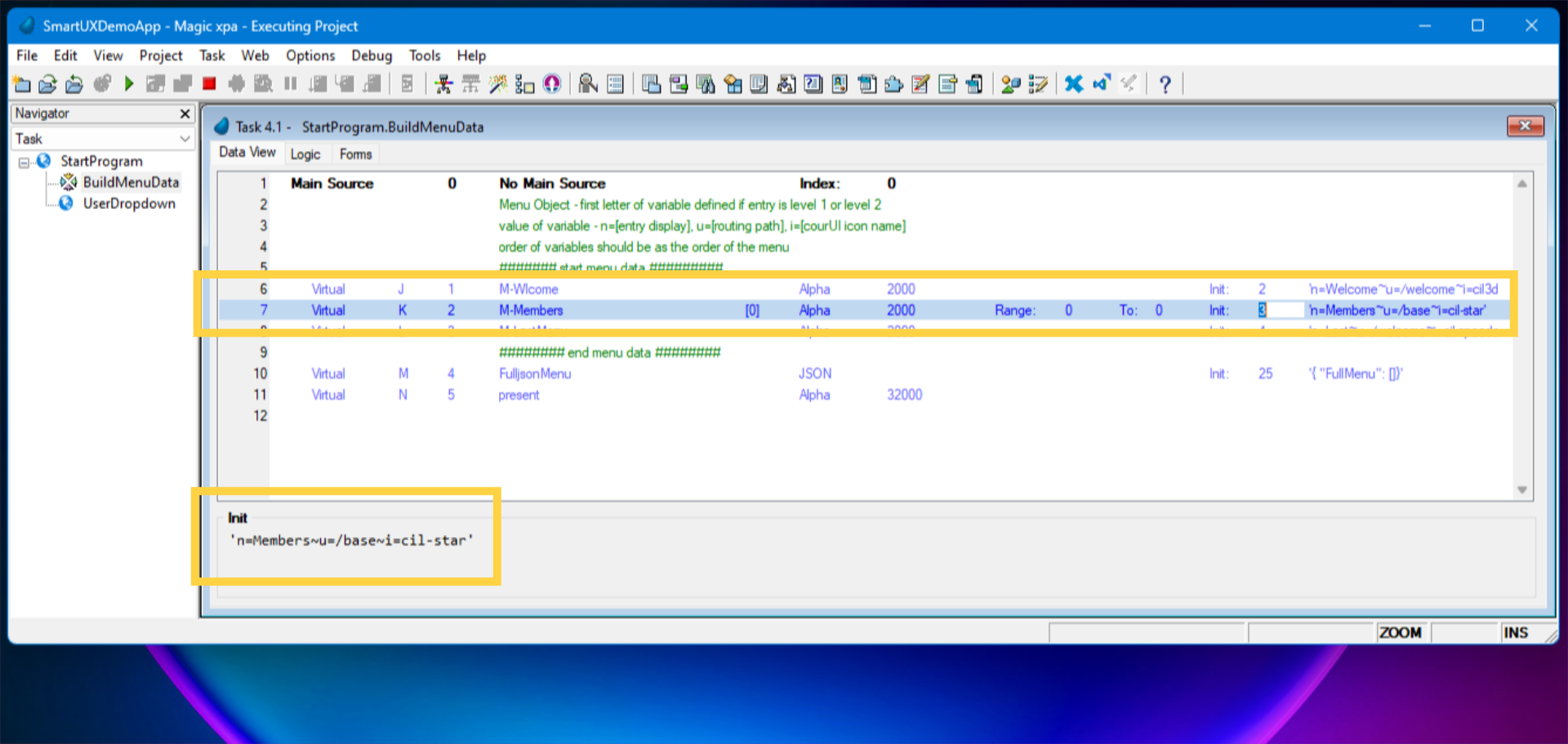
10. New Virtual Variable M-TestProgram

Goto “Init” of that variable and double click or press F5 to open the expression editor.


11. Provide initial value as an expression to created M-TestProgram

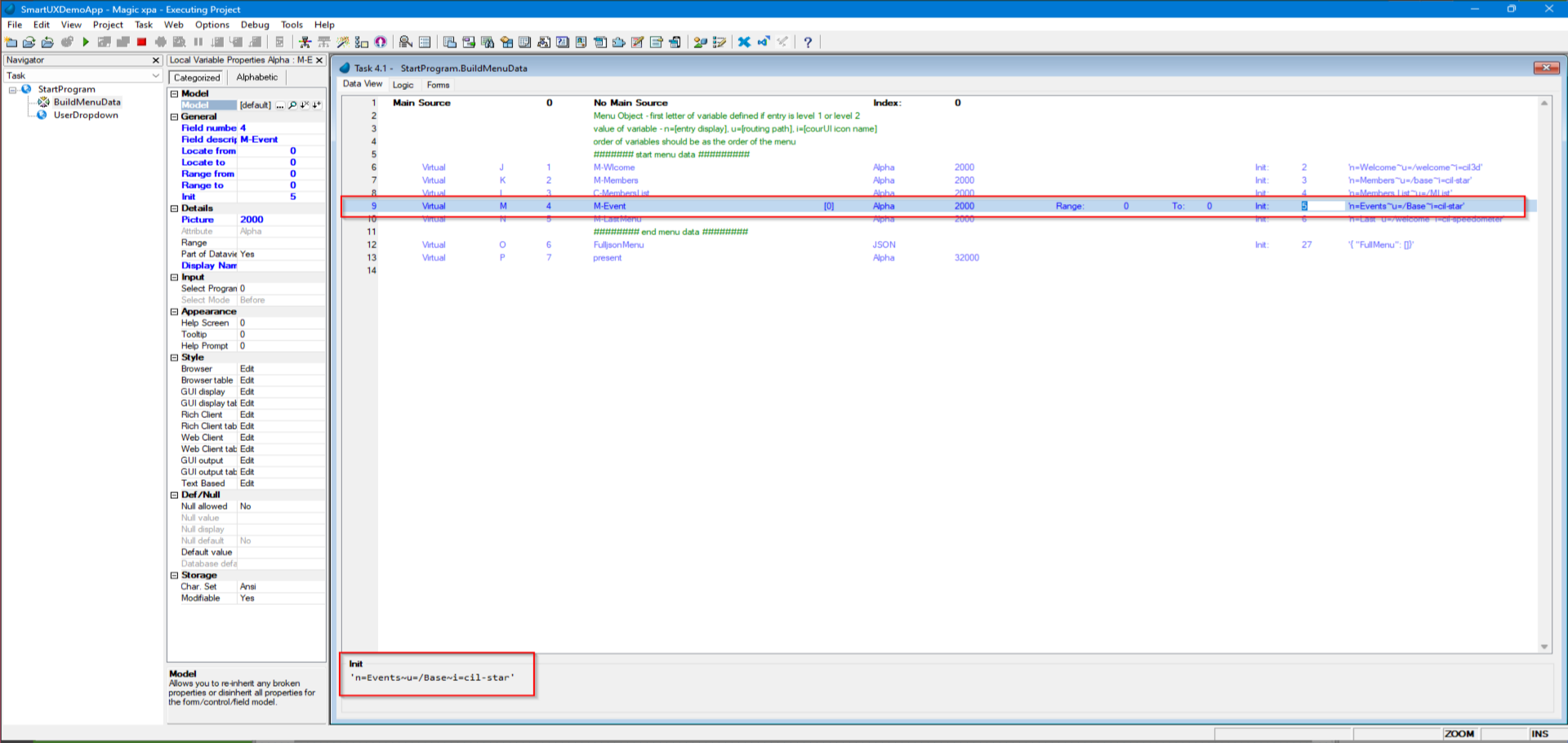
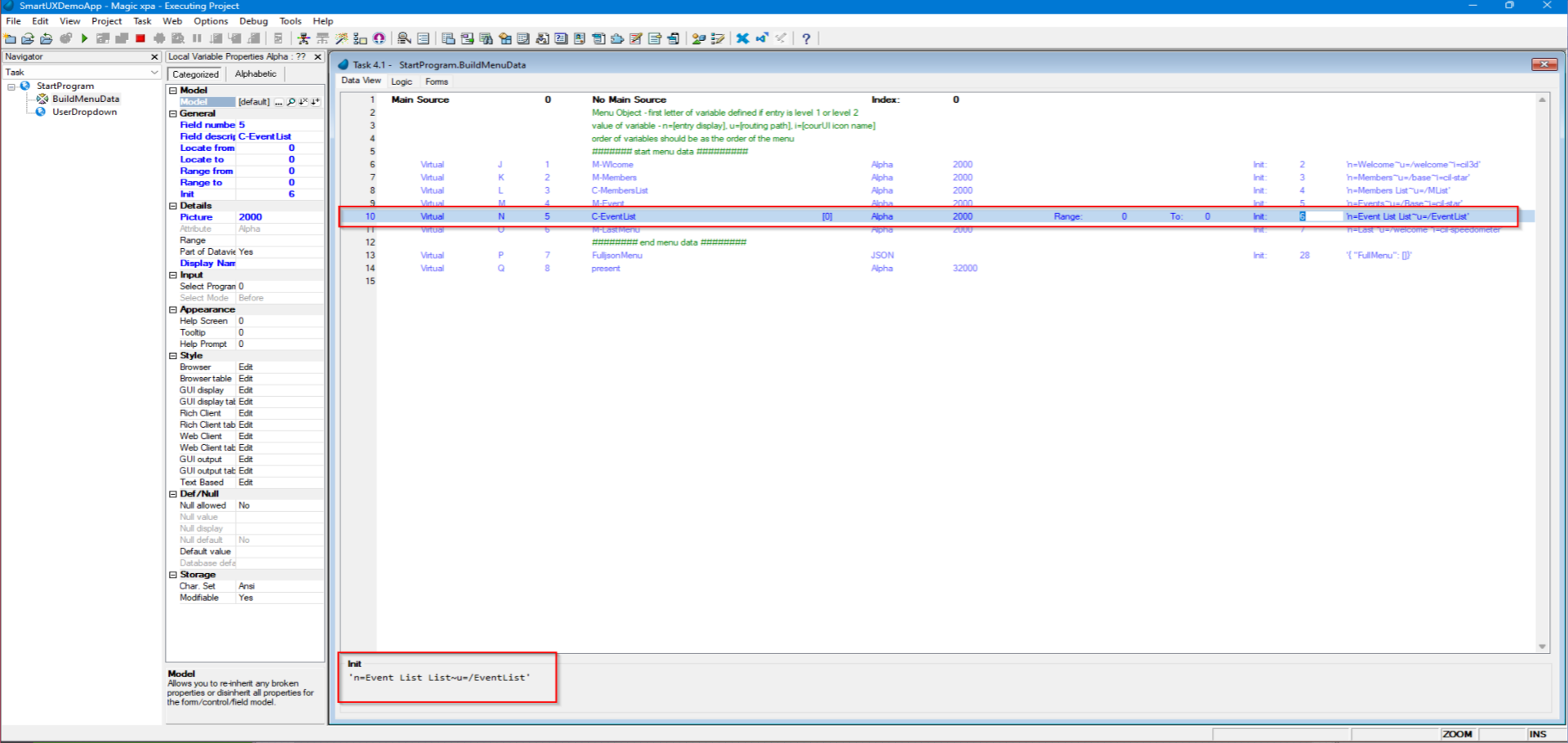
Now park on Line 2 and Press F4 to create a new line. Add an expression in a similar pattern but with Test program values as shown on the screen. The expression contains:

  • The “n” is for the Name you wish to display in the Sidebar navigation.
  • The “u” is for the Route Path of the program you wish to add in the Sidebar navigation.
  • The “i” is an icon, it is optional. Now Select the expression.

Save the changes and move out to the Program Repository.


12. Adding the Component in SmartUX Studio

Now we are set to open the SmartUX studio. Here are the step-by-step instructions:

  • You can open SmartUX Studio from the Web Menu and click on Open in SmartUX Studio. OR
  • Click on the SmartUX studio icon. OR
  • You can use a keyboard shortcut CTRL+Shift+X.


The guide covered various tasks and comprehensive steps to navigating Magic xpa. Also shown how to create a test program in Magic xpa. Please continue to Lesson 4 to understand the required changes on the SmartUX side.

Add and Design Component and Route

This guide will walk you through adding and designing a component and its route in SmartUX. Follow the precise instructions to seamlessly navigate the application and complete the required tasks.

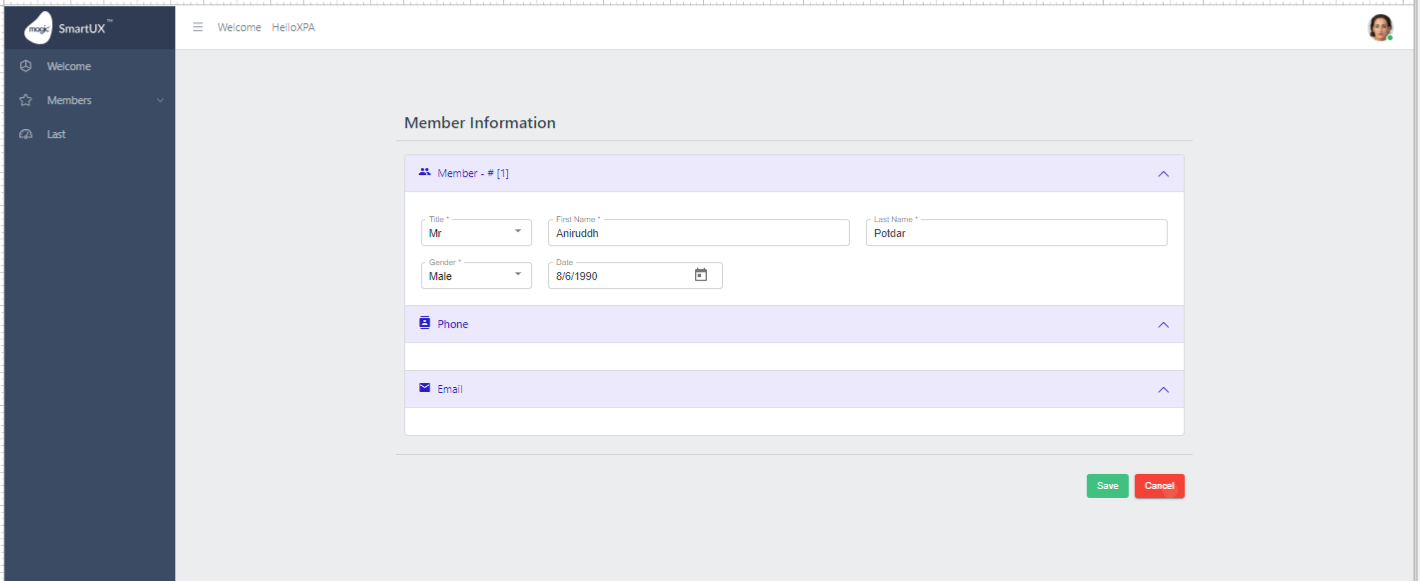
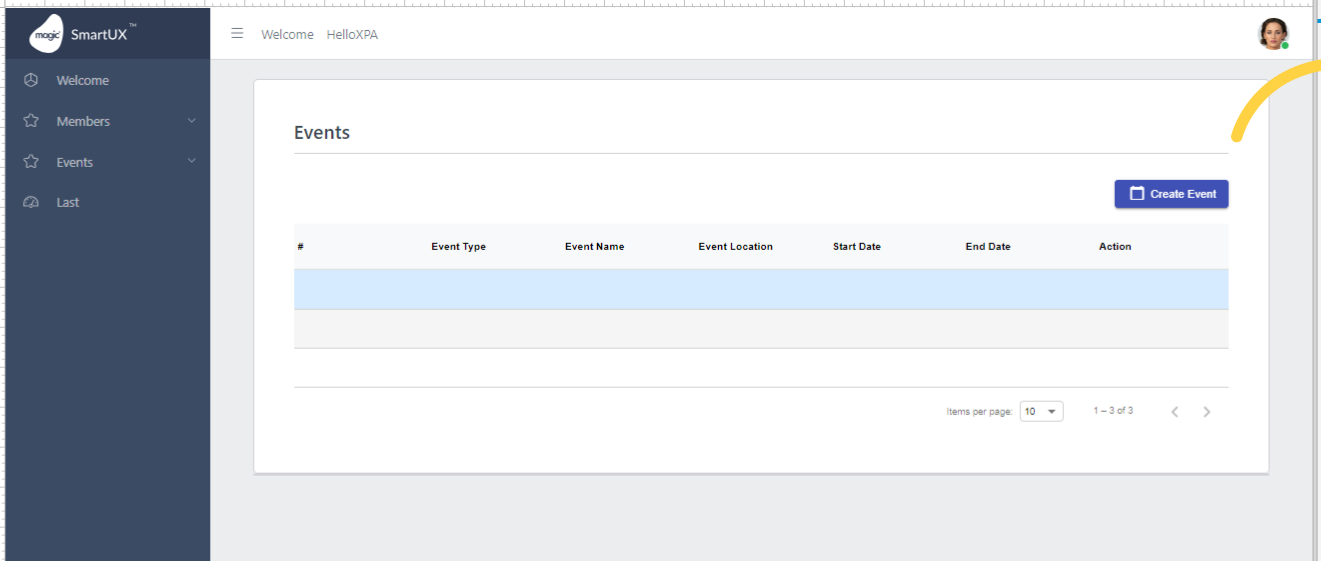
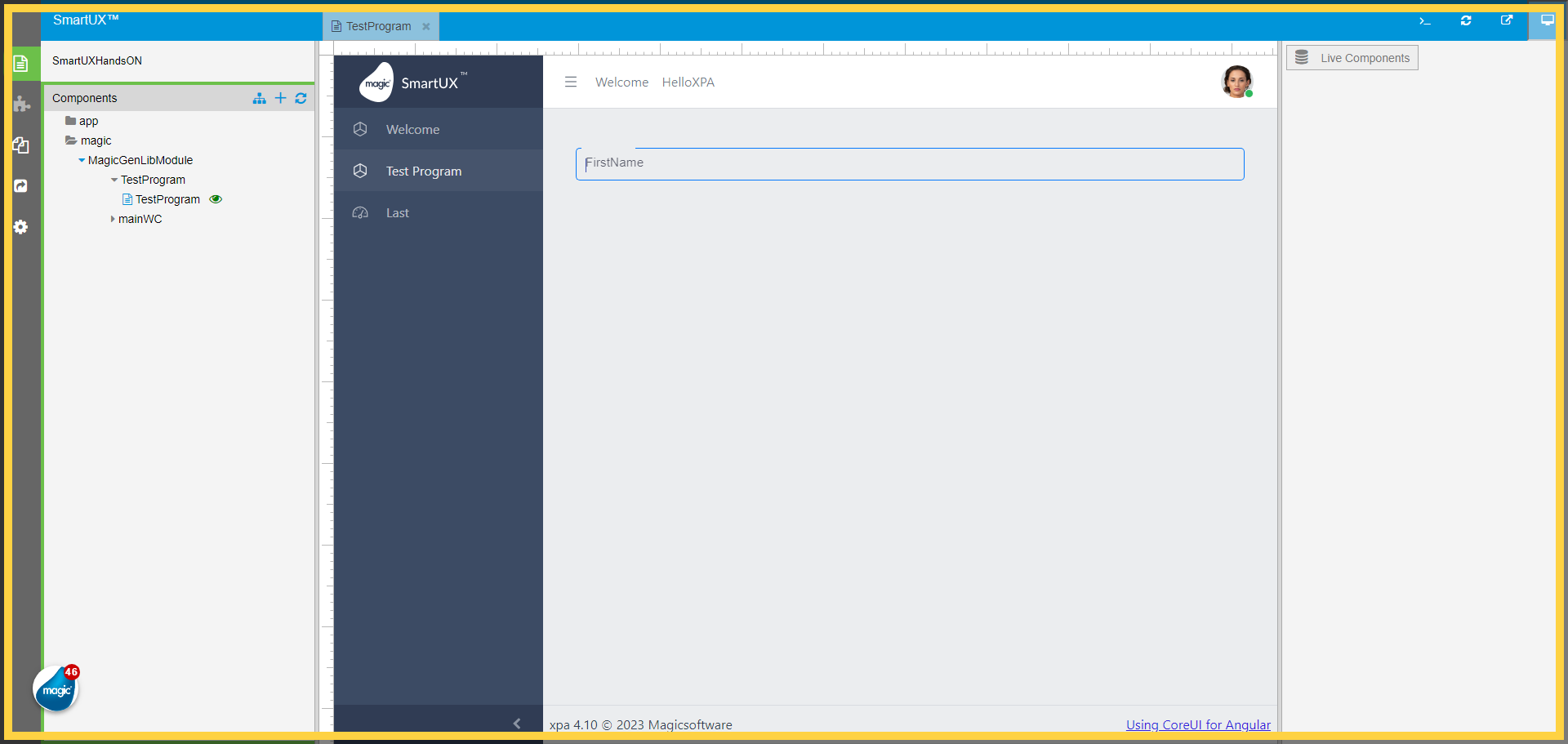
Upon successful completion of the specified steps, the result will reflect the desired outcome as shown in the image below:
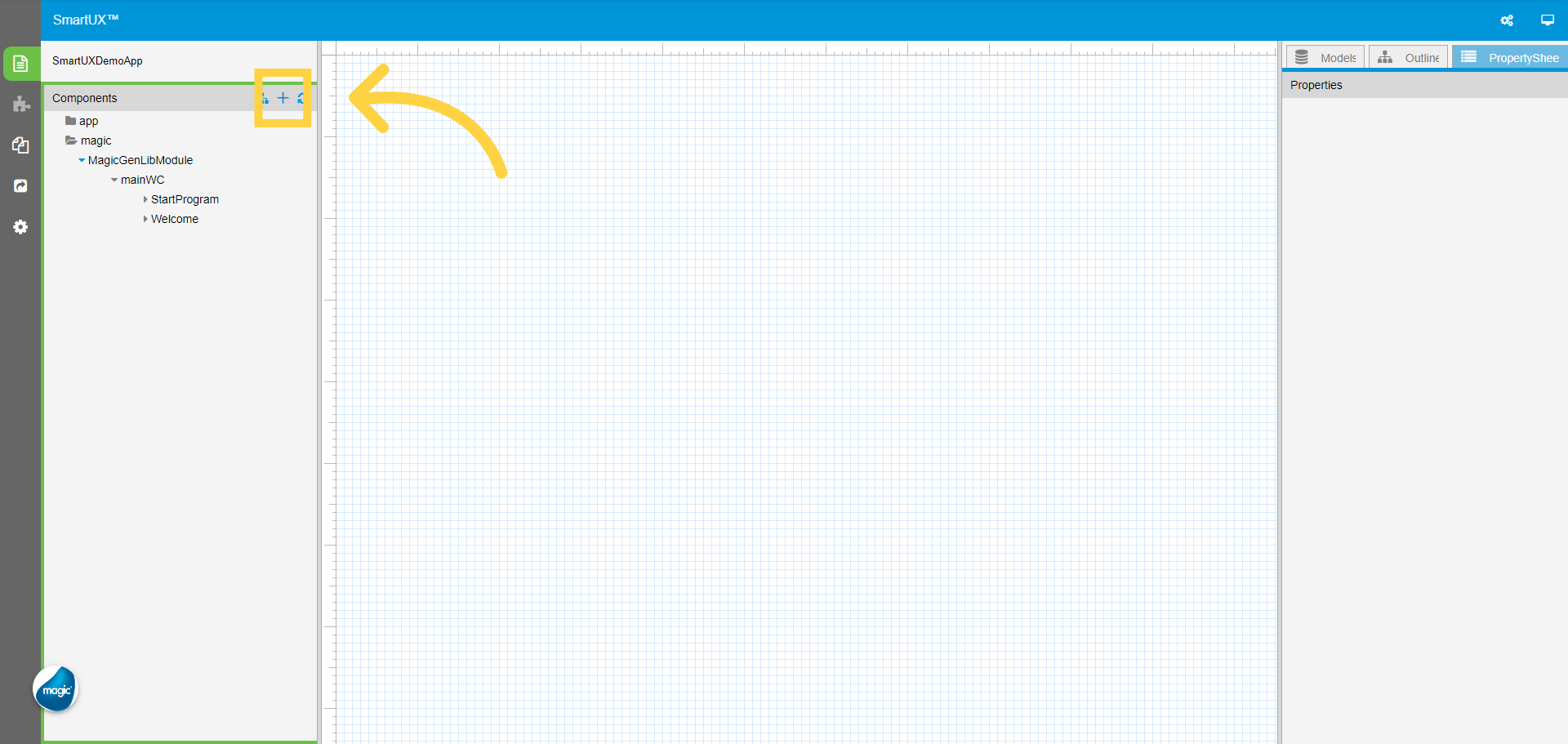
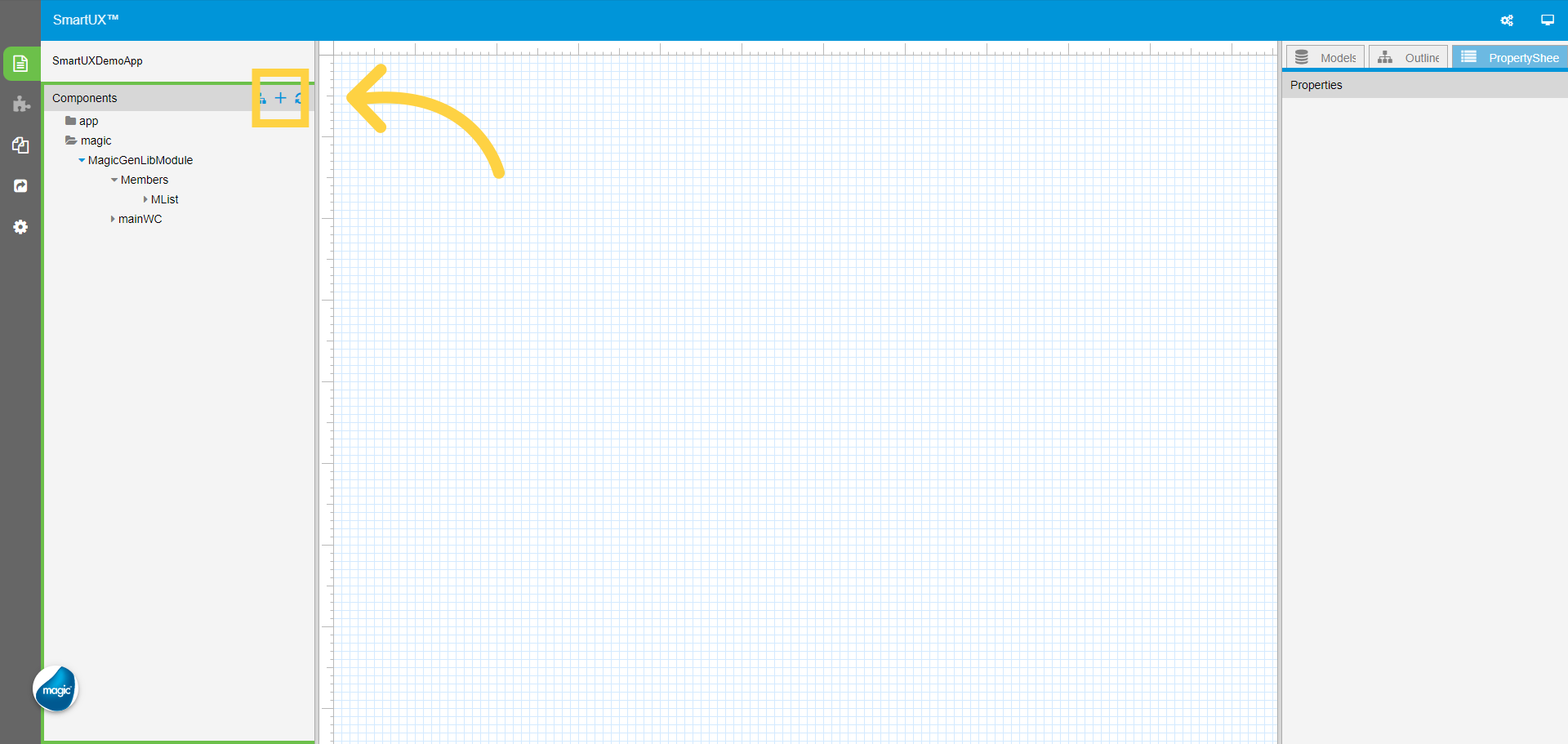
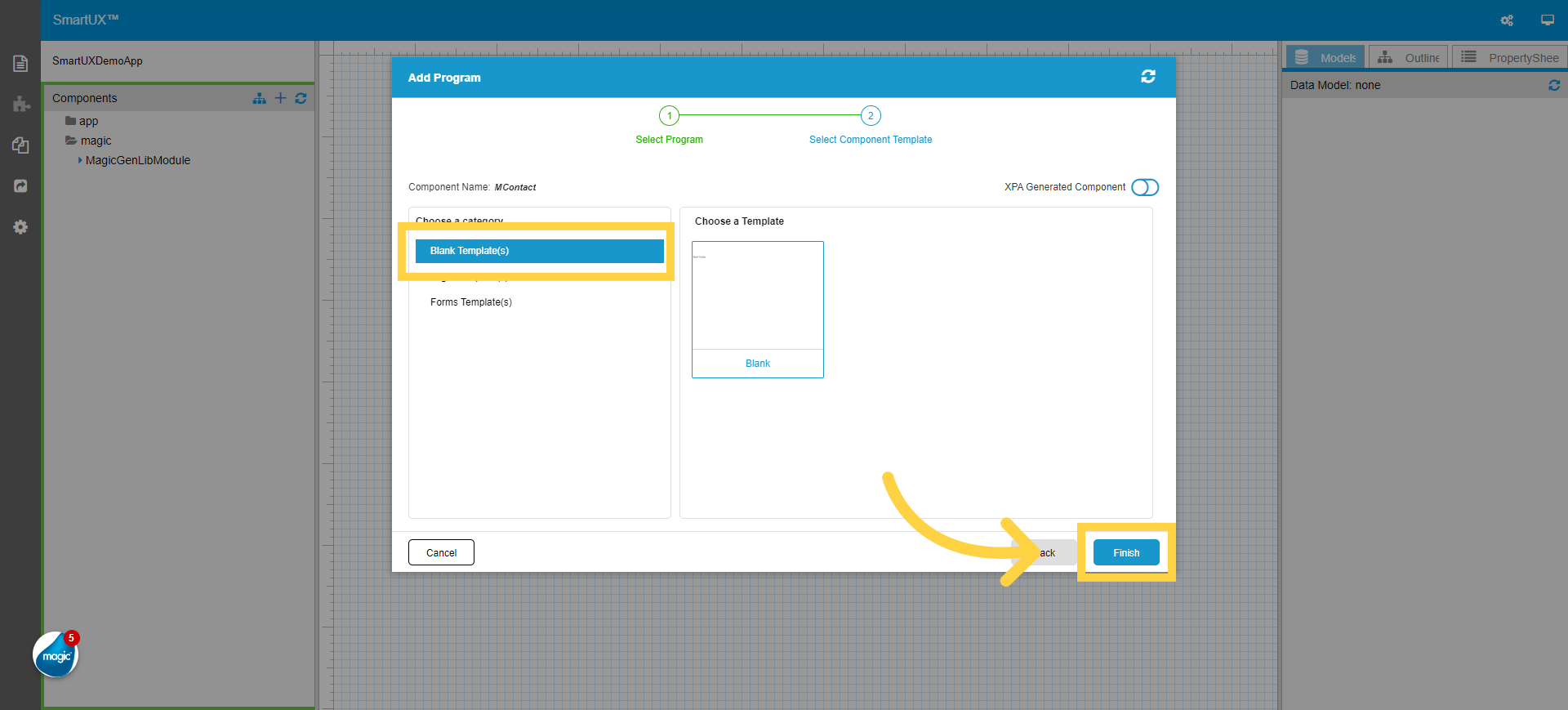
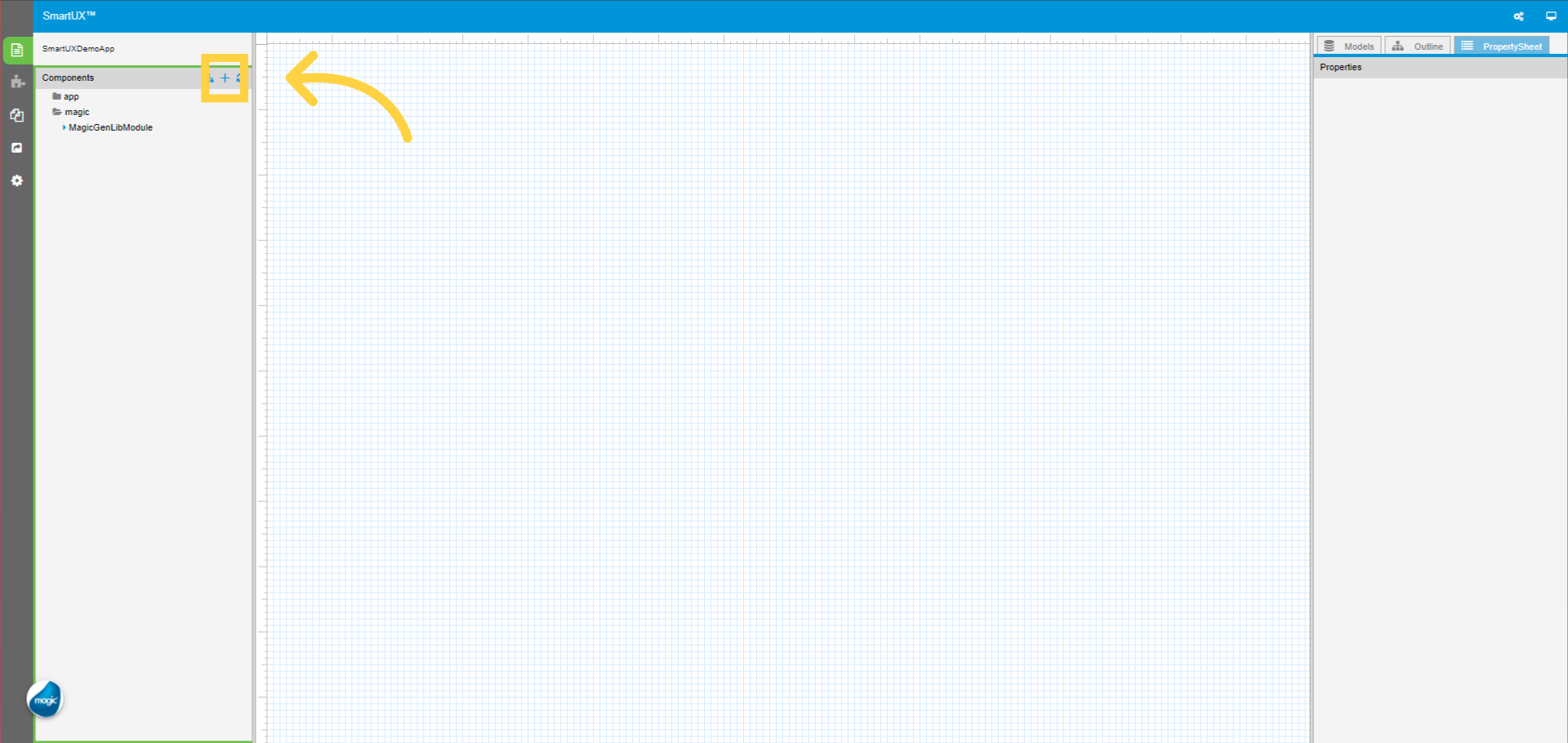
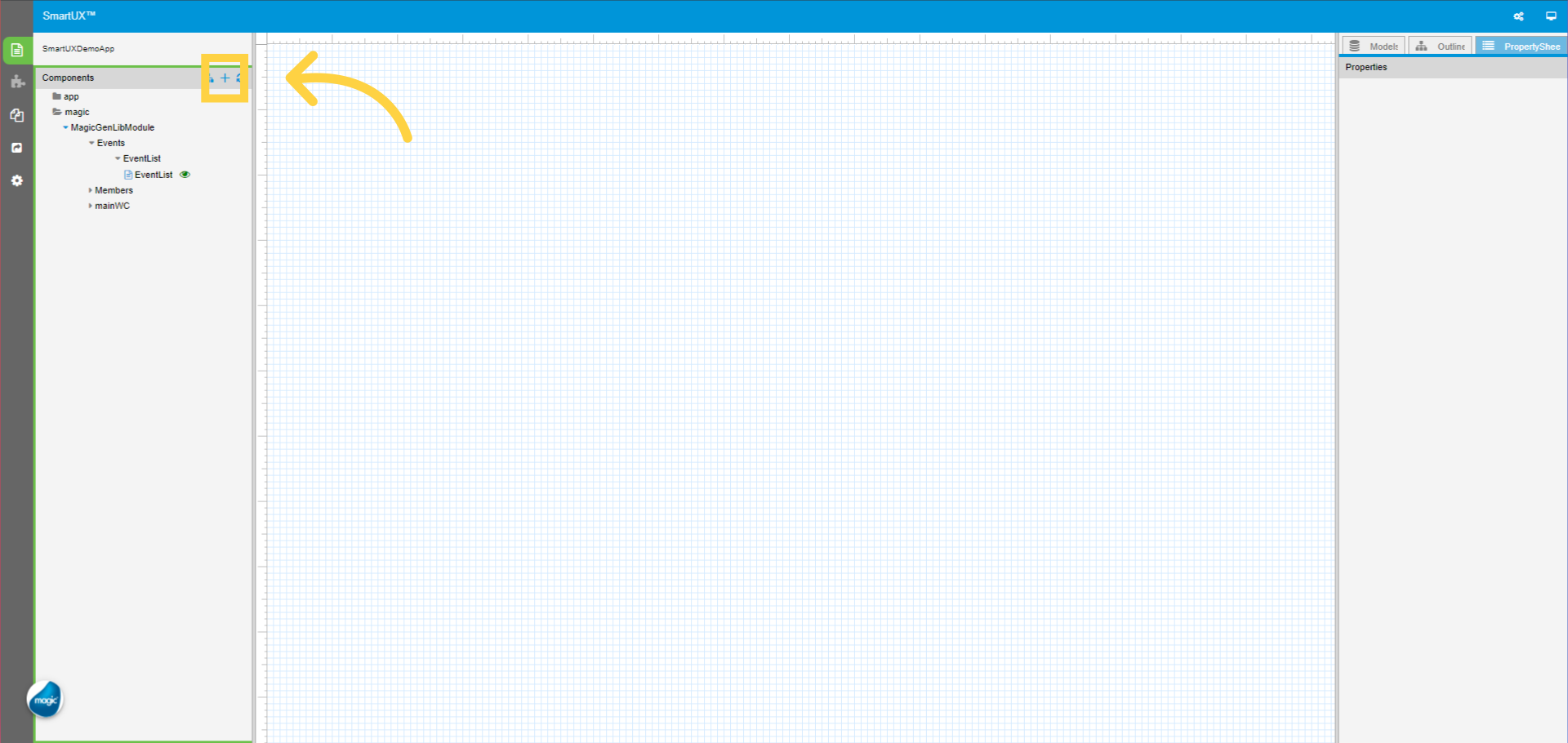
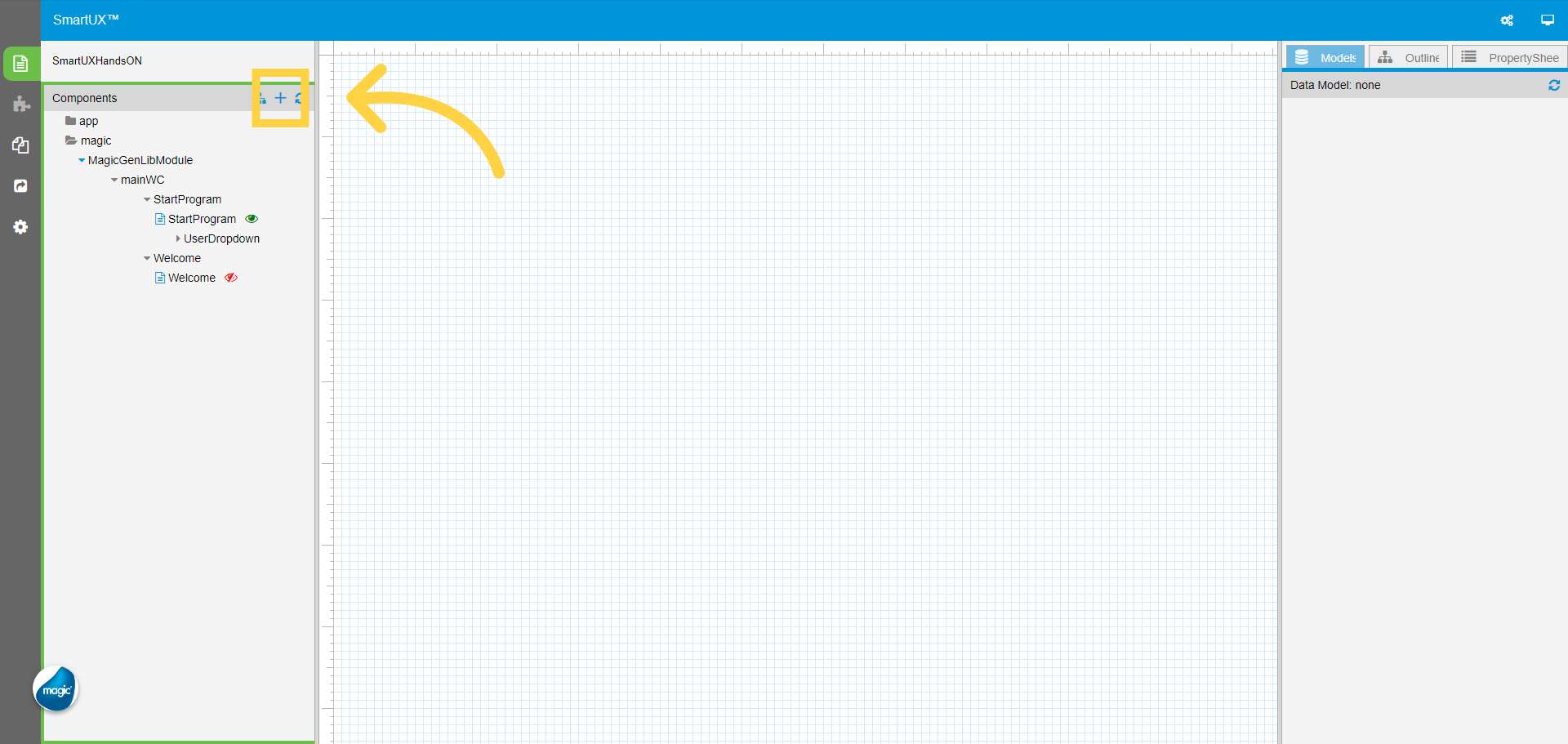
1. Click on Add Component

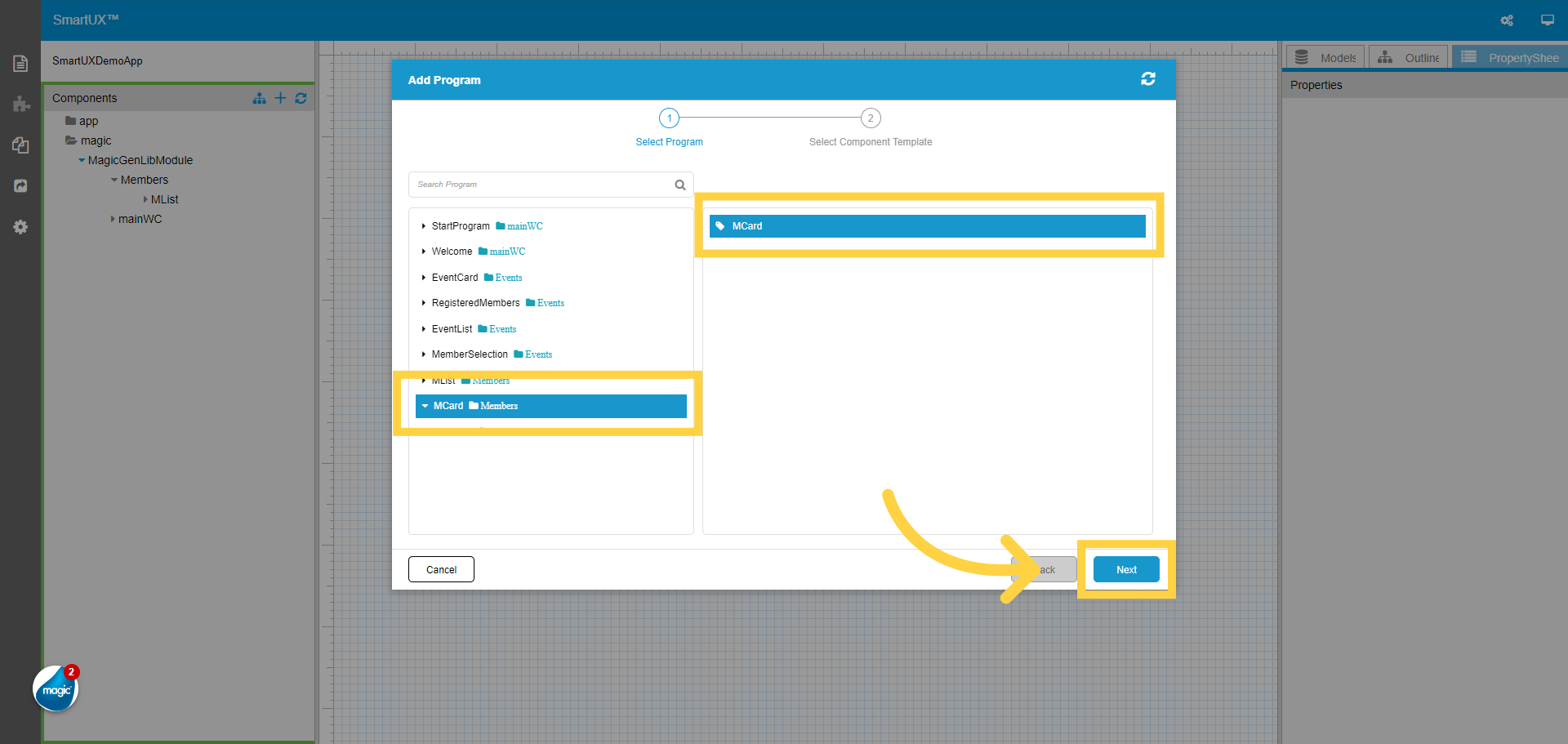
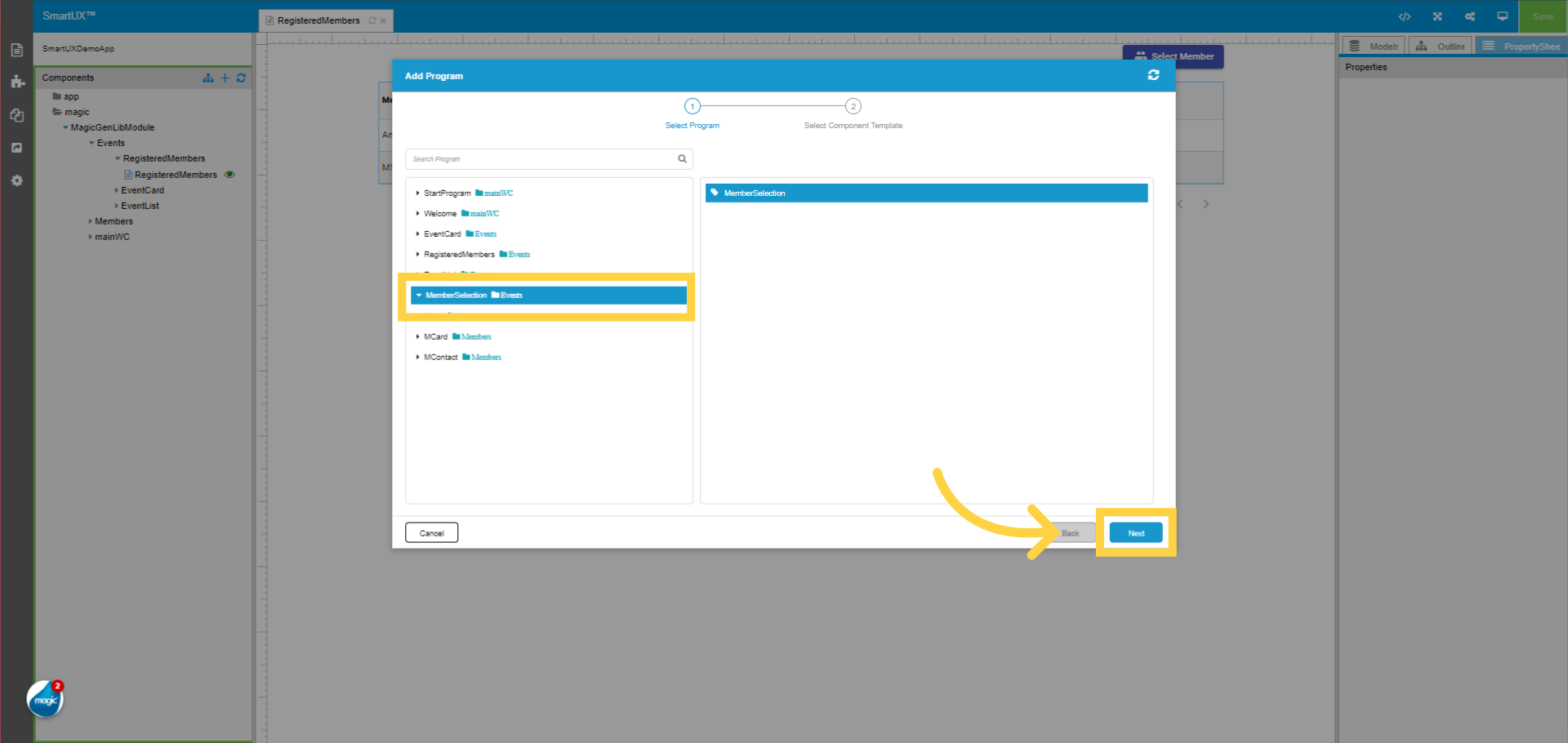
Click on Add Component, this will open a list of programs from Magic xpa.
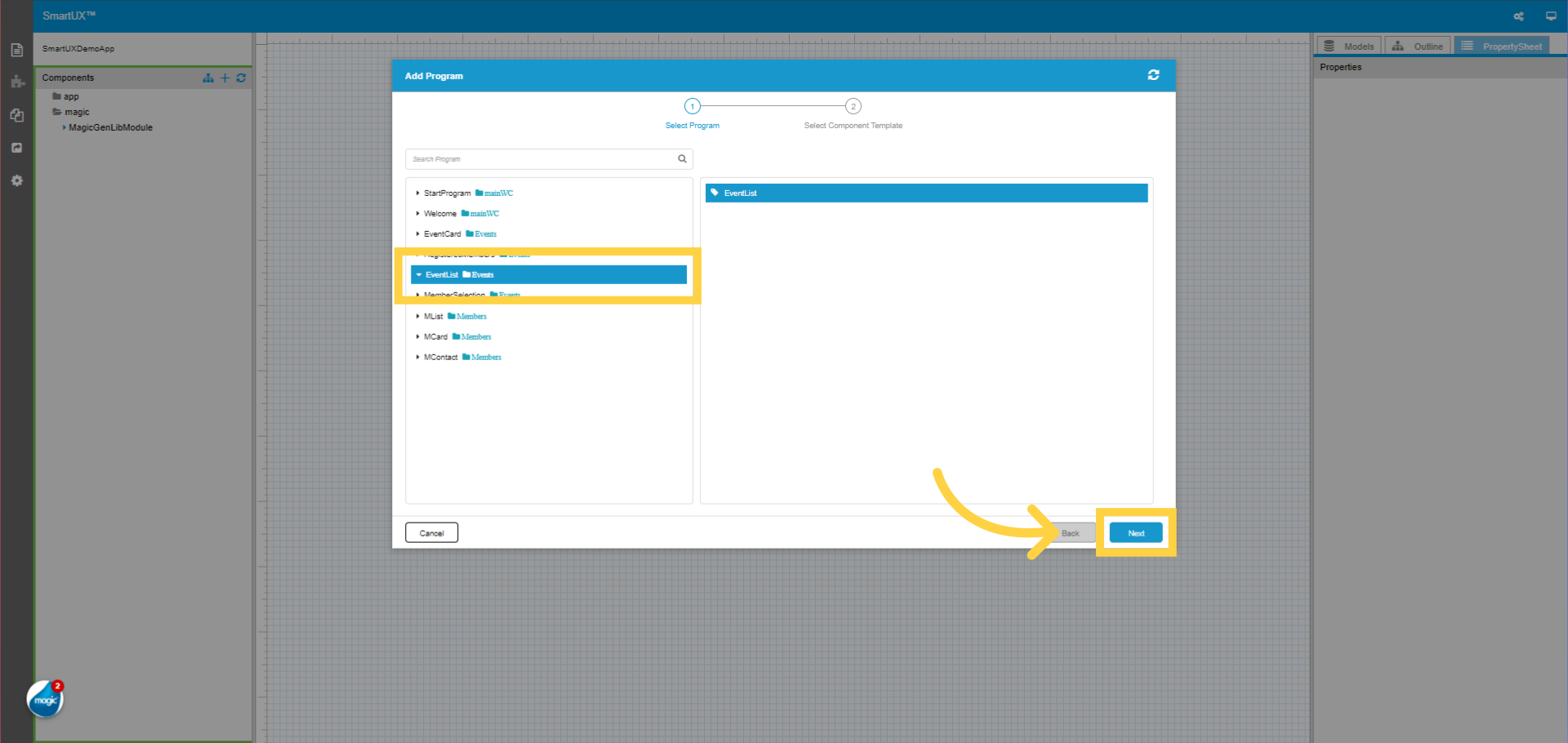
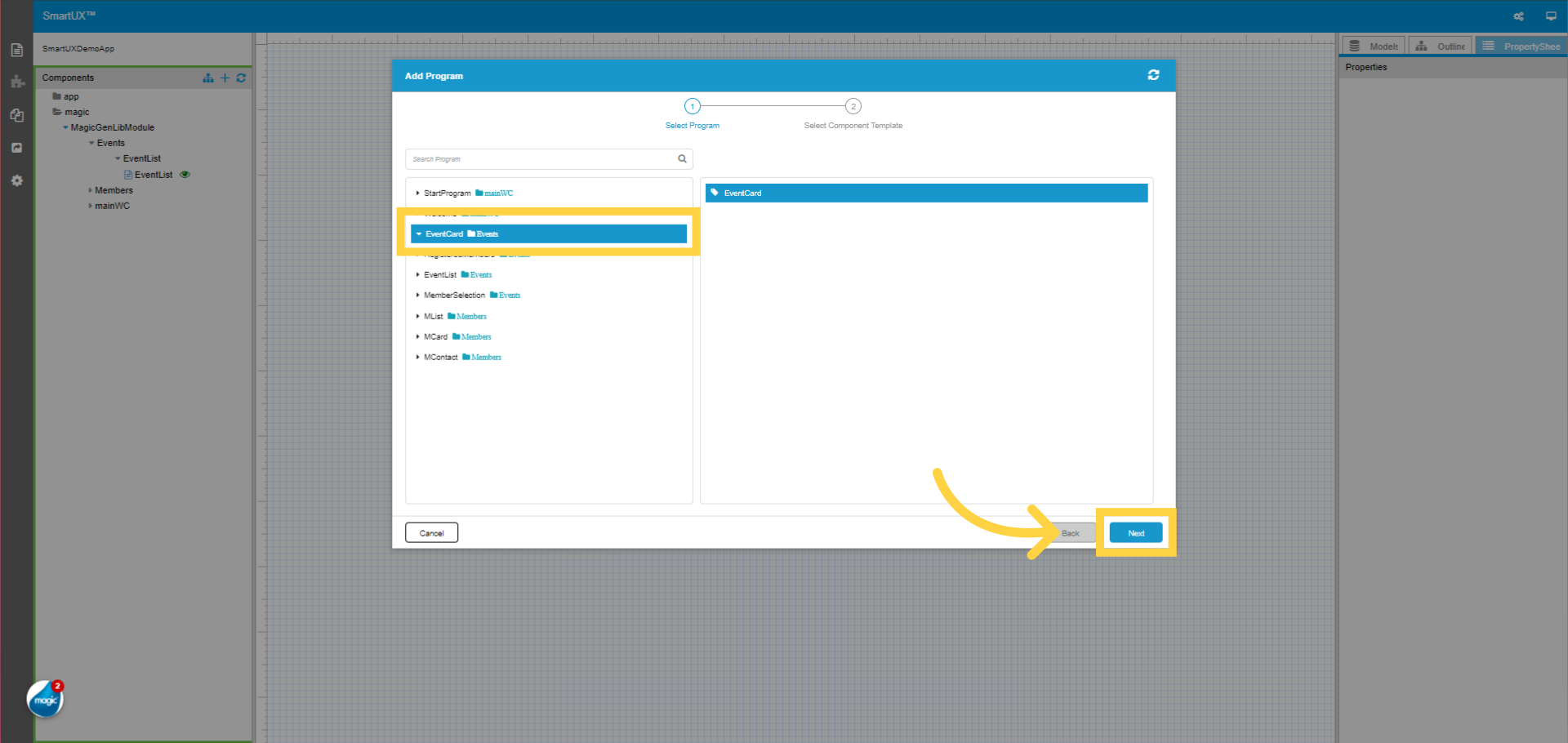
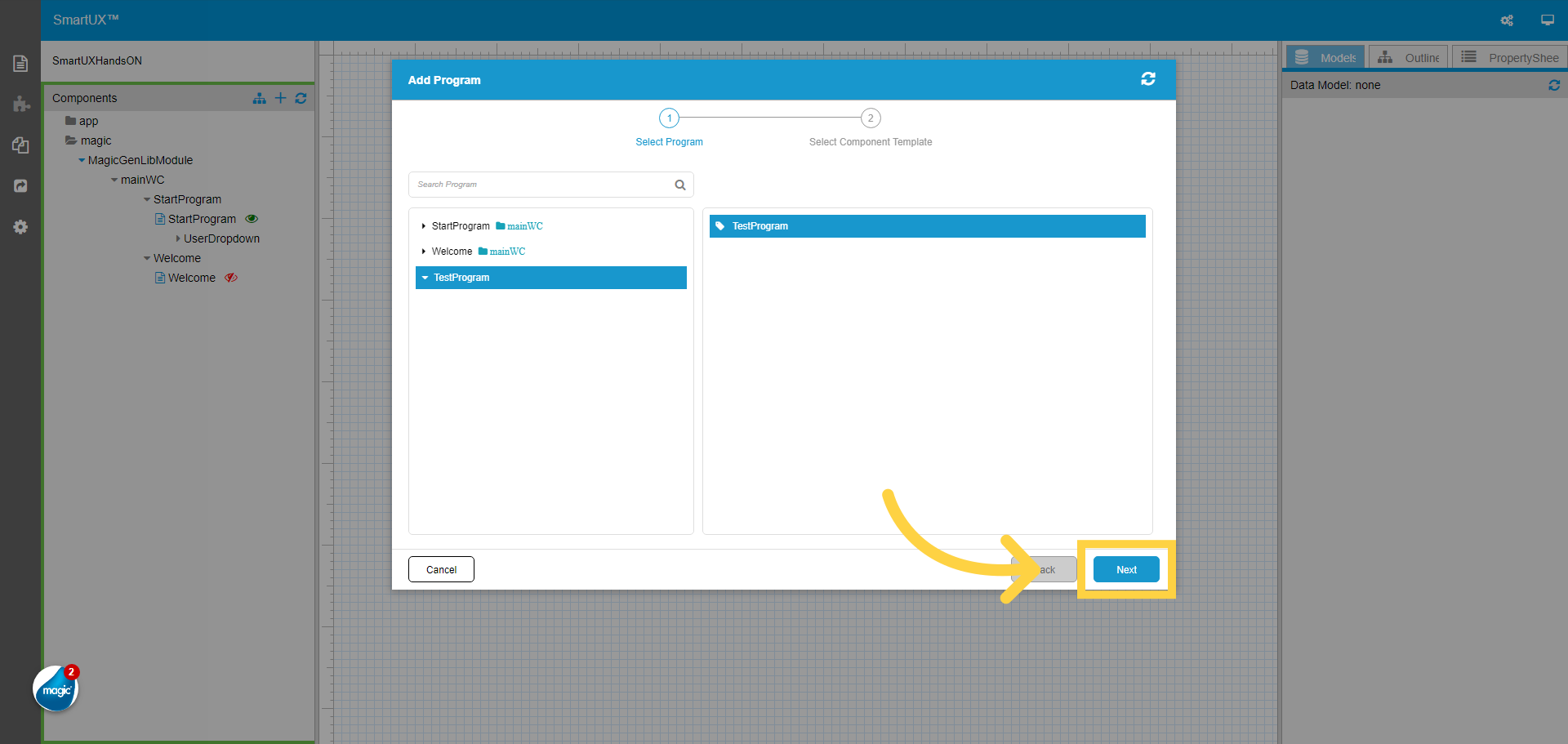
2. Select the program to add as a component

Select the Program you wish to Add as a component in SmartUX.

3. Click “Next”

Select the program and click Next.
 

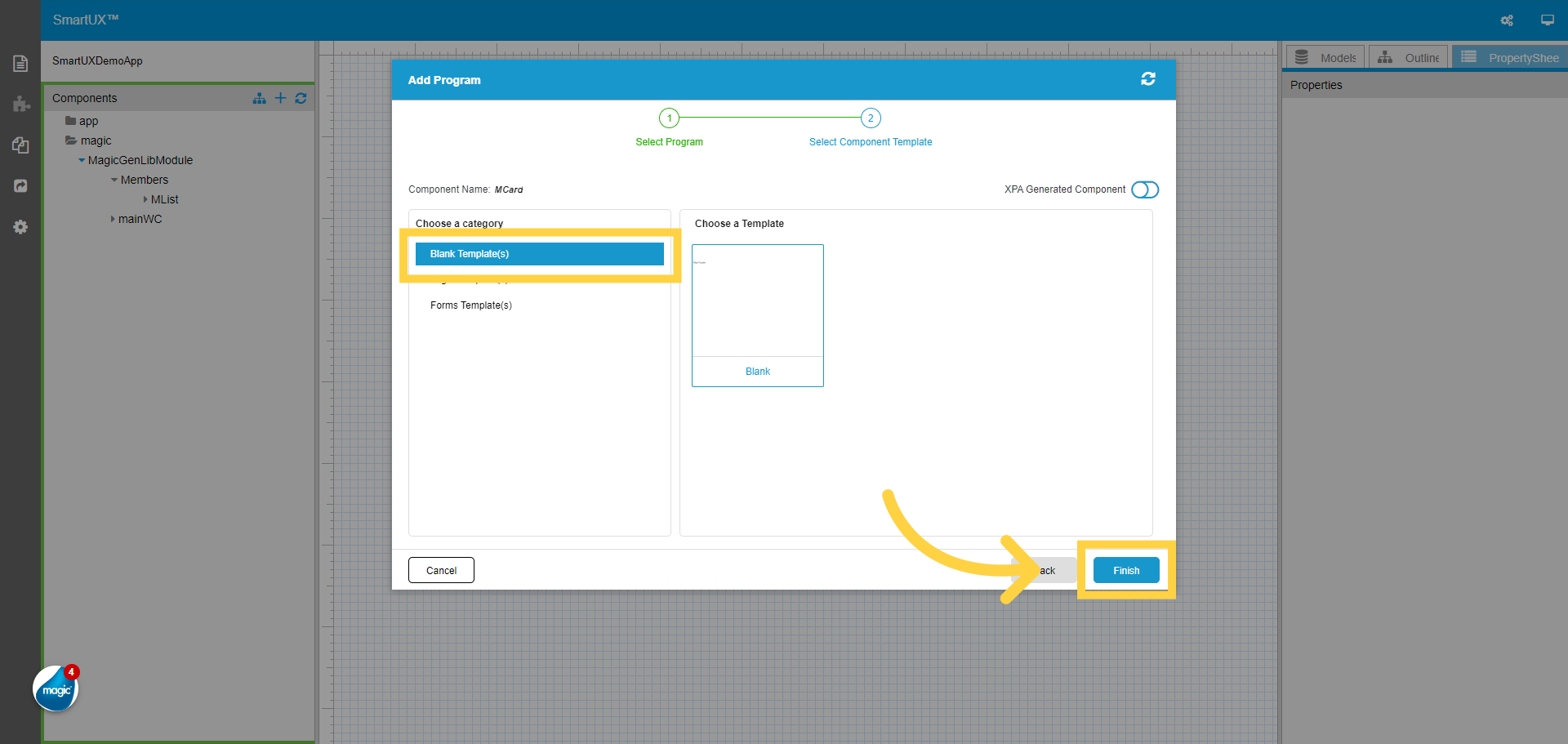
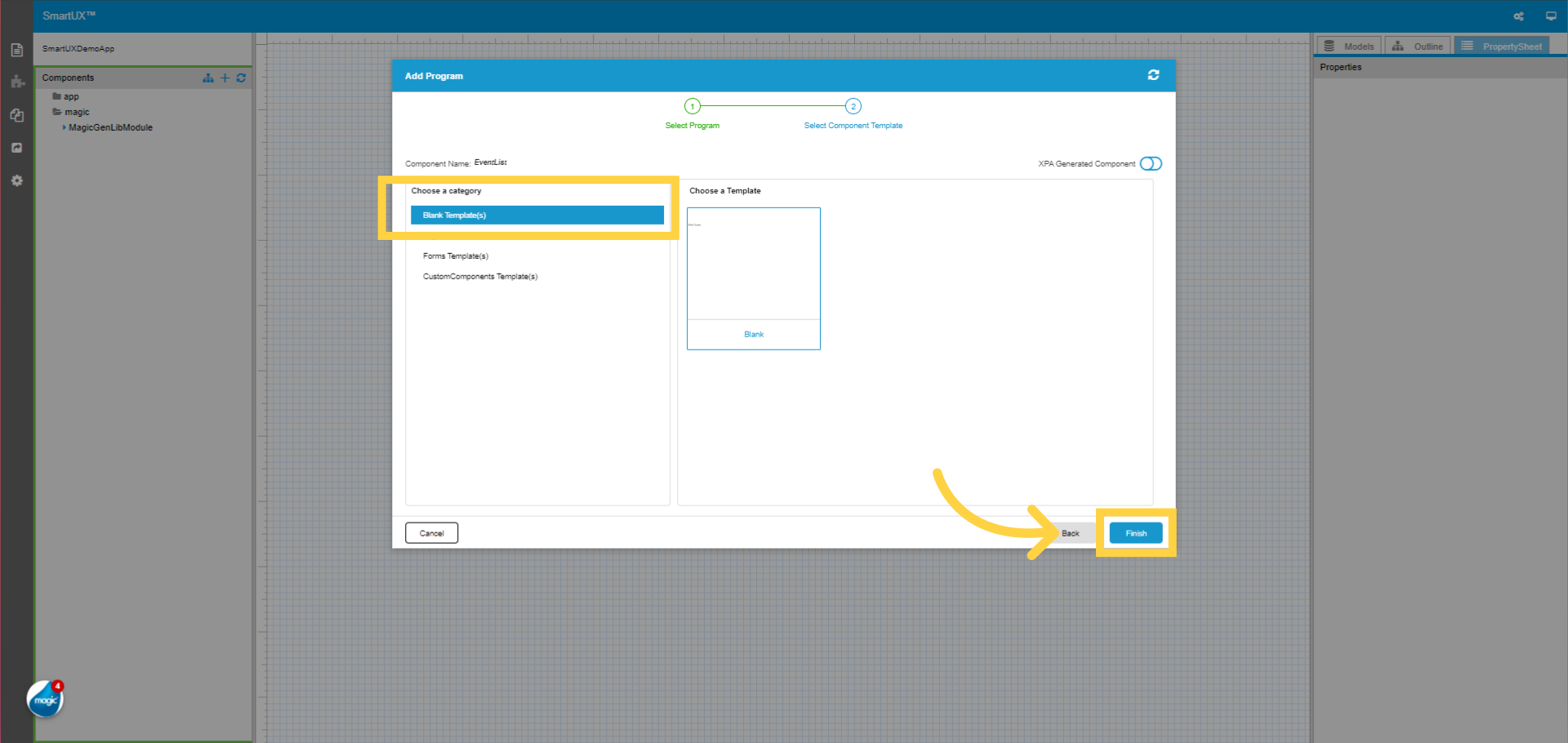
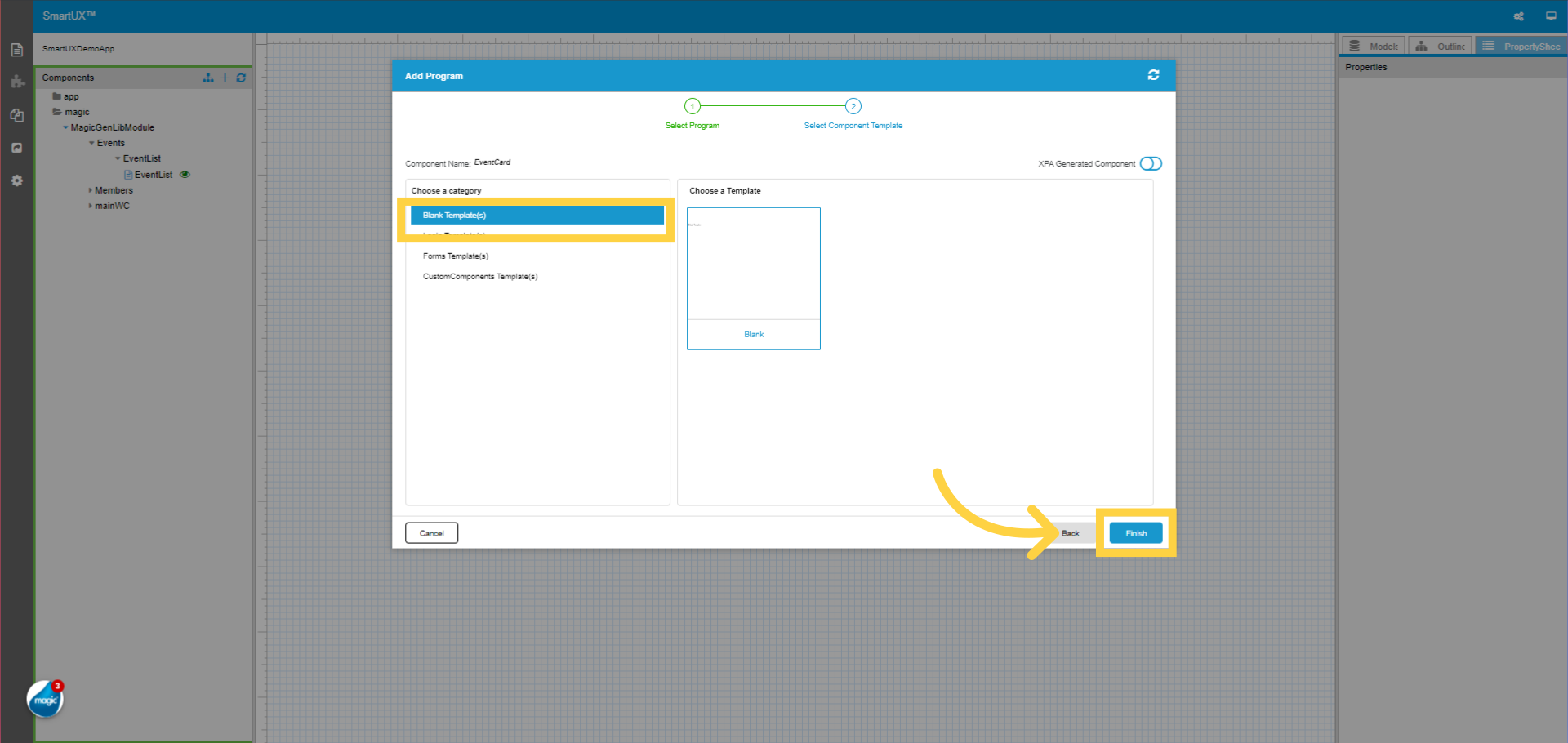
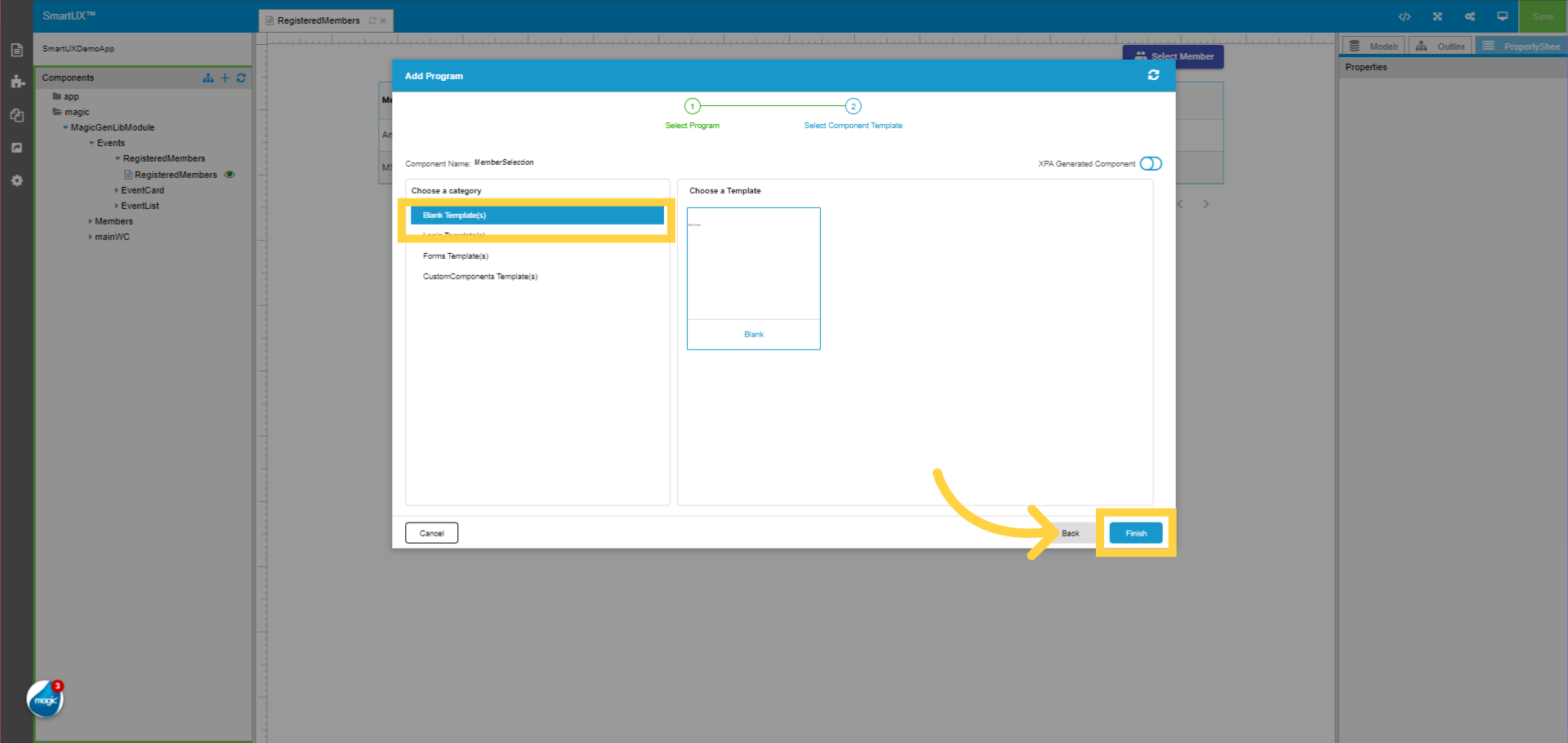
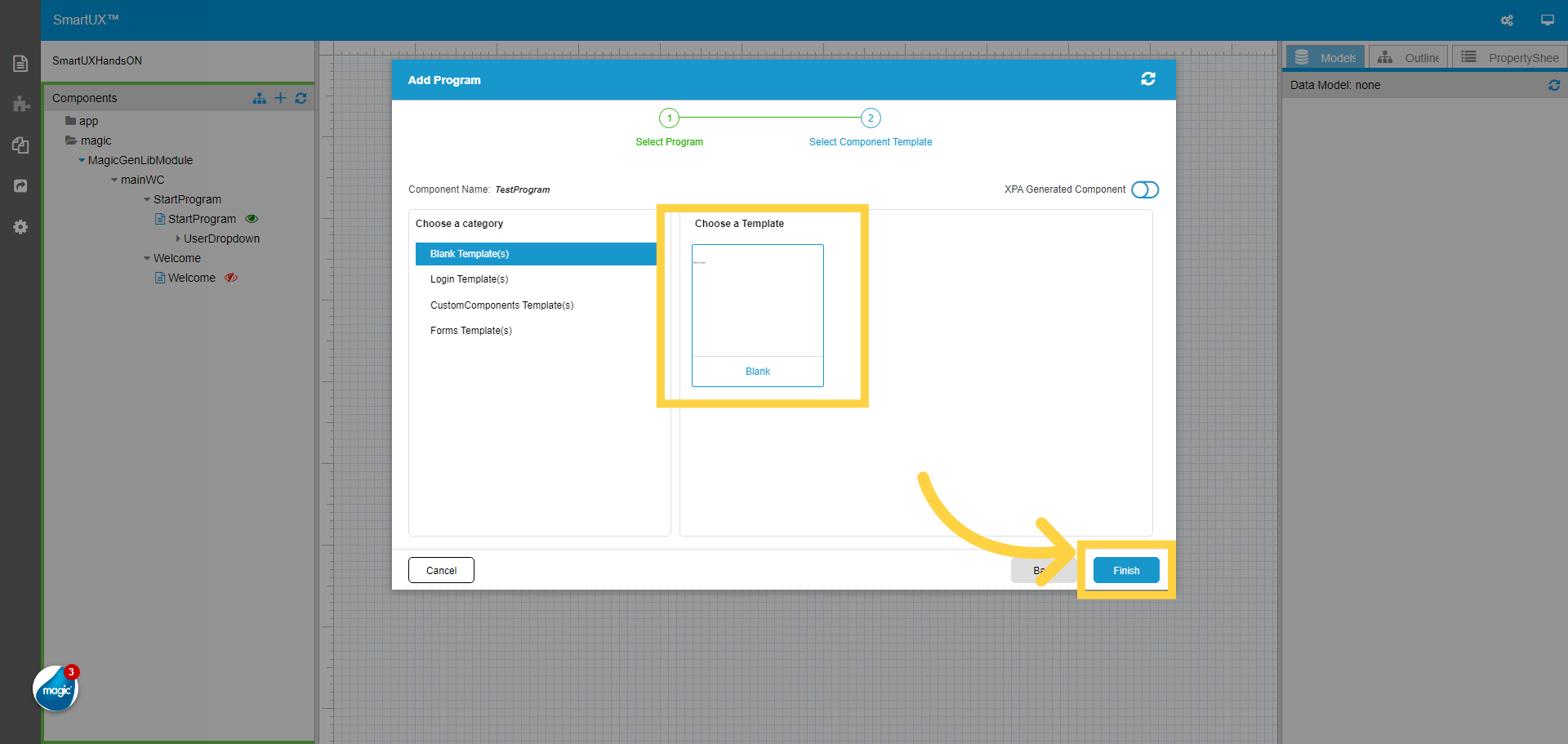
4. Select the Component Template

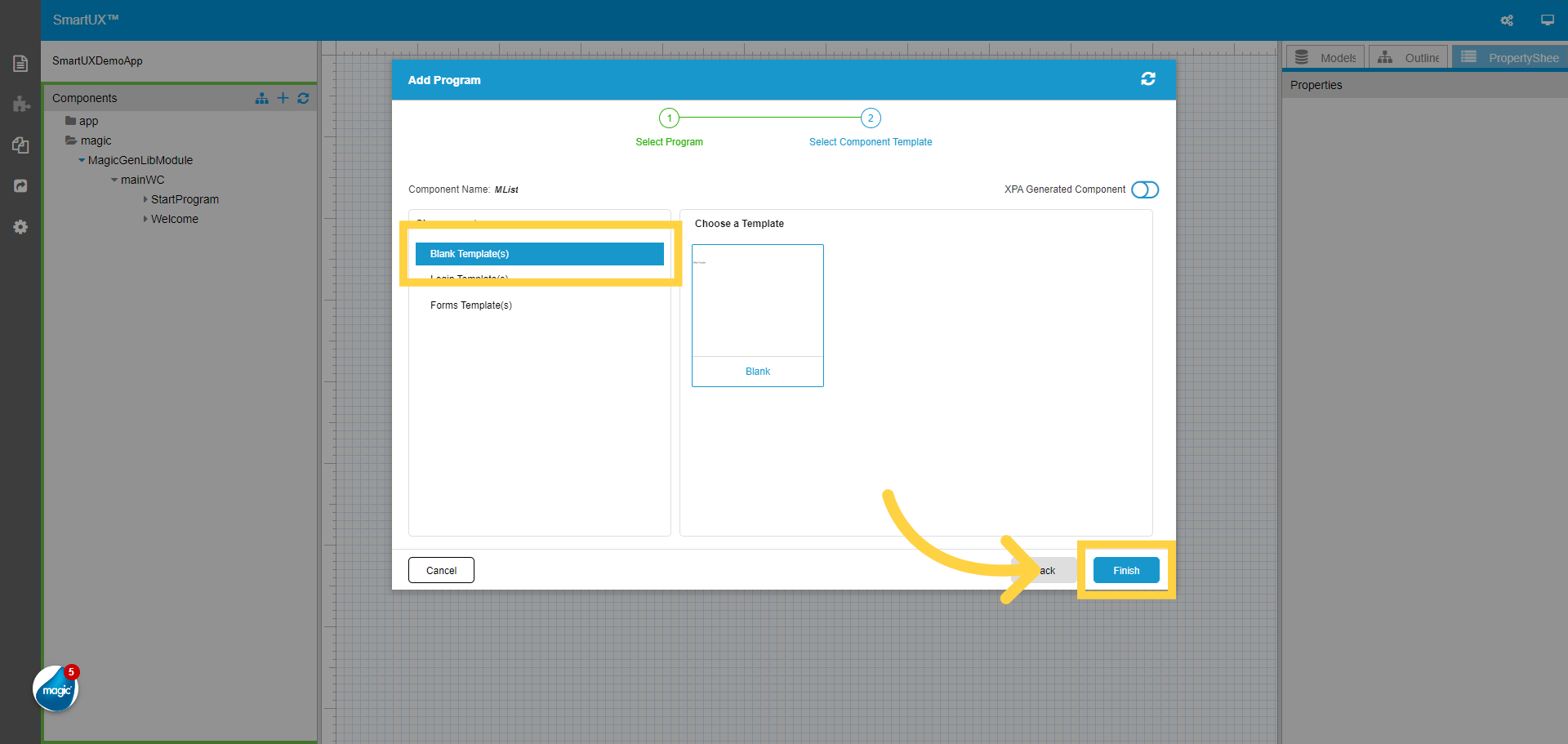
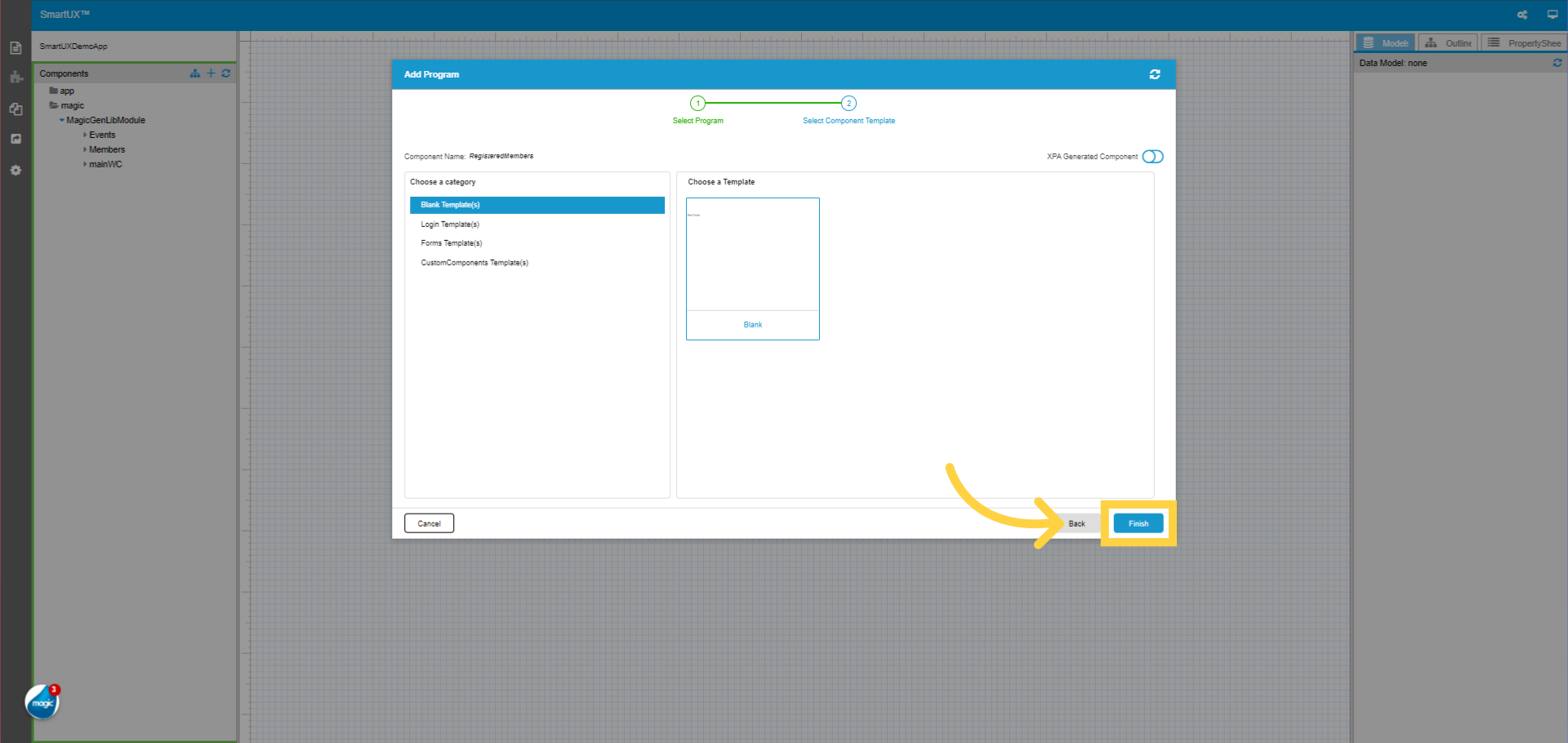
Select the Component Template and then click on the Finish button. Here we select a Blank template.
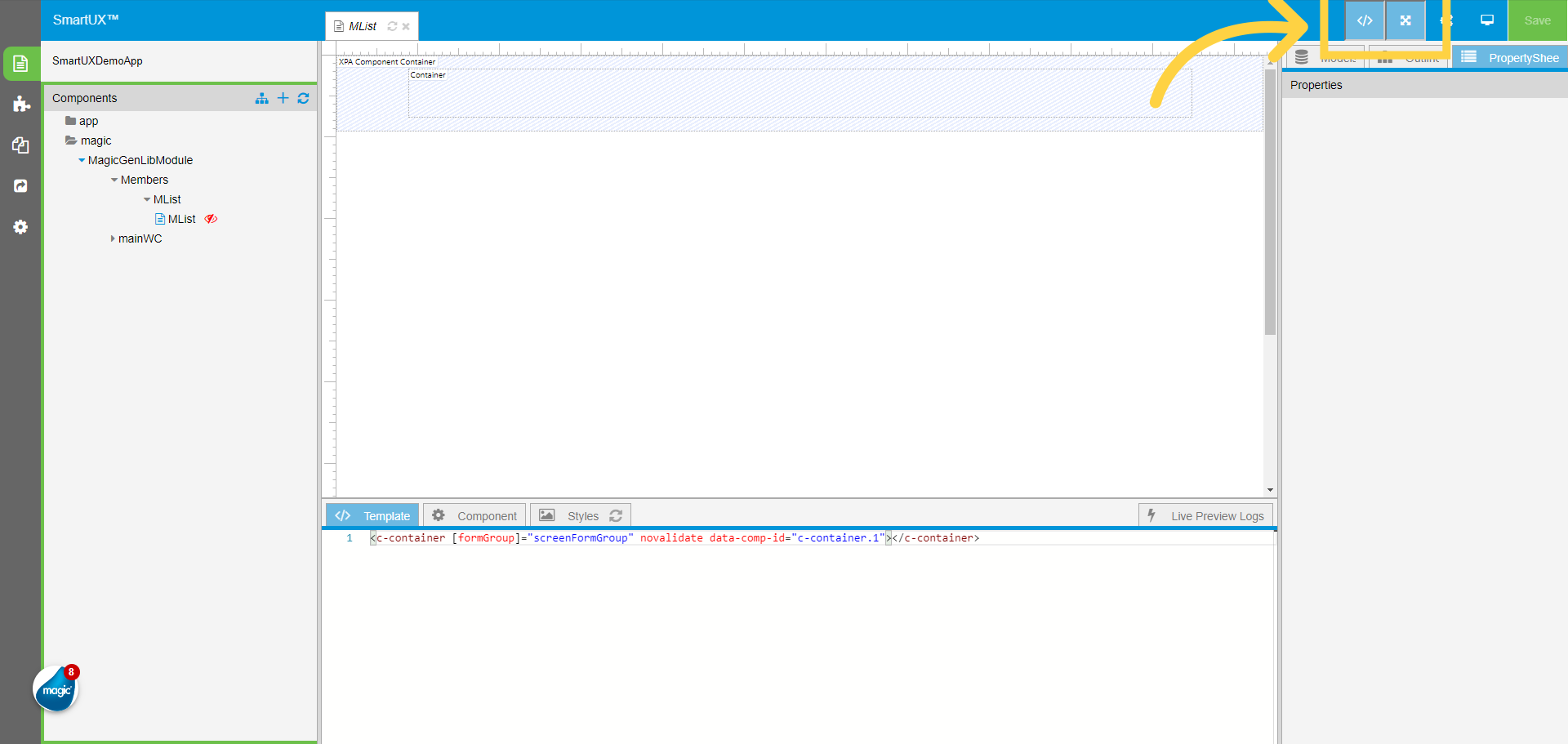
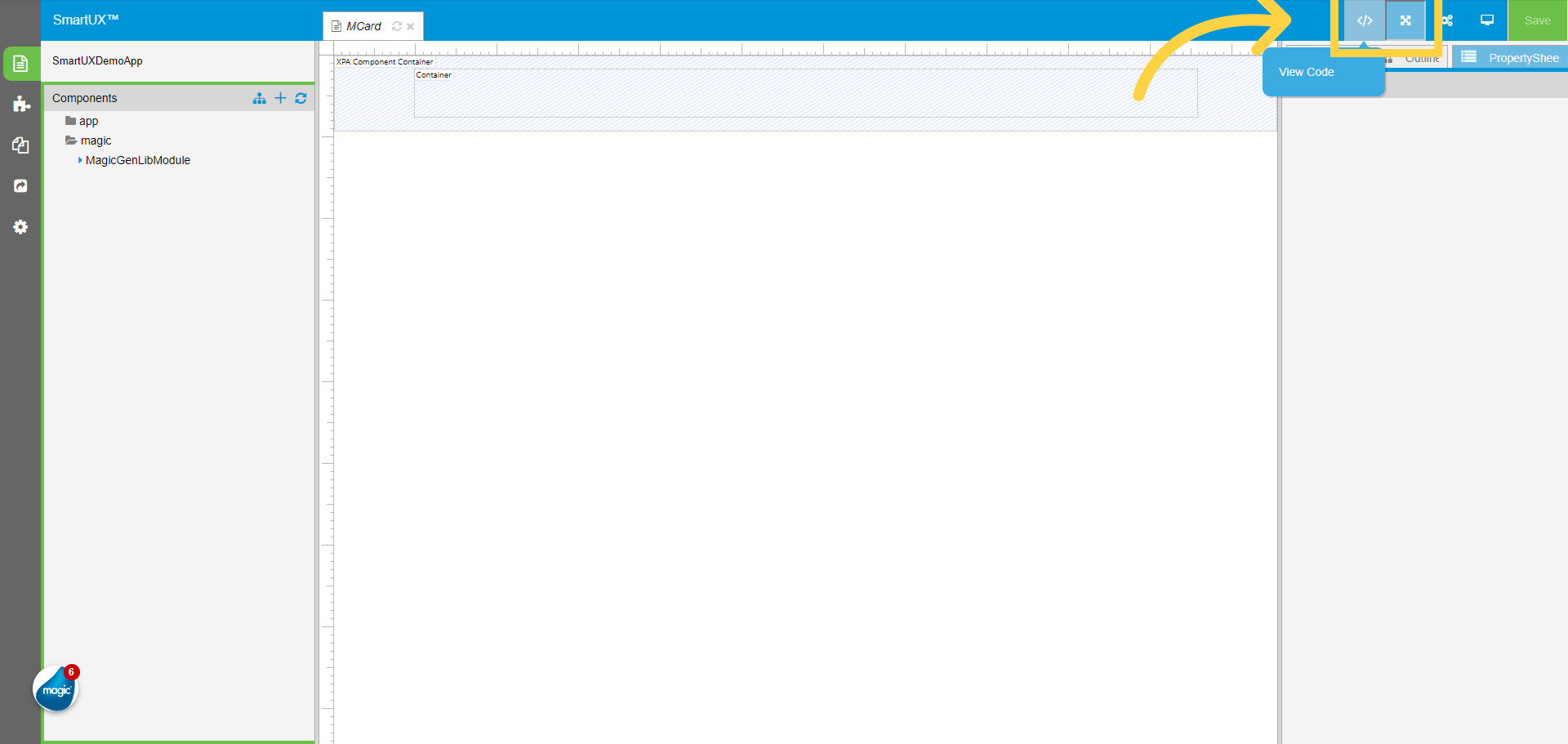
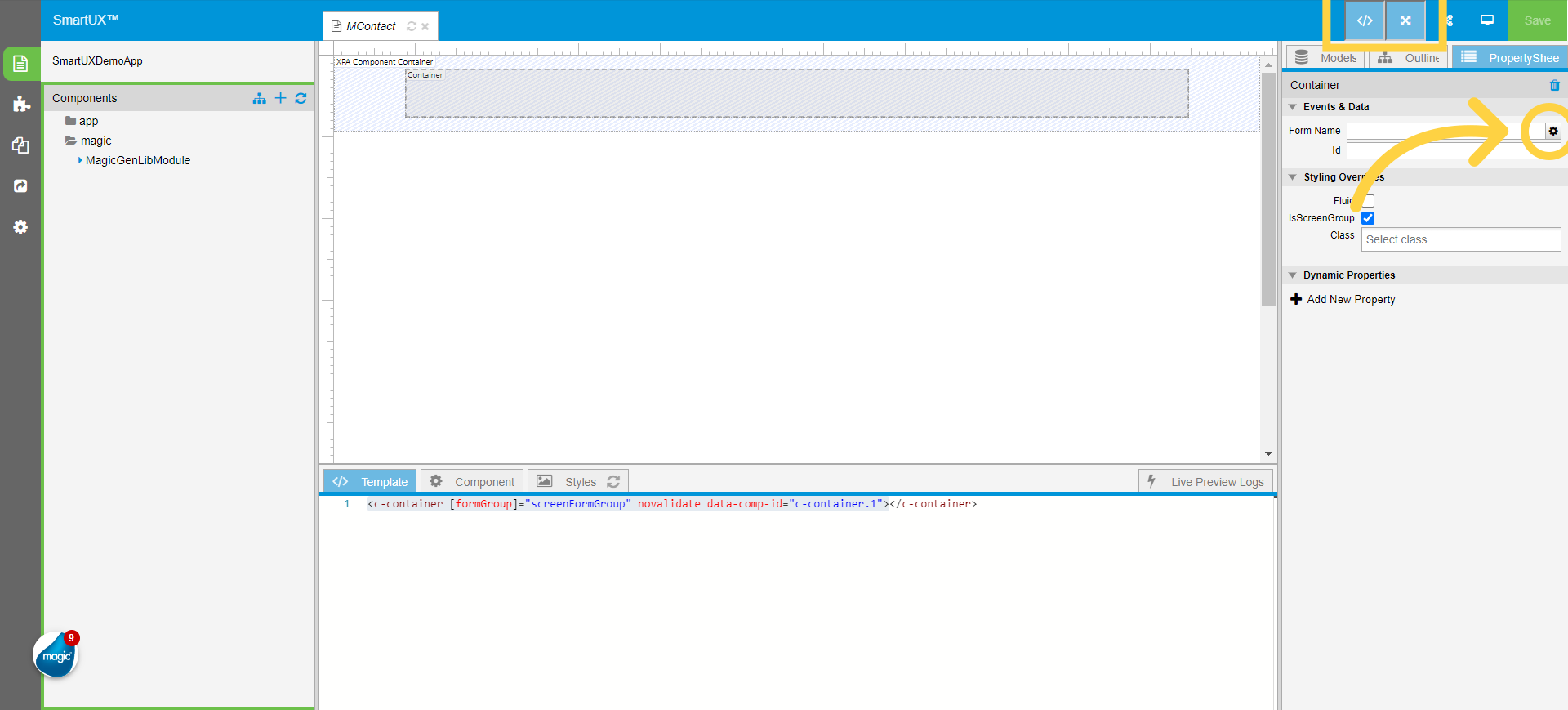
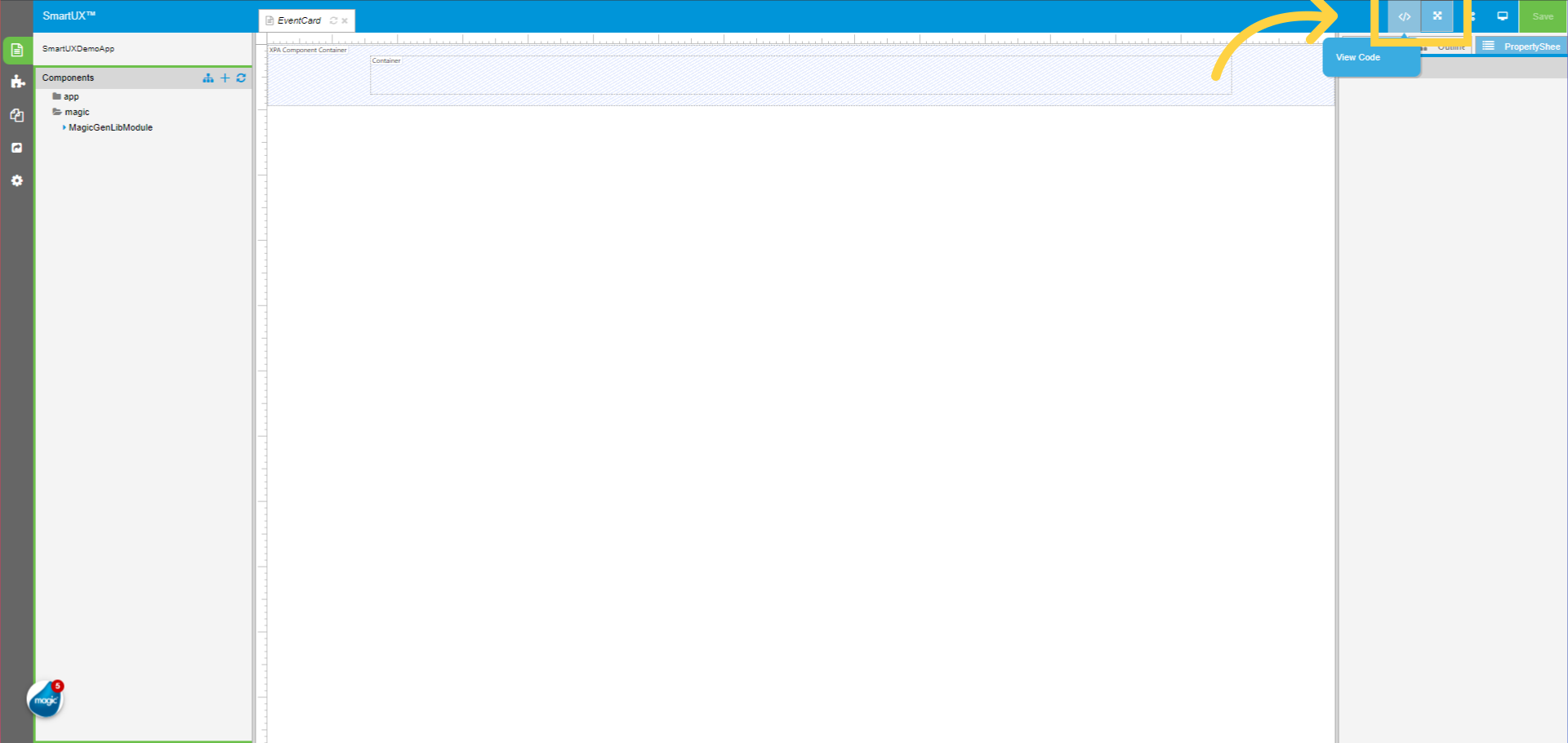
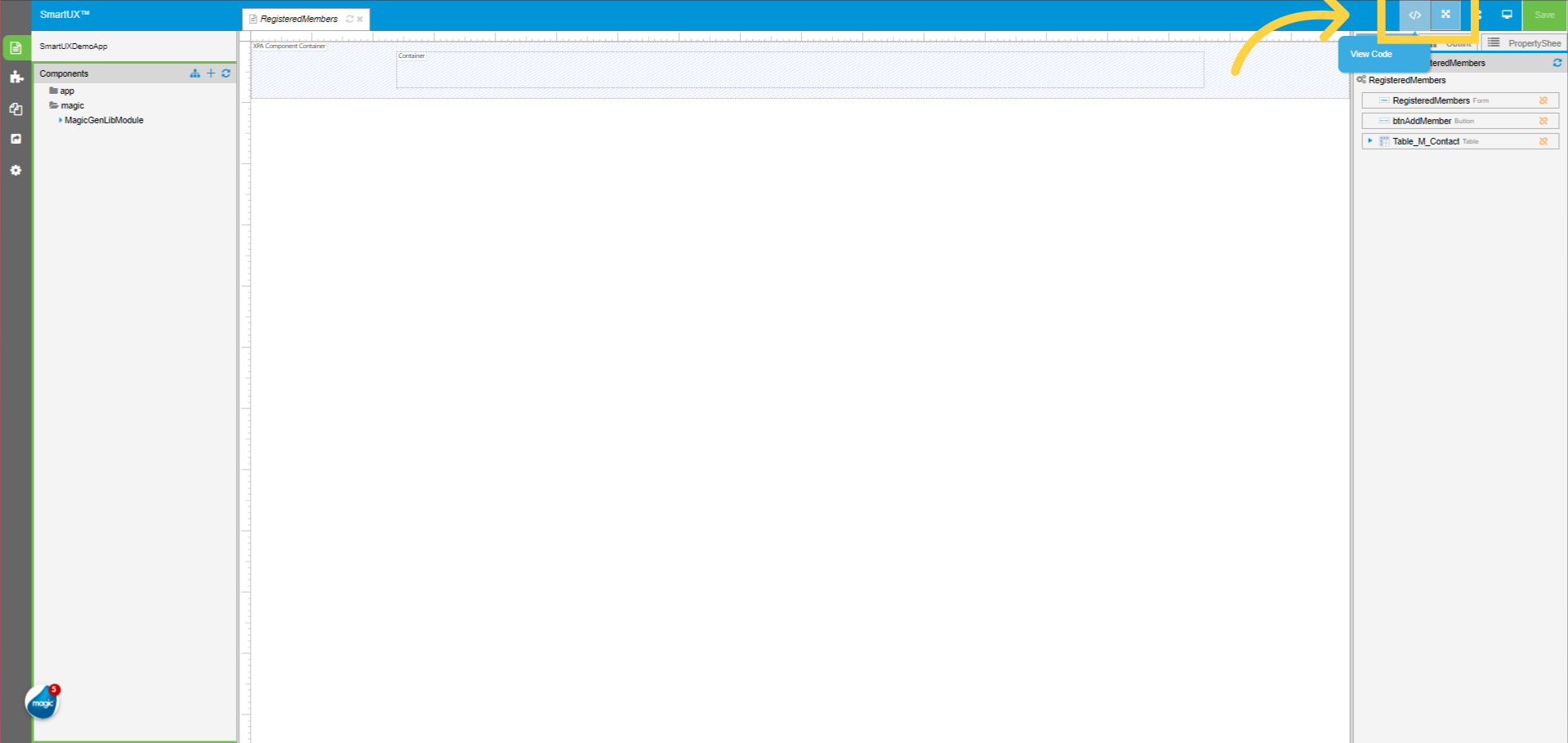
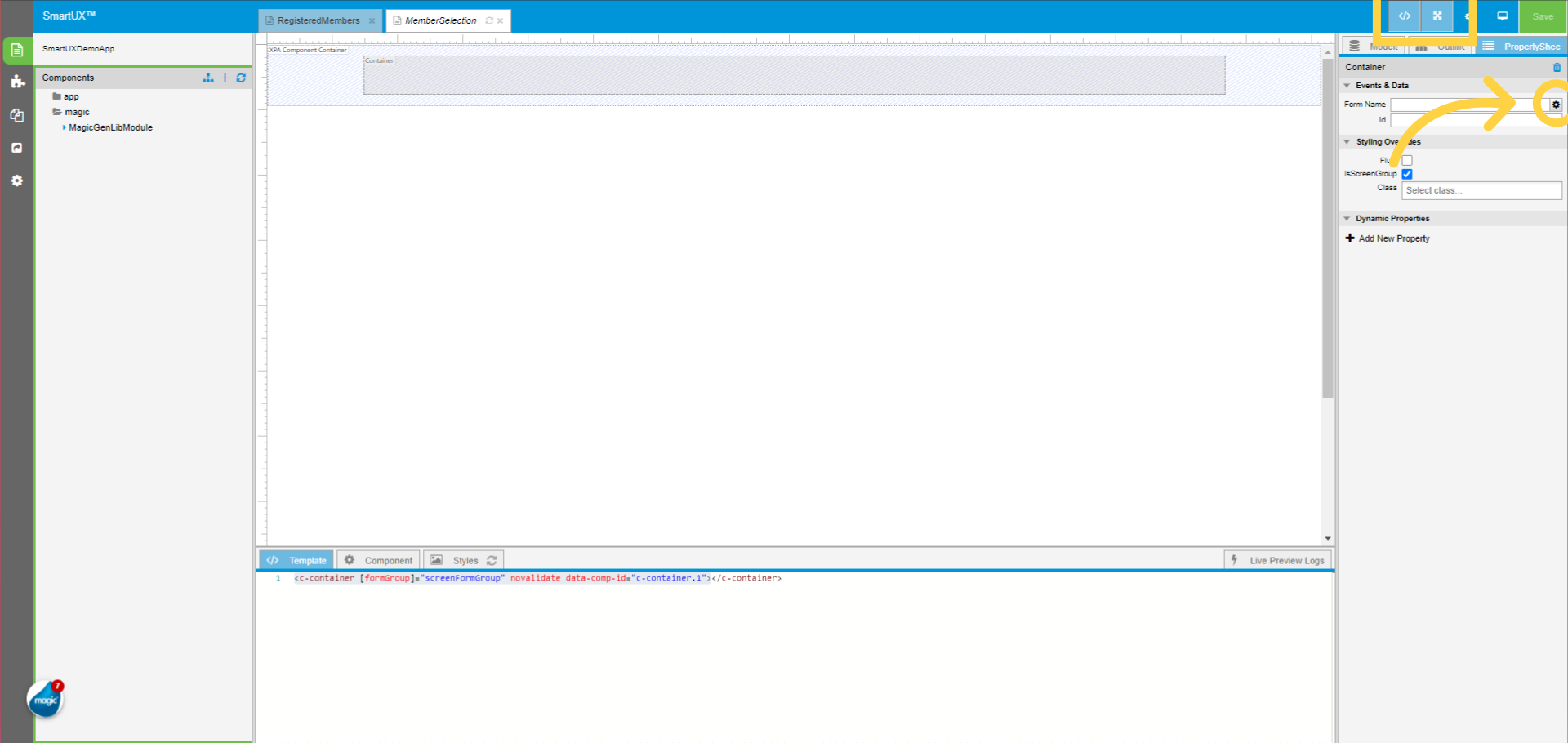
5. Switch to Expanded View on Canvas

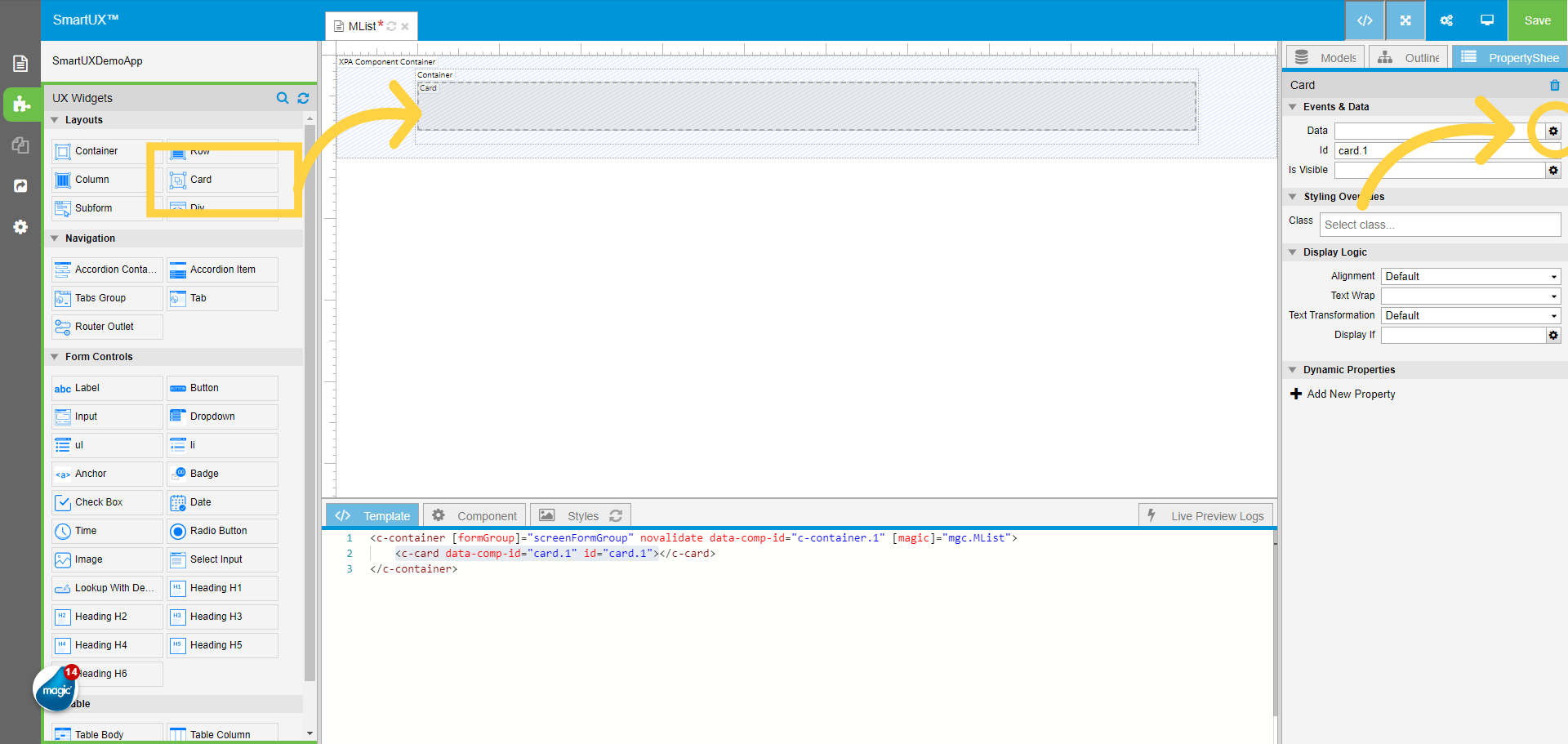
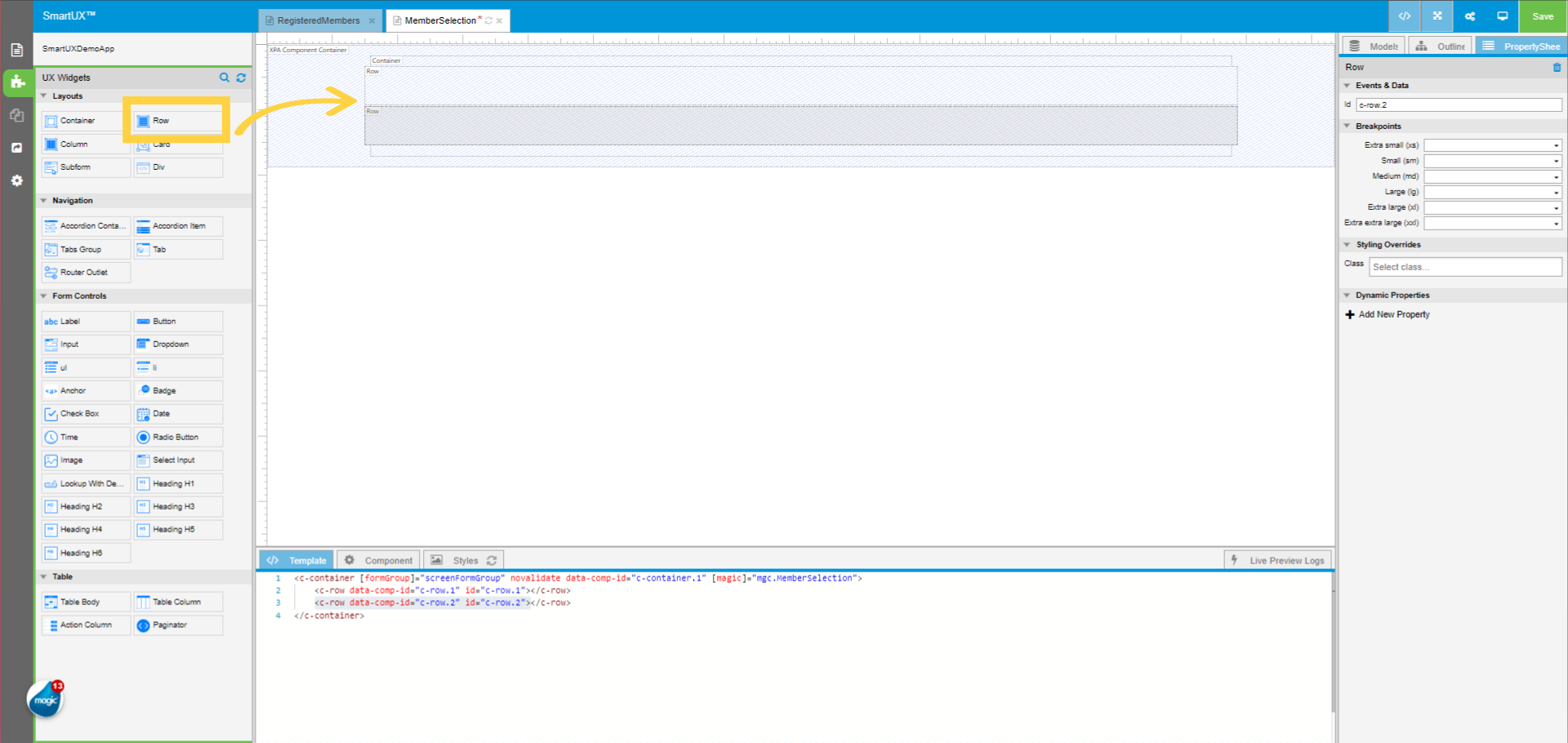
To see the canvas in design mode click on Expanded View.
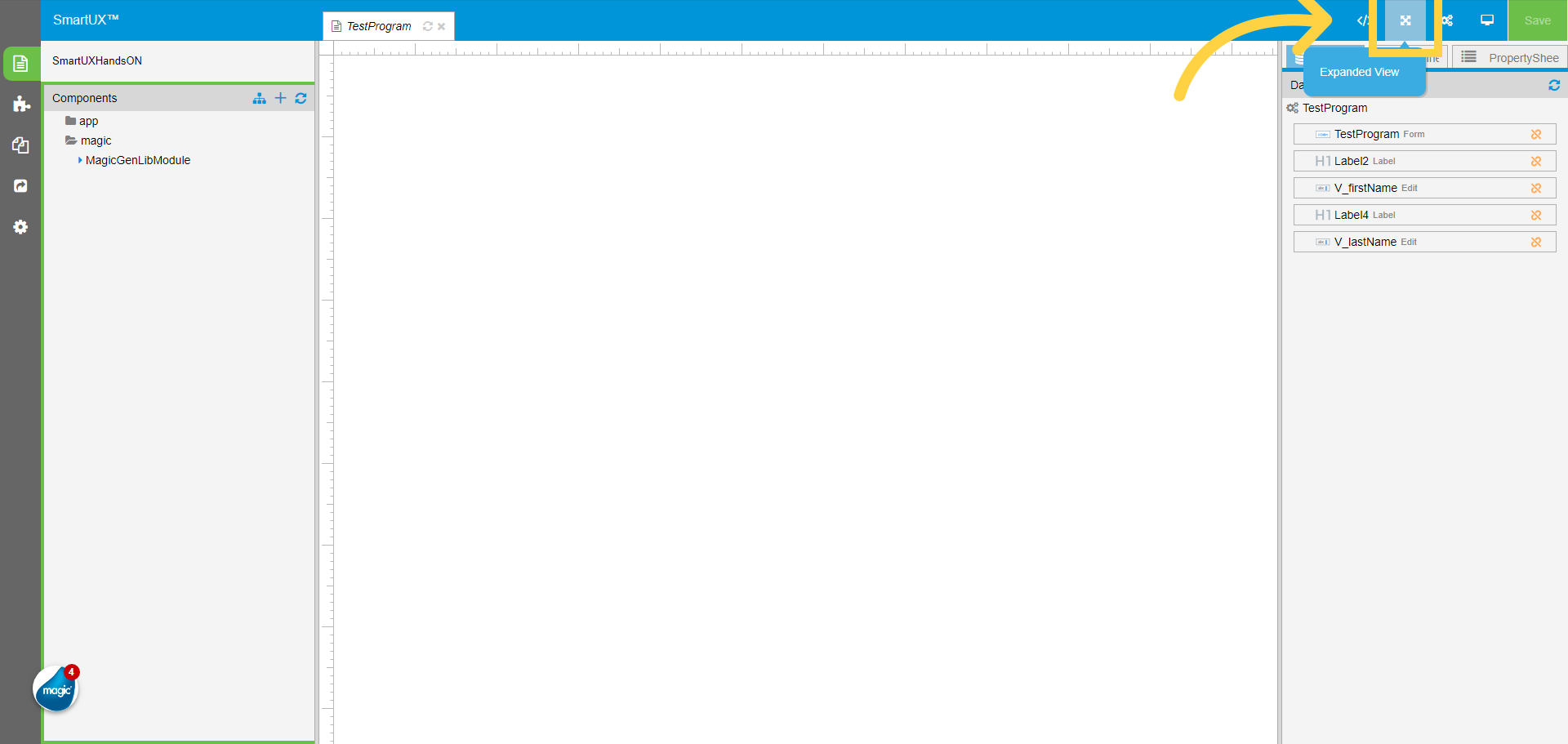
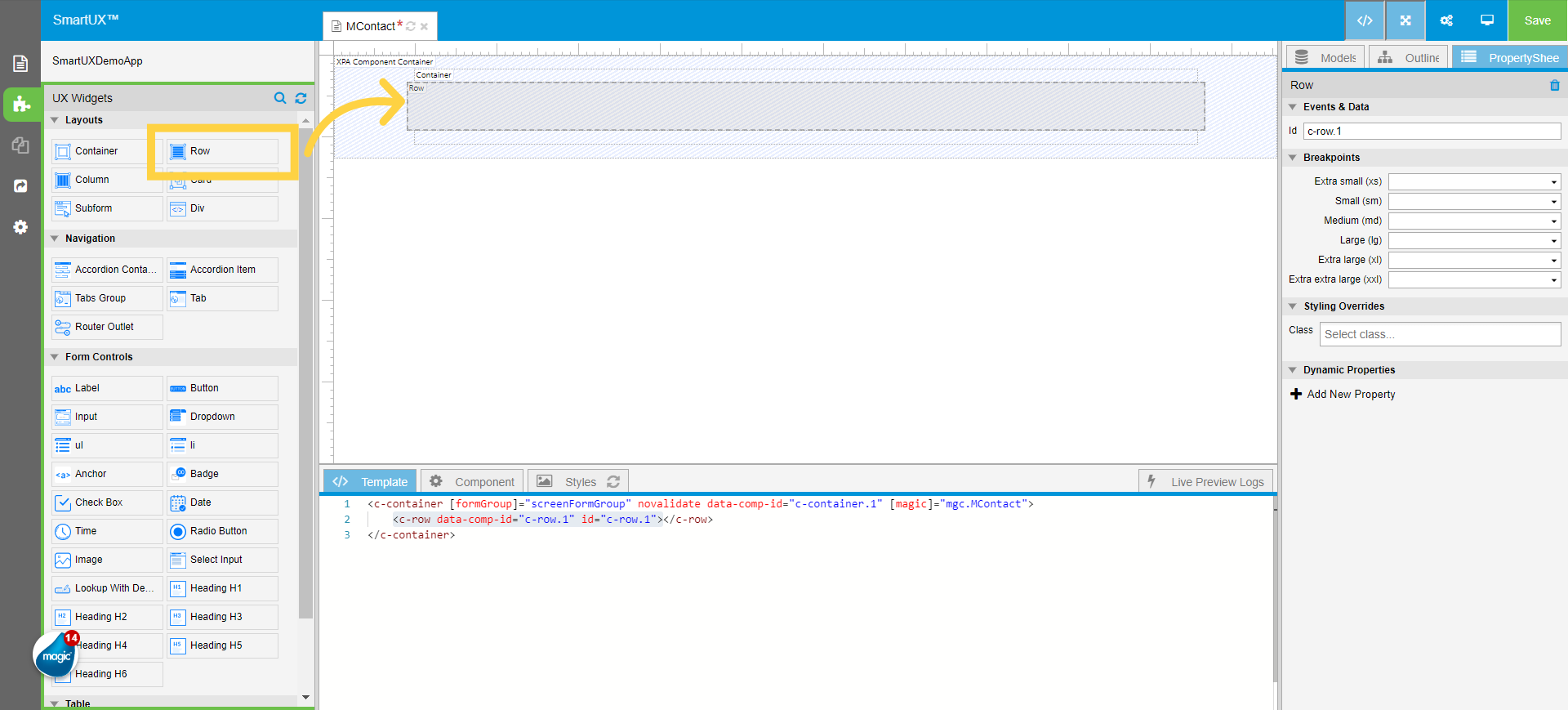
6. Open Widgets Pane

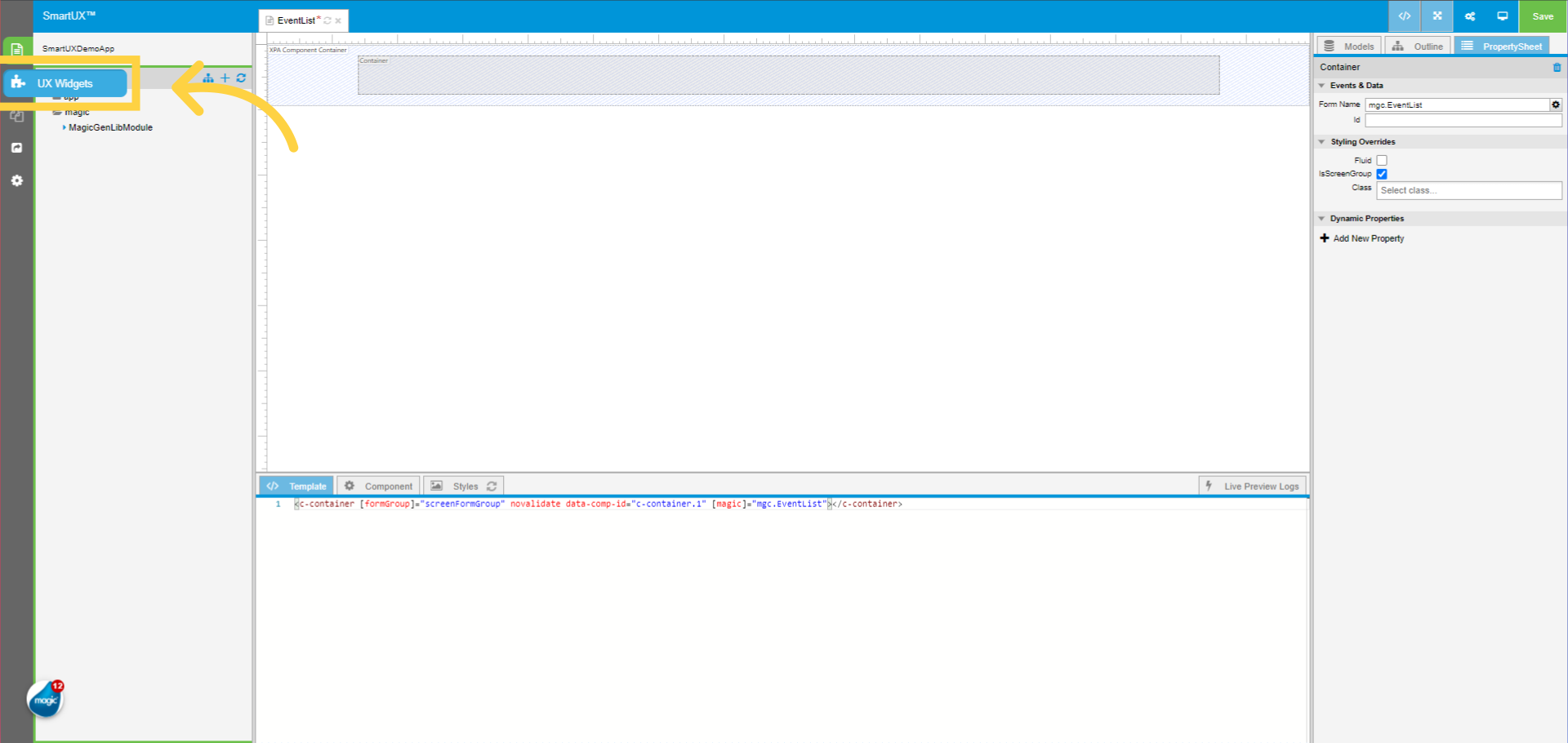
From the left pane select the UX Widgets. This will open a widgets pane showing the set of widgets to drag and drop on canvas.

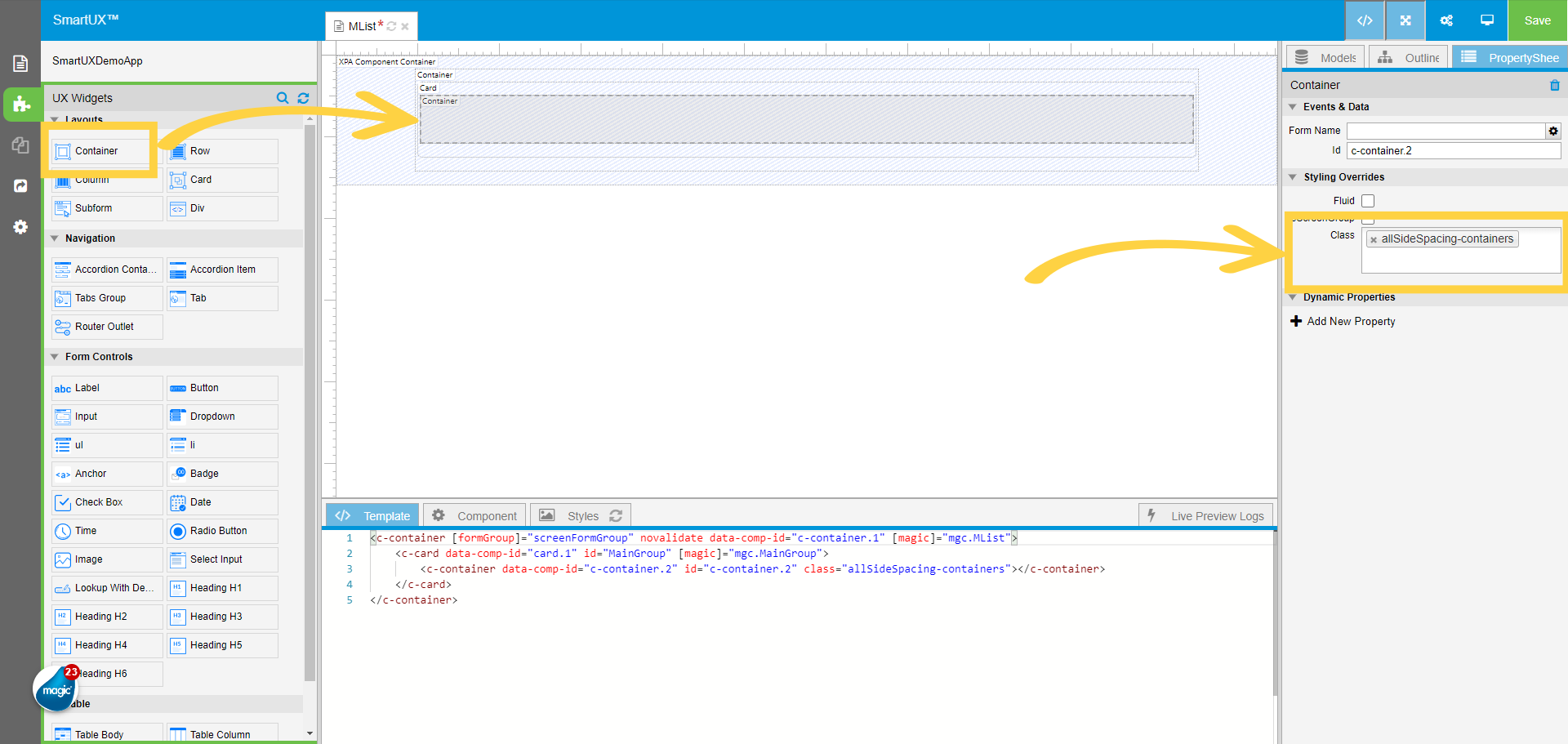
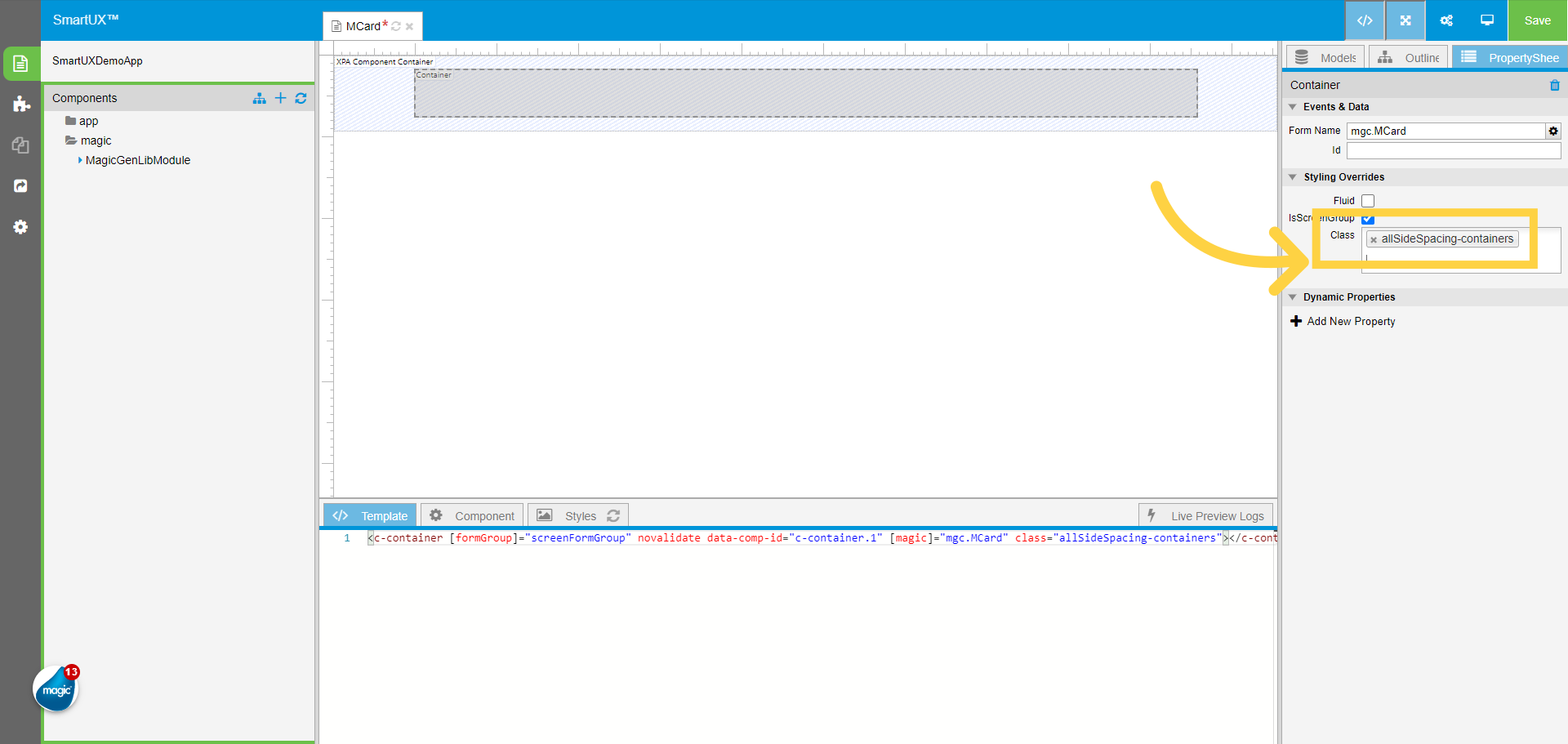
7. Select the Container Widget

Select the Container Widget dropped on the Canvas.
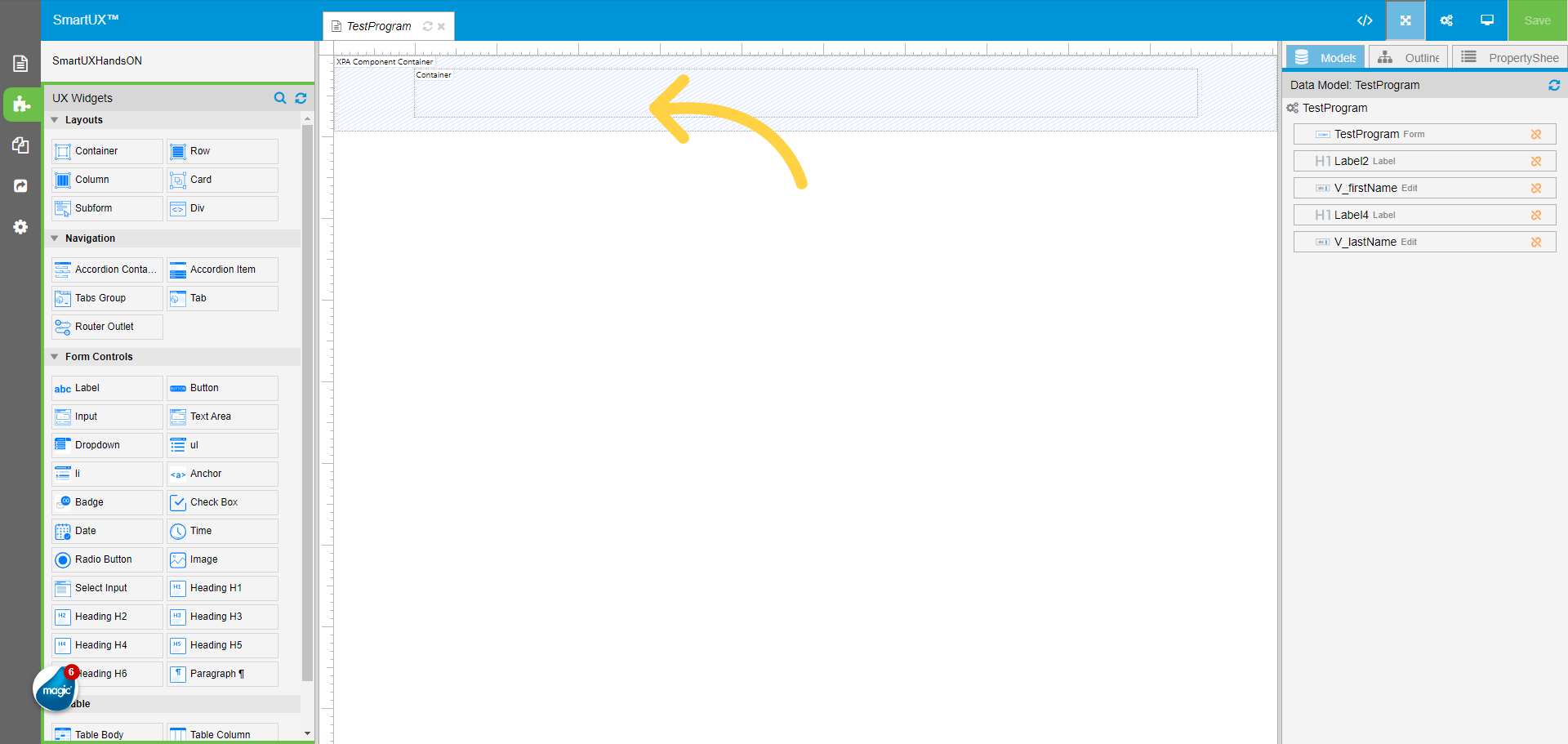
8. Click on the gear icon to open the Model list for mapping

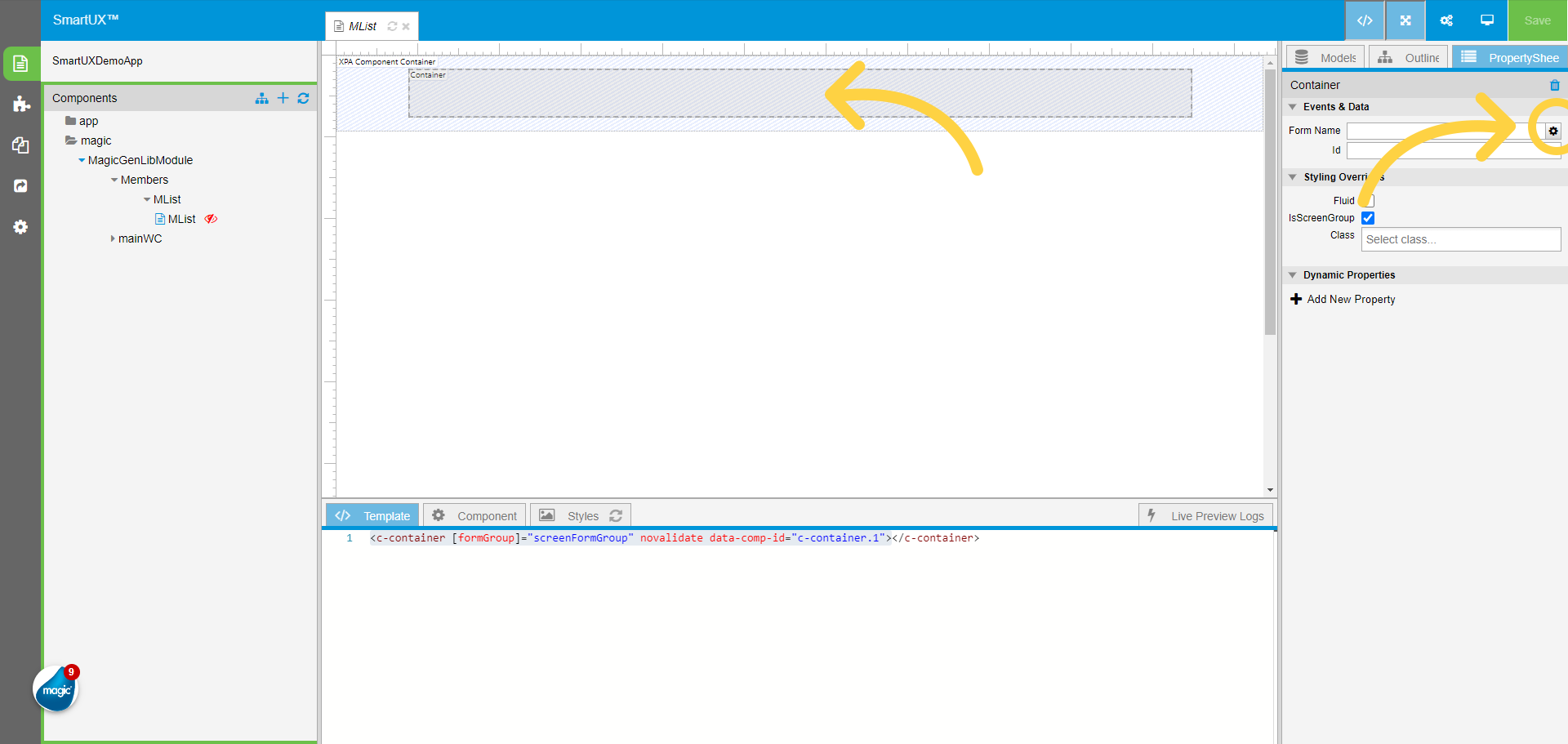
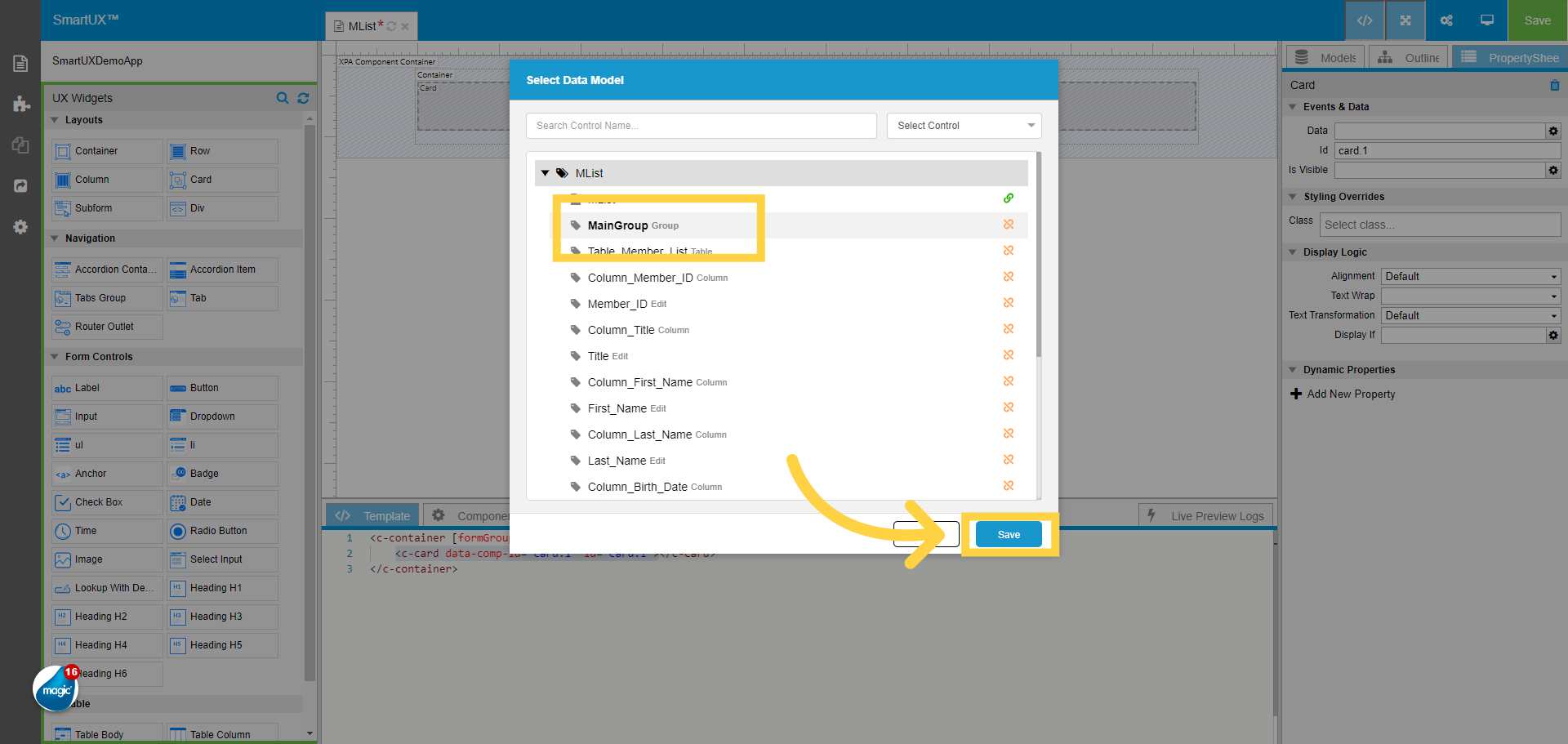
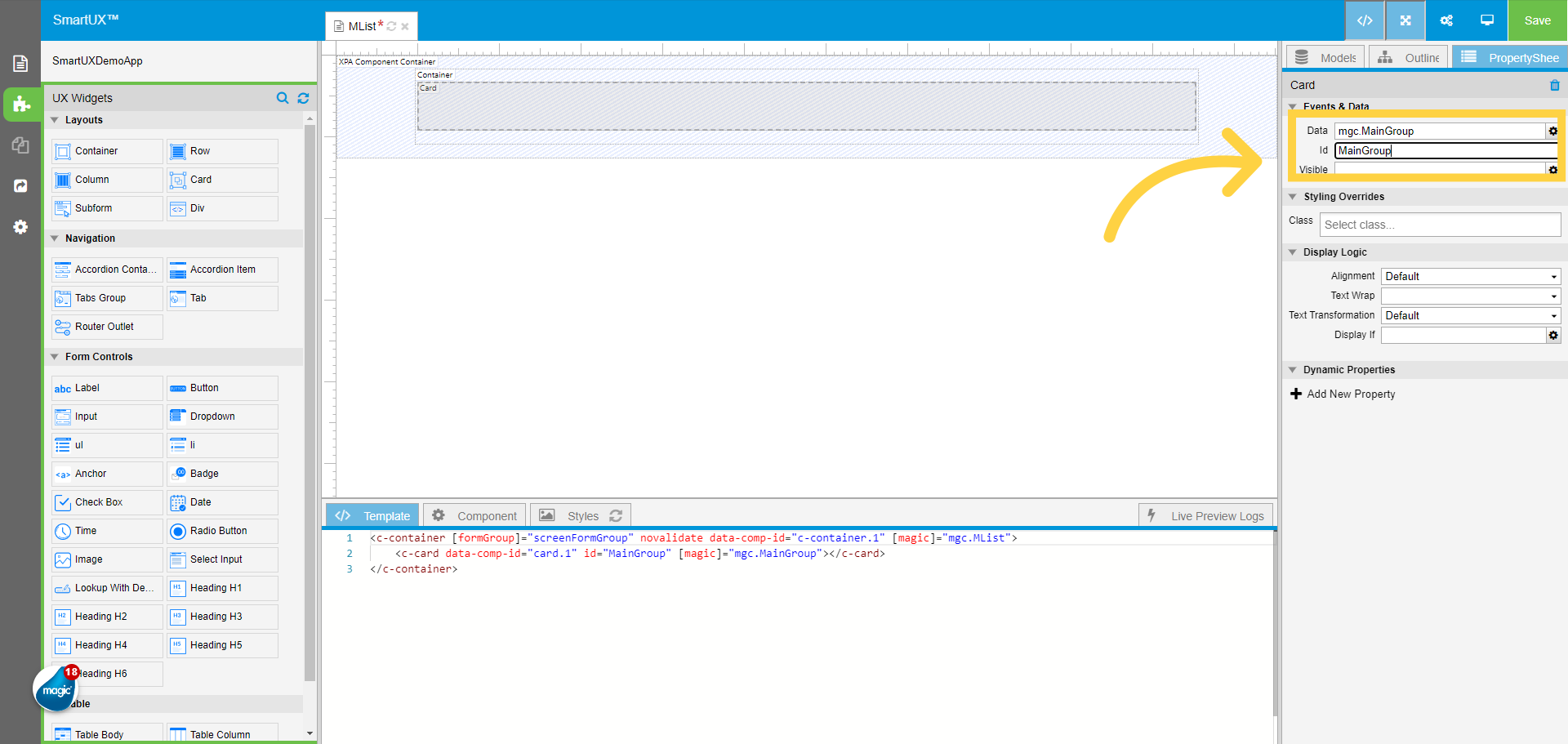
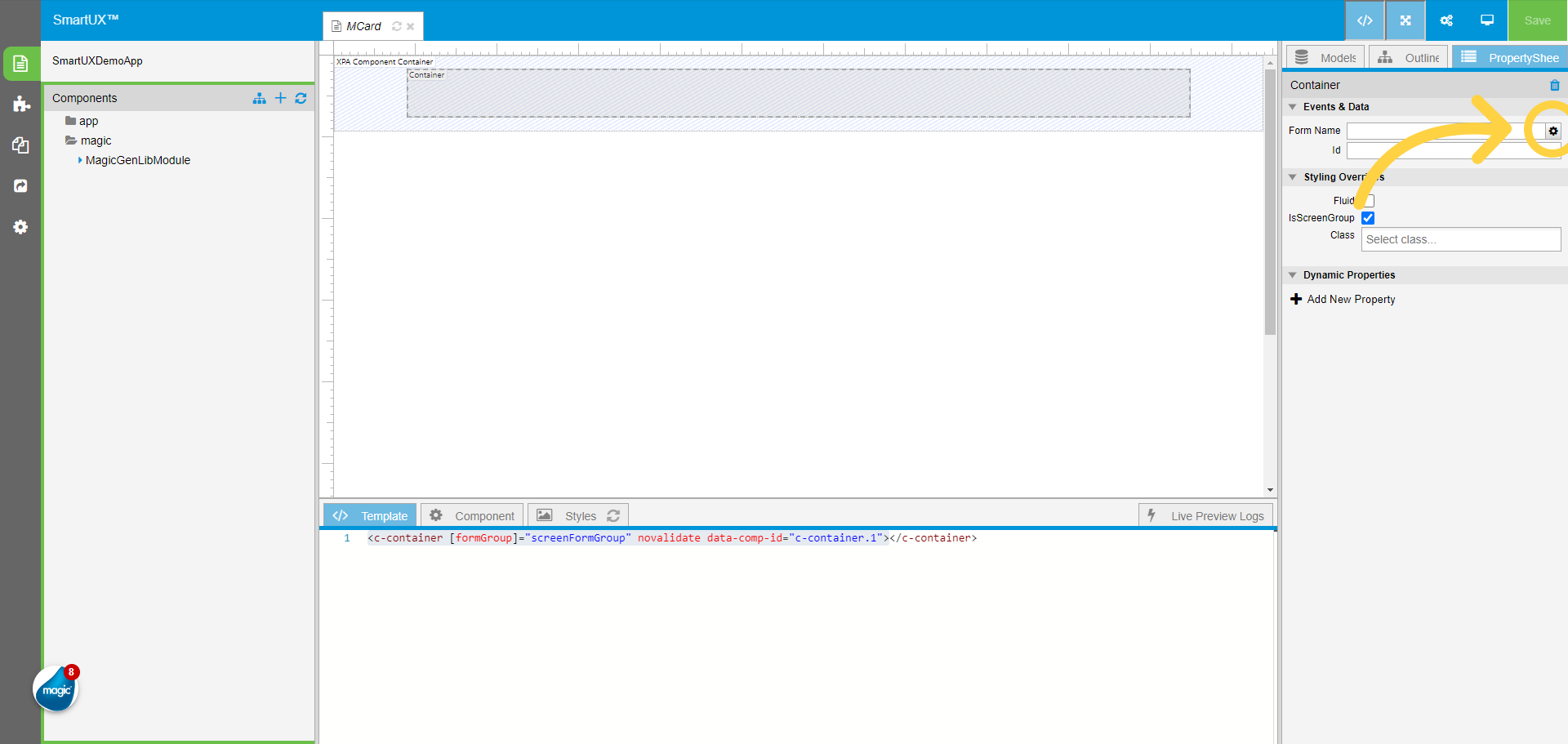
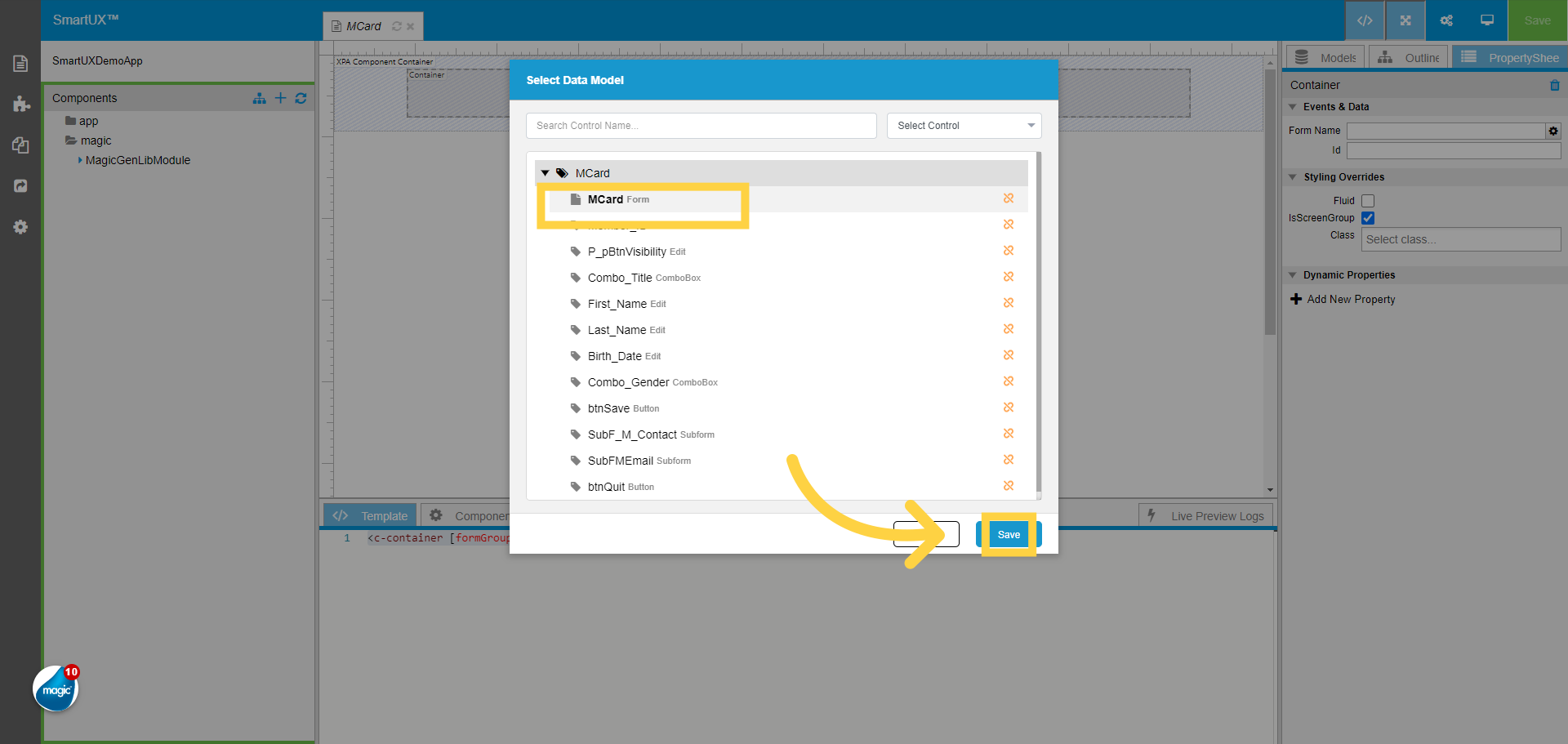
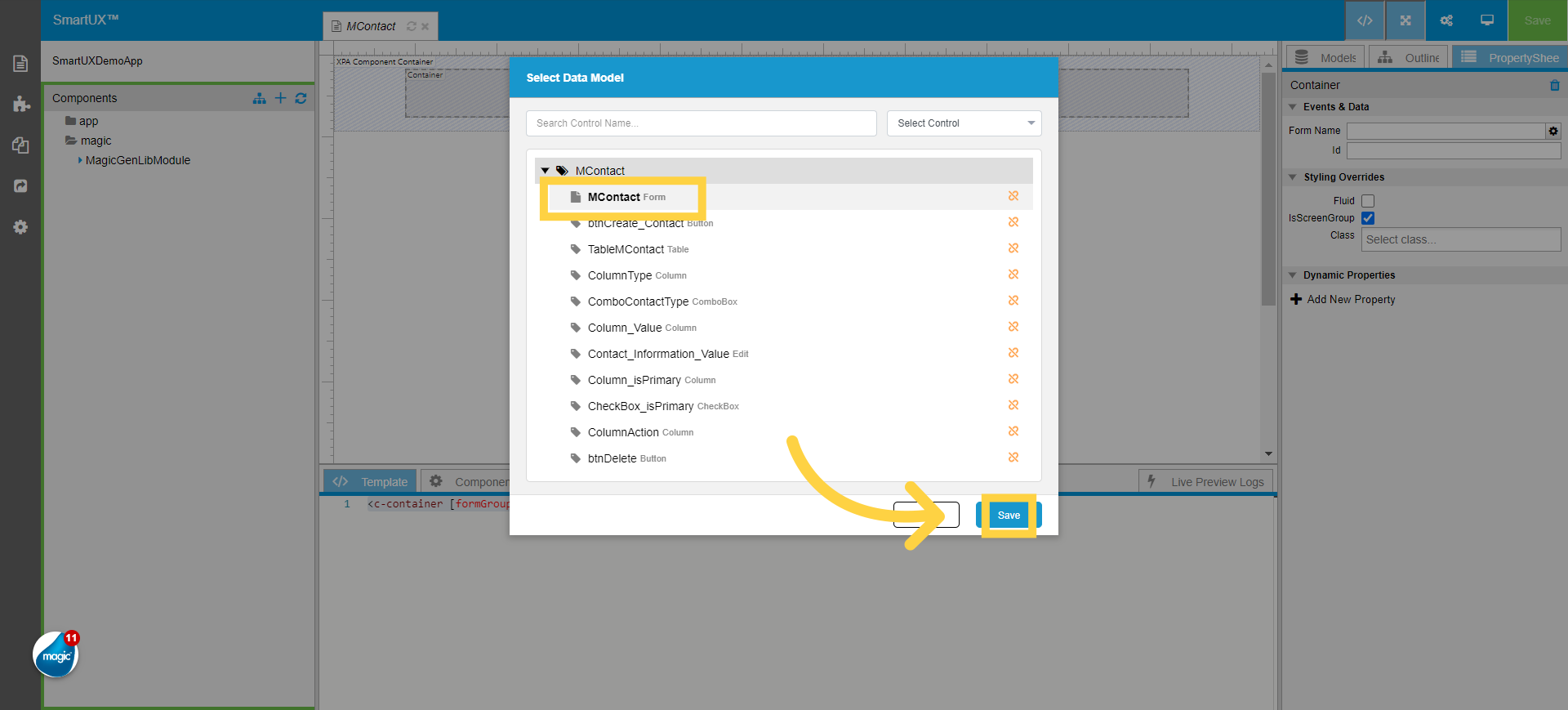
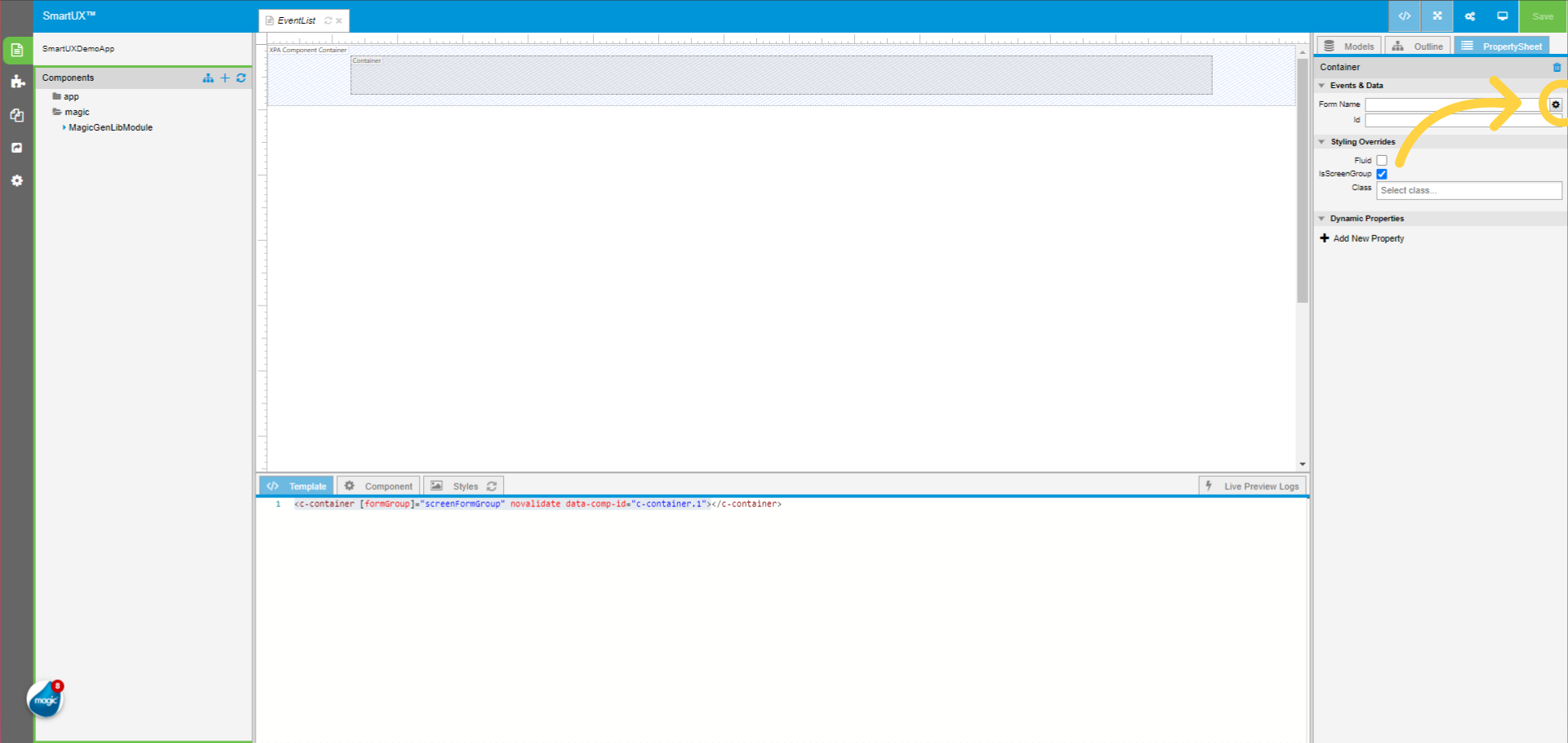
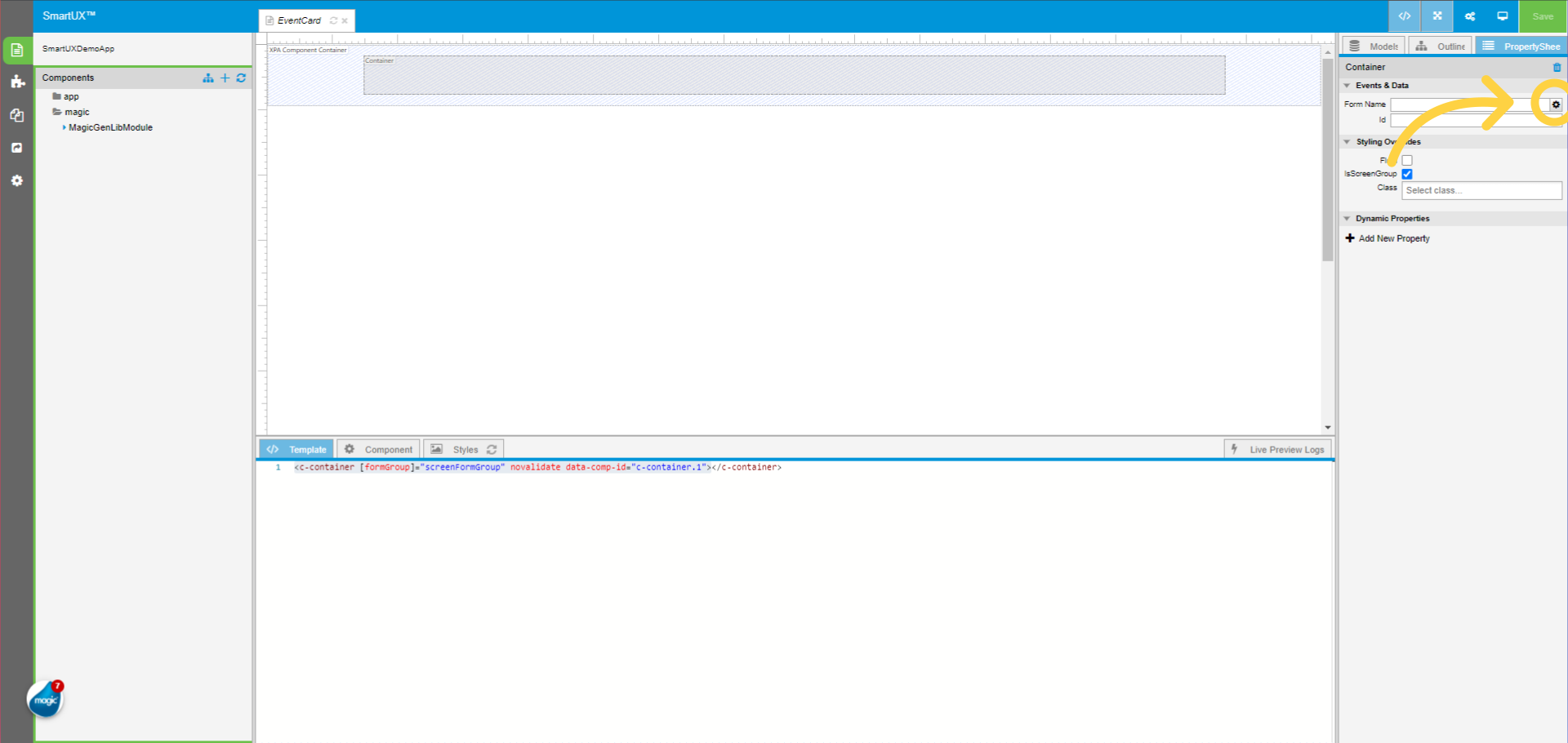
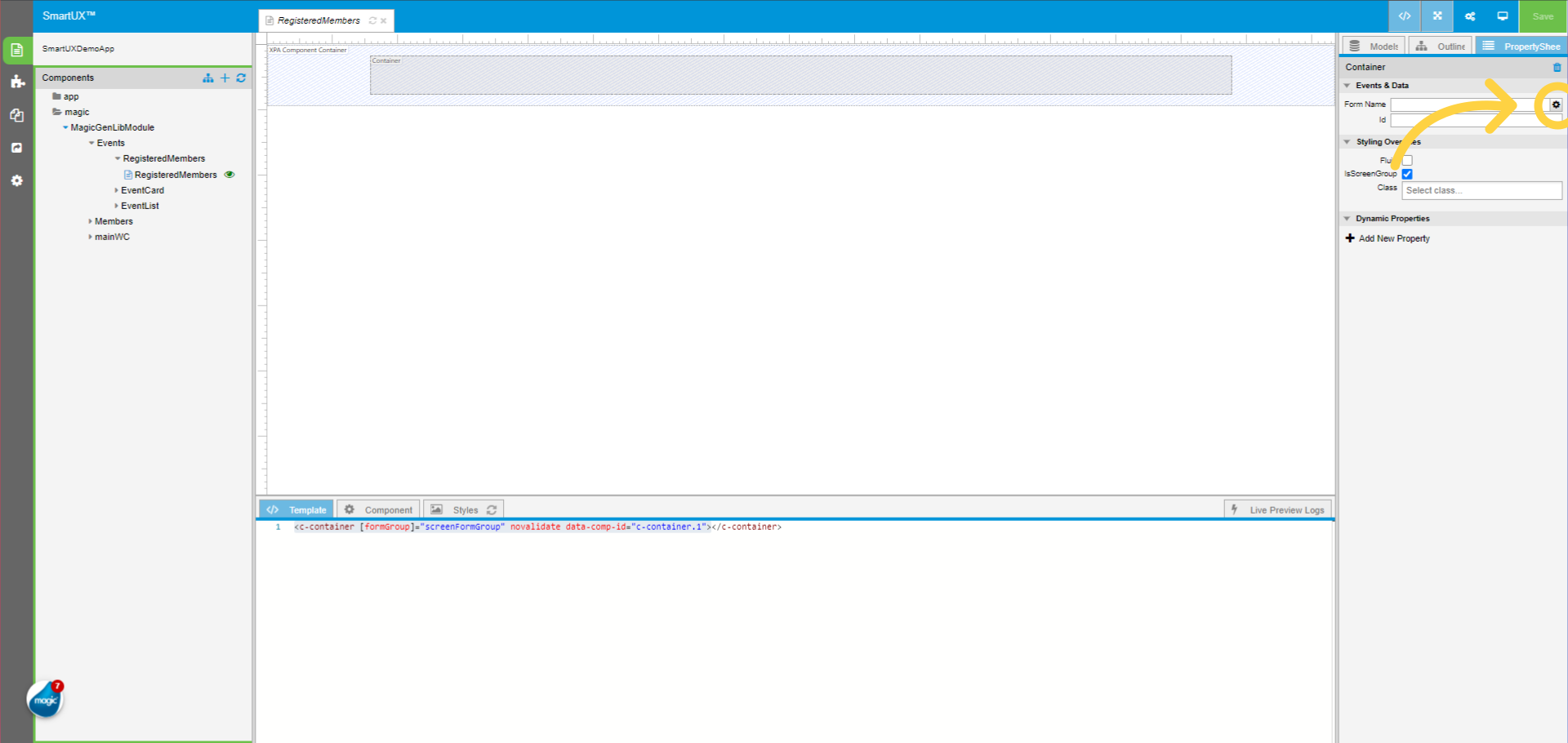
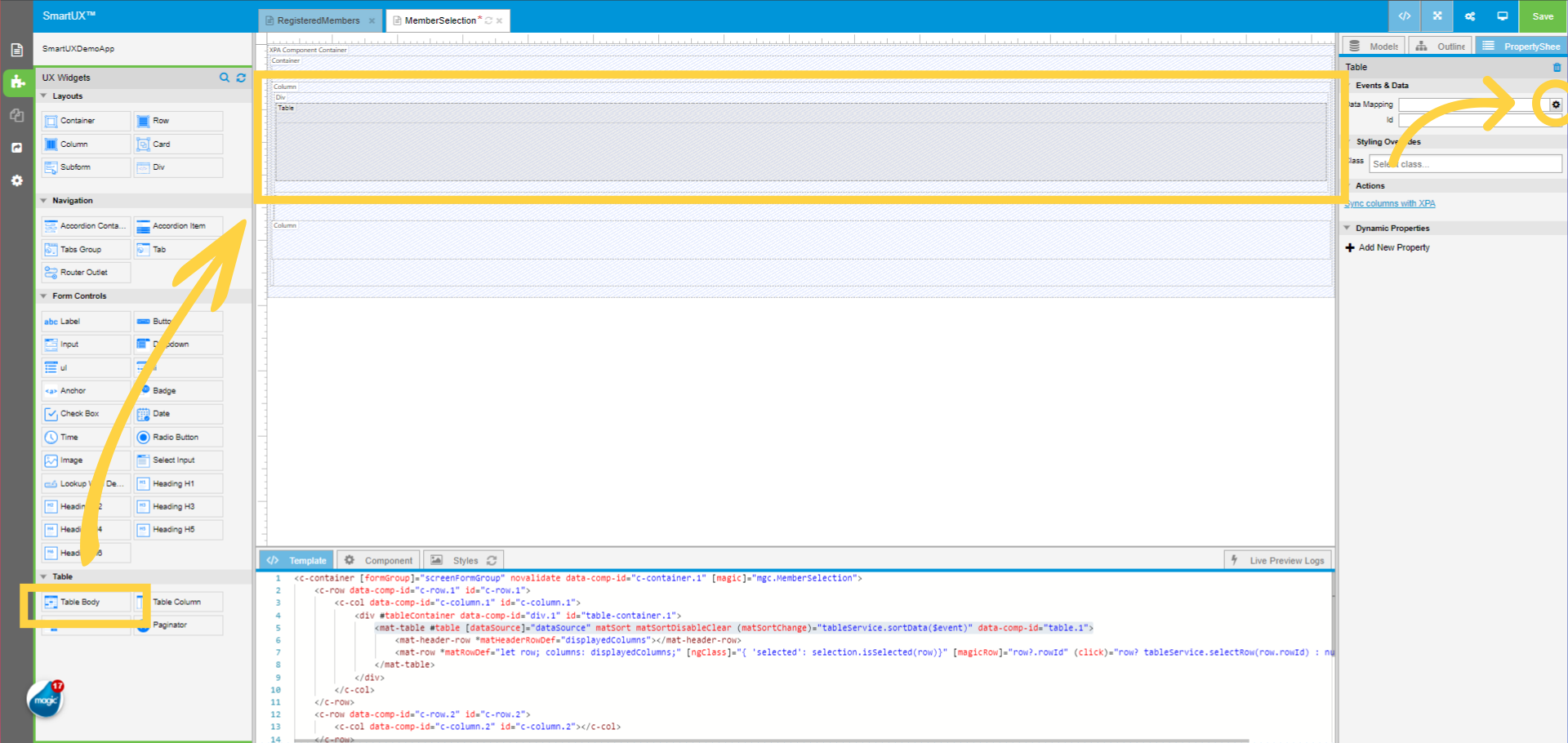
On the Container widget property sheet map the Form Name using the gear icon to the container.
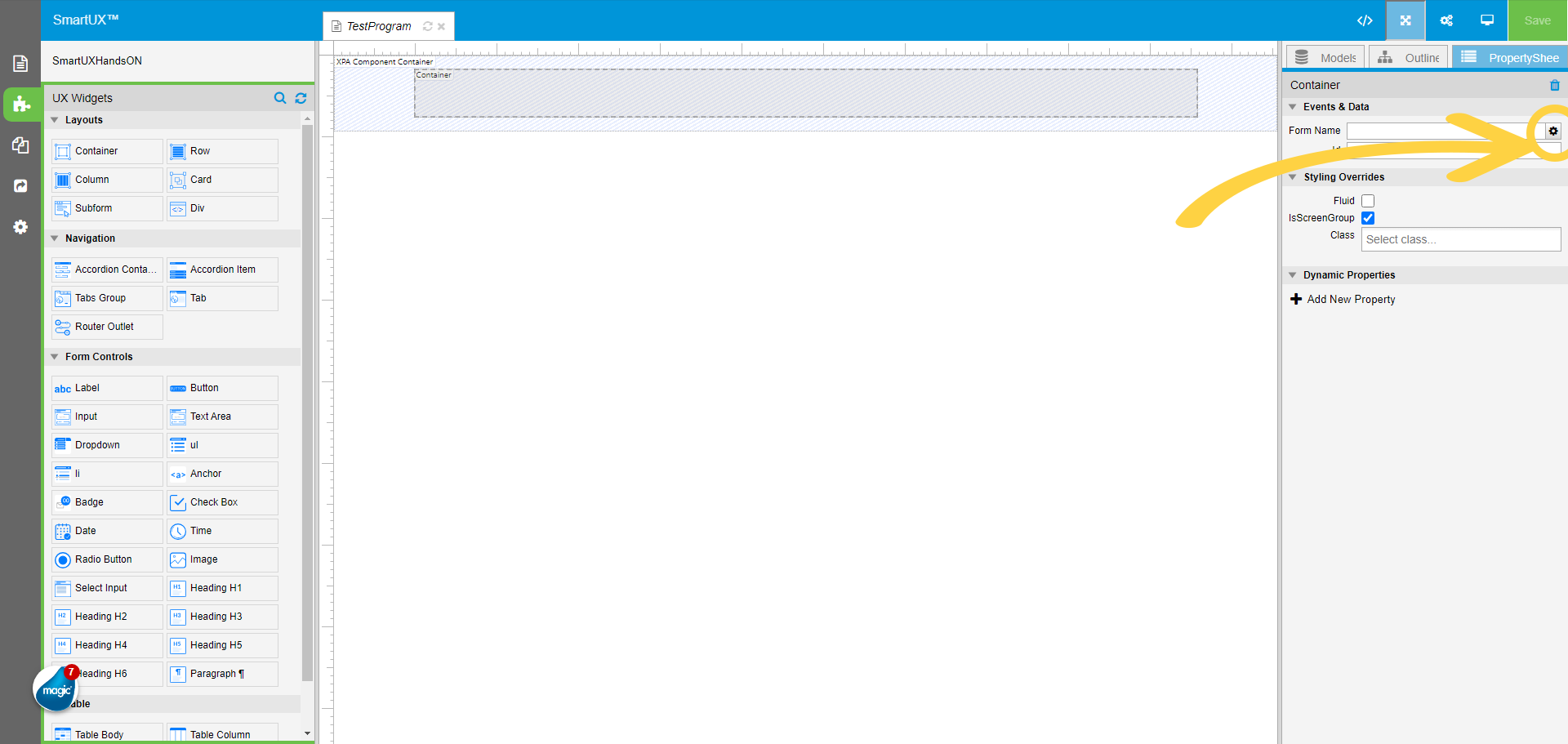
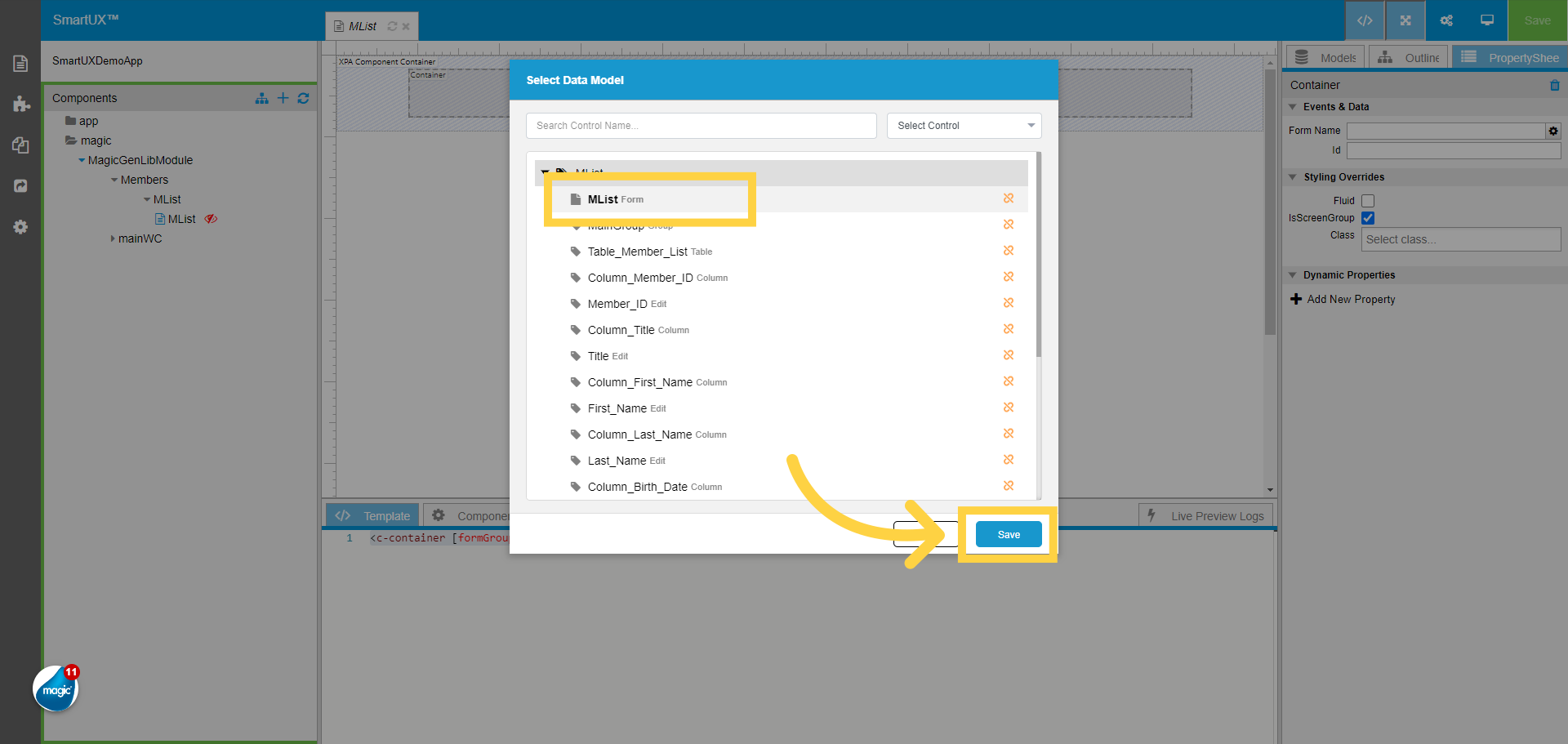
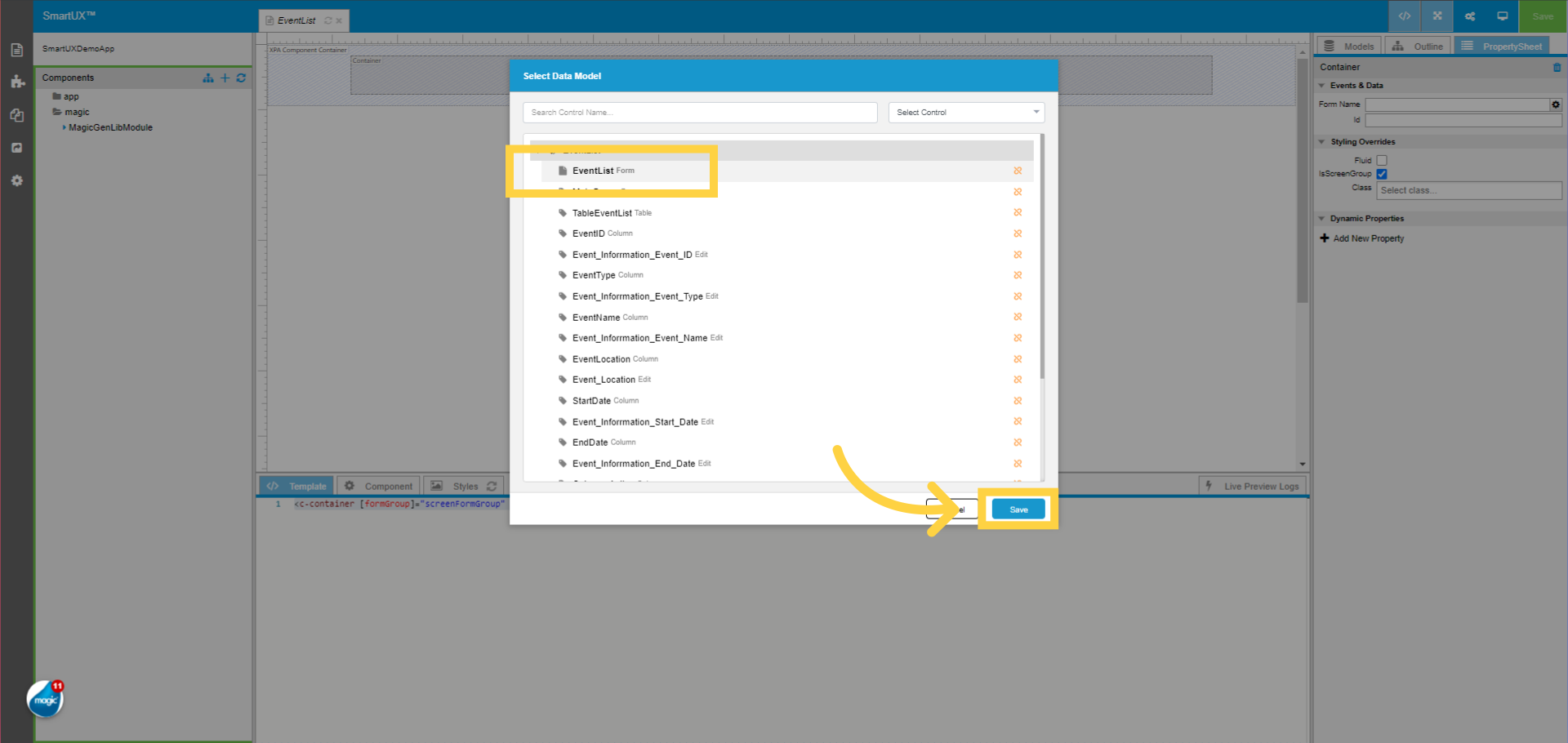
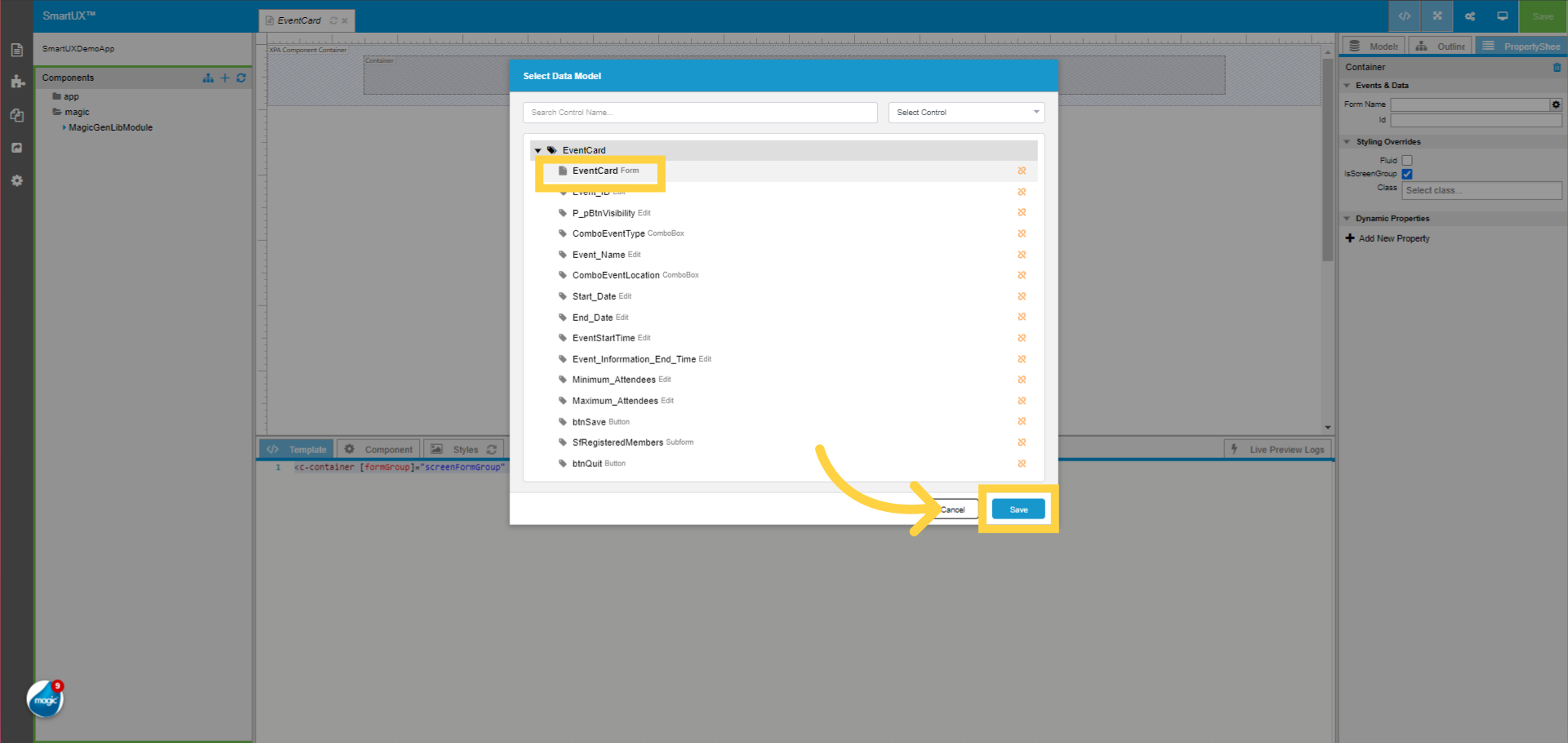
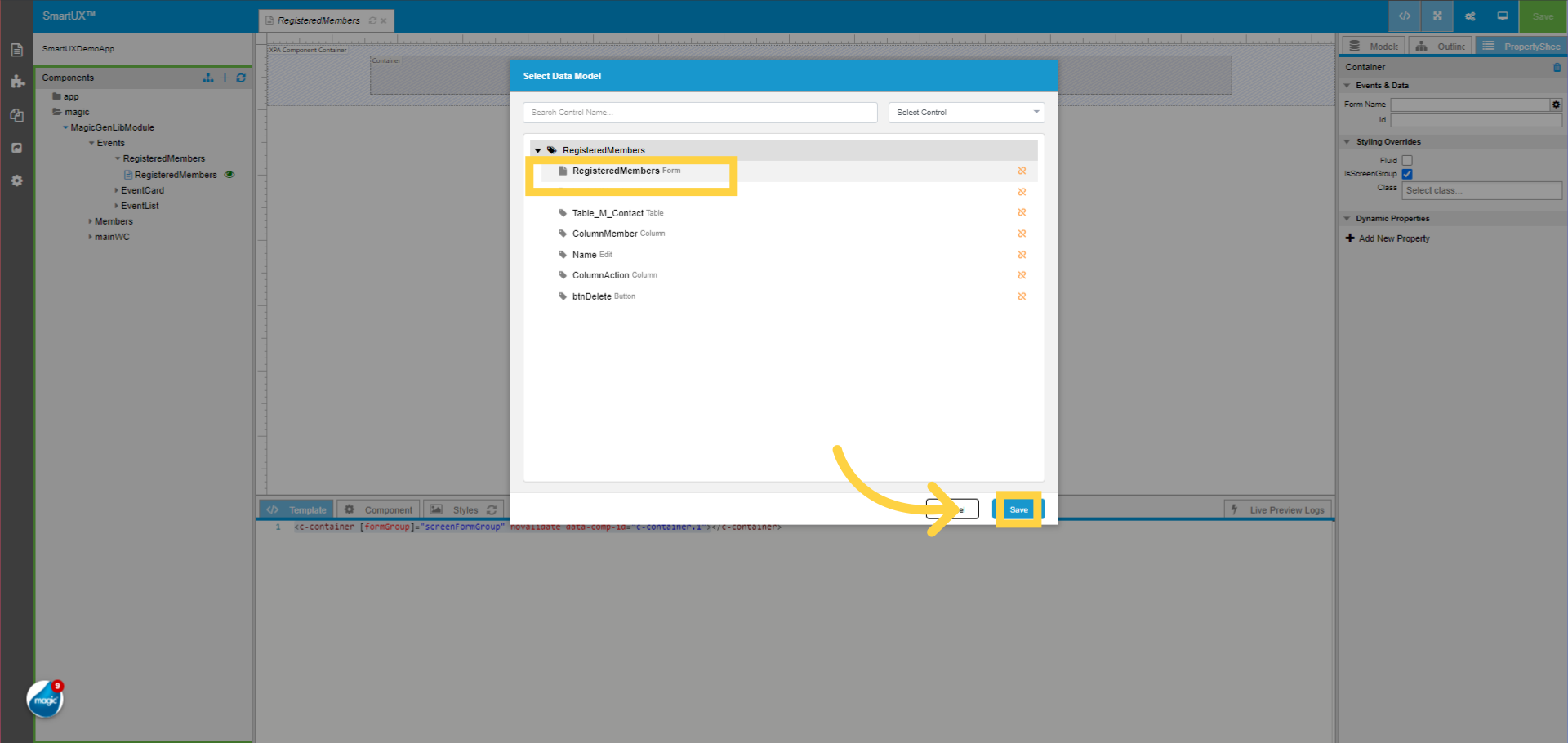
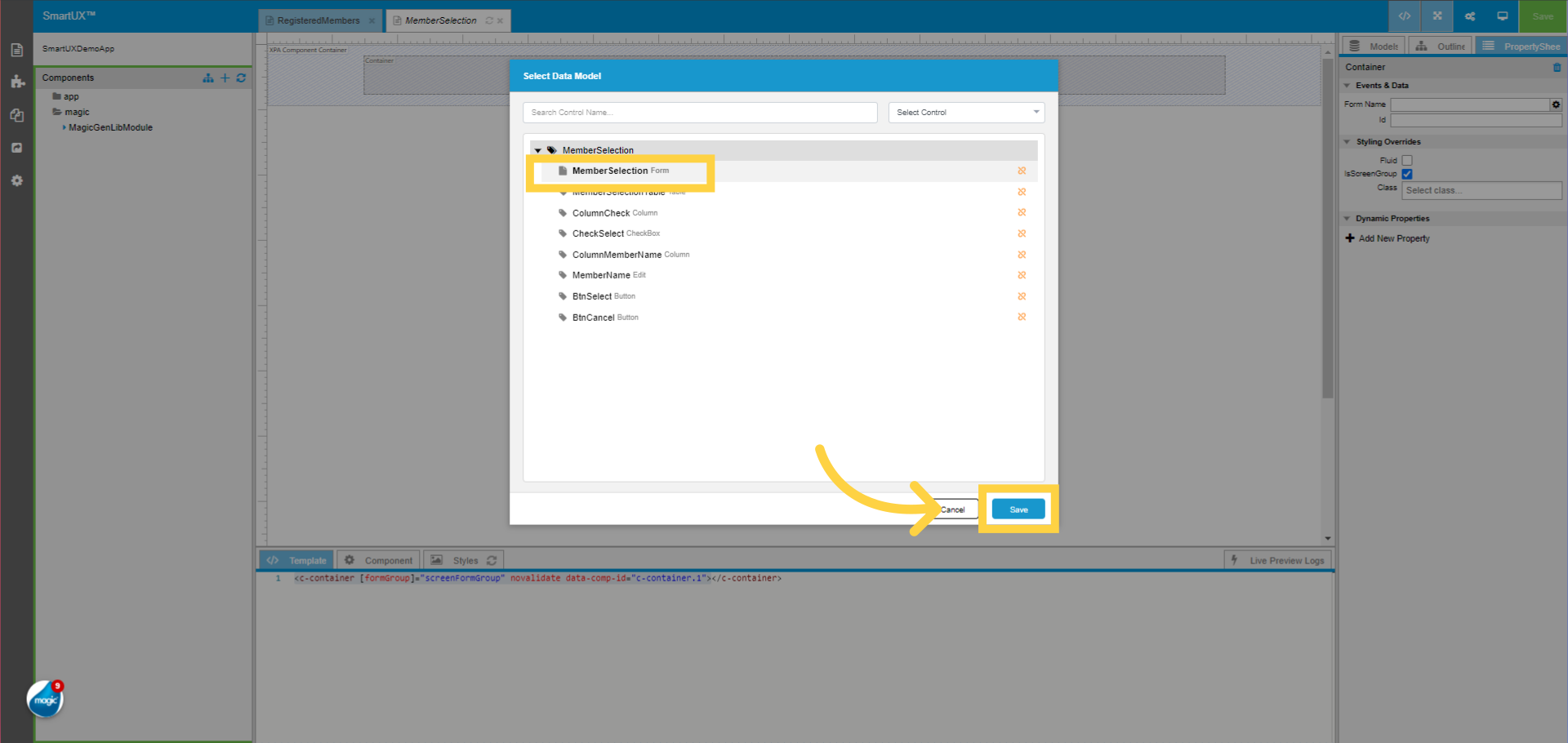
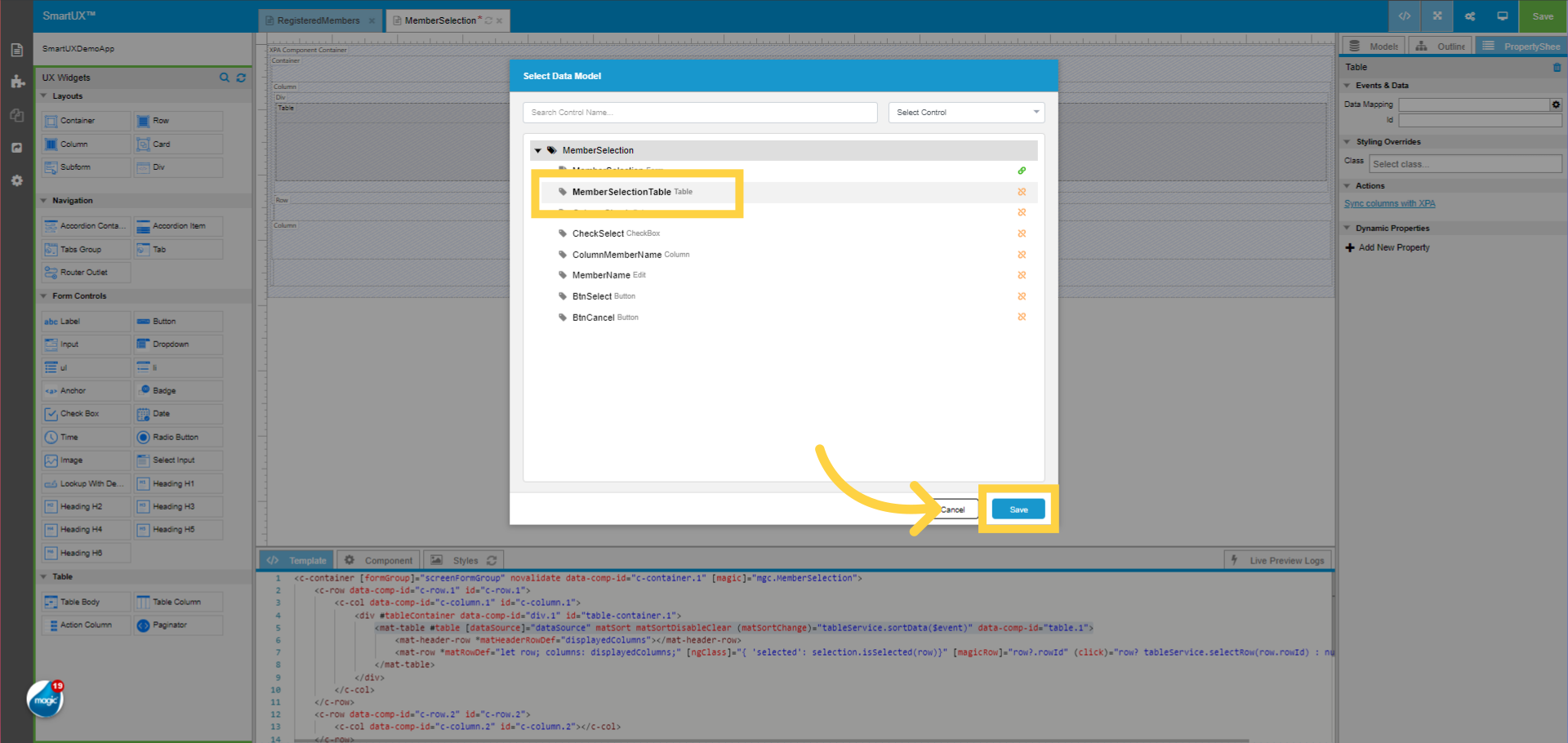
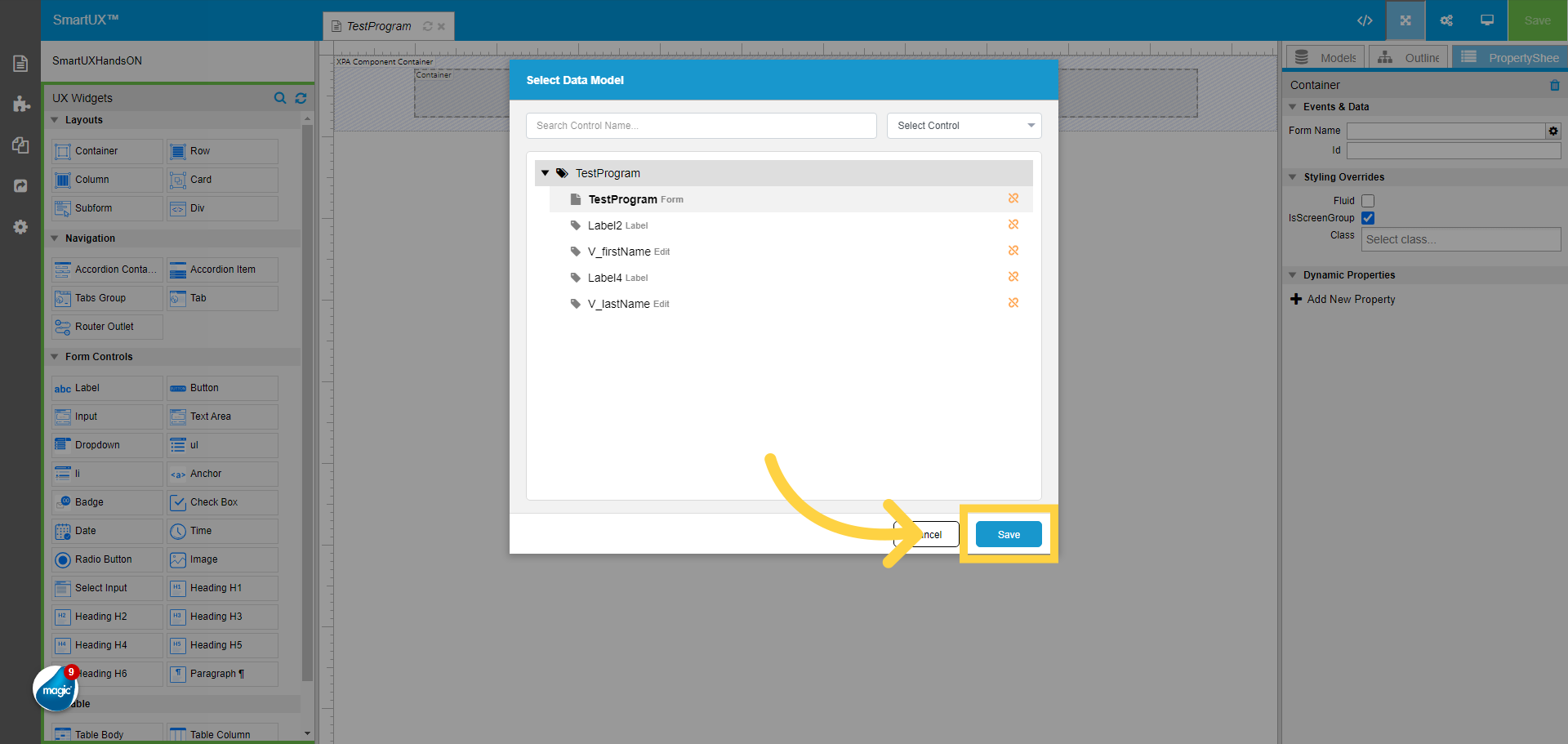
9. Click “TestProgram” form to do the mapping and save

Choose the “TestProgram” form model to Map it with the Container widget Form Name property.

10. Click “Save”

Click on the “Save” button
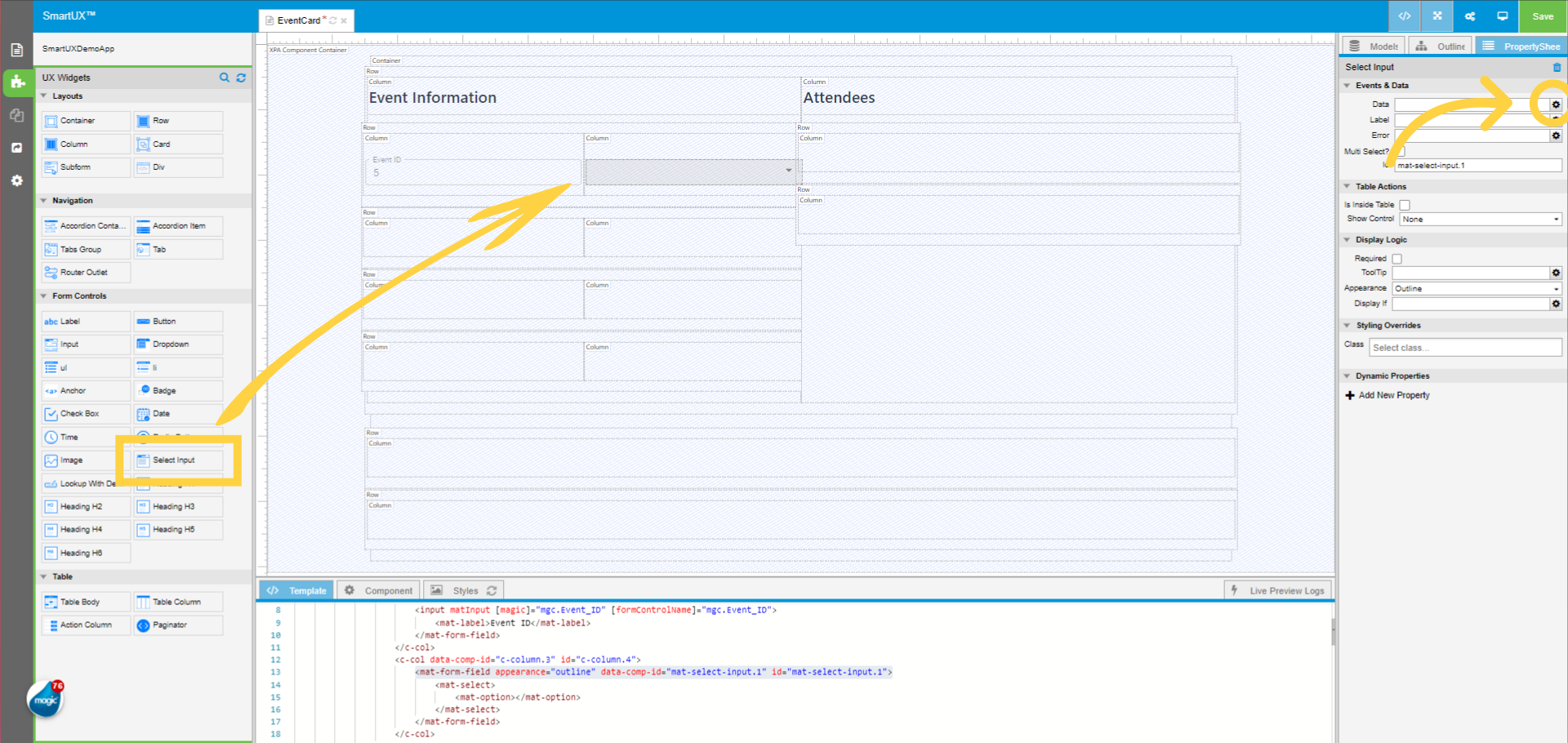
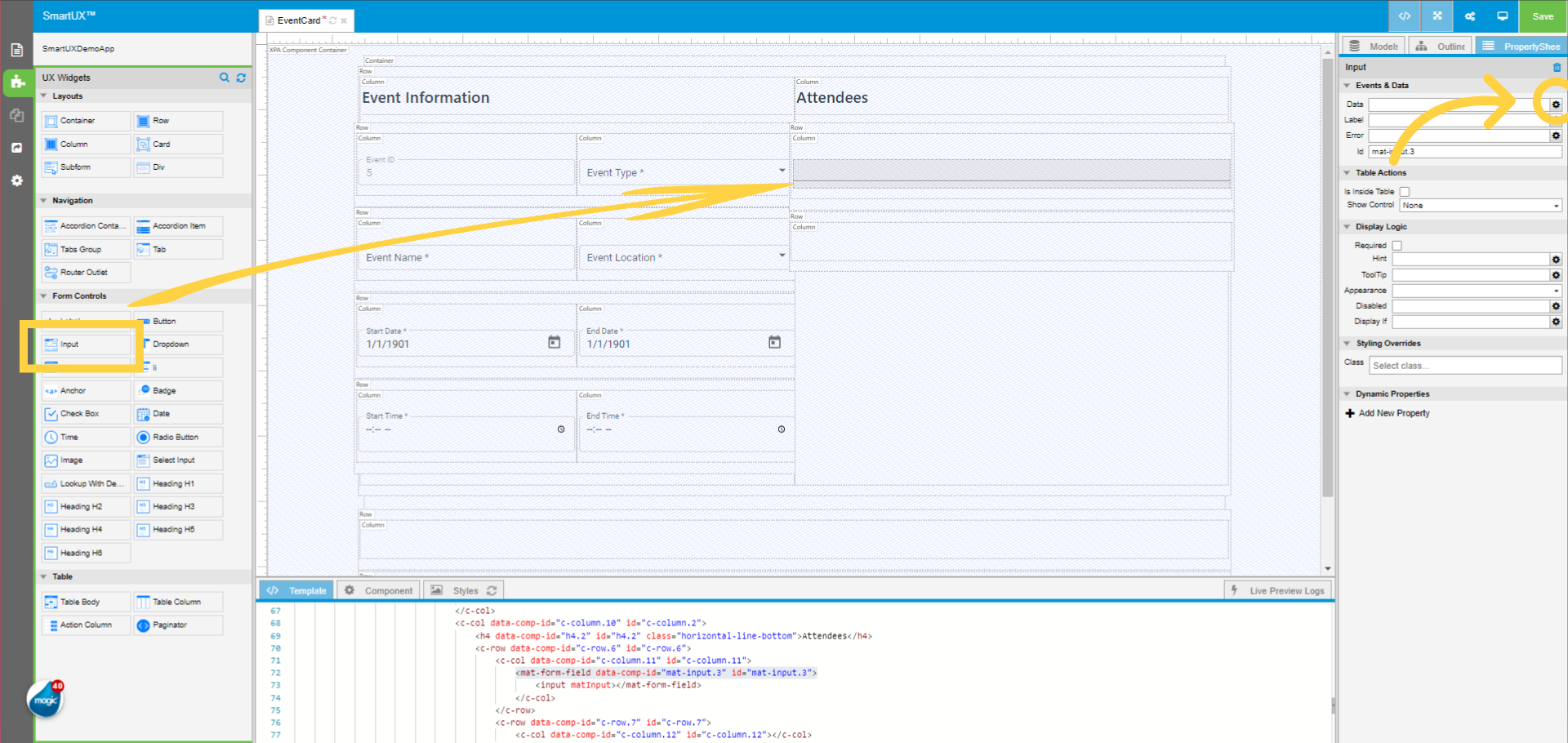
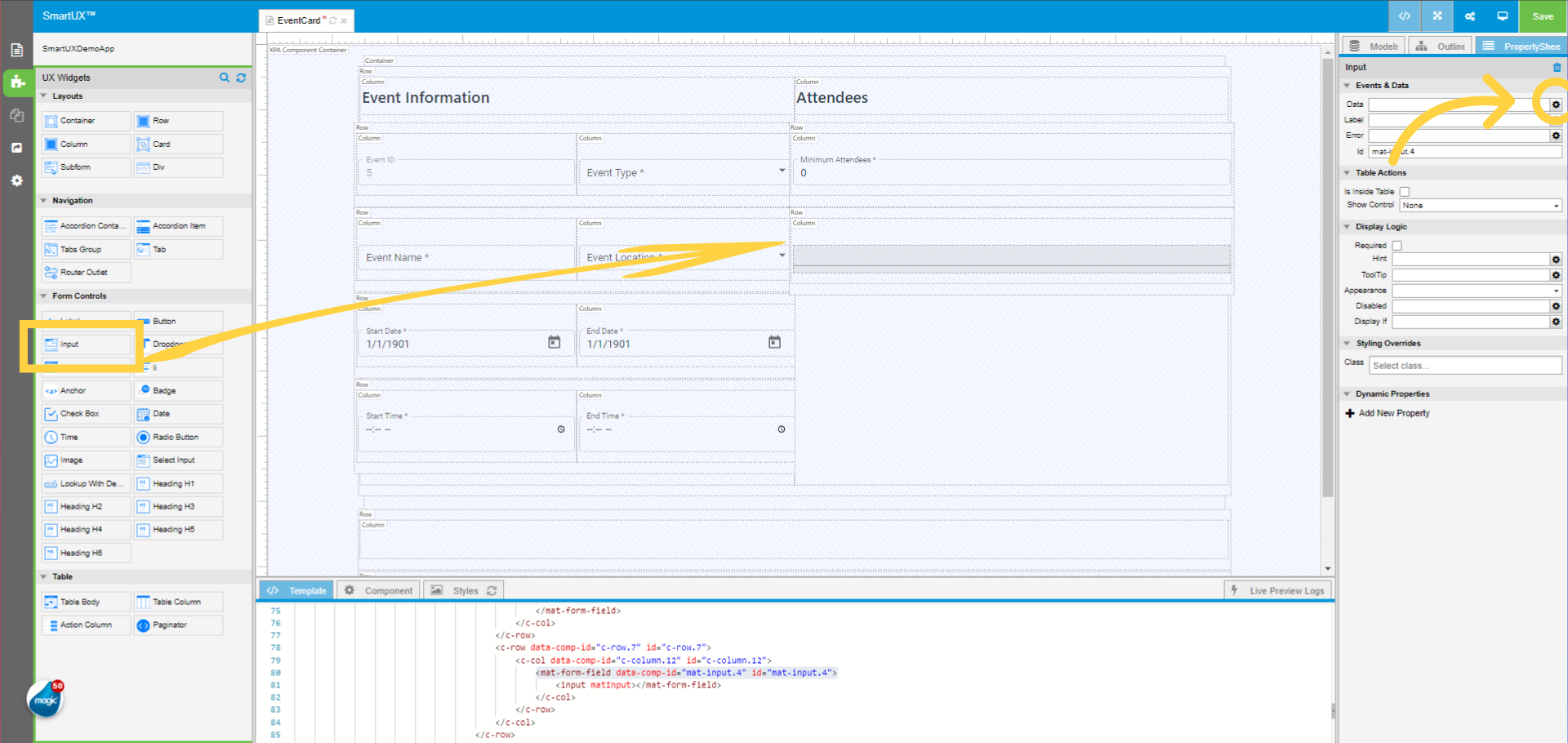
11. Drag and drop the Input widget inside the container

Drag and drop the input widget inside the Container widget on Canvas.
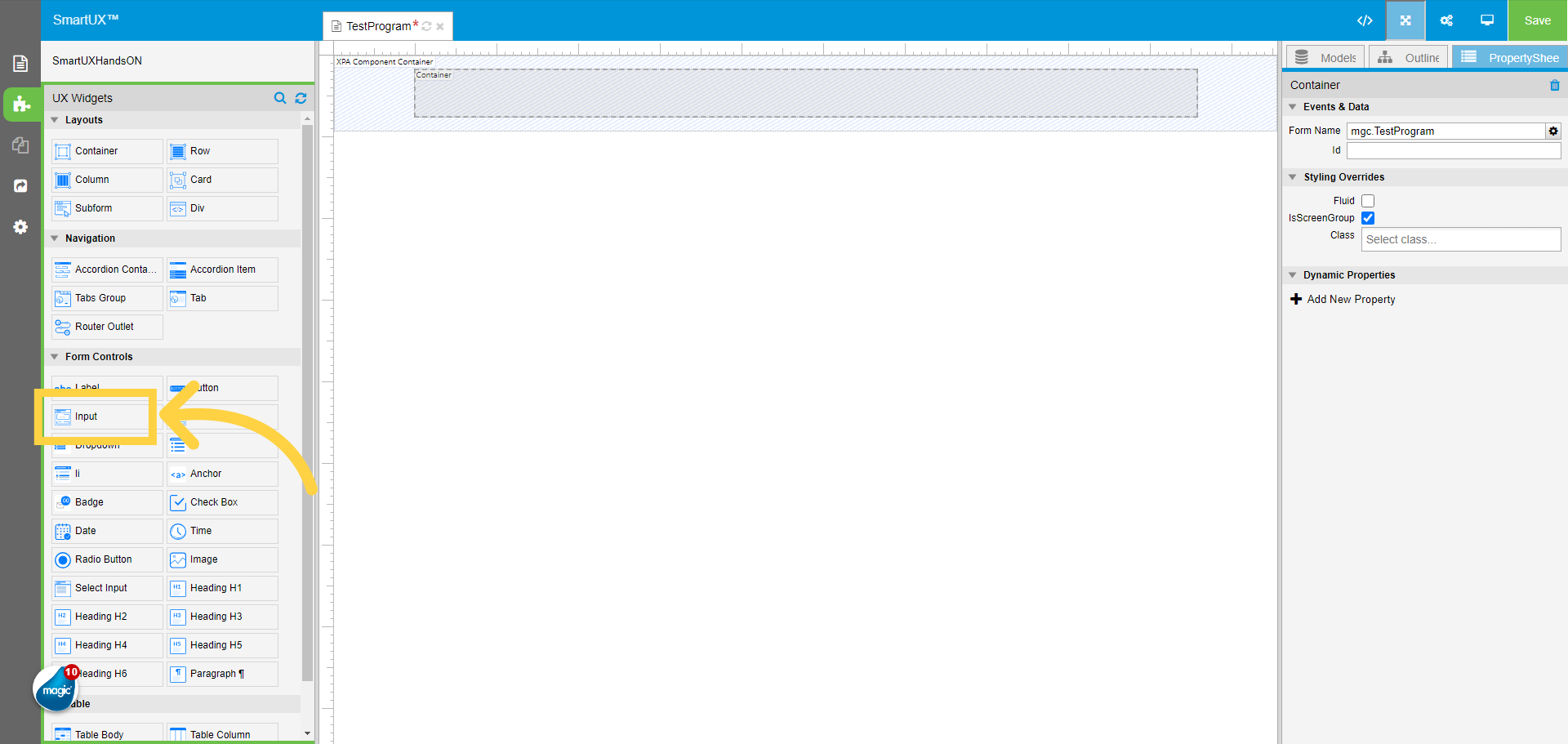
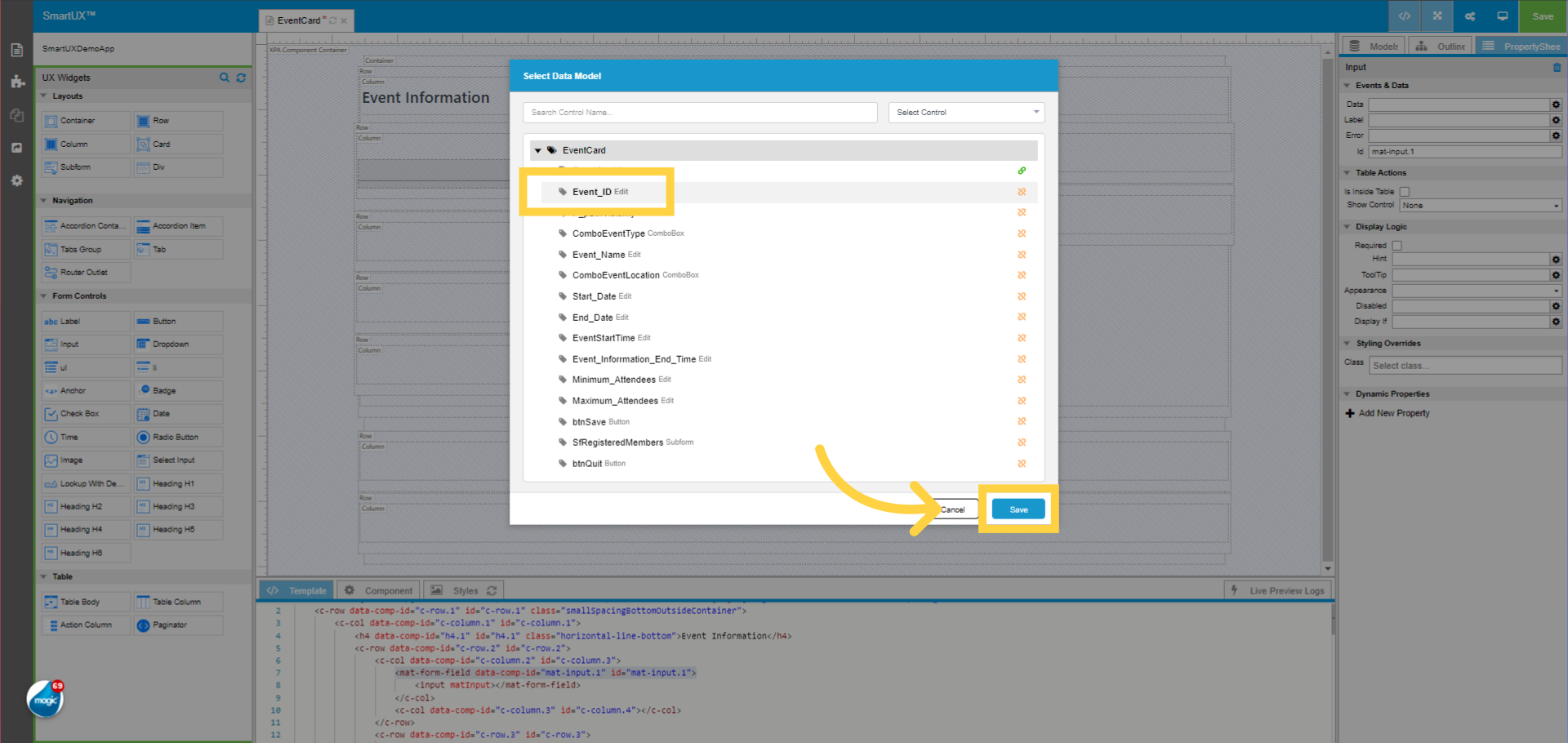
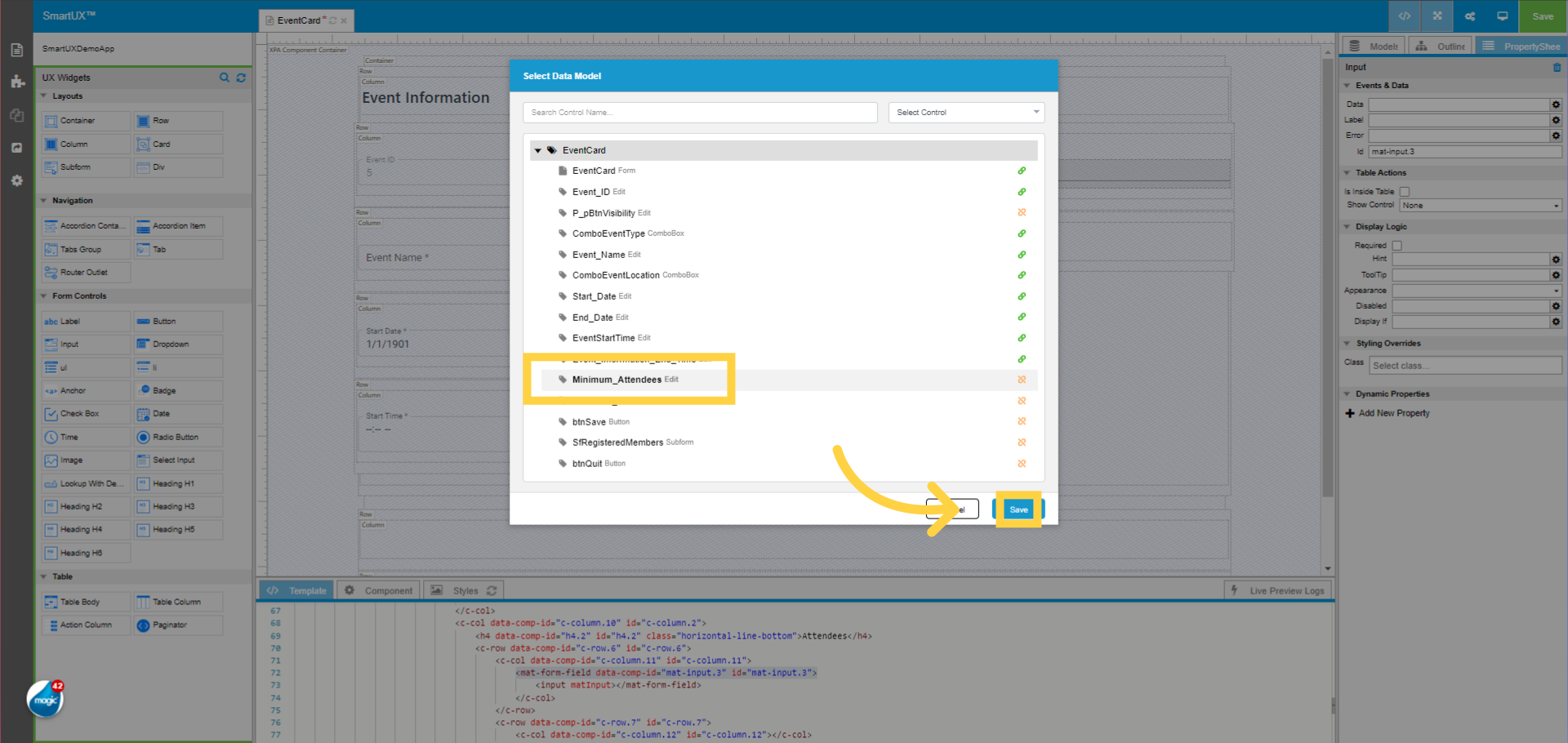
12. Data Mapping for the Input widget

On the Input widget property sheet map the Data using the gear icon.
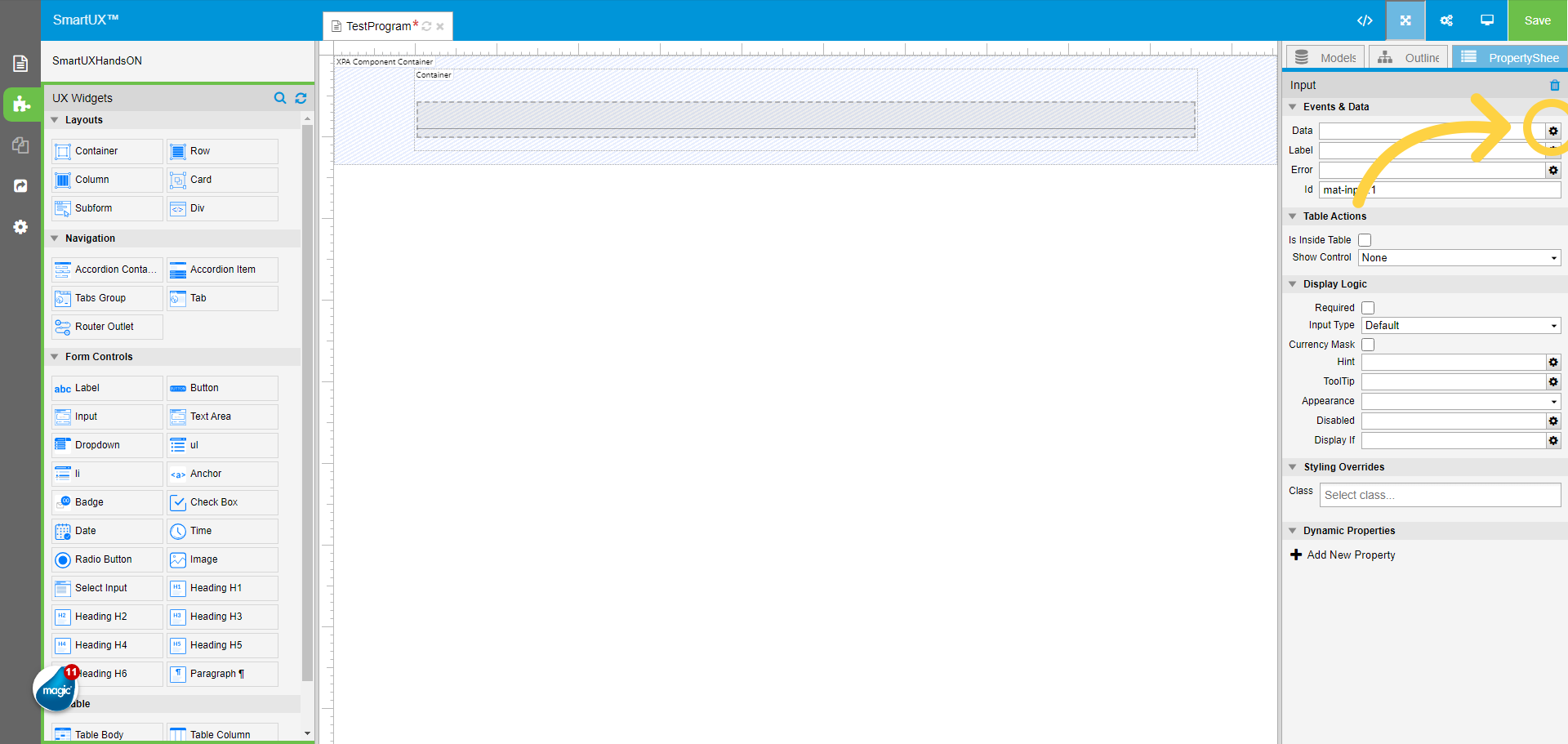
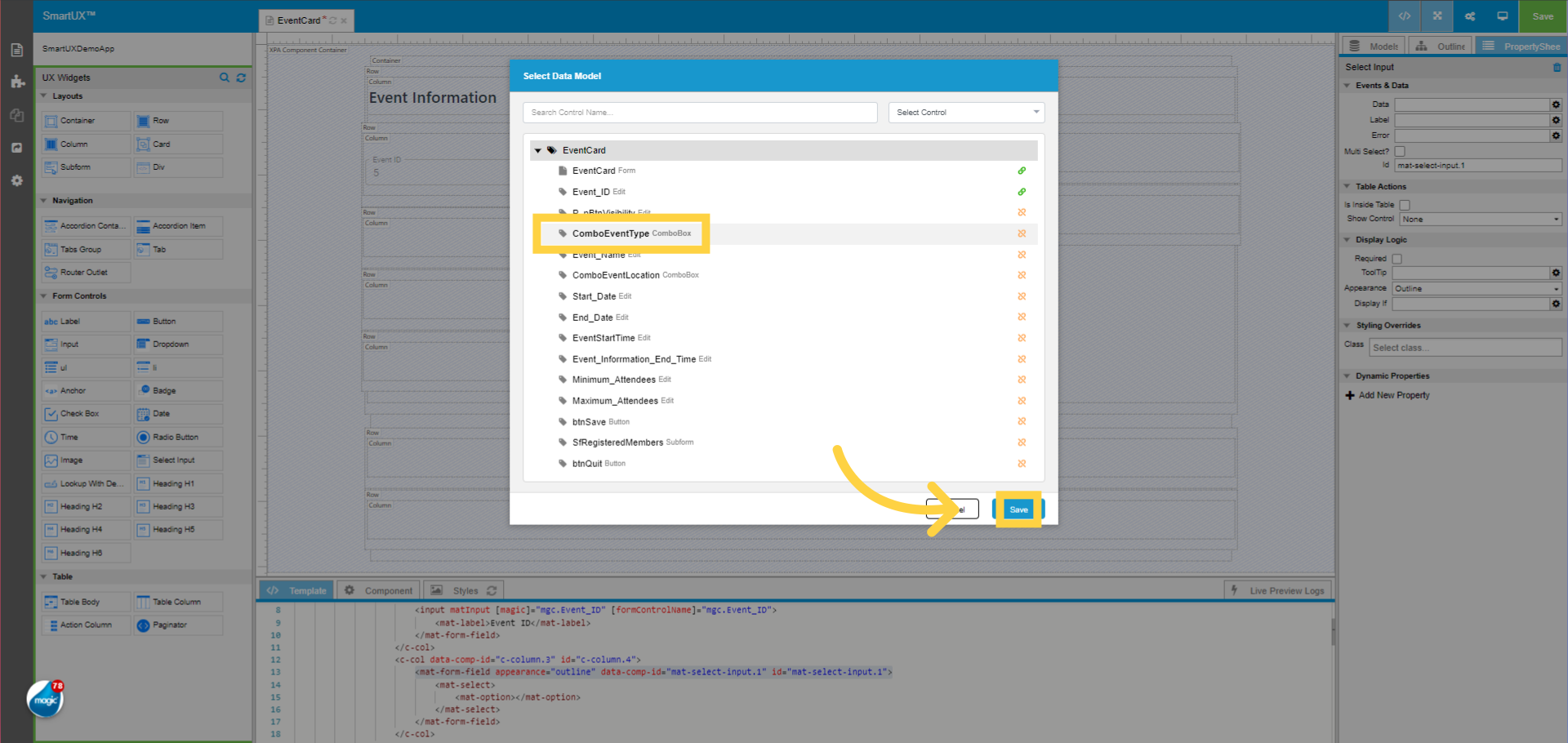
13. Click “V_firstName”

Select the Edit control name from the model list here the “V_firstName”.
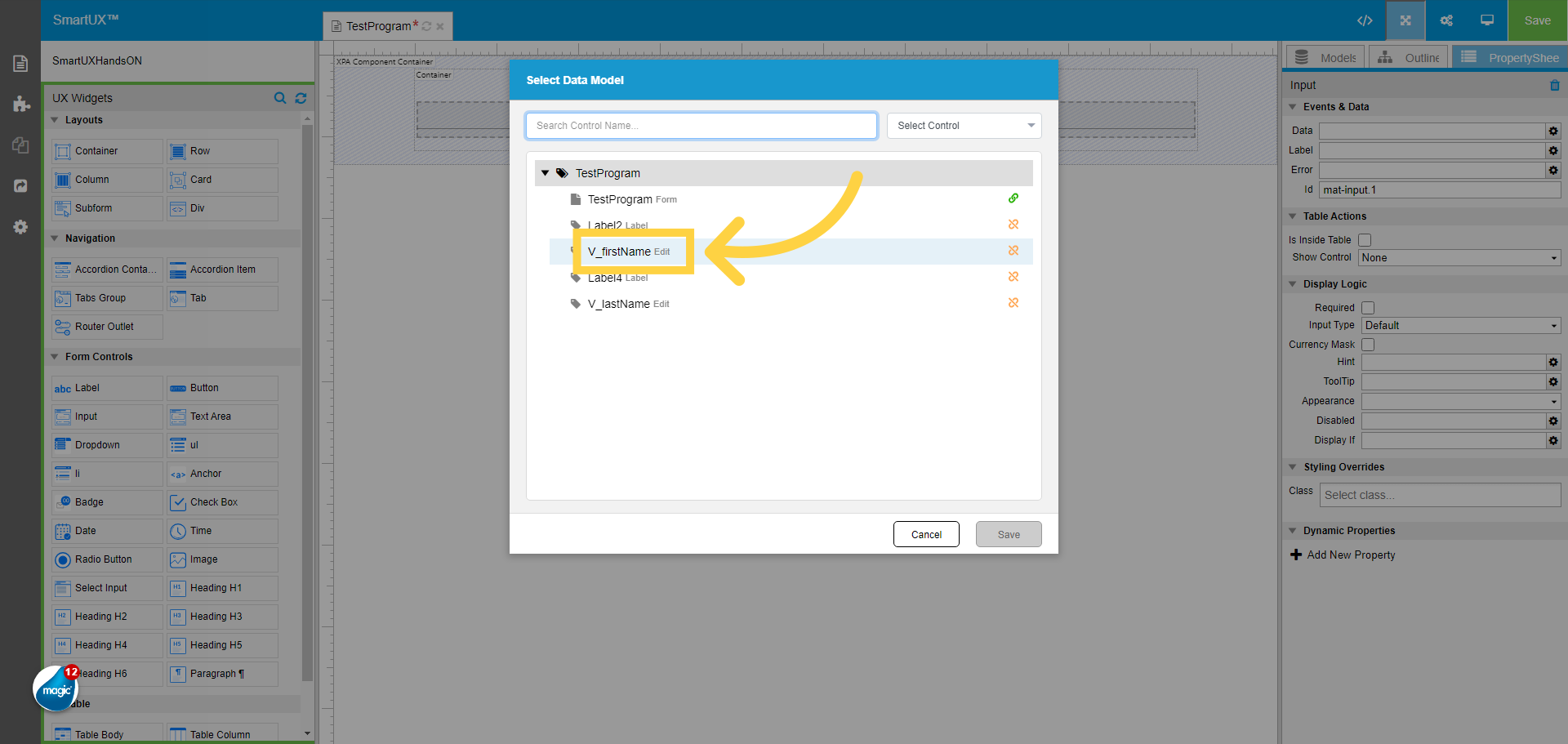
14. Save the selected Model

Click Save to Save the selected model.
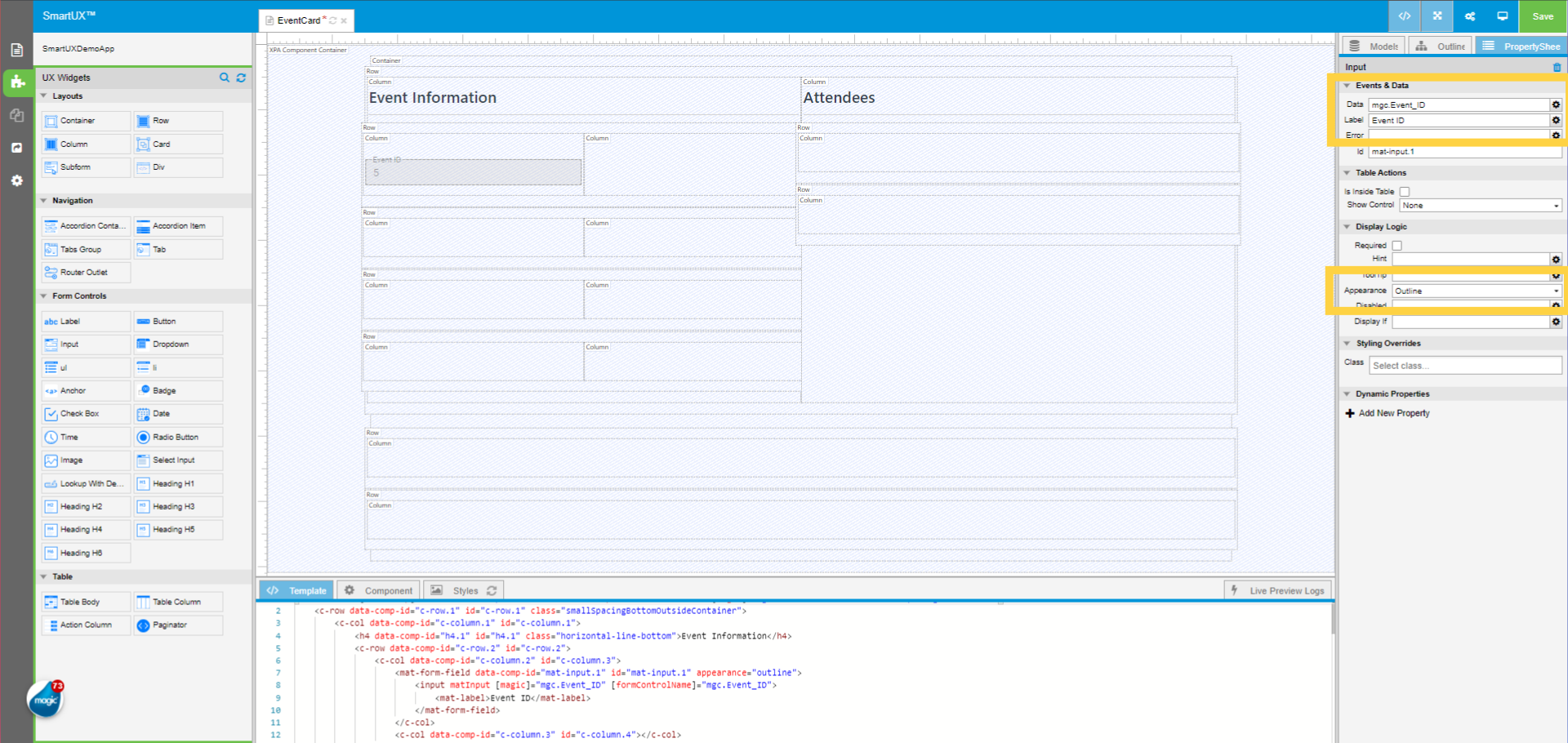
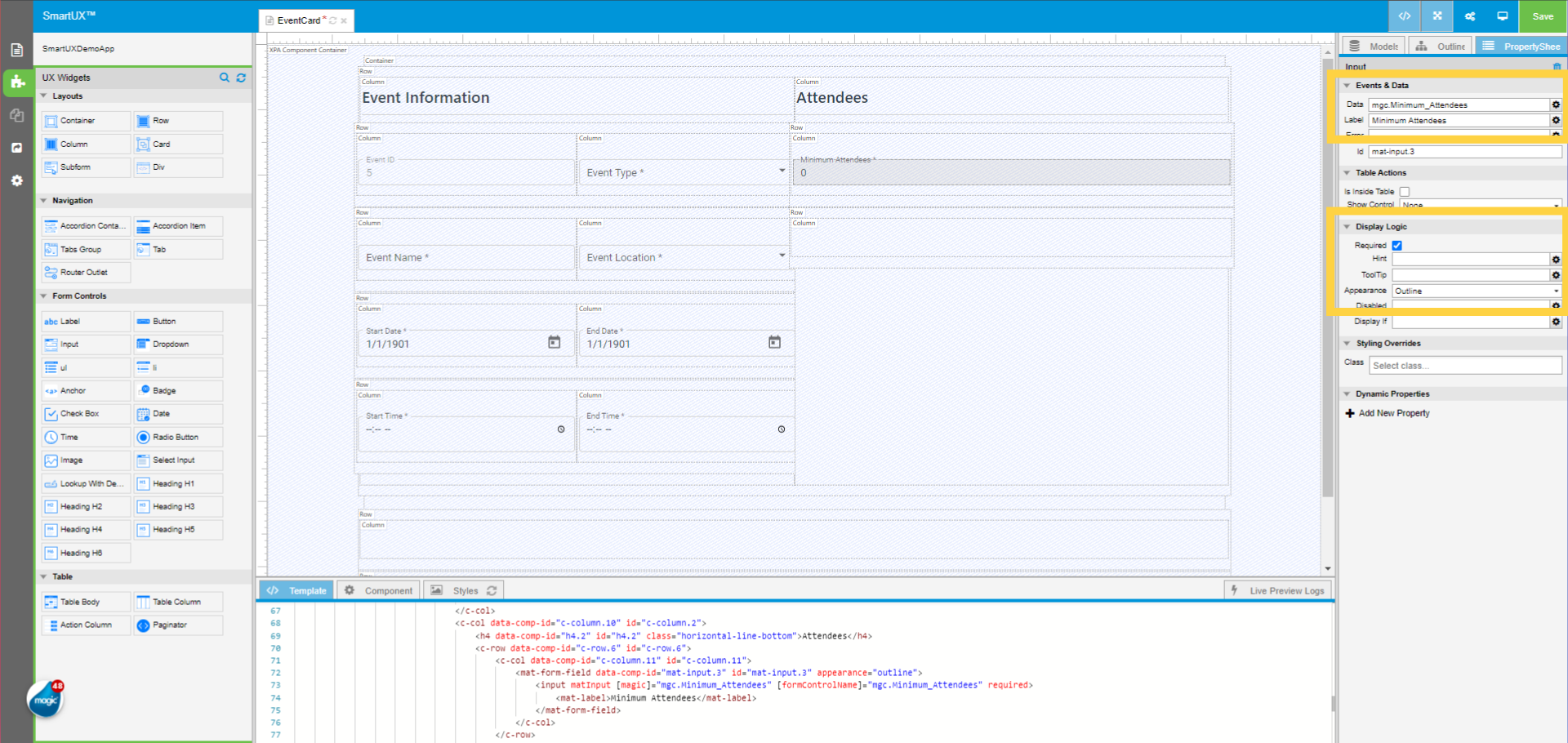
15. Type in the label  for the Input Widget

Type in the label for the Input Widget.
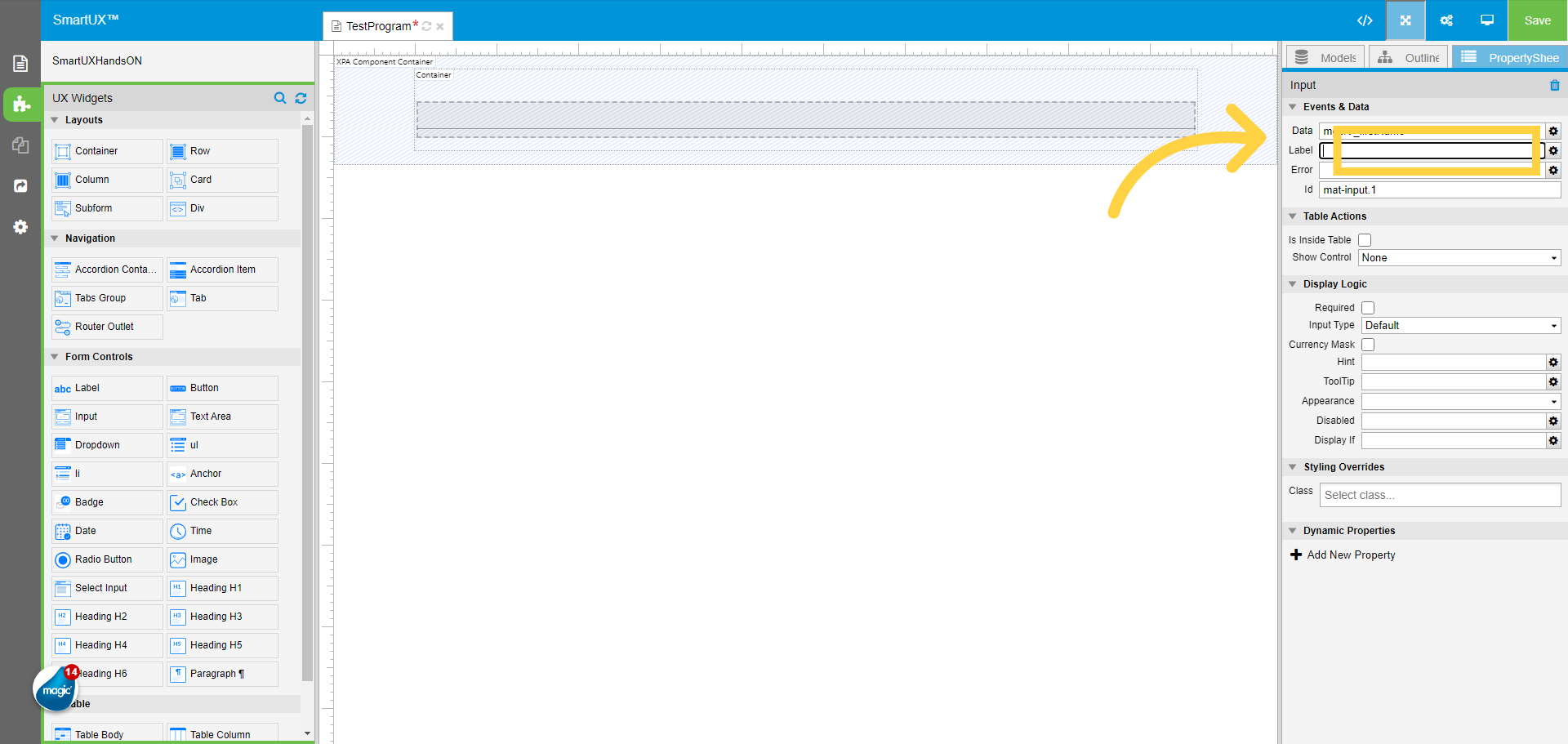
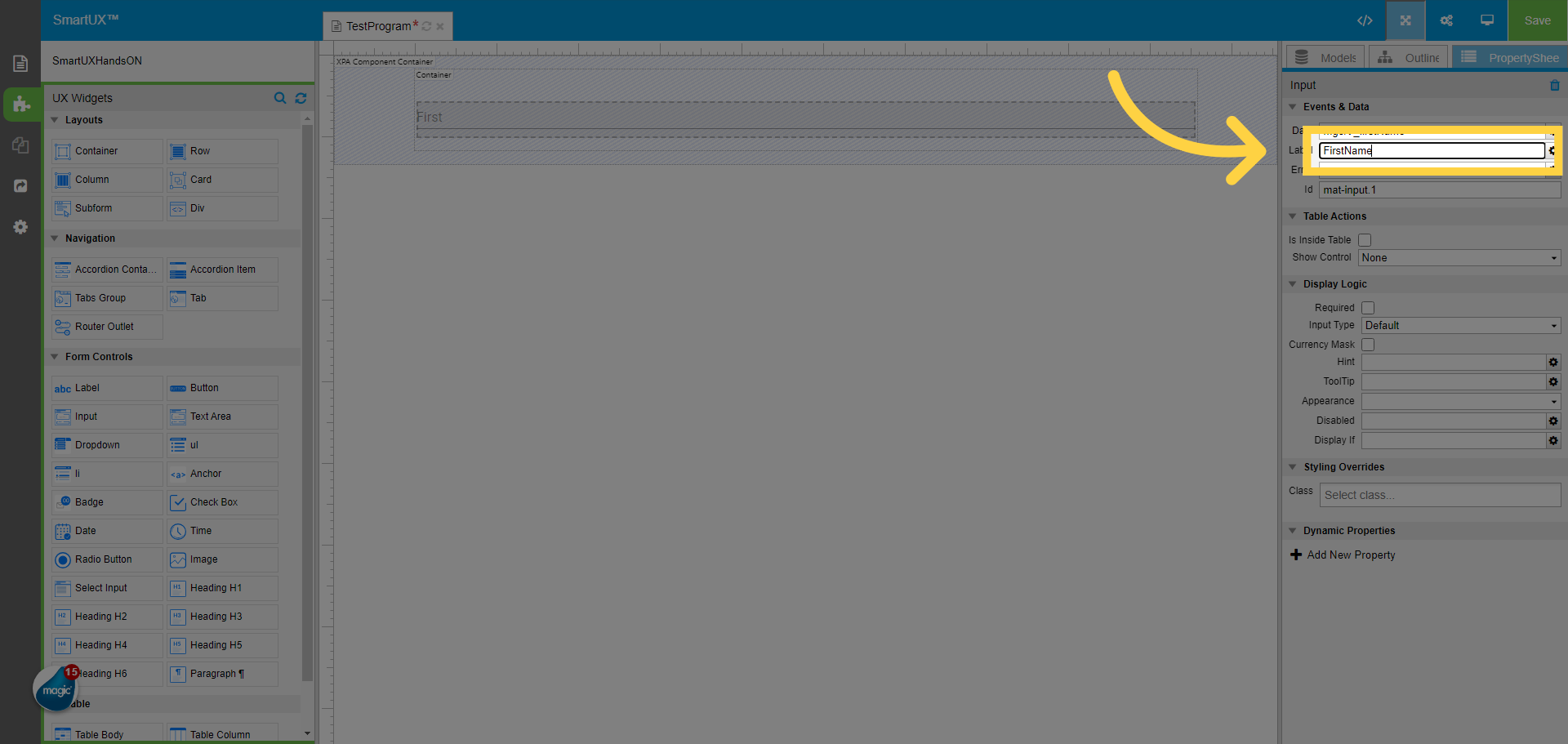
16. Fill “FirstName”

Here we Fill in the label as “FirstName”.
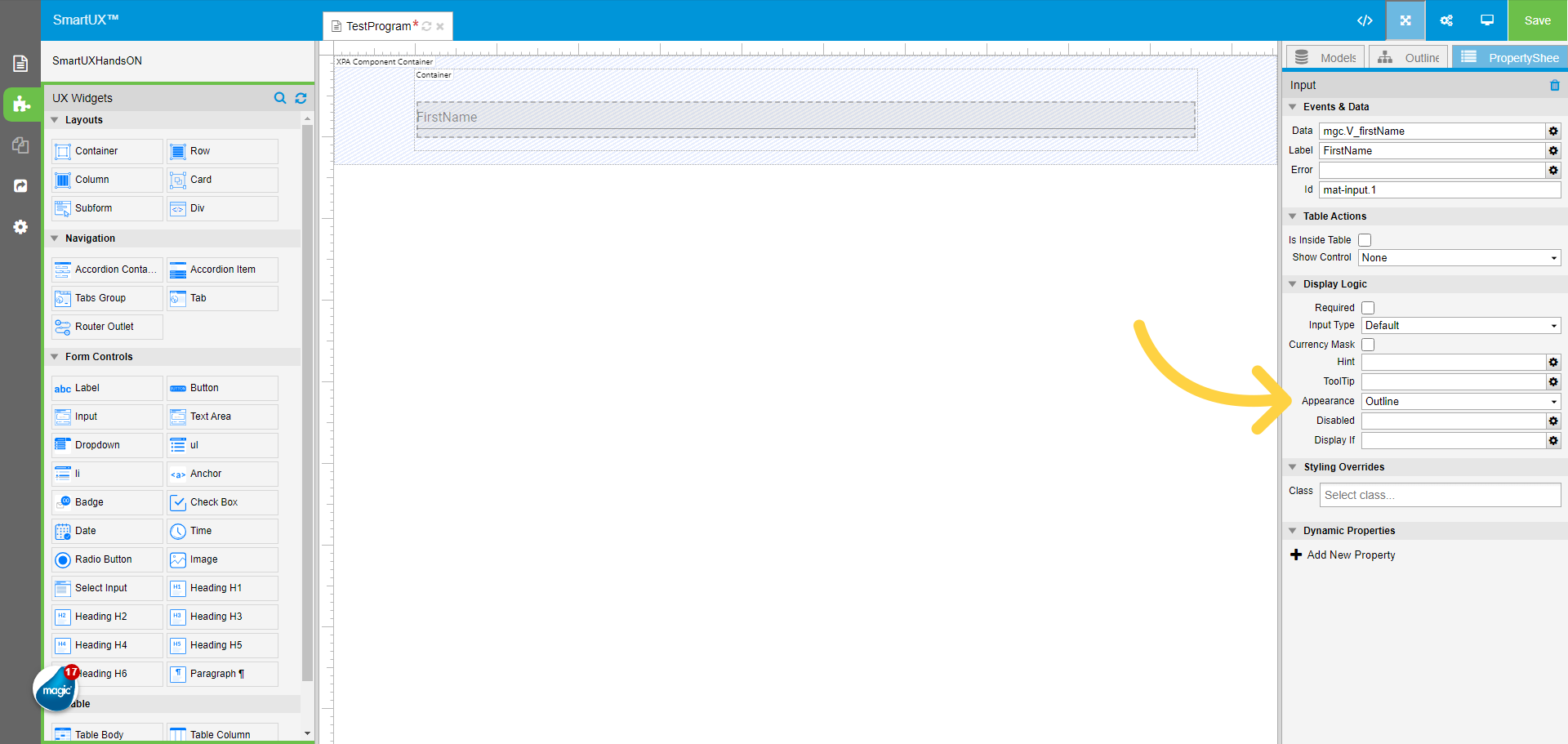
17. Changing the Appearance property to “Outline”

Changing the Appearance property to “Outline”.
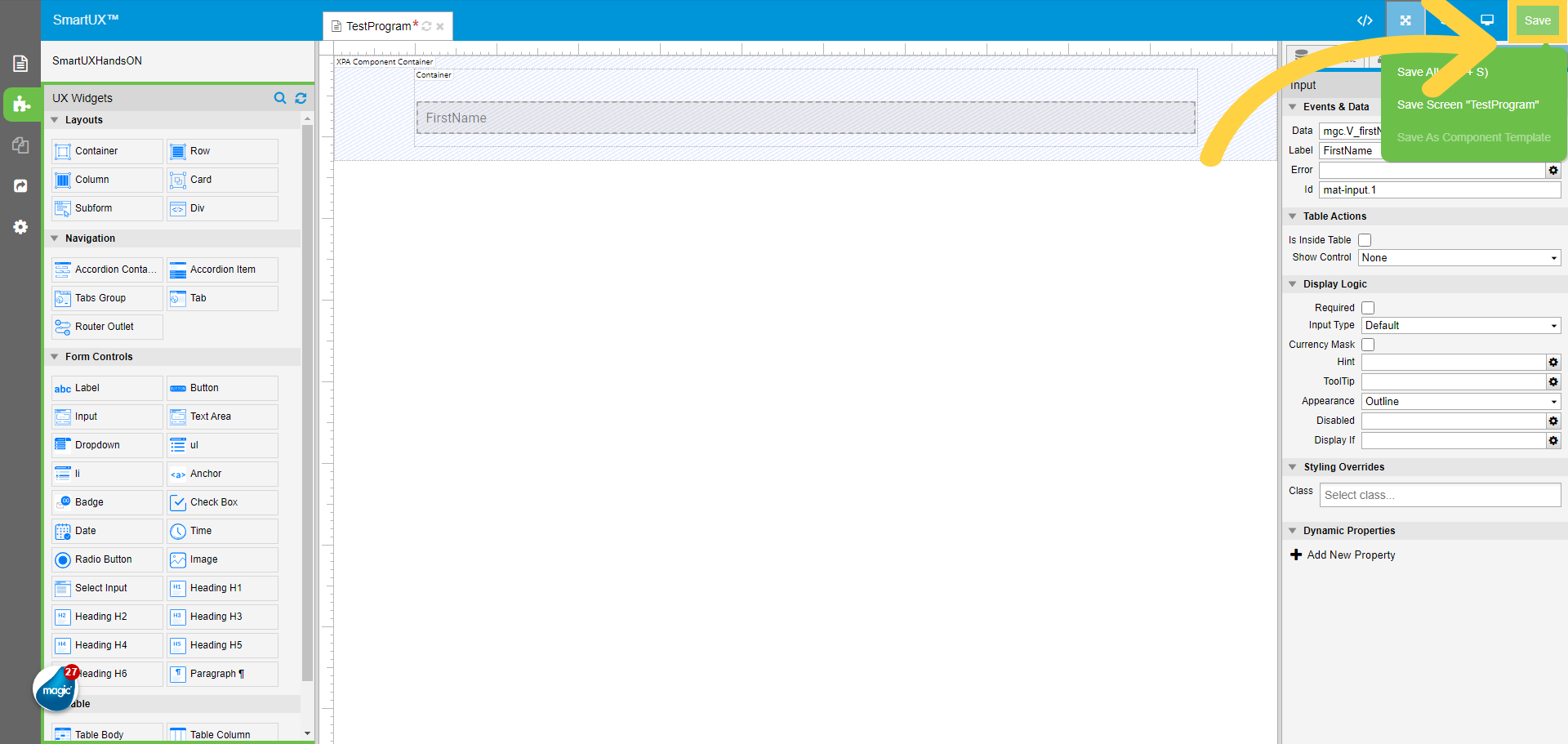
18. Click “Save” to save the changes

To save the changes Click on the Save button on the top right corner.
19. Switch to Components pane

Now switch to the Components pane.
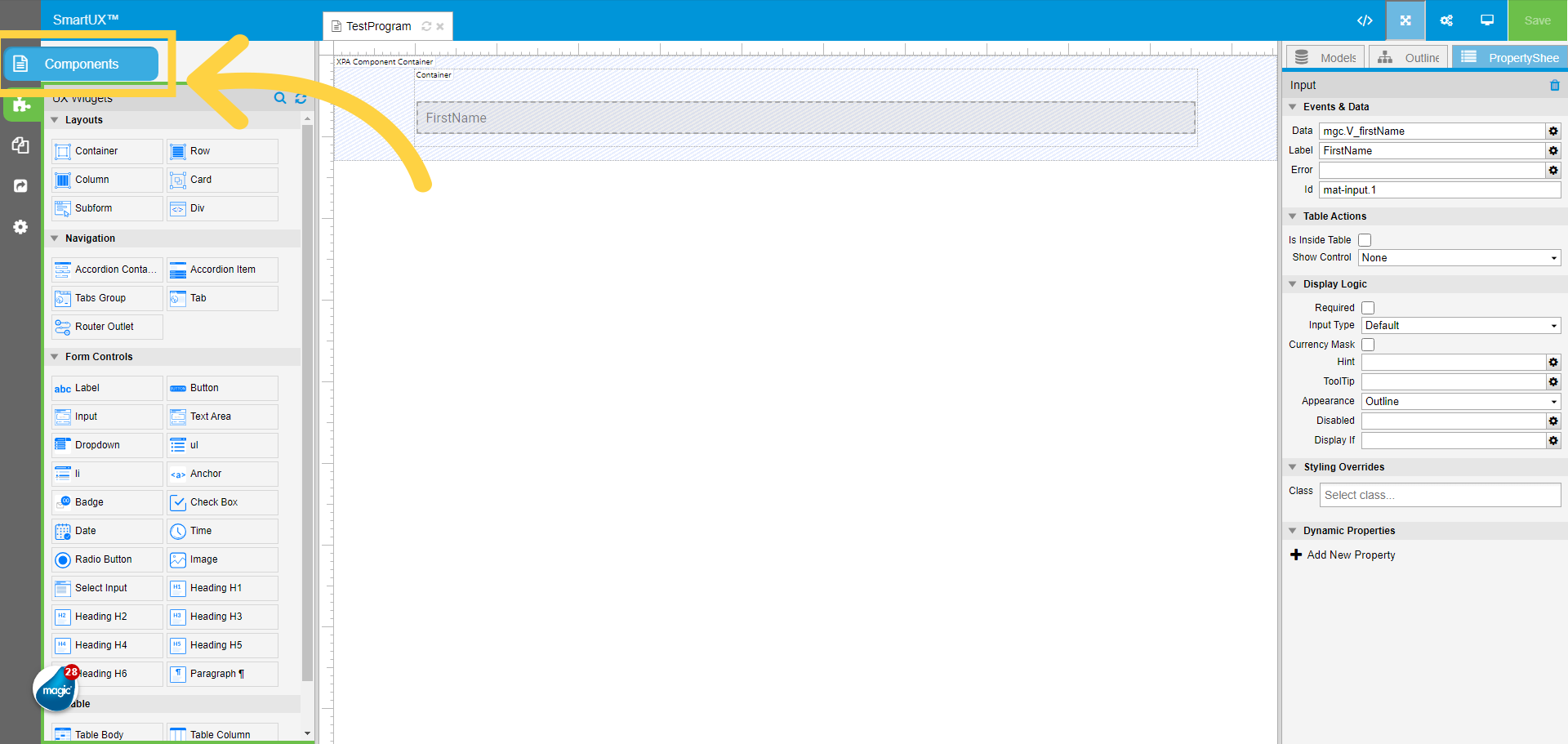
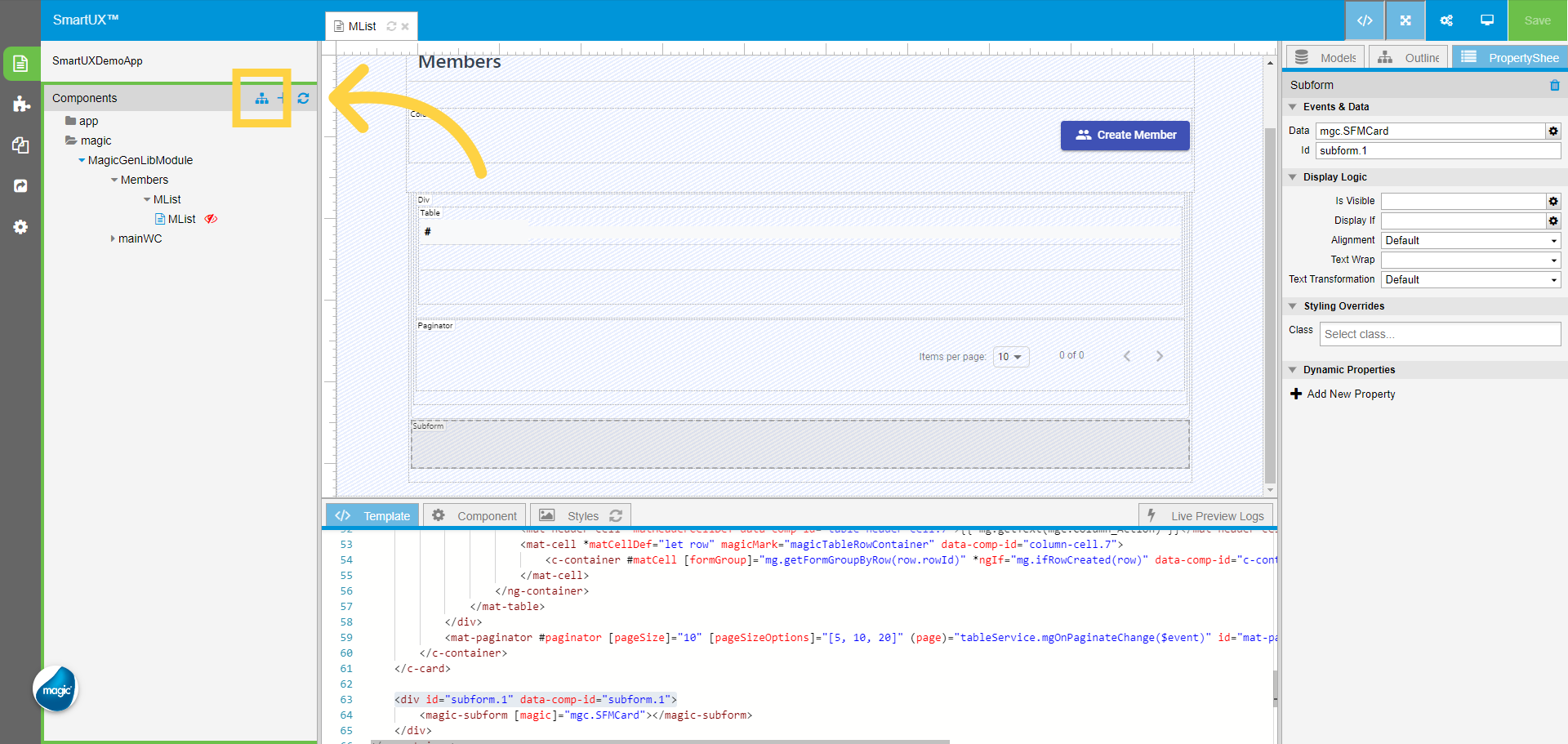
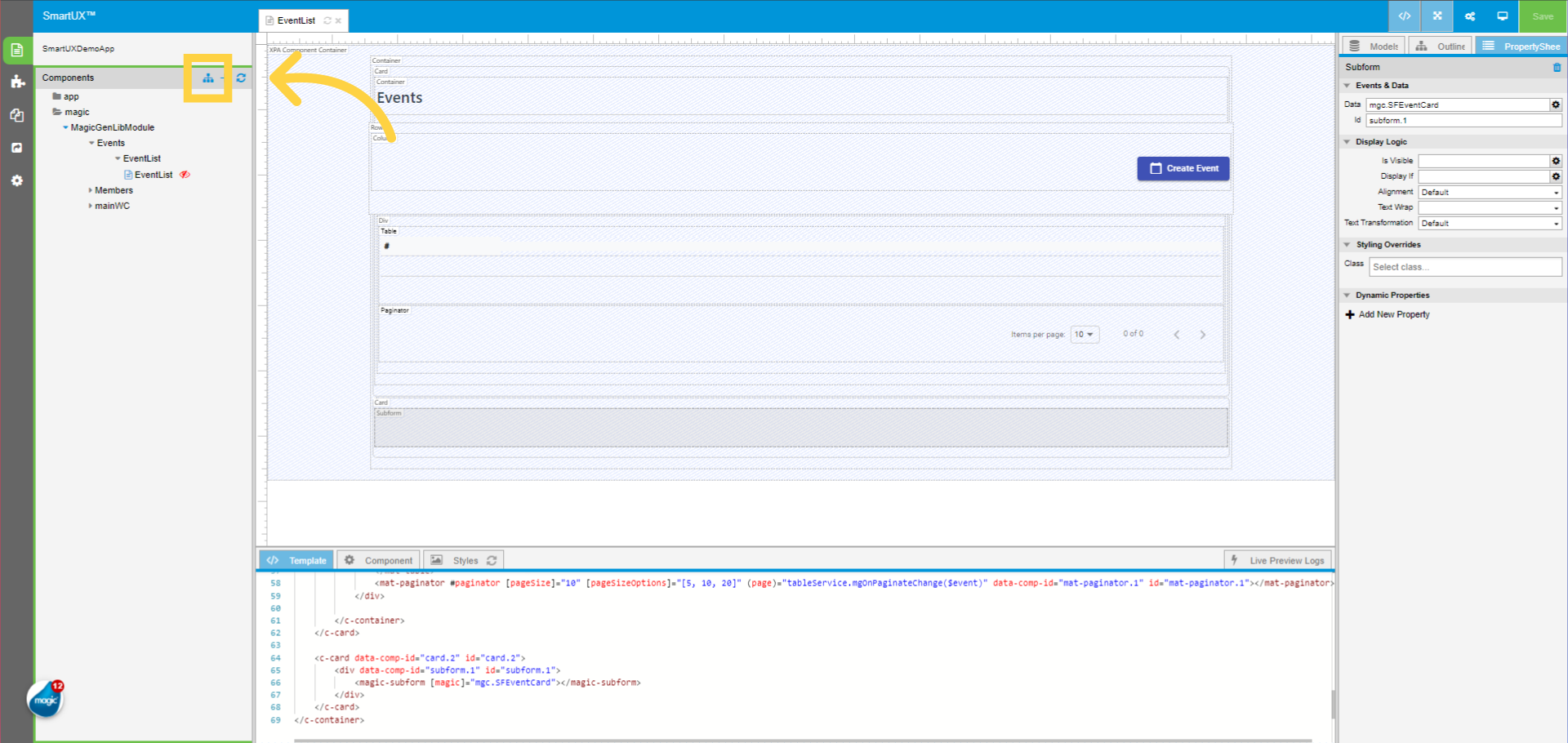
20. Click on Configure Route

Click on Configure Route to add the route for the components.

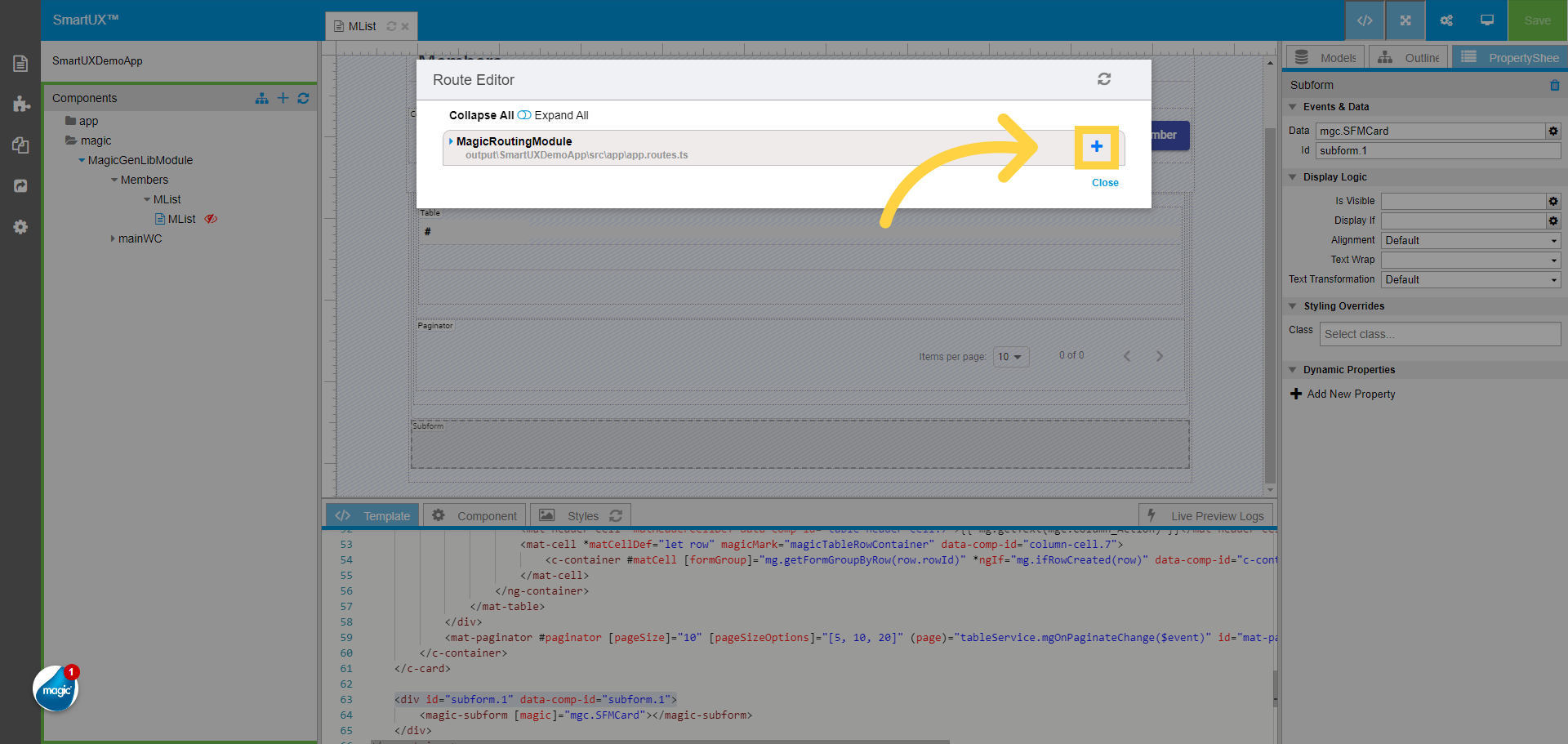
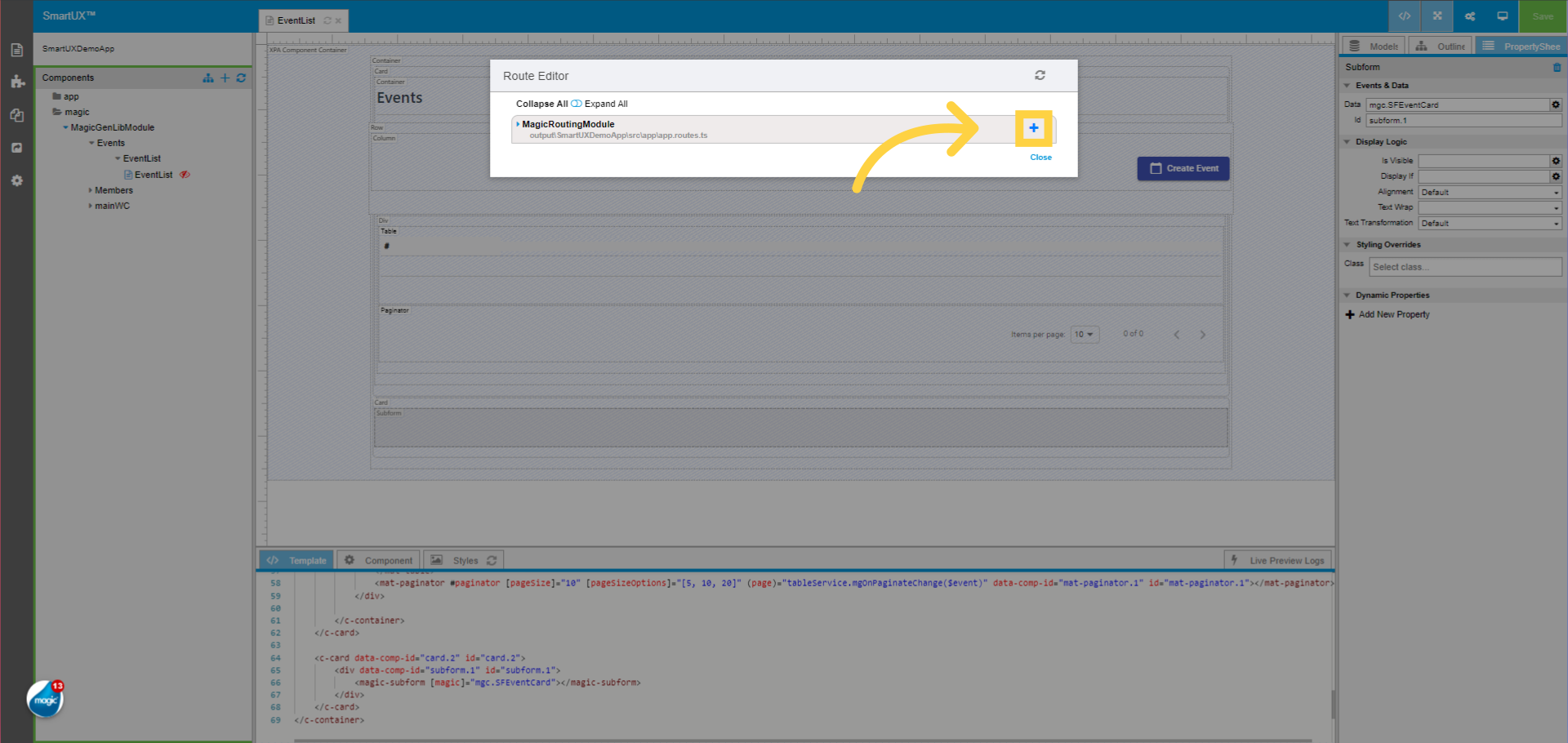
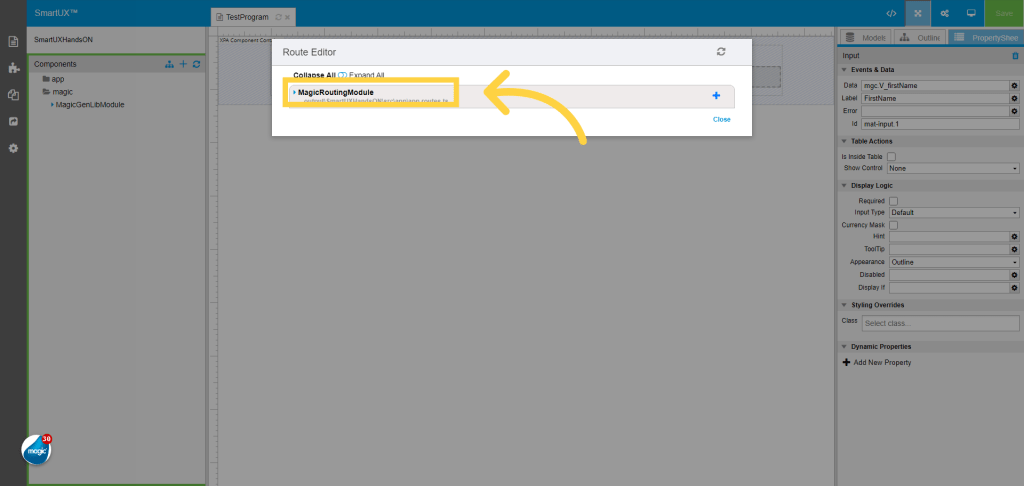
21. Click “MagicRoutingModule”

The Configure Route opens a Route Editor, Navigate to the “MagicRoutingModule” and expand it.
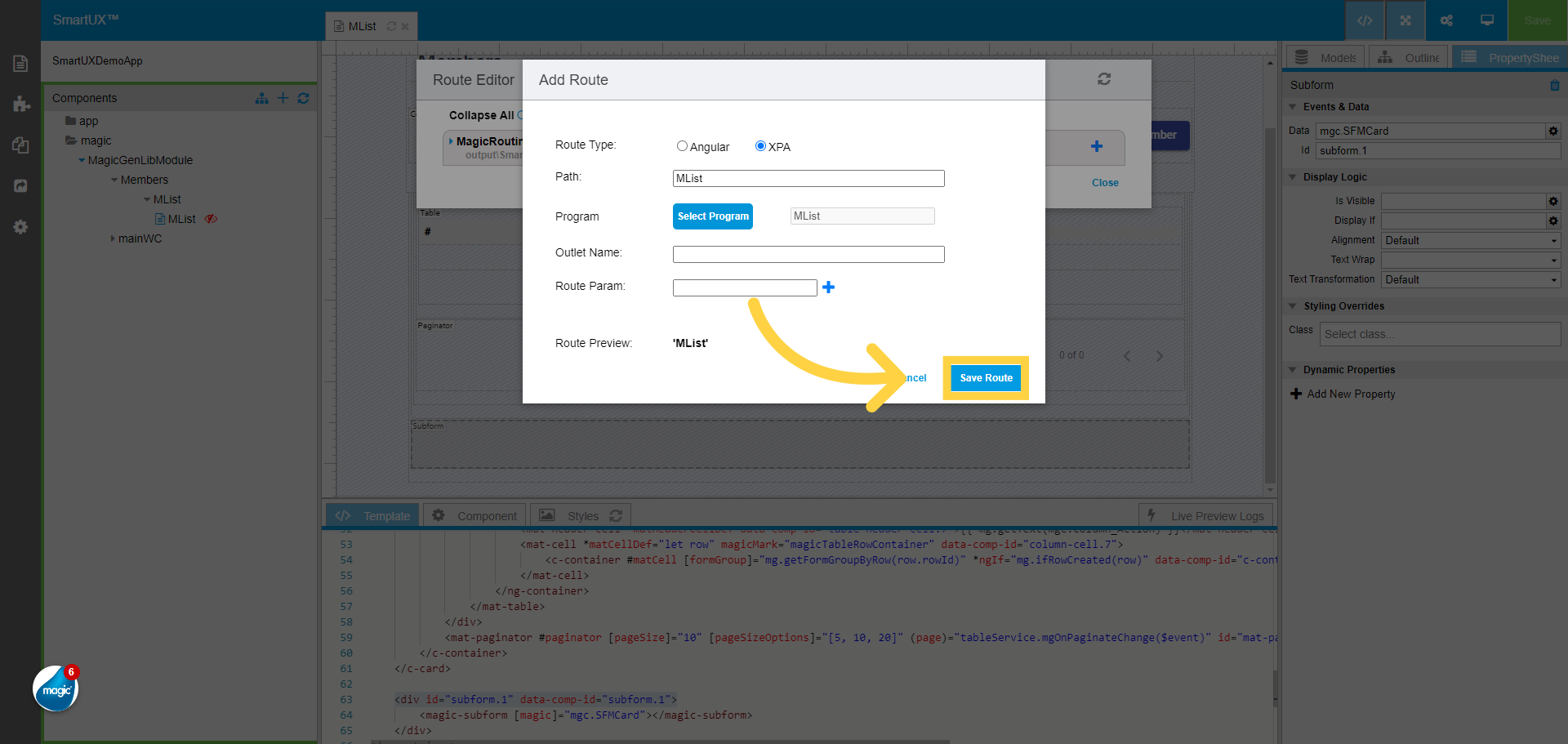
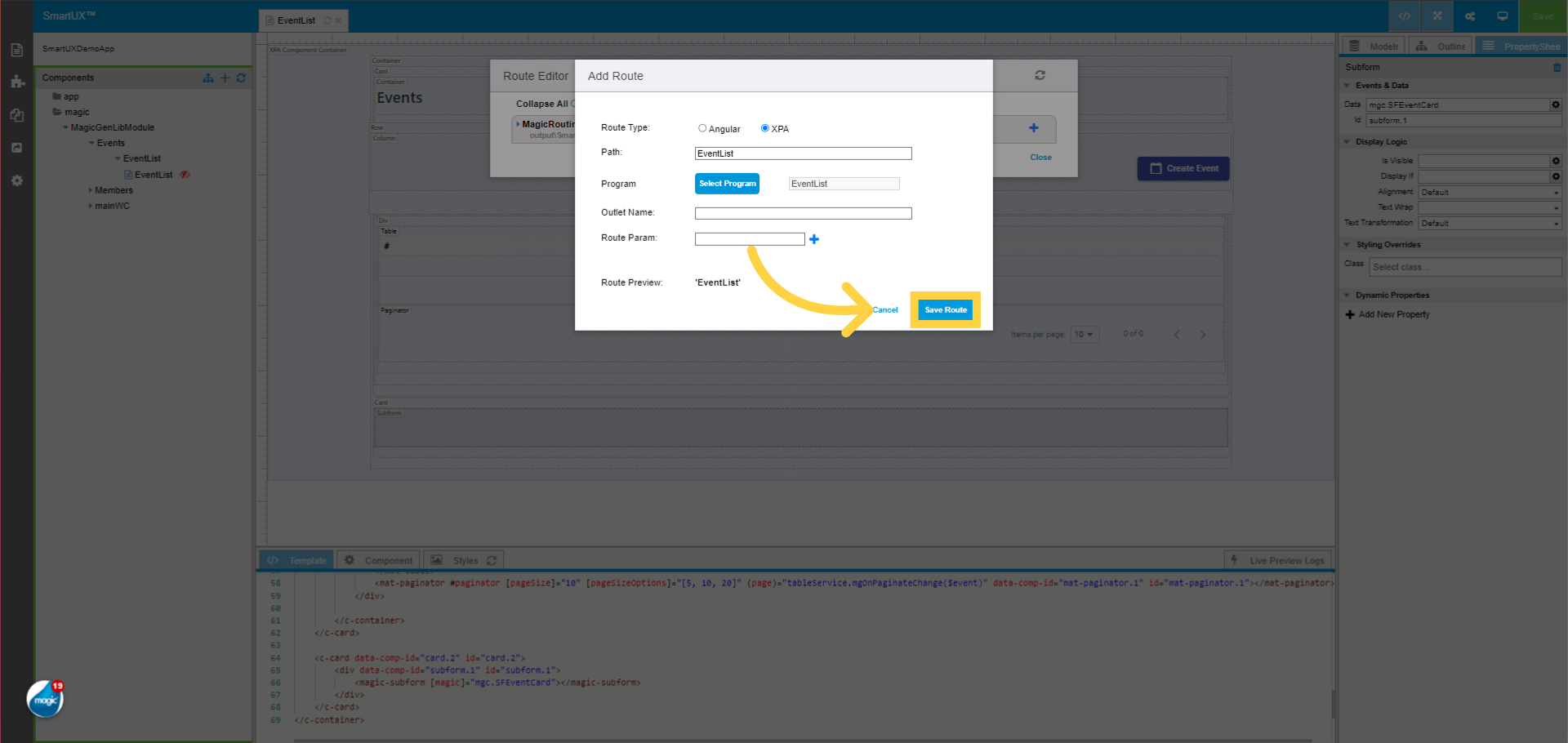
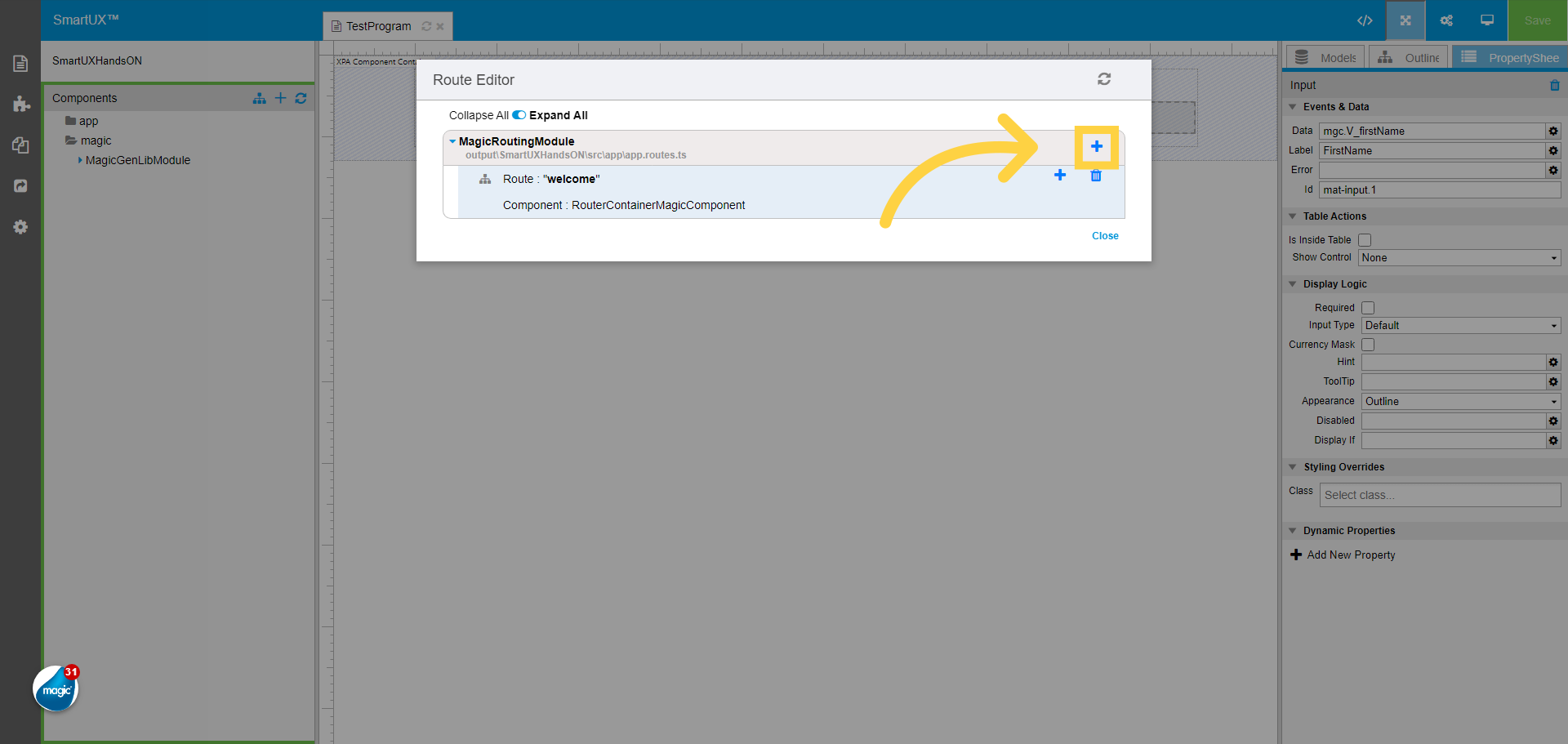
22. Click on the Add Route

Click on the Add Route button.
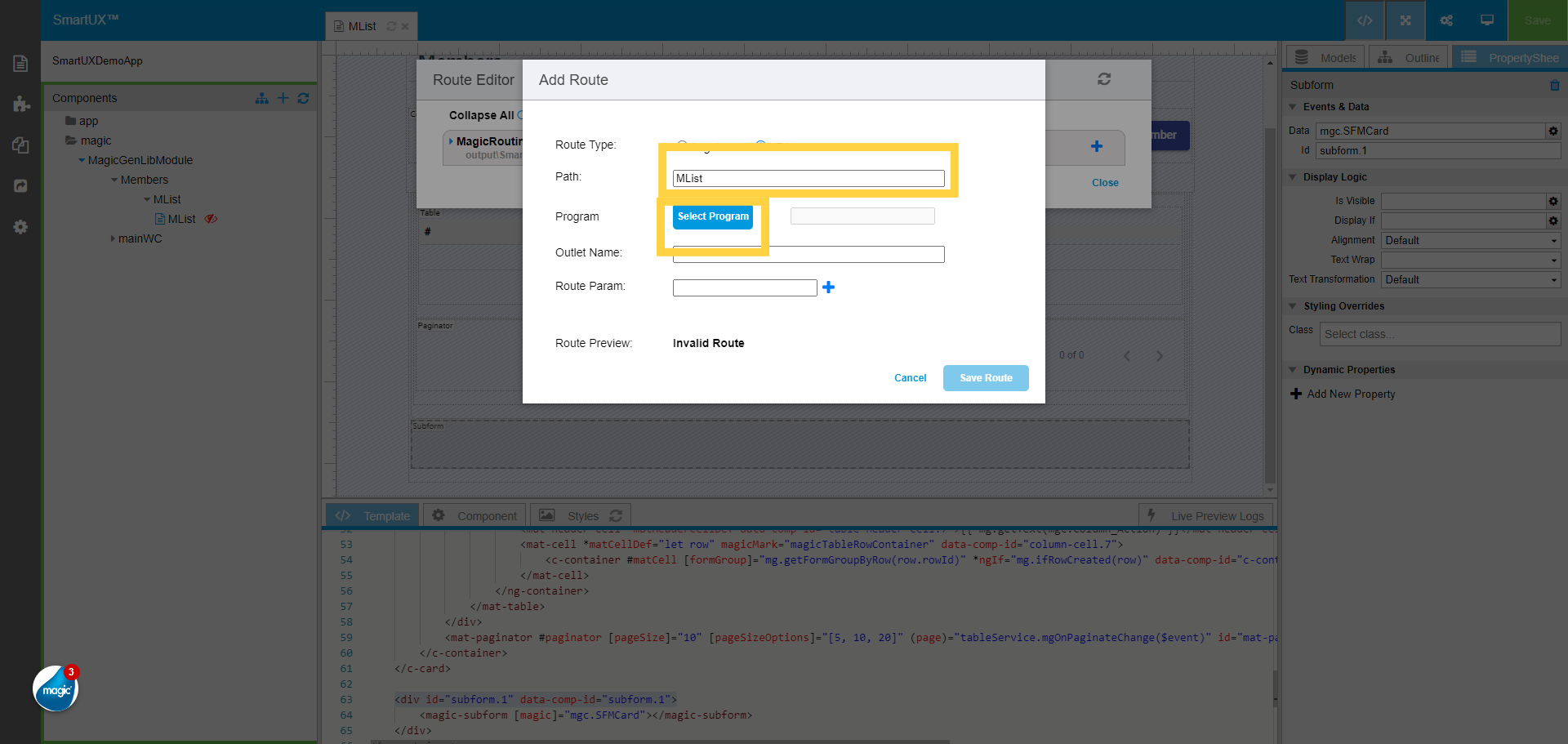
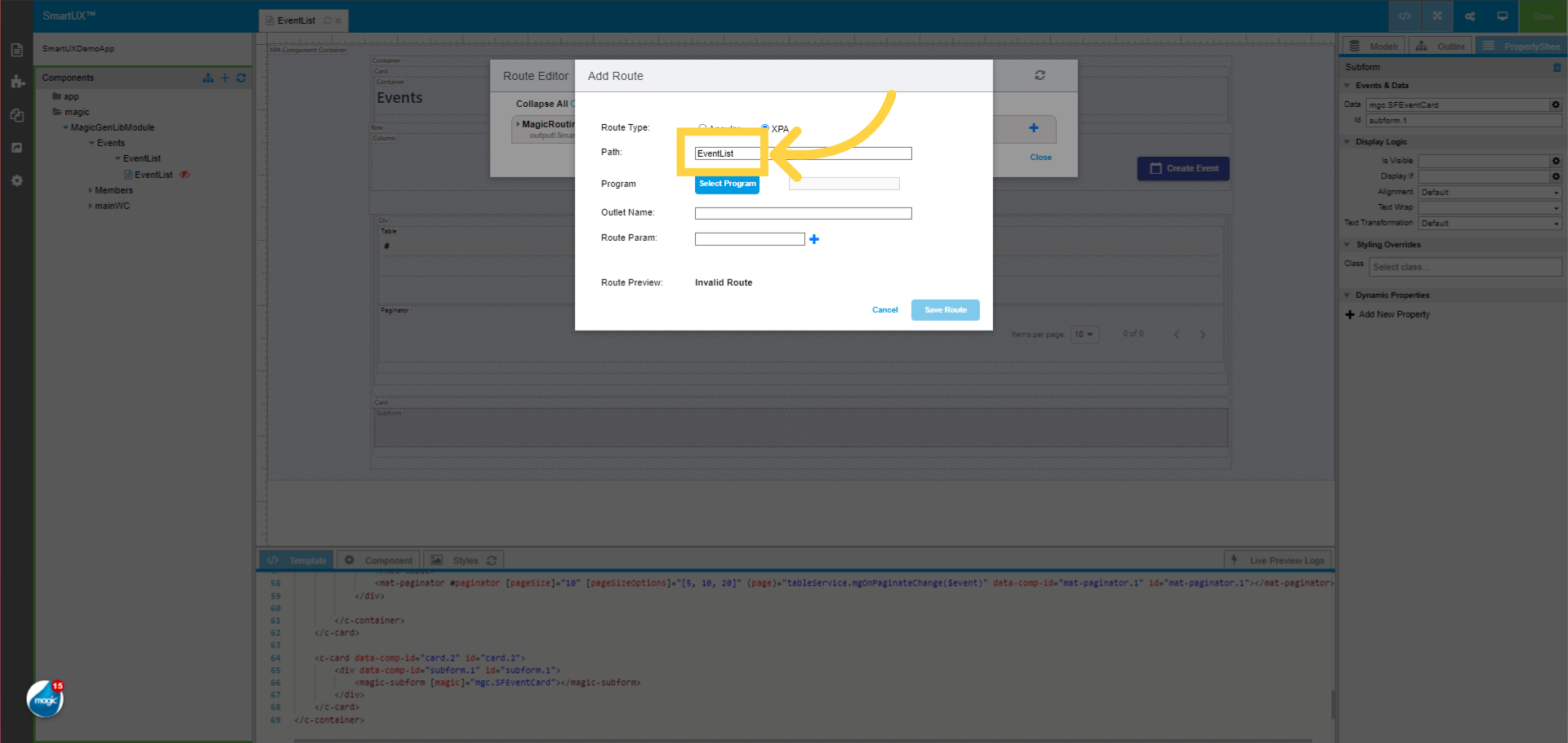
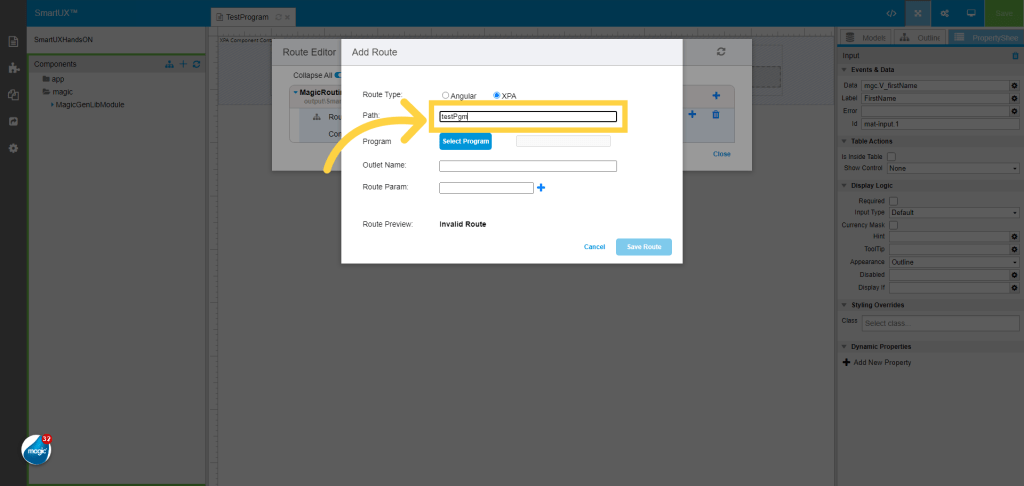
23. Provide the Route name in the Path field

Provide the Route name in the Path field.
24. Click “Select Program”

Click on the Select Program button.

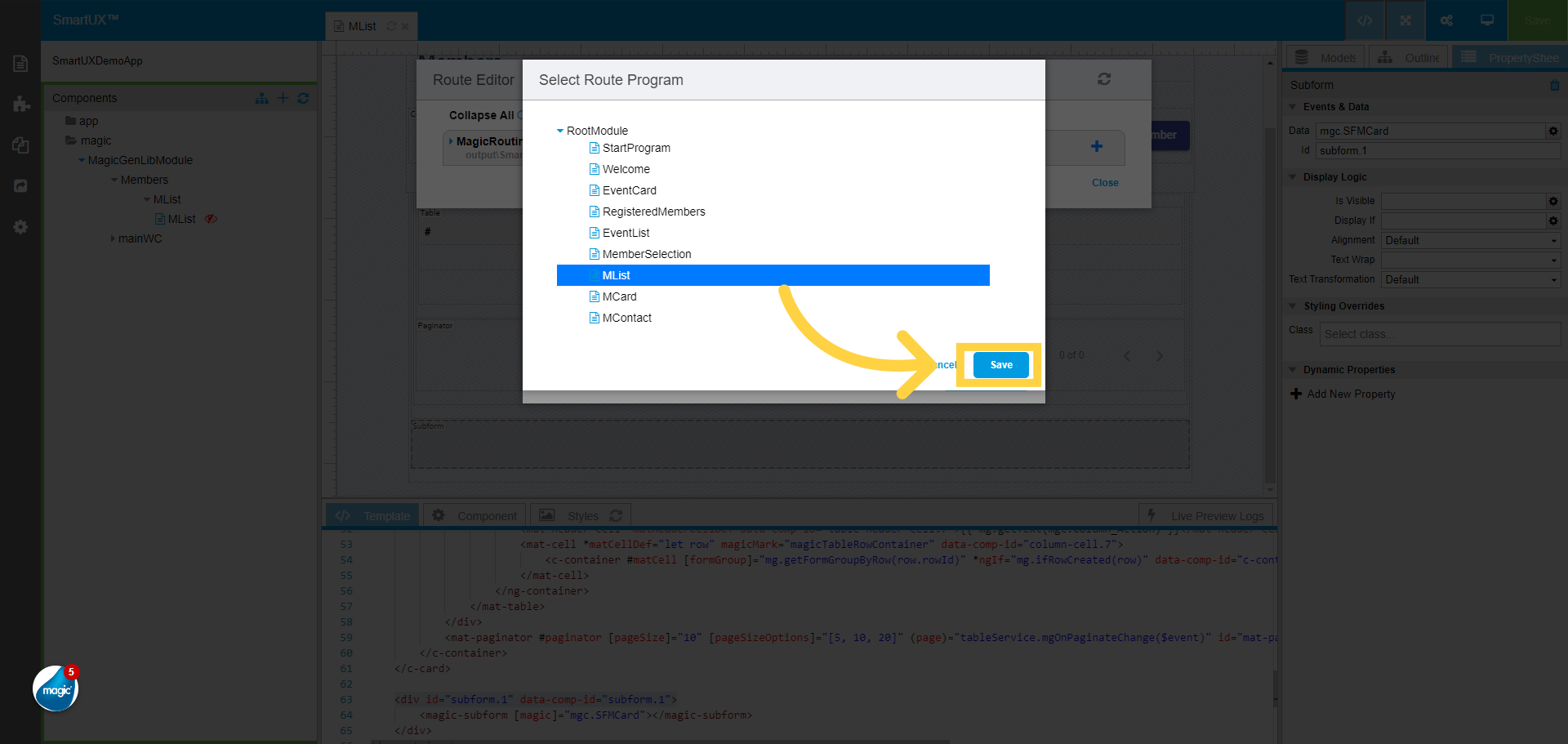
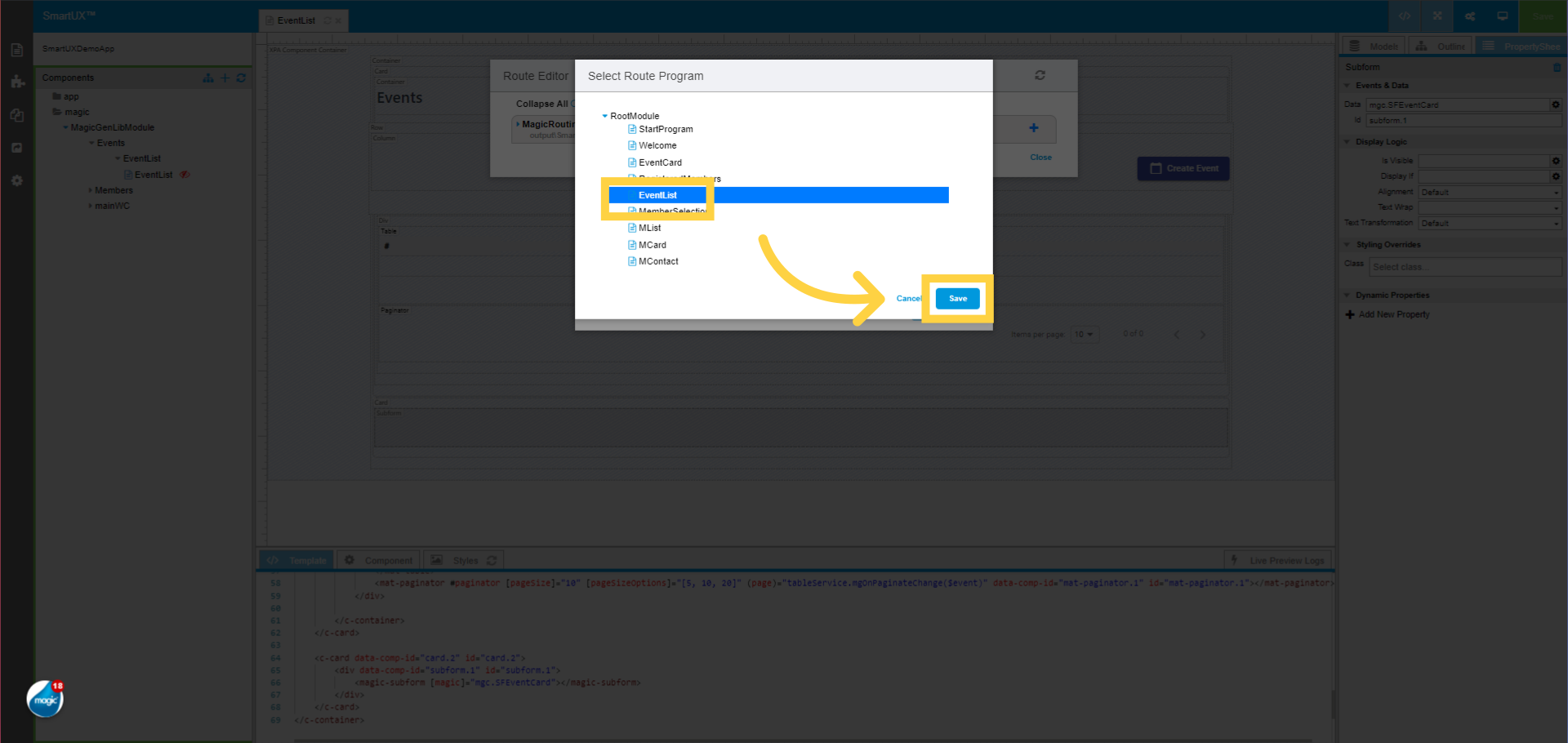
25. Select the Route Program from the Route Module list

Select the Route Program from the Route Module list
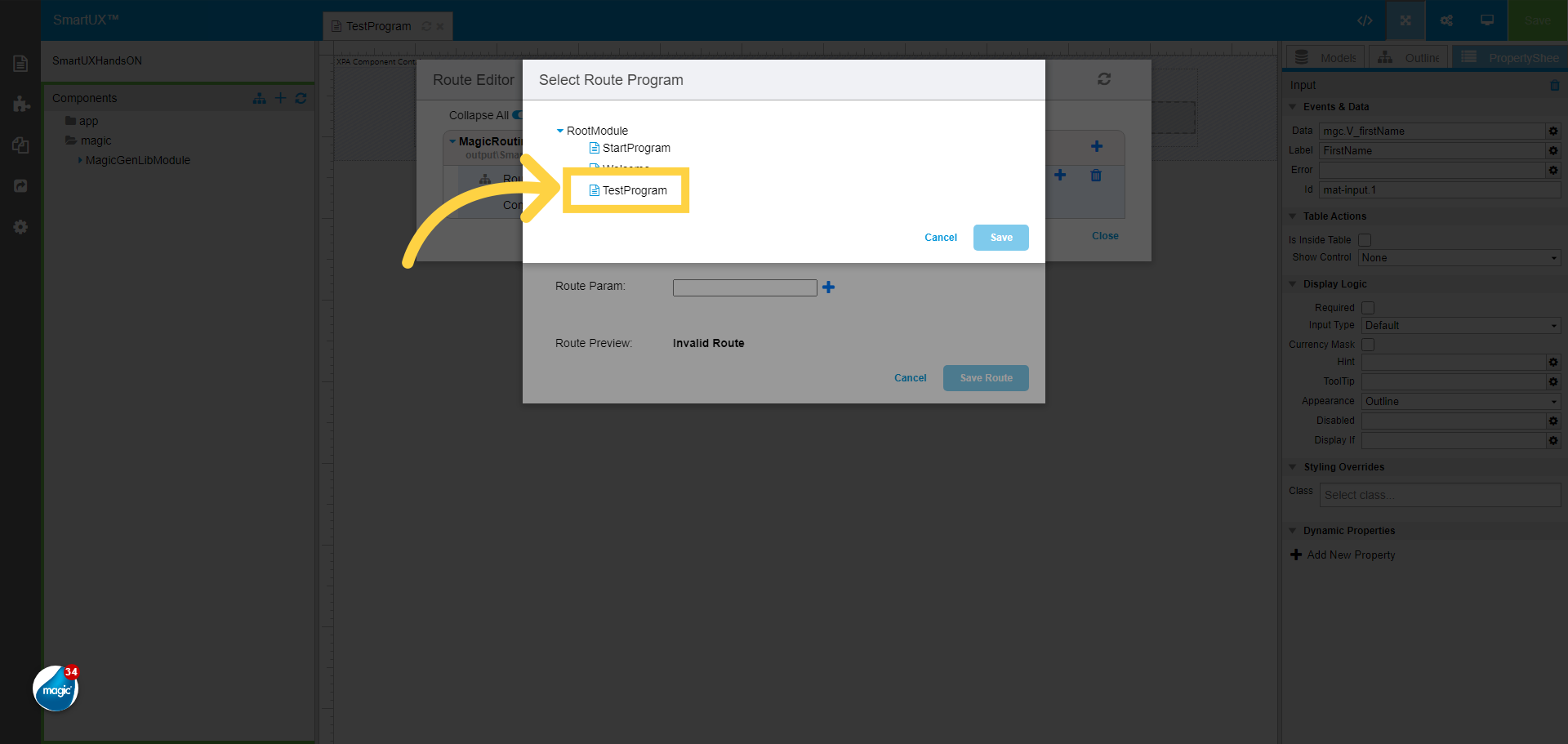
26. Click “Save” to save the Route Module

Click “Save” to save the Route Module.
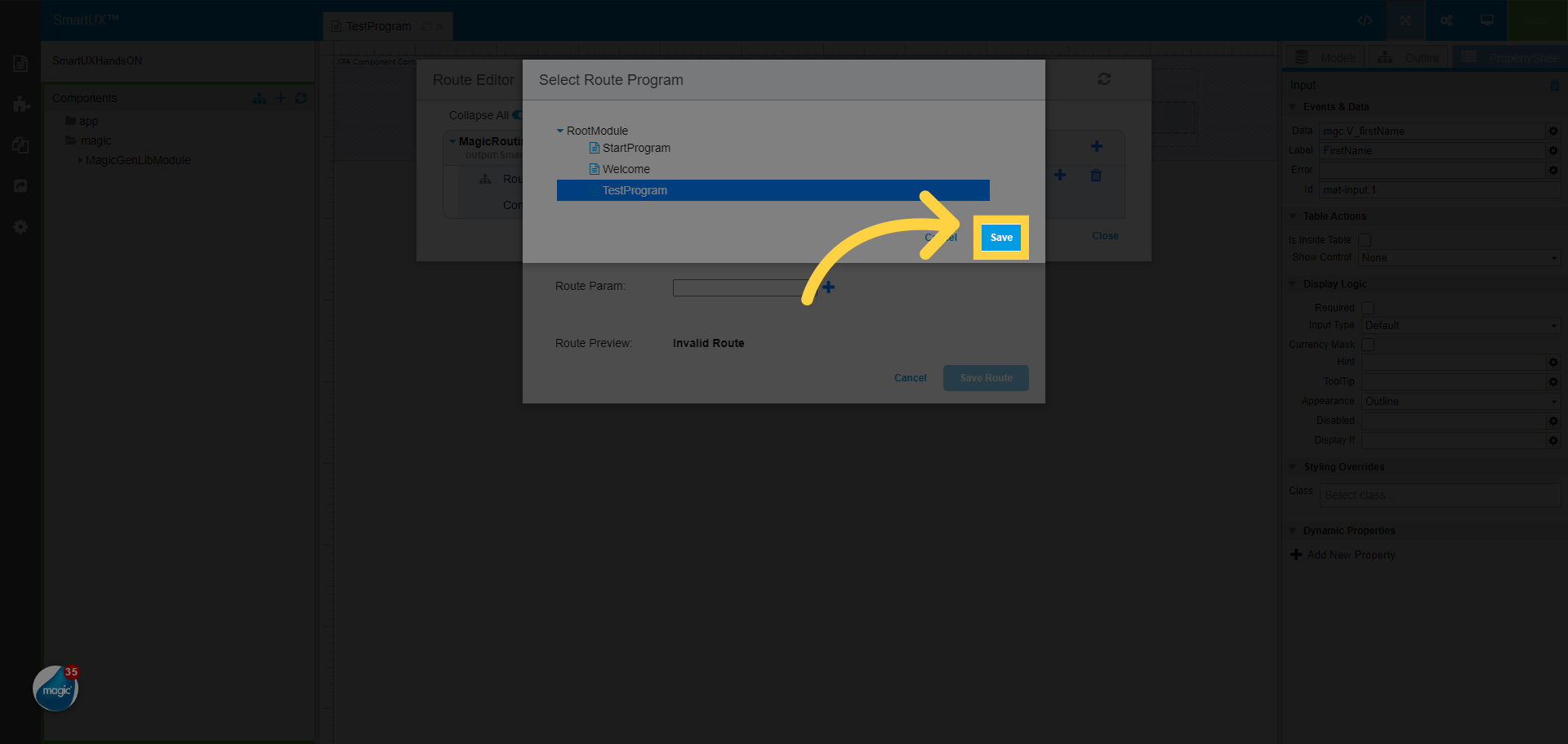
27. Click on the “Save Route” button

Click on the “Save Route” button to save the added route.

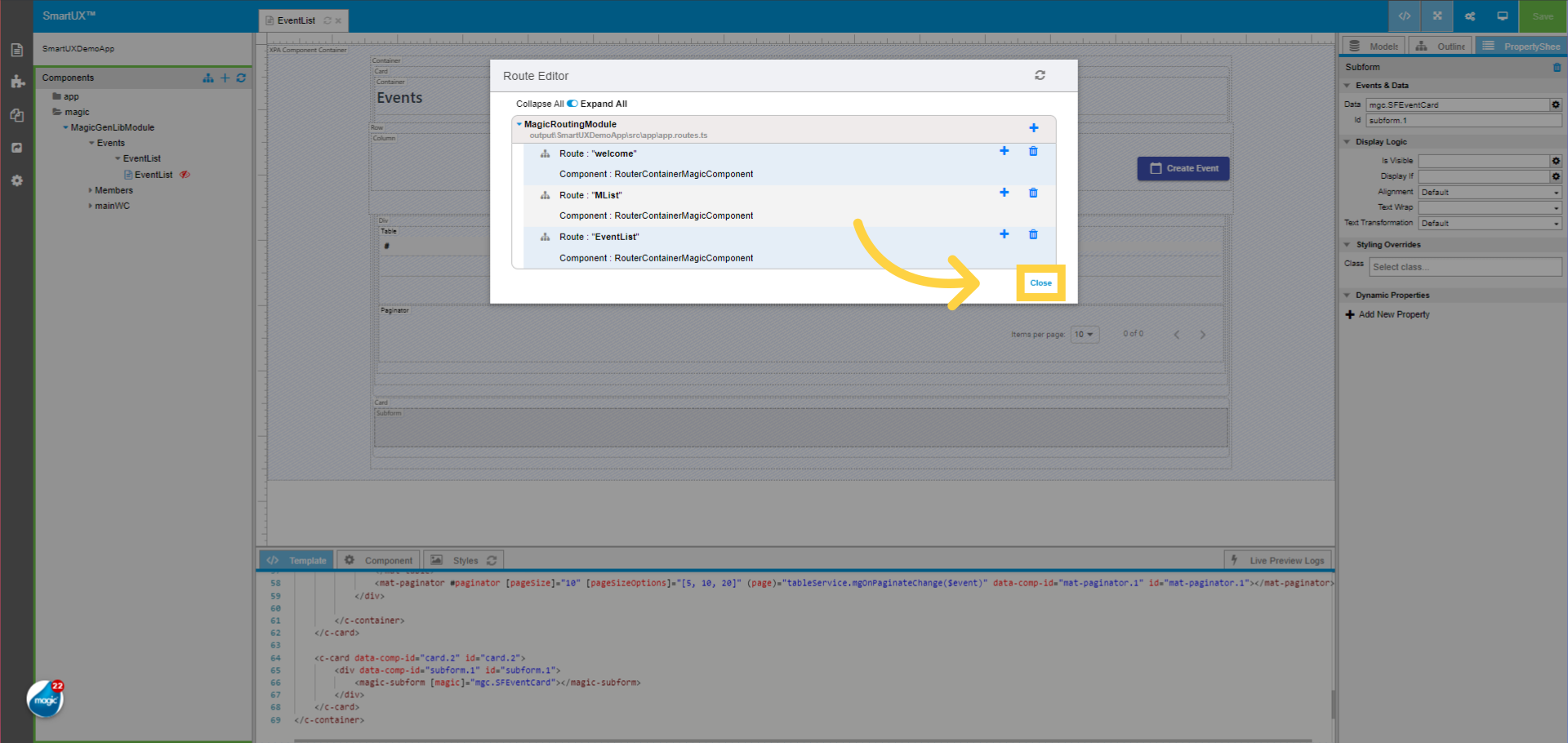
28. Close the Route Editor

Click on the Close button to Close the Route Editor.
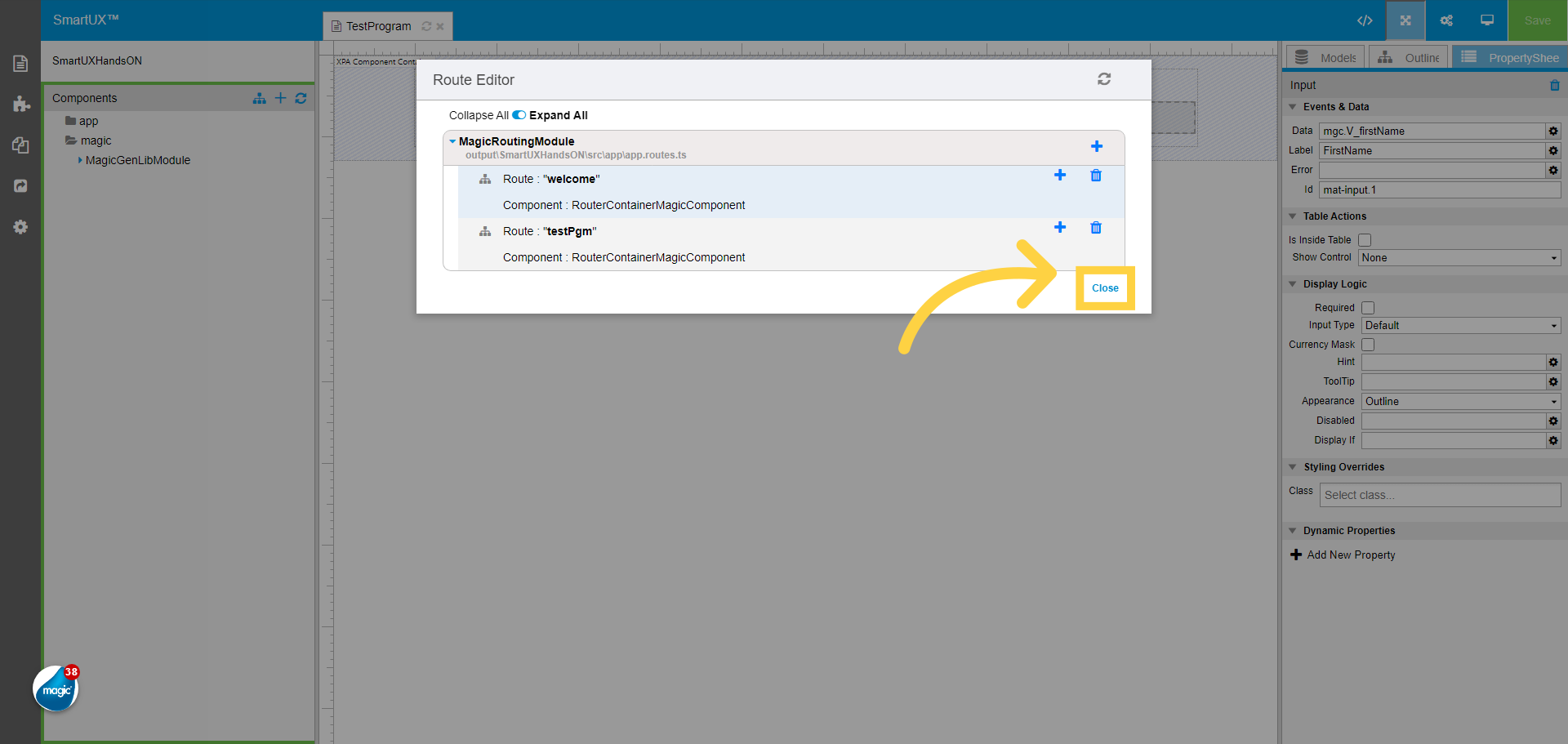
29. Enter in Live Preview

Now we are all set to enter in Live Preview.
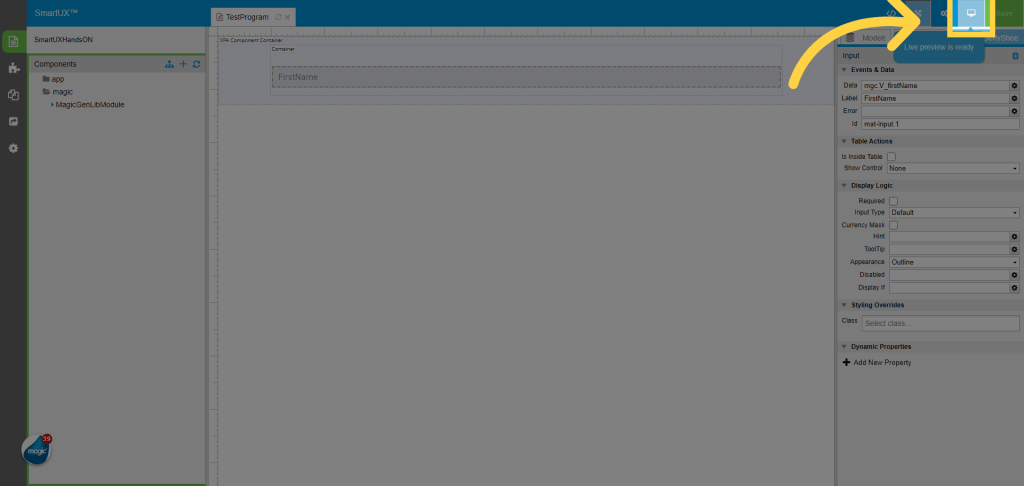
30. The Live Preview

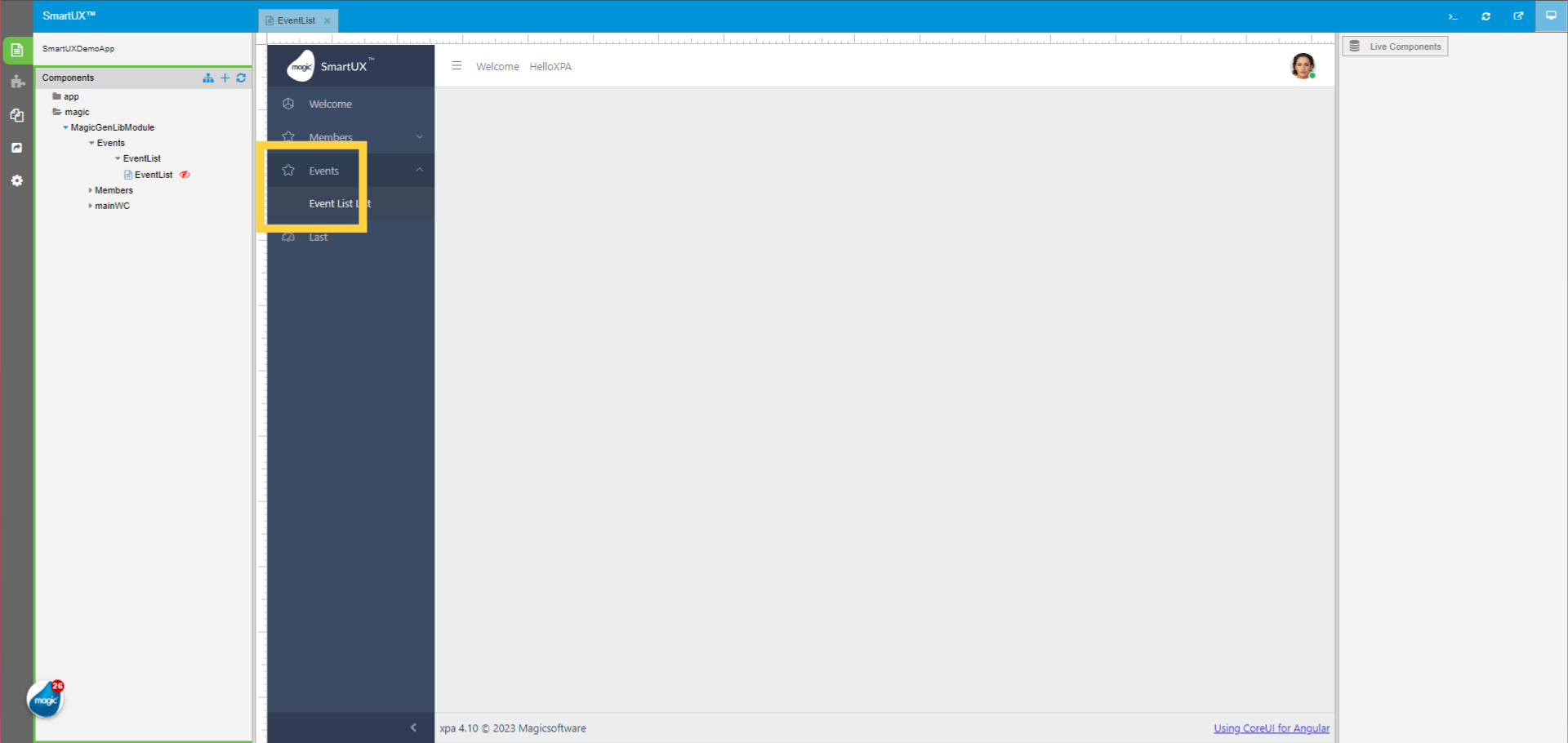
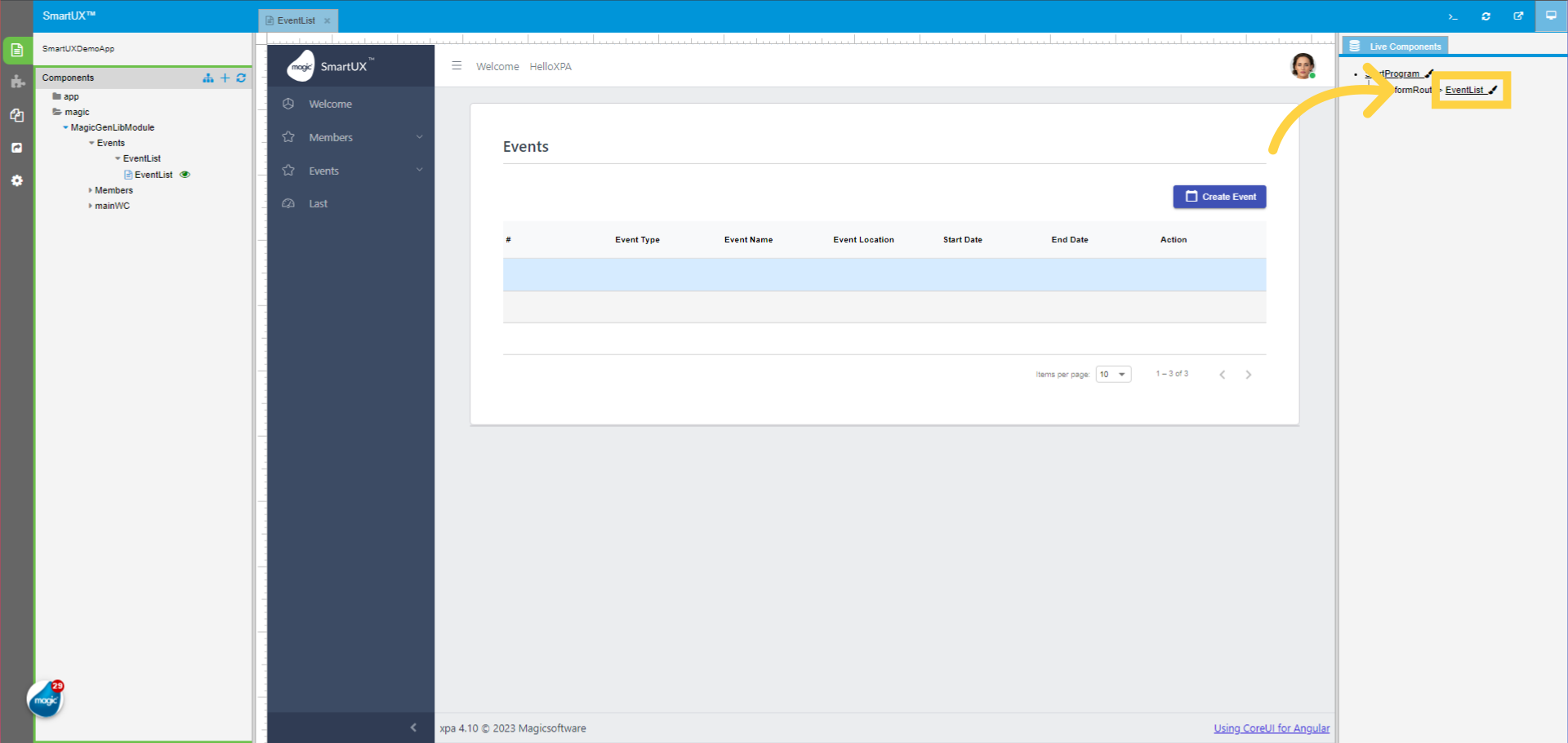
Once you enter in Live Preview, The Live Preview will look like this. Here we see the Test Program is added to the Sidebar navigation of Full Menu Application Template. Click on the Test Program.
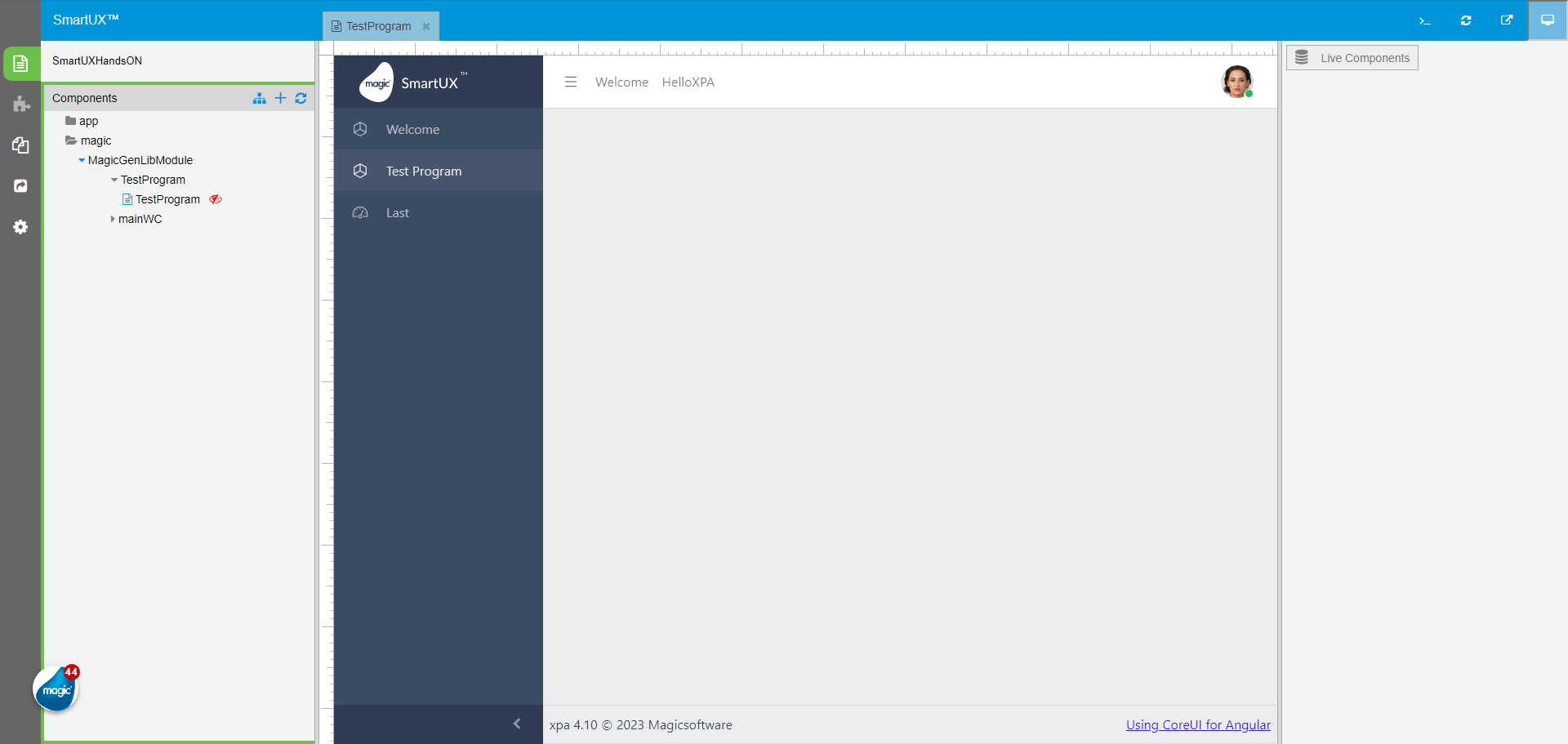
31. Test Program Live Preview

Here you can see the Test Program we created by following the previous lesson.

32. Click “Live Components”

Navigate to the “Live Components” section.
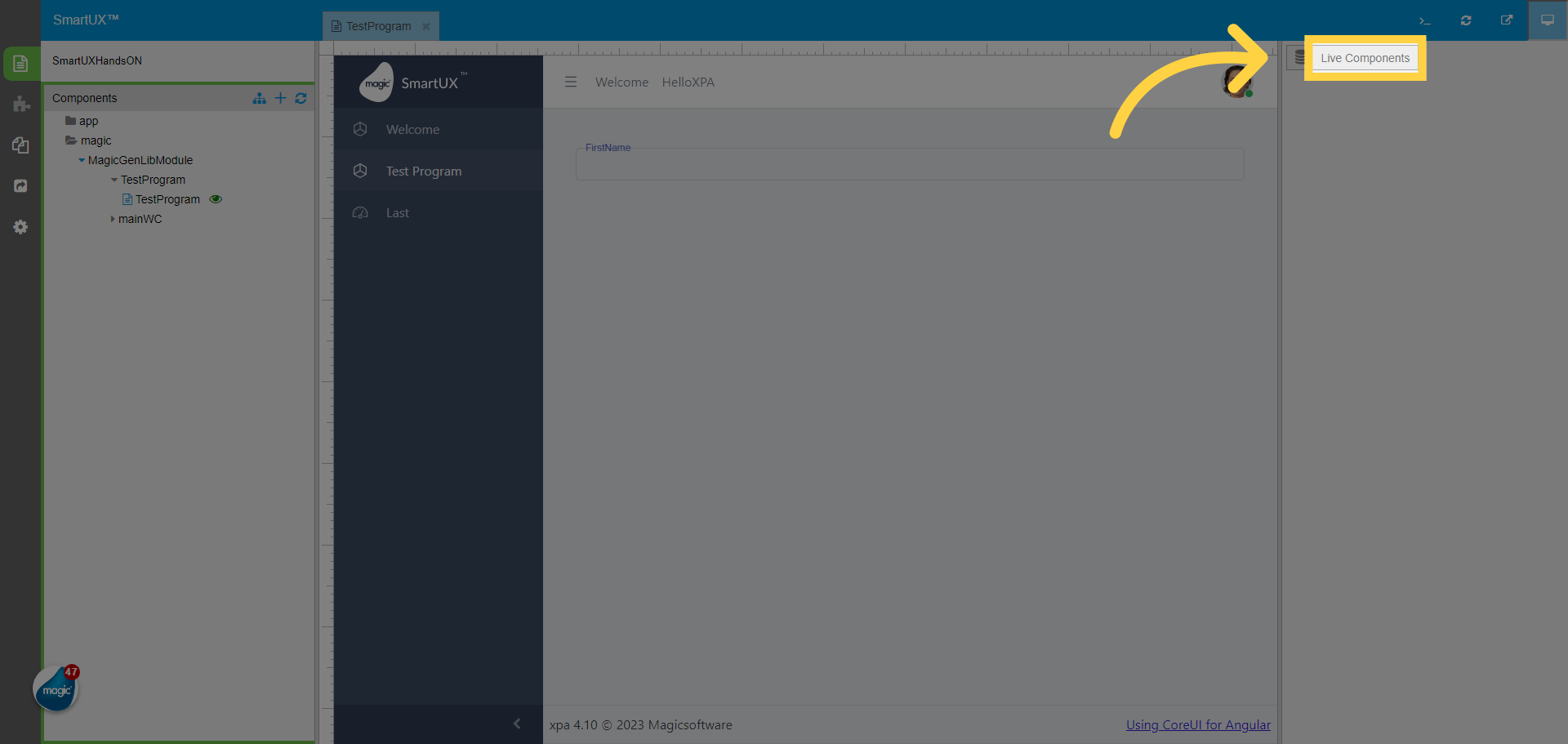
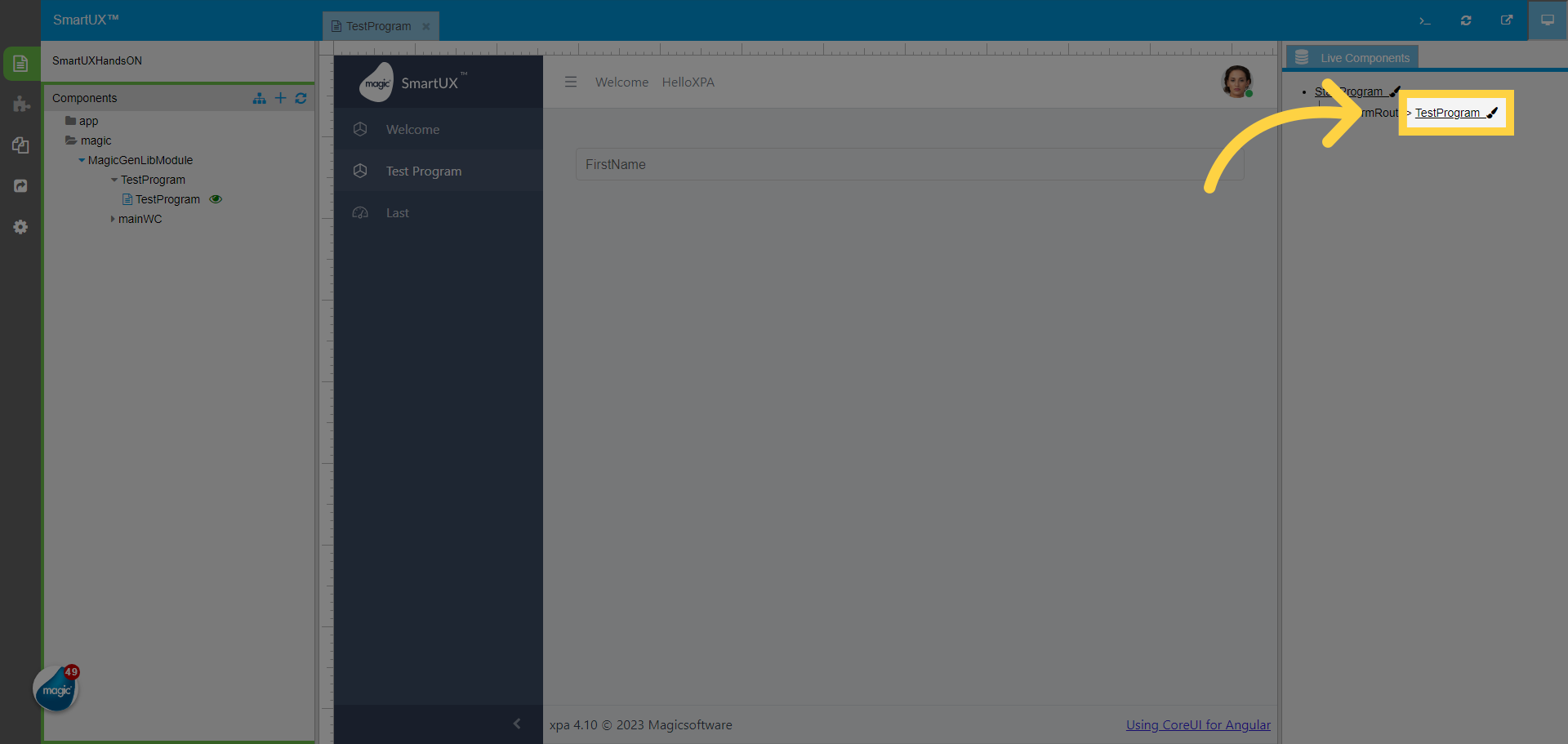
33. To get out of Live Preview Click “TestProgram”

To get out of Live Preview Click on the “TestProgram” from the Live components tree.
The guide covered adding components, designing routes, and saving changes in SmartUX.

By following the engaging instructions provided, users can efficiently navigate the application and enhance their training experience.

Basic Operations

How Do I Create a New Angular Project in SmartUX Studio?


This guide will walk you through the process of creating a new application using SmartUX Studio

1. Creating a New Project in Magic xpa

Open Magic xpa Studio and create a new project.

2. Starting SmartUX Engine in Background

In the created project, go to Main Program and open Task Properties.
In Interface tab, please set Open task window to No and Run project as to Web Client.
These settings start the SmartUX engine in background.

3. Opening the Project in SmartUX Studio

Save the task and come back to root of program repository.
Click on the icon Open In SmartUX Studio.

4. Selecting a Template for Project

A new browser window will be opened with Create Project dialog.
Select any template from the template list say Full Menu Template.

5. Creating Project

Click on Create button.

6. Importing the Project from Magic xpa

Switch to Magic xpa Studio. Here, the Studio imports the project for the selected application template.
Click Yes to overwrite the current Main Program or No otherwise; as per your preference.

7. Viewing the Progress of Application Creation

Switch to the browser window. This window shows the progress of creating a new application. You can go through different links to see logs at the specific steps.

You can go back to all logs view by clicking on Show All button.

Once the application is created, you will see the OK button enabled. 

Click OK to complete the process and go to the created application.

8. Opening magic Section

Now navigate to the magic section.

11. Opening welcome Component

Click on Welcome.

This is the component named Welcome in the newly created Angular application.

13. Previewing Application Execution 

To see application execution, click on Live Preview icon.

You can see the runtime of the application as shown below.

How Do I Design a Component in SmartUX Studio?

In this video, you will learn the process of designing a component. You will learn how to create a Form, add Columns, Containers, and Rows, as well as Labels and Input fields. We will also cover Data Mapping, saving your work, and viewing the designed component in SmartUX Live Preview.

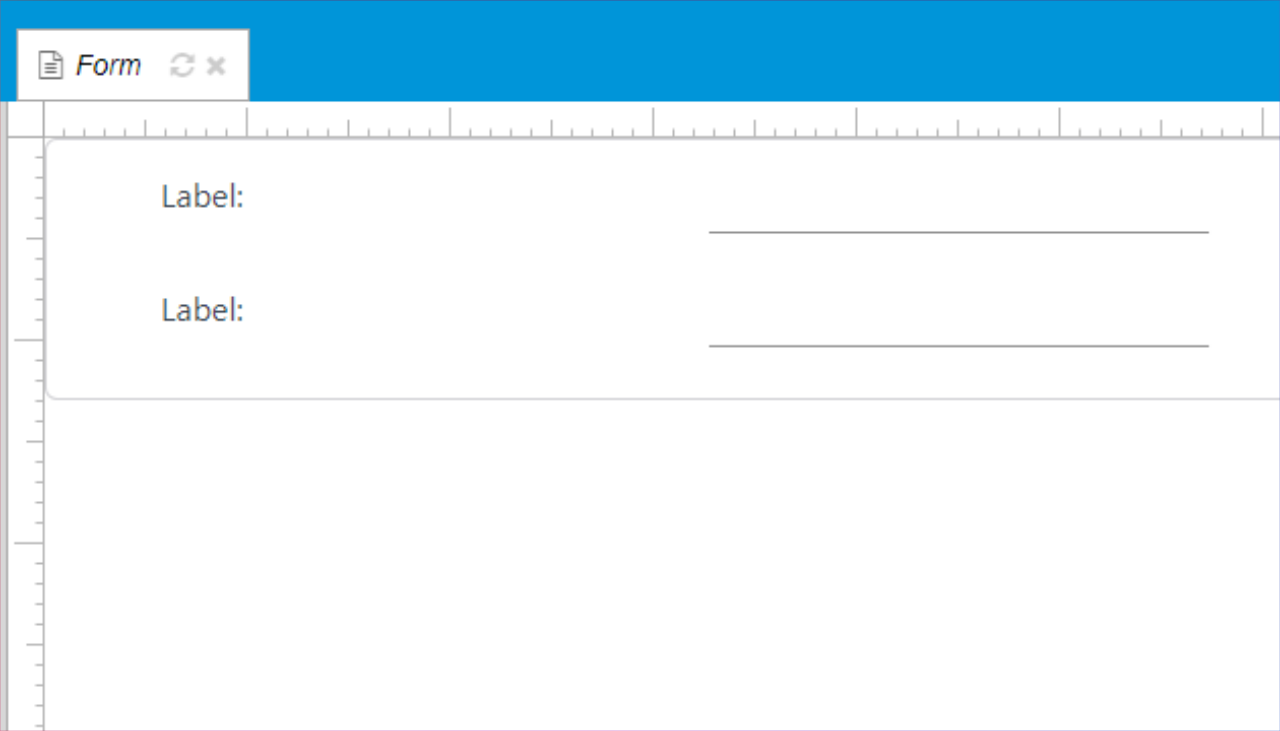
For the demo purpose, we are designing a component named Form. This component has two Label controls and two Edit controls created in Magic xpa Studio:

1. Accessing UX Widegts

Once you have the Form component opened in SmartUX Studio, go to the UX Widgets option.

2. Using UX Widgets

Drag and drop the required widgets on the Canvas.

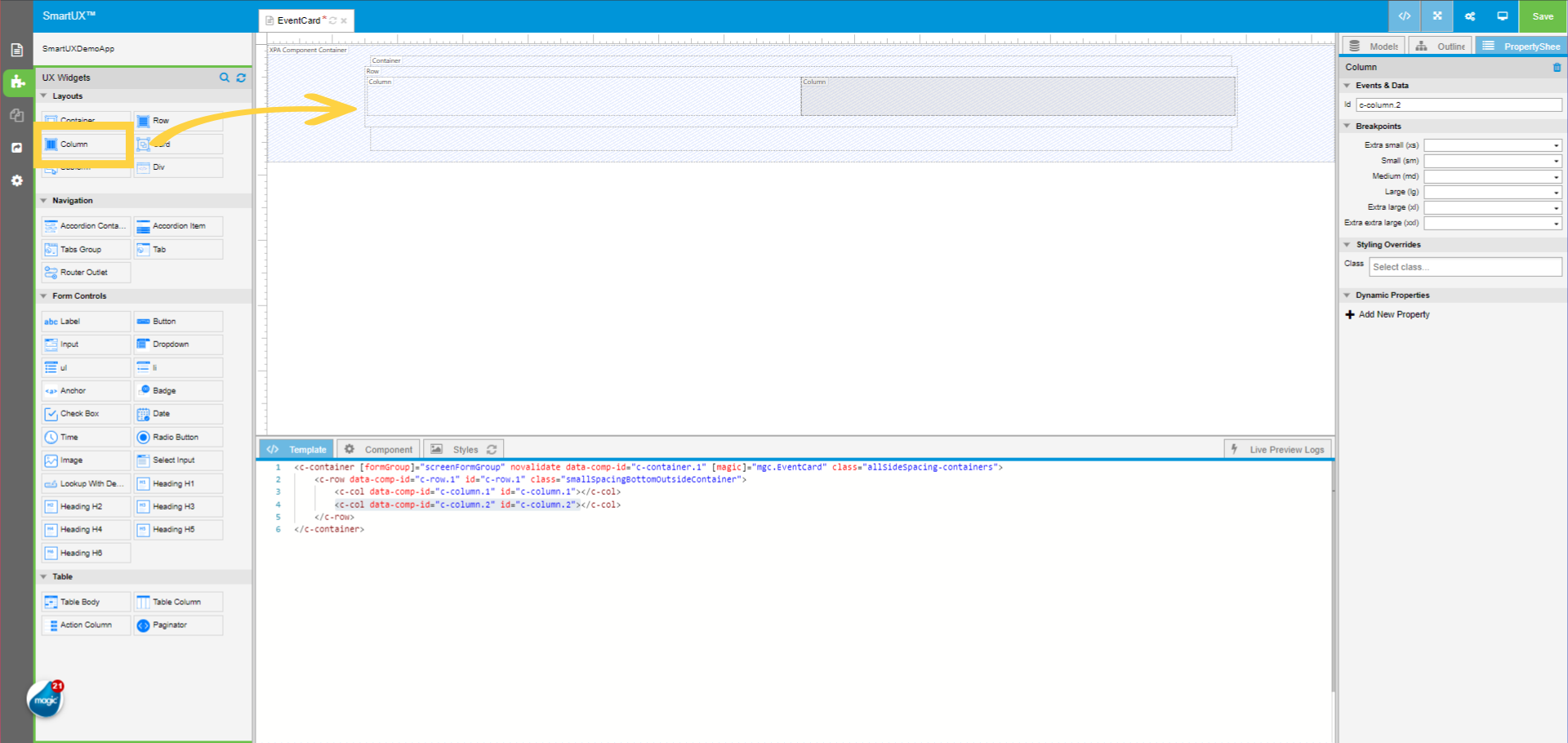
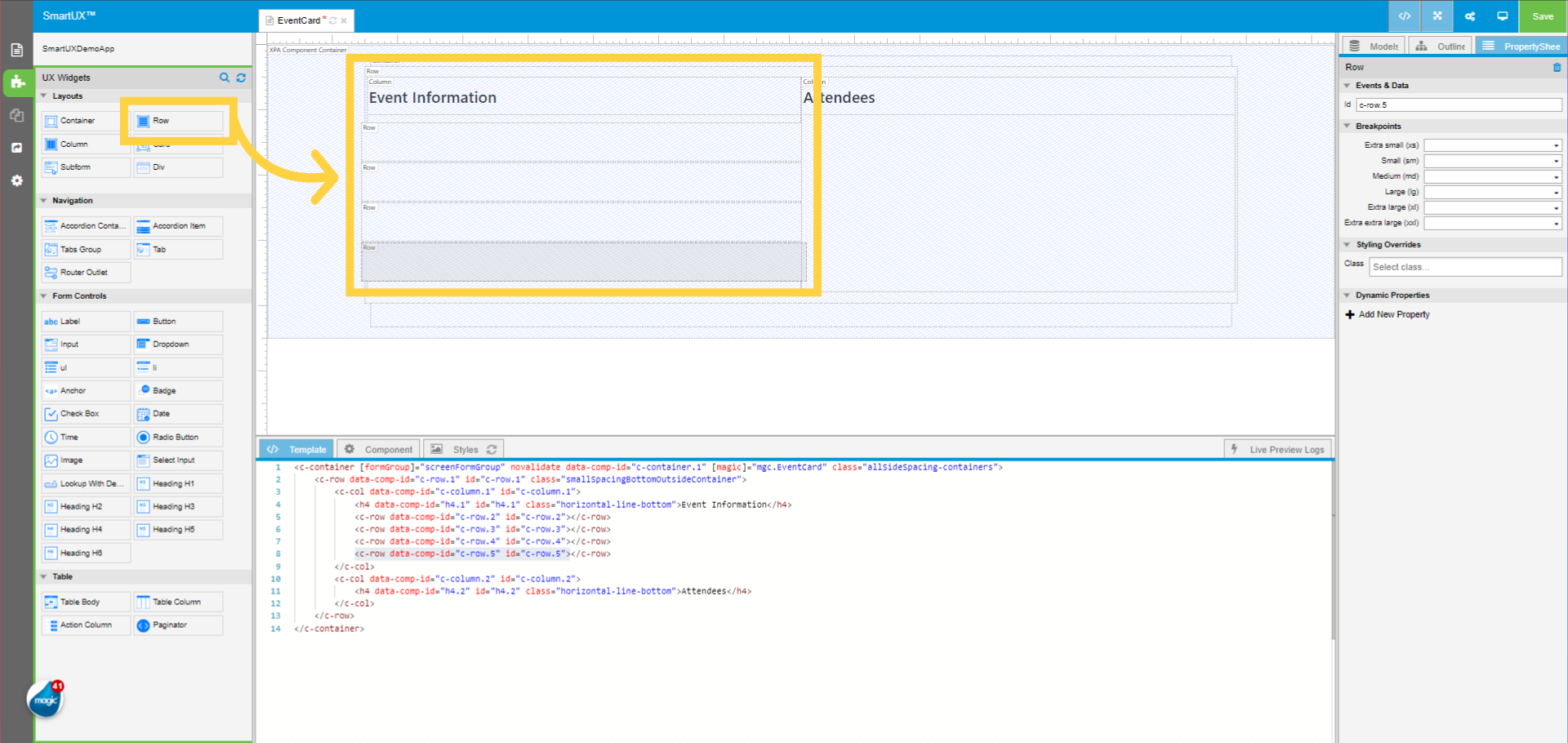
3. Creating Component Structure

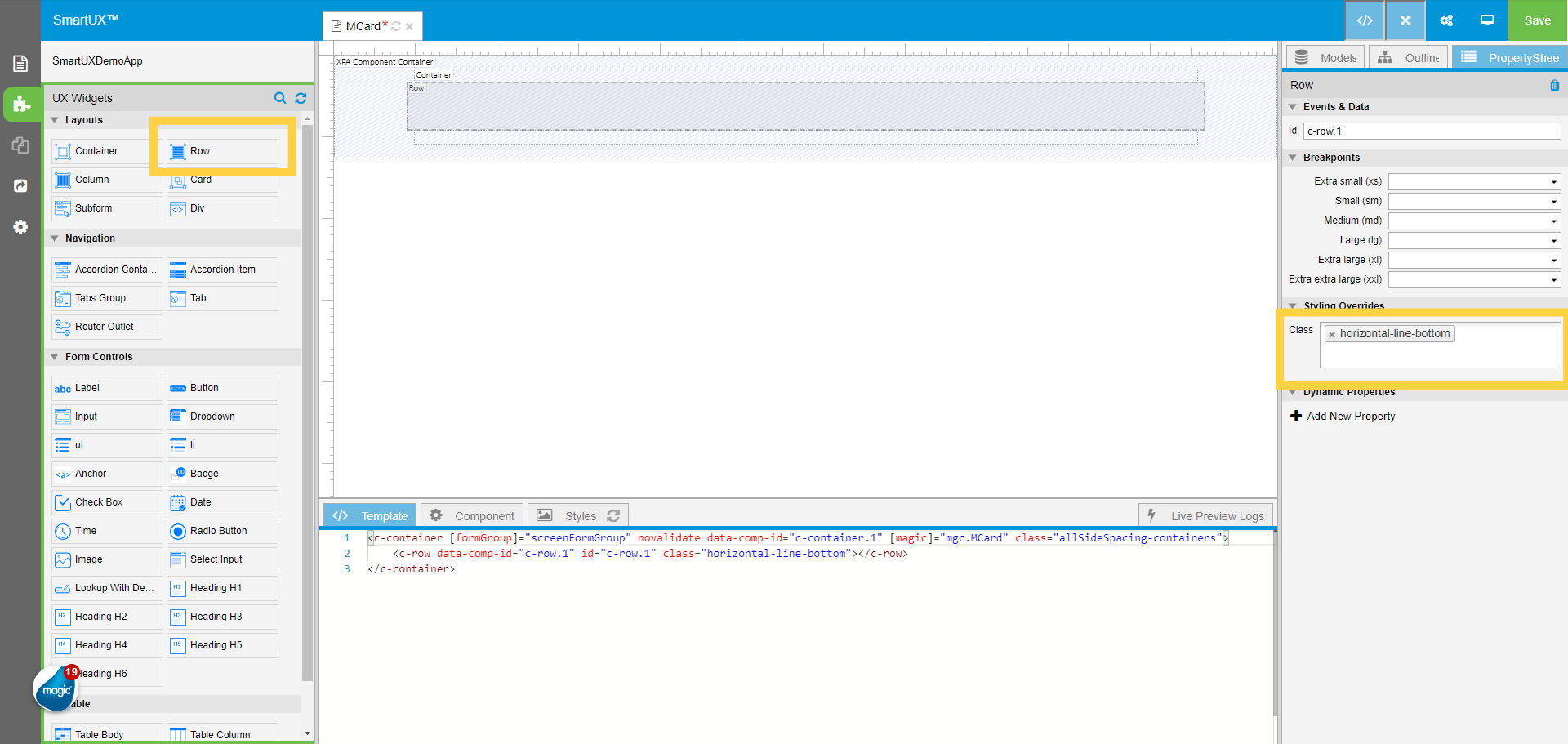
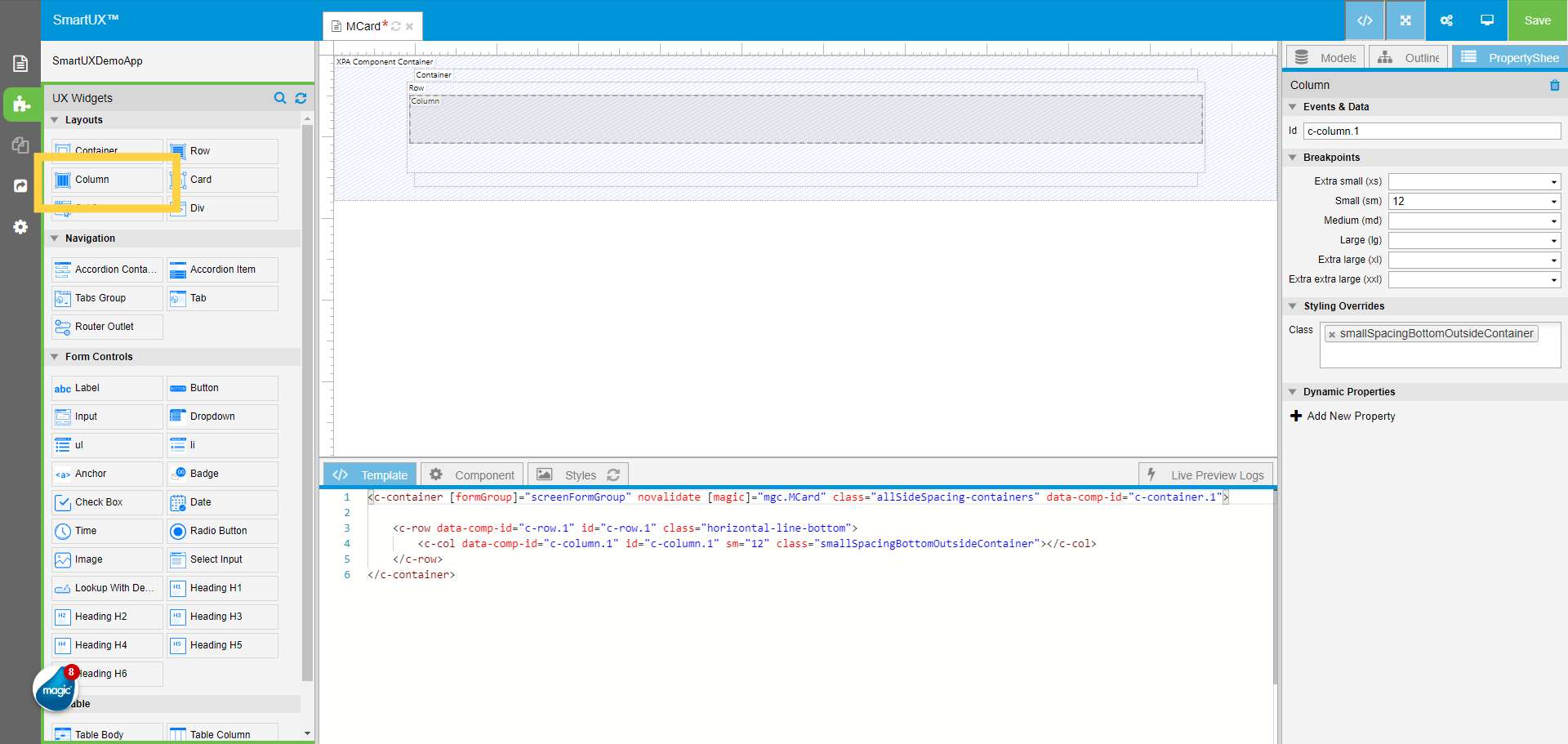
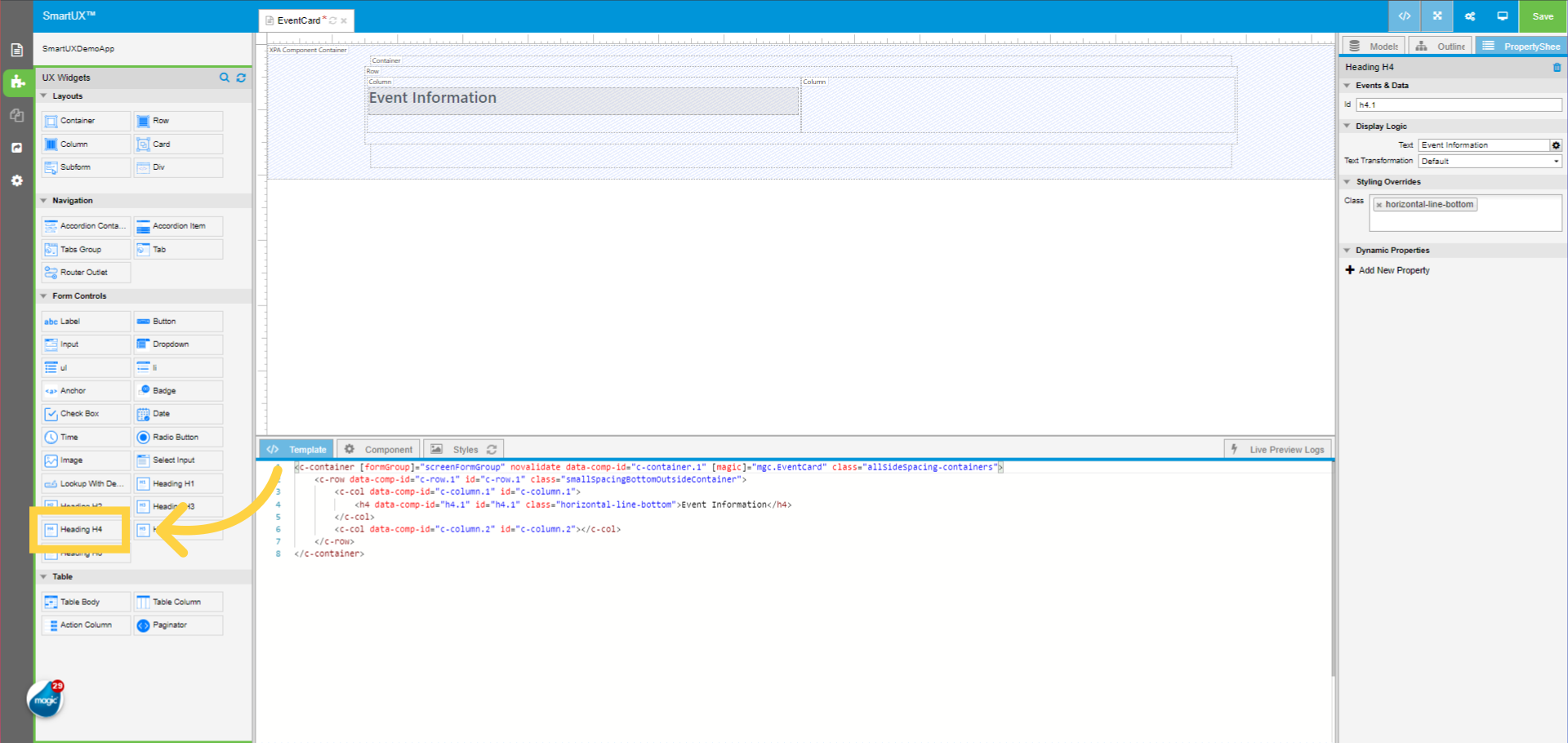
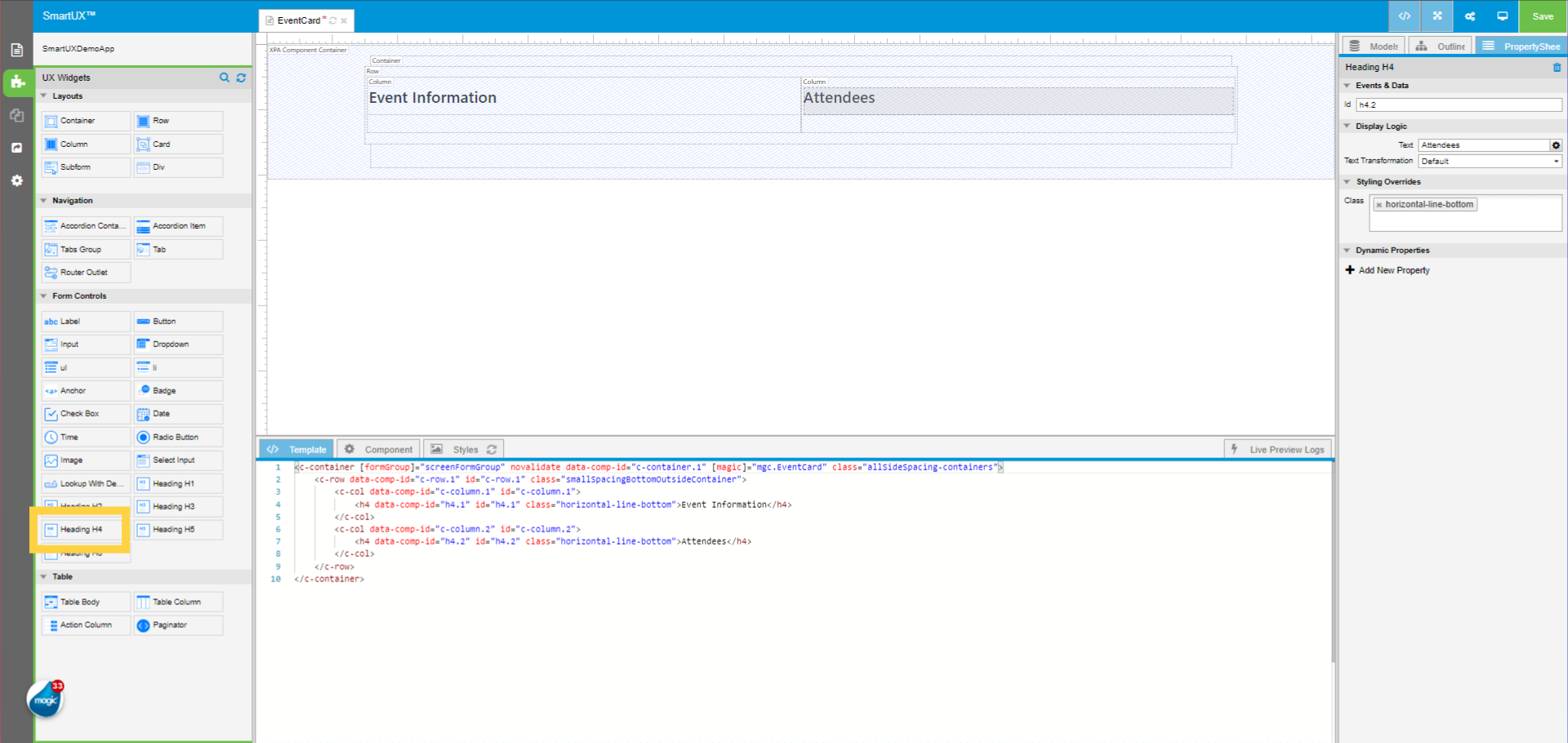
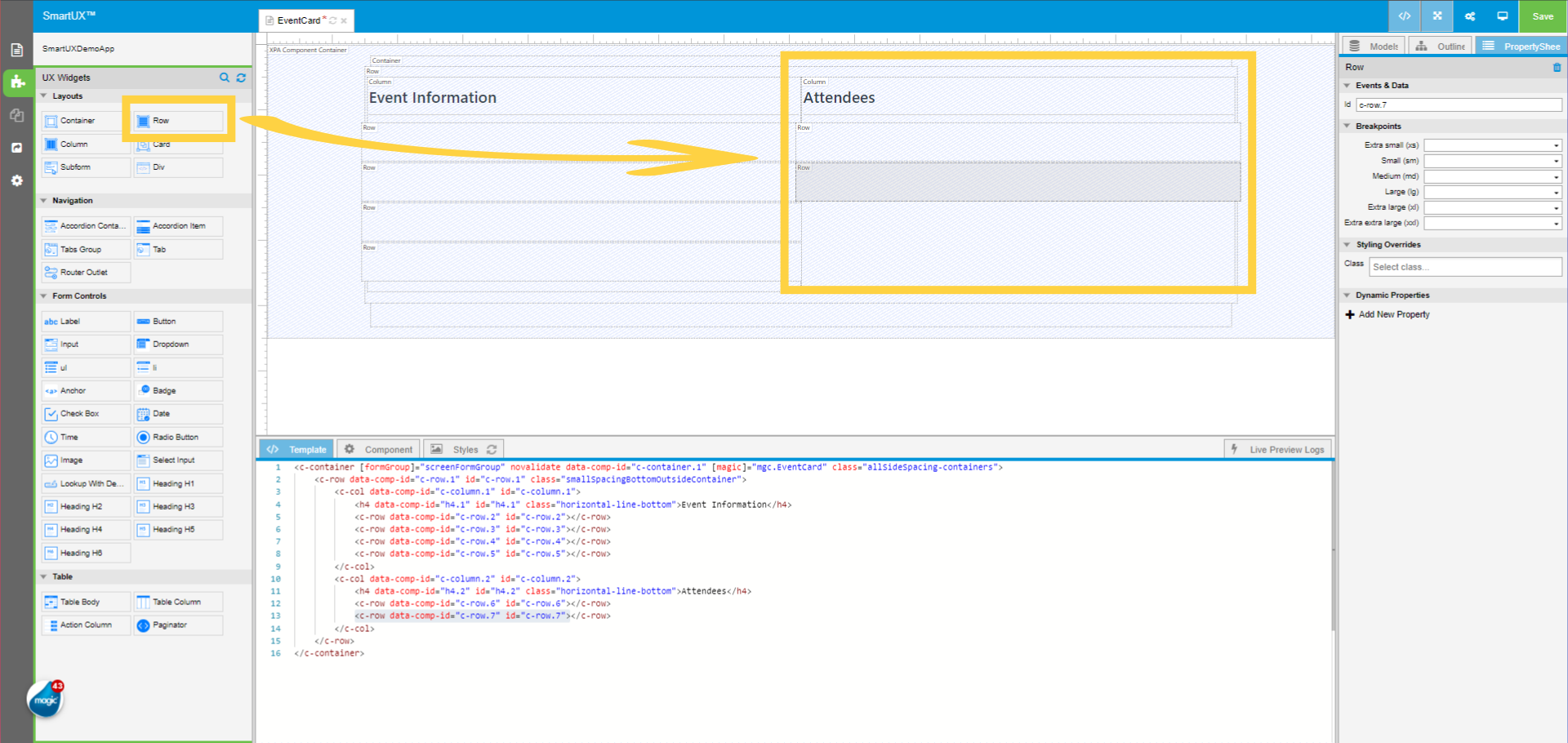
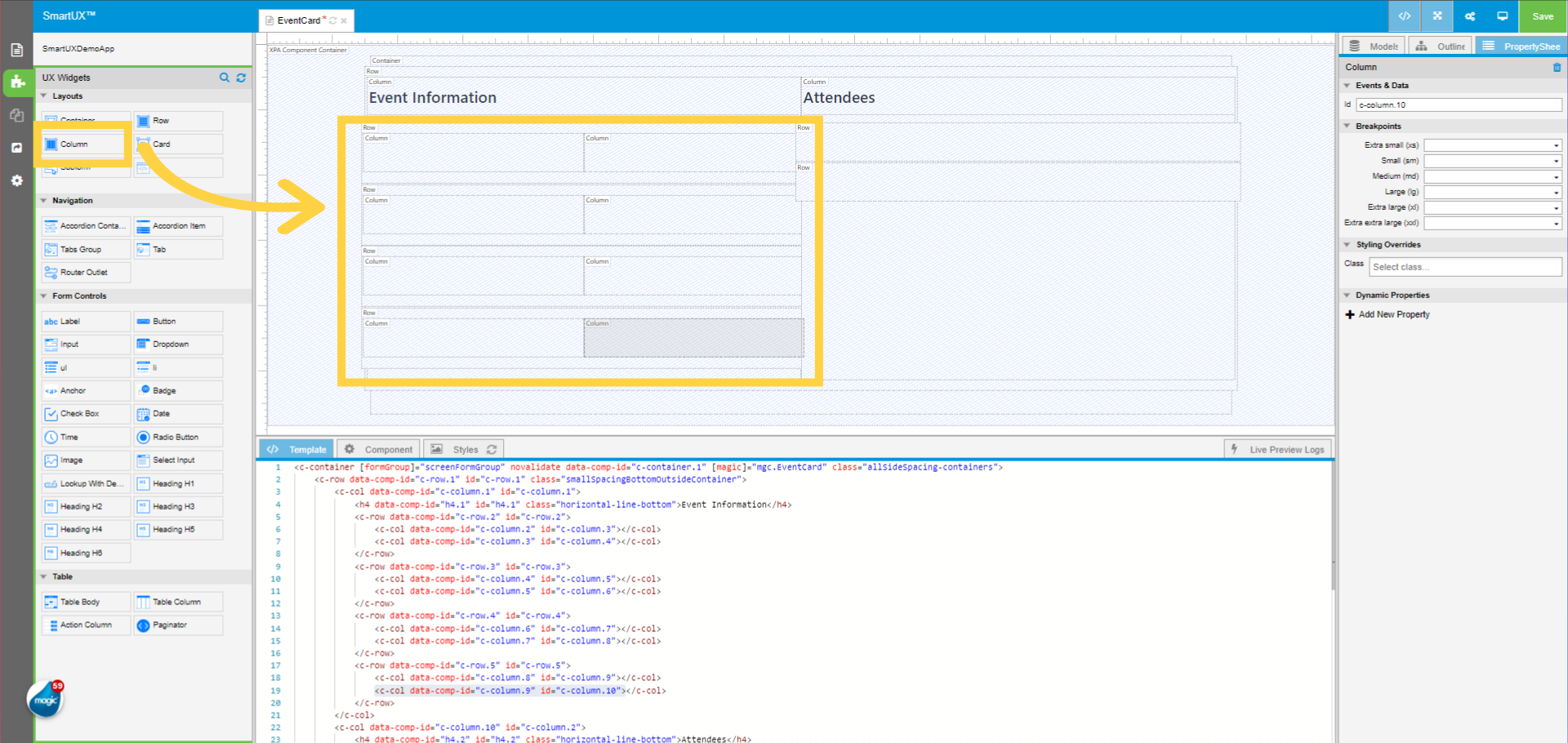
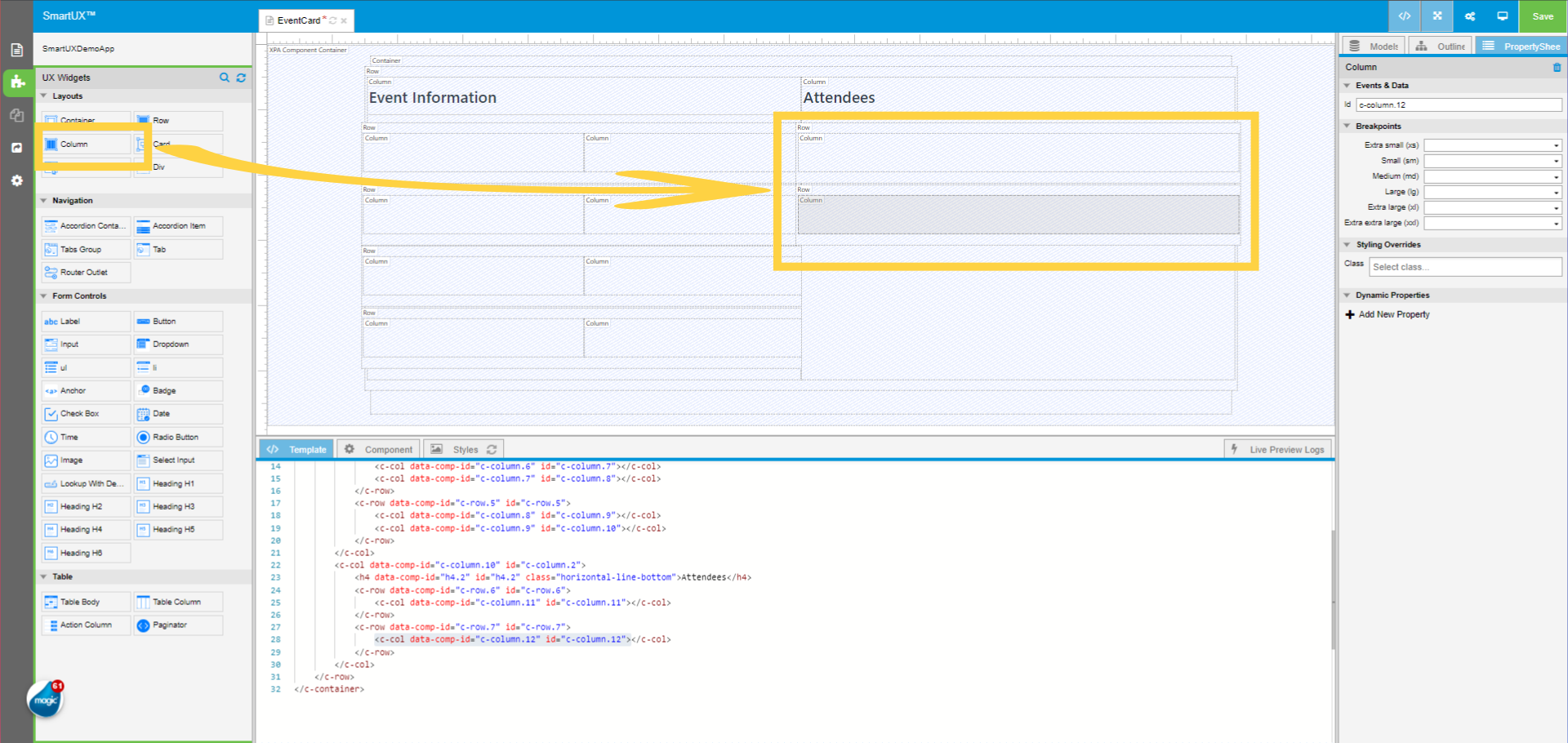
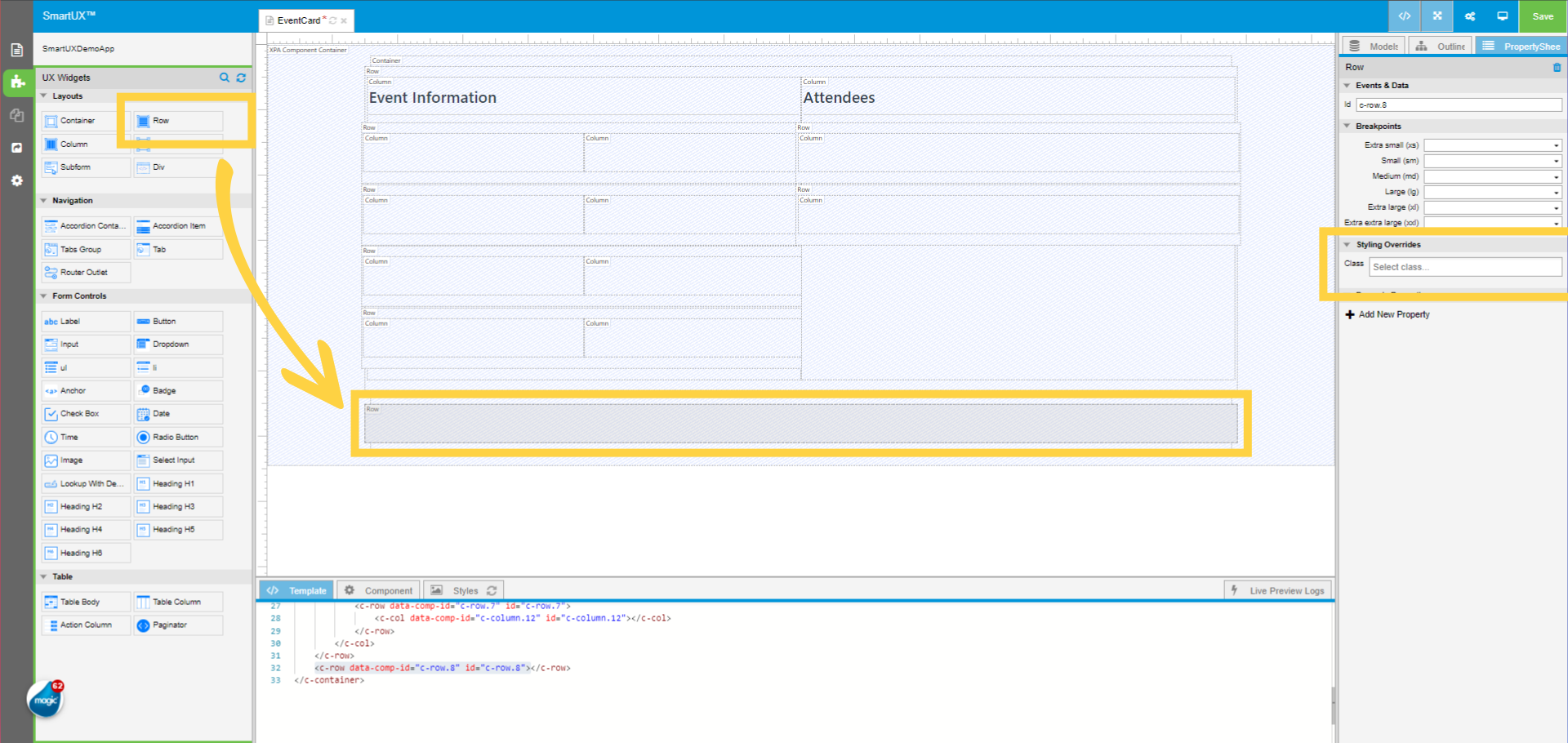
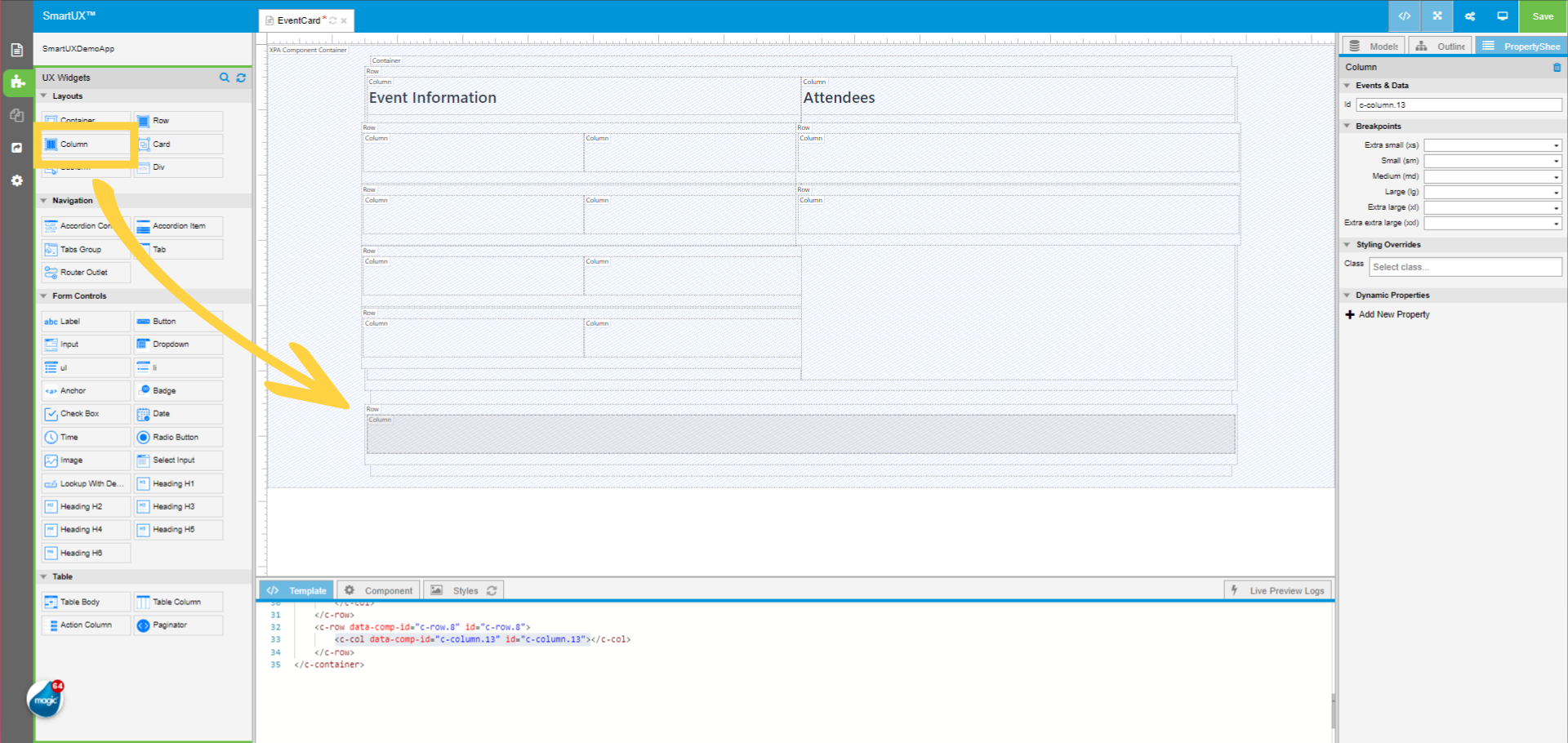
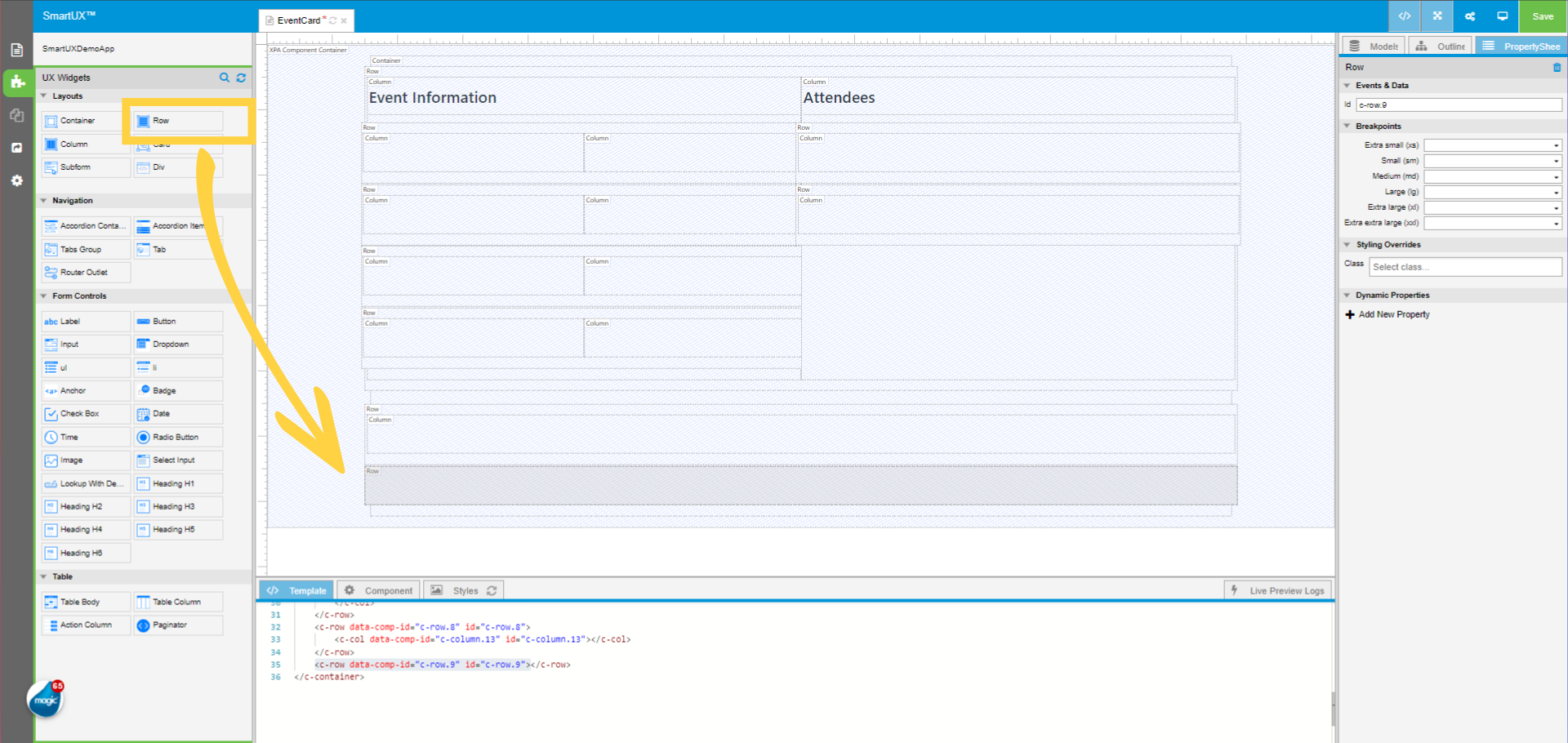
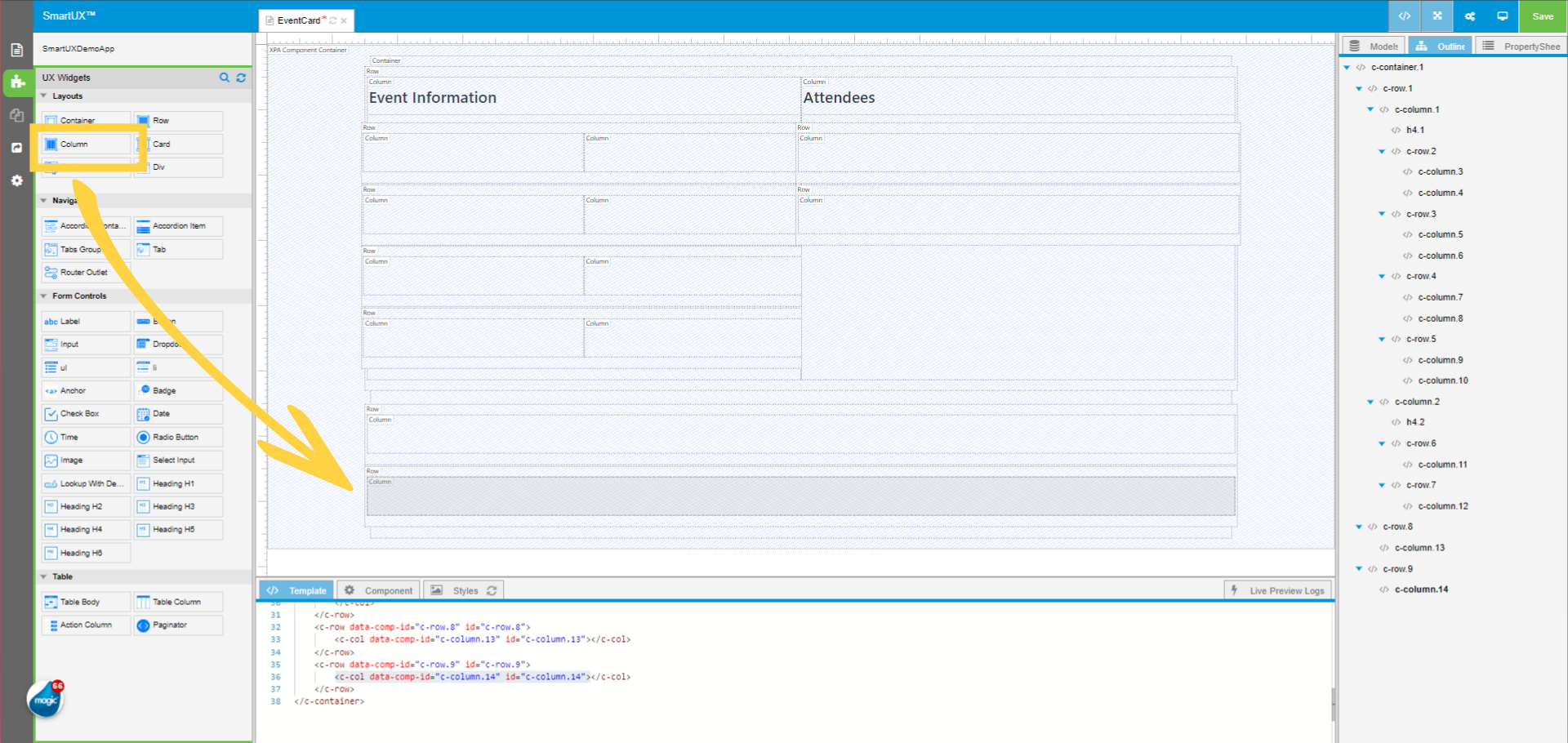
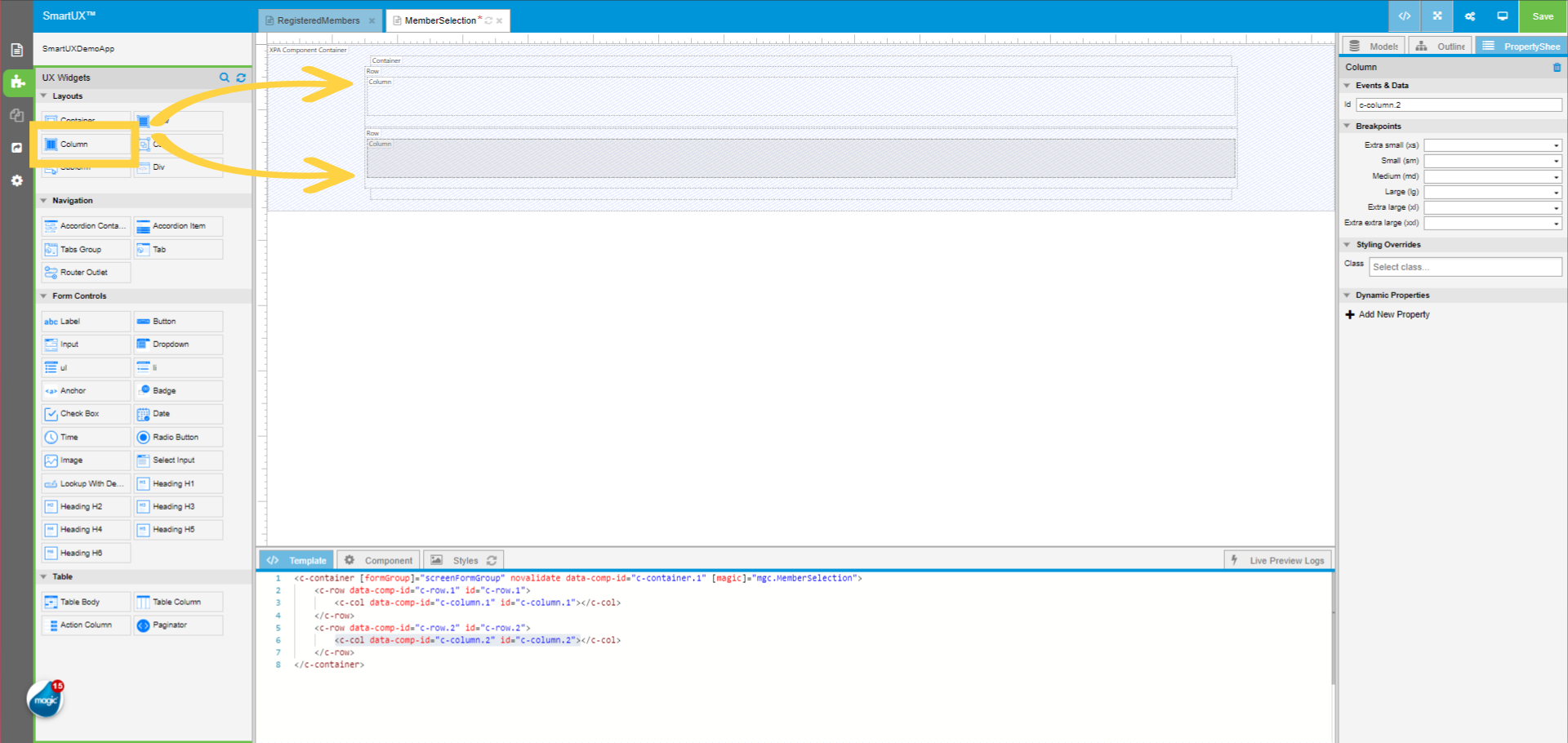
First, create a structure for the Component using Card, Container, couple of Rows, and a few Columns.

4. Adding Controls on Canvas

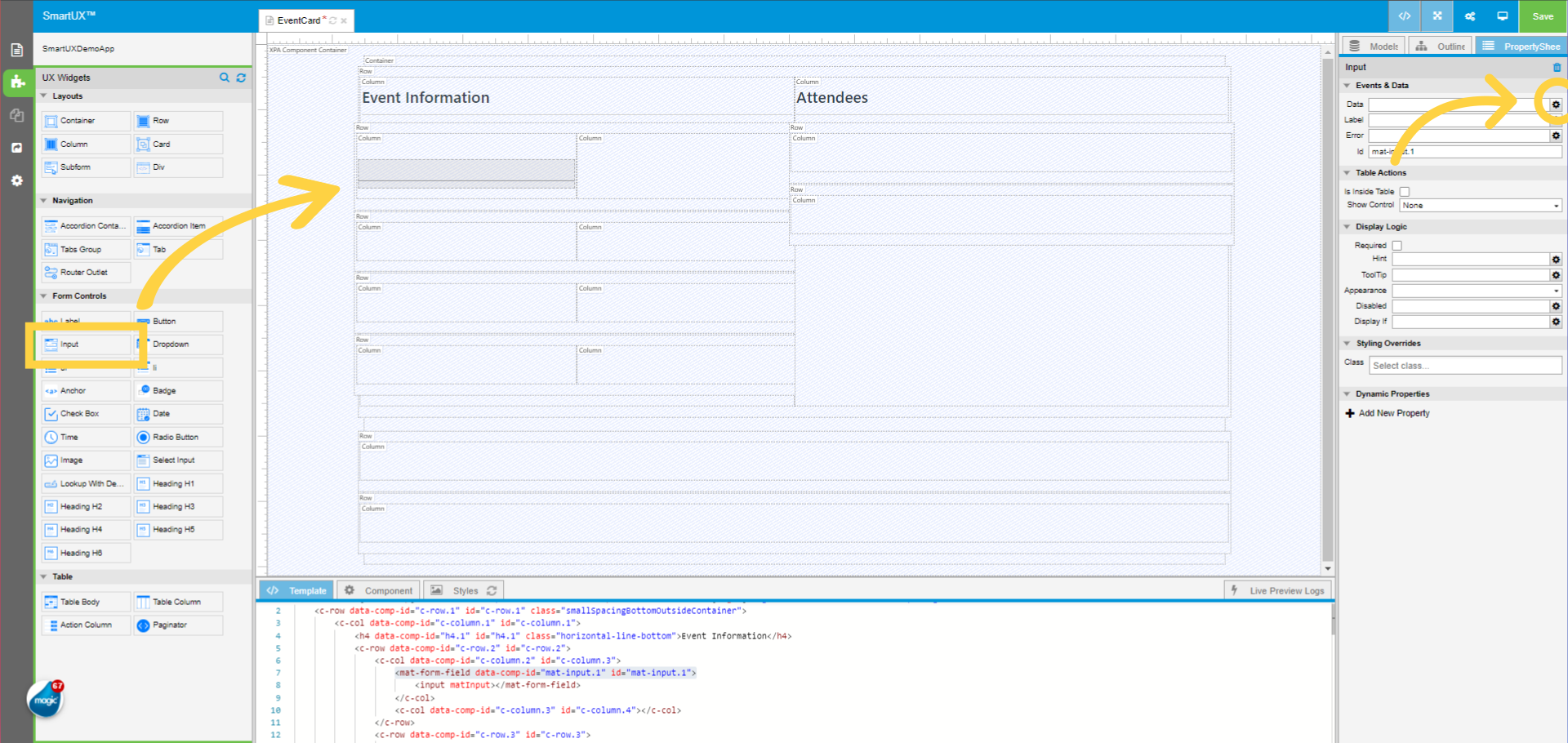
Now that we have a structure, add Edit and Label widgets. While dragging and dropping the Widgets, the Canvas can be switched to Expanded mode.

5. Expanding Canvas

Clicking on Expand View Button on the top bar will expand the Canvas to give better view of the Component contents.

6. Mapping Controls

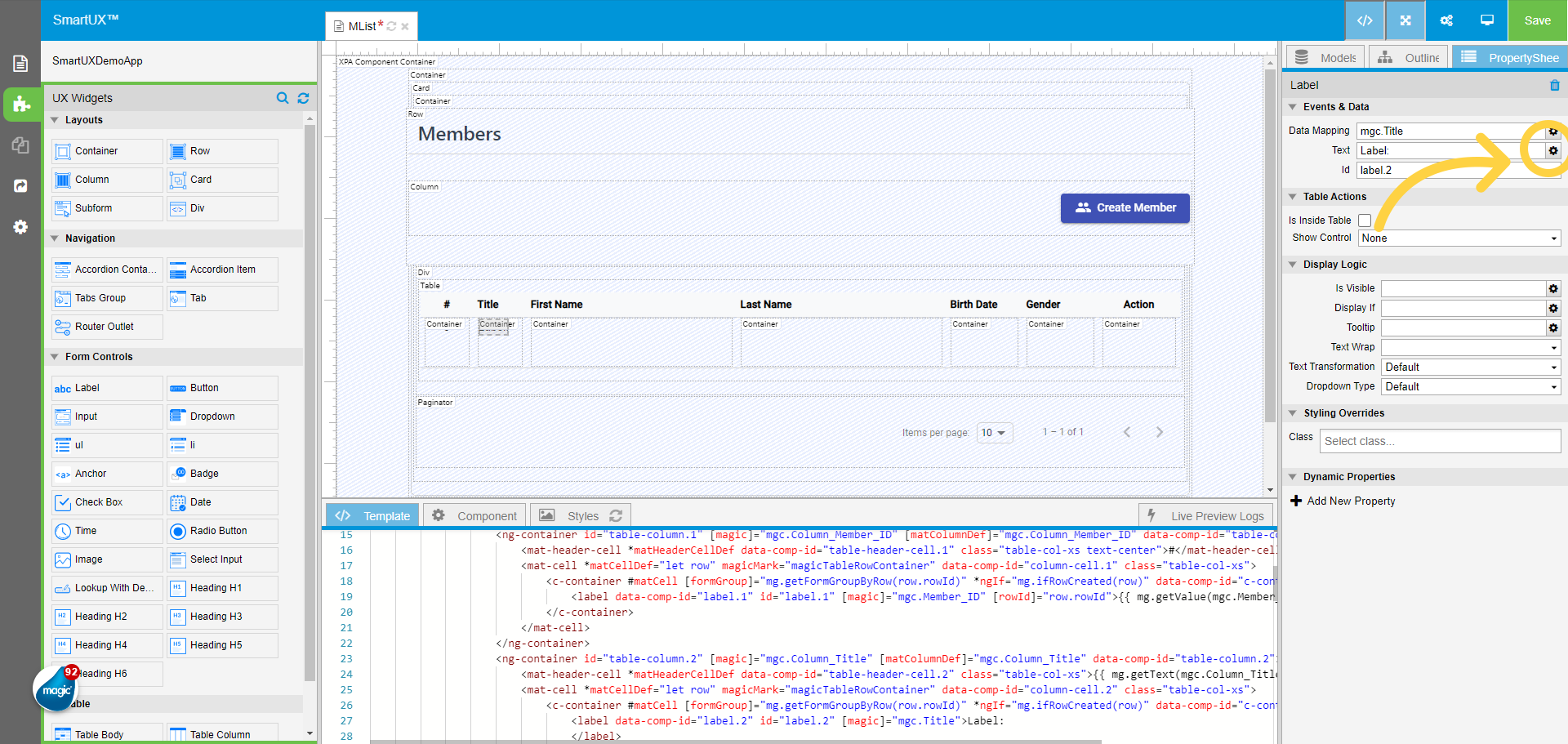
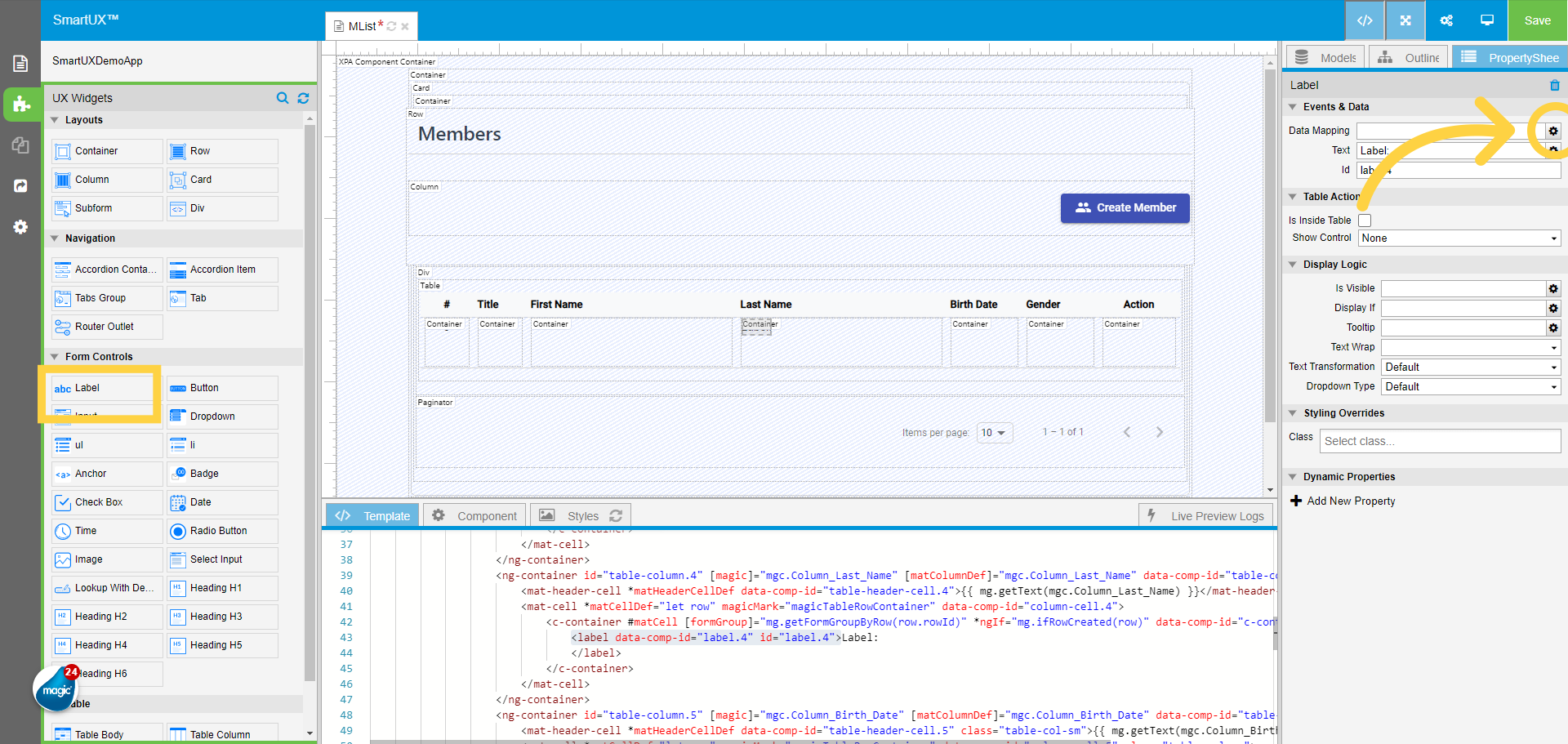
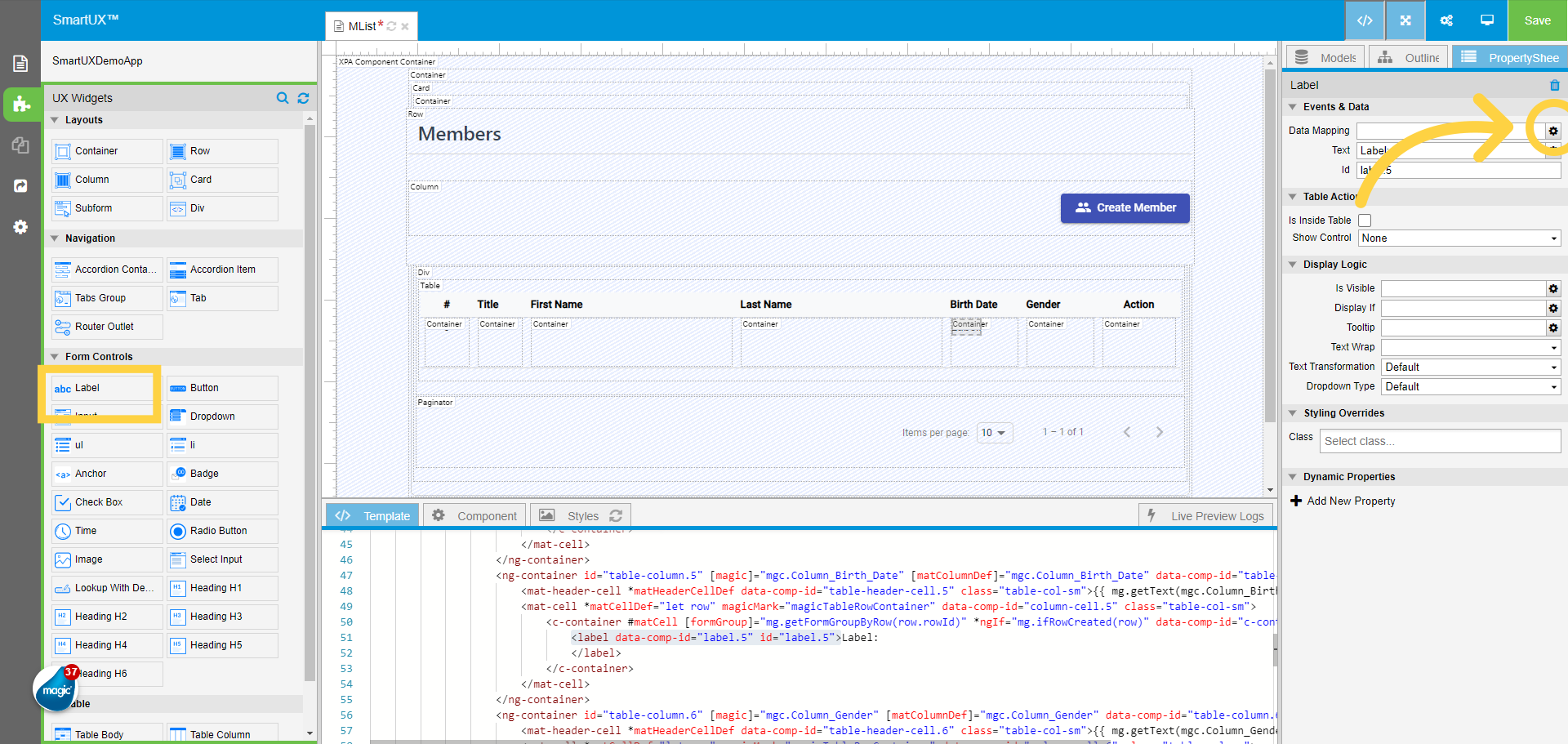
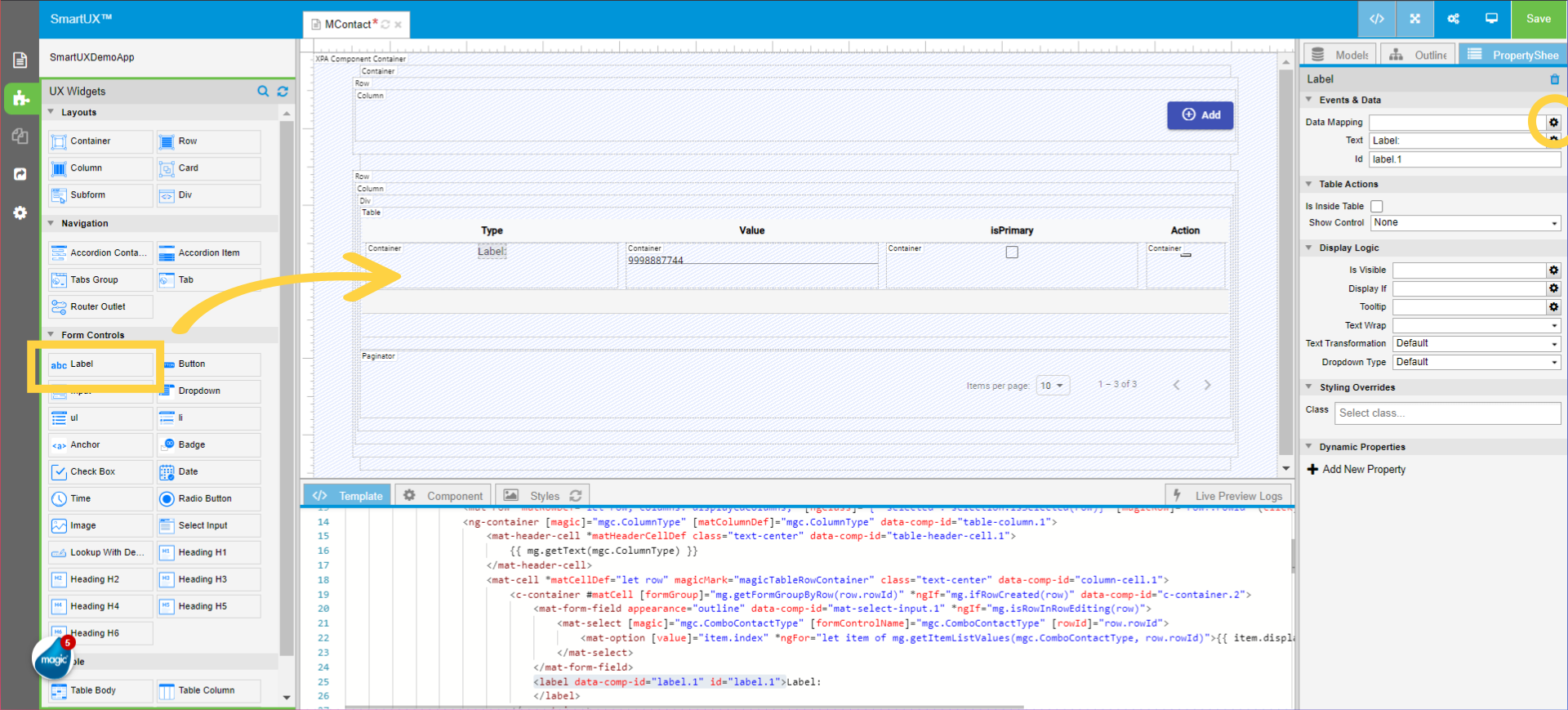
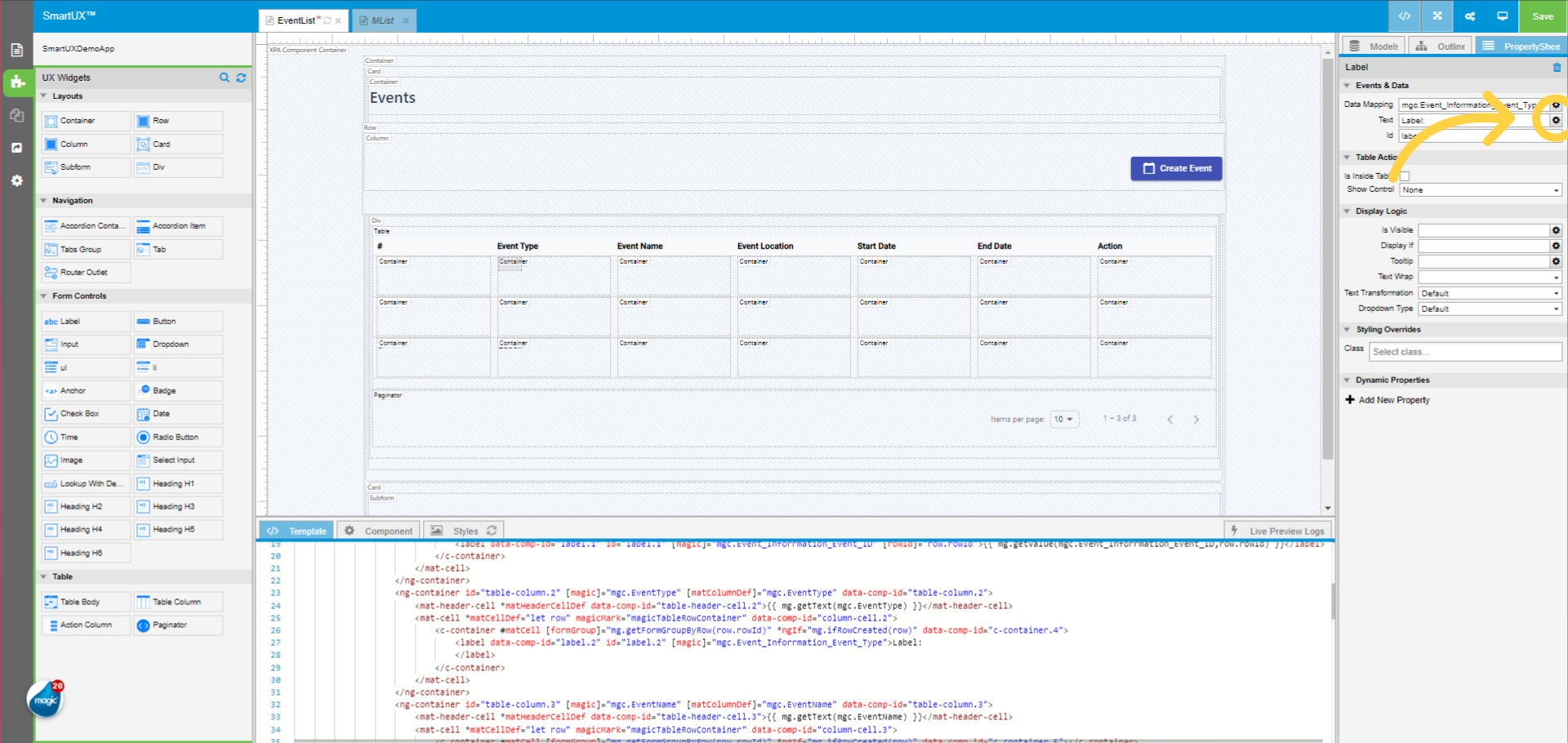
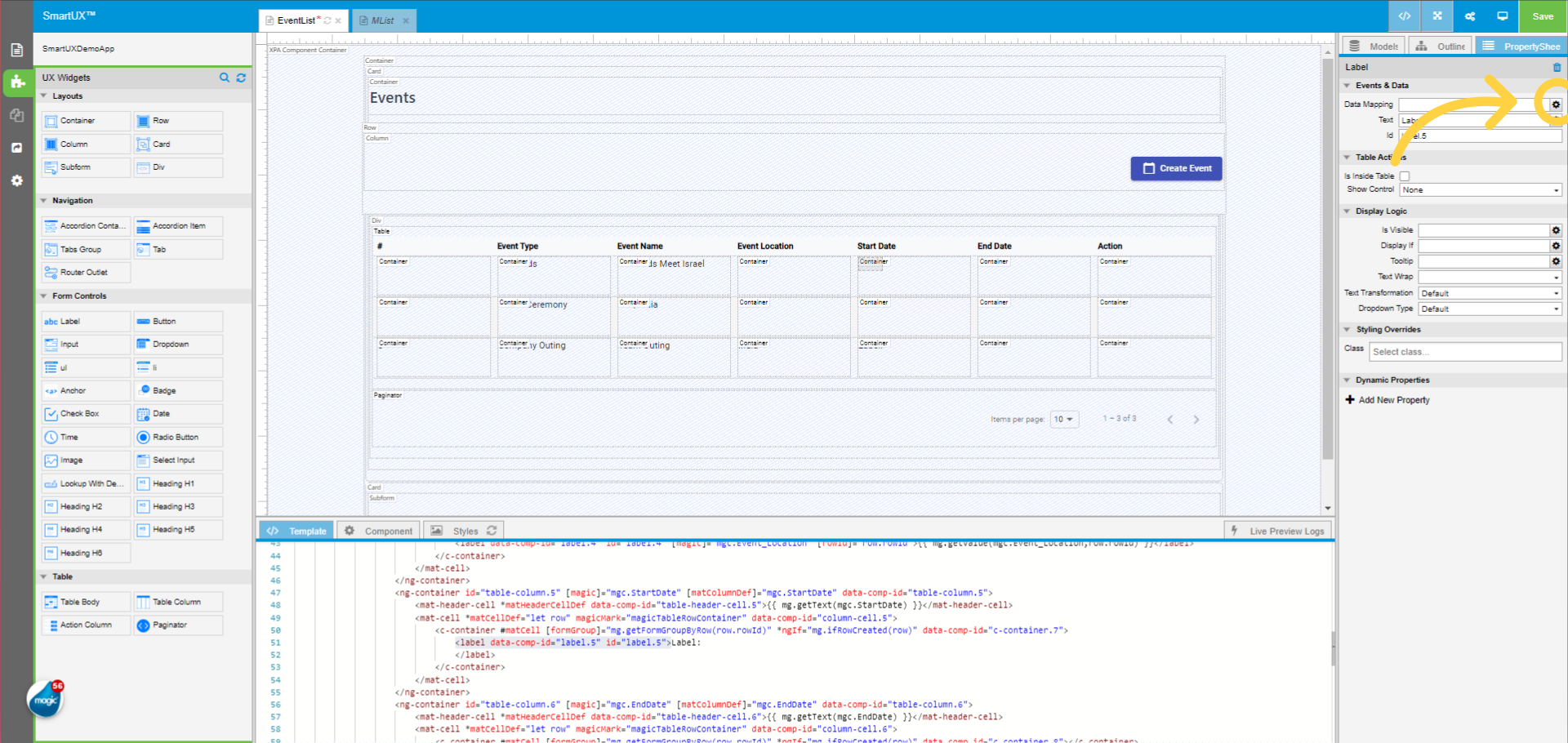
Toggle the view back to normal for Canvas. Now you can map the Widgets to Magic xpa controls. Select an individual Widget at a time for mapping controls.

7. Selecting a Widget

Select the first Widget named Label

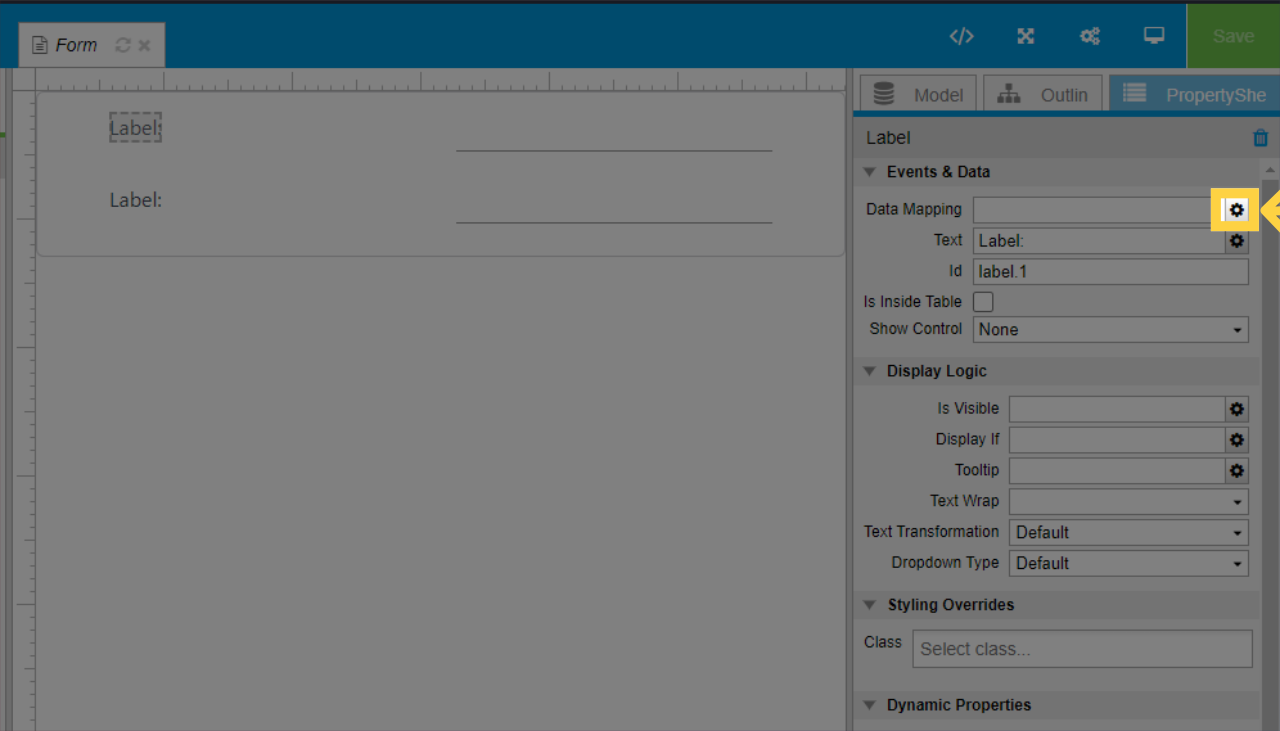
The Property Sheet for the selected Widget is opened in the Right pane as shown below.


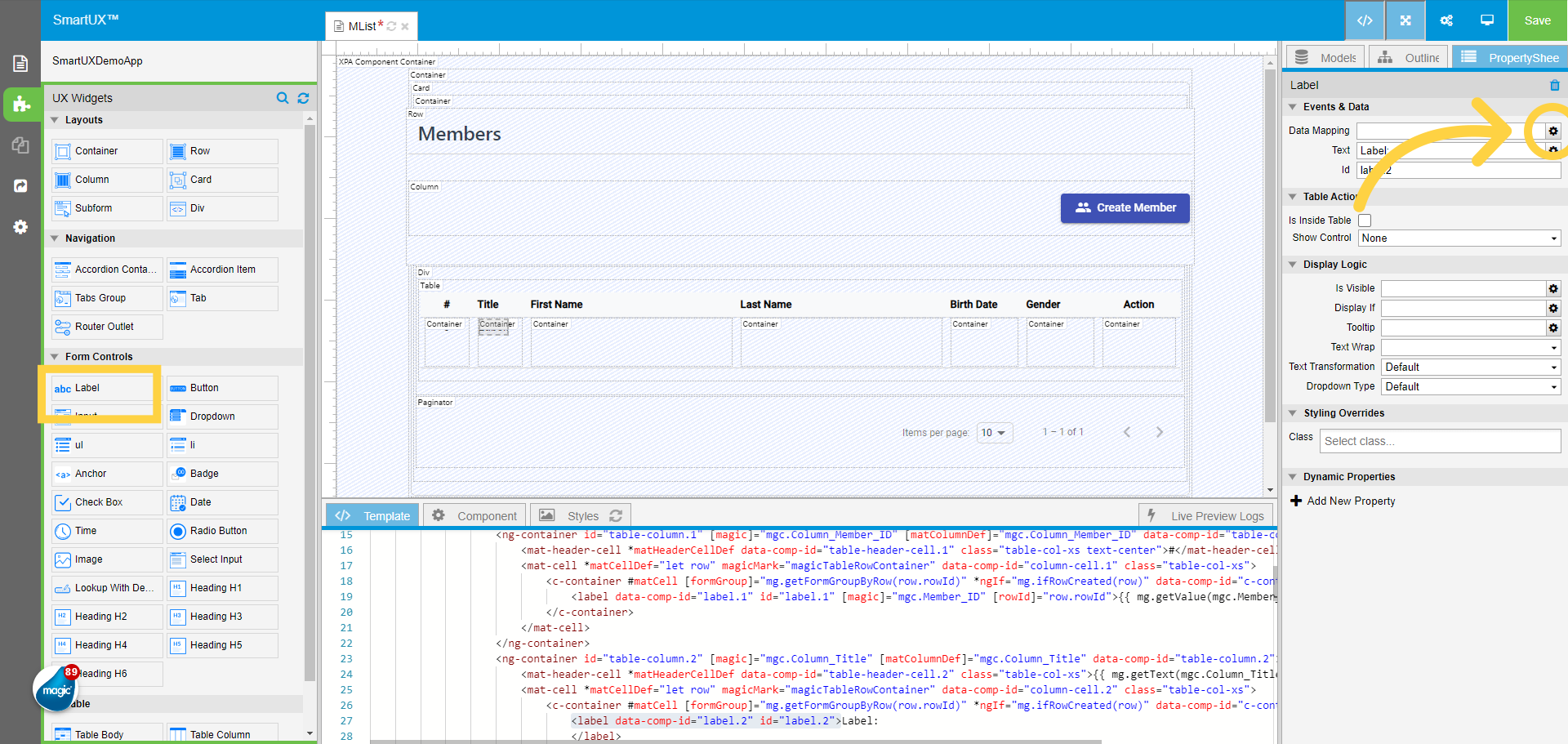
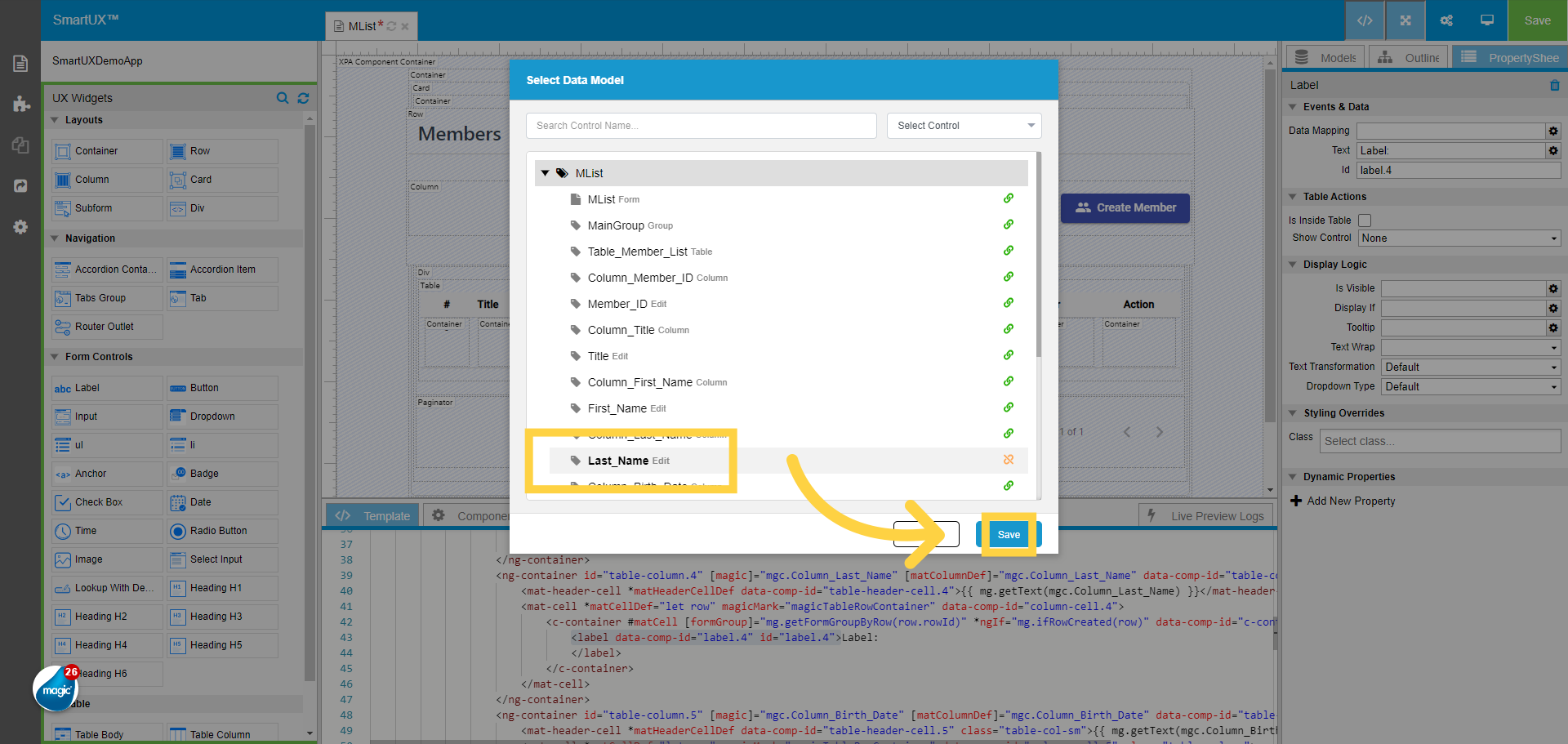
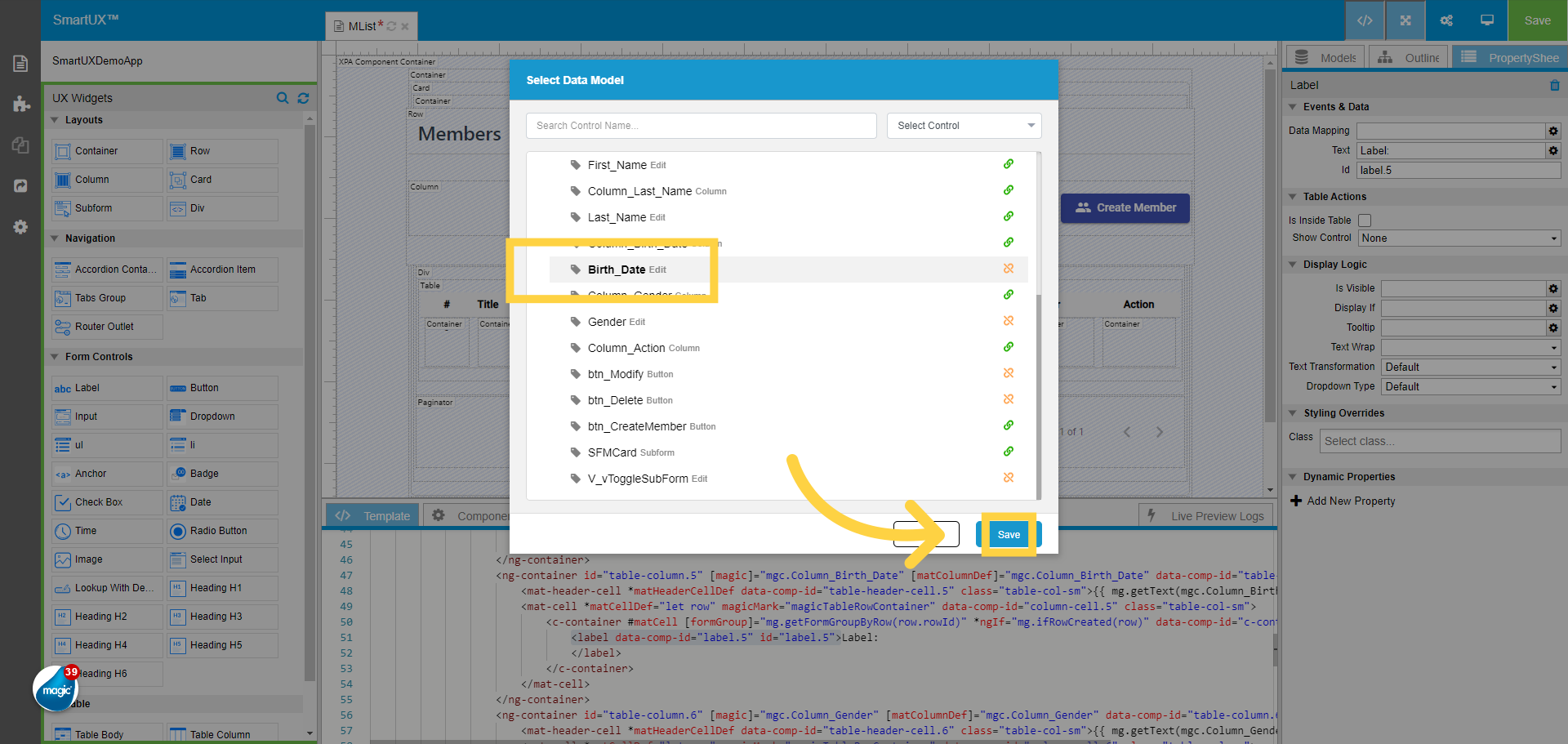
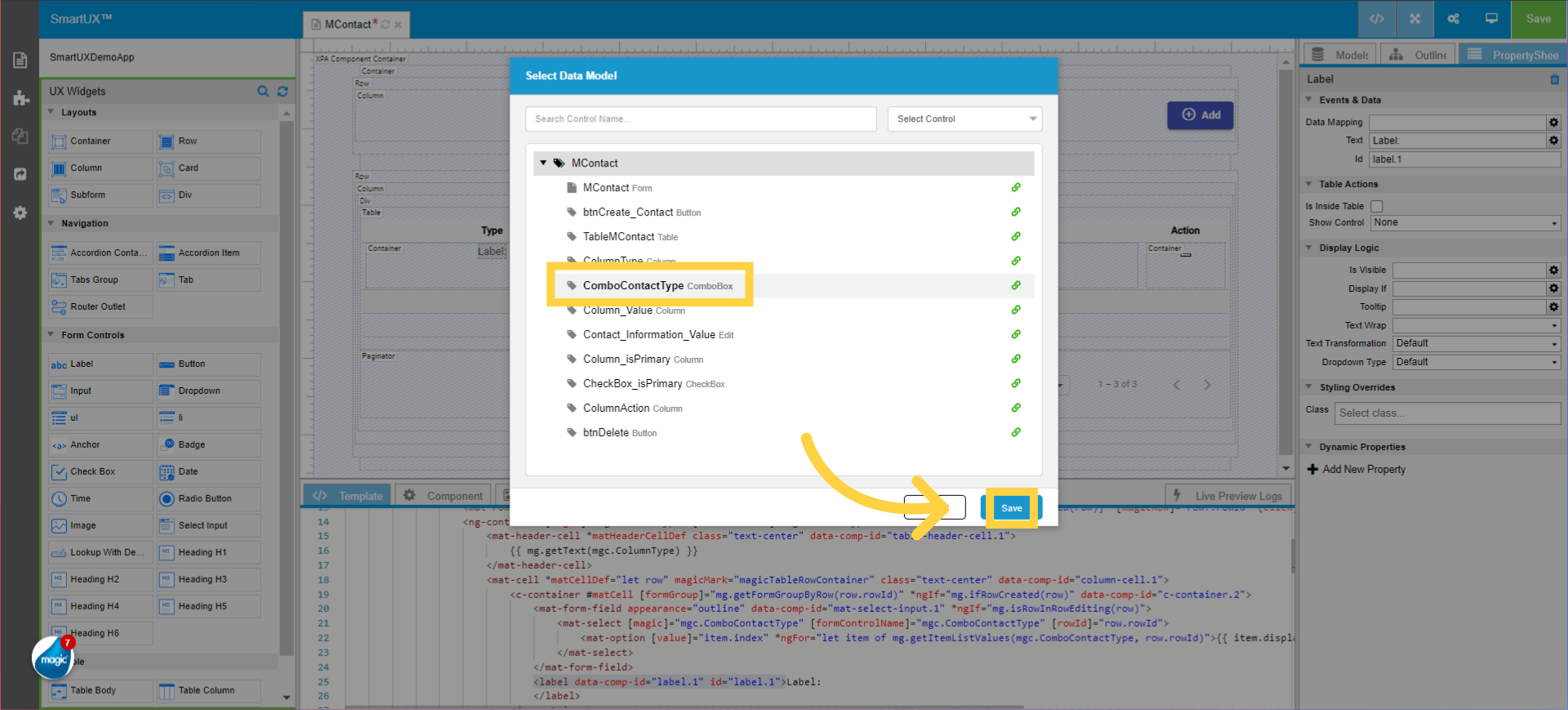
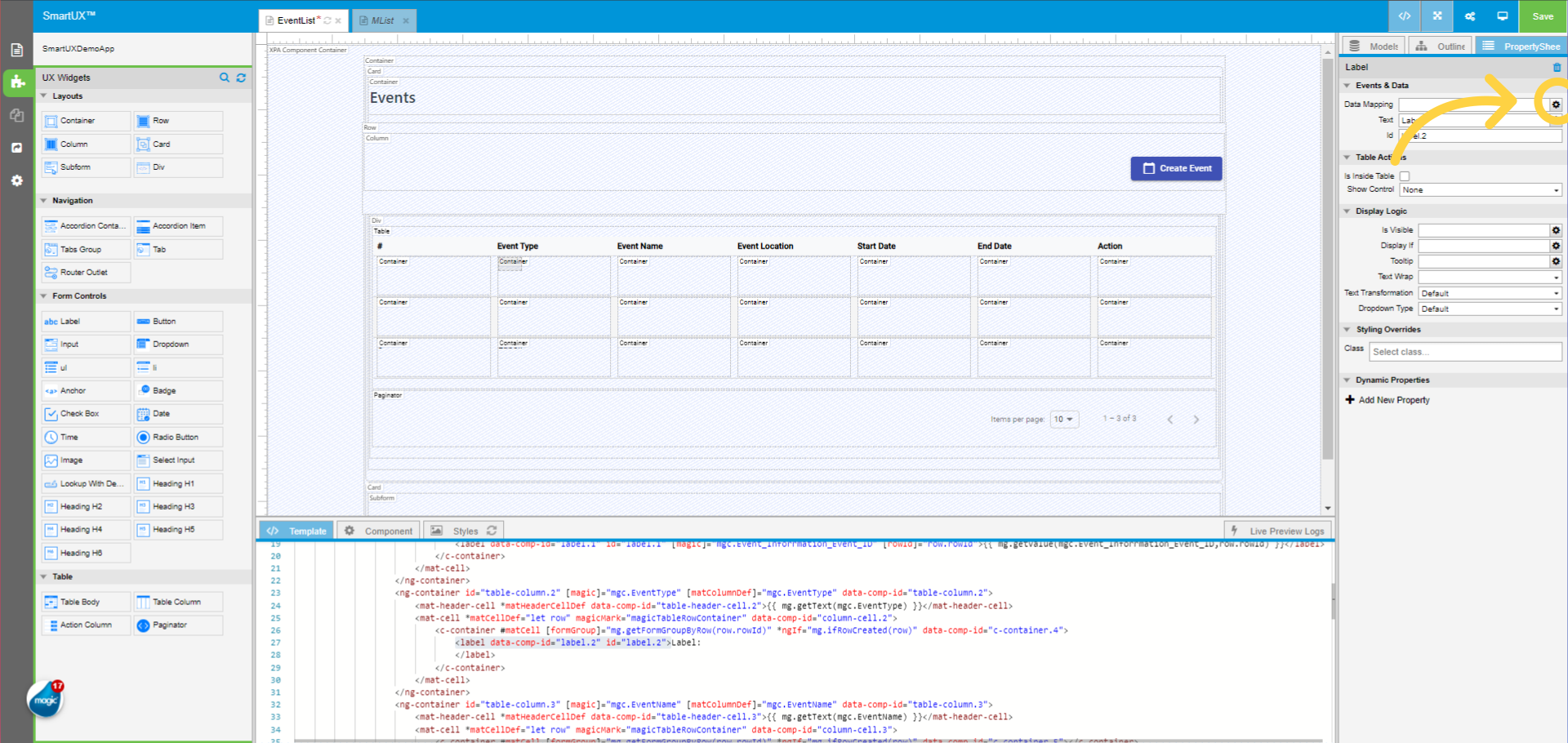
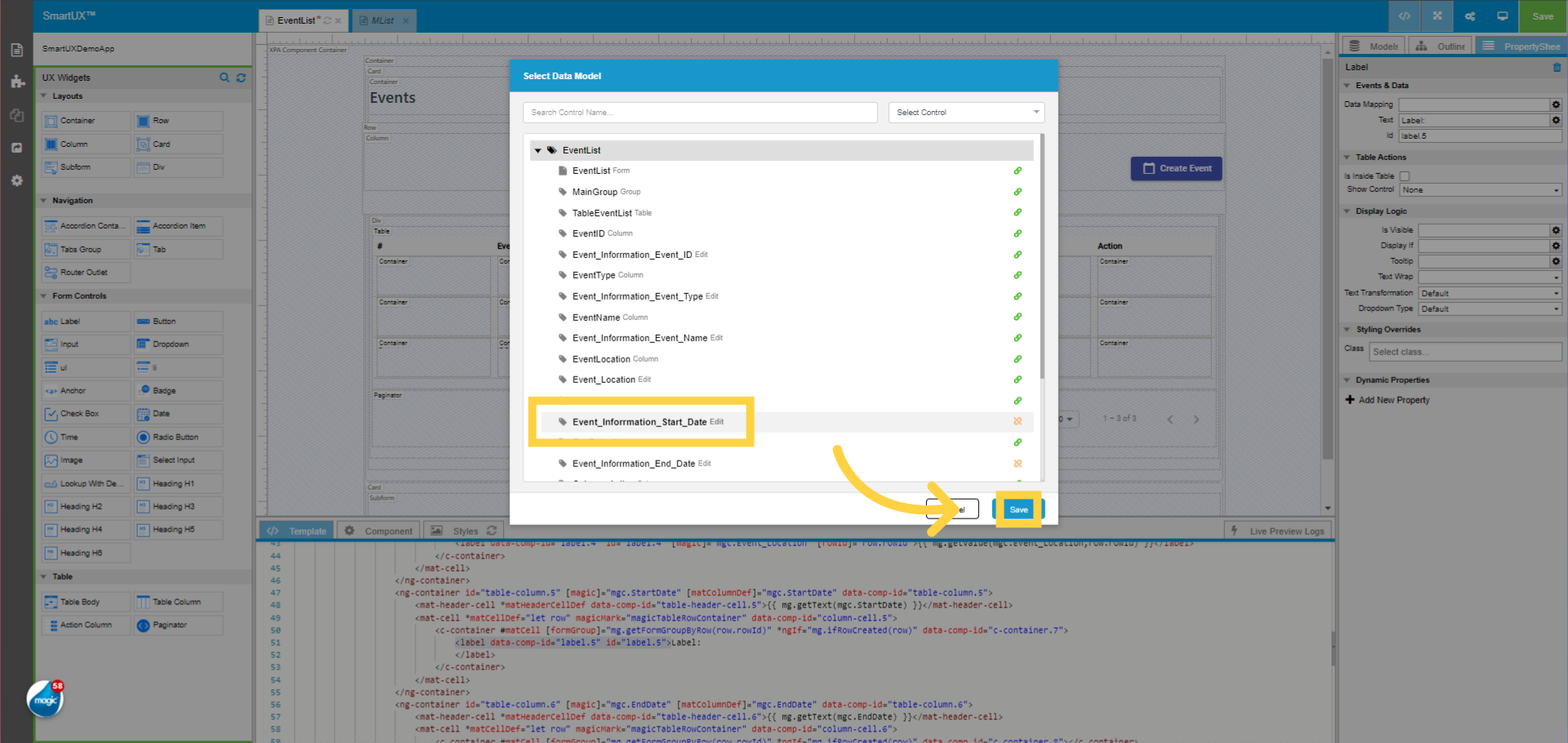
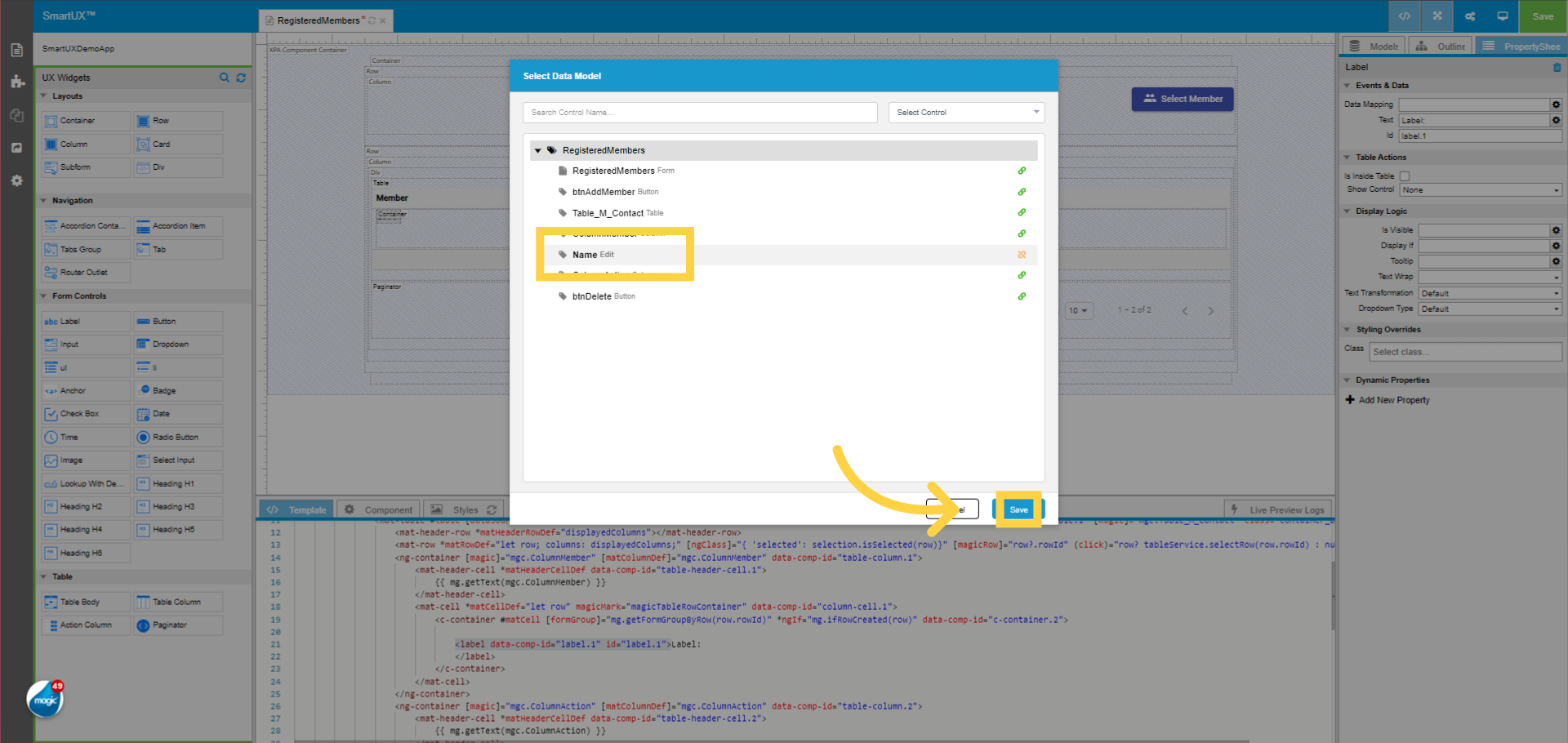
8. Opening Data Mapping Dialog

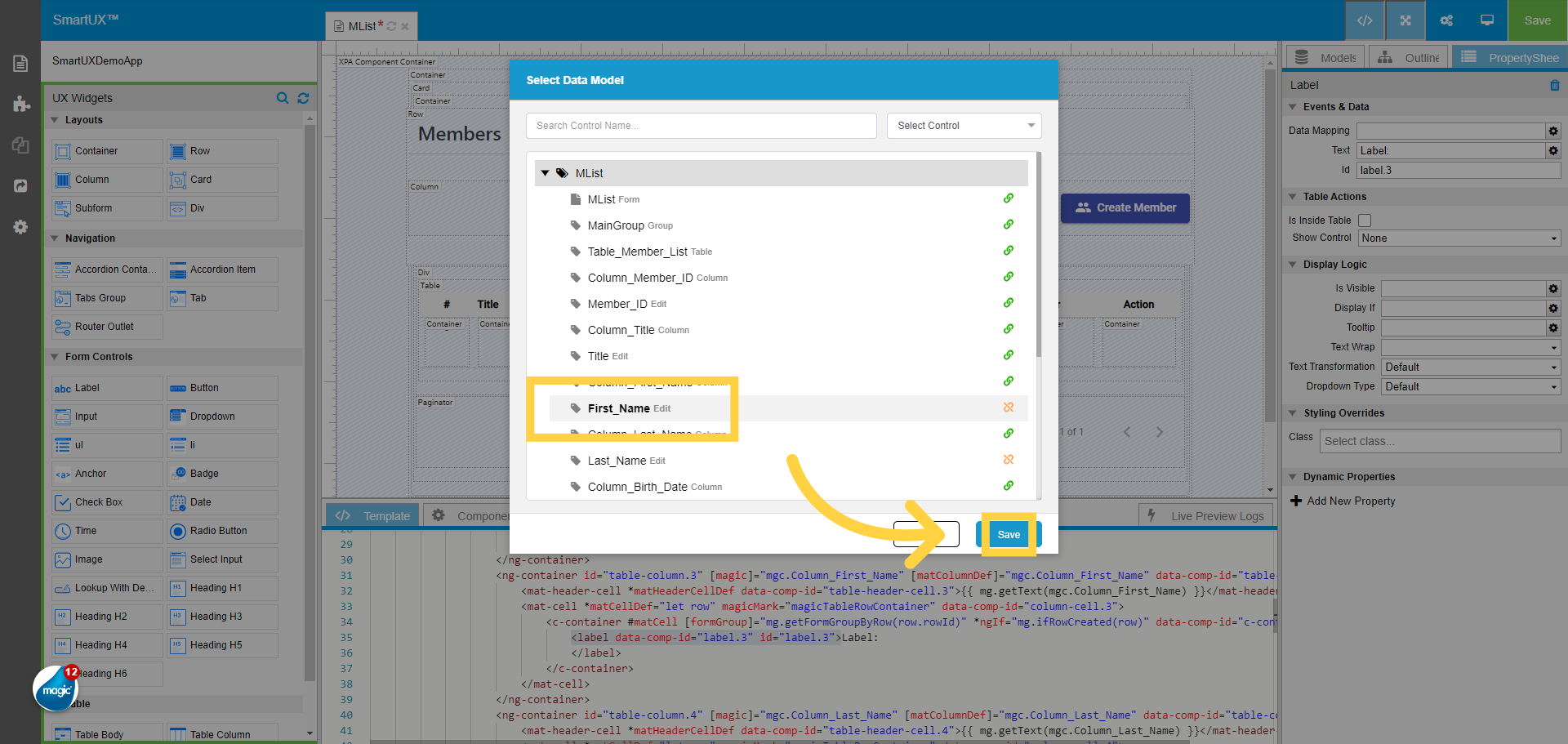
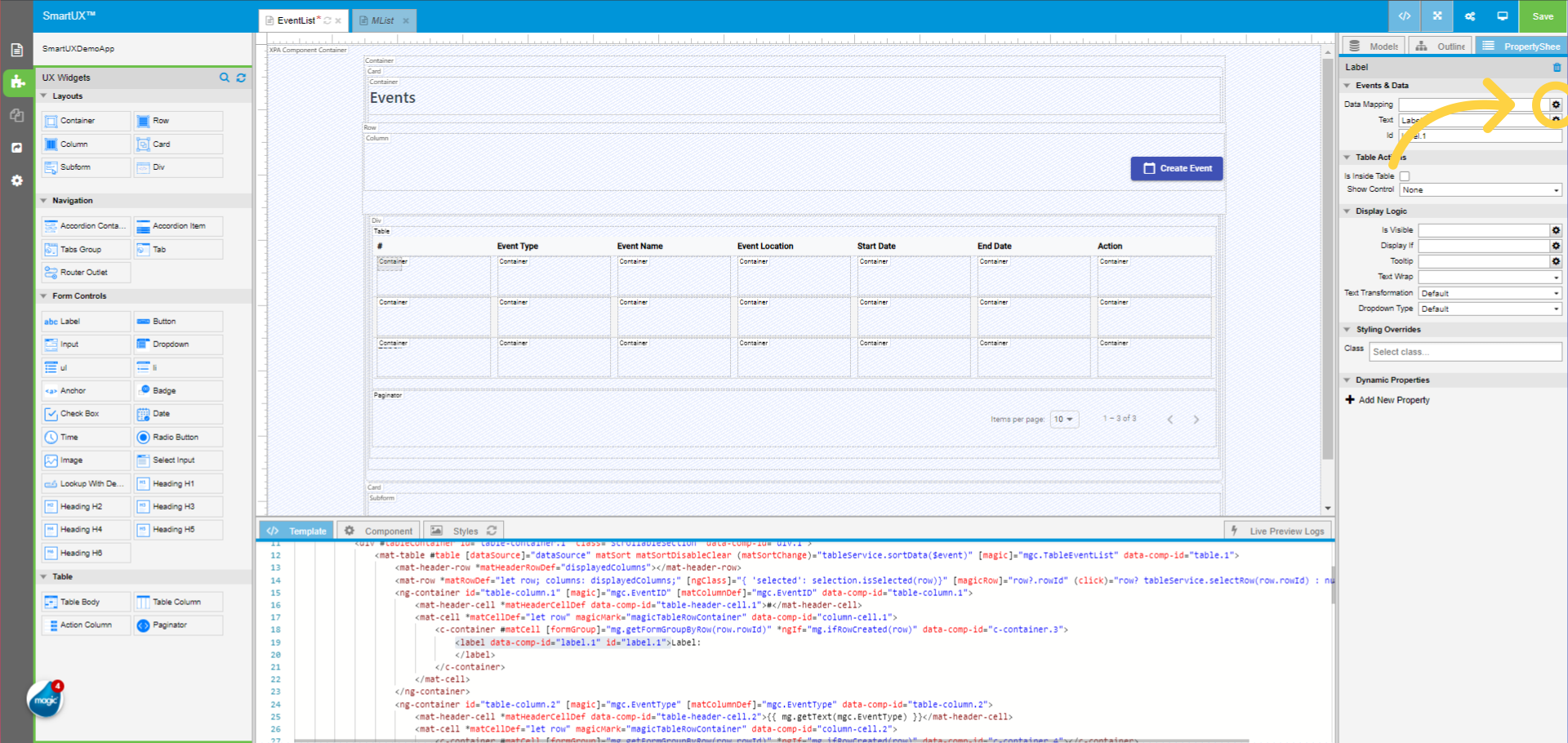
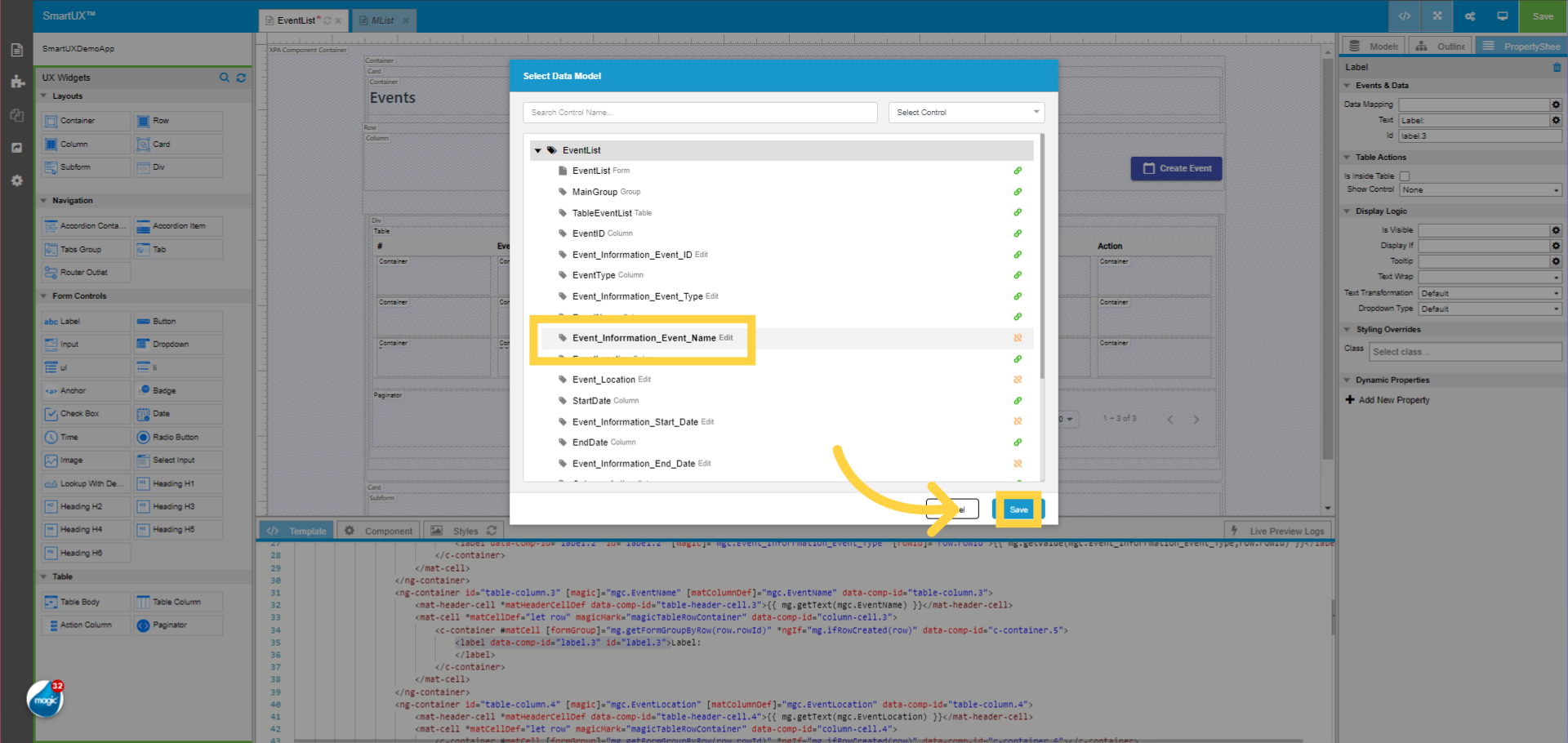
From the Property Sheet, select open Data Mapping dialogue.

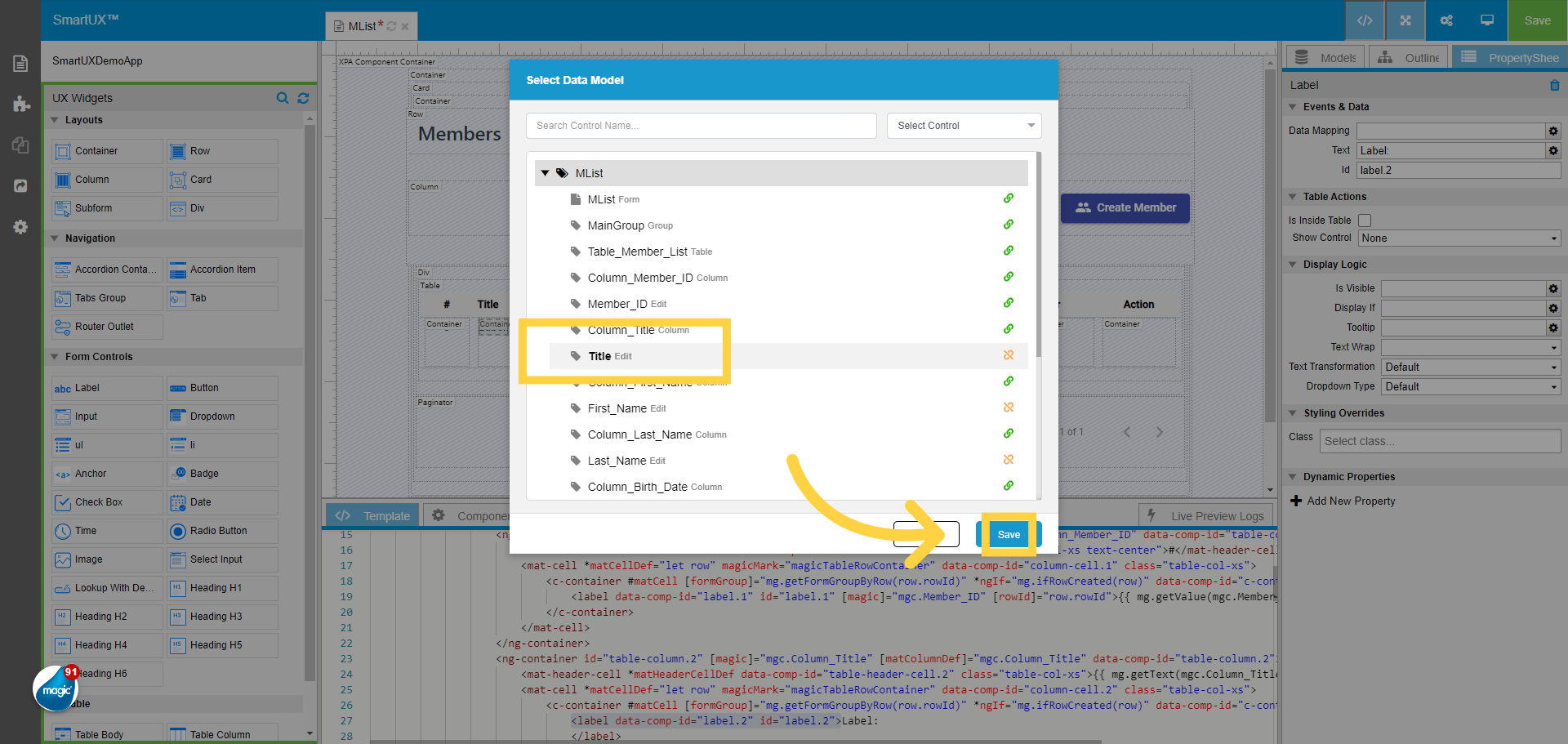
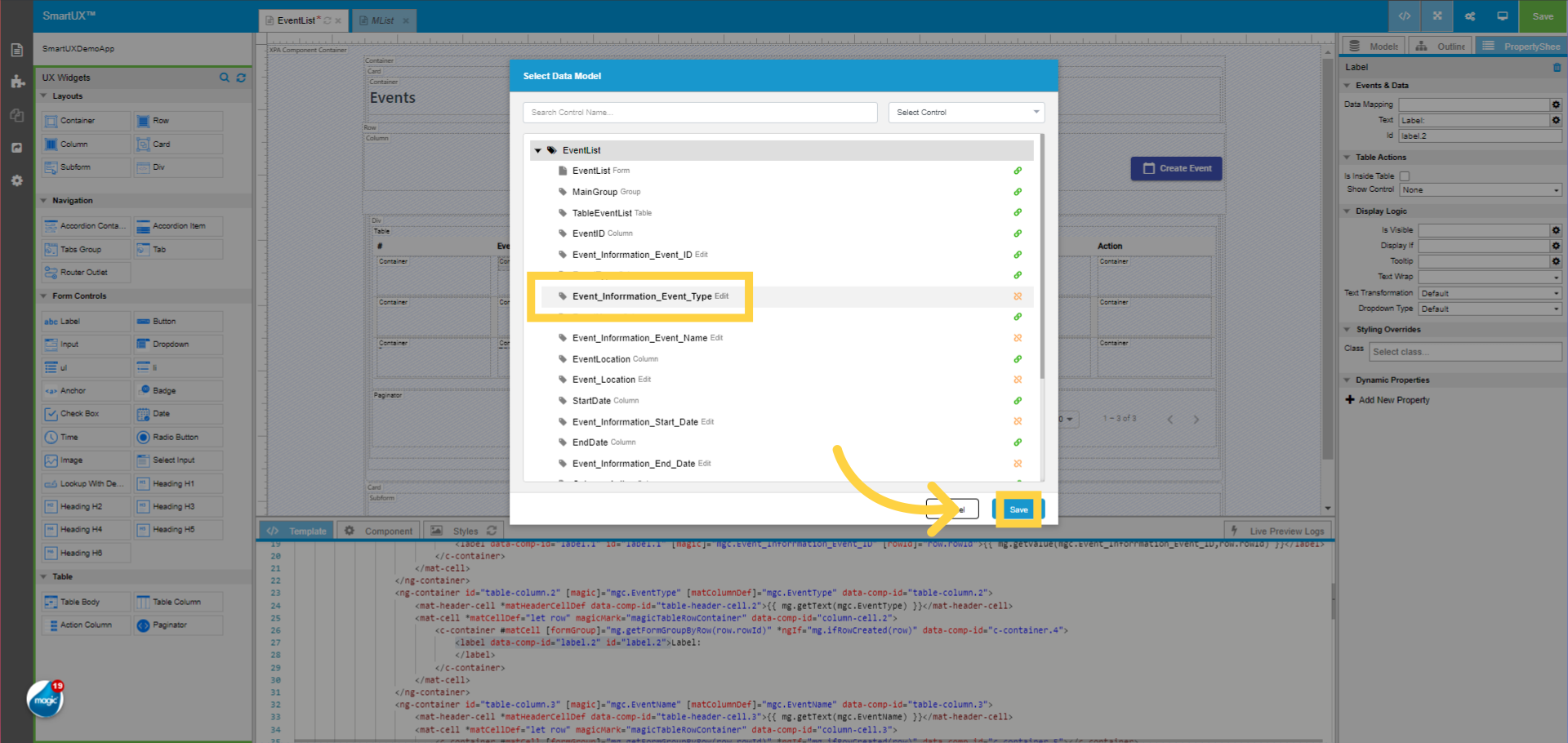
9. Selecting a Control to Map

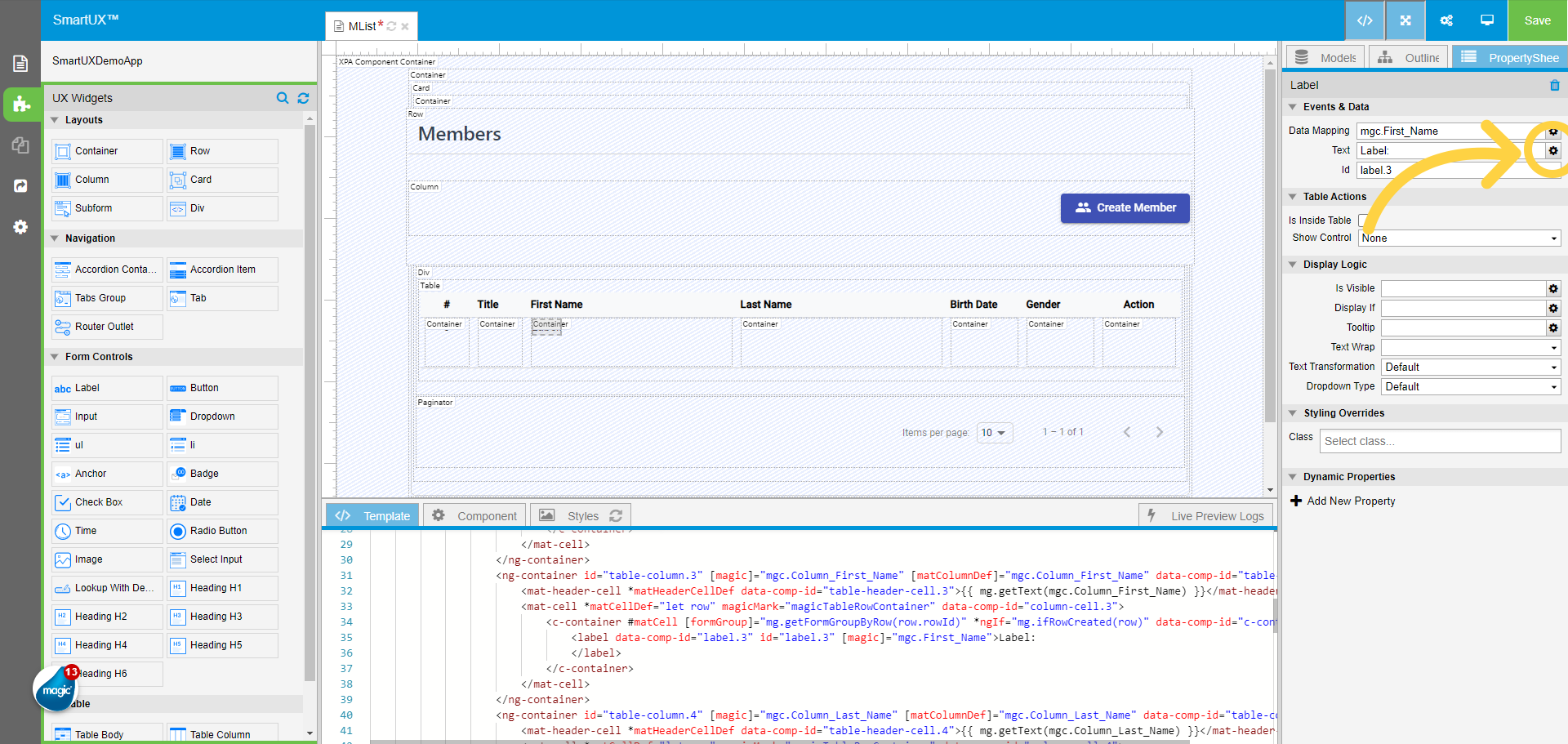
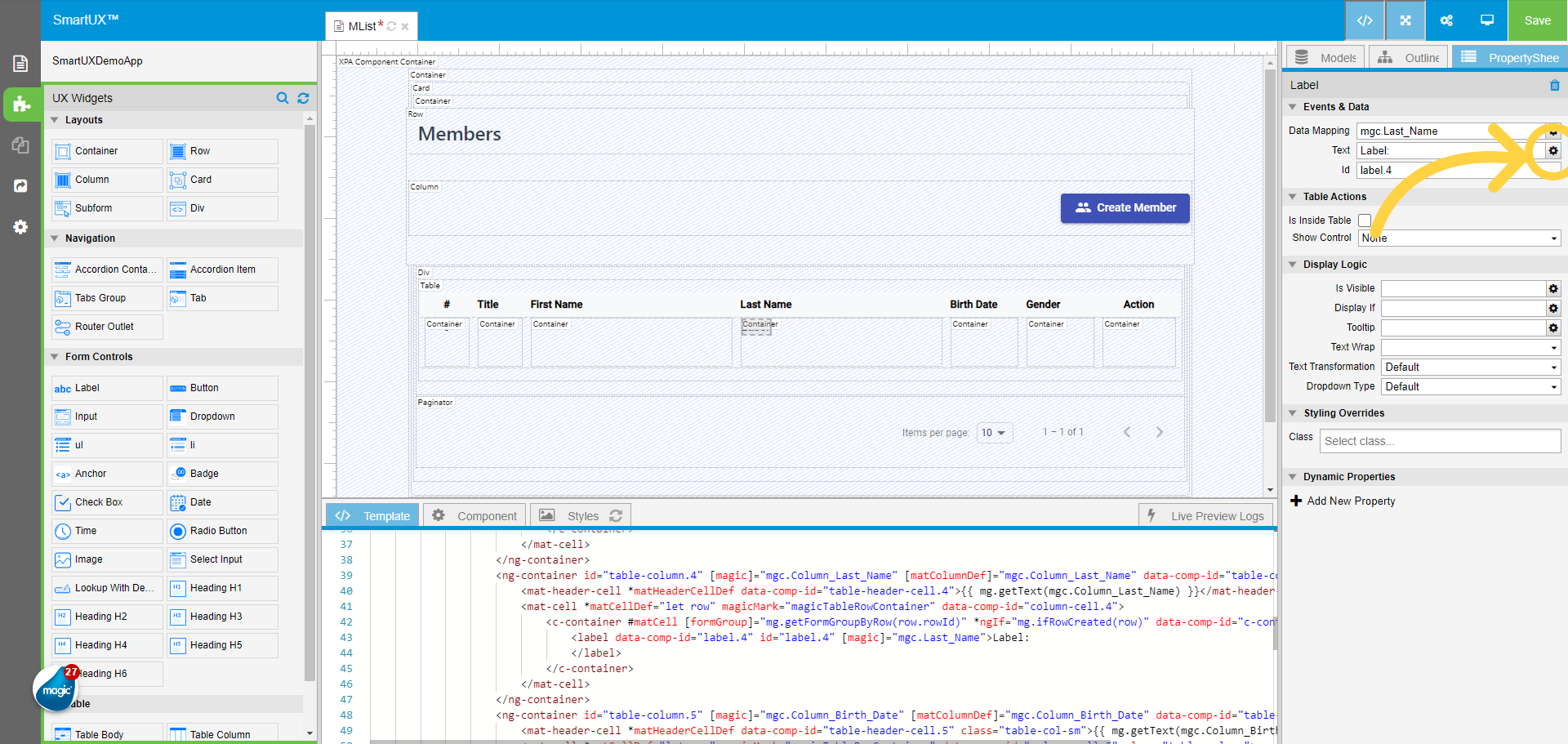
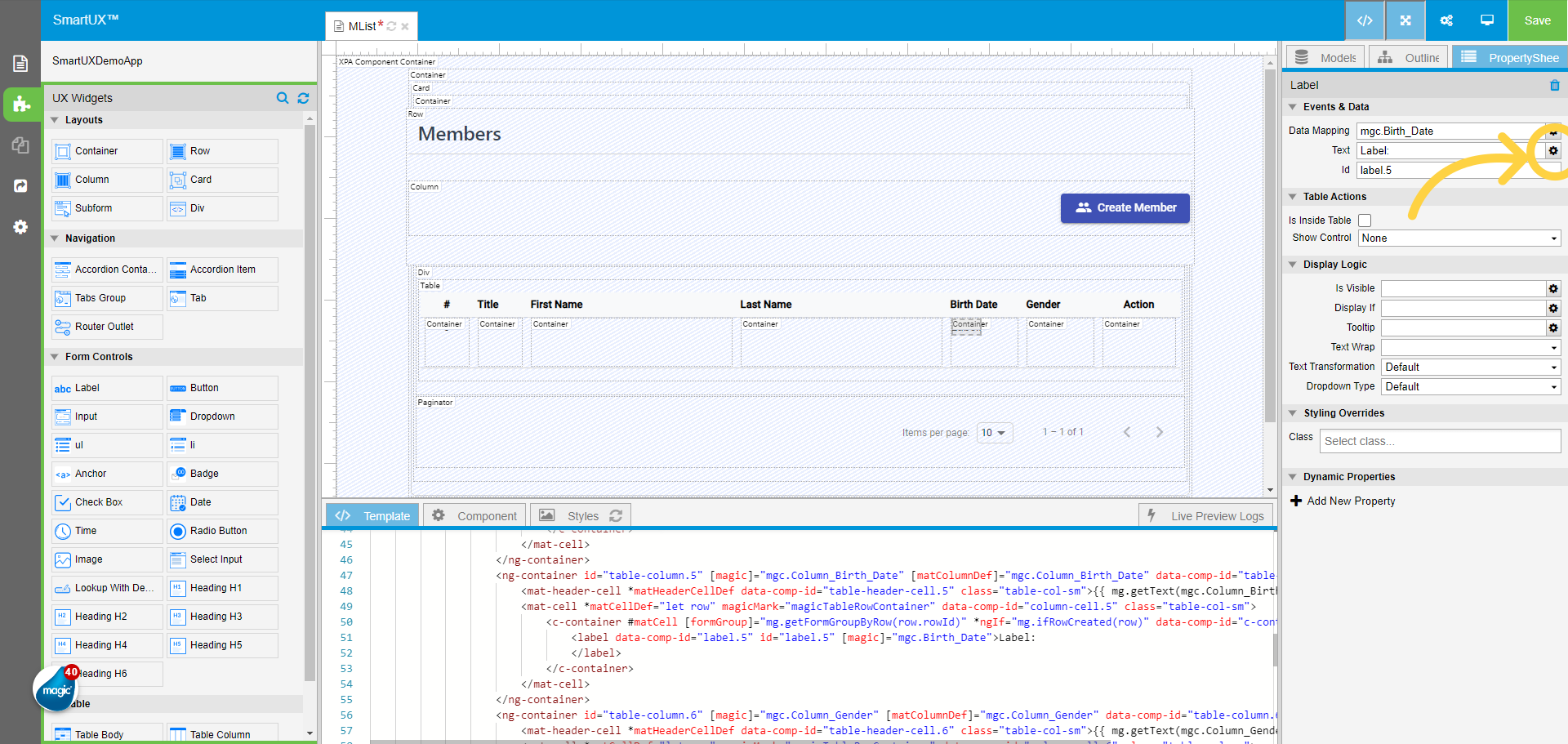
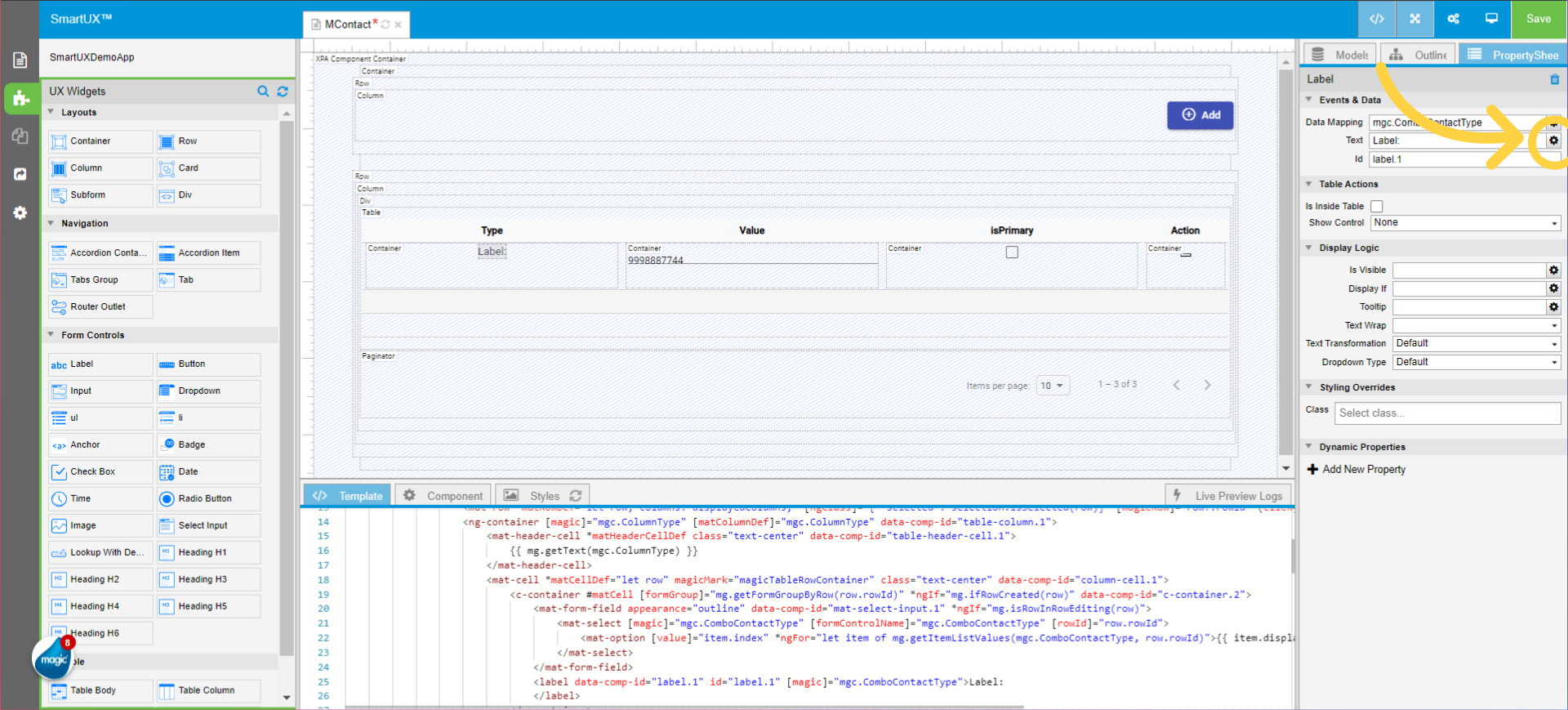
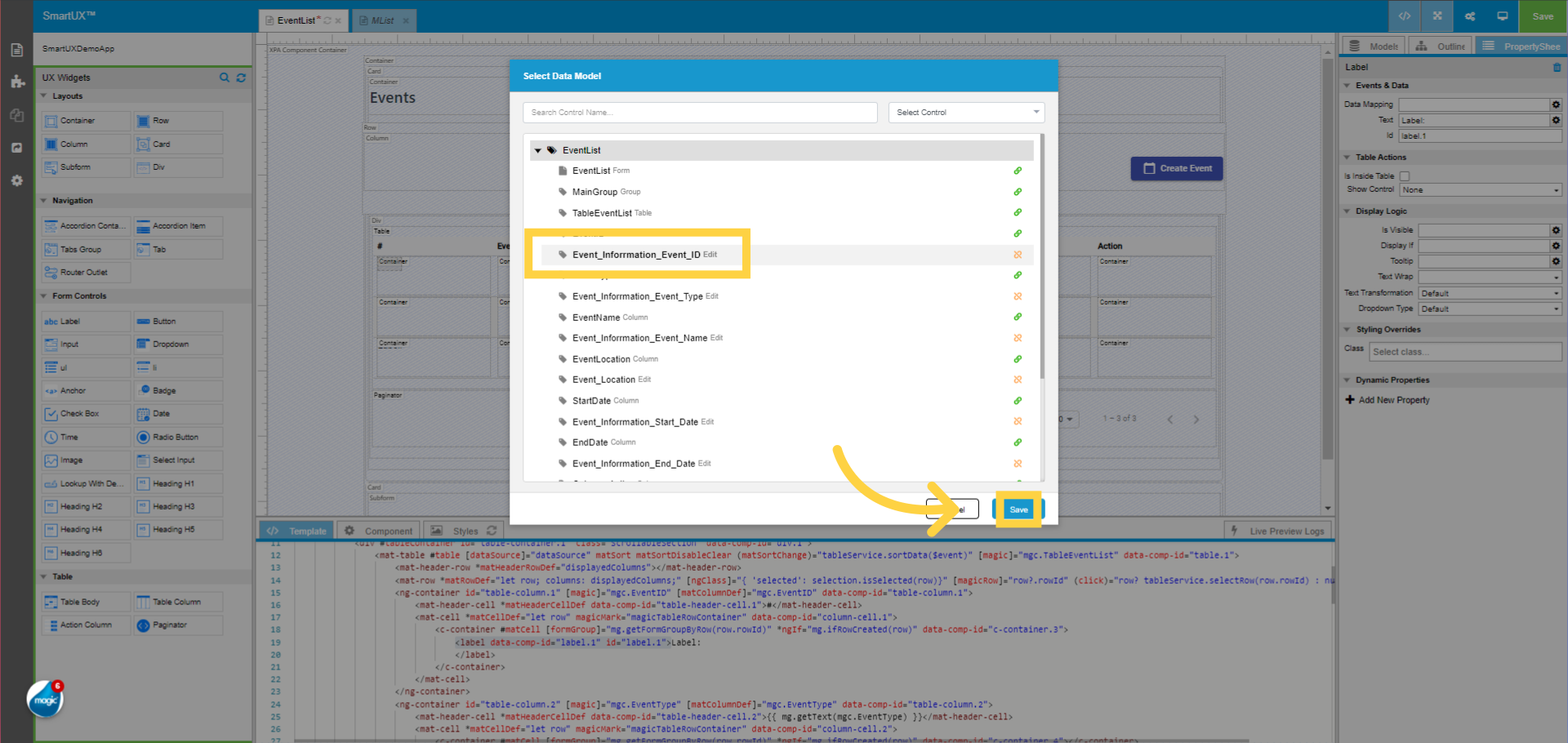
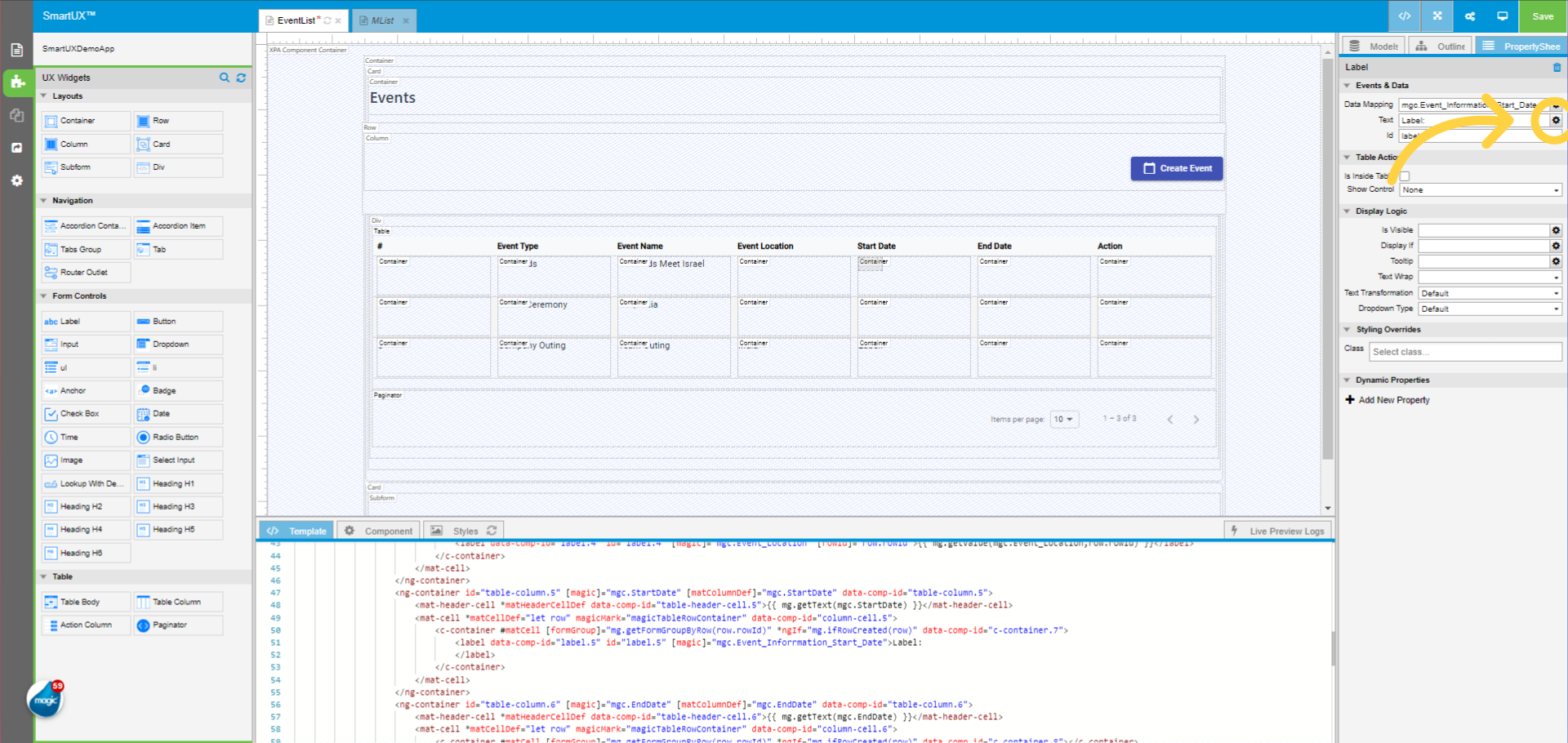
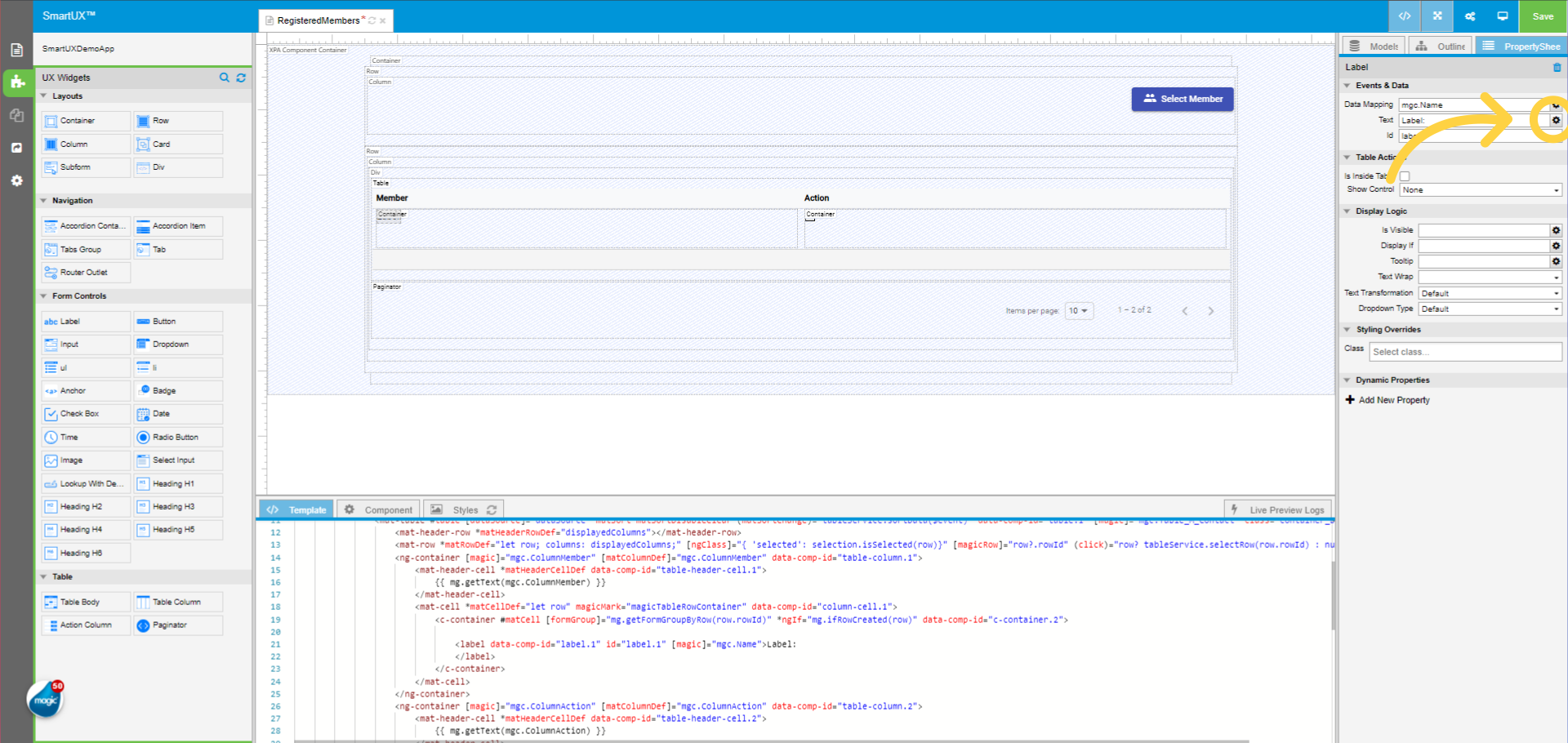
Select the required control.

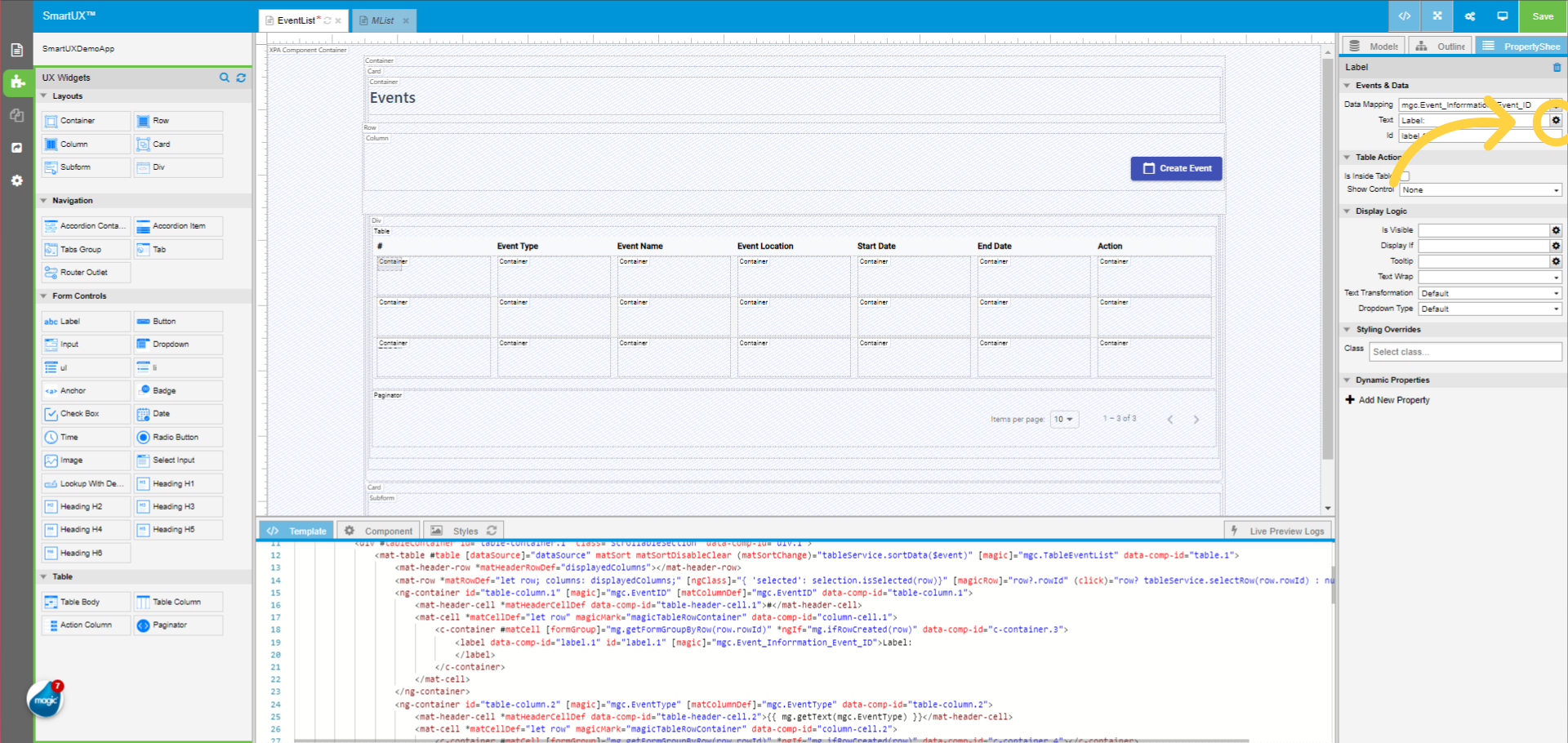
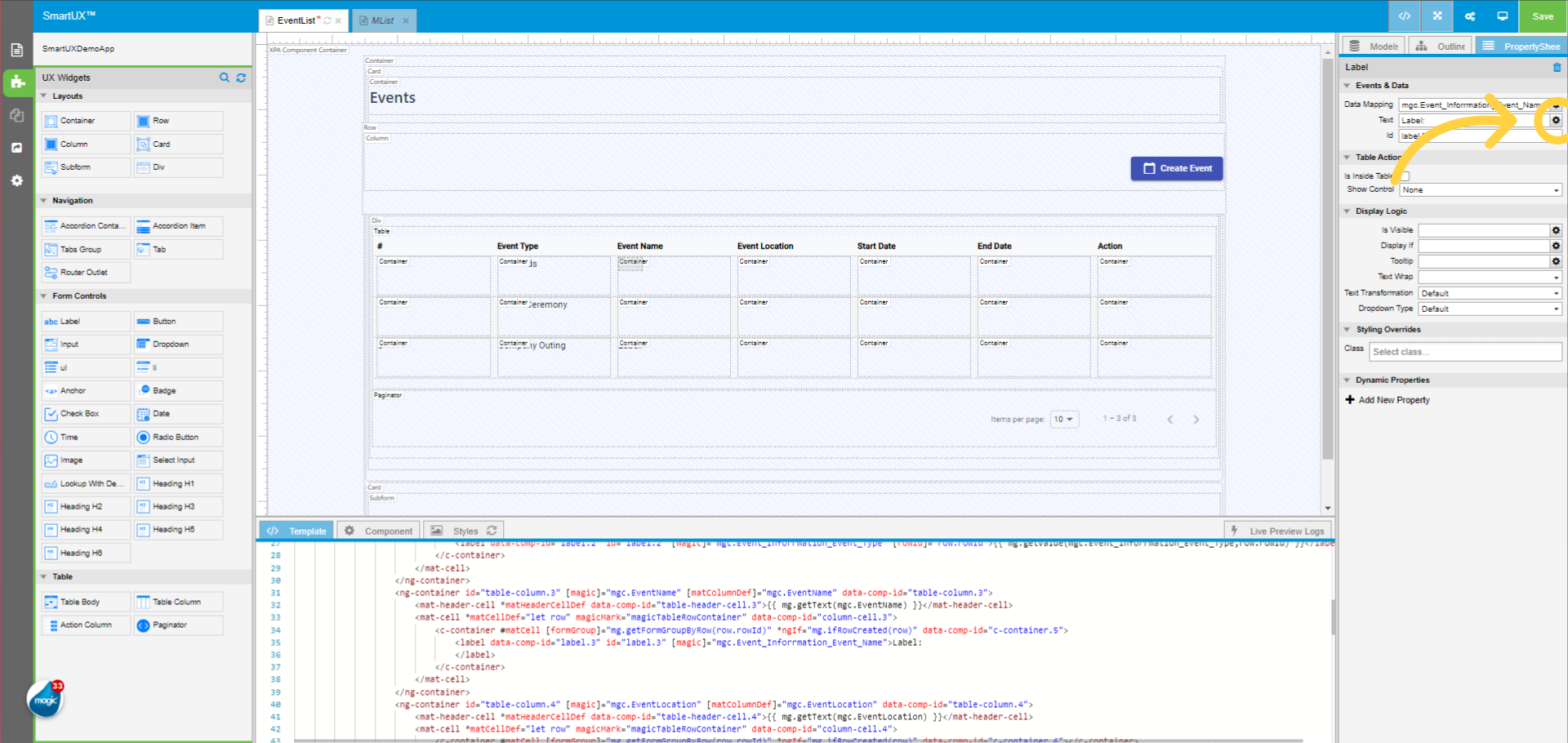
The mapping of control will be visible on the Property Sheet.

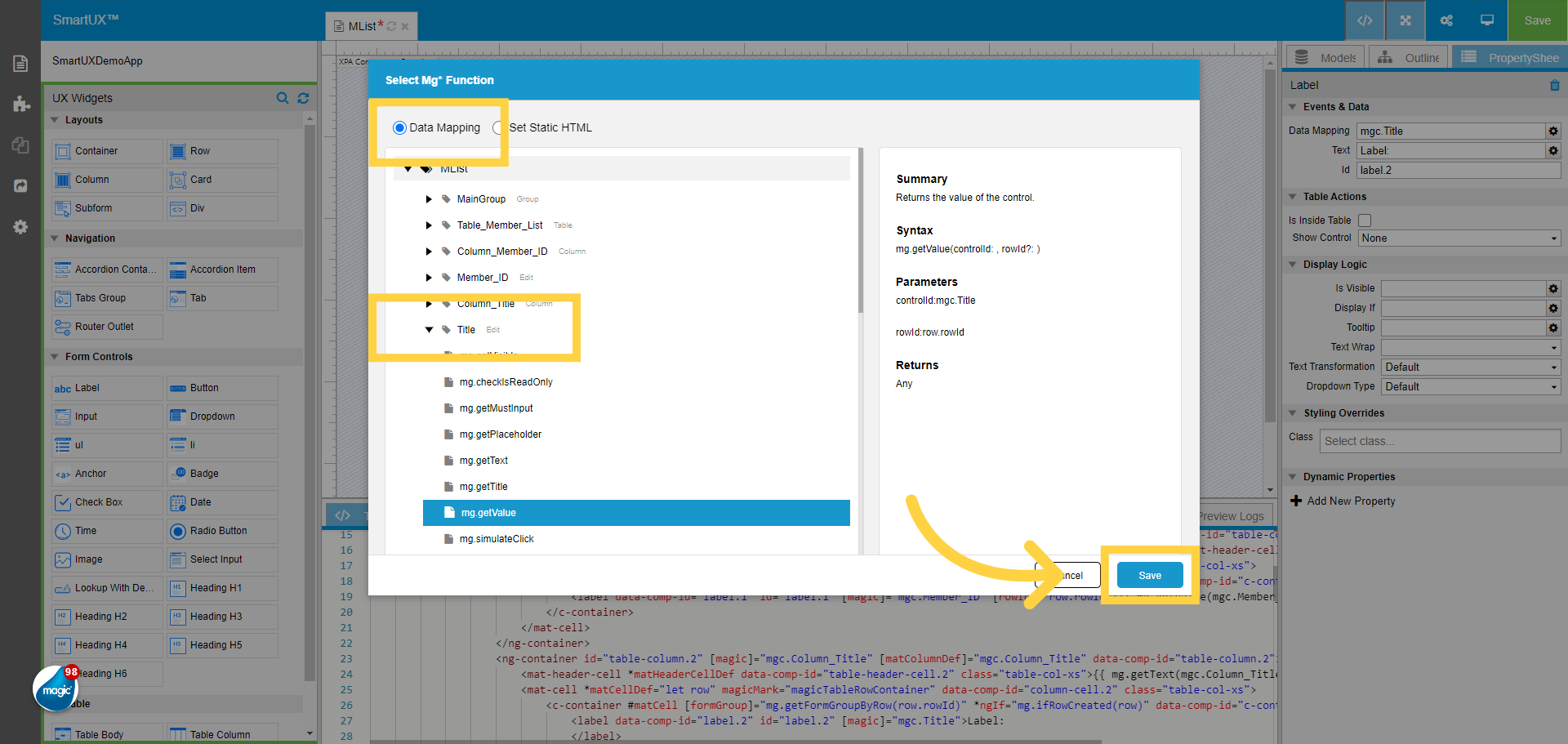
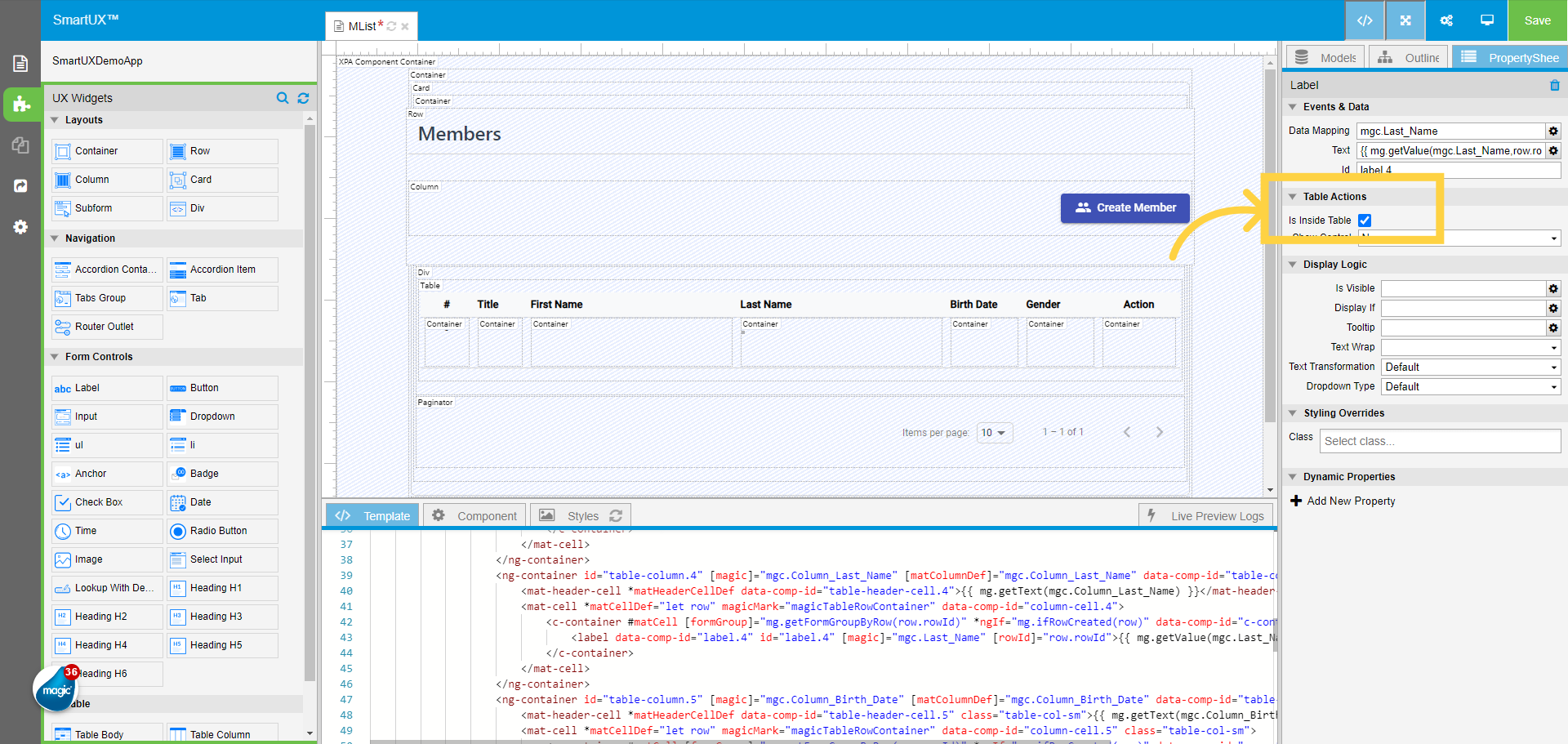
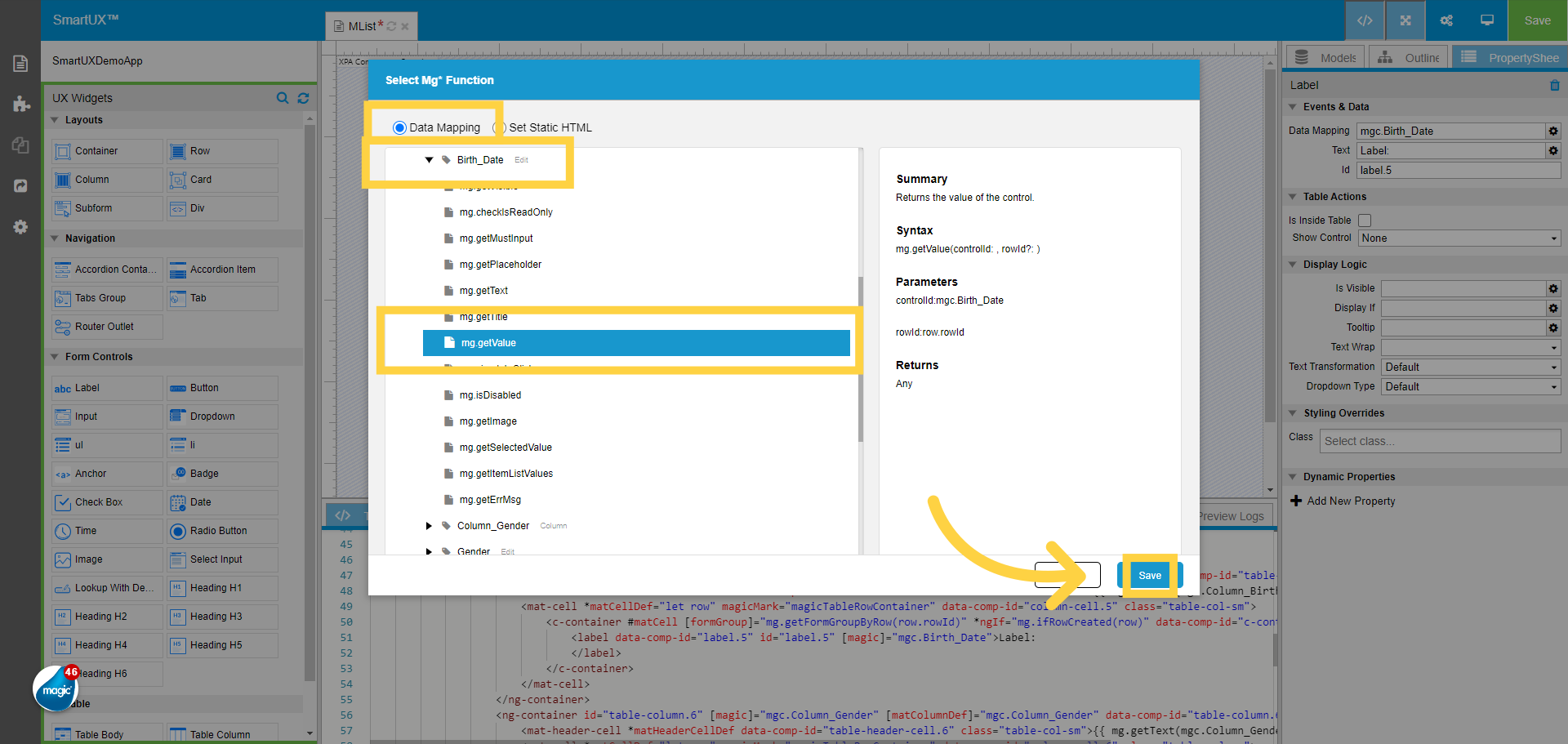
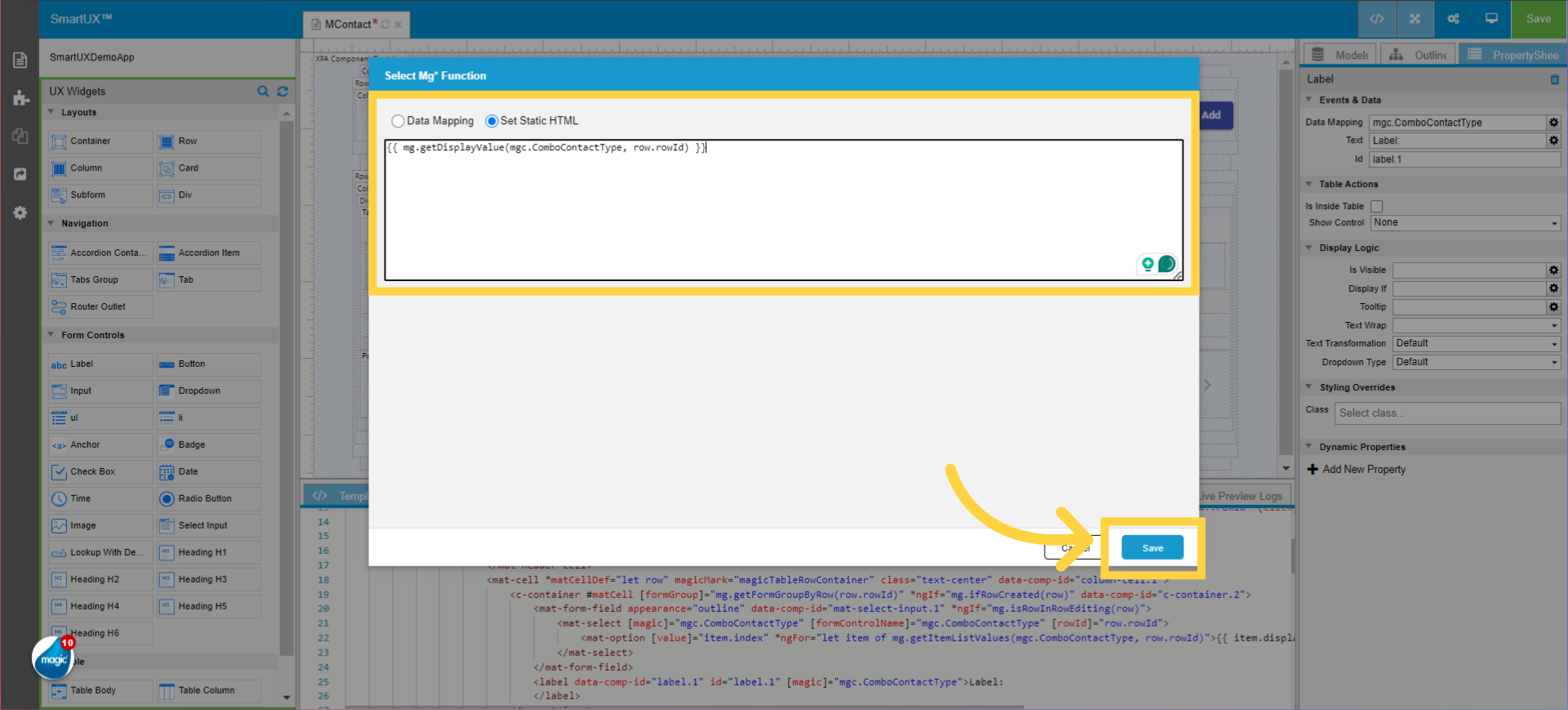
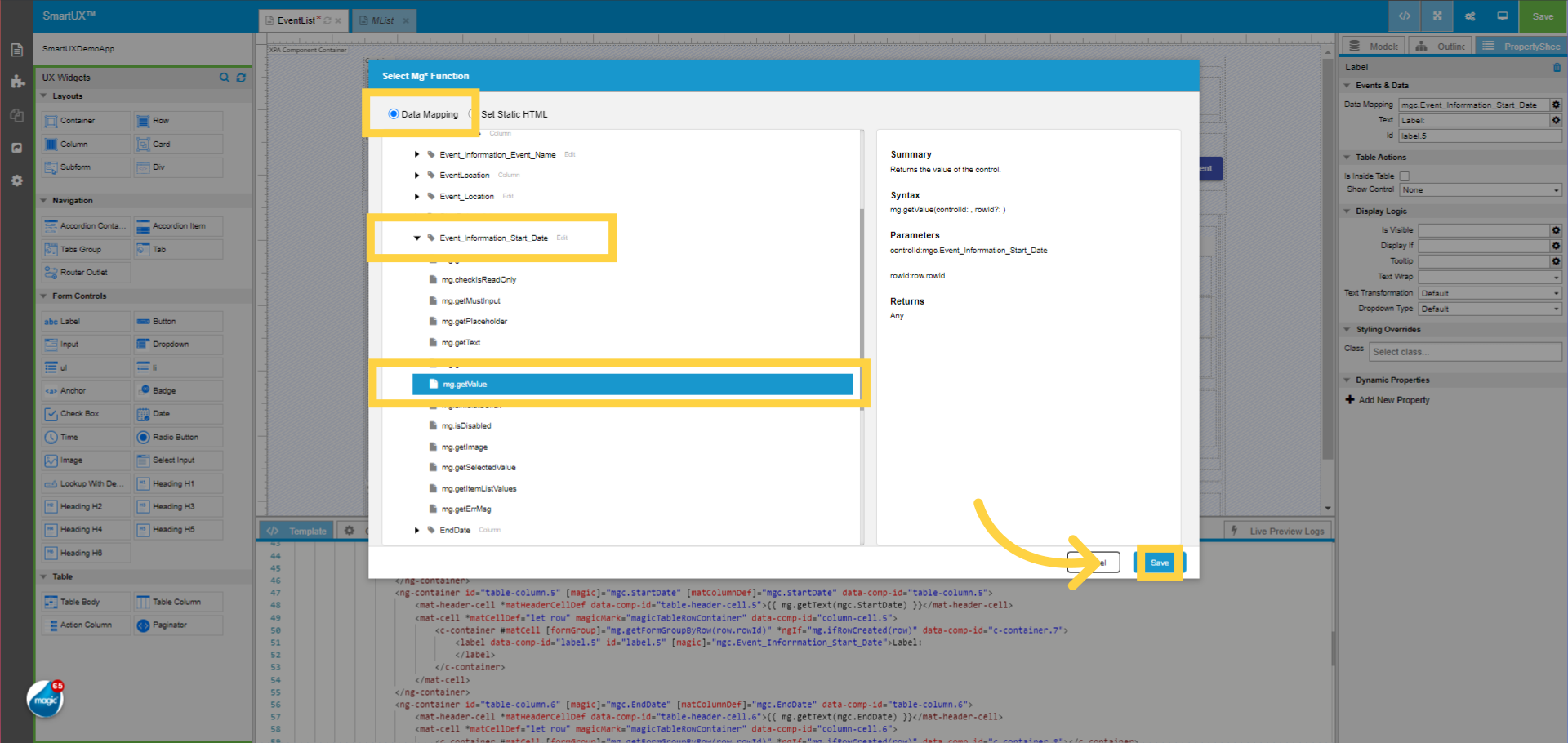
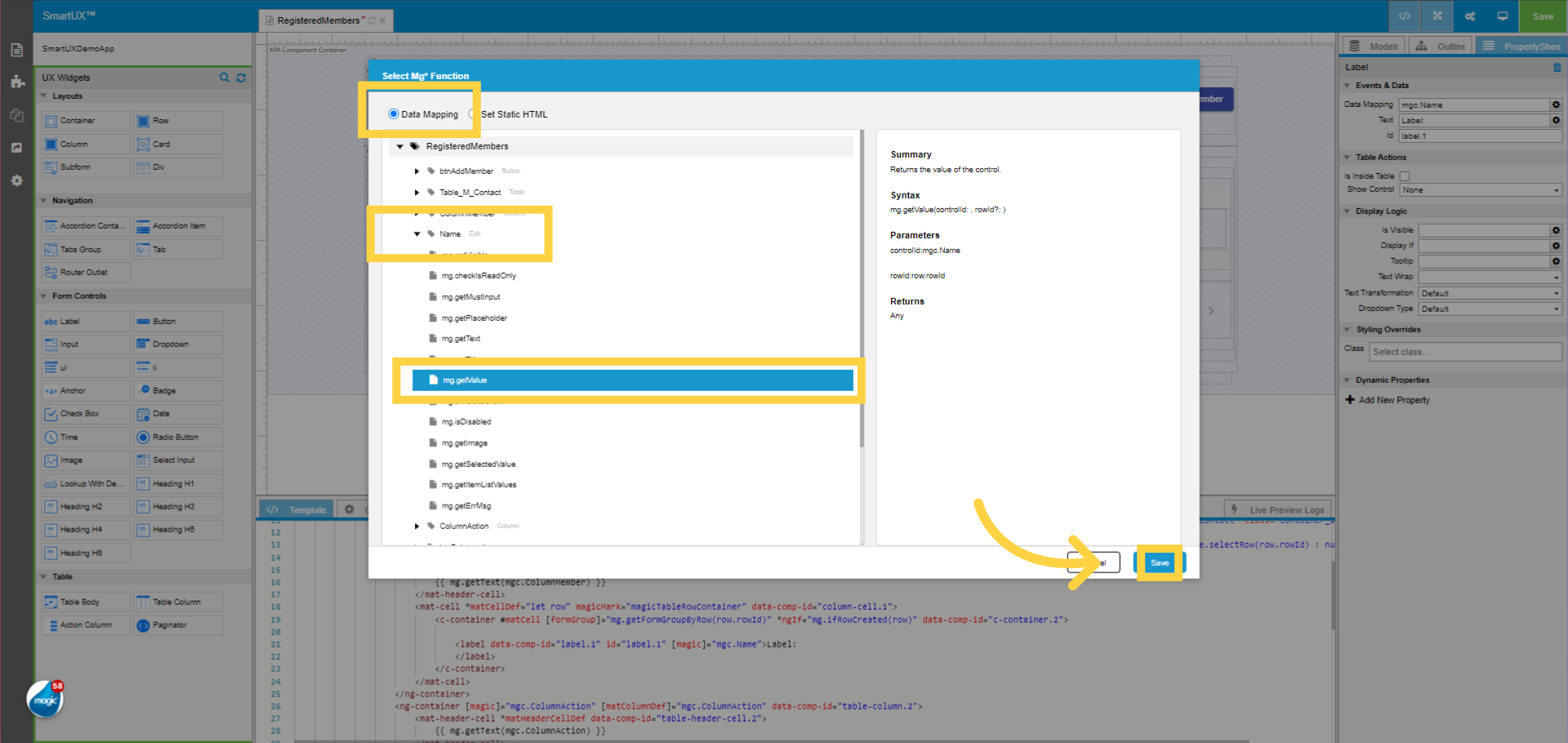
We can also map a mg function for Text

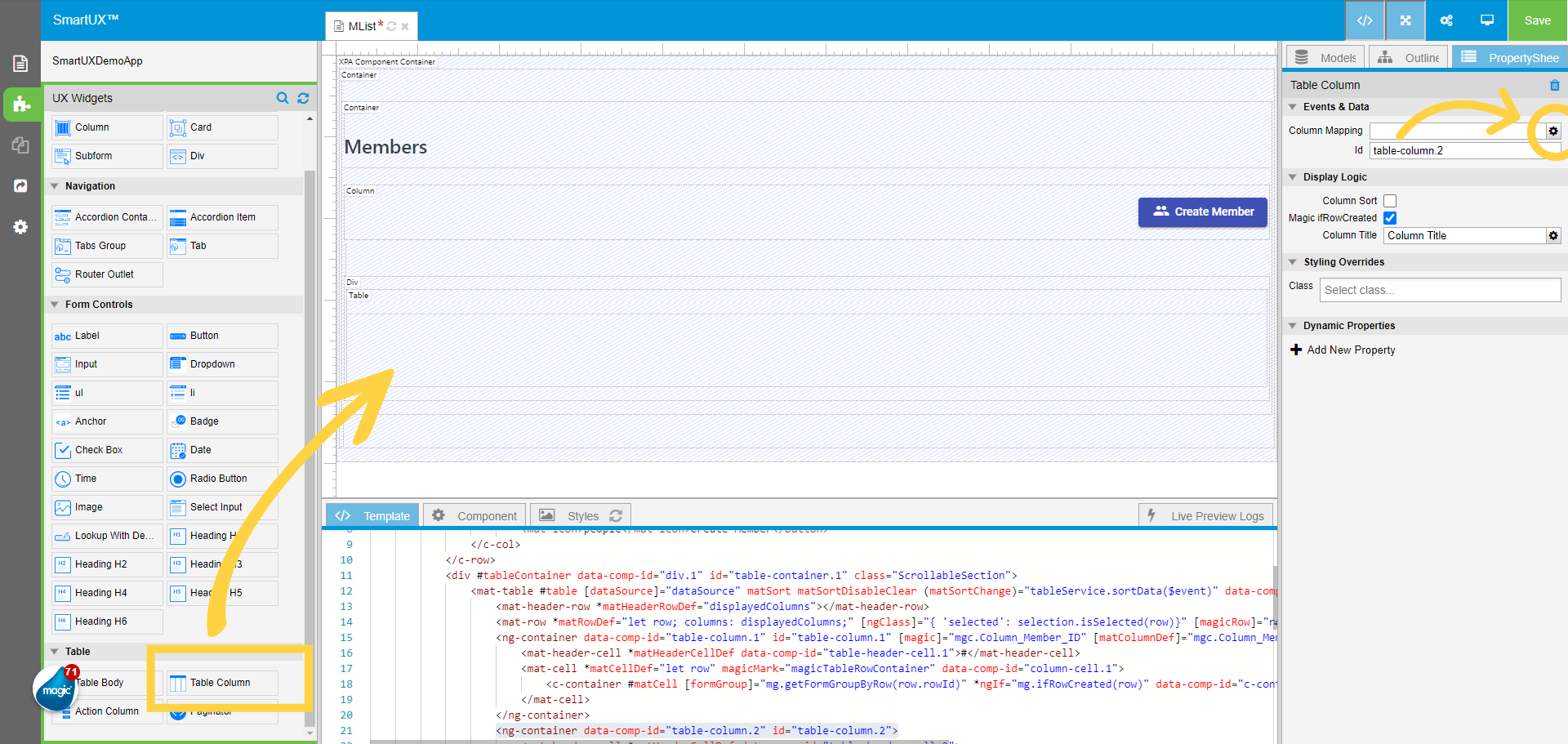
10. Opening Dialog for Mapping mg Function

Open the dialogue for the same from the Property Sheet.

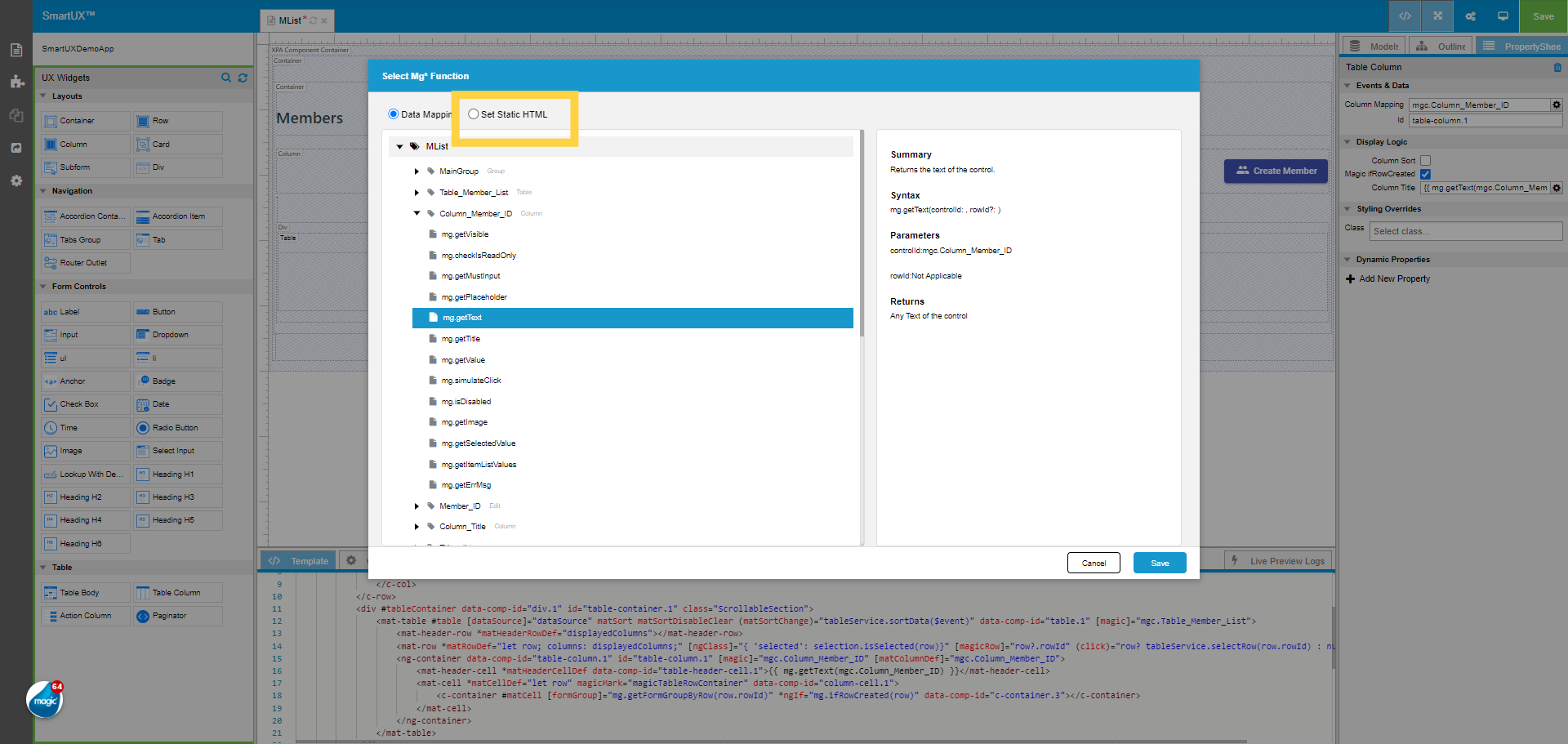
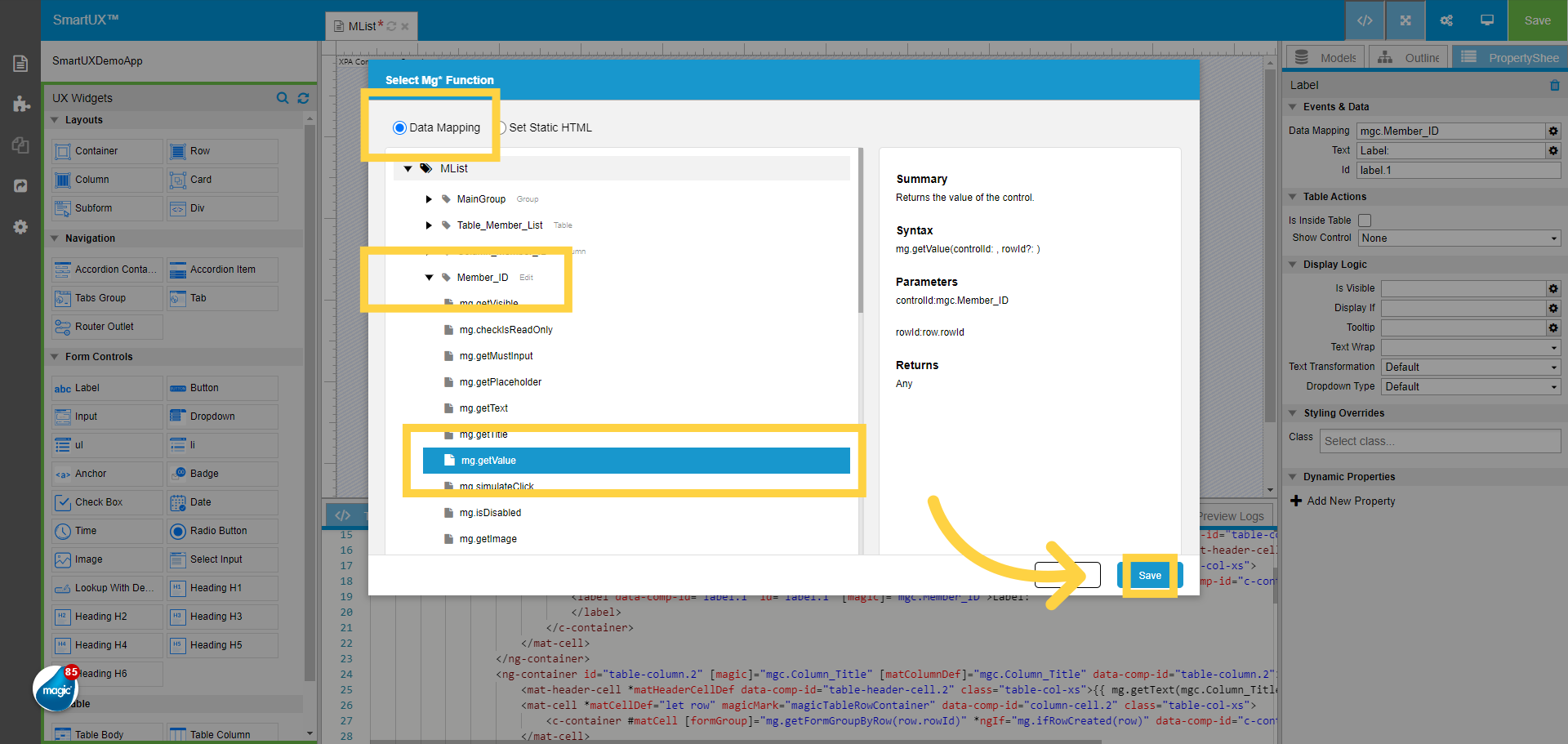
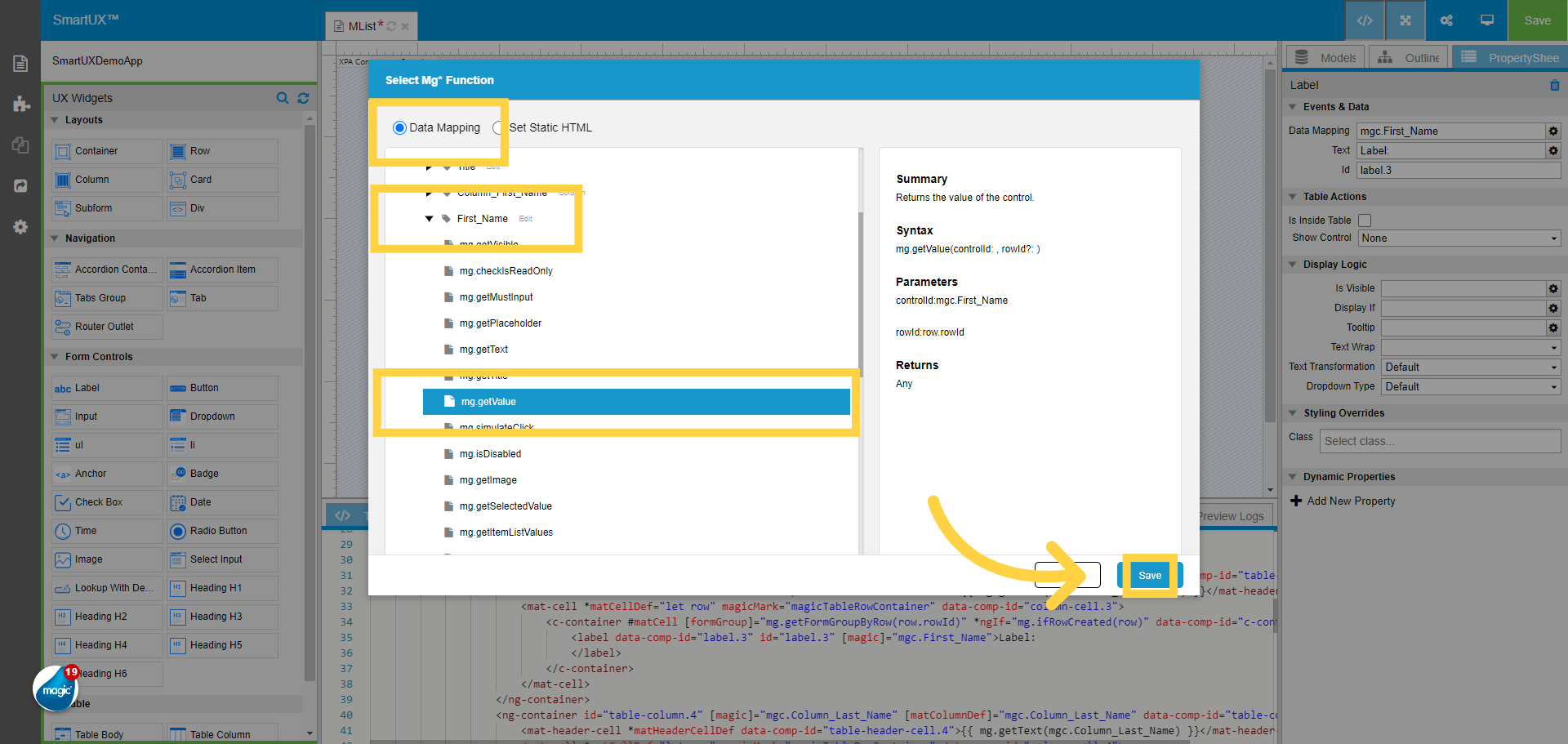
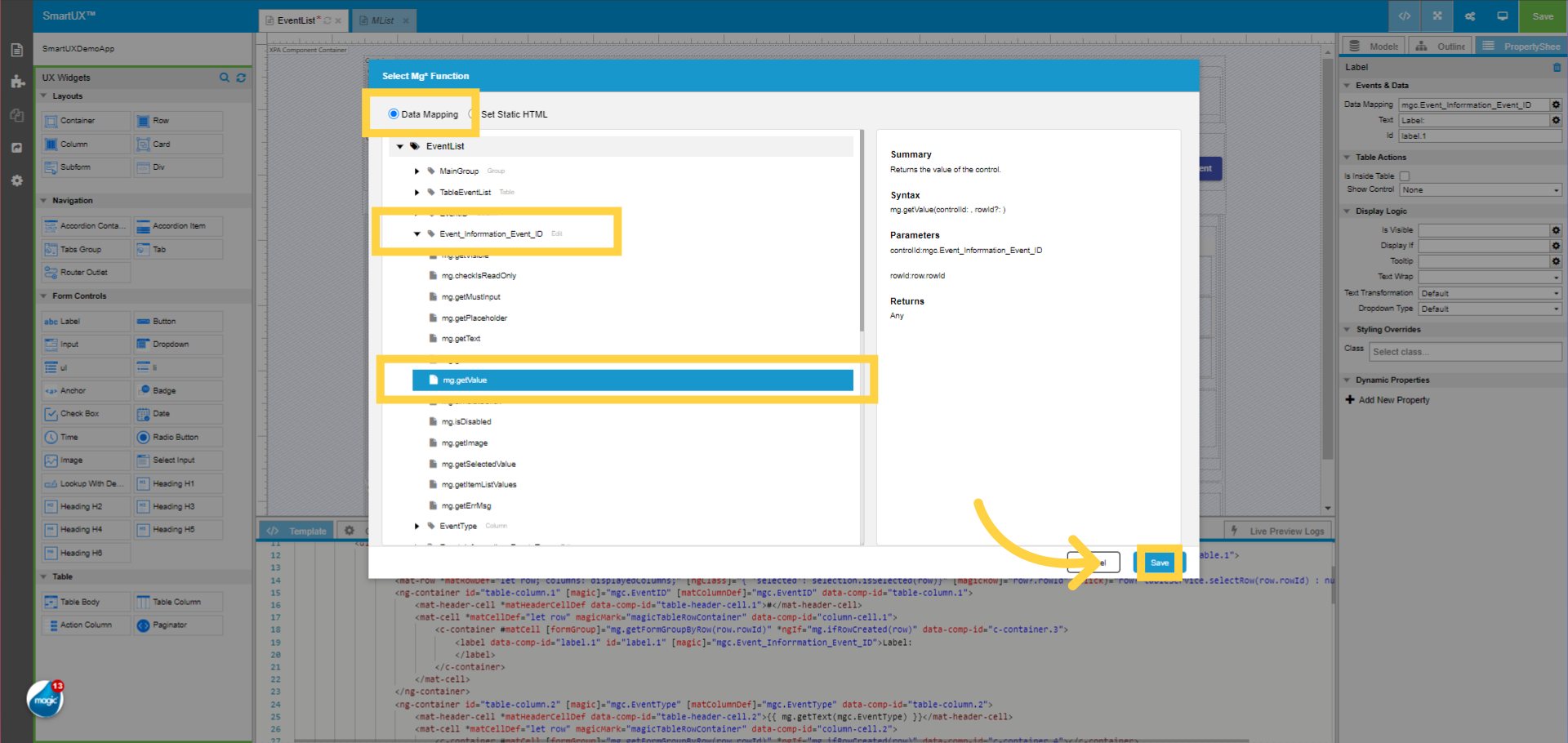
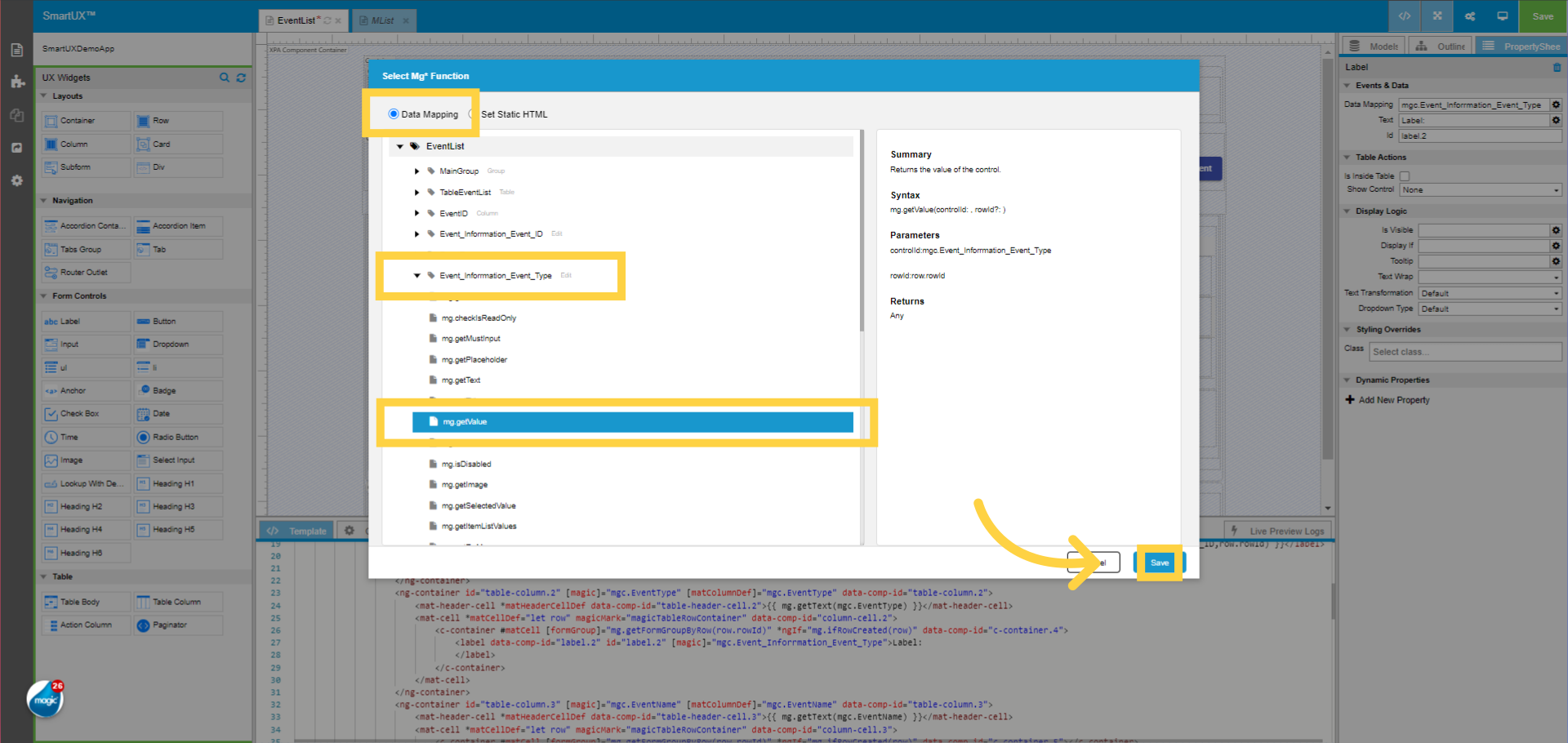
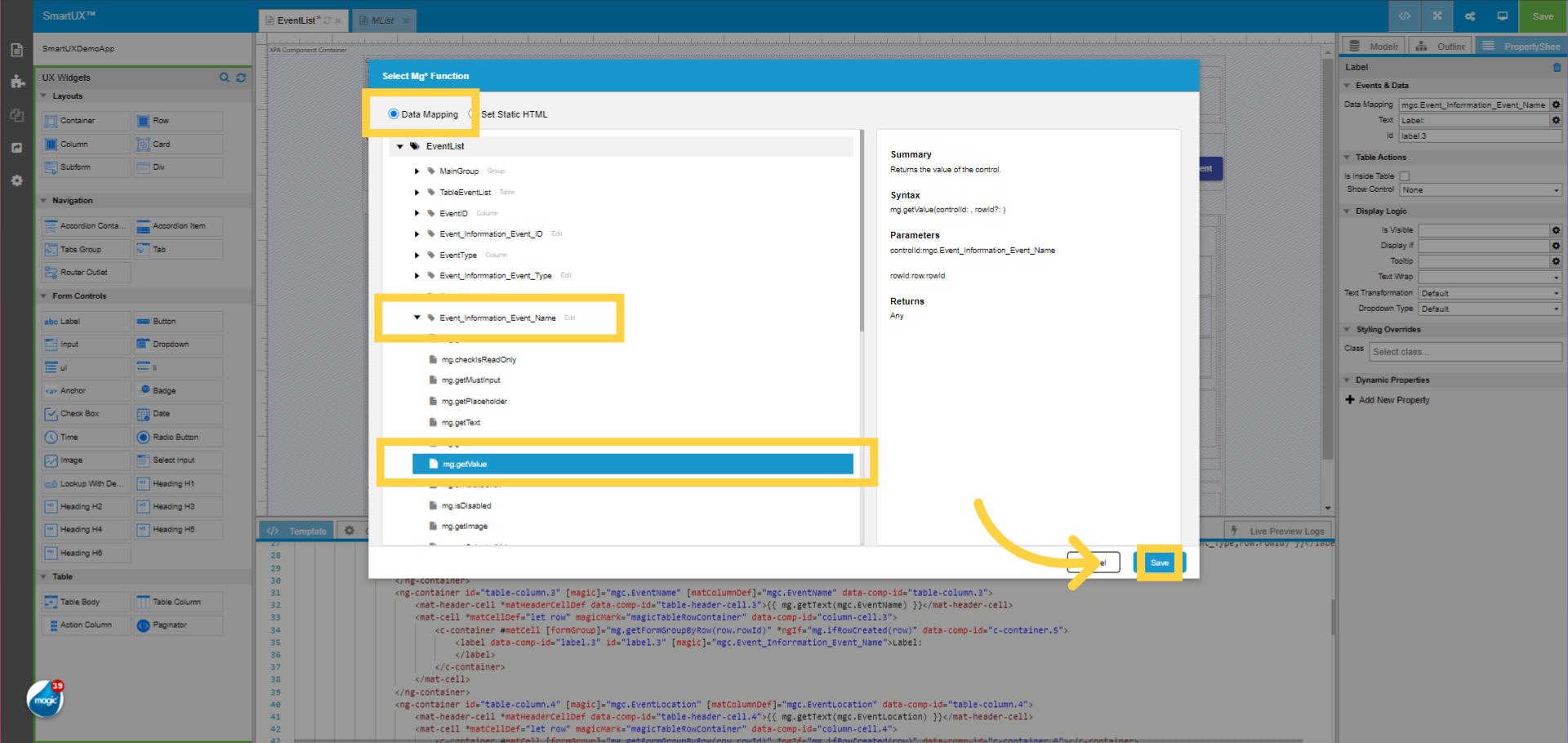
11. Selecting Data Mapping for mg Function

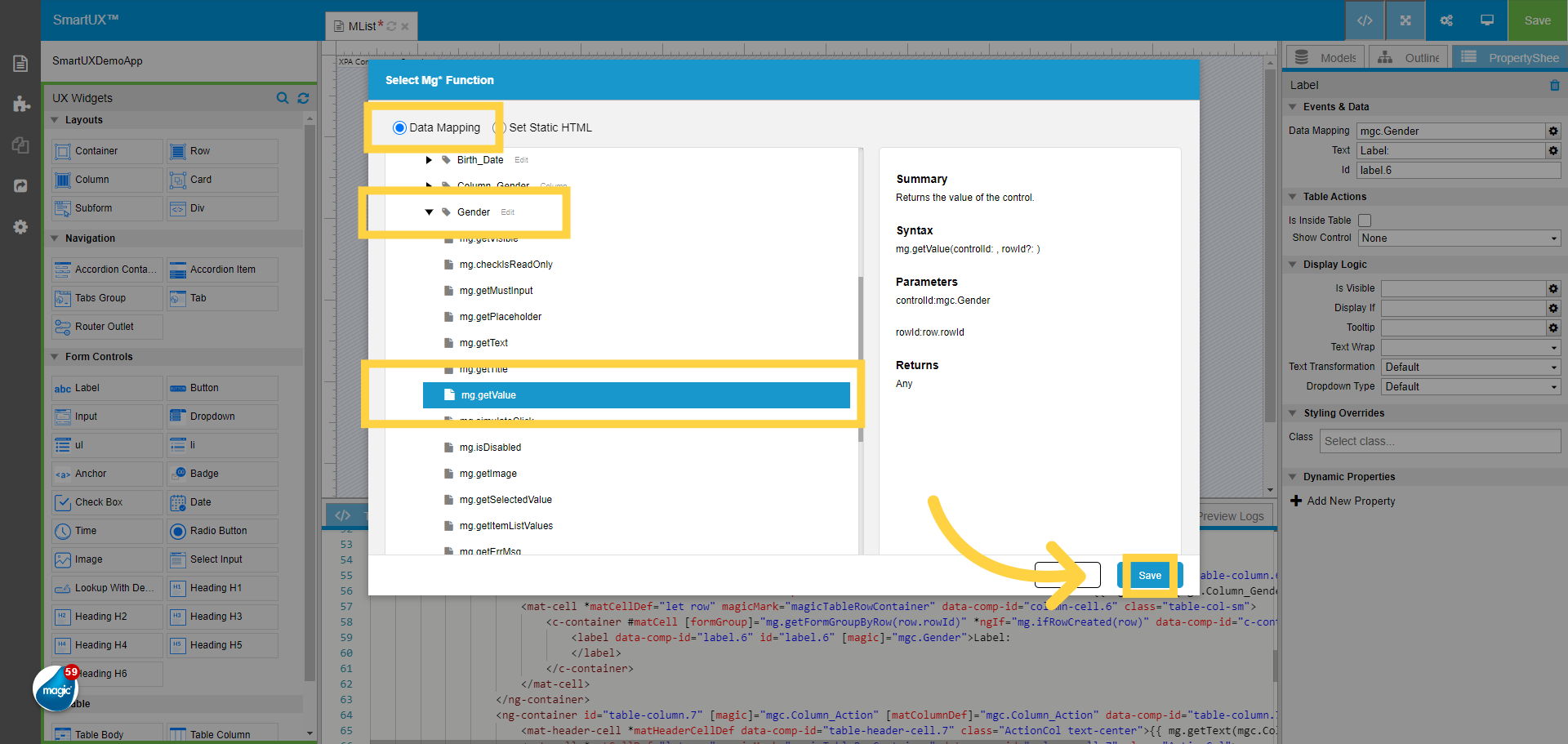
Select Data Mapping for mg functions. Alternatively, you can also map static values from Set Static HTML option.

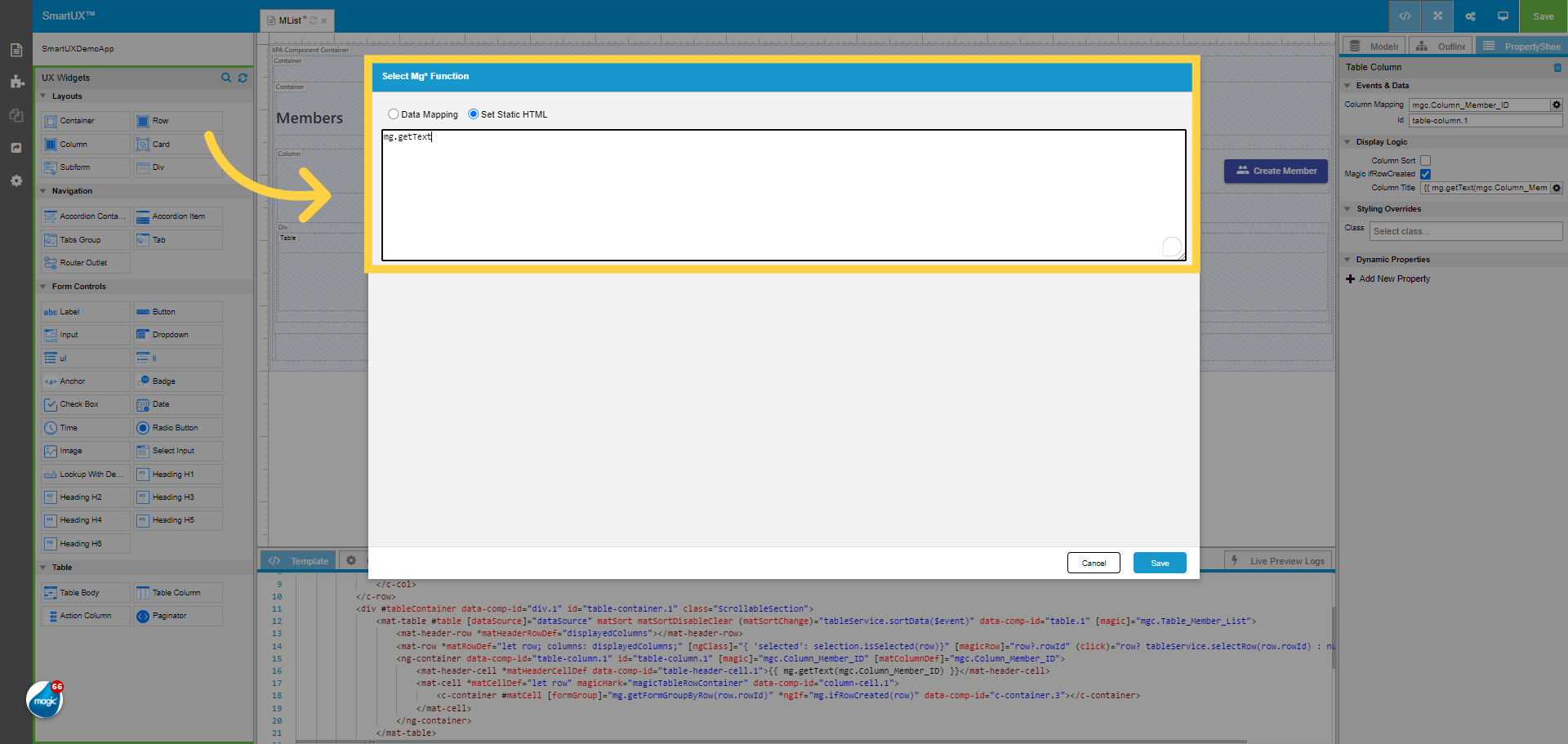
12. Choosing mg Function for Control

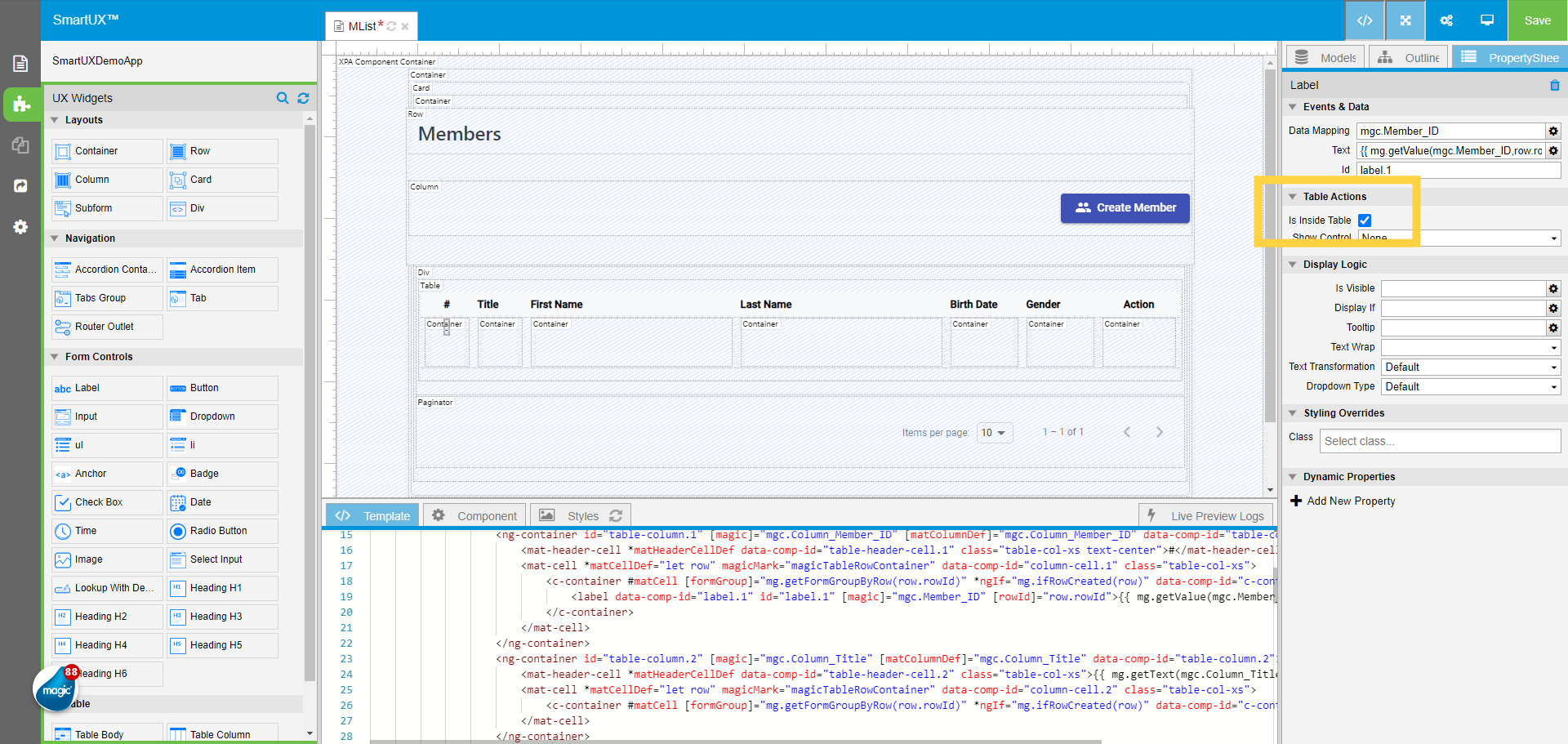
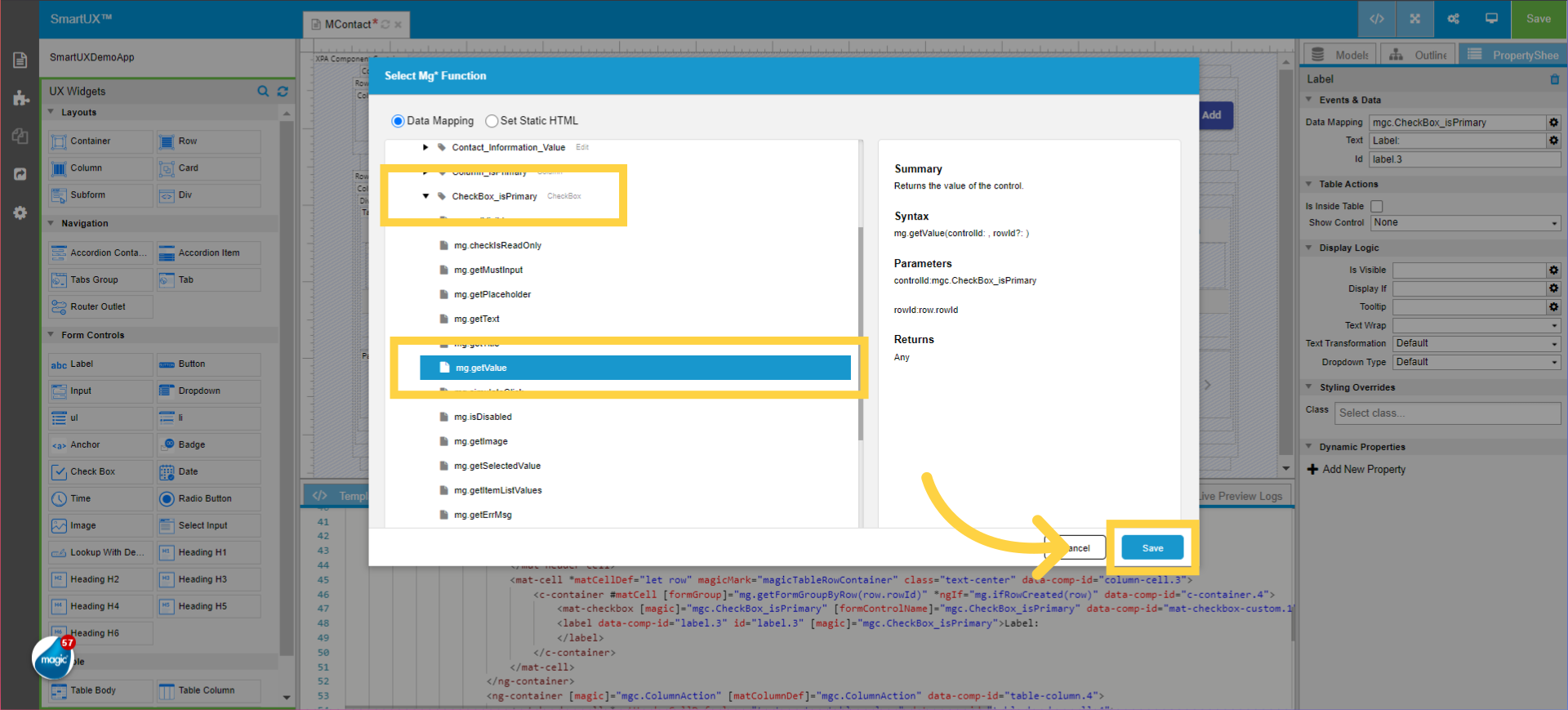
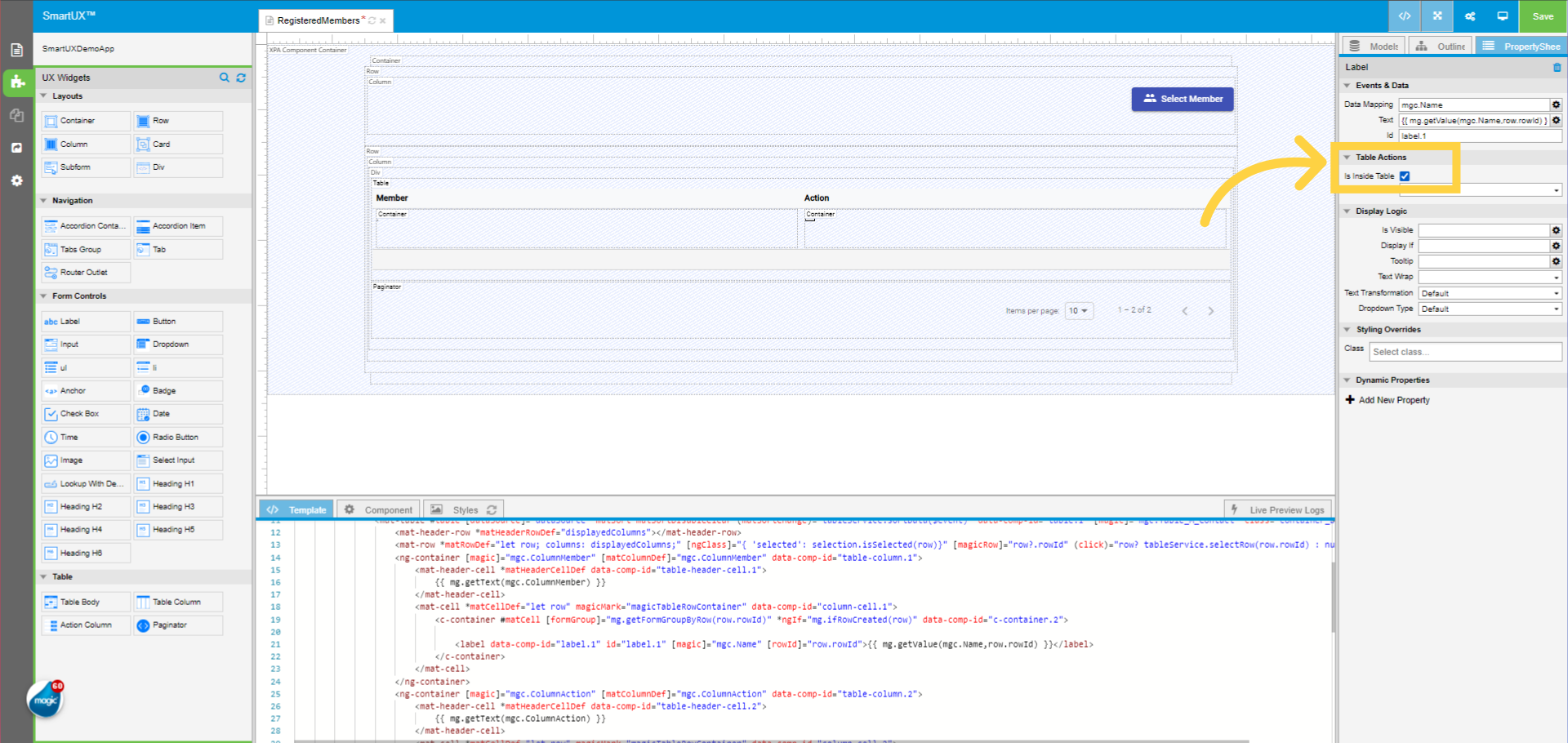
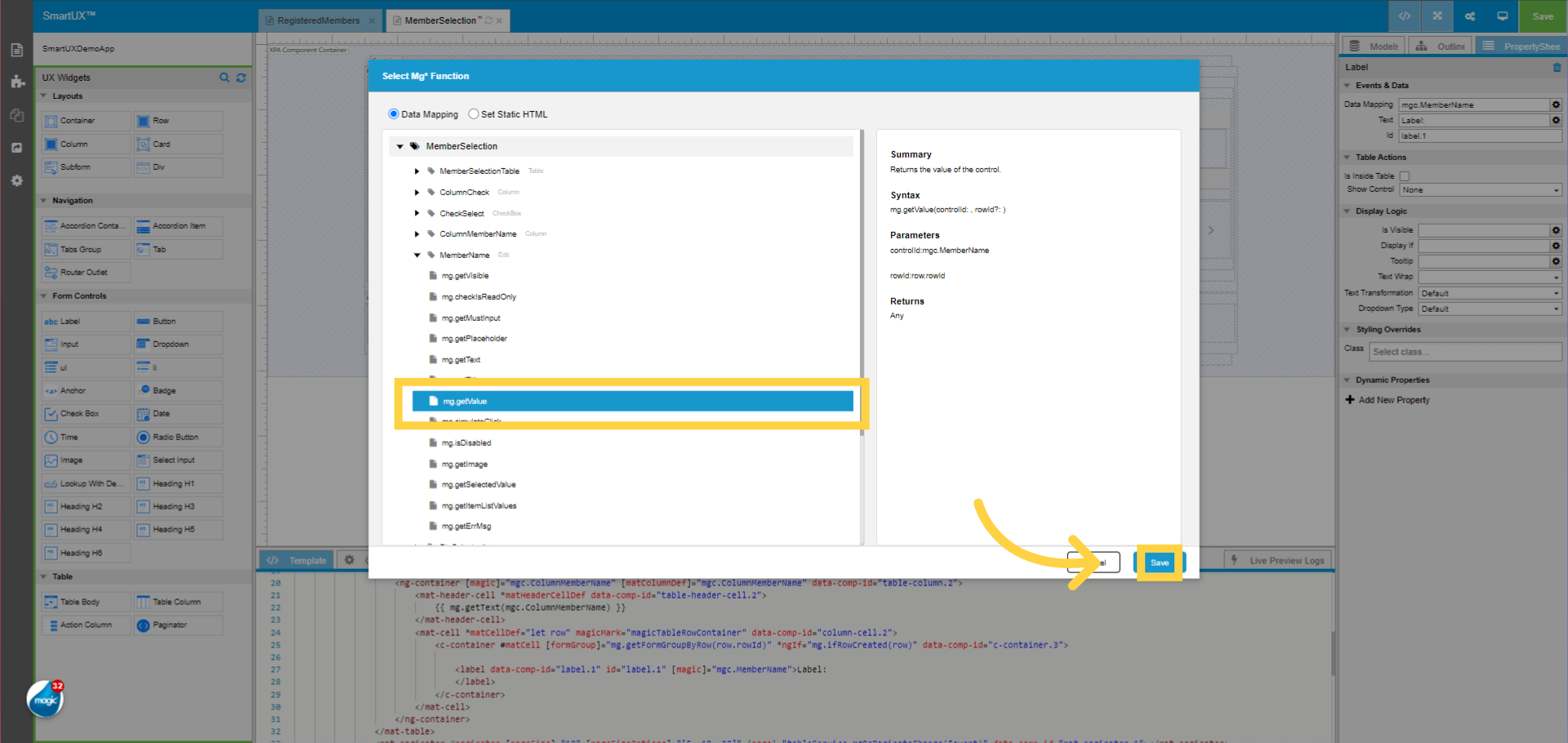
Now choose the mg function for the control you want to map onto. Here, we consider mapping mg.getText for FirstNameLabel control.

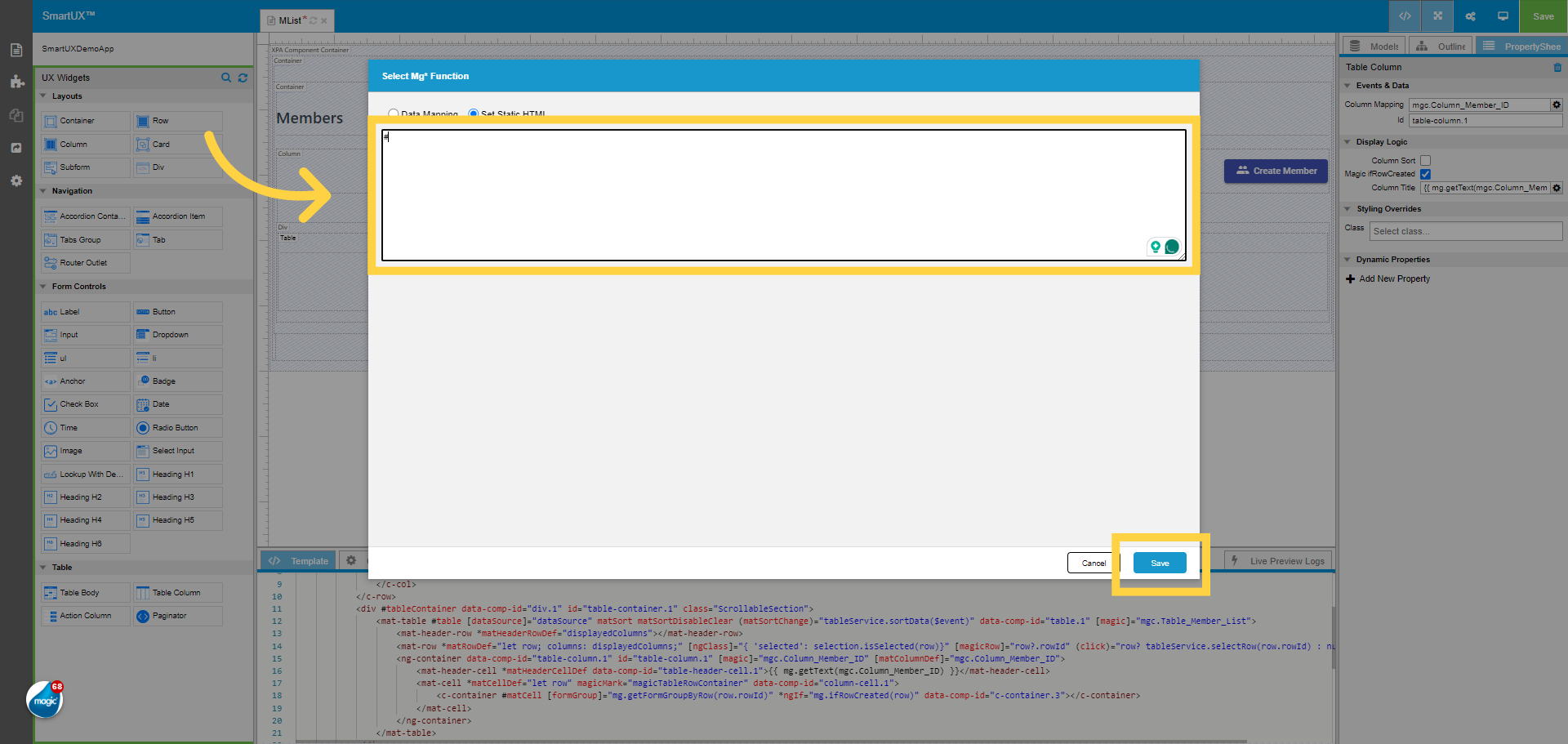
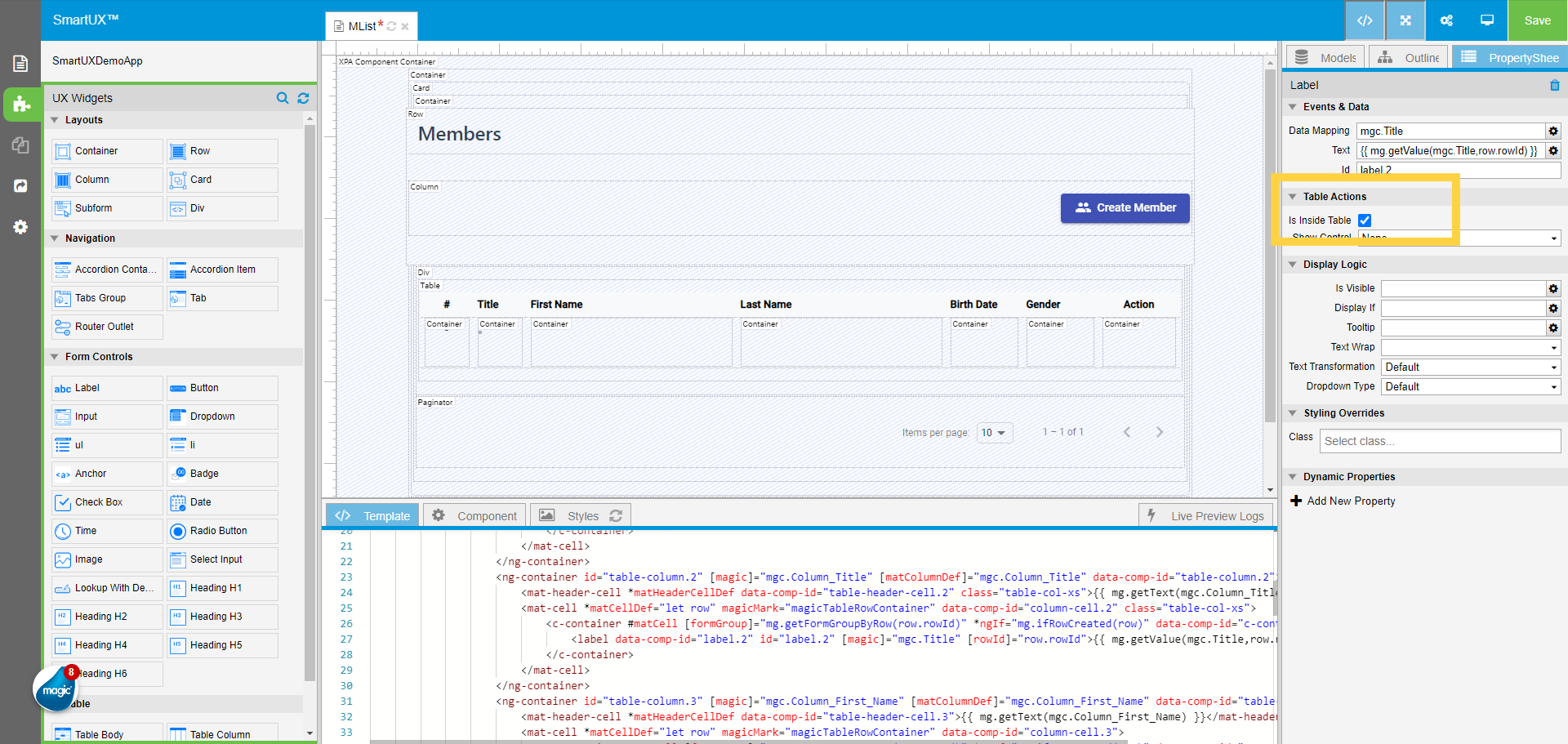
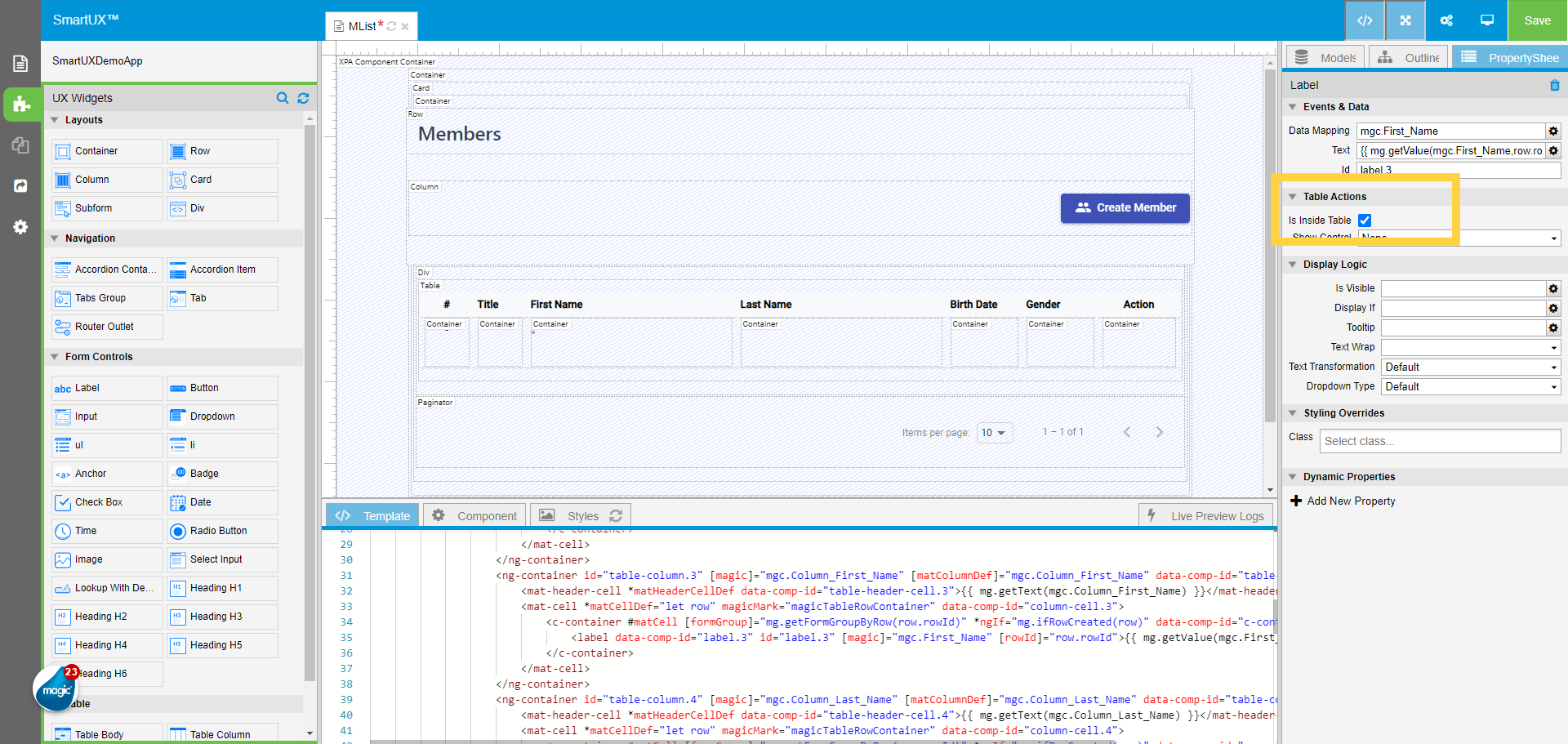
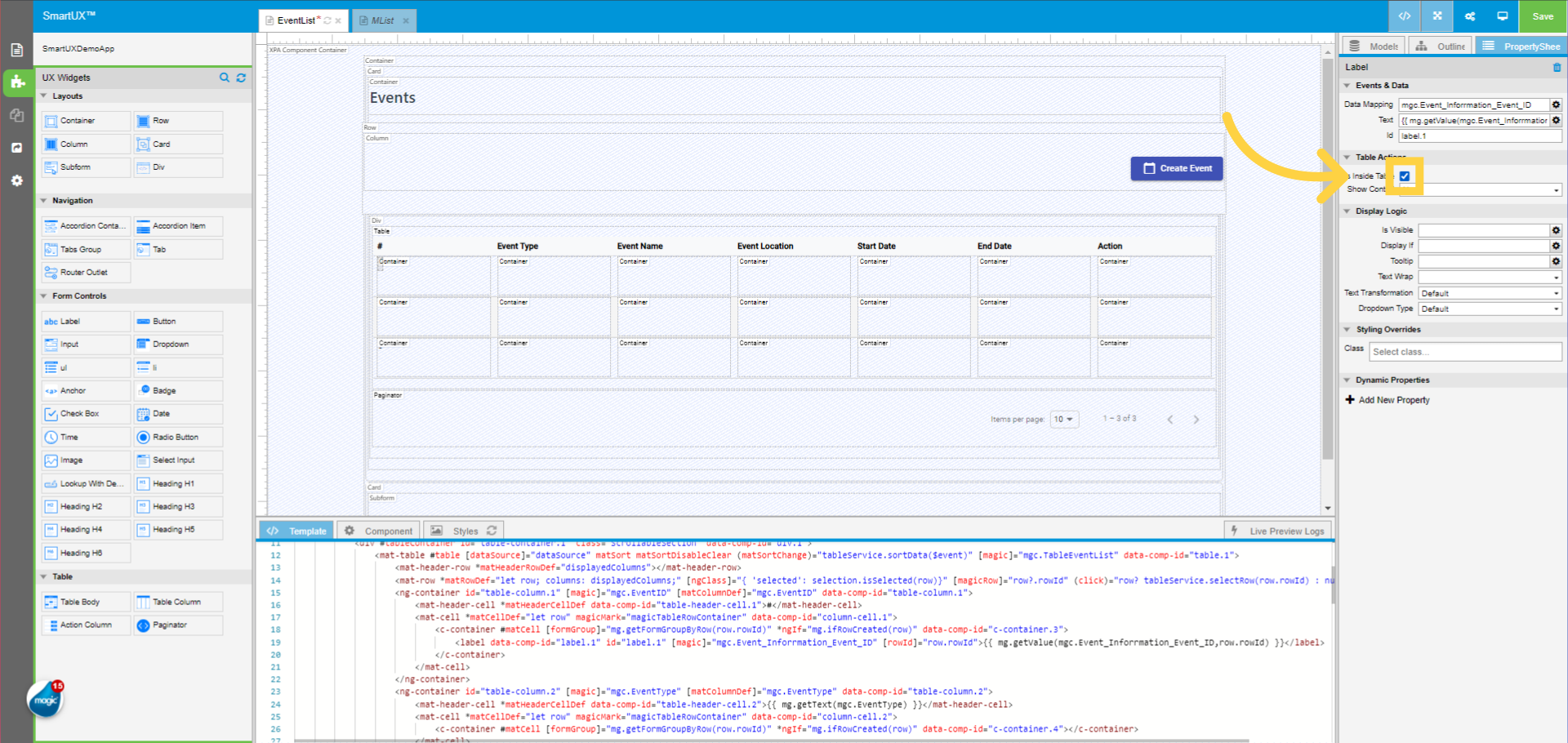
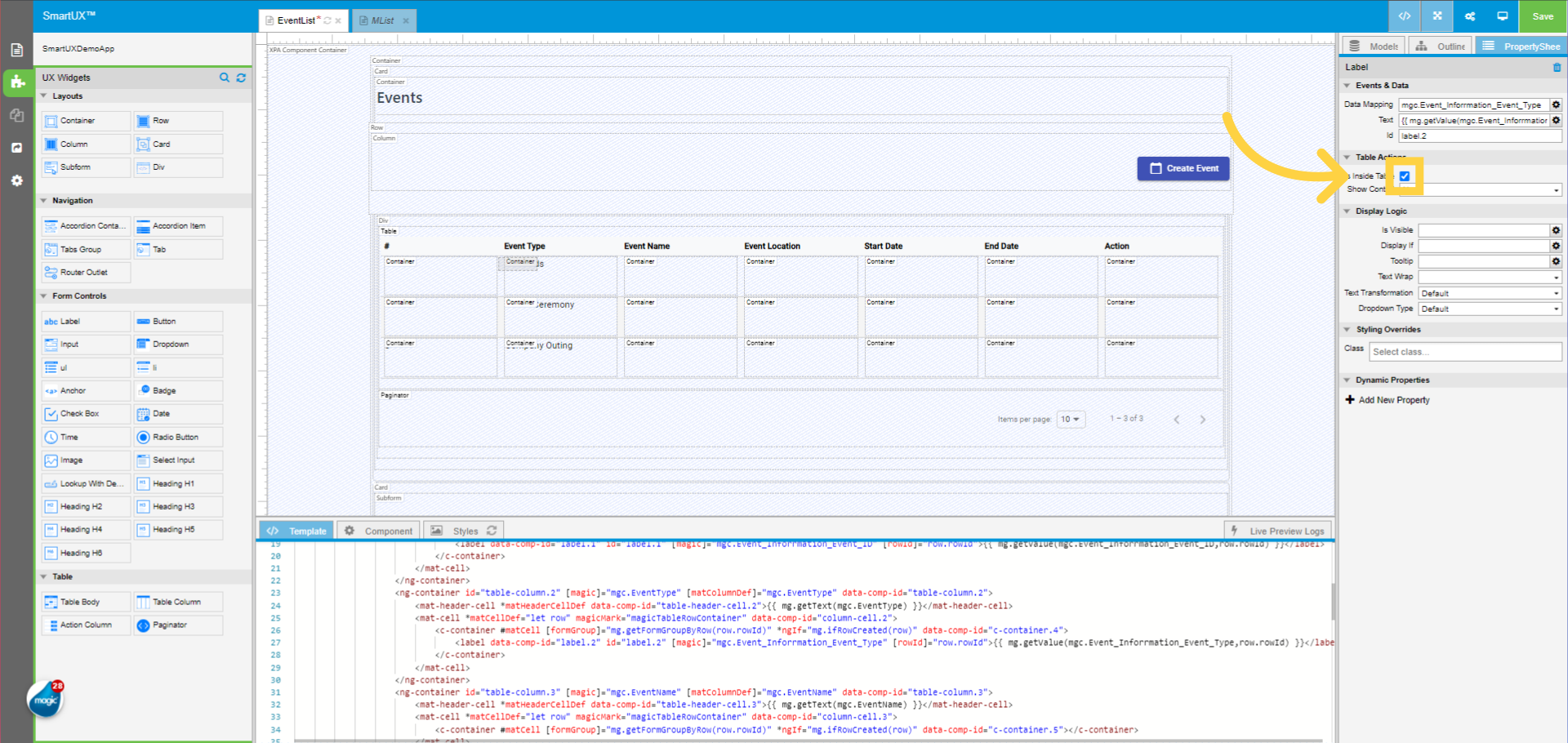
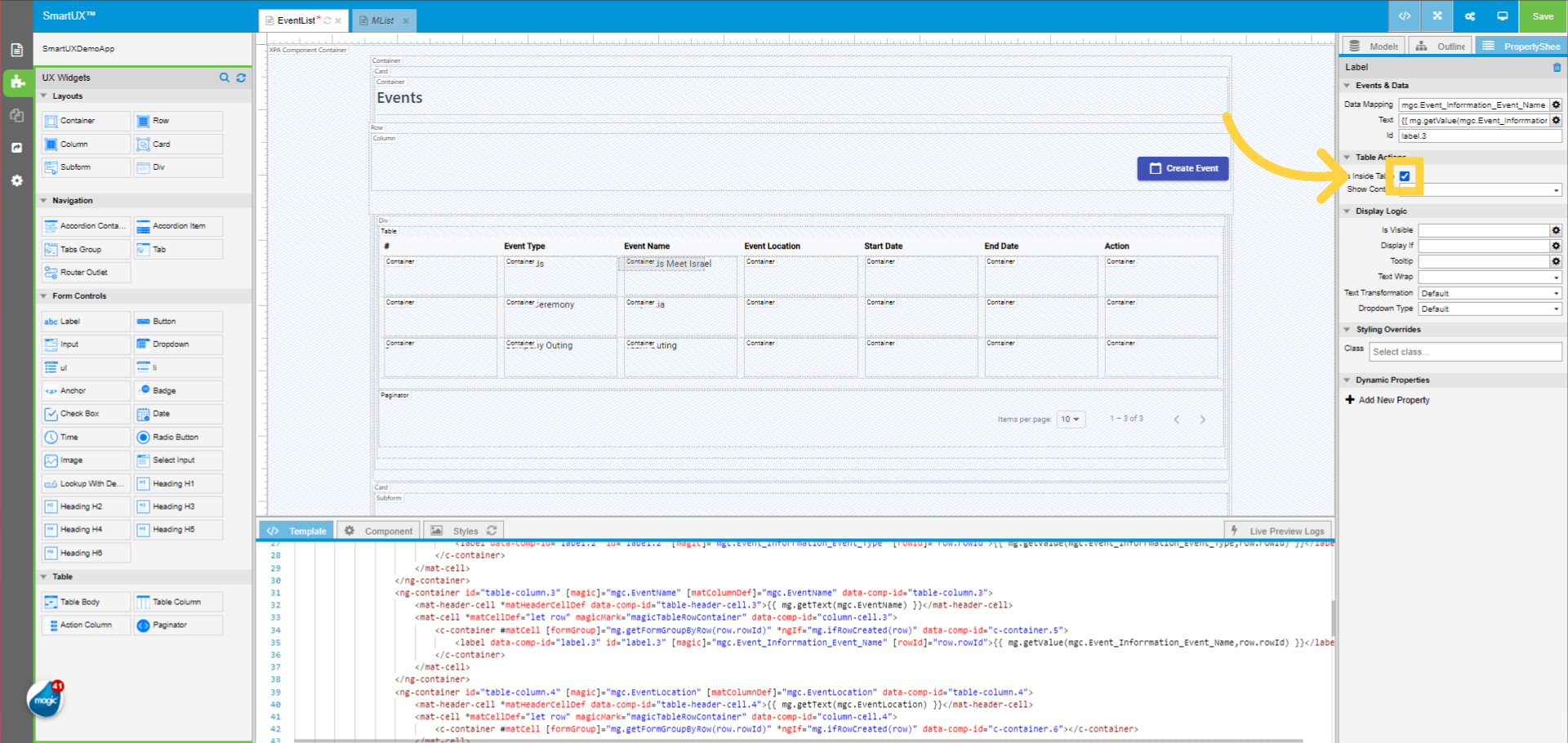
Your mapping will be visible in the Property Sheet. 

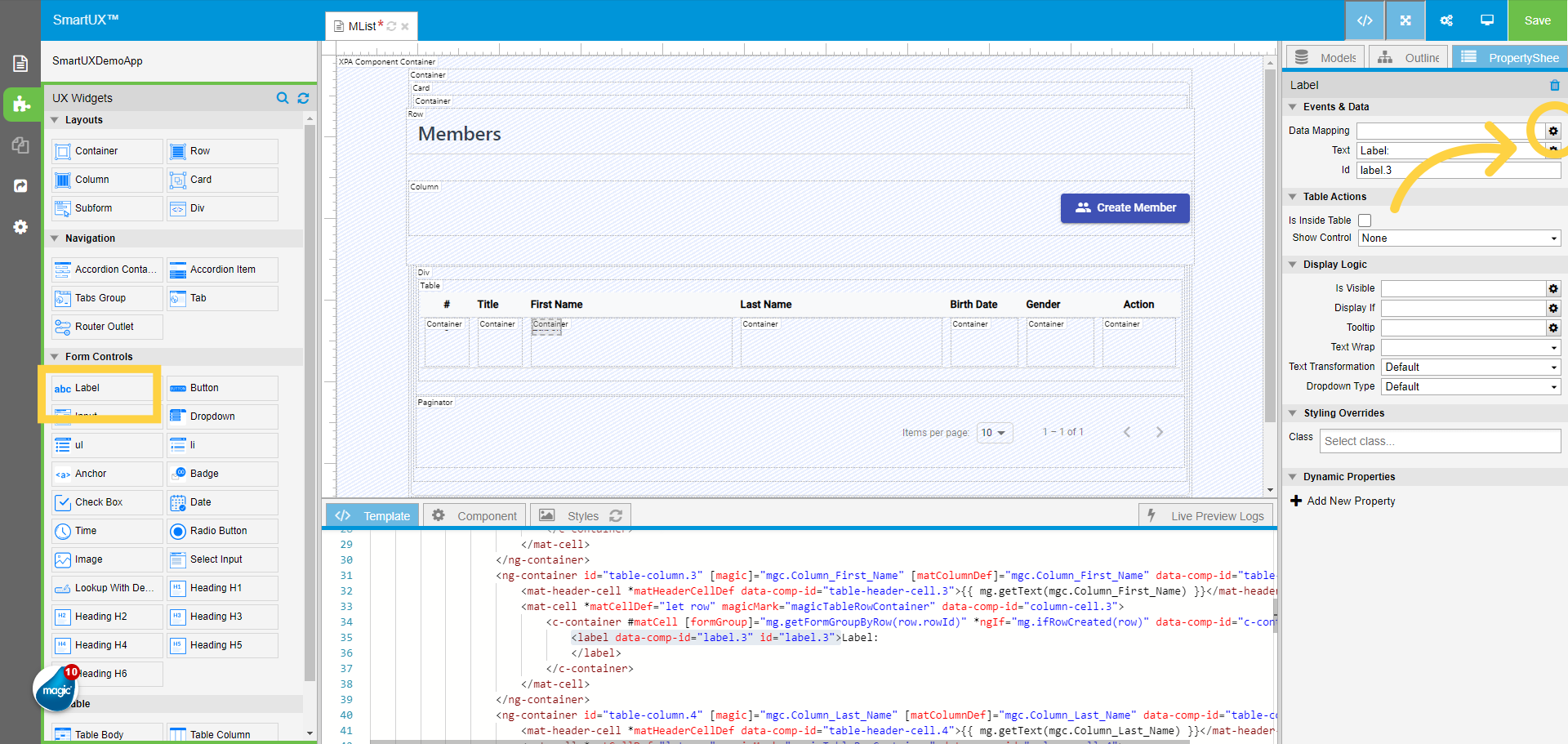
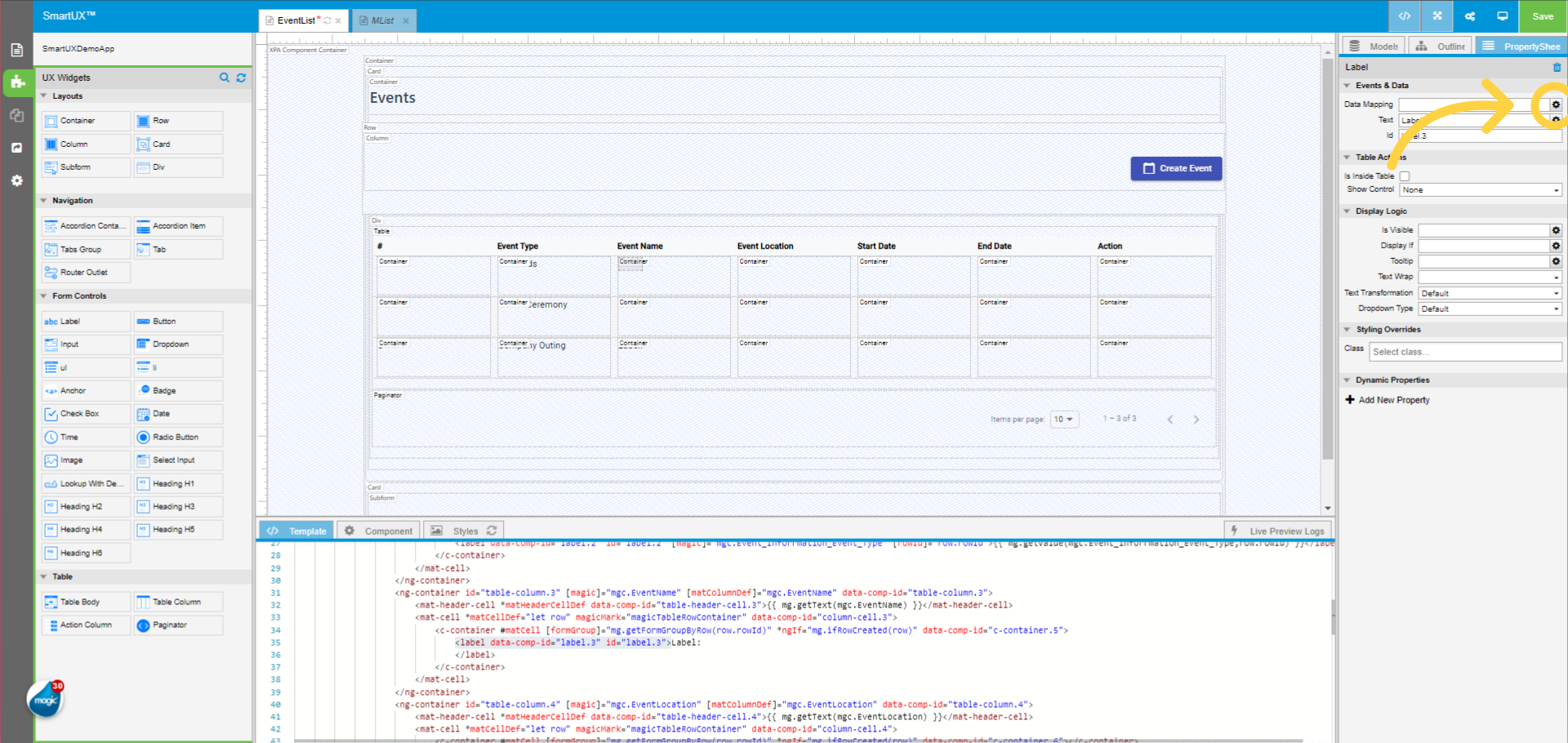
13. Mapping Rest of Widgets

Map the remaining Widgets.

14. Viewing Live Preview

Once all widgets are mapped, go to Live Preview.

15. Viewing Components in Action

You can see the component in action.

How Do I Preview the Runtime of an Angular Project?

Welcome to this guide on how to preview the Runtime of an Angular project. This guide will walk you through the steps to preview the Runtime of your Angular project. So let’s get started.

1. Letting ng serve Complete

Once you open a project in SmartUX Studio, ng serve might be still in progress. Let it complete.

Live Preview is available once ng serve is done.

2. Invoking Live Preview

Click on the Live Preview icon. This action will set Magic xpa Studio in Runtime mode with Edit mode enabled.

You can see the loader until SmartUX Studio prepares your application for Live preview.

3. Viewing Live Preview

In a short while, SmartUX Studio brings up Live Preview of the application as shown below.

Once a component is shown in Live Preview, the data about variables from the component is recorded as mockdata and the recording icon turns green.

4. Using Mockdata

You can use the recorded mockdata in Canvas to show the values on the UI elements.

The Live Preview is by default is shown in place of Canvas frame on the UI.

7. Viewing Live Preview in Full Screen

If you want to see the preview in full screen, you can open Live Preview in a new tab by clicking on the indicated icon.

This is how you can see your application in Live preview!

Application Templates and Widgets

In this guide, you will explore the relationship between Application Templates and Widgets.

1. Understanding a Widget

A Widget is an autogenerated block of HTML.

2. Properties

It contains a set of predefined properties. When you change the properties, the corresponding HTML block is modified.

3. Understanding Application Template

An application template also comes with layouts and/or placeholder content. If these structures are not known to SmartUX Studio in form of a Widget, then you will not be able to easily manipulate or update the templates as desired.

The skeleton of application templates combined with Widgets creates an ecosystem, which allows you to select an individual Widget from a Component and manipulate it as desired.

If you want to create a new Application Template then you need to create a list of compatible Widgets. 

SmartUX then recognizes Widgets and you can design Components seamlessly. 

Projects from Previous Versions

How do I migrate the project to support SmartUX v2.x


Welcome to our guide on migrating the project to SmartUX 2.x, if you already have the Magic xpa 4.11 version installed, this guide will walk you through the necessary steps to migrate the SmartUX application to the latest version which is version 2.x Follow the instructions below to ensure a smooth upgrade process.


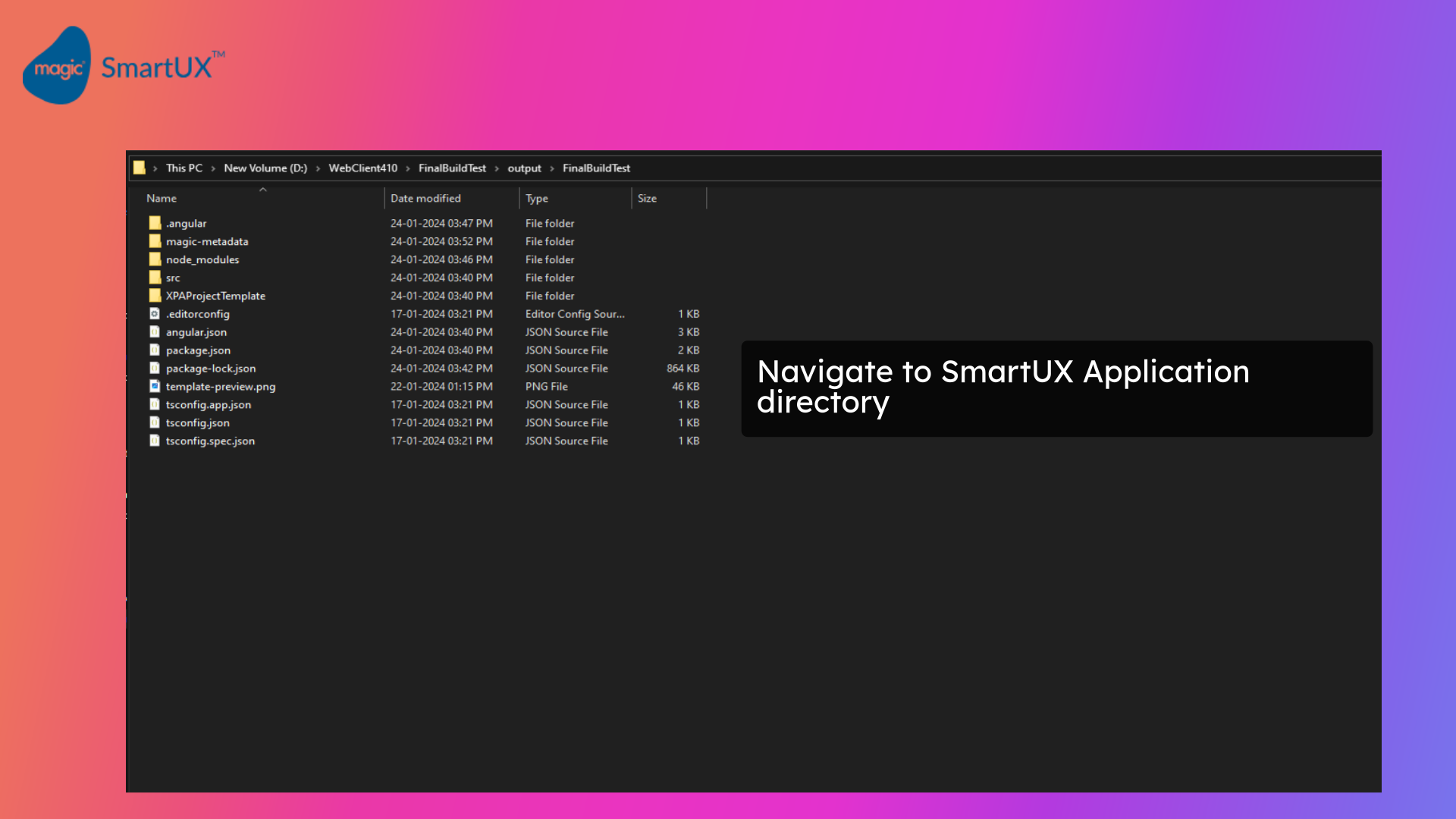
1. Navigate to the Application directory

Navigate to Application directory


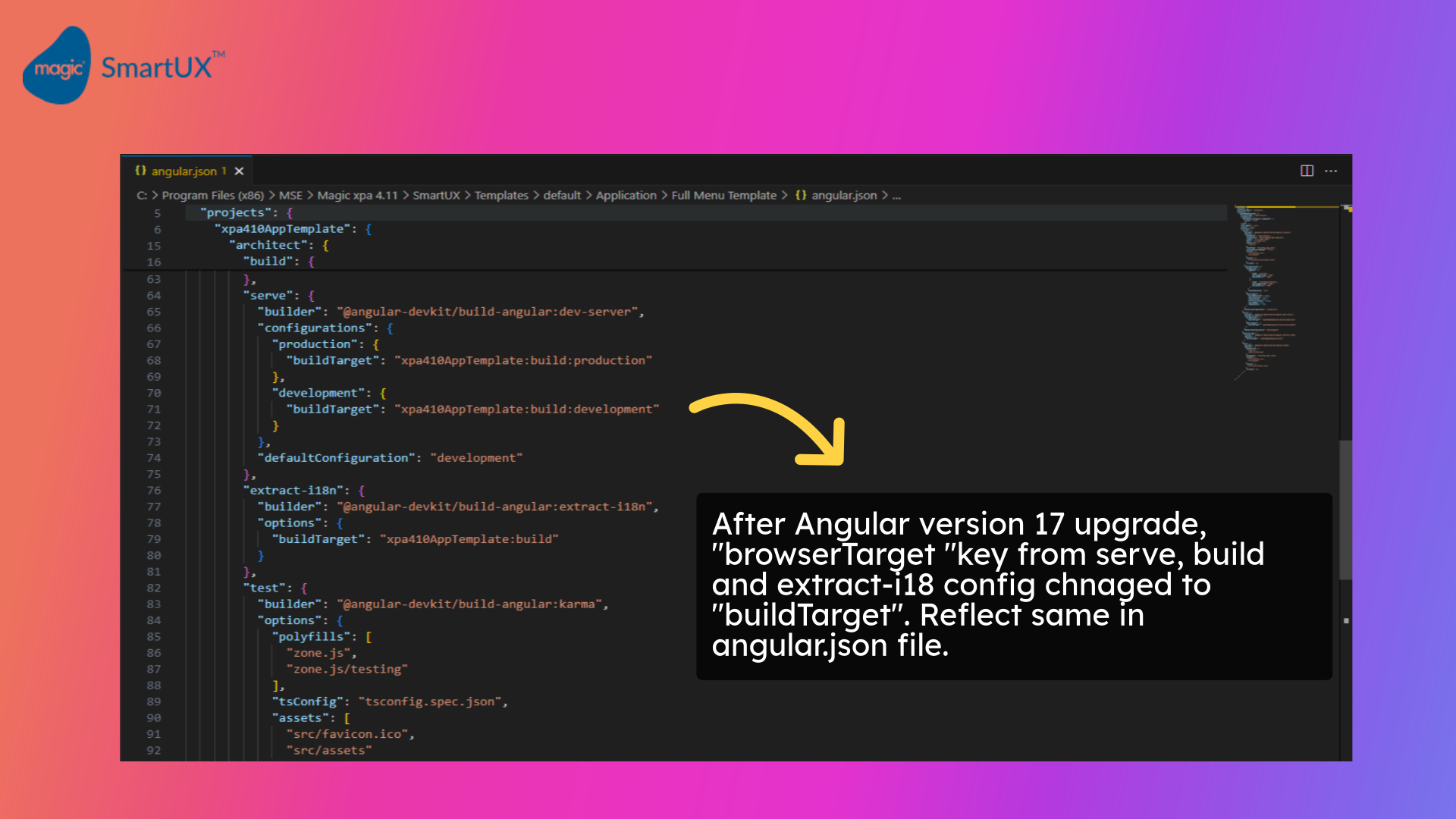
2. Updating Angular JSON

  • Now go to the angular.json file.
  • After the Angular version 17 update, changes are required in the angular.json file.
  • The “browser target” key from Serve, Build and extract-i18 config is changed to “build target”.
  • Need to reflect the same change in the angular JSON file.
  • You can refer to the below screen and perform changes to the angular JSON file accordingly.

Updating angular JSON


3. Updating package JSON for dependencies

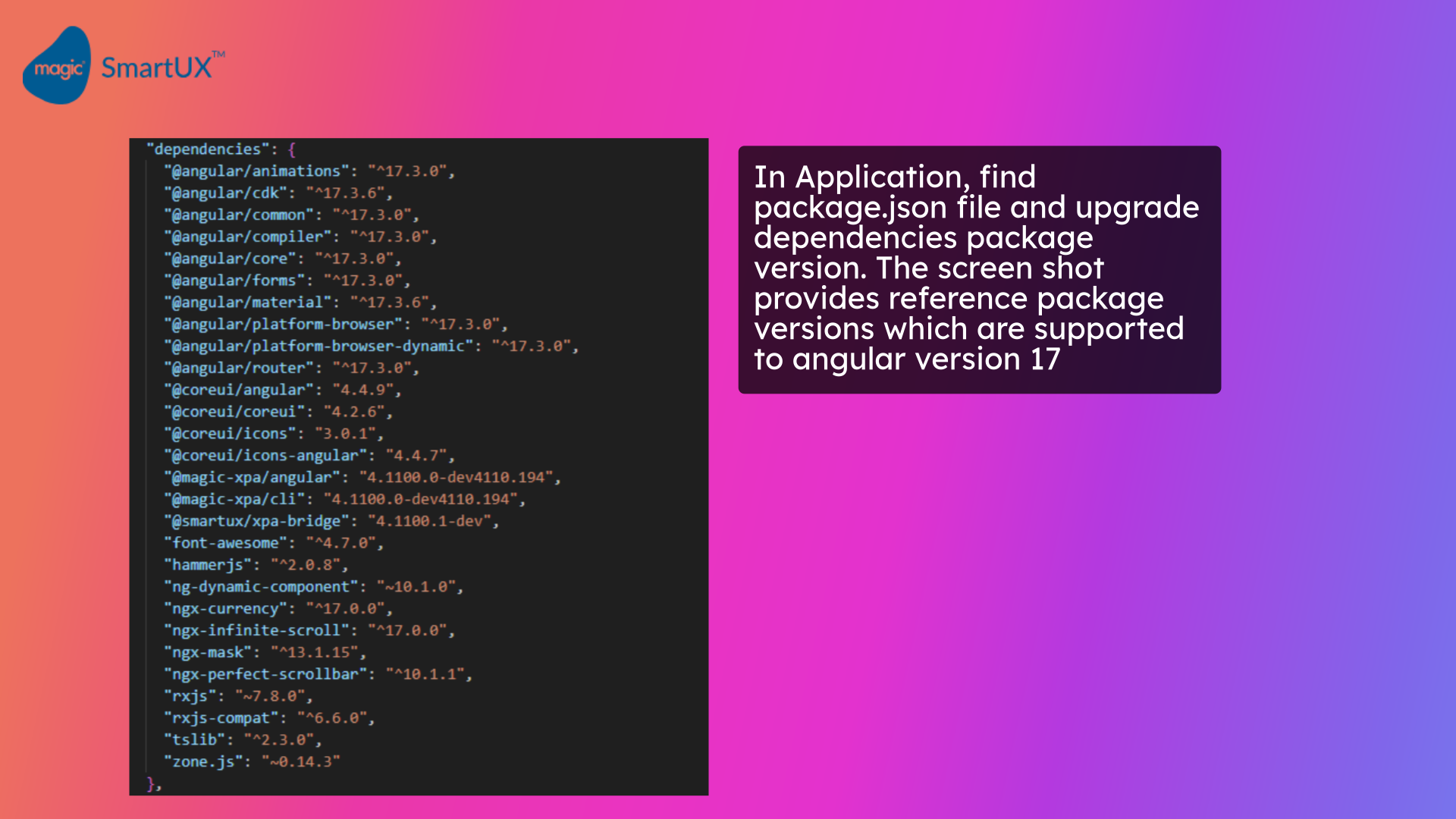
  • Now locate the package.json file.
  • Edit the package dependencies version from the package JSON file by referring to the presented screenshot.
  • This screenshot contains angular version 17 supported package versions which are for reference.
  • For Magic xpa 4.11 related packages please check the latest released version.
  • Make sure you check and update all package versions so you won’t get any errors later.
  • If you have any package which does not support the angular version 17 you may need to upgrade the version accordingly.

Updating package JSON for dependencies


4. Updating package JSON for dev-dependencies

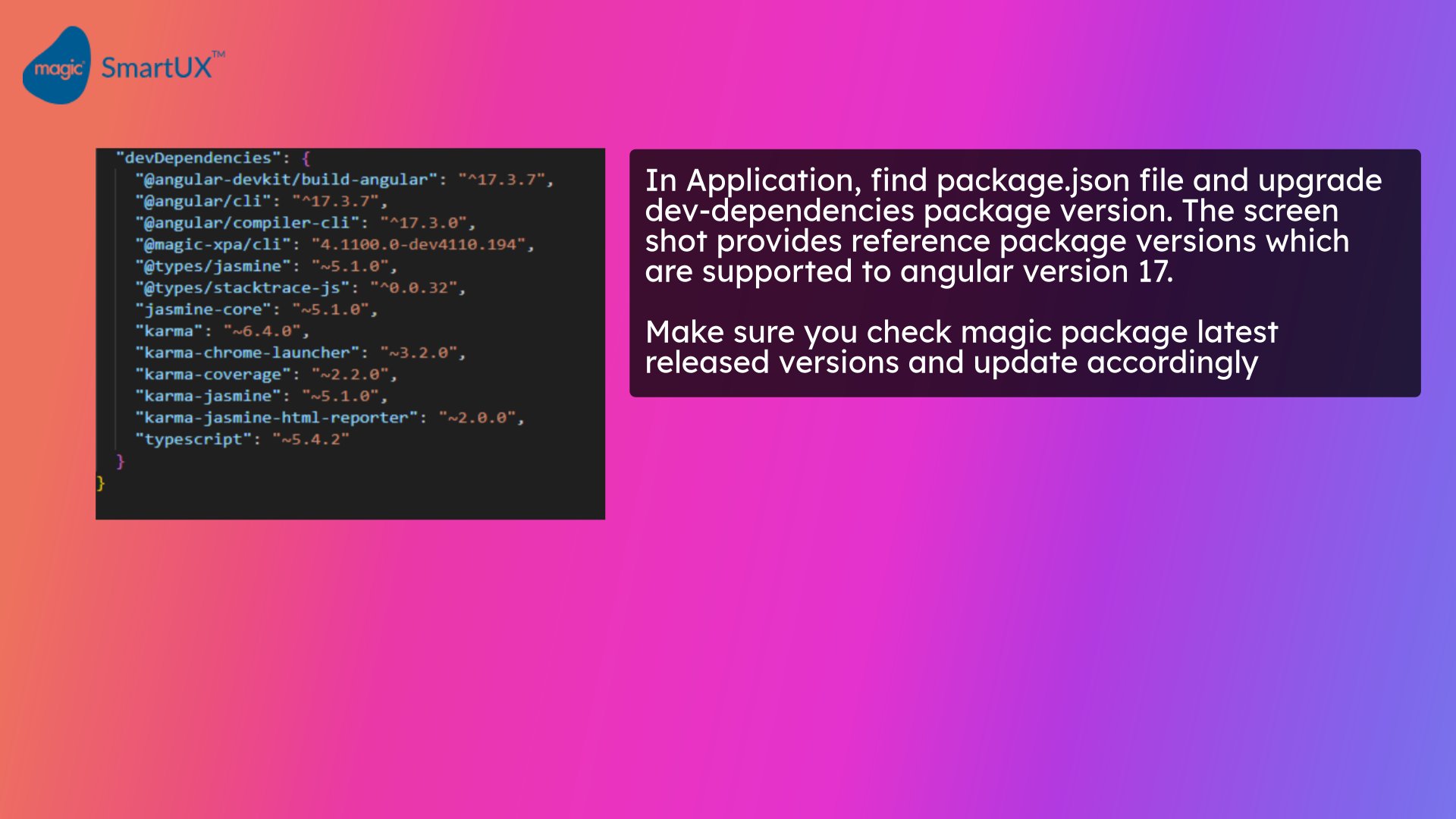
  • Also, update the dev-dependencies package version with compatibility to angular version 17.
  • You can refer to the screenshot for your reference.
  • Make sure you check the Magic package’s latest released versions and update accordingly.
  • This is important to support your application in the SmartUX 2.x version.
  • Once you are done with the step now delete old node modules and package lock JSON file and run npm install.
  • This will install the latest angular node modules.

Updating package JSON for dev-dependencies


5. Update the app module and magic.gen.lib.module.ts

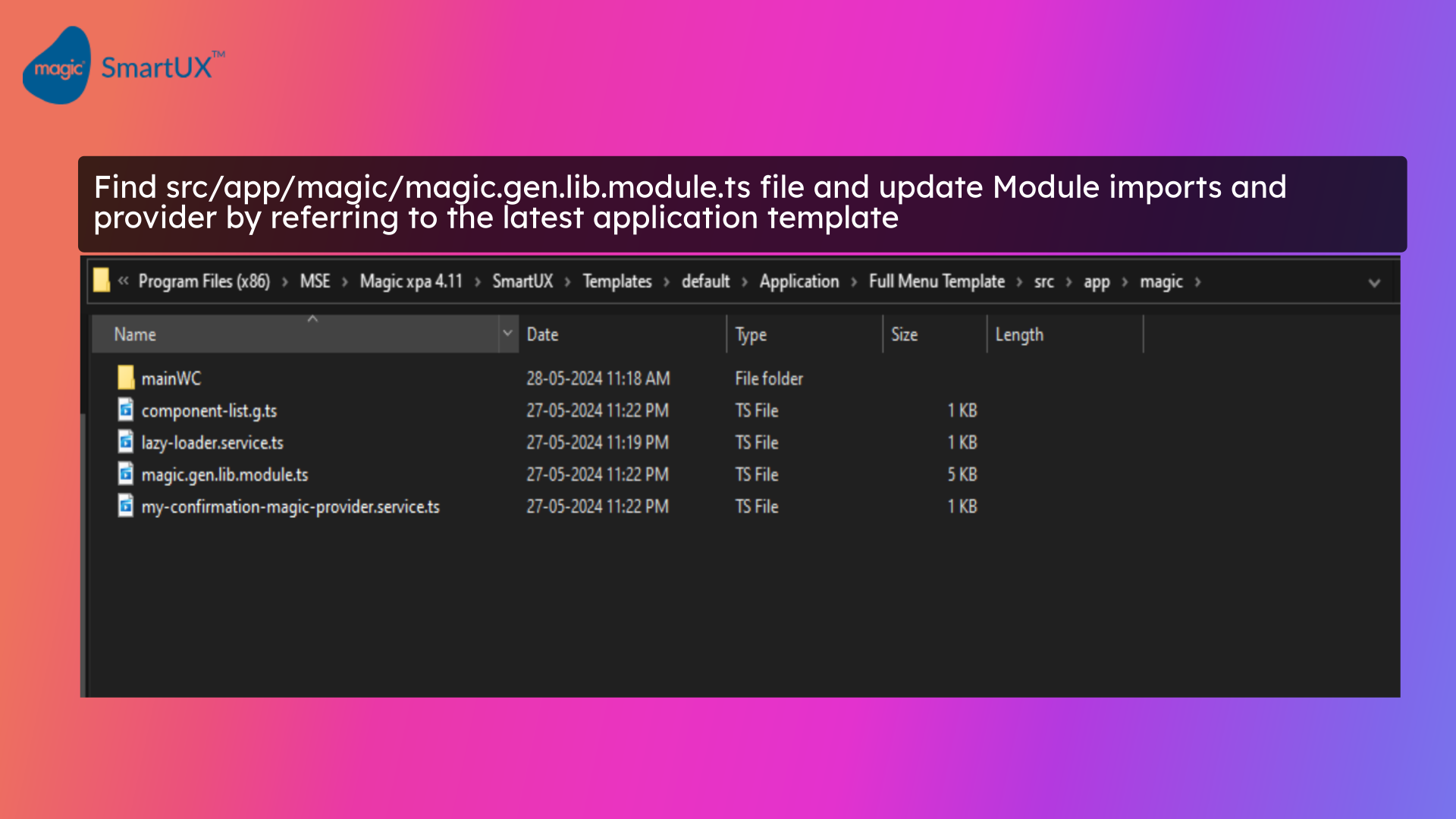
  • After the npm install is completed, now go to the magic.gen.lib.module.ts file.
  • Here we need to update a few things that are needed to support the latest package version of “ngx-currency” code changes.
  • In case of any error, you can also refer latest xpa web client-generated application to confirm the changes.

Update app module and magic.gen.lib.module.ts


6. Module and provider changes for the magic.gen.lib.module.ts

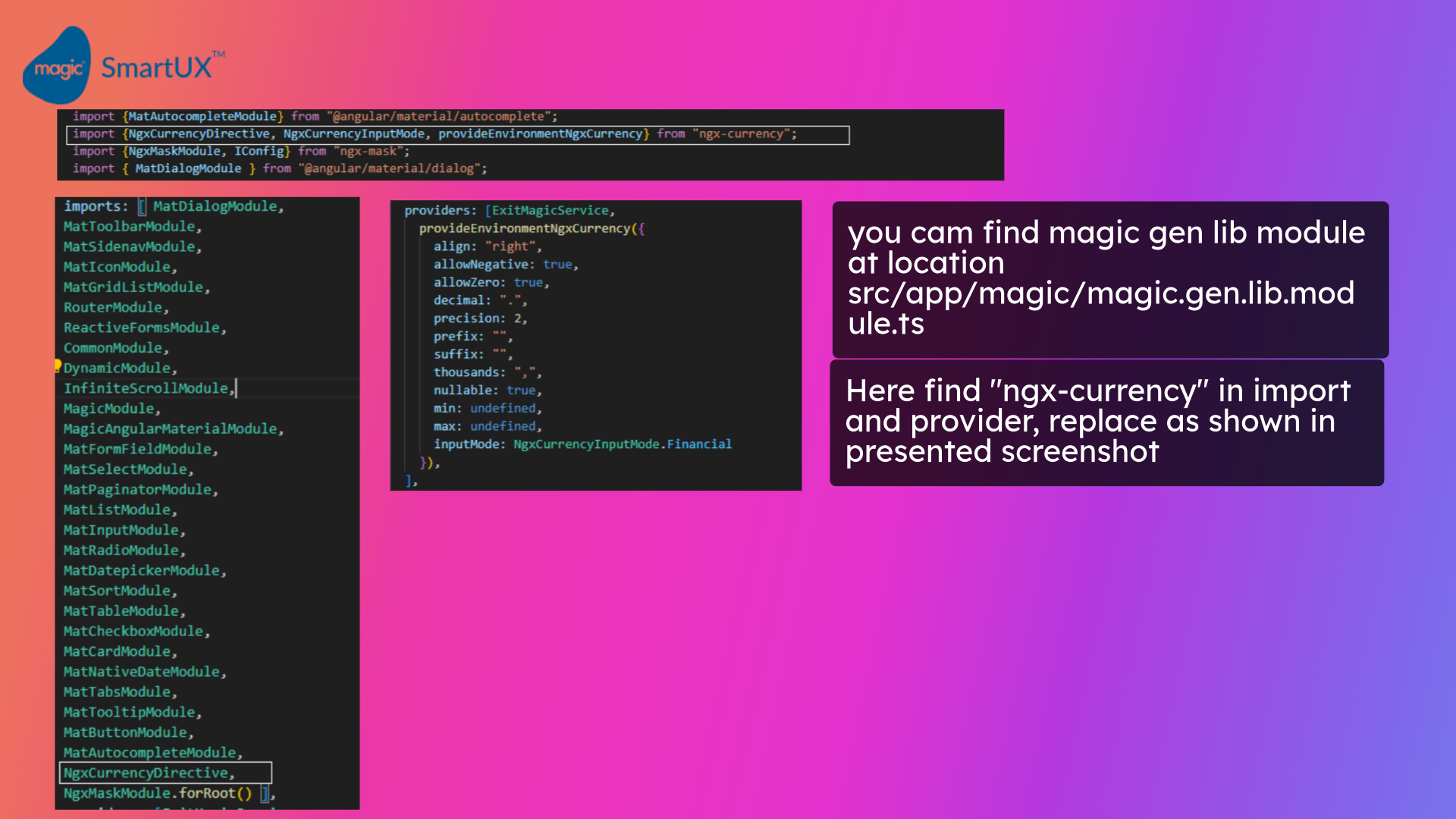
  • In the Magic Gen Lib module file, first, find the Ngx Currency Module imports and remove them from the module imports array and its import declarations.
  • Also, check for Currency Mask config and remove its declaration and module providers.
  • Once you have removed the code, now import Ngx Currency Directive and its new provider environment ngx currency.
  • This change is needed to support the new version update implementation of “ngx-currency” package.
  • In case of any error refer latest application generated from the Magic xpa web client check the magic.gen.lib.module.ts file and confirm the changes.

Module and provider changes for magic gen lib module


7. Magic gen lib module changes

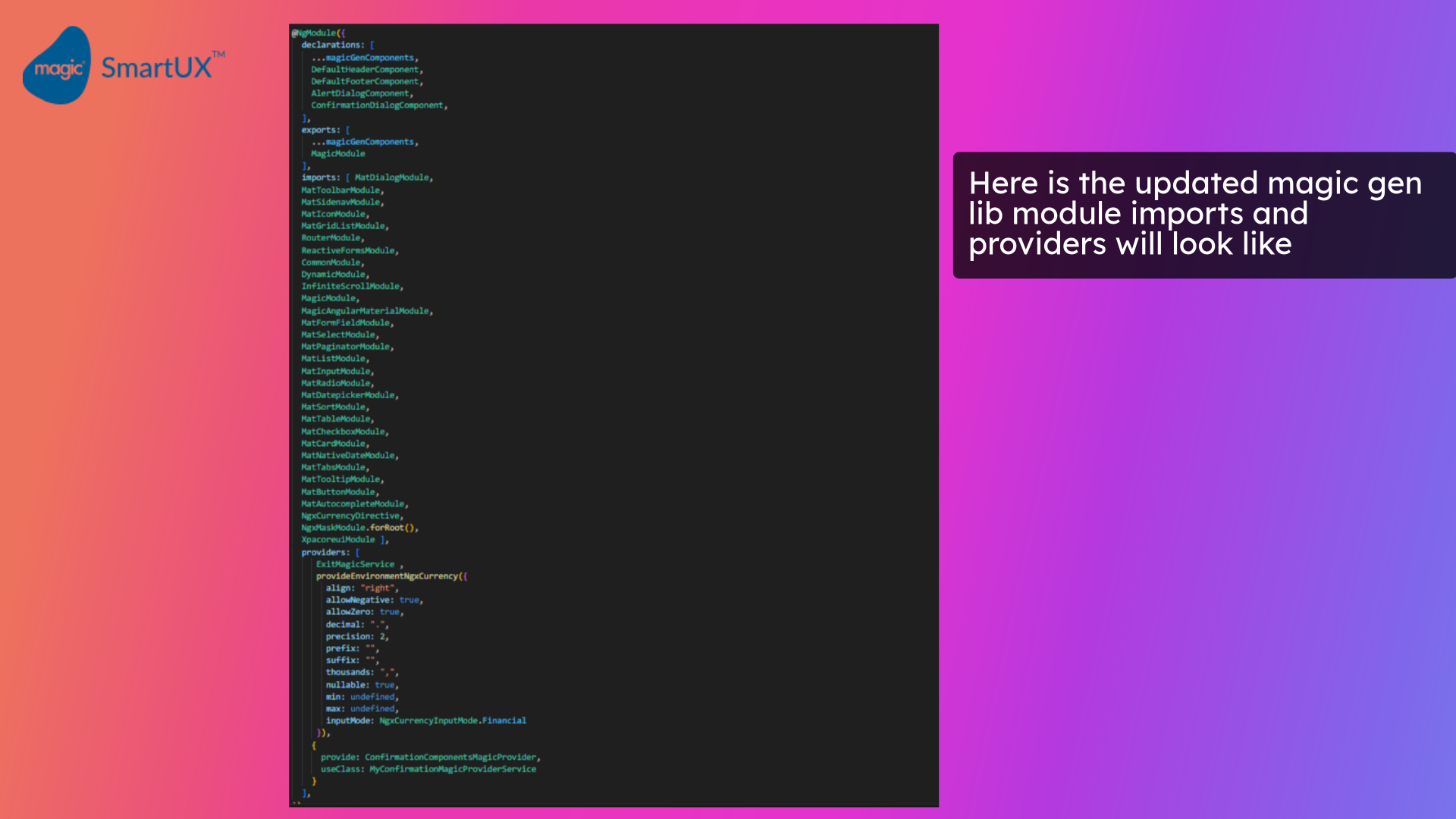
  • Here’s the updated magic gen lib module imports and providers array will look like.

Magic gen lib module changes


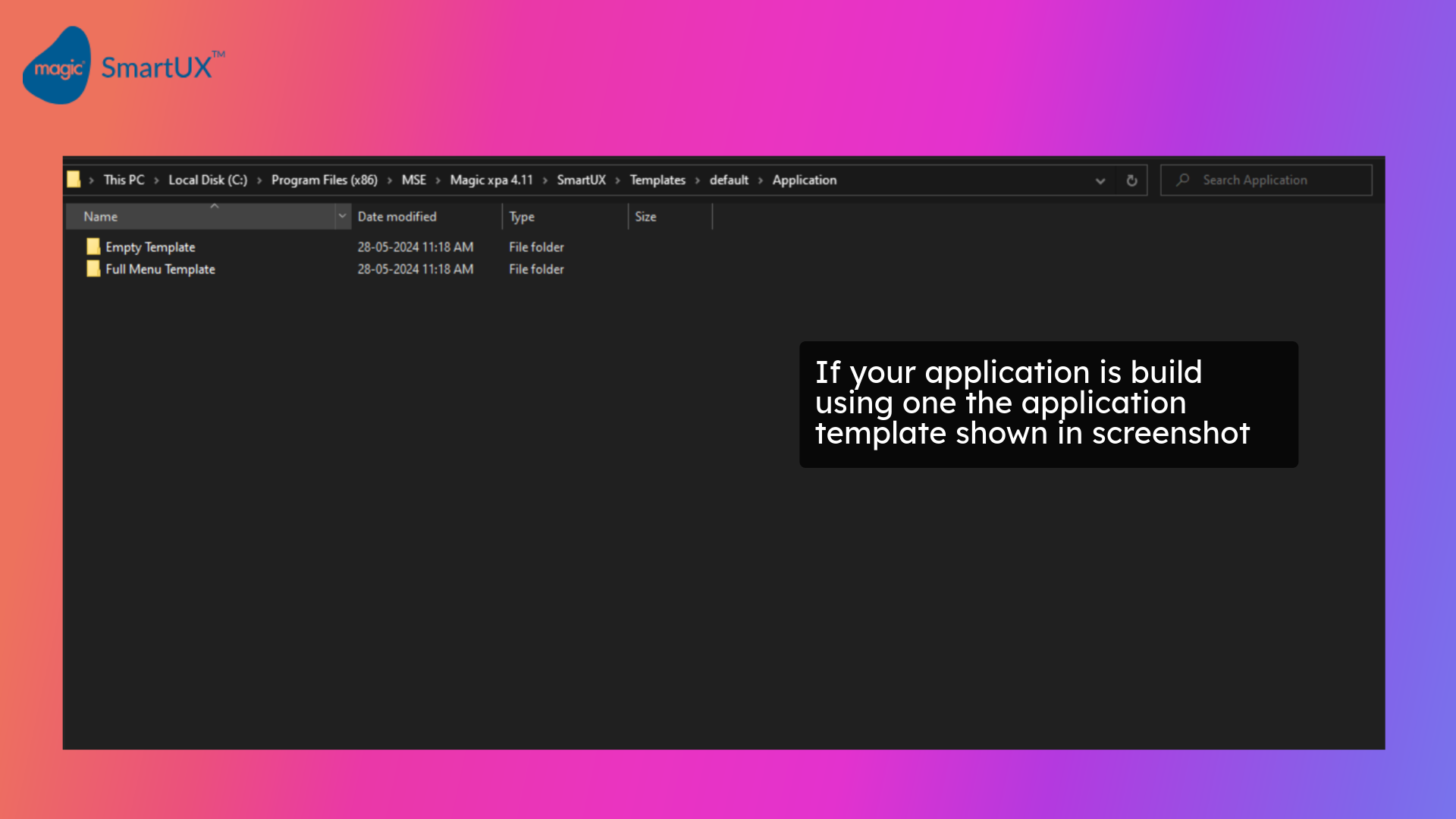
8. If your application is built using one of the application templates shown in the screenshot

  • If your application is built using one of the application templates provided by SmartUX.
  • You also need to perform a few steps. If not feel free to skip the steps

If your application is build using one the application template shown in screenshot


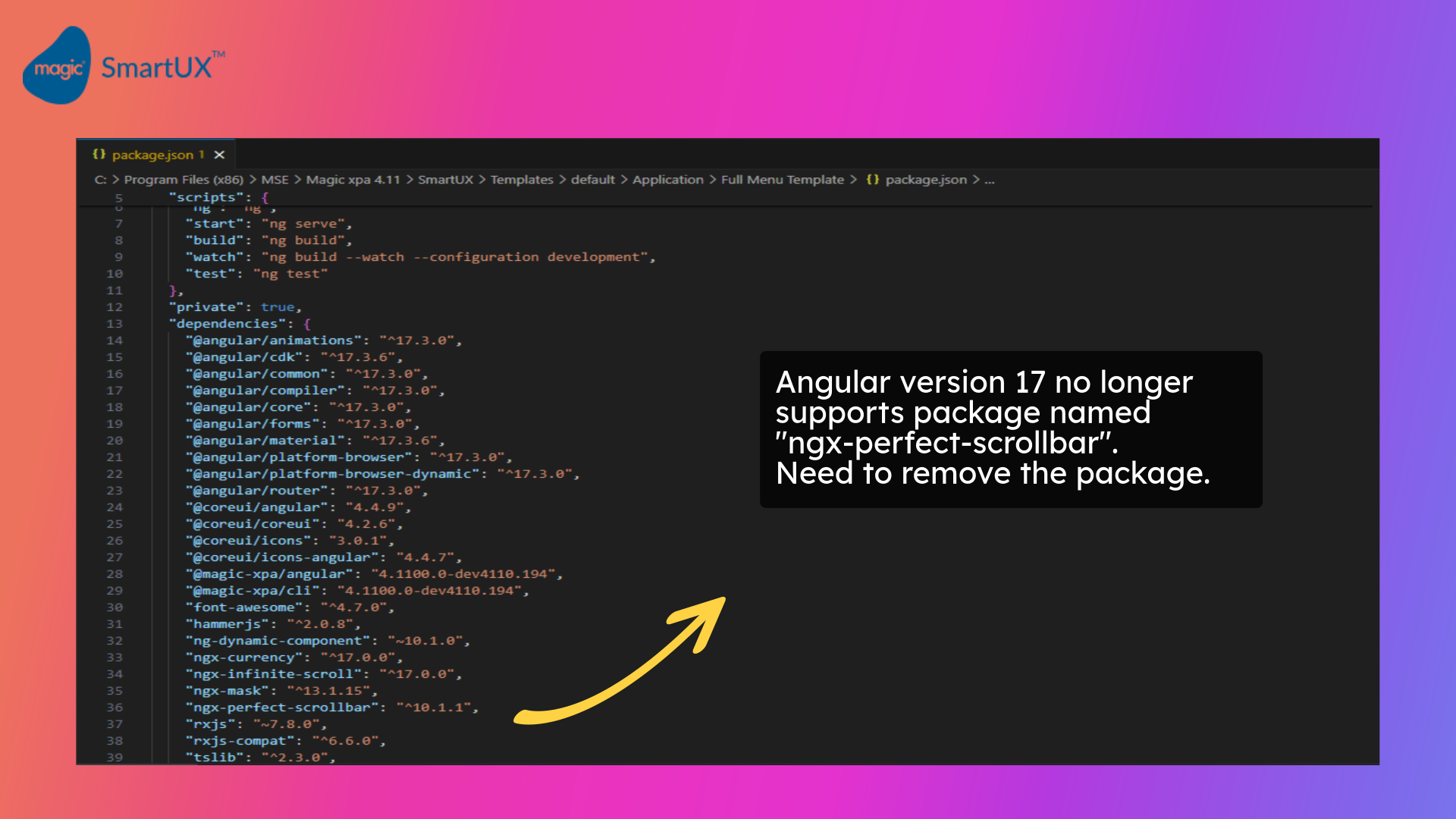
9. Updating package JSON – 2

  • After the angular version update to 17, The package “ngx-perfect-scrollbar” is no longer supported.
  • Also, the package author no longer supports the package.
  • So need to remove this package from the package JSON file.
  • As a replacement to the package now we are using the CoreUI scrollbar.
  • Once you are done with the step now delete old node modules and package lock JSON file and run npm install.
  • This will install the latest angular node modules.

Updating package JSON - 2


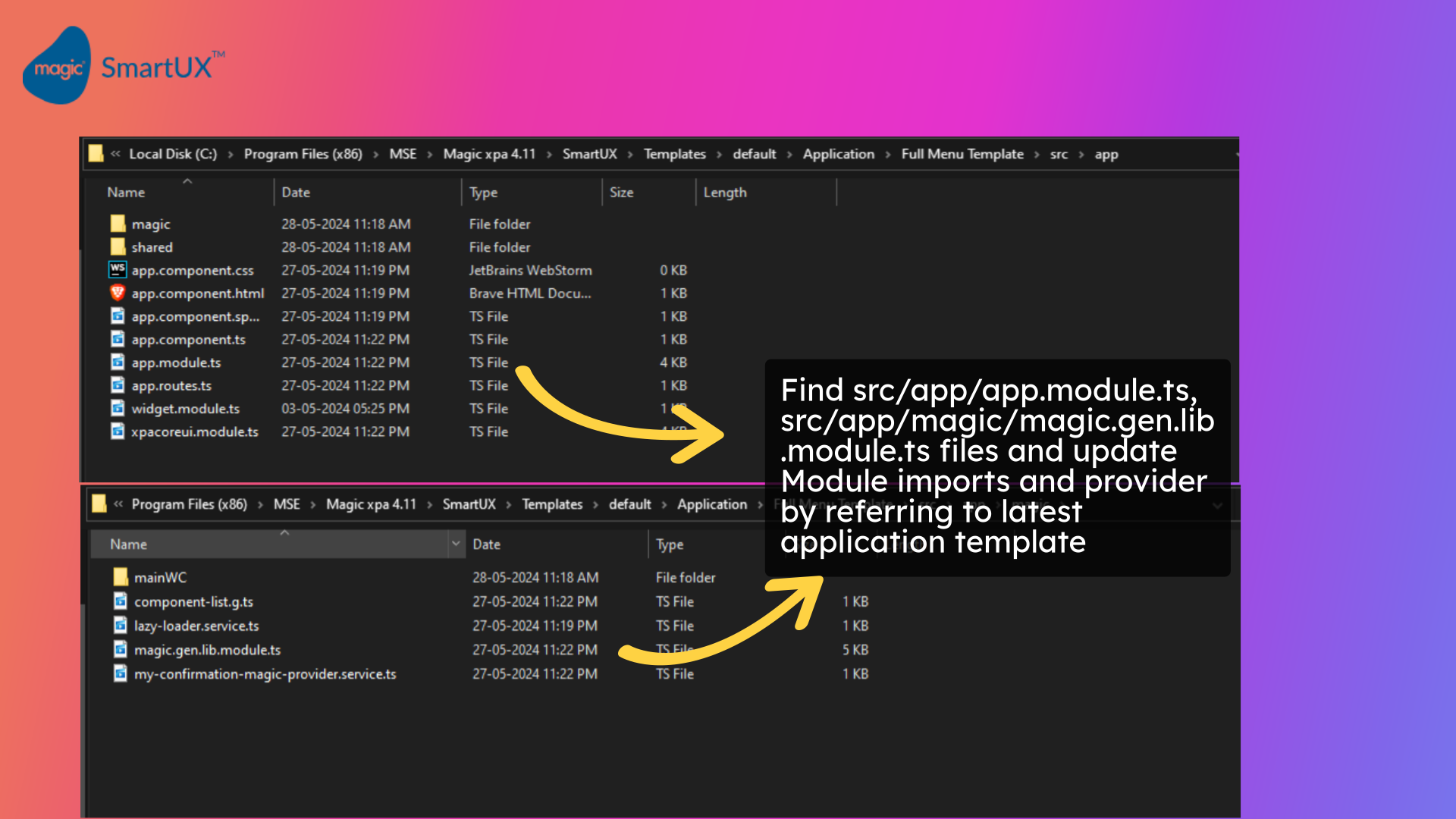
10. Update the app module and magic gen lib module

  • After the npm install is completed, now go to the app module and magic gen lib module files.
  • Here we need to update a few things that are needed to support the removed package “ngx-perfect-scrollbar” code changes.
  • You can also refer latest angular full menu template module files to update the module import and provider changes.

Update app module and magic gen lib module


11. Module and provider changes for the app module

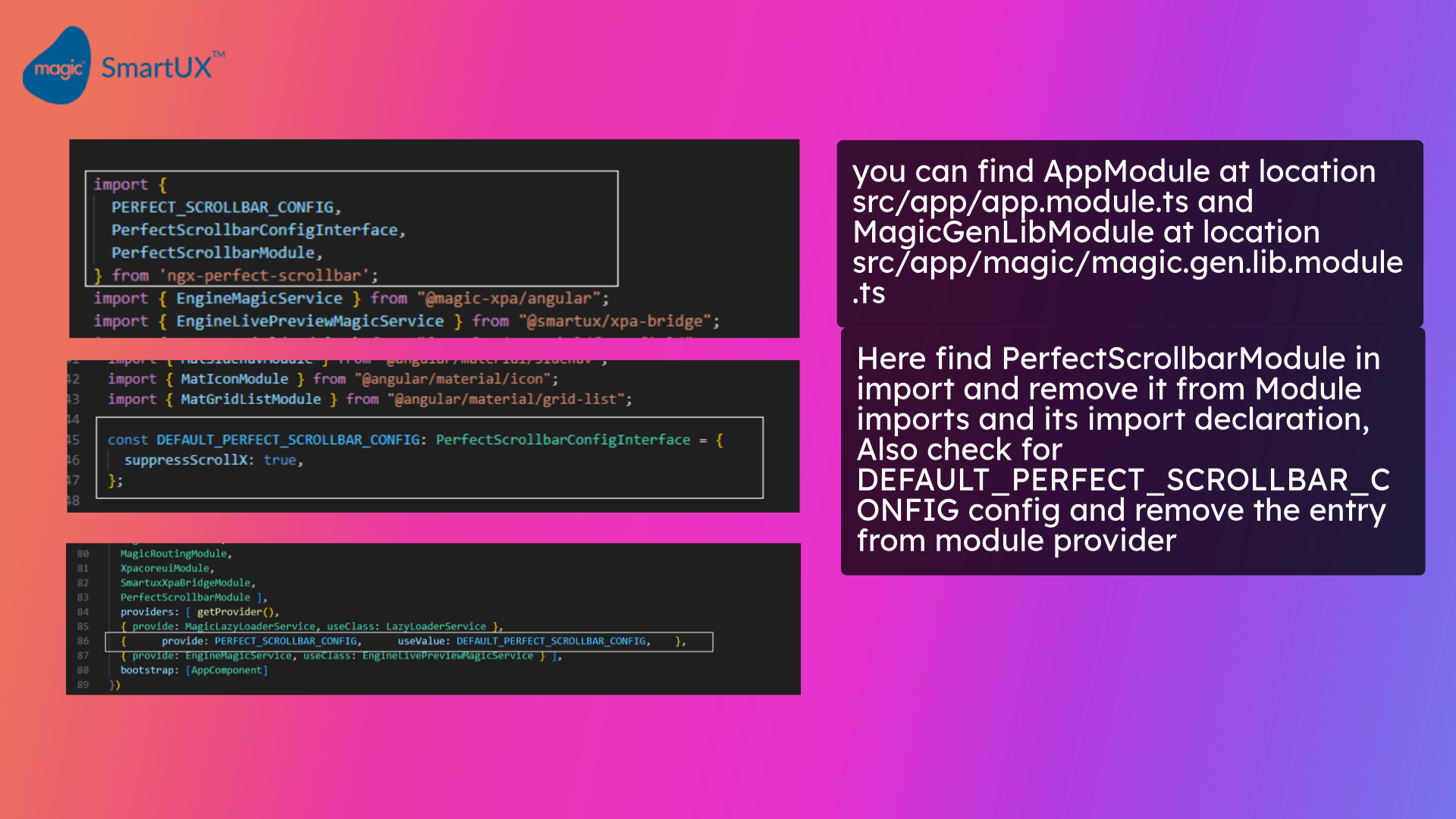
  • In the app module and magic.gen.lib.module.ts files, first, find the Perfect Scrollbar Module import and remove it from the module imports array and import declaration.
  • Also, check for the default perfect scrollbar config and remove its declaration and module provider.
  • This change is needed to support “ngx-perfect-scrollbar” package removal.
  • In case of any error refer latest application template app module file and confirm the changes.

Module and provider changes for app module


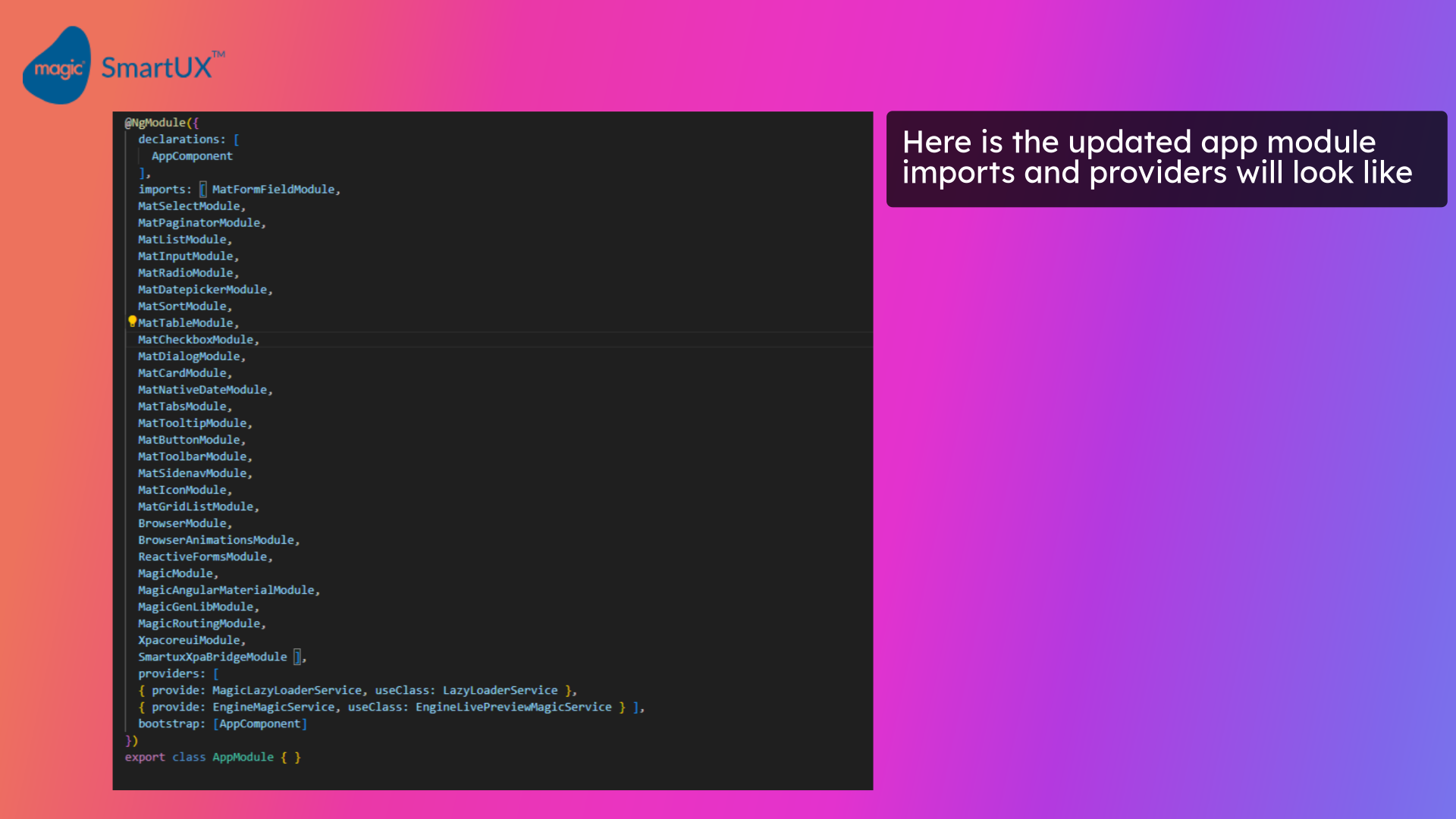
12. App module after changes

  • Here’s the updated app module imports and providers array will look like.

App module after changes


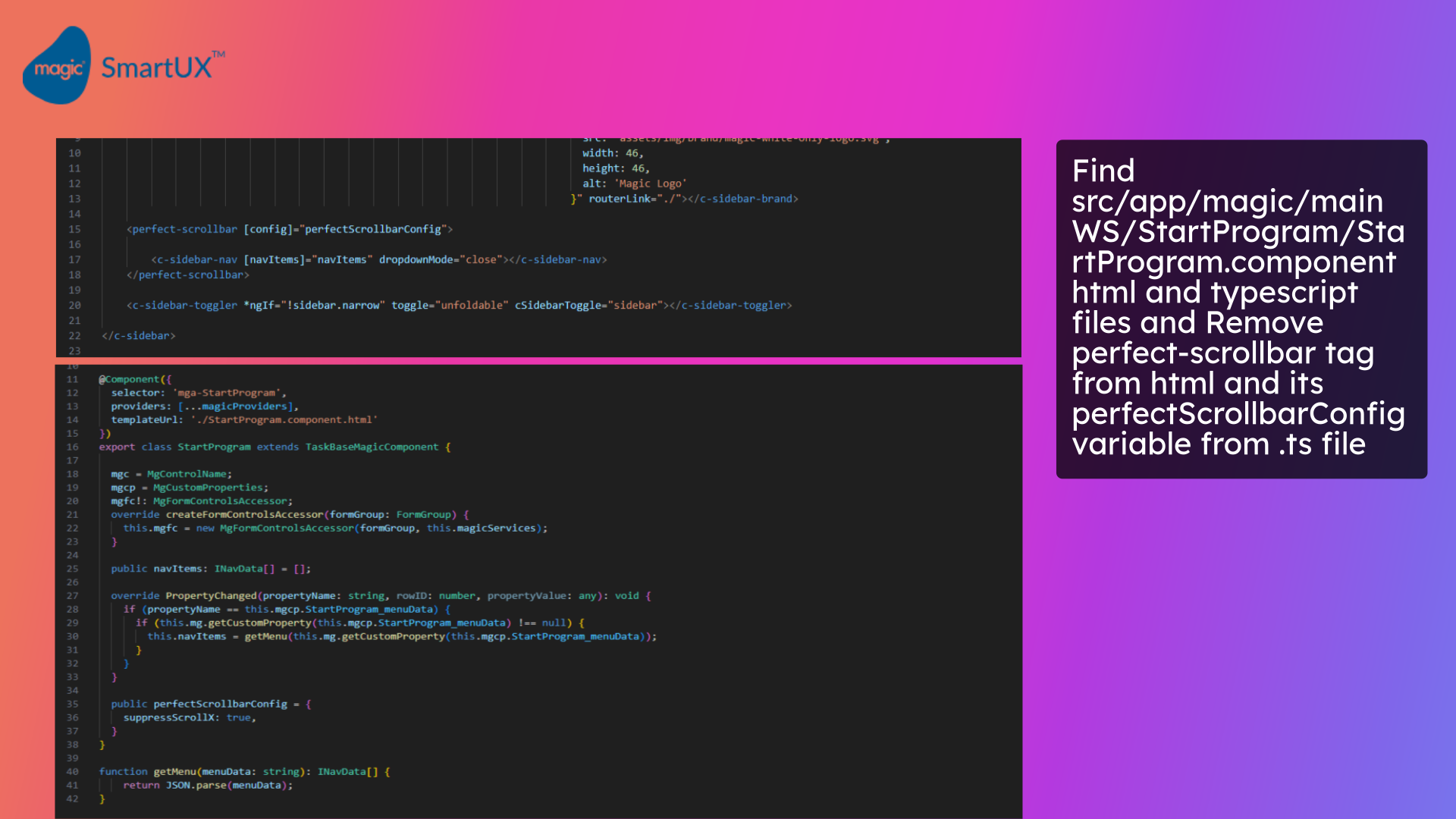
13. Updating StartProgram component

  • Now find the Start Program component HTML and Typescript files.
  • Remove the perfect-scrollbar HTML tag and the Perfect Scrollbar config variable to support the package Perfect Scrollbar removal.

Updating StartProgram component


Once you are all done with the upgrade, you are good to go. You are now ready to use the SmartUX application with the version of SmartUX 2.x with Magic XPA 4.11

How Do I Open an Existing Angular Project in SmartUX Studio?


Welcome to the guide on opening an existing Angular project in SmartUX Studio. Follow these instructions to easily access your project and start working on it.

Say, you already have an existing Angular project that was generated in Magic xpa Studio 4.9x.

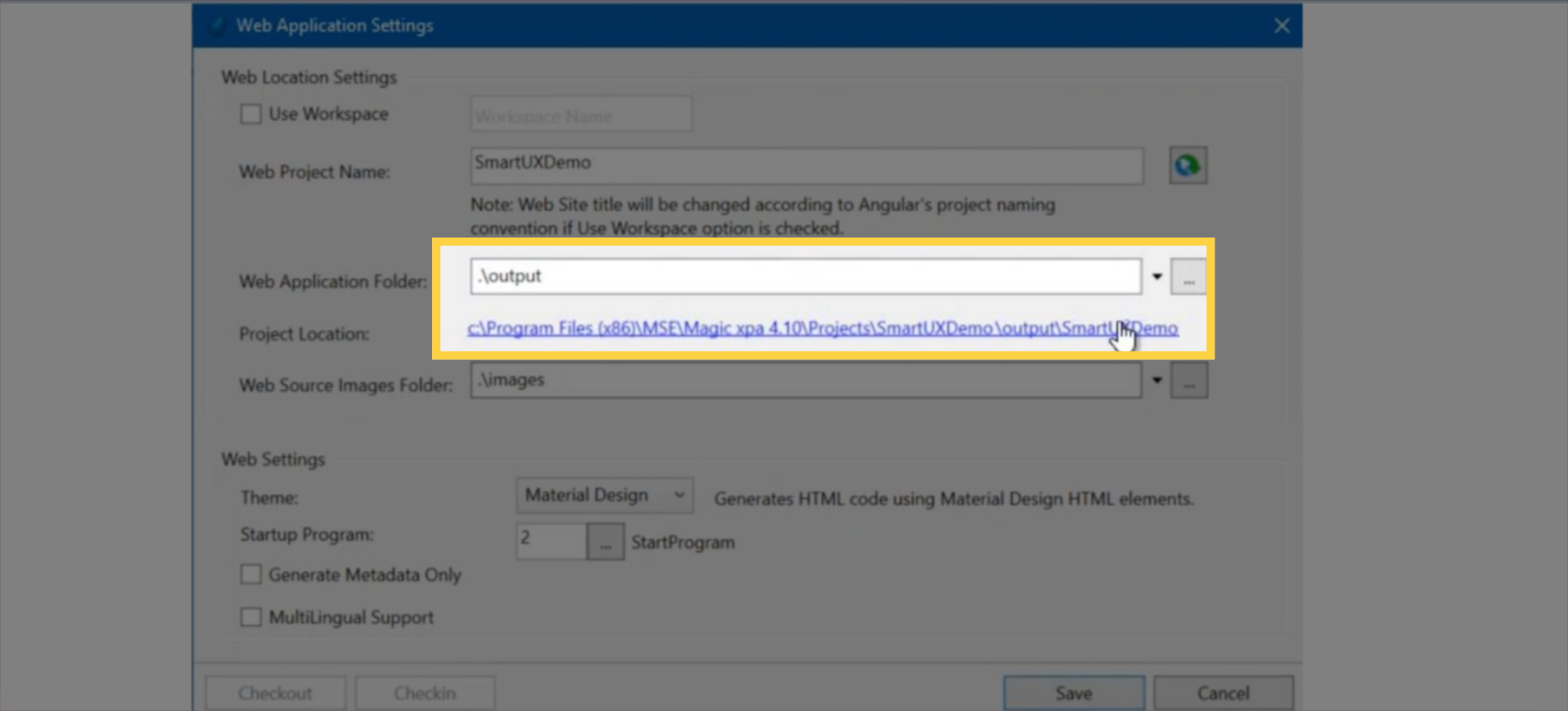
The project was created at the following Project Location:

1. Ensuring Project Dependencies are Compatibile

In order to open the project in Magic xpa 4.10, please make sure that the dependencies of the Angular project are compatible with Magic xpa 4.10 as following:

Once project is ready please open the project in Magic XPA Studio 4.10

2. Opening Project in SmartUX Studio

From Magic xpa studio, Click on Open in SmartUX Studio icon.

A new browser window will open. In a while, SmartUX Studio opens the existing Angular project as shown.

Note that this time SmartUX Studio did not offer to choose a template.

After some time the ng serve operation is complete and Live Preview is available.

3. Viewing Live Preview

Click on Live Preview.

You can see the Live Preview of the application as shown below.

How Do I Know the Functionality of the Designer?

SmartUX Designer offers various capabilities for designing attractive web client applications. This video explores different features provided by SmartUX Studio.

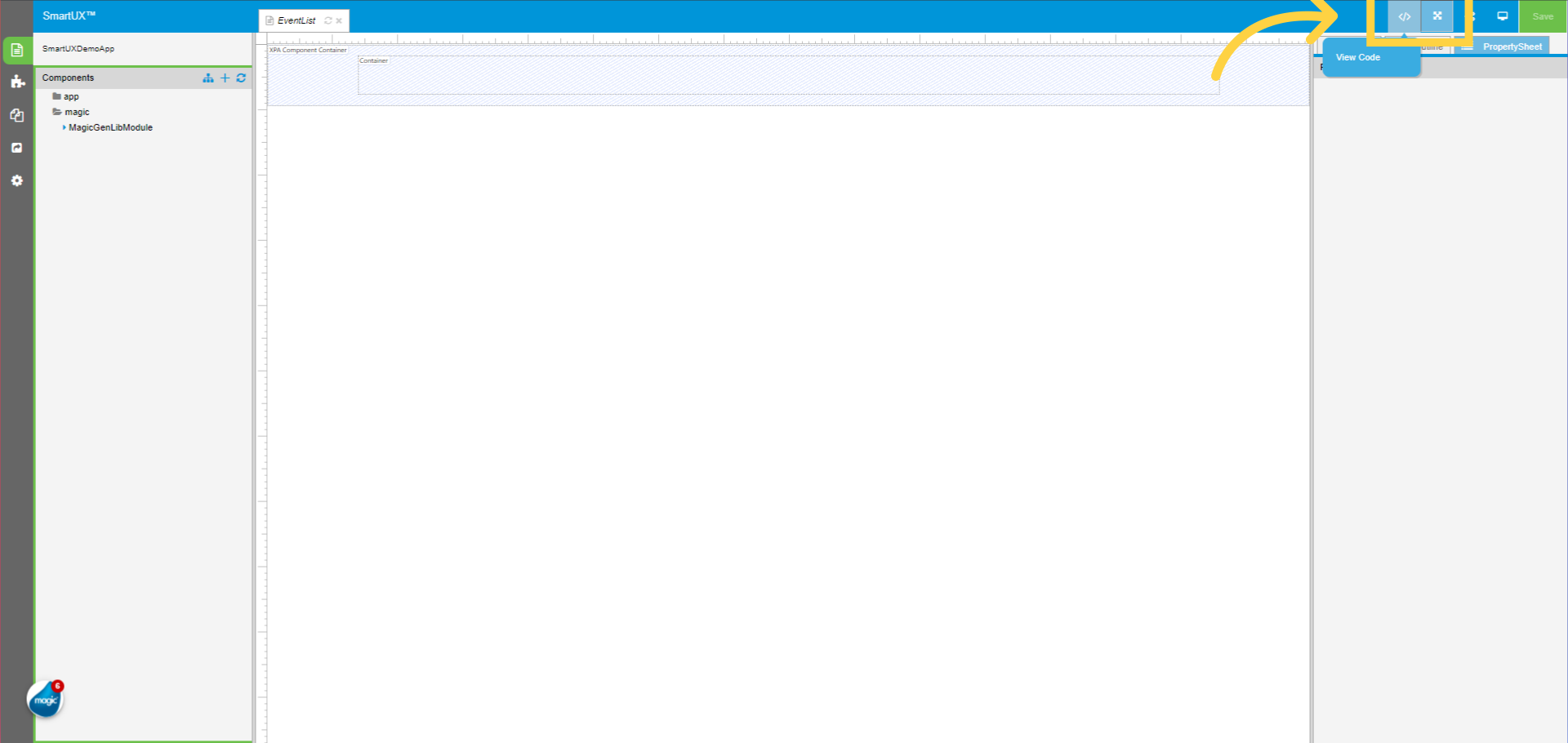
1. Viewing the code with View Code

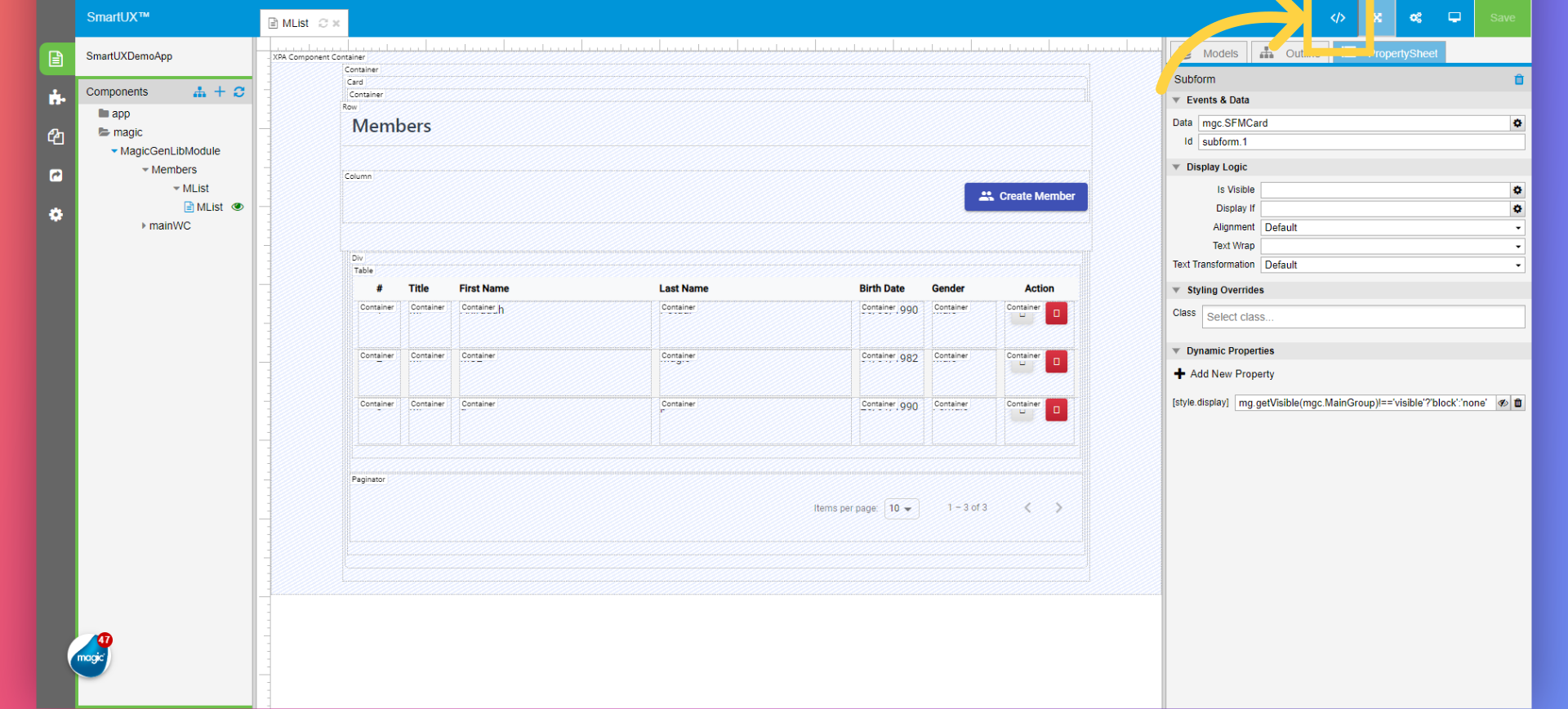
The View Code feature on the top-right corner in SmartUX Designer tool serves as a template or HTML editor, enabling users to create and edit HTML code seamlessly. It also provides a user-friendly interface with syntax highlighting, code completion, and error checking.

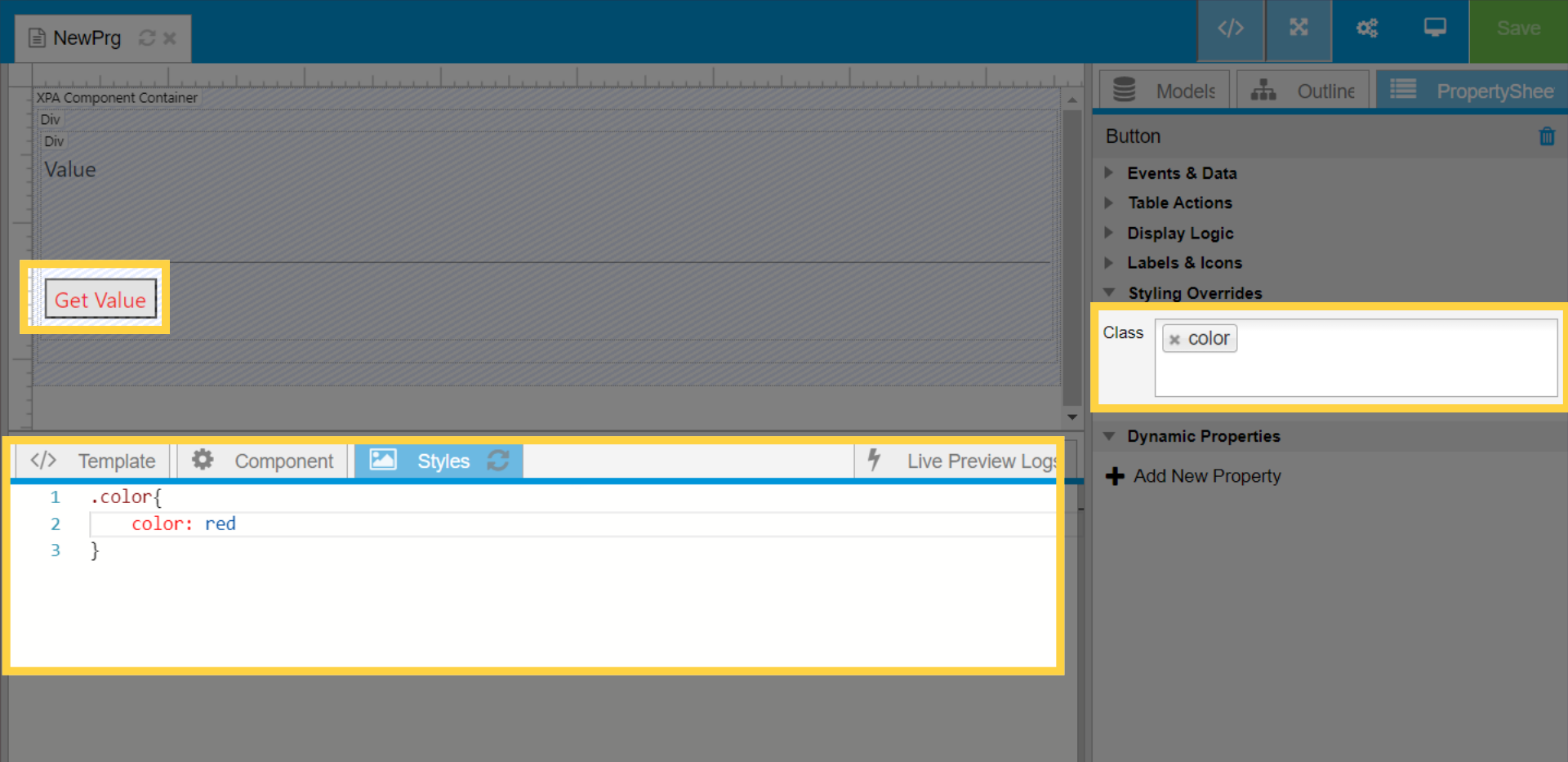
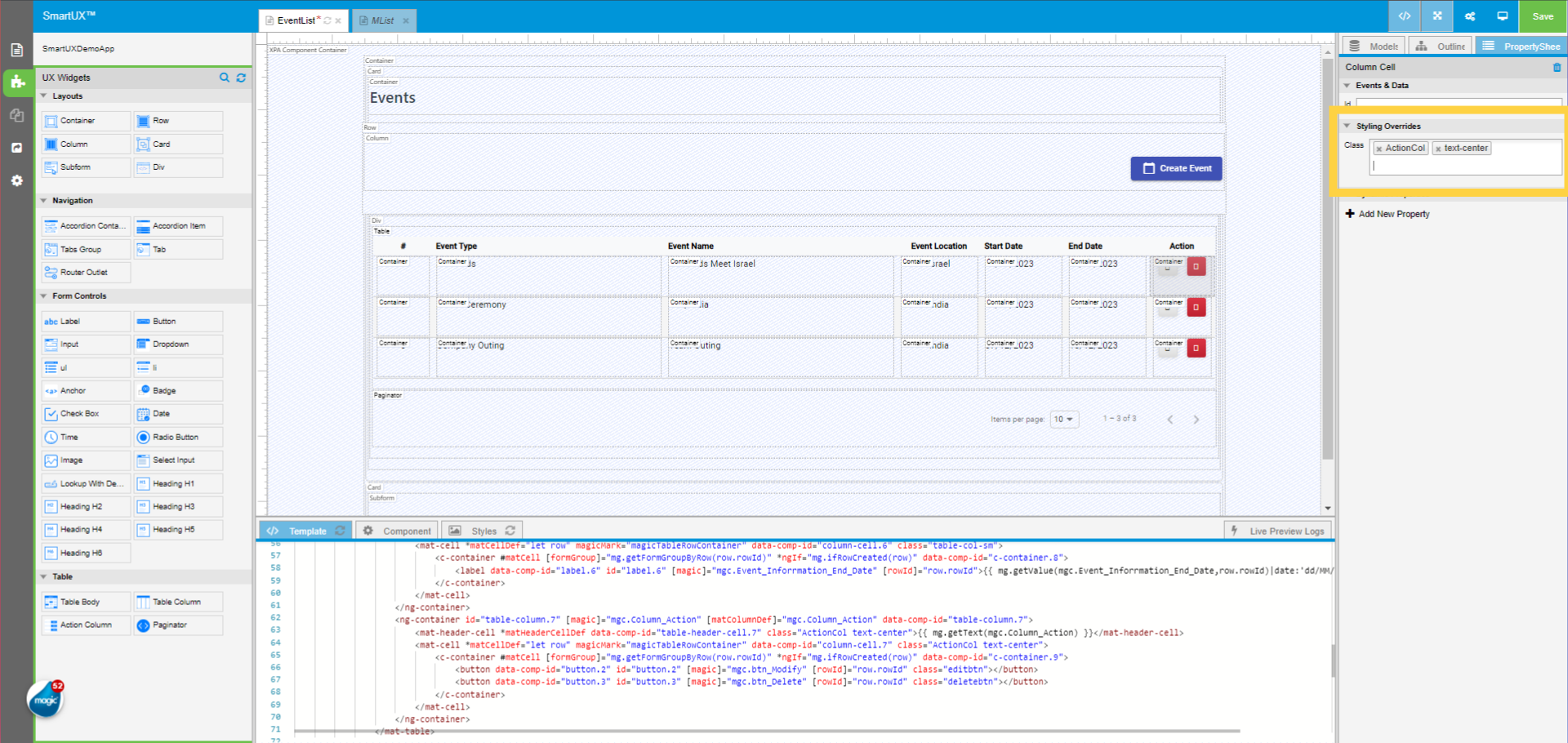
2. Customizing Widget Appearance with Styles Tab

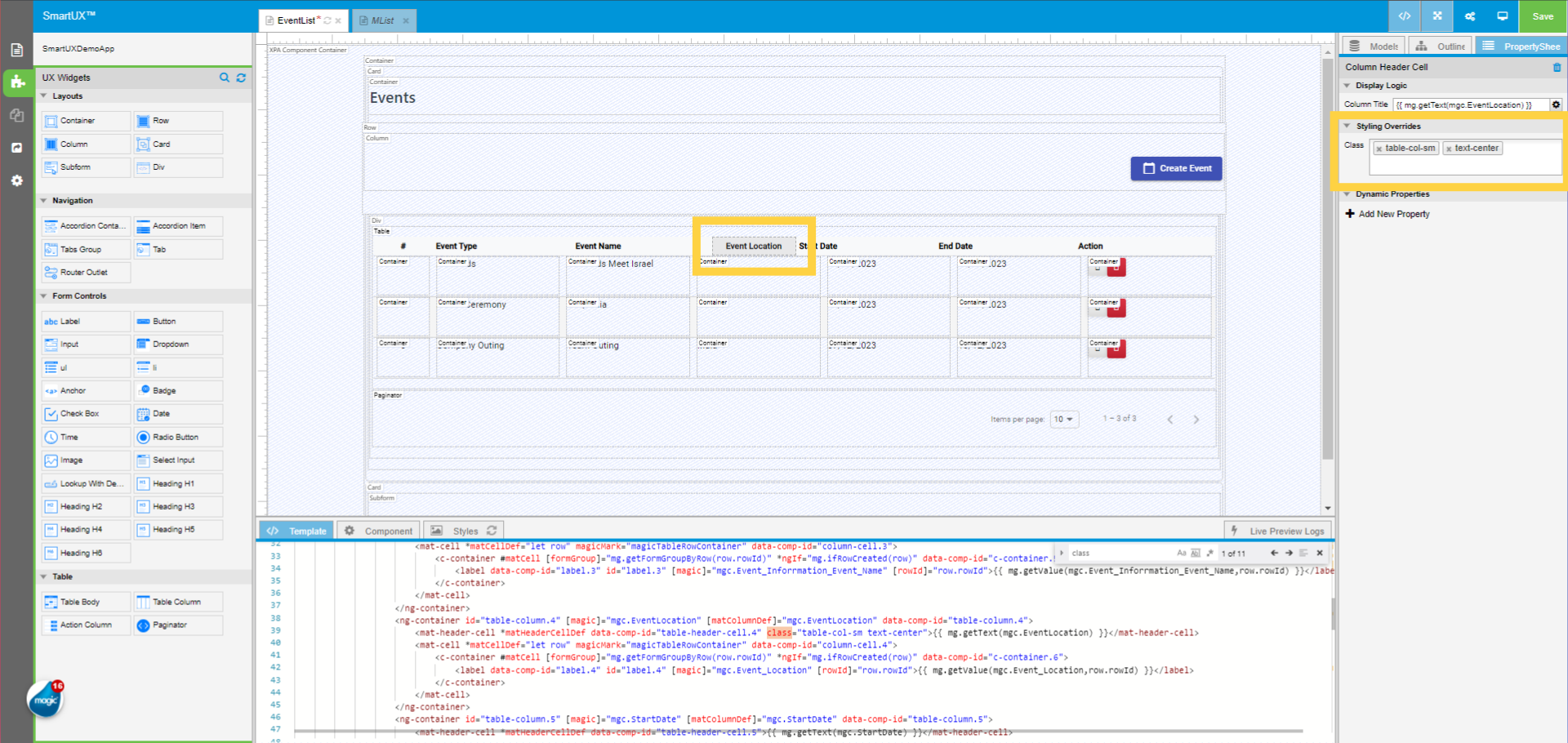
The Styles tab at the bottom pane provides a way to apply CSS to customize the appearance of widgets in your web application. This feature is useful for managing and implementing visual design elements such as colors, fonts, margins, and other styling attributes efficiently. The Intellisense further enhances the centralized approach, simplifies the styling process, and ensures an appealing look of the Component consistently within the application.

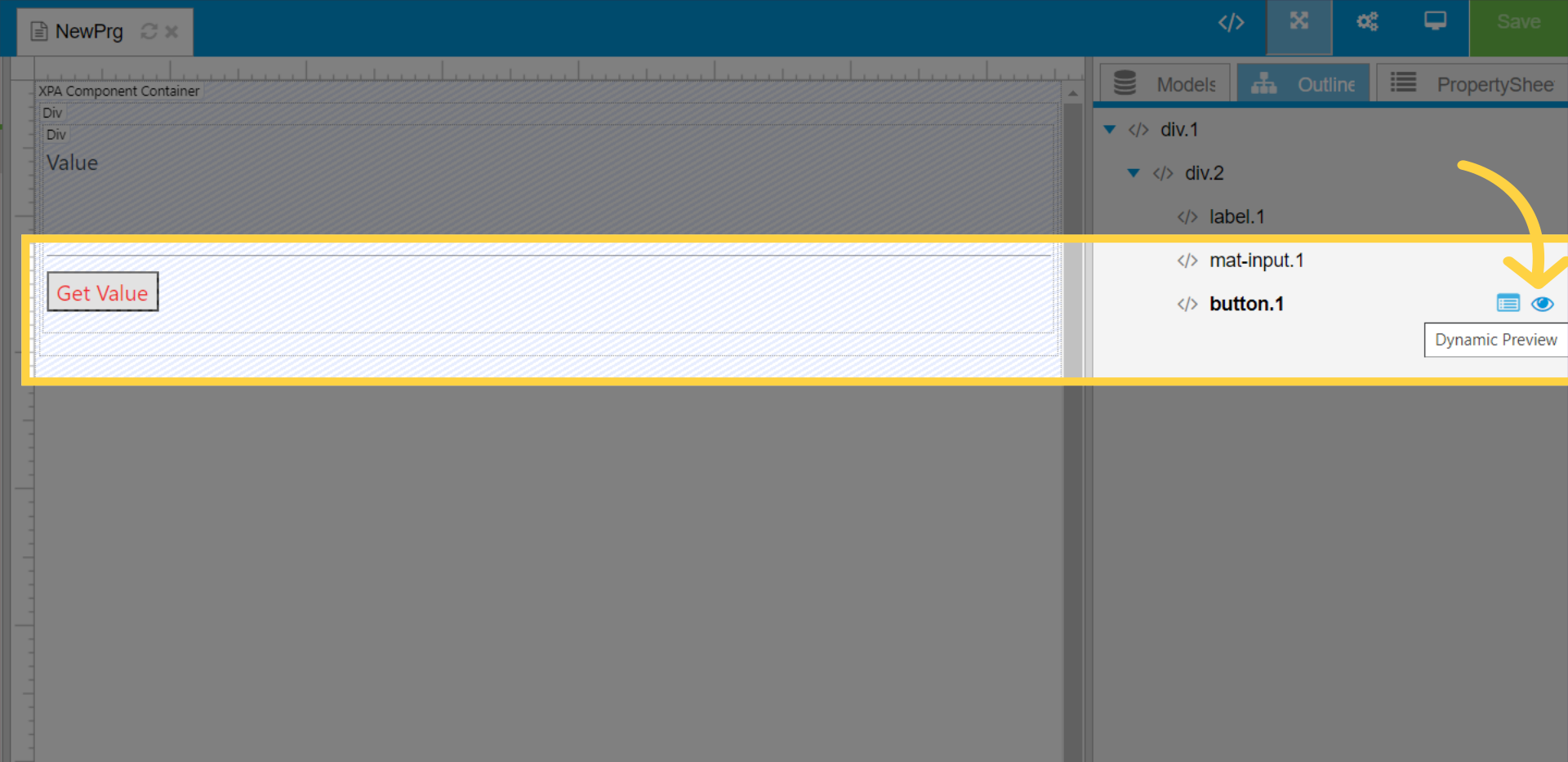
3. Enabling/Disabling Widgets Visibility

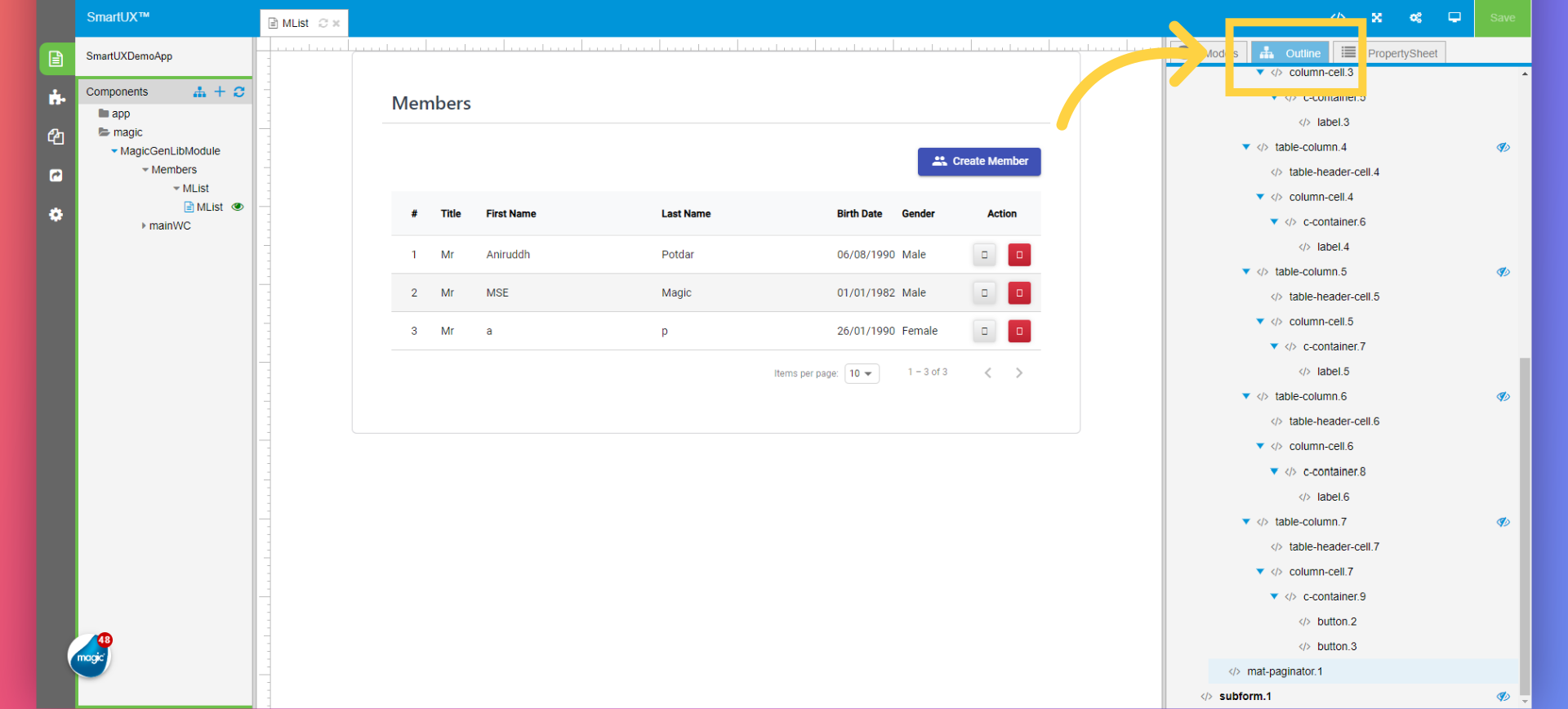
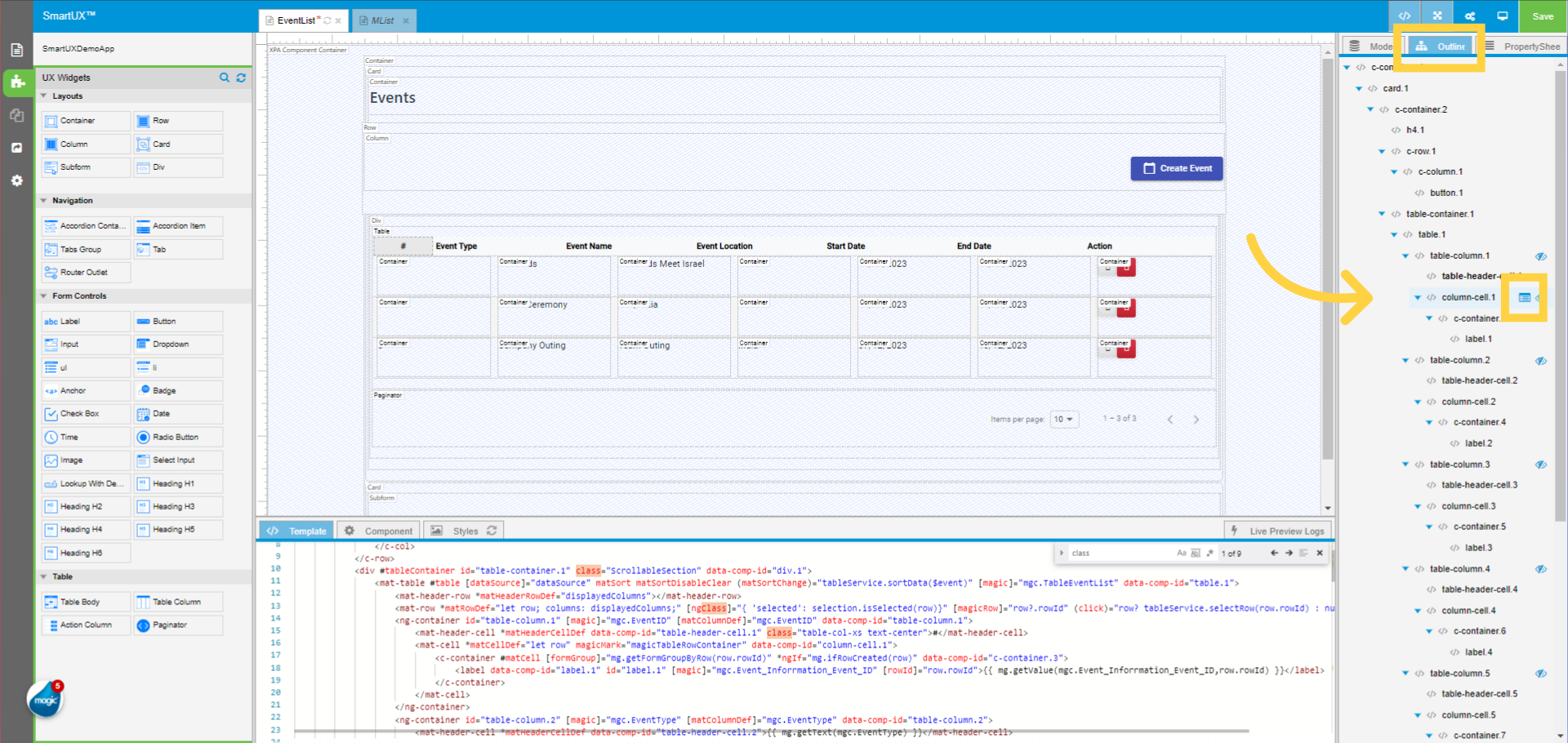
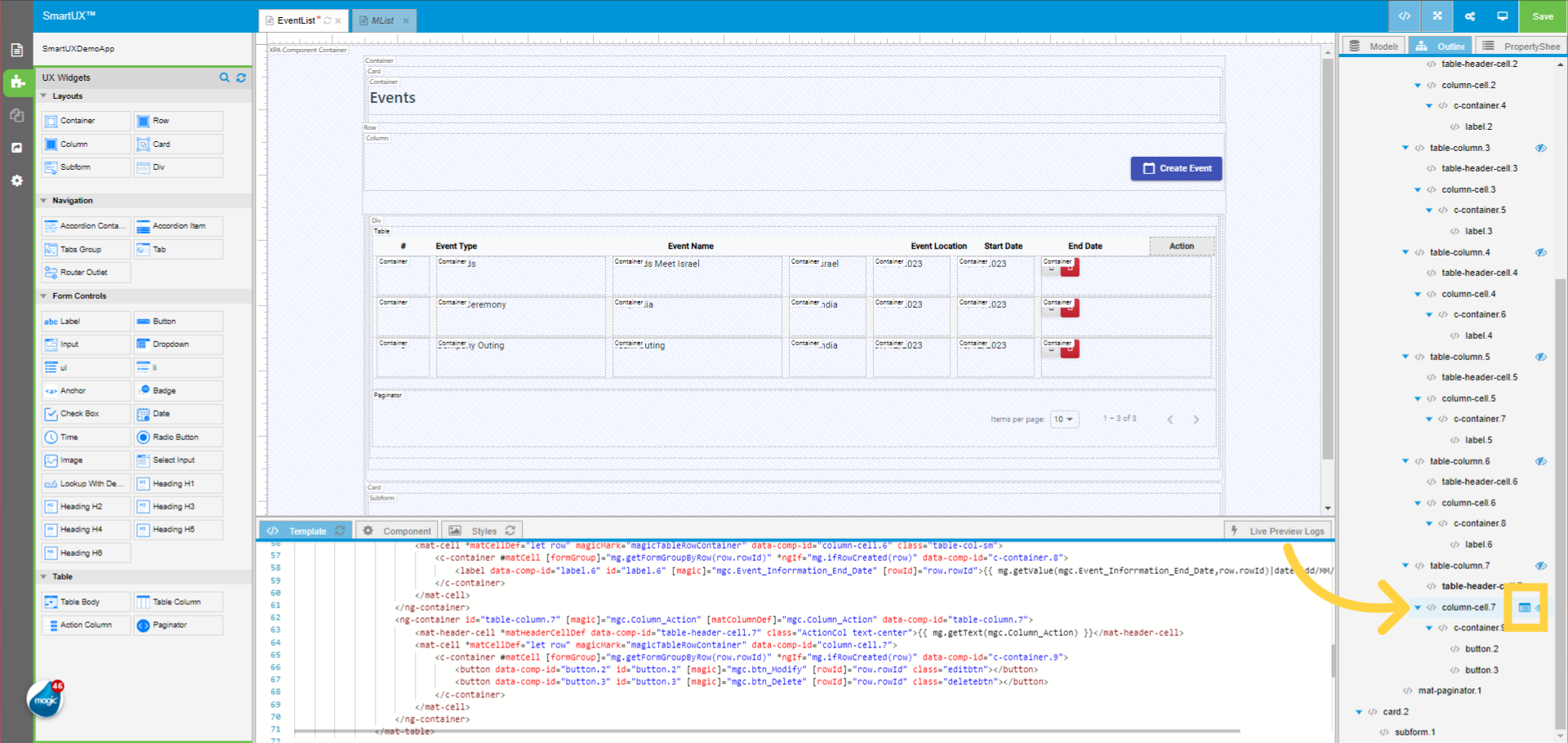
The right pane displays a tree structure outlining the valid Widgets as per your template on the Canvas. To improve the visualization of Widget properties affected by dynamic values, we suggest clicking on the eye icon alongside the Widget name in the Outline view.

Clicking this icon toggles into the visibility status indicator (visible/invisible). Thus, the Wdget’s presentation on Canvas adapts dynamically offering you a transparent and user-friendly way to preview and control the visibility of Wdgets within the form.

4. Accessing Property Sheet

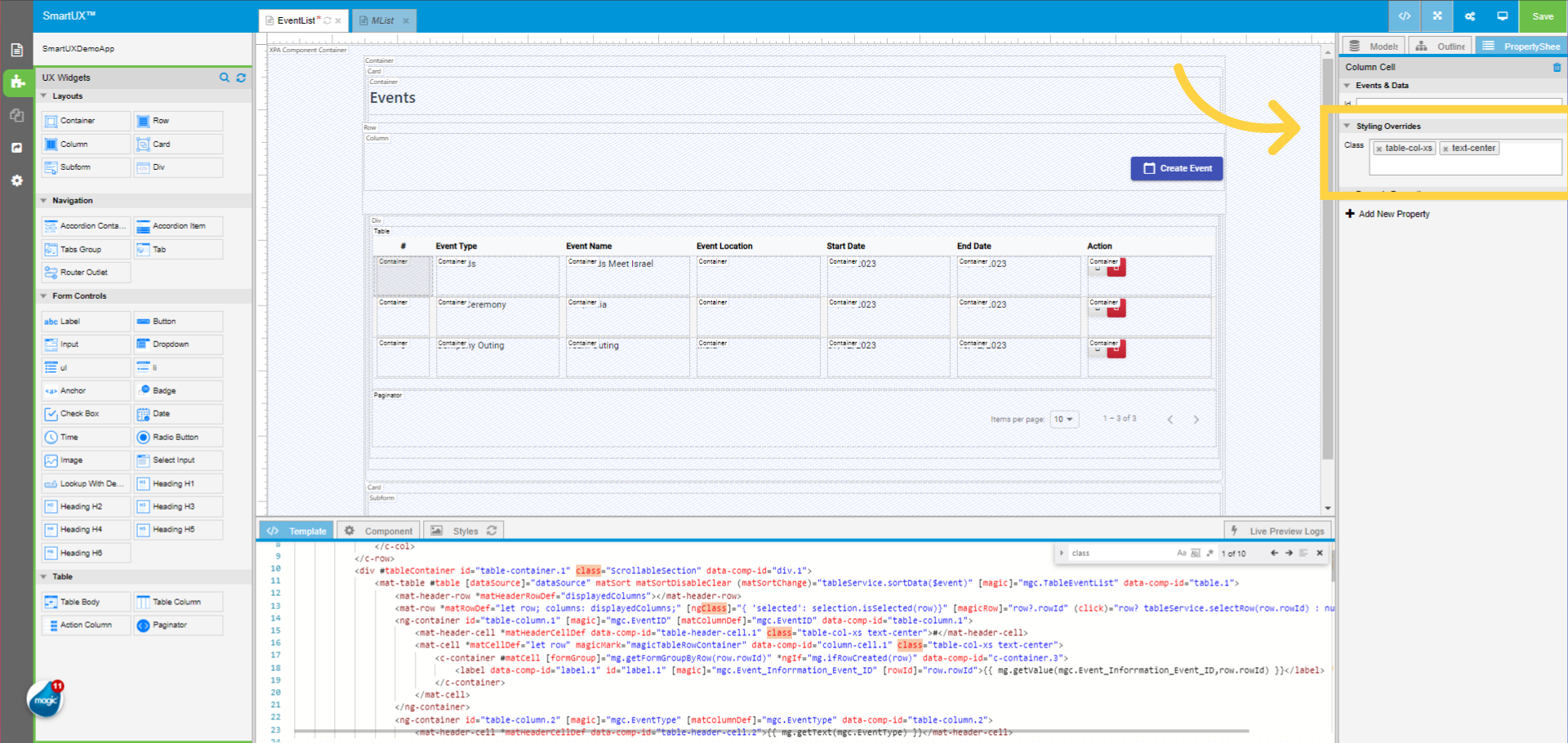
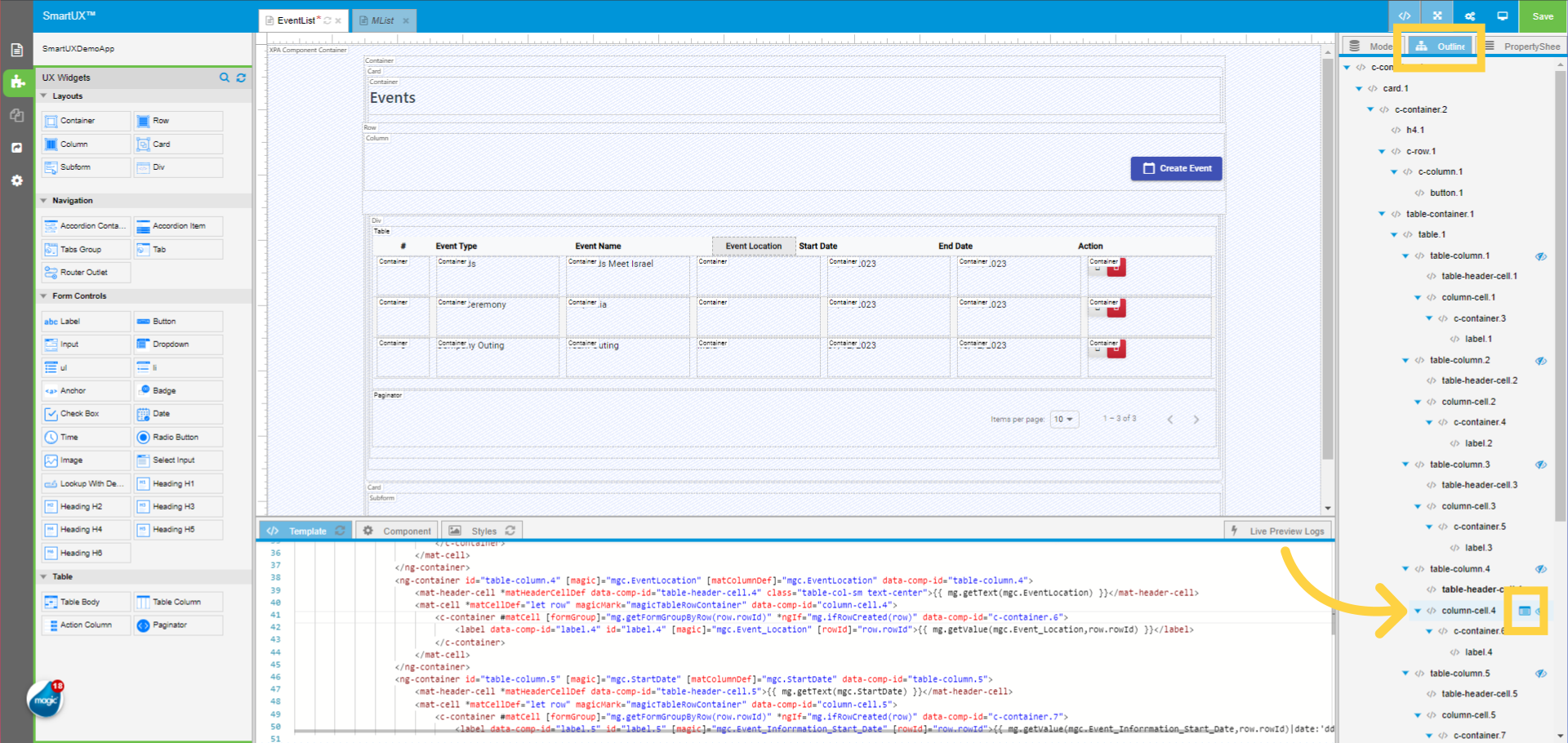
The Go to Property Sheet button for Widgets enables you to click on a Widget in the outline tree and display the corresponding Property Sheet. This action not only highlights the selected Widget on the canvas but also in the bottom pane, ensures seamless navigation and clear visualization of the Widget properties.

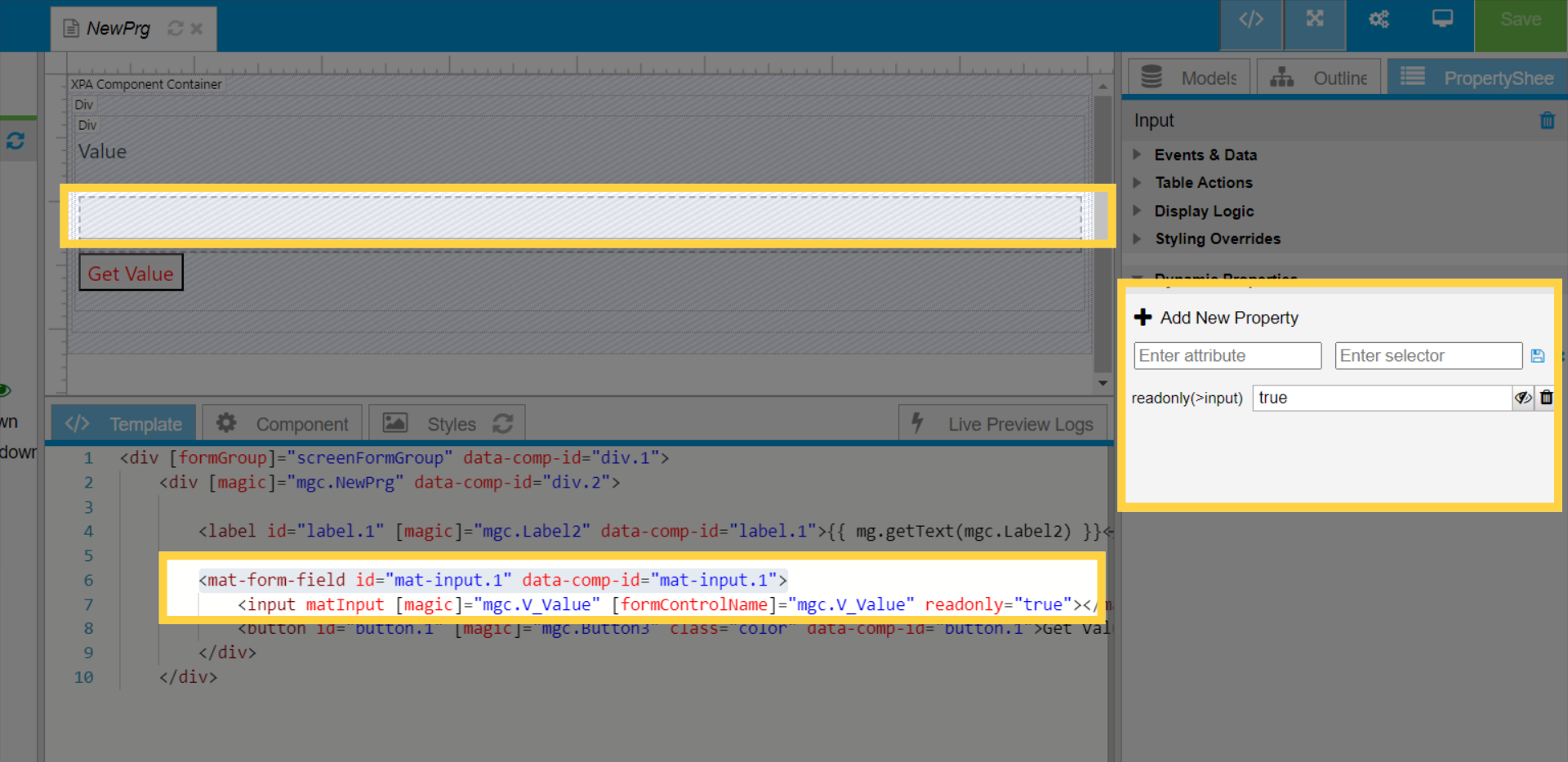
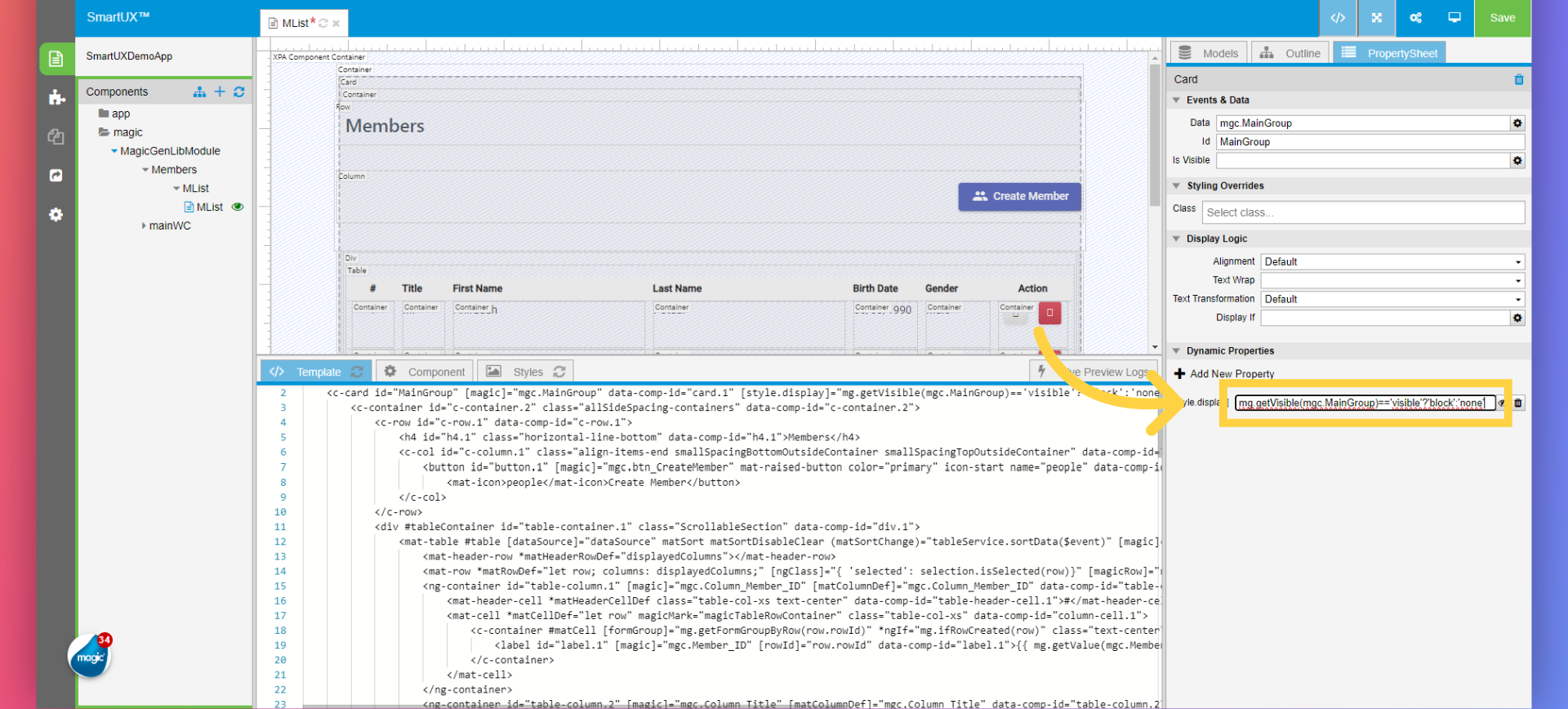
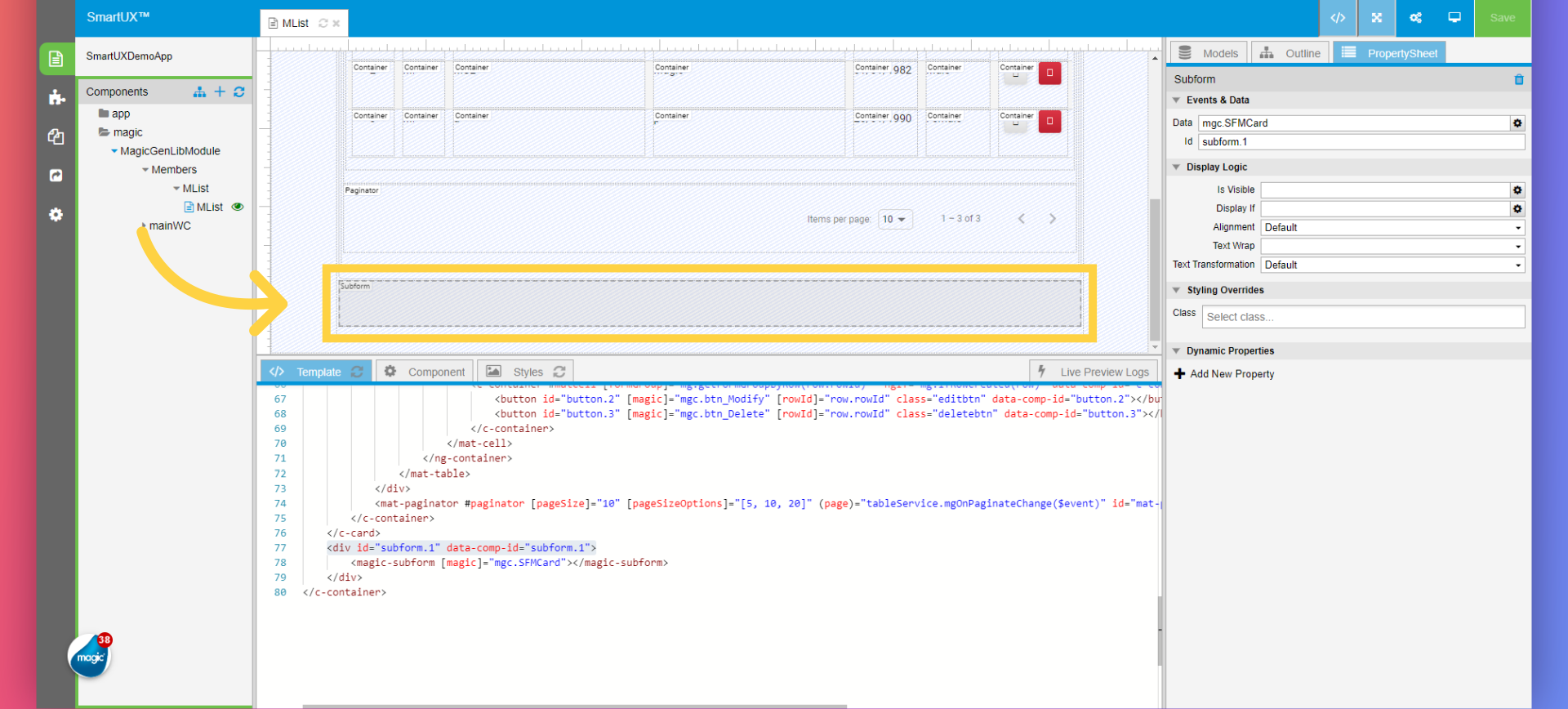
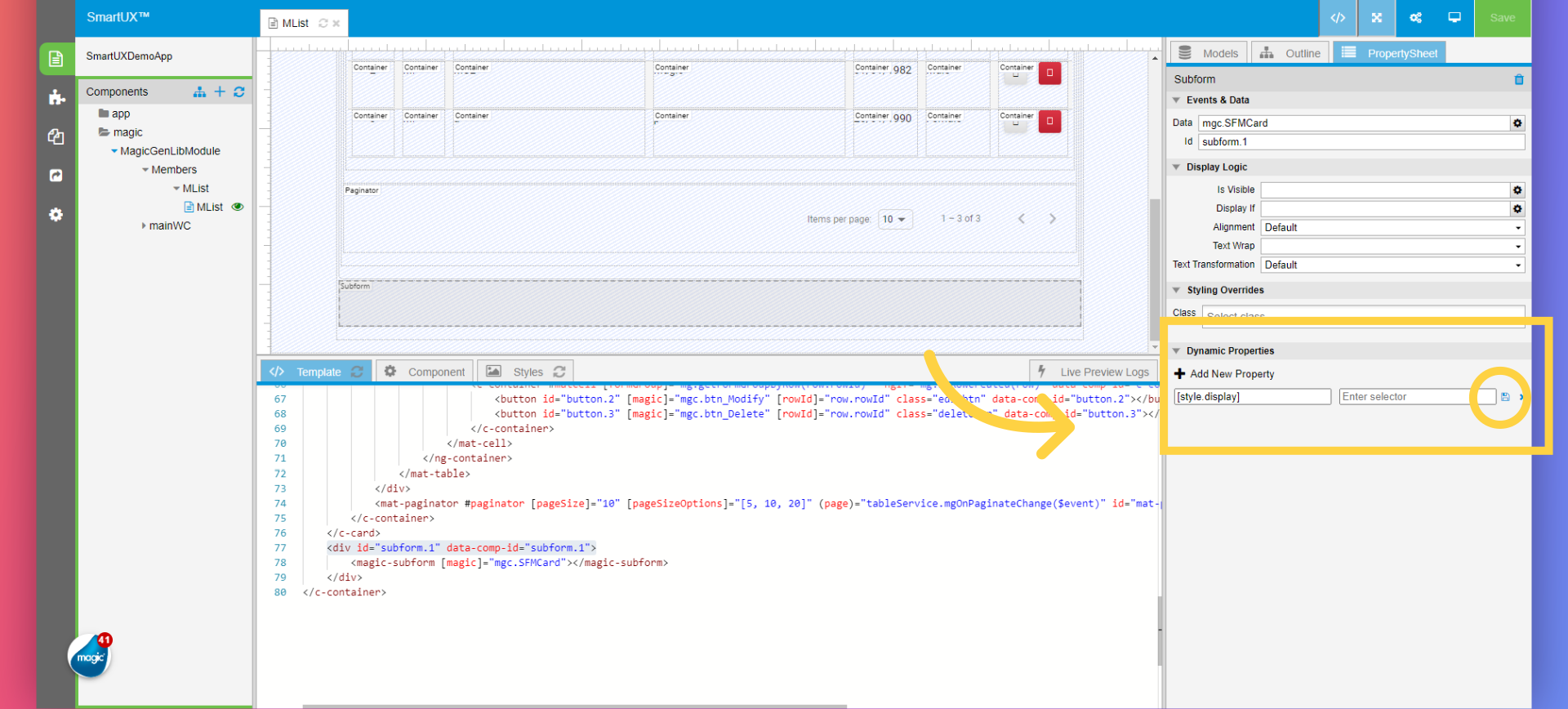
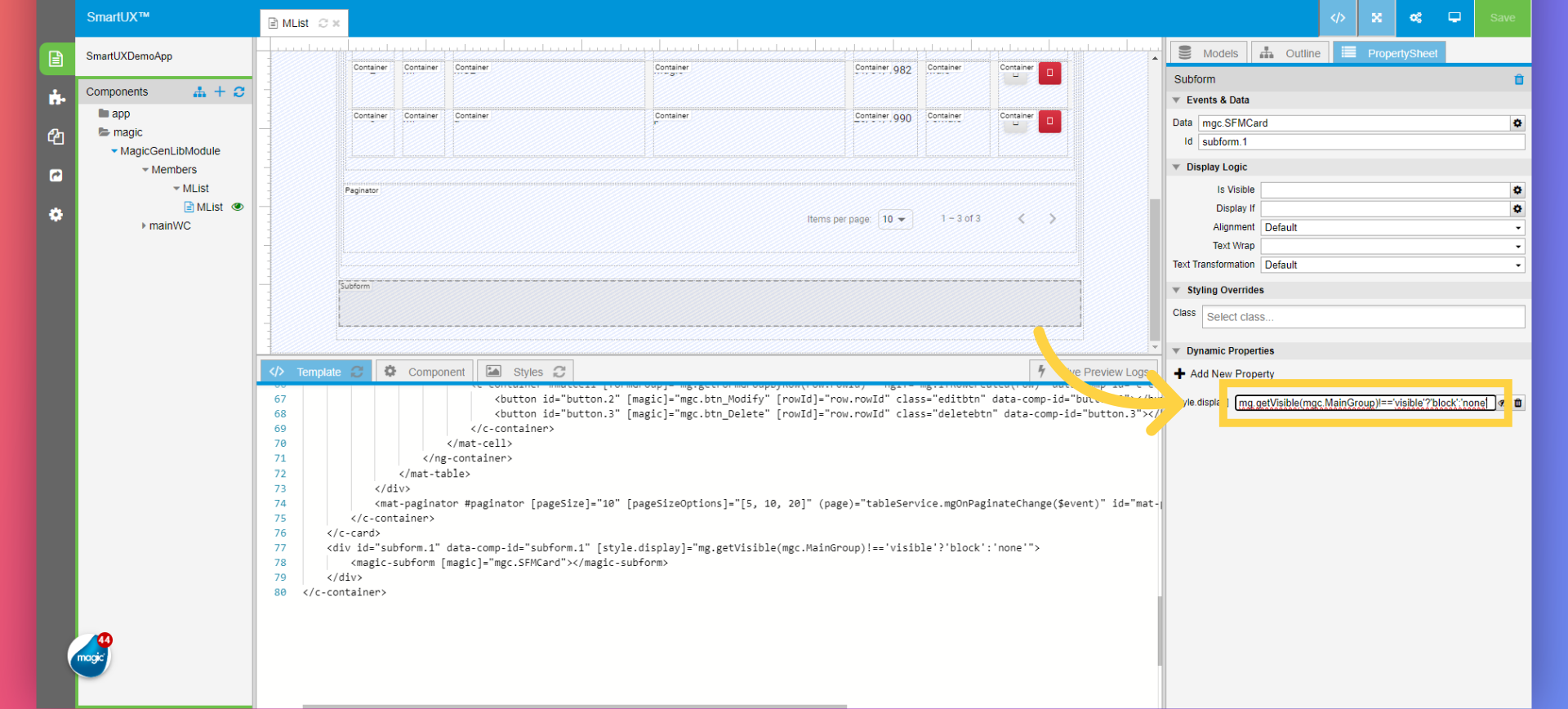
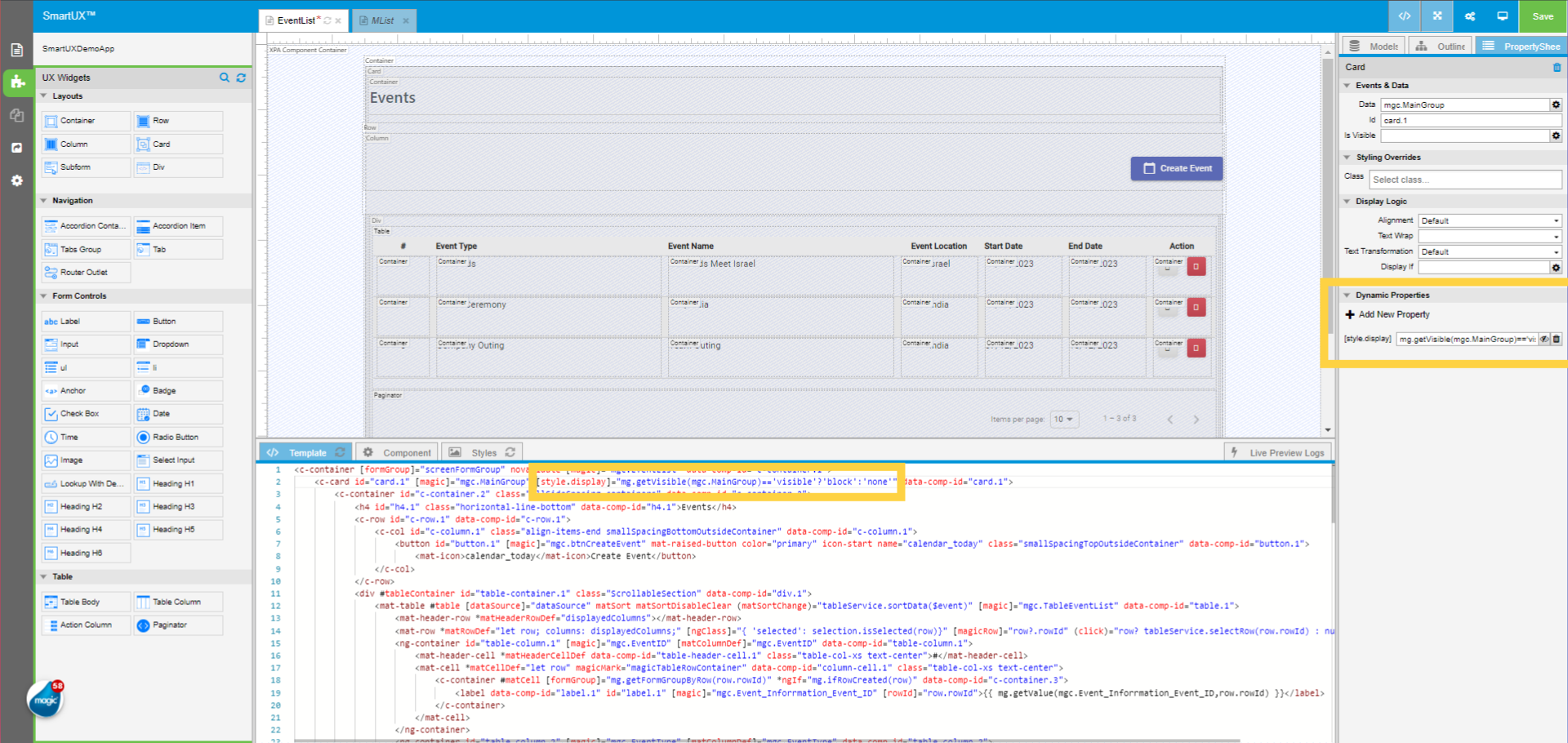
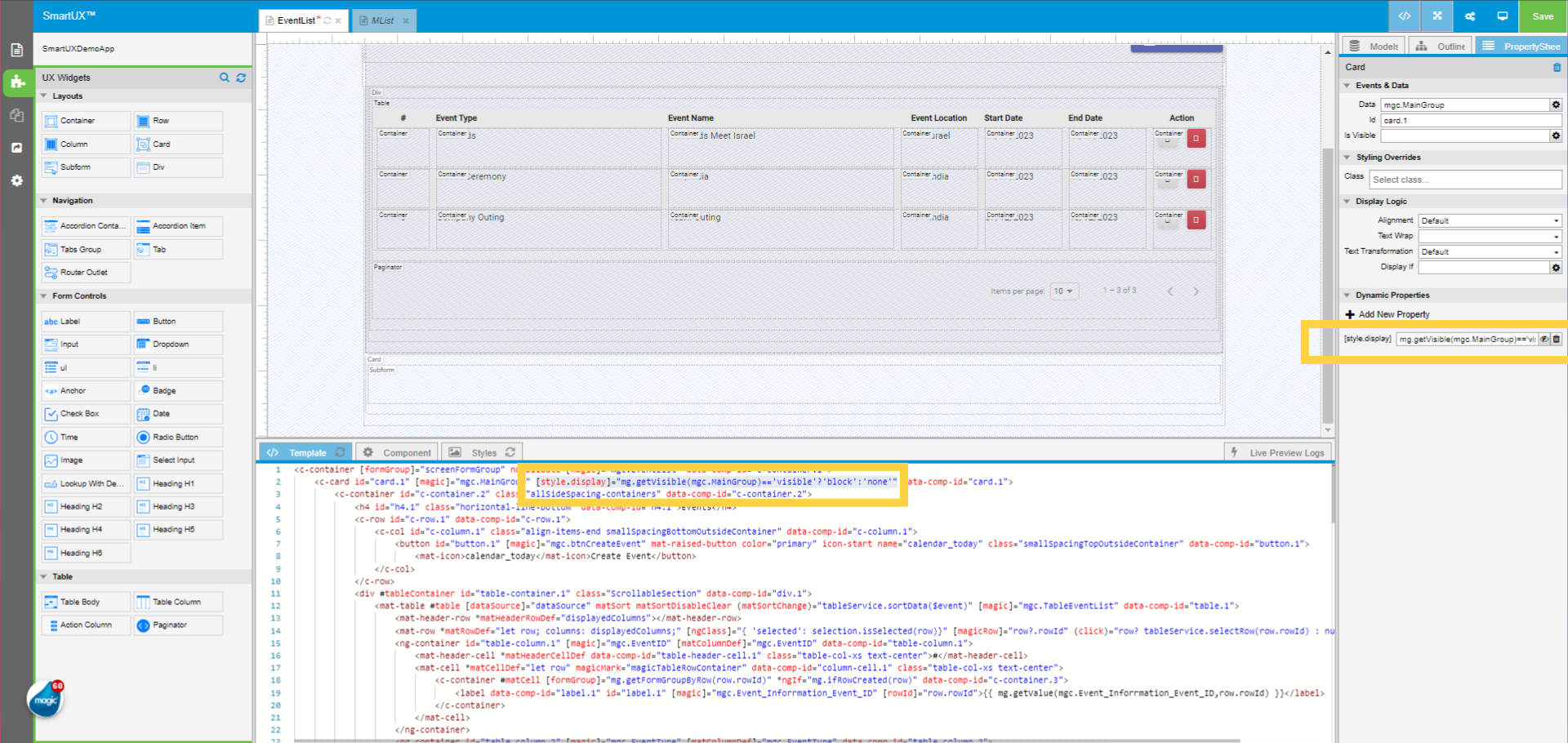
5. Modifying Dynamic Properties of Widgets

The Dynamic Properties within the property sheet of Widgets enable you to add, modify, and manage dynamic properties for Widgets seamlessly. You can also add dynamic properties directly from HTML to the Property Sheet. Additionally, you can hide and delete dynamic properties to customize the Widget’s behavior and appearance as desired.

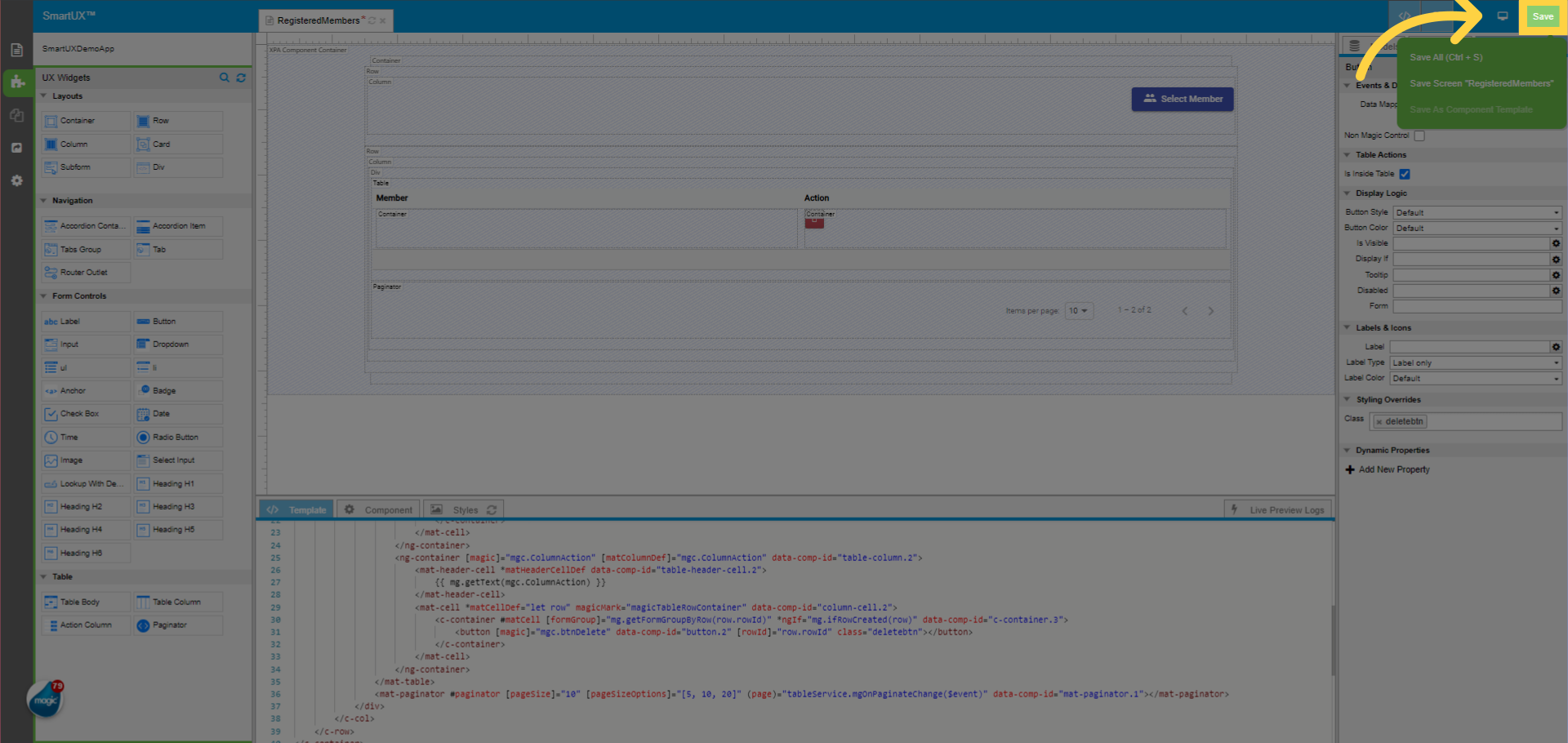
6. Storing Frequently Used Form Components

The Save As Component Template feature enables you to save Form Components as templates in SmartUX Studio. You can then reuse frequently used Forms. In Studio mode, you can save a Component as a template using the Save dropdown.

7. Managing Routes

With SmartUX Designer you can create both Magic xpa and Angular Routes, completely with parameters and outlet names for both Eager and Lazy Loading. This feature manages Routes for various Modules efficiently. It also offers to delete Routes.

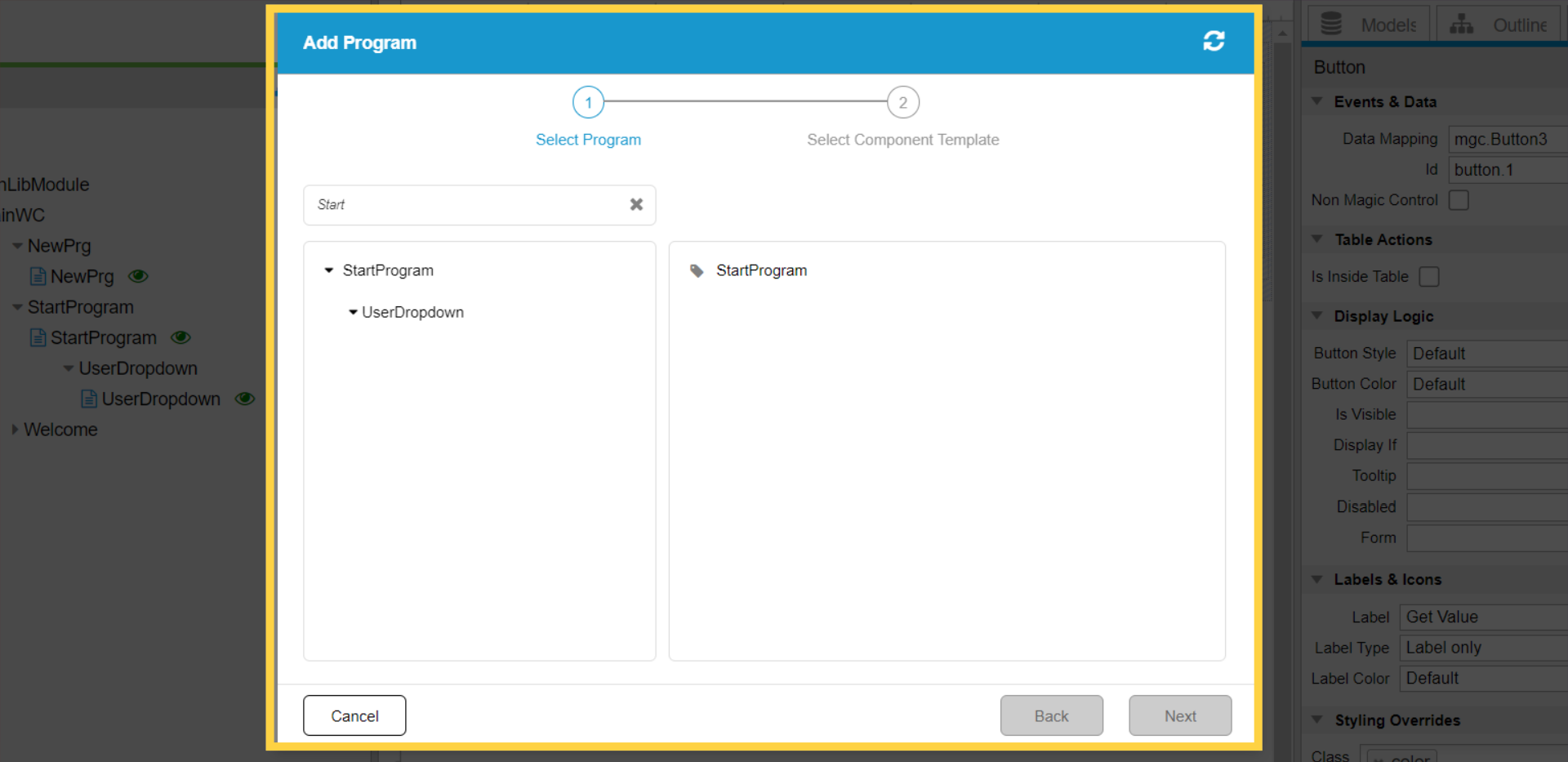
8. Adding Magic xpa Programs

You can add a Magic xpa program using Add Program dialog. 

9. Locating Desired Program in the List

You can locate a desired Program or a Form by name using the Search functionality. It brings up the searched item quickly. You can simply enter the name of the Program or a Form you are looking for, and SmartUX Studio promptly displays the relevant results.

Advanced Operations

How Do I Create a Component Template?

This guide takes you through the process to creating a Component Template. 

A component template is a predefined structure or layout for creating specific component within the SmartUX Designer tool.

1. Understanding Component Template Folder Layout

Here is the folder layout for the Component Template. Inside the component folder, the SmartUX Designer offers three template groups: Blank, Forms, and Login.
A group of templates can include multiple individual templates.

2. Knowing Component Template Files

Each component template contains three essential files: 

  • a PNG preview image illustrating the Template, 
  • a CSS file for styling the Template, and 
  • an HTML file containing the code for the Template.

For instance, SmartUX Designer offers a custom login template that includes all three associated files.

3. Selecting a Component Template

While incorporating a fresh Program or Component within SmartUX, it prompts you to select a Component Template from the previously saved choices.

The HTML consists of recognized Widgets that are strategically organized to achieve a particular design. While creating a Template, it is recommended to employ familiar Widgets thereby making it easier to configure and manipulate the Template as needed.

5. Creating Component Template

A convenient approach is to design a Component within SmartUX Studio and then save it as a Template for future use.

6. Using Component Template via Add Program 

Once a Component Template is saved, it is readily available in the Add Program dialog. The component Template is created in CustomComponentsTemplate folder within the component folder, including files like CSS and HTML. To finalize the Template, you must include a PNG preview image.

How Do I Create a Basic Widget?

This guide provides a step by step walkthrough of how to create a basic Widget for SmartUX.

Before creating a Widget, you need to understand what the Widget is.

In SmartUX, a Widget refers to a reusable building block or a modular element that encapsulates specific functionalities or visual aspects within the application. The Widgets are designed to be reused across different parts of the application, promotes consistency and ease of maintenance, and fosters quick development.

Now that you understand what a SmartUX Widget is, you can create one.

1. Knowing SmartUX Widgets src Folder

Go to your current SmartUX Widgets folder. You get to see a few files and folders inside this folder. 

The src folder holds various Widgets that we need.

The component-groups.json file contains the list of Widgets groups and their Labels.

2. Specifying Widgets Sequence and Categories

In component-groups-order.json, specify the sequence of Widgets and the categories in which they will appear on the UI.

The properties folder defines various properties for Widgets that you have. Some properties can be common among some Widgets while others could be specific for some specific Widgets depending on requirements.

The property-groups.json file defines the Names of Groups for properties. When you assign a property in a Widget’s definition, you also assign a group for the property there by their ID. In this json you provide a name for these Group.

Now let’s create a basic Widget.

3. Accessing src Folder

Go to the src folder. 

4. Creating a Folder for Widget

Create a folder with the name of your Widget. For the demo purpose, a Widget named label is created here.

5. Creating Templates Folder

Inside the Widgets folder (in this case the label folder), create a templates folder.

6. Creating template.html File

Create template.html file inside templates folder.

The Template HTML should contain the base html of the Widget when you drag and drop it on the Canvas. For label, it will look as shown.

7. Creating component.json File

Now, create component.json file on the same path where the templates folder is.

The file component.json look like as shown for the label.

A basic widget would have –

  • The name attribute reflecting the Name of the Widget on SmartUX.
  • Signature, which is the unique logical identifier for the Widget. It should be unique for all the Widgets.
  • Properties is the list of properties for the Widget. For now, only the id property is added, which is already defined in Properties folder.
  • Finally, a description for the Widget.

The last thing that a Widget would need is icon.svg file. This icon is shown on the Widget’s pane for the corresponding Widget.

8. Updating component-groups-order.json File

Go back to the Widgets folder and update the component-groups-order.json

9. Adding Widget Folder Name in Group

Add a Widget folder name in to one of the groups.

10. Opening a Project in SmartUX Studio

Open the project in SmartUX Studio.

11.  Opening a Component

Open a Component.

12. Accessing Widgets 

Go to the Widgets pane from the left pane.

13. Refreshing Widgets List

Click on Refresh Widgets button on SmartUX to get the latest list of SmartUX Widgets.

14. Viewing Newly Added Widgets

On refreshing you can see the recently added Widgets which you can use to design your Component.


  • To effortlessly perform all these tasks within SmartUX Studio, you can enjoy seamless access to user-friendly utilities by visiting the designated page.

Widget Operations Panel << Click Here

  • The Widget Operations Panel within SmartUX Studio allows users to create custom widgets, define widget properties, organize widget groups, manage property groups, and set up functions and actions—all in one convenient location.

Widgets Management and Operations Panel

Dive into the Widget Operations Panel with our comprehensive training guide. This resource is designed to provide you with clear, step-by-step instructions for utilizing the Widget Operations Panel within the SmartUX Component. You’ll learn how to create, navigate, modify, and save widgets seamlessly in the SmartUX Studio. Follow along to master each function and enhance your experience.

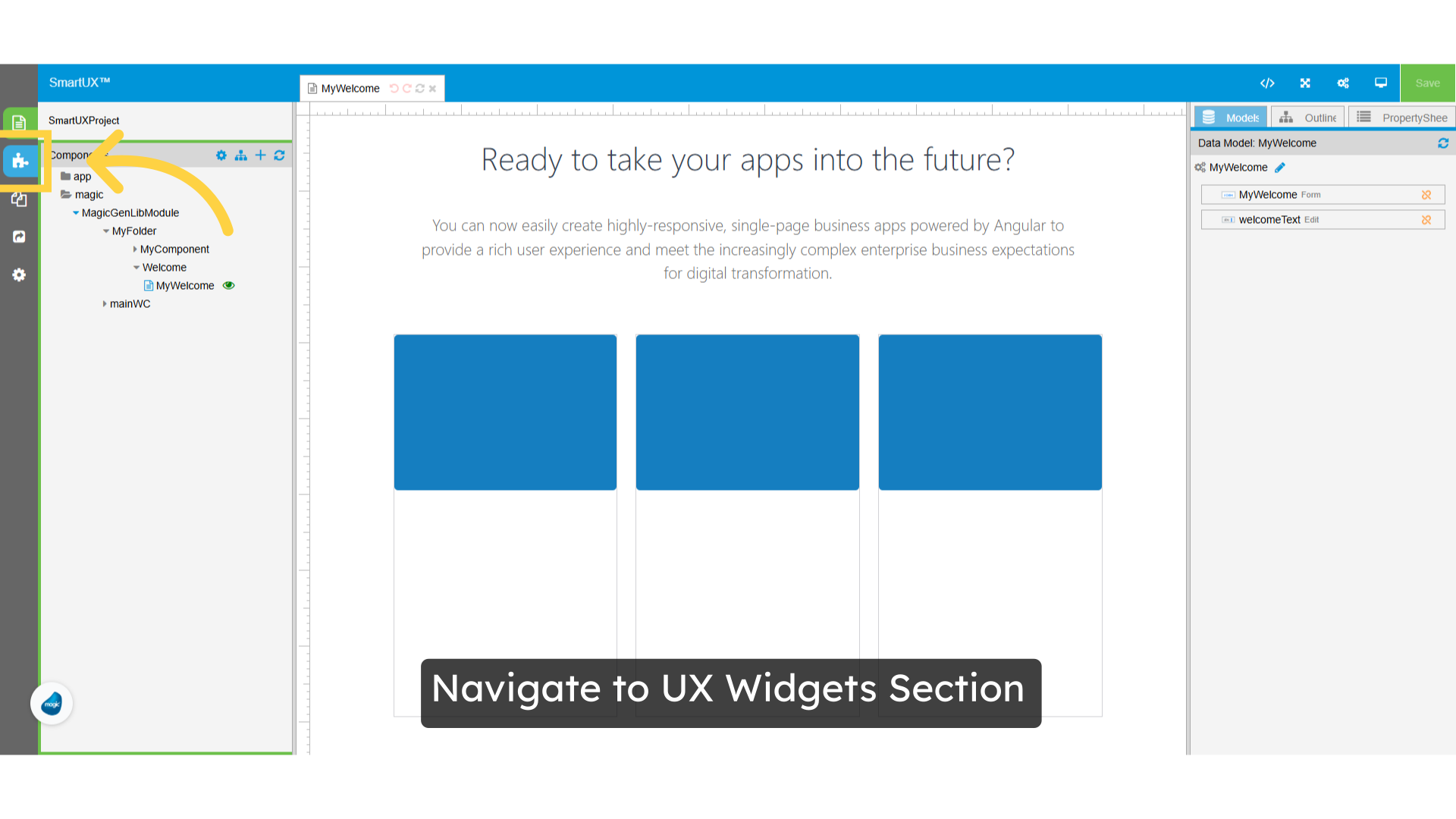
1. Navigate to the UX Widgets Section

  • To access the Widgets Operations Panel, please navigate to the UX Widgets section.

Navigate to UX Widgets Section

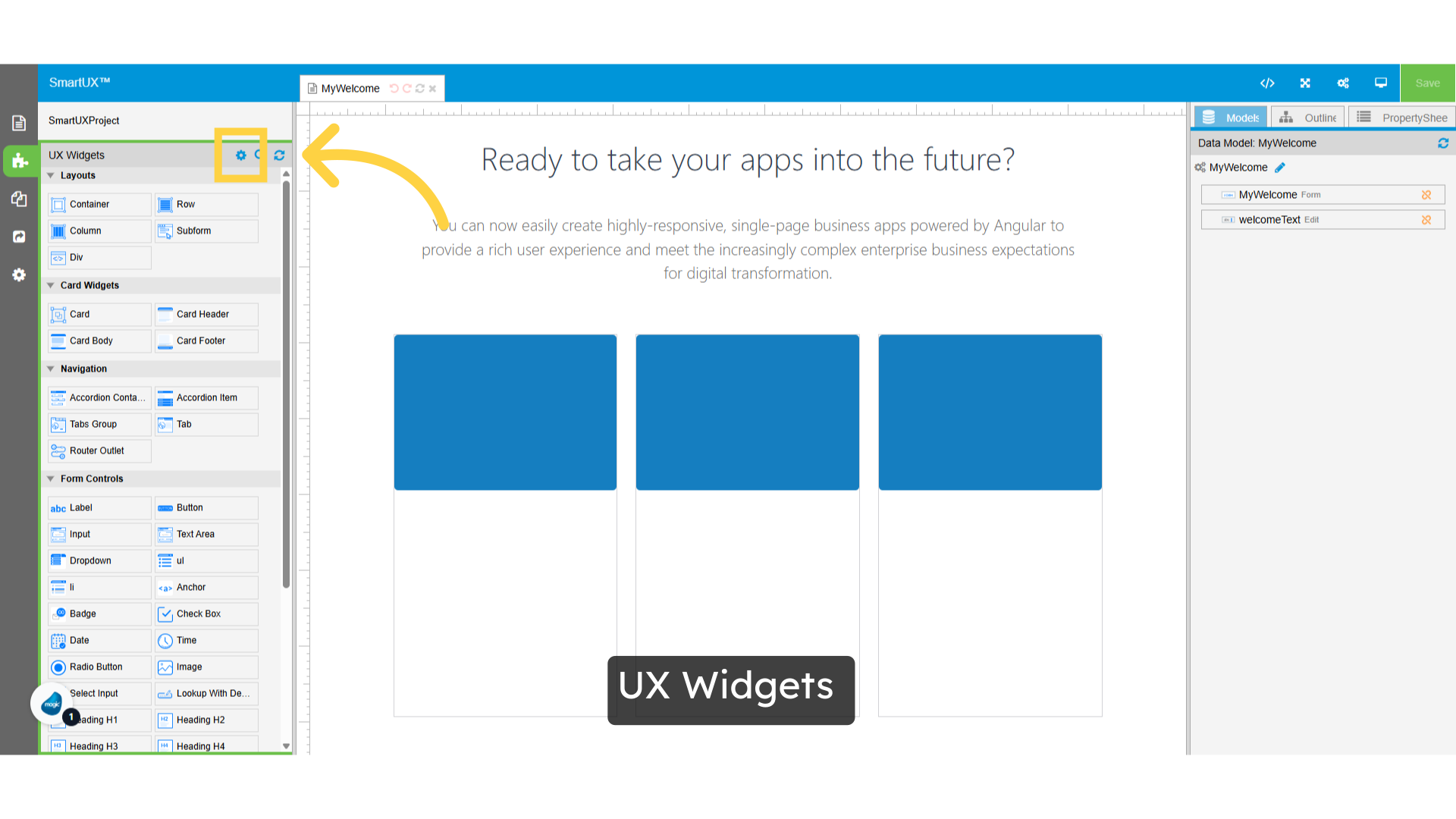
2. UX Widgets

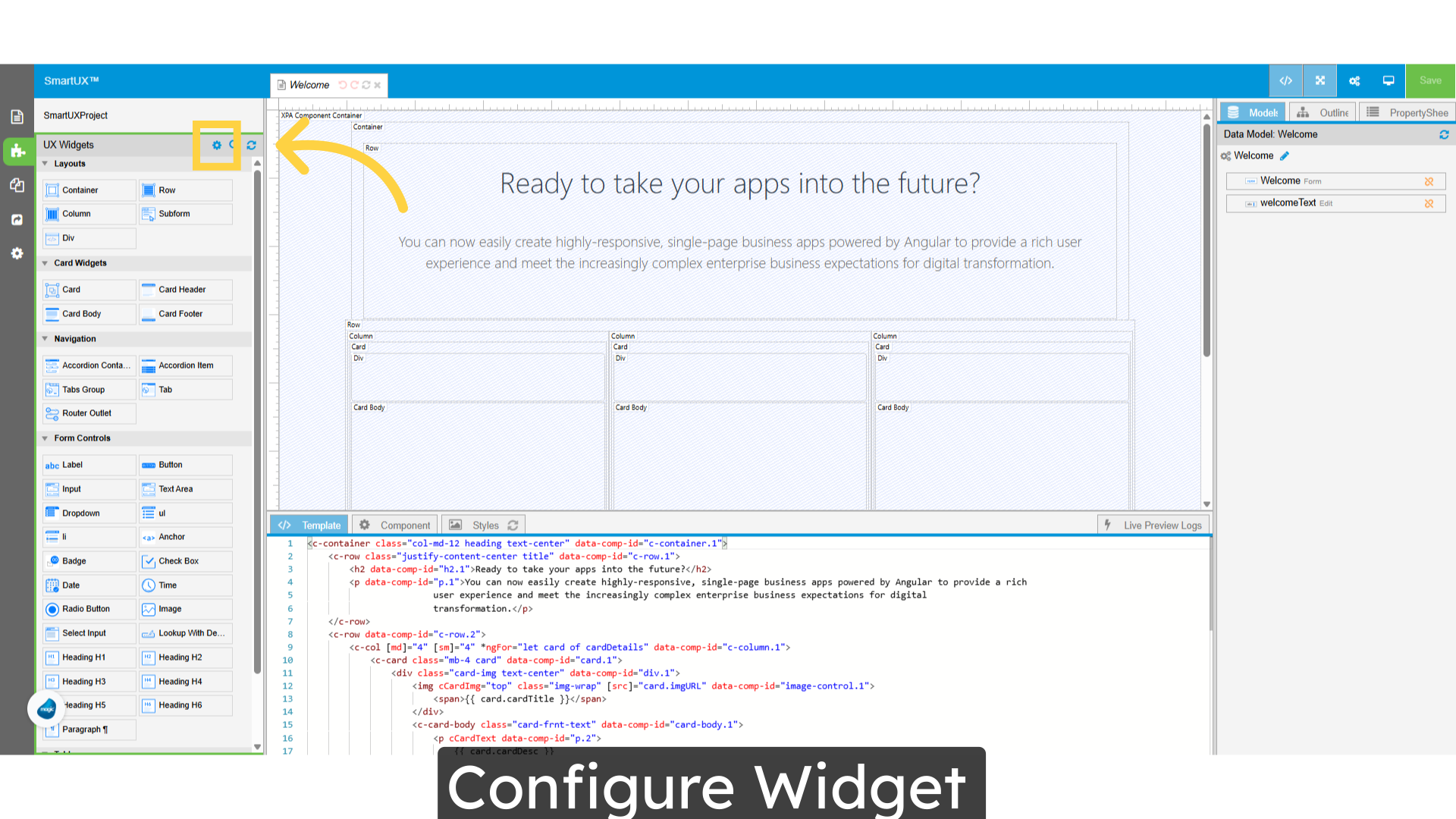
  • Welcome to the UX Widgets section!
  • At the top of the Widgets pane, you’ll notice a gear icon.
  • Click on this icon to access the Widgets Operations Panel.

UX Widgets

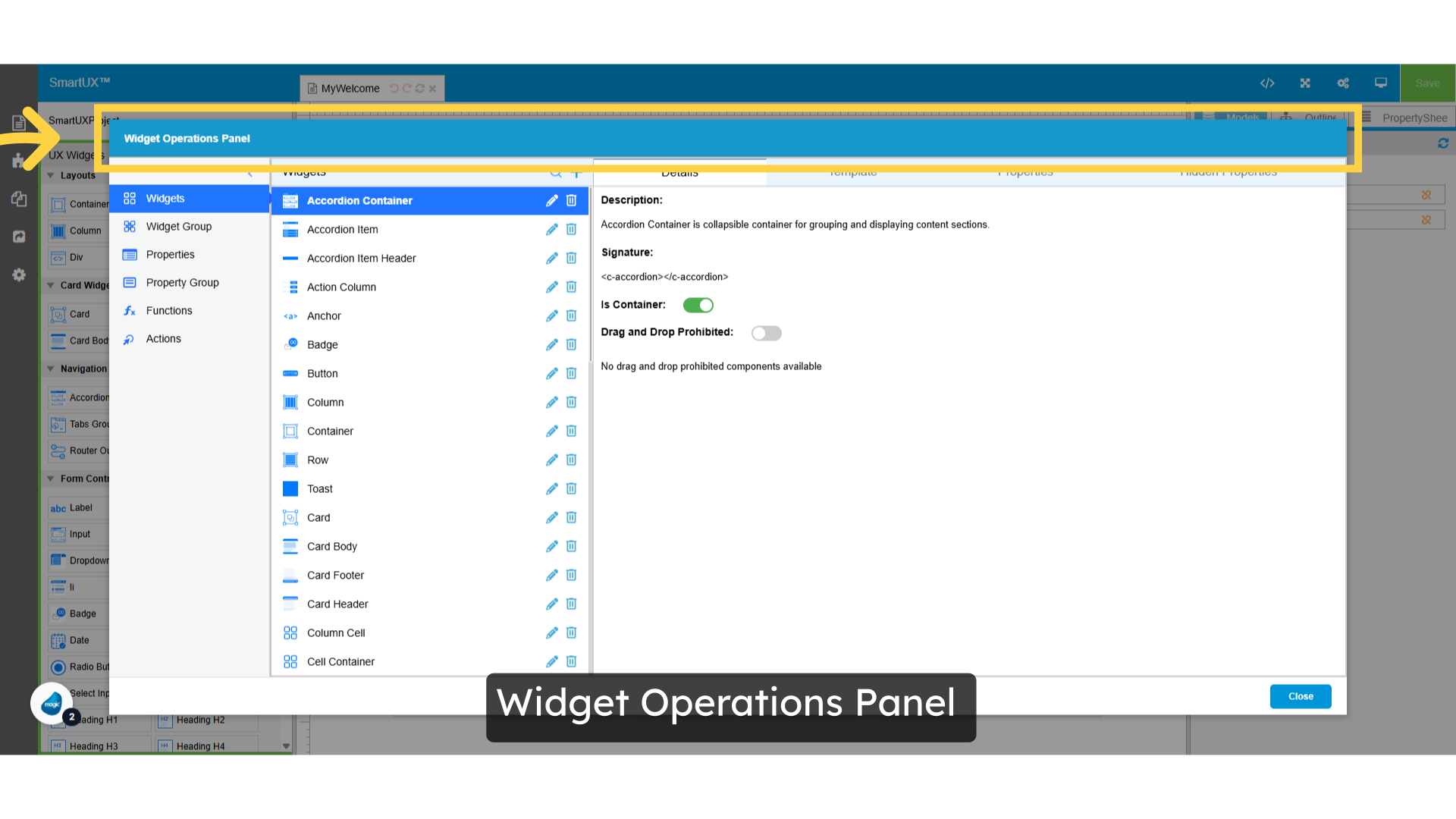
3. Widget Operations Panel

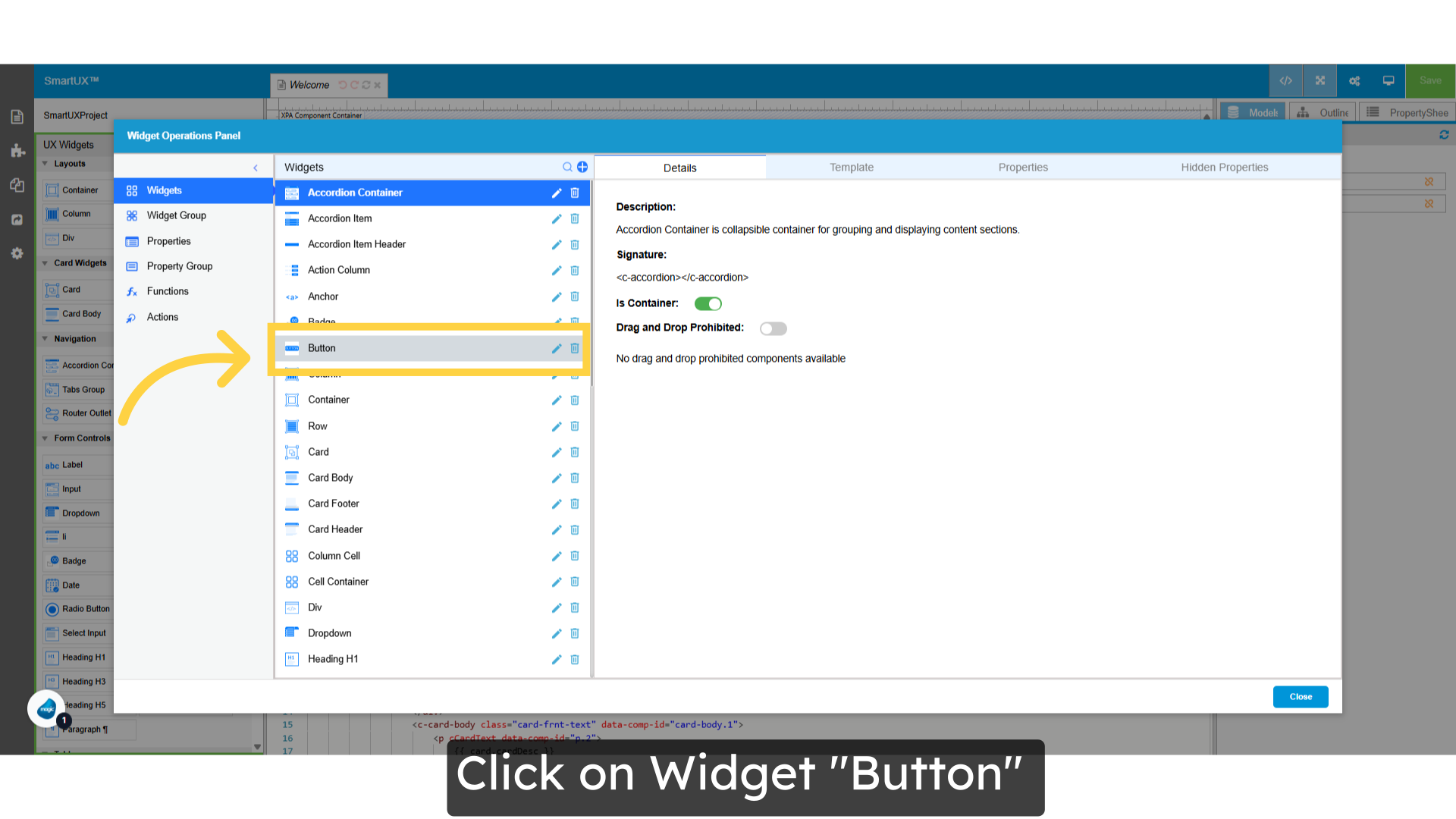
  • Welcome to the Widgets Operations Panel.
  • You can easily create, modify, or delete any widget and manage its properties here.
  • Additionally, this panel offers a variety of related features, including Widget Groups, Property Groups, Functions, and Actions.
  • This comprehensive utility is designed for efficient and user-friendly widget management, empowering you to handle all aspects of your widgets with ease.

Widget Operations Panel

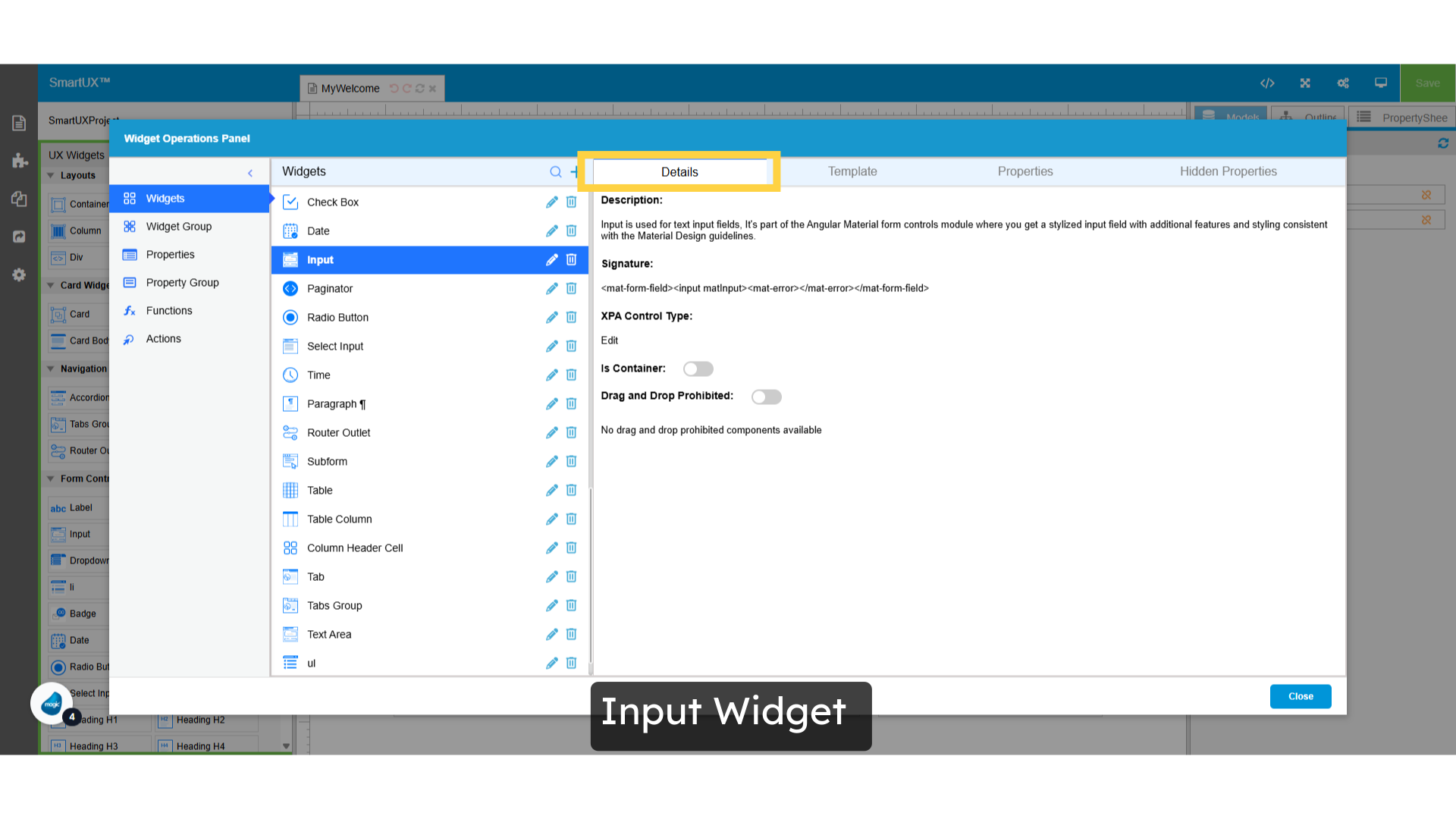
4. Input Widget

  • Let’s take a closer look at the Input Widget.
  • On the corresponding line for the Input widget, you’ll find icons for modifying and deleting the widget, allowing you to manage it easily.
  • Upon clicking the widget, you’ll access its details section. Here, you can view and edit the widget’s description according to your needs.
  • Beneath the description, you’ll find the signature, which serves as a unique identifier for the widget and its properties. This signature will be essential for providing selectors for the properties, which we will cover shortly.
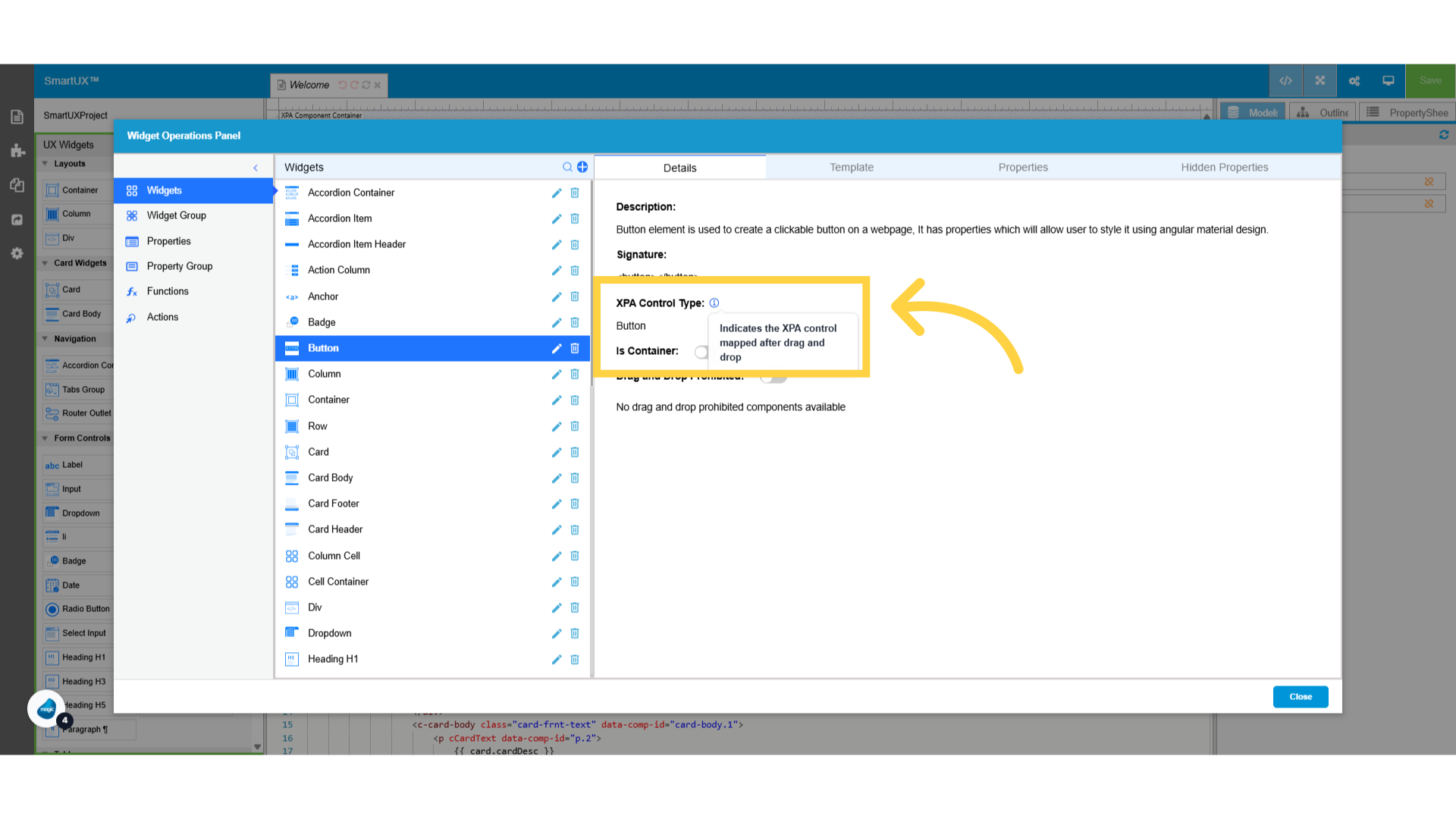
  • XPA Control Type: This indicates the specific Magic xpa control that this widget is associated with.
  • Is Container: This property specifies whether the widget functions as a container for other widgets.
  • Drag and Drop Prohibited: This option becomes available only when the Is Container property is enabled. When a widget acts as a container, this setting allows you to determine which widgets can be dropped inside it and which cannot.

Input Widget

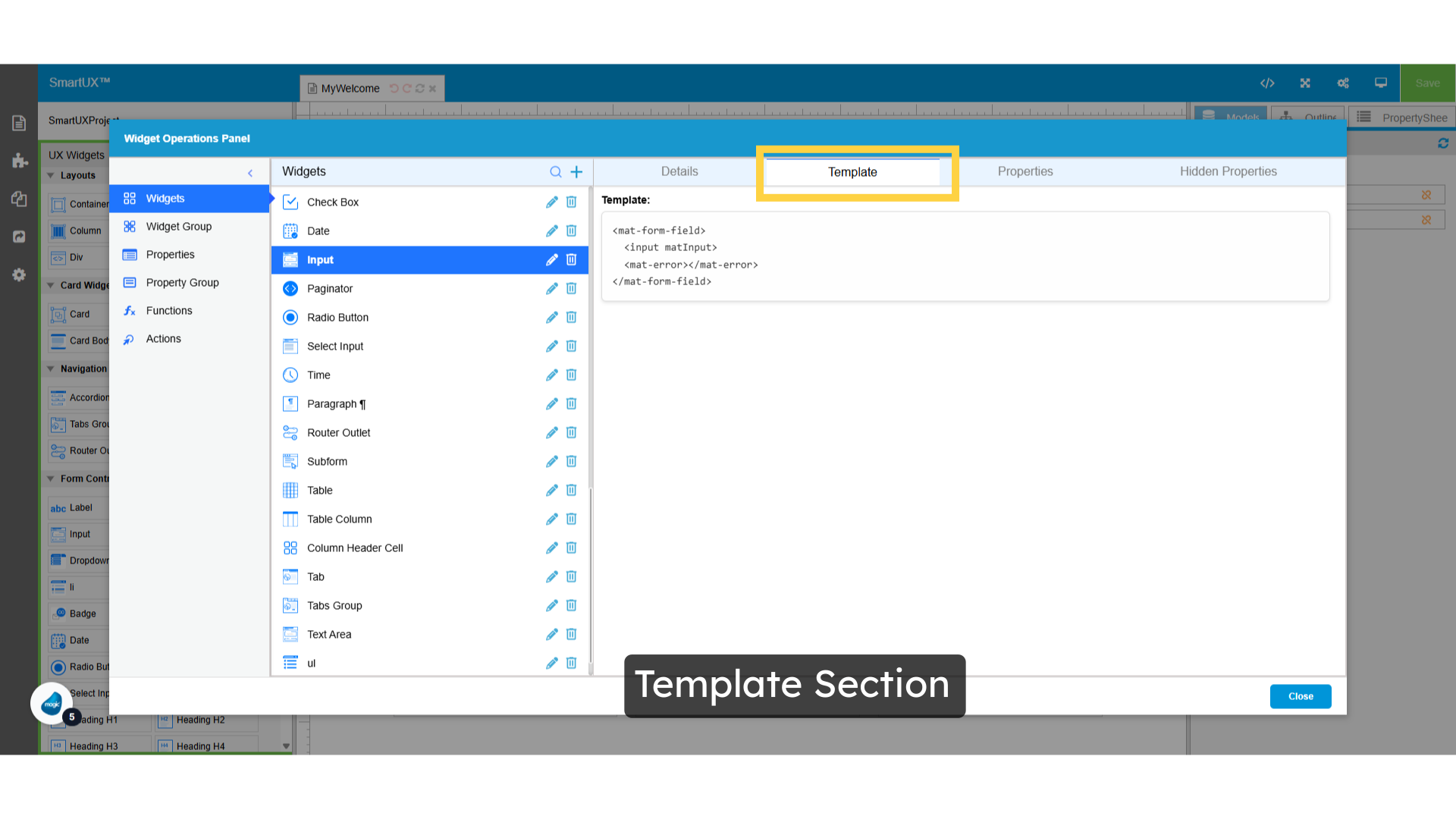
5. Template Section

  • The template section provides a foundational structure for the widget.
  • Here, you will find the HTML code that becomes visible in the SmarUX Studio when you enable the ‘View Code’ option.
  • Initially, the widget does not include any properties.
  • However, as you begin to apply properties, the corresponding HTML/Angular attributes will be integrated into the widget’s structure, based on the specific selectors assigned to each property.

Template Section

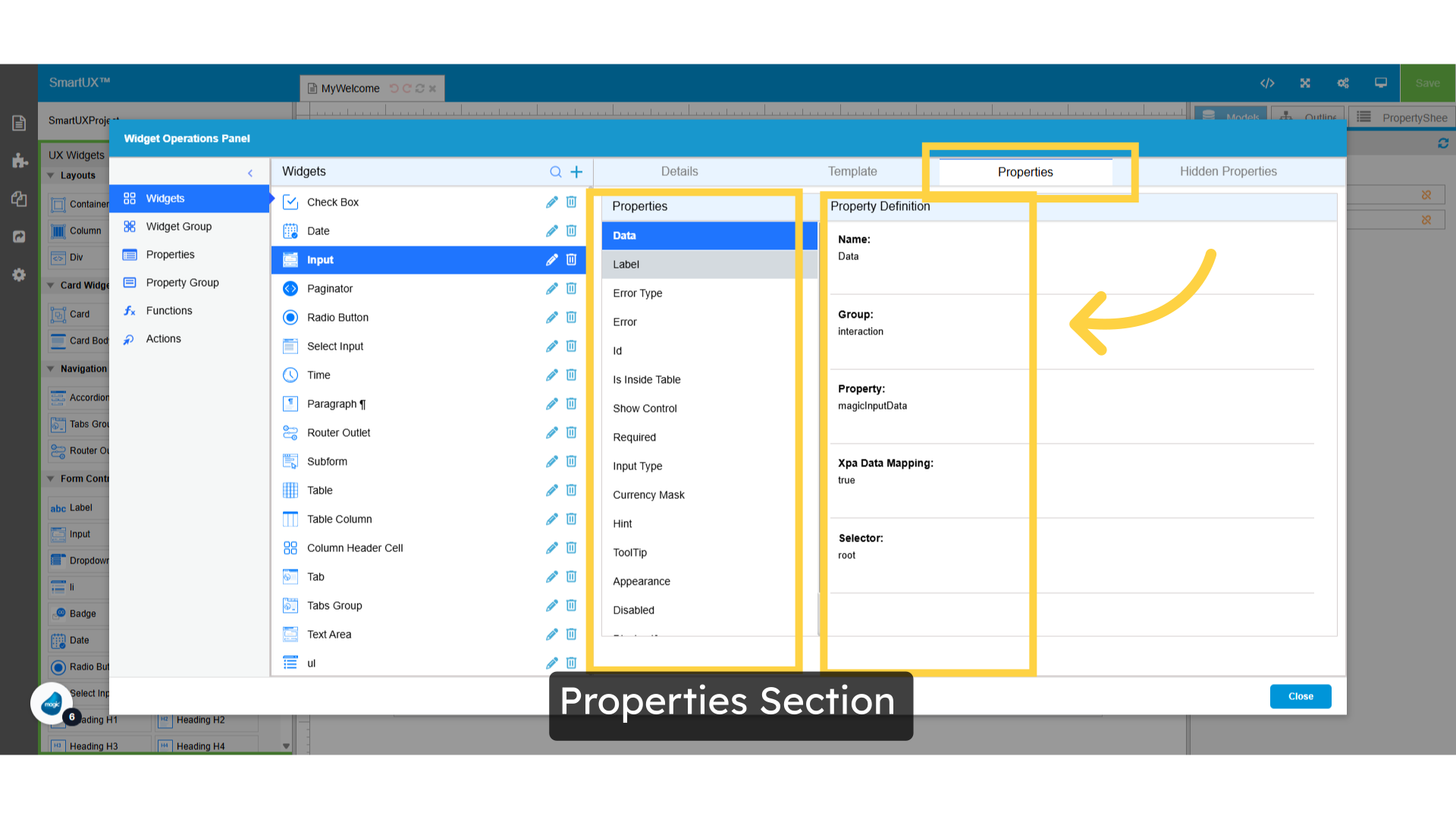
6. Properties Section

  • In the Properties tab, you will find two main sections: Properties and Property Definition.
  • The Properties section displays a list of attributes assigned to the selected widget.
  • Meanwhile, the Property Definition section outlines the structure and specifics of each property.
  • This includes the property name, the corresponding property group, and details about how each property is defined for the widget.
  • Additionally, it indicates whether there is an XPA data mapping associated with the property.
  • Finally, you’ll encounter the Selector section.
  • If the selector indicates ‘root,’ it signifies that this widget property is applicable to the root HTML tag of the widget.
  • The Selector determines which HTML tag within the Widget should have the property attributes applied.

Properties Section

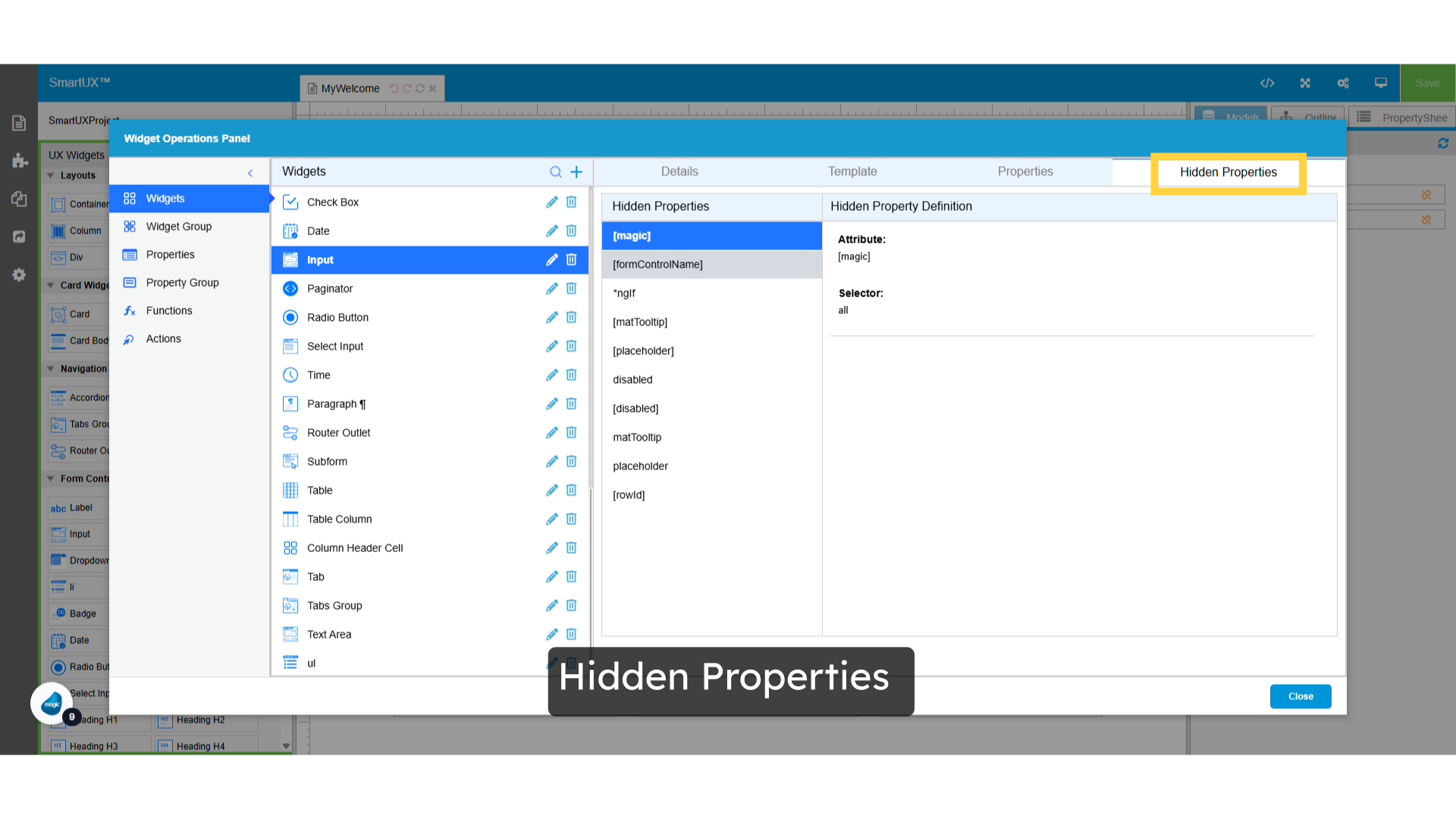
7. Hidden Properties

  • In the Hidden Properties tab, you will find properties or HTML attributes that are concealed from the user interface and can only be accessed in the underlying code.
  • You have the option to specify which properties you wish to keep hidden, ensuring they are only available within the HTML code.

Hidden Properties

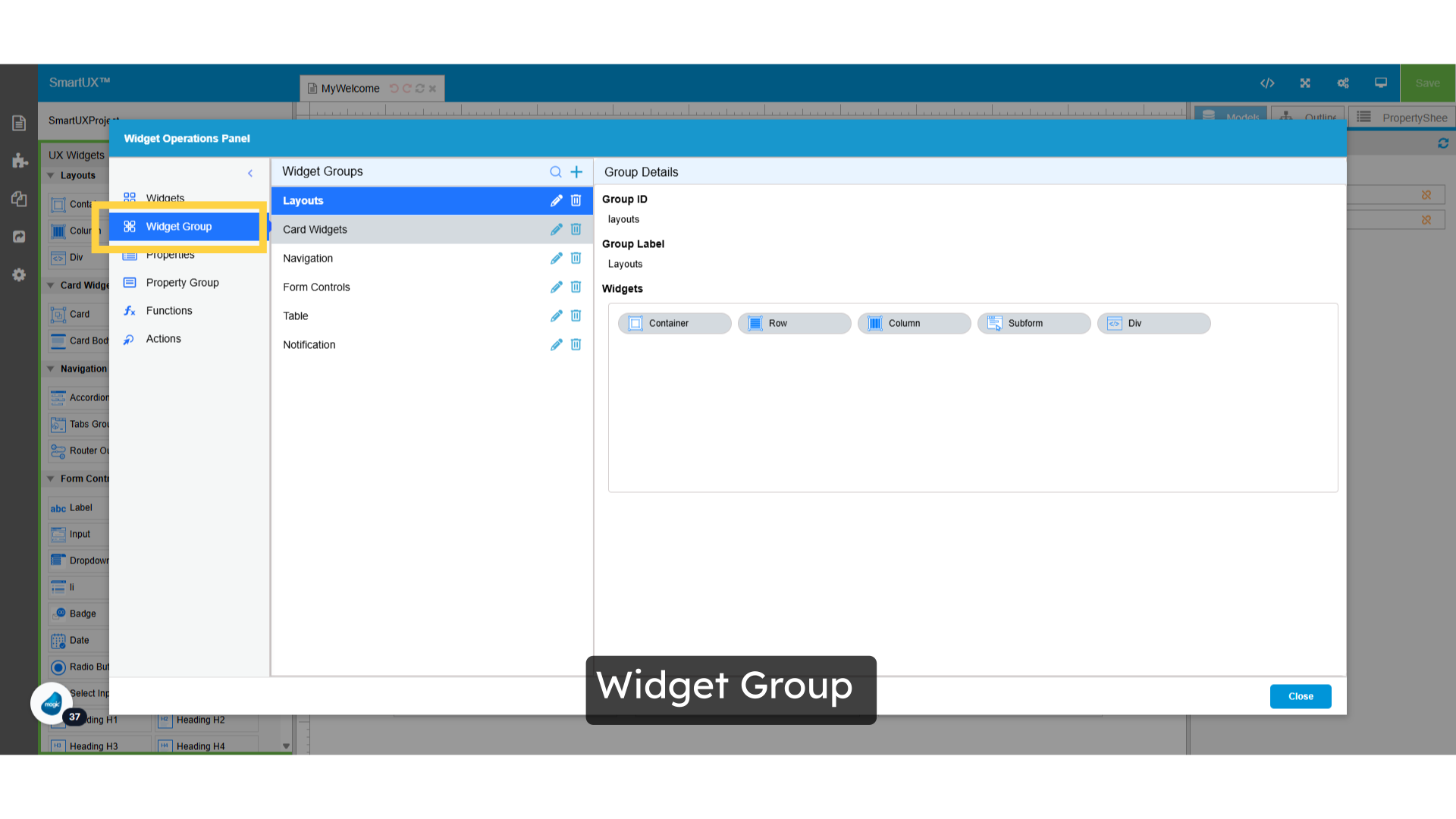
9. Widget Group

  • In the Widget Group section, you can create new widget groups or modify existing ones.
  • Widget groups allow users to organize widgets into various categories, effectively grouping similar types of widgets together.

Widget Group

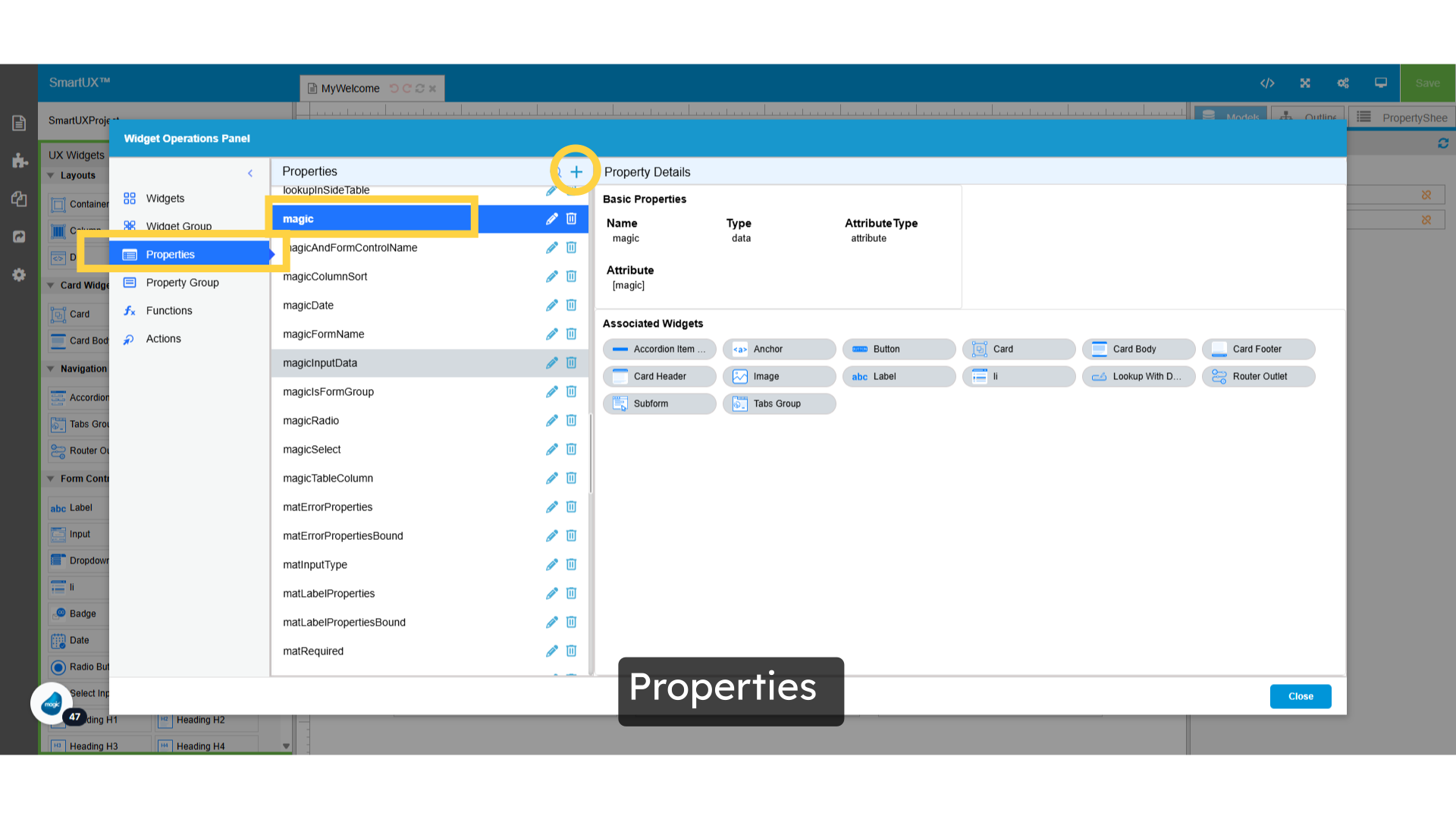
10. Properties

  • The Properties section is organized into two distinct parts: a list of properties and the details of a selected property.
  • In the Property Details area, you will find essential information including the property name, type, attribute type, and specific attributes associated with the property.
  • Here you can also create new properties as per your requirements using the plus icon.
  • Beneath this information, you will see the assigned widgets.
  • This indicates all the widgets displayed in this section that utilize this particular property.
  • You can easily add new properties to your widgets according to your needs by simply clicking the plus icon.

Properties

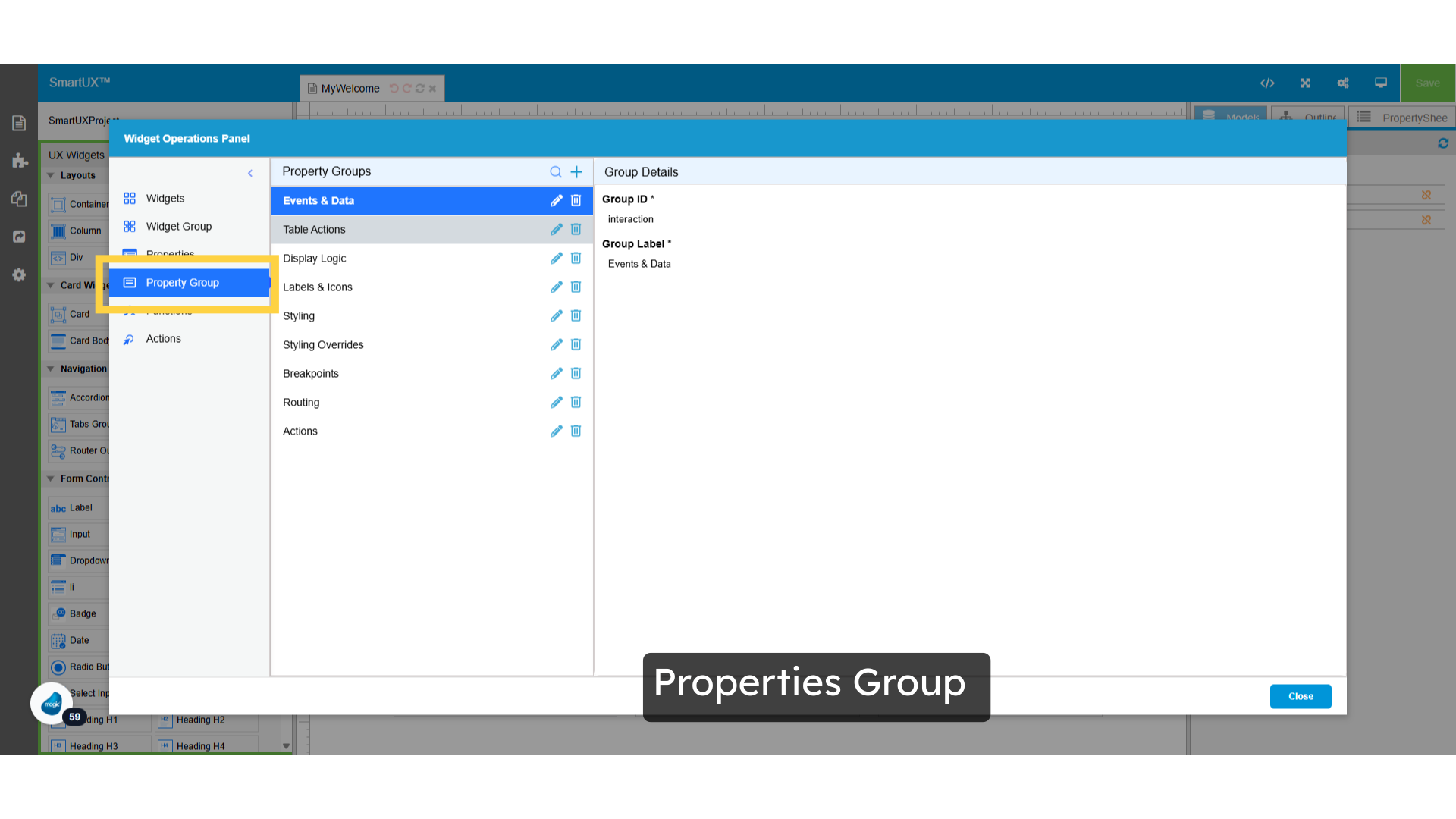
11. Properties Group

  • Welcome to the Properties Group.
  • Here, you can create or modify property groups for your UX Widget property sheet.
  • Think of this as a way to categorize your properties by assigning them to relevant groups based on their similarities.
  • This organization makes it easier to manage and navigate through the properties in your widget’s properties sheet.

Properties Group

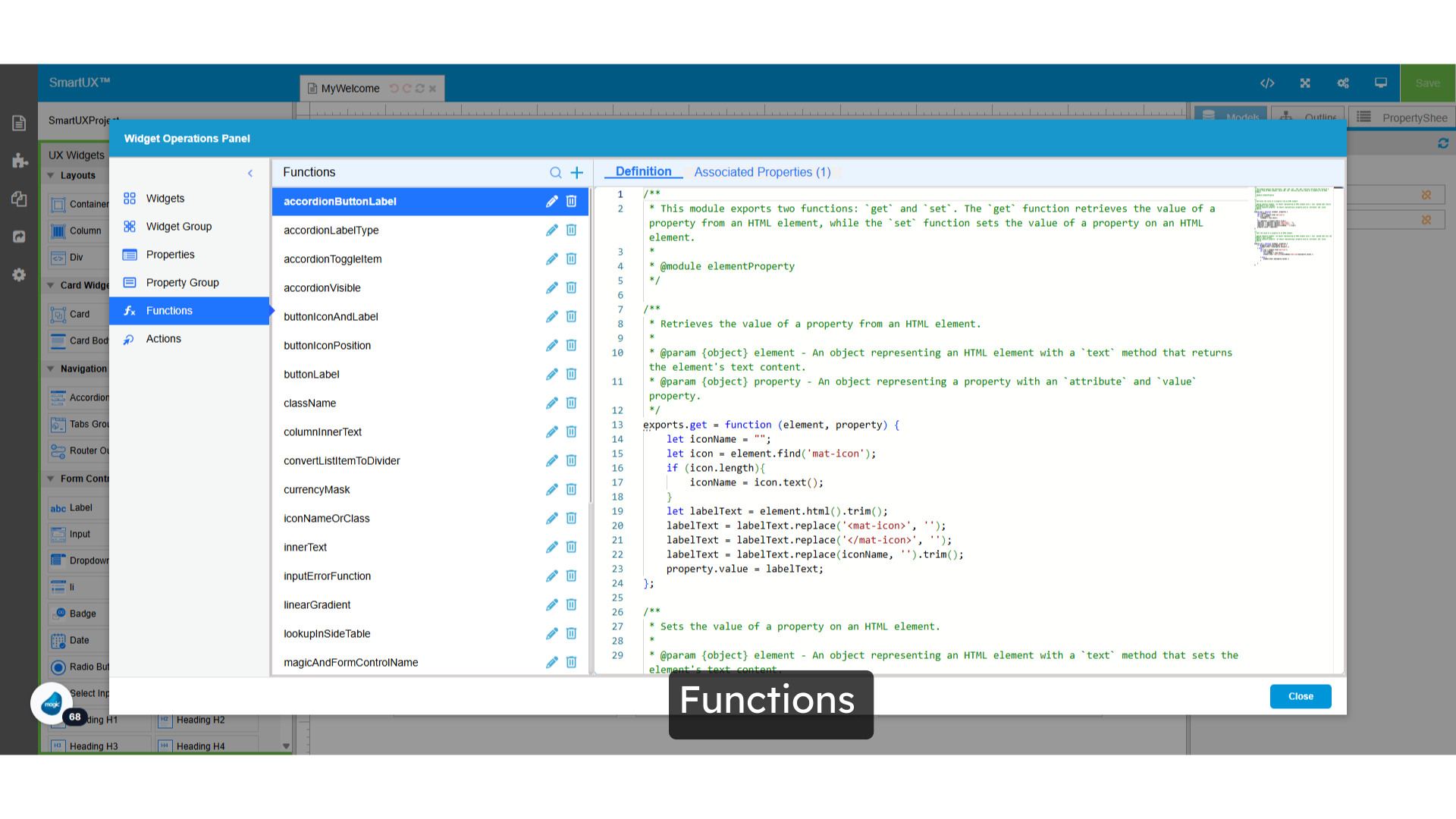
12. Functions

  • The Functions section presents a comprehensive list of JavaScript functions specifically designed for Widgets.
  • Within this section, you have the ability to create new functions or modify existing ones using JavaScript code.
  • With a fundamental understanding of JavaScript, you’ll find it straightforward to craft functions tailored to your widget requirements.
  • Here, you will find detailed definitions and the corresponding JavaScript code for each function, along with information about the specific properties these functions are associated with for your widgets.

Functions

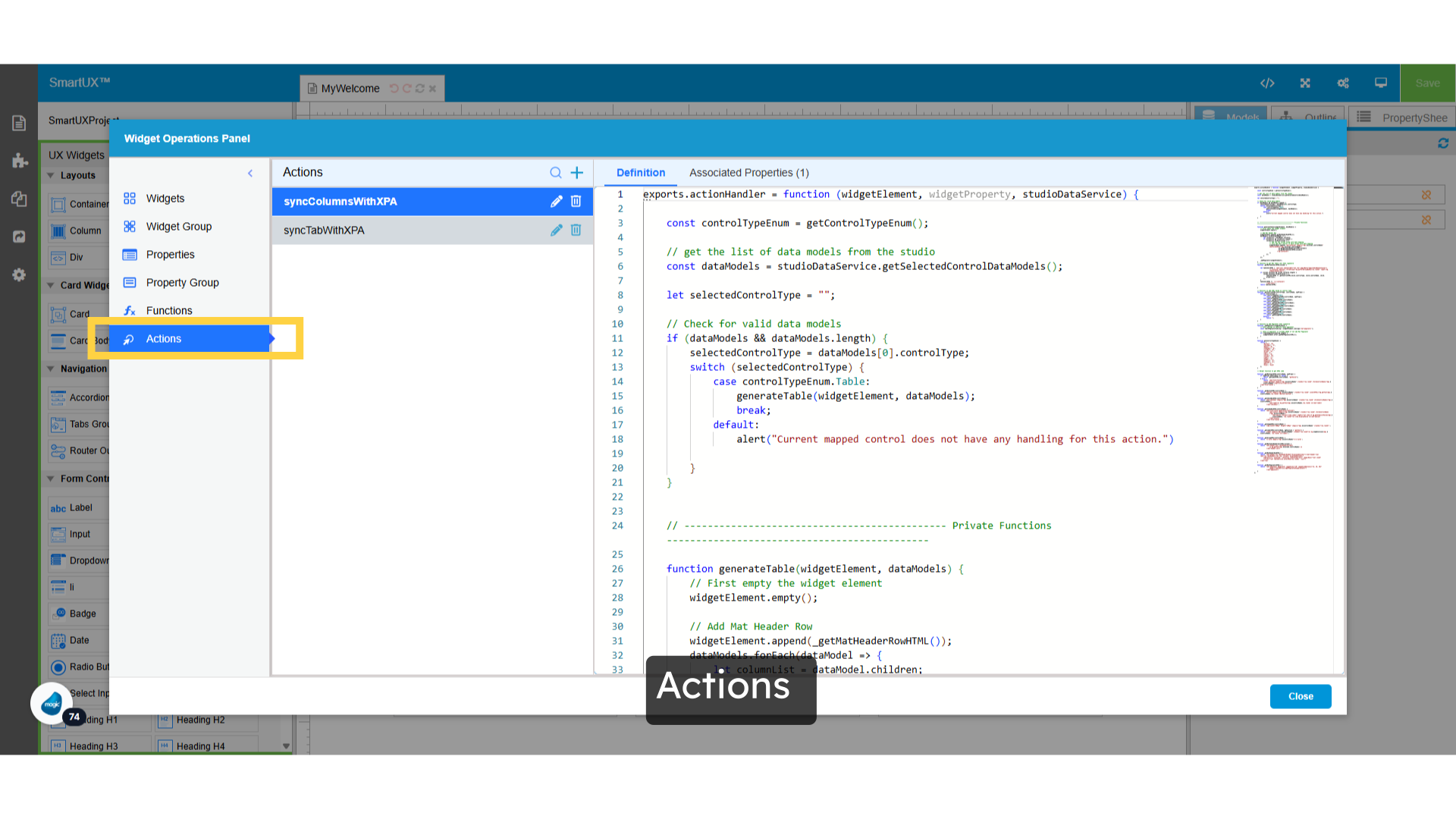
13. Actions

  • The Actions section features predefined actions tailored for a specific widget.
  • When you click on it within the widget’s properties sheet, the corresponding action is triggered.
  • To fully leverage this functionality, a basic understanding of JavaScript is beneficial.
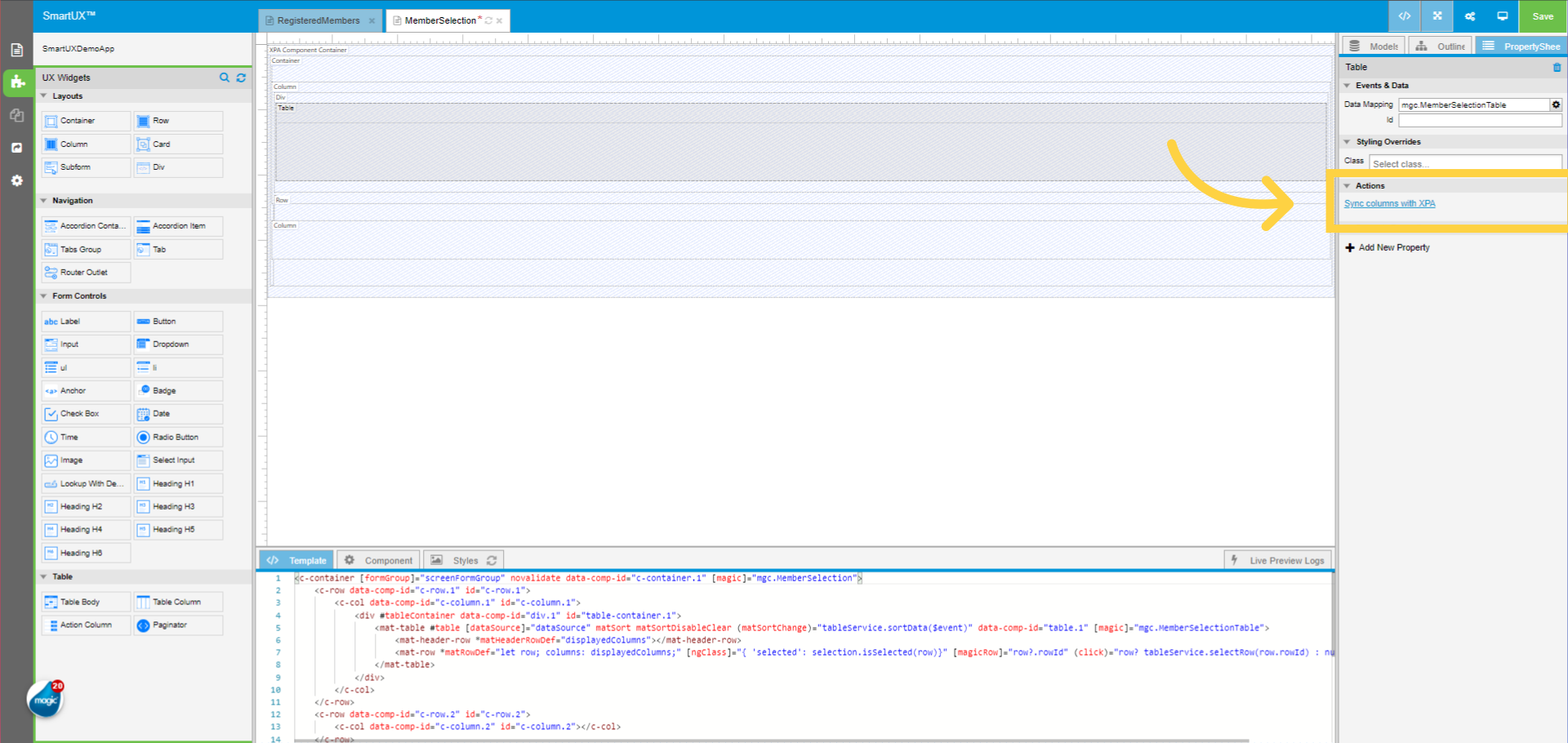
  • One such action, symbolized by ‘synolumnsWithXPA’, automates the creation of a table along with its columns and any associated widgets or controls within those columns.
  • This process eliminates the need for manual interaction or the tedious drag-and-drop of each individual widget into the table.
  • Essentially, this functionality streamlines the widget configuration process, allowing you to efficiently set up your canvas with your desired layout and components.

Actions

This guide covers a comprehensive exploration of the Widget Operations Panel, guiding you through various settings and configurations tailored for Employee Training. Master widget properties, hidden features, and associated properties efficiently with these engaging instructions.

How Do I Work with the Component Operation Panel?


Introducing the Component Operation Panel, designed for developers seeking efficiency in component management.This feature streamlines workflows, enabling users to Rename, Move, Delete and Add components seamlessly. Say goodbye to fragmented processes and hello to a more cohesive and intuitive component management experience.


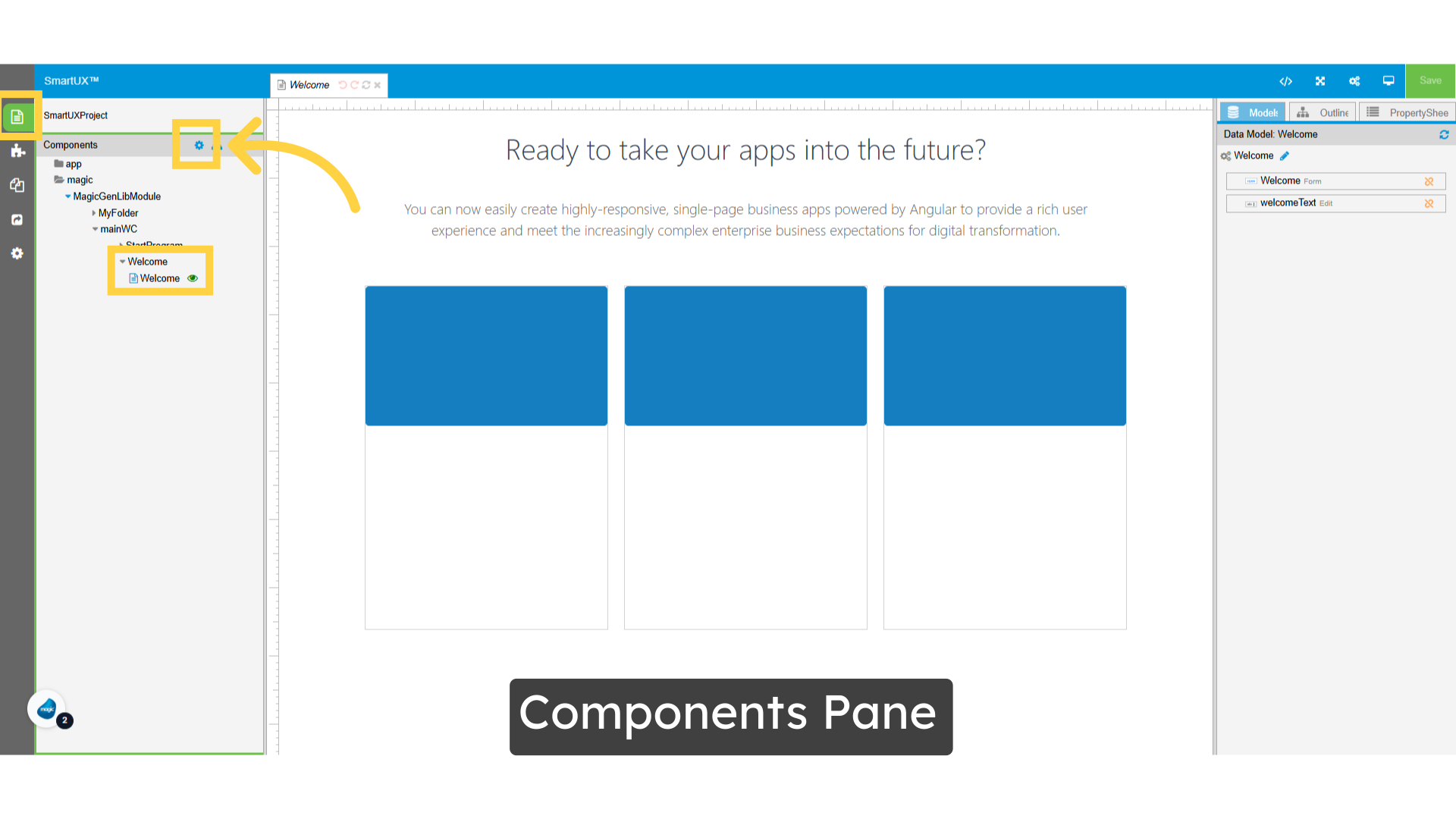
1. Components Pane

  • Start exploring the available options for your components.
  • The Component Pane provides a gear icon, allowing you to access the Component Operations Panel.

Components Pane

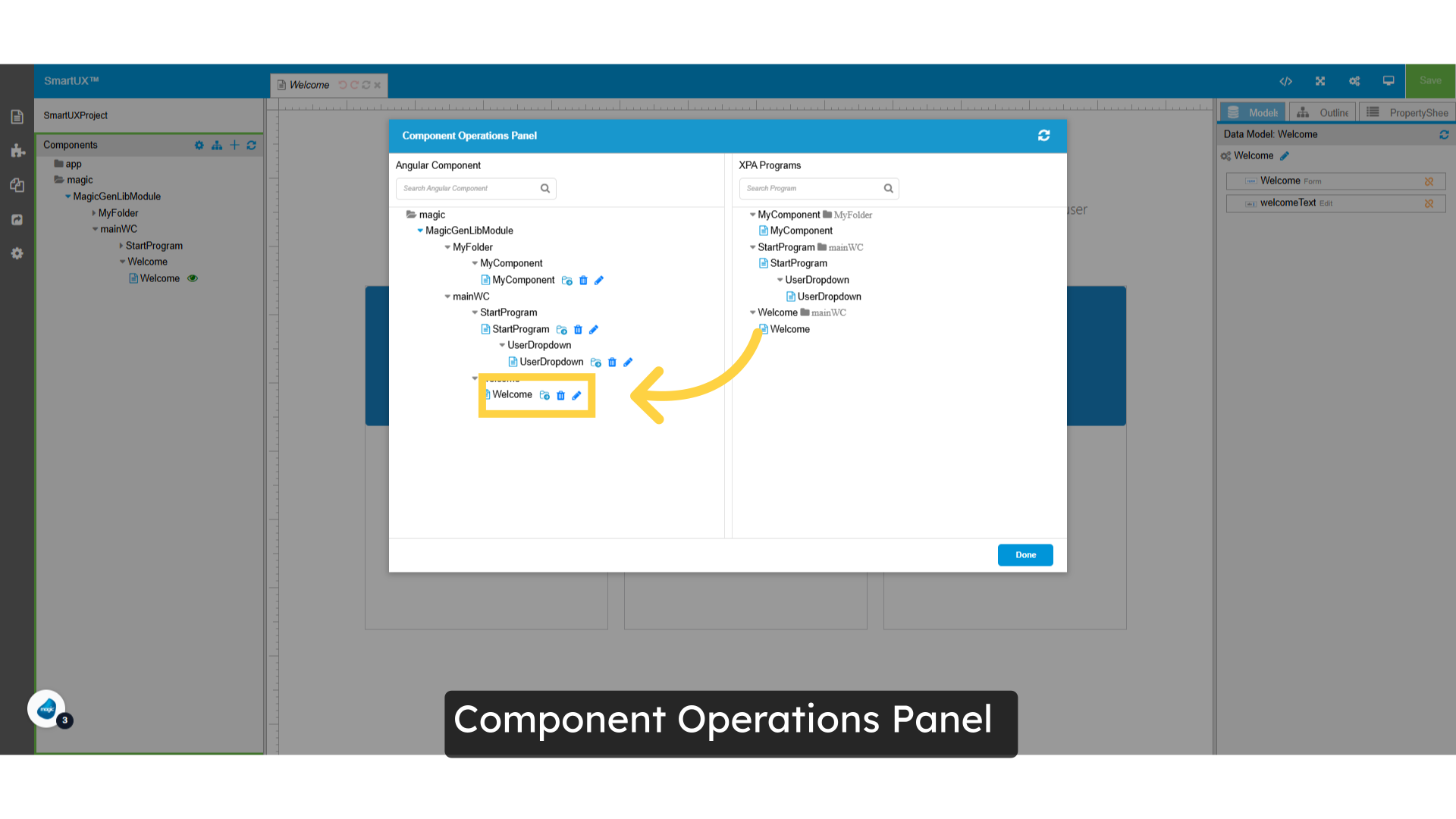
2. Component Operations Panel

  • The Component Operations Panel is a centralized interface for managing and controlling various components within the application.
  • It provides essential tools for efficient oversight and interaction with the elements.

Component Operations Panel

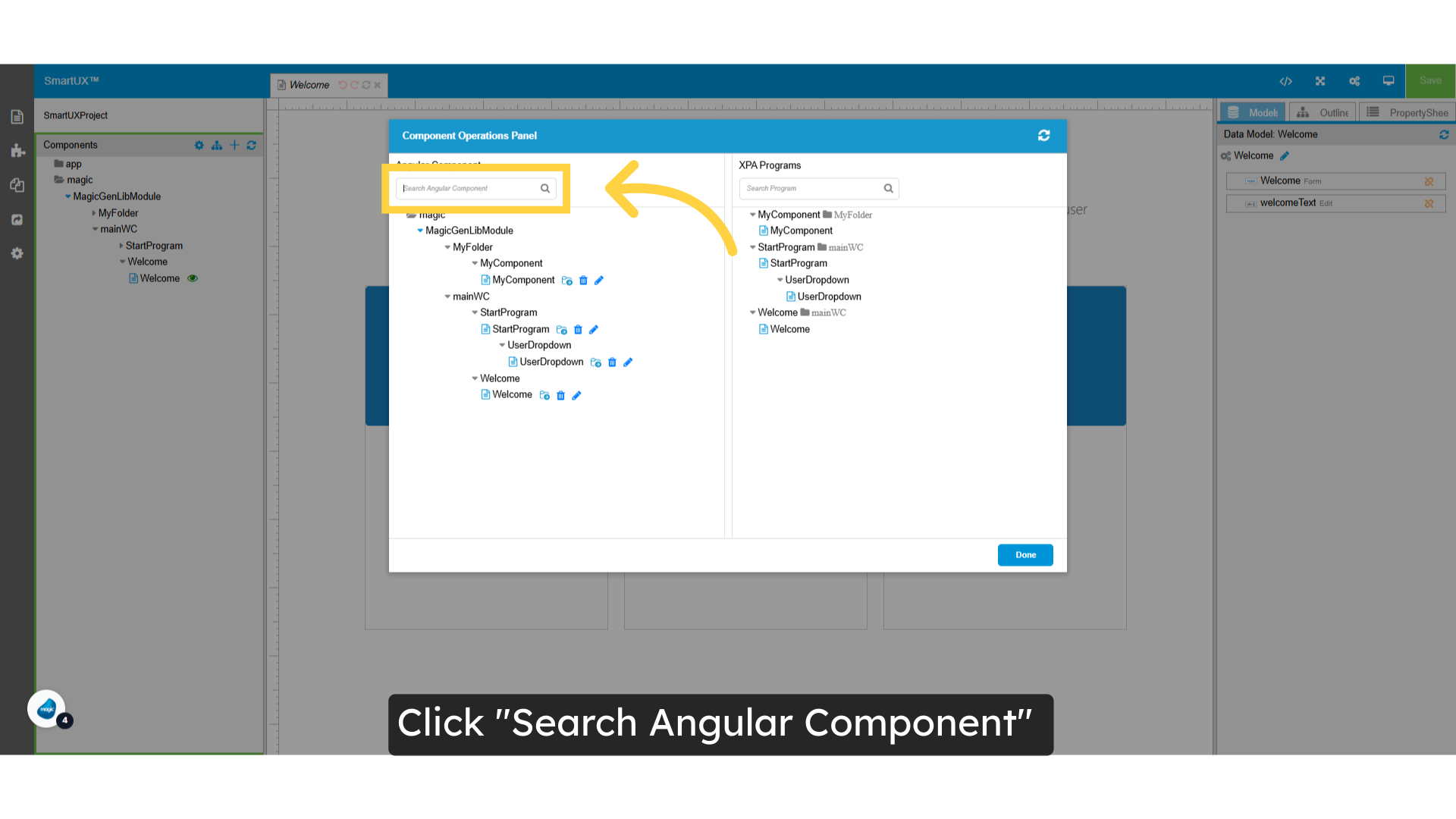
3. Search Angular Component

  • Search for an Angular component effortlessly.
  • Utilize the search functionality to quickly find specific components within your project.

Search Angular Component

4. Search xpa Program

  • In the Component Operations Panel, you can easily search for XPA programs using the search bar.
  • This allows you to quickly locate specific programs and streamline your workflow.

Search xpa Program

5. Rename the Component using the Component Operations Panel

  • In Angular, a component acts as a vital building block that manages a distinct section of the user interface.
  • Each component consists of an HTML template, a TypeScript class, and optional styling.
  • In Magic xpa, the closest equivalent to an Angular component is a form or task, which combines a visual element with its corresponding logic.
  • SmartUX and xpa are closely intertwined; when you change a form name in xpa, the same component name must be updated accordingly.
  • To streamline this process and eliminate the need for manual adjustments, you can utilize this feature.

Rename Component using Component Operations Panel

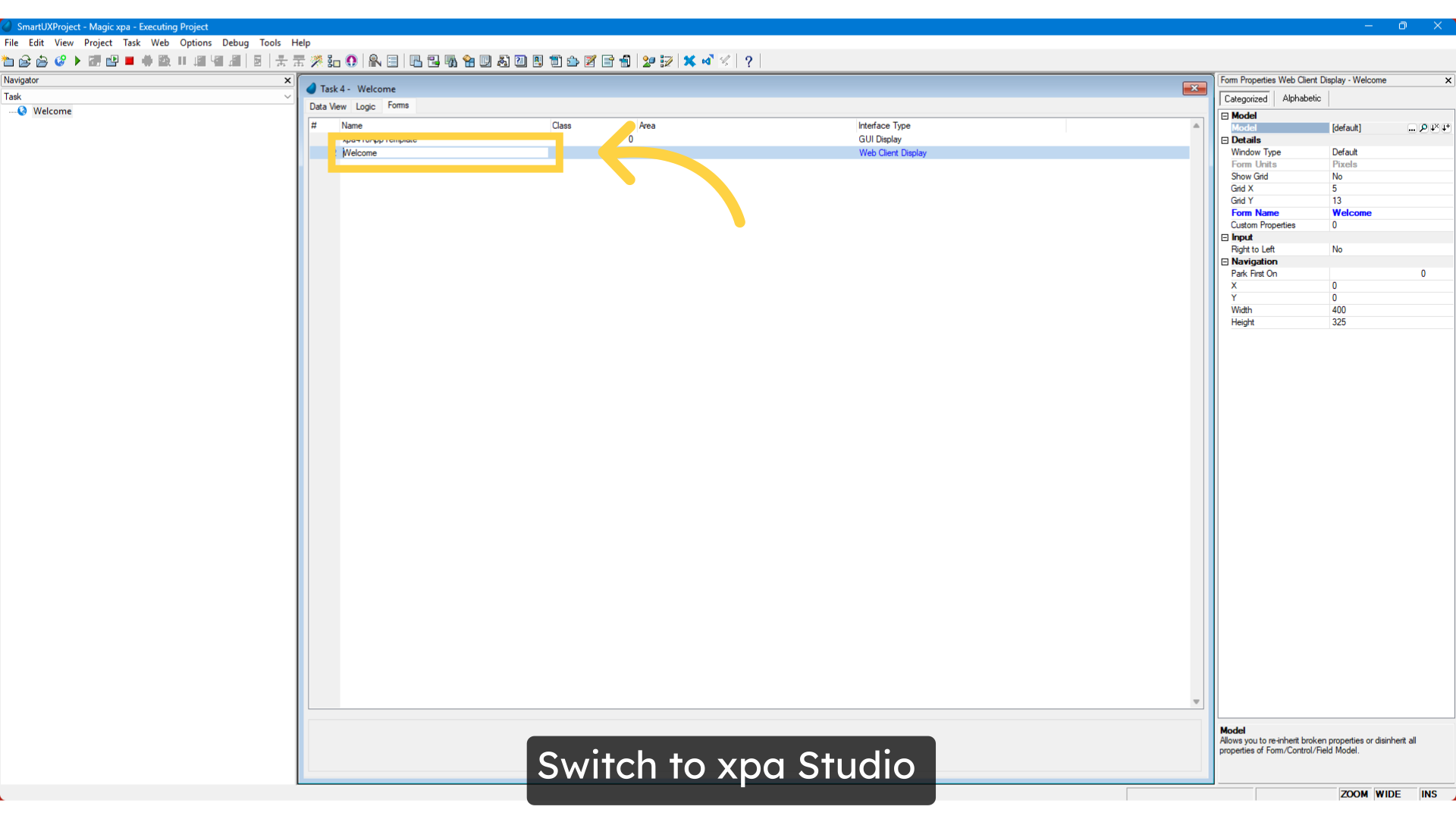
6. Switch to xpa Studio

  • To begin, launch the Magic xpa Studio.Next, locate the program where you would like to modify the Form Name.
  • In this example, we will be updating the Form Name for the Welcome Program.

Switch to xpa Studio

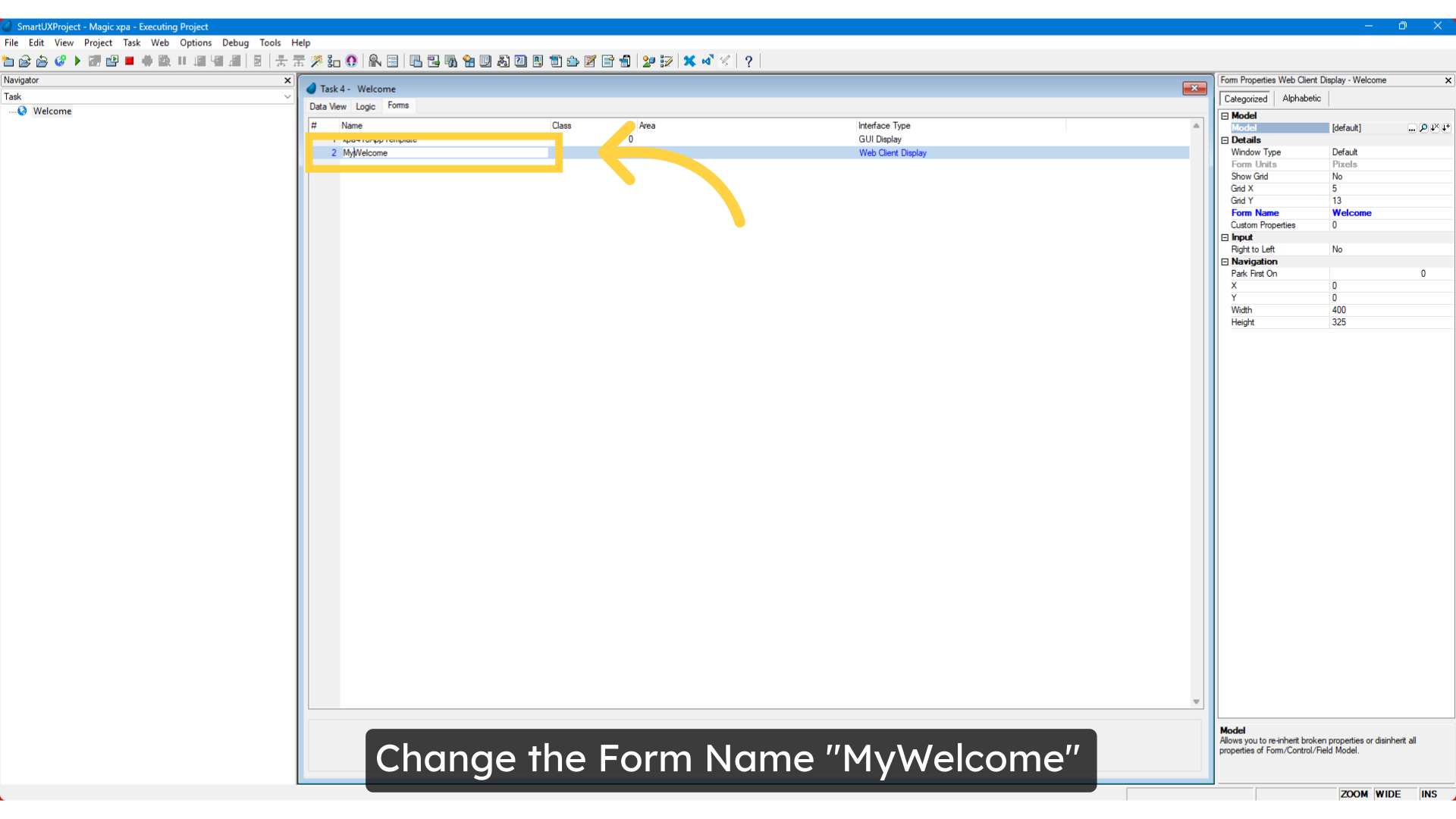
7. Change the Form Name “MyWelcome”

  • What happens if a user renames the form to “MyWelcome” in XPA?
  • Since the Angular component is tied to the XPA form name, it is essential to update the component name and its corresponding file names accordingly.
  • Moreover, you must ensure that all relevant bindings in the component’s TypeScript files are modified to reflect this change.
  • To simplify this process and reduce manual effort, you can leverage the Component Operation Panel.
  • This feature is designed to automate many of these tasks, making it easier to manage changes efficiently.
  • Once you’ve made the necessary adjustments, save the changes to the XPA program and then switch to SmartUX Studio.

Change the Form Name 'MyWelcome'

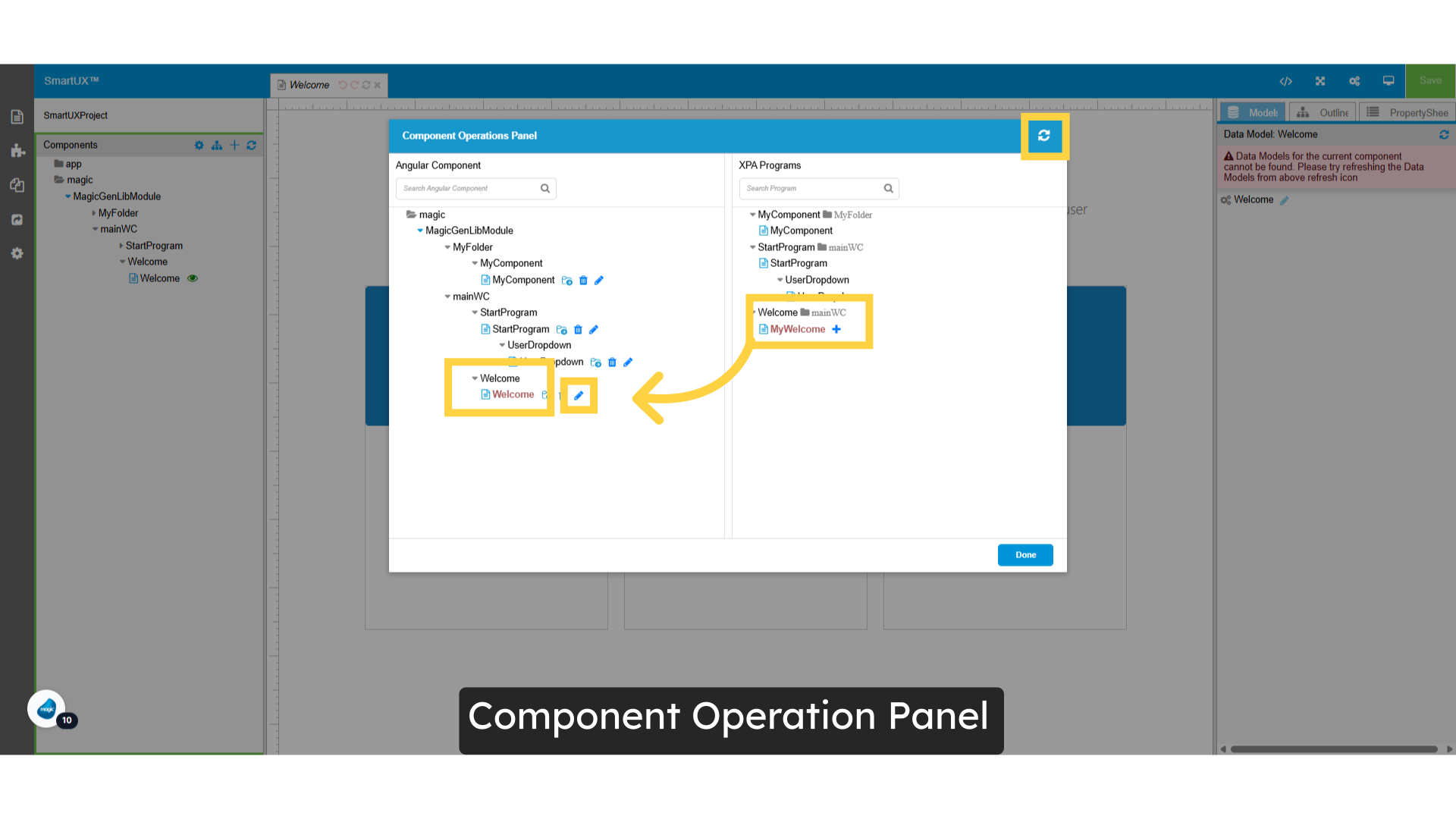
8. Component Operation Panel

  • To begin, click the Refresh button.
  • You will notice that the Welcome component name is highlighted in red, indicating that its corresponding XPA program cannot be found.
  • In the XPA program, you will see that the Welcome component has been renamed to MyWelcome.
  • Next to the Welcome component, there is a button available for renaming it.

Component Operation Panel

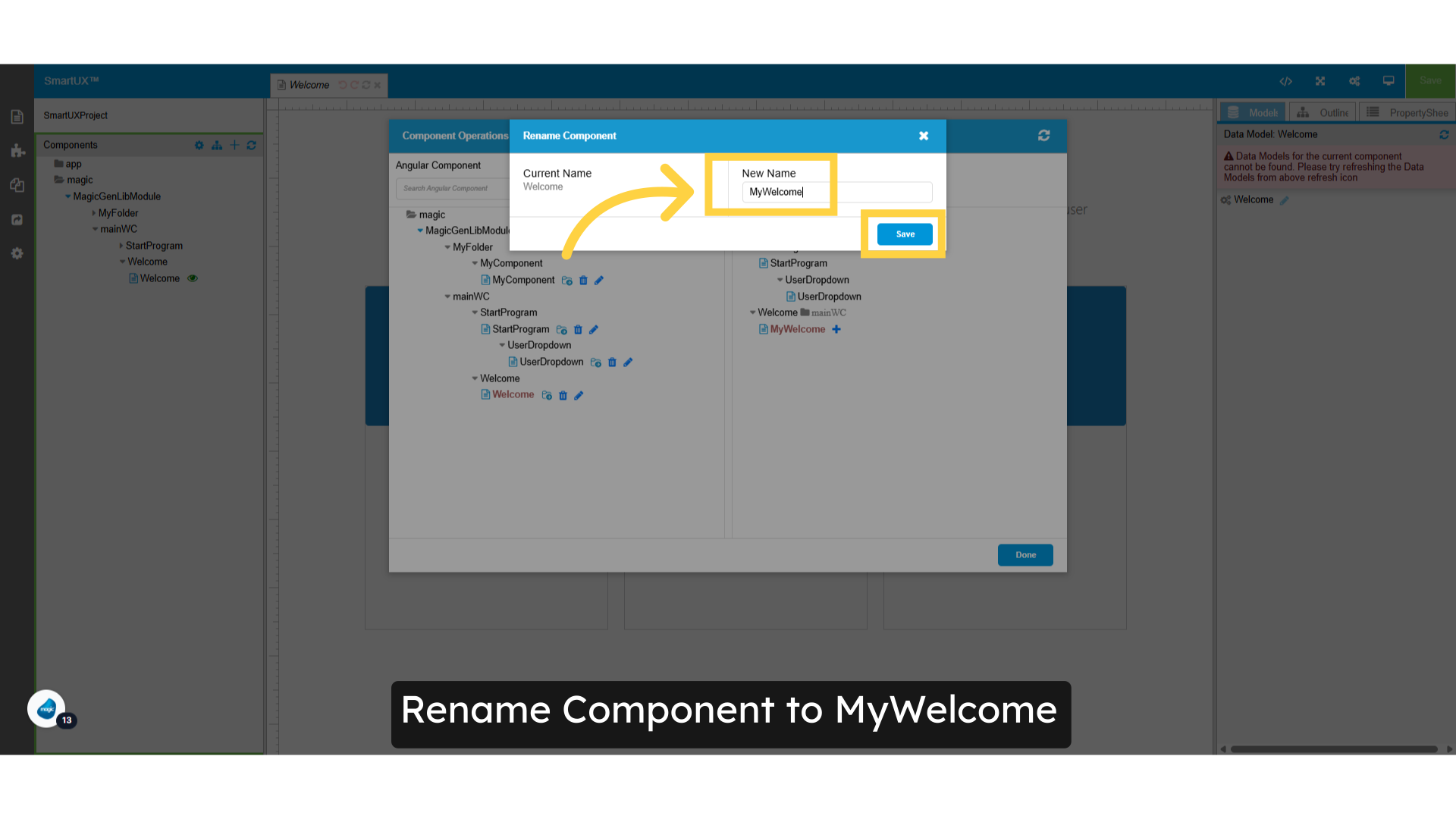
9. Rename the Component to MyWelcome

  • Click the Rename button to open a pop-up window where you can update the component’s name.
  • Enter your desired name, ensuring it matches the Form Name provided in XPA for consistency.
  • Once you’ve made your changes, click the Save button to confirm.

Rename Component to MyWelcome

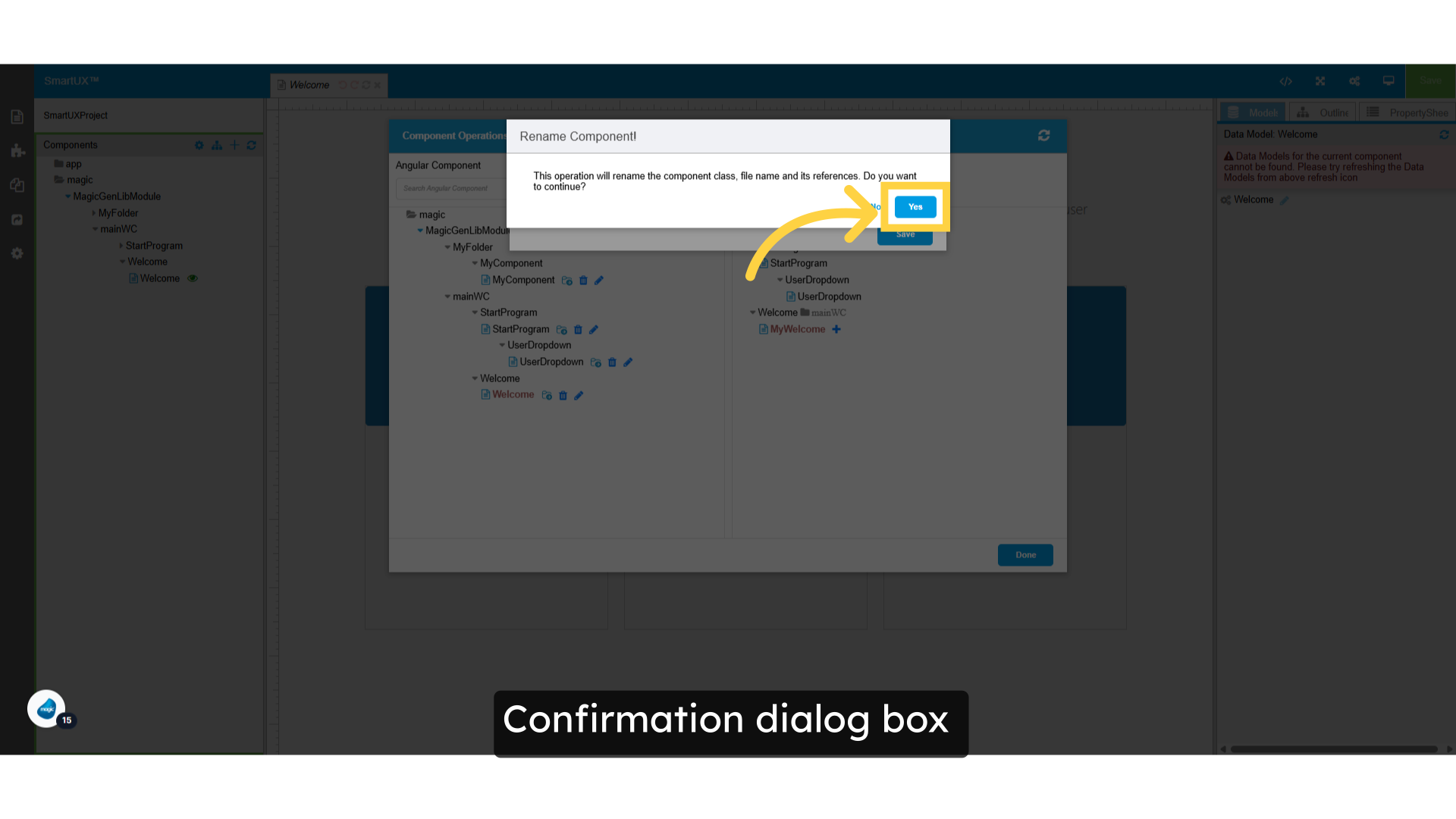
10. Confirmation dialog box

  • Confirm your save action to finalize your changes.

Confirmation dialog box

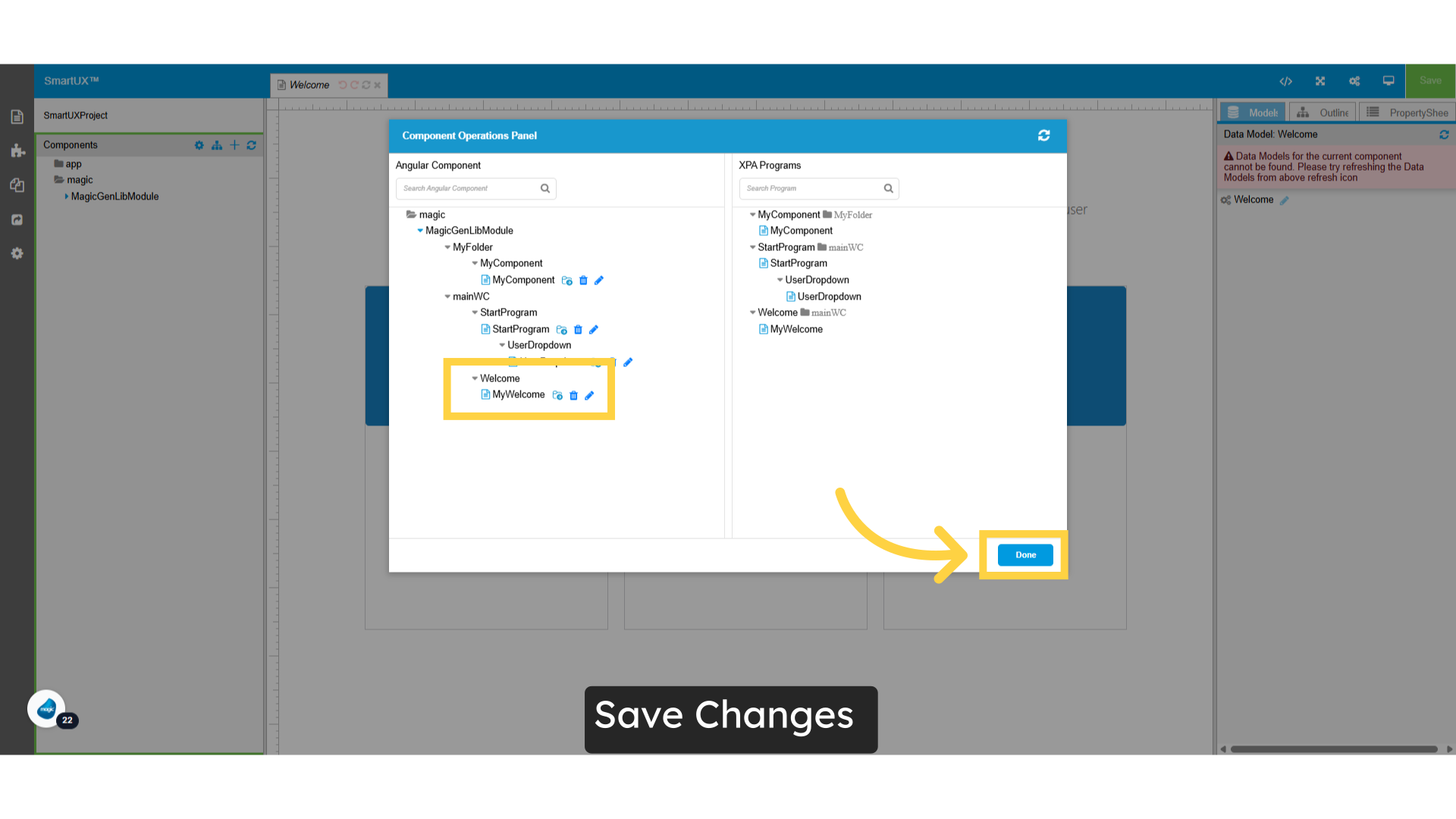
11. Save Changes

  • To complete the current task and proceed, simply click the ‘Done’ button in the Component Operations Panel.

Save Changes

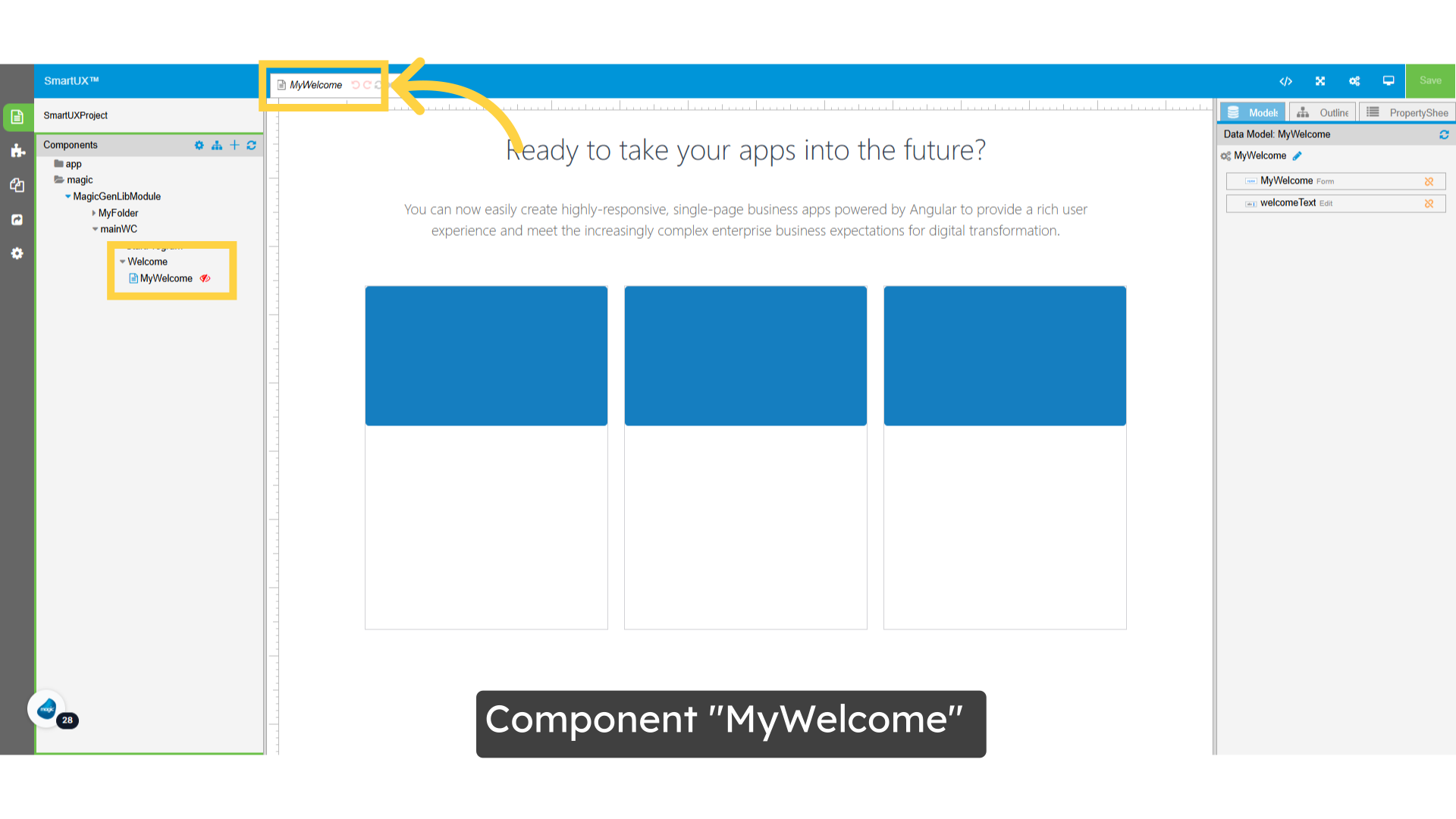
12. Component “MyWelcome”

  • Take a moment to revisit the Components pane options.
  • You’ll notice that the Component name has been updated to MyWelcome, along with its associated files and TypeScript bindings.

Component 'MyWelcome'

13. Move the Angular Component using the Component Operation Panel

  • Easily Move Angular Components Using the Component Operation Panel.

Move Angular Component using Component Operation Panel

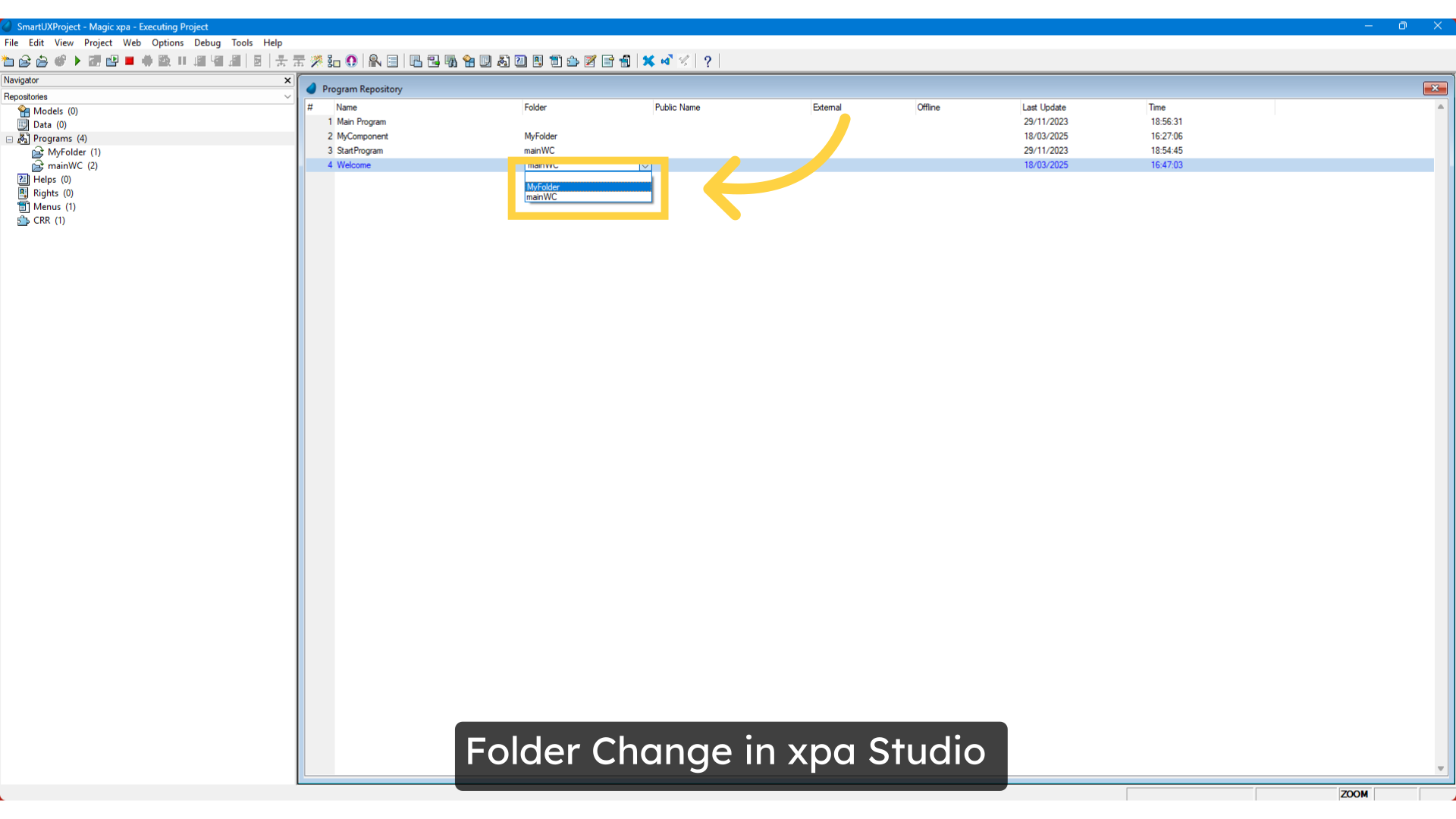
14. Folder Change in xpa Studio

  • What occurs when a user relocates an XPA program from one folder to another?
  • Given that the Angular component and Module are directly linked to the XPA program folder, it is crucial to update both the component Module and its associated file names accordingly.
  • Additionally, you must adjust all relevant bindings within the component’s TypeScript files to align with this change.
  • To streamline this process and minimize manual effort, you can utilize the Component Operation Panel.
  • This feature is specifically designed to automate many of these tasks, simplifying the management of changes and enhancing efficiency.

Folder Change in xpa Studio

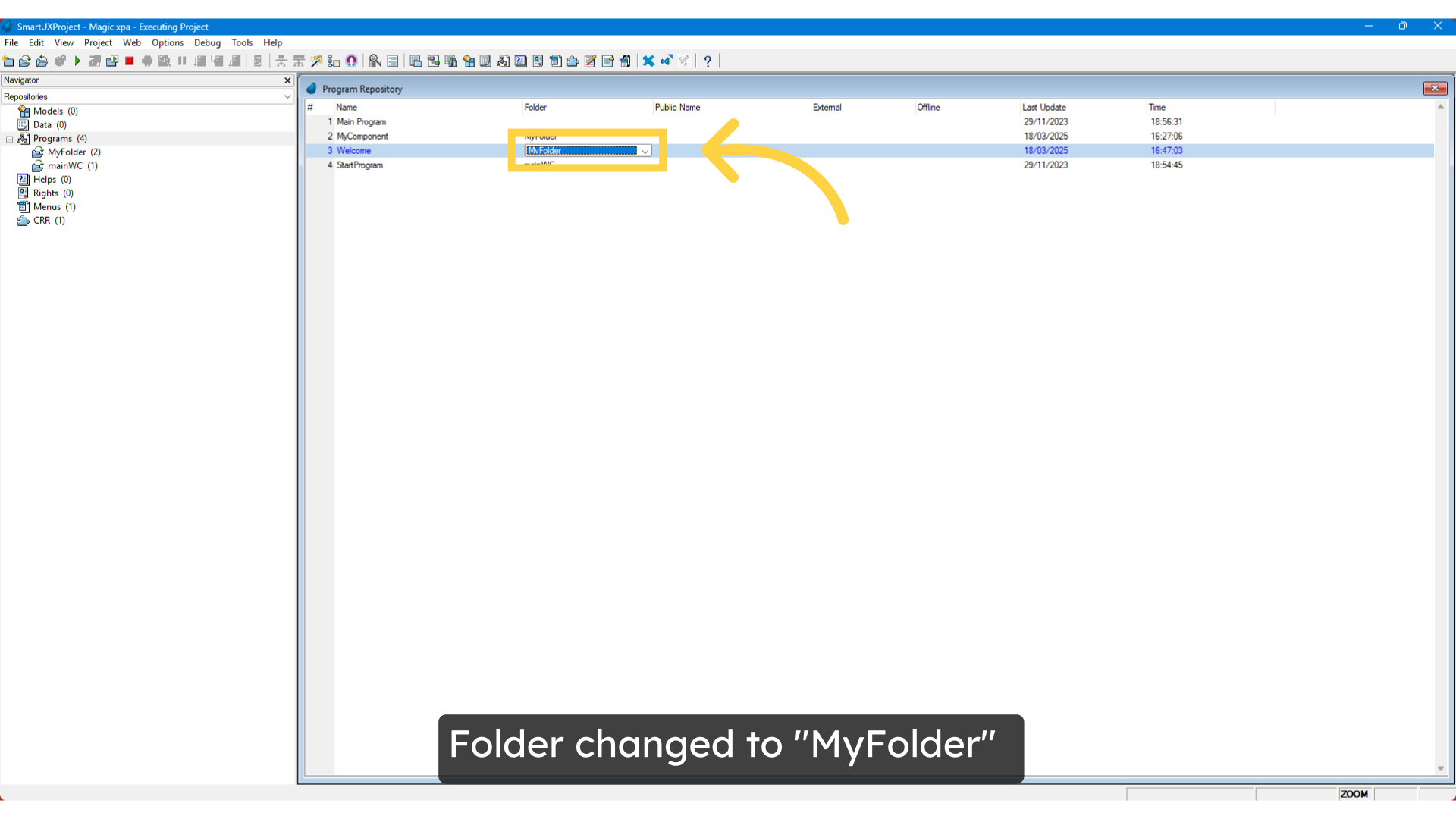
15. Folder changed to “MyFolder”

  • You have successfully changed the folder from MainWC to MyFolder.
  • To streamline your workflow, switch to SmartUX Studio and take advantage of the Component Operations Panel, which helps you avoid manual adjustments.

Folder changed to 'MyFolder'

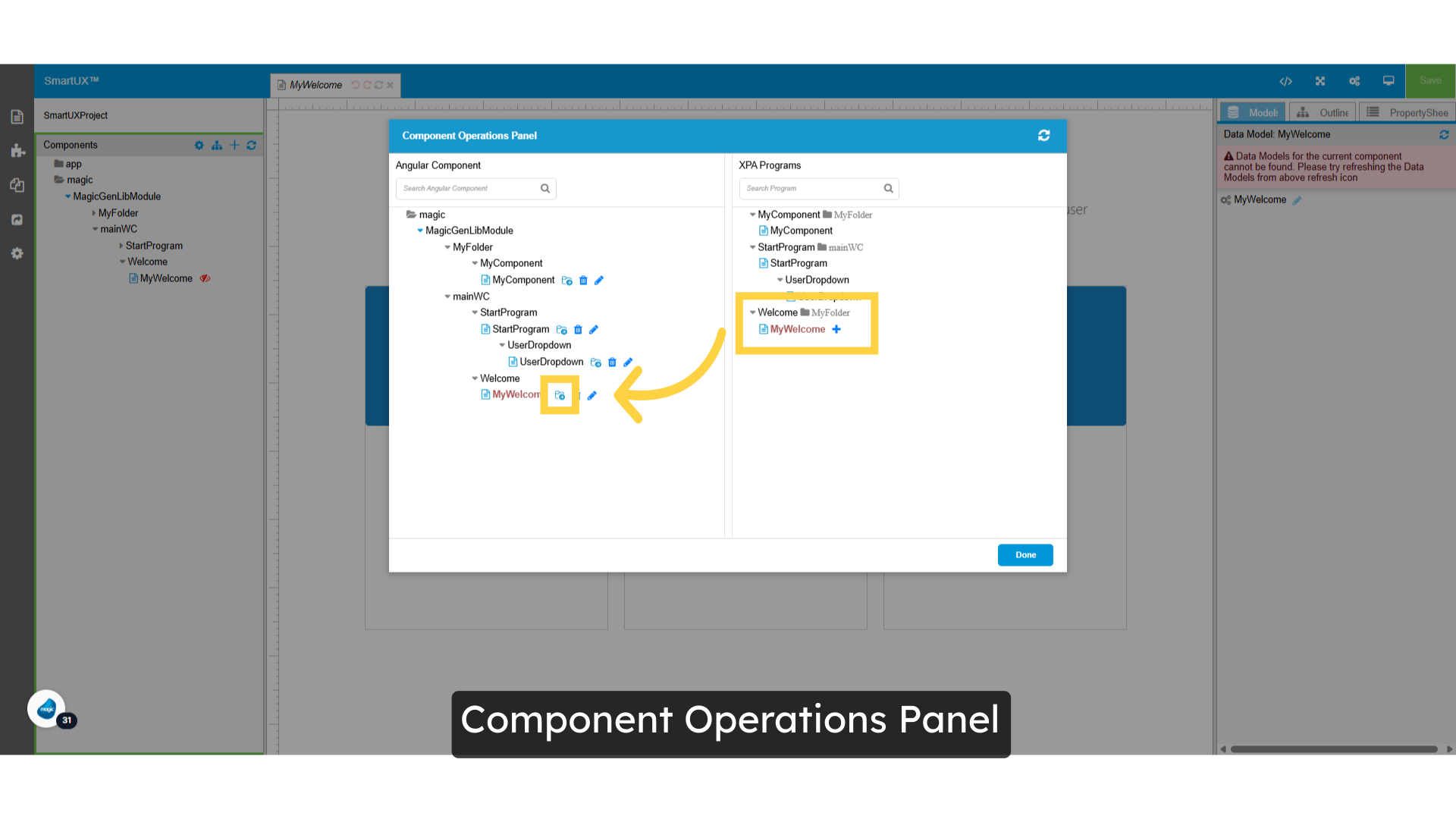
16. Component Operations Panel

  • To get started, click the Refresh button.
  • You’ll see that the MyWelcome component name is highlighted in red, signaling that its associated XPA program folder is missing.
  • Within the XPA program, you’ll notice that the MyWelcome component has been relocated to MyFolder.
  • Adjacent to the MyWelcome component, there’s a button that allows you to easily move the component from one folder to another.

Component Operations Panel

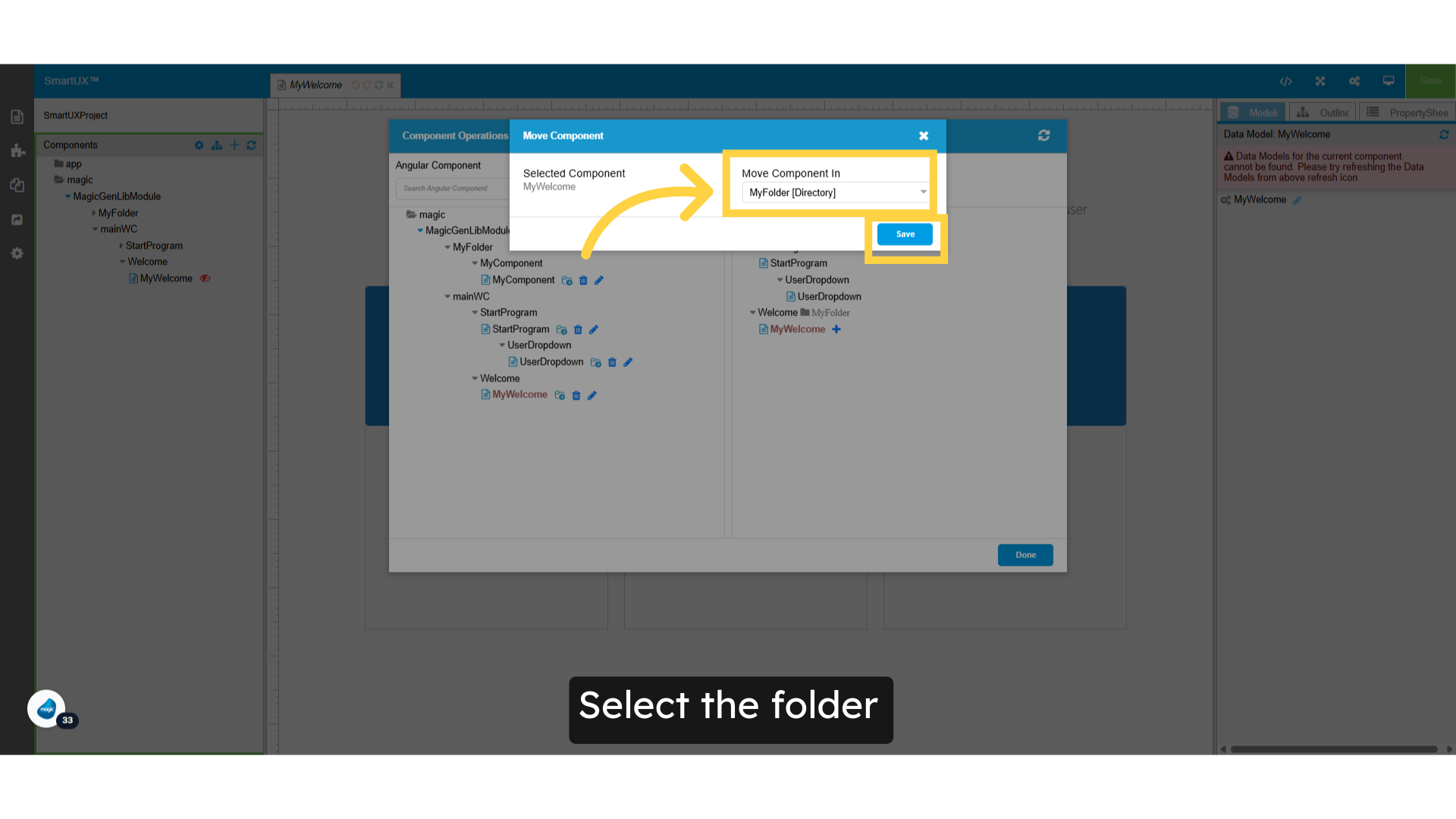
17. Select the folder

  • To update the component’s folder, click the ‘Move’ button.
  • This action will open a pop-up window where you can select a new folder.
  • Ensure that your chosen folder aligns with the selected folder in XPA for consistency.
  • After making your selections, don’t forget to click the ‘Save’ button to confirm your changes.

Select the folder

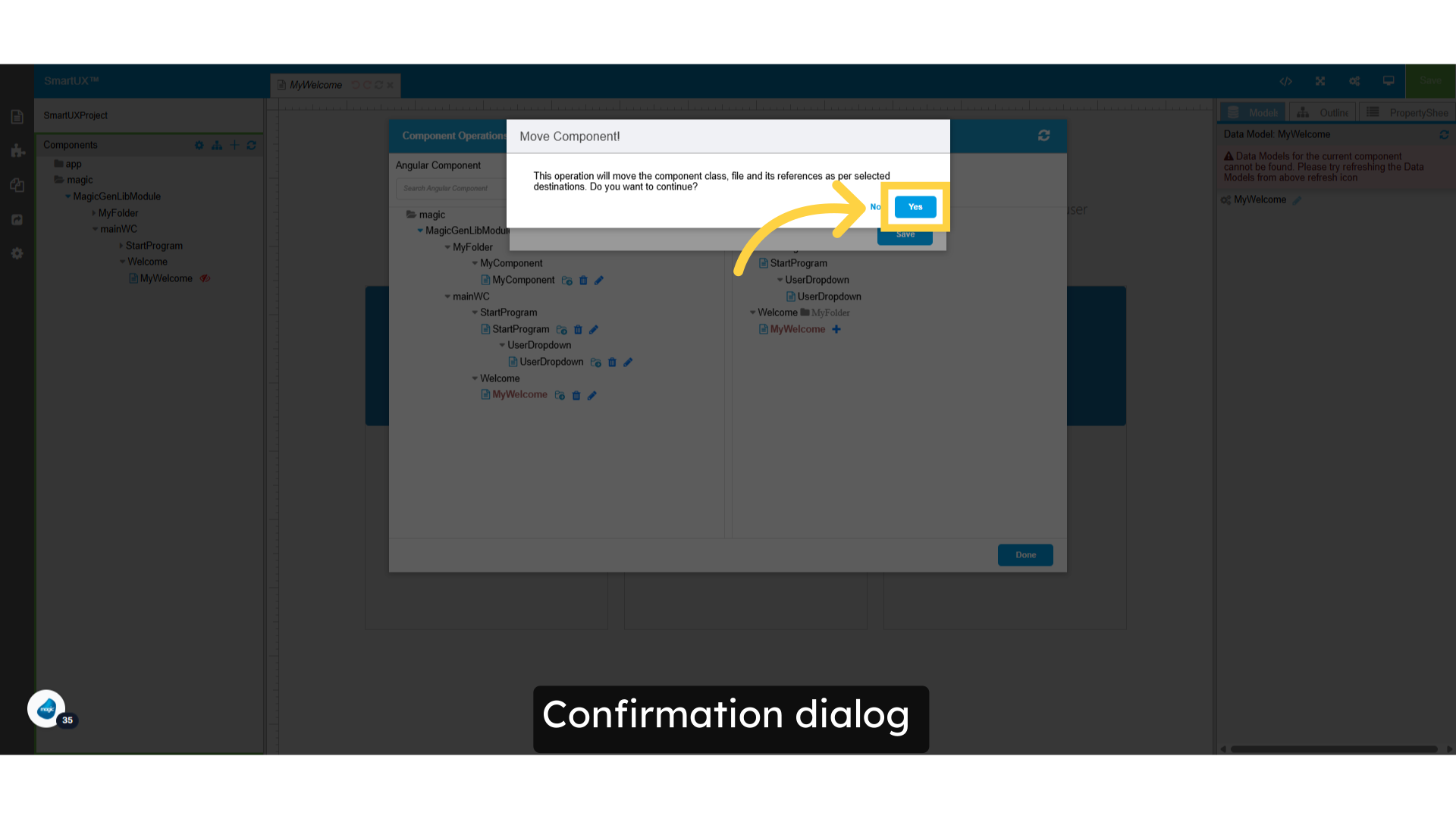
18. Confirmation dialog

  • Confirm your save action to ensure all updates are captured.

Confirmation dialog

19. Save Changes

  • After saving your changes, you’ll notice that the component has been relocated to ‘MyFolder’ within the Component Operations Panel under the Angular Component section.
  • Next, click the ‘Done’ button to confirm that all your actions have been saved and finalized.

Save Changes

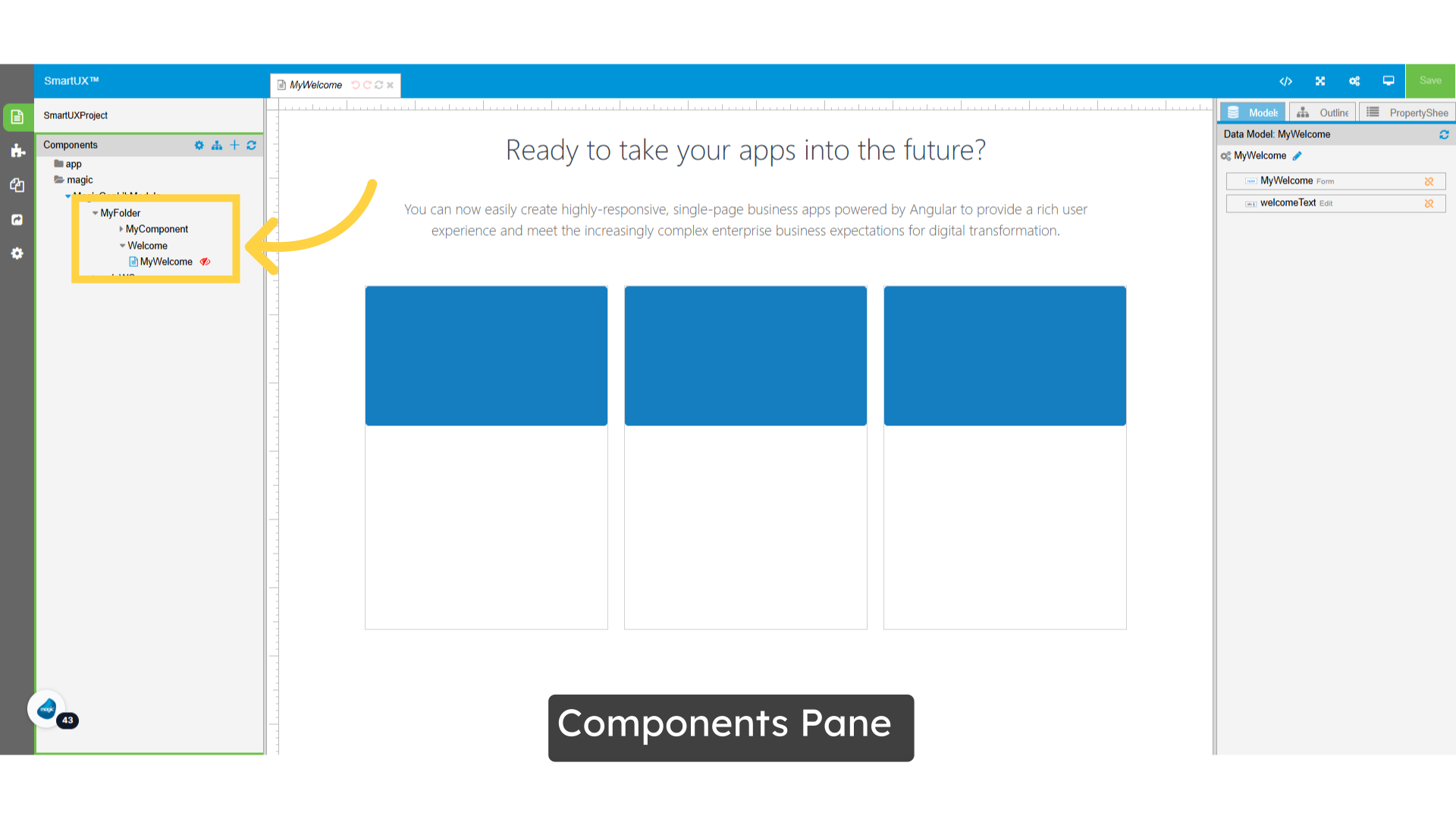
20. Components Pane

  • Navigate back to the Components Pane.
  • Expand the modules, and you will notice that the MyWelcome component has been relocated to MyFolder.

Components Pane

21. Delete the Angular Component using the Component Operation Panel

  • Effortlessly Remove an Angular Component via the Component Operation Panel

Delete Angular Component using Component Operation Panel

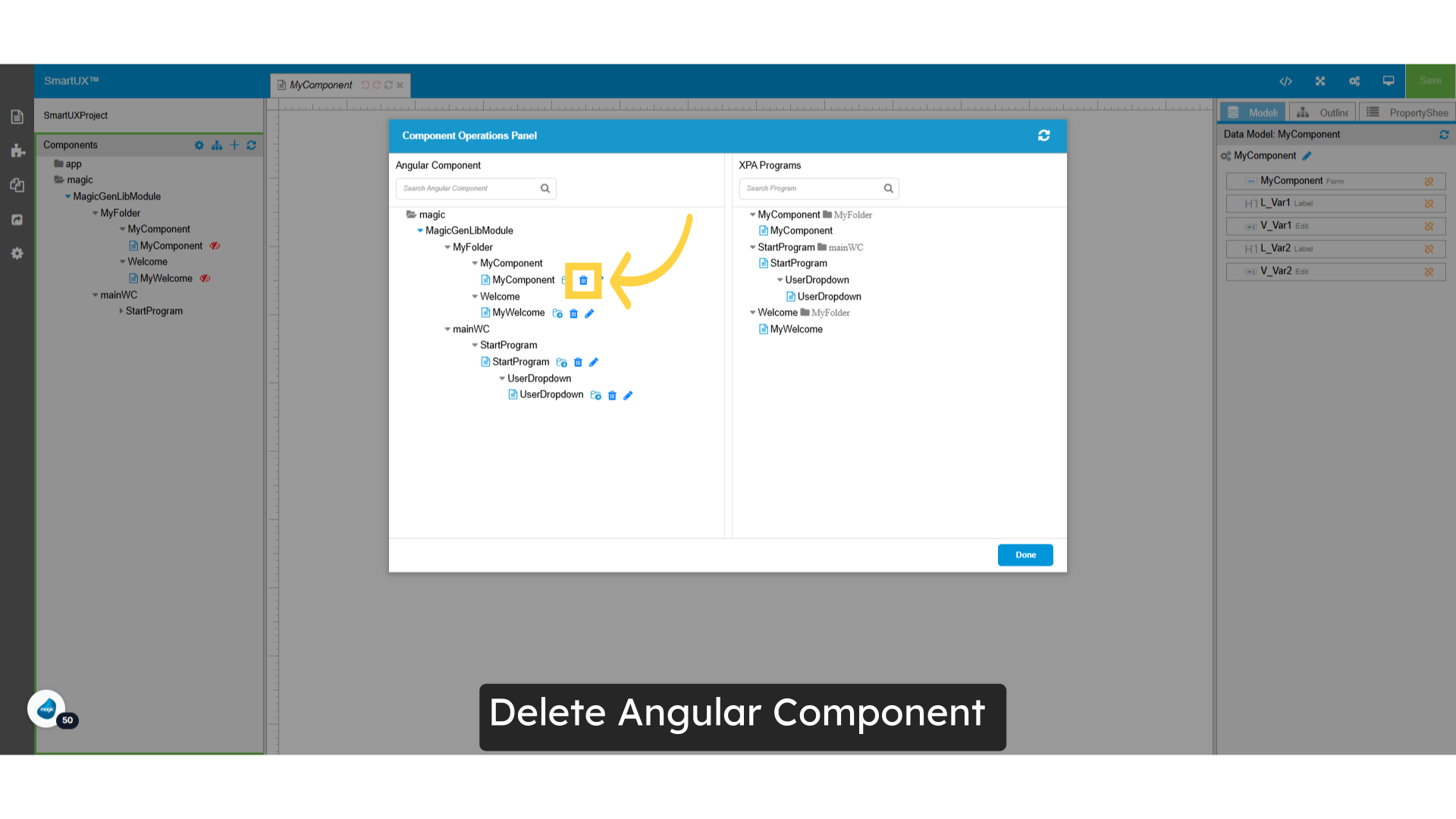
22. Delete Angular Component

  • What should you do if you want to delete an Angular component?
  • In the past, removing an Angular component required you to manually delete all associated files and ensure that any bindings related to that component were fully removed to prevent potential errors.
  • Now, you can streamline this process! In the Component Operations Panel, simply locate the Delete button next to the Angular Component you wish to remove.

Delete Angular Component

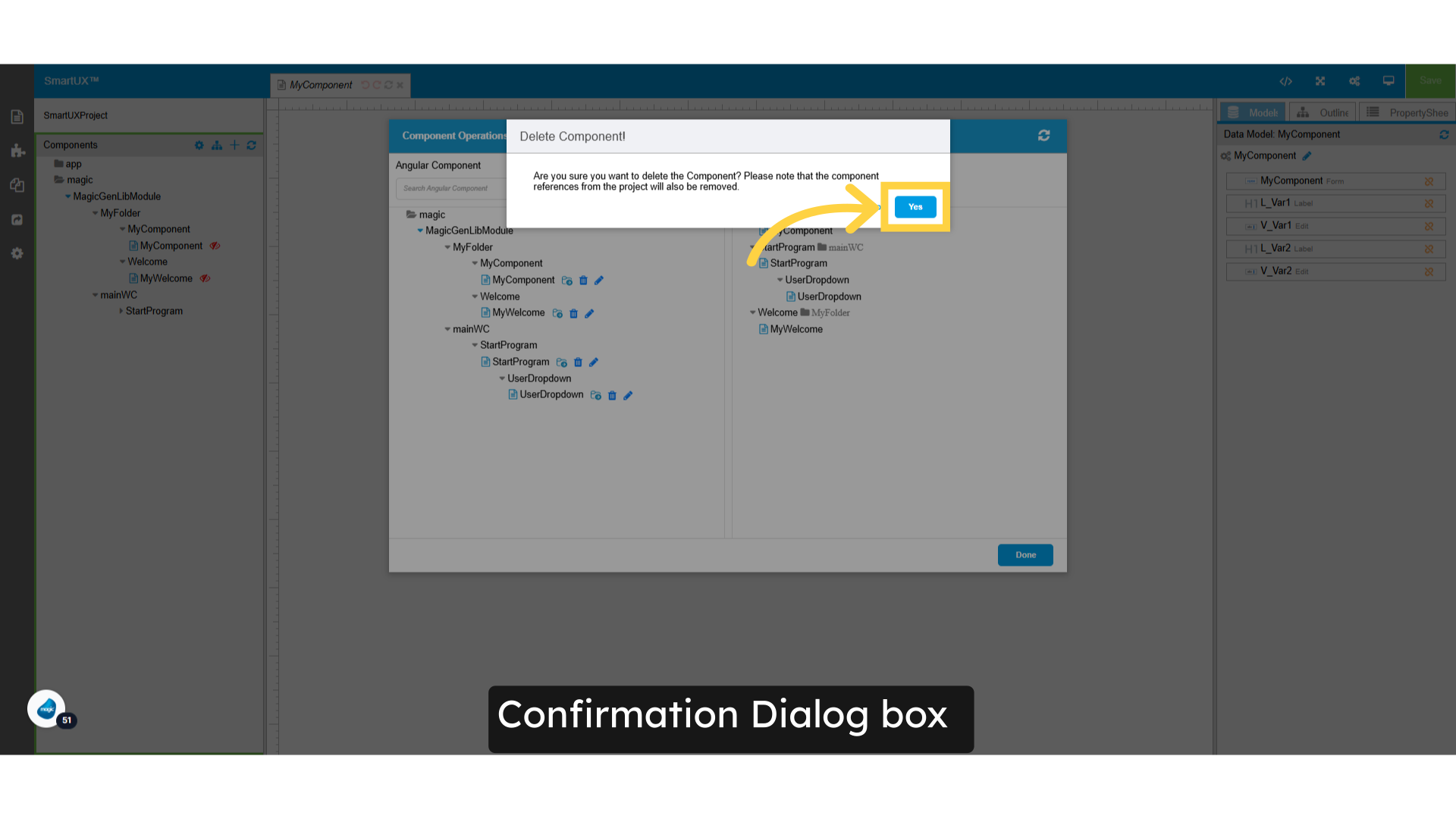
23. Confirmation Dialog box

  • Confirm your action to proceed with component changes.

Confirmation Dialog box

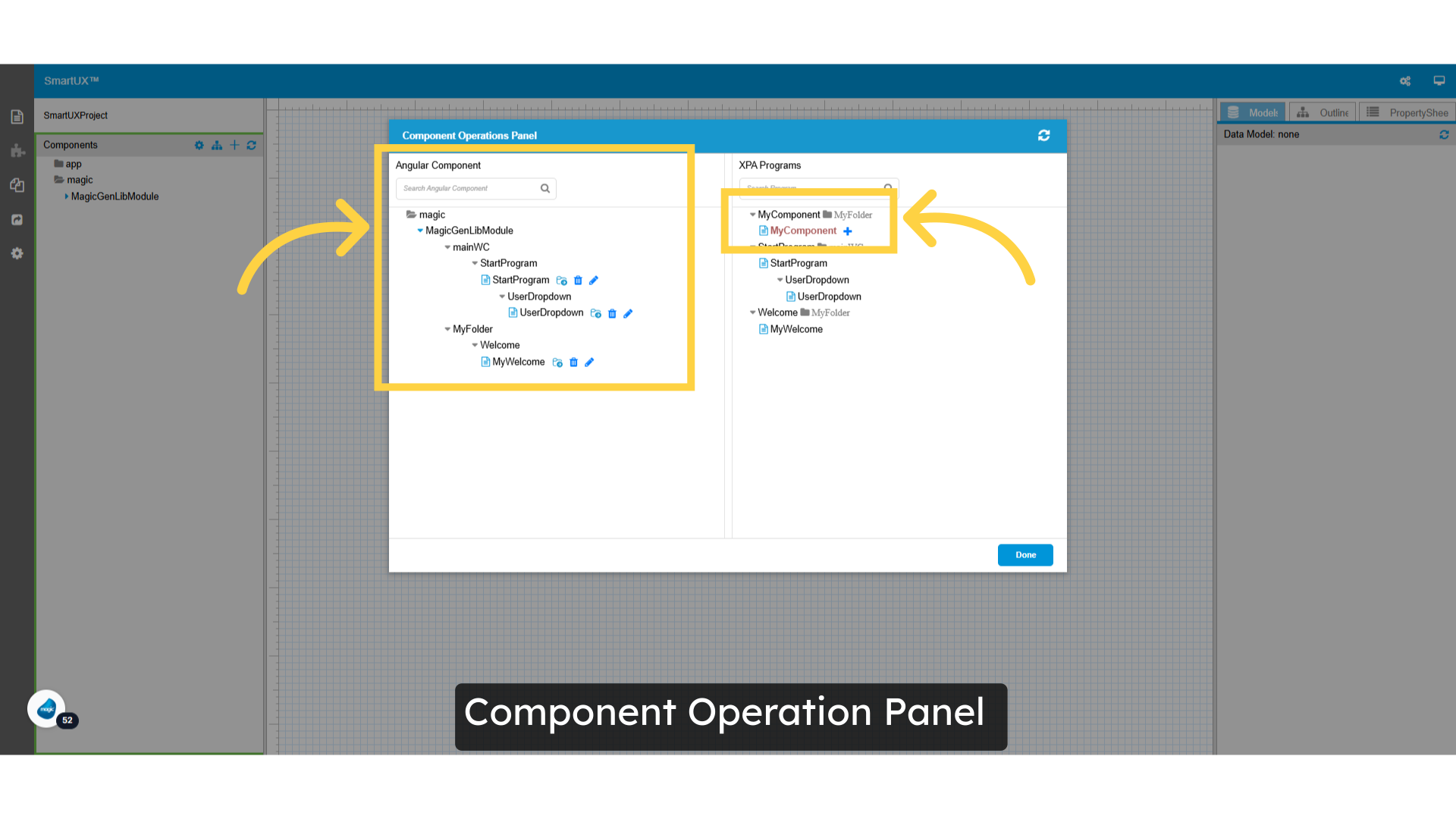
24. Component Operation Panel

  • Upon completing the delete operation, you will find that the component and all its associated bindings have been successfully removed from the project.
  • Additionally, the deleted component will now appear in the XPA Programs section, highlighted in red, indicating that it is available for re-adding.

Component Operation Panel

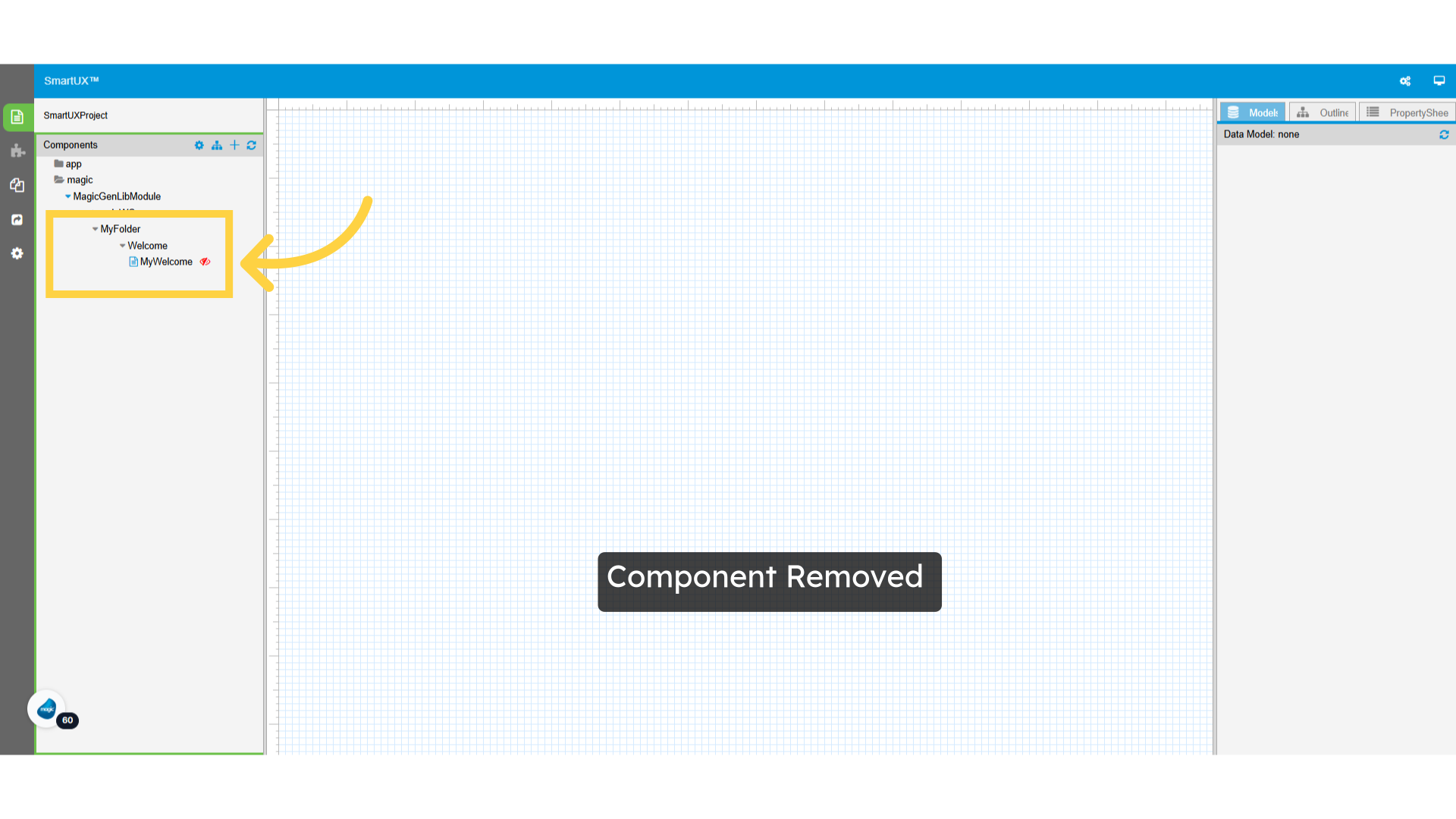
25. Component Removed

  • The deleted Angular component has now been removed from the Component pane.

Component Removed

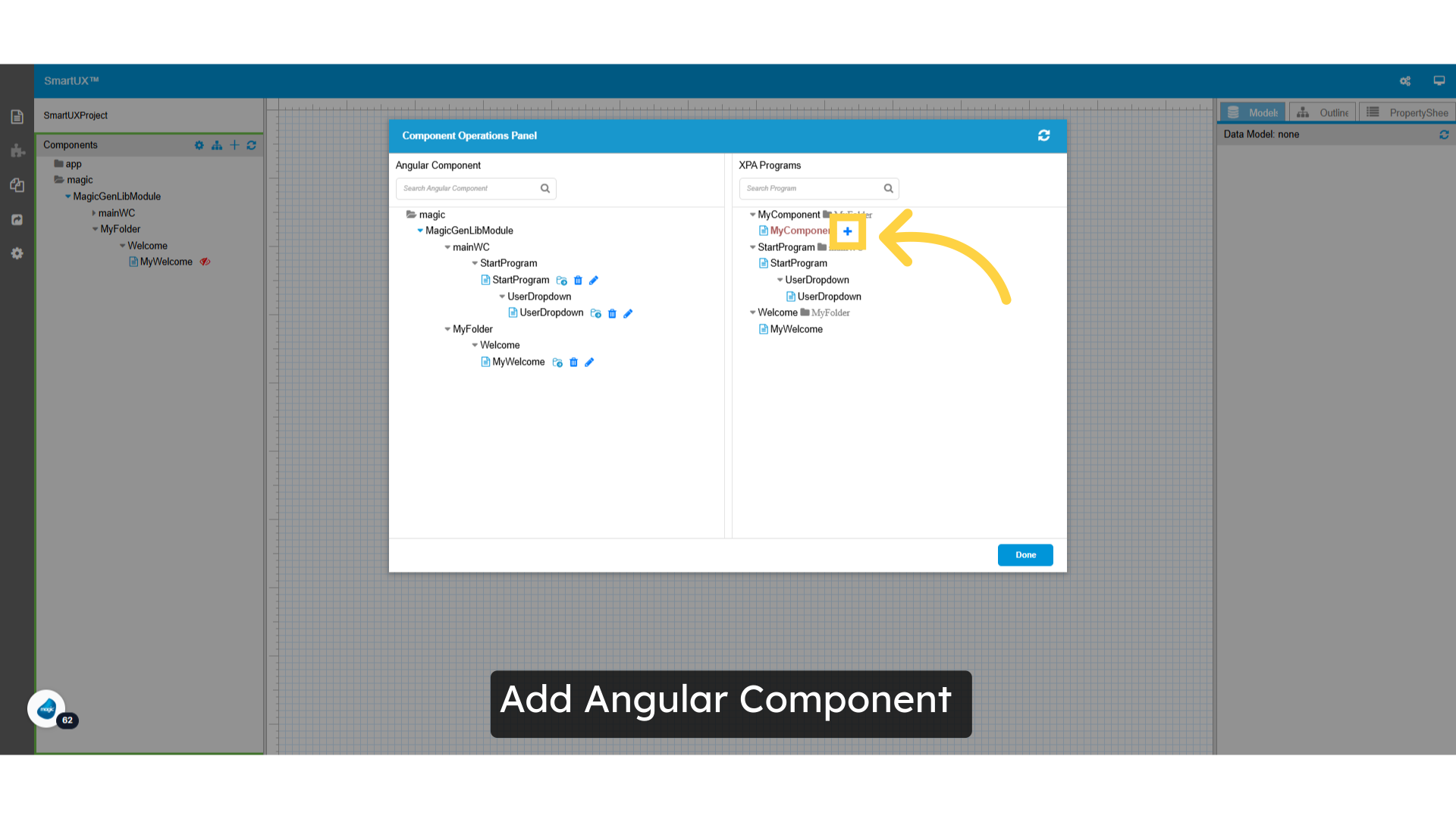
26. Add Angular Component using Component Operation Panel

  • Easily add a new Angular Component by utilizing the Component Operation Panel feature.

Add Angular Component using Component Operation Panel

27. Add Angular Component

  • What if a user wants to add a component?
  • To simplify this process and reduce manual effort, you can make use of the Component Operation Panel.
  • This panel allows users to seamlessly add a new component.
  • You will notice an ‘Add’ button located next to any XPA program that is not yet listed in the Angular component section.
  • For instance, if MyComponent is not currently displayed on your screen, it will feature the ‘Add’ button, indicating that you can easily include it.

Add Angular Component

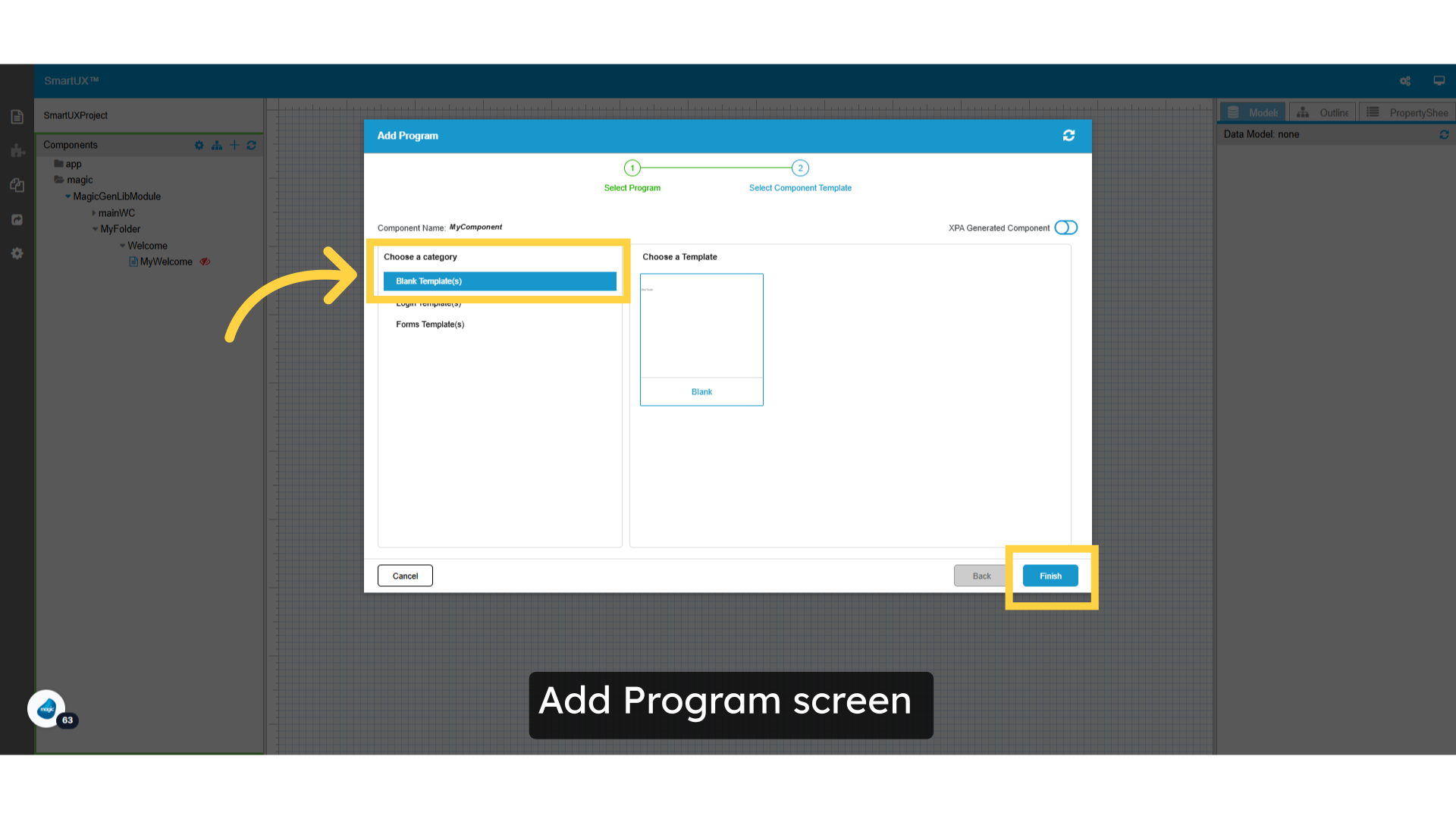
28. Add Program screen

  • Clicking the ‘Add’ button will launch the ‘Add Program’ window for the Component Template.Here, you can either select your preferred component template or opt for a blank template.
  • Once you’ve made your selection, click the ‘Finish’ button to successfully add the component.

Add Program screen

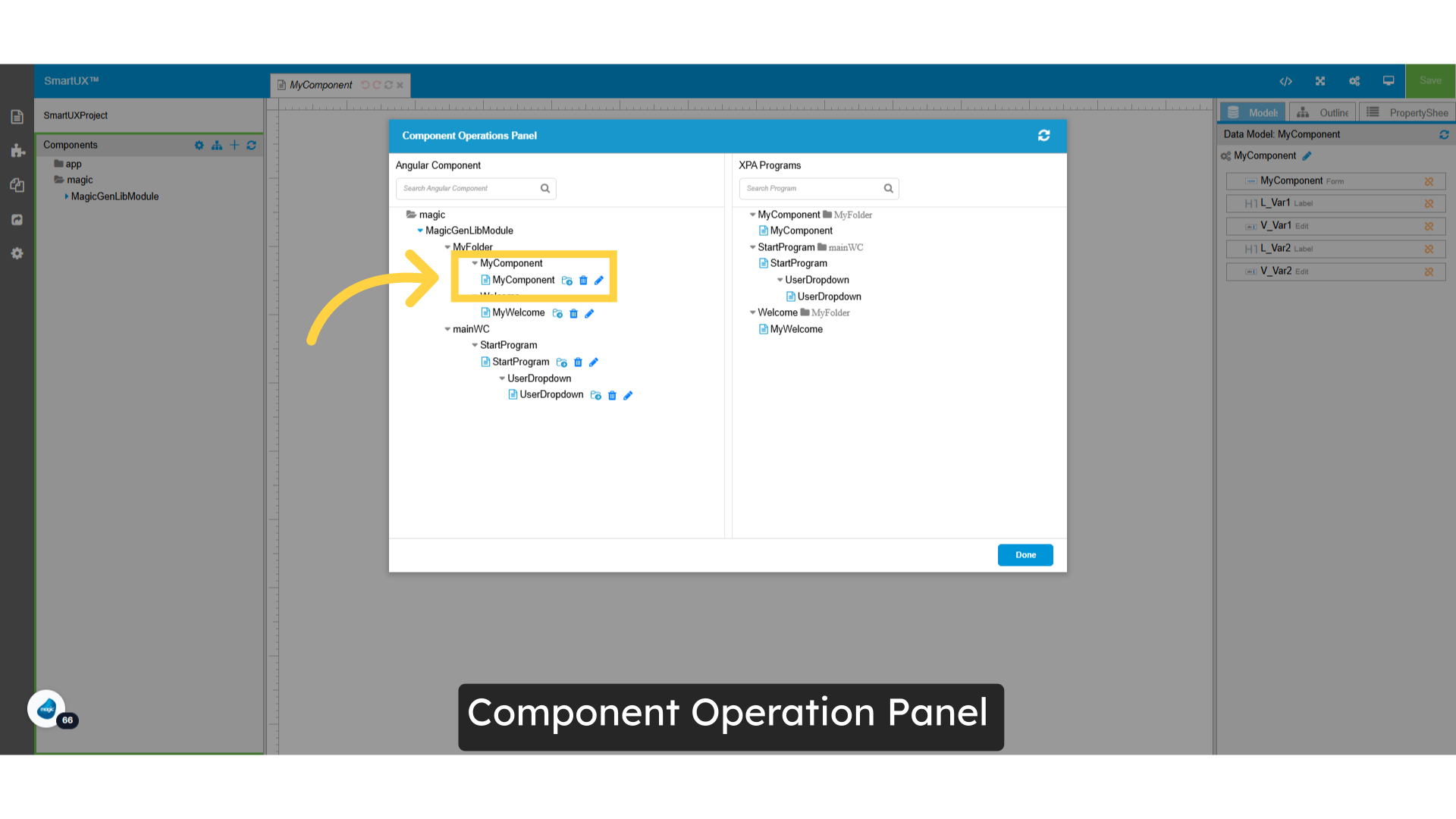
29. Component Operation Panel

  • You can now find the newly added component in the Angular Component section.
  • To save your changes and exit the Panel, simply click the ‘Done’ button.

Component Operation Panel

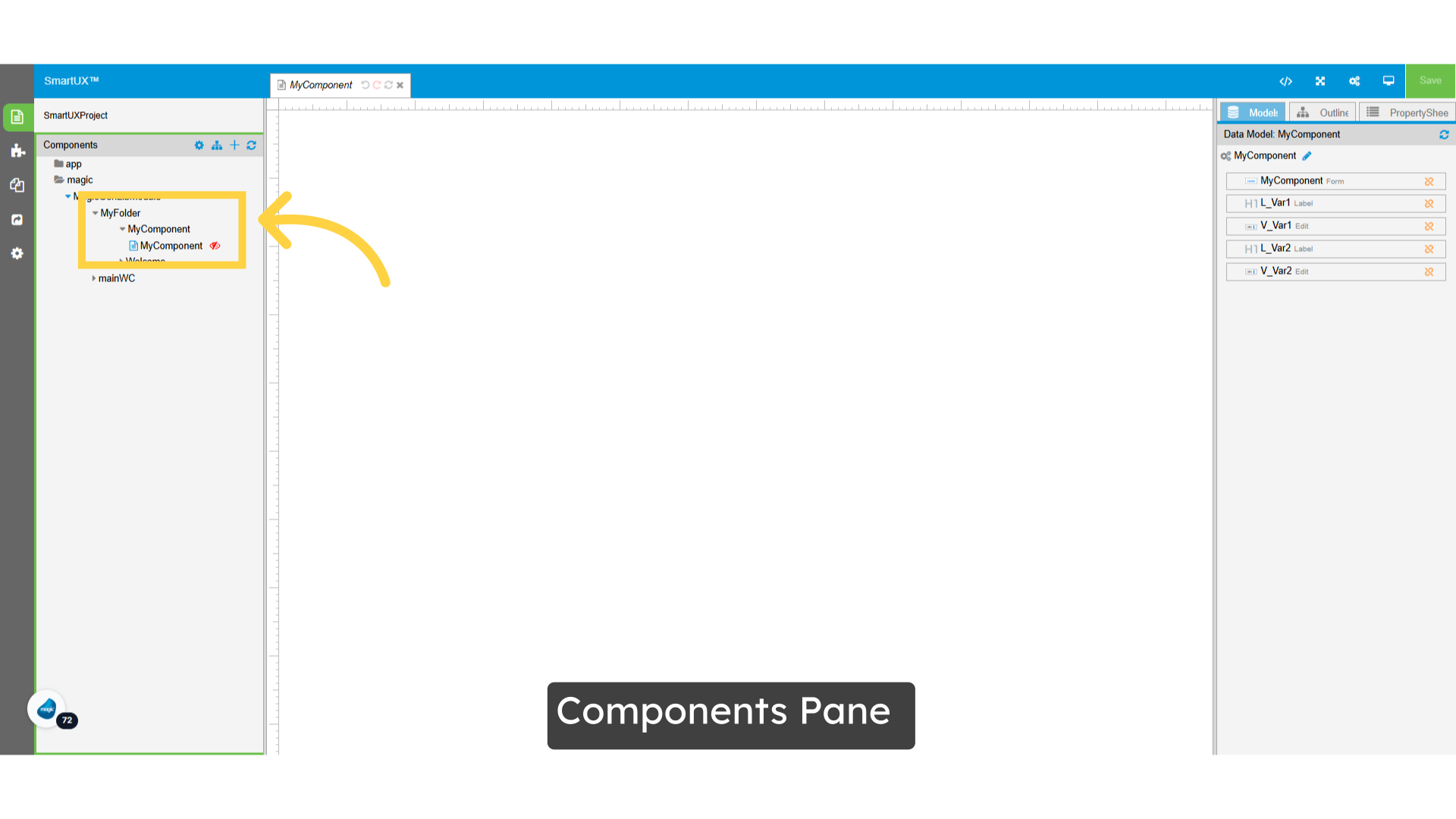
30. Components Pane

  • You can find the newly added component in the Components pane, allowing you to proceed seamlessly with your design and development tasks.

Components Pane

By mastering the Component Operation Panel, users will enhance their productivity, gain better control over component organization, and enjoy a smoother workflow. This feature not only simplifies tasks but also empowers users to focus on creating innovative solutions without unnecessary distractions.

How Do I Use the Mock Data Editor for Angular Components?


This guide will walk you through the process of using the Mock Data Editor for Angular Component.

Follow the precise instructions to navigate, edit, and save mock data effectively within the application.


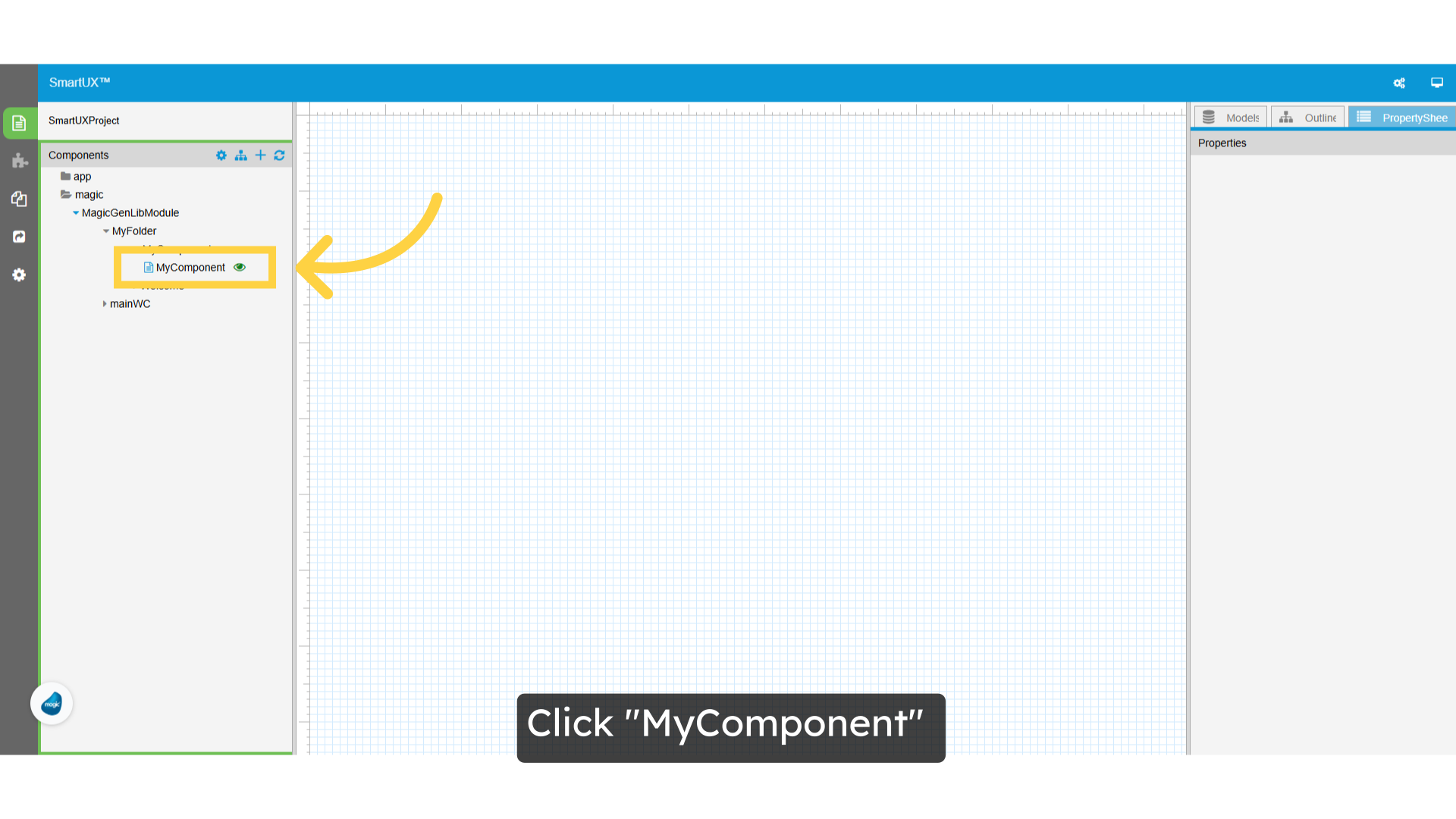
1. Click “MyComponent”

  • Please navigate to the MyComponent section to continue.

Click 'MyComponent'

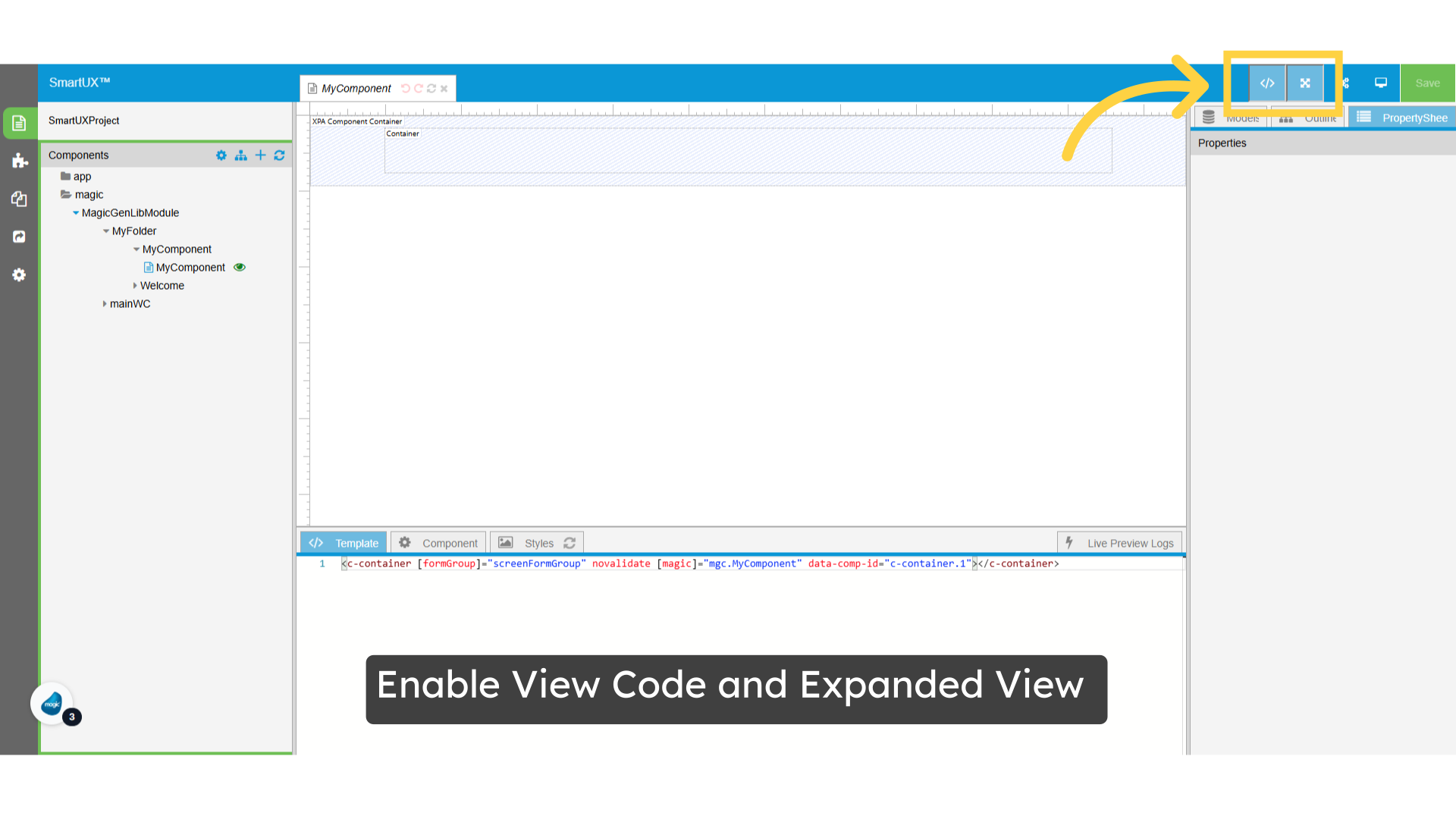
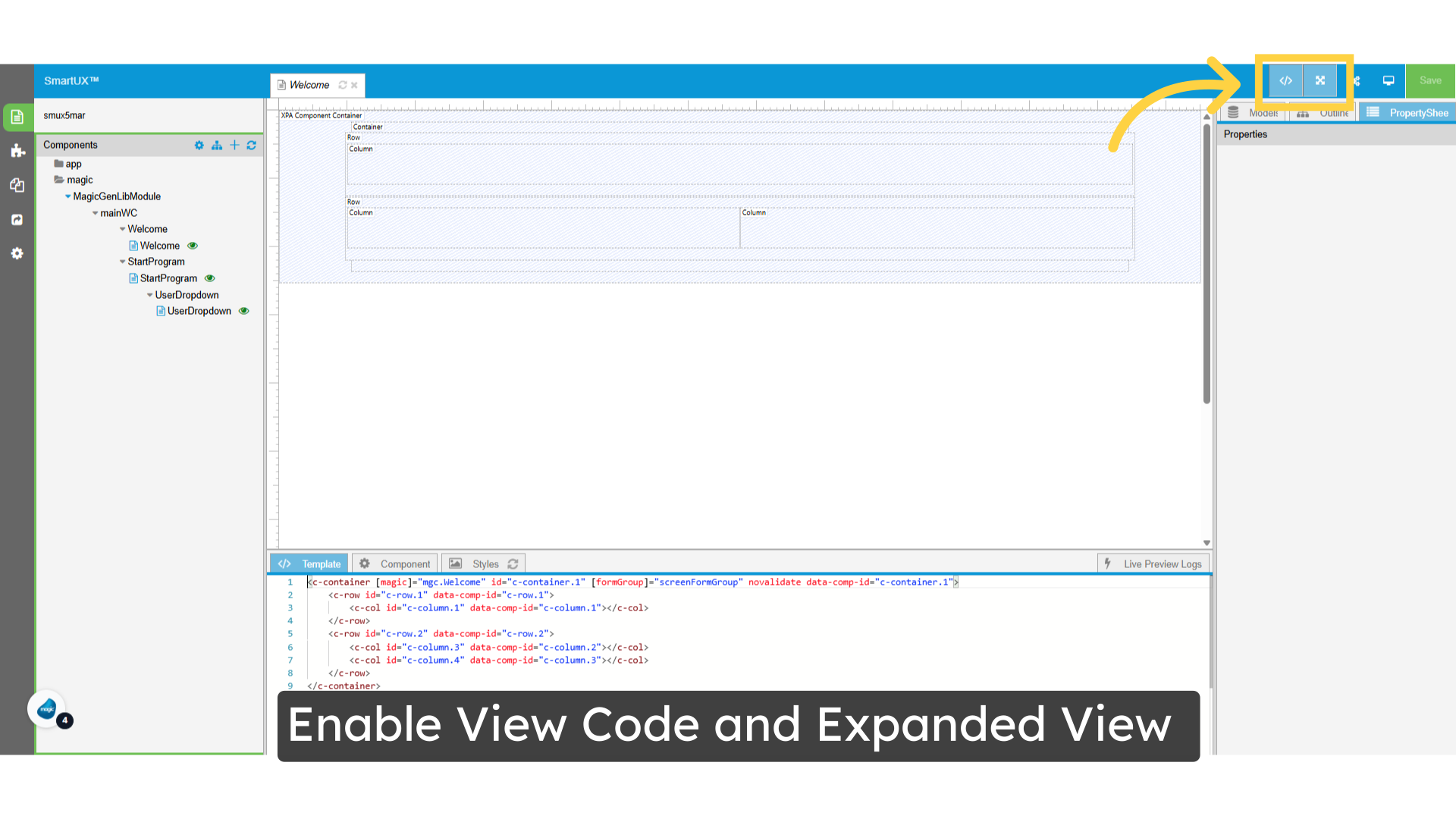
2. Enable View Code and Expanded View

  • To enhance your editing experience, you can Activate Code View and Expand View.
  • By activating Code View, you gain direct access to your project’s underlying code, allowing for precise adjustments and modifications.
  • Meanwhile, expanding the view provides a broader perspective of your layout, enabling you to see more of your content at once.
  • Together, these features facilitate a more streamlined workflow, helping you to manage and refine your project effectively.

Enable View Code and Expanded View

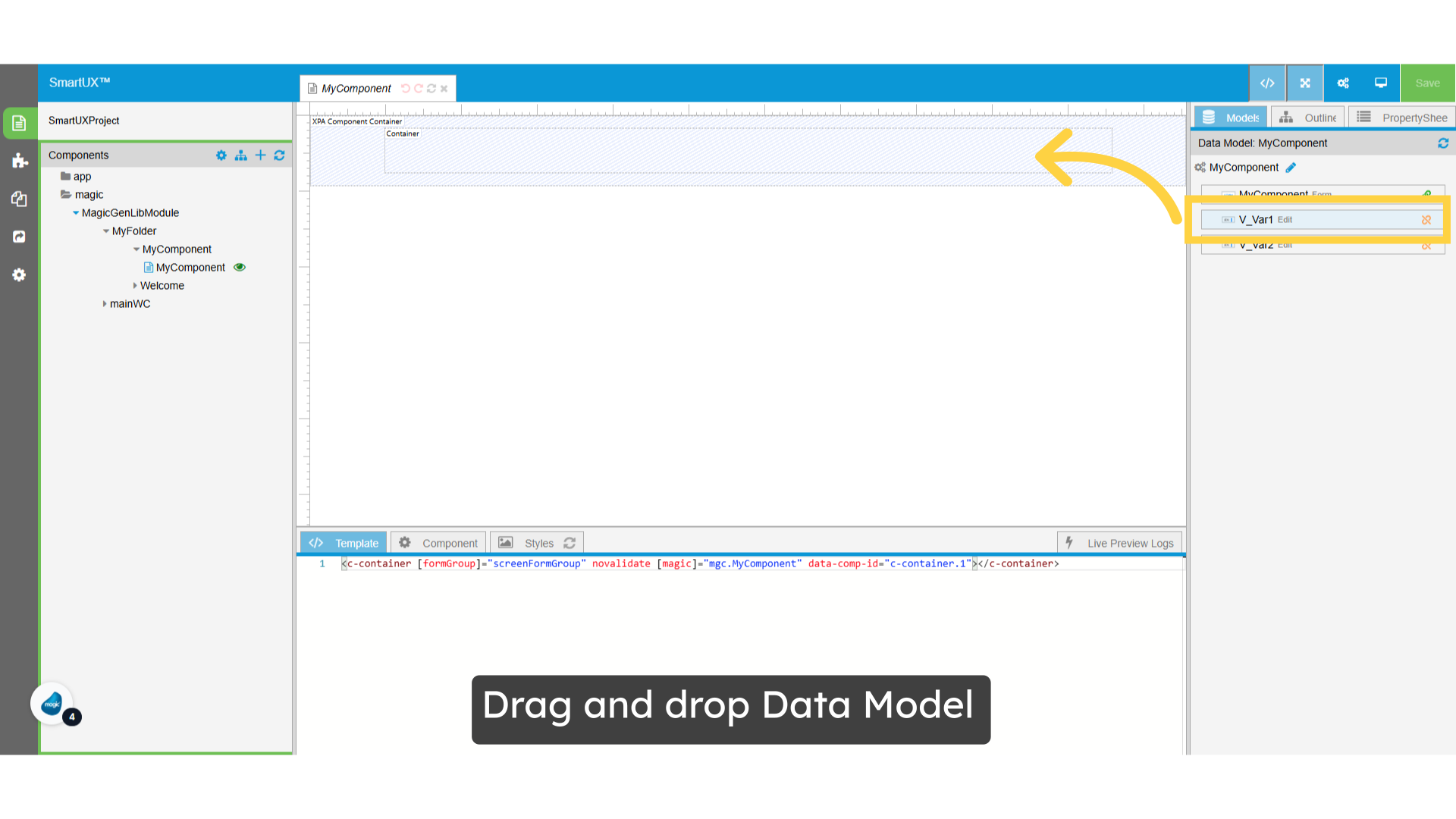
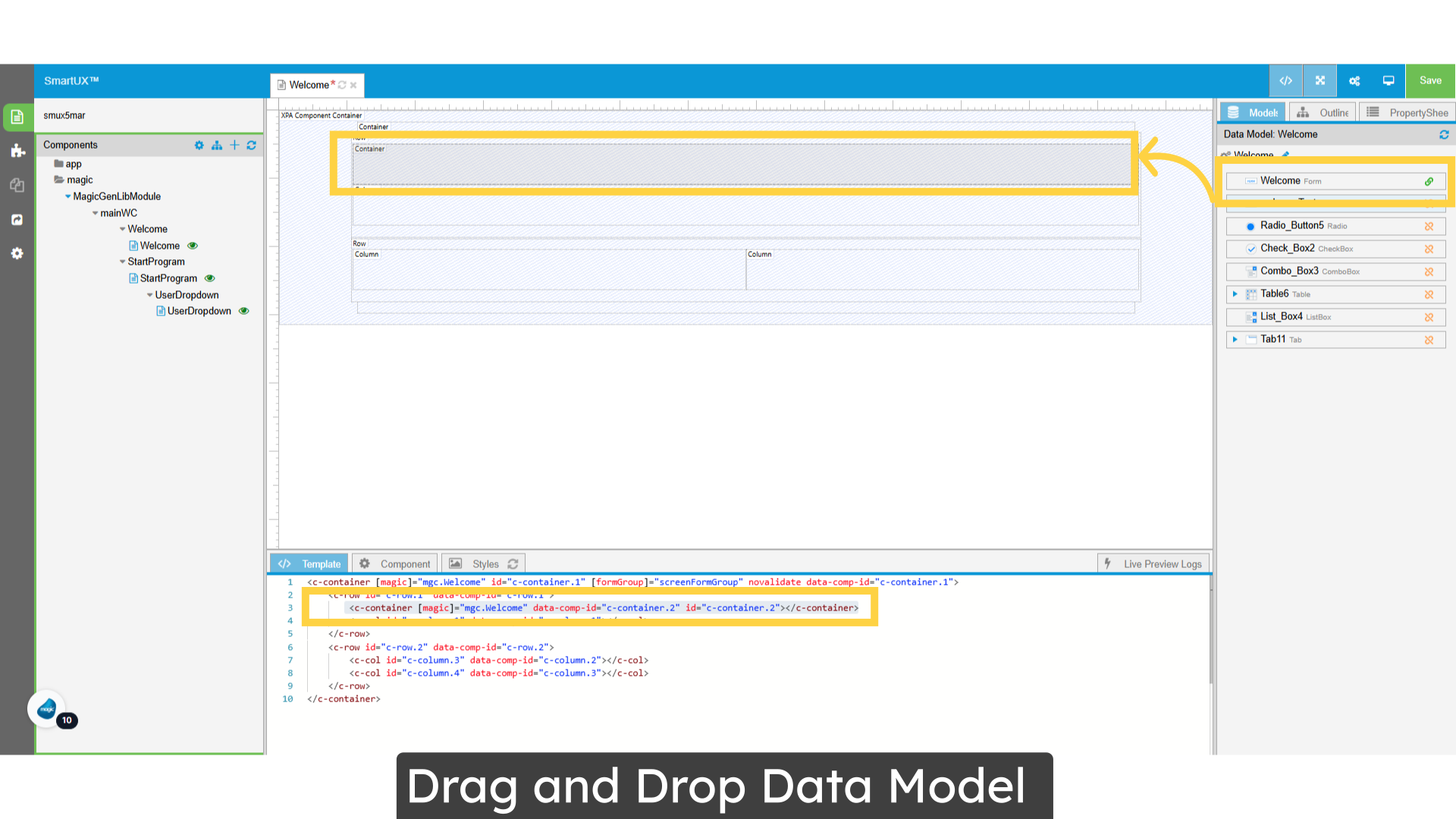
3. Drag and drop Data Model

  • Simply drag and drop the Edit Data Model onto the canvas to add it seamlessly to your workspace.

Drag and drop Data Model

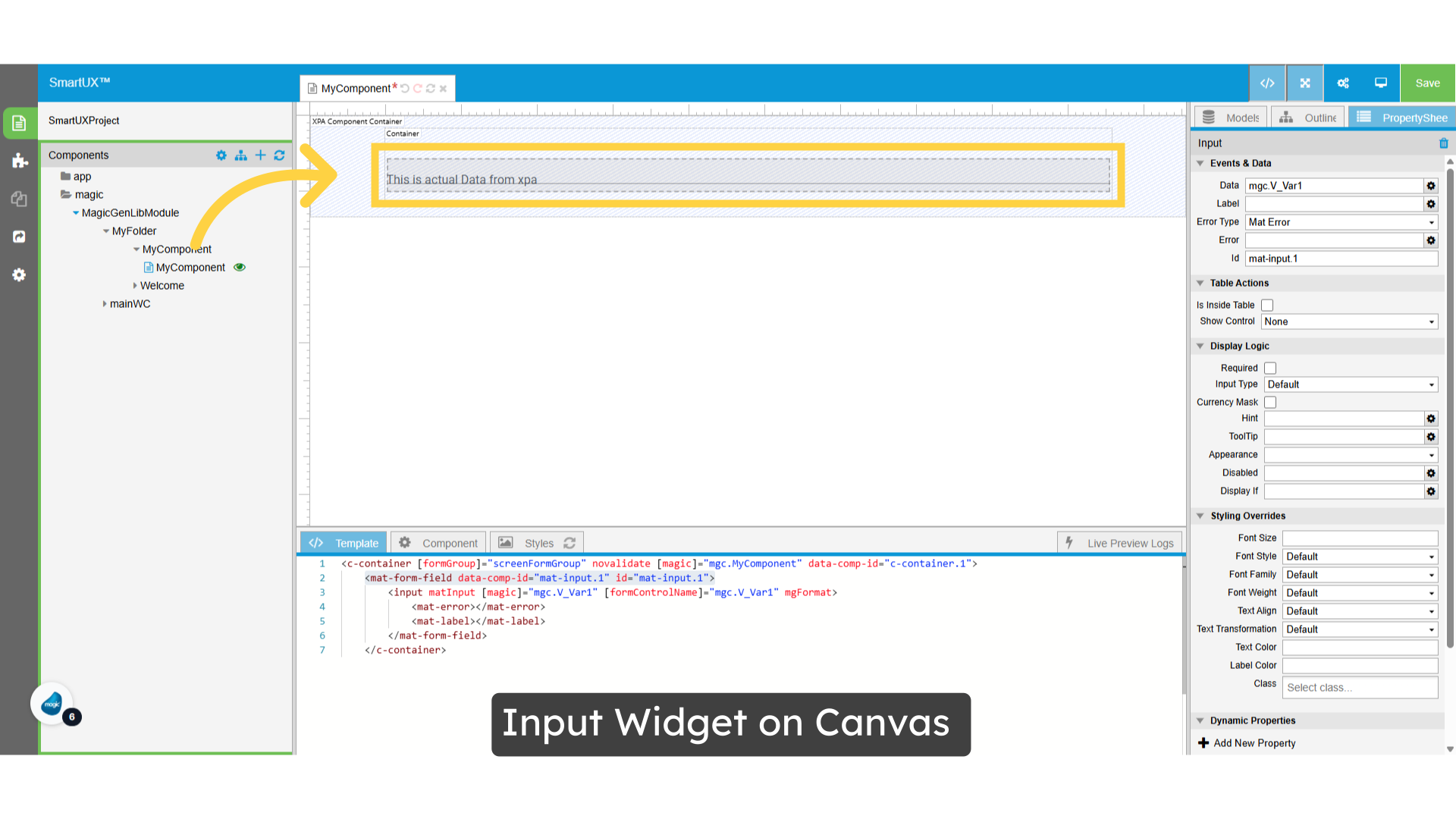
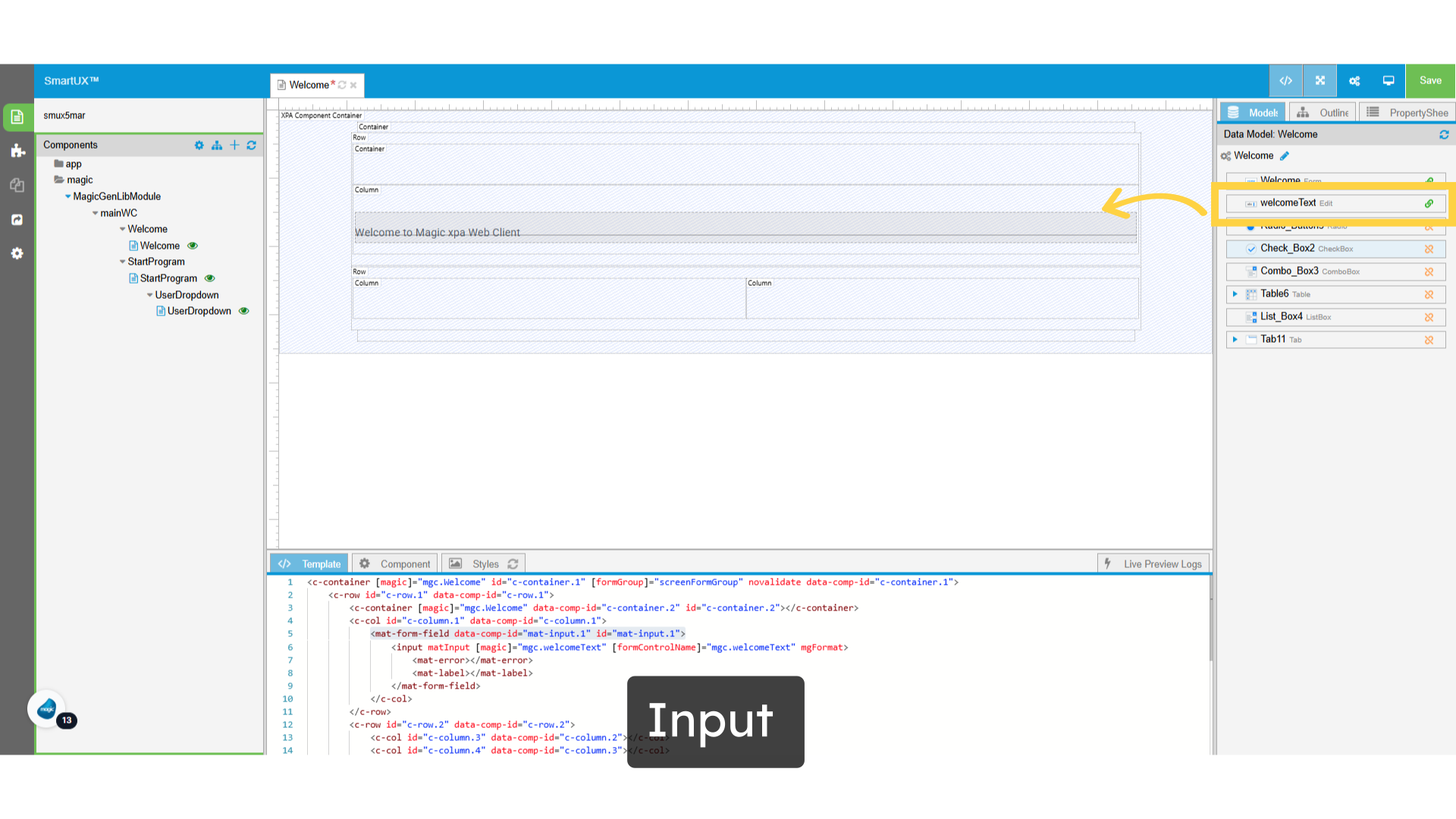
4. Input Widget on Canvas

  • The Input Widget displayed on the Canvas showcases its default value sourced from the XPA.

Input Widget on Canvas

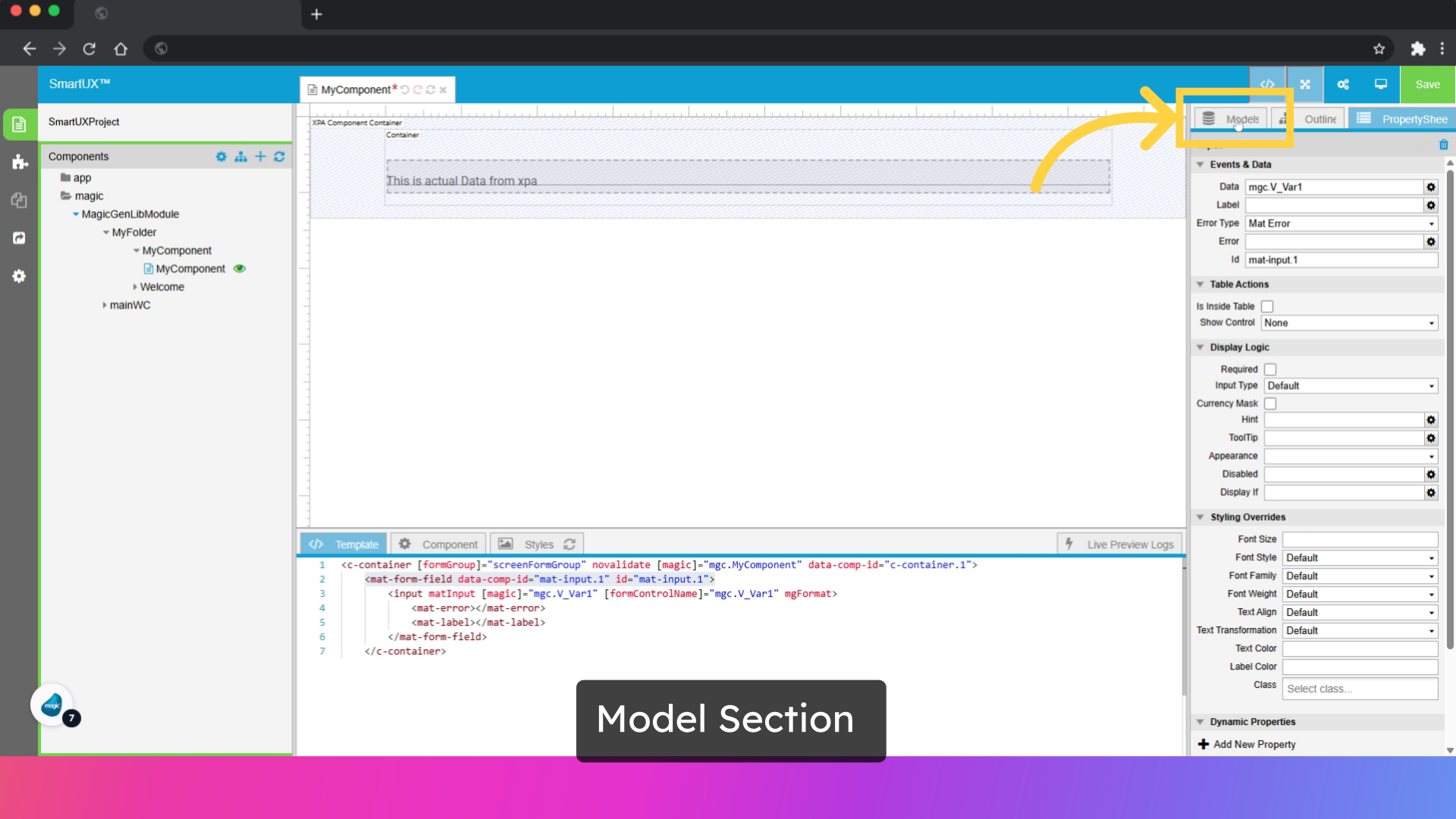
5. Model Section

  • Next, navigate to the Models section, where you’ll find a button that allows you to input or edit the mock data for the currently open component.

Model Section

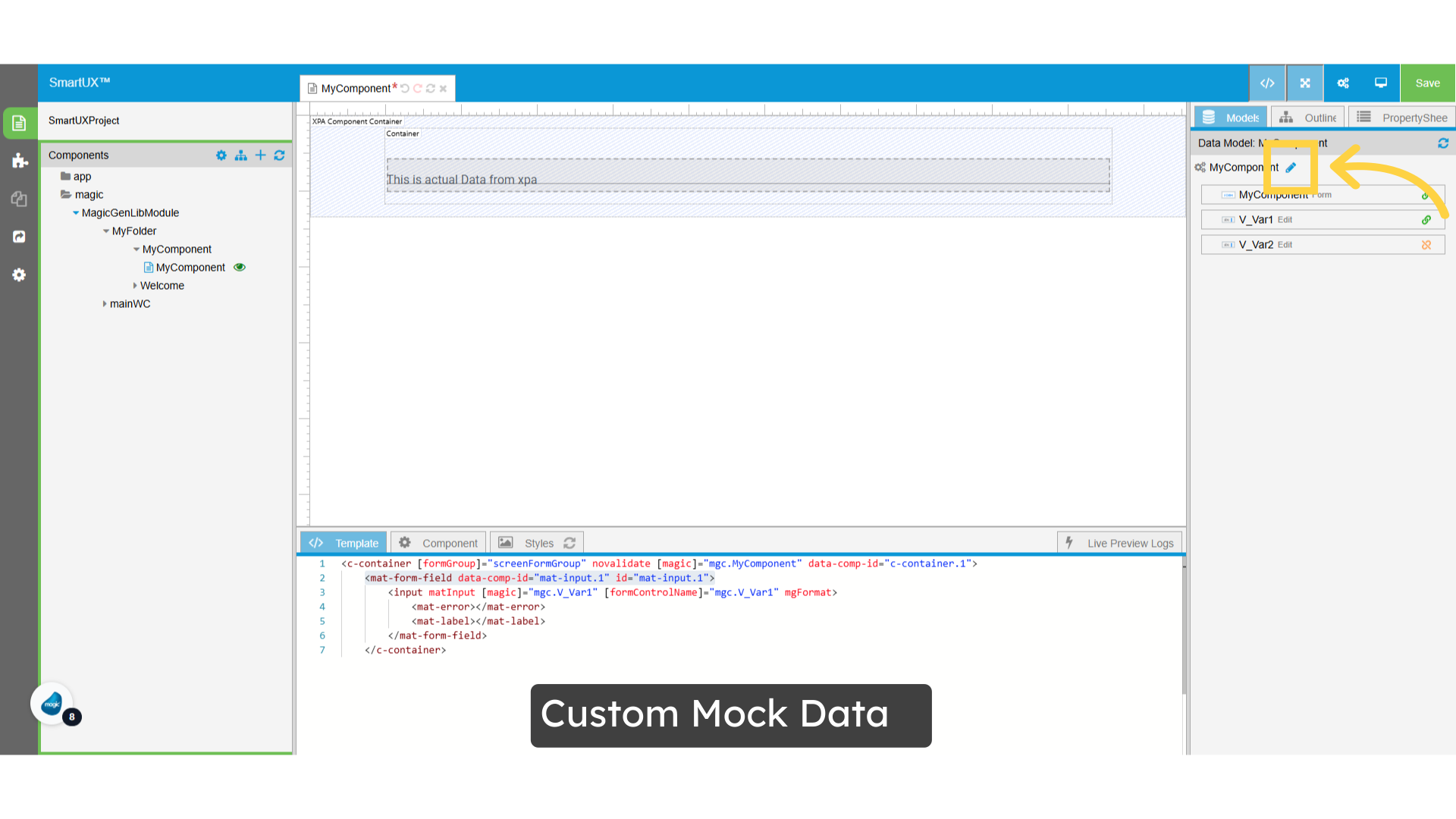
6. Custom Mock Data

  • Click the ‘Custom Mock Data’ button to open a dialogue box where you can input or modify your mock data.

Custom Mock Data

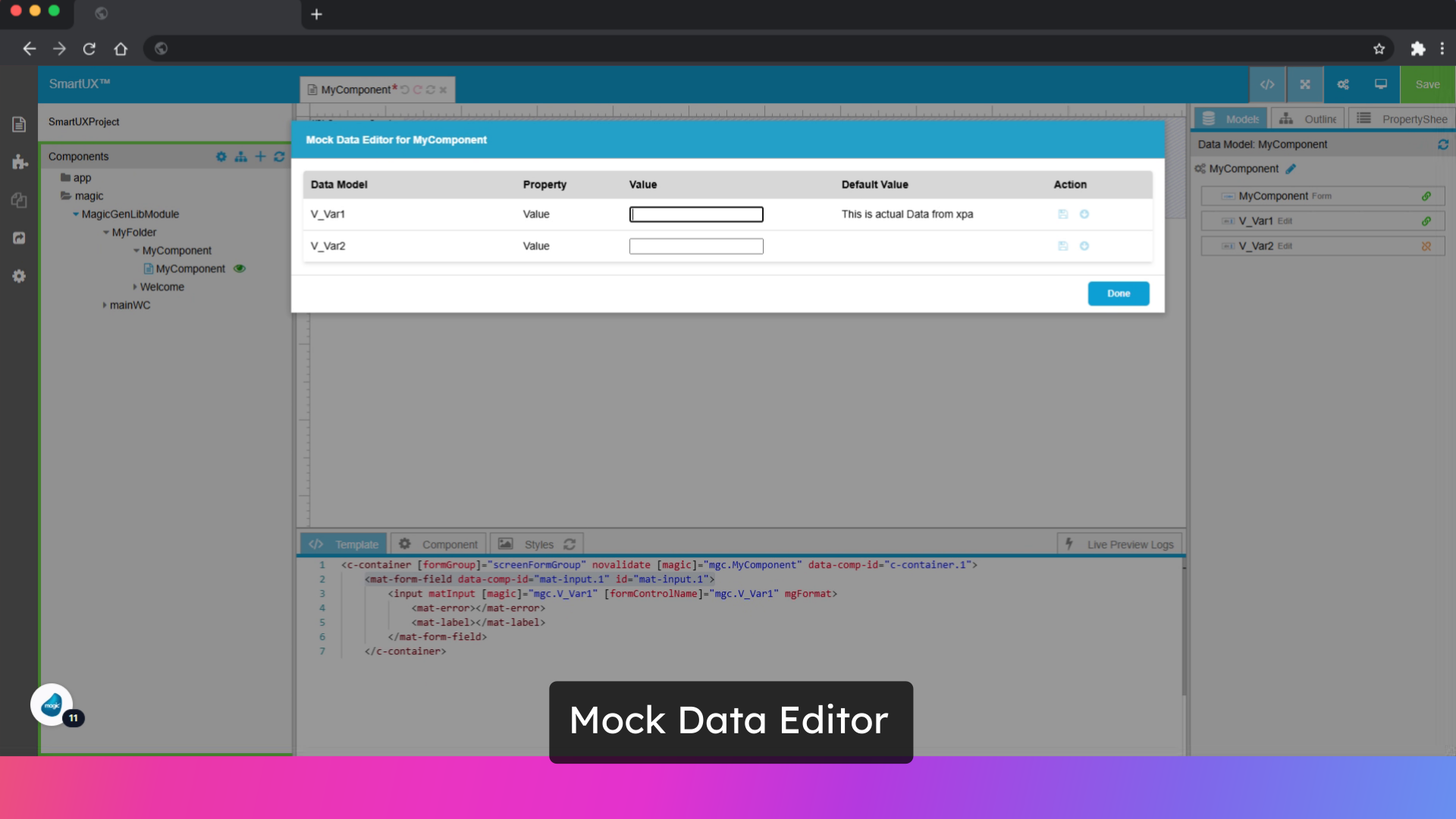
7. Mock Data Editor

  • In the Mock Data Editor, you can easily input your desired data directly into the Value field.

Mock Data Editor

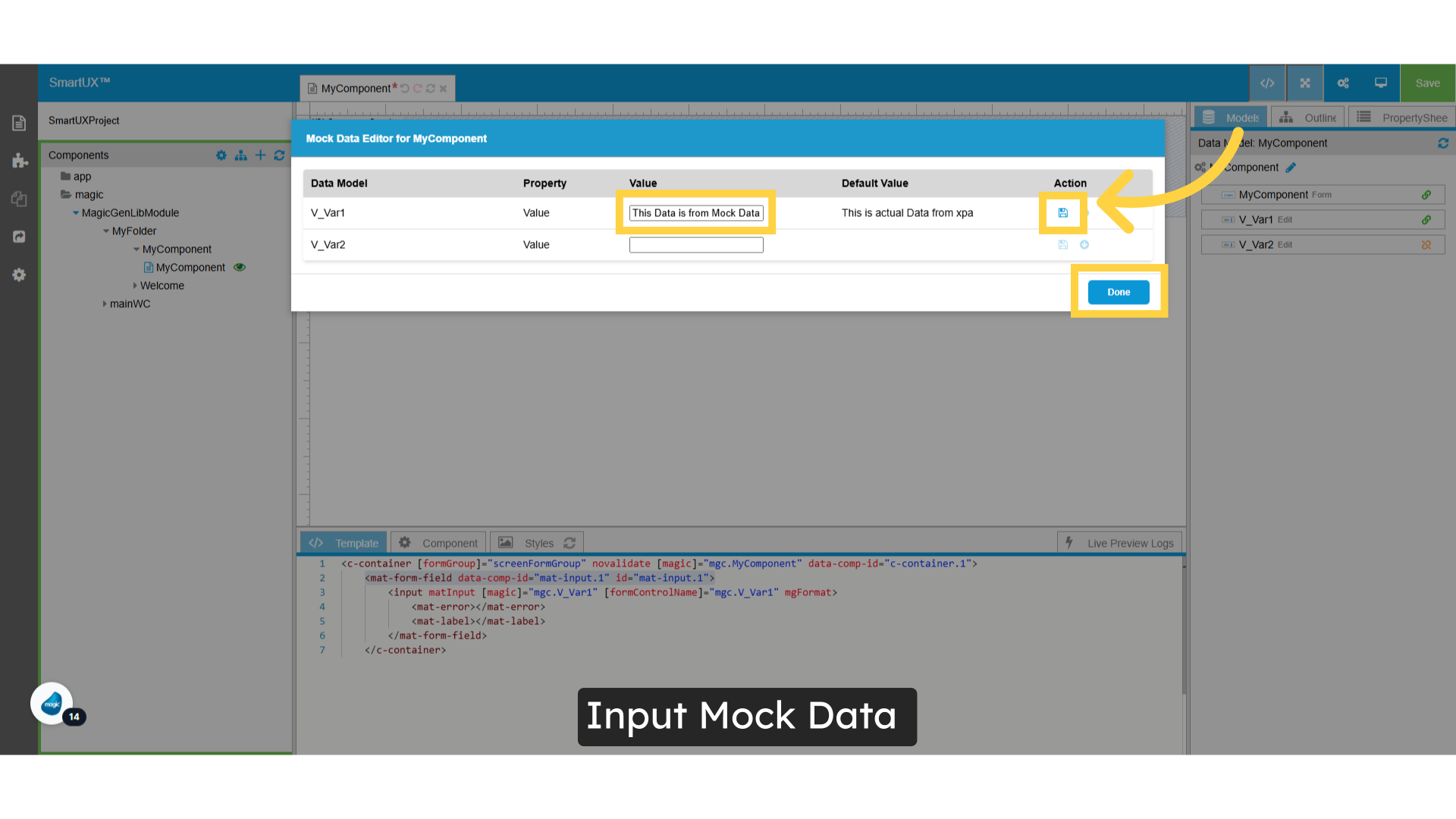
8. Input Mock Data

  • To apply the Mock Data, simply enter your desired value and click the ‘Save’ button.
  • After saving, feel free to click the ‘Done’ button to close the Mock Data editor window.

Input Mock Data

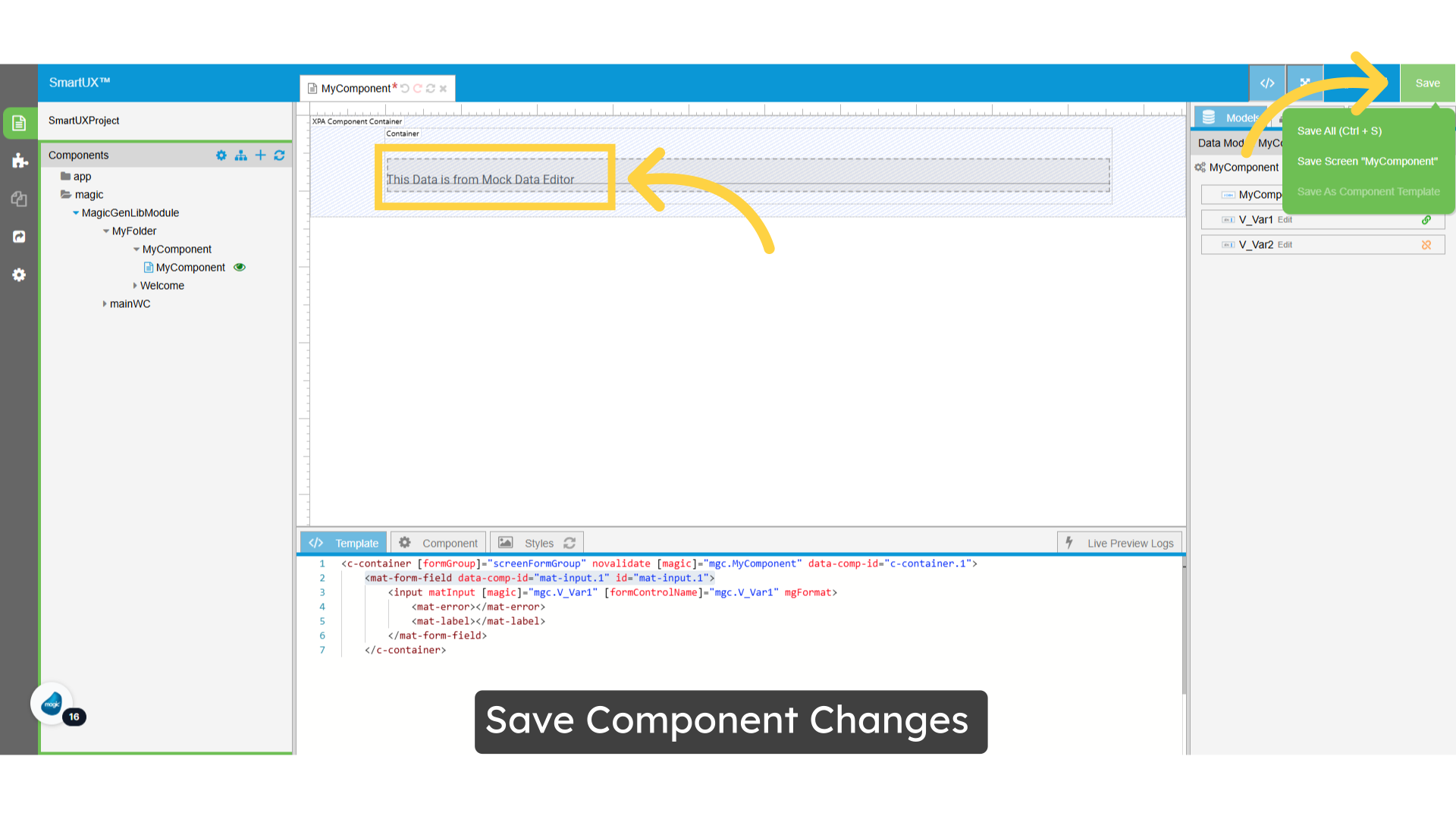
9. Save Component Changes

  • You will now see the mock data displayed in the editor on the canvas.
  • This data is exclusively visible while you are designing the component.
  • When you switch to Live Preview, the actual data will be shown instead.
  • To ensure that your changes to the component are saved, simply click the Save button.

Save Component Changes

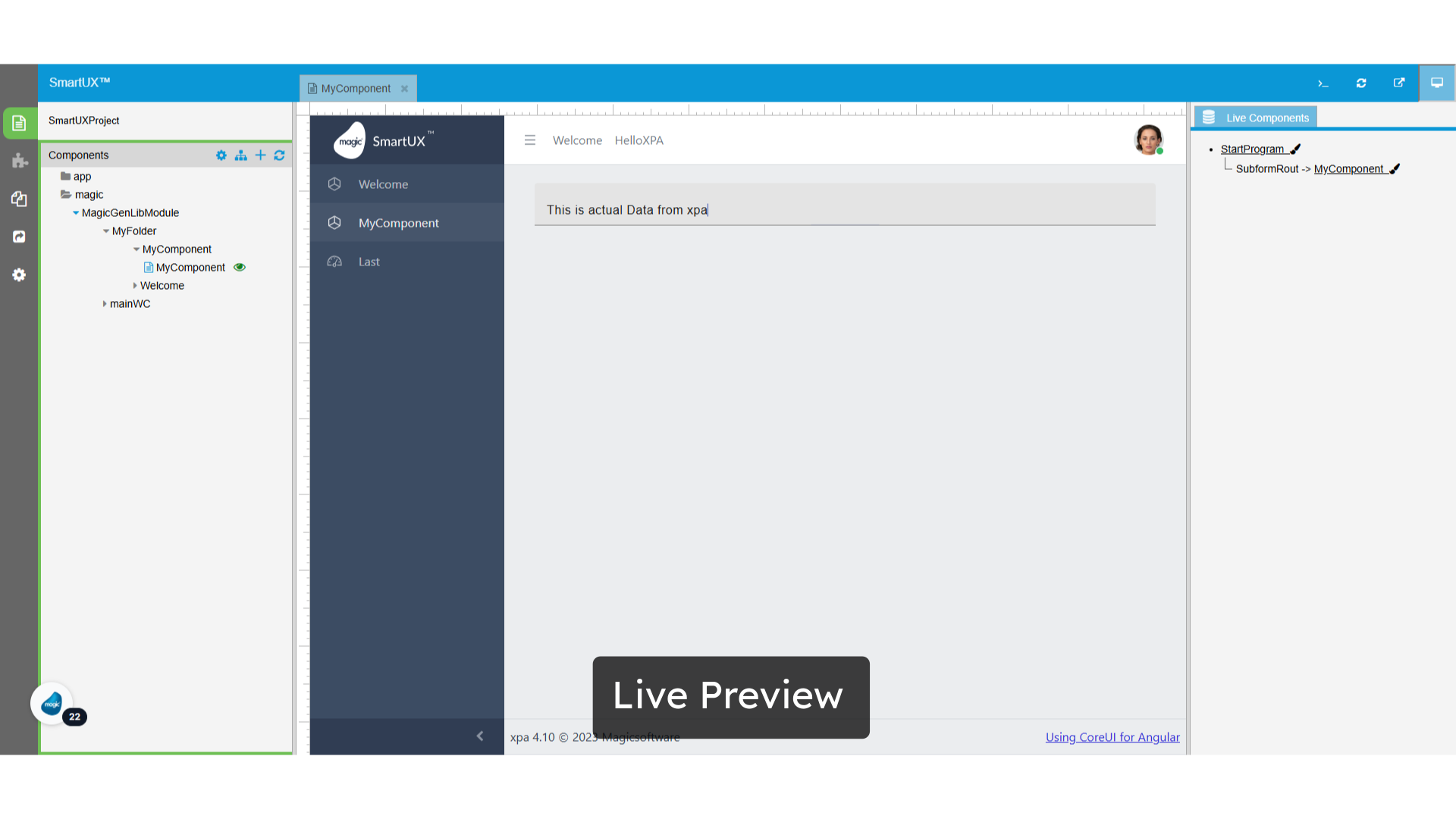
10. Live Preview

  • Activate Live Preview Mode.
  • As previously indicated, the field populated with mock data will display its actual value in Live Preview.

Live Preview

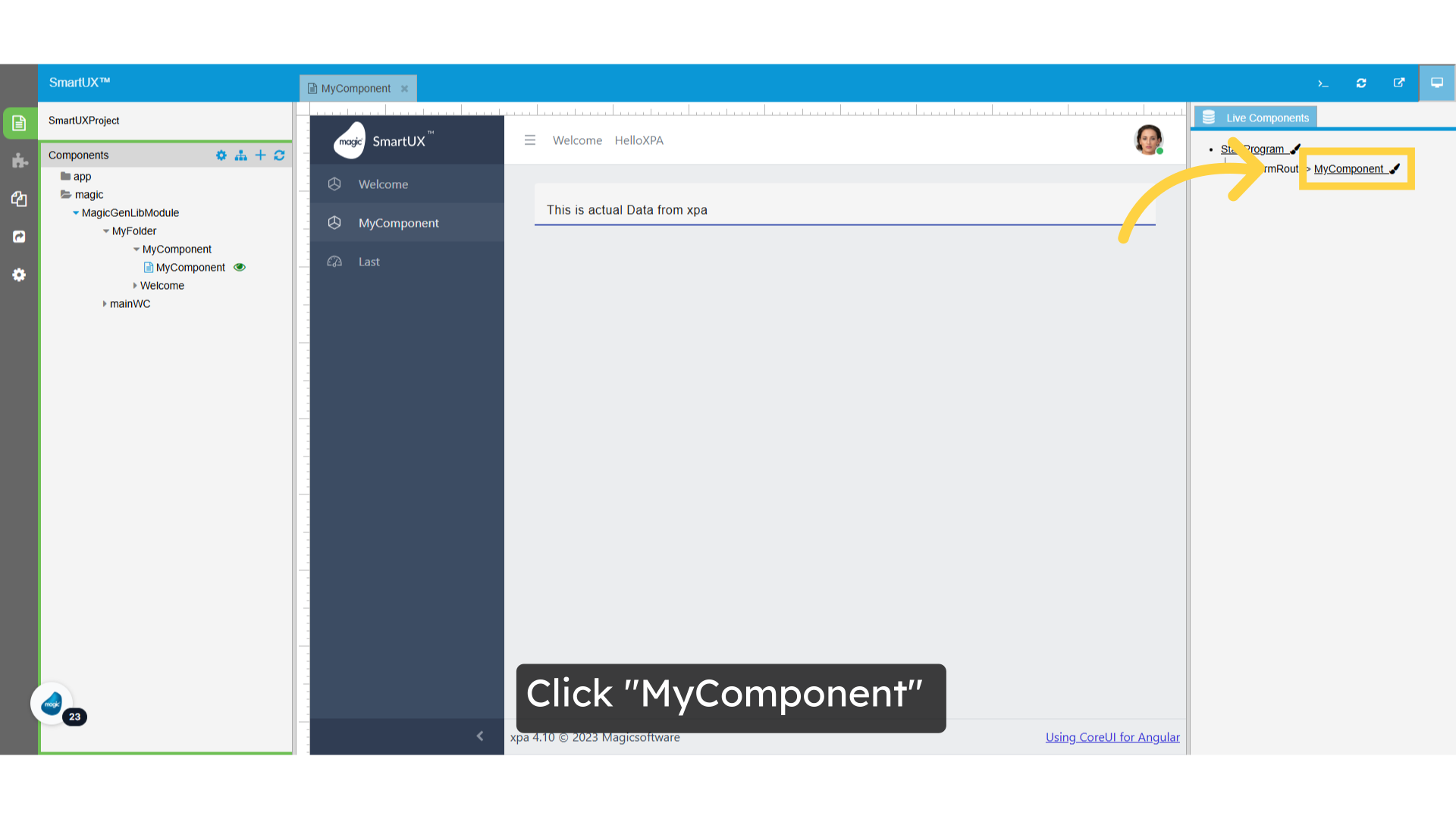
11. Click “MyComponent”

  • Next, exit the Live Preview mode and return to the component.

Click 'MyComponent'

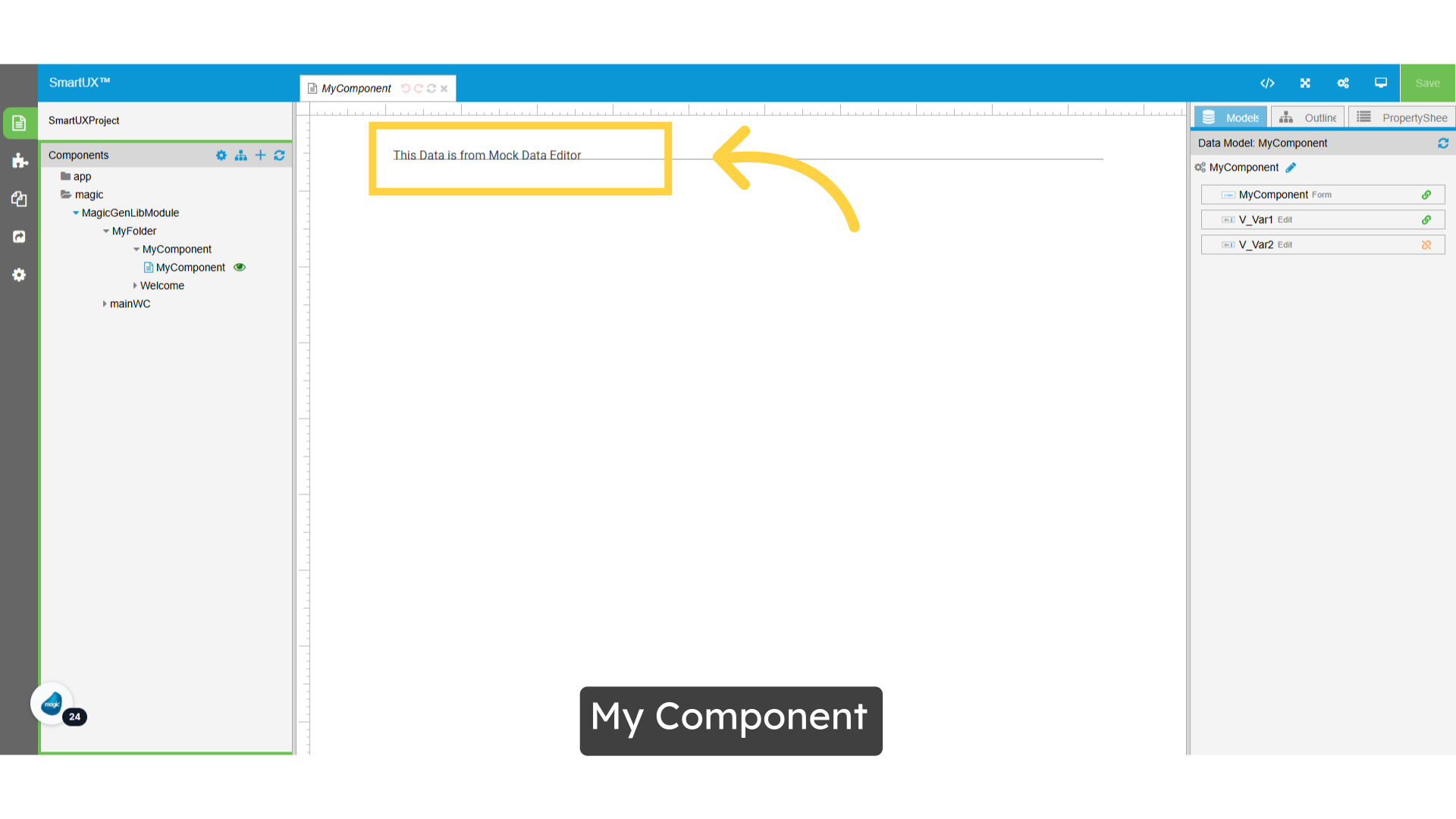
12. My Component

  • The component will now display the provided mock data in design mode.

My Component

13. Mock Data Editor

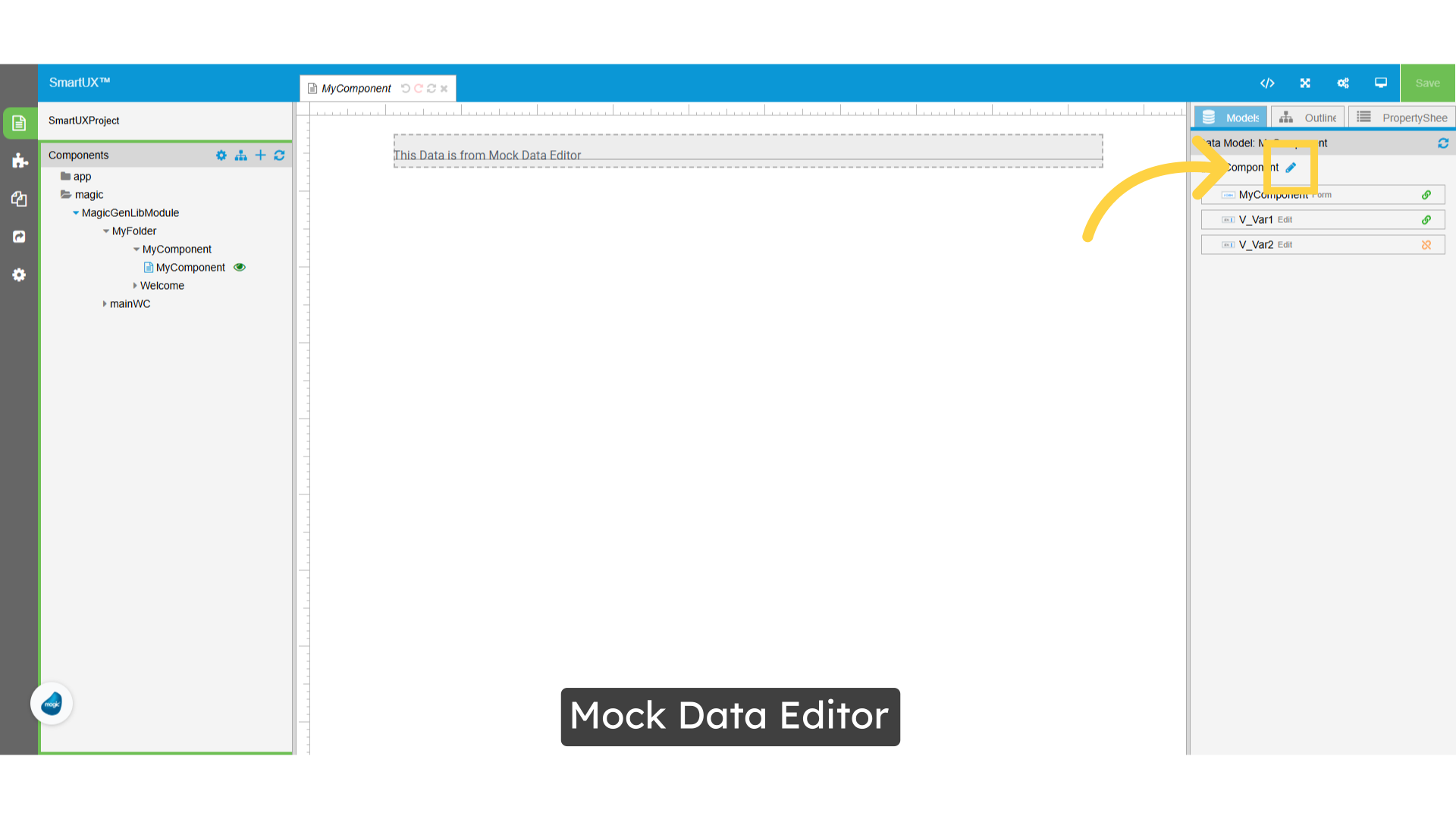
  • What should a user do if they prefer not to use mock data or wish to revert to the default values?
  • Simply open the Mock Data editor, where you’ll find a button labelled ‘Use Default Value.’
  • This allows you to easily reset the data to its original state.

Mock Data Editor

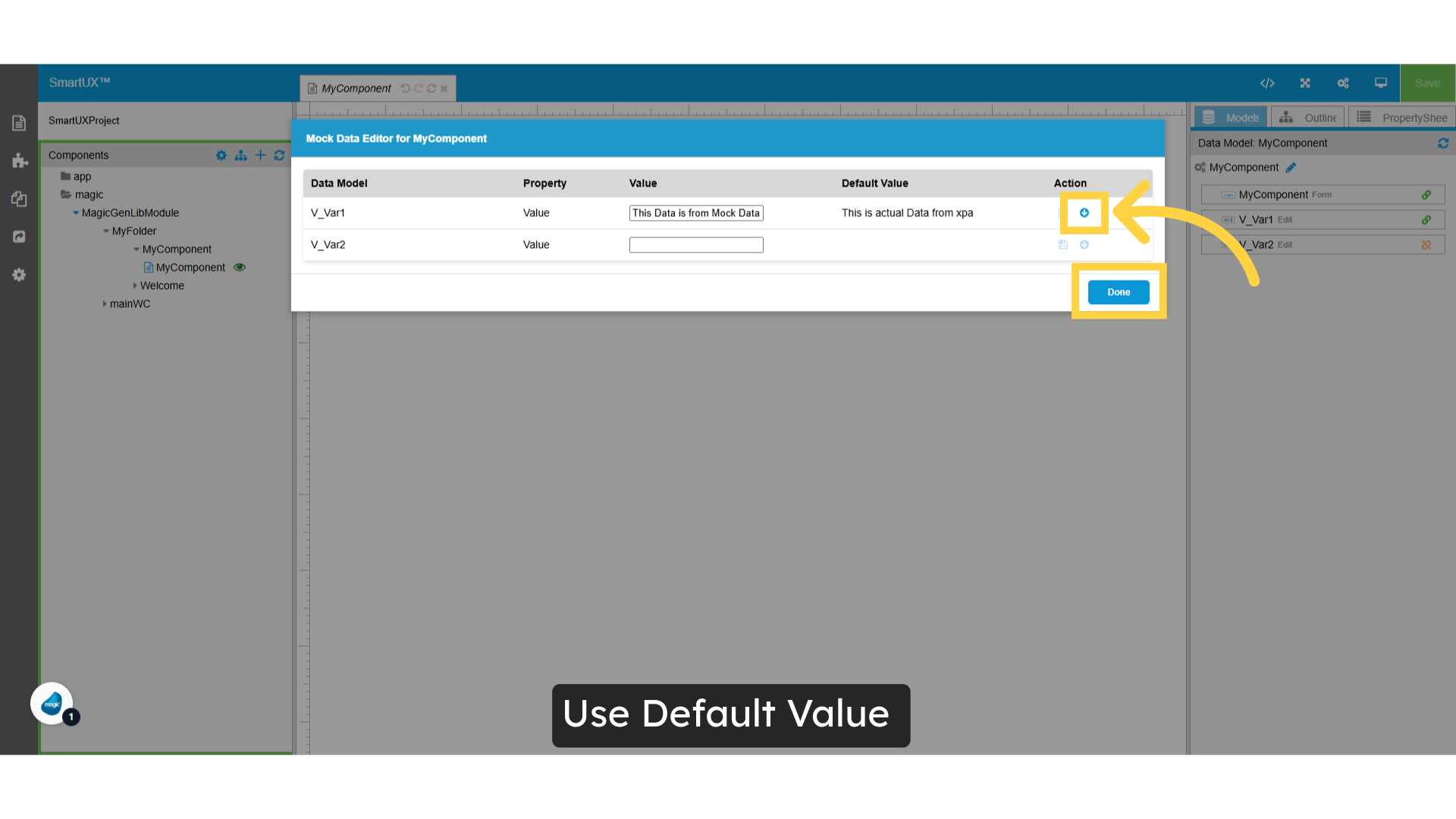
14. Use Default Value

  • To set the default value, please navigate to the specified location.
  • Once there, click the “Use Default Value” button.
  • This action will reset the value field, allowing the Input widget to utilize the default value.
  • Click the “Done” button to confirm and save the default value selection.

Use Default Value

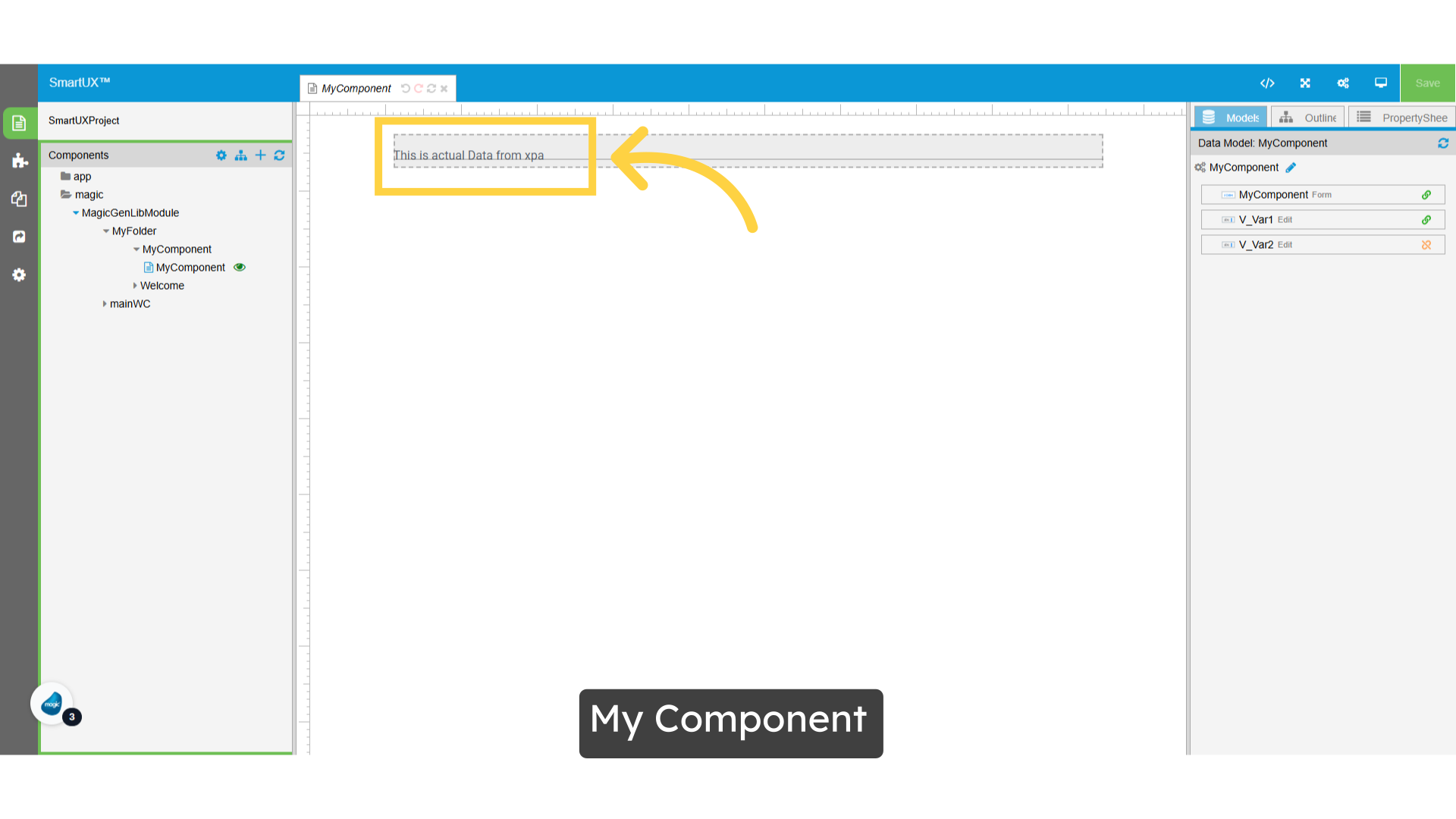
15. My Component

  • In the component canvas, you’ll notice that the default value is now visible for the input widget.

My Component

The guide covered navigating to specific sections, editing data, and saving changes in the Mock Data Editor for Angular Component.

How Do I Drag and Drop Data Models onto the Canvas?


Welcome to this knowledge base article on efficiently using the drag-and-drop functionality for data models in the Employee Training application. In this guide, we will walk you through the process of seamlessly adding data models to the canvas, helping you streamline your workflow and enhance productivity. Whether designing a new module or modifying an existing one, mastering this feature will enable you to quickly organize and visualize data structures within the application.

Let’s get started!

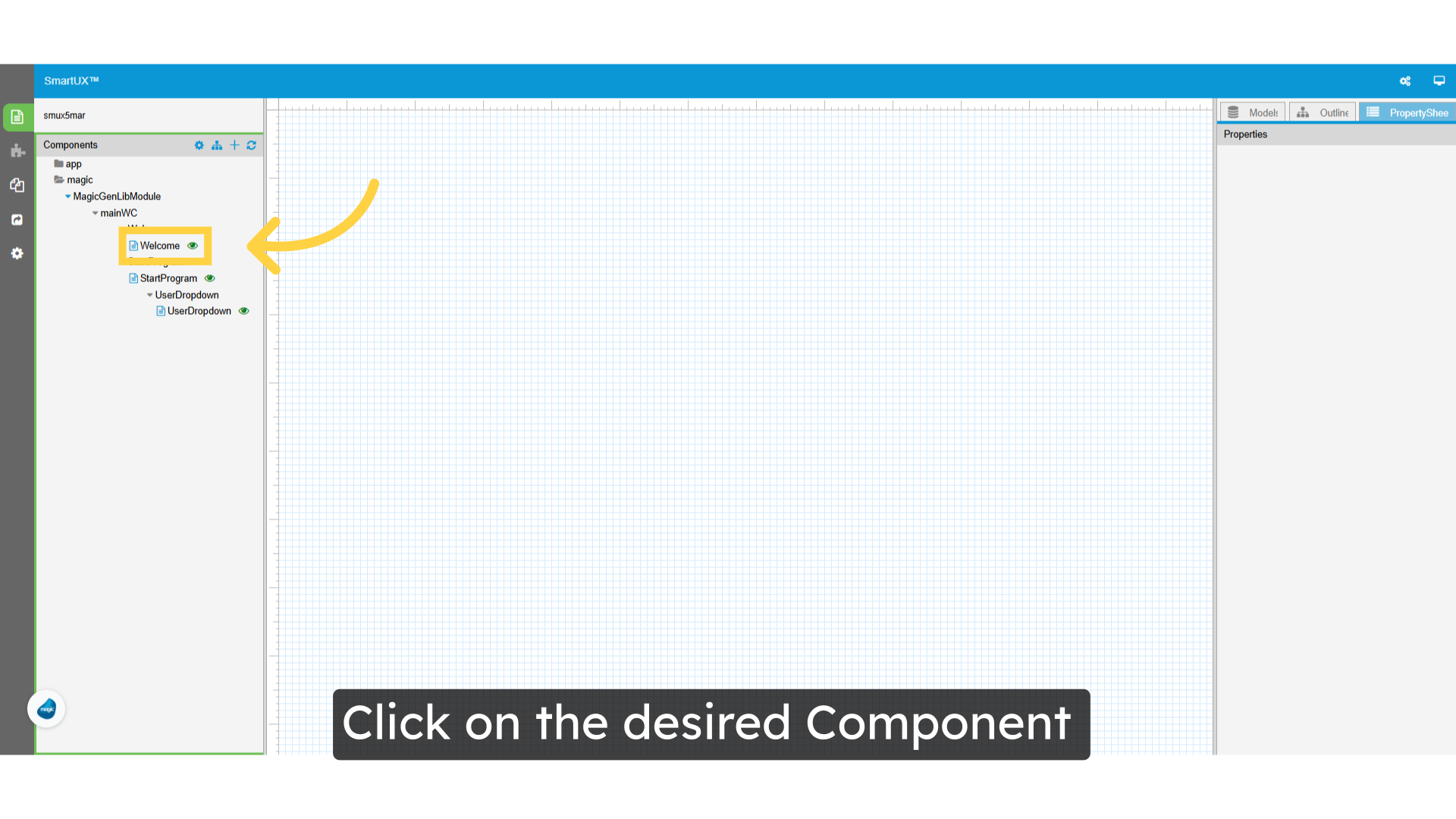
1. Click on the desired Component

  • Once on the Component Page, you will see a designated space or canvas where you can easily drag and drop data models.
  • This intuitive interface allows you to seamlessly add the necessary data models to your component.

Click on the desired Component

2. Enable View Code and Expanded View

  • To explore the structure and configuration of the component, use the options:
  • 1. Click “View Code” – This opens the Template section, allowing you to view and modify the underlying HTML code structure of the component.
  • 2. Click “Expanded View” – This displays the widget structure placed on the component canvas, giving a detailed view of its hierarchy.

Enable View Code and Expanded View

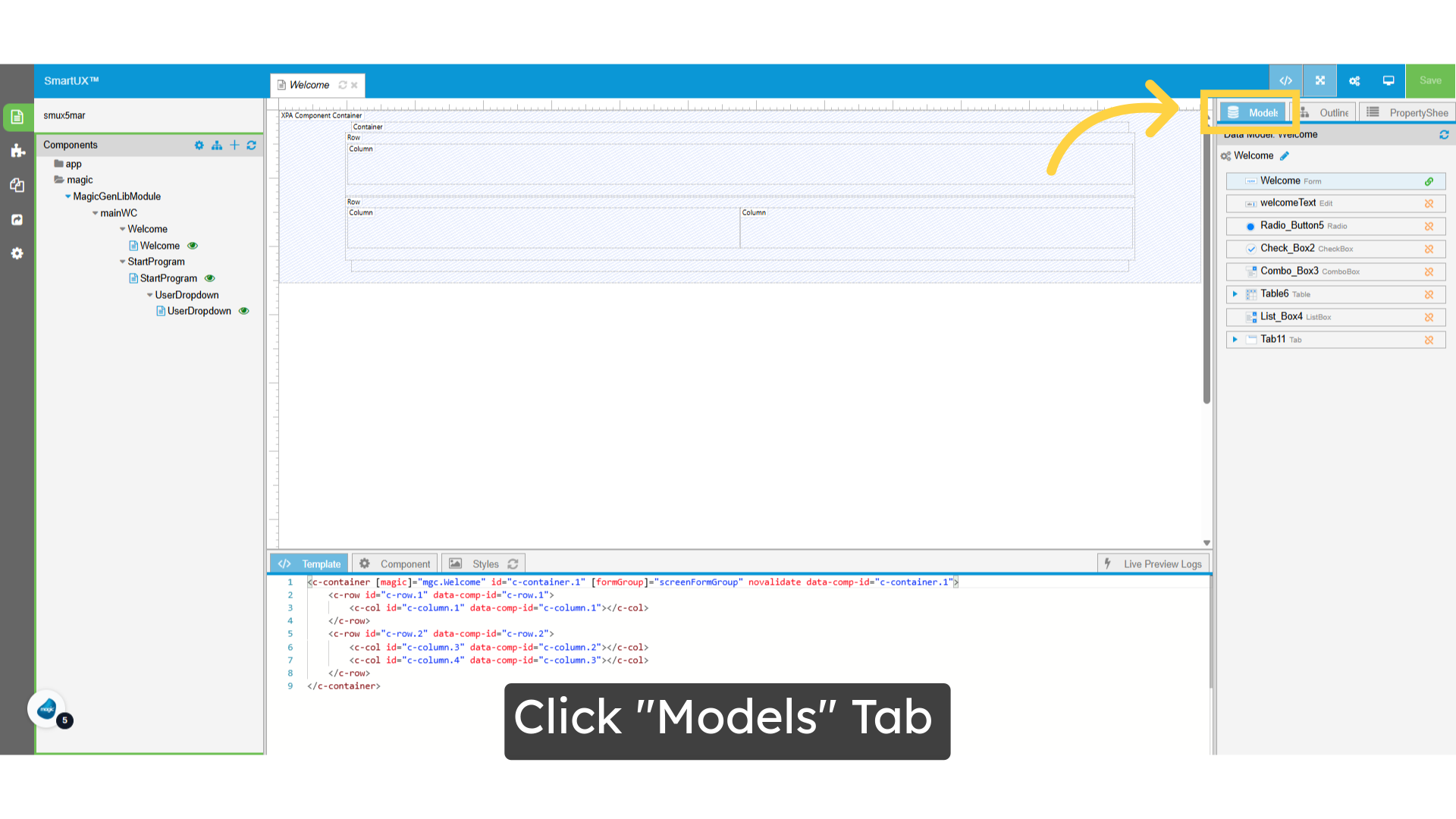
3. Click “Models” Tab

  • To begin, click on the ‘Models’ tab.
  • This will display a list of available data models for the selected component.

Click 'Models' Tab

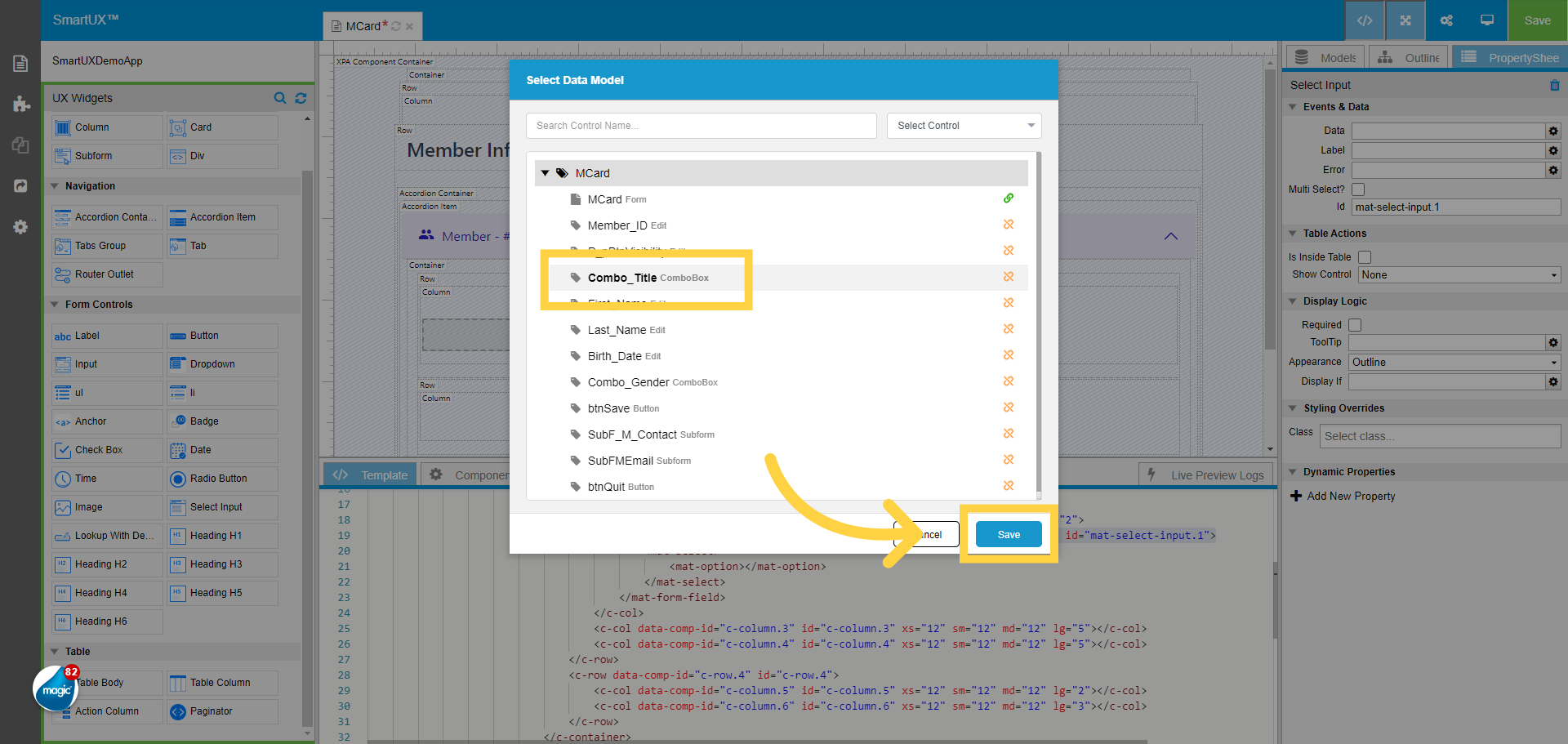
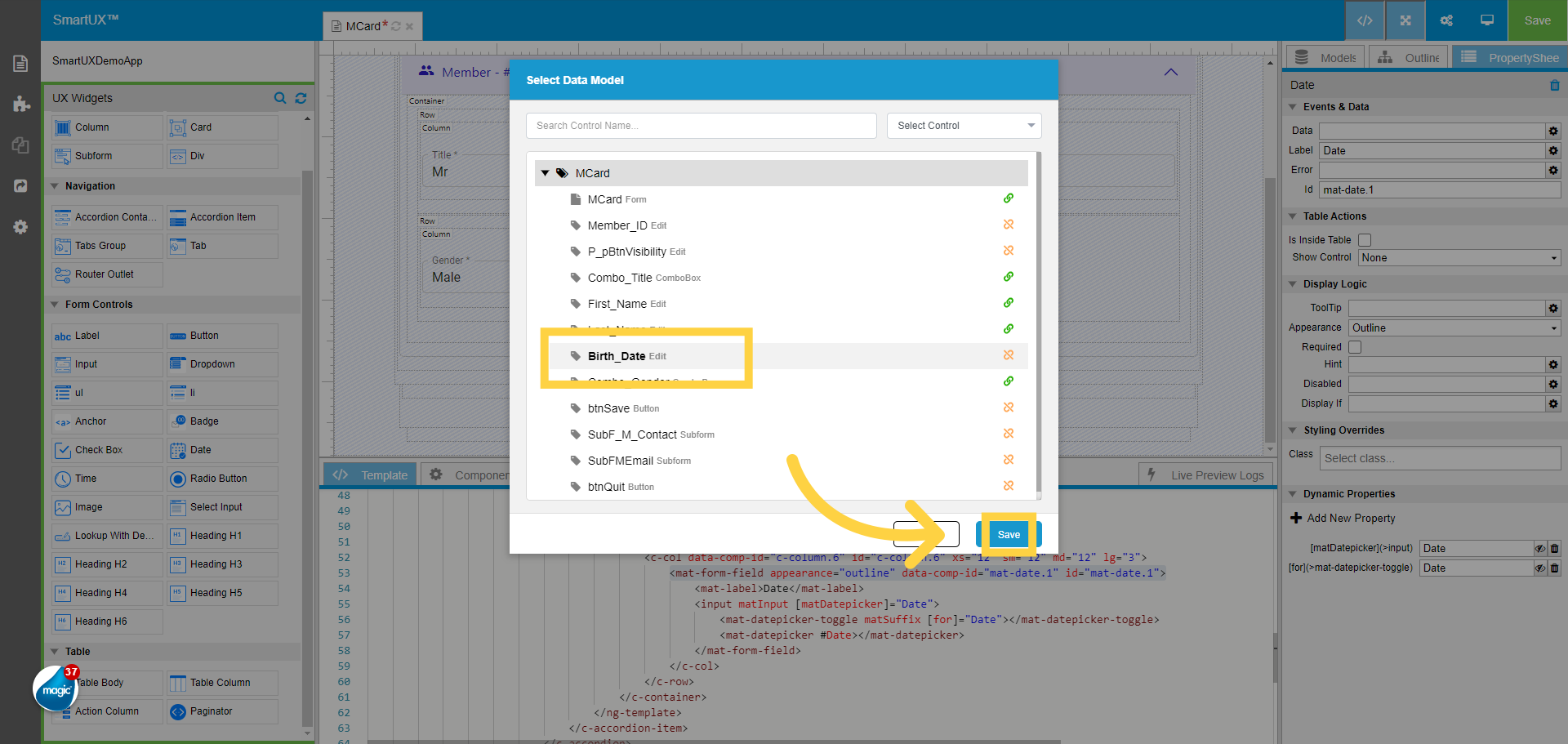
4. Drag and Drop Data Model

  • Now, simply drag and drop the desired data model onto the canvas.
  • This action will automatically perform data mapping or binding with Magic xpa.
  • Additionally, you will see its corresponding HTML code reflected in the Template section.

Drag and Drop Data Model

5. Input

  • Here are a few examples of dragging and dropping data models onto the canvas.
  • These models are specific to the selected component and will seamlessly integrate with the application.

Input

6. CheckBox

  • For CheckBox.

CheckBox

7. Configure Widget

  • To utilize features such as Drag and Drop for Data Models, you may need to verify whether the data model you wish to drop onto the canvas has a Widget assigned to it.
  • Ensuring the correct control type is set will allow for a seamless drag-and-drop experience within your application.

Configure Widget

8. Click on the Widget “Button”

  • Select the Widget Button to proceed.

Click on Widget 'Button'

9. Check xpa Control Type

  • Here, you can check that the Button Widget is mapped to the Button XPA control.

Check xpa Control Type

This guide covered how to drag and drop data models onto the canvas, allowing for easy integration of elements into your project.

How Do I Add a Custom Module to Canvas

This guide will show you how to add a Custom Module to Canvas.

Inside Magic xpa installation folder, you can find SmartUX folder. Inside the SmartUX > SmartUXDesigner > canvas > custom-dependencies folder, you can find the custom dependencies. You can make any custom-dependencies-related changes here.

We assume that your application is using custom dependencies such as Chartjs. Let us see how you can add this module to canvas.
 
1. Opening custom-package.json File
Open custom-package.json file.
 

2. Adding ngx-charts

Add ngx-charts dependency into it. 

3. Opening custom.module.ts File

Open custom.module.ts file.

4. Adding NgxChartsModule

Add ngx-charts module named NgxChartsModule in import section.

5. Adding Module Entries

Add the Module entry in import and export sections of the module decorator.

6. Saving File

Save the file.

7. Opening Project

Now open the project in SmartUX Studio.

8. Refreshing Canvas

Click on Refresh Canvas

Canvas refreshing goes on for a while.

Once Canvas refresh process is complete, the SmartUX Studio UI is ready.

9. Adding HTML Contents for Charts

Now add the HTML contents for the charts.

You can then see the chart on canvas as shown below.

SmartUX Studio UI

To understand the user interface of SmartUX in detail, please watch this video.

This guide will walk you through the steps to using .

1. Left Pane

This represents the user interface for SmartUX Studio, which is organized into four sections: the Left Pane, Canvas middle pane, Bottom pane and the Right Pane.

2. Components

Let us know about the left pane.

Components: This section showcases the existing components within the application. once, user select one of the components, the bottom pane, canvas and the models pane would showcase details about that specific component.

3. UX Widgets

UX Widgets provides screen arrangements and user experience widgets that can be employed for creating form designs.

4. All Files

All Files: Show all the files utilized in the project with the “All Files” feature.
It also allows you to access and modify the files.

5. Build Application

Initiate Application Build – This prompts the application build dialog to construct the project within the deployment environment.

6. App Settings

App Settings – This opens the dialogue for configuring project-related settings within the application.

7. Canvas

Inform us about the central panel known as the Canvas, which serves as the design area. Within this space, you have the ability to drag and drop UX widgets, enabling you to design a form for your application.

8. Templates

Templates …Displays the HTML representation of the component through templates.

9. Component

Component In this section, you can include the file paths for the behavior and styling of your application. This corresponds to the .ts file of the chosen component in Angular.

10. Styles

Styles You can create and modify Style definitions for the angular component here

11. Live Preview Logs

Live Preview logs exhibit a record of the live preview.

12. Models

Let us know the Right Pane.
Models pane. It is the list of controls of the magic xpa Form.

13. Outline

The outline panel on the right side exhibits the tree structure that outlines the widgets based on your template within the canvas.

14. Property Sheet

Property Sheet This is a compilation of all the properties associated with the chosen Widget.

This is the brief introduction of SmartUX User Interface

Introduction to Widgets

SmartUX UX Widgets are pre-built UI components that enhance the user experience (UX) of an application. They provide a consistent look and feel across different screens and platforms. These widgets can be customized and configured to suit the specific requirements of your app.

Types of SmartUX UX Widgets

  1. Layouts:
    • Layout widgets help organize the visual structure of your application.
    • Examples include Container, Card, Row and Column containers.
    • They ensure consistent spacing, alignment, and responsiveness.
  2. Navigation:
    • Navigation widgets assist users in moving between different screens or sections of the app.
    • Examples include Tabs, Accordions, and Router.
    • Effective navigation enhances user flow and accessibility.
  3. Form Controls:
    • Form control widgets allow users to input data or make selections.
    • Examples include Input fields, checkboxes, radio buttons, and dropdowns.
    • These widgets are essential for data entry and user interaction.
  4. Table:
    • Table widgets display tabular data in rows and columns.
    • They are commonly used for presenting lists, reports, or data summaries.
    • Features like pagination enhance usability.

Benefits of Using SmartUX UX Widgets

  1. Consistency:
    • Widgets ensure a consistent design language throughout the app.
    • Users appreciate familiarity and predictability.
  2. Efficiency:
    • Developers save time by using pre-built components.
    • Reusable widgets streamline development efforts.
  3. User-Friendly:
    • Well-designed widgets enhance usability.
    • Intuitive interfaces lead to better user engagement.
  4. Customization:
    • Widgets can be styled and configured to match the app’s branding.
    • Tailoring widgets to your app’s aesthetics is essential.

Layout Widgets

  • Layout widgets help organize the visual structure of your application.
  • Examples include Container, Card, Row and Column containers.
  • They ensure consistent spacing, alignment, and responsiveness.

Container

Containers are the most basic layout element in Angular and are required when using our default grid system. Containers are used to contain, pad, and (sometimes) center the content within them. While containers can be nested, most layouts do not require a nested container.

It is a widget that is placed at the top. If you forget the placement and settings, the click event will cause a phenomenon that will not work, so it will be a mandatory setting.

Property
Content
Form Name
Specify the name of the form. Associate with Form.
Fluid
If you check it, it will be 100% wide.
IsScreenGroup
Specifies whether to group components. Check the top tags.


For more details, you can use the hyperlink below.

Row and Column

It will be placed inside the container. Regarding placement method and size,

Please refer to the widget placement guide.

Basically, the layout is container > row > column > widget .

Large, Extra Large ⇒ PC

Medium ⇒ Tablet

Extra small ⇒ Smartphone

For example, if you set it to Extra Small 12 and Large 6, the frame will be displayed at half size (6/12) on a PC.

On a smartphone, the frame will take up the entire width.

Breakpoint
Content
Extra Small
(xs)
Compatible with screen sizes less than 576px (smartphones).
<576px
Small
(sm)
Compatible with screen sizes of 576px or more (tablets).
≥576px
Medium
(md)
Compatible with notebook PCs with a screen size of 768px or more.
≥768px
Large
(lg)
Compatible with screen sizes of 992px or more (desktop PC).
≥992px
Extra large
(xd)
Compatible with screen sizes of 1200px or more (ultra-wide).
≥1200px
Extra extra large
(xxl)
Supports screen sizes of 1400px or more.
≥1400px


For more details on the Column and Row component, please use the below hyperlink.

Card

The angular card component is a content container. It incorporates options for images, headers, and footers, a wide variety of content, contextual background colors, and excellent display options. Cards are built with as little markup and styles as possible but still manage to deliver a bunch of control and customization.

Cards provide a flexible, extensible (through display logic) container for displaying content.

When you place a component, the following code is defined by default:

<c-card data-comp-id=”card.1″ id=”card.1″></c-card>

It is usually set inside a div or column, which in turn has rows, columns, divs, inputs, buttons etc.


Properties
content
Data
Specify the control defined in the Magic program. Click the gear button to display a list of controls. You can select from here. Map it with a Magic item and pass click events, etc. to the Magic side.
Is Visible
Specifies whether the control is displayed. You can specify the following values:

  • visible … display
  • hidden … non-display
  • collapse …… Collapses the rows and columns of a table
  • inherit – Inherits the settings of the parent element.

Clicking the gear button will display a list of Angular functions. You can specify and define functions from here. If you enter them directly, enclose them in quotation marks (“). In most cases, you will set the getVisible function like mg.getVisible(mgc.V_Dummy) and associate it with the visibility of Magic.

Alignment
Specify how to align the display. You can choose from the following:

  • Default
  • Left …… Left justified
  • Right …… Right-justified
  • Center …… Center alignment
  • Justify …… Equal distribution
Text Wrap
Specifies whether to wrap the text. You can choose from the following:

  • Normal …… Default value
  • Break Word …… Breaks text even in the middle of a word
  • Initial …… Reset to the initial value
  • Inherit – Inherits the properties of the parent element.
Text Transformation
Specifies how to convert text. You can choose from the following:

  • Default: No conversion.
  • Uppercase – Converts to uppercase.
  • Lowercase – Converts to lowercase.
  • Capitalize – Changes the first character to uppercase.
Display If
Specifies whether to display the control. This is similar to Is Visible, but you set a logical expression and specify it as True or False. For example, if you enter mg.getValue(mgc.V_Dummy) !=” and V_Dummy is not blank, it will become True and the control will be displayed.


For more details on the Card component, please use the below hyperlink.

Subform

Magic xpa [ Subform ] Control ( [ Rooter outlet ] The program/subtask defined in the Magic xpa side control by assigning the property 「 False」 ) is displayed.

When you place a component, the following code is defined by default.

< div data-comp-id=”subform.1″ id=”subform.1″>

    <magic-subform > </magic-subform >

</div>


Property
Content
Data
Specifies the [ subform ] control defined by the Magic program.
Click the gear button to display a list of items.

From here you can select [ subform ] controls.
Is Visible
Specifies whether to display the control.
You can specify the following values.

  • visible …… display
  • hidden …… hidden
  • collapse …… Pack rows and columns in the table
  • inherit …… inherits parent element setting

Click the gear button to see a list of Angular functions.
You can specify and define functions from here.

If you want to enter directly, enclose it in a quota (“).

Often set the getVisible function like mg.getVisible (mgc.V_XXXXXXXXX) and associate it with Magic’s visibility

Display If
Specifies whether to create controls.
You can also specify it by a formula that returns a logical value.
Click the gear button to see a list of Angular functions.

You can specify and define functions from here.

If you want to enter directly, enclose it in a quota (“).

DisplayIf created a tag while Is Visible was visible, hidden ” ” · ” No ”
It will be true or false.

If you write mg.getValue (mgc.V_XXXXXXXXX) = =1234 as an example, you will create 1234, and otherwise.

Often combined with the isDisabled function as in mg.isDisabled (mgc.XXXXXXXXXX) for Magic.
Alignment
Specifies how to align the display in the subform.
You can choose from the following.

  • Default
  • Left …… Left
  • Right ……
  • Center ……
  • Justify …… Evening
Text Wrap
Specifies whether to fold the text display in the subform.
You can choose from the following.

  • Normal …… Initial value
  • Break Word …… Line breaks even in the middle of words
  • Initial …… Return to an initial value
  • Inherit …… inherits parent element properties
Text Transformation
Specifies how to convert text in subforms.
You can choose from the following.

  • Default …… does not convert.
  • Uppercase …… Converts to uppercase.
  • Lowercase …… Converts to lowercase.
  • Capitalize …… Converts only the first character to uppercase.

Div

Define the basic display block. It can also be used instead of a container.

When you place a component, the following code is defined by default.

<div data-comp-id=”div.1″ id=”div.1″></div>

There are the following properties.

Property
Content
Form Name
Specify the name of the form.
Click the gear button
A list of controls defined in the Magic program is displayed.

You can specify and define controls from here.
IsScreenGroup
Specifies whether to group components.
Is Visible
Specifies whether to display the control. You can specify the following values.
Click the gear button to see a list of Angular functions.
You can specify and define functions from here.
If you enter directly, please enclose it in the quartation ( “ ).
Often set the getVisible function as mg.getVisible(mgc.V_Dummy) and associate it with Magic’s visibility
Display If
Specifies whether to display the control.
Similar to Is Visible, but set a logical expression and specify it in True, or False.
Other mg.getValue( mgc.V_Dummy)
!If you type = ”, it will be displayed as V_Dummy will be True if it is not blank.

Accordion Container and Accordion Items

Accordion Container

  • An accordion is a block whose content opens and closes when you click (or hover) the title bar.
  • When you place a component, the following code is defined by default:
<c-accordion [alwaysOpen]=”true” data-comp-id=”accordion-container.1″ id=”accordion-container.1″>
  • It has no meaning on its own but serves as a vessel for the next accordion item.

Accordion Items

  • Defines the content to be displayed in the accordion block.
  • When placed, the following code will be defined by default.
  • Two components will be placed: [Accordion Item Header], which displays buttons, and [Container], which displays descriptions.


<c-accordion-item #item0=”cAccordionItem” [visible]=”true” data-comp-id=”accordion-item.1″ id=”accordion-item.1″>
<ng-template cTemplateId=”accordionHeaderTemplate”>
<button cAccordionButton (click)=”item0.toggleItem()” [collapsed]=”!item0.visible” data-comp-id=”accordion-item-header.1″>
<mat-label>
Accordion Button
</mat-label>
</button>
     </template>
<ng-template cTemplateId=”accordionBodyTemplate”>
<c-container class=”accordion-body” data-comp-id=”c-container.1″></c-container>
     </template>
</c-accordion-item>

  • Corresponds to the <c-accordion> tag.
  • In the initial state, multiple accordions are opened and closed at the same time.


<c-accordion-item #item0=”cAccordionItem” [visible]=”true” data-comp-id=”accordion-item.2″ id=”accordion-item.2″>
<ng-template cTemplateId=”accordionHeaderTemplate”>
<button cAccordionButton (click)=”item0.toggleItem()” [collapsed]=”!item0.visible” data-comp-id=”accordion-item-header.2″>

By making the red numbers for each accordion item unique, each accordion item will be able to move independently.

For more details on the Accordion, please use the below hyperlink.

Accordion Container and Accordion Items

Tab Group and Tab

This control corresponds to the outer frame of the [Tab] control.

When you place a component, the following code is defined by default:


<mat-tab-group selectedIndex=”0″ data-comp-id=”tabs-group.1″ id=”tabs-group.1″></mat-tab-group>

It has the following properties:

Tab Groups

Properties
content
Data
Specifies the Tab control defined in the Magic program.
Click the gear button to display a list of items.

You can select the Tab control from here.
Alignment
Specifies how the text is aligned within the tabs.
You can choose from the following:

  • Default
  • Left …… Left justified
  • Right …… Right-justified
  • Center …… Center alignment
  • Justify …… Equal distribution
Active Tab
Specifies the tab that is displayed by default at startup.
“0” is the leftmost tab.
Before manipulating each tab, set this ActiveTab and then place containers and buttons.


Tab

Properties
content
Tab Label
mg.getTabpageText(mgc.XXXXXXXX, index number (number starting from 0)
Alignment
Specifies how the text is aligned within the tabs.
You can choose from the following:

  • Default
  • Left …… Left justified
  • Right …… Right-justified
  • Center …… Center alignment
  • Justify …… Equal distribution

To move a tab, set ActiveTab to a value between 0 and 4. 0 is the leftmost tab.

Please refer to the video below.

Router Outlet

It acts as a placeholder that Angular dynamically fills based on the current router state. Each outlet can have a unique name, determined by the optional name attribute. The name cannot be set or changed dynamically. If not set, the default value is “primary”.

<router-outlet></router-outlet>
<router-outlet name='left'></router-outlet>
<router-outlet name='right'></router-outlet>

Named outlets can be the targets of secondary routes. The Route object for a secondary route has an outlet property to identify the target outlet:

{path: <base-path>, component: <component>, outlet: <target_outlet_name>}

Using named outlets and secondary routes, you can target multiple outlets in the same RouterLink directive.

Form Controls Widgets

  • Form control widgets allow users to input data or make selections.
  • Examples include Input fields, checkboxes, radio buttons, and dropdowns.
  • These widgets are essential for data entry and user interaction.

Label

This control corresponds to the Label control.

They are used to position text and numbers.

When you place a companion, the following code is defined by default:

<label data-comp-id=”label.1″ id=”label.1″>Label:</label>

It has the following properties:

Properties
content
Data Mapping
Specifies the controls defined in the Magic program.
Click the gear button to display a list of controls.

You can choose from here.

Mapping Magic items and passing click events to the Magic side.
Text
Specifies the text that appears in the control.
Click the gear button to display a list of dialogues.

Or set the value like this.
{ { mg.getValue (mgc.XXXXXXXXXX) } } If it is in a table or other line { { mg.getValue (mgc.XXXXXXXX,row.rowId) } }
is inside Table
Check if placed in the table.
By adding [rowId] = ” row.rowId ” tags.
If you are in the table but didn’t check it
Always treated as the first-line event.
Is Visible
By setting mg.getVisible (mgc.XXXXXXXXX), it works with the Magic control [ visible ] property.
Show Control
Specifies whether to display the control.
You can choose from the following.
“Is Inside Table” is only valid if checked.

  • None …… always displayed.
  • Is Row Edit …… Displayed only when in fix mode.
  • Is Row Read …… Displayed only when in inquiry mode.
Display If
Specifies whether to display the control.
Similar to Is Visible, but set a logical expression and specify it in True, or False.

Other mg.getValue (mgc.XXXXXXXXXX) !If you type = ”, it will be displayed because XXXXXXXX is True if it is not blank.
Text Wrap
Specifies whether to fold the text display back.
You can choose from the following.

  • Normal …… Initial value
  • Break Word …… Line breaks even in the middle of words
  • Initial …… Return to initial value
  • Inherit …… inherits parent element properties
Tooltip
Specifies the tooltip to associate with the control.
Place the mouse cursor in this control to display the specified character.
Click the gear button to display the dialogue.

Now you can enter the text you want to display or select the Angular function.

mg.getTitle (mgc.XXXXXXXX)

It is possible to display the tooltip set by Magic.
Text Transformation
Specifies how to convert text. You can choose from the following.

  • Default …… does not convert.
  • Uppercase …… Converts to uppercase.
  • Lowercase …… Converts to lowercase.
  • Capitalize …… Converts only the first character to uppercase.
Dropdown Type
Specify the dropdown display type from below.

  • Default
  • Header
  • Item
  • Toggle

Button

When you place a component, the following code is defined by default.

<button data-comp-id=”button.1″ id=”button.1″>Button</button>

There are properties below

Property
Content

Data Mapping

Specifies the controls defined in the Magic program.

Click the gear button to display a list of controls.

You can choose from here.

Mapping Magic and passing click events to the Magic side.

Non Magic Control Magic

Specifies whether to prevent it from being linked to Magic xpa controls.

is inside Table

Check if placed in the table.

By adding [rowId] = ” row.rowId ” tags.

Button Style

Specify the display style of the button. You can specify it from below.

  • Default
  • CoreUI Button ……CoreUI buttons are used to initialize operations, both in the background and in the foreground.
  • Basic Button …… Rectangular flat button with no boundaries
  • Raised Button …… Rectangular stereoscopic button
  • Stroked Button … Rectangular plane button with border
  • Flat Button …… Rectangular plane button
  • Icon Button …… circular button with transparent background intended to contain icons
  • FAB …… Circular button on a stereo
  • Mini FAB …… Small circular button on a stereo

Button Color

Specify the button color. You can specify it from below.

  • Default
  • Primary
  • Accent
  • Warn

Is Visible

Specifies whether to display the control.

Magic returning a string
Specify the Angular function.


By setting mg.getVisible (mgc.XXXXXXXXX), it works with the Magic control [ visible ] property.


You can specify the following string.

  • visible …… The element box is visible.
  • hidden ……The element box will be invisible but will affect the layout as usual.
  • collapse ……the rows and columns become invisible and the area occupied is also removed. However, the dimensions of other rows and columns are calculated as when the cells of the invisible rows and columns exist.

If “Hidden”, it will no longer be displayed on the canvas.


Display If

Specifies whether to display the control.

Similar to Is Visible, but set a logical expression and specify it in True, or False.

Other mg.getValue (mgc.XXXXXXXXXX) ! If you type = ”, it will be displayed because XXXXXXXX is True if it is not blank.

If “False”, it will no longer be displayed from the canvas.

Tooltip

Specifies the tooltip to associate with the control.

Place the mouse cursor in this control to display the specified character.

Click the gear button to display the dialogue.

Now you can enter the text you want to display or select the Angular function.

It is possible to display the tooltip set by Magic in mg.getTitle (mgc.XXXXXXXXXX).

Disabled

We will set the invalidity, not the display or hiding.

Invalid elements are those that cannot be activated ( select, click, enter, etc. ) or focus.

By making mg.isDisabled (mgc.XXXXXXXXXX), it is associated with the invalidation of Magic.

Form

[ Push Button ] Specifies the format of the control.

Label

Specify the text to display in the button.

Click the gear button to display the dialogue.

Now you can enter the text you want to display or select the Angular function.

Label Type

Specify the button label type. You can specify it from below.

  • Label Only …… Text only
  • Label and Icon …… text and icons
  • Icon Only …… Icon only

Label Color

Specify the color of the button label. You can specify it from below.

  • Default
  • Red
  • Green
  • Blue

Icon

Specify the icon to display.

Valid if [Label Type] is ” Label and Icon ” or “ Icon Only ”.

Click the gear button to display the dialogue.

Now you can select the icon to display.

Icon position

Specifies the position of the icon to display. Specify from.

Valid if [Label Type] is ” Label and Icon ” or “ Icon Only ”.

  • Start ……
  • End ……
  • Icon Top ……
  • Icon Bottom ……

Icon color

Specify the color of the icon. You can specify it from below.

Valid if [Label Type] is ” Label and Icon ” or “ Icon Only ”.

  • Default
  • Red
  • Green
  • Blue

Input

When you place a component, the following code is defined by default.

< mat-form-field data-comp-id = ” mat-input.1″ id = ” mat-input.1″ > < input matInput > </mat-form-field<TAG1

There are properties below

Property
Content
Data

Specifies the controls defined in the Magic program.

Click the gear button to display a list of controls. You can choose from here.

Mapping Magic items and passing click events to the Magic side.

Label

Specifies the text to display as a label.

Click the gear button to display the dialogue.

Now you can enter the text you want to display or select the Angular function.

is inside Table

Check if placed in the table.

By adding [rowId] = ” row.rowId ” tags.

Show Control

Specifies whether to display the control. You can choose from the following.

“Is Inside Table” is only valid if checked.

  • None …… always displayed.
  • Is Row Edit …… Displayed only when in fix mode.
  • Is Row Read …… Displayed only when in inquiry mode.

Required

Specifies whether the end user needs to enter a value in the control

Input Type

You can specify the type of text to enter from.

  • Default
  • Text …… You can enter any character.
  • Number …… You can only enter numbers. However
    If you have Currency Mask turned on, set it to Default.

    Cannot be used with Number and Currency Mask
  • Password …… The input is displayed with ●.

Display If

Specifies whether to display the control.

Similar to Is Visible, but set a logical expression and specify it in True, False.

Other mg.getValue (mgc.XXXXXXXXXX) ! If you type = ”, it will be displayed because XXXXXXXX is True if it is not blank.

Currency Mask

Valid only for numerical data.

When checked, you will use the mg.getNumericPicture function to inherit the control formatting defined on the Magic xpa side.

Mainly used for comma delimiters such as N10C.

Comma input does not work properly at IME startup.
To turn off IME Set the type of input tag to TEL.
<input matInput currencyMask [options] = ”mg.getNumericPicture (mg.getPicture (undefined)) ”type=”tel”>

Disabled

We will set the invalidity, not the display or hiding.

By making mg.isDisabled (mgc.XXXXXXXXXX), it is associated with the invalidation of Magic.

Hint

Text is used as a control tip.

The tip is the text that appears on the [ edit ] control that is automatically deleted while typing.

Click the gear button to display the dialogue.

Now you can enter the text you want to display or select the Angular function.

Tooltip

Specifies the tooltip to associate with the control.

Place the mouse cursor in this control to display the specified character.

Click the gear button to display the dialogue.

Now you can enter the text you want to display or select the Angular function.

It is possible to display the tooltip set by Magic in mg.getTitle (mgc.XXXXXXXXXX).

Appearance

Specify the display method from below.

  • outline …… The appearance shows a line around the form field.
  • fill ……The appearance is displayed in a background box and underline filled with foam fields.

Anchor

Defines convenient links for moving between pages.
Used to create a link in a position within a particular page.
When you place a component, the following code is defined by default.
Unlike href, the router link also takes over the value of the global variable.

If it is href, it will be treated the same as reload.

<a data-comp-id=”anchor.1″ id=”anchor.1″></a>

There are properties below

Property
Content

Data Mapping

Specifies the controls defined in the Magic program.

Click the gear button to display a list of controls. You can choose from here.

Mapping Magic items and passing click events to the Magic side.

Router Link
Specify the destination for the routing.

Dropdown Type

Specify the dropdown display type from below.

  • Default …… The text shows an underbar just like a regular hyperlink.
  • Header …… The display line is displayed as a frame and the text shows an underbar.
  • Item …… The display line is displayed as a frame. The underbar is not displayed.

Badge

A component used in an application with an avatar, navigation menu, or other component when visual notification is required.

When you place a component, the following code is defined by default.

<c-badge color=”info” data-comp-id=” badge.1″ id=” badge.1″>

    Badge Text

</c-badge>

There are properties below

Property
Content
Text
The text is displayed in the control.
Click the gear button to display the dialogue.

You can now enter the text you want to display or select the Angular function.
Color

Specify the color of the button label. You can specify it from below.

  • Default
  • Primary
  • Info
  • Success
  • Danger
  • Warning
  • Light
  • Dark
Class
You can define any class.

Checkbox

Enter a date [ Edit ] Control compatible.

When you place a component, the following code is defined by default.

 < mat-checkbox data-comp-id = ” mat-checkbox-custom.1″ id = ” mat-checkbox-custom.1″ >

< mat-label> Checkbox</mat-label>

</mat-checkbox >

There are properties below

Property
Content
Data
Specifies the controls defined in the Magic program.
Click the gear button to display the dialogue. Now you can enter the text you want to display or select the Angular function.

Mapping Magic items and passing click events to the Magic side.
Label
Specify the text to display.
Click the gear button to display the dialogue. Now you can enter the text you want to display or select the Angular function.

Mapping Magic items and passing click events to the Magic side.
Error
Specifies the text to display as an error message.
The error is hidden in the initial state and is displayed in the invalid form field after the user has manipulated the element or after the parent form has been sent.

The error occupies the same space as the hint, so the hint is hidden when the error appears.

Click the gear button to display the dialogue. Now you can enter the text you want to display or select the Angular function.

Mapping Magic items and passing click events to the Magic side.
is inside Table
Check if placed in the table.
Add to add [ rowId]=”row.rowId” tags.

Whenever it is in the table but is not checked, it will be treated as a first-line event.
Show Control
Specifies whether to display the control. You can choose from the following.
“Is Inside Table” is only valid if checked.

  • None …… is always displayed.
  • Is Row Edit …… Only displayed in Edit mode.
  • Is Row Read …… Only displayed in Read mode.
Required
Specifies whether the end user needs to enter a value in the control.
Lable Position
Specify the display position of the label. You can specify it from below.

  • Default …… Displayed behind the check button.
  • Before …… It is displayed before the check button.
  • After… It appears behind the check button.
Tooltip
Specifies the tooltip to associate with the control.
Place the mouse cursor in this control to display the specified character.

Click the gear button to display the dialogue. You can now enter the text you want to display or select the Angular function.

It is possible to display the tooltip set by Magic at mg.getTitle( mgc.XXXXXXXXXX).
Display If
Specifies whether to display the control.
Similar to Is Visible, but set a logical expression and specify it in True, or False.

Other mg.getValue (mgc.XXXXXXXXXX)
!If you type = ”, it will be displayed because XXXXXXXX is True if it is not blank.

If “False”, it will no longer be displayed from the canvas.
Disabled
Represents an invalid element. Invalid elements are those that cannot be activated ( select, click, enter, etc. ) or focus.
Click the gear button to display the dialogue. Now you can enter the text you want to display or select the Angular function.

Mapping Magic items and passing click events to the Magic side.
Class
You can define any class.

Date

Enter a date [ Edit ] Control compatible.

When you place a component, the following code is defined by default.

<mat-form-field apparance=”outline” data-comp-id=” mat-date.1″ id=”mat-date.1″>

    < mat-label> Date</mat-label>

    <input matInput [matDatepicker] = ”Date” >

        < mat-datepicker-toggle matSuffix [for] = ” Date” > < > /mat-datepicker-toggle<TAG1>

        < mat-datepicker #Date></mat-datepicker>

</mat-form-field>

There are properties below

Property
Content
Data
Specifies the controls defined in the Magic program.
Click the gear button to display a list of controls. You can choose from here.

Mapping Magic items and passing click events to the Magic side.
Label
Specify the text to display.
Click the gear button to display the dialogue. Now you can enter the text you want to display or select the Angular function.

Mapping Magic items and passing click events to the Magic side.
Error
Specifies the text to display as an error message.
The error is hidden in the initial state and is displayed in the invalid form field after the user has manipulated the element or after the parent form has been sent.

The error occupies the same space as the hint, so the hint is hidden when the error appears.

Click the gear button to display the dialogue. Now you can enter the text you want to display or select the Angular function.

Mapping Magic items and passing click events to the Magic side.
is inside Table
Specifies whether to place it in the table.
Check if placed in the table.
By adding [rowId] = ” row.rowId ” tags.
Whenever it is in the table but does not check it, it will be treated as the first line event.
Show Control
Specifies whether to display the control. You can choose from the following.
“Is Inside Table” is only valid if checked.

  • None …… always displayed.
  • Is Row Edit …… Displayed only when in Edit mode.
  • Is Row Read …… Only displayed in Read mode.
Tooltip
Specifies the tooltip to associate with the control.
Place the mouse cursor in this control to display the specified character.

Click the gear button to display the dialogue. Now you can enter the text you want to display or select the Angular function.

It is possible to display the tooltip set by Magic in mg.getTitle (mgc.XXXXXXXXXX).
Appearance
Specify the display method from below.

  • outline …… The appearance shows a line line around the form field.
  • fill …… The appearance is displayed in a background box and underline filled with foam fields.
Required
Specifies whether the end user needs to enter a value in the control.
Hint
Specify the tips to associate with the control.
Click the gear button to display the dialogue. Now you can enter the text you want to display or select the Angular function.

Mapping Magic items and passing click events to the Magic side.
Disabled
Represents an invalid element. Invalid elements are those that cannot be activated ( select, click, enter, etc. ) or focus.
Click the gear button to display the dialogue. Now you can enter the text you want to display or select the Angular function.

Mapping Magic items and passing click events to the Magic side.
Display If
Specifies whether to display the control.
Click the gear button to display the dialogue. Now you can enter the text you want to display or select the Angular function.
Similar to Is Visible, but set a logical expression and specify it in True, or False.

Other mg.getValue (mgc.XXXXXXXXXX)
!If you type = ”, it will be displayed because XXXXXXXX is True if it is not blank.
Class
You can define any class.

Time

Enter time [ Edit ] Control compatible.

When you place a component, the following code is defined by default.

<mat-form-field >

    < mat-label > </mat-label >

    <input type=”time” matInput></mat-form-field>

    < mat-form-field apparance=”outline” data-comp-id=” mat-date.1″ id=”mat-date.1″>

        < mat-label> Date</mat-label>

        <input matInput [matDatepicker] = ”Date” >

            < mat-datepicker-toggle matSuffix [for] = ” Date” > < > /mat-datepicker-toggle<TAG1>

            < mat-datepicker #Date></mat-datepicker>

</mat-form-field>

There are properties below

Property
Content
Data
Specifies the controls defined in the Magic program.
Click the gear button to display a list of controls. You can choose from here.

Mapping Magic items and passing click events to the Magic side.
Label
Specify the text to display.
Click the gear button to display the dialogue.
Now you can enter the text you want to display or select the Angular function.
Mapping Magic items and passing click events to the Magic side.
Error
Specifies the text to display as an error message.
The error is hidden in its initial state and is displayed in the invalid form field after the user has manipulated the element or the parent form has been sent.

The error occupies the same space as the hint, so when the error is displayed the hint is hidden.

Click the gear button to display the dialogue.

You can now enter the text you want to display or select the Angular function.
Mapping Magic items and passing click events to the Magic side.
is inside Table
Specifies whether to place it in the table.
Check if placed in the table.

Add to add [ rowId]=”row.rowId” tags.

Whenever it is in the table but is not checked, it will be treated as a first-line event.
Show Control
Specifies whether to display the control. You can choose from the following.
“Is Inside Table” is only valid if checked.

  • None …… is always displayed.
  • Is Row Edit …… Only displayed when in Edit mode.
  • Is Row Read …… Only displayed in Read mode.
Tooltip
Specifies the tooltip to associate with the control.
Place the mouse cursor in this control to display the specified character.
Click the gear button to display the dialogue. Now you can enter the text you want to display or select the Angular function.

It is possible to display the tooltip set by Magic in mg.getTitle (mgc.XXXXXXXXXX).
Appearance
Specify the display method from below.

  • outline …… The appearance shows a line line around the form field.
  • fill ……The appearance is displayed in a background box and underline filled with foam fields.
Required
Specifies whether the end user needs to enter a value in the control.
Hint
Specify the tips to associate with the control.
Click the gear button to display the dialogue.
Now you can enter the text you want to display or select the Angular function.
Mapping Magic items and passing click events to the Magic side.
Class
You can define any class.

Radio Button

A control that corresponds to the selection of controls. ”Placed by a combination of mat-radio-group ” and “ mat-radio-button ”.

When you place a component, the following code is defined by default.

<mat-radio-group data-comp-id = ” mat-radio-button.1″ id= ” mat-radio-button.1″>

    <mat-radio-button> </mat-radio-button>

</mat-radio-group >

There are properties below

Property
Content
Data
Specifies the controls defined in the Magic program.
Click the gear button to display a list of controls. You can choose from here.

Mapping Magic items and passing click events to the Magic side.
Checked
Specify the value to be selected and returned.
Click the gear button to display a list of items. You can choose from here.
Mapping Magic items and passing click events to the Magic side.
is inside Table
Specifies whether to place it in the table.
Check if placed in the table.
By adding [rowId] = ” row.rowId ” tags.
Whenever it is in the table but does not check it, it will be treated as the first line event.
Show Control
Specify the display position of the label. You can specify it from below.
“Is Inside Table” is only valid if checked.

  • None …… always displayed.
  • Is Row Edit …… Displayed only when in Edit mode.
  • Is Row Read …… Displayed only in Read mode.
Label Position
Specifies whether to display the control. You can choose from the following.

  • Default …… Displayed behind the check button.
  • Before …… Displayed before the check button.
  • After… It appears behind the check button.
Label Transformation
Specifies how to convert the text on the label. You can choose from the following.

  • Default ……
  • Uppercase …… Converts to uppercase.
  • Lowercase …… Converts to lowercase.
  • Capitalize …… Converts only the first character to uppercase.
Display If
Specifies whether to display the control.
Similar to Is Visible, but set a logical expression and specify it in True, or False.
Other mg.getValue (mgc.XXXXXXXXXX) ! If you type = ”, it will be displayed because XXXXXXXX is True if it is not blank.
Disabled
Represents an invalid element. Invalid elements are those that cannot be activated ( select, click, enter, etc. )or focus.
Click the gear button to display the dialogue. Now you can enter the text you want to display or select the Angular function.
Mapping Magic items and passing click events to the Magic side.
Class
You can define any class.

Image

This control corresponds to the Image control.

When you place a component, the following code is defined by default:

<img src width=”100px” height=”100px” data-comp-id=”image-control.1″ id=”image-control.1″>

It has the following properties:

Properties
content
Data
Specifies the Image control defined in the Magic program.
If a file name is specified in the Image File property of the Magic xpa Image control, this file will be displayed. The
default folder is output\<Application name>\assets\images.
Click the gear button to display a list of controls. You can select from here.
It maps to Magic items and passes click events, etc. to the Magic side.
Image Source
Specify the image file name to display.
Click the gear button to display a dialogue box for selecting an image.
From here, you can load an image. The loaded file will be copied to the output\<Application name>\assets\images folder.
Alternative Text
Specifies alternative text to be displayed if the image cannot be displayed.
is inside Table
Specify whether to place it in a table.
Check it if you want to place it on a table.
By adding it, the [rowId]=”row.rowId” tag will be added.
If you do not check it even though it is in a table, it will always be treated as an event in the first row.
Disabled
Represents a disabled element. A disabled element is one that cannot be activated (selected, clicked, entered, etc.) or given focus. Clicking the gear button will display a list of controls. You can select from here. It maps to a Magic item and passes click events, etc. to the Magic side.
Display If
Specifies whether to display the control.
This is similar to Is Visible, but you set a logical expression and specify it as True or False.
For example, if you enter mg.getValue(mgc.XXXXXXXXXX) !=” and XXXXXXXXXX is not blank, it will become True and the control will be displayed.
width
Width: Write in pixels (px) or auto.
height
Height: Write in pixels (px) or auto.
Class
You can define any class.

Select Input

This control corresponds to the Combo box control.

When you place a component, the following code is defined by default:

<mat-form-field appearance=”outline” data-comp-id=”mat-select-input.1″ id=”mat-select-input.1″>

    <mat-select>

        <mat-option></mat-option>

    </mat-select>

</mat-form-field>

It has the following properties:

Properties
content
Data
Specify the [Image] control defined in the Magic program.
Click the gear button to display a list of controls. You can select from here. It
maps to the Magic item and passes click events, etc. to the Magic side.
Label
Specify the text to display.
Click the gear button to display a dialogue where you can enter the text to display or select an Angular function.
Error
Specifies the text to display as an error message.
Errors are initially hidden and are shown in invalid form fields after the user interacts with the element or the parent form is submitted. Errors
occupy the same space as the hint, so the hint is hidden when the error is shown.
Clicking the gear button displays a dialogue where you can enter text to display and select an Angular function.
Multi Select
Specifies whether multiple selections are allowed.
In this case, checkboxes are displayed before the options.
is inside Table
Check this box if you want to place it inside a table.
Adding this will add the [rowId]=”row.rowId” tag.
If you do not check this box even though the event is inside a table, it will always be treated as the first-row event.
Show Control
Specifies whether to display the control. You can choose from the following. This
is only valid if “Is Inside Table” is checked.

  • None – Always displayed.
  • Is Row Edit – Only visible in edit mode.
  • Is Row Read – Only displayed in Inquiry 8 mode.
Required
Specifies whether the end user must enter a value into the control.
Appearance
Specify the display method from the following:

  • outline – A border is displayed around the form fields.
  • fill – The appearance of the form field is a filled background box and underline.
Display If
Specifies whether the end user must enter a value into the control.
Clicking the gear button will display a list of Angular functions.
You can specify and define functions from here.
If it is “False”, it will not be displayed on the canvas.
Class
You can define any class.

Lookup With Description

It is used to look up and enter information into data fields on a form. When you enter a partial entry into the input field, the lookup button searches for possible matches.

When you place a component, the following code is defined by default:

<c-input-group class=”LookupWithDescription” data-comp-id=”lookup-with-description.2″ id=”lookup-with-description.2″>

     <mat-form-field appearance=”outline”>

         <input matInput></mat-form-field>

         <label></label>

         <button type=”button”></button>

 </c-input-group>

It has the following properties:

Properties
content
Data
Specify the control defined in the Magic program.
Click the gear button to display a list of controls. You can select from here.
Map it with a Magic item and pass click events, etc. to the Magic side.
Label
Specifies the label that appears on the outer border of the control.
Clicking the gear button displays a window where you can enter the text to display or select an Angular function.
Error
Specifies the text to display as an error message.
Errors are initially hidden and are shown in invalid form fields after the user interacts with the element or the parent form is submitted.
Errors occupy the same space as the hint, so the hint is hidden when the error is shown.
Clicking the gear button displays a window where you can enter text to display and select an Angular function.
Description Input
Enter the text to be displayed to the left of the lookup button.
Clicking the gear button will display a window where you can enter the text to be displayed and select an Angular function.
Lookup Button
Specify the Magic control that corresponds to the lookup button.
Click the gear button to display a list of controls. You can select from here.
is inside Table
Check this box if you want to place it inside a table.
Adding this will add the [rowId]=”row.rowId” tag.
If you do not check this box even though the event is inside a table, it will always be treated as the first-row event.
Show Control
Specifies whether to display the control. You can choose from the following. This
is only valid if “Is Inside Table” is checked.

  • None – Always displayed.
  • Is Row Edit – Only visible in edit mode.
  • Is Row Read – Only displayed in Inquiry 8 mode.
Required
Specifies whether the end user must enter a value into the control.
Hint
Text to be used as a hint for the control.
A hint is a text that appears above an Edit control that is automatically removed while you are typing.
Clicking the gear button displays a window where you can enter the text to display and select an Angular function.
Tooltip
Specifies the tooltip associated with the control.
When the mouse cursor is placed over this control, the specified text will be displayed.
Clicking the gear button will display a window.
Here, you can enter the text to display or select an Angular function.
You can display the tooltip set in Magic by using mg.getTitle(mgc.XXXXXXXXXX).
Disabled
Clicking the gear button will show a window where you can enter text to display and select an Angular function.
Display If
Specify the display conditions.
Click the gear button to display a list of Angular functions. You can specify and define functions from here.
Class
You can define any class.

Heading H1 To H6

The section heading is represented in 6 steps. <h1> is at the top and <h6> is at the bottom.

When you place a component, the following code is defined by default.

<h1 data-comp-id=”h1.1″ id=”h1.1″>Hading1:</h1>

There are properties below

Property
Content
Text
The text is displayed in the control.
Click the gear button to display the window.
Now you can enter the text you want to display or select the Angular function.
Text Transformation
Specifies how to convert text. You can choose from the following.

  • Default …… does not convert.
  • Uppercase …… Converts to uppercase.
  • Lowercase …… Converts to lowercase.
  • Capitalize …… Converts only the first character to uppercase.
Class
You can define any class.

Paragraph

Add a tag to specify the paragraph. A paragraph represents a block of text as well as a normal sentence.

When you place a component, the following code is defined by default.

<p data-comp-id=”p.1″ id=”p.1″>Paragraph</p>

There are properties below

Property
Content
Text
The text is displayed in the control.
Click the gear button to display the window.
Now you can enter the text you want to display or select the Angular function.
Text Transformation
Specifies how to convert a kiss. You can choose from the following.

  • Default …… does not convert.
  • Uppercase …… Converts to uppercase.
  • Lowercase …… Converts to lowercase.
  • Capitalize …… Converts only the first character to uppercase.
Class
You can define any class.

Test Program to elaborate Route and Build Sidebar Menu in Magic xpa

This guide will walk you through a series of interactions within Magic xpa and SmartUX Studio. From creating a new program and adding it as a component in SmartUX. This also contains Adding Route and Component to SmartUX in the Sidebar navigation. Shows required modification in Start Program in Magic xpa. Follow the engaging instructions to navigate effectively.

1. Create a Test Program

Create a Test Program.


2. Change Task type to Web Client

Open the created Test Program and Change the Task type to Web Client. Now switch to the Interface tab.


3. Provide a Route Name

In the Interface tab Route section, provide a route name for the created Web Client task and click OK.


4. Add a few variables

Now create a few variables to add controls on the Magic xpa form.


5. Open the Forms tab

Switch to the Forms tab and open the Test Program form to add controls to the form.


6. Drag and drop controls/variables on the Magic xpa form

Drag and drop the variables or controls on the Magic xpa form. Press escape, save the changes and move to the Program repository.


7. Open the Start Program

To add the the created Web Client Task in the route we have the Start Program which contains a route event for programs to call.


8. Add Call Program for Test Program

In Start Program switch to Logic Tab. – In Logic Tab, expand Event Route, Park on the Call Program, Line 6. – Press F4 to add a new entry.

  • Select Call Program on the new entry and select the Test Program.
  • After adding a call to the Test Program, in the property sheet you will see the Route name for the Test Program which was provided earlier.
  • Now Switch to the BuildMenuData Subtask.


9. Switch to BuildMenuData batch Sub Task

  • Now Switch to BuildMenuData batch Sub Task.
  • Goto Data view tab.
  • Park on the first virtual variable and press F4 to create a new entry.
  • Provide a name in a similar pattern as the first variable which is M-TestProgram and provide a picture.

This BuildMenuData Sub task is created in such a way that it will automatically add a Menu entry to the Sidebar navigation with hassle-free steps.


10. New Virtual Variable M-TestProgram

Goto “Init” of that variable and double click or press F5 to open the expression editor.


11. Provide initial value as an expression to created M-TestProgram

Now park on Line 2 and Press F4 to create a new line. Add an expression in a similar pattern but with Test program values as shown on the screen. The expression contains:

  • The “n” is for the Name you wish to display in the Sidebar navigation.
  • The “u” is for the Route Path of the program you wish to add in the Sidebar navigation.
  • The “i” is an icon, it is optional. Now Select the expression.

Save the changes and move out to the Program Repository.


12. Adding the Component in SmartUX Studio

Now we are set to open the SmartUX studio. Here are the step-by-step instructions:

  • You can open SmartUX Studio from the Web Menu and click on Open in SmartUX Studio. OR
  • Click on the SmartUX studio icon. OR
  • You can use a keyboard shortcut CTRL+Shift+X.


The guide covered various tasks and comprehensive steps to navigating Magic xpa. Also shown how to create a test program in Magic xpa. Please continue to Lesson 4 to understand the required changes on the SmartUX side.

SmartUX Demo Application

Download the Demo Application​

Welcome to the step-by-step guide on how to use the Demo application. In this guide, we’ll walk through a demonstration of a web client application created in SmartUX Studio.

1. Data Repository in XPA

To design a sample application using SmartUX, we plan to develop it in XPA Studio. Here are the tables utilized in the development of the web client application.

2. Program Repository in XPA

Similarly, we also have a compilation of programs necessary for the development of the web client application in XPA Studio.

3. Runtime View on Canvas

This is not an actual live preview but a representation of the live preview on the canvas, illustrating how the screen of the demo application will appear during runtime.

4. Create members

We’ve crafted a compact sample project to showcase SmartUX, featuring a list of members. In this demonstration, you can add, remove, and modify members, enhancing their information as needed.

5. Expanded mode of member list

This represents the expanded mode of the member list form, where the table and its properties are configured according to the specifications. As mentioned, SmartUX offers low-code development, enabling most functionalities needed for each component or widget through the properties section. This includes tasks such as adding a paginator and configuring its properties, as well as making necessary adjustments for the visibility of a particular widget.

6. Modify Members

For adding and modifying the members list, a droppable widget named “accordion” was employed here. This widget serves the purpose of grouping, allowing the content to be collapsed or expanded as needed.
Create and Modify members are almost similar screens.

7. Event List

Here is the second section of the sample project, introducing an event list. Currently, there are no events in the list, but you have the option to create events using the provided “Create Event” feature.

8. Create Event

By selecting “Create Event,” you can generate events and link particular members to each event by selecting the “Select Member” option.

9. Add Member

When choosing the “Select member” option, the details of members from the member master table are presented for selection.

10. Modify Event List

Similarly to creating a member, you have the ability to modify and delete events from the event list.

11. Screens for sample application

To build this sample application, the screens are crafted using SmartUX, including Member List and Member Card. Logic is implemented through the property sheet to showcase or display information. Additionally, the MContact screen utilizes the contact table of members. For the events section, screens include the Event List, Event Card, and Registered Members.

Introduction And Pre-requisites of SmartUX

What is SmartUX?

SmartUX is a comprehensive platform that enables the rapid development of web applications using a low-code approach. This means that developers can create sophisticated applications with minimal hand-coding, significantly reducing development time and costs. SmartUX offers a wide range of features, including drag-and-drop UI design.

    • UI platform to be used in Studio only
    • WYSIWYG designer
    • Smart and easy way to create and reuse HTML code.
    • Rich and flexible library of applications, Components and Widgets.
    • Tightly coupled with the Magic xpa.
    • Immediate preview of your code
    • Can be upgraded separately


Prerequisites for SmartUX Development:

1. Understanding of Low-Code Development

  • SmartUX operates on a low-code development model, which requires a basic understanding of programming concepts. While extensive coding knowledge is not necessary, familiarity with logic structures, data handling, and event-driven programming will greatly benefit developers.

2. Knowledge of Magic xpa and HTML/CSS/JavaScript

  • Although SmartUX simplifies the development process, having a grasp of Magic xpa, HTML, CSS and JavaScript will enable developers to customize applications further. These languages are fundamental to web development and play a crucial role in creating dynamic and interactive user interfaces.

3. User Experience (UX) Design Principles

  • While SmartUX provides tools for UI design, a foundational understanding of UX principles is invaluable. This includes knowledge of user interface design, usability testing, accessibility standards, and responsive design principles. Creating intuitive and user-friendly applications enhances user adoption and satisfaction.

4. Familiarity with SmartUX Platform Features

  • Before embarking on SmartUX development, it is essential to explore and understand the platform’s features thoroughly. This includes visual design tools, data binding capabilities and deployment options. This website offers comprehensive documentation, tutorials, and training resources to aid developers in mastering the SmartUX platform.

5. Environment Prerequisites for ready-to-work SmartUX studio

SmartUX Studio Prerequisites

SmartUX by Magic Software Enterprises offers a compelling solution for businesses aiming to accelerate application development and digital transformation initiatives. However, to leverage the full potential of SmartUX, developers need to meet certain prerequisites. A solid foundation in low-code development using Magic xpa, JavaScript, HTML/CSS, UX design principles and familiarity with the SmartUX platform features are essential for successful implementation.

By equipping themselves with these prerequisites, developers can create sophisticated, responsive applications that meet the evolving needs of modern businesses. Magic Software’s SmartUX opens up a world of possibilities, empowering organizations to innovate and deliver exceptional user experiences in today’s competitive market.

So, whether you’re a seasoned developer or just starting on your coding journey, mastering these prerequisites will pave the way for a rewarding and successful SmartUX development experience.


This article provides an overview of the prerequisites required for SmartUX development, highlighting the key skills and knowledge areas developers should possess before diving into application creation with the platform. For more in-depth guidance and resources, developers are encouraged to explore Magic Software’s official documentation and training materials present on this website.

Importing sources in Magic xpa for SmartUX Demo Application

Lesson 1: Create a new project

Welcome to Lesson 1 of our SmartUX Demo Application series. Certainly! Here’s a step-by-step guide to get you started with Magic xpa and SmartUX Studio.

To continue with the Initial steps of creating the SmartUX Demo Application let’s start with a fresh project.

Please perform the steps mentioned.

Create an Empty Project in Magic xpa for the SmartUX Demo Application

  1. Launch Magic xpa Studio: Start Magic xpa Studio on your Windows machine.
  2. Create New Project: Go to the ‘File’ menu and select ‘New Project’.
  3. Name Your Project: Enter a name for your project, such as ‘SmartUXDemo’.
  4. Set Project Location: Choose a directory where your project will be stored.
  5. Configure the Main Program: Confirm the creation of the new project. Set the Main Program properties Run Project As to Web Client and Open Task Window property to No. Save the Main Program changes.

Link To Article

SmartUX Studio

  1. Open SmartUX Studio: Start SmartUX Studio from Magic xpa Studio on your Windows machine.
  2. Select Template: Select the Full Menu Template for the Demo Application
  3. Overwrite Main Program: A pop-up will appear in Magic xpa studio to overwrite the Main Program.
  4. Enter in Live Preview: Enter in Live Preview to see the Full Menu Application Template.

Link To Article

Lesson 2: Importing Models, Data Sources and Create Sample Data Batch Program in Magic xpa

Welcome to Lesson 2 of our SmartUX Demo Application series. In this lesson, we’ll guide you through the process of importing models and data sources, as well as setting up a batch program to create sample data.

1. The Magic xpa project

  • From the last lesson, we successfully created an empty project in Magic xpa for SmartUX.


2. Ready to import files

  • To continue with import, ensure that you have the Models.xml, Datasources.xml and CreateSampleData.xml (Batch Program export) files ready.
  • The Models.xml file contains the definitions of all the models that we will be using in our application.
  • The Datasources.xml file contains the table structure needed for the SmartUX Demo Application.
  • The CreateSampleData.xml file is an export of a batch program that will help us create sample data.

To download the files click on the following link:

  1. Models.zip
  2. DataSources.zip
  3. CreateSampleData.zip

Unzip the files To import this file into Magic xpa Studio, follow the next steps.


3. Open the Import window in Magic xpa

  • Importing Models.xml is to integrate the model definitions into your project.
  • Go to the File menu in Magic xpa studio.
  • Select Export/Import or You can use a shortcut key CTRL+SHIFT+E.
  • This will open a window to proceed.

Opening Import window


4. Export/Import Window

  • In the Export/Import window, you need to change Operation and File Name.

Export/Import Window


5. Importing Models.xml

  • Click on the Operation list and select the Import option.
  • In the File Name field input the path of Models.xml OR You can double-click on the File Name field.
  • This will open the File Explorer to locate the Models.xml After this Click OK.

Models.xml


6. The Model repository

  • After successful import of Models.xml the Models Repository will look like this.

After the successful import of Models.xml, the Model repository will look like this


7. Importing DataSources.xml

  • Click on the Operation list and select the Import option.
  • In the File Name field input the path of DataSources.xml OR You can double click on File Name field.
  • This will open the File Explorer to locate the DataSources.xml After this Click OK.

Importing DataSources.xml


8. The Data repository

  • After successful import of DataSources.xml the Data Repository will look like this.

After the successful import of DataSources.xml, the Data repository will look like this


9. Importing CreateSampleData.xml

  • Click on the Operation list and select the Import option.
  • In the File Name field input the path of CreateSampleData.xml OR You can double-click on the File Name field.
  • This will open the File Explorer to locate the CreateSampleData.xml
  • After this Click OK.

Importing CreateSampleData.xml


10. The Program repository

  • After the successful import of CreateSampleData.xml, the Program Repository will look like this.

After the successful import of CreateSampleData.xml, the Program repository will look like this


11. The Create Sample Data (One time) batch Program.

  • To create sample data, execute the Create Sample Data (One time) batch Program.
  • Press the Play button in Magic xpa studio. OR Press the F7 button on the keyboard.

This guide covered the process of importing models and data sources in Magic xpa for the SmartUX Demo Application. By following the provided instructions, users can easily navigate through the application to efficiently manage projects and enhance their training experience.

Lesson 3: Import and Set Up Members and Events programs inside Magic xpa


Welcome to Lesson 3 of our SmartUX Demo Application series. In this lesson, we will guide you through the process of Importing Members and Events programs in Magic xpa. It also shows configuring the imported programs Routes in Start Program to ensure a seamless user experience.


1. Import the Members and Events programs in Magic xpa

  • To continue with Setting Up Member and Events screens in SmartUX Studio, you need to import the MembersAndEvents.xml in Magic xpa.
  • You can download the Member and Events Programs export of the Magic xpa program to import at your end using the below link.

Import the Members and Events programs in Magic xpa


2. Ready to import file

  • To continue with import, ensure you have unzipped the downloaded file and have the MembersAndEvents.xml file ready.
  • This export file contains multiple programs for the Member and Events screen.
  • It also contains Batch programs to perform Create and Delete operations.
  • Import the MembersAndEvents.xml programs in a similar way as shown in Lesson 2.

Ready to import file


3. The Program repository

  • After successful import, the Program Repository will look like this.

After the successful import, the Program repository will look like this


4. Configure Start Program

  • Now open the Start Program to configure Routes for the required Imported programs.

Open Start Program to Add Routes for Imported Programs


5. Adding Routes for the required Programs

  • As shown in the Screen, add the Call Program under the Route Event.
  • Added programs already have the Route names provided in their Task Properties.
  • You can also see the Route Name in the Properties of the Call Program.

Adding Routes for the required Programs


6. Skip Arguments for Call Program

  • As you are done with adding the Call Program.
  • You need to skip the Arguments for those programs which has Parameters to avoid the warnings.
  • Refer to the screen to skip the Argument.

Skip Arguments for Call Program


7. After Skip Arguments

  • After the Skip Arguments are performed, you will not observe any warning in the Start Program when you run the Checker or Press F8.
  • The Logic section Call Program will look like as shown on the screen below.
  • Now save the Start Program to save the performed changes.

After Skip Arguments


This guide covered the process of importing Member and Events programs. In Magic xpa for SmartUX Demo Application, adding Call Program Routes for the programs. Following the provided instructions, users can easily navigate the application to efficiently manage projects and enhance their training experience.

Add and Design Components for Members List

Lesson 4: Add and Design the Members List Component

Welcome to Lesson 4 of our SmartUX Demo Application series. This guide will walk you through adding the Members List Component in SmartUX. Follow the engaging instructions below to complete the process and enhance your training functionalities.


1. Add Component

  • As you switch to SmartUX studio, click on the Add Component.

Add Component


2. Select Members List Program

  • The Add Component will open the Add Program window.
  • Select Members List program “MList”.
  • Now click on the “Next” button.

Select Members List Program


3. Select Component Template

  • For the Selected “MList” program, Choose the component template.
  • Here select Blank Template as a component template.

Select Component Template


4. Enable Expanded View and View Code

  • Here click on the highlighted area to enable the View Code and Expanded View for the Component Canvas.

Enable Expanded View and View Code


5. Select the Container

  • Once you enter Expanded View, you will see the Widgets on the Canvas.
  • Select the Container widget and do the Form Name mapping to it.

Select the Container


6. Select the Data Model for the Container

  • Select the “MList” form to Map with the Form Name property of the Container widget.
  • Click on the “Save” button to map.

Select Data Model for Container


7. Switch to the UX Widgets Pane

  • Switch to the UX Widgets Pane to drag and drop the required widgets on the Canvas.

Switch UX Widgets Pane


8. The Card Widget

  • Drag and Drop the Card widget from the UX Widgets pane inside the Container widget.
  • In the Card Properties sheet click on the gear icon of the Data property to map it with a group control.

The Card Widget


9. The Main Group

  • Select the “MainGroup” Group control from the Data Model list.
  • Click on the Save button to do the mapping.

The Main Group


10. Change the ID of the Card Widget

  • In the properties sheet of the Card widget.
  • Change the ID to “MainGroup”.

Change ID of the Card Widget


11. Add the Container to the MainGroup Card

  • Drag and Drop the Container widget inside the MainGroup Card widget.
  • In the Properties Sheet of Container widget, under the Styling Overrides Section, input the Class property as “allSideSpacing-containers”.

Add the Container to MainGroup Card


12. Add a Row widget to Container

  • Drag and Drop the Row widget inside the Container widget.

Add Row widget to Container


13. Add Heading to the Row

  • Drag and Drop the Heading H4 inside the Row widget.
  • In the Properties Sheet of the Heading widget:
    • Change the Text property to “Members”.
    • In the Class property input “horizontal-line-bottom”.

Add Heading to the Row


14. Add a Column widget inside the Row

  • Drag and Drop the Column widget inside the Row.
  • In the Properties Sheet of Column widget input the Class property with:
    • align-items-end
    • smallSpacingBottomOutsideContainer
    • smallSpacingTopOutsideContainer

Add Column widget inside Row


15. Add Create Member Button to the Column

  • Drag and Drop the Button widget inside the Column.
  • Click on the Data Mapping gear icon in the Properties Sheet of the Button widget.

Add Create Member Button to the Column


16. Data Mapping to Create Member Button

  • Select the Data Model “Btn_CreateMember” Button.
  • Click on the Save button to save the Data Mapping.

Data Mapping to Create Member Button


17. Setting Create Member Button properties

  • In the Properties Sheet of the Create Member button widget.
  • Under the “Display Logic” Section, set the “Button Style” property to “Raised Button”.
  • Change “Button Color” to “Primary”.
  • Under the Labels & Icons section, input the “Label” property as “Create Member”.
  • Change the “Label Type” property to “Label and Icon”.
  • In the Icon property input text as “people”.

Setting Create Member Button properties

This guide covered the process of adding the Members List component in SmartUX, including selecting programs, configuring classes, and saving changes systematically. The Members List Component is not complete yet. The next step will be adding the Table to the Component.

Table and Columns to Components: A Step-by-Step Manual Guide

Lesson 5: Adding Table to the Component and Component to Sidebar of Application Template


Welcome to Lesson 5 of our SmartUX Demo Application series. This guide will walk you through
  1. Adding a Table and Column mapping to the Data Model to the Members List Component in SmartUX.
  2. Incorporating a Component into the Sidebar Navigation using Magic xpa.
Follow the engaging instructions to complete the process and enhance your training functionalities to achieve the below screen.


1. Adding the Members List Table

  • In the last lesson, you performed steps till the Create Button.
  • Now drag and drop the Table Body widget inside the second Container below the Row widget.
  • Click on the “Div” widget on the canvas.
  • In the Properties Sheet of the “Div” widget input “ScrollableSection” in the Class property.

Adding the Members Table


2. Mapping Table body

  • Select the Table on the Canvas.
  • Click on the Data Mapping gear icon in the Properties Sheet of Table.
  • This will open the “Select Data Model” window.

Mapping Table body


3. Select the Data Model for Table

  • Select the Data Model “Table_Member_List” Table control.
  • Click on the “Save” button to save the Data Mapping.

Select Data Model for Table


4. Add Member ID Column to the Member List Table

***Note***
> The Columns may not be displayed on in the Table.
> You have to drag and drop the all the columns inside the Table.
> Map all the Table Columns with respective Column Data Models.
> After Mapping all the Table Columns you need to enter in Live Preview mode and select the Member List menu                     from the sidebar.
> This will display all the columns without any records.
> Exit the Live Preview and now the Columns will be visible on Canvas as well.
> This is needed to record the Mock data for the Table to display columns for the First Time only.
  • Now let’s start dropping Table Columns widgets inside the Table.
  • Drag and Drop the First Table Column inside the Table on the Canvas.
  • In the Properties Sheet pane of the Table Column widget click on the gear icon of “Column Mapping”.

Add Member ID Column to the Member List Table


5. Column Mapping with Data Model “Column Member ID”

  • Select the “Column_Member_ID” Column control Data Model.
  • Click on the Save button to map the Column.

Column Mapping with Data Model 'Column Member ID'


6. Changing the Column Title Property

  • Once you do the Column Mapping, the Column Title property will get assigned a function to get the actual Table Column name from the Magic xpa form.
  • You can also input the desired Column title as per your requirement.
  • To input desired text as Title click on the gear icon on the Column Title property.
  • This will open a window for “Select Mg* Function”.

Changing the Column Title Property


7. Switch to Set Static HTML

  • In the “Select Mg* Function” window, you will see two radio buttons “Data Mapping” and “Set Static HTML”.
  • Select the “Set Static HTML” radio button.

Switch to Set Static HTML


8. Clear Set Static HTML

  • In the Set Static HTML section remove the existing text.
  • Here you can input the desired text for the Column.

Clear Set Static HTML


9. Fill in the Column Title as “#”

  • Here enter “#” in the provided field.
  • Click Save to assign the desired text to the Table Column Title.
  • Similarly, you can drag and drop the remaining six columns inside the Table and do the Column mapping.

Fill '#'


10. Drag and Drop the second Column for Title Column

  • Drag and Drop the second Column for “Column_Title” inside the Table.
  • Perform the Column Mapping with “Column_Title” Data Model column control.

Drag and Drop the second Column for Title Column


11. Column Mapping “Column_Title”

  • Select the “Column_Title” Column control from the Select Data Model List.
  • Click on the Save button.

Column Mapping 'Column_Title'


12. Drag and Drop the Third Column for “Column_First_Name”

  • Drag and Drop the Third Column for “Column_First_Name” inside the Table.
  • Perform the Column Mapping with “Column_First_Name” Data Model column control.

Drag and Drop the Third Column for 'Column_First_Name'


13. Column Mapping “Column_First_Name”

  • Select the “Column_First_Name” Column control from the Select Data Model List.
  • Click on the Save button.

Column Mapping 'Column_First_Name'


14. Drag and Drop the Fourth Column for “Column_Last_Name”

  • Drag and Drop the Fourth Column for “Column_Last_Name” inside the Table.
  • Perform the Column Mapping with “Column_Last_Name” Data Model column control.

Drag and Drop the Fourth Column for 'Column_Last_Name'


15. Column Mapping “Column_Last_Name”

  • Select the “Column_Last_Name” Column control from the Select Data Model List.
  • Click on the Save button.

Column Mapping 'Column_Last_Name'


16. Drag and Drop the Fifth Column for “Column_Birth_Date”

  • Drag and Drop the Fifth Column for “Column_Birth_Date” inside the Table.
  • Perform the Column Mapping with “Column_Birth_Date” Data Model column control.

Drag and Drop the Fifth Column for 'Column_Birth_Date'


17. Column Mapping “Column_Birth_Date”

  • Select the “Column_Birth_Date” Column control from the Select Data Model List.
  • Click on the Save button.

Column Mapping 'Column_Birth_Date'


18. Drag and Drop the Sixth Column for “Column_Gender”

  • Drag and Drop the Sixth Column for “Column_Gender” inside the Table.
  • Perform the Column Mapping with “Column_Gender” Data Model column control.

Drag and Drop the Sixth Column for 'Column_Gender'


19. Column Mapping “Column_Gender”

  • Select the “Column_Gender” Column control from the Select Data Model List.
  • Click on the Save button.

Column Mapping 'Column_Gender'


20. Drag and Drop the Seventh Column for “Column_Action”

  • Drag and Drop the Seventh Column for “Column_Action” inside the Table.
  • Perform the Column Mapping with “Column_Action” Data Model column control.

Drag and Drop the Seventh Column for 'Column_Action'


21. Column Mapping “Column_Action”

  • Select the “Column_Action” Column control from the Select Data Model List.
  • Click on the Save button.

Column Mapping 'Column_Action'


22. Add the Paginator to the Table

  • Drag and Drop the Paginator widget below the “Div” of the Table inside the second Container.
  • Click on the Save button on the top right corner of the browser window of SmartUX Studio.

Add the Paginator to the Table


23. Add a Card for Subform to open Create/Modify Member by hiding Member List

  • You need to have a form for the Create New Member or to modify the existing Member from the Member List table.
  • Drag and Drop the Subform widget below the “MainGroup” Card, inside the very first Container.
  • Perform the Data Mapping with the “SFMCard” Data Model Subform control.
  • Click on the gear icon from the Properties Sheet of the Subform widget.

Click here


24. Subform Mapping “SFMCard”

  • Select the “SFMCard” Subform control from the Select Data Model List.
  • Click on the Save button.

Subform Mapping 'SFMCard'


25. Add Route for the Member List Component (MList)

  • Now switch to the Components Pane.
  • Click on the Configure Routes this will open the Router Editor.

Add Route for the Member List Component (MList)


26. Select Program

  • Select the Program “MList” from the Select Route Program.
  • Click on the Save button to save the configuration.

Select Program


27. Route Editor

  • In the Route Editor click on the Add Route.

Route Editor


28. Configure the Route and Select the Program

  • The Add Route will open a window to Configure Route.
  • Input the Path as “MList” which is the Route name for the MList component.
  • Now Click on the Select Program button.

Configure Route and Select Program


29. Click “Save Route”

  • Once Route Configuration is saved click on the “Save Route”.

Click 'Save Route'


30. Check the added Route

  • Expand the list on the Route Editor window to see the added Route.
  • Click on close to exit the Route Editor.

Check added Route


31. Switch to Magic xpa studio for the sidebar navigation menu

  • Now you need to switch to Magic xpa to add “Member List” to the sidebar navigation of the Full Menu Application Template.
  • Enter into the Start Program in Magic xpa studio.

Switch to Magic xpa studio for sidebar navigation menu


32. Switch to Magic xpa studio for the sidebar navigation menu

  • Once you enter the Start Program switch to the subtask “BuildMenuData” from Navigator.
  • Switch to the Data View of the “BuildMenuData”.

Switch to Magic xpa studio for sidebar navigation menu


33. Create a Virtual variable for Sidebar Menu

  • Create a new Virtual variable “M-Members” below the “M-Wlcome” with Alpha and picture 2000.
  • The Virtual variable name can be anything but it must have the prefix “M-“.
  • Now initialize the virtual variable with the expression “n=Members~u=/base~i=cil-star”.
  • Open the expression editor on Init, create a new line in it, and provide the mentioned expression.

Create Virtual variable for Sidebar Menu


34. Switch to Magic xpa studio for the sidebar navigation menu

  • Now create another Virtual variable under the “C-MemberList” with Alpha and picture 2000.
  • The Virtual variable name can be anything but it must have the prefix “C-“.
  • Now initialize the virtual variable with the expression “n=Members List~u=/MList”.
  • Open the expression editor on Init, create a new line in it, and provide the mentioned expression.
  • Now, we have configured the sidebar navigation menu entry.
  • Escape from the Start Program and Save all the changes performed.
  • The Members List menu will be automatically added to the sidebar on the SmartUX side.
  • Switch to the SmartUX Studio now.

Switch to Magic xpa studio for sidebar navigation menu


35. Enter In Live Preview

  • Once you are back in the SmartUX Studio, exit the Expanded View and View Code.
  • You will see a Create Member button, one column and the Table Paginator only.
  • This is because no mock data is recorded for the “MList” component.
  • Now click on the Live Preview on the top right beside the Save button to enter Live Preview mode.

Enter In Live Preview


36. Click “Members List”

  • Here you will see the Members Menu in the sidebar.
  • Click on the Members this will open a child menu as “Member List”.
  • Click on the “Members List” Menu, this will show the “MList” component.

Click 'Members List'


37. Tabled Body with Column Headers

  • Now you will see the Table Column Titles, basically a Table Body with no records.
  • To see the records you need to add the respective widgets inside the columns depending on your requirements.
  • Also, you need to map them to respective control from the Data Model.
  • Let’s move forward and exit the Live Preview to continue with designing the Table.
  • To exit the Live Preview Click on the Component under Live Component. OR
  • You can also exit Live Preview by clicking on Component from Components Pane.

Exit the Live Preview


This guide covered the process of adding the Members List Table to the component in SmartUX. It also covered drag and drop of Table Column inside the Table including Column mapping with respective Data Models from Magic xpa. Further, you have performed modifications to the Start Program in Magic xpa to have the Members List in the sidebar of the Application Template. By following the engaging instructions provided, you can efficiently set up the necessary components for training. Please continue with the next Lesson to achieve showing record in the Table.

Lesson 6: Applying Style Class to Column Header, Column Cell and Container for alignment


Welcome to Lesson 6 of our SmartUX Demo Application series. This guide will walk you through applying style Class properties to Column Header Cell, Column Cell and its Container. These Classes’ property allows user to have an alignment and look and feel as per their requirement. Follow the detailed and engaging instructions provided to seamlessly configure the necessary components within the application.


1. First Column Header Cell Class property

  • Click on the First Column Header “#”.
  • In the Properties Sheet of Column Header Cell input the Class property with “table-col-xs” and “text-center”.

First Column Header Cell Class property


2. First Column Container Class Property

  • Click on the Container under the First column.
  • In the Properties Sheet of Container input the Class property as “text-center”.

First Column Container Class Property


3. Switch to Outline tree to Select Column Cell

  • Switch to the Outline tree tab beside the Properties Sheet tab in the Left Pane of SmartUX Studio.
  • The Outline tree contains all the Widgets tree, also in which order they are placed inside one another on the Canvas.
  • In the Outline tree click on the “Go to Property Sheet” icon of the “column-cell.1”.
  • This will open the Properties Sheet for the Column Cell.

Switch to Outline tree to Select Column Cell


4. First column cell Class property

  • In the Properties Sheet of Column Cell, input the Class property as “table-col-xs”.

First column cell Class property


5. Title Column Header Cell Class Property

  • Click on the Second Column Header Cell “Title”.
  • In the Properties Sheet of Column Cell Header, input the Class property as “table-col-xs”.

Title Column Header Cell Class Property


6. Column Cell 2 from Outline Tree

  • Switch to the Outline tree tab beside the Properties Sheet tab in the Left Pane of SmartUX Studio.
  • In the Outline tree click on the “Go to Property Sheet” icon of the “column-cell.2”.
  • This will open the Properties Sheet for the Column Cell.

Column Cell 2 from Outline Tree


7. Second column cell Class property

  • In the Properties Sheet of Column Cell, input the Class property as “table-col-xs”.

Second column cell Class property


8. Birth Date Column Header Cell Class Property

  • Now, Click on the Fifth Column Header Cell “Birth Date”.
  • In the Properties Sheet of Column Cell Header, input the Class property as “table-col-sm”.

Birth Date Column Header Cell Class Property


9. Column Cell 5 from the Outline Tree

  • Switch to the Outline tree tab beside the Properties Sheet tab in the Left Pane of SmartUX Studio.
  • In the Outline tree click on the “Go to Property Sheet” icon of the “column-cell.5”.
  • This will open the Properties Sheet for the Column Cell.

Column Cell 5 from the Outline Tree


10. Fifth Column Cell Class Property

  • In the Properties Sheet of Column Cell, input the Class property as “table-col-sm”.

Fifth Column Cell Class Property


11. Gender Column Header Cell Class Property

  • Now, Click on the Sixth Column Header Cell “Gender”.
  • In the Properties Sheet of Column Cell Header, input the Class property as “table-col-sm”.

Gender Column Header Cell Class Property


12. Column Cell 6 from Outline Tree

  • Switch to the Outline tree tab beside the Properties Sheet tab in the Left Pane of SmartUX Studio.
  • In the Outline tree click on the “Go to Property Sheet” icon of the “column-cell.6”.
  • This will open the Properties Sheet for the Column Cell.

Column Cell 6 from Outline Tree


13. Sixth Column Cell Class Property

  • In the Properties Sheet of Column Cell, input the Class property as “table-col-sm”.

Sixth Column Cell Class Property


14. Action Column Header Cell Class Property

  • Now, Click on the Seventh Column Header Cell “Action”.
  • In the Properties Sheet of Column Cell Header, input the Class property as “ActionCol” and “text-center”.

Action Column Header Cell Class Property


15. Column Cell 7 from the Outline Tree

  • Switch to the Outline tree tab beside the Properties Sheet tab in the Left Pane of SmartUX Studio.
  • In the Outline tree click on the “Go to Property Sheet” icon of the “column-cell.7”.
  • This will open the Properties Sheet for the Column Cell.

Column Cell 7 from the Outline Tree


16. Seventh Column Cell Class Property

  • In the Properties Sheet of Column Cell, input the Class property as “ActionCol”.

Seventh Column Cell Class Property


This guide covered the process of applying styles, configuring classes, and saving changes systematically. By following the engaging instructions provided, you can efficiently set up the necessary components for training.

Lesson 7: Drag and Drop Widgets in Column Cell Container to display records in Table

Welcome to Lesson 7 of our SmartUX Demo Application series. This guide will walk you through the drag-and-drop Label widget to display the records of the Table in SmartUX. This guide will take you through different sections of components, widgets and their properties. Follow the engaging instructions below to complete the process and enhance your training functionalities. In the previous lesson, you created a table body and assigned style classes for alignment. Let’s move forward to display records in the table.

Upon successful completion of the specified steps, the result will reflect the desired outcome as shown in the image below:


1. Drag and Drop the Label widget for the ID Column

  • Now drag and drop the Label widget inside the first column container.
  • Click on the gear icon of the Data Mapping properties from the Properties Sheet of Label.
  • This will open a window to Select Data Model.

Drag and Drop the Label widget for ID Column


2. Data Mapping for Member_ID Label Widget

  • Select the “Member_ID” Edit control Data Model.
  • Click the Save button to map the Data Model.

Data Mapping for Member_ID Label Widget


3. Map Text property with mg.getValue function for Member_ID

  • In the Properties Sheet of the Label, click on the gear icon of the Text property.
  • This will open a window for the Select Mg* Function.
  • In this Text property, you can either input the text you desire or you can get the value of the “Member_ID” Edit control from Magic xpa using the “mg.getValue” function.
  • This function will fetch value from the Magic xpa control to the Label widget.

Map Text property with mg.getValue function for Member_ID


4. Select  mg.getValue function for Member_ID

  • Select the Data Mapping Radio button at the “Select Mg* Function” window.
  • Expand the “Member_ID” Edit control.
  • Select the “mg.getValue” function and click the Save button.

Select  mg.getValue function for Member_ID


5. Mark the Label widget for Member_ID as “Inside Table”

  • Now the Text is mapped with mg.getValue function for Member_ID.
  • Select the Checkbox of the property “Is Inside Table”.
  • This property will add [rowId]=”row.rowId” to the Label HTML tag to identify it is inside the Table.

Mark the Label widget for Member_ID as 'Inside Table'


6. Drag and Drop the Label widget for Title Column

  • Follow the same steps as you did for the previous step but for the next columns.
  • Now drag and drop the Label widget inside the container of the second column “Title”.
  • Click on the gear icon of the Data Mapping property from the Properties Sheet of Label.
  • This will open a window to Select Data Model.

Drag and Drop the Label widget for Title Column


7. Data Mapping for Title Label Widget

  • Select the “Title” Edit control Data Model.
  • Click the Save button to map the Data Model.

Data Mapping for Title Label Widget


8. Map Text property with mg.getValue function for Title

  • In the Properties Sheet of the Label, click on the gear icon of the Text property.
  • This will open a window for the Select Mg* Function.
  • In this Text property, you can either input the text you desire or you can get the value of the “Title” Edit control from Magic xpa using the “mg.getValue” function.
  • This function will fetch value from the Magic xpa control to the Label widget.

Map Text property with mg.getValue function for Title


9. Select mg.getValue function for Member_ID

  • Select the Data Mapping Radio button at the “Select Mg* Function” window.
  • Expand the “Title” Edit control.
  • Select the “mg.getValue” function and click the Save button.

Select mg.getValue function for Member_ID


10. Mark the Label widget for the Title as “Inside Table”

  • Now the Text is mapped with mg.getValue function for “Title”.
  • Select the Checkbox of the property “Is Inside Table”.
  • This property will add [rowId]=”row.rowId” to the Label HTML tag to identify it is inside the Table.

Mark the Label widget for the Title as 'Inside Table'


11. Drag and Drop the Label widget for the First Name Column

  • Follow the similar steps as you did for the previous step but for the next columns.
  • Now drag and drop the Label widget inside the container of the third column “First Name”.
  • Click on the gear icon of the Data Mapping property from the Properties Sheet of Label.
  • This will open a window to Select Data Model.

Drag and Drop the Label widget for First Name Column


12. Data Mapping for First_Name Label Widget

  • Select the “First_Name” Edit control Data Model.
  • Click the Save button to map the Data Model.

Data Mapping for First_Name Label Widget


13. Map Text property with mg.getValue function for First Name

  • In the Properties Sheet of the Label, click on the gear icon of the Text property.
  • This will open a window for the Select Mg* Function.
  • In this Text property, you can either input the text you desire or you can get the value of the “First_Name” Edit control from Magic xpa using the “mg.getValue” function.
  • This function will fetch value from the Magic xpa control to the Label widget.

Map Text property with mg.getValue function for First Name


14. Select mg.getValue function for First_Name

  • Select the Data Mapping Radio button at the “Select Mg* Function” window.
  • Expand the “First_Name” Edit control.
  • Select the “mg.getValue” function and click the Save button.

Select mg.getValue function for First_Name


15. Mark the Label widget for the First Name as “Inside Table”

  • Now the Text is mapped with mg.getValue function for “First Name”.
  • Select the Checkbox of the property “Is Inside Table”.
  • This property will add [rowId]=”row.rowId” to the Label HTML tag to identify it is inside the Table.

Mark the Label widget for the First Name as 'Inside Table'


16. Drag and Drop the Label widget for the Last Name Column

  • Follow the similar steps as you did for the previous step but for the next columns.
  • Now drag and drop the Label widget inside the container of the fourth column “Last Name”.
  • Click on the gear icon of the Data Mapping property from the Properties Sheet of Label.
  • This will open a window to Select Data Model.

Drag and Drop the Label widget for Last Name Column


17. Data Mapping for Last_Name Label Widget

  • Select the “Last_Name” Edit control Data Model.
  • Click the Save button to map the Data Model.

Data Mapping for Last_Name Label Widget


18. Map Text property with mg.getValue function for Last Name

  • In the Properties Sheet of the Label, click on the gear icon of the Text property.
  • This will open a window for the Select Mg* Function.
  • In this Text property, you can either input the text you desire or you can get the value of the “Last_Name” Edit control from Magic xpa using the “mg.getValue” function.
  • This function will fetch value from the Magic xpa control to the Label widget.

Map Text property with mg.getValue function for Last Name


19. Select mg.getValue function for Last_Name

  • Select the Data Mapping Radio button at the “Select Mg* Function” window.
  • Expand the “Last_Name” Edit control.
  • Select the “mg.getValue” function and click the Save button.

Select mg.getValue function for Last_Name


20. Mark the Label widget for the Last Name as “Inside Table”

  • Now the Text is mapped with mg.getValue function for “Last Name”.
  • Select the Checkbox of the property “Is Inside Table”.
  • This property will add [rowId]=”row.rowId” to the Label HTML tag to identify it is inside the Table.

Mark the Label widget for the Last Name as 'Inside Table'


21. Drag and Drop the Label widget for the Birth Date Column

  • Follow the similar steps as you did for the previous step but for the next columns.
  • Now drag and drop the Label widget inside the container of the fifth column “Birth Date”.
  • Click on the gear icon of the Data Mapping property from the Properties Sheet of Label.
  • This will open a window to Select Data Model.

Drag and Drop the Label widget for Birth Date Column


22. Data Mapping for Birth_Date Label Widget

  • Select the “Birth_Date” Edit control Data Model.
  • Click the Save button to map the Data Model.

Data Mapping for Birth_Date Label Widget


23. Map Text property with mg.getValue function for Birth Date

  • In the Properties Sheet of the Label, click on the gear icon of the Text property.
  • This will open a window for the Select Mg* Function.
  • In this Text property you can either input the text you desire or you can get the value of the “Birth_Date” Edit control from Magic xpa using the “mg.getValue” function.
  • This function will fetch value from the Magic xpa control to the Label widget.

Map Text property with mg.getValue function for Birth Date


24. Select mg.getValue function for Birth_Date

  • Select the Data Mapping Radio button at the “Select Mg* Function” window.
  • Expand the “Birth_Date” Edit control.
  • Select the “mg.getValue” function and click the Save button.

Select mg.getValue function for Birth_Date


25. Mark the Label widget for the Birth Date as “Inside Table”

  • Now the Text is mapped with mg.getValue function for “Birth Date”.
  • Select the Checkbox of the property “Is Inside Table”.
  • This property will add [rowId]=”row.rowId” to the Label HTML tag to identify it is inside the Table.

Mark the Label widget for the Birth Date as 'Inside Table'


26. Drag and Drop the Label widget for Gender Column

  • Follow the similar steps as you did for the previous step but for the next columns.
  • Now drag and drop the Label widget inside the container of the sixth column “Gender”.
  • Click on the gear icon of the Data Mapping property from the Properties Sheet of Label.
  • This will open a window to Select Data Model.

Drag and Drop the Label widget for Gender Column


27. Data Mapping for Gender Label Widget

  • Select the “Gender” Edit control Data Model.
  • Click the Save button to map the Data Model.

Data Mapping for Gender Label Widget


28. Map Text property with mg.getValue function for Gender

  • In the Properties Sheet of the Label, click on the gear icon of the Text property.
  • This will open a window for the Select Mg* Function.
  • In this Text property, you can either input the text you desire or you can get the value of the “Gender” Edit control from Magic xpa using the “mg.getValue” function.
  • This function will fetch value from the Magic xpa control to the Label widget.

Map Text property with mg.getValue function for Gender


29. Select mg.getValue function for Gender

  • Select the Data Mapping Radio button at the “Select Mg* Function” window.
  • Expand the “Gender” Edit control.
  • Select the “mg.getValue” function and click the Save button.

Select mg.getValue function for Gender


30. Mark the Label widget for the Gender as “Inside Table”

  • Now the Text is mapped with mg.getValue function for “Gender”.
  • Select the Checkbox of the property “Is Inside Table”.
  • This property will add [rowId]=”row.rowId” to the Label HTML tag to identify it is inside the Table.

Mark the Label widget for the Gender as 'Inside Table'


31. Drag and Drop the Button widget for the Action Column

  • Drag and drop the Button widget for modify operation, inside the container of the seventh column “Action”.
  • Click on the gear icon of the Data Mapping property from the Properties Sheet of the Button.
  • This will open a window to Select Data Model.

Drag and Drop the Button widget for Action Column


32. Data Mapping for Modify Action Button Widget

  • Select the “btn_Modify” Button to control the Data Model.
  • Click the Save button to map the Data Model.

Data Mapping for Modify Action Button Widget


33. Set Modify operation button widget Properties

  • Select the Checkbox of the property “Is Inside Table”.
  • This property will add [rowId]=”row.rowId” to the Button HTML tag to identify it is inside the Table.
  • In the Labels & Icons section remove the Button Text from the Label property.
  • In the Style Override section input the Class property as “editbtn”.

Set Modify operation button widget Properties


34. Drag and Drop another button widget for the Action Column

  • Drag and drop another Button widget for the Delete operation, inside the container of the seventh column “Action”.
  • Click on the gear icon of the Data Mapping property from the Properties Sheet of the Button.
  • This will open a window to Select Data Model.

Drag and Drop another button widget for the Action Column


35. Data Mapping for Delete Action Button Widget

  • Select the “btn_Delete” Button control from the Data Model.
  • Click the Save button to map the Data Model.

Data Mapping for Delete Action Button Widget


36. Set Delete operation button widget Properties

  • Select the Checkbox of the property “Is Inside Table”.
  • This property will add [rowId]=”row.rowId” to the Button HTML tag to identify it is inside the Table.
  • In the Labels & Icons section remove the Button Text from the Label property.
  • In the Style Override section input the Class property as “deletebtn”.
  • Save the component changes by clicking on the Save on the top right corner.

Set Delete operation button widget Properties


37. Enter in Live Preview

  • Now everything is set let’s enter into the Live Preview mode.

Enter in Live Preview


38. Member List Table with Records

  • Now you can see the records from the Member List table.
  • These records will also be visible in design mode in Canvas as the SmartUX Studio is a WYSIWYG Studio.
  • Here the Birth Date Column displays the Date in a different format.
  • We will refine the Birth Date Column in the next Lesson.
  • Also, we have dropped a Subform on the Canvas, we will add a display condition for the Card and the Subform widget.

Member List Table with Records


This guide covered the process of navigating through different sections, selecting options, filling in information, and saving changes. Master these steps to streamline training processes. Follow the detailed and engaging instructions provided to seamlessly configure the necessary components within the application.

Lesson 8: Use of DatePipe for Date Column format and Creating a Dynamic Property for Widgets

Welcome to Lesson 8 of our SmartUX Demo Application series. This guide walks you through changing the date format of the Birth Date Column and adding a display condition to the Subform and Card Widget in the Member List Component. These instructions will help you customize training data efficiently.

Upon successful completion of the specified steps, the result will reflect the desired outcome as shown in the image below:


1. Live Preview of Member List without Date format

  • We successfully mapped the required widgets with their respective Data Model controls and were able to see the Table records.
  • Here in the Live Preview of the Member List Component the Birth Date Column Date format is not as expected.
  • Let’s modify the format as per requirement using the DatePipe.

Live Preview of Member List without Date format


2. Enable View Code for MList Component

  • Exit the Live Preview by clicking on the MList component.
  • Enable the View Code.
  • This will open a section under Canvas that shows the HTML source code of every Widget dropped on the Canvas.
  • In the Design mode of the MList Component, click on the Label widget under the Birth Date Column.
  • Once you click the Birth Date Label, it will Highlight the HTML source code for it.

Enable View Code for MList Component


3. Mg* Function of Birth Date Label

  • In the Highlighted HTML tag, you will see the Mg* function:
    • “{{ mg.getValue(mgc.Birth_Date,row.rowId) }}”
  • Park before the closing curly braces of the function.

Mg* Function of Birth Date Label


4. Add DatePipe after Mg* Function

  • DatePipe is an essential feature in Angular that allows you to format dates according to locale rules.
  • It is particularly useful when you need to display dates in a human-readable format within your application.
  • Let’s modify the Mg* Function.
  • Currently, the Mg* Function is as follows:
    • {{ mg.getValue(mgc.Birth_Date,row.rowId) }}
  • Add DatePipe to the Mg* function as follows:
    • {{ mg.getValue(mgc.Birth_Date,row.rowId)|date:’dd/MM/YYYY’ }}
  • Once you add DatePipe you will observe the Birth Date is formatted and now in a readable format.
  • The entire expression retrieves a date value from the specified component, and then the date filter formats it into the desired date format (day/month/year).
  • For example, if the original date value is “2024-04-15,” the output would be “15/04/2024.”

Add DatePipe after Mg* Function


5. Live Preview to see the DatePipe effect

  • Save the Changes performed.
  • Enter in Live Preview.
  • Now you will see the change in Live Preview as well.
  • Now exit the Live Preview to move forward to add Dynamic Property to the Widget.

Live Preview to see the DatePipe effect


6. Select the Card widget to Add Dynamic Property

  • Enable the Expanded Mode for Canvas.
  • Select the Card Widget.
  • You can simply click on the Card Widget from Canvas or from the Outline tree.
  • Go to the Properties Sheet of the MainGroup Card widget.

Select the Card widget to Add Dynamic Property


7. Add Dynamic Property to Card Widget

  • Under the Dynamic Properties section in the Properties sheet of the Card Widget.
  • Click on “Add New Property”.
  • In the first input field “Enter Attribute” enter the attribute as :
    • [style.display]
  • As we are adding this attribute to the root tag Card itself, do not input anything in the “Enter Selector” field.
  • Click on the Save icon beside the “Enter Selector” field, highlighted with a circle.
  • The [style.display] property in CSS determines how an HTML element is rendered in terms of its display behaviour.
  • It affects the type of rendering box used for the element.

Add Dynamic Property to Card Widget


8. Display property of Card HTML element

  • Now fill in the text box with:
    • mg.getVisible(mgc.MainGroup)==’visible’?’block’:’none’
  • This code dynamically sets the display property of an HTML element based on the visibility state of a component.
  • If the component is visible, the element will be displayed as a block; otherwise, it will be hidden.
  • [style.display]:
    • This part of the code sets the display property of an HTML element.
    • The square brackets ([]) indicate that this is a binding expression, commonly used in frameworks like Angular or Vue.js.
    • The style.display property controls how an element is displayed on the web page.
  • mg.getVisible(mgc.MainGroup):
    • This calls a method named getVisible() on an object referred to as mg.
    • The method takes an argument, which appears to be the MainGroup property of an object referred to as mgc.
    • The purpose of this method is to determine the visibility state of the specified component (in this case, the MainGroup).
  • =='visible' ? 'block' : 'none':
    • This is a ternary conditional expression.
    • It checks whether the result of mg.getVisible(mgc.MainGroup) is equal to the string 'visible'.
    • If it is, the expression evaluates to 'block', which means the element will be displayed as a block-level element.
    • Otherwise, if the visibility is not 'visible', it evaluates to 'none', which means the element will be hidden (not displayed).

Display property of Card HTML element


9. Subform Widget Properties Sheet

  • Now scroll down to the bottom of the Canvas.
  • You will see the Subform widget.
  • Click on the Subform widget to see its Properties Sheet.

Subform Widget Properties Sheet


10. Add Dynamic Property to Subform Widget

  • Under the Dynamic Properties section in the Properties sheet of the Subform Widget.
  • Click on “Add New Property”.
  • In the first input field “Enter Attribute” enter the attribute as :
    • [style.display]
  • As we add this attribute to the root tag Subform itself, do not input anything in the “Enter Selector” field.
  • Click on the Save icon beside the “Enter Selector” field, highlighted with a circle.
  • The [style.display] property in CSS determines how an HTML element is rendered in terms of its display behaviour.
  • It affects the type of rendering box used for the element.

Add Dynamic Property to Subform Widget


11. Display property of Subform HTML element

  • Now fill in the text box with:
    • mg.getVisible(mgc.MainGroup)!==’visible’?’block’:’none’
  • This code dynamically sets the display property of an HTML element based on the visibility state of a component.
  • If the component is not visible, the element will be displayed as a block; otherwise, it will be hidden.
  • [style.display]:
    • This part of the code sets the display property of an HTML element.
    • The square brackets ([]) indicate that this is a binding expression, commonly used in frameworks like Angular or Vue.js.
    • The style.display property controls how an element is displayed on the web page.
  • mg.getVisible(mgc.MainGroup):
    • This calls a method named getVisible() on an object referred to as mg.
    • The method takes an argument, which appears to be the MainGroup property of an object referred to as mgc.
    • The purpose of this method is to determine the visibility state of the specified component (in this case, the MainGroup).
  • !=='visible' ? 'block' : 'none':
    • This is a ternary conditional expression.
    • It checks whether the result of mg.getVisible(mgc.MainGroup) is not equal to the string 'visible'.
    • If it is not equal, the expression evaluates to 'block', which means the element will be displayed as a block-level element.
    • Otherwise, if the visibility is 'visible', it evaluates to 'none', which means the element will be hidden (not displayed).

Display property of Subform HTML element


12. The Subform widget is hidden on the Canvas

  • Now if you disable the View Code and look for the Subform on the Canvas.
  • The Subform widget is now hidden from the Canvas.

Subform widget hidden from Canvas


13. MList Component Outline tree

  • Even if the Subform widget is Hidden from the Canvas, there is a way to select the Subform widget and change its properties.
  • Switch to the Outline Tree Pane beside the Properties Sheet pane.
  • Scroll down and look for Subform.1
  • Here you can select Go to Property to perform any changes to Subform properties.

MList Component Outline tree


This guide covered steps to add DatePipe and the date format to the Birth Date Column. It also covered the process of creating a Dynamic Property for the widget to set a display condition for the Subform and Card Widget using the Template section of SmartUX. This enhances the user experience for managing training information.

Add and Design Components for Members Card

Lesson 9: Add and Design Member Card Component


Welcome to Lesson 9 of our SmartUX Demo Application series. This guide will walk you through the process of adding and designing a Member Card Component in the Training. Follow the detailed instructions to create a visually appealing and functional member card for your training program.

Upon successful completion of the specified steps, the result will reflect the desired outcome as shown in the image below:


1. Add Component to SmartUX

  • Click on the Add Component.
  • This will open a Select Program window with a List of Web Client Programs from Magic xpa.

Add Component to SmartUX


2. Select a Program for the Member Card

  • As we are adding a component for Member Card, Select the MCard Program.
  • Click on the Next button.
  • This will take you to the Component Template screen.

Select a Program for Member Card


3. Select Component Template for MCard Program

  • Here Select Blank Template as Component Template for the MCard program.
  • Click on the Finish button.

Select Component Template for MCard Program


4. Enable Expanded View and View Code for Mcard Component

  • Click on the Expanded View icon to enable Expanded View.
  • Click on the View Code icon to open a section below the Canvas to see the HTML source code of dropped Widgets.

Enable Expanded View and View Code for Mcard Component


5. Map Form Name to Container

  • Select the Container widget on the Canvas.
  • Click on the gear icon associated with the Form Name property for mapping.

Map Form Name to Container


6. Select Form Name Data Model to Container

  • Here on the Select Data Model window, select “MCard” Form Data Model.
  • Click on the Save button to map.

Select Form Name Data Model to Container


7. Assign Class property to Container

  • In the Class property of Container fill “allSideSpacing-containers”.

Assign Class property to Container


8. Drag and Drop Row and assign Class property

  • Drag and drop the Row widget inside the Container.
  • In the Class property of the Row widget fill “horizontal-line-bottom”.

Drag and Drop Row and assign Class property


9. Drag and drop the Column widget and assign Class Property

  • Drag and drop the Column widget inside the Row.
  • In the Breakpoints property of the Column widget, Select 12 from the Small (sm) dropdown list.
  • In the Class property of Column input “smallSpacingTopOutsideContainer” and “align-items-end”.

Drag and drop the Column widget and assign Class Property


10. Drag and drop the Row widget inside the Column widget

  • Now drag and drop the Row widget inside the last dropped Column widget.
  • Input the Class property as “smallSpacingTopOutsideContainer” to the Row widget.

Drag and drop Row widget inside the Column widget


11. Add Heading to the Row widget

  • Drag and drop the Heading H4 inside the last dropped Row widget.
  • In the properties sheet of the Heading H4 widget, input “Member Information” in the Text property.
  • In the Class property of Heading input “horizontal-line-bottom” and “smallSpacingBottomOutsideContainer”.

Add Heading to the Row widget


12. Drag and Drop Accordion Container

  • Drag and drop the Accordion Container widget below Heading inside the Row widget.

Drag and Drop Accordion Container


13. Drag and drop the Accordion Item widget inside the Accordion Container

Drag and drop the Accordion Item widget inside Accordion Container


14. Accordion Button

  • Click on the Accordion Button(Accordion Item Header) inside the Accordion Item widget.
  • In the Properties Sheet of the Accordion Button(Accordion Item Header) click on the gear icon.
  • This will open the Select Mg* Function Window.

Accordion Button


15. Select Mg* Function window

  • In the Select Mg* Function window, under Set Static HTML remove the present text.

Select Mg* Function window


16. Fill in the text box with Function

  • Fill in the text box with “Member – # [{{ mg.getValue(mgc.Member_ID) }}]”.
  • Click on the Save button.

Fill in the text box with Function


17. Set Labels & Icons properties of the Accordion Item Header

  • In the properties sheet of the Accordion Item Header, you set the label.
  • Change the Label Type property to Label and Icon.
  • In the Icon property input the text as “people”.
  • In the Class property input “button-text-bold”.

Set Labels & Icons properties of Accordion Item Header


18. Add Row Widget to Accordion Item Container

  • Drag and drop the Row widget inside the Accordion Item Container.

Add Row Widget to Accordion Item Container


19. Drag and drop another Row widget below the last one

Drag and drop another Row widget below last one


20. Drag and drop the Column inside the First Row

  • Drag and drop the Column Widget inside the First Row of the Accordion Item Container.
  • In the Properties Sheet of the Column widget, set the Breakpoints properties as below:
    • Extra Small (xs)=”6″
    • Small (sm)=”6″
    • Medium (md)=”12″
    • Large (lg)=”2″

Drag and drop the Column inside the First Row


21. Drag and drop the second Column inside the First Row

  • Drag and drop the second Column Widget inside the First Row beside the last dropped Column of the Accordion Item Container.
  • In the Properties Sheet of the Column widget, set the Breakpoints properties as below:
    • Extra Small (xs)=”12″
    • Small (sm)=”12″
    • Medium (md)=”12″
    • Large (lg)=”5″

Drag and drop the second Column inside the First Row


22. Drag and drop the Third Column inside the First Row

  • Drag and drop the third Column Widget inside the First Row beside the last dropped Column of the Accordion Item
    Container.
  • In the Properties Sheet of the Column widget, set the Breakpoints properties as below:
    • Extra Small (xs)=”12″
    • Small (sm)=”12″
    • Medium (md)=”12″
    • Large (lg)=”5″

Drag and drop the Third Column inside the First Row


23. Drag and drop the Column inside the Second Row

  • Drag and drop the Column Widget inside the Second Row in the Accordion Item Container.
  • In the Properties Sheet of the Column widget, set the Breakpoints properties as below:
    • Extra Small (xs)=”12″
    • Small (sm)=”12″
    • Medium (md)=”12″
    • Large (lg)=”2″

Drag and drop the Column inside the Second Row


24. Drag and drop another Column inside the Second Row

  • Drag and drop the Column Widget inside the Second Row in the Accordion Item Container.
  • In the Properties Sheet of the Column widget, set the Breakpoints properties as below:
    • Extra Small (xs)=”12″
    • Small (sm)=”12″
    • Medium (md)=”12″
    • Large (lg)=”3″

Drag and drop another Column inside the Second Row


25. Drag and drop Select Input in the First Column of the First Row

  • Place the Select Input Widget by dragging and dropping it into the First Column of the First Row within the Accordion Item Container.
  • Next, navigate to the Properties Sheet of the Select Input widget.
  • Locate the Data property and click on the gear icon associated with it.
  • This action will open a Select Data Model window, allowing you to map the widget appropriately.

Drag and drop Select Input in First Column of First Row


26. Select the Title Combo Box Data Model for Select Input

  • Select the “Combo_Title” Combo Box Data Model to Map with the Select Input Widget.
  • Click on the Save button to save the mapping.

Select the Title Combo Box Data Model for Select Input


27. Set Select Input Properties for Title

  • Once you do the Data Model mapping, let’s configure the next properties for Select Input.
  • Fill in the “Label” property as “Title”.
  • Fill in the “Error” property as “Select a Title !!!”.
  • In the Display Logic section of the Select Input Properties Sheet check the “Required” property checkbox.

Set Select Input Properties for Title


28. Drag and Drop Input in the second Column of the First Row of the Accordion Item Container

  • Drag and Drop the Input widget in the second Column of the First Row of the Accordion Item Container.
  • Next, navigate to the Properties Sheet of the Input widget.
  • Locate the Data property and click on the gear icon associated with it.
  • This action will open a Select Data Model window, allowing you to map the widget appropriately.

Drag and Drop Input in the second Column of the First Row of Accordion Item Container


29. Select the First Name Edit Data Model for Input

  • Select the “First_Name” Edit Data Model to Map with Input Widget.
  • Click on the Save button to save the mapping.

Select the First Name Edit Data Model for Input


30. Set Input Properties for First Name

  • Once you do the Data Model mapping, let’s configure the next properties for Input.
  • Fill in the “Label” property as “First Name”.
  • Fill in the “Error” property as “Input First Name !!!”.
  • In the Display Logic section of Input Properties Sheet check the “Required” property checkbox.
  • Select the Appearance property as “Outline”.

Set Input Properties for First Name


31. Drag and Drop Input in the third Column of the First Row of the Accordion Item Container

  • Drag and Drop the Input widget in the third Column of the First Row of the Accordion Item Container.
  • Next, navigate to the Properties Sheet of the Input widget.
  • Locate the Data property and click on the gear icon associated with it.
  • This action will open a Select Data Model window, allowing you to map the widget appropriately.

Drag and Drop Input in the third Column of the First Row of Accordion Item Container


32. Select the First Name Edit Data Model for Input

  • Select the “Last_Name” Edit Data Model to Map with Input Widget.
  • Click on the Save button to save the mapping.

Select the First Name Edit Data Model for Input


33. Set Input Properties for Last Name

  • Once you do the Data Model mapping, let’s configure the next properties for Input.
  • Fill in the “Label” property as “Last Name”.
  • Fill in the “Error” property as “Input Last Name !!!”.
  • In the Display Logic section of the Input Properties Sheet check the “Required” property checkbox.
  • Select the Appearance property as “Outline”.

Set Input Properties for Last Name


34. Drag and drop Select Input in the First Column of the Second Row

  • Place the Select Input Widget by dragging and dropping it into the First Column of the Second Row within the Accordion Item Container.
  • Next, navigate to the Properties Sheet of the Select Input widget.
  • Locate the Data property and click on the gear icon associated with it.
  • This action will open a Select Data Model window, allowing you to map the widget appropriately.

Drag and drop Select Input in First Column of Second Row


35. Select the Gender Combo Box Data Model for Select Input

  • Select the “Combo_Gender” Combo Box Data Model to Map with the Select Input Widget.
  • Click on the Save button to save the mapping.

Select the Gender Combo Box Data Model for Select Input


36. Set Select Input Properties for Gender

  • Once you do the Data Model mapping, let’s configure the next properties for Select Input.
  • Fill in the “Label” property as “Gender”.
  • Fill in the “Error” property as “Select a Gender !!!”.
  • In the Display Logic section of the Select Input Properties Sheet check the “Required” property checkbox.

Set Select Input Properties for Gender


37. Drag and drop the Date widget in the Second Column of the Second Row

  • Place the Date Widget by dragging and dropping it into the Second Column of the Second Row within the Accordion Item Container.
  • Next, navigate to the Properties Sheet of the Select Input widget.
  • Locate the Data property and click on the gear icon associated with it.
  • This action will open a Select Data Model window, allowing you to map the widget appropriately.

Drag and drop Date widget in Second Column of Second Row


38. Select the Birth Date Edit Data Model for the Date widget

  • Select the “Birth_Date” Edit Data Model to Map with Date Widget.
  • Click on the Save button to save the mapping.

Select the Birth Date Edit Data Model for Date widget


39. Member Information Accordion Item

  • Now the Accordion item has initial information for the Member.
  • Let’s move forward to add another Accordion Item for Contact Information.

Member Information Accordion Item


40. Drag and drop another Accordion Item below the first one

  • Now Drag and drop another Accordion Item below the first one for the Phone Contact information.

Drag and drop another Accordion Item below the first one


41. Set Labels & Icons properties of the Accordion Item Header

  • Click on the Accordion Button(Accordion Item Header) inside the Accordion Item widget.
  • In the properties sheet of the Accordion Item Header, Fill in the text as “Phone” for the Label property.
  • Change the Label Type property to Label and Icon.
  • Fill in the Icon property with the text as “contacts”.
  • Fill in the Class property with the text “button-text-bold”.

Set Labels & Icons properties of Accordion Item Header


42. Perform changes in HTML code from the Template section

  • Now to make Accordion open and close without affecting the previous one you need to perform the change to the HTML code of the Accordion Item from the Template section.
  • Change #item0 to #item1 from the tag for this Accordion Item only.
  • In tag change (click)=”item0.toggleItem()” to (click)=”item1.toggleItem()”
  • In tag change [collapsed]=”!item0.visible” to [collapsed]=”!item1.visible”
  • Please refer highlighted area on the screen.

Perform changes in HTML code from Template section


43. Drag and Drop the Subform widget in the Accordion Item Container

  • Drag and Drop the Subform widget in the second Accordion Item Container.
  • Next, navigate to the Properties Sheet of the Subform widget.
  • Locate the Data property and click on the gear icon associated with it.
  • This action will open a Select Data Model window, allowing you to map the widget appropriately.

Drag and Drop the Subform widget in Accordion Item Container


44. Select the SubF_M_Contact Subform Data Model for the Subform widget

  • Select the “SubF_M_Contact” Subform Data Model to Map with the Subform Widget.
  • Click on the Save button to save the mapping.

Select the SubF_M_Contact Subform Data Model for the Subform widget


45. Drag and drop another Accordion Item below the Phone Accordion

  • Now drag and drop another Accordion Item below the Phone Accordion for Email Information.

Drag and drop another Accordion Item below the Phone Accordion


46. Set Labels & Icons properties of the Accordion Item Header

  • Click on the Accordion Button(Accordion Item Header) inside the Accordion Item widget.
  • In the properties sheet of the Accordion Item Header, Fill in the text as “Email” for the Label property.
  • Change the Label Type property to Label and Icon.
  • Fill in the Icon property with the text as “email”.
  • Fill in the Class property with the text “button-text-bold”.

Set Labels & Icons properties of Accordion Item Header


47. Perform changes in HTML code from the Template section

  • Now to make Accordion open and close without affecting the previous one you need to perform the change to the HTML code of the Accordion Item from the Template section.
  • Change #item0 to #item2 from the tag for this Accordion Item only.
  • In tag change (click)=”item0.toggleItem()” to (click)=”item2.toggleItem()”
  • In tag change [collapsed]=”!item0.visible” to [collapsed]=”!item2.visible”
  • Please refer highlighted area on the screen.

Perform changes in HTML code from Template section


48. Drag and Drop the Subform widget in the Accordion Item Container

  • Drag and Drop the Subform widget in the third Accordion Item Container.
  • Next, navigate to the Properties Sheet of the Subform widget.
  • Locate the Data property and click on the gear icon associated with it.
  • This action will open a Select Data Model window, allowing you to map the widget appropriately.

Drag and Drop the Subform widget in Accordion Item Container


49. Select the SubFMEmail Subform Data Model for the Subform widget

  • Select the “SubFMEmail” Subform Data Model to Map with Subform Widget.
  • Click on the Save button to save the mapping.

Select the SubFMEmail Subform Data Model for the Subform widget


50. Drag and Drop the Row widget in MCard  (top) Container

  • Drag and drop the Row widget inside the MCard (top) Container below the very first Row of the component.

Drag and Drop Row widget in MCard  (top) Container


51. Drag and Drop the Column inside the Last dropped Row

  • Drag and Drop the Column widget inside the Last dropped Row.
  • In the Properties Sheet of Column fill in the Class property with “smallSpacingTopOutsideContainer” and “align-items-end”.

Drag and Drop the Column inside the Last dropped Row


52. Drag and drop the Button widget inside the Last dropped Column

  • Drag and drop the Button widget inside the Last dropped Column.
  • In the properties Sheet of Button click on the gear icon associated with the Data Mapping property.
  • This will open a Select Data Model window to map.

Drag and drop the Button widget inside the Last dropped Column


53. Select the Data Model for the Save Button

  • Select the “btnSave” Button Data Model.
  • Click on the Save button to map it with the widget.

Select Data Model for the Save Button


54. Set properties for the Save button

  • Set properties for the Button widget.
  • Under the Display Logic section change the Button Style to “Raised Button”.
  • Fill in the Disabled property with “screenFormGroup.invalid”(without double quotes).
  • Under Label & Icons fill in the Label property with “Save” text.
  • In Class property fill in the text as “savebutton”.

Set properties for Save button


55. Drag and drop another Button for Cancel operation

  • Drag and drop another Button widget beside the Last dropped button widget for the Save operation.
  • In the properties Sheet of Button click on the gear icon associated with the Data Mapping property.
  • This will open a Select Data Model window to map.

Drag and drop another Button for Cancel operation


56. Select the Data Model for the Cancel operation

  • Select the “btnQuit” Button Data Model for the Cancel button.
  • Click on the Save button to map it with the widget.

Select Data Model for Cancel operation


57. Set the Properties of the Cancel button

  • Set properties for the Button widget.
  • Under the Display Logic section change the Button Style to “Raised Button”.
  • Change the Button Color property to “Warn”.
  • Under Label & Icons fill in the Label property with “Cancel” text.

Set Properties of Cancel button


58. Save the performed Changes

  • Save the performed Changes by clicking on the Save button in the top right corner.

Save the performed Changes


59. Exit the Expanded View

  • Exit the Expanded View to see how it will look in Live Preview.
  • Click on the Live Preview to see the actual result.

Exit the Expanded View


60. Live Preview

  • In Live Preview navigate to the “Member List” from the navigation Sidebar.
  • Click on the Create Member button to see the Member Information screen for creating a new member.

Live Preview


61. Create Member Screen in Live Preview

  • Here is the Member Information screen for creating a new Member.
  • On the Member Accordion, a new Member ID is displayed and it contains fields to fill in the information.
  • You can either click on the Save or Cancel button.

Create Member Screen in Live Preview


62. Modify existing Member Information

  • To modify the existing information of a Member click on the Edit button.

Modify existing Member Information


63. Modify Member Information Screen

  • Here you can see the screen to Modify the information for existing Members.
  • The Subform present inside the Phone and Email Accordion is not visible because we have not added a Component for that in SmartUX studio.
  • Let’s continue adding components for the Contact Information of Members in the Next Lesson.

Modify Member Information Screen


The guide covered the process of adding and designing a member card component, including navigating, selecting options, filling in the information, and saving changes in a training setting. From selecting classes to filling in member information, you’ve learned how to create a customized member card for your training program. Enhance your training by following the precise instructions to add and design the Member Card component in the application. From selecting buttons to entering information, this guide covers all the necessary steps for a seamless process.

Table and Columns to Components: Using an Automated process Action Handler

Lesson 10: Add Member Contact Component and Generate Table using Action Handler


Welcome to Lesson 10 of our SmartUX Demo Application series. This guide will walk you through setting up the Member Contact Component and designing its table. From adding members to configuring classes and buttons, each step is crucial in creating an organized and visually appealing interface for training. Every step provides clear instructions on navigating and using the necessary features to complete your application’s task successfully.

Upon successful completion of the specified steps, the result will reflect the desired outcome as shown in the image below:


1. Add Component to SmartUX

  • Click on the Add Component.
  • This will open a Select Program window with a List of Web Client Programs from Magic xpa.

Add Component to SmartUX


2. Select the “MContact” Program for the Member Contact

  • As we are adding a component for Member Contact information, Select the “MContact” Program.
  • Click on the Next button.
  • This will take you to the Component Template screen.

Select 'MContact' Program for the Member Contact


3. Select the Component Template for the MContact Program

  • Here Select the Blank template as the Component Template for the “MContact” program.
  • Click on the Finish button.

Select Component Template for MContact Program


4. Enable Expanded View and View Code and Map Form Name to Container

  • Click on the Expanded View icon to enable Expanded View.
  • Click on the View Code icon to open a section below the Canvas to see the HTML source code of dropped Widgets.
  • Select the Container widget on the Canvas.
  • Click on the gear icon associated with the Form Name property for mapping.

Enable Expanded View and View Code and Map Form Name to Container


5. Select Form Name Data Model to Container

  • Here on the Select Data Model window, select “MContact” Form Data Model.
  • Click on the Save button to map.

Select Form Name Data Model to Container


6. Drag and Drop the Row Widget inside Container

  • Drag and drop the Row widget inside the Container.

Drag and Drop the Row Widget inside Container


7. Drag and drop the Column widget and assign Class Property

  • Drag and drop the Column widget inside the Row.
  • In the Class property of Column input “align-items-end”.

Drag and drop the Column widget and assign Class Property


8. Drag and drop the Button widget inside the Last dropped Column

  • Drag and drop the Button widget inside the Last dropped Column.
  • In the Properties Sheet of Button click on the gear icon associated with the Data Mapping property.
  • This will open a Select Data Model window to map.

Drag and drop the Button widget inside the Last dropped Column


9. Select the Data Model for the Add Button

  • Select the “btnCreate_Contact” Button Data Model.
  • Click on the Save button to map it with the widget.

Select the Data Model for the Add Button


10. Set properties for the Save button

  • Set properties for the Button widget.
  • Under the Display Logic section change the Button Style to “Raised Button”.
  • Change the Button Color property to “Primary”.
  • Under Label & Icons fill in the Label property with “Add” text.
  • Change the Label Type property to “Label and Icon”.
  • Fill in the Icon property with “control_point” text.

Set properties for the Save button


11. Drag and Drop Row and assign Class property

  • Drag and drop the Row widget inside the Container below the first Row.
  • In the Class property of the Row widget fill “smallSpacingTopOutsideContainer”.

Drag and Drop Row and assign Class property


12. Drag and drop the Column widget in the last dropped Row

  • Drag and drop the Column widget inside the last dropped Row.

Drag and drop the Column widget in last dropped Row


13. Drag and drop the Table widget for the Member Contact Table

  • Now drag and drop the Table Body widget inside the last dropped Column widget.
  • This Table will be used for displaying Member Contact Information in Member Card Phone and Email Accordion.

Drag and drop Table widget for Member Contact Table


14. Mapping Table body

  • Select the Table on the Canvas.
  • Click on the Data Mapping gear icon in the Properties Sheet of Table.
  • This will open the “Select Data Model” window.
  • To perform automated generation of the Table it is mandatory to map the Table widget with its correct Data Model.

Mapping Table body


15. Select the Data Model for Table

  • Select the Data Model “TableMContact” Table control.
  • Click on the “Save” button to save the Data Mapping.

Select the Data Model for Table


16. “Sync columns with XPA” Action Property

  • The “Sync columns with XPA” Action property is an Action handler.
  • This property is specially created to avoid manual work of end users for Table generation.
  • Once you map the Data Model for the table click on the “Sync columns with XPA”.
  • It will generate the Table for you.

'Sync columns with XPA' Action Property


17. Auto-generated MContact Table using “Sync columns with XPA”

  • Here you can see the “Sync columns with XPA” property has fetched all the Columns present inside the MContact Table.
  • This Action handler also generated the widgets that are there on the Magic xpa form.
  • This reduces the manual efforts of the end user and generates a Table on one click.

Auto-generated MContact Table using 'Sync columns with XPA'


18. Set Class property to Column Header Cell “Type”

  • Now the Table is generated let’s apply Class property.
  • Click on the Column Header Cell “Type”.
  • In the Properties Sheet of Column Header Cell fill in the Class property with “text-center”.

Set Class property to Column Header Cell 'Type'


19. Set Class property to Column Header Cell “Value”

  • Click on the Column Header Cell “Value”.
  • In the Properties Sheet of Column Header Cell fill in the Class property with “text-center”.

Set Class property to Column Header Cell 'Value'


20. Set Class property to Column Header Cell “IsPrimary”

  • Click on the Column Header Cell “IsPrimary”.
  • In the Properties Sheet of Column Header Cell fill in the Class property with “text-center”.

Set Class property to Column Header Cell 'IsPrimary'


21. Set Class property to Column Header Cell “Action”

  • Click on the Column Header Cell “Action”.
  • In the Properties Sheet of Column Header Cell fill in the Class property with “text-center” and “table-col-sm”.

Set Class property to Column Header Cell 'Action'


22. From the Outline pane Go To Property Sheet of Column Cell 1

  • You just set the Class property to Table Column Header Cell.
  • Now set the Class property to Column Cell.
  • Switch to the Outline tree pane beside the Properties Sheet pane on the left side of SmartUX studio.
  • Click on the “Go To Property Sheet” icon of the “column-cell.1”.
  • This will take you to the Properties Sheet of Column Cell.
  • As the Column Cell is not visible to select in the table you can select it from the Outline tree to set its properties.

From Outline pane Go To Property Sheet of Column Cell 1


23. Set Class property for “column-cell.1”

  • In the Properties Sheet of Column Cell fill in the Class property with “text-center”.

Set Class property for 'column-cell.1'


24. From the Outline pane Go To Property Sheet of Column Cell 2

  • Switch to the Outline tree pane beside the Properties Sheet pane on the left side of SmartUX studio.
  • Click on the “Go To Property Sheet” icon of the “column-cell.2”.
  • This will take you to the Properties Sheet of Column Cell.
  • As the Column Cell is visible to select in the table you can select it from the Outline tree to set its properties.

From the Outline pane Go To Property Sheet of Column Cell 2


25. Set Class property for “column-cell.2”

  • In the Properties Sheet of Column Cell fill in the Class property with “text-center”.

Set Class property for 'column-cell.2'


26. From the Outline pane Go To Property Sheet of Column Cell 3

  • Switch to the Outline tree pane beside the Properties Sheet pane on the left side of SmartUX studio.
  • Click on the “Go To Property Sheet” icon of the “column-cell.3”.
  • This will take you to the Properties Sheet of Column Cell.
  • As the Column Cell is not visible to select in the table you can select it from the Outline tree to set its properties.

From the Outline pane Go To Property Sheet of Column Cell 3


27. Set Class property for “column-cell.3”

  • In the Properties Sheet of Column Cell fill in the Class property with “text-center”.

Set Class property for 'column-cell.3'


28. From the Outline pane Go To Property Sheet of Column Cell 4

  • Switch to the Outline tree pane beside the Properties Sheet pane on the left side of SmartUX studio.
  • Click on the “Go To Property Sheet” icon of the “column-cell.4”.
  • This will take you to the Properties Sheet of Column Cell.
  • As the Column Cell is not visible to select in the table you can select it from the Outline tree to set its properties.

From the Outline pane Go To Property Sheet of Column Cell 4


29. Set Class property for “column-cell.4”

  • In the Properties Sheet of Column Cell fill in the Class property with “text-center” and “table-col-sm”.

Set Class property for 'column-cell.4'


30. Set Select Input properties of Type Column for In Row Edit

  • Now you have set the Class property for all Column Cells.
  • Let’s change widgets inside the Column for In Row Editing.
  • This will hide the existing widget in Read-Only mode and will be visible in the Create or Modify mode of the Table.
  • Select the Select Input widget from the Type Column.
  • In the Properties Sheet of Select Input widget check the “Is Inside Table” checkbox.
  • Change the Show Control property to “In Row Edit”.

Set Select Input properties of Type Column for In Row Edit


31. Drag and drop the Label inside the Type column Container

  • Now the Select Input widget is not visible in the Type column.
  • Drag and drop the Label widget inside the Type column Container.
  • In the Properties Sheet of Label click on the gear icon associated with the Data Mapping property.
  • This will open a Select Data Model window.

Drag and drop Label inside the Type column Container


32. Select the Data Model for the Label from the Type Column

  • Select “ComboContactType” ComboBox Data Model.
  • Click on the Save button to save the mapping.

Select Data Model for Label from Type Column


33. Set Text property for Label from Type Column

  • In the Properties Sheet of Label click on the gear icon associated with the Text property.
  • This will open a Select Mg* Function window.

Set Text property for Label from Type Column


34. Fill in the function to display the Select Input value as Label

  • Under the Set Static HTML remove the existing text.
  • Fill in the below text in the provided field.
{{ mg.getDisplayValue(mgc.ComboContactType, row.rowId) }}
  • Click on the Save button to apply the text to the Label.

Fill in the function to display Select Input value as Label


35. Set Table Action properties for Label from Type Column

  • Now in the Properties Sheet of the Label go to Table Actions section.
  • Check the “Is Inside Table” property Checkbox.
  • Change the Show Control property to “In Row Read”.

Set Table Action properties for Label from Type Column


36. Set Input properties of Value Column for In-Row Edit

  • Let’s change widgets inside the Value Column for In Row Editing.
  • This will hide the existing widget in Read-Only mode and will be visible in the Create or Modify mode of the Table.
  • Select the Input widget from the Value Column.
  • In the Properties Sheet of Input widget check the “Is Inside Table” checkbox.
  • Change the Show Control property to “In Row Edit”.

Set Input properties of Value Column for In-Row Edit


37. Set Input widget properties of Value Column for In-Row Edit

  • Let’s change widgets inside the Value Column for In Row Editing.
  • This will hide the existing widget in Read-Only mode and will be visible in the Create or Modify mode of the Table.
  • Select the Input widget from the Value Column.
  • In the Properties Sheet of Input widget check the “Is Inside Table” checkbox.
  • Change the Show Control property to “In Row Edit”.
  • In the Display Logic section change the Appearance property to Outline.

Set Input widget properties of Value Column for In-Row Edit


38. Drag and drop the Label inside the Value column Container

  • Now the Input widget is not visible in the Type column.
  • Drag and drop the Label widget inside the Type column Container.
  • In the Properties Sheet of Label click on the gear icon associated with the Data Mapping property.
  • This will open a Select Data Model window.

Drag and drop Label inside the Value column Container


39. Select the Data Model for the Label from the Value Column

  • Select “Contact_Information_Value” Edit Data Model.
  • Click on the Save button to save the mapping.

Select Data Model for Label from Value Column


40. Set Text property for Label from Value Column

  • In the Properties Sheet of Label click on the gear icon associated with the Text property.
  • This will open a Select Mg* Function window.

Set Text property for Label from Value Column


41. Select a Mg* Function to get Value for Label

  • In the Select Mg* Function window select Data Mapping radio.
  • Expand the Contact_Information_Value (Edit).
  • Select the “mg.getValue” function for the Label widget.
  • Click on the Save button to map the function.

Select a Mg* Function to get Value for Label


42. Set Table Action properties for Label from Value Column

  • Now in the Properties Sheet of the Label go to Table Actions section.
  • Check the “Is Inside Table” property Checkbox.
  • Change the Show Control property to “In Row Read”.

Set Table Action properties for Label from Value Column


43. Set Checkbox widget properties of Value Column for In-Row Edit

  • Let’s change widgets inside the IsPrimary Column for In Row Editing.
  • This will hide the existing widget in Read-Only mode and will be visible in the Create or Modify mode of the Table.
  • Select the Checkbox widget from the IsPrimary Column.
  • Remove the text present in the Label property.
  • In the Properties Sheet of Check Box widget check the “Is Inside Table” checkbox.
  • Change the Show Control property to “In Row Edit”.

Set Checkbox widget properties of Value Column for In-Row Edit


44. Drag and drop the Label inside the IsPrimary column Container

  • Now the Checkbox widget is not visible in the Type column.
  • Drag and drop the Label widget inside the Type column Container.
  • In the Properties Sheet of Label click on the gear icon associated with the Data Mapping property.
  • This will open a Select Data Model window.

Drag and drop Label inside the IsPrimary column Container


45. Select the Data Model for the Label from the Type Column

  • Select “CheckBox_IsPrimary” Checkbox Data Model.
  • Click on the Save button to save the mapping.

Select Data Model for Label from Type Column


46. Set Text property for Label from IsPrimary Column

  • In the Properties Sheet of Label click on the gear icon associated with the Text property.
  • This will open a Select Mg* Function window.

Set Text property for Label from IsPrimary Column


47. Select a Mg* Function to get Value for Label

  • In the Select Mg* Function window select Data Mapping radio.
  • Expand the CheckBox_IsPrimary (Checkbox).
  • Select the “mg.getValue” function for the Label widget.
  • Click on the Save button to map the function.

Select a Mg* Function to get Value for Label


48. Set Table Action properties for Label from IsPrimary Column

  • Now in the Properties Sheet of the Label go to Table Actions section.
  • Check the “Is Inside Table” property Checkbox.
  • Change the Show Control property to “In Row Read”.

Set Table Action properties for Label from IsPrimary Column


49. Set Button widget properties of Action Column for Inside Table

  • Now in the Properties Sheet of the Button go to the Table Actions section.
  • Check the “Is Inside Table” property Checkbox.
  • Under the Labels & Icons section remove the text from the Label property.
  • In the Styling Overrides section fill in the Class property with “deletebtn”.

Set Button widget properties of Action Column for Inside Table


50. Save all the actions performed

  • Click on the Save button from the top right corner to save all the steps performed for the “MContact” component.

Save all the actions performed


51. Enter in Live Preview

  • Click on the Live Preview button beside the Save button to enter in Live Preview mode.

Enter in Live Preview


52. Click here

  • Now you are in Live Preview, navigate to Members List from the sidebar navigation.
  • Click on the Modify button to edit the existing Member information.
  • This will take you to the Member Information screen in modify mode.

Click here


53. Member Information with Phone and Email Accordion

  • Here in the Member Information screen, you can see now the Data under the Phone and Email Accordion.
  • This is the result of the efforts you put into creating the MContact component.

Switch to 'localhost:60243'


54. Email Information Accordion

  • Here you can see the Email information under the Email Accordion.
  • You can now try to add or delete the information.

Email Information Accordion


The guide covered setting up the Member Contact Component, adding members, designing tables, configuring buttons, and aligning elements for an engaging employee training interface. These detailed steps ensure a well-structured and visually appealing design for effective training sessions. The guide covered the process of adding a Member Contact Component and designing its table through a series of precise instructions, enabling you to efficiently navigate and utilize the required features in your application for training.

Add and Design Components for Events

Lesson 11: Event List Component

Welcome to Lesson 11 of our SmartUX Demo Application series. This guide will walk you through

1. Adding a Table and Column mapping to the Data Model to the Event List Component in SmartUX.

2. Incorporating a Component into the Sidebar Navigation using Magic xpa.

Follow the engaging instructions below to complete the process and enhance your training functionalities.

Upon successful completion of the specified steps, the result will reflect the desired outcome as shown in the image below:


1. Add Event List  Component

  • As you switch to SmartUX studio, click on the Add Component.

Add Event List  Component


2. Select Event List Program

  • The Add Component will open the Add Program window.
  • Select the program “EventList”.
  • Now click on the “Next” button.

Select Event List Program


3. Select Component Template

  • For the Selected “EventList” program, Choose the component template.
  • Here select Blank Template as a component template.

Select Component Template


4. Enable Expanded View and View Code for Event List Component

  • Here click on the highlighted area to enable the View Code and Expanded View for the Component Canvas.

Enable Expanded View and View Code for Event List Component


5. Select the Container on Canvas

  • Once you enter Expanded View, you will see the Widgets on the Canvas.
  • Select the Container widget and do the Form Name mapping to it.
  • In the Properties Sheet click on the gear icon associated with the Form Name property.
  • It will open the Select Data Model window.

Select the Container on Canvas


6. Select the Data Model for the Container

  • Select the “EventList” form to Map with the Form Name property of the Container widget.
  • Click on the “Save” button to map.

Select the Data Model for the Container


7. Switch to the UX Widgets Pane

  • Switch to the UX Widgets Pane to drag and drop the required widgets on the Canvas.

Switch to the UX Widgets Pane


8. The Card Widget

  • Drag and Drop the Card widget from the UX Widgets pane inside the Container widget.
  • In the Card Properties sheet click on the gear icon of the Data property to map it with a group control.

The Card Widget


9. Select the Data Model for the Card

  • Select the “MainGroup” Group control from the Data Model list.
  • Click on the Save button to do the mapping.

Select Data Model for Card


10. Drag and drop the Container inside the Card

  • Drag and drop the Container inside the Card widget.
  • In the Properties Sheet of Container map the Form Name to EventList.
  • In the Styling Overrides section, fill in the Class property with “allSideSpacing-containers”.

Drag and drop the Container inside the Card


11. Add Heading to the last dropped Container

  • Drag and drop the Heading H4 inside the last dropped Container widget.
  • In the Properties Sheet of the Heading H4 widget:
    • Change the Text property to “Events”.
    • In the Class property input “horizontal-line-bottom”.

Add Heading to the last dropped Container


12. Add a Row to the Container

  • Drag and drop the Row widget inside the Container below the Heading.

Add Row to the Container


13. Add Column widget to Row

  • Drag and drop the Column widget inside the Row.
  • In the Properties Sheet of the Column widget fill in the Class property with “align-items-end” and “smallSpacingBottomOutsideContainer”.

Add Column widget to Row


14. Add Create Event Button to the Column

  • Drag and Drop the Button widget inside the Column.
  • Click on the Data Mapping gear icon in the Properties Sheet of the Button widget.

Add Create Event Button to the Column


15. Data Mapping to Create Event Button

  • Select the Data Model “BtnCreateEvent” Button.
  • Click on the Save button to save the Data Mapping.

Data Mapping to Create Event Button


16. Setting Create Event Button properties

  • In the Properties Sheet of the Create Event button widget.
  • Under the “Display Logic” Section, set the “Button Style” property to “Raised Button”.
  • Change “Button Color” to “Primary”.
  • Under the Labels & Icons section, input the “Label” property as “Create Event”.
  • Change the “Label Type” property to “Label and Icon”.
  • In the Icon property input text as “calendar_today”.
  • Fill in the Class property with “smallSpacingTopOutsideContainer”.

Setting Create Event Button properties


17. Add a Table widget for the Event List table

  • Drag and drop the Table Body widget inside the Container below the last dropped Row widget.
  • Click on the Div of the Table Body.
  • In the Properties Sheet of Div, fill in the Class property with “ScrollableSection”.

Add a Table widget for Event List table


18. Mapping Table body

  • Select the Table on the Canvas.
  • Click on the Data Mapping gear icon in the Properties Sheet of Table.
  • This will open the “Select Data Model” window.

Mapping Table body


19. Select the Data Model for Table

  • Select the Data Model “TableEventList” Table control.
  • Click on the “Save” button to save the Data Mapping.

Select the Data Model for Table


20. Add Event ID Column to the Event List Table

***Note***
> The Columns may not be displayed on in the Table.
> You have to drag and drop the all the columns inside the Table.
> Map all the Table Columns with respective Column Data Models.
> After Mapping all the Table Columns you need to enter in Live Preview mode and select the Member List menu from the sidebar.
> This will display all the columns without any records.
> Exit the Live Preview and now the Columns will be visible on Canvas as well.
> This is needed to record the Mock data for the Table to display columns for the First Time only.
  • Now let’s start dropping Table Columns widgets inside the Table.
  • Drag and Drop the First Table Column inside the Table on the Canvas.
  • In the Properties Sheet pane of the Table Column widget click on the gear icon of “Column Mapping”.

Add Event ID Column to the Event List Table


21. Column Mapping with Data Model “EventID”

  • Select the “EventID” Column control Data Model.
  • Click on the Save button to map the Column.

Column Mapping with Data Model “EventID”


22. Changing the Column Title Property

  • Once you do the Column Mapping, the Column Title property will get assigned a function to get the actual Table Column name from the Magic xpa form.
  • You can also input the desired Column title as per your requirement.
  • To input desired text as Title click on the gear icon on the Column Title property.
  • This will open a window for “Select Mg* Function”.

Changing the Column Title Property


23. Switch to Set Static HTML and set the desired Title text

  • In the “Select Mg* Function” window, you will see two radio buttons “Data Mapping” and “Set Static HTML”.
  • Select the “Set Static HTML” radio button.
  • In the Set Static HTML section remove the existing text.
  • Here you can input the desired text for the Column.
  • Here enter “#” in the provided field.
  • Click Save to assign the desired text to the Table Column Title.
  • Similarly, you can drag and drop the remaining six columns inside the Table and do the Column mapping.

Switch to Set Static HTML and set desired Title text


24. Drag and Drop the second Column for the Event Type Column

  • Drag and Drop the second Column for “Event Type” inside the Table.
  • Perform the Column Mapping with “EventType” Data Model column control.

Drag and Drop the second Column for Event Type Column


25. Column Mapping “EventType”

  • Select the “EventType” Column control from the Select Data Model List.
  • Click on the Save button.

Column Mapping “EventType”


26. Drag and Drop the Third Column for “EventName”

  • Drag and Drop the Third Column for “EventName” inside the Table.
  • Perform the Column Mapping with “EventName” Data Model column control.

Drag and Drop the Third Column for “EventName”


27. Column Mapping “EventName”

  • Select the “EventName” Column control from the Select Data Model List.
  • Click on the Save button.

Column Mapping “EventName”


28. Drag and Drop the Fourth Column for “EventLocation”

  • Drag and Drop the Fourth Column for “EventLocation” inside the Table.
  • Perform the Column Mapping with “EventLocation” Data Model column control.

Drag and Drop the Fourth Column for “EventLocation”


29. Column Mapping “EventLocation”

  • Select the “EventLocation” Column control from the Select Data Model List.
  • Click on the Save button.

Column Mapping “EventLocation”


30. Drag and Drop the Fifth Column for “StartDate”

  • Drag and Drop the Fifth Column for “StartDate” inside the Table.
  • Perform the Column Mapping with “StartDate” Data Model column control.

Drag and Drop the Fifth Column for “StartDate”


31. Column Mapping “StartDate”

  • Select the “StartDate” Column control from the Select Data Model List.
  • Click on the Save button.

Column Mapping “StartDate”


32. Drag and Drop the Sixth Column for “EndDate”

  • Drag and Drop the Sixth Column for “EndDate” inside the Table.
  • Perform the Column Mapping with “EndDate” Data Model column control.

Drag and Drop the Sixth Column for “EndDate”


33. Column Mapping “EndDate”

  • Select the “EndDate” Column control from the Select Data Model List.
  • Click on the Save button.

Column Mapping “EndDate”


34. Drag and Drop the Seventh Column for “Column_Action”

  • Drag and Drop the Seventh Column for “Column_Action” inside the Table.
  • Perform the Column Mapping with “Column_Action” Data Model column control.

Drag and Drop the Seventh Column for “Column_Action”


35. Column Mapping “Column_Action”

  • Select the “Column_Action” Column control from the Select Data Model List.
  • Click on the Save button.

Column Mapping “Column_Action”


36. Add the Paginator to the Table

  • Drag and Drop the Paginator widget inside the “Div” of the Table.

Add the Paginator to the Table


37. Add a Card for Subform to open Create/Modify Event by hiding the Event List

  • You need to have a form for the Create New Event or to modify the existing Event from the Event List table.
  • Drag and Drop the Card widget below the “MainGroup” Card, inside the very first Container.

Add a Card for Subform to open Create/Modify Event by hiding the Event List


38. Drag and drop Subform for “SFEventCard”

  • Drag and drop the Subform widget inside the last dropped Card widget.
  • Perform the Data Mapping with the “SFEventCard” Data Model Subform control.
  • Click on the gear icon from the Properties Sheet of the Subform widget.

Drag and drop Subform for “SFEventCard”


39. Subform Mapping “SFEventCard”

  • Select the “SFEventCard” Subform control from the Select Data Model List.
  • Click on the Save button.

Subform Mapping “SFEventCard”


40. Save performed changes

  • Select the option to “Save”.

Save performed changes


41. Add Route for the Event List Component

  • Now switch to the Components Pane.
  • Click on the Configure Routes this will open the Router Editor.

Add Route for the Event List Component


42. Route Editor

  • Configure Route will open the Route Editor window.
  • Click on the plus button to add a new Route.

Route Editor


43. Configure the Route and Select the Program

  • The Add Route will open a window to Configure Route.
  • Input the Path as “EventList” which is the Route name for the Event List component.
  • Now Click on the Select Program button.

Configure the Route and Select the Program


44. Select Route Program

  • Select the Program “EventList” from the Select Route Program.
  • Click on the Save button to save the configuration.

Select Route Program


45. Save Route for Event List

  • Once Route Configuration is saved click on the “Save Route”.

Save Route for Event List


46. Check the added Route

  • Expand the list on the Route Editor window to see the added Route.
  • Click on Close to exit the Route Editor.

Check the added Route


47. Switch to Magic xpa studio for the sidebar navigation menu

  • Now you need to switch to Magic xpa to add “Event List” to the sidebar navigation of the Full Menu Application Template.
  • Enter into the Start Program in Magic xpa studio.

Switch to Magic xpa studio for the sidebar navigation menu


48. Switch to BuildMenuData Subtask of StartProgram

  • Once you enter the Start Program switch to the subtask “BuildMenuData” from Navigator.
  • Switch to the Data View of the “BuildMenuData”.

Switch to BuildMenuData Subtask of StartProgram


49. Create a Virtual variable for Sidebar Menu

  • Create a new Virtual variable “M-Events” below the “C-MembersList” with Alpha and picture 2000.
  • The Virtual variable name can be anything but it must have the prefix “M-“.
  • Now initialize the virtual variable with the expression “n=Events~u=/base~i=cil-star”.
  • Open the expression editor on Init, create a new line in it, and provide the mentioned expression.

Create a Virtual variable for Sidebar Menu


50. Create a Virtual variable for Sidebar Menu

  • Now create another Virtual variable “C-EventList” with Alpha and picture 2000.
  • The Virtual variable name can be anything but it must have the prefix “C-“.
  • Now initialize the virtual variable with the expression “n=Event List~u=/EventList”.
  • Open the expression editor on Init, create a new line in it, and provide the mentioned expression.
  • Now, we have configured the sidebar navigation menu entry.
  • Escape from the Start Program and Save all the changes performed.
  • The Event List menu will be automatically added to the sidebar on the SmartUX side.
  • Switch to the SmartUX Studio now.

Create a Virtual variable for Sidebar Menu


51. Enter In Live Preview

  • Once you are back in the SmartUX Studio, disable the Expanded View and View Code.
  • You will see a Create Event button, one column and the Table Paginator only.
  • This is because no mock data is recorded for the “EventList” component.
  • Now click on the Live Preview on the top right beside the Save button to enter Live Preview mode.

Enter In Live Preview


52. Click “Event List”

  • Here you will see the Events Menu in the sidebar.
  • Click on the Events this will open a child menu as “Event List”.
  • Click on the “Event List” Menu, this will show the “EventList” component.

Click 'Event List'


53. Event List Table Body with Column Headers

  • Now you will see the Table Column Titles, basically a Table Body with no records.
  • To see the records you need to add the respective widgets inside the columns depending on your requirements.
  • Also, you need to map them to respective control from the Data Model.
  • Let’s move forward and exit the Live Preview to continue with designing the Table.
  • To exit the Live Preview Click on the Component under Live Component. OR
  • You can also exit Live Preview by clicking on Component from Components Pane.

Event List Table Body with Column Headers


The guide covered adding and designing the Event List Component in SmartUX for Training, including steps for creating forms, saving data, customizing buttons, and structuring tables. Follow the detailed instructions to successfully implement this component in your application.

Lesson 12: Drag and Drop Widgets in Column Cell Container to display records in Table

Welcome to Lesson 12 of our SmartUX Demo Application series. This guide will walk you through a series of actions to drag and drop widgets in the column cell container to display records in a table. Each step is carefully outlined to help you efficiently navigate through the process. This guide will take you through different sections of components, widgets and their properties. Follow the engaging instructions below to complete the process and enhance your training functionalities. In the previous lesson, you created a table body and assigned style classes for alignment. Let’s move forward to display records in the table.

Upon successful completion of the specified steps, the result will reflect the desired outcome as shown in the image below:


1. Drag and Drop the Label widget for the Event ID Column

  • Now drag and drop the Label widget inside the First Column Container.
  • Click on the gear icon of the Data Mapping properties from the Properties Sheet of Label.
  • This will open a window to Select Data Model.

Drag and Drop the Label widget for the Event ID Column


2. Data Mapping for Event_Inforrmation_Event_ID Label Widget

  • Select the “Event_Inforrmation_Event_ID” Edit control Data Model.
  • Click the Save button to map the Data Model.

Data Mapping for Event_Inforrmation_Event_ID Label Widget


3. Map Text property with mg.getValue function for Event_ID

  • In the Properties Sheet of the Label, click on the gear icon of the Text property.
  • This will open a window for the Select Mg* Function.
  • In this Text property, you can input the text you desire or get the value of the “Event_Inforrmation_Event_ID” Edit control from Magic xpa using the “mg.getValue” function.
  • This function will fetch value from the Magic xpa control to the Label widget.

Map Text property with mg.getValue function for Event_ID


4. Map Text property with mg.getValue function for Event_Inforrmation_Event_ID

  • Select the Data Mapping Radio button at the “Select Mg* Function” window.
  • Expand the “Event_Inforrmation_Event_ID” Edit control.
  • Select the “mg.getValue” function and click the Save button.

Map Text property with mg.getValue function for Event_Inforrmation_Event_ID


5. Mark the Label widget for Event ID as “Inside Table”

  • Now the Text is mapped with mg.getValue function for Event ID.
  • Select the Checkbox of the property “Is Inside Table”.
  • This property will add [rowId]=”row.rowId” to the Label HTML tag to identify it is inside the Table.

Mark the Label widget for Event ID as “Inside Table”


6. Drag and Drop the Label widget for the Event Type Column

  • Follow the same steps as you did for the previous step but for the next columns.
  • Now drag and drop the Label widget inside the Container of the second column “Event Type”.
  • Click on the gear icon of the Data Mapping property from the Properties Sheet of Label.
  • This will open a window to Select Data Model.

Drag and Drop the Label widget for Event Type Column

7. Data Mapping for Event_Inforrmation_Event_Type Label Widget

  • Select the “Event_Inforrmation_Event_Type” Edit control Data Model.
  • Click the Save button to map the Data Model.

Data Mapping for Event_Inforrmation_Event_Type Label Widget


8. Map Text property with mg.getValue function for Event_Inforrmation_Event_Type

  • In the Properties Sheet of the Label, click on the gear icon of the Text property.
  • This will open a window for the Select Mg* Function.
  • In this Text property, you can either input the text you desire or you can get the value of the “Event Type” Edit control from Magic xpa using the “mg.getValue” function.
  • This function will fetch value from the Magic xpa control to the Label widget.

Map Text property with mg.getValue function for Event_Inforrmation_Event_Type


9. Select mg.getValue function for Event_Inforrmation_Event_Type

  • Select the Data Mapping Radio button at the “Select Mg* Function” window.
  • Expand the “Event_Inforrmation_Event_Type” Edit control.
  • Select the “mg.getValue” function and click the Save button.

Select mg.getValue function for Event_Inforrmation_Event_Type


10. Mark the Label widget for the Event Type as “Inside Table”

  • Now the Text is mapped with mg.getValue function for “Event_Inforrmation_Event_Type”.
  • Select the Checkbox of the property “Is Inside Table”.
  • This property will add [rowId]=”row.rowId” to the Label HTML tag to identify it is inside the Table.

Mark the Label widget for the Event Type as “Inside Table”


11. Drag and Drop the Label widget for the Event Name Column

  • Follow the similar steps as you did for the previous step but for the next columns.
  • Now drag and drop the Label widget inside the container of the third column “Event Name”.
  • Click on the gear icon of the Data Mapping property from the Properties Sheet of Label.
  • This will open a window to Select Data Model.

Drag and Drop the Label widget for the Event Name Column


12. Data Mapping for Event_Inforrmation_Event_Name Label Widget

  • Select the “Event_Inforrmation_Event_Name” Edit control Data Model.
  • Click the Save button to map the Data Model.

Data Mapping for Event_Inforrmation_Event_Name Label Widget


13. Map Text property with mg.getValue function for Event Name

  • In the Properties Sheet of the Label, click on the gear icon of the Text property.
  • This will open a window for the Select Mg* Function.
  • In this Text property, you can either input the text you desire or you can get the value of the “Event_Inforrmation_Event_Name” Edit control from Magic xpa using the “mg.getValue” function.
  • This function will fetch value from the Magic xpa control to the Label widget.

Map Text property with mg.getValue function for Event Name


14. Select mg.getValue function for Event_Inforrmation_Event_Name

  • Select the Data Mapping Radio button at the “Select Mg* Function” window.
  • Expand the “Event_Inforrmation_Event_Name” Edit control.
  • Select the “mg.getValue” function and click the Save button.

Select mg.getValue function for Event_Inforrmation_Event_Name


15. Mark the Label widget for the Event Name as “Inside Table”

  • Now the Text is mapped with mg.getValue function for “Event Name”.
  • Select the Checkbox of the property “Is Inside Table”.
  • This property will add [rowId]=”row.rowId” to the Label HTML tag to identify it is inside the Table.

Mark the Label widget for the Event Name as “Inside Table”


16. Drag and Drop the Label widget for the Event Location Column

  • Follow the similar steps as you did for the previous step but for the next columns.
  • Now drag and drop the Label widget inside the container of the fourth column “Event Location”.
  • Click on the gear icon of the Data Mapping property from the Properties Sheet of Label.
  • This will open a window to Select Data Model.

Drag and Drop the Label widget for the Event Location Column


17. Data Mapping for Event_Location Label Widget

  • Select the “Event_Location” Edit control Data Model.
  • Click the Save button to map the Data Model.

Data Mapping for Event_Location Label Widget


18. Map Text property with mg.getValue function for Event Location

  • In the Properties Sheet of the Label, click on the gear icon of the Text property.
  • This will open a window for the Select Mg* Function.
  • In this Text property, you can either input the text you desire or you can get the value of the “Event_Location” Edit control from Magic xpa using the “mg.getValue” function.
  • This function will fetch value from the Magic xpa control to the Label widget.

Map Text property with mg.getValue function for Event Location


19. Select mg.getValue function for Event_Location

  • Select the Data Mapping Radio button at the “Select Mg* Function” window.
  • Expand the “Event_Location” Edit control.
  • Select the “mg.getValue” function and click the Save button.

Select mg.getValue function for Event_Location


20. Mark the Label widget for the Event Location as “Inside Table”

  • Now the Text is mapped with mg.getValue function for “Event Location”.
  • Select the Checkbox of the property “Is Inside Table”.
  • This property will add [rowId]=”row.rowId” to the Label HTML tag to identify it is inside the Table.

Mark the Label widget for the Event Location as “Inside Table”


21. Drag and Drop the Label widget for the Start Date Column

  • Follow the similar steps as you did for the previous step but for the next columns.
  • Now drag and drop the Label widget inside the container of the fifth column “Start Date”.
  • Click on the gear icon of the Data Mapping property from the Properties Sheet of Label.
  • This will open a window to Select Data Model.

Drag and Drop the Label widget for the Start Date Column


22. Data Mapping for Event_Inforrmation_Start_Date Label Widget

  • Select the “Event_Inforrmation_Start_Date” Edit control Data Model.
  • Click the Save button to map the Data Model.

Data Mapping for Event_Inforrmation_Start_Date Label Widget


23. Map Text property with mg.getValue function for Start Date

  • In the Properties Sheet of the Label, click on the gear icon of the Text property.
  • This will open a window for the Select Mg* Function.
  • In this Text property, you can either input the text you desire or you can get the value of the “Event_Inforrmation_Start_Date” Edit control from Magic xpa using the “mg.getValue” function.
  • This function will fetch value from the Magic xpa control to the Label widget.

Map Text property with mg.getValue function for Start Date


24. Select mg.getValue function for Event_Inforrmation_Start_Date

  • Select the Data Mapping Radio button at the “Select Mg* Function” window.
  • Expand the “Event_Inforrmation_Start_Date” Edit control.
  • Select the “mg.getValue” function and click the Save button.

Select mg.getValue function for Event_Inforrmation_Start_Date


25. Mark the Label widget for the Start Date as “Inside Table”

  • Now the Text is mapped with mg.getValue function for “Start Date”.
  • Select the Checkbox of the property “Is Inside Table”.
  • This property will add [rowId]=”row.rowId” to the Label HTML tag to identify it is inside the Table.

Mark the Label widget for the Start Date as “Inside Table”


26. Mg* Function of Start Date Label

  • In the Highlighted HTML tag, you will see the Mg* function:
    • “{{ mg.getValue(mgc.Event_Inforrmation_Start_Date,row.rowId) }}”
  • Park before the closing curly braces of the function.

Mg* Function of Start Date Label


27. Add DatePipe after Mg* Function for Start Date

  • DatePipe is an essential feature in Angular that allows you to format dates according to locale rules.
  • It is beneficial when you need to display dates in a human-readable format within your application.
  • Let’s modify the Mg* Function.
  • Currently, the Mg* Function is as follows:
    • {{ mg.getValue(mgc.Event_Inforrmation_Start_Date,row.rowId) }}
  • Add DatePipe to the Mg* function as follows:
    • {{ mg.getValue(mgc.Event_Inforrmation_Start_Date,row.rowId)|date:’dd/MM/YYYY’ }}
  • Once you add DatePipe you will observe the Start Date is formatted and now in a readable format.
  • The entire expression retrieves a date value from the specified component, and then the date filter formats it into the desired date format (day/month/year).
  • For example, if the original date value is “2024-04-15,” the output would be “15/04/2024.”

Add DatePipe after Mg* Function for Start Date


28. Drag and Drop the Label widget for the End Date Column

  • Follow the similar steps as you did for the previous step but for the next columns.
  • Now drag and drop the Label widget inside the container of the fifth column “End Date”.
  • Click on the gear icon of the Data Mapping property from the Properties Sheet of Label.
  • This will open a window to Select Data Model.

Drag and Drop the Label widget for the End Date Column


29. Data Mapping for End Date Label Widget

  • Select the “Event_Inforrmation_End_Date” Edit control Data Model.
  • Click the Save button to map the Data Model.

Data Mapping for End Date Label Widget


30. Map Text property with mg.getValue function for End Date

  • In the Properties Sheet of the Label, click on the gear icon of the Text property.
  • This will open a window for the Select Mg* Function.
  • In this Text property, you can either input the text you desire or you can get the value of the “Event_Inforrmation_End_Date” Edit control from Magic xpa using the “mg.getValue” function.
  • This function will fetch value from the Magic xpa control to the Label widget.

Map Text property with mg.getValue function for End Date


31. Select mg.getValue function for Event_Inforrmation_End_Date

  • Select the Data Mapping Radio button at the “Select Mg* Function” window.
  • Expand the “Event_Inforrmation_End_Date” Edit control.
  • Select the “mg.getValue” function and click the Save button.

Select mg.getValue function for Event_Inforrmation_End_Date


32. Mark the Label widget for the End Date as “Inside Table”

  • Now the Text is mapped with mg.getValue function for “End Date”.
  • Select the Checkbox of the property “Is Inside Table”.
  • This property will add [rowId]=”row.rowId” to the Label HTML tag to identify it is inside the Table.

Mark the Label widget for the End Date as “Inside Table”


33. Mg* Function of End Date Label

  • In the Highlighted HTML tag, you will see the Mg* function:
    • “{{ mg.getValue(mgc.Event_Inforrmation_End_Date,row.rowId) }}”
  • Park before the closing curly braces of the function.

Mg* Function of End Date Label


34. Add DatePipe after Mg* Function for End Date

  • DatePipe is an essential feature in Angular that allows you to format dates according to locale rules.
  • It is beneficial when you need to display dates in a human-readable format within your application.
  • Let’s modify the Mg* Function.
  • Currently, the Mg* Function is as follows:
    • {{ mg.getValue(mgc.Event_Inforrmation_End_Date,row.rowId) }}
  • Add DatePipe to the Mg* function as follows:
    • {{ mg.getValue(mgc.Event_Inforrmation_End_Date,row.rowId)|date:’dd/MM/YYYY’ }}
  • Once you add DatePipe you will observe the Start Date is formatted and now in a readable format.
  • The entire expression retrieves a date value from the specified component, and then the date filter formats it into the desired date format (day/month/year).
  • For example, if the original date value is “2024-04-15,” the output would be “15/04/2024.”

Add DatePipe after Mg* Function for End Date


35. Drag and Drop the Button widget for the Action Column

  • Drag and drop the Button widget for modify operation, inside the container of the seventh column “Action”.
  • Click on the gear icon of the Data Mapping property from the Properties Sheet of the Button.
  • This will open a window to Select Data Model.

Drag and Drop the Button widget for the Action Column


36. Data Mapping for Modify Action Button Widget

  • Select the “btn_Modify” Button to control the Data Model.
  • Click the Save button to map the Data Model.

Data Mapping for Modify Action Button Widget


37. Set Modify operation button widget Properties

  • Select the Checkbox of the property “Is Inside Table”.
  • This property will add [rowId]=”row.rowId” to the Button HTML tag to identify it is inside the Table.
  • In the Labels & Icons section remove the Button Text from the Label property.
  • In the Style Override section input the Class property as “editbtn”.

Set Modify operation button widget Properties


38. Drag and Drop another button widget for the Action Column

  • Drag and drop another Button widget for the Delete operation, inside the container of the seventh column “Action”.
  • Click on the gear icon of the Data Mapping property from the Properties Sheet of the Button.
  • This will open a window to Select Data Model.

Drag and Drop another button widget for the Action Column


39. Data Mapping for Delete Action Button Widget

  • Select the “btn_Delete” Button control from the Data Model.
  • Click the Save button to map the Data Model.

Data Mapping for Delete Action Button Widget


40. Set Delete operation button widget Properties

  • Select the Checkbox of the property “Is Inside Table”.
  • This property will add [rowId]=”row.rowId” to the Button HTML tag to identify it is inside the Table.
  • In the Labels & Icons section remove the Button Text from the Label property.
  • In the Style Override section input the Class property as “deletebtn”.
  • Save the component changes by clicking Save in the top right corner.
  • Disable the View Code and Expanded View.

Set Delete operation button widget Properties


41. Event List Table with Records

  • Now you can see the records from the Event List table.
  • These records will also be visible in design mode in Canvas as the SmartUX Studio is a WYSIWYG Studio.
  • Here the Start Date and End Date Column display the Date in a different format.
  • We will refine the Start Date and End Date Columns in the next Lesson.
  • Also, we have dropped a Subform on the Canvas, we will add a display condition for the Card and the Subform widget.

Event List Table with Records


The guide covered the process of dragging and dropping widgets in a column cell container to showcase records in a table, ensuring a seamless experience in managing and displaying data within the application. Mastering the process of Drag and Drop Widgets in Column Cell Container to display records in a Table. Simply follow the engaging instructions provided and enhance your workflow effortlessly.

Lesson 13: Applying Style Class to Column Header, Column Cell and Container for alignment

Welcome to Lesson 13 of our SmartUX Demo Application series. This guide will walk you through applying style Class properties to Column Header Cell, Column Cell and its Container. These Classes’ property allows user to have an alignment and look and feel as per their requirement. Follow the detailed and engaging instructions provided to seamlessly configure the necessary components within the application.

Upon successful completion of the specified steps, the result will reflect the desired outcome as shown in the image below:


1. First Column Header Cell Class property

  • Click on the First Column Header “#”.
  • In the Properties Sheet of Column Header Cell input the Class property with “table-col-xs” and “text-center”.

First Column Header Cell Class property


2. Switch to Outline tree to Select Column Cell

  • Switch to the Outline tree tab beside the Properties Sheet tab in the Left Pane of SmartUX Studio.
  • The Outline tree contains all the Widgets tree, also in which order they are placed inside one another on the Canvas.
  • In the Outline tree click on the “Go to Property Sheet” icon of the “column-cell.1”.
  • This will open the Properties Sheet for the Column Cell.

Switch to Outline tree to Select Column Cell


3. First column cell Class property

  • In the Properties Sheet of Column Cell, input the Class property as “table-col-xs” and “text-center”.

First column cell Class property


4. Event Location Column Header Cell Class Property

  • Now, Click on the Fourth Column Header Cell “Event Location”.
  • In the Properties Sheet of Column Cell Header, input the Class property as “table-col-sm” and “text-center”.

Event Location Column Header Cell Class Property


5. Switch to Outline tree to Select Column Cell

  • Switch to the Outline tree tab beside the Properties Sheet tab in the Left Pane of SmartUX Studio.
  • In the Outline tree click on the “Go to Property Sheet” icon of the “column-cell.4”.
  • This will open the Properties Sheet for the Column Cell.

Switch to Outline tree to Select Column Cell


6. Fourth column cell Class property

  • In the Properties Sheet of Column Cell, input the Class property as “table-col-sm” and “text-center”.

Fourth column cell Class property


7. Start Date Column Header Cell Class Property

  • Now, Click on the Fifth Column Header Cell “Start Date”.
  • In the Properties Sheet of Column Cell Header, input the Class property as “table-col-sm”.

Start Date Column Header Cell Class Property


8. Switch to Outline tree to Select Column Cell

  • Switch to the Outline tree tab beside the Properties Sheet tab in the Left Pane of SmartUX Studio.
  • In the Outline tree click on the “Go to Property Sheet” icon of the “column-cell.5”.
  • This will open the Properties Sheet for the Column Cell.

Switch to Outline tree to Select Column Cell


9. Fifth Column Cell Class Property

  • In the Properties Sheet of Column Cell, input the Class property as “table-col-sm”.

Fifth Column Cell Class Property


10. End Date Column Header Cell Class Property

  • Now, Click on the Fifth Column Header Cell “End Date”.
  • In the Properties Sheet of Column Cell Header, input the Class property as “table-col-sm”.

End Date Column Header Cell Class Property


11. Switch to Outline tree to Select Column Cell

  • Switch to the Outline tree tab beside the Properties Sheet tab in the Left Pane of SmartUX Studio.
  • In the Outline tree click on the “Go to Property Sheet” icon of the “column-cell.6”.
  • This will open the Properties Sheet for the Column Cell.

Switch to Outline tree to Select Column Cell


12. Sixth Column Cell Class Property

  • In the Properties Sheet of Column Cell, input the Class property as “table-col-sm”.

Sixth Column Cell Class Property


13. Action Column Header Cell Class Property

  • Now, Click on the Seventh Column Header Cell “Action”.
  • In the Properties Sheet of Column Cell Header, input the Class property as “ActionCol” and “text-center”.

Action Column Header Cell Class Property


14. Switch to Outline tree to Select Column Cell

  • Switch to the Outline tree tab beside the Properties Sheet tab in the Left Pane of SmartUX Studio.
  • In the Outline tree click on the “Go to Property Sheet” icon of the “column-cell.7”.
  • This will open the Properties Sheet for the Column Cell.

Switch to Outline tree to Select Column Cell


15. Seventh Column Cell Class Property

  • In the Properties Sheet of Column Cell, input the Class property as “ActionCol” and “text-center”.

Seventh Column Cell Class Property


16. Select the Card widget to Add Dynamic Property

  • Under the Dynamic Properties section in the Properties sheet of the Card Widget.
  • Click on “Add New Property”.
  • In the first input field “Enter Attribute” enter the attribute as :
    • [style.display]
  • As we are adding this attribute to the root tag Card itself, do not input anything in the “Enter Selector” field.
  • Click on the Save icon beside the “Enter Selector” field, highlighted.
  • The [style.display] property in CSS determines how an HTML element is rendered in terms of its display behaviour.
  • It affects the type of rendering box used for the element.
  • You can also refer to Lesson 12 (7th Point).

Select the Card widget to Add Dynamic Property


17. Display property of Card HTML element

  • Now fill in the text box with:
    • mg.getVisible(mgc.MainGroup)==’visible’?’block’:’none’
  • This code dynamically sets the display property of an HTML element based on the visibility state of a component.
  • If the component is visible, the element will be displayed as a block; otherwise, it will be hidden.
  • [style.display]:
    • This part of the code sets the display property of an HTML element.
    • The square brackets ([]) indicate that this is a binding expression, commonly used in frameworks like Angular or Vue.js.
    • The style.display property controls how an element is displayed on the web page.
  • mg.getVisible(mgc.MainGroup):
    • This calls a method named getVisible() on an object referred to as mg.
    • The method takes an argument, which appears to be the MainGroup property of an object referred to as mgc.
    • The purpose of this method is to determine the visibility state of the specified component (in this case, the MainGroup).
  • =='visible' ? 'block' : 'none':
    • This is a ternary conditional expression.
    • It checks whether the result of mg.getVisible(mgc.MainGroup) is equal to the string 'visible'.
    • If it is, the expression evaluates to 'block', which means the element will be displayed as a block-level element.
    • Otherwise, if the visibility is not 'visible', it evaluates to 'none', which means the element will be hidden (not displayed).

Display property of Card HTML element


18. Card for Subform Widget Properties Sheet

  • Now scroll down to the bottom of the Canvas.
  • You will see the Card widget containing the Subform widget.
  • Click on the Card widget to see its Properties Sheet.

Card for Subform Widget Properties Sheet


19. Display property of Card for Subform HTML element

  • Now fill in the text box with:
    • mg.getVisible(mgc.MainGroup)!==’visible’?’block’:’none’
  • This code dynamically sets the display property of an HTML element based on the visibility state of a component.
  • If the component is not visible, the element will be displayed as a block; otherwise, it will be hidden.
  • [style.display]:
    • This part of the code sets the display property of an HTML element.
    • The square brackets ([]) indicate that this is a binding expression, commonly used in frameworks like Angular or Vue.js.
    • The style.display property controls how an element is displayed on the web page.
  • mg.getVisible(mgc.MainGroup):
    • This calls a method named getVisible() on an object referred to as mg.
    • The method takes an argument, which appears to be the MainGroup property of an object referred to as mgc.
    • The purpose of this method is to determine the visibility state of the specified component (in this case, the MainGroup).
  • !=='visible' ? 'block' : 'none':
    • This is a ternary conditional expression.
    • It checks whether the result of mg.getVisible(mgc.MainGroup) is not equal to the string 'visible'.
    • If it is not equal, the expression evaluates to 'block', which means the element will be displayed as a block-level element.
    • Otherwise, if the visibility is 'visible', it evaluates to 'none', which means the element will be hidden (not displayed).

Display property of Card for Subform HTML element


20. Entering in Live Preview

  • Now if you disable the View Code and look for the Subform on the Canvas.
  • The Table Card widget is now hidden from the Canvas.

Click here


21. Component Outline tree

  • Even if the Table Card widget is Hidden from the Canvas, there is a way to select the widget and change its properties.
  • Switch to the Outline Tree Pane beside the Properties Sheet pane.
  • Here you can select the widgets Go to Property to perform any changes to properties.

Switch to 'localhost:60815'


This guide covered steps to creating a Dynamic Property for the widget to set a display condition for the Subform and Card Widget using the Template section of SmartUX. This enhances the user experience for managing training information.

Add and Design Event Card Component

Lesson 14: Add and Design Event Card Component

Welcome to Lesson 14 of our SmartUX Demo Application series. This guide will walk you through the process of adding and designing an Event Card Component in the Training. Follow these engaging instructions to create a visually appealing and functional event card for your platform.

Upon successful completion of the specified steps, the result will reflect the desired outcome as shown in the image below:


1. Add Component to SmartUX

  • Click on the Add Component.
  • This will open a Select Program window with a List of Web Client Programs from Magic xpa.

Add Component to SmartUX


2. Select a Program for the Event Card

  • As we are adding a component for Event Card, Select the EventCard Program.
  • Click on the Next button.
  • This will take you to the Component Template screen.

Select a Program for the Event Card


3. Select the Component Template for the EventCard Program

  • Select Blank Template as the Component Template for the “EventCard” program.
  • Click on the Finish button.

Select Component Template for EventCard Program


4. Enable Expanded View and View Code for EventCard Component

  • Click on the Expanded View icon to enable Expanded View.
  • Click on the View Code icon to open a section below the Canvas to see the HTML source code of dropped Widgets.

Enable Expanded View and View Code for EventCard Component


5. Map Form Name to Container

  • Select the Container widget on the Canvas.
  • Click on the gear icon associated with the Form Name property for mapping.

Map Form Name to Container


6. Select Form Name Data Model to Container

  • Here on the Select Data Model window, select “EventCard” Form Data Model.
  • Click on the Save button to map.

Select Form Name Data Model to Container


7. Assign Class property to Container

  • In the Class property of Container fill “allSideSpacing-containers”.

Assign Class property to Container


8. Drag and Drop Row and assign Class property

  • Drag and drop the Row widget inside the Container.
  • In the Class property of the Row widget fill “smallSpacingBottomOutsideContainer”.

Drag and Drop Row and assign Class property


9. Drag and drop Two Columns in a Row

  • Inside the last dropped Row widget drop two columns one after another.

Drag and drop Two Columns in Row


10. Add Heading to the First Column widget

  • Drag and drop the Heading H4 inside the first Column widget.
  • In the properties sheet of the Heading H4 widget, input “Event Information” in the Text property.
  • In the Class property of Heading input “horizontal-line-bottom”.

Add Heading to the First Column widget


11. Add Heading to the Second Column widget

  • Drag and drop the Heading H4 inside the second Column widget.
  • In the properties sheet of the Heading H4 widget, input “Attendees” in the Text property.
  • In the Class property of Heading input “horizontal-line-bottom”.

Add Heading to the Second Column widget


12. Drag and drop four Row widgets below the Heading Event Information

  • As shown on the screen drag and drop the four Row widgets below the “Event Information” Heading inside the first Column.

Drag and drop four Row widgets below the Heading Event Information


13. Drag and drop two Row widgets below the Heading Attendees

  • As shown on the screen drag and drop the two Row widgets below the “Attendees” Heading inside the second Column.

Drag and drop two Row widgets below the Heading Attendees


14. Drag and drop Columns inside the Rows below Event Information Heading

  • As we dropped Four Rows under the Event Information Heading.
  • Inside these four Rows drag and drop two columns for each Row as shown on screen.

Drag and drop Columns inside the Rows below Event Information Heading


15. Drag and drop Columns inside the Rows below Attendees Heading

  • As we dropped Two Rows under the Attendees Heading.
  • Inside these two Rows drag and drop one column for each Row as shown on screen.

Drag and drop Columns inside the Rows below Attendees Heading


16. Drag and drop the Row inside the Form Container

  • Drag and drop the Row widget inside the Form Container.
  • Below is the first Row as shown on the screen.
  • In the Properties Sheet of the Row widget, fill in the Class property with “horizontal-line-bottom”.

Drag and drop the Row inside the Form Container


17. Drag and drop the Column inside the last dropped Row

  • Inside the last dropped Row widget, drop a Column widget.
  • As shown on screen.

Drag and drop the Column inside the last dropped Row


18. Drag and drop another Row below the last dropped Row

  • Drag and drop the Row widget below the last dropped Row.
  • Drop it inside the Form Container.

Drag and drop another Row below last dropped Row


19. Drag and drop the Column inside the last dropped Row

  • Inside the last dropped Row widget, drop a Column widget.
  • As shown on screen.

Drag and drop the Column inside the last dropped Row


20. Drag and drop Input to Event Information first Row First Column

  • Drag and drop the Input widget inside the first Row first Column under the Event Information Heading.
  • In the Properties Sheet of the Input widget, click on the gear icon associated with the Data property.
  • This will open a window to Select Data Model.

Drag and drop Input to Event Information first Row first Column


21. Map Input widget with Event_ID

  • Click on the Event_ID data model to map it with the Input widget.
  • Click on the Save button to confirm mapping.

Map Input widget with Event_ID


22. Set properties of Event ID input

  • In the properties sheet of the Input, fill in the Label property with “Event ID” text.
  • In the Display Logic section, change the Appearance property to “Outline”.

Set properties of Event ID input


23. Drag and drop Input to Event Information first Row Second Column

  • Drag and drop the Select Input widget inside the first Row second Column under the Event Information Heading.
  • In the Properties Sheet of the Input widget, click on the gear icon associated with the Data property.
  • This will open a window to Select Data Model.

Drag and drop Input to Event Information first Row second Column


24. Map Select Input widget with ComboEventType

  • Click on the ComboEventType data model to map it with the Select Input widget.
  • Click on the Save button to confirm mapping.

Map Select Input widget with ComboEventType


25. Set properties for Select Input for Event Type

  • In the properties sheet of the Select Input, fill in the Label property with “Event Type” text.
  • In the Display Logic section, check the Required property.

Set properties for Select Input for Event Type


26. Drag and drop Input to Event Information second Row  inside the First Column

  • Drag and drop the Input widget inside the second Row first Column under the Event Information Heading.
  • In the Properties Sheet of the Input widget, click on the gear icon associated with the Data property.
  • This will open a window to Select Data Model.

Drag and drop Input to Event Information second Row  inside First Column


27. Map Input widget with Event_Name

  • Click on the Event_Name data model to map it with the Input widget.
  • Click on the Save button to confirm mapping.

Map Input widget with Event_Name


28. Set properties for Input for Event Name

  • In the properties sheet of the Input, fill in the Label property with “Event Name” text.
  • In the Display Logic section, check the Required property.
  • In the Display Logic section, change the Appearance property to “Outline”.

Set properties for Input for Event Name


29. Drag and drop Select Input to Event Information second Row inside the Second Column

  • Drag and drop the Select Input widget inside the second Row second Column under the Event Information Heading.
  • In the Properties Sheet of the Select Input widget, click on the gear icon associated with the Data property.
  • This will open a window to Select Data Model.

Drag and drop Select Input to Event Information second Row inside the Second Column


30. Map Select Input widget with ComboEventLocation

  • Click on the ComboEventLocation data model to map it with the Select Input widget.
  • Click on the Save button to confirm mapping.

Map Select Input widget with ComboEventLocation


31. Set properties for Select Input for Event Location

  • In the properties sheet of the Select Input, fill in the Label property with “Event Location” text.
  • In the Display Logic section, check the Required property.

Set properties for Select Input for Event Location


32. Drag and drop Date to Event Information Third Row inside the First Column

  • Drag and drop the Date widget inside the third Row first Column under the Event Information Heading.
  • Now change Template Variable #Date and its references from the Template section for HTML code.
    • Change [matDatepicker]=”Date” to [matDatepicker]=”StartDate” from Input tag.
    • Change [for]=”Date” to [for]=”StartDate” from mat-datepicker-toggle tag.
    • Change #Date to #StartDate from mat-datepicker tag.
    • Note: This modification includes a unique template variable for each widget to prevent errors or conflicts arising from identical template variable names.
  • In the Properties Sheet of the Date widget, click on the gear icon associated with the Data property.
  • This will open a window to Select Data Model.

Drag and drop Date to Event Information Third Row inside the First Column


33. Map Date widget with Start_Date

  • Click on the Start_Date data model to map it with the Date widget.
  • Click on the Save button to confirm mapping.

Map Date widget with Start_Date


34. Set properties of Date widget for Start Date

  • In the properties sheet of the Date, fill in the Label property with “Start Date” text.
  • In the Display Logic section, check the Required property.

Set properties of Date widget for Start Date


35. Drag and drop Date to Event Information Third Row inside the Second Column

  • Drag and drop the Date widget inside the third Row second Column under the Event Information Heading.
  • Now change Template Variable #Date and its references from the Template section for HTML code.
    • Change [matDatepicker]=”Date” to [matDatepicker]=”EndDate” from Input tag.
    • Change [for]=”Date” to [for]=”EndDate” from mat-datepicker-toggle tag.
    • Change #Date to #EndDate from mat-datepicker tag.
    • Note: This modification includes a unique template variable for each widget to prevent errors or conflicts arising from identical template variable names.
  • In the Properties Sheet of the Date widget, click on the gear icon associated with the Data property.
  • This will open a window to Select Data Model.

Drag and drop Date to Event Information Third Row inside the Second Column


36. Map Date widget with End_Date

  • Click on the End_Date data model to map it with the Date widget.
  • Click on the Save button to confirm mapping.

Map Date widget with End_Date


37. Set properties of Date widget for End Date

  • In the properties sheet of the Date, fill in the Label property with “End Date” text.
  • In the Display Logic section, check the Required property.

Set properties of Date widget for End Date


38. Drag and drop the Time widget to Event Information Fourth Row inside the First Column

  • Drag and drop the Time widget inside the fourth Row first Column under the Event Information Heading.
  • In the Properties Sheet of the Time widget, click on the gear icon associated with the Data property.
  • This will open a window to Select Data Model.

Drag and drop Time widget to Event Information Fourth Row inside the First Column


39. Map Date widget with EventStartTime

  • Click on the EventStartTime data model to map it with the Time widget.
  • Click on the Save button to confirm mapping.

Map Date widget with EventStartTime


40. Set properties of the Time widget for Start Time

  • In the properties sheet of the Date, fill in the Label property with “Start Time” text.
  • In the Display Logic section, change the Appearance to Outline.
  • Check the Required property.

Set properties of Time widget for Start Time

41. Drag and drop the Time widget to Event Information Fourth Row inside the Second Column

  • Drag and drop the Time widget inside the fourth Row second Column under the Event Information Heading.
  • In the Properties Sheet of the Time widget, click on the gear icon associated with the Data property.
  • This will open a window to Select Data Model.

Drag and drop the Time widget to Event Information Fourth Row inside the Second Column


42. Map Date widget with Event_Information_End_Time

  • Click on the Event_Information_End_Time data model to map it with the Time widget.
  • Click on the Save button to confirm mapping.

Map Date widget with Event_Information_End_Time


43. Set properties of the Time widget for End Time

  • In the properties sheet of the Date, fill in the Label property with “End Time” text.
  • In the Display Logic section, change the Appearance to Outline.
  • Check the Required property.

Set properties of Time widget for End Time


44. Drag and drop the Input widget to Attendees First Row inside the First Column

  • Drag and drop the Input widget inside the First Row first Column under the Attendees Heading.
  • In the Properties Sheet of the Input widget, click on the gear icon associated with the Data property.
  • This will open a window to Select Data Model.

Drag and drop the Input widget to Attendees First Row inside the First Column


45. Map Input widget with Minimum_Attendees

  • Click on the Minimum_Attendees data model to map it with the Input widget.
  • Click on the Save button to confirm mapping.

Map Input widget with Minimum_Attendees


46. Set properties of the Input widget for Minimum Attendees

  • In the properties sheet of the Input, fill in the Label property with “Minimum Attendees” text.
  • In the Display Logic section, check the Required property.
  • Change the Appearance property to Outline.

Set properties of Input widget for Minimum Attendees


47. Drag and drop the Input widget to Attendees Second Row inside the First Column

  • Drag and drop the Input widget inside the Second Row first Column under the Attendees Heading.
  • In the Properties Sheet of the Input widget, click on the gear icon associated with the Data property.
  • This will open a window to Select Data Model.

Drag and drop the Input widget to Attendees Second Row inside the First Column


48. Map Input widget with Maximum_Attendees

  • Click on the Maximum_Attendees data model to map it with the Input widget.
  • Click on the Save button to confirm mapping.

Map Input widget with Maximum_Attendees


49. Set properties of the Input widget for Maximum Attendees

  • In the properties sheet of the Input, fill in the Label property with “Maximum Attendees” text.
  • In the Display Logic section, check the Required property.
  • Change the Appearance property to Outline.

Set properties of Input widget for Maximum Attendees


50. Drag and drop the Accordion Container widget inside the Second Row Column inside the Form Container

  • Drag and drop the Accordion Container widget inside the Second Row Column under the Form Container.
  • As shown in the screen.

Drag and drop Accordion Container widget inside the Second Row Column inside the Form Container


51. Drag and drop the Accordion Item inside the Accordion Container

  • Drag and drop the Accordion Item inside the Accordion Container.

Drag and drop the Accordion Item inside the Accordion Container


52. Change the Label of the Accordion Button

  • Click on the Accordion Button.
  • This is the Accordion Item Header.
  • In the properties sheet of the Accordion Item Header, change the Label property to “Registered Members” under the Labels & Icons section.

Change the Label of Accordion Button


53. Drag and drop the Subform widget inside the Accordion Item Container

  • Drag and drop the Subform widget inside the Accordion Item Container.
  • In the properties sheet of the Subform widget, click on the gear icon associated with the Data property.
  • This will open a window to Select Data Model.

Drag and drop the Subform widget inside the Accordion Item Container


54. Map Subform widget with SfRegisteredMembers

  • Click on the SfRegisteredMembers data model to map it with the Subform widget.
  • Click on the Save button to confirm mapping.

Map Subform widget with SfRegisteredMembers


55. Apply Class property to the Last Row Column in Form Container

  • Click on the Column inside the last Row of the Form container shown on the screen.
  • In the properties sheet of the Column, fill in the Class property with “align-items-end” and “smallSpacingTopOutsideContainer”.

Apply Class property to Last Row Column in Form Container


56. Drag and drop the Button widget for Save

  • Drag and drop the Button widget inside the last Row Column.
  • In the properties sheet of the Button widget, Click on the gear icon associated with the Data Mapping property.
  • This will open the window to Select Data Model.

Drag and drop the Button widget for Save


57. Map Button widget with btnSave

  • Click on the btnSave data model to map it with the Button widget.
  • Click on the Save button to confirm mapping.

Map Button widget with btnSave


58. Set properties of the Button widget for Save operation

  • In the properties sheet of the Button, under the Display Logic section change the Button Style property to Raised Button.
  • In the Disable property fill in the field with “screenFormGroup.invalid”.
  • Under the Label & Icons section, fill in the Label property field with “Save”.
  • Under the Styling Overrides section, fill in the Class property with “savebutton”.

Set properties of Button widget for Save operation


59. Drag and drop the Button widget for Cancel

  • Drag and drop another Button widget inside the last Row Column.
  • In the properties sheet of the Button widget, Click on the gear icon associated with the Data Mapping property.
  • This will open the window to Select Data Model.

Drag and drop the Button widget for Cancel


60. Map Button widget with btnQuit

  • Click on the btnQuit data model to map it with the Button widget.
  • Click on the Save button to confirm mapping.

Map Button widget with btnQuit


61. Set properties of the Button widget for the Cancel operation

  • In the properties sheet of the Button, under the Display Logic section change the Button Style property to Raised Button.
  • Change the Button Color property to “Warn”.
  • Under the Label & Icons section, fill in the Label property field with “Cancel”.

Set properties of Button widget for Cancel operation


62. Save all the performed changes

  • Click on the Save button to save all the steps performed during this lesson.

Save all the performed changes


63. Component in Canvas

  • Once disable the View Code and Expanded View you will see the the designed component.
  • Let’s switch to Live Preview.

Component in Canvas


64. Event Screen

  • From the sidebar navigation menu navigate to Events.
  • Click on the Edit button or Create Event button to see the Event Card component in Live Preview.

Event Screen


65. Event Card Screen

  • This is the result of the steps you have performed while designing the component.
  • The Registered Members Accordion does not show anything as we have not added a component for that Subform.
  • Let’s design the Registered Members component next lesson.

Event Card Screen


In this guide, you will learn how to efficiently add and design an Event Card component. Follow the detailed instructions to streamline the process effortlessly and enhance your understanding of creating event cards within the application. From setting dates and times to customizing buttons, you now have the tools to create engaging event cards for your training materials. From selecting the EventCard option to filling in event details, this guide ensures you create a comprehensive and visually appealing event card component.

Add and Design Registered Member Component

Lesson 15: Add and Design Registered Member Component

Welcome to Lesson 15 of our SmartUX Demo Application series. This guide will walk you through the process of adding and designing the “Registered Members” component in the Training application. Follow the detailed instructions to customize the component effectively.

Upon successful completion of the specified steps, the result will reflect the desired outcome as shown in the image below:


1. Add Component to SmartUX

  • Click on the Add Component.
  • This will open a Select Program window with a List of Web Client Programs from Magic xpa.

Add Component to SmartUX


2. Select a Program for the Registered Members

  • Select the Registered Member program from the list.
  • Click on the Next button.

Select a Program for the Registered Members


3. Select the Component Template for the RegisteredMembers Program

  • Select Blank Template as the Component Template for the “RegisteredMembers” program.
  • Click on the Finish button.

Select the Component Template for the RegisteredMembers Program


4. Enable Expanded View and View Code for RegisteredMembers Component

  • Click on the Expanded View icon to enable Expanded View.
  • Click on the View Code icon to open a section below the Canvas to see the HTML source code of dropped Widgets.

Enable Expanded View and View Code for RegisteredMembers Component


5. Map Form Name to Container

  • Select the Container widget on the Canvas.
  • Click on the gear icon associated with the Form Name property for mapping.

Map Form Name to Container


6. Select Form Name Data Model to Container

  • Here on the Select Data Model window, select “RegisteredMembers” Form Data Model.
  • Click on the Save button to map.

Select Form Name Data Model to Container


7. Drag and Drop Row widget

  • Switch to the UX Widgets pane.
  • Drag and drop the Row widget inside the Container.

Drag and Drop Row widget


8. Drag and Drop another Row widget

  • Drag and drop another Row widget inside the Container below the last dropped Row widget.

Drag and Drop another Row widget


9. Drag and Drop Column widget

  • Drag and drop the Column widget inside the First Row widget.
  • In the Properties of Column widget, fill in the Class property with “align-items-end”.

Drag and Drop Column widget


10. Drag and drop the Button widget for Select Member

  • Drag and drop the Button widget inside the first Row Column.
  • In the properties sheet of the Button widget, Click on the gear icon associated with the Data Mapping property.
  • This will open the window to Select Data Model.

Drag and drop the Button widget for Select Member


11. Map Button widget with btnAddMember

  • Click on the btnAddMember data model to map it with the Button widget.
  • Click on the Save button to confirm mapping.

Map Button widget with btnAddMember


12. Setting Select Member Button properties

  • In the Properties Sheet of the Select Member button widget.
  • Under the “Display Logic” Section, set the “Button Style” property to “Raised Button”.
  • Change “Button Color” to “Primary”.
  • Under the Labels & Icons section, input the “Label” property as “Select Member”.
  • Change the “Label Type” property to “Label and Icon”.
  • In the Icon property input text as “people”.
  • Fill in the Class property with “smallSpacingBottomOutsideContainer”.

Setting Select Member Button properties


13. Drag and drop the Column in the Second Row

  • Drag and drop the Column widget inside the second Row widget of the Form Container.

Drag and drop the Column in second Row


14. Drag and drop the Table Body to Column

  • Drag and drop the Table Body widget inside the last dropped Column widget.
  • Click on the Table on Canvas to see its properties sheet.
  • In the properties sheet of the Table, click on the gear icon associated with the Data Mapping property.
  • This will open the Select Data Model window.

Drag and drop the Table Body to Column


15. Mapping Table body

  • Select the Data Model “Table_M_Contact” Table control.
  • Click on the “Save” button to save the Data Mapping.
  • To perform automated generation of the Table it is mandatory to map the Table widget with its correct Data Model.

Mapping Table body


16. Set property for Table

  • In the properties sheet of the Table, fill in the Class property with “container_border”.
  • The “Sync columns with XPA” Action property is an Action handler.
  • This property is specially created to avoid manual work of end users for Table generation.
  • Once you map the Data Model for the table click on the “Sync columns with XPA”.
  • It will generate the Table for you.

Set property for Table


17. Auto-generated Table_M_Contact Table using “Sync columns with XPA”

  • Here you can see the “Sync columns with XPA” property has fetched all the Columns present inside the Table_M_Contact Table.
  • This Action handler also generated the widgets that are there on the Magic xpa form.
  • This reduces the manual efforts of the end user and generates a Table on one click.
  • Delete the input field from the first column as this table will be Read-Only.

Auto-generated Table_M_Contact Table using “Sync columns with XPA”


18. Drag and drop the Label inside the Member column Container

  • Drag and drop the Label widget inside the Member column Container.
  • In the Properties Sheet of Label click on the gear icon associated with the Data Mapping property.
  • This will open a Select Data Model window.

Drag and drop the Label inside the Member column Container


19. Select the Data Model for the Label from the Member Column

  • Select “Name” Edit Data Model.
  • Click on the Save button to save the mapping.

Select the Data Model for the Label from the Member Column


20. Set Text property for Label from Member Column

  • In the Properties Sheet of Label click on the gear icon associated with the Text property.
  • This will open a Select Mg* Function window.

Set Text property for Label from Member Column


21. Select a Mg* Function to get Value for Label

  • Remove the existing text from the “Set Static HTML”.
  • In the Select Mg* Function window select Data Mapping radio.
  • Expand the Name (Edit).
  • Select the “mg.getValue” function for the Label widget.
  • Click on the Save button to map the function.

Select a Mg* Function to get Value for Label


22. Set Table Action properties for Label from Member Column

  • Now in the Properties Sheet of the Label go to Table Actions section.
  • Check the “Is Inside Table” property Checkbox.

Set Table Action properties for Label from Member Column


23. Switch to the Outline tree to Select Button widget from the Action Column

  • Switch to the Outline tree tab beside the Properties Sheet tab in the Left Pane of SmartUX Studio.
  • The Outline tree contains all the Widgets tree, also in which order they are placed inside one another on the Canvas.
  • In the Outline tree click on the “Go to Property Sheet” icon of the “button.2”.
  • This will open the Properties Sheet for the Button.

Switch to Outline tree to Select Button widget from Action Column


24. Remove the Label of the Action Column Button

  • Under the Labels & Icons section, click on the gear icon associated with the Label property of Button.
  • This will open the Select Mg* Function window.

Remove Label of Action Column Button


25. Remove static text

  • Switch to Set Static HTML in the Select Mg* Function window.
  • Remove the existing text from the field.
  • Click on the Save button.

Remove static text


26. Apply Class property to Button

  • Under the Styling Overrides section, fill in the Class property with “deletebtn”.

Apply Class property to Button


27. Save performed actions

  • Save the component changes by clicking on the Save on the top right corner.
  • Now enter in Live Preview.

Save performed actions


28. Event List In Live Preview

  • Using sidebar navigation go to Event List Component in Live Preview.
  • Click on the Edit button on the Event.

Event List In Live Preview


29. Registered Members in Live Preview

  • Here now you can see the Registered Members component inside the Accordion.
  • This provides a list of Members for the Event.
  • To Add Members to the Event we have a button in Registered Members.
  • We will add a component to Select Members in the next lesson.

Registered Members in Live Preview


This guide covered the steps to add and design the “Registered Members” component in the Training application, including creating buttons, labels, tables, and customizing properties for an enhanced user experience.

Add and Design Member Selection Component

Lesson 16: Add and Design Member Selection Component

Welcome to Lesson 16 of our SmartUX Demo Application series. This guide will walk you through adding and designing the Member Selection component, covering various actions such as accessing specific elements, saving changes, and navigating to different sections within the application to enhance training.

Upon successful completion of the specified steps, the result will reflect the desired outcome as shown in the image below:


1. Add Component to SmartUX

  • Click on the Add Component.
  • This will open a Select Program window with a List of Web Client Programs from Magic xpa.

Add Component to SmartUX


2. Select a Program for the Member Selection

  • As we are adding a component for Member Selection, Select the MemberSelection Program.
  • Click on the Next button.
  • This will take you to the Component Template screen.

Select a Program for the Member Selection


3. Select the Component Template for the MemberSelection Program

  • Select Blank Template as the Component Template for the “MemberSelection” program.
  • Click on the Finish button.

Select the Component Template for the MemberSelection Program


4. Enable Expanded View and View Code and Map Form Name to Container

  • Click on the Expanded View icon to enable Expanded View.
  • Click on the View Code icon to open a section below the Canvas to see the HTML source code of dropped Widgets.
  • Select the Container widget on the Canvas.
  • Click on the gear icon associated with the Form Name property for mapping.

Enable Expanded View and View Code and Map Form Name to Container


5. Select Form Name Data Model to Container

  • Here on the Select Data Model window, select “MemberSelection” Form Data Model.
  • Click on the Save button to map.

Select Form Name Data Model to Container


6. Drag and drop two Rows

  • Drag and drop two Row widgets one after another inside the Form Container.

Drag and drop two Rows


7. Add Columns to Rows

  • Drag and drop a Column widget inside each Row widget.

Add Columns to Rows


8. Drag and drop the Table Body to Column

  • Drag and drop the Table Body widget inside the first Column widget.
  • Click on the Table on Canvas to see its properties sheet.
  • In the properties sheet of the Table, click on the gear icon associated with the Data Mapping property.
  • This will open the Select Data Model window.

Drag and drop the Table Body to Column


9. Mapping Table body

  • Select the Data Model “MemberSelectionTable” Table control.
  • Click on the “Save” button to save the Data Mapping.
  • To perform automated generation of the Table it is mandatory to map the Table widget with its correct Data Model.

Mapping Table body


10. Action Handler “Sync columns with XPA”

  • In the properties sheet of the Look for Actions section.
  • The “Sync columns with XPA” Action property is an Action handler.
  • This property is specially created to avoid manual work of end users for Table generation.
  • Once you map the Data Model for the table click on the “Sync columns with XPA”.
  • It will generate the Table for you.

Action Handler 'Sync columns with XPA'


11. Auto-generated MemberSelectionTable using “Sync columns with XPA”

  • Here you can see the “Sync columns with XPA” property has fetched all the Columns present inside the MemberSelection Table.
  • This Action handler also generated the widgets that are there on the Magic xpa form.
  • This reduces the manual efforts of the end user and generates a Table on one click.
  • Delete the input field from the second column as this table will be Read-Only.
  • Drag and drop the Label widget inside the Member Name column Container.
  • In the Properties Sheet of Label click on the gear icon associated with the Data Mapping property.
  • This will open a Select Data Model window.

Auto-generated MemberSelectionTable using “Sync columns with XPA”


12. Select the Data Model for the Label from the Member Name Column

  • Select “MemberName” Edit Data Model.
  • Click on the Save button to save the mapping.

Select the Data Model for the Label from the Member Name Column


13. Set Text property for Label from Member Name Column

  • In the Properties Sheet of Label click on the gear icon associated with the Text property.
  • This will open a Select Mg* Function window.

Set Text property for Label from Member Name Column


14. Select a Mg* Function to get Value for Label

  • Remove the existing text from the “Set Static HTML”.
  • In the Select Mg* Function window select Data Mapping radio.
  • Expand the MemberName (Edit).
  • Select the “mg.getValue” function for the Label widget.
  • Click on the Save button to map the function.

Select a Mg* Function to get Value for Label


15. Set Table Action properties for Label from Member Name Column

  • Now in the Properties Sheet of the Label go to Table Actions section.
  • Check the “Is Inside Table” property Checkbox.

Set Table Action properties for Label from Member Name Column


16. Drag and drop the Button widget for Select

  • Drag and drop the Button widget inside the Second Row Column.
  • In the properties sheet of the Button widget, Click on the gear icon associated with the Data Mapping property.
  • This will open the window to Select Data Model.

Drag and drop the Button widget for Select


17. Map Button widget with BtnSelect

  • Click on the BtnSelect data model to map it with the Button widget.
  • Click on the Save button to confirm mapping.

Map Button widget with BtnSelect


18. Setting Select Button properties

  • In the Properties Sheet of the Select button widget.
  • Under the “Display Logic” Section, set the “Button Style” property to “Raised Button”.
  • Under the Labels & Icons section, input the “Label” property as “Select”.
  • Fill in the Class property with the “savebutton”.

Setting Select Button properties


19. Drag and drop the Button widget for Cancel

  • Drag and drop another Button widget inside the Second Row Column.
  • In the properties sheet of the Button widget, Click on the gear icon associated with the Data Mapping property.
  • This will open the window to Select Data Model.

Drag and drop the Button widget for Cancel


20. Map Button widget with BtnCancel

  • Click on the BtnCancel data model to map it with the Button widget.
  • Click on the Save button to confirm mapping.

Map Button widget with BtnCancel


21. Setting Cancel Button properties

  • In the Properties Sheet of the Cancel button widget.
  • Under the “Display Logic” Section, set the “Button Style” property to “Raised Button”.
  • Change the “Button Color” property to “warn”.
  • Under the Labels & Icons section, input the “Label” property as “Cancel”.

Setting Cancel Button properties


22. Switch to Component tab below Canvas for TS changes

  • Switch to the Component tab below the Canvas beside Template.
  • In the Component tab, you will observe the contents of the MemberSelection.component.ts file.
  • Change to values as shown below:
      • private static readonly showTitleBar: boolean = false;
      • private static readonly width: string = “400px”;
      • private static readonly height: string = “400px”;
      • private static readonly shouldCloseOnBackgroundClick = false;

Switch to Component tab below Canvas for TS changes


23. Save performed Actions

  • Click the Save button to Save all performed actions for the Member Selection component.
  • Now enter in Live Preview.

Save performed Actions


24. Navigating through Live Preview

  • Navigate through the navigation sidebar to Event.
  • Click on Edit Event to enter in Event Card component.
  • Now Click on the Select Member button to see the designed Member Selection component.

Navigating through Live Preview


25. Member Selection overlay

  • Here you see the Member Selection component in Live Preview as an overlay to add and select Members for Event.

Member Selection overlay


The guide covers adding and designing the Member Selection component, including steps like accessing components, saving changes, and navigating within the application for effective training.

Create Test Project with SmartUX

Create an empty project in Magic xpa for SmartUX Test Project


Learn how to create an empty project in Magic xpa for the SmartUX Demo Application with this easy-to-follow guide.

1. Click on the Options>>Settings>>Environment

To begin, let’s navigate to the Options menu in the Magic xpa. Click on the Options Menu. Upon clicking, you’ll see the Settings option. Park on the Settings. This will open a list of settings. In this list, you will see Environments Click on “Environments”. It will open a window that shows different environment settings.

2. Change the Deployment mode to Background

In the Environment settings window. You will see the System tab, Go to the Deployment Mode and change it to Background and click on the OK button. If it is already background, you can leave it as is. This setting is specifically required for the Web Client application.

3. Click on the New Project Enter a Project name and click OK

Let’s start by creating a new project in the Magic xpa for the SmartUX demo application. To do this, click on the “New Project” button. After clicking on “New Project,” a dialog box will appear prompting you to enter the project name. With the project name entered, Click “OK” to Create the Project.


4. The empty project

The newly created Magic xpa project will look like this containing a single program that is the Main Program. Double-click on the “Main Program” file in the Program Repository. Or park your cursor on the Main Program and press “F5” on your keyboard. Magic xpa Studio will open the “Main Program” for editing. 

5. The Main Program

Now you can start making changes to the Main Program to work with SmartUX.


6. Open Main Program properties

Right-click on the “Main Program”, then click “Properties”. Or Use Keyboard Shortcuts: Press “ALT+Enter”. or “CTRL+P”. This will open the Properties windows.

7. Goto Interface tab

The properties window will show the Main program Task information. Now, switch to the Interface Tab. 

8. Change the – Open Task Window to No Change the – Run Project As to Web Client

Under the Interface Tab, Form section, Change the Open Task Window property to No. Now below, in the Studio Project Execution section, Change the Run Project As to Web Client. After this, click the OK button.

9. Save the Main Program changes

Moving forward, press the Escape key on the keyboard. This will open a confirmation dialog window, to Save the changes. Click on Yes to save the changes, this will take you to the Program repository. 

10. MgSmartUX.exe

As you save the Main Program, it will start the MgSmartUX.exe in the background. You can see the MgSmartUX.exe in the Task Manager Details Tab.

This article covered the process of creating an empty project in the Magic xpa for the SmartUX Demo Application. Follow the steps to set up your project effortlessly.

Open SmartUX Studio

This guide will walk you through a series of interactions within SmartUX Studio. From creating new projects to accessing logs and switching between components, follow the engaging instructions to navigate effectively.

1. Open SmartUX Studio

Now we are set to open the SmartUX studio. Here are the step-by-step instructions: – You can open SmartUX Studio from the Web Menu and click on Open in SmartUX studio Or – Click on the SmartUX studio icon Or – You can use a keyboard shortcut CTRL+Shift+X.

Open SmartUX Studio


2. Select Template

A new browser window will be opened with the Create application screen. Select any template from the template list say Full Menu Template.


3. Click Create

Click on Create.


4. Overwrite the Main Program window in Magic xpa

Switch to XPA Studio. Here the studio is importing the project for the selected application template. Please click on Yes or No as per your preference.


5. App Create Window

Switch to the browser window. This window will show the progress of creating a new application. You can go through different links to see logs for specific steps.


6. App Create Window

You can go back to all logs view by clicking on Show All.


7. App Creation Completed

Once the app is created the OK button gets enabled. Click to complete the process and go to the created application.


8. Welcome component

Click on the Welcome component to open it in Canvas.


9. Click on Live Preview

To check the runtime of the application, click on the Live Preview icon.


10. Live Preview in SmartUX studio

This is the Live Preview in SmartUX studio.


11. Welcome component in Live Preview

Click on the Welcome in the Sidebar Navigation this will open the Welcome Component.


12. Open Live Preview in the New tab

Clicking on this button will open the Live Preview in a new tab without studio panes.


13. Live Preview in new tab

This is the Live Preview in the new tab.


The guide covered various tasks in SmartUX Studio, including creating projects, checking logs, navigating components, and accessing specific screens like the welcome screen. By following the precise and engaging instructions provided, users can efficiently manage tasks within the application.

Test Program to elaborate Route and Build Sidebar Menu in Magic xpa

This guide will walk you through a series of interactions within Magic xpa and SmartUX Studio. From creating a new program and adding it as a component in SmartUX. This also contains Adding Route and Component to SmartUX in the Sidebar navigation. Shows required modification in Start Program in Magic xpa. Follow the engaging instructions to navigate effectively.

1. Create a Test Program

Create a Test Program.


2. Change Task type to Web Client

Open the created Test Program and Change the Task type to Web Client. Now switch to the Interface tab.


3. Provide a Route Name

In the Interface tab Route section, provide a route name for the created Web Client task and click OK.


4. Add a few variables

Now create a few variables to add controls on the Magic xpa form.


5. Open the Forms tab

Switch to the Forms tab and open the Test Program form to add controls to the form.


6. Drag and drop controls/variables on the Magic xpa form

Drag and drop the variables or controls on the Magic xpa form. Press escape, save the changes and move to the Program repository.


7. Open the Start Program

To add the the created Web Client Task in the route we have the Start Program which contains a route event for programs to call.


8. Add Call Program for Test Program

In Start Program switch to Logic Tab. – In Logic Tab, expand Event Route, Park on the Call Program, Line 6. – Press F4 to add a new entry.

  • Select Call Program on the new entry and select the Test Program.
  • After adding a call to the Test Program, in the property sheet you will see the Route name for the Test Program which was provided earlier.
  • Now Switch to the BuildMenuData Subtask.


9. Switch to BuildMenuData batch Sub Task

  • Now Switch to BuildMenuData batch Sub Task.
  • Goto Data view tab.
  • Park on the first virtual variable and press F4 to create a new entry.
  • Provide a name in a similar pattern as the first variable which is M-TestProgram and provide a picture.

This BuildMenuData Sub task is created in such a way that it will automatically add a Menu entry to the Sidebar navigation with hassle-free steps.


10. New Virtual Variable M-TestProgram

Goto “Init” of that variable and double click or press F5 to open the expression editor.


11. Provide initial value as an expression to created M-TestProgram

Now park on Line 2 and Press F4 to create a new line. Add an expression in a similar pattern but with Test program values as shown on the screen. The expression contains:

  • The “n” is for the Name you wish to display in the Sidebar navigation.
  • The “u” is for the Route Path of the program you wish to add in the Sidebar navigation.
  • The “i” is an icon, it is optional. Now Select the expression.

Save the changes and move out to the Program Repository.


12. Adding the Component in SmartUX Studio

Now we are set to open the SmartUX studio. Here are the step-by-step instructions:

  • You can open SmartUX Studio from the Web Menu and click on Open in SmartUX Studio. OR
  • Click on the SmartUX studio icon. OR
  • You can use a keyboard shortcut CTRL+Shift+X.


The guide covered various tasks and comprehensive steps to navigating Magic xpa. Also shown how to create a test program in Magic xpa. Please continue to Lesson 4 to understand the required changes on the SmartUX side.

Add and Design Component and Route

This guide will walk you through adding and designing a component and its route in SmartUX. Follow the precise instructions to seamlessly navigate the application and complete the required tasks.

Upon successful completion of the specified steps, the result will reflect the desired outcome as shown in the image below:

1. Click on Add Component

Click on Add Component, this will open a list of programs from Magic xpa.

2. Select the program to add as a component

Select the Program you wish to Add as a component in SmartUX.

3. Click “Next”

Select the program and click Next.


4. Select the Component Template

Select the Component Template and then click on the Finish button. Here we select a Blank template.

5. Switch to Expanded View on Canvas

To see the canvas in design mode click on Expanded View.

6. Open Widgets Pane

From the left pane select the UX Widgets. This will open a widgets pane showing the set of widgets to drag and drop on canvas.

7. Select the Container Widget

Select the Container Widget dropped on the Canvas.

8. Click on the gear icon to open the Model list for mapping

On the Container widget property sheet map the Form Name using the gear icon to the container.

9. Click “TestProgram” form to do the mapping and save

Choose the “TestProgram” form model to Map it with the Container widget Form Name property.

10. Click “Save”

Click on the “Save” button

11. Drag and drop the Input widget inside the container

Drag and drop the input widget inside the Container widget on Canvas.

12. Data Mapping for the Input widget

On the Input widget property sheet map the Data using the gear icon.

13. Click “V_firstName”

Select the Edit control name from the model list here the “V_firstName”.

14. Save the selected Model

Click Save to Save the selected model.

15. Type in the label  for the Input Widget

Type in the label for the Input Widget.

16. Fill “FirstName”

Here we Fill in the label as “FirstName”.

17. Changing the Appearance property to “Outline”

Changing the Appearance property to “Outline”.

18. Click “Save” to save the changes

To save the changes Click on the Save button on the top right corner.

19. Switch to Components pane

Now switch to the Components pane.

20. Click on Configure Route

Click on Configure Route to add the route for the components.

21. Click “MagicRoutingModule”

The Configure Route opens a Route Editor, Navigate to the “MagicRoutingModule” and expand it.

22. Click on the Add Route

Click on the Add Route button.

23. Provide the Route name in the Path field

Provide the Route name in the Path field.

24. Click “Select Program”

Click on the Select Program button.

25. Select the Route Program from the Route Module list

Select the Route Program from the Route Module list

26. Click “Save” to save the Route Module

Click “Save” to save the Route Module.

27. Click on the “Save Route” button

Click on the “Save Route” button to save the added route.

28. Close the Route Editor

Click on the Close button to Close the Route Editor.

29. Enter in Live Preview

Now we are all set to enter in Live Preview.

30. The Live Preview

Once you enter in Live Preview, The Live Preview will look like this. Here we see the Test Program is added to the Sidebar navigation of Full Menu Application Template. Click on the Test Program.

31. Test Program Live Preview

Here you can see the Test Program we created by following the previous lesson.

32. Click “Live Components”

Navigate to the “Live Components” section.

33. To get out of Live Preview Click “TestProgram”

To get out of Live Preview Click on the “TestProgram” from the Live components tree.

The guide covered adding components, designing routes, and saving changes in SmartUX.

By following the engaging instructions provided, users can efficiently navigate the application and enhance their training experience.

How Do I Create a New Angular Project in SmartUX Studio?


This guide will walk you through the process of creating a new application using SmartUX Studio

1. Creating a New Project in Magic xpa

Open Magic xpa Studio and create a new project.

2. Starting SmartUX Engine in Background

In the created project, go to Main Program and open Task Properties.
In Interface tab, please set Open task window to No and Run project as to Web Client.
These settings start the SmartUX engine in background.

3. Opening the Project in SmartUX Studio

Save the task and come back to root of program repository.
Click on the icon Open In SmartUX Studio.

4. Selecting a Template for Project

A new browser window will be opened with Create Project dialog.
Select any template from the template list say Full Menu Template.

5. Creating Project

Click on Create button.

6. Importing the Project from Magic xpa

Switch to Magic xpa Studio. Here, the Studio imports the project for the selected application template.
Click Yes to overwrite the current Main Program or No otherwise; as per your preference.

7. Viewing the Progress of Application Creation

Switch to the browser window. This window shows the progress of creating a new application. You can go through different links to see logs at the specific steps.

You can go back to all logs view by clicking on Show All button.

Once the application is created, you will see the OK button enabled. 

Click OK to complete the process and go to the created application.

8. Opening magic Section

Now navigate to the magic section.

11. Opening welcome Component

Click on Welcome.

This is the component named Welcome in the newly created Angular application.

13. Previewing Application Execution 

To see application execution, click on Live Preview icon.

You can see the runtime of the application as shown below.

Add and Design Component and Route

This guide will walk you through adding and designing a component and its route in SmartUX. Follow the precise instructions to seamlessly navigate the application and complete the required tasks.

Upon successful completion of the specified steps, the result will reflect the desired outcome as shown in the image below:

1. Click on Add Component

Click on Add Component, this will open a list of programs from Magic xpa.

2. Select the program to add as a component

Select the Program you wish to Add as a component in SmartUX.

3. Click “Next”

Select the program and click Next.


4. Select the Component Template

Select the Component Template and then click on the Finish button. Here we select a Blank template.

5. Switch to Expanded View on Canvas

To see the canvas in design mode click on Expanded View.

6. Open Widgets Pane

From the left pane select the UX Widgets. This will open a widgets pane showing the set of widgets to drag and drop on canvas.

7. Select the Container Widget

Select the Container Widget dropped on the Canvas.

8. Click on the gear icon to open the Model list for mapping

On the Container widget property sheet map the Form Name using the gear icon to the container.

9. Click “TestProgram” form to do the mapping and save

Choose the “TestProgram” form model to Map it with the Container widget Form Name property.

10. Click “Save”

Click on the “Save” button

11. Drag and drop the Input widget inside the container

Drag and drop the input widget inside the Container widget on Canvas.

12. Data Mapping for the Input widget

On the Input widget property sheet map the Data using the gear icon.

13. Click “V_firstName”

Select the Edit control name from the model list here the “V_firstName”.

14. Save the selected Model

Click Save to Save the selected model.

15. Type in the label  for the Input Widget

Type in the label for the Input Widget.

16. Fill “FirstName”

Here we Fill in the label as “FirstName”.

17. Changing the Appearance property to “Outline”

Changing the Appearance property to “Outline”.

18. Click “Save” to save the changes

To save the changes Click on the Save button on the top right corner.

19. Switch to Components pane

Now switch to the Components pane.

20. Click on Configure Route

Click on Configure Route to add the route for the components.

21. Click “MagicRoutingModule”

The Configure Route opens a Route Editor, Navigate to the “MagicRoutingModule” and expand it.

22. Click on the Add Route

Click on the Add Route button.

23. Provide the Route name in the Path field

Provide the Route name in the Path field.

24. Click “Select Program”

Click on the Select Program button.

25. Select the Route Program from the Route Module list

Select the Route Program from the Route Module list

26. Click “Save” to save the Route Module

Click “Save” to save the Route Module.

27. Click on the “Save Route” button

Click on the “Save Route” button to save the added route.

28. Close the Route Editor

Click on the Close button to Close the Route Editor.

29. Enter in Live Preview

Now we are all set to enter in Live Preview.

30. The Live Preview

Once you enter in Live Preview, The Live Preview will look like this. Here we see the Test Program is added to the Sidebar navigation of Full Menu Application Template. Click on the Test Program.

31. Test Program Live Preview

Here you can see the Test Program we created by following the previous lesson.

32. Click “Live Components”

Navigate to the “Live Components” section.

33. To get out of Live Preview Click “TestProgram”

To get out of Live Preview Click on the “TestProgram” from the Live components tree.

The guide covered adding components, designing routes, and saving changes in SmartUX.

By following the engaging instructions provided, users can efficiently navigate the application and enhance their training experience.

Basic Operations

How Do I Create a New Angular Project in SmartUX Studio?


This guide will walk you through the process of creating a new application using SmartUX Studio

1. Creating a New Project in Magic xpa

Open Magic xpa Studio and create a new project.

2. Starting SmartUX Engine in Background

In the created project, go to Main Program and open Task Properties.
In Interface tab, please set Open task window to No and Run project as to Web Client.
These settings start the SmartUX engine in background.

3. Opening the Project in SmartUX Studio

Save the task and come back to root of program repository.
Click on the icon Open In SmartUX Studio.

4. Selecting a Template for Project

A new browser window will be opened with Create Project dialog.
Select any template from the template list say Full Menu Template.

5. Creating Project

Click on Create button.

6. Importing the Project from Magic xpa

Switch to Magic xpa Studio. Here, the Studio imports the project for the selected application template.
Click Yes to overwrite the current Main Program or No otherwise; as per your preference.

7. Viewing the Progress of Application Creation

Switch to the browser window. This window shows the progress of creating a new application. You can go through different links to see logs at the specific steps.

You can go back to all logs view by clicking on Show All button.

Once the application is created, you will see the OK button enabled. 

Click OK to complete the process and go to the created application.

8. Opening magic Section

Now navigate to the magic section.

11. Opening welcome Component

Click on Welcome.

This is the component named Welcome in the newly created Angular application.

13. Previewing Application Execution 

To see application execution, click on Live Preview icon.

You can see the runtime of the application as shown below.

How Do I Design a Component in SmartUX Studio?

In this video, you will learn the process of designing a component. You will learn how to create a Form, add Columns, Containers, and Rows, as well as Labels and Input fields. We will also cover Data Mapping, saving your work, and viewing the designed component in SmartUX Live Preview.

For the demo purpose, we are designing a component named Form. This component has two Label controls and two Edit controls created in Magic xpa Studio:

1. Accessing UX Widegts

Once you have the Form component opened in SmartUX Studio, go to the UX Widgets option.

2. Using UX Widgets

Drag and drop the required widgets on the Canvas.

3. Creating Component Structure

First, create a structure for the Component using Card, Container, couple of Rows, and a few Columns.

4. Adding Controls on Canvas

Now that we have a structure, add Edit and Label widgets. While dragging and dropping the Widgets, the Canvas can be switched to Expanded mode.

5. Expanding Canvas

Clicking on Expand View Button on the top bar will expand the Canvas to give better view of the Component contents.

6. Mapping Controls

Toggle the view back to normal for Canvas. Now you can map the Widgets to Magic xpa controls. Select an individual Widget at a time for mapping controls.

7. Selecting a Widget

Select the first Widget named Label

The Property Sheet for the selected Widget is opened in the Right pane as shown below.


8. Opening Data Mapping Dialog

From the Property Sheet, select open Data Mapping dialogue.

9. Selecting a Control to Map

Select the required control.

The mapping of control will be visible on the Property Sheet.

We can also map a mg function for Text

10. Opening Dialog for Mapping mg Function

Open the dialogue for the same from the Property Sheet.

11. Selecting Data Mapping for mg Function

Select Data Mapping for mg functions. Alternatively, you can also map static values from Set Static HTML option.

12. Choosing mg Function for Control

Now choose the mg function for the control you want to map onto. Here, we consider mapping mg.getText for FirstNameLabel control.

Your mapping will be visible in the Property Sheet. 

13. Mapping Rest of Widgets

Map the remaining Widgets.

14. Viewing Live Preview

Once all widgets are mapped, go to Live Preview.

15. Viewing Components in Action

You can see the component in action.

How Do I Preview the Runtime of an Angular Project?

Welcome to this guide on how to preview the Runtime of an Angular project. This guide will walk you through the steps to preview the Runtime of your Angular project. So let’s get started.

1. Letting ng serve Complete

Once you open a project in SmartUX Studio, ng serve might be still in progress. Let it complete.

Live Preview is available once ng serve is done.

2. Invoking Live Preview

Click on the Live Preview icon. This action will set Magic xpa Studio in Runtime mode with Edit mode enabled.

You can see the loader until SmartUX Studio prepares your application for Live preview.

3. Viewing Live Preview

In a short while, SmartUX Studio brings up Live Preview of the application as shown below.

Once a component is shown in Live Preview, the data about variables from the component is recorded as mockdata and the recording icon turns green.

4. Using Mockdata

You can use the recorded mockdata in Canvas to show the values on the UI elements.

The Live Preview is by default is shown in place of Canvas frame on the UI.

7. Viewing Live Preview in Full Screen

If you want to see the preview in full screen, you can open Live Preview in a new tab by clicking on the indicated icon.

This is how you can see your application in Live preview!

Downloads

Download Version How To Use Release Date
21/03/2025
Download Version Release Notes Release Date
30/01/2026
15/12/2025
Download Version Release Notes Release Date
25/08/2025
31/07/2025
Download Version Release Notes Release Date
21/03/2025
Download Version Release Notes Release Date
04/07/2024
Download Version Release Notes Release Date
17/06/2024
25/01/2024
07/12/2023
01/12/2023

How Do I Create a Component Template?

This guide takes you through the process to creating a Component Template. 

A component template is a predefined structure or layout for creating specific component within the SmartUX Designer tool.

1. Understanding Component Template Folder Layout

Here is the folder layout for the Component Template. Inside the component folder, the SmartUX Designer offers three template groups: Blank, Forms, and Login.
A group of templates can include multiple individual templates.

2. Knowing Component Template Files

Each component template contains three essential files: 

  • a PNG preview image illustrating the Template, 
  • a CSS file for styling the Template, and 
  • an HTML file containing the code for the Template.

For instance, SmartUX Designer offers a custom login template that includes all three associated files.

3. Selecting a Component Template

While incorporating a fresh Program or Component within SmartUX, it prompts you to select a Component Template from the previously saved choices.

The HTML consists of recognized Widgets that are strategically organized to achieve a particular design. While creating a Template, it is recommended to employ familiar Widgets thereby making it easier to configure and manipulate the Template as needed.

5. Creating Component Template

A convenient approach is to design a Component within SmartUX Studio and then save it as a Template for future use.

6. Using Component Template via Add Program 

Once a Component Template is saved, it is readily available in the Add Program dialog. The component Template is created in CustomComponentsTemplate folder within the component folder, including files like CSS and HTML. To finalize the Template, you must include a PNG preview image.

How Do I Create a Basic Widget?

This guide provides a step by step walkthrough of how to create a basic Widget for SmartUX.

Before creating a Widget, you need to understand what the Widget is.

In SmartUX, a Widget refers to a reusable building block or a modular element that encapsulates specific functionalities or visual aspects within the application. The Widgets are designed to be reused across different parts of the application, promotes consistency and ease of maintenance, and fosters quick development.

Now that you understand what a SmartUX Widget is, you can create one.

1. Knowing SmartUX Widgets src Folder

Go to your current SmartUX Widgets folder. You get to see a few files and folders inside this folder. 

The src folder holds various Widgets that we need.

The component-groups.json file contains the list of Widgets groups and their Labels.

2. Specifying Widgets Sequence and Categories

In component-groups-order.json, specify the sequence of Widgets and the categories in which they will appear on the UI.

The properties folder defines various properties for Widgets that you have. Some properties can be common among some Widgets while others could be specific for some specific Widgets depending on requirements.

The property-groups.json file defines the Names of Groups for properties. When you assign a property in a Widget’s definition, you also assign a group for the property there by their ID. In this json you provide a name for these Group.

Now let’s create a basic Widget.

3. Accessing src Folder

Go to the src folder. 

4. Creating a Folder for Widget

Create a folder with the name of your Widget. For the demo purpose, a Widget named label is created here.

5. Creating Templates Folder

Inside the Widgets folder (in this case the label folder), create a templates folder.

6. Creating template.html File

Create template.html file inside templates folder.

The Template HTML should contain the base html of the Widget when you drag and drop it on the Canvas. For label, it will look as shown.

7. Creating component.json File

Now, create component.json file on the same path where the templates folder is.

The file component.json look like as shown for the label.

A basic widget would have –

  • The name attribute reflecting the Name of the Widget on SmartUX.
  • Signature, which is the unique logical identifier for the Widget. It should be unique for all the Widgets.
  • Properties is the list of properties for the Widget. For now, only the id property is added, which is already defined in Properties folder.
  • Finally, a description for the Widget.

The last thing that a Widget would need is icon.svg file. This icon is shown on the Widget’s pane for the corresponding Widget.

8. Updating component-groups-order.json File

Go back to the Widgets folder and update the component-groups-order.json

9. Adding Widget Folder Name in Group

Add a Widget folder name in to one of the groups.

10. Opening a Project in SmartUX Studio

Open the project in SmartUX Studio.

11.  Opening a Component

Open a Component.

12. Accessing Widgets 

Go to the Widgets pane from the left pane.

13. Refreshing Widgets List

Click on Refresh Widgets button on SmartUX to get the latest list of SmartUX Widgets.

14. Viewing Newly Added Widgets

On refreshing you can see the recently added Widgets which you can use to design your Component.


  • To effortlessly perform all these tasks within SmartUX Studio, you can enjoy seamless access to user-friendly utilities by visiting the designated page.

Widget Operations Panel << Click Here

  • The Widget Operations Panel within SmartUX Studio allows users to create custom widgets, define widget properties, organize widget groups, manage property groups, and set up functions and actions—all in one convenient location.

Concept Papers

This section serves as a concise document list outlining concepts,  proposals and themes. 

These papers act as a foundational resource, allowing developers to articulate their vision, strategy, and objectives before diving into the coding process.  


SmartUX Designer and Magic xpa Studio Integration

SmartUX Studio and Magic xpa Studio are seamlessly integrated to enhance the development of visually appealing Web Client applications. This video outlines the relationship between SmartUX Designer and Magic xpa Studio, explaining how they work together to streamline the creation and modification of Web Client projects without writing any code.

1. Initiating SmartUX Background Service

For a Web Client application in Magic xpa, a SmartUX Studio Background Service is initiated. In Magic xpa, a setting allows you to choose not to execute the SmartUX Service in the background.

In Magic xpa, the highlighted icon on the toolbar shown below invokes SmartUX Studio.

2. Adding Programs/Forms

SmartUX promptly updates the Programs/Forms within the Add Program dialog when a new Program/Form is added to Magic xpa.

]In Magic xpa Form Editor, when you introduce new controls in a program, they are promptly mirrored in the Models pane of that Component within SmartUX Studio.

5. Viewing Application Live Preview

On creating the specified component, you can oversee the Angular application’s runtime by using Live Preview icon located in the upper-right corner of the SmartUX Studio interface.

This is where magic xpa is also active in runtime mode, making it straightforward.
For more information about the Live Preview, Routing, and Adding Programs, you can refer to how-to documents.

Layout Widgets

  • Layout widgets help organize the visual structure of your application.
  • Examples include Container, Card, Row and Column containers.
  • They ensure consistent spacing, alignment, and responsiveness.

Container

Containers are the most basic layout element in Angular and are required when using our default grid system. Containers are used to contain, pad, and (sometimes) center the content within them. While containers can be nested, most layouts do not require a nested container.

It is a widget that is placed at the top. If you forget the placement and settings, the click event will cause a phenomenon that will not work, so it will be a mandatory setting.

Property
Content
Form Name
Specify the name of the form. Associate with Form.
Fluid
If you check it, it will be 100% wide.
IsScreenGroup
Specifies whether to group components. Check the top tags.


For more details, you can use the hyperlink below.

Row and Column

It will be placed inside the container. Regarding placement method and size,

Please refer to the widget placement guide.

Basically, the layout is container > row > column > widget .

Large, Extra Large ⇒ PC

Medium ⇒ Tablet

Extra small ⇒ Smartphone

For example, if you set it to Extra Small 12 and Large 6, the frame will be displayed at half size (6/12) on a PC.

On a smartphone, the frame will take up the entire width.

Breakpoint
Content
Extra Small
(xs)
Compatible with screen sizes less than 576px (smartphones).
<576px
Small
(sm)
Compatible with screen sizes of 576px or more (tablets).
≥576px
Medium
(md)
Compatible with notebook PCs with a screen size of 768px or more.
≥768px
Large
(lg)
Compatible with screen sizes of 992px or more (desktop PC).
≥992px
Extra large
(xd)
Compatible with screen sizes of 1200px or more (ultra-wide).
≥1200px
Extra extra large
(xxl)
Supports screen sizes of 1400px or more.
≥1400px


For more details on the Column and Row component, please use the below hyperlink.

Card

The angular card component is a content container. It incorporates options for images, headers, and footers, a wide variety of content, contextual background colors, and excellent display options. Cards are built with as little markup and styles as possible but still manage to deliver a bunch of control and customization.

Cards provide a flexible, extensible (through display logic) container for displaying content.

When you place a component, the following code is defined by default:

<c-card data-comp-id=”card.1″ id=”card.1″></c-card>

It is usually set inside a div or column, which in turn has rows, columns, divs, inputs, buttons etc.


Properties
content
Data
Specify the control defined in the Magic program. Click the gear button to display a list of controls. You can select from here. Map it with a Magic item and pass click events, etc. to the Magic side.
Is Visible
Specifies whether the control is displayed. You can specify the following values:

  • visible … display
  • hidden … non-display
  • collapse …… Collapses the rows and columns of a table
  • inherit – Inherits the settings of the parent element.

Clicking the gear button will display a list of Angular functions. You can specify and define functions from here. If you enter them directly, enclose them in quotation marks (“). In most cases, you will set the getVisible function like mg.getVisible(mgc.V_Dummy) and associate it with the visibility of Magic.

Alignment
Specify how to align the display. You can choose from the following:

  • Default
  • Left …… Left justified
  • Right …… Right-justified
  • Center …… Center alignment
  • Justify …… Equal distribution
Text Wrap
Specifies whether to wrap the text. You can choose from the following:

  • Normal …… Default value
  • Break Word …… Breaks text even in the middle of a word
  • Initial …… Reset to the initial value
  • Inherit – Inherits the properties of the parent element.
Text Transformation
Specifies how to convert text. You can choose from the following:

  • Default: No conversion.
  • Uppercase – Converts to uppercase.
  • Lowercase – Converts to lowercase.
  • Capitalize – Changes the first character to uppercase.
Display If
Specifies whether to display the control. This is similar to Is Visible, but you set a logical expression and specify it as True or False. For example, if you enter mg.getValue(mgc.V_Dummy) !=” and V_Dummy is not blank, it will become True and the control will be displayed.


For more details on the Card component, please use the below hyperlink.

Subform

Magic xpa [ Subform ] Control ( [ Rooter outlet ] The program/subtask defined in the Magic xpa side control by assigning the property 「 False」 ) is displayed.

When you place a component, the following code is defined by default.

< div data-comp-id=”subform.1″ id=”subform.1″>

    <magic-subform > </magic-subform >

</div>


Property
Content
Data
Specifies the [ subform ] control defined by the Magic program.
Click the gear button to display a list of items.

From here you can select [ subform ] controls.
Is Visible
Specifies whether to display the control.
You can specify the following values.

  • visible …… display
  • hidden …… hidden
  • collapse …… Pack rows and columns in the table
  • inherit …… inherits parent element setting

Click the gear button to see a list of Angular functions.
You can specify and define functions from here.

If you want to enter directly, enclose it in a quota (“).

Often set the getVisible function like mg.getVisible (mgc.V_XXXXXXXXX) and associate it with Magic’s visibility

Display If
Specifies whether to create controls.
You can also specify it by a formula that returns a logical value.
Click the gear button to see a list of Angular functions.

You can specify and define functions from here.

If you want to enter directly, enclose it in a quota (“).

DisplayIf created a tag while Is Visible was visible, hidden ” ” · ” No ”
It will be true or false.

If you write mg.getValue (mgc.V_XXXXXXXXX) = =1234 as an example, you will create 1234, and otherwise.

Often combined with the isDisabled function as in mg.isDisabled (mgc.XXXXXXXXXX) for Magic.
Alignment
Specifies how to align the display in the subform.
You can choose from the following.

  • Default
  • Left …… Left
  • Right ……
  • Center ……
  • Justify …… Evening
Text Wrap
Specifies whether to fold the text display in the subform.
You can choose from the following.

  • Normal …… Initial value
  • Break Word …… Line breaks even in the middle of words
  • Initial …… Return to an initial value
  • Inherit …… inherits parent element properties
Text Transformation
Specifies how to convert text in subforms.
You can choose from the following.

  • Default …… does not convert.
  • Uppercase …… Converts to uppercase.
  • Lowercase …… Converts to lowercase.
  • Capitalize …… Converts only the first character to uppercase.

Div

Define the basic display block. It can also be used instead of a container.

When you place a component, the following code is defined by default.

<div data-comp-id=”div.1″ id=”div.1″></div>

There are the following properties.

Property
Content
Form Name
Specify the name of the form.
Click the gear button
A list of controls defined in the Magic program is displayed.

You can specify and define controls from here.
IsScreenGroup
Specifies whether to group components.
Is Visible
Specifies whether to display the control. You can specify the following values.
Click the gear button to see a list of Angular functions.
You can specify and define functions from here.
If you enter directly, please enclose it in the quartation ( “ ).
Often set the getVisible function as mg.getVisible(mgc.V_Dummy) and associate it with Magic’s visibility
Display If
Specifies whether to display the control.
Similar to Is Visible, but set a logical expression and specify it in True, or False.
Other mg.getValue( mgc.V_Dummy)
!If you type = ”, it will be displayed as V_Dummy will be True if it is not blank.

Form Controls Widgets

  • Form control widgets allow users to input data or make selections.
  • Examples include Input fields, checkboxes, radio buttons, and dropdowns.
  • These widgets are essential for data entry and user interaction.

Label

This control corresponds to the Label control.

They are used to position text and numbers.

When you place a companion, the following code is defined by default:

<label data-comp-id=”label.1″ id=”label.1″>Label:</label>

It has the following properties:

Properties
content
Data Mapping
Specifies the controls defined in the Magic program.
Click the gear button to display a list of controls.

You can choose from here.

Mapping Magic items and passing click events to the Magic side.
Text
Specifies the text that appears in the control.
Click the gear button to display a list of dialogues.

Or set the value like this.
{ { mg.getValue (mgc.XXXXXXXXXX) } } If it is in a table or other line { { mg.getValue (mgc.XXXXXXXX,row.rowId) } }
is inside Table
Check if placed in the table.
By adding [rowId] = ” row.rowId ” tags.
If you are in the table but didn’t check it
Always treated as the first-line event.
Is Visible
By setting mg.getVisible (mgc.XXXXXXXXX), it works with the Magic control [ visible ] property.
Show Control
Specifies whether to display the control.
You can choose from the following.
“Is Inside Table” is only valid if checked.

  • None …… always displayed.
  • Is Row Edit …… Displayed only when in fix mode.
  • Is Row Read …… Displayed only when in inquiry mode.
Display If
Specifies whether to display the control.
Similar to Is Visible, but set a logical expression and specify it in True, or False.

Other mg.getValue (mgc.XXXXXXXXXX) !If you type = ”, it will be displayed because XXXXXXXX is True if it is not blank.
Text Wrap
Specifies whether to fold the text display back.
You can choose from the following.

  • Normal …… Initial value
  • Break Word …… Line breaks even in the middle of words
  • Initial …… Return to initial value
  • Inherit …… inherits parent element properties
Tooltip
Specifies the tooltip to associate with the control.
Place the mouse cursor in this control to display the specified character.
Click the gear button to display the dialogue.

Now you can enter the text you want to display or select the Angular function.

mg.getTitle (mgc.XXXXXXXX)

It is possible to display the tooltip set by Magic.
Text Transformation
Specifies how to convert text. You can choose from the following.

  • Default …… does not convert.
  • Uppercase …… Converts to uppercase.
  • Lowercase …… Converts to lowercase.
  • Capitalize …… Converts only the first character to uppercase.
Dropdown Type
Specify the dropdown display type from below.

  • Default
  • Header
  • Item
  • Toggle

Button

When you place a component, the following code is defined by default.

<button data-comp-id=”button.1″ id=”button.1″>Button</button>

There are properties below

Property
Content

Data Mapping

Specifies the controls defined in the Magic program.

Click the gear button to display a list of controls.

You can choose from here.

Mapping Magic and passing click events to the Magic side.

Non Magic Control Magic

Specifies whether to prevent it from being linked to Magic xpa controls.

is inside Table

Check if placed in the table.

By adding [rowId] = ” row.rowId ” tags.

Button Style

Specify the display style of the button. You can specify it from below.

  • Default
  • CoreUI Button ……CoreUI buttons are used to initialize operations, both in the background and in the foreground.
  • Basic Button …… Rectangular flat button with no boundaries
  • Raised Button …… Rectangular stereoscopic button
  • Stroked Button … Rectangular plane button with border
  • Flat Button …… Rectangular plane button
  • Icon Button …… circular button with transparent background intended to contain icons
  • FAB …… Circular button on a stereo
  • Mini FAB …… Small circular button on a stereo

Button Color

Specify the button color. You can specify it from below.

  • Default
  • Primary
  • Accent
  • Warn

Is Visible

Specifies whether to display the control.

Magic returning a string
Specify the Angular function.


By setting mg.getVisible (mgc.XXXXXXXXX), it works with the Magic control [ visible ] property.


You can specify the following string.

  • visible …… The element box is visible.
  • hidden ……The element box will be invisible but will affect the layout as usual.
  • collapse ……the rows and columns become invisible and the area occupied is also removed. However, the dimensions of other rows and columns are calculated as when the cells of the invisible rows and columns exist.

If “Hidden”, it will no longer be displayed on the canvas.


Display If

Specifies whether to display the control.

Similar to Is Visible, but set a logical expression and specify it in True, or False.

Other mg.getValue (mgc.XXXXXXXXXX) ! If you type = ”, it will be displayed because XXXXXXXX is True if it is not blank.

If “False”, it will no longer be displayed from the canvas.

Tooltip

Specifies the tooltip to associate with the control.

Place the mouse cursor in this control to display the specified character.

Click the gear button to display the dialogue.

Now you can enter the text you want to display or select the Angular function.

It is possible to display the tooltip set by Magic in mg.getTitle (mgc.XXXXXXXXXX).

Disabled

We will set the invalidity, not the display or hiding.

Invalid elements are those that cannot be activated ( select, click, enter, etc. ) or focus.

By making mg.isDisabled (mgc.XXXXXXXXXX), it is associated with the invalidation of Magic.

Form

[ Push Button ] Specifies the format of the control.

Label

Specify the text to display in the button.

Click the gear button to display the dialogue.

Now you can enter the text you want to display or select the Angular function.

Label Type

Specify the button label type. You can specify it from below.

  • Label Only …… Text only
  • Label and Icon …… text and icons
  • Icon Only …… Icon only

Label Color

Specify the color of the button label. You can specify it from below.

  • Default
  • Red
  • Green
  • Blue

Icon

Specify the icon to display.

Valid if [Label Type] is ” Label and Icon ” or “ Icon Only ”.

Click the gear button to display the dialogue.

Now you can select the icon to display.

Icon position

Specifies the position of the icon to display. Specify from.

Valid if [Label Type] is ” Label and Icon ” or “ Icon Only ”.

  • Start ……
  • End ……
  • Icon Top ……
  • Icon Bottom ……

Icon color

Specify the color of the icon. You can specify it from below.

Valid if [Label Type] is ” Label and Icon ” or “ Icon Only ”.

  • Default
  • Red
  • Green
  • Blue

Input

When you place a component, the following code is defined by default.

< mat-form-field data-comp-id = ” mat-input.1″ id = ” mat-input.1″ > < input matInput > </mat-form-field<TAG1

There are properties below

Property
Content
Data

Specifies the controls defined in the Magic program.

Click the gear button to display a list of controls. You can choose from here.

Mapping Magic items and passing click events to the Magic side.

Label

Specifies the text to display as a label.

Click the gear button to display the dialogue.

Now you can enter the text you want to display or select the Angular function.

is inside Table

Check if placed in the table.

By adding [rowId] = ” row.rowId ” tags.

Show Control

Specifies whether to display the control. You can choose from the following.

“Is Inside Table” is only valid if checked.

  • None …… always displayed.
  • Is Row Edit …… Displayed only when in fix mode.
  • Is Row Read …… Displayed only when in inquiry mode.

Required

Specifies whether the end user needs to enter a value in the control

Input Type

You can specify the type of text to enter from.

  • Default
  • Text …… You can enter any character.
  • Number …… You can only enter numbers. However
    If you have Currency Mask turned on, set it to Default.

    Cannot be used with Number and Currency Mask
  • Password …… The input is displayed with ●.

Display If

Specifies whether to display the control.

Similar to Is Visible, but set a logical expression and specify it in True, False.

Other mg.getValue (mgc.XXXXXXXXXX) ! If you type = ”, it will be displayed because XXXXXXXX is True if it is not blank.

Currency Mask

Valid only for numerical data.

When checked, you will use the mg.getNumericPicture function to inherit the control formatting defined on the Magic xpa side.

Mainly used for comma delimiters such as N10C.

Comma input does not work properly at IME startup.
To turn off IME Set the type of input tag to TEL.
<input matInput currencyMask [options] = ”mg.getNumericPicture (mg.getPicture (undefined)) ”type=”tel”>

Disabled

We will set the invalidity, not the display or hiding.

By making mg.isDisabled (mgc.XXXXXXXXXX), it is associated with the invalidation of Magic.

Hint

Text is used as a control tip.

The tip is the text that appears on the [ edit ] control that is automatically deleted while typing.

Click the gear button to display the dialogue.

Now you can enter the text you want to display or select the Angular function.

Tooltip

Specifies the tooltip to associate with the control.

Place the mouse cursor in this control to display the specified character.

Click the gear button to display the dialogue.

Now you can enter the text you want to display or select the Angular function.

It is possible to display the tooltip set by Magic in mg.getTitle (mgc.XXXXXXXXXX).

Appearance

Specify the display method from below.

  • outline …… The appearance shows a line around the form field.
  • fill ……The appearance is displayed in a background box and underline filled with foam fields.

Anchor

Defines convenient links for moving between pages.
Used to create a link in a position within a particular page.
When you place a component, the following code is defined by default.
Unlike href, the router link also takes over the value of the global variable.

If it is href, it will be treated the same as reload.

<a data-comp-id=”anchor.1″ id=”anchor.1″></a>

There are properties below

Property
Content

Data Mapping

Specifies the controls defined in the Magic program.

Click the gear button to display a list of controls. You can choose from here.

Mapping Magic items and passing click events to the Magic side.

Router Link
Specify the destination for the routing.

Dropdown Type

Specify the dropdown display type from below.

  • Default …… The text shows an underbar just like a regular hyperlink.
  • Header …… The display line is displayed as a frame and the text shows an underbar.
  • Item …… The display line is displayed as a frame. The underbar is not displayed.

Badge

A component used in an application with an avatar, navigation menu, or other component when visual notification is required.

When you place a component, the following code is defined by default.

<c-badge color=”info” data-comp-id=” badge.1″ id=” badge.1″>

    Badge Text

</c-badge>

There are properties below

Property
Content
Text
The text is displayed in the control.
Click the gear button to display the dialogue.

You can now enter the text you want to display or select the Angular function.
Color

Specify the color of the button label. You can specify it from below.

  • Default
  • Primary
  • Info
  • Success
  • Danger
  • Warning
  • Light
  • Dark
Class
You can define any class.

Checkbox

Enter a date [ Edit ] Control compatible.

When you place a component, the following code is defined by default.

 < mat-checkbox data-comp-id = ” mat-checkbox-custom.1″ id = ” mat-checkbox-custom.1″ >

< mat-label> Checkbox</mat-label>

</mat-checkbox >

There are properties below

Property
Content
Data
Specifies the controls defined in the Magic program.
Click the gear button to display the dialogue. Now you can enter the text you want to display or select the Angular function.

Mapping Magic items and passing click events to the Magic side.
Label
Specify the text to display.
Click the gear button to display the dialogue. Now you can enter the text you want to display or select the Angular function.

Mapping Magic items and passing click events to the Magic side.
Error
Specifies the text to display as an error message.
The error is hidden in the initial state and is displayed in the invalid form field after the user has manipulated the element or after the parent form has been sent.

The error occupies the same space as the hint, so the hint is hidden when the error appears.

Click the gear button to display the dialogue. Now you can enter the text you want to display or select the Angular function.

Mapping Magic items and passing click events to the Magic side.
is inside Table
Check if placed in the table.
Add to add [ rowId]=”row.rowId” tags.

Whenever it is in the table but is not checked, it will be treated as a first-line event.
Show Control
Specifies whether to display the control. You can choose from the following.
“Is Inside Table” is only valid if checked.

  • None …… is always displayed.
  • Is Row Edit …… Only displayed in Edit mode.
  • Is Row Read …… Only displayed in Read mode.
Required
Specifies whether the end user needs to enter a value in the control.
Lable Position
Specify the display position of the label. You can specify it from below.

  • Default …… Displayed behind the check button.
  • Before …… It is displayed before the check button.
  • After… It appears behind the check button.
Tooltip
Specifies the tooltip to associate with the control.
Place the mouse cursor in this control to display the specified character.

Click the gear button to display the dialogue. You can now enter the text you want to display or select the Angular function.

It is possible to display the tooltip set by Magic at mg.getTitle( mgc.XXXXXXXXXX).
Display If
Specifies whether to display the control.
Similar to Is Visible, but set a logical expression and specify it in True, or False.

Other mg.getValue (mgc.XXXXXXXXXX)
!If you type = ”, it will be displayed because XXXXXXXX is True if it is not blank.

If “False”, it will no longer be displayed from the canvas.
Disabled
Represents an invalid element. Invalid elements are those that cannot be activated ( select, click, enter, etc. ) or focus.
Click the gear button to display the dialogue. Now you can enter the text you want to display or select the Angular function.

Mapping Magic items and passing click events to the Magic side.
Class
You can define any class.

Date

Enter a date [ Edit ] Control compatible.

When you place a component, the following code is defined by default.

<mat-form-field apparance=”outline” data-comp-id=” mat-date.1″ id=”mat-date.1″>

    < mat-label> Date</mat-label>

    <input matInput [matDatepicker] = ”Date” >

        < mat-datepicker-toggle matSuffix [for] = ” Date” > < > /mat-datepicker-toggle<TAG1>

        < mat-datepicker #Date></mat-datepicker>

</mat-form-field>

There are properties below

Property
Content
Data
Specifies the controls defined in the Magic program.
Click the gear button to display a list of controls. You can choose from here.

Mapping Magic items and passing click events to the Magic side.
Label
Specify the text to display.
Click the gear button to display the dialogue. Now you can enter the text you want to display or select the Angular function.

Mapping Magic items and passing click events to the Magic side.
Error
Specifies the text to display as an error message.
The error is hidden in the initial state and is displayed in the invalid form field after the user has manipulated the element or after the parent form has been sent.

The error occupies the same space as the hint, so the hint is hidden when the error appears.

Click the gear button to display the dialogue. Now you can enter the text you want to display or select the Angular function.

Mapping Magic items and passing click events to the Magic side.
is inside Table
Specifies whether to place it in the table.
Check if placed in the table.
By adding [rowId] = ” row.rowId ” tags.
Whenever it is in the table but does not check it, it will be treated as the first line event.
Show Control
Specifies whether to display the control. You can choose from the following.
“Is Inside Table” is only valid if checked.

  • None …… always displayed.
  • Is Row Edit …… Displayed only when in Edit mode.
  • Is Row Read …… Only displayed in Read mode.
Tooltip
Specifies the tooltip to associate with the control.
Place the mouse cursor in this control to display the specified character.

Click the gear button to display the dialogue. Now you can enter the text you want to display or select the Angular function.

It is possible to display the tooltip set by Magic in mg.getTitle (mgc.XXXXXXXXXX).
Appearance
Specify the display method from below.

  • outline …… The appearance shows a line line around the form field.
  • fill …… The appearance is displayed in a background box and underline filled with foam fields.
Required
Specifies whether the end user needs to enter a value in the control.
Hint
Specify the tips to associate with the control.
Click the gear button to display the dialogue. Now you can enter the text you want to display or select the Angular function.

Mapping Magic items and passing click events to the Magic side.
Disabled
Represents an invalid element. Invalid elements are those that cannot be activated ( select, click, enter, etc. ) or focus.
Click the gear button to display the dialogue. Now you can enter the text you want to display or select the Angular function.

Mapping Magic items and passing click events to the Magic side.
Display If
Specifies whether to display the control.
Click the gear button to display the dialogue. Now you can enter the text you want to display or select the Angular function.
Similar to Is Visible, but set a logical expression and specify it in True, or False.

Other mg.getValue (mgc.XXXXXXXXXX)
!If you type = ”, it will be displayed because XXXXXXXX is True if it is not blank.
Class
You can define any class.

Time

Enter time [ Edit ] Control compatible.

When you place a component, the following code is defined by default.

<mat-form-field >

    < mat-label > </mat-label >

    <input type=”time” matInput></mat-form-field>

    < mat-form-field apparance=”outline” data-comp-id=” mat-date.1″ id=”mat-date.1″>

        < mat-label> Date</mat-label>

        <input matInput [matDatepicker] = ”Date” >

            < mat-datepicker-toggle matSuffix [for] = ” Date” > < > /mat-datepicker-toggle<TAG1>

            < mat-datepicker #Date></mat-datepicker>

</mat-form-field>

There are properties below

Property
Content
Data
Specifies the controls defined in the Magic program.
Click the gear button to display a list of controls. You can choose from here.

Mapping Magic items and passing click events to the Magic side.
Label
Specify the text to display.
Click the gear button to display the dialogue.
Now you can enter the text you want to display or select the Angular function.
Mapping Magic items and passing click events to the Magic side.
Error
Specifies the text to display as an error message.
The error is hidden in its initial state and is displayed in the invalid form field after the user has manipulated the element or the parent form has been sent.

The error occupies the same space as the hint, so when the error is displayed the hint is hidden.

Click the gear button to display the dialogue.

You can now enter the text you want to display or select the Angular function.
Mapping Magic items and passing click events to the Magic side.
is inside Table
Specifies whether to place it in the table.
Check if placed in the table.

Add to add [ rowId]=”row.rowId” tags.

Whenever it is in the table but is not checked, it will be treated as a first-line event.
Show Control
Specifies whether to display the control. You can choose from the following.
“Is Inside Table” is only valid if checked.

  • None …… is always displayed.
  • Is Row Edit …… Only displayed when in Edit mode.
  • Is Row Read …… Only displayed in Read mode.
Tooltip
Specifies the tooltip to associate with the control.
Place the mouse cursor in this control to display the specified character.
Click the gear button to display the dialogue. Now you can enter the text you want to display or select the Angular function.

It is possible to display the tooltip set by Magic in mg.getTitle (mgc.XXXXXXXXXX).
Appearance
Specify the display method from below.

  • outline …… The appearance shows a line line around the form field.
  • fill ……The appearance is displayed in a background box and underline filled with foam fields.
Required
Specifies whether the end user needs to enter a value in the control.
Hint
Specify the tips to associate with the control.
Click the gear button to display the dialogue.
Now you can enter the text you want to display or select the Angular function.
Mapping Magic items and passing click events to the Magic side.
Class
You can define any class.

Radio Button

A control that corresponds to the selection of controls. ”Placed by a combination of mat-radio-group ” and “ mat-radio-button ”.

When you place a component, the following code is defined by default.

<mat-radio-group data-comp-id = ” mat-radio-button.1″ id= ” mat-radio-button.1″>

    <mat-radio-button> </mat-radio-button>

</mat-radio-group >

There are properties below

Property
Content
Data
Specifies the controls defined in the Magic program.
Click the gear button to display a list of controls. You can choose from here.

Mapping Magic items and passing click events to the Magic side.
Checked
Specify the value to be selected and returned.
Click the gear button to display a list of items. You can choose from here.
Mapping Magic items and passing click events to the Magic side.
is inside Table
Specifies whether to place it in the table.
Check if placed in the table.
By adding [rowId] = ” row.rowId ” tags.
Whenever it is in the table but does not check it, it will be treated as the first line event.
Show Control
Specify the display position of the label. You can specify it from below.
“Is Inside Table” is only valid if checked.

  • None …… always displayed.
  • Is Row Edit …… Displayed only when in Edit mode.
  • Is Row Read …… Displayed only in Read mode.
Label Position
Specifies whether to display the control. You can choose from the following.

  • Default …… Displayed behind the check button.
  • Before …… Displayed before the check button.
  • After… It appears behind the check button.
Label Transformation
Specifies how to convert the text on the label. You can choose from the following.

  • Default ……
  • Uppercase …… Converts to uppercase.
  • Lowercase …… Converts to lowercase.
  • Capitalize …… Converts only the first character to uppercase.
Display If
Specifies whether to display the control.
Similar to Is Visible, but set a logical expression and specify it in True, or False.
Other mg.getValue (mgc.XXXXXXXXXX) ! If you type = ”, it will be displayed because XXXXXXXX is True if it is not blank.
Disabled
Represents an invalid element. Invalid elements are those that cannot be activated ( select, click, enter, etc. )or focus.
Click the gear button to display the dialogue. Now you can enter the text you want to display or select the Angular function.
Mapping Magic items and passing click events to the Magic side.
Class
You can define any class.

Image

This control corresponds to the Image control.

When you place a component, the following code is defined by default:

<img src width=”100px” height=”100px” data-comp-id=”image-control.1″ id=”image-control.1″>

It has the following properties:

Properties
content
Data
Specifies the Image control defined in the Magic program.
If a file name is specified in the Image File property of the Magic xpa Image control, this file will be displayed. The
default folder is output\<Application name>\assets\images.
Click the gear button to display a list of controls. You can select from here.
It maps to Magic items and passes click events, etc. to the Magic side.
Image Source
Specify the image file name to display.
Click the gear button to display a dialogue box for selecting an image.
From here, you can load an image. The loaded file will be copied to the output\<Application name>\assets\images folder.
Alternative Text
Specifies alternative text to be displayed if the image cannot be displayed.
is inside Table
Specify whether to place it in a table.
Check it if you want to place it on a table.
By adding it, the [rowId]=”row.rowId” tag will be added.
If you do not check it even though it is in a table, it will always be treated as an event in the first row.
Disabled
Represents a disabled element. A disabled element is one that cannot be activated (selected, clicked, entered, etc.) or given focus. Clicking the gear button will display a list of controls. You can select from here. It maps to a Magic item and passes click events, etc. to the Magic side.
Display If
Specifies whether to display the control.
This is similar to Is Visible, but you set a logical expression and specify it as True or False.
For example, if you enter mg.getValue(mgc.XXXXXXXXXX) !=” and XXXXXXXXXX is not blank, it will become True and the control will be displayed.
width
Width: Write in pixels (px) or auto.
height
Height: Write in pixels (px) or auto.
Class
You can define any class.

Select Input

This control corresponds to the Combo box control.

When you place a component, the following code is defined by default:

<mat-form-field appearance=”outline” data-comp-id=”mat-select-input.1″ id=”mat-select-input.1″>

    <mat-select>

        <mat-option></mat-option>

    </mat-select>

</mat-form-field>

It has the following properties:

Properties
content
Data
Specify the [Image] control defined in the Magic program.
Click the gear button to display a list of controls. You can select from here. It
maps to the Magic item and passes click events, etc. to the Magic side.
Label
Specify the text to display.
Click the gear button to display a dialogue where you can enter the text to display or select an Angular function.
Error
Specifies the text to display as an error message.
Errors are initially hidden and are shown in invalid form fields after the user interacts with the element or the parent form is submitted. Errors
occupy the same space as the hint, so the hint is hidden when the error is shown.
Clicking the gear button displays a dialogue where you can enter text to display and select an Angular function.
Multi Select
Specifies whether multiple selections are allowed.
In this case, checkboxes are displayed before the options.
is inside Table
Check this box if you want to place it inside a table.
Adding this will add the [rowId]=”row.rowId” tag.
If you do not check this box even though the event is inside a table, it will always be treated as the first-row event.
Show Control
Specifies whether to display the control. You can choose from the following. This
is only valid if “Is Inside Table” is checked.

  • None – Always displayed.
  • Is Row Edit – Only visible in edit mode.
  • Is Row Read – Only displayed in Inquiry 8 mode.
Required
Specifies whether the end user must enter a value into the control.
Appearance
Specify the display method from the following:

  • outline – A border is displayed around the form fields.
  • fill – The appearance of the form field is a filled background box and underline.
Display If
Specifies whether the end user must enter a value into the control.
Clicking the gear button will display a list of Angular functions.
You can specify and define functions from here.
If it is “False”, it will not be displayed on the canvas.
Class
You can define any class.

Lookup With Description

It is used to look up and enter information into data fields on a form. When you enter a partial entry into the input field, the lookup button searches for possible matches.

When you place a component, the following code is defined by default:

<c-input-group class=”LookupWithDescription” data-comp-id=”lookup-with-description.2″ id=”lookup-with-description.2″>

     <mat-form-field appearance=”outline”>

         <input matInput></mat-form-field>

         <label></label>

         <button type=”button”></button>

 </c-input-group>

It has the following properties:

Properties
content
Data
Specify the control defined in the Magic program.
Click the gear button to display a list of controls. You can select from here.
Map it with a Magic item and pass click events, etc. to the Magic side.
Label
Specifies the label that appears on the outer border of the control.
Clicking the gear button displays a window where you can enter the text to display or select an Angular function.
Error
Specifies the text to display as an error message.
Errors are initially hidden and are shown in invalid form fields after the user interacts with the element or the parent form is submitted.
Errors occupy the same space as the hint, so the hint is hidden when the error is shown.
Clicking the gear button displays a window where you can enter text to display and select an Angular function.
Description Input
Enter the text to be displayed to the left of the lookup button.
Clicking the gear button will display a window where you can enter the text to be displayed and select an Angular function.
Lookup Button
Specify the Magic control that corresponds to the lookup button.
Click the gear button to display a list of controls. You can select from here.
is inside Table
Check this box if you want to place it inside a table.
Adding this will add the [rowId]=”row.rowId” tag.
If you do not check this box even though the event is inside a table, it will always be treated as the first-row event.
Show Control
Specifies whether to display the control. You can choose from the following. This
is only valid if “Is Inside Table” is checked.

  • None – Always displayed.
  • Is Row Edit – Only visible in edit mode.
  • Is Row Read – Only displayed in Inquiry 8 mode.
Required
Specifies whether the end user must enter a value into the control.
Hint
Text to be used as a hint for the control.
A hint is a text that appears above an Edit control that is automatically removed while you are typing.
Clicking the gear button displays a window where you can enter the text to display and select an Angular function.
Tooltip
Specifies the tooltip associated with the control.
When the mouse cursor is placed over this control, the specified text will be displayed.
Clicking the gear button will display a window.
Here, you can enter the text to display or select an Angular function.
You can display the tooltip set in Magic by using mg.getTitle(mgc.XXXXXXXXXX).
Disabled
Clicking the gear button will show a window where you can enter text to display and select an Angular function.
Display If
Specify the display conditions.
Click the gear button to display a list of Angular functions. You can specify and define functions from here.
Class
You can define any class.

Heading H1 To H6

The section heading is represented in 6 steps. <h1> is at the top and <h6> is at the bottom.

When you place a component, the following code is defined by default.

<h1 data-comp-id=”h1.1″ id=”h1.1″>Hading1:</h1>

There are properties below

Property
Content
Text
The text is displayed in the control.
Click the gear button to display the window.
Now you can enter the text you want to display or select the Angular function.
Text Transformation
Specifies how to convert text. You can choose from the following.

  • Default …… does not convert.
  • Uppercase …… Converts to uppercase.
  • Lowercase …… Converts to lowercase.
  • Capitalize …… Converts only the first character to uppercase.
Class
You can define any class.

Paragraph

Add a tag to specify the paragraph. A paragraph represents a block of text as well as a normal sentence.

When you place a component, the following code is defined by default.

<p data-comp-id=”p.1″ id=”p.1″>Paragraph</p>

There are properties below

Property
Content
Text
The text is displayed in the control.
Click the gear button to display the window.
Now you can enter the text you want to display or select the Angular function.
Text Transformation
Specifies how to convert a kiss. You can choose from the following.

  • Default …… does not convert.
  • Uppercase …… Converts to uppercase.
  • Lowercase …… Converts to lowercase.
  • Capitalize …… Converts only the first character to uppercase.
Class
You can define any class.

How do I migrate the project to support SmartUX v2.x


Welcome to our guide on migrating the project to SmartUX 2.x, if you already have the Magic xpa 4.11 version installed, this guide will walk you through the necessary steps to migrate the SmartUX application to the latest version which is version 2.x Follow the instructions below to ensure a smooth upgrade process.


1. Navigate to the Application directory

Navigate to Application directory


2. Updating Angular JSON

  • Now go to the angular.json file.
  • After the Angular version 17 update, changes are required in the angular.json file.
  • The “browser target” key from Serve, Build and extract-i18 config is changed to “build target”.
  • Need to reflect the same change in the angular JSON file.
  • You can refer to the below screen and perform changes to the angular JSON file accordingly.

Updating angular JSON


3. Updating package JSON for dependencies

  • Now locate the package.json file.
  • Edit the package dependencies version from the package JSON file by referring to the presented screenshot.
  • This screenshot contains angular version 17 supported package versions which are for reference.
  • For Magic xpa 4.11 related packages please check the latest released version.
  • Make sure you check and update all package versions so you won’t get any errors later.
  • If you have any package which does not support the angular version 17 you may need to upgrade the version accordingly.

Updating package JSON for dependencies


4. Updating package JSON for dev-dependencies

  • Also, update the dev-dependencies package version with compatibility to angular version 17.
  • You can refer to the screenshot for your reference.
  • Make sure you check the Magic package’s latest released versions and update accordingly.
  • This is important to support your application in the SmartUX 2.x version.
  • Once you are done with the step now delete old node modules and package lock JSON file and run npm install.
  • This will install the latest angular node modules.

Updating package JSON for dev-dependencies


5. Update the app module and magic.gen.lib.module.ts

  • After the npm install is completed, now go to the magic.gen.lib.module.ts file.
  • Here we need to update a few things that are needed to support the latest package version of “ngx-currency” code changes.
  • In case of any error, you can also refer latest xpa web client-generated application to confirm the changes.

Update app module and magic.gen.lib.module.ts


6. Module and provider changes for the magic.gen.lib.module.ts

  • In the Magic Gen Lib module file, first, find the Ngx Currency Module imports and remove them from the module imports array and its import declarations.
  • Also, check for Currency Mask config and remove its declaration and module providers.
  • Once you have removed the code, now import Ngx Currency Directive and its new provider environment ngx currency.
  • This change is needed to support the new version update implementation of “ngx-currency” package.
  • In case of any error refer latest application generated from the Magic xpa web client check the magic.gen.lib.module.ts file and confirm the changes.

Module and provider changes for magic gen lib module


7. Magic gen lib module changes

  • Here’s the updated magic gen lib module imports and providers array will look like.

Magic gen lib module changes


8. If your application is built using one of the application templates shown in the screenshot

  • If your application is built using one of the application templates provided by SmartUX.
  • You also need to perform a few steps. If not feel free to skip the steps

If your application is build using one the application template shown in screenshot


9. Updating package JSON – 2

  • After the angular version update to 17, The package “ngx-perfect-scrollbar” is no longer supported.
  • Also, the package author no longer supports the package.
  • So need to remove this package from the package JSON file.
  • As a replacement to the package now we are using the CoreUI scrollbar.
  • Once you are done with the step now delete old node modules and package lock JSON file and run npm install.
  • This will install the latest angular node modules.

Updating package JSON - 2


10. Update the app module and magic gen lib module

  • After the npm install is completed, now go to the app module and magic gen lib module files.
  • Here we need to update a few things that are needed to support the removed package “ngx-perfect-scrollbar” code changes.
  • You can also refer latest angular full menu template module files to update the module import and provider changes.

Update app module and magic gen lib module


11. Module and provider changes for the app module

  • In the app module and magic.gen.lib.module.ts files, first, find the Perfect Scrollbar Module import and remove it from the module imports array and import declaration.
  • Also, check for the default perfect scrollbar config and remove its declaration and module provider.
  • This change is needed to support “ngx-perfect-scrollbar” package removal.
  • In case of any error refer latest application template app module file and confirm the changes.

Module and provider changes for app module


12. App module after changes

  • Here’s the updated app module imports and providers array will look like.

App module after changes


13. Updating StartProgram component

  • Now find the Start Program component HTML and Typescript files.
  • Remove the perfect-scrollbar HTML tag and the Perfect Scrollbar config variable to support the package Perfect Scrollbar removal.

Updating StartProgram component


Once you are all done with the upgrade, you are good to go. You are now ready to use the SmartUX application with the version of SmartUX 2.x with Magic XPA 4.11

Widgets Management and Operations Panel

Dive into the Widget Operations Panel with our comprehensive training guide. This resource is designed to provide you with clear, step-by-step instructions for utilizing the Widget Operations Panel within the SmartUX Component. You’ll learn how to create, navigate, modify, and save widgets seamlessly in the SmartUX Studio. Follow along to master each function and enhance your experience.

1. Navigate to the UX Widgets Section

  • To access the Widgets Operations Panel, please navigate to the UX Widgets section.

Navigate to UX Widgets Section

2. UX Widgets

  • Welcome to the UX Widgets section!
  • At the top of the Widgets pane, you’ll notice a gear icon.
  • Click on this icon to access the Widgets Operations Panel.

UX Widgets

3. Widget Operations Panel

  • Welcome to the Widgets Operations Panel.
  • You can easily create, modify, or delete any widget and manage its properties here.
  • Additionally, this panel offers a variety of related features, including Widget Groups, Property Groups, Functions, and Actions.
  • This comprehensive utility is designed for efficient and user-friendly widget management, empowering you to handle all aspects of your widgets with ease.

Widget Operations Panel

4. Input Widget

  • Let’s take a closer look at the Input Widget.
  • On the corresponding line for the Input widget, you’ll find icons for modifying and deleting the widget, allowing you to manage it easily.
  • Upon clicking the widget, you’ll access its details section. Here, you can view and edit the widget’s description according to your needs.
  • Beneath the description, you’ll find the signature, which serves as a unique identifier for the widget and its properties. This signature will be essential for providing selectors for the properties, which we will cover shortly.
  • XPA Control Type: This indicates the specific Magic xpa control that this widget is associated with.
  • Is Container: This property specifies whether the widget functions as a container for other widgets.
  • Drag and Drop Prohibited: This option becomes available only when the Is Container property is enabled. When a widget acts as a container, this setting allows you to determine which widgets can be dropped inside it and which cannot.

Input Widget

5. Template Section

  • The template section provides a foundational structure for the widget.
  • Here, you will find the HTML code that becomes visible in the SmarUX Studio when you enable the ‘View Code’ option.
  • Initially, the widget does not include any properties.
  • However, as you begin to apply properties, the corresponding HTML/Angular attributes will be integrated into the widget’s structure, based on the specific selectors assigned to each property.

Template Section

6. Properties Section

  • In the Properties tab, you will find two main sections: Properties and Property Definition.
  • The Properties section displays a list of attributes assigned to the selected widget.
  • Meanwhile, the Property Definition section outlines the structure and specifics of each property.
  • This includes the property name, the corresponding property group, and details about how each property is defined for the widget.
  • Additionally, it indicates whether there is an XPA data mapping associated with the property.
  • Finally, you’ll encounter the Selector section.
  • If the selector indicates ‘root,’ it signifies that this widget property is applicable to the root HTML tag of the widget.
  • The Selector determines which HTML tag within the Widget should have the property attributes applied.

Properties Section

7. Hidden Properties

  • In the Hidden Properties tab, you will find properties or HTML attributes that are concealed from the user interface and can only be accessed in the underlying code.
  • You have the option to specify which properties you wish to keep hidden, ensuring they are only available within the HTML code.

Hidden Properties

9. Widget Group

  • In the Widget Group section, you can create new widget groups or modify existing ones.
  • Widget groups allow users to organize widgets into various categories, effectively grouping similar types of widgets together.

Widget Group

10. Properties

  • The Properties section is organized into two distinct parts: a list of properties and the details of a selected property.
  • In the Property Details area, you will find essential information including the property name, type, attribute type, and specific attributes associated with the property.
  • Here you can also create new properties as per your requirements using the plus icon.
  • Beneath this information, you will see the assigned widgets.
  • This indicates all the widgets displayed in this section that utilize this particular property.
  • You can easily add new properties to your widgets according to your needs by simply clicking the plus icon.

Properties

11. Properties Group

  • Welcome to the Properties Group.
  • Here, you can create or modify property groups for your UX Widget property sheet.
  • Think of this as a way to categorize your properties by assigning them to relevant groups based on their similarities.
  • This organization makes it easier to manage and navigate through the properties in your widget’s properties sheet.

Properties Group

12. Functions

  • The Functions section presents a comprehensive list of JavaScript functions specifically designed for Widgets.
  • Within this section, you have the ability to create new functions or modify existing ones using JavaScript code.
  • With a fundamental understanding of JavaScript, you’ll find it straightforward to craft functions tailored to your widget requirements.
  • Here, you will find detailed definitions and the corresponding JavaScript code for each function, along with information about the specific properties these functions are associated with for your widgets.

Functions

13. Actions

  • The Actions section features predefined actions tailored for a specific widget.
  • When you click on it within the widget’s properties sheet, the corresponding action is triggered.
  • To fully leverage this functionality, a basic understanding of JavaScript is beneficial.
  • One such action, symbolized by ‘synolumnsWithXPA’, automates the creation of a table along with its columns and any associated widgets or controls within those columns.
  • This process eliminates the need for manual interaction or the tedious drag-and-drop of each individual widget into the table.
  • Essentially, this functionality streamlines the widget configuration process, allowing you to efficiently set up your canvas with your desired layout and components.

Actions

This guide covers a comprehensive exploration of the Widget Operations Panel, guiding you through various settings and configurations tailored for Employee Training. Master widget properties, hidden features, and associated properties efficiently with these engaging instructions.

Introduction And Pre-requisites of SmartUX

What is SmartUX?

SmartUX is a comprehensive platform that enables the rapid development of web applications using a low-code approach. This means that developers can create sophisticated applications with minimal hand-coding, significantly reducing development time and costs. SmartUX offers a wide range of features, including drag-and-drop UI design.

    • UI platform to be used in Studio only
    • WYSIWYG designer
    • Smart and easy way to create and reuse HTML code.
    • Rich and flexible library of applications, Components and Widgets.
    • Tightly coupled with the Magic xpa.
    • Immediate preview of your code
    • Can be upgraded separately


Prerequisites for SmartUX Development:

1. Understanding of Low-Code Development

  • SmartUX operates on a low-code development model, which requires a basic understanding of programming concepts. While extensive coding knowledge is not necessary, familiarity with logic structures, data handling, and event-driven programming will greatly benefit developers.

2. Knowledge of Magic xpa and HTML/CSS/JavaScript

  • Although SmartUX simplifies the development process, having a grasp of Magic xpa, HTML, CSS and JavaScript will enable developers to customize applications further. These languages are fundamental to web development and play a crucial role in creating dynamic and interactive user interfaces.

3. User Experience (UX) Design Principles

  • While SmartUX provides tools for UI design, a foundational understanding of UX principles is invaluable. This includes knowledge of user interface design, usability testing, accessibility standards, and responsive design principles. Creating intuitive and user-friendly applications enhances user adoption and satisfaction.

4. Familiarity with SmartUX Platform Features

  • Before embarking on SmartUX development, it is essential to explore and understand the platform’s features thoroughly. This includes visual design tools, data binding capabilities and deployment options. This website offers comprehensive documentation, tutorials, and training resources to aid developers in mastering the SmartUX platform.

5. Environment Prerequisites for ready-to-work SmartUX studio

SmartUX Studio Prerequisites

SmartUX by Magic Software Enterprises offers a compelling solution for businesses aiming to accelerate application development and digital transformation initiatives. However, to leverage the full potential of SmartUX, developers need to meet certain prerequisites. A solid foundation in low-code development using Magic xpa, JavaScript, HTML/CSS, UX design principles and familiarity with the SmartUX platform features are essential for successful implementation.

By equipping themselves with these prerequisites, developers can create sophisticated, responsive applications that meet the evolving needs of modern businesses. Magic Software’s SmartUX opens up a world of possibilities, empowering organizations to innovate and deliver exceptional user experiences in today’s competitive market.

So, whether you’re a seasoned developer or just starting on your coding journey, mastering these prerequisites will pave the way for a rewarding and successful SmartUX development experience.


This article provides an overview of the prerequisites required for SmartUX development, highlighting the key skills and knowledge areas developers should possess before diving into application creation with the platform. For more in-depth guidance and resources, developers are encouraged to explore Magic Software’s official documentation and training materials present on this website.

How Do I Work with the Component Operation Panel?


Introducing the Component Operation Panel, designed for developers seeking efficiency in component management.This feature streamlines workflows, enabling users to Rename, Move, Delete and Add components seamlessly. Say goodbye to fragmented processes and hello to a more cohesive and intuitive component management experience.


1. Components Pane

  • Start exploring the available options for your components.
  • The Component Pane provides a gear icon, allowing you to access the Component Operations Panel.

Components Pane

2. Component Operations Panel

  • The Component Operations Panel is a centralized interface for managing and controlling various components within the application.
  • It provides essential tools for efficient oversight and interaction with the elements.

Component Operations Panel

3. Search Angular Component

  • Search for an Angular component effortlessly.
  • Utilize the search functionality to quickly find specific components within your project.

Search Angular Component

4. Search xpa Program

  • In the Component Operations Panel, you can easily search for XPA programs using the search bar.
  • This allows you to quickly locate specific programs and streamline your workflow.

Search xpa Program

5. Rename the Component using the Component Operations Panel

  • In Angular, a component acts as a vital building block that manages a distinct section of the user interface.
  • Each component consists of an HTML template, a TypeScript class, and optional styling.
  • In Magic xpa, the closest equivalent to an Angular component is a form or task, which combines a visual element with its corresponding logic.
  • SmartUX and xpa are closely intertwined; when you change a form name in xpa, the same component name must be updated accordingly.
  • To streamline this process and eliminate the need for manual adjustments, you can utilize this feature.

Rename Component using Component Operations Panel

6. Switch to xpa Studio

  • To begin, launch the Magic xpa Studio.Next, locate the program where you would like to modify the Form Name.
  • In this example, we will be updating the Form Name for the Welcome Program.

Switch to xpa Studio

7. Change the Form Name “MyWelcome”

  • What happens if a user renames the form to “MyWelcome” in XPA?
  • Since the Angular component is tied to the XPA form name, it is essential to update the component name and its corresponding file names accordingly.
  • Moreover, you must ensure that all relevant bindings in the component’s TypeScript files are modified to reflect this change.
  • To simplify this process and reduce manual effort, you can leverage the Component Operation Panel.
  • This feature is designed to automate many of these tasks, making it easier to manage changes efficiently.
  • Once you’ve made the necessary adjustments, save the changes to the XPA program and then switch to SmartUX Studio.

Change the Form Name 'MyWelcome'

8. Component Operation Panel

  • To begin, click the Refresh button.
  • You will notice that the Welcome component name is highlighted in red, indicating that its corresponding XPA program cannot be found.
  • In the XPA program, you will see that the Welcome component has been renamed to MyWelcome.
  • Next to the Welcome component, there is a button available for renaming it.

Component Operation Panel

9. Rename the Component to MyWelcome

  • Click the Rename button to open a pop-up window where you can update the component’s name.
  • Enter your desired name, ensuring it matches the Form Name provided in XPA for consistency.
  • Once you’ve made your changes, click the Save button to confirm.

Rename Component to MyWelcome

10. Confirmation dialog box

  • Confirm your save action to finalize your changes.

Confirmation dialog box

11. Save Changes

  • To complete the current task and proceed, simply click the ‘Done’ button in the Component Operations Panel.

Save Changes

12. Component “MyWelcome”

  • Take a moment to revisit the Components pane options.
  • You’ll notice that the Component name has been updated to MyWelcome, along with its associated files and TypeScript bindings.

Component 'MyWelcome'

13. Move the Angular Component using the Component Operation Panel

  • Easily Move Angular Components Using the Component Operation Panel.

Move Angular Component using Component Operation Panel

14. Folder Change in xpa Studio

  • What occurs when a user relocates an XPA program from one folder to another?
  • Given that the Angular component and Module are directly linked to the XPA program folder, it is crucial to update both the component Module and its associated file names accordingly.
  • Additionally, you must adjust all relevant bindings within the component’s TypeScript files to align with this change.
  • To streamline this process and minimize manual effort, you can utilize the Component Operation Panel.
  • This feature is specifically designed to automate many of these tasks, simplifying the management of changes and enhancing efficiency.

Folder Change in xpa Studio

15. Folder changed to “MyFolder”

  • You have successfully changed the folder from MainWC to MyFolder.
  • To streamline your workflow, switch to SmartUX Studio and take advantage of the Component Operations Panel, which helps you avoid manual adjustments.

Folder changed to 'MyFolder'

16. Component Operations Panel

  • To get started, click the Refresh button.
  • You’ll see that the MyWelcome component name is highlighted in red, signaling that its associated XPA program folder is missing.
  • Within the XPA program, you’ll notice that the MyWelcome component has been relocated to MyFolder.
  • Adjacent to the MyWelcome component, there’s a button that allows you to easily move the component from one folder to another.

Component Operations Panel

17. Select the folder

  • To update the component’s folder, click the ‘Move’ button.
  • This action will open a pop-up window where you can select a new folder.
  • Ensure that your chosen folder aligns with the selected folder in XPA for consistency.
  • After making your selections, don’t forget to click the ‘Save’ button to confirm your changes.

Select the folder

18. Confirmation dialog

  • Confirm your save action to ensure all updates are captured.

Confirmation dialog

19. Save Changes

  • After saving your changes, you’ll notice that the component has been relocated to ‘MyFolder’ within the Component Operations Panel under the Angular Component section.
  • Next, click the ‘Done’ button to confirm that all your actions have been saved and finalized.

Save Changes

20. Components Pane

  • Navigate back to the Components Pane.
  • Expand the modules, and you will notice that the MyWelcome component has been relocated to MyFolder.

Components Pane

21. Delete the Angular Component using the Component Operation Panel

  • Effortlessly Remove an Angular Component via the Component Operation Panel

Delete Angular Component using Component Operation Panel

22. Delete Angular Component

  • What should you do if you want to delete an Angular component?
  • In the past, removing an Angular component required you to manually delete all associated files and ensure that any bindings related to that component were fully removed to prevent potential errors.
  • Now, you can streamline this process! In the Component Operations Panel, simply locate the Delete button next to the Angular Component you wish to remove.

Delete Angular Component

23. Confirmation Dialog box

  • Confirm your action to proceed with component changes.

Confirmation Dialog box

24. Component Operation Panel

  • Upon completing the delete operation, you will find that the component and all its associated bindings have been successfully removed from the project.
  • Additionally, the deleted component will now appear in the XPA Programs section, highlighted in red, indicating that it is available for re-adding.

Component Operation Panel

25. Component Removed

  • The deleted Angular component has now been removed from the Component pane.

Component Removed

26. Add Angular Component using Component Operation Panel

  • Easily add a new Angular Component by utilizing the Component Operation Panel feature.

Add Angular Component using Component Operation Panel

27. Add Angular Component

  • What if a user wants to add a component?
  • To simplify this process and reduce manual effort, you can make use of the Component Operation Panel.
  • This panel allows users to seamlessly add a new component.
  • You will notice an ‘Add’ button located next to any XPA program that is not yet listed in the Angular component section.
  • For instance, if MyComponent is not currently displayed on your screen, it will feature the ‘Add’ button, indicating that you can easily include it.

Add Angular Component

28. Add Program screen

  • Clicking the ‘Add’ button will launch the ‘Add Program’ window for the Component Template.Here, you can either select your preferred component template or opt for a blank template.
  • Once you’ve made your selection, click the ‘Finish’ button to successfully add the component.

Add Program screen

29. Component Operation Panel

  • You can now find the newly added component in the Angular Component section.
  • To save your changes and exit the Panel, simply click the ‘Done’ button.

Component Operation Panel

30. Components Pane

  • You can find the newly added component in the Components pane, allowing you to proceed seamlessly with your design and development tasks.

Components Pane

By mastering the Component Operation Panel, users will enhance their productivity, gain better control over component organization, and enjoy a smoother workflow. This feature not only simplifies tasks but also empowers users to focus on creating innovative solutions without unnecessary distractions.

Importing sources in Magic xpa for SmartUX Demo Application

Lesson 1: Create a new project

Welcome to Lesson 1 of our SmartUX Demo Application series. Certainly! Here’s a step-by-step guide to get you started with Magic xpa and SmartUX Studio.

To continue with the Initial steps of creating the SmartUX Demo Application let’s start with a fresh project.

Please perform the steps mentioned.

Create an Empty Project in Magic xpa for the SmartUX Demo Application

  1. Launch Magic xpa Studio: Start Magic xpa Studio on your Windows machine.
  2. Create New Project: Go to the ‘File’ menu and select ‘New Project’.
  3. Name Your Project: Enter a name for your project, such as ‘SmartUXDemo’.
  4. Set Project Location: Choose a directory where your project will be stored.
  5. Configure the Main Program: Confirm the creation of the new project. Set the Main Program properties Run Project As to Web Client and Open Task Window property to No. Save the Main Program changes.

Link To Article

SmartUX Studio

  1. Open SmartUX Studio: Start SmartUX Studio from Magic xpa Studio on your Windows machine.
  2. Select Template: Select the Full Menu Template for the Demo Application
  3. Overwrite Main Program: A pop-up will appear in Magic xpa studio to overwrite the Main Program.
  4. Enter in Live Preview: Enter in Live Preview to see the Full Menu Application Template.

Link To Article

Lesson 2: Importing Models, Data Sources and Create Sample Data Batch Program in Magic xpa

Welcome to Lesson 2 of our SmartUX Demo Application series. In this lesson, we’ll guide you through the process of importing models and data sources, as well as setting up a batch program to create sample data.

1. The Magic xpa project

  • From the last lesson, we successfully created an empty project in Magic xpa for SmartUX.


2. Ready to import files

  • To continue with import, ensure that you have the Models.xml, Datasources.xml and CreateSampleData.xml (Batch Program export) files ready.
  • The Models.xml file contains the definitions of all the models that we will be using in our application.
  • The Datasources.xml file contains the table structure needed for the SmartUX Demo Application.
  • The CreateSampleData.xml file is an export of a batch program that will help us create sample data.

To download the files click on the following link:

  1. Models.zip
  2. DataSources.zip
  3. CreateSampleData.zip

Unzip the files To import this file into Magic xpa Studio, follow the next steps.


3. Open the Import window in Magic xpa

  • Importing Models.xml is to integrate the model definitions into your project.
  • Go to the File menu in Magic xpa studio.
  • Select Export/Import or You can use a shortcut key CTRL+SHIFT+E.
  • This will open a window to proceed.

Opening Import window


4. Export/Import Window

  • In the Export/Import window, you need to change Operation and File Name.

Export/Import Window


5. Importing Models.xml

  • Click on the Operation list and select the Import option.
  • In the File Name field input the path of Models.xml OR You can double-click on the File Name field.
  • This will open the File Explorer to locate the Models.xml After this Click OK.

Models.xml


6. The Model repository

  • After successful import of Models.xml the Models Repository will look like this.

After the successful import of Models.xml, the Model repository will look like this


7. Importing DataSources.xml

  • Click on the Operation list and select the Import option.
  • In the File Name field input the path of DataSources.xml OR You can double click on File Name field.
  • This will open the File Explorer to locate the DataSources.xml After this Click OK.

Importing DataSources.xml


8. The Data repository

  • After successful import of DataSources.xml the Data Repository will look like this.

After the successful import of DataSources.xml, the Data repository will look like this


9. Importing CreateSampleData.xml

  • Click on the Operation list and select the Import option.
  • In the File Name field input the path of CreateSampleData.xml OR You can double-click on the File Name field.
  • This will open the File Explorer to locate the CreateSampleData.xml
  • After this Click OK.

Importing CreateSampleData.xml


10. The Program repository

  • After the successful import of CreateSampleData.xml, the Program Repository will look like this.

After the successful import of CreateSampleData.xml, the Program repository will look like this


11. The Create Sample Data (One time) batch Program.

  • To create sample data, execute the Create Sample Data (One time) batch Program.
  • Press the Play button in Magic xpa studio. OR Press the F7 button on the keyboard.

This guide covered the process of importing models and data sources in Magic xpa for the SmartUX Demo Application. By following the provided instructions, users can easily navigate through the application to efficiently manage projects and enhance their training experience.

Lesson 3: Import and Set Up Members and Events programs inside Magic xpa


Welcome to Lesson 3 of our SmartUX Demo Application series. In this lesson, we will guide you through the process of Importing Members and Events programs in Magic xpa. It also shows configuring the imported programs Routes in Start Program to ensure a seamless user experience.


1. Import the Members and Events programs in Magic xpa

  • To continue with Setting Up Member and Events screens in SmartUX Studio, you need to import the MembersAndEvents.xml in Magic xpa.
  • You can download the Member and Events Programs export of the Magic xpa program to import at your end using the below link.

Import the Members and Events programs in Magic xpa


2. Ready to import file

  • To continue with import, ensure you have unzipped the downloaded file and have the MembersAndEvents.xml file ready.
  • This export file contains multiple programs for the Member and Events screen.
  • It also contains Batch programs to perform Create and Delete operations.
  • Import the MembersAndEvents.xml programs in a similar way as shown in Lesson 2.

Ready to import file


3. The Program repository

  • After successful import, the Program Repository will look like this.

After the successful import, the Program repository will look like this


4. Configure Start Program

  • Now open the Start Program to configure Routes for the required Imported programs.

Open Start Program to Add Routes for Imported Programs


5. Adding Routes for the required Programs

  • As shown in the Screen, add the Call Program under the Route Event.
  • Added programs already have the Route names provided in their Task Properties.
  • You can also see the Route Name in the Properties of the Call Program.

Adding Routes for the required Programs


6. Skip Arguments for Call Program

  • As you are done with adding the Call Program.
  • You need to skip the Arguments for those programs which has Parameters to avoid the warnings.
  • Refer to the screen to skip the Argument.

Skip Arguments for Call Program


7. After Skip Arguments

  • After the Skip Arguments are performed, you will not observe any warning in the Start Program when you run the Checker or Press F8.
  • The Logic section Call Program will look like as shown on the screen below.
  • Now save the Start Program to save the performed changes.

After Skip Arguments


This guide covered the process of importing Member and Events programs. In Magic xpa for SmartUX Demo Application, adding Call Program Routes for the programs. Following the provided instructions, users can easily navigate the application to efficiently manage projects and enhance their training experience.

SmartUX Documentation

Getting Started

Welcome to the SmartUX Getting Started section, your gateway to a smooth and enriching journey into the world of SmartUX.

This dedicated section is designed to usher you effortlessly into the core functionalities and benefits of SmartUX, especially if you are a newcomer to the world of designing web applications.

Here, you will find step-by-step guides, tutorials, and resources carefully curated to help you navigate the initial stages of your exploration. From installation to configuration, we have crafted a user-friendly experience to ensure you are up and running in no time.

Empower yourself with the essential knowledge and practical insights needed to make the most of SmartUX, setting the stage for a successful and productive engagement.


SmartUX Studio Prerequisites

You need to install the following software tools before installing SmartUX Studio:

Tool Version Download
Python
2.7

rc9

PowerShell
7

rc9

Node
22.17.0

rc9

npm
10.9.2

rc9

Angular CLI
19.2.5

rc9

Tool Version Download
Python
2.7

rc9

PowerShell
7

rc9

Node
18.20.2

rc9

npm
10.5.0

rc9

Angular CLI
17.3.7

rc9

Tool Version Download
Python
2.7

rc9

PowerShell
7

rc9

Node
16.15.1

rc9

npm
8.17.0

rc9

Angular CLI
15.2.4

rc9

Installing SmartUX Studio Latest Version

Learn how to upgrade SmartUX Studio using a script efficiently.

1. Pre-requisite for Using The Script

  • To upgrade to the latest version of SmartUX Studio, please verify that you have both PowerShell 7 and 7-Zip installed in your environment.

  • Next, rename or relocate the current SmartUX folder from the Magic xpa installation directory to start the upgrade process.

2. Upgrade Script Location

  • Launch PowerShell with Administrator privileges and navigate to the directory where you have downloaded or stored the “UpgradeSmartUXStudio.ps1” script.

3. Execute the UpgradeSmartUXStudio Script

  • Next, you should proceed to execute the UpgradeSmartUXStudio script to initiate the upgrade process.
  • This step is crucial as it facilitates the transition to the latest version, ensuring that all enhancements and new features are properly implemented.

4. SmartUX ZIP Location

  • When you run the script, you will be prompted to provide the path to the location where you have downloaded the latest version of the SmartUX ZIP file.
  • Please ensure you enter the correct path.

5. Magic xpa Installation Directory

  • You will now be prompted to specify the path to the Magic xpa installation directory.
  • The script will then extract all necessary files to this directory in the appropriate manner.

6. Extraction in Progress

  • After entering both the ZIP and XPA directory paths, the extraction process will commence.

7. Extraction Completed Successfully

  • The extraction process may take a few minutes to complete.
  • Once it finishes, please press Enter.

Congratulations! You have successfully upgraded to the latest version of SmartUX Studio. This guide provided detailed steps to upgrade SmartUX Studio using the Script.

Best of luck with your development!

Welcome to our guide on upgrading the version of SmartUX! If you already have the Magic XPA version installed, this guide will walk you through the necessary steps to upgrade SmartUX to the latest version. Follow the instructions below to ensure a smooth upgrade process.

1. Go to your Magic XPA installation folder

oldSmartUXFolder

2. Delete the existing SmartUX folder from the xpa installation path

The first thing you will need to do is to delete the existing SmartUX folder from the Magic xpa installation path.

delete-folder

3. Extract the latest SmartUX build zip

Download the latest SmartUX build and extract the build zip at your desired path.

4. After extraction, the folder contains two zip files.

The extracted folder should look like this, which contains two zip files.

  • SmartUX.zip
  • Templates.zip

5. Path to extract SmartUX.zip

Now, you need to extract the artifacts, SmartUX.zip, to the XPA installation path. This should create a SmartUX folder in the XPA installation path.

6. After extraction of SmartUX.zip

The extracted SmartUX folder should look like this, which contains the artifacts for MgSmartUX.exe that need to run correctly.

7. MgSmartUX.exe

MgSmartUX.exe is the executable that is responsible for starting the SmartUX background engine.

8. Templates.zip from SmartUX build extracted folder

Now, you need to extract the Templates.zip to the XPA installation\SmartUX folder path.

The created Templates folder will contain two folders.

    • A folder with the build number.
    • A default folder.

and these folders contain the required files for:

    • Application Template
    • Component Template
    • Widgets


9. SmartUX folder

Your SmartUX folder should look like this at the end. You are now ready to enjoy the latest version of SmartUX with Magic XPA.

SmartUX Studio UI

To understand the user interface of SmartUX in detail, please watch this video.

This guide will walk you through the steps to using .

1. Left Pane

This represents the user interface for SmartUX Studio, which is organized into four sections: the Left Pane, Canvas middle pane, Bottom pane and the Right Pane.

2. Components

Let us know about the left pane.

Components: This section showcases the existing components within the application. once, user select one of the components, the bottom pane, canvas and the models pane would showcase details about that specific component.

3. UX Widgets

UX Widgets provides screen arrangements and user experience widgets that can be employed for creating form designs.

4. All Files

All Files: Show all the files utilized in the project with the “All Files” feature.
It also allows you to access and modify the files.

5. Build Application

Initiate Application Build – This prompts the application build dialog to construct the project within the deployment environment.

6. App Settings

App Settings – This opens the dialogue for configuring project-related settings within the application.

7. Canvas

Inform us about the central panel known as the Canvas, which serves as the design area. Within this space, you have the ability to drag and drop UX widgets, enabling you to design a form for your application.

8. Templates

Templates …Displays the HTML representation of the component through templates.

9. Component

Component In this section, you can include the file paths for the behavior and styling of your application. This corresponds to the .ts file of the chosen component in Angular.

10. Styles

Styles You can create and modify Style definitions for the angular component here

11. Live Preview Logs

Live Preview logs exhibit a record of the live preview.

12. Models

Let us know the Right Pane.
Models pane. It is the list of controls of the magic xpa Form.

13. Outline

The outline panel on the right side exhibits the tree structure that outlines the widgets based on your template within the canvas.

14. Property Sheet

Property Sheet This is a compilation of all the properties associated with the chosen Widget.

This is the brief introduction of SmartUX User Interface

How Do I...

This section is your go-to resource on SmartUX, providing step-by-step guidance and insights to navigate the intricacies of the tool.

Whether you’re a novice seeking fundamental instructions or an experienced developer looking to explore advanced features, our comprehensive “How do I” section offers detailed tutorials, troubleshooting tips, and best practices to help you effectively harness the full potential SmartUX.

Create Test Project with SmartUX

Create an empty project in Magic xpa for SmartUX Test Project


Learn how to create an empty project in Magic xpa for the SmartUX Demo Application with this easy-to-follow guide.

1. Click on the Options>>Settings>>Environment

To begin, let’s navigate to the Options menu in the Magic xpa. Click on the Options Menu. Upon clicking, you’ll see the Settings option. Park on the Settings. This will open a list of settings. In this list, you will see Environments Click on “Environments”. It will open a window that shows different environment settings.

2. Change the Deployment mode to Background

In the Environment settings window. You will see the System tab, Go to the Deployment Mode and change it to Background and click on the OK button. If it is already background, you can leave it as is. This setting is specifically required for the Web Client application.

3. Click on the New Project Enter a Project name and click OK

Let’s start by creating a new project in the Magic xpa for the SmartUX demo application. To do this, click on the “New Project” button. After clicking on “New Project,” a dialog box will appear prompting you to enter the project name. With the project name entered, Click “OK” to Create the Project.


4. The empty project

The newly created Magic xpa project will look like this containing a single program that is the Main Program. Double-click on the “Main Program” file in the Program Repository. Or park your cursor on the Main Program and press “F5” on your keyboard. Magic xpa Studio will open the “Main Program” for editing. 

5. The Main Program

Now you can start making changes to the Main Program to work with SmartUX.


6. Open Main Program properties

Right-click on the “Main Program”, then click “Properties”. Or Use Keyboard Shortcuts: Press “ALT+Enter”. or “CTRL+P”. This will open the Properties windows.

7. Goto Interface tab

The properties window will show the Main program Task information. Now, switch to the Interface Tab. 

8. Change the – Open Task Window to No Change the – Run Project As to Web Client

Under the Interface Tab, Form section, Change the Open Task Window property to No. Now below, in the Studio Project Execution section, Change the Run Project As to Web Client. After this, click the OK button.

9. Save the Main Program changes

Moving forward, press the Escape key on the keyboard. This will open a confirmation dialog window, to Save the changes. Click on Yes to save the changes, this will take you to the Program repository. 

10. MgSmartUX.exe

As you save the Main Program, it will start the MgSmartUX.exe in the background. You can see the MgSmartUX.exe in the Task Manager Details Tab.

This article covered the process of creating an empty project in the Magic xpa for the SmartUX Demo Application. Follow the steps to set up your project effortlessly.

Open SmartUX Studio

This guide will walk you through a series of interactions within SmartUX Studio. From creating new projects to accessing logs and switching between components, follow the engaging instructions to navigate effectively.

1. Open SmartUX Studio

Now we are set to open the SmartUX studio. Here are the step-by-step instructions: – You can open SmartUX Studio from the Web Menu and click on Open in SmartUX studio Or – Click on the SmartUX studio icon Or – You can use a keyboard shortcut CTRL+Shift+X.

Open SmartUX Studio


2. Select Template

A new browser window will be opened with the Create application screen. Select any template from the template list say Full Menu Template.


3. Click Create

Click on Create.


4. Overwrite the Main Program window in Magic xpa

Switch to XPA Studio. Here the studio is importing the project for the selected application template. Please click on Yes or No as per your preference.


5. App Create Window

Switch to the browser window. This window will show the progress of creating a new application. You can go through different links to see logs for specific steps.


6. App Create Window

You can go back to all logs view by clicking on Show All.


7. App Creation Completed

Once the app is created the OK button gets enabled. Click to complete the process and go to the created application.


8. Welcome component

Click on the Welcome component to open it in Canvas.


9. Click on Live Preview

To check the runtime of the application, click on the Live Preview icon.


10. Live Preview in SmartUX studio

This is the Live Preview in SmartUX studio.


11. Welcome component in Live Preview

Click on the Welcome in the Sidebar Navigation this will open the Welcome Component.


12. Open Live Preview in the New tab

Clicking on this button will open the Live Preview in a new tab without studio panes.


13. Live Preview in new tab

This is the Live Preview in the new tab.


The guide covered various tasks in SmartUX Studio, including creating projects, checking logs, navigating components, and accessing specific screens like the welcome screen. By following the precise and engaging instructions provided, users can efficiently manage tasks within the application.

Test Program to elaborate Route and Build Sidebar Menu in Magic xpa

This guide will walk you through a series of interactions within Magic xpa and SmartUX Studio. From creating a new program and adding it as a component in SmartUX. This also contains Adding Route and Component to SmartUX in the Sidebar navigation. Shows required modification in Start Program in Magic xpa. Follow the engaging instructions to navigate effectively.

1. Create a Test Program

Create a Test Program.


2. Change Task type to Web Client

Open the created Test Program and Change the Task type to Web Client. Now switch to the Interface tab.


3. Provide a Route Name

In the Interface tab Route section, provide a route name for the created Web Client task and click OK.


4. Add a few variables

Now create a few variables to add controls on the Magic xpa form.


5. Open the Forms tab

Switch to the Forms tab and open the Test Program form to add controls to the form.


6. Drag and drop controls/variables on the Magic xpa form

Drag and drop the variables or controls on the Magic xpa form. Press escape, save the changes and move to the Program repository.


7. Open the Start Program

To add the the created Web Client Task in the route we have the Start Program which contains a route event for programs to call.


8. Add Call Program for Test Program

In Start Program switch to Logic Tab. – In Logic Tab, expand Event Route, Park on the Call Program, Line 6. – Press F4 to add a new entry.

  • Select Call Program on the new entry and select the Test Program.
  • After adding a call to the Test Program, in the property sheet you will see the Route name for the Test Program which was provided earlier.
  • Now Switch to the BuildMenuData Subtask.


9. Switch to BuildMenuData batch Sub Task

  • Now Switch to BuildMenuData batch Sub Task.
  • Goto Data view tab.
  • Park on the first virtual variable and press F4 to create a new entry.
  • Provide a name in a similar pattern as the first variable which is M-TestProgram and provide a picture.

This BuildMenuData Sub task is created in such a way that it will automatically add a Menu entry to the Sidebar navigation with hassle-free steps.


10. New Virtual Variable M-TestProgram

Goto “Init” of that variable and double click or press F5 to open the expression editor.


11. Provide initial value as an expression to created M-TestProgram

Now park on Line 2 and Press F4 to create a new line. Add an expression in a similar pattern but with Test program values as shown on the screen. The expression contains:

  • The “n” is for the Name you wish to display in the Sidebar navigation.
  • The “u” is for the Route Path of the program you wish to add in the Sidebar navigation.
  • The “i” is an icon, it is optional. Now Select the expression.

Save the changes and move out to the Program Repository.


12. Adding the Component in SmartUX Studio

Now we are set to open the SmartUX studio. Here are the step-by-step instructions:

  • You can open SmartUX Studio from the Web Menu and click on Open in SmartUX Studio. OR
  • Click on the SmartUX studio icon. OR
  • You can use a keyboard shortcut CTRL+Shift+X.


The guide covered various tasks and comprehensive steps to navigating Magic xpa. Also shown how to create a test program in Magic xpa. Please continue to Lesson 4 to understand the required changes on the SmartUX side.

Add and Design Component and Route

This guide will walk you through adding and designing a component and its route in SmartUX. Follow the precise instructions to seamlessly navigate the application and complete the required tasks.

Upon successful completion of the specified steps, the result will reflect the desired outcome as shown in the image below:

1. Click on Add Component

Click on Add Component, this will open a list of programs from Magic xpa.

2. Select the program to add as a component

Select the Program you wish to Add as a component in SmartUX.

3. Click “Next”

Select the program and click Next.


4. Select the Component Template

Select the Component Template and then click on the Finish button. Here we select a Blank template.

5. Switch to Expanded View on Canvas

To see the canvas in design mode click on Expanded View.

6. Open Widgets Pane

From the left pane select the UX Widgets. This will open a widgets pane showing the set of widgets to drag and drop on canvas.

7. Select the Container Widget

Select the Container Widget dropped on the Canvas.

8. Click on the gear icon to open the Model list for mapping

On the Container widget property sheet map the Form Name using the gear icon to the container.

9. Click “TestProgram” form to do the mapping and save

Choose the “TestProgram” form model to Map it with the Container widget Form Name property.

10. Click “Save”

Click on the “Save” button

11. Drag and drop the Input widget inside the container

Drag and drop the input widget inside the Container widget on Canvas.

12. Data Mapping for the Input widget

On the Input widget property sheet map the Data using the gear icon.

13. Click “V_firstName”

Select the Edit control name from the model list here the “V_firstName”.

14. Save the selected Model

Click Save to Save the selected model.

15. Type in the label  for the Input Widget

Type in the label for the Input Widget.

16. Fill “FirstName”

Here we Fill in the label as “FirstName”.

17. Changing the Appearance property to “Outline”

Changing the Appearance property to “Outline”.

18. Click “Save” to save the changes

To save the changes Click on the Save button on the top right corner.

19. Switch to Components pane

Now switch to the Components pane.

20. Click on Configure Route

Click on Configure Route to add the route for the components.

21. Click “MagicRoutingModule”

The Configure Route opens a Route Editor, Navigate to the “MagicRoutingModule” and expand it.

22. Click on the Add Route

Click on the Add Route button.

23. Provide the Route name in the Path field

Provide the Route name in the Path field.

24. Click “Select Program”

Click on the Select Program button.

25. Select the Route Program from the Route Module list

Select the Route Program from the Route Module list

26. Click “Save” to save the Route Module

Click “Save” to save the Route Module.

27. Click on the “Save Route” button

Click on the “Save Route” button to save the added route.

28. Close the Route Editor

Click on the Close button to Close the Route Editor.

29. Enter in Live Preview

Now we are all set to enter in Live Preview.

30. The Live Preview

Once you enter in Live Preview, The Live Preview will look like this. Here we see the Test Program is added to the Sidebar navigation of Full Menu Application Template. Click on the Test Program.

31. Test Program Live Preview

Here you can see the Test Program we created by following the previous lesson.

32. Click “Live Components”

Navigate to the “Live Components” section.

33. To get out of Live Preview Click “TestProgram”

To get out of Live Preview Click on the “TestProgram” from the Live components tree.

The guide covered adding components, designing routes, and saving changes in SmartUX.

By following the engaging instructions provided, users can efficiently navigate the application and enhance their training experience.

Basic Operations

How Do I Create a New Angular Project in SmartUX Studio?


This guide will walk you through the process of creating a new application using SmartUX Studio

1. Creating a New Project in Magic xpa

Open Magic xpa Studio and create a new project.

2. Starting SmartUX Engine in Background

In the created project, go to Main Program and open Task Properties.
In Interface tab, please set Open task window to No and Run project as to Web Client.
These settings start the SmartUX engine in background.

3. Opening the Project in SmartUX Studio

Save the task and come back to root of program repository.
Click on the icon Open In SmartUX Studio.

4. Selecting a Template for Project

A new browser window will be opened with Create Project dialog.
Select any template from the template list say Full Menu Template.

5. Creating Project

Click on Create button.

6. Importing the Project from Magic xpa

Switch to Magic xpa Studio. Here, the Studio imports the project for the selected application template.
Click Yes to overwrite the current Main Program or No otherwise; as per your preference.

7. Viewing the Progress of Application Creation

Switch to the browser window. This window shows the progress of creating a new application. You can go through different links to see logs at the specific steps.

You can go back to all logs view by clicking on Show All button.

Once the application is created, you will see the OK button enabled. 

Click OK to complete the process and go to the created application.

8. Opening magic Section

Now navigate to the magic section.

11. Opening welcome Component

Click on Welcome.

This is the component named Welcome in the newly created Angular application.

13. Previewing Application Execution 

To see application execution, click on Live Preview icon.

You can see the runtime of the application as shown below.

How Do I Design a Component in SmartUX Studio?

In this video, you will learn the process of designing a component. You will learn how to create a Form, add Columns, Containers, and Rows, as well as Labels and Input fields. We will also cover Data Mapping, saving your work, and viewing the designed component in SmartUX Live Preview.

For the demo purpose, we are designing a component named Form. This component has two Label controls and two Edit controls created in Magic xpa Studio:

1. Accessing UX Widegts

Once you have the Form component opened in SmartUX Studio, go to the UX Widgets option.

2. Using UX Widgets

Drag and drop the required widgets on the Canvas.

3. Creating Component Structure

First, create a structure for the Component using Card, Container, couple of Rows, and a few Columns.

4. Adding Controls on Canvas

Now that we have a structure, add Edit and Label widgets. While dragging and dropping the Widgets, the Canvas can be switched to Expanded mode.

5. Expanding Canvas

Clicking on Expand View Button on the top bar will expand the Canvas to give better view of the Component contents.

6. Mapping Controls

Toggle the view back to normal for Canvas. Now you can map the Widgets to Magic xpa controls. Select an individual Widget at a time for mapping controls.

7. Selecting a Widget

Select the first Widget named Label

The Property Sheet for the selected Widget is opened in the Right pane as shown below.


8. Opening Data Mapping Dialog

From the Property Sheet, select open Data Mapping dialogue.

9. Selecting a Control to Map

Select the required control.

The mapping of control will be visible on the Property Sheet.

We can also map a mg function for Text

10. Opening Dialog for Mapping mg Function

Open the dialogue for the same from the Property Sheet.

11. Selecting Data Mapping for mg Function

Select Data Mapping for mg functions. Alternatively, you can also map static values from Set Static HTML option.

12. Choosing mg Function for Control

Now choose the mg function for the control you want to map onto. Here, we consider mapping mg.getText for FirstNameLabel control.

Your mapping will be visible in the Property Sheet. 

13. Mapping Rest of Widgets

Map the remaining Widgets.

14. Viewing Live Preview

Once all widgets are mapped, go to Live Preview.

15. Viewing Components in Action

You can see the component in action.

How Do I Preview the Runtime of an Angular Project?

Welcome to this guide on how to preview the Runtime of an Angular project. This guide will walk you through the steps to preview the Runtime of your Angular project. So let’s get started.

1. Letting ng serve Complete

Once you open a project in SmartUX Studio, ng serve might be still in progress. Let it complete.

Live Preview is available once ng serve is done.

2. Invoking Live Preview

Click on the Live Preview icon. This action will set Magic xpa Studio in Runtime mode with Edit mode enabled.

You can see the loader until SmartUX Studio prepares your application for Live preview.

3. Viewing Live Preview

In a short while, SmartUX Studio brings up Live Preview of the application as shown below.

Once a component is shown in Live Preview, the data about variables from the component is recorded as mockdata and the recording icon turns green.

4. Using Mockdata

You can use the recorded mockdata in Canvas to show the values on the UI elements.

The Live Preview is by default is shown in place of Canvas frame on the UI.

7. Viewing Live Preview in Full Screen

If you want to see the preview in full screen, you can open Live Preview in a new tab by clicking on the indicated icon.

This is how you can see your application in Live preview!

Application Templates and Widgets

In this guide, you will explore the relationship between Application Templates and Widgets.

1. Understanding a Widget

A Widget is an autogenerated block of HTML.

2. Properties

It contains a set of predefined properties. When you change the properties, the corresponding HTML block is modified.

3. Understanding Application Template

An application template also comes with layouts and/or placeholder content. If these structures are not known to SmartUX Studio in form of a Widget, then you will not be able to easily manipulate or update the templates as desired.

The skeleton of application templates combined with Widgets creates an ecosystem, which allows you to select an individual Widget from a Component and manipulate it as desired.

If you want to create a new Application Template then you need to create a list of compatible Widgets. 

SmartUX then recognizes Widgets and you can design Components seamlessly. 

Projects from Previous Versions

How do I migrate the project to support SmartUX v2.x


Welcome to our guide on migrating the project to SmartUX 2.x, if you already have the Magic xpa 4.11 version installed, this guide will walk you through the necessary steps to migrate the SmartUX application to the latest version which is version 2.x Follow the instructions below to ensure a smooth upgrade process.


1. Navigate to the Application directory

Navigate to Application directory


2. Updating Angular JSON

  • Now go to the angular.json file.
  • After the Angular version 17 update, changes are required in the angular.json file.
  • The “browser target” key from Serve, Build and extract-i18 config is changed to “build target”.
  • Need to reflect the same change in the angular JSON file.
  • You can refer to the below screen and perform changes to the angular JSON file accordingly.

Updating angular JSON


3. Updating package JSON for dependencies

  • Now locate the package.json file.
  • Edit the package dependencies version from the package JSON file by referring to the presented screenshot.
  • This screenshot contains angular version 17 supported package versions which are for reference.
  • For Magic xpa 4.11 related packages please check the latest released version.
  • Make sure you check and update all package versions so you won’t get any errors later.
  • If you have any package which does not support the angular version 17 you may need to upgrade the version accordingly.

Updating package JSON for dependencies


4. Updating package JSON for dev-dependencies

  • Also, update the dev-dependencies package version with compatibility to angular version 17.
  • You can refer to the screenshot for your reference.
  • Make sure you check the Magic package’s latest released versions and update accordingly.
  • This is important to support your application in the SmartUX 2.x version.
  • Once you are done with the step now delete old node modules and package lock JSON file and run npm install.
  • This will install the latest angular node modules.

Updating package JSON for dev-dependencies


5. Update the app module and magic.gen.lib.module.ts

  • After the npm install is completed, now go to the magic.gen.lib.module.ts file.
  • Here we need to update a few things that are needed to support the latest package version of “ngx-currency” code changes.
  • In case of any error, you can also refer latest xpa web client-generated application to confirm the changes.

Update app module and magic.gen.lib.module.ts


6. Module and provider changes for the magic.gen.lib.module.ts

  • In the Magic Gen Lib module file, first, find the Ngx Currency Module imports and remove them from the module imports array and its import declarations.
  • Also, check for Currency Mask config and remove its declaration and module providers.
  • Once you have removed the code, now import Ngx Currency Directive and its new provider environment ngx currency.
  • This change is needed to support the new version update implementation of “ngx-currency” package.
  • In case of any error refer latest application generated from the Magic xpa web client check the magic.gen.lib.module.ts file and confirm the changes.

Module and provider changes for magic gen lib module


7. Magic gen lib module changes

  • Here’s the updated magic gen lib module imports and providers array will look like.

Magic gen lib module changes


8. If your application is built using one of the application templates shown in the screenshot

  • If your application is built using one of the application templates provided by SmartUX.
  • You also need to perform a few steps. If not feel free to skip the steps

If your application is build using one the application template shown in screenshot


9. Updating package JSON – 2

  • After the angular version update to 17, The package “ngx-perfect-scrollbar” is no longer supported.
  • Also, the package author no longer supports the package.
  • So need to remove this package from the package JSON file.
  • As a replacement to the package now we are using the CoreUI scrollbar.
  • Once you are done with the step now delete old node modules and package lock JSON file and run npm install.
  • This will install the latest angular node modules.

Updating package JSON - 2


10. Update the app module and magic gen lib module

  • After the npm install is completed, now go to the app module and magic gen lib module files.
  • Here we need to update a few things that are needed to support the removed package “ngx-perfect-scrollbar” code changes.
  • You can also refer latest angular full menu template module files to update the module import and provider changes.

Update app module and magic gen lib module


11. Module and provider changes for the app module

  • In the app module and magic.gen.lib.module.ts files, first, find the Perfect Scrollbar Module import and remove it from the module imports array and import declaration.
  • Also, check for the default perfect scrollbar config and remove its declaration and module provider.
  • This change is needed to support “ngx-perfect-scrollbar” package removal.
  • In case of any error refer latest application template app module file and confirm the changes.

Module and provider changes for app module


12. App module after changes

  • Here’s the updated app module imports and providers array will look like.

App module after changes


13. Updating StartProgram component

  • Now find the Start Program component HTML and Typescript files.
  • Remove the perfect-scrollbar HTML tag and the Perfect Scrollbar config variable to support the package Perfect Scrollbar removal.

Updating StartProgram component


Once you are all done with the upgrade, you are good to go. You are now ready to use the SmartUX application with the version of SmartUX 2.x with Magic XPA 4.11

How Do I Open an Existing Angular Project in SmartUX Studio?


Welcome to the guide on opening an existing Angular project in SmartUX Studio. Follow these instructions to easily access your project and start working on it.

Say, you already have an existing Angular project that was generated in Magic xpa Studio 4.9x.

The project was created at the following Project Location:

1. Ensuring Project Dependencies are Compatibile

In order to open the project in Magic xpa 4.10, please make sure that the dependencies of the Angular project are compatible with Magic xpa 4.10 as following:

Once project is ready please open the project in Magic XPA Studio 4.10

2. Opening Project in SmartUX Studio

From Magic xpa studio, Click on Open in SmartUX Studio icon.

A new browser window will open. In a while, SmartUX Studio opens the existing Angular project as shown.

Note that this time SmartUX Studio did not offer to choose a template.

After some time the ng serve operation is complete and Live Preview is available.

3. Viewing Live Preview

Click on Live Preview.

You can see the Live Preview of the application as shown below.

How Do I Know the Functionality of the Designer?

SmartUX Designer offers various capabilities for designing attractive web client applications. This video explores different features provided by SmartUX Studio.

1. Viewing the code with View Code

The View Code feature on the top-right corner in SmartUX Designer tool serves as a template or HTML editor, enabling users to create and edit HTML code seamlessly. It also provides a user-friendly interface with syntax highlighting, code completion, and error checking.

2. Customizing Widget Appearance with Styles Tab

The Styles tab at the bottom pane provides a way to apply CSS to customize the appearance of widgets in your web application. This feature is useful for managing and implementing visual design elements such as colors, fonts, margins, and other styling attributes efficiently. The Intellisense further enhances the centralized approach, simplifies the styling process, and ensures an appealing look of the Component consistently within the application.

3. Enabling/Disabling Widgets Visibility

The right pane displays a tree structure outlining the valid Widgets as per your template on the Canvas. To improve the visualization of Widget properties affected by dynamic values, we suggest clicking on the eye icon alongside the Widget name in the Outline view.

Clicking this icon toggles into the visibility status indicator (visible/invisible). Thus, the Wdget’s presentation on Canvas adapts dynamically offering you a transparent and user-friendly way to preview and control the visibility of Wdgets within the form.

4. Accessing Property Sheet

The Go to Property Sheet button for Widgets enables you to click on a Widget in the outline tree and display the corresponding Property Sheet. This action not only highlights the selected Widget on the canvas but also in the bottom pane, ensures seamless navigation and clear visualization of the Widget properties.

5. Modifying Dynamic Properties of Widgets

The Dynamic Properties within the property sheet of Widgets enable you to add, modify, and manage dynamic properties for Widgets seamlessly. You can also add dynamic properties directly from HTML to the Property Sheet. Additionally, you can hide and delete dynamic properties to customize the Widget’s behavior and appearance as desired.

6. Storing Frequently Used Form Components

The Save As Component Template feature enables you to save Form Components as templates in SmartUX Studio. You can then reuse frequently used Forms. In Studio mode, you can save a Component as a template using the Save dropdown.

7. Managing Routes

With SmartUX Designer you can create both Magic xpa and Angular Routes, completely with parameters and outlet names for both Eager and Lazy Loading. This feature manages Routes for various Modules efficiently. It also offers to delete Routes.

8. Adding Magic xpa Programs

You can add a Magic xpa program using Add Program dialog. 

9. Locating Desired Program in the List

You can locate a desired Program or a Form by name using the Search functionality. It brings up the searched item quickly. You can simply enter the name of the Program or a Form you are looking for, and SmartUX Studio promptly displays the relevant results.

Advanced Operations

How Do I Create a Component Template?

This guide takes you through the process to creating a Component Template. 

A component template is a predefined structure or layout for creating specific component within the SmartUX Designer tool.

1. Understanding Component Template Folder Layout

Here is the folder layout for the Component Template. Inside the component folder, the SmartUX Designer offers three template groups: Blank, Forms, and Login.
A group of templates can include multiple individual templates.

2. Knowing Component Template Files

Each component template contains three essential files: 

  • a PNG preview image illustrating the Template, 
  • a CSS file for styling the Template, and 
  • an HTML file containing the code for the Template.

For instance, SmartUX Designer offers a custom login template that includes all three associated files.

3. Selecting a Component Template

While incorporating a fresh Program or Component within SmartUX, it prompts you to select a Component Template from the previously saved choices.

The HTML consists of recognized Widgets that are strategically organized to achieve a particular design. While creating a Template, it is recommended to employ familiar Widgets thereby making it easier to configure and manipulate the Template as needed.

5. Creating Component Template

A convenient approach is to design a Component within SmartUX Studio and then save it as a Template for future use.

6. Using Component Template via Add Program 

Once a Component Template is saved, it is readily available in the Add Program dialog. The component Template is created in CustomComponentsTemplate folder within the component folder, including files like CSS and HTML. To finalize the Template, you must include a PNG preview image.

How Do I Create a Basic Widget?

This guide provides a step by step walkthrough of how to create a basic Widget for SmartUX.

Before creating a Widget, you need to understand what the Widget is.

In SmartUX, a Widget refers to a reusable building block or a modular element that encapsulates specific functionalities or visual aspects within the application. The Widgets are designed to be reused across different parts of the application, promotes consistency and ease of maintenance, and fosters quick development.

Now that you understand what a SmartUX Widget is, you can create one.

1. Knowing SmartUX Widgets src Folder

Go to your current SmartUX Widgets folder. You get to see a few files and folders inside this folder. 

The src folder holds various Widgets that we need.

The component-groups.json file contains the list of Widgets groups and their Labels.

2. Specifying Widgets Sequence and Categories

In component-groups-order.json, specify the sequence of Widgets and the categories in which they will appear on the UI.

The properties folder defines various properties for Widgets that you have. Some properties can be common among some Widgets while others could be specific for some specific Widgets depending on requirements.

The property-groups.json file defines the Names of Groups for properties. When you assign a property in a Widget’s definition, you also assign a group for the property there by their ID. In this json you provide a name for these Group.

Now let’s create a basic Widget.

3. Accessing src Folder

Go to the src folder. 

4. Creating a Folder for Widget

Create a folder with the name of your Widget. For the demo purpose, a Widget named label is created here.

5. Creating Templates Folder

Inside the Widgets folder (in this case the label folder), create a templates folder.

6. Creating template.html File

Create template.html file inside templates folder.

The Template HTML should contain the base html of the Widget when you drag and drop it on the Canvas. For label, it will look as shown.

7. Creating component.json File

Now, create component.json file on the same path where the templates folder is.

The file component.json look like as shown for the label.

A basic widget would have –

  • The name attribute reflecting the Name of the Widget on SmartUX.
  • Signature, which is the unique logical identifier for the Widget. It should be unique for all the Widgets.
  • Properties is the list of properties for the Widget. For now, only the id property is added, which is already defined in Properties folder.
  • Finally, a description for the Widget.

The last thing that a Widget would need is icon.svg file. This icon is shown on the Widget’s pane for the corresponding Widget.

8. Updating component-groups-order.json File

Go back to the Widgets folder and update the component-groups-order.json

9. Adding Widget Folder Name in Group

Add a Widget folder name in to one of the groups.

10. Opening a Project in SmartUX Studio

Open the project in SmartUX Studio.

11.  Opening a Component

Open a Component.

12. Accessing Widgets 

Go to the Widgets pane from the left pane.

13. Refreshing Widgets List

Click on Refresh Widgets button on SmartUX to get the latest list of SmartUX Widgets.

14. Viewing Newly Added Widgets

On refreshing you can see the recently added Widgets which you can use to design your Component.


  • To effortlessly perform all these tasks within SmartUX Studio, you can enjoy seamless access to user-friendly utilities by visiting the designated page.

Widget Operations Panel << Click Here

  • The Widget Operations Panel within SmartUX Studio allows users to create custom widgets, define widget properties, organize widget groups, manage property groups, and set up functions and actions—all in one convenient location.

Widgets Management and Operations Panel

Dive into the Widget Operations Panel with our comprehensive training guide. This resource is designed to provide you with clear, step-by-step instructions for utilizing the Widget Operations Panel within the SmartUX Component. You’ll learn how to create, navigate, modify, and save widgets seamlessly in the SmartUX Studio. Follow along to master each function and enhance your experience.

1. Navigate to the UX Widgets Section

  • To access the Widgets Operations Panel, please navigate to the UX Widgets section.

Navigate to UX Widgets Section

2. UX Widgets

  • Welcome to the UX Widgets section!
  • At the top of the Widgets pane, you’ll notice a gear icon.
  • Click on this icon to access the Widgets Operations Panel.

UX Widgets

3. Widget Operations Panel

  • Welcome to the Widgets Operations Panel.
  • You can easily create, modify, or delete any widget and manage its properties here.
  • Additionally, this panel offers a variety of related features, including Widget Groups, Property Groups, Functions, and Actions.
  • This comprehensive utility is designed for efficient and user-friendly widget management, empowering you to handle all aspects of your widgets with ease.

Widget Operations Panel

4. Input Widget

  • Let’s take a closer look at the Input Widget.
  • On the corresponding line for the Input widget, you’ll find icons for modifying and deleting the widget, allowing you to manage it easily.
  • Upon clicking the widget, you’ll access its details section. Here, you can view and edit the widget’s description according to your needs.
  • Beneath the description, you’ll find the signature, which serves as a unique identifier for the widget and its properties. This signature will be essential for providing selectors for the properties, which we will cover shortly.
  • XPA Control Type: This indicates the specific Magic xpa control that this widget is associated with.
  • Is Container: This property specifies whether the widget functions as a container for other widgets.
  • Drag and Drop Prohibited: This option becomes available only when the Is Container property is enabled. When a widget acts as a container, this setting allows you to determine which widgets can be dropped inside it and which cannot.

Input Widget

5. Template Section

  • The template section provides a foundational structure for the widget.
  • Here, you will find the HTML code that becomes visible in the SmarUX Studio when you enable the ‘View Code’ option.
  • Initially, the widget does not include any properties.
  • However, as you begin to apply properties, the corresponding HTML/Angular attributes will be integrated into the widget’s structure, based on the specific selectors assigned to each property.

Template Section

6. Properties Section

  • In the Properties tab, you will find two main sections: Properties and Property Definition.
  • The Properties section displays a list of attributes assigned to the selected widget.
  • Meanwhile, the Property Definition section outlines the structure and specifics of each property.
  • This includes the property name, the corresponding property group, and details about how each property is defined for the widget.
  • Additionally, it indicates whether there is an XPA data mapping associated with the property.
  • Finally, you’ll encounter the Selector section.
  • If the selector indicates ‘root,’ it signifies that this widget property is applicable to the root HTML tag of the widget.
  • The Selector determines which HTML tag within the Widget should have the property attributes applied.

Properties Section

7. Hidden Properties

  • In the Hidden Properties tab, you will find properties or HTML attributes that are concealed from the user interface and can only be accessed in the underlying code.
  • You have the option to specify which properties you wish to keep hidden, ensuring they are only available within the HTML code.

Hidden Properties

9. Widget Group

  • In the Widget Group section, you can create new widget groups or modify existing ones.
  • Widget groups allow users to organize widgets into various categories, effectively grouping similar types of widgets together.

Widget Group

10. Properties

  • The Properties section is organized into two distinct parts: a list of properties and the details of a selected property.
  • In the Property Details area, you will find essential information including the property name, type, attribute type, and specific attributes associated with the property.
  • Here you can also create new properties as per your requirements using the plus icon.
  • Beneath this information, you will see the assigned widgets.
  • This indicates all the widgets displayed in this section that utilize this particular property.
  • You can easily add new properties to your widgets according to your needs by simply clicking the plus icon.

Properties

11. Properties Group

  • Welcome to the Properties Group.
  • Here, you can create or modify property groups for your UX Widget property sheet.
  • Think of this as a way to categorize your properties by assigning them to relevant groups based on their similarities.
  • This organization makes it easier to manage and navigate through the properties in your widget’s properties sheet.

Properties Group

12. Functions

  • The Functions section presents a comprehensive list of JavaScript functions specifically designed for Widgets.
  • Within this section, you have the ability to create new functions or modify existing ones using JavaScript code.
  • With a fundamental understanding of JavaScript, you’ll find it straightforward to craft functions tailored to your widget requirements.
  • Here, you will find detailed definitions and the corresponding JavaScript code for each function, along with information about the specific properties these functions are associated with for your widgets.

Functions

13. Actions

  • The Actions section features predefined actions tailored for a specific widget.
  • When you click on it within the widget’s properties sheet, the corresponding action is triggered.
  • To fully leverage this functionality, a basic understanding of JavaScript is beneficial.
  • One such action, symbolized by ‘synolumnsWithXPA’, automates the creation of a table along with its columns and any associated widgets or controls within those columns.
  • This process eliminates the need for manual interaction or the tedious drag-and-drop of each individual widget into the table.
  • Essentially, this functionality streamlines the widget configuration process, allowing you to efficiently set up your canvas with your desired layout and components.

Actions

This guide covers a comprehensive exploration of the Widget Operations Panel, guiding you through various settings and configurations tailored for Employee Training. Master widget properties, hidden features, and associated properties efficiently with these engaging instructions.

How Do I Work with the Component Operation Panel?


Introducing the Component Operation Panel, designed for developers seeking efficiency in component management.This feature streamlines workflows, enabling users to Rename, Move, Delete and Add components seamlessly. Say goodbye to fragmented processes and hello to a more cohesive and intuitive component management experience.


1. Components Pane

  • Start exploring the available options for your components.
  • The Component Pane provides a gear icon, allowing you to access the Component Operations Panel.

Components Pane

2. Component Operations Panel

  • The Component Operations Panel is a centralized interface for managing and controlling various components within the application.
  • It provides essential tools for efficient oversight and interaction with the elements.

Component Operations Panel

3. Search Angular Component

  • Search for an Angular component effortlessly.
  • Utilize the search functionality to quickly find specific components within your project.

Search Angular Component

4. Search xpa Program

  • In the Component Operations Panel, you can easily search for XPA programs using the search bar.
  • This allows you to quickly locate specific programs and streamline your workflow.

Search xpa Program

5. Rename the Component using the Component Operations Panel

  • In Angular, a component acts as a vital building block that manages a distinct section of the user interface.
  • Each component consists of an HTML template, a TypeScript class, and optional styling.
  • In Magic xpa, the closest equivalent to an Angular component is a form or task, which combines a visual element with its corresponding logic.
  • SmartUX and xpa are closely intertwined; when you change a form name in xpa, the same component name must be updated accordingly.
  • To streamline this process and eliminate the need for manual adjustments, you can utilize this feature.

Rename Component using Component Operations Panel

6. Switch to xpa Studio

  • To begin, launch the Magic xpa Studio.Next, locate the program where you would like to modify the Form Name.
  • In this example, we will be updating the Form Name for the Welcome Program.

Switch to xpa Studio

7. Change the Form Name “MyWelcome”

  • What happens if a user renames the form to “MyWelcome” in XPA?
  • Since the Angular component is tied to the XPA form name, it is essential to update the component name and its corresponding file names accordingly.
  • Moreover, you must ensure that all relevant bindings in the component’s TypeScript files are modified to reflect this change.
  • To simplify this process and reduce manual effort, you can leverage the Component Operation Panel.
  • This feature is designed to automate many of these tasks, making it easier to manage changes efficiently.
  • Once you’ve made the necessary adjustments, save the changes to the XPA program and then switch to SmartUX Studio.

Change the Form Name 'MyWelcome'

8. Component Operation Panel

  • To begin, click the Refresh button.
  • You will notice that the Welcome component name is highlighted in red, indicating that its corresponding XPA program cannot be found.
  • In the XPA program, you will see that the Welcome component has been renamed to MyWelcome.
  • Next to the Welcome component, there is a button available for renaming it.

Component Operation Panel

9. Rename the Component to MyWelcome

  • Click the Rename button to open a pop-up window where you can update the component’s name.
  • Enter your desired name, ensuring it matches the Form Name provided in XPA for consistency.
  • Once you’ve made your changes, click the Save button to confirm.

Rename Component to MyWelcome

10. Confirmation dialog box

  • Confirm your save action to finalize your changes.

Confirmation dialog box

11. Save Changes

  • To complete the current task and proceed, simply click the ‘Done’ button in the Component Operations Panel.

Save Changes

12. Component “MyWelcome”

  • Take a moment to revisit the Components pane options.
  • You’ll notice that the Component name has been updated to MyWelcome, along with its associated files and TypeScript bindings.

Component 'MyWelcome'

13. Move the Angular Component using the Component Operation Panel

  • Easily Move Angular Components Using the Component Operation Panel.

Move Angular Component using Component Operation Panel

14. Folder Change in xpa Studio

  • What occurs when a user relocates an XPA program from one folder to another?
  • Given that the Angular component and Module are directly linked to the XPA program folder, it is crucial to update both the component Module and its associated file names accordingly.
  • Additionally, you must adjust all relevant bindings within the component’s TypeScript files to align with this change.
  • To streamline this process and minimize manual effort, you can utilize the Component Operation Panel.
  • This feature is specifically designed to automate many of these tasks, simplifying the management of changes and enhancing efficiency.

Folder Change in xpa Studio

15. Folder changed to “MyFolder”

  • You have successfully changed the folder from MainWC to MyFolder.
  • To streamline your workflow, switch to SmartUX Studio and take advantage of the Component Operations Panel, which helps you avoid manual adjustments.

Folder changed to 'MyFolder'

16. Component Operations Panel

  • To get started, click the Refresh button.
  • You’ll see that the MyWelcome component name is highlighted in red, signaling that its associated XPA program folder is missing.
  • Within the XPA program, you’ll notice that the MyWelcome component has been relocated to MyFolder.
  • Adjacent to the MyWelcome component, there’s a button that allows you to easily move the component from one folder to another.

Component Operations Panel

17. Select the folder

  • To update the component’s folder, click the ‘Move’ button.
  • This action will open a pop-up window where you can select a new folder.
  • Ensure that your chosen folder aligns with the selected folder in XPA for consistency.
  • After making your selections, don’t forget to click the ‘Save’ button to confirm your changes.

Select the folder

18. Confirmation dialog

  • Confirm your save action to ensure all updates are captured.

Confirmation dialog

19. Save Changes

  • After saving your changes, you’ll notice that the component has been relocated to ‘MyFolder’ within the Component Operations Panel under the Angular Component section.
  • Next, click the ‘Done’ button to confirm that all your actions have been saved and finalized.

Save Changes

20. Components Pane

  • Navigate back to the Components Pane.
  • Expand the modules, and you will notice that the MyWelcome component has been relocated to MyFolder.

Components Pane

21. Delete the Angular Component using the Component Operation Panel

  • Effortlessly Remove an Angular Component via the Component Operation Panel

Delete Angular Component using Component Operation Panel

22. Delete Angular Component

  • What should you do if you want to delete an Angular component?
  • In the past, removing an Angular component required you to manually delete all associated files and ensure that any bindings related to that component were fully removed to prevent potential errors.
  • Now, you can streamline this process! In the Component Operations Panel, simply locate the Delete button next to the Angular Component you wish to remove.

Delete Angular Component

23. Confirmation Dialog box

  • Confirm your action to proceed with component changes.

Confirmation Dialog box

24. Component Operation Panel

  • Upon completing the delete operation, you will find that the component and all its associated bindings have been successfully removed from the project.
  • Additionally, the deleted component will now appear in the XPA Programs section, highlighted in red, indicating that it is available for re-adding.

Component Operation Panel

25. Component Removed

  • The deleted Angular component has now been removed from the Component pane.

Component Removed

26. Add Angular Component using Component Operation Panel

  • Easily add a new Angular Component by utilizing the Component Operation Panel feature.

Add Angular Component using Component Operation Panel

27. Add Angular Component

  • What if a user wants to add a component?
  • To simplify this process and reduce manual effort, you can make use of the Component Operation Panel.
  • This panel allows users to seamlessly add a new component.
  • You will notice an ‘Add’ button located next to any XPA program that is not yet listed in the Angular component section.
  • For instance, if MyComponent is not currently displayed on your screen, it will feature the ‘Add’ button, indicating that you can easily include it.

Add Angular Component

28. Add Program screen

  • Clicking the ‘Add’ button will launch the ‘Add Program’ window for the Component Template.Here, you can either select your preferred component template or opt for a blank template.
  • Once you’ve made your selection, click the ‘Finish’ button to successfully add the component.

Add Program screen

29. Component Operation Panel

  • You can now find the newly added component in the Angular Component section.
  • To save your changes and exit the Panel, simply click the ‘Done’ button.

Component Operation Panel

30. Components Pane

  • You can find the newly added component in the Components pane, allowing you to proceed seamlessly with your design and development tasks.

Components Pane

By mastering the Component Operation Panel, users will enhance their productivity, gain better control over component organization, and enjoy a smoother workflow. This feature not only simplifies tasks but also empowers users to focus on creating innovative solutions without unnecessary distractions.

How Do I Use the Mock Data Editor for Angular Components?


This guide will walk you through the process of using the Mock Data Editor for Angular Component.

Follow the precise instructions to navigate, edit, and save mock data effectively within the application.


1. Click “MyComponent”

  • Please navigate to the MyComponent section to continue.

Click 'MyComponent'

2. Enable View Code and Expanded View

  • To enhance your editing experience, you can Activate Code View and Expand View.
  • By activating Code View, you gain direct access to your project’s underlying code, allowing for precise adjustments and modifications.
  • Meanwhile, expanding the view provides a broader perspective of your layout, enabling you to see more of your content at once.
  • Together, these features facilitate a more streamlined workflow, helping you to manage and refine your project effectively.

Enable View Code and Expanded View

3. Drag and drop Data Model

  • Simply drag and drop the Edit Data Model onto the canvas to add it seamlessly to your workspace.

Drag and drop Data Model

4. Input Widget on Canvas

  • The Input Widget displayed on the Canvas showcases its default value sourced from the XPA.

Input Widget on Canvas

5. Model Section

  • Next, navigate to the Models section, where you’ll find a button that allows you to input or edit the mock data for the currently open component.

Model Section

6. Custom Mock Data

  • Click the ‘Custom Mock Data’ button to open a dialogue box where you can input or modify your mock data.

Custom Mock Data

7. Mock Data Editor

  • In the Mock Data Editor, you can easily input your desired data directly into the Value field.

Mock Data Editor

8. Input Mock Data

  • To apply the Mock Data, simply enter your desired value and click the ‘Save’ button.
  • After saving, feel free to click the ‘Done’ button to close the Mock Data editor window.

Input Mock Data

9. Save Component Changes

  • You will now see the mock data displayed in the editor on the canvas.
  • This data is exclusively visible while you are designing the component.
  • When you switch to Live Preview, the actual data will be shown instead.
  • To ensure that your changes to the component are saved, simply click the Save button.

Save Component Changes

10. Live Preview

  • Activate Live Preview Mode.
  • As previously indicated, the field populated with mock data will display its actual value in Live Preview.

Live Preview

11. Click “MyComponent”

  • Next, exit the Live Preview mode and return to the component.

Click 'MyComponent'

12. My Component

  • The component will now display the provided mock data in design mode.

My Component

13. Mock Data Editor

  • What should a user do if they prefer not to use mock data or wish to revert to the default values?
  • Simply open the Mock Data editor, where you’ll find a button labelled ‘Use Default Value.’
  • This allows you to easily reset the data to its original state.

Mock Data Editor

14. Use Default Value

  • To set the default value, please navigate to the specified location.
  • Once there, click the “Use Default Value” button.
  • This action will reset the value field, allowing the Input widget to utilize the default value.
  • Click the “Done” button to confirm and save the default value selection.

Use Default Value

15. My Component

  • In the component canvas, you’ll notice that the default value is now visible for the input widget.

My Component

The guide covered navigating to specific sections, editing data, and saving changes in the Mock Data Editor for Angular Component.

How Do I Drag and Drop Data Models onto the Canvas?


Welcome to this knowledge base article on efficiently using the drag-and-drop functionality for data models in the Employee Training application. In this guide, we will walk you through the process of seamlessly adding data models to the canvas, helping you streamline your workflow and enhance productivity. Whether designing a new module or modifying an existing one, mastering this feature will enable you to quickly organize and visualize data structures within the application.

Let’s get started!

1. Click on the desired Component

  • Once on the Component Page, you will see a designated space or canvas where you can easily drag and drop data models.
  • This intuitive interface allows you to seamlessly add the necessary data models to your component.

Click on the desired Component

2. Enable View Code and Expanded View

  • To explore the structure and configuration of the component, use the options:
  • 1. Click “View Code” – This opens the Template section, allowing you to view and modify the underlying HTML code structure of the component.
  • 2. Click “Expanded View” – This displays the widget structure placed on the component canvas, giving a detailed view of its hierarchy.

Enable View Code and Expanded View

3. Click “Models” Tab

  • To begin, click on the ‘Models’ tab.
  • This will display a list of available data models for the selected component.

Click 'Models' Tab

4. Drag and Drop Data Model

  • Now, simply drag and drop the desired data model onto the canvas.
  • This action will automatically perform data mapping or binding with Magic xpa.
  • Additionally, you will see its corresponding HTML code reflected in the Template section.

Drag and Drop Data Model

5. Input

  • Here are a few examples of dragging and dropping data models onto the canvas.
  • These models are specific to the selected component and will seamlessly integrate with the application.

Input

6. CheckBox

  • For CheckBox.

CheckBox

7. Configure Widget

  • To utilize features such as Drag and Drop for Data Models, you may need to verify whether the data model you wish to drop onto the canvas has a Widget assigned to it.
  • Ensuring the correct control type is set will allow for a seamless drag-and-drop experience within your application.

Configure Widget

8. Click on the Widget “Button”

  • Select the Widget Button to proceed.

Click on Widget 'Button'

9. Check xpa Control Type

  • Here, you can check that the Button Widget is mapped to the Button XPA control.

Check xpa Control Type

This guide covered how to drag and drop data models onto the canvas, allowing for easy integration of elements into your project.

How Do I Add a Custom Module to Canvas

This guide will show you how to add a Custom Module to Canvas.

Inside Magic xpa installation folder, you can find SmartUX folder. Inside the SmartUX > SmartUXDesigner > canvas > custom-dependencies folder, you can find the custom dependencies. You can make any custom-dependencies-related changes here.

We assume that your application is using custom dependencies such as Chartjs. Let us see how you can add this module to canvas.
 
1. Opening custom-package.json File
Open custom-package.json file.
 

2. Adding ngx-charts

Add ngx-charts dependency into it. 

3. Opening custom.module.ts File

Open custom.module.ts file.

4. Adding NgxChartsModule

Add ngx-charts module named NgxChartsModule in import section.

5. Adding Module Entries

Add the Module entry in import and export sections of the module decorator.

6. Saving File

Save the file.

7. Opening Project

Now open the project in SmartUX Studio.

8. Refreshing Canvas

Click on Refresh Canvas

Canvas refreshing goes on for a while.

Once Canvas refresh process is complete, the SmartUX Studio UI is ready.

9. Adding HTML Contents for Charts

Now add the HTML contents for the charts.

You can then see the chart on canvas as shown below.

Introduction to Widgets

SmartUX UX Widgets are pre-built UI components that enhance the user experience (UX) of an application. They provide a consistent look and feel across different screens and platforms. These widgets can be customized and configured to suit the specific requirements of your app.

Types of SmartUX UX Widgets

  1. Layouts:
    • Layout widgets help organize the visual structure of your application.
    • Examples include Container, Card, Row and Column containers.
    • They ensure consistent spacing, alignment, and responsiveness.
  2. Navigation:
    • Navigation widgets assist users in moving between different screens or sections of the app.
    • Examples include Tabs, Accordions, and Router.
    • Effective navigation enhances user flow and accessibility.
  3. Form Controls:
    • Form control widgets allow users to input data or make selections.
    • Examples include Input fields, checkboxes, radio buttons, and dropdowns.
    • These widgets are essential for data entry and user interaction.
  4. Table:
    • Table widgets display tabular data in rows and columns.
    • They are commonly used for presenting lists, reports, or data summaries.
    • Features like pagination enhance usability.

Benefits of Using SmartUX UX Widgets

  1. Consistency:
    • Widgets ensure a consistent design language throughout the app.
    • Users appreciate familiarity and predictability.
  2. Efficiency:
    • Developers save time by using pre-built components.
    • Reusable widgets streamline development efforts.
  3. User-Friendly:
    • Well-designed widgets enhance usability.
    • Intuitive interfaces lead to better user engagement.
  4. Customization:
    • Widgets can be styled and configured to match the app’s branding.
    • Tailoring widgets to your app’s aesthetics is essential.

Layout Widgets

  • Layout widgets help organize the visual structure of your application.
  • Examples include Container, Card, Row and Column containers.
  • They ensure consistent spacing, alignment, and responsiveness.

Container

Containers are the most basic layout element in Angular and are required when using our default grid system. Containers are used to contain, pad, and (sometimes) center the content within them. While containers can be nested, most layouts do not require a nested container.

It is a widget that is placed at the top. If you forget the placement and settings, the click event will cause a phenomenon that will not work, so it will be a mandatory setting.

Property
Content
Form Name
Specify the name of the form. Associate with Form.
Fluid
If you check it, it will be 100% wide.
IsScreenGroup
Specifies whether to group components. Check the top tags.


For more details, you can use the hyperlink below.

Row and Column

It will be placed inside the container. Regarding placement method and size,

Please refer to the widget placement guide.

Basically, the layout is container > row > column > widget .

Large, Extra Large ⇒ PC

Medium ⇒ Tablet

Extra small ⇒ Smartphone

For example, if you set it to Extra Small 12 and Large 6, the frame will be displayed at half size (6/12) on a PC.

On a smartphone, the frame will take up the entire width.

Breakpoint
Content
Extra Small
(xs)
Compatible with screen sizes less than 576px (smartphones).
<576px
Small
(sm)
Compatible with screen sizes of 576px or more (tablets).
≥576px
Medium
(md)
Compatible with notebook PCs with a screen size of 768px or more.
≥768px
Large
(lg)
Compatible with screen sizes of 992px or more (desktop PC).
≥992px
Extra large
(xd)
Compatible with screen sizes of 1200px or more (ultra-wide).
≥1200px
Extra extra large
(xxl)
Supports screen sizes of 1400px or more.
≥1400px


For more details on the Column and Row component, please use the below hyperlink.

Card

The angular card component is a content container. It incorporates options for images, headers, and footers, a wide variety of content, contextual background colors, and excellent display options. Cards are built with as little markup and styles as possible but still manage to deliver a bunch of control and customization.

Cards provide a flexible, extensible (through display logic) container for displaying content.

When you place a component, the following code is defined by default:

<c-card data-comp-id=”card.1″ id=”card.1″></c-card>

It is usually set inside a div or column, which in turn has rows, columns, divs, inputs, buttons etc.


Properties
content
Data
Specify the control defined in the Magic program. Click the gear button to display a list of controls. You can select from here. Map it with a Magic item and pass click events, etc. to the Magic side.
Is Visible
Specifies whether the control is displayed. You can specify the following values:

  • visible … display
  • hidden … non-display
  • collapse …… Collapses the rows and columns of a table
  • inherit – Inherits the settings of the parent element.

Clicking the gear button will display a list of Angular functions. You can specify and define functions from here. If you enter them directly, enclose them in quotation marks (“). In most cases, you will set the getVisible function like mg.getVisible(mgc.V_Dummy) and associate it with the visibility of Magic.

Alignment
Specify how to align the display. You can choose from the following:

  • Default
  • Left …… Left justified
  • Right …… Right-justified
  • Center …… Center alignment
  • Justify …… Equal distribution
Text Wrap
Specifies whether to wrap the text. You can choose from the following:

  • Normal …… Default value
  • Break Word …… Breaks text even in the middle of a word
  • Initial …… Reset to the initial value
  • Inherit – Inherits the properties of the parent element.
Text Transformation
Specifies how to convert text. You can choose from the following:

  • Default: No conversion.
  • Uppercase – Converts to uppercase.
  • Lowercase – Converts to lowercase.
  • Capitalize – Changes the first character to uppercase.
Display If
Specifies whether to display the control. This is similar to Is Visible, but you set a logical expression and specify it as True or False. For example, if you enter mg.getValue(mgc.V_Dummy) !=” and V_Dummy is not blank, it will become True and the control will be displayed.


For more details on the Card component, please use the below hyperlink.

Subform

Magic xpa [ Subform ] Control ( [ Rooter outlet ] The program/subtask defined in the Magic xpa side control by assigning the property 「 False」 ) is displayed.

When you place a component, the following code is defined by default.

< div data-comp-id=”subform.1″ id=”subform.1″>

    <magic-subform > </magic-subform >

</div>


Property
Content
Data
Specifies the [ subform ] control defined by the Magic program.
Click the gear button to display a list of items.

From here you can select [ subform ] controls.
Is Visible
Specifies whether to display the control.
You can specify the following values.

  • visible …… display
  • hidden …… hidden
  • collapse …… Pack rows and columns in the table
  • inherit …… inherits parent element setting

Click the gear button to see a list of Angular functions.
You can specify and define functions from here.

If you want to enter directly, enclose it in a quota (“).

Often set the getVisible function like mg.getVisible (mgc.V_XXXXXXXXX) and associate it with Magic’s visibility

Display If
Specifies whether to create controls.
You can also specify it by a formula that returns a logical value.
Click the gear button to see a list of Angular functions.

You can specify and define functions from here.

If you want to enter directly, enclose it in a quota (“).

DisplayIf created a tag while Is Visible was visible, hidden ” ” · ” No ”
It will be true or false.

If you write mg.getValue (mgc.V_XXXXXXXXX) = =1234 as an example, you will create 1234, and otherwise.

Often combined with the isDisabled function as in mg.isDisabled (mgc.XXXXXXXXXX) for Magic.
Alignment
Specifies how to align the display in the subform.
You can choose from the following.

  • Default
  • Left …… Left
  • Right ……
  • Center ……
  • Justify …… Evening
Text Wrap
Specifies whether to fold the text display in the subform.
You can choose from the following.

  • Normal …… Initial value
  • Break Word …… Line breaks even in the middle of words
  • Initial …… Return to an initial value
  • Inherit …… inherits parent element properties
Text Transformation
Specifies how to convert text in subforms.
You can choose from the following.

  • Default …… does not convert.
  • Uppercase …… Converts to uppercase.
  • Lowercase …… Converts to lowercase.
  • Capitalize …… Converts only the first character to uppercase.

Div

Define the basic display block. It can also be used instead of a container.

When you place a component, the following code is defined by default.

<div data-comp-id=”div.1″ id=”div.1″></div>

There are the following properties.

Property
Content
Form Name
Specify the name of the form.
Click the gear button
A list of controls defined in the Magic program is displayed.

You can specify and define controls from here.
IsScreenGroup
Specifies whether to group components.
Is Visible
Specifies whether to display the control. You can specify the following values.
Click the gear button to see a list of Angular functions.
You can specify and define functions from here.
If you enter directly, please enclose it in the quartation ( “ ).
Often set the getVisible function as mg.getVisible(mgc.V_Dummy) and associate it with Magic’s visibility
Display If
Specifies whether to display the control.
Similar to Is Visible, but set a logical expression and specify it in True, or False.
Other mg.getValue( mgc.V_Dummy)
!If you type = ”, it will be displayed as V_Dummy will be True if it is not blank.

Accordion Container and Accordion Items

Accordion Container

  • An accordion is a block whose content opens and closes when you click (or hover) the title bar.
  • When you place a component, the following code is defined by default:
<c-accordion [alwaysOpen]=”true” data-comp-id=”accordion-container.1″ id=”accordion-container.1″>
  • It has no meaning on its own but serves as a vessel for the next accordion item.

Accordion Items

  • Defines the content to be displayed in the accordion block.
  • When placed, the following code will be defined by default.
  • Two components will be placed: [Accordion Item Header], which displays buttons, and [Container], which displays descriptions.


<c-accordion-item #item0=”cAccordionItem” [visible]=”true” data-comp-id=”accordion-item.1″ id=”accordion-item.1″>
<ng-template cTemplateId=”accordionHeaderTemplate”>
<button cAccordionButton (click)=”item0.toggleItem()” [collapsed]=”!item0.visible” data-comp-id=”accordion-item-header.1″>
<mat-label>
Accordion Button
</mat-label>
</button>
     </template>
<ng-template cTemplateId=”accordionBodyTemplate”>
<c-container class=”accordion-body” data-comp-id=”c-container.1″></c-container>
     </template>
</c-accordion-item>

  • Corresponds to the <c-accordion> tag.
  • In the initial state, multiple accordions are opened and closed at the same time.


<c-accordion-item #item0=”cAccordionItem” [visible]=”true” data-comp-id=”accordion-item.2″ id=”accordion-item.2″>
<ng-template cTemplateId=”accordionHeaderTemplate”>
<button cAccordionButton (click)=”item0.toggleItem()” [collapsed]=”!item0.visible” data-comp-id=”accordion-item-header.2″>

By making the red numbers for each accordion item unique, each accordion item will be able to move independently.

For more details on the Accordion, please use the below hyperlink.

Accordion Container and Accordion Items

Tab Group and Tab

This control corresponds to the outer frame of the [Tab] control.

When you place a component, the following code is defined by default:


<mat-tab-group selectedIndex=”0″ data-comp-id=”tabs-group.1″ id=”tabs-group.1″></mat-tab-group>

It has the following properties:

Tab Groups

Properties
content
Data
Specifies the Tab control defined in the Magic program.
Click the gear button to display a list of items.

You can select the Tab control from here.
Alignment
Specifies how the text is aligned within the tabs.
You can choose from the following:

  • Default
  • Left …… Left justified
  • Right …… Right-justified
  • Center …… Center alignment
  • Justify …… Equal distribution
Active Tab
Specifies the tab that is displayed by default at startup.
“0” is the leftmost tab.
Before manipulating each tab, set this ActiveTab and then place containers and buttons.


Tab

Properties
content
Tab Label
mg.getTabpageText(mgc.XXXXXXXX, index number (number starting from 0)
Alignment
Specifies how the text is aligned within the tabs.
You can choose from the following:

  • Default
  • Left …… Left justified
  • Right …… Right-justified
  • Center …… Center alignment
  • Justify …… Equal distribution

To move a tab, set ActiveTab to a value between 0 and 4. 0 is the leftmost tab.

Please refer to the video below.

Router Outlet

It acts as a placeholder that Angular dynamically fills based on the current router state. Each outlet can have a unique name, determined by the optional name attribute. The name cannot be set or changed dynamically. If not set, the default value is “primary”.

<router-outlet></router-outlet>
<router-outlet name='left'></router-outlet>
<router-outlet name='right'></router-outlet>

Named outlets can be the targets of secondary routes. The Route object for a secondary route has an outlet property to identify the target outlet:

{path: <base-path>, component: <component>, outlet: <target_outlet_name>}

Using named outlets and secondary routes, you can target multiple outlets in the same RouterLink directive.

Form Controls Widgets

  • Form control widgets allow users to input data or make selections.
  • Examples include Input fields, checkboxes, radio buttons, and dropdowns.
  • These widgets are essential for data entry and user interaction.

Label

This control corresponds to the Label control.

They are used to position text and numbers.

When you place a companion, the following code is defined by default:

<label data-comp-id=”label.1″ id=”label.1″>Label:</label>

It has the following properties:

Properties
content
Data Mapping
Specifies the controls defined in the Magic program.
Click the gear button to display a list of controls.

You can choose from here.

Mapping Magic items and passing click events to the Magic side.
Text
Specifies the text that appears in the control.
Click the gear button to display a list of dialogues.

Or set the value like this.
{ { mg.getValue (mgc.XXXXXXXXXX) } } If it is in a table or other line { { mg.getValue (mgc.XXXXXXXX,row.rowId) } }
is inside Table
Check if placed in the table.
By adding [rowId] = ” row.rowId ” tags.
If you are in the table but didn’t check it
Always treated as the first-line event.
Is Visible
By setting mg.getVisible (mgc.XXXXXXXXX), it works with the Magic control [ visible ] property.
Show Control
Specifies whether to display the control.
You can choose from the following.
“Is Inside Table” is only valid if checked.

  • None …… always displayed.
  • Is Row Edit …… Displayed only when in fix mode.
  • Is Row Read …… Displayed only when in inquiry mode.
Display If
Specifies whether to display the control.
Similar to Is Visible, but set a logical expression and specify it in True, or False.

Other mg.getValue (mgc.XXXXXXXXXX) !If you type = ”, it will be displayed because XXXXXXXX is True if it is not blank.
Text Wrap
Specifies whether to fold the text display back.
You can choose from the following.

  • Normal …… Initial value
  • Break Word …… Line breaks even in the middle of words
  • Initial …… Return to initial value
  • Inherit …… inherits parent element properties
Tooltip
Specifies the tooltip to associate with the control.
Place the mouse cursor in this control to display the specified character.
Click the gear button to display the dialogue.

Now you can enter the text you want to display or select the Angular function.

mg.getTitle (mgc.XXXXXXXX)

It is possible to display the tooltip set by Magic.
Text Transformation
Specifies how to convert text. You can choose from the following.

  • Default …… does not convert.
  • Uppercase …… Converts to uppercase.
  • Lowercase …… Converts to lowercase.
  • Capitalize …… Converts only the first character to uppercase.
Dropdown Type
Specify the dropdown display type from below.

  • Default
  • Header
  • Item
  • Toggle

Button

When you place a component, the following code is defined by default.

<button data-comp-id=”button.1″ id=”button.1″>Button</button>

There are properties below

Property
Content

Data Mapping

Specifies the controls defined in the Magic program.

Click the gear button to display a list of controls.

You can choose from here.

Mapping Magic and passing click events to the Magic side.

Non Magic Control Magic

Specifies whether to prevent it from being linked to Magic xpa controls.

is inside Table

Check if placed in the table.

By adding [rowId] = ” row.rowId ” tags.

Button Style

Specify the display style of the button. You can specify it from below.

  • Default
  • CoreUI Button ……CoreUI buttons are used to initialize operations, both in the background and in the foreground.
  • Basic Button …… Rectangular flat button with no boundaries
  • Raised Button …… Rectangular stereoscopic button
  • Stroked Button … Rectangular plane button with border
  • Flat Button …… Rectangular plane button
  • Icon Button …… circular button with transparent background intended to contain icons
  • FAB …… Circular button on a stereo
  • Mini FAB …… Small circular button on a stereo

Button Color

Specify the button color. You can specify it from below.

  • Default
  • Primary
  • Accent
  • Warn

Is Visible

Specifies whether to display the control.

Magic returning a string
Specify the Angular function.


By setting mg.getVisible (mgc.XXXXXXXXX), it works with the Magic control [ visible ] property.


You can specify the following string.

  • visible …… The element box is visible.
  • hidden ……The element box will be invisible but will affect the layout as usual.
  • collapse ……the rows and columns become invisible and the area occupied is also removed. However, the dimensions of other rows and columns are calculated as when the cells of the invisible rows and columns exist.

If “Hidden”, it will no longer be displayed on the canvas.


Display If

Specifies whether to display the control.

Similar to Is Visible, but set a logical expression and specify it in True, or False.

Other mg.getValue (mgc.XXXXXXXXXX) ! If you type = ”, it will be displayed because XXXXXXXX is True if it is not blank.

If “False”, it will no longer be displayed from the canvas.

Tooltip

Specifies the tooltip to associate with the control.

Place the mouse cursor in this control to display the specified character.

Click the gear button to display the dialogue.

Now you can enter the text you want to display or select the Angular function.

It is possible to display the tooltip set by Magic in mg.getTitle (mgc.XXXXXXXXXX).

Disabled

We will set the invalidity, not the display or hiding.

Invalid elements are those that cannot be activated ( select, click, enter, etc. ) or focus.

By making mg.isDisabled (mgc.XXXXXXXXXX), it is associated with the invalidation of Magic.

Form

[ Push Button ] Specifies the format of the control.

Label

Specify the text to display in the button.

Click the gear button to display the dialogue.

Now you can enter the text you want to display or select the Angular function.

Label Type

Specify the button label type. You can specify it from below.

  • Label Only …… Text only
  • Label and Icon …… text and icons
  • Icon Only …… Icon only

Label Color

Specify the color of the button label. You can specify it from below.

  • Default
  • Red
  • Green
  • Blue

Icon

Specify the icon to display.

Valid if [Label Type] is ” Label and Icon ” or “ Icon Only ”.

Click the gear button to display the dialogue.

Now you can select the icon to display.

Icon position

Specifies the position of the icon to display. Specify from.

Valid if [Label Type] is ” Label and Icon ” or “ Icon Only ”.

  • Start ……
  • End ……
  • Icon Top ……
  • Icon Bottom ……

Icon color

Specify the color of the icon. You can specify it from below.

Valid if [Label Type] is ” Label and Icon ” or “ Icon Only ”.

  • Default
  • Red
  • Green
  • Blue

Input

When you place a component, the following code is defined by default.

< mat-form-field data-comp-id = ” mat-input.1″ id = ” mat-input.1″ > < input matInput > </mat-form-field<TAG1

There are properties below

Property
Content
Data

Specifies the controls defined in the Magic program.

Click the gear button to display a list of controls. You can choose from here.

Mapping Magic items and passing click events to the Magic side.

Label

Specifies the text to display as a label.

Click the gear button to display the dialogue.

Now you can enter the text you want to display or select the Angular function.

is inside Table

Check if placed in the table.

By adding [rowId] = ” row.rowId ” tags.

Show Control

Specifies whether to display the control. You can choose from the following.

“Is Inside Table” is only valid if checked.

  • None …… always displayed.
  • Is Row Edit …… Displayed only when in fix mode.
  • Is Row Read …… Displayed only when in inquiry mode.

Required

Specifies whether the end user needs to enter a value in the control

Input Type

You can specify the type of text to enter from.

  • Default
  • Text …… You can enter any character.
  • Number …… You can only enter numbers. However
    If you have Currency Mask turned on, set it to Default.

    Cannot be used with Number and Currency Mask
  • Password …… The input is displayed with ●.

Display If

Specifies whether to display the control.

Similar to Is Visible, but set a logical expression and specify it in True, False.

Other mg.getValue (mgc.XXXXXXXXXX) ! If you type = ”, it will be displayed because XXXXXXXX is True if it is not blank.

Currency Mask

Valid only for numerical data.

When checked, you will use the mg.getNumericPicture function to inherit the control formatting defined on the Magic xpa side.

Mainly used for comma delimiters such as N10C.

Comma input does not work properly at IME startup.
To turn off IME Set the type of input tag to TEL.
<input matInput currencyMask [options] = ”mg.getNumericPicture (mg.getPicture (undefined)) ”type=”tel”>

Disabled

We will set the invalidity, not the display or hiding.

By making mg.isDisabled (mgc.XXXXXXXXXX), it is associated with the invalidation of Magic.

Hint

Text is used as a control tip.

The tip is the text that appears on the [ edit ] control that is automatically deleted while typing.

Click the gear button to display the dialogue.

Now you can enter the text you want to display or select the Angular function.

Tooltip

Specifies the tooltip to associate with the control.

Place the mouse cursor in this control to display the specified character.

Click the gear button to display the dialogue.

Now you can enter the text you want to display or select the Angular function.

It is possible to display the tooltip set by Magic in mg.getTitle (mgc.XXXXXXXXXX).

Appearance

Specify the display method from below.

  • outline …… The appearance shows a line around the form field.
  • fill ……The appearance is displayed in a background box and underline filled with foam fields.

Anchor

Defines convenient links for moving between pages.
Used to create a link in a position within a particular page.
When you place a component, the following code is defined by default.
Unlike href, the router link also takes over the value of the global variable.

If it is href, it will be treated the same as reload.

<a data-comp-id=”anchor.1″ id=”anchor.1″></a>

There are properties below

Property
Content

Data Mapping

Specifies the controls defined in the Magic program.

Click the gear button to display a list of controls. You can choose from here.

Mapping Magic items and passing click events to the Magic side.

Router Link
Specify the destination for the routing.

Dropdown Type

Specify the dropdown display type from below.

  • Default …… The text shows an underbar just like a regular hyperlink.
  • Header …… The display line is displayed as a frame and the text shows an underbar.
  • Item …… The display line is displayed as a frame. The underbar is not displayed.

Badge

A component used in an application with an avatar, navigation menu, or other component when visual notification is required.

When you place a component, the following code is defined by default.

<c-badge color=”info” data-comp-id=” badge.1″ id=” badge.1″>

    Badge Text

</c-badge>

There are properties below

Property
Content
Text
The text is displayed in the control.
Click the gear button to display the dialogue.

You can now enter the text you want to display or select the Angular function.
Color

Specify the color of the button label. You can specify it from below.

  • Default
  • Primary
  • Info
  • Success
  • Danger
  • Warning
  • Light
  • Dark
Class
You can define any class.

Checkbox

Enter a date [ Edit ] Control compatible.

When you place a component, the following code is defined by default.

 < mat-checkbox data-comp-id = ” mat-checkbox-custom.1″ id = ” mat-checkbox-custom.1″ >

< mat-label> Checkbox</mat-label>

</mat-checkbox >

There are properties below

Property
Content
Data
Specifies the controls defined in the Magic program.
Click the gear button to display the dialogue. Now you can enter the text you want to display or select the Angular function.

Mapping Magic items and passing click events to the Magic side.
Label
Specify the text to display.
Click the gear button to display the dialogue. Now you can enter the text you want to display or select the Angular function.

Mapping Magic items and passing click events to the Magic side.
Error
Specifies the text to display as an error message.
The error is hidden in the initial state and is displayed in the invalid form field after the user has manipulated the element or after the parent form has been sent.

The error occupies the same space as the hint, so the hint is hidden when the error appears.

Click the gear button to display the dialogue. Now you can enter the text you want to display or select the Angular function.

Mapping Magic items and passing click events to the Magic side.
is inside Table
Check if placed in the table.
Add to add [ rowId]=”row.rowId” tags.

Whenever it is in the table but is not checked, it will be treated as a first-line event.
Show Control
Specifies whether to display the control. You can choose from the following.
“Is Inside Table” is only valid if checked.

  • None …… is always displayed.
  • Is Row Edit …… Only displayed in Edit mode.
  • Is Row Read …… Only displayed in Read mode.
Required
Specifies whether the end user needs to enter a value in the control.
Lable Position
Specify the display position of the label. You can specify it from below.

  • Default …… Displayed behind the check button.
  • Before …… It is displayed before the check button.
  • After… It appears behind the check button.
Tooltip
Specifies the tooltip to associate with the control.
Place the mouse cursor in this control to display the specified character.

Click the gear button to display the dialogue. You can now enter the text you want to display or select the Angular function.

It is possible to display the tooltip set by Magic at mg.getTitle( mgc.XXXXXXXXXX).
Display If
Specifies whether to display the control.
Similar to Is Visible, but set a logical expression and specify it in True, or False.

Other mg.getValue (mgc.XXXXXXXXXX)
!If you type = ”, it will be displayed because XXXXXXXX is True if it is not blank.

If “False”, it will no longer be displayed from the canvas.
Disabled
Represents an invalid element. Invalid elements are those that cannot be activated ( select, click, enter, etc. ) or focus.
Click the gear button to display the dialogue. Now you can enter the text you want to display or select the Angular function.

Mapping Magic items and passing click events to the Magic side.
Class
You can define any class.

Date

Enter a date [ Edit ] Control compatible.

When you place a component, the following code is defined by default.

<mat-form-field apparance=”outline” data-comp-id=” mat-date.1″ id=”mat-date.1″>

    < mat-label> Date</mat-label>

    <input matInput [matDatepicker] = ”Date” >

        < mat-datepicker-toggle matSuffix [for] = ” Date” > < > /mat-datepicker-toggle<TAG1>

        < mat-datepicker #Date></mat-datepicker>

</mat-form-field>

There are properties below

Property
Content
Data
Specifies the controls defined in the Magic program.
Click the gear button to display a list of controls. You can choose from here.

Mapping Magic items and passing click events to the Magic side.
Label
Specify the text to display.
Click the gear button to display the dialogue. Now you can enter the text you want to display or select the Angular function.

Mapping Magic items and passing click events to the Magic side.
Error
Specifies the text to display as an error message.
The error is hidden in the initial state and is displayed in the invalid form field after the user has manipulated the element or after the parent form has been sent.

The error occupies the same space as the hint, so the hint is hidden when the error appears.

Click the gear button to display the dialogue. Now you can enter the text you want to display or select the Angular function.

Mapping Magic items and passing click events to the Magic side.
is inside Table
Specifies whether to place it in the table.
Check if placed in the table.
By adding [rowId] = ” row.rowId ” tags.
Whenever it is in the table but does not check it, it will be treated as the first line event.
Show Control
Specifies whether to display the control. You can choose from the following.
“Is Inside Table” is only valid if checked.

  • None …… always displayed.
  • Is Row Edit …… Displayed only when in Edit mode.
  • Is Row Read …… Only displayed in Read mode.
Tooltip
Specifies the tooltip to associate with the control.
Place the mouse cursor in this control to display the specified character.

Click the gear button to display the dialogue. Now you can enter the text you want to display or select the Angular function.

It is possible to display the tooltip set by Magic in mg.getTitle (mgc.XXXXXXXXXX).
Appearance
Specify the display method from below.

  • outline …… The appearance shows a line line around the form field.
  • fill …… The appearance is displayed in a background box and underline filled with foam fields.
Required
Specifies whether the end user needs to enter a value in the control.
Hint
Specify the tips to associate with the control.
Click the gear button to display the dialogue. Now you can enter the text you want to display or select the Angular function.

Mapping Magic items and passing click events to the Magic side.
Disabled
Represents an invalid element. Invalid elements are those that cannot be activated ( select, click, enter, etc. ) or focus.
Click the gear button to display the dialogue. Now you can enter the text you want to display or select the Angular function.

Mapping Magic items and passing click events to the Magic side.
Display If
Specifies whether to display the control.
Click the gear button to display the dialogue. Now you can enter the text you want to display or select the Angular function.
Similar to Is Visible, but set a logical expression and specify it in True, or False.

Other mg.getValue (mgc.XXXXXXXXXX)
!If you type = ”, it will be displayed because XXXXXXXX is True if it is not blank.
Class
You can define any class.

Time

Enter time [ Edit ] Control compatible.

When you place a component, the following code is defined by default.

<mat-form-field >

    < mat-label > </mat-label >

    <input type=”time” matInput></mat-form-field>

    < mat-form-field apparance=”outline” data-comp-id=” mat-date.1″ id=”mat-date.1″>

        < mat-label> Date</mat-label>

        <input matInput [matDatepicker] = ”Date” >

            < mat-datepicker-toggle matSuffix [for] = ” Date” > < > /mat-datepicker-toggle<TAG1>

            < mat-datepicker #Date></mat-datepicker>

</mat-form-field>

There are properties below

Property
Content
Data
Specifies the controls defined in the Magic program.
Click the gear button to display a list of controls. You can choose from here.

Mapping Magic items and passing click events to the Magic side.
Label
Specify the text to display.
Click the gear button to display the dialogue.
Now you can enter the text you want to display or select the Angular function.
Mapping Magic items and passing click events to the Magic side.
Error
Specifies the text to display as an error message.
The error is hidden in its initial state and is displayed in the invalid form field after the user has manipulated the element or the parent form has been sent.

The error occupies the same space as the hint, so when the error is displayed the hint is hidden.

Click the gear button to display the dialogue.

You can now enter the text you want to display or select the Angular function.
Mapping Magic items and passing click events to the Magic side.
is inside Table
Specifies whether to place it in the table.
Check if placed in the table.

Add to add [ rowId]=”row.rowId” tags.

Whenever it is in the table but is not checked, it will be treated as a first-line event.
Show Control
Specifies whether to display the control. You can choose from the following.
“Is Inside Table” is only valid if checked.

  • None …… is always displayed.
  • Is Row Edit …… Only displayed when in Edit mode.
  • Is Row Read …… Only displayed in Read mode.
Tooltip
Specifies the tooltip to associate with the control.
Place the mouse cursor in this control to display the specified character.
Click the gear button to display the dialogue. Now you can enter the text you want to display or select the Angular function.

It is possible to display the tooltip set by Magic in mg.getTitle (mgc.XXXXXXXXXX).
Appearance
Specify the display method from below.

  • outline …… The appearance shows a line line around the form field.
  • fill ……The appearance is displayed in a background box and underline filled with foam fields.
Required
Specifies whether the end user needs to enter a value in the control.
Hint
Specify the tips to associate with the control.
Click the gear button to display the dialogue.
Now you can enter the text you want to display or select the Angular function.
Mapping Magic items and passing click events to the Magic side.
Class
You can define any class.

Radio Button

A control that corresponds to the selection of controls. ”Placed by a combination of mat-radio-group ” and “ mat-radio-button ”.

When you place a component, the following code is defined by default.

<mat-radio-group data-comp-id = ” mat-radio-button.1″ id= ” mat-radio-button.1″>

    <mat-radio-button> </mat-radio-button>

</mat-radio-group >

There are properties below

Property
Content
Data
Specifies the controls defined in the Magic program.
Click the gear button to display a list of controls. You can choose from here.

Mapping Magic items and passing click events to the Magic side.
Checked
Specify the value to be selected and returned.
Click the gear button to display a list of items. You can choose from here.
Mapping Magic items and passing click events to the Magic side.
is inside Table
Specifies whether to place it in the table.
Check if placed in the table.
By adding [rowId] = ” row.rowId ” tags.
Whenever it is in the table but does not check it, it will be treated as the first line event.
Show Control
Specify the display position of the label. You can specify it from below.
“Is Inside Table” is only valid if checked.

  • None …… always displayed.
  • Is Row Edit …… Displayed only when in Edit mode.
  • Is Row Read …… Displayed only in Read mode.
Label Position
Specifies whether to display the control. You can choose from the following.

  • Default …… Displayed behind the check button.
  • Before …… Displayed before the check button.
  • After… It appears behind the check button.
Label Transformation
Specifies how to convert the text on the label. You can choose from the following.

  • Default ……
  • Uppercase …… Converts to uppercase.
  • Lowercase …… Converts to lowercase.
  • Capitalize …… Converts only the first character to uppercase.
Display If
Specifies whether to display the control.
Similar to Is Visible, but set a logical expression and specify it in True, or False.
Other mg.getValue (mgc.XXXXXXXXXX) ! If you type = ”, it will be displayed because XXXXXXXX is True if it is not blank.
Disabled
Represents an invalid element. Invalid elements are those that cannot be activated ( select, click, enter, etc. )or focus.
Click the gear button to display the dialogue. Now you can enter the text you want to display or select the Angular function.
Mapping Magic items and passing click events to the Magic side.
Class
You can define any class.

Image

This control corresponds to the Image control.

When you place a component, the following code is defined by default:

<img src width=”100px” height=”100px” data-comp-id=”image-control.1″ id=”image-control.1″>

It has the following properties:

Properties
content
Data
Specifies the Image control defined in the Magic program.
If a file name is specified in the Image File property of the Magic xpa Image control, this file will be displayed. The
default folder is output\<Application name>\assets\images.
Click the gear button to display a list of controls. You can select from here.
It maps to Magic items and passes click events, etc. to the Magic side.
Image Source
Specify the image file name to display.
Click the gear button to display a dialogue box for selecting an image.
From here, you can load an image. The loaded file will be copied to the output\<Application name>\assets\images folder.
Alternative Text
Specifies alternative text to be displayed if the image cannot be displayed.
is inside Table
Specify whether to place it in a table.
Check it if you want to place it on a table.
By adding it, the [rowId]=”row.rowId” tag will be added.
If you do not check it even though it is in a table, it will always be treated as an event in the first row.
Disabled
Represents a disabled element. A disabled element is one that cannot be activated (selected, clicked, entered, etc.) or given focus. Clicking the gear button will display a list of controls. You can select from here. It maps to a Magic item and passes click events, etc. to the Magic side.
Display If
Specifies whether to display the control.
This is similar to Is Visible, but you set a logical expression and specify it as True or False.
For example, if you enter mg.getValue(mgc.XXXXXXXXXX) !=” and XXXXXXXXXX is not blank, it will become True and the control will be displayed.
width
Width: Write in pixels (px) or auto.
height
Height: Write in pixels (px) or auto.
Class
You can define any class.

Select Input

This control corresponds to the Combo box control.

When you place a component, the following code is defined by default:

<mat-form-field appearance=”outline” data-comp-id=”mat-select-input.1″ id=”mat-select-input.1″>

    <mat-select>

        <mat-option></mat-option>

    </mat-select>

</mat-form-field>

It has the following properties:

Properties
content
Data
Specify the [Image] control defined in the Magic program.
Click the gear button to display a list of controls. You can select from here. It
maps to the Magic item and passes click events, etc. to the Magic side.
Label
Specify the text to display.
Click the gear button to display a dialogue where you can enter the text to display or select an Angular function.
Error
Specifies the text to display as an error message.
Errors are initially hidden and are shown in invalid form fields after the user interacts with the element or the parent form is submitted. Errors
occupy the same space as the hint, so the hint is hidden when the error is shown.
Clicking the gear button displays a dialogue where you can enter text to display and select an Angular function.
Multi Select
Specifies whether multiple selections are allowed.
In this case, checkboxes are displayed before the options.
is inside Table
Check this box if you want to place it inside a table.
Adding this will add the [rowId]=”row.rowId” tag.
If you do not check this box even though the event is inside a table, it will always be treated as the first-row event.
Show Control
Specifies whether to display the control. You can choose from the following. This
is only valid if “Is Inside Table” is checked.

  • None – Always displayed.
  • Is Row Edit – Only visible in edit mode.
  • Is Row Read – Only displayed in Inquiry 8 mode.
Required
Specifies whether the end user must enter a value into the control.
Appearance
Specify the display method from the following:

  • outline – A border is displayed around the form fields.
  • fill – The appearance of the form field is a filled background box and underline.
Display If
Specifies whether the end user must enter a value into the control.
Clicking the gear button will display a list of Angular functions.
You can specify and define functions from here.
If it is “False”, it will not be displayed on the canvas.
Class
You can define any class.

Lookup With Description

It is used to look up and enter information into data fields on a form. When you enter a partial entry into the input field, the lookup button searches for possible matches.

When you place a component, the following code is defined by default:

<c-input-group class=”LookupWithDescription” data-comp-id=”lookup-with-description.2″ id=”lookup-with-description.2″>

     <mat-form-field appearance=”outline”>

         <input matInput></mat-form-field>

         <label></label>

         <button type=”button”></button>

 </c-input-group>

It has the following properties:

Properties
content
Data
Specify the control defined in the Magic program.
Click the gear button to display a list of controls. You can select from here.
Map it with a Magic item and pass click events, etc. to the Magic side.
Label
Specifies the label that appears on the outer border of the control.
Clicking the gear button displays a window where you can enter the text to display or select an Angular function.
Error
Specifies the text to display as an error message.
Errors are initially hidden and are shown in invalid form fields after the user interacts with the element or the parent form is submitted.
Errors occupy the same space as the hint, so the hint is hidden when the error is shown.
Clicking the gear button displays a window where you can enter text to display and select an Angular function.
Description Input
Enter the text to be displayed to the left of the lookup button.
Clicking the gear button will display a window where you can enter the text to be displayed and select an Angular function.
Lookup Button
Specify the Magic control that corresponds to the lookup button.
Click the gear button to display a list of controls. You can select from here.
is inside Table
Check this box if you want to place it inside a table.
Adding this will add the [rowId]=”row.rowId” tag.
If you do not check this box even though the event is inside a table, it will always be treated as the first-row event.
Show Control
Specifies whether to display the control. You can choose from the following. This
is only valid if “Is Inside Table” is checked.

  • None – Always displayed.
  • Is Row Edit – Only visible in edit mode.
  • Is Row Read – Only displayed in Inquiry 8 mode.
Required
Specifies whether the end user must enter a value into the control.
Hint
Text to be used as a hint for the control.
A hint is a text that appears above an Edit control that is automatically removed while you are typing.
Clicking the gear button displays a window where you can enter the text to display and select an Angular function.
Tooltip
Specifies the tooltip associated with the control.
When the mouse cursor is placed over this control, the specified text will be displayed.
Clicking the gear button will display a window.
Here, you can enter the text to display or select an Angular function.
You can display the tooltip set in Magic by using mg.getTitle(mgc.XXXXXXXXXX).
Disabled
Clicking the gear button will show a window where you can enter text to display and select an Angular function.
Display If
Specify the display conditions.
Click the gear button to display a list of Angular functions. You can specify and define functions from here.
Class
You can define any class.

Heading H1 To H6

The section heading is represented in 6 steps. <h1> is at the top and <h6> is at the bottom.

When you place a component, the following code is defined by default.

<h1 data-comp-id=”h1.1″ id=”h1.1″>Hading1:</h1>

There are properties below

Property
Content
Text
The text is displayed in the control.
Click the gear button to display the window.
Now you can enter the text you want to display or select the Angular function.
Text Transformation
Specifies how to convert text. You can choose from the following.

  • Default …… does not convert.
  • Uppercase …… Converts to uppercase.
  • Lowercase …… Converts to lowercase.
  • Capitalize …… Converts only the first character to uppercase.
Class
You can define any class.

Paragraph

Add a tag to specify the paragraph. A paragraph represents a block of text as well as a normal sentence.

When you place a component, the following code is defined by default.

<p data-comp-id=”p.1″ id=”p.1″>Paragraph</p>

There are properties below

Property
Content
Text
The text is displayed in the control.
Click the gear button to display the window.
Now you can enter the text you want to display or select the Angular function.
Text Transformation
Specifies how to convert a kiss. You can choose from the following.

  • Default …… does not convert.
  • Uppercase …… Converts to uppercase.
  • Lowercase …… Converts to lowercase.
  • Capitalize …… Converts only the first character to uppercase.
Class
You can define any class.

SmartUX Demo Application

Download the Demo Application​

Welcome to the step-by-step guide on how to use the Demo application. In this guide, we’ll walk through a demonstration of a web client application created in SmartUX Studio.

1. Data Repository in XPA

To design a sample application using SmartUX, we plan to develop it in XPA Studio. Here are the tables utilized in the development of the web client application.

2. Program Repository in XPA

Similarly, we also have a compilation of programs necessary for the development of the web client application in XPA Studio.

3. Runtime View on Canvas

This is not an actual live preview but a representation of the live preview on the canvas, illustrating how the screen of the demo application will appear during runtime.

4. Create members

We’ve crafted a compact sample project to showcase SmartUX, featuring a list of members. In this demonstration, you can add, remove, and modify members, enhancing their information as needed.

5. Expanded mode of member list

This represents the expanded mode of the member list form, where the table and its properties are configured according to the specifications. As mentioned, SmartUX offers low-code development, enabling most functionalities needed for each component or widget through the properties section. This includes tasks such as adding a paginator and configuring its properties, as well as making necessary adjustments for the visibility of a particular widget.

6. Modify Members

For adding and modifying the members list, a droppable widget named “accordion” was employed here. This widget serves the purpose of grouping, allowing the content to be collapsed or expanded as needed.
Create and Modify members are almost similar screens.

7. Event List

Here is the second section of the sample project, introducing an event list. Currently, there are no events in the list, but you have the option to create events using the provided “Create Event” feature.

8. Create Event

By selecting “Create Event,” you can generate events and link particular members to each event by selecting the “Select Member” option.

9. Add Member

When choosing the “Select member” option, the details of members from the member master table are presented for selection.

10. Modify Event List

Similarly to creating a member, you have the ability to modify and delete events from the event list.

11. Screens for sample application

To build this sample application, the screens are crafted using SmartUX, including Member List and Member Card. Logic is implemented through the property sheet to showcase or display information. Additionally, the MContact screen utilizes the contact table of members. For the events section, screens include the Event List, Event Card, and Registered Members.

Introduction And Pre-requisites of SmartUX

What is SmartUX?

SmartUX is a comprehensive platform that enables the rapid development of web applications using a low-code approach. This means that developers can create sophisticated applications with minimal hand-coding, significantly reducing development time and costs. SmartUX offers a wide range of features, including drag-and-drop UI design.

    • UI platform to be used in Studio only
    • WYSIWYG designer
    • Smart and easy way to create and reuse HTML code.
    • Rich and flexible library of applications, Components and Widgets.
    • Tightly coupled with the Magic xpa.
    • Immediate preview of your code
    • Can be upgraded separately


Prerequisites for SmartUX Development:

1. Understanding of Low-Code Development

  • SmartUX operates on a low-code development model, which requires a basic understanding of programming concepts. While extensive coding knowledge is not necessary, familiarity with logic structures, data handling, and event-driven programming will greatly benefit developers.

2. Knowledge of Magic xpa and HTML/CSS/JavaScript

  • Although SmartUX simplifies the development process, having a grasp of Magic xpa, HTML, CSS and JavaScript will enable developers to customize applications further. These languages are fundamental to web development and play a crucial role in creating dynamic and interactive user interfaces.

3. User Experience (UX) Design Principles

  • While SmartUX provides tools for UI design, a foundational understanding of UX principles is invaluable. This includes knowledge of user interface design, usability testing, accessibility standards, and responsive design principles. Creating intuitive and user-friendly applications enhances user adoption and satisfaction.

4. Familiarity with SmartUX Platform Features

  • Before embarking on SmartUX development, it is essential to explore and understand the platform’s features thoroughly. This includes visual design tools, data binding capabilities and deployment options. This website offers comprehensive documentation, tutorials, and training resources to aid developers in mastering the SmartUX platform.

5. Environment Prerequisites for ready-to-work SmartUX studio

SmartUX Studio Prerequisites

SmartUX by Magic Software Enterprises offers a compelling solution for businesses aiming to accelerate application development and digital transformation initiatives. However, to leverage the full potential of SmartUX, developers need to meet certain prerequisites. A solid foundation in low-code development using Magic xpa, JavaScript, HTML/CSS, UX design principles and familiarity with the SmartUX platform features are essential for successful implementation.

By equipping themselves with these prerequisites, developers can create sophisticated, responsive applications that meet the evolving needs of modern businesses. Magic Software’s SmartUX opens up a world of possibilities, empowering organizations to innovate and deliver exceptional user experiences in today’s competitive market.

So, whether you’re a seasoned developer or just starting on your coding journey, mastering these prerequisites will pave the way for a rewarding and successful SmartUX development experience.


This article provides an overview of the prerequisites required for SmartUX development, highlighting the key skills and knowledge areas developers should possess before diving into application creation with the platform. For more in-depth guidance and resources, developers are encouraged to explore Magic Software’s official documentation and training materials present on this website.

Importing sources in Magic xpa for SmartUX Demo Application

Lesson 1: Create a new project

Welcome to Lesson 1 of our SmartUX Demo Application series. Certainly! Here’s a step-by-step guide to get you started with Magic xpa and SmartUX Studio.

To continue with the Initial steps of creating the SmartUX Demo Application let’s start with a fresh project.

Please perform the steps mentioned.

Create an Empty Project in Magic xpa for the SmartUX Demo Application

  1. Launch Magic xpa Studio: Start Magic xpa Studio on your Windows machine.
  2. Create New Project: Go to the ‘File’ menu and select ‘New Project’.
  3. Name Your Project: Enter a name for your project, such as ‘SmartUXDemo’.
  4. Set Project Location: Choose a directory where your project will be stored.
  5. Configure the Main Program: Confirm the creation of the new project. Set the Main Program properties Run Project As to Web Client and Open Task Window property to No. Save the Main Program changes.

Link To Article

SmartUX Studio

  1. Open SmartUX Studio: Start SmartUX Studio from Magic xpa Studio on your Windows machine.
  2. Select Template: Select the Full Menu Template for the Demo Application
  3. Overwrite Main Program: A pop-up will appear in Magic xpa studio to overwrite the Main Program.
  4. Enter in Live Preview: Enter in Live Preview to see the Full Menu Application Template.

Link To Article

Lesson 2: Importing Models, Data Sources and Create Sample Data Batch Program in Magic xpa

Welcome to Lesson 2 of our SmartUX Demo Application series. In this lesson, we’ll guide you through the process of importing models and data sources, as well as setting up a batch program to create sample data.

1. The Magic xpa project

  • From the last lesson, we successfully created an empty project in Magic xpa for SmartUX.


2. Ready to import files

  • To continue with import, ensure that you have the Models.xml, Datasources.xml and CreateSampleData.xml (Batch Program export) files ready.
  • The Models.xml file contains the definitions of all the models that we will be using in our application.
  • The Datasources.xml file contains the table structure needed for the SmartUX Demo Application.
  • The CreateSampleData.xml file is an export of a batch program that will help us create sample data.

To download the files click on the following link:

  1. Models.zip
  2. DataSources.zip
  3. CreateSampleData.zip

Unzip the files To import this file into Magic xpa Studio, follow the next steps.


3. Open the Import window in Magic xpa

  • Importing Models.xml is to integrate the model definitions into your project.
  • Go to the File menu in Magic xpa studio.
  • Select Export/Import or You can use a shortcut key CTRL+SHIFT+E.
  • This will open a window to proceed.

Opening Import window


4. Export/Import Window

  • In the Export/Import window, you need to change Operation and File Name.

Export/Import Window


5. Importing Models.xml

  • Click on the Operation list and select the Import option.
  • In the File Name field input the path of Models.xml OR You can double-click on the File Name field.
  • This will open the File Explorer to locate the Models.xml After this Click OK.

Models.xml


6. The Model repository

  • After successful import of Models.xml the Models Repository will look like this.

After the successful import of Models.xml, the Model repository will look like this


7. Importing DataSources.xml

  • Click on the Operation list and select the Import option.
  • In the File Name field input the path of DataSources.xml OR You can double click on File Name field.
  • This will open the File Explorer to locate the DataSources.xml After this Click OK.

Importing DataSources.xml


8. The Data repository

  • After successful import of DataSources.xml the Data Repository will look like this.

After the successful import of DataSources.xml, the Data repository will look like this


9. Importing CreateSampleData.xml

  • Click on the Operation list and select the Import option.
  • In the File Name field input the path of CreateSampleData.xml OR You can double-click on the File Name field.
  • This will open the File Explorer to locate the CreateSampleData.xml
  • After this Click OK.

Importing CreateSampleData.xml


10. The Program repository

  • After the successful import of CreateSampleData.xml, the Program Repository will look like this.

After the successful import of CreateSampleData.xml, the Program repository will look like this


11. The Create Sample Data (One time) batch Program.

  • To create sample data, execute the Create Sample Data (One time) batch Program.
  • Press the Play button in Magic xpa studio. OR Press the F7 button on the keyboard.

This guide covered the process of importing models and data sources in Magic xpa for the SmartUX Demo Application. By following the provided instructions, users can easily navigate through the application to efficiently manage projects and enhance their training experience.
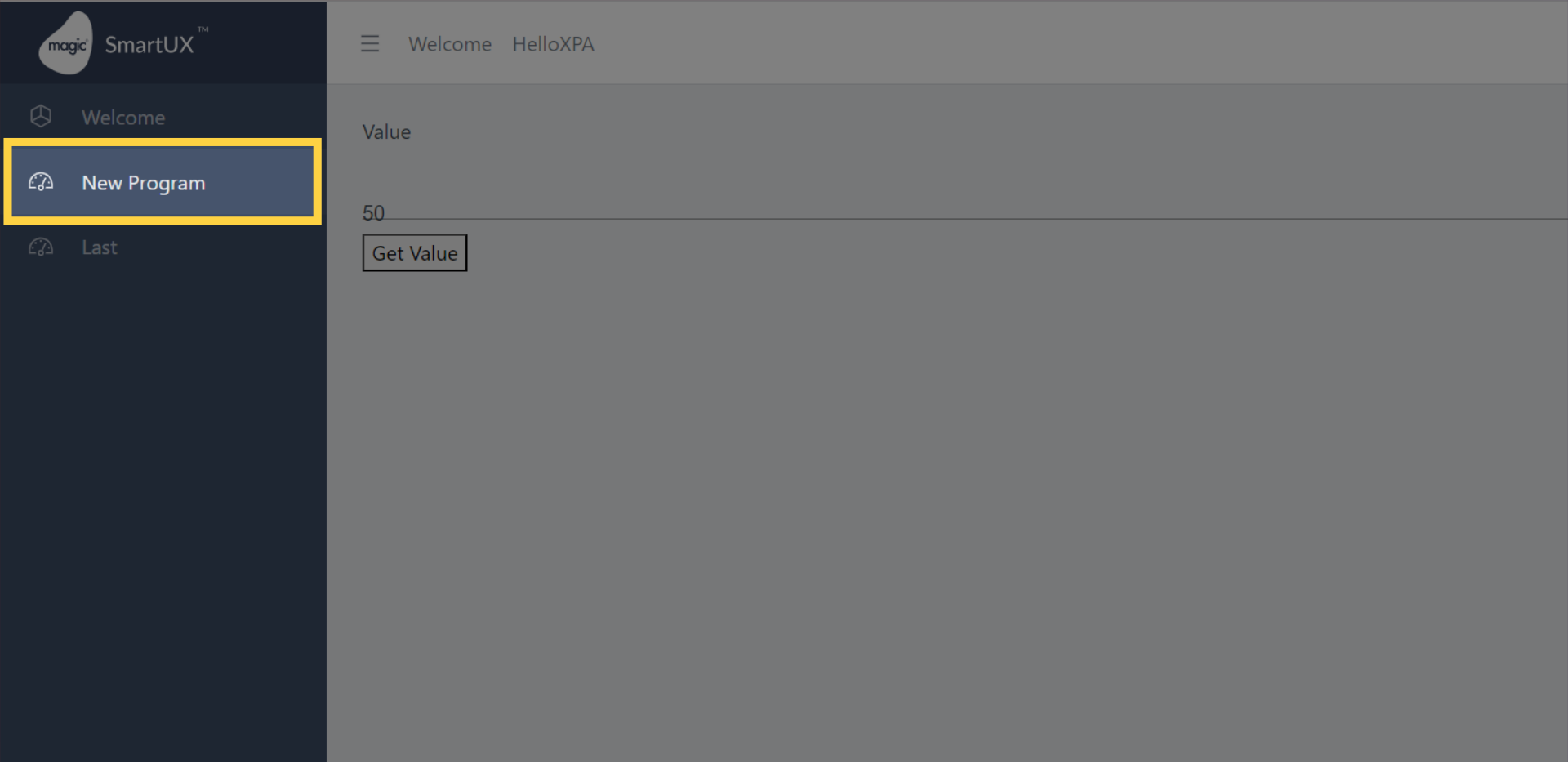
Lesson 3: Import and Set Up Members and Events programs inside Magic xpa


Welcome to Lesson 3 of our SmartUX Demo Application series. In this lesson, we will guide you through the process of Importing Members and Events programs in Magic xpa. It also shows configuring the imported programs Routes in Start Program to ensure a seamless user experience.


1. Import the Members and Events programs in Magic xpa

  • To continue with Setting Up Member and Events screens in SmartUX Studio, you need to import the MembersAndEvents.xml in Magic xpa.
  • You can download the Member and Events Programs export of the Magic xpa program to import at your end using the below link.

Import the Members and Events programs in Magic xpa


2. Ready to import file

  • To continue with import, ensure you have unzipped the downloaded file and have the MembersAndEvents.xml file ready.
  • This export file contains multiple programs for the Member and Events screen.
  • It also contains Batch programs to perform Create and Delete operations.
  • Import the MembersAndEvents.xml programs in a similar way as shown in Lesson 2.

Ready to import file


3. The Program repository

  • After successful import, the Program Repository will look like this.

After the successful import, the Program repository will look like this


4. Configure Start Program

  • Now open the Start Program to configure Routes for the required Imported programs.

Open Start Program to Add Routes for Imported Programs


5. Adding Routes for the required Programs

  • As shown in the Screen, add the Call Program under the Route Event.
  • Added programs already have the Route names provided in their Task Properties.
  • You can also see the Route Name in the Properties of the Call Program.

Adding Routes for the required Programs


6. Skip Arguments for Call Program

  • As you are done with adding the Call Program.
  • You need to skip the Arguments for those programs which has Parameters to avoid the warnings.
  • Refer to the screen to skip the Argument.

Skip Arguments for Call Program


7. After Skip Arguments

  • After the Skip Arguments are performed, you will not observe any warning in the Start Program when you run the Checker or Press F8.
  • The Logic section Call Program will look like as shown on the screen below.
  • Now save the Start Program to save the performed changes.

After Skip Arguments


This guide covered the process of importing Member and Events programs. In Magic xpa for SmartUX Demo Application, adding Call Program Routes for the programs. Following the provided instructions, users can easily navigate the application to efficiently manage projects and enhance their training experience.

Add and Design Components for Members List

Lesson 4: Add and Design the Members List Component

Welcome to Lesson 4 of our SmartUX Demo Application series. This guide will walk you through adding the Members List Component in SmartUX. Follow the engaging instructions below to complete the process and enhance your training functionalities.


1. Add Component

  • As you switch to SmartUX studio, click on the Add Component.

Add Component


2. Select Members List Program

  • The Add Component will open the Add Program window.
  • Select Members List program “MList”.
  • Now click on the “Next” button.

Select Members List Program


3. Select Component Template

  • For the Selected “MList” program, Choose the component template.
  • Here select Blank Template as a component template.

Select Component Template


4. Enable Expanded View and View Code

  • Here click on the highlighted area to enable the View Code and Expanded View for the Component Canvas.

Enable Expanded View and View Code


5. Select the Container

  • Once you enter Expanded View, you will see the Widgets on the Canvas.
  • Select the Container widget and do the Form Name mapping to it.

Select the Container


6. Select the Data Model for the Container

  • Select the “MList” form to Map with the Form Name property of the Container widget.
  • Click on the “Save” button to map.

Select Data Model for Container


7. Switch to the UX Widgets Pane

  • Switch to the UX Widgets Pane to drag and drop the required widgets on the Canvas.

Switch UX Widgets Pane


8. The Card Widget

  • Drag and Drop the Card widget from the UX Widgets pane inside the Container widget.
  • In the Card Properties sheet click on the gear icon of the Data property to map it with a group control.

The Card Widget


9. The Main Group

  • Select the “MainGroup” Group control from the Data Model list.
  • Click on the Save button to do the mapping.

The Main Group


10. Change the ID of the Card Widget

  • In the properties sheet of the Card widget.
  • Change the ID to “MainGroup”.

Change ID of the Card Widget


11. Add the Container to the MainGroup Card

  • Drag and Drop the Container widget inside the MainGroup Card widget.
  • In the Properties Sheet of Container widget, under the Styling Overrides Section, input the Class property as “allSideSpacing-containers”.

Add the Container to MainGroup Card


12. Add a Row widget to Container

  • Drag and Drop the Row widget inside the Container widget.

Add Row widget to Container


13. Add Heading to the Row

  • Drag and Drop the Heading H4 inside the Row widget.
  • In the Properties Sheet of the Heading widget:
    • Change the Text property to “Members”.
    • In the Class property input “horizontal-line-bottom”.

Add Heading to the Row


14. Add a Column widget inside the Row

  • Drag and Drop the Column widget inside the Row.
  • In the Properties Sheet of Column widget input the Class property with:
    • align-items-end
    • smallSpacingBottomOutsideContainer
    • smallSpacingTopOutsideContainer

Add Column widget inside Row


15. Add Create Member Button to the Column

  • Drag and Drop the Button widget inside the Column.
  • Click on the Data Mapping gear icon in the Properties Sheet of the Button widget.

Add Create Member Button to the Column


16. Data Mapping to Create Member Button

  • Select the Data Model “Btn_CreateMember” Button.
  • Click on the Save button to save the Data Mapping.

Data Mapping to Create Member Button


17. Setting Create Member Button properties

  • In the Properties Sheet of the Create Member button widget.
  • Under the “Display Logic” Section, set the “Button Style” property to “Raised Button”.
  • Change “Button Color” to “Primary”.
  • Under the Labels & Icons section, input the “Label” property as “Create Member”.
  • Change the “Label Type” property to “Label and Icon”.
  • In the Icon property input text as “people”.

Setting Create Member Button properties

This guide covered the process of adding the Members List component in SmartUX, including selecting programs, configuring classes, and saving changes systematically. The Members List Component is not complete yet. The next step will be adding the Table to the Component.

Table and Columns to Components: A Step-by-Step Manual Guide

Lesson 5: Adding Table to the Component and Component to Sidebar of Application Template


Welcome to Lesson 5 of our SmartUX Demo Application series. This guide will walk you through
  1. Adding a Table and Column mapping to the Data Model to the Members List Component in SmartUX.
  2. Incorporating a Component into the Sidebar Navigation using Magic xpa.
Follow the engaging instructions to complete the process and enhance your training functionalities to achieve the below screen.


1. Adding the Members List Table

  • In the last lesson, you performed steps till the Create Button.
  • Now drag and drop the Table Body widget inside the second Container below the Row widget.
  • Click on the “Div” widget on the canvas.
  • In the Properties Sheet of the “Div” widget input “ScrollableSection” in the Class property.

Adding the Members Table


2. Mapping Table body

  • Select the Table on the Canvas.
  • Click on the Data Mapping gear icon in the Properties Sheet of Table.
  • This will open the “Select Data Model” window.

Mapping Table body


3. Select the Data Model for Table

  • Select the Data Model “Table_Member_List” Table control.
  • Click on the “Save” button to save the Data Mapping.

Select Data Model for Table


4. Add Member ID Column to the Member List Table

***Note***
> The Columns may not be displayed on in the Table.
> You have to drag and drop the all the columns inside the Table.
> Map all the Table Columns with respective Column Data Models.
> After Mapping all the Table Columns you need to enter in Live Preview mode and select the Member List menu                     from the sidebar.
> This will display all the columns without any records.
> Exit the Live Preview and now the Columns will be visible on Canvas as well.
> This is needed to record the Mock data for the Table to display columns for the First Time only.
  • Now let’s start dropping Table Columns widgets inside the Table.
  • Drag and Drop the First Table Column inside the Table on the Canvas.
  • In the Properties Sheet pane of the Table Column widget click on the gear icon of “Column Mapping”.

Add Member ID Column to the Member List Table


5. Column Mapping with Data Model “Column Member ID”

  • Select the “Column_Member_ID” Column control Data Model.
  • Click on the Save button to map the Column.

Column Mapping with Data Model 'Column Member ID'


6. Changing the Column Title Property

  • Once you do the Column Mapping, the Column Title property will get assigned a function to get the actual Table Column name from the Magic xpa form.
  • You can also input the desired Column title as per your requirement.
  • To input desired text as Title click on the gear icon on the Column Title property.
  • This will open a window for “Select Mg* Function”.

Changing the Column Title Property


7. Switch to Set Static HTML

  • In the “Select Mg* Function” window, you will see two radio buttons “Data Mapping” and “Set Static HTML”.
  • Select the “Set Static HTML” radio button.

Switch to Set Static HTML


8. Clear Set Static HTML

  • In the Set Static HTML section remove the existing text.
  • Here you can input the desired text for the Column.

Clear Set Static HTML


9. Fill in the Column Title as “#”

  • Here enter “#” in the provided field.
  • Click Save to assign the desired text to the Table Column Title.
  • Similarly, you can drag and drop the remaining six columns inside the Table and do the Column mapping.

Fill '#'


10. Drag and Drop the second Column for Title Column

  • Drag and Drop the second Column for “Column_Title” inside the Table.
  • Perform the Column Mapping with “Column_Title” Data Model column control.

Drag and Drop the second Column for Title Column


11. Column Mapping “Column_Title”

  • Select the “Column_Title” Column control from the Select Data Model List.
  • Click on the Save button.

Column Mapping 'Column_Title'


12. Drag and Drop the Third Column for “Column_First_Name”

  • Drag and Drop the Third Column for “Column_First_Name” inside the Table.
  • Perform the Column Mapping with “Column_First_Name” Data Model column control.

Drag and Drop the Third Column for 'Column_First_Name'


13. Column Mapping “Column_First_Name”

  • Select the “Column_First_Name” Column control from the Select Data Model List.
  • Click on the Save button.

Column Mapping 'Column_First_Name'


14. Drag and Drop the Fourth Column for “Column_Last_Name”

  • Drag and Drop the Fourth Column for “Column_Last_Name” inside the Table.
  • Perform the Column Mapping with “Column_Last_Name” Data Model column control.

Drag and Drop the Fourth Column for 'Column_Last_Name'


15. Column Mapping “Column_Last_Name”

  • Select the “Column_Last_Name” Column control from the Select Data Model List.
  • Click on the Save button.

Column Mapping 'Column_Last_Name'


16. Drag and Drop the Fifth Column for “Column_Birth_Date”

  • Drag and Drop the Fifth Column for “Column_Birth_Date” inside the Table.
  • Perform the Column Mapping with “Column_Birth_Date” Data Model column control.

Drag and Drop the Fifth Column for 'Column_Birth_Date'


17. Column Mapping “Column_Birth_Date”

  • Select the “Column_Birth_Date” Column control from the Select Data Model List.
  • Click on the Save button.

Column Mapping 'Column_Birth_Date'


18. Drag and Drop the Sixth Column for “Column_Gender”

  • Drag and Drop the Sixth Column for “Column_Gender” inside the Table.
  • Perform the Column Mapping with “Column_Gender” Data Model column control.

Drag and Drop the Sixth Column for 'Column_Gender'


19. Column Mapping “Column_Gender”

  • Select the “Column_Gender” Column control from the Select Data Model List.
  • Click on the Save button.

Column Mapping 'Column_Gender'


20. Drag and Drop the Seventh Column for “Column_Action”

  • Drag and Drop the Seventh Column for “Column_Action” inside the Table.
  • Perform the Column Mapping with “Column_Action” Data Model column control.

Drag and Drop the Seventh Column for 'Column_Action'


21. Column Mapping “Column_Action”

  • Select the “Column_Action” Column control from the Select Data Model List.
  • Click on the Save button.

Column Mapping 'Column_Action'


22. Add the Paginator to the Table

  • Drag and Drop the Paginator widget below the “Div” of the Table inside the second Container.
  • Click on the Save button on the top right corner of the browser window of SmartUX Studio.

Add the Paginator to the Table


23. Add a Card for Subform to open Create/Modify Member by hiding Member List

  • You need to have a form for the Create New Member or to modify the existing Member from the Member List table.
  • Drag and Drop the Subform widget below the “MainGroup” Card, inside the very first Container.
  • Perform the Data Mapping with the “SFMCard” Data Model Subform control.
  • Click on the gear icon from the Properties Sheet of the Subform widget.

Click here


24. Subform Mapping “SFMCard”

  • Select the “SFMCard” Subform control from the Select Data Model List.
  • Click on the Save button.

Subform Mapping 'SFMCard'


25. Add Route for the Member List Component (MList)

  • Now switch to the Components Pane.
  • Click on the Configure Routes this will open the Router Editor.

Add Route for the Member List Component (MList)


26. Select Program

  • Select the Program “MList” from the Select Route Program.
  • Click on the Save button to save the configuration.

Select Program


27. Route Editor

  • In the Route Editor click on the Add Route.

Route Editor


28. Configure the Route and Select the Program

  • The Add Route will open a window to Configure Route.
  • Input the Path as “MList” which is the Route name for the MList component.
  • Now Click on the Select Program button.

Configure Route and Select Program


29. Click “Save Route”

  • Once Route Configuration is saved click on the “Save Route”.

Click 'Save Route'


30. Check the added Route

  • Expand the list on the Route Editor window to see the added Route.
  • Click on close to exit the Route Editor.

Check added Route


31. Switch to Magic xpa studio for the sidebar navigation menu

  • Now you need to switch to Magic xpa to add “Member List” to the sidebar navigation of the Full Menu Application Template.
  • Enter into the Start Program in Magic xpa studio.

Switch to Magic xpa studio for sidebar navigation menu


32. Switch to Magic xpa studio for the sidebar navigation menu

  • Once you enter the Start Program switch to the subtask “BuildMenuData” from Navigator.
  • Switch to the Data View of the “BuildMenuData”.

Switch to Magic xpa studio for sidebar navigation menu


33. Create a Virtual variable for Sidebar Menu

  • Create a new Virtual variable “M-Members” below the “M-Wlcome” with Alpha and picture 2000.
  • The Virtual variable name can be anything but it must have the prefix “M-“.
  • Now initialize the virtual variable with the expression “n=Members~u=/base~i=cil-star”.
  • Open the expression editor on Init, create a new line in it, and provide the mentioned expression.

Create Virtual variable for Sidebar Menu


34. Switch to Magic xpa studio for the sidebar navigation menu

  • Now create another Virtual variable under the “C-MemberList” with Alpha and picture 2000.
  • The Virtual variable name can be anything but it must have the prefix “C-“.
  • Now initialize the virtual variable with the expression “n=Members List~u=/MList”.
  • Open the expression editor on Init, create a new line in it, and provide the mentioned expression.
  • Now, we have configured the sidebar navigation menu entry.
  • Escape from the Start Program and Save all the changes performed.
  • The Members List menu will be automatically added to the sidebar on the SmartUX side.
  • Switch to the SmartUX Studio now.

Switch to Magic xpa studio for sidebar navigation menu


35. Enter In Live Preview

  • Once you are back in the SmartUX Studio, exit the Expanded View and View Code.
  • You will see a Create Member button, one column and the Table Paginator only.
  • This is because no mock data is recorded for the “MList” component.
  • Now click on the Live Preview on the top right beside the Save button to enter Live Preview mode.

Enter In Live Preview


36. Click “Members List”

  • Here you will see the Members Menu in the sidebar.
  • Click on the Members this will open a child menu as “Member List”.
  • Click on the “Members List” Menu, this will show the “MList” component.

Click 'Members List'


37. Tabled Body with Column Headers

  • Now you will see the Table Column Titles, basically a Table Body with no records.
  • To see the records you need to add the respective widgets inside the columns depending on your requirements.
  • Also, you need to map them to respective control from the Data Model.
  • Let’s move forward and exit the Live Preview to continue with designing the Table.
  • To exit the Live Preview Click on the Component under Live Component. OR
  • You can also exit Live Preview by clicking on Component from Components Pane.

Exit the Live Preview


This guide covered the process of adding the Members List Table to the component in SmartUX. It also covered drag and drop of Table Column inside the Table including Column mapping with respective Data Models from Magic xpa. Further, you have performed modifications to the Start Program in Magic xpa to have the Members List in the sidebar of the Application Template. By following the engaging instructions provided, you can efficiently set up the necessary components for training. Please continue with the next Lesson to achieve showing record in the Table.

Lesson 6: Applying Style Class to Column Header, Column Cell and Container for alignment


Welcome to Lesson 6 of our SmartUX Demo Application series. This guide will walk you through applying style Class properties to Column Header Cell, Column Cell and its Container. These Classes’ property allows user to have an alignment and look and feel as per their requirement. Follow the detailed and engaging instructions provided to seamlessly configure the necessary components within the application.


1. First Column Header Cell Class property

  • Click on the First Column Header “#”.
  • In the Properties Sheet of Column Header Cell input the Class property with “table-col-xs” and “text-center”.

First Column Header Cell Class property


2. First Column Container Class Property

  • Click on the Container under the First column.
  • In the Properties Sheet of Container input the Class property as “text-center”.

First Column Container Class Property


3. Switch to Outline tree to Select Column Cell

  • Switch to the Outline tree tab beside the Properties Sheet tab in the Left Pane of SmartUX Studio.
  • The Outline tree contains all the Widgets tree, also in which order they are placed inside one another on the Canvas.
  • In the Outline tree click on the “Go to Property Sheet” icon of the “column-cell.1”.
  • This will open the Properties Sheet for the Column Cell.

Switch to Outline tree to Select Column Cell


4. First column cell Class property

  • In the Properties Sheet of Column Cell, input the Class property as “table-col-xs”.

First column cell Class property


5. Title Column Header Cell Class Property

  • Click on the Second Column Header Cell “Title”.
  • In the Properties Sheet of Column Cell Header, input the Class property as “table-col-xs”.

Title Column Header Cell Class Property


6. Column Cell 2 from Outline Tree

  • Switch to the Outline tree tab beside the Properties Sheet tab in the Left Pane of SmartUX Studio.
  • In the Outline tree click on the “Go to Property Sheet” icon of the “column-cell.2”.
  • This will open the Properties Sheet for the Column Cell.

Column Cell 2 from Outline Tree


7. Second column cell Class property

  • In the Properties Sheet of Column Cell, input the Class property as “table-col-xs”.

Second column cell Class property


8. Birth Date Column Header Cell Class Property

  • Now, Click on the Fifth Column Header Cell “Birth Date”.
  • In the Properties Sheet of Column Cell Header, input the Class property as “table-col-sm”.

Birth Date Column Header Cell Class Property


9. Column Cell 5 from the Outline Tree

  • Switch to the Outline tree tab beside the Properties Sheet tab in the Left Pane of SmartUX Studio.
  • In the Outline tree click on the “Go to Property Sheet” icon of the “column-cell.5”.
  • This will open the Properties Sheet for the Column Cell.

Column Cell 5 from the Outline Tree


10. Fifth Column Cell Class Property

  • In the Properties Sheet of Column Cell, input the Class property as “table-col-sm”.

Fifth Column Cell Class Property


11. Gender Column Header Cell Class Property

  • Now, Click on the Sixth Column Header Cell “Gender”.
  • In the Properties Sheet of Column Cell Header, input the Class property as “table-col-sm”.

Gender Column Header Cell Class Property


12. Column Cell 6 from Outline Tree

  • Switch to the Outline tree tab beside the Properties Sheet tab in the Left Pane of SmartUX Studio.
  • In the Outline tree click on the “Go to Property Sheet” icon of the “column-cell.6”.
  • This will open the Properties Sheet for the Column Cell.

Column Cell 6 from Outline Tree


13. Sixth Column Cell Class Property

  • In the Properties Sheet of Column Cell, input the Class property as “table-col-sm”.

Sixth Column Cell Class Property


14. Action Column Header Cell Class Property

  • Now, Click on the Seventh Column Header Cell “Action”.
  • In the Properties Sheet of Column Cell Header, input the Class property as “ActionCol” and “text-center”.

Action Column Header Cell Class Property


15. Column Cell 7 from the Outline Tree

  • Switch to the Outline tree tab beside the Properties Sheet tab in the Left Pane of SmartUX Studio.
  • In the Outline tree click on the “Go to Property Sheet” icon of the “column-cell.7”.
  • This will open the Properties Sheet for the Column Cell.

Column Cell 7 from the Outline Tree


16. Seventh Column Cell Class Property

  • In the Properties Sheet of Column Cell, input the Class property as “ActionCol”.

Seventh Column Cell Class Property


This guide covered the process of applying styles, configuring classes, and saving changes systematically. By following the engaging instructions provided, you can efficiently set up the necessary components for training.

Lesson 7: Drag and Drop Widgets in Column Cell Container to display records in Table

Welcome to Lesson 7 of our SmartUX Demo Application series. This guide will walk you through the drag-and-drop Label widget to display the records of the Table in SmartUX. This guide will take you through different sections of components, widgets and their properties. Follow the engaging instructions below to complete the process and enhance your training functionalities. In the previous lesson, you created a table body and assigned style classes for alignment. Let’s move forward to display records in the table.

Upon successful completion of the specified steps, the result will reflect the desired outcome as shown in the image below:


1. Drag and Drop the Label widget for the ID Column

  • Now drag and drop the Label widget inside the first column container.
  • Click on the gear icon of the Data Mapping properties from the Properties Sheet of Label.
  • This will open a window to Select Data Model.

Drag and Drop the Label widget for ID Column


2. Data Mapping for Member_ID Label Widget

  • Select the “Member_ID” Edit control Data Model.
  • Click the Save button to map the Data Model.

Data Mapping for Member_ID Label Widget


3. Map Text property with mg.getValue function for Member_ID

  • In the Properties Sheet of the Label, click on the gear icon of the Text property.
  • This will open a window for the Select Mg* Function.
  • In this Text property, you can either input the text you desire or you can get the value of the “Member_ID” Edit control from Magic xpa using the “mg.getValue” function.
  • This function will fetch value from the Magic xpa control to the Label widget.

Map Text property with mg.getValue function for Member_ID


4. Select  mg.getValue function for Member_ID

  • Select the Data Mapping Radio button at the “Select Mg* Function” window.
  • Expand the “Member_ID” Edit control.
  • Select the “mg.getValue” function and click the Save button.

Select  mg.getValue function for Member_ID


5. Mark the Label widget for Member_ID as “Inside Table”

  • Now the Text is mapped with mg.getValue function for Member_ID.
  • Select the Checkbox of the property “Is Inside Table”.
  • This property will add [rowId]=”row.rowId” to the Label HTML tag to identify it is inside the Table.

Mark the Label widget for Member_ID as 'Inside Table'


6. Drag and Drop the Label widget for Title Column

  • Follow the same steps as you did for the previous step but for the next columns.
  • Now drag and drop the Label widget inside the container of the second column “Title”.
  • Click on the gear icon of the Data Mapping property from the Properties Sheet of Label.
  • This will open a window to Select Data Model.

Drag and Drop the Label widget for Title Column


7. Data Mapping for Title Label Widget

  • Select the “Title” Edit control Data Model.
  • Click the Save button to map the Data Model.

Data Mapping for Title Label Widget


8. Map Text property with mg.getValue function for Title

  • In the Properties Sheet of the Label, click on the gear icon of the Text property.
  • This will open a window for the Select Mg* Function.
  • In this Text property, you can either input the text you desire or you can get the value of the “Title” Edit control from Magic xpa using the “mg.getValue” function.
  • This function will fetch value from the Magic xpa control to the Label widget.

Map Text property with mg.getValue function for Title


9. Select mg.getValue function for Member_ID

  • Select the Data Mapping Radio button at the “Select Mg* Function” window.
  • Expand the “Title” Edit control.
  • Select the “mg.getValue” function and click the Save button.

Select mg.getValue function for Member_ID


10. Mark the Label widget for the Title as “Inside Table”

  • Now the Text is mapped with mg.getValue function for “Title”.
  • Select the Checkbox of the property “Is Inside Table”.
  • This property will add [rowId]=”row.rowId” to the Label HTML tag to identify it is inside the Table.

Mark the Label widget for the Title as 'Inside Table'


11. Drag and Drop the Label widget for the First Name Column

  • Follow the similar steps as you did for the previous step but for the next columns.
  • Now drag and drop the Label widget inside the container of the third column “First Name”.
  • Click on the gear icon of the Data Mapping property from the Properties Sheet of Label.
  • This will open a window to Select Data Model.

Drag and Drop the Label widget for First Name Column


12. Data Mapping for First_Name Label Widget

  • Select the “First_Name” Edit control Data Model.
  • Click the Save button to map the Data Model.

Data Mapping for First_Name Label Widget


13. Map Text property with mg.getValue function for First Name

  • In the Properties Sheet of the Label, click on the gear icon of the Text property.
  • This will open a window for the Select Mg* Function.
  • In this Text property, you can either input the text you desire or you can get the value of the “First_Name” Edit control from Magic xpa using the “mg.getValue” function.
  • This function will fetch value from the Magic xpa control to the Label widget.

Map Text property with mg.getValue function for First Name


14. Select mg.getValue function for First_Name

  • Select the Data Mapping Radio button at the “Select Mg* Function” window.
  • Expand the “First_Name” Edit control.
  • Select the “mg.getValue” function and click the Save button.

Select mg.getValue function for First_Name


15. Mark the Label widget for the First Name as “Inside Table”

  • Now the Text is mapped with mg.getValue function for “First Name”.
  • Select the Checkbox of the property “Is Inside Table”.
  • This property will add [rowId]=”row.rowId” to the Label HTML tag to identify it is inside the Table.

Mark the Label widget for the First Name as 'Inside Table'


16. Drag and Drop the Label widget for the Last Name Column

  • Follow the similar steps as you did for the previous step but for the next columns.
  • Now drag and drop the Label widget inside the container of the fourth column “Last Name”.
  • Click on the gear icon of the Data Mapping property from the Properties Sheet of Label.
  • This will open a window to Select Data Model.

Drag and Drop the Label widget for Last Name Column


17. Data Mapping for Last_Name Label Widget

  • Select the “Last_Name” Edit control Data Model.
  • Click the Save button to map the Data Model.

Data Mapping for Last_Name Label Widget


18. Map Text property with mg.getValue function for Last Name

  • In the Properties Sheet of the Label, click on the gear icon of the Text property.
  • This will open a window for the Select Mg* Function.
  • In this Text property, you can either input the text you desire or you can get the value of the “Last_Name” Edit control from Magic xpa using the “mg.getValue” function.
  • This function will fetch value from the Magic xpa control to the Label widget.

Map Text property with mg.getValue function for Last Name


19. Select mg.getValue function for Last_Name

  • Select the Data Mapping Radio button at the “Select Mg* Function” window.
  • Expand the “Last_Name” Edit control.
  • Select the “mg.getValue” function and click the Save button.

Select mg.getValue function for Last_Name


20. Mark the Label widget for the Last Name as “Inside Table”

  • Now the Text is mapped with mg.getValue function for “Last Name”.
  • Select the Checkbox of the property “Is Inside Table”.
  • This property will add [rowId]=”row.rowId” to the Label HTML tag to identify it is inside the Table.

Mark the Label widget for the Last Name as 'Inside Table'


21. Drag and Drop the Label widget for the Birth Date Column

  • Follow the similar steps as you did for the previous step but for the next columns.
  • Now drag and drop the Label widget inside the container of the fifth column “Birth Date”.
  • Click on the gear icon of the Data Mapping property from the Properties Sheet of Label.
  • This will open a window to Select Data Model.

Drag and Drop the Label widget for Birth Date Column


22. Data Mapping for Birth_Date Label Widget

  • Select the “Birth_Date” Edit control Data Model.
  • Click the Save button to map the Data Model.

Data Mapping for Birth_Date Label Widget


23. Map Text property with mg.getValue function for Birth Date

  • In the Properties Sheet of the Label, click on the gear icon of the Text property.
  • This will open a window for the Select Mg* Function.
  • In this Text property you can either input the text you desire or you can get the value of the “Birth_Date” Edit control from Magic xpa using the “mg.getValue” function.
  • This function will fetch value from the Magic xpa control to the Label widget.

Map Text property with mg.getValue function for Birth Date


24. Select mg.getValue function for Birth_Date

  • Select the Data Mapping Radio button at the “Select Mg* Function” window.
  • Expand the “Birth_Date” Edit control.
  • Select the “mg.getValue” function and click the Save button.

Select mg.getValue function for Birth_Date


25. Mark the Label widget for the Birth Date as “Inside Table”

  • Now the Text is mapped with mg.getValue function for “Birth Date”.
  • Select the Checkbox of the property “Is Inside Table”.
  • This property will add [rowId]=”row.rowId” to the Label HTML tag to identify it is inside the Table.

Mark the Label widget for the Birth Date as 'Inside Table'


26. Drag and Drop the Label widget for Gender Column

  • Follow the similar steps as you did for the previous step but for the next columns.
  • Now drag and drop the Label widget inside the container of the sixth column “Gender”.
  • Click on the gear icon of the Data Mapping property from the Properties Sheet of Label.
  • This will open a window to Select Data Model.

Drag and Drop the Label widget for Gender Column


27. Data Mapping for Gender Label Widget

  • Select the “Gender” Edit control Data Model.
  • Click the Save button to map the Data Model.

Data Mapping for Gender Label Widget


28. Map Text property with mg.getValue function for Gender

  • In the Properties Sheet of the Label, click on the gear icon of the Text property.
  • This will open a window for the Select Mg* Function.
  • In this Text property, you can either input the text you desire or you can get the value of the “Gender” Edit control from Magic xpa using the “mg.getValue” function.
  • This function will fetch value from the Magic xpa control to the Label widget.

Map Text property with mg.getValue function for Gender


29. Select mg.getValue function for Gender

  • Select the Data Mapping Radio button at the “Select Mg* Function” window.
  • Expand the “Gender” Edit control.
  • Select the “mg.getValue” function and click the Save button.

Select mg.getValue function for Gender


30. Mark the Label widget for the Gender as “Inside Table”

  • Now the Text is mapped with mg.getValue function for “Gender”.
  • Select the Checkbox of the property “Is Inside Table”.
  • This property will add [rowId]=”row.rowId” to the Label HTML tag to identify it is inside the Table.

Mark the Label widget for the Gender as 'Inside Table'


31. Drag and Drop the Button widget for the Action Column

  • Drag and drop the Button widget for modify operation, inside the container of the seventh column “Action”.
  • Click on the gear icon of the Data Mapping property from the Properties Sheet of the Button.
  • This will open a window to Select Data Model.

Drag and Drop the Button widget for Action Column


32. Data Mapping for Modify Action Button Widget

  • Select the “btn_Modify” Button to control the Data Model.
  • Click the Save button to map the Data Model.

Data Mapping for Modify Action Button Widget


33. Set Modify operation button widget Properties

  • Select the Checkbox of the property “Is Inside Table”.
  • This property will add [rowId]=”row.rowId” to the Button HTML tag to identify it is inside the Table.
  • In the Labels & Icons section remove the Button Text from the Label property.
  • In the Style Override section input the Class property as “editbtn”.

Set Modify operation button widget Properties


34. Drag and Drop another button widget for the Action Column

  • Drag and drop another Button widget for the Delete operation, inside the container of the seventh column “Action”.
  • Click on the gear icon of the Data Mapping property from the Properties Sheet of the Button.
  • This will open a window to Select Data Model.

Drag and Drop another button widget for the Action Column


35. Data Mapping for Delete Action Button Widget

  • Select the “btn_Delete” Button control from the Data Model.
  • Click the Save button to map the Data Model.

Data Mapping for Delete Action Button Widget


36. Set Delete operation button widget Properties

  • Select the Checkbox of the property “Is Inside Table”.
  • This property will add [rowId]=”row.rowId” to the Button HTML tag to identify it is inside the Table.
  • In the Labels & Icons section remove the Button Text from the Label property.
  • In the Style Override section input the Class property as “deletebtn”.
  • Save the component changes by clicking on the Save on the top right corner.

Set Delete operation button widget Properties


37. Enter in Live Preview

  • Now everything is set let’s enter into the Live Preview mode.

Enter in Live Preview


38. Member List Table with Records

  • Now you can see the records from the Member List table.
  • These records will also be visible in design mode in Canvas as the SmartUX Studio is a WYSIWYG Studio.
  • Here the Birth Date Column displays the Date in a different format.
  • We will refine the Birth Date Column in the next Lesson.
  • Also, we have dropped a Subform on the Canvas, we will add a display condition for the Card and the Subform widget.

Member List Table with Records


This guide covered the process of navigating through different sections, selecting options, filling in information, and saving changes. Master these steps to streamline training processes. Follow the detailed and engaging instructions provided to seamlessly configure the necessary components within the application.

Lesson 8: Use of DatePipe for Date Column format and Creating a Dynamic Property for Widgets

Welcome to Lesson 8 of our SmartUX Demo Application series. This guide walks you through changing the date format of the Birth Date Column and adding a display condition to the Subform and Card Widget in the Member List Component. These instructions will help you customize training data efficiently.

Upon successful completion of the specified steps, the result will reflect the desired outcome as shown in the image below:


1. Live Preview of Member List without Date format

  • We successfully mapped the required widgets with their respective Data Model controls and were able to see the Table records.
  • Here in the Live Preview of the Member List Component the Birth Date Column Date format is not as expected.
  • Let’s modify the format as per requirement using the DatePipe.

Live Preview of Member List without Date format


2. Enable View Code for MList Component

  • Exit the Live Preview by clicking on the MList component.
  • Enable the View Code.
  • This will open a section under Canvas that shows the HTML source code of every Widget dropped on the Canvas.
  • In the Design mode of the MList Component, click on the Label widget under the Birth Date Column.
  • Once you click the Birth Date Label, it will Highlight the HTML source code for it.

Enable View Code for MList Component


3. Mg* Function of Birth Date Label

  • In the Highlighted HTML tag, you will see the Mg* function:
    • “{{ mg.getValue(mgc.Birth_Date,row.rowId) }}”
  • Park before the closing curly braces of the function.

Mg* Function of Birth Date Label


4. Add DatePipe after Mg* Function

  • DatePipe is an essential feature in Angular that allows you to format dates according to locale rules.
  • It is particularly useful when you need to display dates in a human-readable format within your application.
  • Let’s modify the Mg* Function.
  • Currently, the Mg* Function is as follows:
    • {{ mg.getValue(mgc.Birth_Date,row.rowId) }}
  • Add DatePipe to the Mg* function as follows:
    • {{ mg.getValue(mgc.Birth_Date,row.rowId)|date:’dd/MM/YYYY’ }}
  • Once you add DatePipe you will observe the Birth Date is formatted and now in a readable format.
  • The entire expression retrieves a date value from the specified component, and then the date filter formats it into the desired date format (day/month/year).
  • For example, if the original date value is “2024-04-15,” the output would be “15/04/2024.”

Add DatePipe after Mg* Function


5. Live Preview to see the DatePipe effect

  • Save the Changes performed.
  • Enter in Live Preview.
  • Now you will see the change in Live Preview as well.
  • Now exit the Live Preview to move forward to add Dynamic Property to the Widget.

Live Preview to see the DatePipe effect


6. Select the Card widget to Add Dynamic Property

  • Enable the Expanded Mode for Canvas.
  • Select the Card Widget.
  • You can simply click on the Card Widget from Canvas or from the Outline tree.
  • Go to the Properties Sheet of the MainGroup Card widget.

Select the Card widget to Add Dynamic Property


7. Add Dynamic Property to Card Widget

  • Under the Dynamic Properties section in the Properties sheet of the Card Widget.
  • Click on “Add New Property”.
  • In the first input field “Enter Attribute” enter the attribute as :
    • [style.display]
  • As we are adding this attribute to the root tag Card itself, do not input anything in the “Enter Selector” field.
  • Click on the Save icon beside the “Enter Selector” field, highlighted with a circle.
  • The [style.display] property in CSS determines how an HTML element is rendered in terms of its display behaviour.
  • It affects the type of rendering box used for the element.

Add Dynamic Property to Card Widget


8. Display property of Card HTML element

  • Now fill in the text box with:
    • mg.getVisible(mgc.MainGroup)==’visible’?’block’:’none’
  • This code dynamically sets the display property of an HTML element based on the visibility state of a component.
  • If the component is visible, the element will be displayed as a block; otherwise, it will be hidden.
  • [style.display]:
    • This part of the code sets the display property of an HTML element.
    • The square brackets ([]) indicate that this is a binding expression, commonly used in frameworks like Angular or Vue.js.
    • The style.display property controls how an element is displayed on the web page.
  • mg.getVisible(mgc.MainGroup):
    • This calls a method named getVisible() on an object referred to as mg.
    • The method takes an argument, which appears to be the MainGroup property of an object referred to as mgc.
    • The purpose of this method is to determine the visibility state of the specified component (in this case, the MainGroup).
  • =='visible' ? 'block' : 'none':
    • This is a ternary conditional expression.
    • It checks whether the result of mg.getVisible(mgc.MainGroup) is equal to the string 'visible'.
    • If it is, the expression evaluates to 'block', which means the element will be displayed as a block-level element.
    • Otherwise, if the visibility is not 'visible', it evaluates to 'none', which means the element will be hidden (not displayed).

Display property of Card HTML element


9. Subform Widget Properties Sheet

  • Now scroll down to the bottom of the Canvas.
  • You will see the Subform widget.
  • Click on the Subform widget to see its Properties Sheet.

Subform Widget Properties Sheet


10. Add Dynamic Property to Subform Widget

  • Under the Dynamic Properties section in the Properties sheet of the Subform Widget.
  • Click on “Add New Property”.
  • In the first input field “Enter Attribute” enter the attribute as :
    • [style.display]
  • As we add this attribute to the root tag Subform itself, do not input anything in the “Enter Selector” field.
  • Click on the Save icon beside the “Enter Selector” field, highlighted with a circle.
  • The [style.display] property in CSS determines how an HTML element is rendered in terms of its display behaviour.
  • It affects the type of rendering box used for the element.

Add Dynamic Property to Subform Widget


11. Display property of Subform HTML element

  • Now fill in the text box with:
    • mg.getVisible(mgc.MainGroup)!==’visible’?’block’:’none’
  • This code dynamically sets the display property of an HTML element based on the visibility state of a component.
  • If the component is not visible, the element will be displayed as a block; otherwise, it will be hidden.
  • [style.display]:
    • This part of the code sets the display property of an HTML element.
    • The square brackets ([]) indicate that this is a binding expression, commonly used in frameworks like Angular or Vue.js.
    • The style.display property controls how an element is displayed on the web page.
  • mg.getVisible(mgc.MainGroup):
    • This calls a method named getVisible() on an object referred to as mg.
    • The method takes an argument, which appears to be the MainGroup property of an object referred to as mgc.
    • The purpose of this method is to determine the visibility state of the specified component (in this case, the MainGroup).
  • !=='visible' ? 'block' : 'none':
    • This is a ternary conditional expression.
    • It checks whether the result of mg.getVisible(mgc.MainGroup) is not equal to the string 'visible'.
    • If it is not equal, the expression evaluates to 'block', which means the element will be displayed as a block-level element.
    • Otherwise, if the visibility is 'visible', it evaluates to 'none', which means the element will be hidden (not displayed).

Display property of Subform HTML element


12. The Subform widget is hidden on the Canvas

  • Now if you disable the View Code and look for the Subform on the Canvas.
  • The Subform widget is now hidden from the Canvas.

Subform widget hidden from Canvas


13. MList Component Outline tree

  • Even if the Subform widget is Hidden from the Canvas, there is a way to select the Subform widget and change its properties.
  • Switch to the Outline Tree Pane beside the Properties Sheet pane.
  • Scroll down and look for Subform.1
  • Here you can select Go to Property to perform any changes to Subform properties.

MList Component Outline tree


This guide covered steps to add DatePipe and the date format to the Birth Date Column. It also covered the process of creating a Dynamic Property for the widget to set a display condition for the Subform and Card Widget using the Template section of SmartUX. This enhances the user experience for managing training information.

Add and Design Components for Members Card

Lesson 9: Add and Design Member Card Component


Welcome to Lesson 9 of our SmartUX Demo Application series. This guide will walk you through the process of adding and designing a Member Card Component in the Training. Follow the detailed instructions to create a visually appealing and functional member card for your training program.

Upon successful completion of the specified steps, the result will reflect the desired outcome as shown in the image below:


1. Add Component to SmartUX

  • Click on the Add Component.
  • This will open a Select Program window with a List of Web Client Programs from Magic xpa.

Add Component to SmartUX


2. Select a Program for the Member Card

  • As we are adding a component for Member Card, Select the MCard Program.
  • Click on the Next button.
  • This will take you to the Component Template screen.

Select a Program for Member Card


3. Select Component Template for MCard Program

  • Here Select Blank Template as Component Template for the MCard program.
  • Click on the Finish button.

Select Component Template for MCard Program


4. Enable Expanded View and View Code for Mcard Component

  • Click on the Expanded View icon to enable Expanded View.
  • Click on the View Code icon to open a section below the Canvas to see the HTML source code of dropped Widgets.

Enable Expanded View and View Code for Mcard Component


5. Map Form Name to Container

  • Select the Container widget on the Canvas.
  • Click on the gear icon associated with the Form Name property for mapping.

Map Form Name to Container


6. Select Form Name Data Model to Container

  • Here on the Select Data Model window, select “MCard” Form Data Model.
  • Click on the Save button to map.

Select Form Name Data Model to Container


7. Assign Class property to Container

  • In the Class property of Container fill “allSideSpacing-containers”.

Assign Class property to Container


8. Drag and Drop Row and assign Class property

  • Drag and drop the Row widget inside the Container.
  • In the Class property of the Row widget fill “horizontal-line-bottom”.

Drag and Drop Row and assign Class property


9. Drag and drop the Column widget and assign Class Property

  • Drag and drop the Column widget inside the Row.
  • In the Breakpoints property of the Column widget, Select 12 from the Small (sm) dropdown list.
  • In the Class property of Column input “smallSpacingTopOutsideContainer” and “align-items-end”.

Drag and drop the Column widget and assign Class Property


10. Drag and drop the Row widget inside the Column widget

  • Now drag and drop the Row widget inside the last dropped Column widget.
  • Input the Class property as “smallSpacingTopOutsideContainer” to the Row widget.

Drag and drop Row widget inside the Column widget


11. Add Heading to the Row widget

  • Drag and drop the Heading H4 inside the last dropped Row widget.
  • In the properties sheet of the Heading H4 widget, input “Member Information” in the Text property.
  • In the Class property of Heading input “horizontal-line-bottom” and “smallSpacingBottomOutsideContainer”.

Add Heading to the Row widget


12. Drag and Drop Accordion Container

  • Drag and drop the Accordion Container widget below Heading inside the Row widget.

Drag and Drop Accordion Container


13. Drag and drop the Accordion Item widget inside the Accordion Container

Drag and drop the Accordion Item widget inside Accordion Container


14. Accordion Button

  • Click on the Accordion Button(Accordion Item Header) inside the Accordion Item widget.
  • In the Properties Sheet of the Accordion Button(Accordion Item Header) click on the gear icon.
  • This will open the Select Mg* Function Window.

Accordion Button


15. Select Mg* Function window

  • In the Select Mg* Function window, under Set Static HTML remove the present text.

Select Mg* Function window


16. Fill in the text box with Function

  • Fill in the text box with “Member – # [{{ mg.getValue(mgc.Member_ID) }}]”.
  • Click on the Save button.

Fill in the text box with Function


17. Set Labels & Icons properties of the Accordion Item Header

  • In the properties sheet of the Accordion Item Header, you set the label.
  • Change the Label Type property to Label and Icon.
  • In the Icon property input the text as “people”.
  • In the Class property input “button-text-bold”.

Set Labels & Icons properties of Accordion Item Header


18. Add Row Widget to Accordion Item Container

  • Drag and drop the Row widget inside the Accordion Item Container.

Add Row Widget to Accordion Item Container


19. Drag and drop another Row widget below the last one

Drag and drop another Row widget below last one


20. Drag and drop the Column inside the First Row

  • Drag and drop the Column Widget inside the First Row of the Accordion Item Container.
  • In the Properties Sheet of the Column widget, set the Breakpoints properties as below:
    • Extra Small (xs)=”6″
    • Small (sm)=”6″
    • Medium (md)=”12″
    • Large (lg)=”2″

Drag and drop the Column inside the First Row


21. Drag and drop the second Column inside the First Row

  • Drag and drop the second Column Widget inside the First Row beside the last dropped Column of the Accordion Item Container.
  • In the Properties Sheet of the Column widget, set the Breakpoints properties as below:
    • Extra Small (xs)=”12″
    • Small (sm)=”12″
    • Medium (md)=”12″
    • Large (lg)=”5″

Drag and drop the second Column inside the First Row


22. Drag and drop the Third Column inside the First Row

  • Drag and drop the third Column Widget inside the First Row beside the last dropped Column of the Accordion Item
    Container.
  • In the Properties Sheet of the Column widget, set the Breakpoints properties as below:
    • Extra Small (xs)=”12″
    • Small (sm)=”12″
    • Medium (md)=”12″
    • Large (lg)=”5″

Drag and drop the Third Column inside the First Row


23. Drag and drop the Column inside the Second Row

  • Drag and drop the Column Widget inside the Second Row in the Accordion Item Container.
  • In the Properties Sheet of the Column widget, set the Breakpoints properties as below:
    • Extra Small (xs)=”12″
    • Small (sm)=”12″
    • Medium (md)=”12″
    • Large (lg)=”2″

Drag and drop the Column inside the Second Row


24. Drag and drop another Column inside the Second Row

  • Drag and drop the Column Widget inside the Second Row in the Accordion Item Container.
  • In the Properties Sheet of the Column widget, set the Breakpoints properties as below:
    • Extra Small (xs)=”12″
    • Small (sm)=”12″
    • Medium (md)=”12″
    • Large (lg)=”3″

Drag and drop another Column inside the Second Row


25. Drag and drop Select Input in the First Column of the First Row

  • Place the Select Input Widget by dragging and dropping it into the First Column of the First Row within the Accordion Item Container.
  • Next, navigate to the Properties Sheet of the Select Input widget.
  • Locate the Data property and click on the gear icon associated with it.
  • This action will open a Select Data Model window, allowing you to map the widget appropriately.

Drag and drop Select Input in First Column of First Row


26. Select the Title Combo Box Data Model for Select Input

  • Select the “Combo_Title” Combo Box Data Model to Map with the Select Input Widget.
  • Click on the Save button to save the mapping.

Select the Title Combo Box Data Model for Select Input


27. Set Select Input Properties for Title

  • Once you do the Data Model mapping, let’s configure the next properties for Select Input.
  • Fill in the “Label” property as “Title”.
  • Fill in the “Error” property as “Select a Title !!!”.
  • In the Display Logic section of the Select Input Properties Sheet check the “Required” property checkbox.

Set Select Input Properties for Title


28. Drag and Drop Input in the second Column of the First Row of the Accordion Item Container

  • Drag and Drop the Input widget in the second Column of the First Row of the Accordion Item Container.
  • Next, navigate to the Properties Sheet of the Input widget.
  • Locate the Data property and click on the gear icon associated with it.
  • This action will open a Select Data Model window, allowing you to map the widget appropriately.

Drag and Drop Input in the second Column of the First Row of Accordion Item Container


29. Select the First Name Edit Data Model for Input

  • Select the “First_Name” Edit Data Model to Map with Input Widget.
  • Click on the Save button to save the mapping.

Select the First Name Edit Data Model for Input


30. Set Input Properties for First Name

  • Once you do the Data Model mapping, let’s configure the next properties for Input.
  • Fill in the “Label” property as “First Name”.
  • Fill in the “Error” property as “Input First Name !!!”.
  • In the Display Logic section of Input Properties Sheet check the “Required” property checkbox.
  • Select the Appearance property as “Outline”.

Set Input Properties for First Name


31. Drag and Drop Input in the third Column of the First Row of the Accordion Item Container

  • Drag and Drop the Input widget in the third Column of the First Row of the Accordion Item Container.
  • Next, navigate to the Properties Sheet of the Input widget.
  • Locate the Data property and click on the gear icon associated with it.
  • This action will open a Select Data Model window, allowing you to map the widget appropriately.

Drag and Drop Input in the third Column of the First Row of Accordion Item Container


32. Select the First Name Edit Data Model for Input

  • Select the “Last_Name” Edit Data Model to Map with Input Widget.
  • Click on the Save button to save the mapping.

Select the First Name Edit Data Model for Input


33. Set Input Properties for Last Name

  • Once you do the Data Model mapping, let’s configure the next properties for Input.
  • Fill in the “Label” property as “Last Name”.
  • Fill in the “Error” property as “Input Last Name !!!”.
  • In the Display Logic section of the Input Properties Sheet check the “Required” property checkbox.
  • Select the Appearance property as “Outline”.

Set Input Properties for Last Name


34. Drag and drop Select Input in the First Column of the Second Row

  • Place the Select Input Widget by dragging and dropping it into the First Column of the Second Row within the Accordion Item Container.
  • Next, navigate to the Properties Sheet of the Select Input widget.
  • Locate the Data property and click on the gear icon associated with it.
  • This action will open a Select Data Model window, allowing you to map the widget appropriately.

Drag and drop Select Input in First Column of Second Row


35. Select the Gender Combo Box Data Model for Select Input

  • Select the “Combo_Gender” Combo Box Data Model to Map with the Select Input Widget.
  • Click on the Save button to save the mapping.

Select the Gender Combo Box Data Model for Select Input


36. Set Select Input Properties for Gender

  • Once you do the Data Model mapping, let’s configure the next properties for Select Input.
  • Fill in the “Label” property as “Gender”.
  • Fill in the “Error” property as “Select a Gender !!!”.
  • In the Display Logic section of the Select Input Properties Sheet check the “Required” property checkbox.

Set Select Input Properties for Gender


37. Drag and drop the Date widget in the Second Column of the Second Row

  • Place the Date Widget by dragging and dropping it into the Second Column of the Second Row within the Accordion Item Container.
  • Next, navigate to the Properties Sheet of the Select Input widget.
  • Locate the Data property and click on the gear icon associated with it.
  • This action will open a Select Data Model window, allowing you to map the widget appropriately.

Drag and drop Date widget in Second Column of Second Row


38. Select the Birth Date Edit Data Model for the Date widget

  • Select the “Birth_Date” Edit Data Model to Map with Date Widget.
  • Click on the Save button to save the mapping.

Select the Birth Date Edit Data Model for Date widget


39. Member Information Accordion Item

  • Now the Accordion item has initial information for the Member.
  • Let’s move forward to add another Accordion Item for Contact Information.

Member Information Accordion Item


40. Drag and drop another Accordion Item below the first one

  • Now Drag and drop another Accordion Item below the first one for the Phone Contact information.

Drag and drop another Accordion Item below the first one


41. Set Labels & Icons properties of the Accordion Item Header

  • Click on the Accordion Button(Accordion Item Header) inside the Accordion Item widget.
  • In the properties sheet of the Accordion Item Header, Fill in the text as “Phone” for the Label property.
  • Change the Label Type property to Label and Icon.
  • Fill in the Icon property with the text as “contacts”.
  • Fill in the Class property with the text “button-text-bold”.

Set Labels & Icons properties of Accordion Item Header


42. Perform changes in HTML code from the Template section

  • Now to make Accordion open and close without affecting the previous one you need to perform the change to the HTML code of the Accordion Item from the Template section.
  • Change #item0 to #item1 from the tag for this Accordion Item only.
  • In tag change (click)=”item0.toggleItem()” to (click)=”item1.toggleItem()”
  • In tag change [collapsed]=”!item0.visible” to [collapsed]=”!item1.visible”
  • Please refer highlighted area on the screen.

Perform changes in HTML code from Template section


43. Drag and Drop the Subform widget in the Accordion Item Container

  • Drag and Drop the Subform widget in the second Accordion Item Container.
  • Next, navigate to the Properties Sheet of the Subform widget.
  • Locate the Data property and click on the gear icon associated with it.
  • This action will open a Select Data Model window, allowing you to map the widget appropriately.

Drag and Drop the Subform widget in Accordion Item Container


44. Select the SubF_M_Contact Subform Data Model for the Subform widget

  • Select the “SubF_M_Contact” Subform Data Model to Map with the Subform Widget.
  • Click on the Save button to save the mapping.

Select the SubF_M_Contact Subform Data Model for the Subform widget


45. Drag and drop another Accordion Item below the Phone Accordion

  • Now drag and drop another Accordion Item below the Phone Accordion for Email Information.

Drag and drop another Accordion Item below the Phone Accordion


46. Set Labels & Icons properties of the Accordion Item Header

  • Click on the Accordion Button(Accordion Item Header) inside the Accordion Item widget.
  • In the properties sheet of the Accordion Item Header, Fill in the text as “Email” for the Label property.
  • Change the Label Type property to Label and Icon.
  • Fill in the Icon property with the text as “email”.
  • Fill in the Class property with the text “button-text-bold”.

Set Labels & Icons properties of Accordion Item Header


47. Perform changes in HTML code from the Template section

  • Now to make Accordion open and close without affecting the previous one you need to perform the change to the HTML code of the Accordion Item from the Template section.
  • Change #item0 to #item2 from the tag for this Accordion Item only.
  • In tag change (click)=”item0.toggleItem()” to (click)=”item2.toggleItem()”
  • In tag change [collapsed]=”!item0.visible” to [collapsed]=”!item2.visible”
  • Please refer highlighted area on the screen.

Perform changes in HTML code from Template section


48. Drag and Drop the Subform widget in the Accordion Item Container

  • Drag and Drop the Subform widget in the third Accordion Item Container.
  • Next, navigate to the Properties Sheet of the Subform widget.
  • Locate the Data property and click on the gear icon associated with it.
  • This action will open a Select Data Model window, allowing you to map the widget appropriately.

Drag and Drop the Subform widget in Accordion Item Container


49. Select the SubFMEmail Subform Data Model for the Subform widget

  • Select the “SubFMEmail” Subform Data Model to Map with Subform Widget.
  • Click on the Save button to save the mapping.

Select the SubFMEmail Subform Data Model for the Subform widget


50. Drag and Drop the Row widget in MCard  (top) Container

  • Drag and drop the Row widget inside the MCard (top) Container below the very first Row of the component.

Drag and Drop Row widget in MCard  (top) Container


51. Drag and Drop the Column inside the Last dropped Row

  • Drag and Drop the Column widget inside the Last dropped Row.
  • In the Properties Sheet of Column fill in the Class property with “smallSpacingTopOutsideContainer” and “align-items-end”.

Drag and Drop the Column inside the Last dropped Row


52. Drag and drop the Button widget inside the Last dropped Column

  • Drag and drop the Button widget inside the Last dropped Column.
  • In the properties Sheet of Button click on the gear icon associated with the Data Mapping property.
  • This will open a Select Data Model window to map.

Drag and drop the Button widget inside the Last dropped Column


53. Select the Data Model for the Save Button

  • Select the “btnSave” Button Data Model.
  • Click on the Save button to map it with the widget.

Select Data Model for the Save Button


54. Set properties for the Save button

  • Set properties for the Button widget.
  • Under the Display Logic section change the Button Style to “Raised Button”.
  • Fill in the Disabled property with “screenFormGroup.invalid”(without double quotes).
  • Under Label & Icons fill in the Label property with “Save” text.
  • In Class property fill in the text as “savebutton”.

Set properties for Save button


55. Drag and drop another Button for Cancel operation

  • Drag and drop another Button widget beside the Last dropped button widget for the Save operation.
  • In the properties Sheet of Button click on the gear icon associated with the Data Mapping property.
  • This will open a Select Data Model window to map.

Drag and drop another Button for Cancel operation


56. Select the Data Model for the Cancel operation

  • Select the “btnQuit” Button Data Model for the Cancel button.
  • Click on the Save button to map it with the widget.

Select Data Model for Cancel operation


57. Set the Properties of the Cancel button

  • Set properties for the Button widget.
  • Under the Display Logic section change the Button Style to “Raised Button”.
  • Change the Button Color property to “Warn”.
  • Under Label & Icons fill in the Label property with “Cancel” text.

Set Properties of Cancel button


58. Save the performed Changes

  • Save the performed Changes by clicking on the Save button in the top right corner.

Save the performed Changes


59. Exit the Expanded View

  • Exit the Expanded View to see how it will look in Live Preview.
  • Click on the Live Preview to see the actual result.

Exit the Expanded View


60. Live Preview

  • In Live Preview navigate to the “Member List” from the navigation Sidebar.
  • Click on the Create Member button to see the Member Information screen for creating a new member.

Live Preview


61. Create Member Screen in Live Preview

  • Here is the Member Information screen for creating a new Member.
  • On the Member Accordion, a new Member ID is displayed and it contains fields to fill in the information.
  • You can either click on the Save or Cancel button.

Create Member Screen in Live Preview


62. Modify existing Member Information

  • To modify the existing information of a Member click on the Edit button.

Modify existing Member Information


63. Modify Member Information Screen

  • Here you can see the screen to Modify the information for existing Members.
  • The Subform present inside the Phone and Email Accordion is not visible because we have not added a Component for that in SmartUX studio.
  • Let’s continue adding components for the Contact Information of Members in the Next Lesson.

Modify Member Information Screen


The guide covered the process of adding and designing a member card component, including navigating, selecting options, filling in the information, and saving changes in a training setting. From selecting classes to filling in member information, you’ve learned how to create a customized member card for your training program. Enhance your training by following the precise instructions to add and design the Member Card component in the application. From selecting buttons to entering information, this guide covers all the necessary steps for a seamless process.

Table and Columns to Components: Using an Automated process Action Handler

Lesson 10: Add Member Contact Component and Generate Table using Action Handler


Welcome to Lesson 10 of our SmartUX Demo Application series. This guide will walk you through setting up the Member Contact Component and designing its table. From adding members to configuring classes and buttons, each step is crucial in creating an organized and visually appealing interface for training. Every step provides clear instructions on navigating and using the necessary features to complete your application’s task successfully.

Upon successful completion of the specified steps, the result will reflect the desired outcome as shown in the image below:


1. Add Component to SmartUX

  • Click on the Add Component.
  • This will open a Select Program window with a List of Web Client Programs from Magic xpa.

Add Component to SmartUX


2. Select the “MContact” Program for the Member Contact

  • As we are adding a component for Member Contact information, Select the “MContact” Program.
  • Click on the Next button.
  • This will take you to the Component Template screen.

Select 'MContact' Program for the Member Contact


3. Select the Component Template for the MContact Program

  • Here Select the Blank template as the Component Template for the “MContact” program.
  • Click on the Finish button.

Select Component Template for MContact Program


4. Enable Expanded View and View Code and Map Form Name to Container

  • Click on the Expanded View icon to enable Expanded View.
  • Click on the View Code icon to open a section below the Canvas to see the HTML source code of dropped Widgets.
  • Select the Container widget on the Canvas.
  • Click on the gear icon associated with the Form Name property for mapping.

Enable Expanded View and View Code and Map Form Name to Container


5. Select Form Name Data Model to Container

  • Here on the Select Data Model window, select “MContact” Form Data Model.
  • Click on the Save button to map.

Select Form Name Data Model to Container


6. Drag and Drop the Row Widget inside Container

  • Drag and drop the Row widget inside the Container.

Drag and Drop the Row Widget inside Container


7. Drag and drop the Column widget and assign Class Property

  • Drag and drop the Column widget inside the Row.
  • In the Class property of Column input “align-items-end”.

Drag and drop the Column widget and assign Class Property


8. Drag and drop the Button widget inside the Last dropped Column

  • Drag and drop the Button widget inside the Last dropped Column.
  • In the Properties Sheet of Button click on the gear icon associated with the Data Mapping property.
  • This will open a Select Data Model window to map.

Drag and drop the Button widget inside the Last dropped Column


9. Select the Data Model for the Add Button

  • Select the “btnCreate_Contact” Button Data Model.
  • Click on the Save button to map it with the widget.

Select the Data Model for the Add Button


10. Set properties for the Save button

  • Set properties for the Button widget.
  • Under the Display Logic section change the Button Style to “Raised Button”.
  • Change the Button Color property to “Primary”.
  • Under Label & Icons fill in the Label property with “Add” text.
  • Change the Label Type property to “Label and Icon”.
  • Fill in the Icon property with “control_point” text.

Set properties for the Save button


11. Drag and Drop Row and assign Class property

  • Drag and drop the Row widget inside the Container below the first Row.
  • In the Class property of the Row widget fill “smallSpacingTopOutsideContainer”.

Drag and Drop Row and assign Class property


12. Drag and drop the Column widget in the last dropped Row

  • Drag and drop the Column widget inside the last dropped Row.

Drag and drop the Column widget in last dropped Row


13. Drag and drop the Table widget for the Member Contact Table

  • Now drag and drop the Table Body widget inside the last dropped Column widget.
  • This Table will be used for displaying Member Contact Information in Member Card Phone and Email Accordion.

Drag and drop Table widget for Member Contact Table


14. Mapping Table body

  • Select the Table on the Canvas.
  • Click on the Data Mapping gear icon in the Properties Sheet of Table.
  • This will open the “Select Data Model” window.
  • To perform automated generation of the Table it is mandatory to map the Table widget with its correct Data Model.

Mapping Table body


15. Select the Data Model for Table

  • Select the Data Model “TableMContact” Table control.
  • Click on the “Save” button to save the Data Mapping.

Select the Data Model for Table


16. “Sync columns with XPA” Action Property

  • The “Sync columns with XPA” Action property is an Action handler.
  • This property is specially created to avoid manual work of end users for Table generation.
  • Once you map the Data Model for the table click on the “Sync columns with XPA”.
  • It will generate the Table for you.

'Sync columns with XPA' Action Property


17. Auto-generated MContact Table using “Sync columns with XPA”

  • Here you can see the “Sync columns with XPA” property has fetched all the Columns present inside the MContact Table.
  • This Action handler also generated the widgets that are there on the Magic xpa form.
  • This reduces the manual efforts of the end user and generates a Table on one click.

Auto-generated MContact Table using 'Sync columns with XPA'


18. Set Class property to Column Header Cell “Type”

  • Now the Table is generated let’s apply Class property.
  • Click on the Column Header Cell “Type”.
  • In the Properties Sheet of Column Header Cell fill in the Class property with “text-center”.

Set Class property to Column Header Cell 'Type'


19. Set Class property to Column Header Cell “Value”

  • Click on the Column Header Cell “Value”.
  • In the Properties Sheet of Column Header Cell fill in the Class property with “text-center”.

Set Class property to Column Header Cell 'Value'


20. Set Class property to Column Header Cell “IsPrimary”

  • Click on the Column Header Cell “IsPrimary”.
  • In the Properties Sheet of Column Header Cell fill in the Class property with “text-center”.

Set Class property to Column Header Cell 'IsPrimary'


21. Set Class property to Column Header Cell “Action”

  • Click on the Column Header Cell “Action”.
  • In the Properties Sheet of Column Header Cell fill in the Class property with “text-center” and “table-col-sm”.

Set Class property to Column Header Cell 'Action'


22. From the Outline pane Go To Property Sheet of Column Cell 1

  • You just set the Class property to Table Column Header Cell.
  • Now set the Class property to Column Cell.
  • Switch to the Outline tree pane beside the Properties Sheet pane on the left side of SmartUX studio.
  • Click on the “Go To Property Sheet” icon of the “column-cell.1”.
  • This will take you to the Properties Sheet of Column Cell.
  • As the Column Cell is not visible to select in the table you can select it from the Outline tree to set its properties.

From Outline pane Go To Property Sheet of Column Cell 1


23. Set Class property for “column-cell.1”

  • In the Properties Sheet of Column Cell fill in the Class property with “text-center”.

Set Class property for 'column-cell.1'


24. From the Outline pane Go To Property Sheet of Column Cell 2

  • Switch to the Outline tree pane beside the Properties Sheet pane on the left side of SmartUX studio.
  • Click on the “Go To Property Sheet” icon of the “column-cell.2”.
  • This will take you to the Properties Sheet of Column Cell.
  • As the Column Cell is visible to select in the table you can select it from the Outline tree to set its properties.

From the Outline pane Go To Property Sheet of Column Cell 2


25. Set Class property for “column-cell.2”

  • In the Properties Sheet of Column Cell fill in the Class property with “text-center”.

Set Class property for 'column-cell.2'


26. From the Outline pane Go To Property Sheet of Column Cell 3

  • Switch to the Outline tree pane beside the Properties Sheet pane on the left side of SmartUX studio.
  • Click on the “Go To Property Sheet” icon of the “column-cell.3”.
  • This will take you to the Properties Sheet of Column Cell.
  • As the Column Cell is not visible to select in the table you can select it from the Outline tree to set its properties.

From the Outline pane Go To Property Sheet of Column Cell 3


27. Set Class property for “column-cell.3”

  • In the Properties Sheet of Column Cell fill in the Class property with “text-center”.

Set Class property for 'column-cell.3'


28. From the Outline pane Go To Property Sheet of Column Cell 4

  • Switch to the Outline tree pane beside the Properties Sheet pane on the left side of SmartUX studio.
  • Click on the “Go To Property Sheet” icon of the “column-cell.4”.
  • This will take you to the Properties Sheet of Column Cell.
  • As the Column Cell is not visible to select in the table you can select it from the Outline tree to set its properties.

From the Outline pane Go To Property Sheet of Column Cell 4


29. Set Class property for “column-cell.4”

  • In the Properties Sheet of Column Cell fill in the Class property with “text-center” and “table-col-sm”.

Set Class property for 'column-cell.4'


30. Set Select Input properties of Type Column for In Row Edit

  • Now you have set the Class property for all Column Cells.
  • Let’s change widgets inside the Column for In Row Editing.
  • This will hide the existing widget in Read-Only mode and will be visible in the Create or Modify mode of the Table.
  • Select the Select Input widget from the Type Column.
  • In the Properties Sheet of Select Input widget check the “Is Inside Table” checkbox.
  • Change the Show Control property to “In Row Edit”.

Set Select Input properties of Type Column for In Row Edit


31. Drag and drop the Label inside the Type column Container

  • Now the Select Input widget is not visible in the Type column.
  • Drag and drop the Label widget inside the Type column Container.
  • In the Properties Sheet of Label click on the gear icon associated with the Data Mapping property.
  • This will open a Select Data Model window.

Drag and drop Label inside the Type column Container


32. Select the Data Model for the Label from the Type Column

  • Select “ComboContactType” ComboBox Data Model.
  • Click on the Save button to save the mapping.

Select Data Model for Label from Type Column


33. Set Text property for Label from Type Column

  • In the Properties Sheet of Label click on the gear icon associated with the Text property.
  • This will open a Select Mg* Function window.

Set Text property for Label from Type Column


34. Fill in the function to display the Select Input value as Label

  • Under the Set Static HTML remove the existing text.
  • Fill in the below text in the provided field.
{{ mg.getDisplayValue(mgc.ComboContactType, row.rowId) }}
  • Click on the Save button to apply the text to the Label.

Fill in the function to display Select Input value as Label


35. Set Table Action properties for Label from Type Column

  • Now in the Properties Sheet of the Label go to Table Actions section.
  • Check the “Is Inside Table” property Checkbox.
  • Change the Show Control property to “In Row Read”.

Set Table Action properties for Label from Type Column


36. Set Input properties of Value Column for In-Row Edit

  • Let’s change widgets inside the Value Column for In Row Editing.
  • This will hide the existing widget in Read-Only mode and will be visible in the Create or Modify mode of the Table.
  • Select the Input widget from the Value Column.
  • In the Properties Sheet of Input widget check the “Is Inside Table” checkbox.
  • Change the Show Control property to “In Row Edit”.

Set Input properties of Value Column for In-Row Edit


37. Set Input widget properties of Value Column for In-Row Edit

  • Let’s change widgets inside the Value Column for In Row Editing.
  • This will hide the existing widget in Read-Only mode and will be visible in the Create or Modify mode of the Table.
  • Select the Input widget from the Value Column.
  • In the Properties Sheet of Input widget check the “Is Inside Table” checkbox.
  • Change the Show Control property to “In Row Edit”.
  • In the Display Logic section change the Appearance property to Outline.

Set Input widget properties of Value Column for In-Row Edit


38. Drag and drop the Label inside the Value column Container

  • Now the Input widget is not visible in the Type column.
  • Drag and drop the Label widget inside the Type column Container.
  • In the Properties Sheet of Label click on the gear icon associated with the Data Mapping property.
  • This will open a Select Data Model window.

Drag and drop Label inside the Value column Container


39. Select the Data Model for the Label from the Value Column

  • Select “Contact_Information_Value” Edit Data Model.
  • Click on the Save button to save the mapping.

Select Data Model for Label from Value Column


40. Set Text property for Label from Value Column

  • In the Properties Sheet of Label click on the gear icon associated with the Text property.
  • This will open a Select Mg* Function window.

Set Text property for Label from Value Column


41. Select a Mg* Function to get Value for Label

  • In the Select Mg* Function window select Data Mapping radio.
  • Expand the Contact_Information_Value (Edit).
  • Select the “mg.getValue” function for the Label widget.
  • Click on the Save button to map the function.

Select a Mg* Function to get Value for Label


42. Set Table Action properties for Label from Value Column

  • Now in the Properties Sheet of the Label go to Table Actions section.
  • Check the “Is Inside Table” property Checkbox.
  • Change the Show Control property to “In Row Read”.

Set Table Action properties for Label from Value Column


43. Set Checkbox widget properties of Value Column for In-Row Edit

  • Let’s change widgets inside the IsPrimary Column for In Row Editing.
  • This will hide the existing widget in Read-Only mode and will be visible in the Create or Modify mode of the Table.
  • Select the Checkbox widget from the IsPrimary Column.
  • Remove the text present in the Label property.
  • In the Properties Sheet of Check Box widget check the “Is Inside Table” checkbox.
  • Change the Show Control property to “In Row Edit”.

Set Checkbox widget properties of Value Column for In-Row Edit


44. Drag and drop the Label inside the IsPrimary column Container

  • Now the Checkbox widget is not visible in the Type column.
  • Drag and drop the Label widget inside the Type column Container.
  • In the Properties Sheet of Label click on the gear icon associated with the Data Mapping property.
  • This will open a Select Data Model window.

Drag and drop Label inside the IsPrimary column Container


45. Select the Data Model for the Label from the Type Column

  • Select “CheckBox_IsPrimary” Checkbox Data Model.
  • Click on the Save button to save the mapping.

Select Data Model for Label from Type Column


46. Set Text property for Label from IsPrimary Column

  • In the Properties Sheet of Label click on the gear icon associated with the Text property.
  • This will open a Select Mg* Function window.

Set Text property for Label from IsPrimary Column


47. Select a Mg* Function to get Value for Label

  • In the Select Mg* Function window select Data Mapping radio.
  • Expand the CheckBox_IsPrimary (Checkbox).
  • Select the “mg.getValue” function for the Label widget.
  • Click on the Save button to map the function.

Select a Mg* Function to get Value for Label


48. Set Table Action properties for Label from IsPrimary Column

  • Now in the Properties Sheet of the Label go to Table Actions section.
  • Check the “Is Inside Table” property Checkbox.
  • Change the Show Control property to “In Row Read”.

Set Table Action properties for Label from IsPrimary Column


49. Set Button widget properties of Action Column for Inside Table

  • Now in the Properties Sheet of the Button go to the Table Actions section.
  • Check the “Is Inside Table” property Checkbox.
  • Under the Labels & Icons section remove the text from the Label property.
  • In the Styling Overrides section fill in the Class property with “deletebtn”.

Set Button widget properties of Action Column for Inside Table


50. Save all the actions performed

  • Click on the Save button from the top right corner to save all the steps performed for the “MContact” component.

Save all the actions performed


51. Enter in Live Preview

  • Click on the Live Preview button beside the Save button to enter in Live Preview mode.

Enter in Live Preview


52. Click here

  • Now you are in Live Preview, navigate to Members List from the sidebar navigation.
  • Click on the Modify button to edit the existing Member information.
  • This will take you to the Member Information screen in modify mode.

Click here


53. Member Information with Phone and Email Accordion

  • Here in the Member Information screen, you can see now the Data under the Phone and Email Accordion.
  • This is the result of the efforts you put into creating the MContact component.

Switch to 'localhost:60243'


54. Email Information Accordion

  • Here you can see the Email information under the Email Accordion.
  • You can now try to add or delete the information.

Email Information Accordion


The guide covered setting up the Member Contact Component, adding members, designing tables, configuring buttons, and aligning elements for an engaging employee training interface. These detailed steps ensure a well-structured and visually appealing design for effective training sessions. The guide covered the process of adding a Member Contact Component and designing its table through a series of precise instructions, enabling you to efficiently navigate and utilize the required features in your application for training.

Add and Design Components for Events

Lesson 11: Event List Component

Welcome to Lesson 11 of our SmartUX Demo Application series. This guide will walk you through

1. Adding a Table and Column mapping to the Data Model to the Event List Component in SmartUX.

2. Incorporating a Component into the Sidebar Navigation using Magic xpa.

Follow the engaging instructions below to complete the process and enhance your training functionalities.

Upon successful completion of the specified steps, the result will reflect the desired outcome as shown in the image below:


1. Add Event List  Component

  • As you switch to SmartUX studio, click on the Add Component.

Add Event List  Component


2. Select Event List Program

  • The Add Component will open the Add Program window.
  • Select the program “EventList”.
  • Now click on the “Next” button.

Select Event List Program


3. Select Component Template

  • For the Selected “EventList” program, Choose the component template.
  • Here select Blank Template as a component template.

Select Component Template


4. Enable Expanded View and View Code for Event List Component

  • Here click on the highlighted area to enable the View Code and Expanded View for the Component Canvas.

Enable Expanded View and View Code for Event List Component


5. Select the Container on Canvas

  • Once you enter Expanded View, you will see the Widgets on the Canvas.
  • Select the Container widget and do the Form Name mapping to it.
  • In the Properties Sheet click on the gear icon associated with the Form Name property.
  • It will open the Select Data Model window.

Select the Container on Canvas


6. Select the Data Model for the Container

  • Select the “EventList” form to Map with the Form Name property of the Container widget.
  • Click on the “Save” button to map.

Select the Data Model for the Container


7. Switch to the UX Widgets Pane

  • Switch to the UX Widgets Pane to drag and drop the required widgets on the Canvas.

Switch to the UX Widgets Pane


8. The Card Widget

  • Drag and Drop the Card widget from the UX Widgets pane inside the Container widget.
  • In the Card Properties sheet click on the gear icon of the Data property to map it with a group control.

The Card Widget


9. Select the Data Model for the Card

  • Select the “MainGroup” Group control from the Data Model list.
  • Click on the Save button to do the mapping.

Select Data Model for Card


10. Drag and drop the Container inside the Card

  • Drag and drop the Container inside the Card widget.
  • In the Properties Sheet of Container map the Form Name to EventList.
  • In the Styling Overrides section, fill in the Class property with “allSideSpacing-containers”.

Drag and drop the Container inside the Card


11. Add Heading to the last dropped Container

  • Drag and drop the Heading H4 inside the last dropped Container widget.
  • In the Properties Sheet of the Heading H4 widget:
    • Change the Text property to “Events”.
    • In the Class property input “horizontal-line-bottom”.

Add Heading to the last dropped Container


12. Add a Row to the Container

  • Drag and drop the Row widget inside the Container below the Heading.

Add Row to the Container


13. Add Column widget to Row

  • Drag and drop the Column widget inside the Row.
  • In the Properties Sheet of the Column widget fill in the Class property with “align-items-end” and “smallSpacingBottomOutsideContainer”.

Add Column widget to Row


14. Add Create Event Button to the Column

  • Drag and Drop the Button widget inside the Column.
  • Click on the Data Mapping gear icon in the Properties Sheet of the Button widget.

Add Create Event Button to the Column


15. Data Mapping to Create Event Button

  • Select the Data Model “BtnCreateEvent” Button.
  • Click on the Save button to save the Data Mapping.

Data Mapping to Create Event Button


16. Setting Create Event Button properties

  • In the Properties Sheet of the Create Event button widget.
  • Under the “Display Logic” Section, set the “Button Style” property to “Raised Button”.
  • Change “Button Color” to “Primary”.
  • Under the Labels & Icons section, input the “Label” property as “Create Event”.
  • Change the “Label Type” property to “Label and Icon”.
  • In the Icon property input text as “calendar_today”.
  • Fill in the Class property with “smallSpacingTopOutsideContainer”.

Setting Create Event Button properties


17. Add a Table widget for the Event List table

  • Drag and drop the Table Body widget inside the Container below the last dropped Row widget.
  • Click on the Div of the Table Body.
  • In the Properties Sheet of Div, fill in the Class property with “ScrollableSection”.

Add a Table widget for Event List table


18. Mapping Table body

  • Select the Table on the Canvas.
  • Click on the Data Mapping gear icon in the Properties Sheet of Table.
  • This will open the “Select Data Model” window.

Mapping Table body


19. Select the Data Model for Table

  • Select the Data Model “TableEventList” Table control.
  • Click on the “Save” button to save the Data Mapping.

Select the Data Model for Table


20. Add Event ID Column to the Event List Table

***Note***
> The Columns may not be displayed on in the Table.
> You have to drag and drop the all the columns inside the Table.
> Map all the Table Columns with respective Column Data Models.
> After Mapping all the Table Columns you need to enter in Live Preview mode and select the Member List menu from the sidebar.
> This will display all the columns without any records.
> Exit the Live Preview and now the Columns will be visible on Canvas as well.
> This is needed to record the Mock data for the Table to display columns for the First Time only.
  • Now let’s start dropping Table Columns widgets inside the Table.
  • Drag and Drop the First Table Column inside the Table on the Canvas.
  • In the Properties Sheet pane of the Table Column widget click on the gear icon of “Column Mapping”.

Add Event ID Column to the Event List Table


21. Column Mapping with Data Model “EventID”

  • Select the “EventID” Column control Data Model.
  • Click on the Save button to map the Column.

Column Mapping with Data Model “EventID”


22. Changing the Column Title Property

  • Once you do the Column Mapping, the Column Title property will get assigned a function to get the actual Table Column name from the Magic xpa form.
  • You can also input the desired Column title as per your requirement.
  • To input desired text as Title click on the gear icon on the Column Title property.
  • This will open a window for “Select Mg* Function”.

Changing the Column Title Property


23. Switch to Set Static HTML and set the desired Title text

  • In the “Select Mg* Function” window, you will see two radio buttons “Data Mapping” and “Set Static HTML”.
  • Select the “Set Static HTML” radio button.
  • In the Set Static HTML section remove the existing text.
  • Here you can input the desired text for the Column.
  • Here enter “#” in the provided field.
  • Click Save to assign the desired text to the Table Column Title.
  • Similarly, you can drag and drop the remaining six columns inside the Table and do the Column mapping.

Switch to Set Static HTML and set desired Title text


24. Drag and Drop the second Column for the Event Type Column

  • Drag and Drop the second Column for “Event Type” inside the Table.
  • Perform the Column Mapping with “EventType” Data Model column control.

Drag and Drop the second Column for Event Type Column


25. Column Mapping “EventType”

  • Select the “EventType” Column control from the Select Data Model List.
  • Click on the Save button.

Column Mapping “EventType”


26. Drag and Drop the Third Column for “EventName”

  • Drag and Drop the Third Column for “EventName” inside the Table.
  • Perform the Column Mapping with “EventName” Data Model column control.

Drag and Drop the Third Column for “EventName”


27. Column Mapping “EventName”

  • Select the “EventName” Column control from the Select Data Model List.
  • Click on the Save button.

Column Mapping “EventName”


28. Drag and Drop the Fourth Column for “EventLocation”

  • Drag and Drop the Fourth Column for “EventLocation” inside the Table.
  • Perform the Column Mapping with “EventLocation” Data Model column control.

Drag and Drop the Fourth Column for “EventLocation”


29. Column Mapping “EventLocation”

  • Select the “EventLocation” Column control from the Select Data Model List.
  • Click on the Save button.

Column Mapping “EventLocation”


30. Drag and Drop the Fifth Column for “StartDate”

  • Drag and Drop the Fifth Column for “StartDate” inside the Table.
  • Perform the Column Mapping with “StartDate” Data Model column control.

Drag and Drop the Fifth Column for “StartDate”


31. Column Mapping “StartDate”

  • Select the “StartDate” Column control from the Select Data Model List.
  • Click on the Save button.

Column Mapping “StartDate”


32. Drag and Drop the Sixth Column for “EndDate”

  • Drag and Drop the Sixth Column for “EndDate” inside the Table.
  • Perform the Column Mapping with “EndDate” Data Model column control.

Drag and Drop the Sixth Column for “EndDate”


33. Column Mapping “EndDate”

  • Select the “EndDate” Column control from the Select Data Model List.
  • Click on the Save button.

Column Mapping “EndDate”


34. Drag and Drop the Seventh Column for “Column_Action”

  • Drag and Drop the Seventh Column for “Column_Action” inside the Table.
  • Perform the Column Mapping with “Column_Action” Data Model column control.

Drag and Drop the Seventh Column for “Column_Action”


35. Column Mapping “Column_Action”

  • Select the “Column_Action” Column control from the Select Data Model List.
  • Click on the Save button.

Column Mapping “Column_Action”


36. Add the Paginator to the Table

  • Drag and Drop the Paginator widget inside the “Div” of the Table.

Add the Paginator to the Table


37. Add a Card for Subform to open Create/Modify Event by hiding the Event List

  • You need to have a form for the Create New Event or to modify the existing Event from the Event List table.
  • Drag and Drop the Card widget below the “MainGroup” Card, inside the very first Container.

Add a Card for Subform to open Create/Modify Event by hiding the Event List


38. Drag and drop Subform for “SFEventCard”

  • Drag and drop the Subform widget inside the last dropped Card widget.
  • Perform the Data Mapping with the “SFEventCard” Data Model Subform control.
  • Click on the gear icon from the Properties Sheet of the Subform widget.

Drag and drop Subform for “SFEventCard”


39. Subform Mapping “SFEventCard”

  • Select the “SFEventCard” Subform control from the Select Data Model List.
  • Click on the Save button.

Subform Mapping “SFEventCard”


40. Save performed changes

  • Select the option to “Save”.

Save performed changes


41. Add Route for the Event List Component

  • Now switch to the Components Pane.
  • Click on the Configure Routes this will open the Router Editor.

Add Route for the Event List Component


42. Route Editor

  • Configure Route will open the Route Editor window.
  • Click on the plus button to add a new Route.

Route Editor


43. Configure the Route and Select the Program

  • The Add Route will open a window to Configure Route.
  • Input the Path as “EventList” which is the Route name for the Event List component.
  • Now Click on the Select Program button.

Configure the Route and Select the Program


44. Select Route Program

  • Select the Program “EventList” from the Select Route Program.
  • Click on the Save button to save the configuration.

Select Route Program


45. Save Route for Event List

  • Once Route Configuration is saved click on the “Save Route”.

Save Route for Event List


46. Check the added Route

  • Expand the list on the Route Editor window to see the added Route.
  • Click on Close to exit the Route Editor.

Check the added Route


47. Switch to Magic xpa studio for the sidebar navigation menu

  • Now you need to switch to Magic xpa to add “Event List” to the sidebar navigation of the Full Menu Application Template.
  • Enter into the Start Program in Magic xpa studio.

Switch to Magic xpa studio for the sidebar navigation menu


48. Switch to BuildMenuData Subtask of StartProgram

  • Once you enter the Start Program switch to the subtask “BuildMenuData” from Navigator.
  • Switch to the Data View of the “BuildMenuData”.

Switch to BuildMenuData Subtask of StartProgram


49. Create a Virtual variable for Sidebar Menu

  • Create a new Virtual variable “M-Events” below the “C-MembersList” with Alpha and picture 2000.
  • The Virtual variable name can be anything but it must have the prefix “M-“.
  • Now initialize the virtual variable with the expression “n=Events~u=/base~i=cil-star”.
  • Open the expression editor on Init, create a new line in it, and provide the mentioned expression.

Create a Virtual variable for Sidebar Menu


50. Create a Virtual variable for Sidebar Menu

  • Now create another Virtual variable “C-EventList” with Alpha and picture 2000.
  • The Virtual variable name can be anything but it must have the prefix “C-“.
  • Now initialize the virtual variable with the expression “n=Event List~u=/EventList”.
  • Open the expression editor on Init, create a new line in it, and provide the mentioned expression.
  • Now, we have configured the sidebar navigation menu entry.
  • Escape from the Start Program and Save all the changes performed.
  • The Event List menu will be automatically added to the sidebar on the SmartUX side.
  • Switch to the SmartUX Studio now.

Create a Virtual variable for Sidebar Menu


51. Enter In Live Preview

  • Once you are back in the SmartUX Studio, disable the Expanded View and View Code.
  • You will see a Create Event button, one column and the Table Paginator only.
  • This is because no mock data is recorded for the “EventList” component.
  • Now click on the Live Preview on the top right beside the Save button to enter Live Preview mode.

Enter In Live Preview


52. Click “Event List”

  • Here you will see the Events Menu in the sidebar.
  • Click on the Events this will open a child menu as “Event List”.
  • Click on the “Event List” Menu, this will show the “EventList” component.

Click 'Event List'


53. Event List Table Body with Column Headers

  • Now you will see the Table Column Titles, basically a Table Body with no records.
  • To see the records you need to add the respective widgets inside the columns depending on your requirements.
  • Also, you need to map them to respective control from the Data Model.
  • Let’s move forward and exit the Live Preview to continue with designing the Table.
  • To exit the Live Preview Click on the Component under Live Component. OR
  • You can also exit Live Preview by clicking on Component from Components Pane.

Event List Table Body with Column Headers


The guide covered adding and designing the Event List Component in SmartUX for Training, including steps for creating forms, saving data, customizing buttons, and structuring tables. Follow the detailed instructions to successfully implement this component in your application.

Lesson 12: Drag and Drop Widgets in Column Cell Container to display records in Table

Welcome to Lesson 12 of our SmartUX Demo Application series. This guide will walk you through a series of actions to drag and drop widgets in the column cell container to display records in a table. Each step is carefully outlined to help you efficiently navigate through the process. This guide will take you through different sections of components, widgets and their properties. Follow the engaging instructions below to complete the process and enhance your training functionalities. In the previous lesson, you created a table body and assigned style classes for alignment. Let’s move forward to display records in the table.

Upon successful completion of the specified steps, the result will reflect the desired outcome as shown in the image below:


1. Drag and Drop the Label widget for the Event ID Column

  • Now drag and drop the Label widget inside the First Column Container.
  • Click on the gear icon of the Data Mapping properties from the Properties Sheet of Label.
  • This will open a window to Select Data Model.

Drag and Drop the Label widget for the Event ID Column


2. Data Mapping for Event_Inforrmation_Event_ID Label Widget

  • Select the “Event_Inforrmation_Event_ID” Edit control Data Model.
  • Click the Save button to map the Data Model.

Data Mapping for Event_Inforrmation_Event_ID Label Widget


3. Map Text property with mg.getValue function for Event_ID

  • In the Properties Sheet of the Label, click on the gear icon of the Text property.
  • This will open a window for the Select Mg* Function.
  • In this Text property, you can input the text you desire or get the value of the “Event_Inforrmation_Event_ID” Edit control from Magic xpa using the “mg.getValue” function.
  • This function will fetch value from the Magic xpa control to the Label widget.

Map Text property with mg.getValue function for Event_ID


4. Map Text property with mg.getValue function for Event_Inforrmation_Event_ID

  • Select the Data Mapping Radio button at the “Select Mg* Function” window.
  • Expand the “Event_Inforrmation_Event_ID” Edit control.
  • Select the “mg.getValue” function and click the Save button.

Map Text property with mg.getValue function for Event_Inforrmation_Event_ID


5. Mark the Label widget for Event ID as “Inside Table”

  • Now the Text is mapped with mg.getValue function for Event ID.
  • Select the Checkbox of the property “Is Inside Table”.
  • This property will add [rowId]=”row.rowId” to the Label HTML tag to identify it is inside the Table.

Mark the Label widget for Event ID as “Inside Table”


6. Drag and Drop the Label widget for the Event Type Column

  • Follow the same steps as you did for the previous step but for the next columns.
  • Now drag and drop the Label widget inside the Container of the second column “Event Type”.
  • Click on the gear icon of the Data Mapping property from the Properties Sheet of Label.
  • This will open a window to Select Data Model.

Drag and Drop the Label widget for Event Type Column

7. Data Mapping for Event_Inforrmation_Event_Type Label Widget

  • Select the “Event_Inforrmation_Event_Type” Edit control Data Model.
  • Click the Save button to map the Data Model.

Data Mapping for Event_Inforrmation_Event_Type Label Widget


8. Map Text property with mg.getValue function for Event_Inforrmation_Event_Type

  • In the Properties Sheet of the Label, click on the gear icon of the Text property.
  • This will open a window for the Select Mg* Function.
  • In this Text property, you can either input the text you desire or you can get the value of the “Event Type” Edit control from Magic xpa using the “mg.getValue” function.
  • This function will fetch value from the Magic xpa control to the Label widget.

Map Text property with mg.getValue function for Event_Inforrmation_Event_Type


9. Select mg.getValue function for Event_Inforrmation_Event_Type

  • Select the Data Mapping Radio button at the “Select Mg* Function” window.
  • Expand the “Event_Inforrmation_Event_Type” Edit control.
  • Select the “mg.getValue” function and click the Save button.

Select mg.getValue function for Event_Inforrmation_Event_Type


10. Mark the Label widget for the Event Type as “Inside Table”

  • Now the Text is mapped with mg.getValue function for “Event_Inforrmation_Event_Type”.
  • Select the Checkbox of the property “Is Inside Table”.
  • This property will add [rowId]=”row.rowId” to the Label HTML tag to identify it is inside the Table.

Mark the Label widget for the Event Type as “Inside Table”


11. Drag and Drop the Label widget for the Event Name Column

  • Follow the similar steps as you did for the previous step but for the next columns.
  • Now drag and drop the Label widget inside the container of the third column “Event Name”.
  • Click on the gear icon of the Data Mapping property from the Properties Sheet of Label.
  • This will open a window to Select Data Model.

Drag and Drop the Label widget for the Event Name Column


12. Data Mapping for Event_Inforrmation_Event_Name Label Widget

  • Select the “Event_Inforrmation_Event_Name” Edit control Data Model.
  • Click the Save button to map the Data Model.

Data Mapping for Event_Inforrmation_Event_Name Label Widget


13. Map Text property with mg.getValue function for Event Name

  • In the Properties Sheet of the Label, click on the gear icon of the Text property.
  • This will open a window for the Select Mg* Function.
  • In this Text property, you can either input the text you desire or you can get the value of the “Event_Inforrmation_Event_Name” Edit control from Magic xpa using the “mg.getValue” function.
  • This function will fetch value from the Magic xpa control to the Label widget.

Map Text property with mg.getValue function for Event Name


14. Select mg.getValue function for Event_Inforrmation_Event_Name

  • Select the Data Mapping Radio button at the “Select Mg* Function” window.
  • Expand the “Event_Inforrmation_Event_Name” Edit control.
  • Select the “mg.getValue” function and click the Save button.

Select mg.getValue function for Event_Inforrmation_Event_Name


15. Mark the Label widget for the Event Name as “Inside Table”

  • Now the Text is mapped with mg.getValue function for “Event Name”.
  • Select the Checkbox of the property “Is Inside Table”.
  • This property will add [rowId]=”row.rowId” to the Label HTML tag to identify it is inside the Table.

Mark the Label widget for the Event Name as “Inside Table”


16. Drag and Drop the Label widget for the Event Location Column

  • Follow the similar steps as you did for the previous step but for the next columns.
  • Now drag and drop the Label widget inside the container of the fourth column “Event Location”.
  • Click on the gear icon of the Data Mapping property from the Properties Sheet of Label.
  • This will open a window to Select Data Model.

Drag and Drop the Label widget for the Event Location Column


17. Data Mapping for Event_Location Label Widget

  • Select the “Event_Location” Edit control Data Model.
  • Click the Save button to map the Data Model.

Data Mapping for Event_Location Label Widget


18. Map Text property with mg.getValue function for Event Location

  • In the Properties Sheet of the Label, click on the gear icon of the Text property.
  • This will open a window for the Select Mg* Function.
  • In this Text property, you can either input the text you desire or you can get the value of the “Event_Location” Edit control from Magic xpa using the “mg.getValue” function.
  • This function will fetch value from the Magic xpa control to the Label widget.

Map Text property with mg.getValue function for Event Location


19. Select mg.getValue function for Event_Location

  • Select the Data Mapping Radio button at the “Select Mg* Function” window.
  • Expand the “Event_Location” Edit control.
  • Select the “mg.getValue” function and click the Save button.

Select mg.getValue function for Event_Location


20. Mark the Label widget for the Event Location as “Inside Table”

  • Now the Text is mapped with mg.getValue function for “Event Location”.
  • Select the Checkbox of the property “Is Inside Table”.
  • This property will add [rowId]=”row.rowId” to the Label HTML tag to identify it is inside the Table.

Mark the Label widget for the Event Location as “Inside Table”


21. Drag and Drop the Label widget for the Start Date Column

  • Follow the similar steps as you did for the previous step but for the next columns.
  • Now drag and drop the Label widget inside the container of the fifth column “Start Date”.
  • Click on the gear icon of the Data Mapping property from the Properties Sheet of Label.
  • This will open a window to Select Data Model.

Drag and Drop the Label widget for the Start Date Column


22. Data Mapping for Event_Inforrmation_Start_Date Label Widget

  • Select the “Event_Inforrmation_Start_Date” Edit control Data Model.
  • Click the Save button to map the Data Model.

Data Mapping for Event_Inforrmation_Start_Date Label Widget


23. Map Text property with mg.getValue function for Start Date

  • In the Properties Sheet of the Label, click on the gear icon of the Text property.
  • This will open a window for the Select Mg* Function.
  • In this Text property, you can either input the text you desire or you can get the value of the “Event_Inforrmation_Start_Date” Edit control from Magic xpa using the “mg.getValue” function.
  • This function will fetch value from the Magic xpa control to the Label widget.

Map Text property with mg.getValue function for Start Date


24. Select mg.getValue function for Event_Inforrmation_Start_Date

  • Select the Data Mapping Radio button at the “Select Mg* Function” window.
  • Expand the “Event_Inforrmation_Start_Date” Edit control.
  • Select the “mg.getValue” function and click the Save button.

Select mg.getValue function for Event_Inforrmation_Start_Date


25. Mark the Label widget for the Start Date as “Inside Table”

  • Now the Text is mapped with mg.getValue function for “Start Date”.
  • Select the Checkbox of the property “Is Inside Table”.
  • This property will add [rowId]=”row.rowId” to the Label HTML tag to identify it is inside the Table.

Mark the Label widget for the Start Date as “Inside Table”


26. Mg* Function of Start Date Label

  • In the Highlighted HTML tag, you will see the Mg* function:
    • “{{ mg.getValue(mgc.Event_Inforrmation_Start_Date,row.rowId) }}”
  • Park before the closing curly braces of the function.

Mg* Function of Start Date Label


27. Add DatePipe after Mg* Function for Start Date

  • DatePipe is an essential feature in Angular that allows you to format dates according to locale rules.
  • It is beneficial when you need to display dates in a human-readable format within your application.
  • Let’s modify the Mg* Function.
  • Currently, the Mg* Function is as follows:
    • {{ mg.getValue(mgc.Event_Inforrmation_Start_Date,row.rowId) }}
  • Add DatePipe to the Mg* function as follows:
    • {{ mg.getValue(mgc.Event_Inforrmation_Start_Date,row.rowId)|date:’dd/MM/YYYY’ }}
  • Once you add DatePipe you will observe the Start Date is formatted and now in a readable format.
  • The entire expression retrieves a date value from the specified component, and then the date filter formats it into the desired date format (day/month/year).
  • For example, if the original date value is “2024-04-15,” the output would be “15/04/2024.”

Add DatePipe after Mg* Function for Start Date


28. Drag and Drop the Label widget for the End Date Column

  • Follow the similar steps as you did for the previous step but for the next columns.
  • Now drag and drop the Label widget inside the container of the fifth column “End Date”.
  • Click on the gear icon of the Data Mapping property from the Properties Sheet of Label.
  • This will open a window to Select Data Model.

Drag and Drop the Label widget for the End Date Column


29. Data Mapping for End Date Label Widget

  • Select the “Event_Inforrmation_End_Date” Edit control Data Model.
  • Click the Save button to map the Data Model.

Data Mapping for End Date Label Widget


30. Map Text property with mg.getValue function for End Date

  • In the Properties Sheet of the Label, click on the gear icon of the Text property.
  • This will open a window for the Select Mg* Function.
  • In this Text property, you can either input the text you desire or you can get the value of the “Event_Inforrmation_End_Date” Edit control from Magic xpa using the “mg.getValue” function.
  • This function will fetch value from the Magic xpa control to the Label widget.

Map Text property with mg.getValue function for End Date


31. Select mg.getValue function for Event_Inforrmation_End_Date

  • Select the Data Mapping Radio button at the “Select Mg* Function” window.
  • Expand the “Event_Inforrmation_End_Date” Edit control.
  • Select the “mg.getValue” function and click the Save button.

Select mg.getValue function for Event_Inforrmation_End_Date


32. Mark the Label widget for the End Date as “Inside Table”

  • Now the Text is mapped with mg.getValue function for “End Date”.
  • Select the Checkbox of the property “Is Inside Table”.
  • This property will add [rowId]=”row.rowId” to the Label HTML tag to identify it is inside the Table.

Mark the Label widget for the End Date as “Inside Table”


33. Mg* Function of End Date Label

  • In the Highlighted HTML tag, you will see the Mg* function:
    • “{{ mg.getValue(mgc.Event_Inforrmation_End_Date,row.rowId) }}”
  • Park before the closing curly braces of the function.

Mg* Function of End Date Label


34. Add DatePipe after Mg* Function for End Date

  • DatePipe is an essential feature in Angular that allows you to format dates according to locale rules.
  • It is beneficial when you need to display dates in a human-readable format within your application.
  • Let’s modify the Mg* Function.
  • Currently, the Mg* Function is as follows:
    • {{ mg.getValue(mgc.Event_Inforrmation_End_Date,row.rowId) }}
  • Add DatePipe to the Mg* function as follows:
    • {{ mg.getValue(mgc.Event_Inforrmation_End_Date,row.rowId)|date:’dd/MM/YYYY’ }}
  • Once you add DatePipe you will observe the Start Date is formatted and now in a readable format.
  • The entire expression retrieves a date value from the specified component, and then the date filter formats it into the desired date format (day/month/year).
  • For example, if the original date value is “2024-04-15,” the output would be “15/04/2024.”

Add DatePipe after Mg* Function for End Date


35. Drag and Drop the Button widget for the Action Column

  • Drag and drop the Button widget for modify operation, inside the container of the seventh column “Action”.
  • Click on the gear icon of the Data Mapping property from the Properties Sheet of the Button.
  • This will open a window to Select Data Model.

Drag and Drop the Button widget for the Action Column


36. Data Mapping for Modify Action Button Widget

  • Select the “btn_Modify” Button to control the Data Model.
  • Click the Save button to map the Data Model.

Data Mapping for Modify Action Button Widget


37. Set Modify operation button widget Properties

  • Select the Checkbox of the property “Is Inside Table”.
  • This property will add [rowId]=”row.rowId” to the Button HTML tag to identify it is inside the Table.
  • In the Labels & Icons section remove the Button Text from the Label property.
  • In the Style Override section input the Class property as “editbtn”.

Set Modify operation button widget Properties


38. Drag and Drop another button widget for the Action Column

  • Drag and drop another Button widget for the Delete operation, inside the container of the seventh column “Action”.
  • Click on the gear icon of the Data Mapping property from the Properties Sheet of the Button.
  • This will open a window to Select Data Model.

Drag and Drop another button widget for the Action Column


39. Data Mapping for Delete Action Button Widget

  • Select the “btn_Delete” Button control from the Data Model.
  • Click the Save button to map the Data Model.

Data Mapping for Delete Action Button Widget


40. Set Delete operation button widget Properties

  • Select the Checkbox of the property “Is Inside Table”.
  • This property will add [rowId]=”row.rowId” to the Button HTML tag to identify it is inside the Table.
  • In the Labels & Icons section remove the Button Text from the Label property.
  • In the Style Override section input the Class property as “deletebtn”.
  • Save the component changes by clicking Save in the top right corner.
  • Disable the View Code and Expanded View.

Set Delete operation button widget Properties


41. Event List Table with Records

  • Now you can see the records from the Event List table.
  • These records will also be visible in design mode in Canvas as the SmartUX Studio is a WYSIWYG Studio.
  • Here the Start Date and End Date Column display the Date in a different format.
  • We will refine the Start Date and End Date Columns in the next Lesson.
  • Also, we have dropped a Subform on the Canvas, we will add a display condition for the Card and the Subform widget.

Event List Table with Records


The guide covered the process of dragging and dropping widgets in a column cell container to showcase records in a table, ensuring a seamless experience in managing and displaying data within the application. Mastering the process of Drag and Drop Widgets in Column Cell Container to display records in a Table. Simply follow the engaging instructions provided and enhance your workflow effortlessly.

Lesson 13: Applying Style Class to Column Header, Column Cell and Container for alignment

Welcome to Lesson 13 of our SmartUX Demo Application series. This guide will walk you through applying style Class properties to Column Header Cell, Column Cell and its Container. These Classes’ property allows user to have an alignment and look and feel as per their requirement. Follow the detailed and engaging instructions provided to seamlessly configure the necessary components within the application.

Upon successful completion of the specified steps, the result will reflect the desired outcome as shown in the image below:


1. First Column Header Cell Class property

  • Click on the First Column Header “#”.
  • In the Properties Sheet of Column Header Cell input the Class property with “table-col-xs” and “text-center”.

First Column Header Cell Class property


2. Switch to Outline tree to Select Column Cell

  • Switch to the Outline tree tab beside the Properties Sheet tab in the Left Pane of SmartUX Studio.
  • The Outline tree contains all the Widgets tree, also in which order they are placed inside one another on the Canvas.
  • In the Outline tree click on the “Go to Property Sheet” icon of the “column-cell.1”.
  • This will open the Properties Sheet for the Column Cell.

Switch to Outline tree to Select Column Cell


3. First column cell Class property

  • In the Properties Sheet of Column Cell, input the Class property as “table-col-xs” and “text-center”.

First column cell Class property


4. Event Location Column Header Cell Class Property

  • Now, Click on the Fourth Column Header Cell “Event Location”.
  • In the Properties Sheet of Column Cell Header, input the Class property as “table-col-sm” and “text-center”.

Event Location Column Header Cell Class Property


5. Switch to Outline tree to Select Column Cell

  • Switch to the Outline tree tab beside the Properties Sheet tab in the Left Pane of SmartUX Studio.
  • In the Outline tree click on the “Go to Property Sheet” icon of the “column-cell.4”.
  • This will open the Properties Sheet for the Column Cell.

Switch to Outline tree to Select Column Cell


6. Fourth column cell Class property

  • In the Properties Sheet of Column Cell, input the Class property as “table-col-sm” and “text-center”.

Fourth column cell Class property


7. Start Date Column Header Cell Class Property

  • Now, Click on the Fifth Column Header Cell “Start Date”.
  • In the Properties Sheet of Column Cell Header, input the Class property as “table-col-sm”.

Start Date Column Header Cell Class Property


8. Switch to Outline tree to Select Column Cell

  • Switch to the Outline tree tab beside the Properties Sheet tab in the Left Pane of SmartUX Studio.
  • In the Outline tree click on the “Go to Property Sheet” icon of the “column-cell.5”.
  • This will open the Properties Sheet for the Column Cell.

Switch to Outline tree to Select Column Cell


9. Fifth Column Cell Class Property

  • In the Properties Sheet of Column Cell, input the Class property as “table-col-sm”.

Fifth Column Cell Class Property


10. End Date Column Header Cell Class Property

  • Now, Click on the Fifth Column Header Cell “End Date”.
  • In the Properties Sheet of Column Cell Header, input the Class property as “table-col-sm”.

End Date Column Header Cell Class Property


11. Switch to Outline tree to Select Column Cell

  • Switch to the Outline tree tab beside the Properties Sheet tab in the Left Pane of SmartUX Studio.
  • In the Outline tree click on the “Go to Property Sheet” icon of the “column-cell.6”.
  • This will open the Properties Sheet for the Column Cell.

Switch to Outline tree to Select Column Cell


12. Sixth Column Cell Class Property

  • In the Properties Sheet of Column Cell, input the Class property as “table-col-sm”.

Sixth Column Cell Class Property


13. Action Column Header Cell Class Property

  • Now, Click on the Seventh Column Header Cell “Action”.
  • In the Properties Sheet of Column Cell Header, input the Class property as “ActionCol” and “text-center”.

Action Column Header Cell Class Property


14. Switch to Outline tree to Select Column Cell

  • Switch to the Outline tree tab beside the Properties Sheet tab in the Left Pane of SmartUX Studio.
  • In the Outline tree click on the “Go to Property Sheet” icon of the “column-cell.7”.
  • This will open the Properties Sheet for the Column Cell.

Switch to Outline tree to Select Column Cell


15. Seventh Column Cell Class Property

  • In the Properties Sheet of Column Cell, input the Class property as “ActionCol” and “text-center”.

Seventh Column Cell Class Property


16. Select the Card widget to Add Dynamic Property

  • Under the Dynamic Properties section in the Properties sheet of the Card Widget.
  • Click on “Add New Property”.
  • In the first input field “Enter Attribute” enter the attribute as :
    • [style.display]
  • As we are adding this attribute to the root tag Card itself, do not input anything in the “Enter Selector” field.
  • Click on the Save icon beside the “Enter Selector” field, highlighted.
  • The [style.display] property in CSS determines how an HTML element is rendered in terms of its display behaviour.
  • It affects the type of rendering box used for the element.
  • You can also refer to Lesson 12 (7th Point).

Select the Card widget to Add Dynamic Property


17. Display property of Card HTML element

  • Now fill in the text box with:
    • mg.getVisible(mgc.MainGroup)==’visible’?’block’:’none’
  • This code dynamically sets the display property of an HTML element based on the visibility state of a component.
  • If the component is visible, the element will be displayed as a block; otherwise, it will be hidden.
  • [style.display]:
    • This part of the code sets the display property of an HTML element.
    • The square brackets ([]) indicate that this is a binding expression, commonly used in frameworks like Angular or Vue.js.
    • The style.display property controls how an element is displayed on the web page.
  • mg.getVisible(mgc.MainGroup):
    • This calls a method named getVisible() on an object referred to as mg.
    • The method takes an argument, which appears to be the MainGroup property of an object referred to as mgc.
    • The purpose of this method is to determine the visibility state of the specified component (in this case, the MainGroup).
  • =='visible' ? 'block' : 'none':
    • This is a ternary conditional expression.
    • It checks whether the result of mg.getVisible(mgc.MainGroup) is equal to the string 'visible'.
    • If it is, the expression evaluates to 'block', which means the element will be displayed as a block-level element.
    • Otherwise, if the visibility is not 'visible', it evaluates to 'none', which means the element will be hidden (not displayed).

Display property of Card HTML element


18. Card for Subform Widget Properties Sheet

  • Now scroll down to the bottom of the Canvas.
  • You will see the Card widget containing the Subform widget.
  • Click on the Card widget to see its Properties Sheet.

Card for Subform Widget Properties Sheet


19. Display property of Card for Subform HTML element

  • Now fill in the text box with:
    • mg.getVisible(mgc.MainGroup)!==’visible’?’block’:’none’
  • This code dynamically sets the display property of an HTML element based on the visibility state of a component.
  • If the component is not visible, the element will be displayed as a block; otherwise, it will be hidden.
  • [style.display]:
    • This part of the code sets the display property of an HTML element.
    • The square brackets ([]) indicate that this is a binding expression, commonly used in frameworks like Angular or Vue.js.
    • The style.display property controls how an element is displayed on the web page.
  • mg.getVisible(mgc.MainGroup):
    • This calls a method named getVisible() on an object referred to as mg.
    • The method takes an argument, which appears to be the MainGroup property of an object referred to as mgc.
    • The purpose of this method is to determine the visibility state of the specified component (in this case, the MainGroup).
  • !=='visible' ? 'block' : 'none':
    • This is a ternary conditional expression.
    • It checks whether the result of mg.getVisible(mgc.MainGroup) is not equal to the string 'visible'.
    • If it is not equal, the expression evaluates to 'block', which means the element will be displayed as a block-level element.
    • Otherwise, if the visibility is 'visible', it evaluates to 'none', which means the element will be hidden (not displayed).

Display property of Card for Subform HTML element


20. Entering in Live Preview

  • Now if you disable the View Code and look for the Subform on the Canvas.
  • The Table Card widget is now hidden from the Canvas.

Click here


21. Component Outline tree

  • Even if the Table Card widget is Hidden from the Canvas, there is a way to select the widget and change its properties.
  • Switch to the Outline Tree Pane beside the Properties Sheet pane.
  • Here you can select the widgets Go to Property to perform any changes to properties.

Switch to 'localhost:60815'


This guide covered steps to creating a Dynamic Property for the widget to set a display condition for the Subform and Card Widget using the Template section of SmartUX. This enhances the user experience for managing training information.

Add and Design Event Card Component

Lesson 14: Add and Design Event Card Component

Welcome to Lesson 14 of our SmartUX Demo Application series. This guide will walk you through the process of adding and designing an Event Card Component in the Training. Follow these engaging instructions to create a visually appealing and functional event card for your platform.

Upon successful completion of the specified steps, the result will reflect the desired outcome as shown in the image below:


1. Add Component to SmartUX

  • Click on the Add Component.
  • This will open a Select Program window with a List of Web Client Programs from Magic xpa.

Add Component to SmartUX


2. Select a Program for the Event Card

  • As we are adding a component for Event Card, Select the EventCard Program.
  • Click on the Next button.
  • This will take you to the Component Template screen.

Select a Program for the Event Card


3. Select the Component Template for the EventCard Program

  • Select Blank Template as the Component Template for the “EventCard” program.
  • Click on the Finish button.

Select Component Template for EventCard Program


4. Enable Expanded View and View Code for EventCard Component

  • Click on the Expanded View icon to enable Expanded View.
  • Click on the View Code icon to open a section below the Canvas to see the HTML source code of dropped Widgets.

Enable Expanded View and View Code for EventCard Component


5. Map Form Name to Container

  • Select the Container widget on the Canvas.
  • Click on the gear icon associated with the Form Name property for mapping.

Map Form Name to Container


6. Select Form Name Data Model to Container

  • Here on the Select Data Model window, select “EventCard” Form Data Model.
  • Click on the Save button to map.

Select Form Name Data Model to Container


7. Assign Class property to Container

  • In the Class property of Container fill “allSideSpacing-containers”.

Assign Class property to Container


8. Drag and Drop Row and assign Class property

  • Drag and drop the Row widget inside the Container.
  • In the Class property of the Row widget fill “smallSpacingBottomOutsideContainer”.

Drag and Drop Row and assign Class property


9. Drag and drop Two Columns in a Row

  • Inside the last dropped Row widget drop two columns one after another.

Drag and drop Two Columns in Row


10. Add Heading to the First Column widget

  • Drag and drop the Heading H4 inside the first Column widget.
  • In the properties sheet of the Heading H4 widget, input “Event Information” in the Text property.
  • In the Class property of Heading input “horizontal-line-bottom”.

Add Heading to the First Column widget


11. Add Heading to the Second Column widget

  • Drag and drop the Heading H4 inside the second Column widget.
  • In the properties sheet of the Heading H4 widget, input “Attendees” in the Text property.
  • In the Class property of Heading input “horizontal-line-bottom”.

Add Heading to the Second Column widget


12. Drag and drop four Row widgets below the Heading Event Information

  • As shown on the screen drag and drop the four Row widgets below the “Event Information” Heading inside the first Column.

Drag and drop four Row widgets below the Heading Event Information


13. Drag and drop two Row widgets below the Heading Attendees

  • As shown on the screen drag and drop the two Row widgets below the “Attendees” Heading inside the second Column.

Drag and drop two Row widgets below the Heading Attendees


14. Drag and drop Columns inside the Rows below Event Information Heading

  • As we dropped Four Rows under the Event Information Heading.
  • Inside these four Rows drag and drop two columns for each Row as shown on screen.

Drag and drop Columns inside the Rows below Event Information Heading


15. Drag and drop Columns inside the Rows below Attendees Heading

  • As we dropped Two Rows under the Attendees Heading.
  • Inside these two Rows drag and drop one column for each Row as shown on screen.

Drag and drop Columns inside the Rows below Attendees Heading


16. Drag and drop the Row inside the Form Container

  • Drag and drop the Row widget inside the Form Container.
  • Below is the first Row as shown on the screen.
  • In the Properties Sheet of the Row widget, fill in the Class property with “horizontal-line-bottom”.

Drag and drop the Row inside the Form Container


17. Drag and drop the Column inside the last dropped Row

  • Inside the last dropped Row widget, drop a Column widget.
  • As shown on screen.

Drag and drop the Column inside the last dropped Row


18. Drag and drop another Row below the last dropped Row

  • Drag and drop the Row widget below the last dropped Row.
  • Drop it inside the Form Container.

Drag and drop another Row below last dropped Row


19. Drag and drop the Column inside the last dropped Row

  • Inside the last dropped Row widget, drop a Column widget.
  • As shown on screen.

Drag and drop the Column inside the last dropped Row


20. Drag and drop Input to Event Information first Row First Column

  • Drag and drop the Input widget inside the first Row first Column under the Event Information Heading.
  • In the Properties Sheet of the Input widget, click on the gear icon associated with the Data property.
  • This will open a window to Select Data Model.

Drag and drop Input to Event Information first Row first Column


21. Map Input widget with Event_ID

  • Click on the Event_ID data model to map it with the Input widget.
  • Click on the Save button to confirm mapping.

Map Input widget with Event_ID


22. Set properties of Event ID input

  • In the properties sheet of the Input, fill in the Label property with “Event ID” text.
  • In the Display Logic section, change the Appearance property to “Outline”.

Set properties of Event ID input


23. Drag and drop Input to Event Information first Row Second Column

  • Drag and drop the Select Input widget inside the first Row second Column under the Event Information Heading.
  • In the Properties Sheet of the Input widget, click on the gear icon associated with the Data property.
  • This will open a window to Select Data Model.

Drag and drop Input to Event Information first Row second Column


24. Map Select Input widget with ComboEventType

  • Click on the ComboEventType data model to map it with the Select Input widget.
  • Click on the Save button to confirm mapping.

Map Select Input widget with ComboEventType


25. Set properties for Select Input for Event Type

  • In the properties sheet of the Select Input, fill in the Label property with “Event Type” text.
  • In the Display Logic section, check the Required property.

Set properties for Select Input for Event Type


26. Drag and drop Input to Event Information second Row  inside the First Column

  • Drag and drop the Input widget inside the second Row first Column under the Event Information Heading.
  • In the Properties Sheet of the Input widget, click on the gear icon associated with the Data property.
  • This will open a window to Select Data Model.

Drag and drop Input to Event Information second Row  inside First Column


27. Map Input widget with Event_Name

  • Click on the Event_Name data model to map it with the Input widget.
  • Click on the Save button to confirm mapping.

Map Input widget with Event_Name


28. Set properties for Input for Event Name

  • In the properties sheet of the Input, fill in the Label property with “Event Name” text.
  • In the Display Logic section, check the Required property.
  • In the Display Logic section, change the Appearance property to “Outline”.

Set properties for Input for Event Name


29. Drag and drop Select Input to Event Information second Row inside the Second Column

  • Drag and drop the Select Input widget inside the second Row second Column under the Event Information Heading.
  • In the Properties Sheet of the Select Input widget, click on the gear icon associated with the Data property.
  • This will open a window to Select Data Model.

Drag and drop Select Input to Event Information second Row inside the Second Column


30. Map Select Input widget with ComboEventLocation

  • Click on the ComboEventLocation data model to map it with the Select Input widget.
  • Click on the Save button to confirm mapping.

Map Select Input widget with ComboEventLocation


31. Set properties for Select Input for Event Location

  • In the properties sheet of the Select Input, fill in the Label property with “Event Location” text.
  • In the Display Logic section, check the Required property.

Set properties for Select Input for Event Location


32. Drag and drop Date to Event Information Third Row inside the First Column

  • Drag and drop the Date widget inside the third Row first Column under the Event Information Heading.
  • Now change Template Variable #Date and its references from the Template section for HTML code.
    • Change [matDatepicker]=”Date” to [matDatepicker]=”StartDate” from Input tag.
    • Change [for]=”Date” to [for]=”StartDate” from mat-datepicker-toggle tag.
    • Change #Date to #StartDate from mat-datepicker tag.
    • Note: This modification includes a unique template variable for each widget to prevent errors or conflicts arising from identical template variable names.
  • In the Properties Sheet of the Date widget, click on the gear icon associated with the Data property.
  • This will open a window to Select Data Model.

Drag and drop Date to Event Information Third Row inside the First Column


33. Map Date widget with Start_Date

  • Click on the Start_Date data model to map it with the Date widget.
  • Click on the Save button to confirm mapping.

Map Date widget with Start_Date


34. Set properties of Date widget for Start Date

  • In the properties sheet of the Date, fill in the Label property with “Start Date” text.
  • In the Display Logic section, check the Required property.

Set properties of Date widget for Start Date


35. Drag and drop Date to Event Information Third Row inside the Second Column

  • Drag and drop the Date widget inside the third Row second Column under the Event Information Heading.
  • Now change Template Variable #Date and its references from the Template section for HTML code.
    • Change [matDatepicker]=”Date” to [matDatepicker]=”EndDate” from Input tag.
    • Change [for]=”Date” to [for]=”EndDate” from mat-datepicker-toggle tag.
    • Change #Date to #EndDate from mat-datepicker tag.
    • Note: This modification includes a unique template variable for each widget to prevent errors or conflicts arising from identical template variable names.
  • In the Properties Sheet of the Date widget, click on the gear icon associated with the Data property.
  • This will open a window to Select Data Model.

Drag and drop Date to Event Information Third Row inside the Second Column


36. Map Date widget with End_Date

  • Click on the End_Date data model to map it with the Date widget.
  • Click on the Save button to confirm mapping.

Map Date widget with End_Date


37. Set properties of Date widget for End Date

  • In the properties sheet of the Date, fill in the Label property with “End Date” text.
  • In the Display Logic section, check the Required property.

Set properties of Date widget for End Date


38. Drag and drop the Time widget to Event Information Fourth Row inside the First Column

  • Drag and drop the Time widget inside the fourth Row first Column under the Event Information Heading.
  • In the Properties Sheet of the Time widget, click on the gear icon associated with the Data property.
  • This will open a window to Select Data Model.

Drag and drop Time widget to Event Information Fourth Row inside the First Column


39. Map Date widget with EventStartTime

  • Click on the EventStartTime data model to map it with the Time widget.
  • Click on the Save button to confirm mapping.

Map Date widget with EventStartTime


40. Set properties of the Time widget for Start Time

  • In the properties sheet of the Date, fill in the Label property with “Start Time” text.
  • In the Display Logic section, change the Appearance to Outline.
  • Check the Required property.

Set properties of Time widget for Start Time

41. Drag and drop the Time widget to Event Information Fourth Row inside the Second Column

  • Drag and drop the Time widget inside the fourth Row second Column under the Event Information Heading.
  • In the Properties Sheet of the Time widget, click on the gear icon associated with the Data property.
  • This will open a window to Select Data Model.

Drag and drop the Time widget to Event Information Fourth Row inside the Second Column


42. Map Date widget with Event_Information_End_Time

  • Click on the Event_Information_End_Time data model to map it with the Time widget.
  • Click on the Save button to confirm mapping.

Map Date widget with Event_Information_End_Time


43. Set properties of the Time widget for End Time

  • In the properties sheet of the Date, fill in the Label property with “End Time” text.
  • In the Display Logic section, change the Appearance to Outline.
  • Check the Required property.

Set properties of Time widget for End Time


44. Drag and drop the Input widget to Attendees First Row inside the First Column

  • Drag and drop the Input widget inside the First Row first Column under the Attendees Heading.
  • In the Properties Sheet of the Input widget, click on the gear icon associated with the Data property.
  • This will open a window to Select Data Model.

Drag and drop the Input widget to Attendees First Row inside the First Column


45. Map Input widget with Minimum_Attendees

  • Click on the Minimum_Attendees data model to map it with the Input widget.
  • Click on the Save button to confirm mapping.

Map Input widget with Minimum_Attendees


46. Set properties of the Input widget for Minimum Attendees

  • In the properties sheet of the Input, fill in the Label property with “Minimum Attendees” text.
  • In the Display Logic section, check the Required property.
  • Change the Appearance property to Outline.

Set properties of Input widget for Minimum Attendees


47. Drag and drop the Input widget to Attendees Second Row inside the First Column

  • Drag and drop the Input widget inside the Second Row first Column under the Attendees Heading.
  • In the Properties Sheet of the Input widget, click on the gear icon associated with the Data property.
  • This will open a window to Select Data Model.

Drag and drop the Input widget to Attendees Second Row inside the First Column


48. Map Input widget with Maximum_Attendees

  • Click on the Maximum_Attendees data model to map it with the Input widget.
  • Click on the Save button to confirm mapping.

Map Input widget with Maximum_Attendees


49. Set properties of the Input widget for Maximum Attendees

  • In the properties sheet of the Input, fill in the Label property with “Maximum Attendees” text.
  • In the Display Logic section, check the Required property.
  • Change the Appearance property to Outline.

Set properties of Input widget for Maximum Attendees


50. Drag and drop the Accordion Container widget inside the Second Row Column inside the Form Container

  • Drag and drop the Accordion Container widget inside the Second Row Column under the Form Container.
  • As shown in the screen.

Drag and drop Accordion Container widget inside the Second Row Column inside the Form Container


51. Drag and drop the Accordion Item inside the Accordion Container

  • Drag and drop the Accordion Item inside the Accordion Container.

Drag and drop the Accordion Item inside the Accordion Container


52. Change the Label of the Accordion Button

  • Click on the Accordion Button.
  • This is the Accordion Item Header.
  • In the properties sheet of the Accordion Item Header, change the Label property to “Registered Members” under the Labels & Icons section.

Change the Label of Accordion Button


53. Drag and drop the Subform widget inside the Accordion Item Container

  • Drag and drop the Subform widget inside the Accordion Item Container.
  • In the properties sheet of the Subform widget, click on the gear icon associated with the Data property.
  • This will open a window to Select Data Model.

Drag and drop the Subform widget inside the Accordion Item Container


54. Map Subform widget with SfRegisteredMembers

  • Click on the SfRegisteredMembers data model to map it with the Subform widget.
  • Click on the Save button to confirm mapping.

Map Subform widget with SfRegisteredMembers


55. Apply Class property to the Last Row Column in Form Container

  • Click on the Column inside the last Row of the Form container shown on the screen.
  • In the properties sheet of the Column, fill in the Class property with “align-items-end” and “smallSpacingTopOutsideContainer”.

Apply Class property to Last Row Column in Form Container


56. Drag and drop the Button widget for Save

  • Drag and drop the Button widget inside the last Row Column.
  • In the properties sheet of the Button widget, Click on the gear icon associated with the Data Mapping property.
  • This will open the window to Select Data Model.

Drag and drop the Button widget for Save


57. Map Button widget with btnSave

  • Click on the btnSave data model to map it with the Button widget.
  • Click on the Save button to confirm mapping.

Map Button widget with btnSave


58. Set properties of the Button widget for Save operation

  • In the properties sheet of the Button, under the Display Logic section change the Button Style property to Raised Button.
  • In the Disable property fill in the field with “screenFormGroup.invalid”.
  • Under the Label & Icons section, fill in the Label property field with “Save”.
  • Under the Styling Overrides section, fill in the Class property with “savebutton”.

Set properties of Button widget for Save operation


59. Drag and drop the Button widget for Cancel

  • Drag and drop another Button widget inside the last Row Column.
  • In the properties sheet of the Button widget, Click on the gear icon associated with the Data Mapping property.
  • This will open the window to Select Data Model.

Drag and drop the Button widget for Cancel


60. Map Button widget with btnQuit

  • Click on the btnQuit data model to map it with the Button widget.
  • Click on the Save button to confirm mapping.

Map Button widget with btnQuit


61. Set properties of the Button widget for the Cancel operation

  • In the properties sheet of the Button, under the Display Logic section change the Button Style property to Raised Button.
  • Change the Button Color property to “Warn”.
  • Under the Label & Icons section, fill in the Label property field with “Cancel”.

Set properties of Button widget for Cancel operation


62. Save all the performed changes

  • Click on the Save button to save all the steps performed during this lesson.

Save all the performed changes


63. Component in Canvas

  • Once disable the View Code and Expanded View you will see the the designed component.
  • Let’s switch to Live Preview.

Component in Canvas


64. Event Screen

  • From the sidebar navigation menu navigate to Events.
  • Click on the Edit button or Create Event button to see the Event Card component in Live Preview.

Event Screen


65. Event Card Screen

  • This is the result of the steps you have performed while designing the component.
  • The Registered Members Accordion does not show anything as we have not added a component for that Subform.
  • Let’s design the Registered Members component next lesson.

Event Card Screen


In this guide, you will learn how to efficiently add and design an Event Card component. Follow the detailed instructions to streamline the process effortlessly and enhance your understanding of creating event cards within the application. From setting dates and times to customizing buttons, you now have the tools to create engaging event cards for your training materials. From selecting the EventCard option to filling in event details, this guide ensures you create a comprehensive and visually appealing event card component.

Add and Design Registered Member Component

Lesson 15: Add and Design Registered Member Component

Welcome to Lesson 15 of our SmartUX Demo Application series. This guide will walk you through the process of adding and designing the “Registered Members” component in the Training application. Follow the detailed instructions to customize the component effectively.

Upon successful completion of the specified steps, the result will reflect the desired outcome as shown in the image below:


1. Add Component to SmartUX

  • Click on the Add Component.
  • This will open a Select Program window with a List of Web Client Programs from Magic xpa.

Add Component to SmartUX


2. Select a Program for the Registered Members

  • Select the Registered Member program from the list.
  • Click on the Next button.

Select a Program for the Registered Members


3. Select the Component Template for the RegisteredMembers Program

  • Select Blank Template as the Component Template for the “RegisteredMembers” program.
  • Click on the Finish button.

Select the Component Template for the RegisteredMembers Program


4. Enable Expanded View and View Code for RegisteredMembers Component

  • Click on the Expanded View icon to enable Expanded View.
  • Click on the View Code icon to open a section below the Canvas to see the HTML source code of dropped Widgets.

Enable Expanded View and View Code for RegisteredMembers Component


5. Map Form Name to Container

  • Select the Container widget on the Canvas.
  • Click on the gear icon associated with the Form Name property for mapping.

Map Form Name to Container


6. Select Form Name Data Model to Container

  • Here on the Select Data Model window, select “RegisteredMembers” Form Data Model.
  • Click on the Save button to map.

Select Form Name Data Model to Container


7. Drag and Drop Row widget

  • Switch to the UX Widgets pane.
  • Drag and drop the Row widget inside the Container.

Drag and Drop Row widget


8. Drag and Drop another Row widget

  • Drag and drop another Row widget inside the Container below the last dropped Row widget.

Drag and Drop another Row widget


9. Drag and Drop Column widget

  • Drag and drop the Column widget inside the First Row widget.
  • In the Properties of Column widget, fill in the Class property with “align-items-end”.

Drag and Drop Column widget


10. Drag and drop the Button widget for Select Member

  • Drag and drop the Button widget inside the first Row Column.
  • In the properties sheet of the Button widget, Click on the gear icon associated with the Data Mapping property.
  • This will open the window to Select Data Model.

Drag and drop the Button widget for Select Member


11. Map Button widget with btnAddMember

  • Click on the btnAddMember data model to map it with the Button widget.
  • Click on the Save button to confirm mapping.

Map Button widget with btnAddMember


12. Setting Select Member Button properties

  • In the Properties Sheet of the Select Member button widget.
  • Under the “Display Logic” Section, set the “Button Style” property to “Raised Button”.
  • Change “Button Color” to “Primary”.
  • Under the Labels & Icons section, input the “Label” property as “Select Member”.
  • Change the “Label Type” property to “Label and Icon”.
  • In the Icon property input text as “people”.
  • Fill in the Class property with “smallSpacingBottomOutsideContainer”.

Setting Select Member Button properties


13. Drag and drop the Column in the Second Row

  • Drag and drop the Column widget inside the second Row widget of the Form Container.

Drag and drop the Column in second Row


14. Drag and drop the Table Body to Column

  • Drag and drop the Table Body widget inside the last dropped Column widget.
  • Click on the Table on Canvas to see its properties sheet.
  • In the properties sheet of the Table, click on the gear icon associated with the Data Mapping property.
  • This will open the Select Data Model window.

Drag and drop the Table Body to Column


15. Mapping Table body

  • Select the Data Model “Table_M_Contact” Table control.
  • Click on the “Save” button to save the Data Mapping.
  • To perform automated generation of the Table it is mandatory to map the Table widget with its correct Data Model.

Mapping Table body


16. Set property for Table

  • In the properties sheet of the Table, fill in the Class property with “container_border”.
  • The “Sync columns with XPA” Action property is an Action handler.
  • This property is specially created to avoid manual work of end users for Table generation.
  • Once you map the Data Model for the table click on the “Sync columns with XPA”.
  • It will generate the Table for you.

Set property for Table


17. Auto-generated Table_M_Contact Table using “Sync columns with XPA”

  • Here you can see the “Sync columns with XPA” property has fetched all the Columns present inside the Table_M_Contact Table.
  • This Action handler also generated the widgets that are there on the Magic xpa form.
  • This reduces the manual efforts of the end user and generates a Table on one click.
  • Delete the input field from the first column as this table will be Read-Only.

Auto-generated Table_M_Contact Table using “Sync columns with XPA”


18. Drag and drop the Label inside the Member column Container

  • Drag and drop the Label widget inside the Member column Container.
  • In the Properties Sheet of Label click on the gear icon associated with the Data Mapping property.
  • This will open a Select Data Model window.

Drag and drop the Label inside the Member column Container


19. Select the Data Model for the Label from the Member Column

  • Select “Name” Edit Data Model.
  • Click on the Save button to save the mapping.

Select the Data Model for the Label from the Member Column


20. Set Text property for Label from Member Column

  • In the Properties Sheet of Label click on the gear icon associated with the Text property.
  • This will open a Select Mg* Function window.

Set Text property for Label from Member Column


21. Select a Mg* Function to get Value for Label

  • Remove the existing text from the “Set Static HTML”.
  • In the Select Mg* Function window select Data Mapping radio.
  • Expand the Name (Edit).
  • Select the “mg.getValue” function for the Label widget.
  • Click on the Save button to map the function.

Select a Mg* Function to get Value for Label


22. Set Table Action properties for Label from Member Column

  • Now in the Properties Sheet of the Label go to Table Actions section.
  • Check the “Is Inside Table” property Checkbox.

Set Table Action properties for Label from Member Column


23. Switch to the Outline tree to Select Button widget from the Action Column

  • Switch to the Outline tree tab beside the Properties Sheet tab in the Left Pane of SmartUX Studio.
  • The Outline tree contains all the Widgets tree, also in which order they are placed inside one another on the Canvas.
  • In the Outline tree click on the “Go to Property Sheet” icon of the “button.2”.
  • This will open the Properties Sheet for the Button.

Switch to Outline tree to Select Button widget from Action Column


24. Remove the Label of the Action Column Button

  • Under the Labels & Icons section, click on the gear icon associated with the Label property of Button.
  • This will open the Select Mg* Function window.

Remove Label of Action Column Button


25. Remove static text

  • Switch to Set Static HTML in the Select Mg* Function window.
  • Remove the existing text from the field.
  • Click on the Save button.

Remove static text


26. Apply Class property to Button

  • Under the Styling Overrides section, fill in the Class property with “deletebtn”.

Apply Class property to Button


27. Save performed actions

  • Save the component changes by clicking on the Save on the top right corner.
  • Now enter in Live Preview.

Save performed actions


28. Event List In Live Preview

  • Using sidebar navigation go to Event List Component in Live Preview.
  • Click on the Edit button on the Event.

Event List In Live Preview


29. Registered Members in Live Preview

  • Here now you can see the Registered Members component inside the Accordion.
  • This provides a list of Members for the Event.
  • To Add Members to the Event we have a button in Registered Members.
  • We will add a component to Select Members in the next lesson.

Registered Members in Live Preview


This guide covered the steps to add and design the “Registered Members” component in the Training application, including creating buttons, labels, tables, and customizing properties for an enhanced user experience.

Add and Design Member Selection Component

Lesson 16: Add and Design Member Selection Component

Welcome to Lesson 16 of our SmartUX Demo Application series. This guide will walk you through adding and designing the Member Selection component, covering various actions such as accessing specific elements, saving changes, and navigating to different sections within the application to enhance training.

Upon successful completion of the specified steps, the result will reflect the desired outcome as shown in the image below:


1. Add Component to SmartUX

  • Click on the Add Component.
  • This will open a Select Program window with a List of Web Client Programs from Magic xpa.

Add Component to SmartUX


2. Select a Program for the Member Selection

  • As we are adding a component for Member Selection, Select the MemberSelection Program.
  • Click on the Next button.
  • This will take you to the Component Template screen.

Select a Program for the Member Selection


3. Select the Component Template for the MemberSelection Program

  • Select Blank Template as the Component Template for the “MemberSelection” program.
  • Click on the Finish button.

Select the Component Template for the MemberSelection Program


4. Enable Expanded View and View Code and Map Form Name to Container

  • Click on the Expanded View icon to enable Expanded View.
  • Click on the View Code icon to open a section below the Canvas to see the HTML source code of dropped Widgets.
  • Select the Container widget on the Canvas.
  • Click on the gear icon associated with the Form Name property for mapping.

Enable Expanded View and View Code and Map Form Name to Container


5. Select Form Name Data Model to Container

  • Here on the Select Data Model window, select “MemberSelection” Form Data Model.
  • Click on the Save button to map.

Select Form Name Data Model to Container


6. Drag and drop two Rows

  • Drag and drop two Row widgets one after another inside the Form Container.

Drag and drop two Rows


7. Add Columns to Rows

  • Drag and drop a Column widget inside each Row widget.

Add Columns to Rows


8. Drag and drop the Table Body to Column

  • Drag and drop the Table Body widget inside the first Column widget.
  • Click on the Table on Canvas to see its properties sheet.
  • In the properties sheet of the Table, click on the gear icon associated with the Data Mapping property.
  • This will open the Select Data Model window.

Drag and drop the Table Body to Column


9. Mapping Table body

  • Select the Data Model “MemberSelectionTable” Table control.
  • Click on the “Save” button to save the Data Mapping.
  • To perform automated generation of the Table it is mandatory to map the Table widget with its correct Data Model.

Mapping Table body


10. Action Handler “Sync columns with XPA”

  • In the properties sheet of the Look for Actions section.
  • The “Sync columns with XPA” Action property is an Action handler.
  • This property is specially created to avoid manual work of end users for Table generation.
  • Once you map the Data Model for the table click on the “Sync columns with XPA”.
  • It will generate the Table for you.

Action Handler 'Sync columns with XPA'


11. Auto-generated MemberSelectionTable using “Sync columns with XPA”

  • Here you can see the “Sync columns with XPA” property has fetched all the Columns present inside the MemberSelection Table.
  • This Action handler also generated the widgets that are there on the Magic xpa form.
  • This reduces the manual efforts of the end user and generates a Table on one click.
  • Delete the input field from the second column as this table will be Read-Only.
  • Drag and drop the Label widget inside the Member Name column Container.
  • In the Properties Sheet of Label click on the gear icon associated with the Data Mapping property.
  • This will open a Select Data Model window.

Auto-generated MemberSelectionTable using “Sync columns with XPA”


12. Select the Data Model for the Label from the Member Name Column

  • Select “MemberName” Edit Data Model.
  • Click on the Save button to save the mapping.

Select the Data Model for the Label from the Member Name Column


13. Set Text property for Label from Member Name Column

  • In the Properties Sheet of Label click on the gear icon associated with the Text property.
  • This will open a Select Mg* Function window.

Set Text property for Label from Member Name Column


14. Select a Mg* Function to get Value for Label

  • Remove the existing text from the “Set Static HTML”.
  • In the Select Mg* Function window select Data Mapping radio.
  • Expand the MemberName (Edit).
  • Select the “mg.getValue” function for the Label widget.
  • Click on the Save button to map the function.

Select a Mg* Function to get Value for Label


15. Set Table Action properties for Label from Member Name Column

  • Now in the Properties Sheet of the Label go to Table Actions section.
  • Check the “Is Inside Table” property Checkbox.

Set Table Action properties for Label from Member Name Column


16. Drag and drop the Button widget for Select

  • Drag and drop the Button widget inside the Second Row Column.
  • In the properties sheet of the Button widget, Click on the gear icon associated with the Data Mapping property.
  • This will open the window to Select Data Model.

Drag and drop the Button widget for Select


17. Map Button widget with BtnSelect

  • Click on the BtnSelect data model to map it with the Button widget.
  • Click on the Save button to confirm mapping.

Map Button widget with BtnSelect


18. Setting Select Button properties

  • In the Properties Sheet of the Select button widget.
  • Under the “Display Logic” Section, set the “Button Style” property to “Raised Button”.
  • Under the Labels & Icons section, input the “Label” property as “Select”.
  • Fill in the Class property with the “savebutton”.

Setting Select Button properties


19. Drag and drop the Button widget for Cancel

  • Drag and drop another Button widget inside the Second Row Column.
  • In the properties sheet of the Button widget, Click on the gear icon associated with the Data Mapping property.
  • This will open the window to Select Data Model.

Drag and drop the Button widget for Cancel


20. Map Button widget with BtnCancel

  • Click on the BtnCancel data model to map it with the Button widget.
  • Click on the Save button to confirm mapping.

Map Button widget with BtnCancel


21. Setting Cancel Button properties

  • In the Properties Sheet of the Cancel button widget.
  • Under the “Display Logic” Section, set the “Button Style” property to “Raised Button”.
  • Change the “Button Color” property to “warn”.
  • Under the Labels & Icons section, input the “Label” property as “Cancel”.

Setting Cancel Button properties


22. Switch to Component tab below Canvas for TS changes

  • Switch to the Component tab below the Canvas beside Template.
  • In the Component tab, you will observe the contents of the MemberSelection.component.ts file.
  • Change to values as shown below:
      • private static readonly showTitleBar: boolean = false;
      • private static readonly width: string = “400px”;
      • private static readonly height: string = “400px”;
      • private static readonly shouldCloseOnBackgroundClick = false;

Switch to Component tab below Canvas for TS changes


23. Save performed Actions

  • Click the Save button to Save all performed actions for the Member Selection component.
  • Now enter in Live Preview.

Save performed Actions


24. Navigating through Live Preview

  • Navigate through the navigation sidebar to Event.
  • Click on Edit Event to enter in Event Card component.
  • Now Click on the Select Member button to see the designed Member Selection component.

Navigating through Live Preview


25. Member Selection overlay

  • Here you see the Member Selection component in Live Preview as an overlay to add and select Members for Event.

Member Selection overlay


The guide covers adding and designing the Member Selection component, including steps like accessing components, saving changes, and navigating within the application for effective training.

Downloads

Download Version How To Use Release Date
21/03/2025
Download Version Release Notes Release Date
30/01/2026
15/12/2025
Download Version Release Notes Release Date
25/08/2025
31/07/2025
Download Version Release Notes Release Date
21/03/2025
Download Version Release Notes Release Date
04/07/2024
Download Version Release Notes Release Date
17/06/2024
25/01/2024
07/12/2023
01/12/2023

Concept Papers

This section serves as a concise document list outlining concepts,  proposals and themes. 

These papers act as a foundational resource, allowing developers to articulate their vision, strategy, and objectives before diving into the coding process.  


SmartUX Designer and Magic xpa Studio Integration

SmartUX Studio and Magic xpa Studio are seamlessly integrated to enhance the development of visually appealing Web Client applications. This video outlines the relationship between SmartUX Designer and Magic xpa Studio, explaining how they work together to streamline the creation and modification of Web Client projects without writing any code.

1. Initiating SmartUX Background Service

For a Web Client application in Magic xpa, a SmartUX Studio Background Service is initiated. In Magic xpa, a setting allows you to choose not to execute the SmartUX Service in the background.

In Magic xpa, the highlighted icon on the toolbar shown below invokes SmartUX Studio.

2. Adding Programs/Forms

SmartUX promptly updates the Programs/Forms within the Add Program dialog when a new Program/Form is added to Magic xpa.

]In Magic xpa Form Editor, when you introduce new controls in a program, they are promptly mirrored in the Models pane of that Component within SmartUX Studio.

5. Viewing Application Live Preview

On creating the specified component, you can oversee the Angular application’s runtime by using Live Preview icon located in the upper-right corner of the SmartUX Studio interface.

This is where magic xpa is also active in runtime mode, making it straightforward.
For more information about the Live Preview, Routing, and Adding Programs, you can refer to how-to documents.

Add and Design Components for Members List

Lesson 4: Add and Design the Members List Component

Welcome to Lesson 4 of our SmartUX Demo Application series. This guide will walk you through adding the Members List Component in SmartUX. Follow the engaging instructions below to complete the process and enhance your training functionalities.


1. Add Component

  • As you switch to SmartUX studio, click on the Add Component.

Add Component


2. Select Members List Program

  • The Add Component will open the Add Program window.
  • Select Members List program “MList”.
  • Now click on the “Next” button.

Select Members List Program


3. Select Component Template

  • For the Selected “MList” program, Choose the component template.
  • Here select Blank Template as a component template.

Select Component Template


4. Enable Expanded View and View Code

  • Here click on the highlighted area to enable the View Code and Expanded View for the Component Canvas.

Enable Expanded View and View Code


5. Select the Container

  • Once you enter Expanded View, you will see the Widgets on the Canvas.
  • Select the Container widget and do the Form Name mapping to it.

Select the Container


6. Select the Data Model for the Container

  • Select the “MList” form to Map with the Form Name property of the Container widget.
  • Click on the “Save” button to map.

Select Data Model for Container


7. Switch to the UX Widgets Pane

  • Switch to the UX Widgets Pane to drag and drop the required widgets on the Canvas.

Switch UX Widgets Pane


8. The Card Widget

  • Drag and Drop the Card widget from the UX Widgets pane inside the Container widget.
  • In the Card Properties sheet click on the gear icon of the Data property to map it with a group control.

The Card Widget


9. The Main Group

  • Select the “MainGroup” Group control from the Data Model list.
  • Click on the Save button to do the mapping.

The Main Group


10. Change the ID of the Card Widget

  • In the properties sheet of the Card widget.
  • Change the ID to “MainGroup”.

Change ID of the Card Widget


11. Add the Container to the MainGroup Card

  • Drag and Drop the Container widget inside the MainGroup Card widget.
  • In the Properties Sheet of Container widget, under the Styling Overrides Section, input the Class property as “allSideSpacing-containers”.

Add the Container to MainGroup Card


12. Add a Row widget to Container

  • Drag and Drop the Row widget inside the Container widget.

Add Row widget to Container


13. Add Heading to the Row

  • Drag and Drop the Heading H4 inside the Row widget.
  • In the Properties Sheet of the Heading widget:
    • Change the Text property to “Members”.
    • In the Class property input “horizontal-line-bottom”.

Add Heading to the Row


14. Add a Column widget inside the Row

  • Drag and Drop the Column widget inside the Row.
  • In the Properties Sheet of Column widget input the Class property with:
    • align-items-end
    • smallSpacingBottomOutsideContainer
    • smallSpacingTopOutsideContainer

Add Column widget inside Row


15. Add Create Member Button to the Column

  • Drag and Drop the Button widget inside the Column.
  • Click on the Data Mapping gear icon in the Properties Sheet of the Button widget.

Add Create Member Button to the Column


16. Data Mapping to Create Member Button

  • Select the Data Model “Btn_CreateMember” Button.
  • Click on the Save button to save the Data Mapping.

Data Mapping to Create Member Button


17. Setting Create Member Button properties

  • In the Properties Sheet of the Create Member button widget.
  • Under the “Display Logic” Section, set the “Button Style” property to “Raised Button”.
  • Change “Button Color” to “Primary”.
  • Under the Labels & Icons section, input the “Label” property as “Create Member”.
  • Change the “Label Type” property to “Label and Icon”.
  • In the Icon property input text as “people”.

Setting Create Member Button properties

This guide covered the process of adding the Members List component in SmartUX, including selecting programs, configuring classes, and saving changes systematically. The Members List Component is not complete yet. The next step will be adding the Table to the Component.

How Do I Use the Mock Data Editor for Angular Components?


This guide will walk you through the process of using the Mock Data Editor for Angular Component.

Follow the precise instructions to navigate, edit, and save mock data effectively within the application.


1. Click “MyComponent”

  • Please navigate to the MyComponent section to continue.

Click 'MyComponent'

2. Enable View Code and Expanded View

  • To enhance your editing experience, you can Activate Code View and Expand View.
  • By activating Code View, you gain direct access to your project’s underlying code, allowing for precise adjustments and modifications.
  • Meanwhile, expanding the view provides a broader perspective of your layout, enabling you to see more of your content at once.
  • Together, these features facilitate a more streamlined workflow, helping you to manage and refine your project effectively.

Enable View Code and Expanded View

3. Drag and drop Data Model

  • Simply drag and drop the Edit Data Model onto the canvas to add it seamlessly to your workspace.

Drag and drop Data Model

4. Input Widget on Canvas

  • The Input Widget displayed on the Canvas showcases its default value sourced from the XPA.

Input Widget on Canvas

5. Model Section

  • Next, navigate to the Models section, where you’ll find a button that allows you to input or edit the mock data for the currently open component.

Model Section

6. Custom Mock Data

  • Click the ‘Custom Mock Data’ button to open a dialogue box where you can input or modify your mock data.

Custom Mock Data

7. Mock Data Editor

  • In the Mock Data Editor, you can easily input your desired data directly into the Value field.

Mock Data Editor

8. Input Mock Data

  • To apply the Mock Data, simply enter your desired value and click the ‘Save’ button.
  • After saving, feel free to click the ‘Done’ button to close the Mock Data editor window.

Input Mock Data

9. Save Component Changes

  • You will now see the mock data displayed in the editor on the canvas.
  • This data is exclusively visible while you are designing the component.
  • When you switch to Live Preview, the actual data will be shown instead.
  • To ensure that your changes to the component are saved, simply click the Save button.

Save Component Changes

10. Live Preview

  • Activate Live Preview Mode.
  • As previously indicated, the field populated with mock data will display its actual value in Live Preview.

Live Preview

11. Click “MyComponent”

  • Next, exit the Live Preview mode and return to the component.

Click 'MyComponent'

12. My Component

  • The component will now display the provided mock data in design mode.

My Component

13. Mock Data Editor

  • What should a user do if they prefer not to use mock data or wish to revert to the default values?
  • Simply open the Mock Data editor, where you’ll find a button labelled ‘Use Default Value.’
  • This allows you to easily reset the data to its original state.

Mock Data Editor

14. Use Default Value

  • To set the default value, please navigate to the specified location.
  • Once there, click the “Use Default Value” button.
  • This action will reset the value field, allowing the Input widget to utilize the default value.
  • Click the “Done” button to confirm and save the default value selection.

Use Default Value

15. My Component

  • In the component canvas, you’ll notice that the default value is now visible for the input widget.

My Component

The guide covered navigating to specific sections, editing data, and saving changes in the Mock Data Editor for Angular Component.

Table and Columns to Components: A Step-by-Step Manual Guide

Lesson 5: Adding Table to the Component and Component to Sidebar of Application Template


Welcome to Lesson 5 of our SmartUX Demo Application series. This guide will walk you through
  1. Adding a Table and Column mapping to the Data Model to the Members List Component in SmartUX.
  2. Incorporating a Component into the Sidebar Navigation using Magic xpa.
Follow the engaging instructions to complete the process and enhance your training functionalities to achieve the below screen.


1. Adding the Members List Table

  • In the last lesson, you performed steps till the Create Button.
  • Now drag and drop the Table Body widget inside the second Container below the Row widget.
  • Click on the “Div” widget on the canvas.
  • In the Properties Sheet of the “Div” widget input “ScrollableSection” in the Class property.

Adding the Members Table


2. Mapping Table body

  • Select the Table on the Canvas.
  • Click on the Data Mapping gear icon in the Properties Sheet of Table.
  • This will open the “Select Data Model” window.

Mapping Table body


3. Select the Data Model for Table

  • Select the Data Model “Table_Member_List” Table control.
  • Click on the “Save” button to save the Data Mapping.

Select Data Model for Table


4. Add Member ID Column to the Member List Table

***Note***
> The Columns may not be displayed on in the Table.
> You have to drag and drop the all the columns inside the Table.
> Map all the Table Columns with respective Column Data Models.
> After Mapping all the Table Columns you need to enter in Live Preview mode and select the Member List menu                     from the sidebar.
> This will display all the columns without any records.
> Exit the Live Preview and now the Columns will be visible on Canvas as well.
> This is needed to record the Mock data for the Table to display columns for the First Time only.
  • Now let’s start dropping Table Columns widgets inside the Table.
  • Drag and Drop the First Table Column inside the Table on the Canvas.
  • In the Properties Sheet pane of the Table Column widget click on the gear icon of “Column Mapping”.

Add Member ID Column to the Member List Table


5. Column Mapping with Data Model “Column Member ID”

  • Select the “Column_Member_ID” Column control Data Model.
  • Click on the Save button to map the Column.

Column Mapping with Data Model 'Column Member ID'


6. Changing the Column Title Property

  • Once you do the Column Mapping, the Column Title property will get assigned a function to get the actual Table Column name from the Magic xpa form.
  • You can also input the desired Column title as per your requirement.
  • To input desired text as Title click on the gear icon on the Column Title property.
  • This will open a window for “Select Mg* Function”.

Changing the Column Title Property


7. Switch to Set Static HTML

  • In the “Select Mg* Function” window, you will see two radio buttons “Data Mapping” and “Set Static HTML”.
  • Select the “Set Static HTML” radio button.

Switch to Set Static HTML


8. Clear Set Static HTML

  • In the Set Static HTML section remove the existing text.
  • Here you can input the desired text for the Column.

Clear Set Static HTML


9. Fill in the Column Title as “#”

  • Here enter “#” in the provided field.
  • Click Save to assign the desired text to the Table Column Title.
  • Similarly, you can drag and drop the remaining six columns inside the Table and do the Column mapping.

Fill '#'


10. Drag and Drop the second Column for Title Column

  • Drag and Drop the second Column for “Column_Title” inside the Table.
  • Perform the Column Mapping with “Column_Title” Data Model column control.

Drag and Drop the second Column for Title Column


11. Column Mapping “Column_Title”

  • Select the “Column_Title” Column control from the Select Data Model List.
  • Click on the Save button.

Column Mapping 'Column_Title'


12. Drag and Drop the Third Column for “Column_First_Name”

  • Drag and Drop the Third Column for “Column_First_Name” inside the Table.
  • Perform the Column Mapping with “Column_First_Name” Data Model column control.

Drag and Drop the Third Column for 'Column_First_Name'


13. Column Mapping “Column_First_Name”

  • Select the “Column_First_Name” Column control from the Select Data Model List.
  • Click on the Save button.

Column Mapping 'Column_First_Name'


14. Drag and Drop the Fourth Column for “Column_Last_Name”

  • Drag and Drop the Fourth Column for “Column_Last_Name” inside the Table.
  • Perform the Column Mapping with “Column_Last_Name” Data Model column control.

Drag and Drop the Fourth Column for 'Column_Last_Name'


15. Column Mapping “Column_Last_Name”

  • Select the “Column_Last_Name” Column control from the Select Data Model List.
  • Click on the Save button.

Column Mapping 'Column_Last_Name'


16. Drag and Drop the Fifth Column for “Column_Birth_Date”

  • Drag and Drop the Fifth Column for “Column_Birth_Date” inside the Table.
  • Perform the Column Mapping with “Column_Birth_Date” Data Model column control.

Drag and Drop the Fifth Column for 'Column_Birth_Date'


17. Column Mapping “Column_Birth_Date”

  • Select the “Column_Birth_Date” Column control from the Select Data Model List.
  • Click on the Save button.

Column Mapping 'Column_Birth_Date'


18. Drag and Drop the Sixth Column for “Column_Gender”

  • Drag and Drop the Sixth Column for “Column_Gender” inside the Table.
  • Perform the Column Mapping with “Column_Gender” Data Model column control.

Drag and Drop the Sixth Column for 'Column_Gender'


19. Column Mapping “Column_Gender”

  • Select the “Column_Gender” Column control from the Select Data Model List.
  • Click on the Save button.

Column Mapping 'Column_Gender'


20. Drag and Drop the Seventh Column for “Column_Action”

  • Drag and Drop the Seventh Column for “Column_Action” inside the Table.
  • Perform the Column Mapping with “Column_Action” Data Model column control.

Drag and Drop the Seventh Column for 'Column_Action'


21. Column Mapping “Column_Action”

  • Select the “Column_Action” Column control from the Select Data Model List.
  • Click on the Save button.

Column Mapping 'Column_Action'


22. Add the Paginator to the Table

  • Drag and Drop the Paginator widget below the “Div” of the Table inside the second Container.
  • Click on the Save button on the top right corner of the browser window of SmartUX Studio.

Add the Paginator to the Table


23. Add a Card for Subform to open Create/Modify Member by hiding Member List

  • You need to have a form for the Create New Member or to modify the existing Member from the Member List table.
  • Drag and Drop the Subform widget below the “MainGroup” Card, inside the very first Container.
  • Perform the Data Mapping with the “SFMCard” Data Model Subform control.
  • Click on the gear icon from the Properties Sheet of the Subform widget.

Click here


24. Subform Mapping “SFMCard”

  • Select the “SFMCard” Subform control from the Select Data Model List.
  • Click on the Save button.

Subform Mapping 'SFMCard'


25. Add Route for the Member List Component (MList)

  • Now switch to the Components Pane.
  • Click on the Configure Routes this will open the Router Editor.

Add Route for the Member List Component (MList)


26. Select Program

  • Select the Program “MList” from the Select Route Program.
  • Click on the Save button to save the configuration.

Select Program


27. Route Editor

  • In the Route Editor click on the Add Route.

Route Editor


28. Configure the Route and Select the Program

  • The Add Route will open a window to Configure Route.
  • Input the Path as “MList” which is the Route name for the MList component.
  • Now Click on the Select Program button.

Configure Route and Select Program


29. Click “Save Route”

  • Once Route Configuration is saved click on the “Save Route”.

Click 'Save Route'


30. Check the added Route

  • Expand the list on the Route Editor window to see the added Route.
  • Click on close to exit the Route Editor.

Check added Route


31. Switch to Magic xpa studio for the sidebar navigation menu

  • Now you need to switch to Magic xpa to add “Member List” to the sidebar navigation of the Full Menu Application Template.
  • Enter into the Start Program in Magic xpa studio.

Switch to Magic xpa studio for sidebar navigation menu


32. Switch to Magic xpa studio for the sidebar navigation menu

  • Once you enter the Start Program switch to the subtask “BuildMenuData” from Navigator.
  • Switch to the Data View of the “BuildMenuData”.

Switch to Magic xpa studio for sidebar navigation menu


33. Create a Virtual variable for Sidebar Menu

  • Create a new Virtual variable “M-Members” below the “M-Wlcome” with Alpha and picture 2000.
  • The Virtual variable name can be anything but it must have the prefix “M-“.
  • Now initialize the virtual variable with the expression “n=Members~u=/base~i=cil-star”.
  • Open the expression editor on Init, create a new line in it, and provide the mentioned expression.

Create Virtual variable for Sidebar Menu


34. Switch to Magic xpa studio for the sidebar navigation menu

  • Now create another Virtual variable under the “C-MemberList” with Alpha and picture 2000.
  • The Virtual variable name can be anything but it must have the prefix “C-“.
  • Now initialize the virtual variable with the expression “n=Members List~u=/MList”.
  • Open the expression editor on Init, create a new line in it, and provide the mentioned expression.
  • Now, we have configured the sidebar navigation menu entry.
  • Escape from the Start Program and Save all the changes performed.
  • The Members List menu will be automatically added to the sidebar on the SmartUX side.
  • Switch to the SmartUX Studio now.

Switch to Magic xpa studio for sidebar navigation menu


35. Enter In Live Preview

  • Once you are back in the SmartUX Studio, exit the Expanded View and View Code.
  • You will see a Create Member button, one column and the Table Paginator only.
  • This is because no mock data is recorded for the “MList” component.
  • Now click on the Live Preview on the top right beside the Save button to enter Live Preview mode.

Enter In Live Preview


36. Click “Members List”

  • Here you will see the Members Menu in the sidebar.
  • Click on the Members this will open a child menu as “Member List”.
  • Click on the “Members List” Menu, this will show the “MList” component.

Click 'Members List'


37. Tabled Body with Column Headers

  • Now you will see the Table Column Titles, basically a Table Body with no records.
  • To see the records you need to add the respective widgets inside the columns depending on your requirements.
  • Also, you need to map them to respective control from the Data Model.
  • Let’s move forward and exit the Live Preview to continue with designing the Table.
  • To exit the Live Preview Click on the Component under Live Component. OR
  • You can also exit Live Preview by clicking on Component from Components Pane.

Exit the Live Preview


This guide covered the process of adding the Members List Table to the component in SmartUX. It also covered drag and drop of Table Column inside the Table including Column mapping with respective Data Models from Magic xpa. Further, you have performed modifications to the Start Program in Magic xpa to have the Members List in the sidebar of the Application Template. By following the engaging instructions provided, you can efficiently set up the necessary components for training. Please continue with the next Lesson to achieve showing record in the Table.

Lesson 6: Applying Style Class to Column Header, Column Cell and Container for alignment


Welcome to Lesson 6 of our SmartUX Demo Application series. This guide will walk you through applying style Class properties to Column Header Cell, Column Cell and its Container. These Classes’ property allows user to have an alignment and look and feel as per their requirement. Follow the detailed and engaging instructions provided to seamlessly configure the necessary components within the application.


1. First Column Header Cell Class property

  • Click on the First Column Header “#”.
  • In the Properties Sheet of Column Header Cell input the Class property with “table-col-xs” and “text-center”.

First Column Header Cell Class property


2. First Column Container Class Property

  • Click on the Container under the First column.
  • In the Properties Sheet of Container input the Class property as “text-center”.

First Column Container Class Property


3. Switch to Outline tree to Select Column Cell

  • Switch to the Outline tree tab beside the Properties Sheet tab in the Left Pane of SmartUX Studio.
  • The Outline tree contains all the Widgets tree, also in which order they are placed inside one another on the Canvas.
  • In the Outline tree click on the “Go to Property Sheet” icon of the “column-cell.1”.
  • This will open the Properties Sheet for the Column Cell.

Switch to Outline tree to Select Column Cell


4. First column cell Class property

  • In the Properties Sheet of Column Cell, input the Class property as “table-col-xs”.

First column cell Class property


5. Title Column Header Cell Class Property

  • Click on the Second Column Header Cell “Title”.
  • In the Properties Sheet of Column Cell Header, input the Class property as “table-col-xs”.

Title Column Header Cell Class Property


6. Column Cell 2 from Outline Tree

  • Switch to the Outline tree tab beside the Properties Sheet tab in the Left Pane of SmartUX Studio.
  • In the Outline tree click on the “Go to Property Sheet” icon of the “column-cell.2”.
  • This will open the Properties Sheet for the Column Cell.

Column Cell 2 from Outline Tree


7. Second column cell Class property

  • In the Properties Sheet of Column Cell, input the Class property as “table-col-xs”.

Second column cell Class property


8. Birth Date Column Header Cell Class Property

  • Now, Click on the Fifth Column Header Cell “Birth Date”.
  • In the Properties Sheet of Column Cell Header, input the Class property as “table-col-sm”.

Birth Date Column Header Cell Class Property


9. Column Cell 5 from the Outline Tree

  • Switch to the Outline tree tab beside the Properties Sheet tab in the Left Pane of SmartUX Studio.
  • In the Outline tree click on the “Go to Property Sheet” icon of the “column-cell.5”.
  • This will open the Properties Sheet for the Column Cell.

Column Cell 5 from the Outline Tree


10. Fifth Column Cell Class Property

  • In the Properties Sheet of Column Cell, input the Class property as “table-col-sm”.

Fifth Column Cell Class Property


11. Gender Column Header Cell Class Property

  • Now, Click on the Sixth Column Header Cell “Gender”.
  • In the Properties Sheet of Column Cell Header, input the Class property as “table-col-sm”.

Gender Column Header Cell Class Property


12. Column Cell 6 from Outline Tree

  • Switch to the Outline tree tab beside the Properties Sheet tab in the Left Pane of SmartUX Studio.
  • In the Outline tree click on the “Go to Property Sheet” icon of the “column-cell.6”.
  • This will open the Properties Sheet for the Column Cell.

Column Cell 6 from Outline Tree


13. Sixth Column Cell Class Property

  • In the Properties Sheet of Column Cell, input the Class property as “table-col-sm”.

Sixth Column Cell Class Property


14. Action Column Header Cell Class Property

  • Now, Click on the Seventh Column Header Cell “Action”.
  • In the Properties Sheet of Column Cell Header, input the Class property as “ActionCol” and “text-center”.

Action Column Header Cell Class Property


15. Column Cell 7 from the Outline Tree

  • Switch to the Outline tree tab beside the Properties Sheet tab in the Left Pane of SmartUX Studio.
  • In the Outline tree click on the “Go to Property Sheet” icon of the “column-cell.7”.
  • This will open the Properties Sheet for the Column Cell.

Column Cell 7 from the Outline Tree


16. Seventh Column Cell Class Property

  • In the Properties Sheet of Column Cell, input the Class property as “ActionCol”.

Seventh Column Cell Class Property


This guide covered the process of applying styles, configuring classes, and saving changes systematically. By following the engaging instructions provided, you can efficiently set up the necessary components for training.

Lesson 7: Drag and Drop Widgets in Column Cell Container to display records in Table

Welcome to Lesson 7 of our SmartUX Demo Application series. This guide will walk you through the drag-and-drop Label widget to display the records of the Table in SmartUX. This guide will take you through different sections of components, widgets and their properties. Follow the engaging instructions below to complete the process and enhance your training functionalities. In the previous lesson, you created a table body and assigned style classes for alignment. Let’s move forward to display records in the table.

Upon successful completion of the specified steps, the result will reflect the desired outcome as shown in the image below:


1. Drag and Drop the Label widget for the ID Column

  • Now drag and drop the Label widget inside the first column container.
  • Click on the gear icon of the Data Mapping properties from the Properties Sheet of Label.
  • This will open a window to Select Data Model.

Drag and Drop the Label widget for ID Column


2. Data Mapping for Member_ID Label Widget

  • Select the “Member_ID” Edit control Data Model.
  • Click the Save button to map the Data Model.

Data Mapping for Member_ID Label Widget


3. Map Text property with mg.getValue function for Member_ID

  • In the Properties Sheet of the Label, click on the gear icon of the Text property.
  • This will open a window for the Select Mg* Function.
  • In this Text property, you can either input the text you desire or you can get the value of the “Member_ID” Edit control from Magic xpa using the “mg.getValue” function.
  • This function will fetch value from the Magic xpa control to the Label widget.

Map Text property with mg.getValue function for Member_ID


4. Select  mg.getValue function for Member_ID

  • Select the Data Mapping Radio button at the “Select Mg* Function” window.
  • Expand the “Member_ID” Edit control.
  • Select the “mg.getValue” function and click the Save button.

Select  mg.getValue function for Member_ID


5. Mark the Label widget for Member_ID as “Inside Table”

  • Now the Text is mapped with mg.getValue function for Member_ID.
  • Select the Checkbox of the property “Is Inside Table”.
  • This property will add [rowId]=”row.rowId” to the Label HTML tag to identify it is inside the Table.

Mark the Label widget for Member_ID as 'Inside Table'


6. Drag and Drop the Label widget for Title Column

  • Follow the same steps as you did for the previous step but for the next columns.
  • Now drag and drop the Label widget inside the container of the second column “Title”.
  • Click on the gear icon of the Data Mapping property from the Properties Sheet of Label.
  • This will open a window to Select Data Model.

Drag and Drop the Label widget for Title Column


7. Data Mapping for Title Label Widget

  • Select the “Title” Edit control Data Model.
  • Click the Save button to map the Data Model.

Data Mapping for Title Label Widget


8. Map Text property with mg.getValue function for Title

  • In the Properties Sheet of the Label, click on the gear icon of the Text property.
  • This will open a window for the Select Mg* Function.
  • In this Text property, you can either input the text you desire or you can get the value of the “Title” Edit control from Magic xpa using the “mg.getValue” function.
  • This function will fetch value from the Magic xpa control to the Label widget.

Map Text property with mg.getValue function for Title


9. Select mg.getValue function for Member_ID

  • Select the Data Mapping Radio button at the “Select Mg* Function” window.
  • Expand the “Title” Edit control.
  • Select the “mg.getValue” function and click the Save button.

Select mg.getValue function for Member_ID


10. Mark the Label widget for the Title as “Inside Table”

  • Now the Text is mapped with mg.getValue function for “Title”.
  • Select the Checkbox of the property “Is Inside Table”.
  • This property will add [rowId]=”row.rowId” to the Label HTML tag to identify it is inside the Table.

Mark the Label widget for the Title as 'Inside Table'


11. Drag and Drop the Label widget for the First Name Column

  • Follow the similar steps as you did for the previous step but for the next columns.
  • Now drag and drop the Label widget inside the container of the third column “First Name”.
  • Click on the gear icon of the Data Mapping property from the Properties Sheet of Label.
  • This will open a window to Select Data Model.

Drag and Drop the Label widget for First Name Column


12. Data Mapping for First_Name Label Widget

  • Select the “First_Name” Edit control Data Model.
  • Click the Save button to map the Data Model.

Data Mapping for First_Name Label Widget


13. Map Text property with mg.getValue function for First Name

  • In the Properties Sheet of the Label, click on the gear icon of the Text property.
  • This will open a window for the Select Mg* Function.
  • In this Text property, you can either input the text you desire or you can get the value of the “First_Name” Edit control from Magic xpa using the “mg.getValue” function.
  • This function will fetch value from the Magic xpa control to the Label widget.

Map Text property with mg.getValue function for First Name


14. Select mg.getValue function for First_Name

  • Select the Data Mapping Radio button at the “Select Mg* Function” window.
  • Expand the “First_Name” Edit control.
  • Select the “mg.getValue” function and click the Save button.

Select mg.getValue function for First_Name


15. Mark the Label widget for the First Name as “Inside Table”

  • Now the Text is mapped with mg.getValue function for “First Name”.
  • Select the Checkbox of the property “Is Inside Table”.
  • This property will add [rowId]=”row.rowId” to the Label HTML tag to identify it is inside the Table.

Mark the Label widget for the First Name as 'Inside Table'


16. Drag and Drop the Label widget for the Last Name Column

  • Follow the similar steps as you did for the previous step but for the next columns.
  • Now drag and drop the Label widget inside the container of the fourth column “Last Name”.
  • Click on the gear icon of the Data Mapping property from the Properties Sheet of Label.
  • This will open a window to Select Data Model.

Drag and Drop the Label widget for Last Name Column


17. Data Mapping for Last_Name Label Widget

  • Select the “Last_Name” Edit control Data Model.
  • Click the Save button to map the Data Model.

Data Mapping for Last_Name Label Widget


18. Map Text property with mg.getValue function for Last Name

  • In the Properties Sheet of the Label, click on the gear icon of the Text property.
  • This will open a window for the Select Mg* Function.
  • In this Text property, you can either input the text you desire or you can get the value of the “Last_Name” Edit control from Magic xpa using the “mg.getValue” function.
  • This function will fetch value from the Magic xpa control to the Label widget.

Map Text property with mg.getValue function for Last Name


19. Select mg.getValue function for Last_Name

  • Select the Data Mapping Radio button at the “Select Mg* Function” window.
  • Expand the “Last_Name” Edit control.
  • Select the “mg.getValue” function and click the Save button.

Select mg.getValue function for Last_Name


20. Mark the Label widget for the Last Name as “Inside Table”

  • Now the Text is mapped with mg.getValue function for “Last Name”.
  • Select the Checkbox of the property “Is Inside Table”.
  • This property will add [rowId]=”row.rowId” to the Label HTML tag to identify it is inside the Table.

Mark the Label widget for the Last Name as 'Inside Table'


21. Drag and Drop the Label widget for the Birth Date Column

  • Follow the similar steps as you did for the previous step but for the next columns.
  • Now drag and drop the Label widget inside the container of the fifth column “Birth Date”.
  • Click on the gear icon of the Data Mapping property from the Properties Sheet of Label.
  • This will open a window to Select Data Model.

Drag and Drop the Label widget for Birth Date Column


22. Data Mapping for Birth_Date Label Widget

  • Select the “Birth_Date” Edit control Data Model.
  • Click the Save button to map the Data Model.

Data Mapping for Birth_Date Label Widget


23. Map Text property with mg.getValue function for Birth Date

  • In the Properties Sheet of the Label, click on the gear icon of the Text property.
  • This will open a window for the Select Mg* Function.
  • In this Text property you can either input the text you desire or you can get the value of the “Birth_Date” Edit control from Magic xpa using the “mg.getValue” function.
  • This function will fetch value from the Magic xpa control to the Label widget.

Map Text property with mg.getValue function for Birth Date


24. Select mg.getValue function for Birth_Date

  • Select the Data Mapping Radio button at the “Select Mg* Function” window.
  • Expand the “Birth_Date” Edit control.
  • Select the “mg.getValue” function and click the Save button.

Select mg.getValue function for Birth_Date


25. Mark the Label widget for the Birth Date as “Inside Table”

  • Now the Text is mapped with mg.getValue function for “Birth Date”.
  • Select the Checkbox of the property “Is Inside Table”.
  • This property will add [rowId]=”row.rowId” to the Label HTML tag to identify it is inside the Table.

Mark the Label widget for the Birth Date as 'Inside Table'


26. Drag and Drop the Label widget for Gender Column

  • Follow the similar steps as you did for the previous step but for the next columns.
  • Now drag and drop the Label widget inside the container of the sixth column “Gender”.
  • Click on the gear icon of the Data Mapping property from the Properties Sheet of Label.
  • This will open a window to Select Data Model.

Drag and Drop the Label widget for Gender Column


27. Data Mapping for Gender Label Widget

  • Select the “Gender” Edit control Data Model.
  • Click the Save button to map the Data Model.

Data Mapping for Gender Label Widget


28. Map Text property with mg.getValue function for Gender

  • In the Properties Sheet of the Label, click on the gear icon of the Text property.
  • This will open a window for the Select Mg* Function.
  • In this Text property, you can either input the text you desire or you can get the value of the “Gender” Edit control from Magic xpa using the “mg.getValue” function.
  • This function will fetch value from the Magic xpa control to the Label widget.

Map Text property with mg.getValue function for Gender


29. Select mg.getValue function for Gender

  • Select the Data Mapping Radio button at the “Select Mg* Function” window.
  • Expand the “Gender” Edit control.
  • Select the “mg.getValue” function and click the Save button.

Select mg.getValue function for Gender


30. Mark the Label widget for the Gender as “Inside Table”

  • Now the Text is mapped with mg.getValue function for “Gender”.
  • Select the Checkbox of the property “Is Inside Table”.
  • This property will add [rowId]=”row.rowId” to the Label HTML tag to identify it is inside the Table.

Mark the Label widget for the Gender as 'Inside Table'


31. Drag and Drop the Button widget for the Action Column

  • Drag and drop the Button widget for modify operation, inside the container of the seventh column “Action”.
  • Click on the gear icon of the Data Mapping property from the Properties Sheet of the Button.
  • This will open a window to Select Data Model.

Drag and Drop the Button widget for Action Column


32. Data Mapping for Modify Action Button Widget

  • Select the “btn_Modify” Button to control the Data Model.
  • Click the Save button to map the Data Model.

Data Mapping for Modify Action Button Widget


33. Set Modify operation button widget Properties

  • Select the Checkbox of the property “Is Inside Table”.
  • This property will add [rowId]=”row.rowId” to the Button HTML tag to identify it is inside the Table.
  • In the Labels & Icons section remove the Button Text from the Label property.
  • In the Style Override section input the Class property as “editbtn”.

Set Modify operation button widget Properties


34. Drag and Drop another button widget for the Action Column

  • Drag and drop another Button widget for the Delete operation, inside the container of the seventh column “Action”.
  • Click on the gear icon of the Data Mapping property from the Properties Sheet of the Button.
  • This will open a window to Select Data Model.

Drag and Drop another button widget for the Action Column


35. Data Mapping for Delete Action Button Widget

  • Select the “btn_Delete” Button control from the Data Model.
  • Click the Save button to map the Data Model.

Data Mapping for Delete Action Button Widget


36. Set Delete operation button widget Properties

  • Select the Checkbox of the property “Is Inside Table”.
  • This property will add [rowId]=”row.rowId” to the Button HTML tag to identify it is inside the Table.
  • In the Labels & Icons section remove the Button Text from the Label property.
  • In the Style Override section input the Class property as “deletebtn”.
  • Save the component changes by clicking on the Save on the top right corner.

Set Delete operation button widget Properties


37. Enter in Live Preview

  • Now everything is set let’s enter into the Live Preview mode.

Enter in Live Preview


38. Member List Table with Records

  • Now you can see the records from the Member List table.
  • These records will also be visible in design mode in Canvas as the SmartUX Studio is a WYSIWYG Studio.
  • Here the Birth Date Column displays the Date in a different format.
  • We will refine the Birth Date Column in the next Lesson.
  • Also, we have dropped a Subform on the Canvas, we will add a display condition for the Card and the Subform widget.

Member List Table with Records


This guide covered the process of navigating through different sections, selecting options, filling in information, and saving changes. Master these steps to streamline training processes. Follow the detailed and engaging instructions provided to seamlessly configure the necessary components within the application.

Lesson 8: Use of DatePipe for Date Column format and Creating a Dynamic Property for Widgets

Welcome to Lesson 8 of our SmartUX Demo Application series. This guide walks you through changing the date format of the Birth Date Column and adding a display condition to the Subform and Card Widget in the Member List Component. These instructions will help you customize training data efficiently.

Upon successful completion of the specified steps, the result will reflect the desired outcome as shown in the image below:


1. Live Preview of Member List without Date format

  • We successfully mapped the required widgets with their respective Data Model controls and were able to see the Table records.
  • Here in the Live Preview of the Member List Component the Birth Date Column Date format is not as expected.
  • Let’s modify the format as per requirement using the DatePipe.

Live Preview of Member List without Date format


2. Enable View Code for MList Component

  • Exit the Live Preview by clicking on the MList component.
  • Enable the View Code.
  • This will open a section under Canvas that shows the HTML source code of every Widget dropped on the Canvas.
  • In the Design mode of the MList Component, click on the Label widget under the Birth Date Column.
  • Once you click the Birth Date Label, it will Highlight the HTML source code for it.

Enable View Code for MList Component


3. Mg* Function of Birth Date Label

  • In the Highlighted HTML tag, you will see the Mg* function:
    • “{{ mg.getValue(mgc.Birth_Date,row.rowId) }}”
  • Park before the closing curly braces of the function.

Mg* Function of Birth Date Label


4. Add DatePipe after Mg* Function

  • DatePipe is an essential feature in Angular that allows you to format dates according to locale rules.
  • It is particularly useful when you need to display dates in a human-readable format within your application.
  • Let’s modify the Mg* Function.
  • Currently, the Mg* Function is as follows:
    • {{ mg.getValue(mgc.Birth_Date,row.rowId) }}
  • Add DatePipe to the Mg* function as follows:
    • {{ mg.getValue(mgc.Birth_Date,row.rowId)|date:’dd/MM/YYYY’ }}
  • Once you add DatePipe you will observe the Birth Date is formatted and now in a readable format.
  • The entire expression retrieves a date value from the specified component, and then the date filter formats it into the desired date format (day/month/year).
  • For example, if the original date value is “2024-04-15,” the output would be “15/04/2024.”

Add DatePipe after Mg* Function


5. Live Preview to see the DatePipe effect

  • Save the Changes performed.
  • Enter in Live Preview.
  • Now you will see the change in Live Preview as well.
  • Now exit the Live Preview to move forward to add Dynamic Property to the Widget.

Live Preview to see the DatePipe effect


6. Select the Card widget to Add Dynamic Property

  • Enable the Expanded Mode for Canvas.
  • Select the Card Widget.
  • You can simply click on the Card Widget from Canvas or from the Outline tree.
  • Go to the Properties Sheet of the MainGroup Card widget.

Select the Card widget to Add Dynamic Property


7. Add Dynamic Property to Card Widget

  • Under the Dynamic Properties section in the Properties sheet of the Card Widget.
  • Click on “Add New Property”.
  • In the first input field “Enter Attribute” enter the attribute as :
    • [style.display]
  • As we are adding this attribute to the root tag Card itself, do not input anything in the “Enter Selector” field.
  • Click on the Save icon beside the “Enter Selector” field, highlighted with a circle.
  • The [style.display] property in CSS determines how an HTML element is rendered in terms of its display behaviour.
  • It affects the type of rendering box used for the element.

Add Dynamic Property to Card Widget


8. Display property of Card HTML element

  • Now fill in the text box with:
    • mg.getVisible(mgc.MainGroup)==’visible’?’block’:’none’
  • This code dynamically sets the display property of an HTML element based on the visibility state of a component.
  • If the component is visible, the element will be displayed as a block; otherwise, it will be hidden.
  • [style.display]:
    • This part of the code sets the display property of an HTML element.
    • The square brackets ([]) indicate that this is a binding expression, commonly used in frameworks like Angular or Vue.js.
    • The style.display property controls how an element is displayed on the web page.
  • mg.getVisible(mgc.MainGroup):
    • This calls a method named getVisible() on an object referred to as mg.
    • The method takes an argument, which appears to be the MainGroup property of an object referred to as mgc.
    • The purpose of this method is to determine the visibility state of the specified component (in this case, the MainGroup).
  • =='visible' ? 'block' : 'none':
    • This is a ternary conditional expression.
    • It checks whether the result of mg.getVisible(mgc.MainGroup) is equal to the string 'visible'.
    • If it is, the expression evaluates to 'block', which means the element will be displayed as a block-level element.
    • Otherwise, if the visibility is not 'visible', it evaluates to 'none', which means the element will be hidden (not displayed).

Display property of Card HTML element


9. Subform Widget Properties Sheet

  • Now scroll down to the bottom of the Canvas.
  • You will see the Subform widget.
  • Click on the Subform widget to see its Properties Sheet.

Subform Widget Properties Sheet


10. Add Dynamic Property to Subform Widget

  • Under the Dynamic Properties section in the Properties sheet of the Subform Widget.
  • Click on “Add New Property”.
  • In the first input field “Enter Attribute” enter the attribute as :
    • [style.display]
  • As we add this attribute to the root tag Subform itself, do not input anything in the “Enter Selector” field.
  • Click on the Save icon beside the “Enter Selector” field, highlighted with a circle.
  • The [style.display] property in CSS determines how an HTML element is rendered in terms of its display behaviour.
  • It affects the type of rendering box used for the element.

Add Dynamic Property to Subform Widget


11. Display property of Subform HTML element

  • Now fill in the text box with:
    • mg.getVisible(mgc.MainGroup)!==’visible’?’block’:’none’
  • This code dynamically sets the display property of an HTML element based on the visibility state of a component.
  • If the component is not visible, the element will be displayed as a block; otherwise, it will be hidden.
  • [style.display]:
    • This part of the code sets the display property of an HTML element.
    • The square brackets ([]) indicate that this is a binding expression, commonly used in frameworks like Angular or Vue.js.
    • The style.display property controls how an element is displayed on the web page.
  • mg.getVisible(mgc.MainGroup):
    • This calls a method named getVisible() on an object referred to as mg.
    • The method takes an argument, which appears to be the MainGroup property of an object referred to as mgc.
    • The purpose of this method is to determine the visibility state of the specified component (in this case, the MainGroup).
  • !=='visible' ? 'block' : 'none':
    • This is a ternary conditional expression.
    • It checks whether the result of mg.getVisible(mgc.MainGroup) is not equal to the string 'visible'.
    • If it is not equal, the expression evaluates to 'block', which means the element will be displayed as a block-level element.
    • Otherwise, if the visibility is 'visible', it evaluates to 'none', which means the element will be hidden (not displayed).

Display property of Subform HTML element


12. The Subform widget is hidden on the Canvas

  • Now if you disable the View Code and look for the Subform on the Canvas.
  • The Subform widget is now hidden from the Canvas.

Subform widget hidden from Canvas


13. MList Component Outline tree

  • Even if the Subform widget is Hidden from the Canvas, there is a way to select the Subform widget and change its properties.
  • Switch to the Outline Tree Pane beside the Properties Sheet pane.
  • Scroll down and look for Subform.1
  • Here you can select Go to Property to perform any changes to Subform properties.

MList Component Outline tree


This guide covered steps to add DatePipe and the date format to the Birth Date Column. It also covered the process of creating a Dynamic Property for the widget to set a display condition for the Subform and Card Widget using the Template section of SmartUX. This enhances the user experience for managing training information.

Application Templates and Widgets

In this guide, you will explore the relationship between Application Templates and Widgets.

1. Understanding a Widget

A Widget is an autogenerated block of HTML.

2. Properties

It contains a set of predefined properties. When you change the properties, the corresponding HTML block is modified.

3. Understanding Application Template

An application template also comes with layouts and/or placeholder content. If these structures are not known to SmartUX Studio in form of a Widget, then you will not be able to easily manipulate or update the templates as desired.

The skeleton of application templates combined with Widgets creates an ecosystem, which allows you to select an individual Widget from a Component and manipulate it as desired.

If you want to create a new Application Template then you need to create a list of compatible Widgets. 

SmartUX then recognizes Widgets and you can design Components seamlessly. 

Add and Design Components for Members Card

Lesson 9: Add and Design Member Card Component


Welcome to Lesson 9 of our SmartUX Demo Application series. This guide will walk you through the process of adding and designing a Member Card Component in the Training. Follow the detailed instructions to create a visually appealing and functional member card for your training program.

Upon successful completion of the specified steps, the result will reflect the desired outcome as shown in the image below:


1. Add Component to SmartUX

  • Click on the Add Component.
  • This will open a Select Program window with a List of Web Client Programs from Magic xpa.

Add Component to SmartUX


2. Select a Program for the Member Card

  • As we are adding a component for Member Card, Select the MCard Program.
  • Click on the Next button.
  • This will take you to the Component Template screen.

Select a Program for Member Card


3. Select Component Template for MCard Program

  • Here Select Blank Template as Component Template for the MCard program.
  • Click on the Finish button.

Select Component Template for MCard Program


4. Enable Expanded View and View Code for Mcard Component

  • Click on the Expanded View icon to enable Expanded View.
  • Click on the View Code icon to open a section below the Canvas to see the HTML source code of dropped Widgets.

Enable Expanded View and View Code for Mcard Component


5. Map Form Name to Container

  • Select the Container widget on the Canvas.
  • Click on the gear icon associated with the Form Name property for mapping.

Map Form Name to Container


6. Select Form Name Data Model to Container

  • Here on the Select Data Model window, select “MCard” Form Data Model.
  • Click on the Save button to map.

Select Form Name Data Model to Container


7. Assign Class property to Container

  • In the Class property of Container fill “allSideSpacing-containers”.

Assign Class property to Container


8. Drag and Drop Row and assign Class property

  • Drag and drop the Row widget inside the Container.
  • In the Class property of the Row widget fill “horizontal-line-bottom”.

Drag and Drop Row and assign Class property


9. Drag and drop the Column widget and assign Class Property

  • Drag and drop the Column widget inside the Row.
  • In the Breakpoints property of the Column widget, Select 12 from the Small (sm) dropdown list.
  • In the Class property of Column input “smallSpacingTopOutsideContainer” and “align-items-end”.

Drag and drop the Column widget and assign Class Property


10. Drag and drop the Row widget inside the Column widget

  • Now drag and drop the Row widget inside the last dropped Column widget.
  • Input the Class property as “smallSpacingTopOutsideContainer” to the Row widget.

Drag and drop Row widget inside the Column widget


11. Add Heading to the Row widget

  • Drag and drop the Heading H4 inside the last dropped Row widget.
  • In the properties sheet of the Heading H4 widget, input “Member Information” in the Text property.
  • In the Class property of Heading input “horizontal-line-bottom” and “smallSpacingBottomOutsideContainer”.

Add Heading to the Row widget


12. Drag and Drop Accordion Container

  • Drag and drop the Accordion Container widget below Heading inside the Row widget.

Drag and Drop Accordion Container


13. Drag and drop the Accordion Item widget inside the Accordion Container

Drag and drop the Accordion Item widget inside Accordion Container


14. Accordion Button

  • Click on the Accordion Button(Accordion Item Header) inside the Accordion Item widget.
  • In the Properties Sheet of the Accordion Button(Accordion Item Header) click on the gear icon.
  • This will open the Select Mg* Function Window.

Accordion Button


15. Select Mg* Function window

  • In the Select Mg* Function window, under Set Static HTML remove the present text.

Select Mg* Function window


16. Fill in the text box with Function

  • Fill in the text box with “Member – # [{{ mg.getValue(mgc.Member_ID) }}]”.
  • Click on the Save button.

Fill in the text box with Function


17. Set Labels & Icons properties of the Accordion Item Header

  • In the properties sheet of the Accordion Item Header, you set the label.
  • Change the Label Type property to Label and Icon.
  • In the Icon property input the text as “people”.
  • In the Class property input “button-text-bold”.

Set Labels & Icons properties of Accordion Item Header


18. Add Row Widget to Accordion Item Container

  • Drag and drop the Row widget inside the Accordion Item Container.

Add Row Widget to Accordion Item Container


19. Drag and drop another Row widget below the last one

Drag and drop another Row widget below last one


20. Drag and drop the Column inside the First Row

  • Drag and drop the Column Widget inside the First Row of the Accordion Item Container.
  • In the Properties Sheet of the Column widget, set the Breakpoints properties as below:
    • Extra Small (xs)=”6″
    • Small (sm)=”6″
    • Medium (md)=”12″
    • Large (lg)=”2″

Drag and drop the Column inside the First Row


21. Drag and drop the second Column inside the First Row

  • Drag and drop the second Column Widget inside the First Row beside the last dropped Column of the Accordion Item Container.
  • In the Properties Sheet of the Column widget, set the Breakpoints properties as below:
    • Extra Small (xs)=”12″
    • Small (sm)=”12″
    • Medium (md)=”12″
    • Large (lg)=”5″

Drag and drop the second Column inside the First Row


22. Drag and drop the Third Column inside the First Row

  • Drag and drop the third Column Widget inside the First Row beside the last dropped Column of the Accordion Item
    Container.
  • In the Properties Sheet of the Column widget, set the Breakpoints properties as below:
    • Extra Small (xs)=”12″
    • Small (sm)=”12″
    • Medium (md)=”12″
    • Large (lg)=”5″

Drag and drop the Third Column inside the First Row


23. Drag and drop the Column inside the Second Row

  • Drag and drop the Column Widget inside the Second Row in the Accordion Item Container.
  • In the Properties Sheet of the Column widget, set the Breakpoints properties as below:
    • Extra Small (xs)=”12″
    • Small (sm)=”12″
    • Medium (md)=”12″
    • Large (lg)=”2″

Drag and drop the Column inside the Second Row


24. Drag and drop another Column inside the Second Row

  • Drag and drop the Column Widget inside the Second Row in the Accordion Item Container.
  • In the Properties Sheet of the Column widget, set the Breakpoints properties as below:
    • Extra Small (xs)=”12″
    • Small (sm)=”12″
    • Medium (md)=”12″
    • Large (lg)=”3″

Drag and drop another Column inside the Second Row


25. Drag and drop Select Input in the First Column of the First Row

  • Place the Select Input Widget by dragging and dropping it into the First Column of the First Row within the Accordion Item Container.
  • Next, navigate to the Properties Sheet of the Select Input widget.
  • Locate the Data property and click on the gear icon associated with it.
  • This action will open a Select Data Model window, allowing you to map the widget appropriately.

Drag and drop Select Input in First Column of First Row


26. Select the Title Combo Box Data Model for Select Input

  • Select the “Combo_Title” Combo Box Data Model to Map with the Select Input Widget.
  • Click on the Save button to save the mapping.

Select the Title Combo Box Data Model for Select Input


27. Set Select Input Properties for Title

  • Once you do the Data Model mapping, let’s configure the next properties for Select Input.
  • Fill in the “Label” property as “Title”.
  • Fill in the “Error” property as “Select a Title !!!”.
  • In the Display Logic section of the Select Input Properties Sheet check the “Required” property checkbox.

Set Select Input Properties for Title


28. Drag and Drop Input in the second Column of the First Row of the Accordion Item Container

  • Drag and Drop the Input widget in the second Column of the First Row of the Accordion Item Container.
  • Next, navigate to the Properties Sheet of the Input widget.
  • Locate the Data property and click on the gear icon associated with it.
  • This action will open a Select Data Model window, allowing you to map the widget appropriately.

Drag and Drop Input in the second Column of the First Row of Accordion Item Container


29. Select the First Name Edit Data Model for Input

  • Select the “First_Name” Edit Data Model to Map with Input Widget.
  • Click on the Save button to save the mapping.

Select the First Name Edit Data Model for Input


30. Set Input Properties for First Name

  • Once you do the Data Model mapping, let’s configure the next properties for Input.
  • Fill in the “Label” property as “First Name”.
  • Fill in the “Error” property as “Input First Name !!!”.
  • In the Display Logic section of Input Properties Sheet check the “Required” property checkbox.
  • Select the Appearance property as “Outline”.

Set Input Properties for First Name


31. Drag and Drop Input in the third Column of the First Row of the Accordion Item Container

  • Drag and Drop the Input widget in the third Column of the First Row of the Accordion Item Container.
  • Next, navigate to the Properties Sheet of the Input widget.
  • Locate the Data property and click on the gear icon associated with it.
  • This action will open a Select Data Model window, allowing you to map the widget appropriately.

Drag and Drop Input in the third Column of the First Row of Accordion Item Container


32. Select the First Name Edit Data Model for Input

  • Select the “Last_Name” Edit Data Model to Map with Input Widget.
  • Click on the Save button to save the mapping.

Select the First Name Edit Data Model for Input


33. Set Input Properties for Last Name

  • Once you do the Data Model mapping, let’s configure the next properties for Input.
  • Fill in the “Label” property as “Last Name”.
  • Fill in the “Error” property as “Input Last Name !!!”.
  • In the Display Logic section of the Input Properties Sheet check the “Required” property checkbox.
  • Select the Appearance property as “Outline”.

Set Input Properties for Last Name


34. Drag and drop Select Input in the First Column of the Second Row

  • Place the Select Input Widget by dragging and dropping it into the First Column of the Second Row within the Accordion Item Container.
  • Next, navigate to the Properties Sheet of the Select Input widget.
  • Locate the Data property and click on the gear icon associated with it.
  • This action will open a Select Data Model window, allowing you to map the widget appropriately.

Drag and drop Select Input in First Column of Second Row


35. Select the Gender Combo Box Data Model for Select Input

  • Select the “Combo_Gender” Combo Box Data Model to Map with the Select Input Widget.
  • Click on the Save button to save the mapping.

Select the Gender Combo Box Data Model for Select Input


36. Set Select Input Properties for Gender

  • Once you do the Data Model mapping, let’s configure the next properties for Select Input.
  • Fill in the “Label” property as “Gender”.
  • Fill in the “Error” property as “Select a Gender !!!”.
  • In the Display Logic section of the Select Input Properties Sheet check the “Required” property checkbox.

Set Select Input Properties for Gender


37. Drag and drop the Date widget in the Second Column of the Second Row

  • Place the Date Widget by dragging and dropping it into the Second Column of the Second Row within the Accordion Item Container.
  • Next, navigate to the Properties Sheet of the Select Input widget.
  • Locate the Data property and click on the gear icon associated with it.
  • This action will open a Select Data Model window, allowing you to map the widget appropriately.

Drag and drop Date widget in Second Column of Second Row


38. Select the Birth Date Edit Data Model for the Date widget

  • Select the “Birth_Date” Edit Data Model to Map with Date Widget.
  • Click on the Save button to save the mapping.

Select the Birth Date Edit Data Model for Date widget


39. Member Information Accordion Item

  • Now the Accordion item has initial information for the Member.
  • Let’s move forward to add another Accordion Item for Contact Information.

Member Information Accordion Item


40. Drag and drop another Accordion Item below the first one

  • Now Drag and drop another Accordion Item below the first one for the Phone Contact information.

Drag and drop another Accordion Item below the first one


41. Set Labels & Icons properties of the Accordion Item Header

  • Click on the Accordion Button(Accordion Item Header) inside the Accordion Item widget.
  • In the properties sheet of the Accordion Item Header, Fill in the text as “Phone” for the Label property.
  • Change the Label Type property to Label and Icon.
  • Fill in the Icon property with the text as “contacts”.
  • Fill in the Class property with the text “button-text-bold”.

Set Labels & Icons properties of Accordion Item Header


42. Perform changes in HTML code from the Template section

  • Now to make Accordion open and close without affecting the previous one you need to perform the change to the HTML code of the Accordion Item from the Template section.
  • Change #item0 to #item1 from the tag for this Accordion Item only.
  • In tag change (click)=”item0.toggleItem()” to (click)=”item1.toggleItem()”
  • In tag change [collapsed]=”!item0.visible” to [collapsed]=”!item1.visible”
  • Please refer highlighted area on the screen.

Perform changes in HTML code from Template section


43. Drag and Drop the Subform widget in the Accordion Item Container

  • Drag and Drop the Subform widget in the second Accordion Item Container.
  • Next, navigate to the Properties Sheet of the Subform widget.
  • Locate the Data property and click on the gear icon associated with it.
  • This action will open a Select Data Model window, allowing you to map the widget appropriately.

Drag and Drop the Subform widget in Accordion Item Container


44. Select the SubF_M_Contact Subform Data Model for the Subform widget

  • Select the “SubF_M_Contact” Subform Data Model to Map with the Subform Widget.
  • Click on the Save button to save the mapping.

Select the SubF_M_Contact Subform Data Model for the Subform widget


45. Drag and drop another Accordion Item below the Phone Accordion

  • Now drag and drop another Accordion Item below the Phone Accordion for Email Information.

Drag and drop another Accordion Item below the Phone Accordion


46. Set Labels & Icons properties of the Accordion Item Header

  • Click on the Accordion Button(Accordion Item Header) inside the Accordion Item widget.
  • In the properties sheet of the Accordion Item Header, Fill in the text as “Email” for the Label property.
  • Change the Label Type property to Label and Icon.
  • Fill in the Icon property with the text as “email”.
  • Fill in the Class property with the text “button-text-bold”.

Set Labels & Icons properties of Accordion Item Header


47. Perform changes in HTML code from the Template section

  • Now to make Accordion open and close without affecting the previous one you need to perform the change to the HTML code of the Accordion Item from the Template section.
  • Change #item0 to #item2 from the tag for this Accordion Item only.
  • In tag change (click)=”item0.toggleItem()” to (click)=”item2.toggleItem()”
  • In tag change [collapsed]=”!item0.visible” to [collapsed]=”!item2.visible”
  • Please refer highlighted area on the screen.

Perform changes in HTML code from Template section


48. Drag and Drop the Subform widget in the Accordion Item Container

  • Drag and Drop the Subform widget in the third Accordion Item Container.
  • Next, navigate to the Properties Sheet of the Subform widget.
  • Locate the Data property and click on the gear icon associated with it.
  • This action will open a Select Data Model window, allowing you to map the widget appropriately.

Drag and Drop the Subform widget in Accordion Item Container


49. Select the SubFMEmail Subform Data Model for the Subform widget

  • Select the “SubFMEmail” Subform Data Model to Map with Subform Widget.
  • Click on the Save button to save the mapping.

Select the SubFMEmail Subform Data Model for the Subform widget


50. Drag and Drop the Row widget in MCard  (top) Container

  • Drag and drop the Row widget inside the MCard (top) Container below the very first Row of the component.

Drag and Drop Row widget in MCard  (top) Container


51. Drag and Drop the Column inside the Last dropped Row

  • Drag and Drop the Column widget inside the Last dropped Row.
  • In the Properties Sheet of Column fill in the Class property with “smallSpacingTopOutsideContainer” and “align-items-end”.

Drag and Drop the Column inside the Last dropped Row


52. Drag and drop the Button widget inside the Last dropped Column

  • Drag and drop the Button widget inside the Last dropped Column.
  • In the properties Sheet of Button click on the gear icon associated with the Data Mapping property.
  • This will open a Select Data Model window to map.

Drag and drop the Button widget inside the Last dropped Column


53. Select the Data Model for the Save Button

  • Select the “btnSave” Button Data Model.
  • Click on the Save button to map it with the widget.

Select Data Model for the Save Button


54. Set properties for the Save button

  • Set properties for the Button widget.
  • Under the Display Logic section change the Button Style to “Raised Button”.
  • Fill in the Disabled property with “screenFormGroup.invalid”(without double quotes).
  • Under Label & Icons fill in the Label property with “Save” text.
  • In Class property fill in the text as “savebutton”.

Set properties for Save button


55. Drag and drop another Button for Cancel operation

  • Drag and drop another Button widget beside the Last dropped button widget for the Save operation.
  • In the properties Sheet of Button click on the gear icon associated with the Data Mapping property.
  • This will open a Select Data Model window to map.

Drag and drop another Button for Cancel operation


56. Select the Data Model for the Cancel operation

  • Select the “btnQuit” Button Data Model for the Cancel button.
  • Click on the Save button to map it with the widget.

Select Data Model for Cancel operation


57. Set the Properties of the Cancel button

  • Set properties for the Button widget.
  • Under the Display Logic section change the Button Style to “Raised Button”.
  • Change the Button Color property to “Warn”.
  • Under Label & Icons fill in the Label property with “Cancel” text.

Set Properties of Cancel button


58. Save the performed Changes

  • Save the performed Changes by clicking on the Save button in the top right corner.

Save the performed Changes


59. Exit the Expanded View

  • Exit the Expanded View to see how it will look in Live Preview.
  • Click on the Live Preview to see the actual result.

Exit the Expanded View


60. Live Preview

  • In Live Preview navigate to the “Member List” from the navigation Sidebar.
  • Click on the Create Member button to see the Member Information screen for creating a new member.

Live Preview


61. Create Member Screen in Live Preview

  • Here is the Member Information screen for creating a new Member.
  • On the Member Accordion, a new Member ID is displayed and it contains fields to fill in the information.
  • You can either click on the Save or Cancel button.

Create Member Screen in Live Preview


62. Modify existing Member Information

  • To modify the existing information of a Member click on the Edit button.

Modify existing Member Information


63. Modify Member Information Screen

  • Here you can see the screen to Modify the information for existing Members.
  • The Subform present inside the Phone and Email Accordion is not visible because we have not added a Component for that in SmartUX studio.
  • Let’s continue adding components for the Contact Information of Members in the Next Lesson.

Modify Member Information Screen


The guide covered the process of adding and designing a member card component, including navigating, selecting options, filling in the information, and saving changes in a training setting. From selecting classes to filling in member information, you’ve learned how to create a customized member card for your training program. Enhance your training by following the precise instructions to add and design the Member Card component in the application. From selecting buttons to entering information, this guide covers all the necessary steps for a seamless process.

Table and Columns to Components: Using an Automated process Action Handler

Lesson 10: Add Member Contact Component and Generate Table using Action Handler


Welcome to Lesson 10 of our SmartUX Demo Application series. This guide will walk you through setting up the Member Contact Component and designing its table. From adding members to configuring classes and buttons, each step is crucial in creating an organized and visually appealing interface for training. Every step provides clear instructions on navigating and using the necessary features to complete your application’s task successfully.

Upon successful completion of the specified steps, the result will reflect the desired outcome as shown in the image below:


1. Add Component to SmartUX

  • Click on the Add Component.
  • This will open a Select Program window with a List of Web Client Programs from Magic xpa.

Add Component to SmartUX


2. Select the “MContact” Program for the Member Contact

  • As we are adding a component for Member Contact information, Select the “MContact” Program.
  • Click on the Next button.
  • This will take you to the Component Template screen.

Select 'MContact' Program for the Member Contact


3. Select the Component Template for the MContact Program

  • Here Select the Blank template as the Component Template for the “MContact” program.
  • Click on the Finish button.

Select Component Template for MContact Program


4. Enable Expanded View and View Code and Map Form Name to Container

  • Click on the Expanded View icon to enable Expanded View.
  • Click on the View Code icon to open a section below the Canvas to see the HTML source code of dropped Widgets.
  • Select the Container widget on the Canvas.
  • Click on the gear icon associated with the Form Name property for mapping.

Enable Expanded View and View Code and Map Form Name to Container


5. Select Form Name Data Model to Container

  • Here on the Select Data Model window, select “MContact” Form Data Model.
  • Click on the Save button to map.

Select Form Name Data Model to Container


6. Drag and Drop the Row Widget inside Container

  • Drag and drop the Row widget inside the Container.

Drag and Drop the Row Widget inside Container


7. Drag and drop the Column widget and assign Class Property

  • Drag and drop the Column widget inside the Row.
  • In the Class property of Column input “align-items-end”.

Drag and drop the Column widget and assign Class Property


8. Drag and drop the Button widget inside the Last dropped Column

  • Drag and drop the Button widget inside the Last dropped Column.
  • In the Properties Sheet of Button click on the gear icon associated with the Data Mapping property.
  • This will open a Select Data Model window to map.

Drag and drop the Button widget inside the Last dropped Column


9. Select the Data Model for the Add Button

  • Select the “btnCreate_Contact” Button Data Model.
  • Click on the Save button to map it with the widget.

Select the Data Model for the Add Button


10. Set properties for the Save button

  • Set properties for the Button widget.
  • Under the Display Logic section change the Button Style to “Raised Button”.
  • Change the Button Color property to “Primary”.
  • Under Label & Icons fill in the Label property with “Add” text.
  • Change the Label Type property to “Label and Icon”.
  • Fill in the Icon property with “control_point” text.

Set properties for the Save button


11. Drag and Drop Row and assign Class property

  • Drag and drop the Row widget inside the Container below the first Row.
  • In the Class property of the Row widget fill “smallSpacingTopOutsideContainer”.

Drag and Drop Row and assign Class property


12. Drag and drop the Column widget in the last dropped Row

  • Drag and drop the Column widget inside the last dropped Row.

Drag and drop the Column widget in last dropped Row


13. Drag and drop the Table widget for the Member Contact Table

  • Now drag and drop the Table Body widget inside the last dropped Column widget.
  • This Table will be used for displaying Member Contact Information in Member Card Phone and Email Accordion.

Drag and drop Table widget for Member Contact Table


14. Mapping Table body

  • Select the Table on the Canvas.
  • Click on the Data Mapping gear icon in the Properties Sheet of Table.
  • This will open the “Select Data Model” window.
  • To perform automated generation of the Table it is mandatory to map the Table widget with its correct Data Model.

Mapping Table body


15. Select the Data Model for Table

  • Select the Data Model “TableMContact” Table control.
  • Click on the “Save” button to save the Data Mapping.

Select the Data Model for Table


16. “Sync columns with XPA” Action Property

  • The “Sync columns with XPA” Action property is an Action handler.
  • This property is specially created to avoid manual work of end users for Table generation.
  • Once you map the Data Model for the table click on the “Sync columns with XPA”.
  • It will generate the Table for you.

'Sync columns with XPA' Action Property


17. Auto-generated MContact Table using “Sync columns with XPA”

  • Here you can see the “Sync columns with XPA” property has fetched all the Columns present inside the MContact Table.
  • This Action handler also generated the widgets that are there on the Magic xpa form.
  • This reduces the manual efforts of the end user and generates a Table on one click.

Auto-generated MContact Table using 'Sync columns with XPA'


18. Set Class property to Column Header Cell “Type”

  • Now the Table is generated let’s apply Class property.
  • Click on the Column Header Cell “Type”.
  • In the Properties Sheet of Column Header Cell fill in the Class property with “text-center”.

Set Class property to Column Header Cell 'Type'


19. Set Class property to Column Header Cell “Value”

  • Click on the Column Header Cell “Value”.
  • In the Properties Sheet of Column Header Cell fill in the Class property with “text-center”.

Set Class property to Column Header Cell 'Value'


20. Set Class property to Column Header Cell “IsPrimary”

  • Click on the Column Header Cell “IsPrimary”.
  • In the Properties Sheet of Column Header Cell fill in the Class property with “text-center”.

Set Class property to Column Header Cell 'IsPrimary'


21. Set Class property to Column Header Cell “Action”

  • Click on the Column Header Cell “Action”.
  • In the Properties Sheet of Column Header Cell fill in the Class property with “text-center” and “table-col-sm”.

Set Class property to Column Header Cell 'Action'


22. From the Outline pane Go To Property Sheet of Column Cell 1

  • You just set the Class property to Table Column Header Cell.
  • Now set the Class property to Column Cell.
  • Switch to the Outline tree pane beside the Properties Sheet pane on the left side of SmartUX studio.
  • Click on the “Go To Property Sheet” icon of the “column-cell.1”.
  • This will take you to the Properties Sheet of Column Cell.
  • As the Column Cell is not visible to select in the table you can select it from the Outline tree to set its properties.

From Outline pane Go To Property Sheet of Column Cell 1


23. Set Class property for “column-cell.1”

  • In the Properties Sheet of Column Cell fill in the Class property with “text-center”.

Set Class property for 'column-cell.1'


24. From the Outline pane Go To Property Sheet of Column Cell 2

  • Switch to the Outline tree pane beside the Properties Sheet pane on the left side of SmartUX studio.
  • Click on the “Go To Property Sheet” icon of the “column-cell.2”.
  • This will take you to the Properties Sheet of Column Cell.
  • As the Column Cell is visible to select in the table you can select it from the Outline tree to set its properties.

From the Outline pane Go To Property Sheet of Column Cell 2


25. Set Class property for “column-cell.2”

  • In the Properties Sheet of Column Cell fill in the Class property with “text-center”.

Set Class property for 'column-cell.2'


26. From the Outline pane Go To Property Sheet of Column Cell 3

  • Switch to the Outline tree pane beside the Properties Sheet pane on the left side of SmartUX studio.
  • Click on the “Go To Property Sheet” icon of the “column-cell.3”.
  • This will take you to the Properties Sheet of Column Cell.
  • As the Column Cell is not visible to select in the table you can select it from the Outline tree to set its properties.

From the Outline pane Go To Property Sheet of Column Cell 3


27. Set Class property for “column-cell.3”

  • In the Properties Sheet of Column Cell fill in the Class property with “text-center”.

Set Class property for 'column-cell.3'


28. From the Outline pane Go To Property Sheet of Column Cell 4

  • Switch to the Outline tree pane beside the Properties Sheet pane on the left side of SmartUX studio.
  • Click on the “Go To Property Sheet” icon of the “column-cell.4”.
  • This will take you to the Properties Sheet of Column Cell.
  • As the Column Cell is not visible to select in the table you can select it from the Outline tree to set its properties.

From the Outline pane Go To Property Sheet of Column Cell 4


29. Set Class property for “column-cell.4”

  • In the Properties Sheet of Column Cell fill in the Class property with “text-center” and “table-col-sm”.

Set Class property for 'column-cell.4'


30. Set Select Input properties of Type Column for In Row Edit

  • Now you have set the Class property for all Column Cells.
  • Let’s change widgets inside the Column for In Row Editing.
  • This will hide the existing widget in Read-Only mode and will be visible in the Create or Modify mode of the Table.
  • Select the Select Input widget from the Type Column.
  • In the Properties Sheet of Select Input widget check the “Is Inside Table” checkbox.
  • Change the Show Control property to “In Row Edit”.

Set Select Input properties of Type Column for In Row Edit


31. Drag and drop the Label inside the Type column Container

  • Now the Select Input widget is not visible in the Type column.
  • Drag and drop the Label widget inside the Type column Container.
  • In the Properties Sheet of Label click on the gear icon associated with the Data Mapping property.
  • This will open a Select Data Model window.

Drag and drop Label inside the Type column Container


32. Select the Data Model for the Label from the Type Column

  • Select “ComboContactType” ComboBox Data Model.
  • Click on the Save button to save the mapping.

Select Data Model for Label from Type Column


33. Set Text property for Label from Type Column

  • In the Properties Sheet of Label click on the gear icon associated with the Text property.
  • This will open a Select Mg* Function window.

Set Text property for Label from Type Column


34. Fill in the function to display the Select Input value as Label

  • Under the Set Static HTML remove the existing text.
  • Fill in the below text in the provided field.
{{ mg.getDisplayValue(mgc.ComboContactType, row.rowId) }}
  • Click on the Save button to apply the text to the Label.

Fill in the function to display Select Input value as Label


35. Set Table Action properties for Label from Type Column

  • Now in the Properties Sheet of the Label go to Table Actions section.
  • Check the “Is Inside Table” property Checkbox.
  • Change the Show Control property to “In Row Read”.

Set Table Action properties for Label from Type Column


36. Set Input properties of Value Column for In-Row Edit

  • Let’s change widgets inside the Value Column for In Row Editing.
  • This will hide the existing widget in Read-Only mode and will be visible in the Create or Modify mode of the Table.
  • Select the Input widget from the Value Column.
  • In the Properties Sheet of Input widget check the “Is Inside Table” checkbox.
  • Change the Show Control property to “In Row Edit”.

Set Input properties of Value Column for In-Row Edit


37. Set Input widget properties of Value Column for In-Row Edit

  • Let’s change widgets inside the Value Column for In Row Editing.
  • This will hide the existing widget in Read-Only mode and will be visible in the Create or Modify mode of the Table.
  • Select the Input widget from the Value Column.
  • In the Properties Sheet of Input widget check the “Is Inside Table” checkbox.
  • Change the Show Control property to “In Row Edit”.
  • In the Display Logic section change the Appearance property to Outline.

Set Input widget properties of Value Column for In-Row Edit


38. Drag and drop the Label inside the Value column Container

  • Now the Input widget is not visible in the Type column.
  • Drag and drop the Label widget inside the Type column Container.
  • In the Properties Sheet of Label click on the gear icon associated with the Data Mapping property.
  • This will open a Select Data Model window.

Drag and drop Label inside the Value column Container


39. Select the Data Model for the Label from the Value Column

  • Select “Contact_Information_Value” Edit Data Model.
  • Click on the Save button to save the mapping.

Select Data Model for Label from Value Column


40. Set Text property for Label from Value Column

  • In the Properties Sheet of Label click on the gear icon associated with the Text property.
  • This will open a Select Mg* Function window.

Set Text property for Label from Value Column


41. Select a Mg* Function to get Value for Label

  • In the Select Mg* Function window select Data Mapping radio.
  • Expand the Contact_Information_Value (Edit).
  • Select the “mg.getValue” function for the Label widget.
  • Click on the Save button to map the function.

Select a Mg* Function to get Value for Label


42. Set Table Action properties for Label from Value Column

  • Now in the Properties Sheet of the Label go to Table Actions section.
  • Check the “Is Inside Table” property Checkbox.
  • Change the Show Control property to “In Row Read”.

Set Table Action properties for Label from Value Column


43. Set Checkbox widget properties of Value Column for In-Row Edit

  • Let’s change widgets inside the IsPrimary Column for In Row Editing.
  • This will hide the existing widget in Read-Only mode and will be visible in the Create or Modify mode of the Table.
  • Select the Checkbox widget from the IsPrimary Column.
  • Remove the text present in the Label property.
  • In the Properties Sheet of Check Box widget check the “Is Inside Table” checkbox.
  • Change the Show Control property to “In Row Edit”.

Set Checkbox widget properties of Value Column for In-Row Edit


44. Drag and drop the Label inside the IsPrimary column Container

  • Now the Checkbox widget is not visible in the Type column.
  • Drag and drop the Label widget inside the Type column Container.
  • In the Properties Sheet of Label click on the gear icon associated with the Data Mapping property.
  • This will open a Select Data Model window.

Drag and drop Label inside the IsPrimary column Container


45. Select the Data Model for the Label from the Type Column

  • Select “CheckBox_IsPrimary” Checkbox Data Model.
  • Click on the Save button to save the mapping.

Select Data Model for Label from Type Column


46. Set Text property for Label from IsPrimary Column

  • In the Properties Sheet of Label click on the gear icon associated with the Text property.
  • This will open a Select Mg* Function window.

Set Text property for Label from IsPrimary Column


47. Select a Mg* Function to get Value for Label

  • In the Select Mg* Function window select Data Mapping radio.
  • Expand the CheckBox_IsPrimary (Checkbox).
  • Select the “mg.getValue” function for the Label widget.
  • Click on the Save button to map the function.

Select a Mg* Function to get Value for Label


48. Set Table Action properties for Label from IsPrimary Column

  • Now in the Properties Sheet of the Label go to Table Actions section.
  • Check the “Is Inside Table” property Checkbox.
  • Change the Show Control property to “In Row Read”.

Set Table Action properties for Label from IsPrimary Column


49. Set Button widget properties of Action Column for Inside Table

  • Now in the Properties Sheet of the Button go to the Table Actions section.
  • Check the “Is Inside Table” property Checkbox.
  • Under the Labels & Icons section remove the text from the Label property.
  • In the Styling Overrides section fill in the Class property with “deletebtn”.

Set Button widget properties of Action Column for Inside Table


50. Save all the actions performed

  • Click on the Save button from the top right corner to save all the steps performed for the “MContact” component.

Save all the actions performed


51. Enter in Live Preview

  • Click on the Live Preview button beside the Save button to enter in Live Preview mode.

Enter in Live Preview


52. Click here

  • Now you are in Live Preview, navigate to Members List from the sidebar navigation.
  • Click on the Modify button to edit the existing Member information.
  • This will take you to the Member Information screen in modify mode.

Click here


53. Member Information with Phone and Email Accordion

  • Here in the Member Information screen, you can see now the Data under the Phone and Email Accordion.
  • This is the result of the efforts you put into creating the MContact component.

Switch to 'localhost:60243'


54. Email Information Accordion

  • Here you can see the Email information under the Email Accordion.
  • You can now try to add or delete the information.

Email Information Accordion


The guide covered setting up the Member Contact Component, adding members, designing tables, configuring buttons, and aligning elements for an engaging employee training interface. These detailed steps ensure a well-structured and visually appealing design for effective training sessions. The guide covered the process of adding a Member Contact Component and designing its table through a series of precise instructions, enabling you to efficiently navigate and utilize the required features in your application for training.

How Do I Drag and Drop Data Models onto the Canvas?


Welcome to this knowledge base article on efficiently using the drag-and-drop functionality for data models in the Employee Training application. In this guide, we will walk you through the process of seamlessly adding data models to the canvas, helping you streamline your workflow and enhance productivity. Whether designing a new module or modifying an existing one, mastering this feature will enable you to quickly organize and visualize data structures within the application.

Let’s get started!

1. Click on the desired Component

  • Once on the Component Page, you will see a designated space or canvas where you can easily drag and drop data models.
  • This intuitive interface allows you to seamlessly add the necessary data models to your component.

Click on the desired Component

2. Enable View Code and Expanded View

  • To explore the structure and configuration of the component, use the options:
  • 1. Click “View Code” – This opens the Template section, allowing you to view and modify the underlying HTML code structure of the component.
  • 2. Click “Expanded View” – This displays the widget structure placed on the component canvas, giving a detailed view of its hierarchy.

Enable View Code and Expanded View

3. Click “Models” Tab

  • To begin, click on the ‘Models’ tab.
  • This will display a list of available data models for the selected component.

Click 'Models' Tab

4. Drag and Drop Data Model

  • Now, simply drag and drop the desired data model onto the canvas.
  • This action will automatically perform data mapping or binding with Magic xpa.
  • Additionally, you will see its corresponding HTML code reflected in the Template section.

Drag and Drop Data Model

5. Input

  • Here are a few examples of dragging and dropping data models onto the canvas.
  • These models are specific to the selected component and will seamlessly integrate with the application.

Input

6. CheckBox

  • For CheckBox.

CheckBox

7. Configure Widget

  • To utilize features such as Drag and Drop for Data Models, you may need to verify whether the data model you wish to drop onto the canvas has a Widget assigned to it.
  • Ensuring the correct control type is set will allow for a seamless drag-and-drop experience within your application.

Configure Widget

8. Click on the Widget “Button”

  • Select the Widget Button to proceed.

Click on Widget 'Button'

9. Check xpa Control Type

  • Here, you can check that the Button Widget is mapped to the Button XPA control.

Check xpa Control Type

This guide covered how to drag and drop data models onto the canvas, allowing for easy integration of elements into your project.

Container

Containers are the most basic layout element in Angular and are required when using our default grid system. Containers are used to contain, pad, and (sometimes) center the content within them. While containers can be nested, most layouts do not require a nested container.

It is a widget that is placed at the top. If you forget the placement and settings, the click event will cause a phenomenon that will not work, so it will be a mandatory setting.

Property
Content
Form Name
Specify the name of the form. Associate with Form.
Fluid
If you check it, it will be 100% wide.
IsScreenGroup
Specifies whether to group components. Check the top tags.


For more details, you can use the hyperlink below.

Add and Design Components for Events

Lesson 11: Event List Component

Welcome to Lesson 11 of our SmartUX Demo Application series. This guide will walk you through

1. Adding a Table and Column mapping to the Data Model to the Event List Component in SmartUX.

2. Incorporating a Component into the Sidebar Navigation using Magic xpa.

Follow the engaging instructions below to complete the process and enhance your training functionalities.

Upon successful completion of the specified steps, the result will reflect the desired outcome as shown in the image below:


1. Add Event List  Component

  • As you switch to SmartUX studio, click on the Add Component.

Add Event List  Component


2. Select Event List Program

  • The Add Component will open the Add Program window.
  • Select the program “EventList”.
  • Now click on the “Next” button.

Select Event List Program


3. Select Component Template

  • For the Selected “EventList” program, Choose the component template.
  • Here select Blank Template as a component template.

Select Component Template


4. Enable Expanded View and View Code for Event List Component

  • Here click on the highlighted area to enable the View Code and Expanded View for the Component Canvas.

Enable Expanded View and View Code for Event List Component


5. Select the Container on Canvas

  • Once you enter Expanded View, you will see the Widgets on the Canvas.
  • Select the Container widget and do the Form Name mapping to it.
  • In the Properties Sheet click on the gear icon associated with the Form Name property.
  • It will open the Select Data Model window.

Select the Container on Canvas


6. Select the Data Model for the Container

  • Select the “EventList” form to Map with the Form Name property of the Container widget.
  • Click on the “Save” button to map.

Select the Data Model for the Container


7. Switch to the UX Widgets Pane

  • Switch to the UX Widgets Pane to drag and drop the required widgets on the Canvas.

Switch to the UX Widgets Pane


8. The Card Widget

  • Drag and Drop the Card widget from the UX Widgets pane inside the Container widget.
  • In the Card Properties sheet click on the gear icon of the Data property to map it with a group control.

The Card Widget


9. Select the Data Model for the Card

  • Select the “MainGroup” Group control from the Data Model list.
  • Click on the Save button to do the mapping.

Select Data Model for Card


10. Drag and drop the Container inside the Card

  • Drag and drop the Container inside the Card widget.
  • In the Properties Sheet of Container map the Form Name to EventList.
  • In the Styling Overrides section, fill in the Class property with “allSideSpacing-containers”.

Drag and drop the Container inside the Card


11. Add Heading to the last dropped Container

  • Drag and drop the Heading H4 inside the last dropped Container widget.
  • In the Properties Sheet of the Heading H4 widget:
    • Change the Text property to “Events”.
    • In the Class property input “horizontal-line-bottom”.

Add Heading to the last dropped Container


12. Add a Row to the Container

  • Drag and drop the Row widget inside the Container below the Heading.

Add Row to the Container


13. Add Column widget to Row

  • Drag and drop the Column widget inside the Row.
  • In the Properties Sheet of the Column widget fill in the Class property with “align-items-end” and “smallSpacingBottomOutsideContainer”.

Add Column widget to Row


14. Add Create Event Button to the Column

  • Drag and Drop the Button widget inside the Column.
  • Click on the Data Mapping gear icon in the Properties Sheet of the Button widget.

Add Create Event Button to the Column


15. Data Mapping to Create Event Button

  • Select the Data Model “BtnCreateEvent” Button.
  • Click on the Save button to save the Data Mapping.

Data Mapping to Create Event Button


16. Setting Create Event Button properties

  • In the Properties Sheet of the Create Event button widget.
  • Under the “Display Logic” Section, set the “Button Style” property to “Raised Button”.
  • Change “Button Color” to “Primary”.
  • Under the Labels & Icons section, input the “Label” property as “Create Event”.
  • Change the “Label Type” property to “Label and Icon”.
  • In the Icon property input text as “calendar_today”.
  • Fill in the Class property with “smallSpacingTopOutsideContainer”.

Setting Create Event Button properties


17. Add a Table widget for the Event List table

  • Drag and drop the Table Body widget inside the Container below the last dropped Row widget.
  • Click on the Div of the Table Body.
  • In the Properties Sheet of Div, fill in the Class property with “ScrollableSection”.

Add a Table widget for Event List table


18. Mapping Table body

  • Select the Table on the Canvas.
  • Click on the Data Mapping gear icon in the Properties Sheet of Table.
  • This will open the “Select Data Model” window.

Mapping Table body


19. Select the Data Model for Table

  • Select the Data Model “TableEventList” Table control.
  • Click on the “Save” button to save the Data Mapping.

Select the Data Model for Table


20. Add Event ID Column to the Event List Table

***Note***
> The Columns may not be displayed on in the Table.
> You have to drag and drop the all the columns inside the Table.
> Map all the Table Columns with respective Column Data Models.
> After Mapping all the Table Columns you need to enter in Live Preview mode and select the Member List menu from the sidebar.
> This will display all the columns without any records.
> Exit the Live Preview and now the Columns will be visible on Canvas as well.
> This is needed to record the Mock data for the Table to display columns for the First Time only.
  • Now let’s start dropping Table Columns widgets inside the Table.
  • Drag and Drop the First Table Column inside the Table on the Canvas.
  • In the Properties Sheet pane of the Table Column widget click on the gear icon of “Column Mapping”.

Add Event ID Column to the Event List Table


21. Column Mapping with Data Model “EventID”

  • Select the “EventID” Column control Data Model.
  • Click on the Save button to map the Column.

Column Mapping with Data Model “EventID”


22. Changing the Column Title Property

  • Once you do the Column Mapping, the Column Title property will get assigned a function to get the actual Table Column name from the Magic xpa form.
  • You can also input the desired Column title as per your requirement.
  • To input desired text as Title click on the gear icon on the Column Title property.
  • This will open a window for “Select Mg* Function”.

Changing the Column Title Property


23. Switch to Set Static HTML and set the desired Title text

  • In the “Select Mg* Function” window, you will see two radio buttons “Data Mapping” and “Set Static HTML”.
  • Select the “Set Static HTML” radio button.
  • In the Set Static HTML section remove the existing text.
  • Here you can input the desired text for the Column.
  • Here enter “#” in the provided field.
  • Click Save to assign the desired text to the Table Column Title.
  • Similarly, you can drag and drop the remaining six columns inside the Table and do the Column mapping.

Switch to Set Static HTML and set desired Title text


24. Drag and Drop the second Column for the Event Type Column

  • Drag and Drop the second Column for “Event Type” inside the Table.
  • Perform the Column Mapping with “EventType” Data Model column control.

Drag and Drop the second Column for Event Type Column


25. Column Mapping “EventType”

  • Select the “EventType” Column control from the Select Data Model List.
  • Click on the Save button.

Column Mapping “EventType”


26. Drag and Drop the Third Column for “EventName”

  • Drag and Drop the Third Column for “EventName” inside the Table.
  • Perform the Column Mapping with “EventName” Data Model column control.

Drag and Drop the Third Column for “EventName”


27. Column Mapping “EventName”

  • Select the “EventName” Column control from the Select Data Model List.
  • Click on the Save button.

Column Mapping “EventName”


28. Drag and Drop the Fourth Column for “EventLocation”

  • Drag and Drop the Fourth Column for “EventLocation” inside the Table.
  • Perform the Column Mapping with “EventLocation” Data Model column control.

Drag and Drop the Fourth Column for “EventLocation”


29. Column Mapping “EventLocation”

  • Select the “EventLocation” Column control from the Select Data Model List.
  • Click on the Save button.

Column Mapping “EventLocation”


30. Drag and Drop the Fifth Column for “StartDate”

  • Drag and Drop the Fifth Column for “StartDate” inside the Table.
  • Perform the Column Mapping with “StartDate” Data Model column control.

Drag and Drop the Fifth Column for “StartDate”


31. Column Mapping “StartDate”

  • Select the “StartDate” Column control from the Select Data Model List.
  • Click on the Save button.

Column Mapping “StartDate”


32. Drag and Drop the Sixth Column for “EndDate”

  • Drag and Drop the Sixth Column for “EndDate” inside the Table.
  • Perform the Column Mapping with “EndDate” Data Model column control.

Drag and Drop the Sixth Column for “EndDate”


33. Column Mapping “EndDate”

  • Select the “EndDate” Column control from the Select Data Model List.
  • Click on the Save button.

Column Mapping “EndDate”


34. Drag and Drop the Seventh Column for “Column_Action”

  • Drag and Drop the Seventh Column for “Column_Action” inside the Table.
  • Perform the Column Mapping with “Column_Action” Data Model column control.

Drag and Drop the Seventh Column for “Column_Action”


35. Column Mapping “Column_Action”

  • Select the “Column_Action” Column control from the Select Data Model List.
  • Click on the Save button.

Column Mapping “Column_Action”


36. Add the Paginator to the Table

  • Drag and Drop the Paginator widget inside the “Div” of the Table.

Add the Paginator to the Table


37. Add a Card for Subform to open Create/Modify Event by hiding the Event List

  • You need to have a form for the Create New Event or to modify the existing Event from the Event List table.
  • Drag and Drop the Card widget below the “MainGroup” Card, inside the very first Container.

Add a Card for Subform to open Create/Modify Event by hiding the Event List


38. Drag and drop Subform for “SFEventCard”

  • Drag and drop the Subform widget inside the last dropped Card widget.
  • Perform the Data Mapping with the “SFEventCard” Data Model Subform control.
  • Click on the gear icon from the Properties Sheet of the Subform widget.

Drag and drop Subform for “SFEventCard”


39. Subform Mapping “SFEventCard”

  • Select the “SFEventCard” Subform control from the Select Data Model List.
  • Click on the Save button.

Subform Mapping “SFEventCard”


40. Save performed changes

  • Select the option to “Save”.

Save performed changes


41. Add Route for the Event List Component

  • Now switch to the Components Pane.
  • Click on the Configure Routes this will open the Router Editor.

Add Route for the Event List Component


42. Route Editor

  • Configure Route will open the Route Editor window.
  • Click on the plus button to add a new Route.

Route Editor


43. Configure the Route and Select the Program

  • The Add Route will open a window to Configure Route.
  • Input the Path as “EventList” which is the Route name for the Event List component.
  • Now Click on the Select Program button.

Configure the Route and Select the Program


44. Select Route Program

  • Select the Program “EventList” from the Select Route Program.
  • Click on the Save button to save the configuration.

Select Route Program


45. Save Route for Event List

  • Once Route Configuration is saved click on the “Save Route”.

Save Route for Event List


46. Check the added Route

  • Expand the list on the Route Editor window to see the added Route.
  • Click on Close to exit the Route Editor.

Check the added Route


47. Switch to Magic xpa studio for the sidebar navigation menu

  • Now you need to switch to Magic xpa to add “Event List” to the sidebar navigation of the Full Menu Application Template.
  • Enter into the Start Program in Magic xpa studio.

Switch to Magic xpa studio for the sidebar navigation menu


48. Switch to BuildMenuData Subtask of StartProgram

  • Once you enter the Start Program switch to the subtask “BuildMenuData” from Navigator.
  • Switch to the Data View of the “BuildMenuData”.

Switch to BuildMenuData Subtask of StartProgram


49. Create a Virtual variable for Sidebar Menu

  • Create a new Virtual variable “M-Events” below the “C-MembersList” with Alpha and picture 2000.
  • The Virtual variable name can be anything but it must have the prefix “M-“.
  • Now initialize the virtual variable with the expression “n=Events~u=/base~i=cil-star”.
  • Open the expression editor on Init, create a new line in it, and provide the mentioned expression.

Create a Virtual variable for Sidebar Menu


50. Create a Virtual variable for Sidebar Menu

  • Now create another Virtual variable “C-EventList” with Alpha and picture 2000.
  • The Virtual variable name can be anything but it must have the prefix “C-“.
  • Now initialize the virtual variable with the expression “n=Event List~u=/EventList”.
  • Open the expression editor on Init, create a new line in it, and provide the mentioned expression.
  • Now, we have configured the sidebar navigation menu entry.
  • Escape from the Start Program and Save all the changes performed.
  • The Event List menu will be automatically added to the sidebar on the SmartUX side.
  • Switch to the SmartUX Studio now.

Create a Virtual variable for Sidebar Menu


51. Enter In Live Preview

  • Once you are back in the SmartUX Studio, disable the Expanded View and View Code.
  • You will see a Create Event button, one column and the Table Paginator only.
  • This is because no mock data is recorded for the “EventList” component.
  • Now click on the Live Preview on the top right beside the Save button to enter Live Preview mode.

Enter In Live Preview


52. Click “Event List”

  • Here you will see the Events Menu in the sidebar.
  • Click on the Events this will open a child menu as “Event List”.
  • Click on the “Event List” Menu, this will show the “EventList” component.

Click 'Event List'


53. Event List Table Body with Column Headers

  • Now you will see the Table Column Titles, basically a Table Body with no records.
  • To see the records you need to add the respective widgets inside the columns depending on your requirements.
  • Also, you need to map them to respective control from the Data Model.
  • Let’s move forward and exit the Live Preview to continue with designing the Table.
  • To exit the Live Preview Click on the Component under Live Component. OR
  • You can also exit Live Preview by clicking on Component from Components Pane.

Event List Table Body with Column Headers


The guide covered adding and designing the Event List Component in SmartUX for Training, including steps for creating forms, saving data, customizing buttons, and structuring tables. Follow the detailed instructions to successfully implement this component in your application.

Lesson 12: Drag and Drop Widgets in Column Cell Container to display records in Table

Welcome to Lesson 12 of our SmartUX Demo Application series. This guide will walk you through a series of actions to drag and drop widgets in the column cell container to display records in a table. Each step is carefully outlined to help you efficiently navigate through the process. This guide will take you through different sections of components, widgets and their properties. Follow the engaging instructions below to complete the process and enhance your training functionalities. In the previous lesson, you created a table body and assigned style classes for alignment. Let’s move forward to display records in the table.

Upon successful completion of the specified steps, the result will reflect the desired outcome as shown in the image below:


1. Drag and Drop the Label widget for the Event ID Column

  • Now drag and drop the Label widget inside the First Column Container.
  • Click on the gear icon of the Data Mapping properties from the Properties Sheet of Label.
  • This will open a window to Select Data Model.

Drag and Drop the Label widget for the Event ID Column


2. Data Mapping for Event_Inforrmation_Event_ID Label Widget

  • Select the “Event_Inforrmation_Event_ID” Edit control Data Model.
  • Click the Save button to map the Data Model.

Data Mapping for Event_Inforrmation_Event_ID Label Widget


3. Map Text property with mg.getValue function for Event_ID

  • In the Properties Sheet of the Label, click on the gear icon of the Text property.
  • This will open a window for the Select Mg* Function.
  • In this Text property, you can input the text you desire or get the value of the “Event_Inforrmation_Event_ID” Edit control from Magic xpa using the “mg.getValue” function.
  • This function will fetch value from the Magic xpa control to the Label widget.

Map Text property with mg.getValue function for Event_ID


4. Map Text property with mg.getValue function for Event_Inforrmation_Event_ID

  • Select the Data Mapping Radio button at the “Select Mg* Function” window.
  • Expand the “Event_Inforrmation_Event_ID” Edit control.
  • Select the “mg.getValue” function and click the Save button.

Map Text property with mg.getValue function for Event_Inforrmation_Event_ID


5. Mark the Label widget for Event ID as “Inside Table”

  • Now the Text is mapped with mg.getValue function for Event ID.
  • Select the Checkbox of the property “Is Inside Table”.
  • This property will add [rowId]=”row.rowId” to the Label HTML tag to identify it is inside the Table.

Mark the Label widget for Event ID as “Inside Table”


6. Drag and Drop the Label widget for the Event Type Column

  • Follow the same steps as you did for the previous step but for the next columns.
  • Now drag and drop the Label widget inside the Container of the second column “Event Type”.
  • Click on the gear icon of the Data Mapping property from the Properties Sheet of Label.
  • This will open a window to Select Data Model.

Drag and Drop the Label widget for Event Type Column

7. Data Mapping for Event_Inforrmation_Event_Type Label Widget

  • Select the “Event_Inforrmation_Event_Type” Edit control Data Model.
  • Click the Save button to map the Data Model.

Data Mapping for Event_Inforrmation_Event_Type Label Widget


8. Map Text property with mg.getValue function for Event_Inforrmation_Event_Type

  • In the Properties Sheet of the Label, click on the gear icon of the Text property.
  • This will open a window for the Select Mg* Function.
  • In this Text property, you can either input the text you desire or you can get the value of the “Event Type” Edit control from Magic xpa using the “mg.getValue” function.
  • This function will fetch value from the Magic xpa control to the Label widget.

Map Text property with mg.getValue function for Event_Inforrmation_Event_Type


9. Select mg.getValue function for Event_Inforrmation_Event_Type

  • Select the Data Mapping Radio button at the “Select Mg* Function” window.
  • Expand the “Event_Inforrmation_Event_Type” Edit control.
  • Select the “mg.getValue” function and click the Save button.

Select mg.getValue function for Event_Inforrmation_Event_Type


10. Mark the Label widget for the Event Type as “Inside Table”

  • Now the Text is mapped with mg.getValue function for “Event_Inforrmation_Event_Type”.
  • Select the Checkbox of the property “Is Inside Table”.
  • This property will add [rowId]=”row.rowId” to the Label HTML tag to identify it is inside the Table.

Mark the Label widget for the Event Type as “Inside Table”


11. Drag and Drop the Label widget for the Event Name Column

  • Follow the similar steps as you did for the previous step but for the next columns.
  • Now drag and drop the Label widget inside the container of the third column “Event Name”.
  • Click on the gear icon of the Data Mapping property from the Properties Sheet of Label.
  • This will open a window to Select Data Model.

Drag and Drop the Label widget for the Event Name Column


12. Data Mapping for Event_Inforrmation_Event_Name Label Widget

  • Select the “Event_Inforrmation_Event_Name” Edit control Data Model.
  • Click the Save button to map the Data Model.

Data Mapping for Event_Inforrmation_Event_Name Label Widget


13. Map Text property with mg.getValue function for Event Name

  • In the Properties Sheet of the Label, click on the gear icon of the Text property.
  • This will open a window for the Select Mg* Function.
  • In this Text property, you can either input the text you desire or you can get the value of the “Event_Inforrmation_Event_Name” Edit control from Magic xpa using the “mg.getValue” function.
  • This function will fetch value from the Magic xpa control to the Label widget.

Map Text property with mg.getValue function for Event Name


14. Select mg.getValue function for Event_Inforrmation_Event_Name

  • Select the Data Mapping Radio button at the “Select Mg* Function” window.
  • Expand the “Event_Inforrmation_Event_Name” Edit control.
  • Select the “mg.getValue” function and click the Save button.

Select mg.getValue function for Event_Inforrmation_Event_Name


15. Mark the Label widget for the Event Name as “Inside Table”

  • Now the Text is mapped with mg.getValue function for “Event Name”.
  • Select the Checkbox of the property “Is Inside Table”.
  • This property will add [rowId]=”row.rowId” to the Label HTML tag to identify it is inside the Table.

Mark the Label widget for the Event Name as “Inside Table”


16. Drag and Drop the Label widget for the Event Location Column

  • Follow the similar steps as you did for the previous step but for the next columns.
  • Now drag and drop the Label widget inside the container of the fourth column “Event Location”.
  • Click on the gear icon of the Data Mapping property from the Properties Sheet of Label.
  • This will open a window to Select Data Model.

Drag and Drop the Label widget for the Event Location Column


17. Data Mapping for Event_Location Label Widget

  • Select the “Event_Location” Edit control Data Model.
  • Click the Save button to map the Data Model.

Data Mapping for Event_Location Label Widget


18. Map Text property with mg.getValue function for Event Location

  • In the Properties Sheet of the Label, click on the gear icon of the Text property.
  • This will open a window for the Select Mg* Function.
  • In this Text property, you can either input the text you desire or you can get the value of the “Event_Location” Edit control from Magic xpa using the “mg.getValue” function.
  • This function will fetch value from the Magic xpa control to the Label widget.

Map Text property with mg.getValue function for Event Location


19. Select mg.getValue function for Event_Location

  • Select the Data Mapping Radio button at the “Select Mg* Function” window.
  • Expand the “Event_Location” Edit control.
  • Select the “mg.getValue” function and click the Save button.

Select mg.getValue function for Event_Location


20. Mark the Label widget for the Event Location as “Inside Table”

  • Now the Text is mapped with mg.getValue function for “Event Location”.
  • Select the Checkbox of the property “Is Inside Table”.
  • This property will add [rowId]=”row.rowId” to the Label HTML tag to identify it is inside the Table.

Mark the Label widget for the Event Location as “Inside Table”


21. Drag and Drop the Label widget for the Start Date Column

  • Follow the similar steps as you did for the previous step but for the next columns.
  • Now drag and drop the Label widget inside the container of the fifth column “Start Date”.
  • Click on the gear icon of the Data Mapping property from the Properties Sheet of Label.
  • This will open a window to Select Data Model.

Drag and Drop the Label widget for the Start Date Column


22. Data Mapping for Event_Inforrmation_Start_Date Label Widget

  • Select the “Event_Inforrmation_Start_Date” Edit control Data Model.
  • Click the Save button to map the Data Model.

Data Mapping for Event_Inforrmation_Start_Date Label Widget


23. Map Text property with mg.getValue function for Start Date

  • In the Properties Sheet of the Label, click on the gear icon of the Text property.
  • This will open a window for the Select Mg* Function.
  • In this Text property, you can either input the text you desire or you can get the value of the “Event_Inforrmation_Start_Date” Edit control from Magic xpa using the “mg.getValue” function.
  • This function will fetch value from the Magic xpa control to the Label widget.

Map Text property with mg.getValue function for Start Date


24. Select mg.getValue function for Event_Inforrmation_Start_Date

  • Select the Data Mapping Radio button at the “Select Mg* Function” window.
  • Expand the “Event_Inforrmation_Start_Date” Edit control.
  • Select the “mg.getValue” function and click the Save button.

Select mg.getValue function for Event_Inforrmation_Start_Date


25. Mark the Label widget for the Start Date as “Inside Table”

  • Now the Text is mapped with mg.getValue function for “Start Date”.
  • Select the Checkbox of the property “Is Inside Table”.
  • This property will add [rowId]=”row.rowId” to the Label HTML tag to identify it is inside the Table.

Mark the Label widget for the Start Date as “Inside Table”


26. Mg* Function of Start Date Label

  • In the Highlighted HTML tag, you will see the Mg* function:
    • “{{ mg.getValue(mgc.Event_Inforrmation_Start_Date,row.rowId) }}”
  • Park before the closing curly braces of the function.

Mg* Function of Start Date Label


27. Add DatePipe after Mg* Function for Start Date

  • DatePipe is an essential feature in Angular that allows you to format dates according to locale rules.
  • It is beneficial when you need to display dates in a human-readable format within your application.
  • Let’s modify the Mg* Function.
  • Currently, the Mg* Function is as follows:
    • {{ mg.getValue(mgc.Event_Inforrmation_Start_Date,row.rowId) }}
  • Add DatePipe to the Mg* function as follows:
    • {{ mg.getValue(mgc.Event_Inforrmation_Start_Date,row.rowId)|date:’dd/MM/YYYY’ }}
  • Once you add DatePipe you will observe the Start Date is formatted and now in a readable format.
  • The entire expression retrieves a date value from the specified component, and then the date filter formats it into the desired date format (day/month/year).
  • For example, if the original date value is “2024-04-15,” the output would be “15/04/2024.”

Add DatePipe after Mg* Function for Start Date


28. Drag and Drop the Label widget for the End Date Column

  • Follow the similar steps as you did for the previous step but for the next columns.
  • Now drag and drop the Label widget inside the container of the fifth column “End Date”.
  • Click on the gear icon of the Data Mapping property from the Properties Sheet of Label.
  • This will open a window to Select Data Model.

Drag and Drop the Label widget for the End Date Column


29. Data Mapping for End Date Label Widget

  • Select the “Event_Inforrmation_End_Date” Edit control Data Model.
  • Click the Save button to map the Data Model.

Data Mapping for End Date Label Widget


30. Map Text property with mg.getValue function for End Date

  • In the Properties Sheet of the Label, click on the gear icon of the Text property.
  • This will open a window for the Select Mg* Function.
  • In this Text property, you can either input the text you desire or you can get the value of the “Event_Inforrmation_End_Date” Edit control from Magic xpa using the “mg.getValue” function.
  • This function will fetch value from the Magic xpa control to the Label widget.

Map Text property with mg.getValue function for End Date


31. Select mg.getValue function for Event_Inforrmation_End_Date

  • Select the Data Mapping Radio button at the “Select Mg* Function” window.
  • Expand the “Event_Inforrmation_End_Date” Edit control.
  • Select the “mg.getValue” function and click the Save button.

Select mg.getValue function for Event_Inforrmation_End_Date


32. Mark the Label widget for the End Date as “Inside Table”

  • Now the Text is mapped with mg.getValue function for “End Date”.
  • Select the Checkbox of the property “Is Inside Table”.
  • This property will add [rowId]=”row.rowId” to the Label HTML tag to identify it is inside the Table.

Mark the Label widget for the End Date as “Inside Table”


33. Mg* Function of End Date Label

  • In the Highlighted HTML tag, you will see the Mg* function:
    • “{{ mg.getValue(mgc.Event_Inforrmation_End_Date,row.rowId) }}”
  • Park before the closing curly braces of the function.

Mg* Function of End Date Label


34. Add DatePipe after Mg* Function for End Date

  • DatePipe is an essential feature in Angular that allows you to format dates according to locale rules.
  • It is beneficial when you need to display dates in a human-readable format within your application.
  • Let’s modify the Mg* Function.
  • Currently, the Mg* Function is as follows:
    • {{ mg.getValue(mgc.Event_Inforrmation_End_Date,row.rowId) }}
  • Add DatePipe to the Mg* function as follows:
    • {{ mg.getValue(mgc.Event_Inforrmation_End_Date,row.rowId)|date:’dd/MM/YYYY’ }}
  • Once you add DatePipe you will observe the Start Date is formatted and now in a readable format.
  • The entire expression retrieves a date value from the specified component, and then the date filter formats it into the desired date format (day/month/year).
  • For example, if the original date value is “2024-04-15,” the output would be “15/04/2024.”

Add DatePipe after Mg* Function for End Date


35. Drag and Drop the Button widget for the Action Column

  • Drag and drop the Button widget for modify operation, inside the container of the seventh column “Action”.
  • Click on the gear icon of the Data Mapping property from the Properties Sheet of the Button.
  • This will open a window to Select Data Model.

Drag and Drop the Button widget for the Action Column


36. Data Mapping for Modify Action Button Widget

  • Select the “btn_Modify” Button to control the Data Model.
  • Click the Save button to map the Data Model.

Data Mapping for Modify Action Button Widget


37. Set Modify operation button widget Properties

  • Select the Checkbox of the property “Is Inside Table”.
  • This property will add [rowId]=”row.rowId” to the Button HTML tag to identify it is inside the Table.
  • In the Labels & Icons section remove the Button Text from the Label property.
  • In the Style Override section input the Class property as “editbtn”.

Set Modify operation button widget Properties


38. Drag and Drop another button widget for the Action Column

  • Drag and drop another Button widget for the Delete operation, inside the container of the seventh column “Action”.
  • Click on the gear icon of the Data Mapping property from the Properties Sheet of the Button.
  • This will open a window to Select Data Model.

Drag and Drop another button widget for the Action Column


39. Data Mapping for Delete Action Button Widget

  • Select the “btn_Delete” Button control from the Data Model.
  • Click the Save button to map the Data Model.

Data Mapping for Delete Action Button Widget


40. Set Delete operation button widget Properties

  • Select the Checkbox of the property “Is Inside Table”.
  • This property will add [rowId]=”row.rowId” to the Button HTML tag to identify it is inside the Table.
  • In the Labels & Icons section remove the Button Text from the Label property.
  • In the Style Override section input the Class property as “deletebtn”.
  • Save the component changes by clicking Save in the top right corner.
  • Disable the View Code and Expanded View.

Set Delete operation button widget Properties


41. Event List Table with Records

  • Now you can see the records from the Event List table.
  • These records will also be visible in design mode in Canvas as the SmartUX Studio is a WYSIWYG Studio.
  • Here the Start Date and End Date Column display the Date in a different format.
  • We will refine the Start Date and End Date Columns in the next Lesson.
  • Also, we have dropped a Subform on the Canvas, we will add a display condition for the Card and the Subform widget.

Event List Table with Records


The guide covered the process of dragging and dropping widgets in a column cell container to showcase records in a table, ensuring a seamless experience in managing and displaying data within the application. Mastering the process of Drag and Drop Widgets in Column Cell Container to display records in a Table. Simply follow the engaging instructions provided and enhance your workflow effortlessly.

Lesson 13: Applying Style Class to Column Header, Column Cell and Container for alignment

Welcome to Lesson 13 of our SmartUX Demo Application series. This guide will walk you through applying style Class properties to Column Header Cell, Column Cell and its Container. These Classes’ property allows user to have an alignment and look and feel as per their requirement. Follow the detailed and engaging instructions provided to seamlessly configure the necessary components within the application.

Upon successful completion of the specified steps, the result will reflect the desired outcome as shown in the image below:


1. First Column Header Cell Class property

  • Click on the First Column Header “#”.
  • In the Properties Sheet of Column Header Cell input the Class property with “table-col-xs” and “text-center”.

First Column Header Cell Class property


2. Switch to Outline tree to Select Column Cell

  • Switch to the Outline tree tab beside the Properties Sheet tab in the Left Pane of SmartUX Studio.
  • The Outline tree contains all the Widgets tree, also in which order they are placed inside one another on the Canvas.
  • In the Outline tree click on the “Go to Property Sheet” icon of the “column-cell.1”.
  • This will open the Properties Sheet for the Column Cell.

Switch to Outline tree to Select Column Cell


3. First column cell Class property

  • In the Properties Sheet of Column Cell, input the Class property as “table-col-xs” and “text-center”.

First column cell Class property


4. Event Location Column Header Cell Class Property

  • Now, Click on the Fourth Column Header Cell “Event Location”.
  • In the Properties Sheet of Column Cell Header, input the Class property as “table-col-sm” and “text-center”.

Event Location Column Header Cell Class Property


5. Switch to Outline tree to Select Column Cell

  • Switch to the Outline tree tab beside the Properties Sheet tab in the Left Pane of SmartUX Studio.
  • In the Outline tree click on the “Go to Property Sheet” icon of the “column-cell.4”.
  • This will open the Properties Sheet for the Column Cell.

Switch to Outline tree to Select Column Cell


6. Fourth column cell Class property

  • In the Properties Sheet of Column Cell, input the Class property as “table-col-sm” and “text-center”.

Fourth column cell Class property


7. Start Date Column Header Cell Class Property

  • Now, Click on the Fifth Column Header Cell “Start Date”.
  • In the Properties Sheet of Column Cell Header, input the Class property as “table-col-sm”.

Start Date Column Header Cell Class Property


8. Switch to Outline tree to Select Column Cell

  • Switch to the Outline tree tab beside the Properties Sheet tab in the Left Pane of SmartUX Studio.
  • In the Outline tree click on the “Go to Property Sheet” icon of the “column-cell.5”.
  • This will open the Properties Sheet for the Column Cell.

Switch to Outline tree to Select Column Cell


9. Fifth Column Cell Class Property

  • In the Properties Sheet of Column Cell, input the Class property as “table-col-sm”.

Fifth Column Cell Class Property


10. End Date Column Header Cell Class Property

  • Now, Click on the Fifth Column Header Cell “End Date”.
  • In the Properties Sheet of Column Cell Header, input the Class property as “table-col-sm”.

End Date Column Header Cell Class Property


11. Switch to Outline tree to Select Column Cell

  • Switch to the Outline tree tab beside the Properties Sheet tab in the Left Pane of SmartUX Studio.
  • In the Outline tree click on the “Go to Property Sheet” icon of the “column-cell.6”.
  • This will open the Properties Sheet for the Column Cell.

Switch to Outline tree to Select Column Cell


12. Sixth Column Cell Class Property

  • In the Properties Sheet of Column Cell, input the Class property as “table-col-sm”.

Sixth Column Cell Class Property


13. Action Column Header Cell Class Property

  • Now, Click on the Seventh Column Header Cell “Action”.
  • In the Properties Sheet of Column Cell Header, input the Class property as “ActionCol” and “text-center”.

Action Column Header Cell Class Property


14. Switch to Outline tree to Select Column Cell

  • Switch to the Outline tree tab beside the Properties Sheet tab in the Left Pane of SmartUX Studio.
  • In the Outline tree click on the “Go to Property Sheet” icon of the “column-cell.7”.
  • This will open the Properties Sheet for the Column Cell.

Switch to Outline tree to Select Column Cell


15. Seventh Column Cell Class Property

  • In the Properties Sheet of Column Cell, input the Class property as “ActionCol” and “text-center”.

Seventh Column Cell Class Property


16. Select the Card widget to Add Dynamic Property

  • Under the Dynamic Properties section in the Properties sheet of the Card Widget.
  • Click on “Add New Property”.
  • In the first input field “Enter Attribute” enter the attribute as :
    • [style.display]
  • As we are adding this attribute to the root tag Card itself, do not input anything in the “Enter Selector” field.
  • Click on the Save icon beside the “Enter Selector” field, highlighted.
  • The [style.display] property in CSS determines how an HTML element is rendered in terms of its display behaviour.
  • It affects the type of rendering box used for the element.
  • You can also refer to Lesson 12 (7th Point).

Select the Card widget to Add Dynamic Property


17. Display property of Card HTML element

  • Now fill in the text box with:
    • mg.getVisible(mgc.MainGroup)==’visible’?’block’:’none’
  • This code dynamically sets the display property of an HTML element based on the visibility state of a component.
  • If the component is visible, the element will be displayed as a block; otherwise, it will be hidden.
  • [style.display]:
    • This part of the code sets the display property of an HTML element.
    • The square brackets ([]) indicate that this is a binding expression, commonly used in frameworks like Angular or Vue.js.
    • The style.display property controls how an element is displayed on the web page.
  • mg.getVisible(mgc.MainGroup):
    • This calls a method named getVisible() on an object referred to as mg.
    • The method takes an argument, which appears to be the MainGroup property of an object referred to as mgc.
    • The purpose of this method is to determine the visibility state of the specified component (in this case, the MainGroup).
  • =='visible' ? 'block' : 'none':
    • This is a ternary conditional expression.
    • It checks whether the result of mg.getVisible(mgc.MainGroup) is equal to the string 'visible'.
    • If it is, the expression evaluates to 'block', which means the element will be displayed as a block-level element.
    • Otherwise, if the visibility is not 'visible', it evaluates to 'none', which means the element will be hidden (not displayed).

Display property of Card HTML element


18. Card for Subform Widget Properties Sheet

  • Now scroll down to the bottom of the Canvas.
  • You will see the Card widget containing the Subform widget.
  • Click on the Card widget to see its Properties Sheet.

Card for Subform Widget Properties Sheet


19. Display property of Card for Subform HTML element

  • Now fill in the text box with:
    • mg.getVisible(mgc.MainGroup)!==’visible’?’block’:’none’
  • This code dynamically sets the display property of an HTML element based on the visibility state of a component.
  • If the component is not visible, the element will be displayed as a block; otherwise, it will be hidden.
  • [style.display]:
    • This part of the code sets the display property of an HTML element.
    • The square brackets ([]) indicate that this is a binding expression, commonly used in frameworks like Angular or Vue.js.
    • The style.display property controls how an element is displayed on the web page.
  • mg.getVisible(mgc.MainGroup):
    • This calls a method named getVisible() on an object referred to as mg.
    • The method takes an argument, which appears to be the MainGroup property of an object referred to as mgc.
    • The purpose of this method is to determine the visibility state of the specified component (in this case, the MainGroup).
  • !=='visible' ? 'block' : 'none':
    • This is a ternary conditional expression.
    • It checks whether the result of mg.getVisible(mgc.MainGroup) is not equal to the string 'visible'.
    • If it is not equal, the expression evaluates to 'block', which means the element will be displayed as a block-level element.
    • Otherwise, if the visibility is 'visible', it evaluates to 'none', which means the element will be hidden (not displayed).

Display property of Card for Subform HTML element


20. Entering in Live Preview

  • Now if you disable the View Code and look for the Subform on the Canvas.
  • The Table Card widget is now hidden from the Canvas.

Click here


21. Component Outline tree

  • Even if the Table Card widget is Hidden from the Canvas, there is a way to select the widget and change its properties.
  • Switch to the Outline Tree Pane beside the Properties Sheet pane.
  • Here you can select the widgets Go to Property to perform any changes to properties.

Switch to 'localhost:60815'


This guide covered steps to creating a Dynamic Property for the widget to set a display condition for the Subform and Card Widget using the Template section of SmartUX. This enhances the user experience for managing training information.

Row and Column

It will be placed inside the container. Regarding placement method and size,

Please refer to the widget placement guide.

Basically, the layout is container > row > column > widget .

Large, Extra Large ⇒ PC

Medium ⇒ Tablet

Extra small ⇒ Smartphone

For example, if you set it to Extra Small 12 and Large 6, the frame will be displayed at half size (6/12) on a PC.

On a smartphone, the frame will take up the entire width.

Breakpoint
Content
Extra Small
(xs)
Compatible with screen sizes less than 576px (smartphones).
<576px
Small
(sm)
Compatible with screen sizes of 576px or more (tablets).
≥576px
Medium
(md)
Compatible with notebook PCs with a screen size of 768px or more.
≥768px
Large
(lg)
Compatible with screen sizes of 992px or more (desktop PC).
≥992px
Extra large
(xd)
Compatible with screen sizes of 1200px or more (ultra-wide).
≥1200px
Extra extra large
(xxl)
Supports screen sizes of 1400px or more.
≥1400px


For more details on the Column and Row component, please use the below hyperlink.

How Do I Design a Component in SmartUX Studio?

In this video, you will learn the process of designing a component. You will learn how to create a Form, add Columns, Containers, and Rows, as well as Labels and Input fields. We will also cover Data Mapping, saving your work, and viewing the designed component in SmartUX Live Preview.

For the demo purpose, we are designing a component named Form. This component has two Label controls and two Edit controls created in Magic xpa Studio:

1. Accessing UX Widegts

Once you have the Form component opened in SmartUX Studio, go to the UX Widgets option.

2. Using UX Widgets

Drag and drop the required widgets on the Canvas.

3. Creating Component Structure

First, create a structure for the Component using Card, Container, couple of Rows, and a few Columns.

4. Adding Controls on Canvas

Now that we have a structure, add Edit and Label widgets. While dragging and dropping the Widgets, the Canvas can be switched to Expanded mode.

5. Expanding Canvas

Clicking on Expand View Button on the top bar will expand the Canvas to give better view of the Component contents.

6. Mapping Controls

Toggle the view back to normal for Canvas. Now you can map the Widgets to Magic xpa controls. Select an individual Widget at a time for mapping controls.

7. Selecting a Widget

Select the first Widget named Label

The Property Sheet for the selected Widget is opened in the Right pane as shown below.


8. Opening Data Mapping Dialog

From the Property Sheet, select open Data Mapping dialogue.

9. Selecting a Control to Map

Select the required control.

The mapping of control will be visible on the Property Sheet.

We can also map a mg function for Text

10. Opening Dialog for Mapping mg Function

Open the dialogue for the same from the Property Sheet.

11. Selecting Data Mapping for mg Function

Select Data Mapping for mg functions. Alternatively, you can also map static values from Set Static HTML option.

12. Choosing mg Function for Control

Now choose the mg function for the control you want to map onto. Here, we consider mapping mg.getText for FirstNameLabel control.

Your mapping will be visible in the Property Sheet. 

13. Mapping Rest of Widgets

Map the remaining Widgets.

14. Viewing Live Preview

Once all widgets are mapped, go to Live Preview.

15. Viewing Components in Action

You can see the component in action.

Add and Design Event Card Component

Lesson 14: Add and Design Event Card Component

Welcome to Lesson 14 of our SmartUX Demo Application series. This guide will walk you through the process of adding and designing an Event Card Component in the Training. Follow these engaging instructions to create a visually appealing and functional event card for your platform.

Upon successful completion of the specified steps, the result will reflect the desired outcome as shown in the image below:


1. Add Component to SmartUX

  • Click on the Add Component.
  • This will open a Select Program window with a List of Web Client Programs from Magic xpa.

Add Component to SmartUX


2. Select a Program for the Event Card

  • As we are adding a component for Event Card, Select the EventCard Program.
  • Click on the Next button.
  • This will take you to the Component Template screen.

Select a Program for the Event Card


3. Select the Component Template for the EventCard Program

  • Select Blank Template as the Component Template for the “EventCard” program.
  • Click on the Finish button.

Select Component Template for EventCard Program


4. Enable Expanded View and View Code for EventCard Component

  • Click on the Expanded View icon to enable Expanded View.
  • Click on the View Code icon to open a section below the Canvas to see the HTML source code of dropped Widgets.

Enable Expanded View and View Code for EventCard Component


5. Map Form Name to Container

  • Select the Container widget on the Canvas.
  • Click on the gear icon associated with the Form Name property for mapping.

Map Form Name to Container


6. Select Form Name Data Model to Container

  • Here on the Select Data Model window, select “EventCard” Form Data Model.
  • Click on the Save button to map.

Select Form Name Data Model to Container


7. Assign Class property to Container

  • In the Class property of Container fill “allSideSpacing-containers”.

Assign Class property to Container


8. Drag and Drop Row and assign Class property

  • Drag and drop the Row widget inside the Container.
  • In the Class property of the Row widget fill “smallSpacingBottomOutsideContainer”.

Drag and Drop Row and assign Class property


9. Drag and drop Two Columns in a Row

  • Inside the last dropped Row widget drop two columns one after another.

Drag and drop Two Columns in Row


10. Add Heading to the First Column widget

  • Drag and drop the Heading H4 inside the first Column widget.
  • In the properties sheet of the Heading H4 widget, input “Event Information” in the Text property.
  • In the Class property of Heading input “horizontal-line-bottom”.

Add Heading to the First Column widget


11. Add Heading to the Second Column widget

  • Drag and drop the Heading H4 inside the second Column widget.
  • In the properties sheet of the Heading H4 widget, input “Attendees” in the Text property.
  • In the Class property of Heading input “horizontal-line-bottom”.

Add Heading to the Second Column widget


12. Drag and drop four Row widgets below the Heading Event Information

  • As shown on the screen drag and drop the four Row widgets below the “Event Information” Heading inside the first Column.

Drag and drop four Row widgets below the Heading Event Information


13. Drag and drop two Row widgets below the Heading Attendees

  • As shown on the screen drag and drop the two Row widgets below the “Attendees” Heading inside the second Column.

Drag and drop two Row widgets below the Heading Attendees


14. Drag and drop Columns inside the Rows below Event Information Heading

  • As we dropped Four Rows under the Event Information Heading.
  • Inside these four Rows drag and drop two columns for each Row as shown on screen.

Drag and drop Columns inside the Rows below Event Information Heading


15. Drag and drop Columns inside the Rows below Attendees Heading

  • As we dropped Two Rows under the Attendees Heading.
  • Inside these two Rows drag and drop one column for each Row as shown on screen.

Drag and drop Columns inside the Rows below Attendees Heading


16. Drag and drop the Row inside the Form Container

  • Drag and drop the Row widget inside the Form Container.
  • Below is the first Row as shown on the screen.
  • In the Properties Sheet of the Row widget, fill in the Class property with “horizontal-line-bottom”.

Drag and drop the Row inside the Form Container


17. Drag and drop the Column inside the last dropped Row

  • Inside the last dropped Row widget, drop a Column widget.
  • As shown on screen.

Drag and drop the Column inside the last dropped Row


18. Drag and drop another Row below the last dropped Row

  • Drag and drop the Row widget below the last dropped Row.
  • Drop it inside the Form Container.

Drag and drop another Row below last dropped Row


19. Drag and drop the Column inside the last dropped Row

  • Inside the last dropped Row widget, drop a Column widget.
  • As shown on screen.

Drag and drop the Column inside the last dropped Row


20. Drag and drop Input to Event Information first Row First Column

  • Drag and drop the Input widget inside the first Row first Column under the Event Information Heading.
  • In the Properties Sheet of the Input widget, click on the gear icon associated with the Data property.
  • This will open a window to Select Data Model.

Drag and drop Input to Event Information first Row first Column


21. Map Input widget with Event_ID

  • Click on the Event_ID data model to map it with the Input widget.
  • Click on the Save button to confirm mapping.

Map Input widget with Event_ID


22. Set properties of Event ID input

  • In the properties sheet of the Input, fill in the Label property with “Event ID” text.
  • In the Display Logic section, change the Appearance property to “Outline”.

Set properties of Event ID input


23. Drag and drop Input to Event Information first Row Second Column

  • Drag and drop the Select Input widget inside the first Row second Column under the Event Information Heading.
  • In the Properties Sheet of the Input widget, click on the gear icon associated with the Data property.
  • This will open a window to Select Data Model.

Drag and drop Input to Event Information first Row second Column


24. Map Select Input widget with ComboEventType

  • Click on the ComboEventType data model to map it with the Select Input widget.
  • Click on the Save button to confirm mapping.

Map Select Input widget with ComboEventType


25. Set properties for Select Input for Event Type

  • In the properties sheet of the Select Input, fill in the Label property with “Event Type” text.
  • In the Display Logic section, check the Required property.

Set properties for Select Input for Event Type


26. Drag and drop Input to Event Information second Row  inside the First Column

  • Drag and drop the Input widget inside the second Row first Column under the Event Information Heading.
  • In the Properties Sheet of the Input widget, click on the gear icon associated with the Data property.
  • This will open a window to Select Data Model.

Drag and drop Input to Event Information second Row  inside First Column


27. Map Input widget with Event_Name

  • Click on the Event_Name data model to map it with the Input widget.
  • Click on the Save button to confirm mapping.

Map Input widget with Event_Name


28. Set properties for Input for Event Name

  • In the properties sheet of the Input, fill in the Label property with “Event Name” text.
  • In the Display Logic section, check the Required property.
  • In the Display Logic section, change the Appearance property to “Outline”.

Set properties for Input for Event Name


29. Drag and drop Select Input to Event Information second Row inside the Second Column

  • Drag and drop the Select Input widget inside the second Row second Column under the Event Information Heading.
  • In the Properties Sheet of the Select Input widget, click on the gear icon associated with the Data property.
  • This will open a window to Select Data Model.

Drag and drop Select Input to Event Information second Row inside the Second Column


30. Map Select Input widget with ComboEventLocation

  • Click on the ComboEventLocation data model to map it with the Select Input widget.
  • Click on the Save button to confirm mapping.

Map Select Input widget with ComboEventLocation


31. Set properties for Select Input for Event Location

  • In the properties sheet of the Select Input, fill in the Label property with “Event Location” text.
  • In the Display Logic section, check the Required property.

Set properties for Select Input for Event Location


32. Drag and drop Date to Event Information Third Row inside the First Column

  • Drag and drop the Date widget inside the third Row first Column under the Event Information Heading.
  • Now change Template Variable #Date and its references from the Template section for HTML code.
    • Change [matDatepicker]=”Date” to [matDatepicker]=”StartDate” from Input tag.
    • Change [for]=”Date” to [for]=”StartDate” from mat-datepicker-toggle tag.
    • Change #Date to #StartDate from mat-datepicker tag.
    • Note: This modification includes a unique template variable for each widget to prevent errors or conflicts arising from identical template variable names.
  • In the Properties Sheet of the Date widget, click on the gear icon associated with the Data property.
  • This will open a window to Select Data Model.

Drag and drop Date to Event Information Third Row inside the First Column


33. Map Date widget with Start_Date

  • Click on the Start_Date data model to map it with the Date widget.
  • Click on the Save button to confirm mapping.

Map Date widget with Start_Date


34. Set properties of Date widget for Start Date

  • In the properties sheet of the Date, fill in the Label property with “Start Date” text.
  • In the Display Logic section, check the Required property.

Set properties of Date widget for Start Date


35. Drag and drop Date to Event Information Third Row inside the Second Column

  • Drag and drop the Date widget inside the third Row second Column under the Event Information Heading.
  • Now change Template Variable #Date and its references from the Template section for HTML code.
    • Change [matDatepicker]=”Date” to [matDatepicker]=”EndDate” from Input tag.
    • Change [for]=”Date” to [for]=”EndDate” from mat-datepicker-toggle tag.
    • Change #Date to #EndDate from mat-datepicker tag.
    • Note: This modification includes a unique template variable for each widget to prevent errors or conflicts arising from identical template variable names.
  • In the Properties Sheet of the Date widget, click on the gear icon associated with the Data property.
  • This will open a window to Select Data Model.

Drag and drop Date to Event Information Third Row inside the Second Column


36. Map Date widget with End_Date

  • Click on the End_Date data model to map it with the Date widget.
  • Click on the Save button to confirm mapping.

Map Date widget with End_Date


37. Set properties of Date widget for End Date

  • In the properties sheet of the Date, fill in the Label property with “End Date” text.
  • In the Display Logic section, check the Required property.

Set properties of Date widget for End Date


38. Drag and drop the Time widget to Event Information Fourth Row inside the First Column

  • Drag and drop the Time widget inside the fourth Row first Column under the Event Information Heading.
  • In the Properties Sheet of the Time widget, click on the gear icon associated with the Data property.
  • This will open a window to Select Data Model.

Drag and drop Time widget to Event Information Fourth Row inside the First Column


39. Map Date widget with EventStartTime

  • Click on the EventStartTime data model to map it with the Time widget.
  • Click on the Save button to confirm mapping.

Map Date widget with EventStartTime


40. Set properties of the Time widget for Start Time

  • In the properties sheet of the Date, fill in the Label property with “Start Time” text.
  • In the Display Logic section, change the Appearance to Outline.
  • Check the Required property.

Set properties of Time widget for Start Time

41. Drag and drop the Time widget to Event Information Fourth Row inside the Second Column

  • Drag and drop the Time widget inside the fourth Row second Column under the Event Information Heading.
  • In the Properties Sheet of the Time widget, click on the gear icon associated with the Data property.
  • This will open a window to Select Data Model.

Drag and drop the Time widget to Event Information Fourth Row inside the Second Column


42. Map Date widget with Event_Information_End_Time

  • Click on the Event_Information_End_Time data model to map it with the Time widget.
  • Click on the Save button to confirm mapping.

Map Date widget with Event_Information_End_Time


43. Set properties of the Time widget for End Time

  • In the properties sheet of the Date, fill in the Label property with “End Time” text.
  • In the Display Logic section, change the Appearance to Outline.
  • Check the Required property.

Set properties of Time widget for End Time


44. Drag and drop the Input widget to Attendees First Row inside the First Column

  • Drag and drop the Input widget inside the First Row first Column under the Attendees Heading.
  • In the Properties Sheet of the Input widget, click on the gear icon associated with the Data property.
  • This will open a window to Select Data Model.

Drag and drop the Input widget to Attendees First Row inside the First Column


45. Map Input widget with Minimum_Attendees

  • Click on the Minimum_Attendees data model to map it with the Input widget.
  • Click on the Save button to confirm mapping.

Map Input widget with Minimum_Attendees


46. Set properties of the Input widget for Minimum Attendees

  • In the properties sheet of the Input, fill in the Label property with “Minimum Attendees” text.
  • In the Display Logic section, check the Required property.
  • Change the Appearance property to Outline.

Set properties of Input widget for Minimum Attendees


47. Drag and drop the Input widget to Attendees Second Row inside the First Column

  • Drag and drop the Input widget inside the Second Row first Column under the Attendees Heading.
  • In the Properties Sheet of the Input widget, click on the gear icon associated with the Data property.
  • This will open a window to Select Data Model.

Drag and drop the Input widget to Attendees Second Row inside the First Column


48. Map Input widget with Maximum_Attendees

  • Click on the Maximum_Attendees data model to map it with the Input widget.
  • Click on the Save button to confirm mapping.

Map Input widget with Maximum_Attendees


49. Set properties of the Input widget for Maximum Attendees

  • In the properties sheet of the Input, fill in the Label property with “Maximum Attendees” text.
  • In the Display Logic section, check the Required property.
  • Change the Appearance property to Outline.

Set properties of Input widget for Maximum Attendees


50. Drag and drop the Accordion Container widget inside the Second Row Column inside the Form Container

  • Drag and drop the Accordion Container widget inside the Second Row Column under the Form Container.
  • As shown in the screen.

Drag and drop Accordion Container widget inside the Second Row Column inside the Form Container


51. Drag and drop the Accordion Item inside the Accordion Container

  • Drag and drop the Accordion Item inside the Accordion Container.

Drag and drop the Accordion Item inside the Accordion Container


52. Change the Label of the Accordion Button

  • Click on the Accordion Button.
  • This is the Accordion Item Header.
  • In the properties sheet of the Accordion Item Header, change the Label property to “Registered Members” under the Labels & Icons section.

Change the Label of Accordion Button


53. Drag and drop the Subform widget inside the Accordion Item Container

  • Drag and drop the Subform widget inside the Accordion Item Container.
  • In the properties sheet of the Subform widget, click on the gear icon associated with the Data property.
  • This will open a window to Select Data Model.

Drag and drop the Subform widget inside the Accordion Item Container


54. Map Subform widget with SfRegisteredMembers

  • Click on the SfRegisteredMembers data model to map it with the Subform widget.
  • Click on the Save button to confirm mapping.

Map Subform widget with SfRegisteredMembers


55. Apply Class property to the Last Row Column in Form Container

  • Click on the Column inside the last Row of the Form container shown on the screen.
  • In the properties sheet of the Column, fill in the Class property with “align-items-end” and “smallSpacingTopOutsideContainer”.

Apply Class property to Last Row Column in Form Container


56. Drag and drop the Button widget for Save

  • Drag and drop the Button widget inside the last Row Column.
  • In the properties sheet of the Button widget, Click on the gear icon associated with the Data Mapping property.
  • This will open the window to Select Data Model.

Drag and drop the Button widget for Save


57. Map Button widget with btnSave

  • Click on the btnSave data model to map it with the Button widget.
  • Click on the Save button to confirm mapping.

Map Button widget with btnSave


58. Set properties of the Button widget for Save operation

  • In the properties sheet of the Button, under the Display Logic section change the Button Style property to Raised Button.
  • In the Disable property fill in the field with “screenFormGroup.invalid”.
  • Under the Label & Icons section, fill in the Label property field with “Save”.
  • Under the Styling Overrides section, fill in the Class property with “savebutton”.

Set properties of Button widget for Save operation


59. Drag and drop the Button widget for Cancel

  • Drag and drop another Button widget inside the last Row Column.
  • In the properties sheet of the Button widget, Click on the gear icon associated with the Data Mapping property.
  • This will open the window to Select Data Model.

Drag and drop the Button widget for Cancel


60. Map Button widget with btnQuit

  • Click on the btnQuit data model to map it with the Button widget.
  • Click on the Save button to confirm mapping.

Map Button widget with btnQuit


61. Set properties of the Button widget for the Cancel operation

  • In the properties sheet of the Button, under the Display Logic section change the Button Style property to Raised Button.
  • Change the Button Color property to “Warn”.
  • Under the Label & Icons section, fill in the Label property field with “Cancel”.

Set properties of Button widget for Cancel operation


62. Save all the performed changes

  • Click on the Save button to save all the steps performed during this lesson.

Save all the performed changes


63. Component in Canvas

  • Once disable the View Code and Expanded View you will see the the designed component.
  • Let’s switch to Live Preview.

Component in Canvas


64. Event Screen

  • From the sidebar navigation menu navigate to Events.
  • Click on the Edit button or Create Event button to see the Event Card component in Live Preview.

Event Screen


65. Event Card Screen

  • This is the result of the steps you have performed while designing the component.
  • The Registered Members Accordion does not show anything as we have not added a component for that Subform.
  • Let’s design the Registered Members component next lesson.

Event Card Screen


In this guide, you will learn how to efficiently add and design an Event Card component. Follow the detailed instructions to streamline the process effortlessly and enhance your understanding of creating event cards within the application. From setting dates and times to customizing buttons, you now have the tools to create engaging event cards for your training materials. From selecting the EventCard option to filling in event details, this guide ensures you create a comprehensive and visually appealing event card component.

Card

The angular card component is a content container. It incorporates options for images, headers, and footers, a wide variety of content, contextual background colors, and excellent display options. Cards are built with as little markup and styles as possible but still manage to deliver a bunch of control and customization.

Cards provide a flexible, extensible (through display logic) container for displaying content.

When you place a component, the following code is defined by default:

<c-card data-comp-id=”card.1″ id=”card.1″></c-card>

It is usually set inside a div or column, which in turn has rows, columns, divs, inputs, buttons etc.


Properties
content
Data
Specify the control defined in the Magic program. Click the gear button to display a list of controls. You can select from here. Map it with a Magic item and pass click events, etc. to the Magic side.
Is Visible
Specifies whether the control is displayed. You can specify the following values:

  • visible … display
  • hidden … non-display
  • collapse …… Collapses the rows and columns of a table
  • inherit – Inherits the settings of the parent element.

Clicking the gear button will display a list of Angular functions. You can specify and define functions from here. If you enter them directly, enclose them in quotation marks (“). In most cases, you will set the getVisible function like mg.getVisible(mgc.V_Dummy) and associate it with the visibility of Magic.

Alignment
Specify how to align the display. You can choose from the following:

  • Default
  • Left …… Left justified
  • Right …… Right-justified
  • Center …… Center alignment
  • Justify …… Equal distribution
Text Wrap
Specifies whether to wrap the text. You can choose from the following:

  • Normal …… Default value
  • Break Word …… Breaks text even in the middle of a word
  • Initial …… Reset to the initial value
  • Inherit – Inherits the properties of the parent element.
Text Transformation
Specifies how to convert text. You can choose from the following:

  • Default: No conversion.
  • Uppercase – Converts to uppercase.
  • Lowercase – Converts to lowercase.
  • Capitalize – Changes the first character to uppercase.
Display If
Specifies whether to display the control. This is similar to Is Visible, but you set a logical expression and specify it as True or False. For example, if you enter mg.getValue(mgc.V_Dummy) !=” and V_Dummy is not blank, it will become True and the control will be displayed.


For more details on the Card component, please use the below hyperlink.

How Do I Preview the Runtime of an Angular Project?

Welcome to this guide on how to preview the Runtime of an Angular project. This guide will walk you through the steps to preview the Runtime of your Angular project. So let’s get started.

1. Letting ng serve Complete

Once you open a project in SmartUX Studio, ng serve might be still in progress. Let it complete.

Live Preview is available once ng serve is done.

2. Invoking Live Preview

Click on the Live Preview icon. This action will set Magic xpa Studio in Runtime mode with Edit mode enabled.

You can see the loader until SmartUX Studio prepares your application for Live preview.

3. Viewing Live Preview

In a short while, SmartUX Studio brings up Live Preview of the application as shown below.

Once a component is shown in Live Preview, the data about variables from the component is recorded as mockdata and the recording icon turns green.

4. Using Mockdata

You can use the recorded mockdata in Canvas to show the values on the UI elements.

The Live Preview is by default is shown in place of Canvas frame on the UI.

7. Viewing Live Preview in Full Screen

If you want to see the preview in full screen, you can open Live Preview in a new tab by clicking on the indicated icon.

This is how you can see your application in Live preview!

Add and Design Registered Member Component

Lesson 15: Add and Design Registered Member Component

Welcome to Lesson 15 of our SmartUX Demo Application series. This guide will walk you through the process of adding and designing the “Registered Members” component in the Training application. Follow the detailed instructions to customize the component effectively.

Upon successful completion of the specified steps, the result will reflect the desired outcome as shown in the image below:


1. Add Component to SmartUX

  • Click on the Add Component.
  • This will open a Select Program window with a List of Web Client Programs from Magic xpa.

Add Component to SmartUX


2. Select a Program for the Registered Members

  • Select the Registered Member program from the list.
  • Click on the Next button.

Select a Program for the Registered Members


3. Select the Component Template for the RegisteredMembers Program

  • Select Blank Template as the Component Template for the “RegisteredMembers” program.
  • Click on the Finish button.

Select the Component Template for the RegisteredMembers Program


4. Enable Expanded View and View Code for RegisteredMembers Component

  • Click on the Expanded View icon to enable Expanded View.
  • Click on the View Code icon to open a section below the Canvas to see the HTML source code of dropped Widgets.

Enable Expanded View and View Code for RegisteredMembers Component


5. Map Form Name to Container

  • Select the Container widget on the Canvas.
  • Click on the gear icon associated with the Form Name property for mapping.

Map Form Name to Container


6. Select Form Name Data Model to Container

  • Here on the Select Data Model window, select “RegisteredMembers” Form Data Model.
  • Click on the Save button to map.

Select Form Name Data Model to Container


7. Drag and Drop Row widget

  • Switch to the UX Widgets pane.
  • Drag and drop the Row widget inside the Container.

Drag and Drop Row widget


8. Drag and Drop another Row widget

  • Drag and drop another Row widget inside the Container below the last dropped Row widget.

Drag and Drop another Row widget


9. Drag and Drop Column widget

  • Drag and drop the Column widget inside the First Row widget.
  • In the Properties of Column widget, fill in the Class property with “align-items-end”.

Drag and Drop Column widget


10. Drag and drop the Button widget for Select Member

  • Drag and drop the Button widget inside the first Row Column.
  • In the properties sheet of the Button widget, Click on the gear icon associated with the Data Mapping property.
  • This will open the window to Select Data Model.

Drag and drop the Button widget for Select Member


11. Map Button widget with btnAddMember

  • Click on the btnAddMember data model to map it with the Button widget.
  • Click on the Save button to confirm mapping.

Map Button widget with btnAddMember


12. Setting Select Member Button properties

  • In the Properties Sheet of the Select Member button widget.
  • Under the “Display Logic” Section, set the “Button Style” property to “Raised Button”.
  • Change “Button Color” to “Primary”.
  • Under the Labels & Icons section, input the “Label” property as “Select Member”.
  • Change the “Label Type” property to “Label and Icon”.
  • In the Icon property input text as “people”.
  • Fill in the Class property with “smallSpacingBottomOutsideContainer”.

Setting Select Member Button properties


13. Drag and drop the Column in the Second Row

  • Drag and drop the Column widget inside the second Row widget of the Form Container.

Drag and drop the Column in second Row


14. Drag and drop the Table Body to Column

  • Drag and drop the Table Body widget inside the last dropped Column widget.
  • Click on the Table on Canvas to see its properties sheet.
  • In the properties sheet of the Table, click on the gear icon associated with the Data Mapping property.
  • This will open the Select Data Model window.

Drag and drop the Table Body to Column


15. Mapping Table body

  • Select the Data Model “Table_M_Contact” Table control.
  • Click on the “Save” button to save the Data Mapping.
  • To perform automated generation of the Table it is mandatory to map the Table widget with its correct Data Model.

Mapping Table body


16. Set property for Table

  • In the properties sheet of the Table, fill in the Class property with “container_border”.
  • The “Sync columns with XPA” Action property is an Action handler.
  • This property is specially created to avoid manual work of end users for Table generation.
  • Once you map the Data Model for the table click on the “Sync columns with XPA”.
  • It will generate the Table for you.

Set property for Table


17. Auto-generated Table_M_Contact Table using “Sync columns with XPA”

  • Here you can see the “Sync columns with XPA” property has fetched all the Columns present inside the Table_M_Contact Table.
  • This Action handler also generated the widgets that are there on the Magic xpa form.
  • This reduces the manual efforts of the end user and generates a Table on one click.
  • Delete the input field from the first column as this table will be Read-Only.

Auto-generated Table_M_Contact Table using “Sync columns with XPA”


18. Drag and drop the Label inside the Member column Container

  • Drag and drop the Label widget inside the Member column Container.
  • In the Properties Sheet of Label click on the gear icon associated with the Data Mapping property.
  • This will open a Select Data Model window.

Drag and drop the Label inside the Member column Container


19. Select the Data Model for the Label from the Member Column

  • Select “Name” Edit Data Model.
  • Click on the Save button to save the mapping.

Select the Data Model for the Label from the Member Column


20. Set Text property for Label from Member Column

  • In the Properties Sheet of Label click on the gear icon associated with the Text property.
  • This will open a Select Mg* Function window.

Set Text property for Label from Member Column


21. Select a Mg* Function to get Value for Label

  • Remove the existing text from the “Set Static HTML”.
  • In the Select Mg* Function window select Data Mapping radio.
  • Expand the Name (Edit).
  • Select the “mg.getValue” function for the Label widget.
  • Click on the Save button to map the function.

Select a Mg* Function to get Value for Label


22. Set Table Action properties for Label from Member Column

  • Now in the Properties Sheet of the Label go to Table Actions section.
  • Check the “Is Inside Table” property Checkbox.

Set Table Action properties for Label from Member Column


23. Switch to the Outline tree to Select Button widget from the Action Column

  • Switch to the Outline tree tab beside the Properties Sheet tab in the Left Pane of SmartUX Studio.
  • The Outline tree contains all the Widgets tree, also in which order they are placed inside one another on the Canvas.
  • In the Outline tree click on the “Go to Property Sheet” icon of the “button.2”.
  • This will open the Properties Sheet for the Button.

Switch to Outline tree to Select Button widget from Action Column


24. Remove the Label of the Action Column Button

  • Under the Labels & Icons section, click on the gear icon associated with the Label property of Button.
  • This will open the Select Mg* Function window.

Remove Label of Action Column Button


25. Remove static text

  • Switch to Set Static HTML in the Select Mg* Function window.
  • Remove the existing text from the field.
  • Click on the Save button.

Remove static text


26. Apply Class property to Button

  • Under the Styling Overrides section, fill in the Class property with “deletebtn”.

Apply Class property to Button


27. Save performed actions

  • Save the component changes by clicking on the Save on the top right corner.
  • Now enter in Live Preview.

Save performed actions


28. Event List In Live Preview

  • Using sidebar navigation go to Event List Component in Live Preview.
  • Click on the Edit button on the Event.

Event List In Live Preview


29. Registered Members in Live Preview

  • Here now you can see the Registered Members component inside the Accordion.
  • This provides a list of Members for the Event.
  • To Add Members to the Event we have a button in Registered Members.
  • We will add a component to Select Members in the next lesson.

Registered Members in Live Preview


This guide covered the steps to add and design the “Registered Members” component in the Training application, including creating buttons, labels, tables, and customizing properties for an enhanced user experience.

Subform

Magic xpa [ Subform ] Control ( [ Rooter outlet ] The program/subtask defined in the Magic xpa side control by assigning the property 「 False」 ) is displayed.

When you place a component, the following code is defined by default.

< div data-comp-id=”subform.1″ id=”subform.1″>

    <magic-subform > </magic-subform >

</div>


Property
Content
Data
Specifies the [ subform ] control defined by the Magic program.
Click the gear button to display a list of items.

From here you can select [ subform ] controls.
Is Visible
Specifies whether to display the control.
You can specify the following values.

  • visible …… display
  • hidden …… hidden
  • collapse …… Pack rows and columns in the table
  • inherit …… inherits parent element setting

Click the gear button to see a list of Angular functions.
You can specify and define functions from here.

If you want to enter directly, enclose it in a quota (“).

Often set the getVisible function like mg.getVisible (mgc.V_XXXXXXXXX) and associate it with Magic’s visibility

Display If
Specifies whether to create controls.
You can also specify it by a formula that returns a logical value.
Click the gear button to see a list of Angular functions.

You can specify and define functions from here.

If you want to enter directly, enclose it in a quota (“).

DisplayIf created a tag while Is Visible was visible, hidden ” ” · ” No ”
It will be true or false.

If you write mg.getValue (mgc.V_XXXXXXXXX) = =1234 as an example, you will create 1234, and otherwise.

Often combined with the isDisabled function as in mg.isDisabled (mgc.XXXXXXXXXX) for Magic.
Alignment
Specifies how to align the display in the subform.
You can choose from the following.

  • Default
  • Left …… Left
  • Right ……
  • Center ……
  • Justify …… Evening
Text Wrap
Specifies whether to fold the text display in the subform.
You can choose from the following.

  • Normal …… Initial value
  • Break Word …… Line breaks even in the middle of words
  • Initial …… Return to an initial value
  • Inherit …… inherits parent element properties
Text Transformation
Specifies how to convert text in subforms.
You can choose from the following.

  • Default …… does not convert.
  • Uppercase …… Converts to uppercase.
  • Lowercase …… Converts to lowercase.
  • Capitalize …… Converts only the first character to uppercase.

How Do I Add a Custom Module to Canvas

This guide will show you how to add a Custom Module to Canvas.

Inside Magic xpa installation folder, you can find SmartUX folder. Inside the SmartUX > SmartUXDesigner > canvas > custom-dependencies folder, you can find the custom dependencies. You can make any custom-dependencies-related changes here.

We assume that your application is using custom dependencies such as Chartjs. Let us see how you can add this module to canvas.
 
1. Opening custom-package.json File
Open custom-package.json file.
 

2. Adding ngx-charts

Add ngx-charts dependency into it. 

3. Opening custom.module.ts File

Open custom.module.ts file.

4. Adding NgxChartsModule

Add ngx-charts module named NgxChartsModule in import section.

5. Adding Module Entries

Add the Module entry in import and export sections of the module decorator.

6. Saving File

Save the file.

7. Opening Project

Now open the project in SmartUX Studio.

8. Refreshing Canvas

Click on Refresh Canvas

Canvas refreshing goes on for a while.

Once Canvas refresh process is complete, the SmartUX Studio UI is ready.

9. Adding HTML Contents for Charts

Now add the HTML contents for the charts.

You can then see the chart on canvas as shown below.

Add and Design Member Selection Component

Lesson 16: Add and Design Member Selection Component

Welcome to Lesson 16 of our SmartUX Demo Application series. This guide will walk you through adding and designing the Member Selection component, covering various actions such as accessing specific elements, saving changes, and navigating to different sections within the application to enhance training.

Upon successful completion of the specified steps, the result will reflect the desired outcome as shown in the image below:


1. Add Component to SmartUX

  • Click on the Add Component.
  • This will open a Select Program window with a List of Web Client Programs from Magic xpa.

Add Component to SmartUX


2. Select a Program for the Member Selection

  • As we are adding a component for Member Selection, Select the MemberSelection Program.
  • Click on the Next button.
  • This will take you to the Component Template screen.

Select a Program for the Member Selection


3. Select the Component Template for the MemberSelection Program

  • Select Blank Template as the Component Template for the “MemberSelection” program.
  • Click on the Finish button.

Select the Component Template for the MemberSelection Program


4. Enable Expanded View and View Code and Map Form Name to Container

  • Click on the Expanded View icon to enable Expanded View.
  • Click on the View Code icon to open a section below the Canvas to see the HTML source code of dropped Widgets.
  • Select the Container widget on the Canvas.
  • Click on the gear icon associated with the Form Name property for mapping.

Enable Expanded View and View Code and Map Form Name to Container


5. Select Form Name Data Model to Container

  • Here on the Select Data Model window, select “MemberSelection” Form Data Model.
  • Click on the Save button to map.

Select Form Name Data Model to Container


6. Drag and drop two Rows

  • Drag and drop two Row widgets one after another inside the Form Container.

Drag and drop two Rows


7. Add Columns to Rows

  • Drag and drop a Column widget inside each Row widget.

Add Columns to Rows


8. Drag and drop the Table Body to Column

  • Drag and drop the Table Body widget inside the first Column widget.
  • Click on the Table on Canvas to see its properties sheet.
  • In the properties sheet of the Table, click on the gear icon associated with the Data Mapping property.
  • This will open the Select Data Model window.

Drag and drop the Table Body to Column


9. Mapping Table body

  • Select the Data Model “MemberSelectionTable” Table control.
  • Click on the “Save” button to save the Data Mapping.
  • To perform automated generation of the Table it is mandatory to map the Table widget with its correct Data Model.

Mapping Table body


10. Action Handler “Sync columns with XPA”

  • In the properties sheet of the Look for Actions section.
  • The “Sync columns with XPA” Action property is an Action handler.
  • This property is specially created to avoid manual work of end users for Table generation.
  • Once you map the Data Model for the table click on the “Sync columns with XPA”.
  • It will generate the Table for you.

Action Handler 'Sync columns with XPA'


11. Auto-generated MemberSelectionTable using “Sync columns with XPA”

  • Here you can see the “Sync columns with XPA” property has fetched all the Columns present inside the MemberSelection Table.
  • This Action handler also generated the widgets that are there on the Magic xpa form.
  • This reduces the manual efforts of the end user and generates a Table on one click.
  • Delete the input field from the second column as this table will be Read-Only.
  • Drag and drop the Label widget inside the Member Name column Container.
  • In the Properties Sheet of Label click on the gear icon associated with the Data Mapping property.
  • This will open a Select Data Model window.

Auto-generated MemberSelectionTable using “Sync columns with XPA”


12. Select the Data Model for the Label from the Member Name Column

  • Select “MemberName” Edit Data Model.
  • Click on the Save button to save the mapping.

Select the Data Model for the Label from the Member Name Column


13. Set Text property for Label from Member Name Column

  • In the Properties Sheet of Label click on the gear icon associated with the Text property.
  • This will open a Select Mg* Function window.

Set Text property for Label from Member Name Column


14. Select a Mg* Function to get Value for Label

  • Remove the existing text from the “Set Static HTML”.
  • In the Select Mg* Function window select Data Mapping radio.
  • Expand the MemberName (Edit).
  • Select the “mg.getValue” function for the Label widget.
  • Click on the Save button to map the function.

Select a Mg* Function to get Value for Label


15. Set Table Action properties for Label from Member Name Column

  • Now in the Properties Sheet of the Label go to Table Actions section.
  • Check the “Is Inside Table” property Checkbox.

Set Table Action properties for Label from Member Name Column


16. Drag and drop the Button widget for Select

  • Drag and drop the Button widget inside the Second Row Column.
  • In the properties sheet of the Button widget, Click on the gear icon associated with the Data Mapping property.
  • This will open the window to Select Data Model.

Drag and drop the Button widget for Select


17. Map Button widget with BtnSelect

  • Click on the BtnSelect data model to map it with the Button widget.
  • Click on the Save button to confirm mapping.

Map Button widget with BtnSelect


18. Setting Select Button properties

  • In the Properties Sheet of the Select button widget.
  • Under the “Display Logic” Section, set the “Button Style” property to “Raised Button”.
  • Under the Labels & Icons section, input the “Label” property as “Select”.
  • Fill in the Class property with the “savebutton”.

Setting Select Button properties


19. Drag and drop the Button widget for Cancel

  • Drag and drop another Button widget inside the Second Row Column.
  • In the properties sheet of the Button widget, Click on the gear icon associated with the Data Mapping property.
  • This will open the window to Select Data Model.

Drag and drop the Button widget for Cancel


20. Map Button widget with BtnCancel

  • Click on the BtnCancel data model to map it with the Button widget.
  • Click on the Save button to confirm mapping.

Map Button widget with BtnCancel


21. Setting Cancel Button properties

  • In the Properties Sheet of the Cancel button widget.
  • Under the “Display Logic” Section, set the “Button Style” property to “Raised Button”.
  • Change the “Button Color” property to “warn”.
  • Under the Labels & Icons section, input the “Label” property as “Cancel”.

Setting Cancel Button properties


22. Switch to Component tab below Canvas for TS changes

  • Switch to the Component tab below the Canvas beside Template.
  • In the Component tab, you will observe the contents of the MemberSelection.component.ts file.
  • Change to values as shown below:
      • private static readonly showTitleBar: boolean = false;
      • private static readonly width: string = “400px”;
      • private static readonly height: string = “400px”;
      • private static readonly shouldCloseOnBackgroundClick = false;

Switch to Component tab below Canvas for TS changes


23. Save performed Actions

  • Click the Save button to Save all performed actions for the Member Selection component.
  • Now enter in Live Preview.

Save performed Actions


24. Navigating through Live Preview

  • Navigate through the navigation sidebar to Event.
  • Click on Edit Event to enter in Event Card component.
  • Now Click on the Select Member button to see the designed Member Selection component.

Navigating through Live Preview


25. Member Selection overlay

  • Here you see the Member Selection component in Live Preview as an overlay to add and select Members for Event.

Member Selection overlay


The guide covers adding and designing the Member Selection component, including steps like accessing components, saving changes, and navigating within the application for effective training.

Div

Define the basic display block. It can also be used instead of a container.

When you place a component, the following code is defined by default.

<div data-comp-id=”div.1″ id=”div.1″></div>

There are the following properties.

Property
Content
Form Name
Specify the name of the form.
Click the gear button
A list of controls defined in the Magic program is displayed.

You can specify and define controls from here.
IsScreenGroup
Specifies whether to group components.
Is Visible
Specifies whether to display the control. You can specify the following values.
Click the gear button to see a list of Angular functions.
You can specify and define functions from here.
If you enter directly, please enclose it in the quartation ( “ ).
Often set the getVisible function as mg.getVisible(mgc.V_Dummy) and associate it with Magic’s visibility
Display If
Specifies whether to display the control.
Similar to Is Visible, but set a logical expression and specify it in True, or False.
Other mg.getValue( mgc.V_Dummy)
!If you type = ”, it will be displayed as V_Dummy will be True if it is not blank.

Accordion Container and Accordion Items

Accordion Container

  • An accordion is a block whose content opens and closes when you click (or hover) the title bar.
  • When you place a component, the following code is defined by default:
<c-accordion [alwaysOpen]=”true” data-comp-id=”accordion-container.1″ id=”accordion-container.1″>
  • It has no meaning on its own but serves as a vessel for the next accordion item.

Accordion Items

  • Defines the content to be displayed in the accordion block.
  • When placed, the following code will be defined by default.
  • Two components will be placed: [Accordion Item Header], which displays buttons, and [Container], which displays descriptions.


<c-accordion-item #item0=”cAccordionItem” [visible]=”true” data-comp-id=”accordion-item.1″ id=”accordion-item.1″>
<ng-template cTemplateId=”accordionHeaderTemplate”>
<button cAccordionButton (click)=”item0.toggleItem()” [collapsed]=”!item0.visible” data-comp-id=”accordion-item-header.1″>
<mat-label>
Accordion Button
</mat-label>
</button>
     </template>
<ng-template cTemplateId=”accordionBodyTemplate”>
<c-container class=”accordion-body” data-comp-id=”c-container.1″></c-container>
     </template>
</c-accordion-item>

  • Corresponds to the <c-accordion> tag.
  • In the initial state, multiple accordions are opened and closed at the same time.


<c-accordion-item #item0=”cAccordionItem” [visible]=”true” data-comp-id=”accordion-item.2″ id=”accordion-item.2″>
<ng-template cTemplateId=”accordionHeaderTemplate”>
<button cAccordionButton (click)=”item0.toggleItem()” [collapsed]=”!item0.visible” data-comp-id=”accordion-item-header.2″>

By making the red numbers for each accordion item unique, each accordion item will be able to move independently.

For more details on the Accordion, please use the below hyperlink.

Accordion Container and Accordion Items

Tab Group and Tab

This control corresponds to the outer frame of the [Tab] control.

When you place a component, the following code is defined by default:


<mat-tab-group selectedIndex=”0″ data-comp-id=”tabs-group.1″ id=”tabs-group.1″></mat-tab-group>

It has the following properties:

Tab Groups

Properties
content
Data
Specifies the Tab control defined in the Magic program.
Click the gear button to display a list of items.

You can select the Tab control from here.
Alignment
Specifies how the text is aligned within the tabs.
You can choose from the following:

  • Default
  • Left …… Left justified
  • Right …… Right-justified
  • Center …… Center alignment
  • Justify …… Equal distribution
Active Tab
Specifies the tab that is displayed by default at startup.
“0” is the leftmost tab.
Before manipulating each tab, set this ActiveTab and then place containers and buttons.


Tab

Properties
content
Tab Label
mg.getTabpageText(mgc.XXXXXXXX, index number (number starting from 0)
Alignment
Specifies how the text is aligned within the tabs.
You can choose from the following:

  • Default
  • Left …… Left justified
  • Right …… Right-justified
  • Center …… Center alignment
  • Justify …… Equal distribution

To move a tab, set ActiveTab to a value between 0 and 4. 0 is the leftmost tab.

Please refer to the video below.

Router Outlet

It acts as a placeholder that Angular dynamically fills based on the current router state. Each outlet can have a unique name, determined by the optional name attribute. The name cannot be set or changed dynamically. If not set, the default value is “primary”.

<router-outlet></router-outlet>
<router-outlet name='left'></router-outlet>
<router-outlet name='right'></router-outlet>

Named outlets can be the targets of secondary routes. The Route object for a secondary route has an outlet property to identify the target outlet:

{path: <base-path>, component: <component>, outlet: <target_outlet_name>}

Using named outlets and secondary routes, you can target multiple outlets in the same RouterLink directive.

Label

This control corresponds to the Label control.

They are used to position text and numbers.

When you place a companion, the following code is defined by default:

<label data-comp-id=”label.1″ id=”label.1″>Label:</label>

It has the following properties:

Properties
content
Data Mapping
Specifies the controls defined in the Magic program.
Click the gear button to display a list of controls.

You can choose from here.

Mapping Magic items and passing click events to the Magic side.
Text
Specifies the text that appears in the control.
Click the gear button to display a list of dialogues.

Or set the value like this.
{ { mg.getValue (mgc.XXXXXXXXXX) } } If it is in a table or other line { { mg.getValue (mgc.XXXXXXXX,row.rowId) } }
is inside Table
Check if placed in the table.
By adding [rowId] = ” row.rowId ” tags.
If you are in the table but didn’t check it
Always treated as the first-line event.
Is Visible
By setting mg.getVisible (mgc.XXXXXXXXX), it works with the Magic control [ visible ] property.
Show Control
Specifies whether to display the control.
You can choose from the following.
“Is Inside Table” is only valid if checked.

  • None …… always displayed.
  • Is Row Edit …… Displayed only when in fix mode.
  • Is Row Read …… Displayed only when in inquiry mode.
Display If
Specifies whether to display the control.
Similar to Is Visible, but set a logical expression and specify it in True, or False.

Other mg.getValue (mgc.XXXXXXXXXX) !If you type = ”, it will be displayed because XXXXXXXX is True if it is not blank.
Text Wrap
Specifies whether to fold the text display back.
You can choose from the following.

  • Normal …… Initial value
  • Break Word …… Line breaks even in the middle of words
  • Initial …… Return to initial value
  • Inherit …… inherits parent element properties
Tooltip
Specifies the tooltip to associate with the control.
Place the mouse cursor in this control to display the specified character.
Click the gear button to display the dialogue.

Now you can enter the text you want to display or select the Angular function.

mg.getTitle (mgc.XXXXXXXX)

It is possible to display the tooltip set by Magic.
Text Transformation
Specifies how to convert text. You can choose from the following.

  • Default …… does not convert.
  • Uppercase …… Converts to uppercase.
  • Lowercase …… Converts to lowercase.
  • Capitalize …… Converts only the first character to uppercase.
Dropdown Type
Specify the dropdown display type from below.

  • Default
  • Header
  • Item
  • Toggle

Button

When you place a component, the following code is defined by default.

<button data-comp-id=”button.1″ id=”button.1″>Button</button>

There are properties below

Property
Content

Data Mapping

Specifies the controls defined in the Magic program.

Click the gear button to display a list of controls.

You can choose from here.

Mapping Magic and passing click events to the Magic side.

Non Magic Control Magic

Specifies whether to prevent it from being linked to Magic xpa controls.

is inside Table

Check if placed in the table.

By adding [rowId] = ” row.rowId ” tags.

Button Style

Specify the display style of the button. You can specify it from below.

  • Default
  • CoreUI Button ……CoreUI buttons are used to initialize operations, both in the background and in the foreground.
  • Basic Button …… Rectangular flat button with no boundaries
  • Raised Button …… Rectangular stereoscopic button
  • Stroked Button … Rectangular plane button with border
  • Flat Button …… Rectangular plane button
  • Icon Button …… circular button with transparent background intended to contain icons
  • FAB …… Circular button on a stereo
  • Mini FAB …… Small circular button on a stereo

Button Color

Specify the button color. You can specify it from below.

  • Default
  • Primary
  • Accent
  • Warn

Is Visible

Specifies whether to display the control.

Magic returning a string
Specify the Angular function.


By setting mg.getVisible (mgc.XXXXXXXXX), it works with the Magic control [ visible ] property.


You can specify the following string.

  • visible …… The element box is visible.
  • hidden ……The element box will be invisible but will affect the layout as usual.
  • collapse ……the rows and columns become invisible and the area occupied is also removed. However, the dimensions of other rows and columns are calculated as when the cells of the invisible rows and columns exist.

If “Hidden”, it will no longer be displayed on the canvas.


Display If

Specifies whether to display the control.

Similar to Is Visible, but set a logical expression and specify it in True, or False.

Other mg.getValue (mgc.XXXXXXXXXX) ! If you type = ”, it will be displayed because XXXXXXXX is True if it is not blank.

If “False”, it will no longer be displayed from the canvas.

Tooltip

Specifies the tooltip to associate with the control.

Place the mouse cursor in this control to display the specified character.

Click the gear button to display the dialogue.

Now you can enter the text you want to display or select the Angular function.

It is possible to display the tooltip set by Magic in mg.getTitle (mgc.XXXXXXXXXX).

Disabled

We will set the invalidity, not the display or hiding.

Invalid elements are those that cannot be activated ( select, click, enter, etc. ) or focus.

By making mg.isDisabled (mgc.XXXXXXXXXX), it is associated with the invalidation of Magic.

Form

[ Push Button ] Specifies the format of the control.

Label

Specify the text to display in the button.

Click the gear button to display the dialogue.

Now you can enter the text you want to display or select the Angular function.

Label Type

Specify the button label type. You can specify it from below.

  • Label Only …… Text only
  • Label and Icon …… text and icons
  • Icon Only …… Icon only

Label Color

Specify the color of the button label. You can specify it from below.

  • Default
  • Red
  • Green
  • Blue

Icon

Specify the icon to display.

Valid if [Label Type] is ” Label and Icon ” or “ Icon Only ”.

Click the gear button to display the dialogue.

Now you can select the icon to display.

Icon position

Specifies the position of the icon to display. Specify from.

Valid if [Label Type] is ” Label and Icon ” or “ Icon Only ”.

  • Start ……
  • End ……
  • Icon Top ……
  • Icon Bottom ……

Icon color

Specify the color of the icon. You can specify it from below.

Valid if [Label Type] is ” Label and Icon ” or “ Icon Only ”.

  • Default
  • Red
  • Green
  • Blue

Input

When you place a component, the following code is defined by default.

< mat-form-field data-comp-id = ” mat-input.1″ id = ” mat-input.1″ > < input matInput > </mat-form-field<TAG1

There are properties below

Property
Content
Data

Specifies the controls defined in the Magic program.

Click the gear button to display a list of controls. You can choose from here.

Mapping Magic items and passing click events to the Magic side.

Label

Specifies the text to display as a label.

Click the gear button to display the dialogue.

Now you can enter the text you want to display or select the Angular function.

is inside Table

Check if placed in the table.

By adding [rowId] = ” row.rowId ” tags.

Show Control

Specifies whether to display the control. You can choose from the following.

“Is Inside Table” is only valid if checked.

  • None …… always displayed.
  • Is Row Edit …… Displayed only when in fix mode.
  • Is Row Read …… Displayed only when in inquiry mode.

Required

Specifies whether the end user needs to enter a value in the control

Input Type

You can specify the type of text to enter from.

  • Default
  • Text …… You can enter any character.
  • Number …… You can only enter numbers. However
    If you have Currency Mask turned on, set it to Default.

    Cannot be used with Number and Currency Mask
  • Password …… The input is displayed with ●.

Display If

Specifies whether to display the control.

Similar to Is Visible, but set a logical expression and specify it in True, False.

Other mg.getValue (mgc.XXXXXXXXXX) ! If you type = ”, it will be displayed because XXXXXXXX is True if it is not blank.

Currency Mask

Valid only for numerical data.

When checked, you will use the mg.getNumericPicture function to inherit the control formatting defined on the Magic xpa side.

Mainly used for comma delimiters such as N10C.

Comma input does not work properly at IME startup.
To turn off IME Set the type of input tag to TEL.
<input matInput currencyMask [options] = ”mg.getNumericPicture (mg.getPicture (undefined)) ”type=”tel”>

Disabled

We will set the invalidity, not the display or hiding.

By making mg.isDisabled (mgc.XXXXXXXXXX), it is associated with the invalidation of Magic.

Hint

Text is used as a control tip.

The tip is the text that appears on the [ edit ] control that is automatically deleted while typing.

Click the gear button to display the dialogue.

Now you can enter the text you want to display or select the Angular function.

Tooltip

Specifies the tooltip to associate with the control.

Place the mouse cursor in this control to display the specified character.

Click the gear button to display the dialogue.

Now you can enter the text you want to display or select the Angular function.

It is possible to display the tooltip set by Magic in mg.getTitle (mgc.XXXXXXXXXX).

Appearance

Specify the display method from below.

  • outline …… The appearance shows a line around the form field.
  • fill ……The appearance is displayed in a background box and underline filled with foam fields.

Anchor

Defines convenient links for moving between pages.
Used to create a link in a position within a particular page.
When you place a component, the following code is defined by default.
Unlike href, the router link also takes over the value of the global variable.

If it is href, it will be treated the same as reload.

<a data-comp-id=”anchor.1″ id=”anchor.1″></a>

There are properties below

Property
Content

Data Mapping

Specifies the controls defined in the Magic program.

Click the gear button to display a list of controls. You can choose from here.

Mapping Magic items and passing click events to the Magic side.

Router Link
Specify the destination for the routing.

Dropdown Type

Specify the dropdown display type from below.

  • Default …… The text shows an underbar just like a regular hyperlink.
  • Header …… The display line is displayed as a frame and the text shows an underbar.
  • Item …… The display line is displayed as a frame. The underbar is not displayed.

Badge

A component used in an application with an avatar, navigation menu, or other component when visual notification is required.

When you place a component, the following code is defined by default.

<c-badge color=”info” data-comp-id=” badge.1″ id=” badge.1″>

    Badge Text

</c-badge>

There are properties below

Property
Content
Text
The text is displayed in the control.
Click the gear button to display the dialogue.

You can now enter the text you want to display or select the Angular function.
Color

Specify the color of the button label. You can specify it from below.

  • Default
  • Primary
  • Info
  • Success
  • Danger
  • Warning
  • Light
  • Dark
Class
You can define any class.

Checkbox

Enter a date [ Edit ] Control compatible.

When you place a component, the following code is defined by default.

 < mat-checkbox data-comp-id = ” mat-checkbox-custom.1″ id = ” mat-checkbox-custom.1″ >

< mat-label> Checkbox</mat-label>

</mat-checkbox >

There are properties below

Property
Content
Data
Specifies the controls defined in the Magic program.
Click the gear button to display the dialogue. Now you can enter the text you want to display or select the Angular function.

Mapping Magic items and passing click events to the Magic side.
Label
Specify the text to display.
Click the gear button to display the dialogue. Now you can enter the text you want to display or select the Angular function.

Mapping Magic items and passing click events to the Magic side.
Error
Specifies the text to display as an error message.
The error is hidden in the initial state and is displayed in the invalid form field after the user has manipulated the element or after the parent form has been sent.

The error occupies the same space as the hint, so the hint is hidden when the error appears.

Click the gear button to display the dialogue. Now you can enter the text you want to display or select the Angular function.

Mapping Magic items and passing click events to the Magic side.
is inside Table
Check if placed in the table.
Add to add [ rowId]=”row.rowId” tags.

Whenever it is in the table but is not checked, it will be treated as a first-line event.
Show Control
Specifies whether to display the control. You can choose from the following.
“Is Inside Table” is only valid if checked.

  • None …… is always displayed.
  • Is Row Edit …… Only displayed in Edit mode.
  • Is Row Read …… Only displayed in Read mode.
Required
Specifies whether the end user needs to enter a value in the control.
Lable Position
Specify the display position of the label. You can specify it from below.

  • Default …… Displayed behind the check button.
  • Before …… It is displayed before the check button.
  • After… It appears behind the check button.
Tooltip
Specifies the tooltip to associate with the control.
Place the mouse cursor in this control to display the specified character.

Click the gear button to display the dialogue. You can now enter the text you want to display or select the Angular function.

It is possible to display the tooltip set by Magic at mg.getTitle( mgc.XXXXXXXXXX).
Display If
Specifies whether to display the control.
Similar to Is Visible, but set a logical expression and specify it in True, or False.

Other mg.getValue (mgc.XXXXXXXXXX)
!If you type = ”, it will be displayed because XXXXXXXX is True if it is not blank.

If “False”, it will no longer be displayed from the canvas.
Disabled
Represents an invalid element. Invalid elements are those that cannot be activated ( select, click, enter, etc. ) or focus.
Click the gear button to display the dialogue. Now you can enter the text you want to display or select the Angular function.

Mapping Magic items and passing click events to the Magic side.
Class
You can define any class.

Date

Enter a date [ Edit ] Control compatible.

When you place a component, the following code is defined by default.

<mat-form-field apparance=”outline” data-comp-id=” mat-date.1″ id=”mat-date.1″>

    < mat-label> Date</mat-label>

    <input matInput [matDatepicker] = ”Date” >

        < mat-datepicker-toggle matSuffix [for] = ” Date” > < > /mat-datepicker-toggle<TAG1>

        < mat-datepicker #Date></mat-datepicker>

</mat-form-field>

There are properties below

Property
Content
Data
Specifies the controls defined in the Magic program.
Click the gear button to display a list of controls. You can choose from here.

Mapping Magic items and passing click events to the Magic side.
Label
Specify the text to display.
Click the gear button to display the dialogue. Now you can enter the text you want to display or select the Angular function.

Mapping Magic items and passing click events to the Magic side.
Error
Specifies the text to display as an error message.
The error is hidden in the initial state and is displayed in the invalid form field after the user has manipulated the element or after the parent form has been sent.

The error occupies the same space as the hint, so the hint is hidden when the error appears.

Click the gear button to display the dialogue. Now you can enter the text you want to display or select the Angular function.

Mapping Magic items and passing click events to the Magic side.
is inside Table
Specifies whether to place it in the table.
Check if placed in the table.
By adding [rowId] = ” row.rowId ” tags.
Whenever it is in the table but does not check it, it will be treated as the first line event.
Show Control
Specifies whether to display the control. You can choose from the following.
“Is Inside Table” is only valid if checked.

  • None …… always displayed.
  • Is Row Edit …… Displayed only when in Edit mode.
  • Is Row Read …… Only displayed in Read mode.
Tooltip
Specifies the tooltip to associate with the control.
Place the mouse cursor in this control to display the specified character.

Click the gear button to display the dialogue. Now you can enter the text you want to display or select the Angular function.

It is possible to display the tooltip set by Magic in mg.getTitle (mgc.XXXXXXXXXX).
Appearance
Specify the display method from below.

  • outline …… The appearance shows a line line around the form field.
  • fill …… The appearance is displayed in a background box and underline filled with foam fields.
Required
Specifies whether the end user needs to enter a value in the control.
Hint
Specify the tips to associate with the control.
Click the gear button to display the dialogue. Now you can enter the text you want to display or select the Angular function.

Mapping Magic items and passing click events to the Magic side.
Disabled
Represents an invalid element. Invalid elements are those that cannot be activated ( select, click, enter, etc. ) or focus.
Click the gear button to display the dialogue. Now you can enter the text you want to display or select the Angular function.

Mapping Magic items and passing click events to the Magic side.
Display If
Specifies whether to display the control.
Click the gear button to display the dialogue. Now you can enter the text you want to display or select the Angular function.
Similar to Is Visible, but set a logical expression and specify it in True, or False.

Other mg.getValue (mgc.XXXXXXXXXX)
!If you type = ”, it will be displayed because XXXXXXXX is True if it is not blank.
Class
You can define any class.

Projects from Previous Versions

How do I migrate the project to support SmartUX v2.x


Welcome to our guide on migrating the project to SmartUX 2.x, if you already have the Magic xpa 4.11 version installed, this guide will walk you through the necessary steps to migrate the SmartUX application to the latest version which is version 2.x Follow the instructions below to ensure a smooth upgrade process.


1. Navigate to the Application directory

Navigate to Application directory


2. Updating Angular JSON

  • Now go to the angular.json file.
  • After the Angular version 17 update, changes are required in the angular.json file.
  • The “browser target” key from Serve, Build and extract-i18 config is changed to “build target”.
  • Need to reflect the same change in the angular JSON file.
  • You can refer to the below screen and perform changes to the angular JSON file accordingly.

Updating angular JSON


3. Updating package JSON for dependencies

  • Now locate the package.json file.
  • Edit the package dependencies version from the package JSON file by referring to the presented screenshot.
  • This screenshot contains angular version 17 supported package versions which are for reference.
  • For Magic xpa 4.11 related packages please check the latest released version.
  • Make sure you check and update all package versions so you won’t get any errors later.
  • If you have any package which does not support the angular version 17 you may need to upgrade the version accordingly.

Updating package JSON for dependencies


4. Updating package JSON for dev-dependencies

  • Also, update the dev-dependencies package version with compatibility to angular version 17.
  • You can refer to the screenshot for your reference.
  • Make sure you check the Magic package’s latest released versions and update accordingly.
  • This is important to support your application in the SmartUX 2.x version.
  • Once you are done with the step now delete old node modules and package lock JSON file and run npm install.
  • This will install the latest angular node modules.

Updating package JSON for dev-dependencies


5. Update the app module and magic.gen.lib.module.ts

  • After the npm install is completed, now go to the magic.gen.lib.module.ts file.
  • Here we need to update a few things that are needed to support the latest package version of “ngx-currency” code changes.
  • In case of any error, you can also refer latest xpa web client-generated application to confirm the changes.

Update app module and magic.gen.lib.module.ts


6. Module and provider changes for the magic.gen.lib.module.ts

  • In the Magic Gen Lib module file, first, find the Ngx Currency Module imports and remove them from the module imports array and its import declarations.
  • Also, check for Currency Mask config and remove its declaration and module providers.
  • Once you have removed the code, now import Ngx Currency Directive and its new provider environment ngx currency.
  • This change is needed to support the new version update implementation of “ngx-currency” package.
  • In case of any error refer latest application generated from the Magic xpa web client check the magic.gen.lib.module.ts file and confirm the changes.

Module and provider changes for magic gen lib module


7. Magic gen lib module changes

  • Here’s the updated magic gen lib module imports and providers array will look like.

Magic gen lib module changes


8. If your application is built using one of the application templates shown in the screenshot

  • If your application is built using one of the application templates provided by SmartUX.
  • You also need to perform a few steps. If not feel free to skip the steps

If your application is build using one the application template shown in screenshot


9. Updating package JSON – 2

  • After the angular version update to 17, The package “ngx-perfect-scrollbar” is no longer supported.
  • Also, the package author no longer supports the package.
  • So need to remove this package from the package JSON file.
  • As a replacement to the package now we are using the CoreUI scrollbar.
  • Once you are done with the step now delete old node modules and package lock JSON file and run npm install.
  • This will install the latest angular node modules.

Updating package JSON - 2


10. Update the app module and magic gen lib module

  • After the npm install is completed, now go to the app module and magic gen lib module files.
  • Here we need to update a few things that are needed to support the removed package “ngx-perfect-scrollbar” code changes.
  • You can also refer latest angular full menu template module files to update the module import and provider changes.

Update app module and magic gen lib module


11. Module and provider changes for the app module

  • In the app module and magic.gen.lib.module.ts files, first, find the Perfect Scrollbar Module import and remove it from the module imports array and import declaration.
  • Also, check for the default perfect scrollbar config and remove its declaration and module provider.
  • This change is needed to support “ngx-perfect-scrollbar” package removal.
  • In case of any error refer latest application template app module file and confirm the changes.

Module and provider changes for app module


12. App module after changes

  • Here’s the updated app module imports and providers array will look like.

App module after changes


13. Updating StartProgram component

  • Now find the Start Program component HTML and Typescript files.
  • Remove the perfect-scrollbar HTML tag and the Perfect Scrollbar config variable to support the package Perfect Scrollbar removal.

Updating StartProgram component


Once you are all done with the upgrade, you are good to go. You are now ready to use the SmartUX application with the version of SmartUX 2.x with Magic XPA 4.11

How Do I Open an Existing Angular Project in SmartUX Studio?


Welcome to the guide on opening an existing Angular project in SmartUX Studio. Follow these instructions to easily access your project and start working on it.

Say, you already have an existing Angular project that was generated in Magic xpa Studio 4.9x.

The project was created at the following Project Location:

1. Ensuring Project Dependencies are Compatibile

In order to open the project in Magic xpa 4.10, please make sure that the dependencies of the Angular project are compatible with Magic xpa 4.10 as following:

Once project is ready please open the project in Magic XPA Studio 4.10

2. Opening Project in SmartUX Studio

From Magic xpa studio, Click on Open in SmartUX Studio icon.

A new browser window will open. In a while, SmartUX Studio opens the existing Angular project as shown.

Note that this time SmartUX Studio did not offer to choose a template.

After some time the ng serve operation is complete and Live Preview is available.

3. Viewing Live Preview

Click on Live Preview.

You can see the Live Preview of the application as shown below.

How Do I Know the Functionality of the Designer?

SmartUX Designer offers various capabilities for designing attractive web client applications. This video explores different features provided by SmartUX Studio.

1. Viewing the code with View Code

The View Code feature on the top-right corner in SmartUX Designer tool serves as a template or HTML editor, enabling users to create and edit HTML code seamlessly. It also provides a user-friendly interface with syntax highlighting, code completion, and error checking.

2. Customizing Widget Appearance with Styles Tab

The Styles tab at the bottom pane provides a way to apply CSS to customize the appearance of widgets in your web application. This feature is useful for managing and implementing visual design elements such as colors, fonts, margins, and other styling attributes efficiently. The Intellisense further enhances the centralized approach, simplifies the styling process, and ensures an appealing look of the Component consistently within the application.

3. Enabling/Disabling Widgets Visibility

The right pane displays a tree structure outlining the valid Widgets as per your template on the Canvas. To improve the visualization of Widget properties affected by dynamic values, we suggest clicking on the eye icon alongside the Widget name in the Outline view.

Clicking this icon toggles into the visibility status indicator (visible/invisible). Thus, the Wdget’s presentation on Canvas adapts dynamically offering you a transparent and user-friendly way to preview and control the visibility of Wdgets within the form.

4. Accessing Property Sheet

The Go to Property Sheet button for Widgets enables you to click on a Widget in the outline tree and display the corresponding Property Sheet. This action not only highlights the selected Widget on the canvas but also in the bottom pane, ensures seamless navigation and clear visualization of the Widget properties.

5. Modifying Dynamic Properties of Widgets

The Dynamic Properties within the property sheet of Widgets enable you to add, modify, and manage dynamic properties for Widgets seamlessly. You can also add dynamic properties directly from HTML to the Property Sheet. Additionally, you can hide and delete dynamic properties to customize the Widget’s behavior and appearance as desired.

6. Storing Frequently Used Form Components

The Save As Component Template feature enables you to save Form Components as templates in SmartUX Studio. You can then reuse frequently used Forms. In Studio mode, you can save a Component as a template using the Save dropdown.

7. Managing Routes

With SmartUX Designer you can create both Magic xpa and Angular Routes, completely with parameters and outlet names for both Eager and Lazy Loading. This feature manages Routes for various Modules efficiently. It also offers to delete Routes.

8. Adding Magic xpa Programs

You can add a Magic xpa program using Add Program dialog. 

9. Locating Desired Program in the List

You can locate a desired Program or a Form by name using the Search functionality. It brings up the searched item quickly. You can simply enter the name of the Program or a Form you are looking for, and SmartUX Studio promptly displays the relevant results.

Time

Enter time [ Edit ] Control compatible.

When you place a component, the following code is defined by default.

<mat-form-field >

    < mat-label > </mat-label >

    <input type=”time” matInput></mat-form-field>

    < mat-form-field apparance=”outline” data-comp-id=” mat-date.1″ id=”mat-date.1″>

        < mat-label> Date</mat-label>

        <input matInput [matDatepicker] = ”Date” >

            < mat-datepicker-toggle matSuffix [for] = ” Date” > < > /mat-datepicker-toggle<TAG1>

            < mat-datepicker #Date></mat-datepicker>

</mat-form-field>

There are properties below

Property
Content
Data
Specifies the controls defined in the Magic program.
Click the gear button to display a list of controls. You can choose from here.

Mapping Magic items and passing click events to the Magic side.
Label
Specify the text to display.
Click the gear button to display the dialogue.
Now you can enter the text you want to display or select the Angular function.
Mapping Magic items and passing click events to the Magic side.
Error
Specifies the text to display as an error message.
The error is hidden in its initial state and is displayed in the invalid form field after the user has manipulated the element or the parent form has been sent.

The error occupies the same space as the hint, so when the error is displayed the hint is hidden.

Click the gear button to display the dialogue.

You can now enter the text you want to display or select the Angular function.
Mapping Magic items and passing click events to the Magic side.
is inside Table
Specifies whether to place it in the table.
Check if placed in the table.

Add to add [ rowId]=”row.rowId” tags.

Whenever it is in the table but is not checked, it will be treated as a first-line event.
Show Control
Specifies whether to display the control. You can choose from the following.
“Is Inside Table” is only valid if checked.

  • None …… is always displayed.
  • Is Row Edit …… Only displayed when in Edit mode.
  • Is Row Read …… Only displayed in Read mode.
Tooltip
Specifies the tooltip to associate with the control.
Place the mouse cursor in this control to display the specified character.
Click the gear button to display the dialogue. Now you can enter the text you want to display or select the Angular function.

It is possible to display the tooltip set by Magic in mg.getTitle (mgc.XXXXXXXXXX).
Appearance
Specify the display method from below.

  • outline …… The appearance shows a line line around the form field.
  • fill ……The appearance is displayed in a background box and underline filled with foam fields.
Required
Specifies whether the end user needs to enter a value in the control.
Hint
Specify the tips to associate with the control.
Click the gear button to display the dialogue.
Now you can enter the text you want to display or select the Angular function.
Mapping Magic items and passing click events to the Magic side.
Class
You can define any class.

Advanced Operations

How Do I Create a Component Template?

This guide takes you through the process to creating a Component Template. 

A component template is a predefined structure or layout for creating specific component within the SmartUX Designer tool.

1. Understanding Component Template Folder Layout

Here is the folder layout for the Component Template. Inside the component folder, the SmartUX Designer offers three template groups: Blank, Forms, and Login.
A group of templates can include multiple individual templates.

2. Knowing Component Template Files

Each component template contains three essential files: 

  • a PNG preview image illustrating the Template, 
  • a CSS file for styling the Template, and 
  • an HTML file containing the code for the Template.

For instance, SmartUX Designer offers a custom login template that includes all three associated files.

3. Selecting a Component Template

While incorporating a fresh Program or Component within SmartUX, it prompts you to select a Component Template from the previously saved choices.

The HTML consists of recognized Widgets that are strategically organized to achieve a particular design. While creating a Template, it is recommended to employ familiar Widgets thereby making it easier to configure and manipulate the Template as needed.

5. Creating Component Template

A convenient approach is to design a Component within SmartUX Studio and then save it as a Template for future use.

6. Using Component Template via Add Program 

Once a Component Template is saved, it is readily available in the Add Program dialog. The component Template is created in CustomComponentsTemplate folder within the component folder, including files like CSS and HTML. To finalize the Template, you must include a PNG preview image.

How Do I Create a Basic Widget?

This guide provides a step by step walkthrough of how to create a basic Widget for SmartUX.

Before creating a Widget, you need to understand what the Widget is.

In SmartUX, a Widget refers to a reusable building block or a modular element that encapsulates specific functionalities or visual aspects within the application. The Widgets are designed to be reused across different parts of the application, promotes consistency and ease of maintenance, and fosters quick development.

Now that you understand what a SmartUX Widget is, you can create one.

1. Knowing SmartUX Widgets src Folder

Go to your current SmartUX Widgets folder. You get to see a few files and folders inside this folder. 

The src folder holds various Widgets that we need.

The component-groups.json file contains the list of Widgets groups and their Labels.

2. Specifying Widgets Sequence and Categories

In component-groups-order.json, specify the sequence of Widgets and the categories in which they will appear on the UI.

The properties folder defines various properties for Widgets that you have. Some properties can be common among some Widgets while others could be specific for some specific Widgets depending on requirements.

The property-groups.json file defines the Names of Groups for properties. When you assign a property in a Widget’s definition, you also assign a group for the property there by their ID. In this json you provide a name for these Group.

Now let’s create a basic Widget.

3. Accessing src Folder

Go to the src folder. 

4. Creating a Folder for Widget

Create a folder with the name of your Widget. For the demo purpose, a Widget named label is created here.

5. Creating Templates Folder

Inside the Widgets folder (in this case the label folder), create a templates folder.

6. Creating template.html File

Create template.html file inside templates folder.

The Template HTML should contain the base html of the Widget when you drag and drop it on the Canvas. For label, it will look as shown.

7. Creating component.json File

Now, create component.json file on the same path where the templates folder is.

The file component.json look like as shown for the label.

A basic widget would have –

  • The name attribute reflecting the Name of the Widget on SmartUX.
  • Signature, which is the unique logical identifier for the Widget. It should be unique for all the Widgets.
  • Properties is the list of properties for the Widget. For now, only the id property is added, which is already defined in Properties folder.
  • Finally, a description for the Widget.

The last thing that a Widget would need is icon.svg file. This icon is shown on the Widget’s pane for the corresponding Widget.

8. Updating component-groups-order.json File

Go back to the Widgets folder and update the component-groups-order.json

9. Adding Widget Folder Name in Group

Add a Widget folder name in to one of the groups.

10. Opening a Project in SmartUX Studio

Open the project in SmartUX Studio.

11.  Opening a Component

Open a Component.

12. Accessing Widgets 

Go to the Widgets pane from the left pane.

13. Refreshing Widgets List

Click on Refresh Widgets button on SmartUX to get the latest list of SmartUX Widgets.

14. Viewing Newly Added Widgets

On refreshing you can see the recently added Widgets which you can use to design your Component.


  • To effortlessly perform all these tasks within SmartUX Studio, you can enjoy seamless access to user-friendly utilities by visiting the designated page.

Widget Operations Panel << Click Here

  • The Widget Operations Panel within SmartUX Studio allows users to create custom widgets, define widget properties, organize widget groups, manage property groups, and set up functions and actions—all in one convenient location.

Widgets Management and Operations Panel

Dive into the Widget Operations Panel with our comprehensive training guide. This resource is designed to provide you with clear, step-by-step instructions for utilizing the Widget Operations Panel within the SmartUX Component. You’ll learn how to create, navigate, modify, and save widgets seamlessly in the SmartUX Studio. Follow along to master each function and enhance your experience.

1. Navigate to the UX Widgets Section

  • To access the Widgets Operations Panel, please navigate to the UX Widgets section.

Navigate to UX Widgets Section

2. UX Widgets

  • Welcome to the UX Widgets section!
  • At the top of the Widgets pane, you’ll notice a gear icon.
  • Click on this icon to access the Widgets Operations Panel.

UX Widgets

3. Widget Operations Panel

  • Welcome to the Widgets Operations Panel.
  • You can easily create, modify, or delete any widget and manage its properties here.
  • Additionally, this panel offers a variety of related features, including Widget Groups, Property Groups, Functions, and Actions.
  • This comprehensive utility is designed for efficient and user-friendly widget management, empowering you to handle all aspects of your widgets with ease.

Widget Operations Panel

4. Input Widget

  • Let’s take a closer look at the Input Widget.
  • On the corresponding line for the Input widget, you’ll find icons for modifying and deleting the widget, allowing you to manage it easily.
  • Upon clicking the widget, you’ll access its details section. Here, you can view and edit the widget’s description according to your needs.
  • Beneath the description, you’ll find the signature, which serves as a unique identifier for the widget and its properties. This signature will be essential for providing selectors for the properties, which we will cover shortly.
  • XPA Control Type: This indicates the specific Magic xpa control that this widget is associated with.
  • Is Container: This property specifies whether the widget functions as a container for other widgets.
  • Drag and Drop Prohibited: This option becomes available only when the Is Container property is enabled. When a widget acts as a container, this setting allows you to determine which widgets can be dropped inside it and which cannot.

Input Widget

5. Template Section

  • The template section provides a foundational structure for the widget.
  • Here, you will find the HTML code that becomes visible in the SmarUX Studio when you enable the ‘View Code’ option.
  • Initially, the widget does not include any properties.
  • However, as you begin to apply properties, the corresponding HTML/Angular attributes will be integrated into the widget’s structure, based on the specific selectors assigned to each property.

Template Section

6. Properties Section

  • In the Properties tab, you will find two main sections: Properties and Property Definition.
  • The Properties section displays a list of attributes assigned to the selected widget.
  • Meanwhile, the Property Definition section outlines the structure and specifics of each property.
  • This includes the property name, the corresponding property group, and details about how each property is defined for the widget.
  • Additionally, it indicates whether there is an XPA data mapping associated with the property.
  • Finally, you’ll encounter the Selector section.
  • If the selector indicates ‘root,’ it signifies that this widget property is applicable to the root HTML tag of the widget.
  • The Selector determines which HTML tag within the Widget should have the property attributes applied.

Properties Section

7. Hidden Properties

  • In the Hidden Properties tab, you will find properties or HTML attributes that are concealed from the user interface and can only be accessed in the underlying code.
  • You have the option to specify which properties you wish to keep hidden, ensuring they are only available within the HTML code.

Hidden Properties

9. Widget Group

  • In the Widget Group section, you can create new widget groups or modify existing ones.
  • Widget groups allow users to organize widgets into various categories, effectively grouping similar types of widgets together.

Widget Group

10. Properties

  • The Properties section is organized into two distinct parts: a list of properties and the details of a selected property.
  • In the Property Details area, you will find essential information including the property name, type, attribute type, and specific attributes associated with the property.
  • Here you can also create new properties as per your requirements using the plus icon.
  • Beneath this information, you will see the assigned widgets.
  • This indicates all the widgets displayed in this section that utilize this particular property.
  • You can easily add new properties to your widgets according to your needs by simply clicking the plus icon.

Properties

11. Properties Group

  • Welcome to the Properties Group.
  • Here, you can create or modify property groups for your UX Widget property sheet.
  • Think of this as a way to categorize your properties by assigning them to relevant groups based on their similarities.
  • This organization makes it easier to manage and navigate through the properties in your widget’s properties sheet.

Properties Group

12. Functions

  • The Functions section presents a comprehensive list of JavaScript functions specifically designed for Widgets.
  • Within this section, you have the ability to create new functions or modify existing ones using JavaScript code.
  • With a fundamental understanding of JavaScript, you’ll find it straightforward to craft functions tailored to your widget requirements.
  • Here, you will find detailed definitions and the corresponding JavaScript code for each function, along with information about the specific properties these functions are associated with for your widgets.

Functions

13. Actions

  • The Actions section features predefined actions tailored for a specific widget.
  • When you click on it within the widget’s properties sheet, the corresponding action is triggered.
  • To fully leverage this functionality, a basic understanding of JavaScript is beneficial.
  • One such action, symbolized by ‘synolumnsWithXPA’, automates the creation of a table along with its columns and any associated widgets or controls within those columns.
  • This process eliminates the need for manual interaction or the tedious drag-and-drop of each individual widget into the table.
  • Essentially, this functionality streamlines the widget configuration process, allowing you to efficiently set up your canvas with your desired layout and components.

Actions

This guide covers a comprehensive exploration of the Widget Operations Panel, guiding you through various settings and configurations tailored for Employee Training. Master widget properties, hidden features, and associated properties efficiently with these engaging instructions.

How Do I Work with the Component Operation Panel?


Introducing the Component Operation Panel, designed for developers seeking efficiency in component management.This feature streamlines workflows, enabling users to Rename, Move, Delete and Add components seamlessly. Say goodbye to fragmented processes and hello to a more cohesive and intuitive component management experience.


1. Components Pane

  • Start exploring the available options for your components.
  • The Component Pane provides a gear icon, allowing you to access the Component Operations Panel.

Components Pane

2. Component Operations Panel

  • The Component Operations Panel is a centralized interface for managing and controlling various components within the application.
  • It provides essential tools for efficient oversight and interaction with the elements.

Component Operations Panel

3. Search Angular Component

  • Search for an Angular component effortlessly.
  • Utilize the search functionality to quickly find specific components within your project.

Search Angular Component

4. Search xpa Program

  • In the Component Operations Panel, you can easily search for XPA programs using the search bar.
  • This allows you to quickly locate specific programs and streamline your workflow.

Search xpa Program

5. Rename the Component using the Component Operations Panel

  • In Angular, a component acts as a vital building block that manages a distinct section of the user interface.
  • Each component consists of an HTML template, a TypeScript class, and optional styling.
  • In Magic xpa, the closest equivalent to an Angular component is a form or task, which combines a visual element with its corresponding logic.
  • SmartUX and xpa are closely intertwined; when you change a form name in xpa, the same component name must be updated accordingly.
  • To streamline this process and eliminate the need for manual adjustments, you can utilize this feature.

Rename Component using Component Operations Panel

6. Switch to xpa Studio

  • To begin, launch the Magic xpa Studio.Next, locate the program where you would like to modify the Form Name.
  • In this example, we will be updating the Form Name for the Welcome Program.

Switch to xpa Studio

7. Change the Form Name “MyWelcome”

  • What happens if a user renames the form to “MyWelcome” in XPA?
  • Since the Angular component is tied to the XPA form name, it is essential to update the component name and its corresponding file names accordingly.
  • Moreover, you must ensure that all relevant bindings in the component’s TypeScript files are modified to reflect this change.
  • To simplify this process and reduce manual effort, you can leverage the Component Operation Panel.
  • This feature is designed to automate many of these tasks, making it easier to manage changes efficiently.
  • Once you’ve made the necessary adjustments, save the changes to the XPA program and then switch to SmartUX Studio.

Change the Form Name 'MyWelcome'

8. Component Operation Panel

  • To begin, click the Refresh button.
  • You will notice that the Welcome component name is highlighted in red, indicating that its corresponding XPA program cannot be found.
  • In the XPA program, you will see that the Welcome component has been renamed to MyWelcome.
  • Next to the Welcome component, there is a button available for renaming it.

Component Operation Panel

9. Rename the Component to MyWelcome

  • Click the Rename button to open a pop-up window where you can update the component’s name.
  • Enter your desired name, ensuring it matches the Form Name provided in XPA for consistency.
  • Once you’ve made your changes, click the Save button to confirm.

Rename Component to MyWelcome

10. Confirmation dialog box

  • Confirm your save action to finalize your changes.

Confirmation dialog box

11. Save Changes

  • To complete the current task and proceed, simply click the ‘Done’ button in the Component Operations Panel.

Save Changes

12. Component “MyWelcome”

  • Take a moment to revisit the Components pane options.
  • You’ll notice that the Component name has been updated to MyWelcome, along with its associated files and TypeScript bindings.

Component 'MyWelcome'

13. Move the Angular Component using the Component Operation Panel

  • Easily Move Angular Components Using the Component Operation Panel.

Move Angular Component using Component Operation Panel

14. Folder Change in xpa Studio

  • What occurs when a user relocates an XPA program from one folder to another?
  • Given that the Angular component and Module are directly linked to the XPA program folder, it is crucial to update both the component Module and its associated file names accordingly.
  • Additionally, you must adjust all relevant bindings within the component’s TypeScript files to align with this change.
  • To streamline this process and minimize manual effort, you can utilize the Component Operation Panel.
  • This feature is specifically designed to automate many of these tasks, simplifying the management of changes and enhancing efficiency.

Folder Change in xpa Studio

15. Folder changed to “MyFolder”

  • You have successfully changed the folder from MainWC to MyFolder.
  • To streamline your workflow, switch to SmartUX Studio and take advantage of the Component Operations Panel, which helps you avoid manual adjustments.

Folder changed to 'MyFolder'

16. Component Operations Panel

  • To get started, click the Refresh button.
  • You’ll see that the MyWelcome component name is highlighted in red, signaling that its associated XPA program folder is missing.
  • Within the XPA program, you’ll notice that the MyWelcome component has been relocated to MyFolder.
  • Adjacent to the MyWelcome component, there’s a button that allows you to easily move the component from one folder to another.

Component Operations Panel

17. Select the folder

  • To update the component’s folder, click the ‘Move’ button.
  • This action will open a pop-up window where you can select a new folder.
  • Ensure that your chosen folder aligns with the selected folder in XPA for consistency.
  • After making your selections, don’t forget to click the ‘Save’ button to confirm your changes.

Select the folder

18. Confirmation dialog

  • Confirm your save action to ensure all updates are captured.

Confirmation dialog

19. Save Changes

  • After saving your changes, you’ll notice that the component has been relocated to ‘MyFolder’ within the Component Operations Panel under the Angular Component section.
  • Next, click the ‘Done’ button to confirm that all your actions have been saved and finalized.

Save Changes

20. Components Pane

  • Navigate back to the Components Pane.
  • Expand the modules, and you will notice that the MyWelcome component has been relocated to MyFolder.

Components Pane

21. Delete the Angular Component using the Component Operation Panel

  • Effortlessly Remove an Angular Component via the Component Operation Panel

Delete Angular Component using Component Operation Panel

22. Delete Angular Component

  • What should you do if you want to delete an Angular component?
  • In the past, removing an Angular component required you to manually delete all associated files and ensure that any bindings related to that component were fully removed to prevent potential errors.
  • Now, you can streamline this process! In the Component Operations Panel, simply locate the Delete button next to the Angular Component you wish to remove.

Delete Angular Component

23. Confirmation Dialog box

  • Confirm your action to proceed with component changes.

Confirmation Dialog box

24. Component Operation Panel

  • Upon completing the delete operation, you will find that the component and all its associated bindings have been successfully removed from the project.
  • Additionally, the deleted component will now appear in the XPA Programs section, highlighted in red, indicating that it is available for re-adding.

Component Operation Panel

25. Component Removed

  • The deleted Angular component has now been removed from the Component pane.

Component Removed

26. Add Angular Component using Component Operation Panel

  • Easily add a new Angular Component by utilizing the Component Operation Panel feature.

Add Angular Component using Component Operation Panel

27. Add Angular Component

  • What if a user wants to add a component?
  • To simplify this process and reduce manual effort, you can make use of the Component Operation Panel.
  • This panel allows users to seamlessly add a new component.
  • You will notice an ‘Add’ button located next to any XPA program that is not yet listed in the Angular component section.
  • For instance, if MyComponent is not currently displayed on your screen, it will feature the ‘Add’ button, indicating that you can easily include it.

Add Angular Component

28. Add Program screen

  • Clicking the ‘Add’ button will launch the ‘Add Program’ window for the Component Template.Here, you can either select your preferred component template or opt for a blank template.
  • Once you’ve made your selection, click the ‘Finish’ button to successfully add the component.

Add Program screen

29. Component Operation Panel

  • You can now find the newly added component in the Angular Component section.
  • To save your changes and exit the Panel, simply click the ‘Done’ button.

Component Operation Panel

30. Components Pane

  • You can find the newly added component in the Components pane, allowing you to proceed seamlessly with your design and development tasks.

Components Pane

By mastering the Component Operation Panel, users will enhance their productivity, gain better control over component organization, and enjoy a smoother workflow. This feature not only simplifies tasks but also empowers users to focus on creating innovative solutions without unnecessary distractions.

How Do I Use the Mock Data Editor for Angular Components?


This guide will walk you through the process of using the Mock Data Editor for Angular Component.

Follow the precise instructions to navigate, edit, and save mock data effectively within the application.


1. Click “MyComponent”

  • Please navigate to the MyComponent section to continue.

Click 'MyComponent'

2. Enable View Code and Expanded View

  • To enhance your editing experience, you can Activate Code View and Expand View.
  • By activating Code View, you gain direct access to your project’s underlying code, allowing for precise adjustments and modifications.
  • Meanwhile, expanding the view provides a broader perspective of your layout, enabling you to see more of your content at once.
  • Together, these features facilitate a more streamlined workflow, helping you to manage and refine your project effectively.

Enable View Code and Expanded View

3. Drag and drop Data Model

  • Simply drag and drop the Edit Data Model onto the canvas to add it seamlessly to your workspace.

Drag and drop Data Model

4. Input Widget on Canvas

  • The Input Widget displayed on the Canvas showcases its default value sourced from the XPA.

Input Widget on Canvas

5. Model Section

  • Next, navigate to the Models section, where you’ll find a button that allows you to input or edit the mock data for the currently open component.

Model Section

6. Custom Mock Data

  • Click the ‘Custom Mock Data’ button to open a dialogue box where you can input or modify your mock data.

Custom Mock Data

7. Mock Data Editor

  • In the Mock Data Editor, you can easily input your desired data directly into the Value field.

Mock Data Editor

8. Input Mock Data

  • To apply the Mock Data, simply enter your desired value and click the ‘Save’ button.
  • After saving, feel free to click the ‘Done’ button to close the Mock Data editor window.

Input Mock Data

9. Save Component Changes

  • You will now see the mock data displayed in the editor on the canvas.
  • This data is exclusively visible while you are designing the component.
  • When you switch to Live Preview, the actual data will be shown instead.
  • To ensure that your changes to the component are saved, simply click the Save button.

Save Component Changes

10. Live Preview

  • Activate Live Preview Mode.
  • As previously indicated, the field populated with mock data will display its actual value in Live Preview.

Live Preview

11. Click “MyComponent”

  • Next, exit the Live Preview mode and return to the component.

Click 'MyComponent'

12. My Component

  • The component will now display the provided mock data in design mode.

My Component

13. Mock Data Editor

  • What should a user do if they prefer not to use mock data or wish to revert to the default values?
  • Simply open the Mock Data editor, where you’ll find a button labelled ‘Use Default Value.’
  • This allows you to easily reset the data to its original state.

Mock Data Editor

14. Use Default Value

  • To set the default value, please navigate to the specified location.
  • Once there, click the “Use Default Value” button.
  • This action will reset the value field, allowing the Input widget to utilize the default value.
  • Click the “Done” button to confirm and save the default value selection.

Use Default Value

15. My Component

  • In the component canvas, you’ll notice that the default value is now visible for the input widget.

My Component

The guide covered navigating to specific sections, editing data, and saving changes in the Mock Data Editor for Angular Component.

How Do I Drag and Drop Data Models onto the Canvas?


Welcome to this knowledge base article on efficiently using the drag-and-drop functionality for data models in the Employee Training application. In this guide, we will walk you through the process of seamlessly adding data models to the canvas, helping you streamline your workflow and enhance productivity. Whether designing a new module or modifying an existing one, mastering this feature will enable you to quickly organize and visualize data structures within the application.

Let’s get started!

1. Click on the desired Component

  • Once on the Component Page, you will see a designated space or canvas where you can easily drag and drop data models.
  • This intuitive interface allows you to seamlessly add the necessary data models to your component.

Click on the desired Component

2. Enable View Code and Expanded View

  • To explore the structure and configuration of the component, use the options:
  • 1. Click “View Code” – This opens the Template section, allowing you to view and modify the underlying HTML code structure of the component.
  • 2. Click “Expanded View” – This displays the widget structure placed on the component canvas, giving a detailed view of its hierarchy.

Enable View Code and Expanded View

3. Click “Models” Tab

  • To begin, click on the ‘Models’ tab.
  • This will display a list of available data models for the selected component.

Click 'Models' Tab

4. Drag and Drop Data Model

  • Now, simply drag and drop the desired data model onto the canvas.
  • This action will automatically perform data mapping or binding with Magic xpa.
  • Additionally, you will see its corresponding HTML code reflected in the Template section.

Drag and Drop Data Model

5. Input

  • Here are a few examples of dragging and dropping data models onto the canvas.
  • These models are specific to the selected component and will seamlessly integrate with the application.

Input

6. CheckBox

  • For CheckBox.

CheckBox

7. Configure Widget

  • To utilize features such as Drag and Drop for Data Models, you may need to verify whether the data model you wish to drop onto the canvas has a Widget assigned to it.
  • Ensuring the correct control type is set will allow for a seamless drag-and-drop experience within your application.

Configure Widget

8. Click on the Widget “Button”

  • Select the Widget Button to proceed.

Click on Widget 'Button'

9. Check xpa Control Type

  • Here, you can check that the Button Widget is mapped to the Button XPA control.

Check xpa Control Type

This guide covered how to drag and drop data models onto the canvas, allowing for easy integration of elements into your project.

How Do I Add a Custom Module to Canvas

This guide will show you how to add a Custom Module to Canvas.

Inside Magic xpa installation folder, you can find SmartUX folder. Inside the SmartUX > SmartUXDesigner > canvas > custom-dependencies folder, you can find the custom dependencies. You can make any custom-dependencies-related changes here.

We assume that your application is using custom dependencies such as Chartjs. Let us see how you can add this module to canvas.
 
1. Opening custom-package.json File
Open custom-package.json file.
 

2. Adding ngx-charts

Add ngx-charts dependency into it. 

3. Opening custom.module.ts File

Open custom.module.ts file.

4. Adding NgxChartsModule

Add ngx-charts module named NgxChartsModule in import section.

5. Adding Module Entries

Add the Module entry in import and export sections of the module decorator.

6. Saving File

Save the file.

7. Opening Project

Now open the project in SmartUX Studio.

8. Refreshing Canvas

Click on Refresh Canvas

Canvas refreshing goes on for a while.

Once Canvas refresh process is complete, the SmartUX Studio UI is ready.

9. Adding HTML Contents for Charts

Now add the HTML contents for the charts.

You can then see the chart on canvas as shown below.

Radio Button

A control that corresponds to the selection of controls. ”Placed by a combination of mat-radio-group ” and “ mat-radio-button ”.

When you place a component, the following code is defined by default.

<mat-radio-group data-comp-id = ” mat-radio-button.1″ id= ” mat-radio-button.1″>

    <mat-radio-button> </mat-radio-button>

</mat-radio-group >

There are properties below

Property
Content
Data
Specifies the controls defined in the Magic program.
Click the gear button to display a list of controls. You can choose from here.

Mapping Magic items and passing click events to the Magic side.
Checked
Specify the value to be selected and returned.
Click the gear button to display a list of items. You can choose from here.
Mapping Magic items and passing click events to the Magic side.
is inside Table
Specifies whether to place it in the table.
Check if placed in the table.
By adding [rowId] = ” row.rowId ” tags.
Whenever it is in the table but does not check it, it will be treated as the first line event.
Show Control
Specify the display position of the label. You can specify it from below.
“Is Inside Table” is only valid if checked.

  • None …… always displayed.
  • Is Row Edit …… Displayed only when in Edit mode.
  • Is Row Read …… Displayed only in Read mode.
Label Position
Specifies whether to display the control. You can choose from the following.

  • Default …… Displayed behind the check button.
  • Before …… Displayed before the check button.
  • After… It appears behind the check button.
Label Transformation
Specifies how to convert the text on the label. You can choose from the following.

  • Default ……
  • Uppercase …… Converts to uppercase.
  • Lowercase …… Converts to lowercase.
  • Capitalize …… Converts only the first character to uppercase.
Display If
Specifies whether to display the control.
Similar to Is Visible, but set a logical expression and specify it in True, or False.
Other mg.getValue (mgc.XXXXXXXXXX) ! If you type = ”, it will be displayed because XXXXXXXX is True if it is not blank.
Disabled
Represents an invalid element. Invalid elements are those that cannot be activated ( select, click, enter, etc. )or focus.
Click the gear button to display the dialogue. Now you can enter the text you want to display or select the Angular function.
Mapping Magic items and passing click events to the Magic side.
Class
You can define any class.

Image

This control corresponds to the Image control.

When you place a component, the following code is defined by default:

<img src width=”100px” height=”100px” data-comp-id=”image-control.1″ id=”image-control.1″>

It has the following properties:

Properties
content
Data
Specifies the Image control defined in the Magic program.
If a file name is specified in the Image File property of the Magic xpa Image control, this file will be displayed. The
default folder is output\<Application name>\assets\images.
Click the gear button to display a list of controls. You can select from here.
It maps to Magic items and passes click events, etc. to the Magic side.
Image Source
Specify the image file name to display.
Click the gear button to display a dialogue box for selecting an image.
From here, you can load an image. The loaded file will be copied to the output\<Application name>\assets\images folder.
Alternative Text
Specifies alternative text to be displayed if the image cannot be displayed.
is inside Table
Specify whether to place it in a table.
Check it if you want to place it on a table.
By adding it, the [rowId]=”row.rowId” tag will be added.
If you do not check it even though it is in a table, it will always be treated as an event in the first row.
Disabled
Represents a disabled element. A disabled element is one that cannot be activated (selected, clicked, entered, etc.) or given focus. Clicking the gear button will display a list of controls. You can select from here. It maps to a Magic item and passes click events, etc. to the Magic side.
Display If
Specifies whether to display the control.
This is similar to Is Visible, but you set a logical expression and specify it as True or False.
For example, if you enter mg.getValue(mgc.XXXXXXXXXX) !=” and XXXXXXXXXX is not blank, it will become True and the control will be displayed.
width
Width: Write in pixels (px) or auto.
height
Height: Write in pixels (px) or auto.
Class
You can define any class.

Select Input

This control corresponds to the Combo box control.

When you place a component, the following code is defined by default:

<mat-form-field appearance=”outline” data-comp-id=”mat-select-input.1″ id=”mat-select-input.1″>

    <mat-select>

        <mat-option></mat-option>

    </mat-select>

</mat-form-field>

It has the following properties:

Properties
content
Data
Specify the [Image] control defined in the Magic program.
Click the gear button to display a list of controls. You can select from here. It
maps to the Magic item and passes click events, etc. to the Magic side.
Label
Specify the text to display.
Click the gear button to display a dialogue where you can enter the text to display or select an Angular function.
Error
Specifies the text to display as an error message.
Errors are initially hidden and are shown in invalid form fields after the user interacts with the element or the parent form is submitted. Errors
occupy the same space as the hint, so the hint is hidden when the error is shown.
Clicking the gear button displays a dialogue where you can enter text to display and select an Angular function.
Multi Select
Specifies whether multiple selections are allowed.
In this case, checkboxes are displayed before the options.
is inside Table
Check this box if you want to place it inside a table.
Adding this will add the [rowId]=”row.rowId” tag.
If you do not check this box even though the event is inside a table, it will always be treated as the first-row event.
Show Control
Specifies whether to display the control. You can choose from the following. This
is only valid if “Is Inside Table” is checked.

  • None – Always displayed.
  • Is Row Edit – Only visible in edit mode.
  • Is Row Read – Only displayed in Inquiry 8 mode.
Required
Specifies whether the end user must enter a value into the control.
Appearance
Specify the display method from the following:

  • outline – A border is displayed around the form fields.
  • fill – The appearance of the form field is a filled background box and underline.
Display If
Specifies whether the end user must enter a value into the control.
Clicking the gear button will display a list of Angular functions.
You can specify and define functions from here.
If it is “False”, it will not be displayed on the canvas.
Class
You can define any class.

Lookup With Description

It is used to look up and enter information into data fields on a form. When you enter a partial entry into the input field, the lookup button searches for possible matches.

When you place a component, the following code is defined by default:

<c-input-group class=”LookupWithDescription” data-comp-id=”lookup-with-description.2″ id=”lookup-with-description.2″>

     <mat-form-field appearance=”outline”>

         <input matInput></mat-form-field>

         <label></label>

         <button type=”button”></button>

 </c-input-group>

It has the following properties:

Properties
content
Data
Specify the control defined in the Magic program.
Click the gear button to display a list of controls. You can select from here.
Map it with a Magic item and pass click events, etc. to the Magic side.
Label
Specifies the label that appears on the outer border of the control.
Clicking the gear button displays a window where you can enter the text to display or select an Angular function.
Error
Specifies the text to display as an error message.
Errors are initially hidden and are shown in invalid form fields after the user interacts with the element or the parent form is submitted.
Errors occupy the same space as the hint, so the hint is hidden when the error is shown.
Clicking the gear button displays a window where you can enter text to display and select an Angular function.
Description Input
Enter the text to be displayed to the left of the lookup button.
Clicking the gear button will display a window where you can enter the text to be displayed and select an Angular function.
Lookup Button
Specify the Magic control that corresponds to the lookup button.
Click the gear button to display a list of controls. You can select from here.
is inside Table
Check this box if you want to place it inside a table.
Adding this will add the [rowId]=”row.rowId” tag.
If you do not check this box even though the event is inside a table, it will always be treated as the first-row event.
Show Control
Specifies whether to display the control. You can choose from the following. This
is only valid if “Is Inside Table” is checked.

  • None – Always displayed.
  • Is Row Edit – Only visible in edit mode.
  • Is Row Read – Only displayed in Inquiry 8 mode.
Required
Specifies whether the end user must enter a value into the control.
Hint
Text to be used as a hint for the control.
A hint is a text that appears above an Edit control that is automatically removed while you are typing.
Clicking the gear button displays a window where you can enter the text to display and select an Angular function.
Tooltip
Specifies the tooltip associated with the control.
When the mouse cursor is placed over this control, the specified text will be displayed.
Clicking the gear button will display a window.
Here, you can enter the text to display or select an Angular function.
You can display the tooltip set in Magic by using mg.getTitle(mgc.XXXXXXXXXX).
Disabled
Clicking the gear button will show a window where you can enter text to display and select an Angular function.
Display If
Specify the display conditions.
Click the gear button to display a list of Angular functions. You can specify and define functions from here.
Class
You can define any class.

Heading H1 To H6

The section heading is represented in 6 steps. <h1> is at the top and <h6> is at the bottom.

When you place a component, the following code is defined by default.

<h1 data-comp-id=”h1.1″ id=”h1.1″>Hading1:</h1>

There are properties below

Property
Content
Text
The text is displayed in the control.
Click the gear button to display the window.
Now you can enter the text you want to display or select the Angular function.
Text Transformation
Specifies how to convert text. You can choose from the following.

  • Default …… does not convert.
  • Uppercase …… Converts to uppercase.
  • Lowercase …… Converts to lowercase.
  • Capitalize …… Converts only the first character to uppercase.
Class
You can define any class.

Paragraph

Add a tag to specify the paragraph. A paragraph represents a block of text as well as a normal sentence.

When you place a component, the following code is defined by default.

<p data-comp-id=”p.1″ id=”p.1″>Paragraph</p>

There are properties below

Property
Content
Text
The text is displayed in the control.
Click the gear button to display the window.
Now you can enter the text you want to display or select the Angular function.
Text Transformation
Specifies how to convert a kiss. You can choose from the following.

  • Default …… does not convert.
  • Uppercase …… Converts to uppercase.
  • Lowercase …… Converts to lowercase.
  • Capitalize …… Converts only the first character to uppercase.
Class
You can define any class.

How Do I Open an Existing Angular Project in SmartUX Studio?


Welcome to the guide on opening an existing Angular project in SmartUX Studio. Follow these instructions to easily access your project and start working on it.

Say, you already have an existing Angular project that was generated in Magic xpa Studio 4.9x.

The project was created at the following Project Location:

1. Ensuring Project Dependencies are Compatibile

In order to open the project in Magic xpa 4.10, please make sure that the dependencies of the Angular project are compatible with Magic xpa 4.10 as following:

Once project is ready please open the project in Magic XPA Studio 4.10

2. Opening Project in SmartUX Studio

From Magic xpa studio, Click on Open in SmartUX Studio icon.

A new browser window will open. In a while, SmartUX Studio opens the existing Angular project as shown.

Note that this time SmartUX Studio did not offer to choose a template.

After some time the ng serve operation is complete and Live Preview is available.

3. Viewing Live Preview

Click on Live Preview.

You can see the Live Preview of the application as shown below.

Lesson 1: Create a new project

Welcome to Lesson 1 of our SmartUX Demo Application series. Certainly! Here’s a step-by-step guide to get you started with Magic xpa and SmartUX Studio.

To continue with the Initial steps of creating the SmartUX Demo Application let’s start with a fresh project.

Please perform the steps mentioned.

Create an Empty Project in Magic xpa for the SmartUX Demo Application

  1. Launch Magic xpa Studio: Start Magic xpa Studio on your Windows machine.
  2. Create New Project: Go to the ‘File’ menu and select ‘New Project’.
  3. Name Your Project: Enter a name for your project, such as ‘SmartUXDemo’.
  4. Set Project Location: Choose a directory where your project will be stored.
  5. Configure the Main Program: Confirm the creation of the new project. Set the Main Program properties Run Project As to Web Client and Open Task Window property to No. Save the Main Program changes.

Link To Article

SmartUX Studio

  1. Open SmartUX Studio: Start SmartUX Studio from Magic xpa Studio on your Windows machine.
  2. Select Template: Select the Full Menu Template for the Demo Application
  3. Overwrite Main Program: A pop-up will appear in Magic xpa studio to overwrite the Main Program.
  4. Enter in Live Preview: Enter in Live Preview to see the Full Menu Application Template.

Link To Article

How Do I Know the Functionality of the Designer?

SmartUX Designer offers various capabilities for designing attractive web client applications. This video explores different features provided by SmartUX Studio.

1. Viewing the code with View Code

The View Code feature on the top-right corner in SmartUX Designer tool serves as a template or HTML editor, enabling users to create and edit HTML code seamlessly. It also provides a user-friendly interface with syntax highlighting, code completion, and error checking.

2. Customizing Widget Appearance with Styles Tab

The Styles tab at the bottom pane provides a way to apply CSS to customize the appearance of widgets in your web application. This feature is useful for managing and implementing visual design elements such as colors, fonts, margins, and other styling attributes efficiently. The Intellisense further enhances the centralized approach, simplifies the styling process, and ensures an appealing look of the Component consistently within the application.

3. Enabling/Disabling Widgets Visibility

The right pane displays a tree structure outlining the valid Widgets as per your template on the Canvas. To improve the visualization of Widget properties affected by dynamic values, we suggest clicking on the eye icon alongside the Widget name in the Outline view.

Clicking this icon toggles into the visibility status indicator (visible/invisible). Thus, the Wdget’s presentation on Canvas adapts dynamically offering you a transparent and user-friendly way to preview and control the visibility of Wdgets within the form.

4. Accessing Property Sheet

The Go to Property Sheet button for Widgets enables you to click on a Widget in the outline tree and display the corresponding Property Sheet. This action not only highlights the selected Widget on the canvas but also in the bottom pane, ensures seamless navigation and clear visualization of the Widget properties.

5. Modifying Dynamic Properties of Widgets

The Dynamic Properties within the property sheet of Widgets enable you to add, modify, and manage dynamic properties for Widgets seamlessly. You can also add dynamic properties directly from HTML to the Property Sheet. Additionally, you can hide and delete dynamic properties to customize the Widget’s behavior and appearance as desired.

6. Storing Frequently Used Form Components

The Save As Component Template feature enables you to save Form Components as templates in SmartUX Studio. You can then reuse frequently used Forms. In Studio mode, you can save a Component as a template using the Save dropdown.

7. Managing Routes

With SmartUX Designer you can create both Magic xpa and Angular Routes, completely with parameters and outlet names for both Eager and Lazy Loading. This feature manages Routes for various Modules efficiently. It also offers to delete Routes.

8. Adding Magic xpa Programs

You can add a Magic xpa program using Add Program dialog. 

9. Locating Desired Program in the List

You can locate a desired Program or a Form by name using the Search functionality. It brings up the searched item quickly. You can simply enter the name of the Program or a Form you are looking for, and SmartUX Studio promptly displays the relevant results.

Lesson 2: Importing Models, Data Sources and Create Sample Data Batch Program in Magic xpa

Welcome to Lesson 2 of our SmartUX Demo Application series. In this lesson, we’ll guide you through the process of importing models and data sources, as well as setting up a batch program to create sample data.

1. The Magic xpa project

  • From the last lesson, we successfully created an empty project in Magic xpa for SmartUX.


2. Ready to import files

  • To continue with import, ensure that you have the Models.xml, Datasources.xml and CreateSampleData.xml (Batch Program export) files ready.
  • The Models.xml file contains the definitions of all the models that we will be using in our application.
  • The Datasources.xml file contains the table structure needed for the SmartUX Demo Application.
  • The CreateSampleData.xml file is an export of a batch program that will help us create sample data.

To download the files click on the following link:

  1. Models.zip
  2. DataSources.zip
  3. CreateSampleData.zip

Unzip the files To import this file into Magic xpa Studio, follow the next steps.


3. Open the Import window in Magic xpa

  • Importing Models.xml is to integrate the model definitions into your project.
  • Go to the File menu in Magic xpa studio.
  • Select Export/Import or You can use a shortcut key CTRL+SHIFT+E.
  • This will open a window to proceed.

Opening Import window


4. Export/Import Window

  • In the Export/Import window, you need to change Operation and File Name.

Export/Import Window


5. Importing Models.xml

  • Click on the Operation list and select the Import option.
  • In the File Name field input the path of Models.xml OR You can double-click on the File Name field.
  • This will open the File Explorer to locate the Models.xml After this Click OK.

Models.xml


6. The Model repository

  • After successful import of Models.xml the Models Repository will look like this.

After the successful import of Models.xml, the Model repository will look like this


7. Importing DataSources.xml

  • Click on the Operation list and select the Import option.
  • In the File Name field input the path of DataSources.xml OR You can double click on File Name field.
  • This will open the File Explorer to locate the DataSources.xml After this Click OK.

Importing DataSources.xml


8. The Data repository

  • After successful import of DataSources.xml the Data Repository will look like this.

After the successful import of DataSources.xml, the Data repository will look like this


9. Importing CreateSampleData.xml

  • Click on the Operation list and select the Import option.
  • In the File Name field input the path of CreateSampleData.xml OR You can double-click on the File Name field.
  • This will open the File Explorer to locate the CreateSampleData.xml
  • After this Click OK.

Importing CreateSampleData.xml


10. The Program repository

  • After the successful import of CreateSampleData.xml, the Program Repository will look like this.

After the successful import of CreateSampleData.xml, the Program repository will look like this


11. The Create Sample Data (One time) batch Program.

  • To create sample data, execute the Create Sample Data (One time) batch Program.
  • Press the Play button in Magic xpa studio. OR Press the F7 button on the keyboard.

This guide covered the process of importing models and data sources in Magic xpa for the SmartUX Demo Application. By following the provided instructions, users can easily navigate through the application to efficiently manage projects and enhance their training experience.

Lesson 3: Import and Set Up Members and Events programs inside Magic xpa


Welcome to Lesson 3 of our SmartUX Demo Application series. In this lesson, we will guide you through the process of Importing Members and Events programs in Magic xpa. It also shows configuring the imported programs Routes in Start Program to ensure a seamless user experience.


1. Import the Members and Events programs in Magic xpa

  • To continue with Setting Up Member and Events screens in SmartUX Studio, you need to import the MembersAndEvents.xml in Magic xpa.
  • You can download the Member and Events Programs export of the Magic xpa program to import at your end using the below link.

Import the Members and Events programs in Magic xpa


2. Ready to import file

  • To continue with import, ensure you have unzipped the downloaded file and have the MembersAndEvents.xml file ready.
  • This export file contains multiple programs for the Member and Events screen.
  • It also contains Batch programs to perform Create and Delete operations.
  • Import the MembersAndEvents.xml programs in a similar way as shown in Lesson 2.

Ready to import file


3. The Program repository

  • After successful import, the Program Repository will look like this.

After the successful import, the Program repository will look like this


4. Configure Start Program

  • Now open the Start Program to configure Routes for the required Imported programs.

Open Start Program to Add Routes for Imported Programs


5. Adding Routes for the required Programs

  • As shown in the Screen, add the Call Program under the Route Event.
  • Added programs already have the Route names provided in their Task Properties.
  • You can also see the Route Name in the Properties of the Call Program.

Adding Routes for the required Programs


6. Skip Arguments for Call Program

  • As you are done with adding the Call Program.
  • You need to skip the Arguments for those programs which has Parameters to avoid the warnings.
  • Refer to the screen to skip the Argument.

Skip Arguments for Call Program


7. After Skip Arguments

  • After the Skip Arguments are performed, you will not observe any warning in the Start Program when you run the Checker or Press F8.
  • The Logic section Call Program will look like as shown on the screen below.
  • Now save the Start Program to save the performed changes.

After Skip Arguments


This guide covered the process of importing Member and Events programs. In Magic xpa for SmartUX Demo Application, adding Call Program Routes for the programs. Following the provided instructions, users can easily navigate the application to efficiently manage projects and enhance their training experience.

Lesson 4: Add and Design the Members List Component

Welcome to Lesson 4 of our SmartUX Demo Application series. This guide will walk you through adding the Members List Component in SmartUX. Follow the engaging instructions below to complete the process and enhance your training functionalities.


1. Add Component

  • As you switch to SmartUX studio, click on the Add Component.

Add Component


2. Select Members List Program

  • The Add Component will open the Add Program window.
  • Select Members List program “MList”.
  • Now click on the “Next” button.

Select Members List Program


3. Select Component Template

  • For the Selected “MList” program, Choose the component template.
  • Here select Blank Template as a component template.

Select Component Template


4. Enable Expanded View and View Code

  • Here click on the highlighted area to enable the View Code and Expanded View for the Component Canvas.

Enable Expanded View and View Code


5. Select the Container

  • Once you enter Expanded View, you will see the Widgets on the Canvas.
  • Select the Container widget and do the Form Name mapping to it.

Select the Container


6. Select the Data Model for the Container

  • Select the “MList” form to Map with the Form Name property of the Container widget.
  • Click on the “Save” button to map.

Select Data Model for Container


7. Switch to the UX Widgets Pane

  • Switch to the UX Widgets Pane to drag and drop the required widgets on the Canvas.

Switch UX Widgets Pane


8. The Card Widget

  • Drag and Drop the Card widget from the UX Widgets pane inside the Container widget.
  • In the Card Properties sheet click on the gear icon of the Data property to map it with a group control.

The Card Widget


9. The Main Group

  • Select the “MainGroup” Group control from the Data Model list.
  • Click on the Save button to do the mapping.

The Main Group


10. Change the ID of the Card Widget

  • In the properties sheet of the Card widget.
  • Change the ID to “MainGroup”.

Change ID of the Card Widget


11. Add the Container to the MainGroup Card

  • Drag and Drop the Container widget inside the MainGroup Card widget.
  • In the Properties Sheet of Container widget, under the Styling Overrides Section, input the Class property as “allSideSpacing-containers”.

Add the Container to MainGroup Card


12. Add a Row widget to Container

  • Drag and Drop the Row widget inside the Container widget.

Add Row widget to Container


13. Add Heading to the Row

  • Drag and Drop the Heading H4 inside the Row widget.
  • In the Properties Sheet of the Heading widget:
    • Change the Text property to “Members”.
    • In the Class property input “horizontal-line-bottom”.

Add Heading to the Row


14. Add a Column widget inside the Row

  • Drag and Drop the Column widget inside the Row.
  • In the Properties Sheet of Column widget input the Class property with:
    • align-items-end
    • smallSpacingBottomOutsideContainer
    • smallSpacingTopOutsideContainer

Add Column widget inside Row


15. Add Create Member Button to the Column

  • Drag and Drop the Button widget inside the Column.
  • Click on the Data Mapping gear icon in the Properties Sheet of the Button widget.

Add Create Member Button to the Column


16. Data Mapping to Create Member Button

  • Select the Data Model “Btn_CreateMember” Button.
  • Click on the Save button to save the Data Mapping.

Data Mapping to Create Member Button


17. Setting Create Member Button properties

  • In the Properties Sheet of the Create Member button widget.
  • Under the “Display Logic” Section, set the “Button Style” property to “Raised Button”.
  • Change “Button Color” to “Primary”.
  • Under the Labels & Icons section, input the “Label” property as “Create Member”.
  • Change the “Label Type” property to “Label and Icon”.
  • In the Icon property input text as “people”.

Setting Create Member Button properties

This guide covered the process of adding the Members List component in SmartUX, including selecting programs, configuring classes, and saving changes systematically. The Members List Component is not complete yet. The next step will be adding the Table to the Component.

Lesson 5: Adding Table to the Component and Component to Sidebar of Application Template


Welcome to Lesson 5 of our SmartUX Demo Application series. This guide will walk you through
  1. Adding a Table and Column mapping to the Data Model to the Members List Component in SmartUX.
  2. Incorporating a Component into the Sidebar Navigation using Magic xpa.
Follow the engaging instructions to complete the process and enhance your training functionalities to achieve the below screen.


1. Adding the Members List Table

  • In the last lesson, you performed steps till the Create Button.
  • Now drag and drop the Table Body widget inside the second Container below the Row widget.
  • Click on the “Div” widget on the canvas.
  • In the Properties Sheet of the “Div” widget input “ScrollableSection” in the Class property.

Adding the Members Table


2. Mapping Table body

  • Select the Table on the Canvas.
  • Click on the Data Mapping gear icon in the Properties Sheet of Table.
  • This will open the “Select Data Model” window.

Mapping Table body


3. Select the Data Model for Table

  • Select the Data Model “Table_Member_List” Table control.
  • Click on the “Save” button to save the Data Mapping.

Select Data Model for Table


4. Add Member ID Column to the Member List Table

***Note***
> The Columns may not be displayed on in the Table.
> You have to drag and drop the all the columns inside the Table.
> Map all the Table Columns with respective Column Data Models.
> After Mapping all the Table Columns you need to enter in Live Preview mode and select the Member List menu                     from the sidebar.
> This will display all the columns without any records.
> Exit the Live Preview and now the Columns will be visible on Canvas as well.
> This is needed to record the Mock data for the Table to display columns for the First Time only.
  • Now let’s start dropping Table Columns widgets inside the Table.
  • Drag and Drop the First Table Column inside the Table on the Canvas.
  • In the Properties Sheet pane of the Table Column widget click on the gear icon of “Column Mapping”.

Add Member ID Column to the Member List Table


5. Column Mapping with Data Model “Column Member ID”

  • Select the “Column_Member_ID” Column control Data Model.
  • Click on the Save button to map the Column.

Column Mapping with Data Model 'Column Member ID'


6. Changing the Column Title Property

  • Once you do the Column Mapping, the Column Title property will get assigned a function to get the actual Table Column name from the Magic xpa form.
  • You can also input the desired Column title as per your requirement.
  • To input desired text as Title click on the gear icon on the Column Title property.
  • This will open a window for “Select Mg* Function”.

Changing the Column Title Property


7. Switch to Set Static HTML

  • In the “Select Mg* Function” window, you will see two radio buttons “Data Mapping” and “Set Static HTML”.
  • Select the “Set Static HTML” radio button.

Switch to Set Static HTML


8. Clear Set Static HTML

  • In the Set Static HTML section remove the existing text.
  • Here you can input the desired text for the Column.

Clear Set Static HTML


9. Fill in the Column Title as “#”

  • Here enter “#” in the provided field.
  • Click Save to assign the desired text to the Table Column Title.
  • Similarly, you can drag and drop the remaining six columns inside the Table and do the Column mapping.

Fill '#'


10. Drag and Drop the second Column for Title Column

  • Drag and Drop the second Column for “Column_Title” inside the Table.
  • Perform the Column Mapping with “Column_Title” Data Model column control.

Drag and Drop the second Column for Title Column


11. Column Mapping “Column_Title”

  • Select the “Column_Title” Column control from the Select Data Model List.
  • Click on the Save button.

Column Mapping 'Column_Title'


12. Drag and Drop the Third Column for “Column_First_Name”

  • Drag and Drop the Third Column for “Column_First_Name” inside the Table.
  • Perform the Column Mapping with “Column_First_Name” Data Model column control.

Drag and Drop the Third Column for 'Column_First_Name'


13. Column Mapping “Column_First_Name”

  • Select the “Column_First_Name” Column control from the Select Data Model List.
  • Click on the Save button.

Column Mapping 'Column_First_Name'


14. Drag and Drop the Fourth Column for “Column_Last_Name”

  • Drag and Drop the Fourth Column for “Column_Last_Name” inside the Table.
  • Perform the Column Mapping with “Column_Last_Name” Data Model column control.

Drag and Drop the Fourth Column for 'Column_Last_Name'


15. Column Mapping “Column_Last_Name”

  • Select the “Column_Last_Name” Column control from the Select Data Model List.
  • Click on the Save button.

Column Mapping 'Column_Last_Name'


16. Drag and Drop the Fifth Column for “Column_Birth_Date”

  • Drag and Drop the Fifth Column for “Column_Birth_Date” inside the Table.
  • Perform the Column Mapping with “Column_Birth_Date” Data Model column control.

Drag and Drop the Fifth Column for 'Column_Birth_Date'


17. Column Mapping “Column_Birth_Date”

  • Select the “Column_Birth_Date” Column control from the Select Data Model List.
  • Click on the Save button.

Column Mapping 'Column_Birth_Date'


18. Drag and Drop the Sixth Column for “Column_Gender”

  • Drag and Drop the Sixth Column for “Column_Gender” inside the Table.
  • Perform the Column Mapping with “Column_Gender” Data Model column control.

Drag and Drop the Sixth Column for 'Column_Gender'


19. Column Mapping “Column_Gender”

  • Select the “Column_Gender” Column control from the Select Data Model List.
  • Click on the Save button.

Column Mapping 'Column_Gender'


20. Drag and Drop the Seventh Column for “Column_Action”

  • Drag and Drop the Seventh Column for “Column_Action” inside the Table.
  • Perform the Column Mapping with “Column_Action” Data Model column control.

Drag and Drop the Seventh Column for 'Column_Action'


21. Column Mapping “Column_Action”

  • Select the “Column_Action” Column control from the Select Data Model List.
  • Click on the Save button.

Column Mapping 'Column_Action'


22. Add the Paginator to the Table

  • Drag and Drop the Paginator widget below the “Div” of the Table inside the second Container.
  • Click on the Save button on the top right corner of the browser window of SmartUX Studio.

Add the Paginator to the Table


23. Add a Card for Subform to open Create/Modify Member by hiding Member List

  • You need to have a form for the Create New Member or to modify the existing Member from the Member List table.
  • Drag and Drop the Subform widget below the “MainGroup” Card, inside the very first Container.
  • Perform the Data Mapping with the “SFMCard” Data Model Subform control.
  • Click on the gear icon from the Properties Sheet of the Subform widget.

Click here


24. Subform Mapping “SFMCard”

  • Select the “SFMCard” Subform control from the Select Data Model List.
  • Click on the Save button.

Subform Mapping 'SFMCard'


25. Add Route for the Member List Component (MList)

  • Now switch to the Components Pane.
  • Click on the Configure Routes this will open the Router Editor.

Add Route for the Member List Component (MList)


26. Select Program

  • Select the Program “MList” from the Select Route Program.
  • Click on the Save button to save the configuration.

Select Program


27. Route Editor

  • In the Route Editor click on the Add Route.

Route Editor


28. Configure the Route and Select the Program

  • The Add Route will open a window to Configure Route.
  • Input the Path as “MList” which is the Route name for the MList component.
  • Now Click on the Select Program button.

Configure Route and Select Program


29. Click “Save Route”

  • Once Route Configuration is saved click on the “Save Route”.

Click 'Save Route'


30. Check the added Route

  • Expand the list on the Route Editor window to see the added Route.
  • Click on close to exit the Route Editor.

Check added Route


31. Switch to Magic xpa studio for the sidebar navigation menu

  • Now you need to switch to Magic xpa to add “Member List” to the sidebar navigation of the Full Menu Application Template.
  • Enter into the Start Program in Magic xpa studio.

Switch to Magic xpa studio for sidebar navigation menu


32. Switch to Magic xpa studio for the sidebar navigation menu

  • Once you enter the Start Program switch to the subtask “BuildMenuData” from Navigator.
  • Switch to the Data View of the “BuildMenuData”.

Switch to Magic xpa studio for sidebar navigation menu


33. Create a Virtual variable for Sidebar Menu

  • Create a new Virtual variable “M-Members” below the “M-Wlcome” with Alpha and picture 2000.
  • The Virtual variable name can be anything but it must have the prefix “M-“.
  • Now initialize the virtual variable with the expression “n=Members~u=/base~i=cil-star”.
  • Open the expression editor on Init, create a new line in it, and provide the mentioned expression.

Create Virtual variable for Sidebar Menu


34. Switch to Magic xpa studio for the sidebar navigation menu

  • Now create another Virtual variable under the “C-MemberList” with Alpha and picture 2000.
  • The Virtual variable name can be anything but it must have the prefix “C-“.
  • Now initialize the virtual variable with the expression “n=Members List~u=/MList”.
  • Open the expression editor on Init, create a new line in it, and provide the mentioned expression.
  • Now, we have configured the sidebar navigation menu entry.
  • Escape from the Start Program and Save all the changes performed.
  • The Members List menu will be automatically added to the sidebar on the SmartUX side.
  • Switch to the SmartUX Studio now.

Switch to Magic xpa studio for sidebar navigation menu


35. Enter In Live Preview

  • Once you are back in the SmartUX Studio, exit the Expanded View and View Code.
  • You will see a Create Member button, one column and the Table Paginator only.
  • This is because no mock data is recorded for the “MList” component.
  • Now click on the Live Preview on the top right beside the Save button to enter Live Preview mode.

Enter In Live Preview


36. Click “Members List”

  • Here you will see the Members Menu in the sidebar.
  • Click on the Members this will open a child menu as “Member List”.
  • Click on the “Members List” Menu, this will show the “MList” component.

Click 'Members List'


37. Tabled Body with Column Headers

  • Now you will see the Table Column Titles, basically a Table Body with no records.
  • To see the records you need to add the respective widgets inside the columns depending on your requirements.
  • Also, you need to map them to respective control from the Data Model.
  • Let’s move forward and exit the Live Preview to continue with designing the Table.
  • To exit the Live Preview Click on the Component under Live Component. OR
  • You can also exit Live Preview by clicking on Component from Components Pane.

Exit the Live Preview


This guide covered the process of adding the Members List Table to the component in SmartUX. It also covered drag and drop of Table Column inside the Table including Column mapping with respective Data Models from Magic xpa. Further, you have performed modifications to the Start Program in Magic xpa to have the Members List in the sidebar of the Application Template. By following the engaging instructions provided, you can efficiently set up the necessary components for training. Please continue with the next Lesson to achieve showing record in the Table.

Lesson 6: Applying Style Class to Column Header, Column Cell and Container for alignment


Welcome to Lesson 6 of our SmartUX Demo Application series. This guide will walk you through applying style Class properties to Column Header Cell, Column Cell and its Container. These Classes’ property allows user to have an alignment and look and feel as per their requirement. Follow the detailed and engaging instructions provided to seamlessly configure the necessary components within the application.


1. First Column Header Cell Class property

  • Click on the First Column Header “#”.
  • In the Properties Sheet of Column Header Cell input the Class property with “table-col-xs” and “text-center”.

First Column Header Cell Class property


2. First Column Container Class Property

  • Click on the Container under the First column.
  • In the Properties Sheet of Container input the Class property as “text-center”.

First Column Container Class Property


3. Switch to Outline tree to Select Column Cell

  • Switch to the Outline tree tab beside the Properties Sheet tab in the Left Pane of SmartUX Studio.
  • The Outline tree contains all the Widgets tree, also in which order they are placed inside one another on the Canvas.
  • In the Outline tree click on the “Go to Property Sheet” icon of the “column-cell.1”.
  • This will open the Properties Sheet for the Column Cell.

Switch to Outline tree to Select Column Cell


4. First column cell Class property

  • In the Properties Sheet of Column Cell, input the Class property as “table-col-xs”.

First column cell Class property


5. Title Column Header Cell Class Property

  • Click on the Second Column Header Cell “Title”.
  • In the Properties Sheet of Column Cell Header, input the Class property as “table-col-xs”.

Title Column Header Cell Class Property


6. Column Cell 2 from Outline Tree

  • Switch to the Outline tree tab beside the Properties Sheet tab in the Left Pane of SmartUX Studio.
  • In the Outline tree click on the “Go to Property Sheet” icon of the “column-cell.2”.
  • This will open the Properties Sheet for the Column Cell.

Column Cell 2 from Outline Tree


7. Second column cell Class property

  • In the Properties Sheet of Column Cell, input the Class property as “table-col-xs”.

Second column cell Class property


8. Birth Date Column Header Cell Class Property

  • Now, Click on the Fifth Column Header Cell “Birth Date”.
  • In the Properties Sheet of Column Cell Header, input the Class property as “table-col-sm”.

Birth Date Column Header Cell Class Property


9. Column Cell 5 from the Outline Tree

  • Switch to the Outline tree tab beside the Properties Sheet tab in the Left Pane of SmartUX Studio.
  • In the Outline tree click on the “Go to Property Sheet” icon of the “column-cell.5”.
  • This will open the Properties Sheet for the Column Cell.

Column Cell 5 from the Outline Tree


10. Fifth Column Cell Class Property

  • In the Properties Sheet of Column Cell, input the Class property as “table-col-sm”.

Fifth Column Cell Class Property


11. Gender Column Header Cell Class Property

  • Now, Click on the Sixth Column Header Cell “Gender”.
  • In the Properties Sheet of Column Cell Header, input the Class property as “table-col-sm”.

Gender Column Header Cell Class Property


12. Column Cell 6 from Outline Tree

  • Switch to the Outline tree tab beside the Properties Sheet tab in the Left Pane of SmartUX Studio.
  • In the Outline tree click on the “Go to Property Sheet” icon of the “column-cell.6”.
  • This will open the Properties Sheet for the Column Cell.

Column Cell 6 from Outline Tree


13. Sixth Column Cell Class Property

  • In the Properties Sheet of Column Cell, input the Class property as “table-col-sm”.

Sixth Column Cell Class Property


14. Action Column Header Cell Class Property

  • Now, Click on the Seventh Column Header Cell “Action”.
  • In the Properties Sheet of Column Cell Header, input the Class property as “ActionCol” and “text-center”.

Action Column Header Cell Class Property


15. Column Cell 7 from the Outline Tree

  • Switch to the Outline tree tab beside the Properties Sheet tab in the Left Pane of SmartUX Studio.
  • In the Outline tree click on the “Go to Property Sheet” icon of the “column-cell.7”.
  • This will open the Properties Sheet for the Column Cell.

Column Cell 7 from the Outline Tree


16. Seventh Column Cell Class Property

  • In the Properties Sheet of Column Cell, input the Class property as “ActionCol”.

Seventh Column Cell Class Property


This guide covered the process of applying styles, configuring classes, and saving changes systematically. By following the engaging instructions provided, you can efficiently set up the necessary components for training.

Lesson 7: Drag and Drop Widgets in Column Cell Container to display records in Table

Welcome to Lesson 7 of our SmartUX Demo Application series. This guide will walk you through the drag-and-drop Label widget to display the records of the Table in SmartUX. This guide will take you through different sections of components, widgets and their properties. Follow the engaging instructions below to complete the process and enhance your training functionalities. In the previous lesson, you created a table body and assigned style classes for alignment. Let’s move forward to display records in the table.

Upon successful completion of the specified steps, the result will reflect the desired outcome as shown in the image below:


1. Drag and Drop the Label widget for the ID Column

  • Now drag and drop the Label widget inside the first column container.
  • Click on the gear icon of the Data Mapping properties from the Properties Sheet of Label.
  • This will open a window to Select Data Model.

Drag and Drop the Label widget for ID Column


2. Data Mapping for Member_ID Label Widget

  • Select the “Member_ID” Edit control Data Model.
  • Click the Save button to map the Data Model.

Data Mapping for Member_ID Label Widget


3. Map Text property with mg.getValue function for Member_ID

  • In the Properties Sheet of the Label, click on the gear icon of the Text property.
  • This will open a window for the Select Mg* Function.
  • In this Text property, you can either input the text you desire or you can get the value of the “Member_ID” Edit control from Magic xpa using the “mg.getValue” function.
  • This function will fetch value from the Magic xpa control to the Label widget.

Map Text property with mg.getValue function for Member_ID


4. Select  mg.getValue function for Member_ID

  • Select the Data Mapping Radio button at the “Select Mg* Function” window.
  • Expand the “Member_ID” Edit control.
  • Select the “mg.getValue” function and click the Save button.

Select  mg.getValue function for Member_ID


5. Mark the Label widget for Member_ID as “Inside Table”

  • Now the Text is mapped with mg.getValue function for Member_ID.
  • Select the Checkbox of the property “Is Inside Table”.
  • This property will add [rowId]=”row.rowId” to the Label HTML tag to identify it is inside the Table.

Mark the Label widget for Member_ID as 'Inside Table'


6. Drag and Drop the Label widget for Title Column

  • Follow the same steps as you did for the previous step but for the next columns.
  • Now drag and drop the Label widget inside the container of the second column “Title”.
  • Click on the gear icon of the Data Mapping property from the Properties Sheet of Label.
  • This will open a window to Select Data Model.

Drag and Drop the Label widget for Title Column


7. Data Mapping for Title Label Widget

  • Select the “Title” Edit control Data Model.
  • Click the Save button to map the Data Model.

Data Mapping for Title Label Widget


8. Map Text property with mg.getValue function for Title

  • In the Properties Sheet of the Label, click on the gear icon of the Text property.
  • This will open a window for the Select Mg* Function.
  • In this Text property, you can either input the text you desire or you can get the value of the “Title” Edit control from Magic xpa using the “mg.getValue” function.
  • This function will fetch value from the Magic xpa control to the Label widget.

Map Text property with mg.getValue function for Title


9. Select mg.getValue function for Member_ID

  • Select the Data Mapping Radio button at the “Select Mg* Function” window.
  • Expand the “Title” Edit control.
  • Select the “mg.getValue” function and click the Save button.

Select mg.getValue function for Member_ID


10. Mark the Label widget for the Title as “Inside Table”

  • Now the Text is mapped with mg.getValue function for “Title”.
  • Select the Checkbox of the property “Is Inside Table”.
  • This property will add [rowId]=”row.rowId” to the Label HTML tag to identify it is inside the Table.

Mark the Label widget for the Title as 'Inside Table'


11. Drag and Drop the Label widget for the First Name Column

  • Follow the similar steps as you did for the previous step but for the next columns.
  • Now drag and drop the Label widget inside the container of the third column “First Name”.
  • Click on the gear icon of the Data Mapping property from the Properties Sheet of Label.
  • This will open a window to Select Data Model.

Drag and Drop the Label widget for First Name Column


12. Data Mapping for First_Name Label Widget

  • Select the “First_Name” Edit control Data Model.
  • Click the Save button to map the Data Model.

Data Mapping for First_Name Label Widget


13. Map Text property with mg.getValue function for First Name

  • In the Properties Sheet of the Label, click on the gear icon of the Text property.
  • This will open a window for the Select Mg* Function.
  • In this Text property, you can either input the text you desire or you can get the value of the “First_Name” Edit control from Magic xpa using the “mg.getValue” function.
  • This function will fetch value from the Magic xpa control to the Label widget.

Map Text property with mg.getValue function for First Name


14. Select mg.getValue function for First_Name

  • Select the Data Mapping Radio button at the “Select Mg* Function” window.
  • Expand the “First_Name” Edit control.
  • Select the “mg.getValue” function and click the Save button.

Select mg.getValue function for First_Name


15. Mark the Label widget for the First Name as “Inside Table”

  • Now the Text is mapped with mg.getValue function for “First Name”.
  • Select the Checkbox of the property “Is Inside Table”.
  • This property will add [rowId]=”row.rowId” to the Label HTML tag to identify it is inside the Table.

Mark the Label widget for the First Name as 'Inside Table'


16. Drag and Drop the Label widget for the Last Name Column

  • Follow the similar steps as you did for the previous step but for the next columns.
  • Now drag and drop the Label widget inside the container of the fourth column “Last Name”.
  • Click on the gear icon of the Data Mapping property from the Properties Sheet of Label.
  • This will open a window to Select Data Model.

Drag and Drop the Label widget for Last Name Column


17. Data Mapping for Last_Name Label Widget

  • Select the “Last_Name” Edit control Data Model.
  • Click the Save button to map the Data Model.

Data Mapping for Last_Name Label Widget


18. Map Text property with mg.getValue function for Last Name

  • In the Properties Sheet of the Label, click on the gear icon of the Text property.
  • This will open a window for the Select Mg* Function.
  • In this Text property, you can either input the text you desire or you can get the value of the “Last_Name” Edit control from Magic xpa using the “mg.getValue” function.
  • This function will fetch value from the Magic xpa control to the Label widget.

Map Text property with mg.getValue function for Last Name


19. Select mg.getValue function for Last_Name

  • Select the Data Mapping Radio button at the “Select Mg* Function” window.
  • Expand the “Last_Name” Edit control.
  • Select the “mg.getValue” function and click the Save button.

Select mg.getValue function for Last_Name


20. Mark the Label widget for the Last Name as “Inside Table”

  • Now the Text is mapped with mg.getValue function for “Last Name”.
  • Select the Checkbox of the property “Is Inside Table”.
  • This property will add [rowId]=”row.rowId” to the Label HTML tag to identify it is inside the Table.

Mark the Label widget for the Last Name as 'Inside Table'


21. Drag and Drop the Label widget for the Birth Date Column

  • Follow the similar steps as you did for the previous step but for the next columns.
  • Now drag and drop the Label widget inside the container of the fifth column “Birth Date”.
  • Click on the gear icon of the Data Mapping property from the Properties Sheet of Label.
  • This will open a window to Select Data Model.

Drag and Drop the Label widget for Birth Date Column


22. Data Mapping for Birth_Date Label Widget

  • Select the “Birth_Date” Edit control Data Model.
  • Click the Save button to map the Data Model.

Data Mapping for Birth_Date Label Widget


23. Map Text property with mg.getValue function for Birth Date

  • In the Properties Sheet of the Label, click on the gear icon of the Text property.
  • This will open a window for the Select Mg* Function.
  • In this Text property you can either input the text you desire or you can get the value of the “Birth_Date” Edit control from Magic xpa using the “mg.getValue” function.
  • This function will fetch value from the Magic xpa control to the Label widget.

Map Text property with mg.getValue function for Birth Date


24. Select mg.getValue function for Birth_Date

  • Select the Data Mapping Radio button at the “Select Mg* Function” window.
  • Expand the “Birth_Date” Edit control.
  • Select the “mg.getValue” function and click the Save button.

Select mg.getValue function for Birth_Date


25. Mark the Label widget for the Birth Date as “Inside Table”

  • Now the Text is mapped with mg.getValue function for “Birth Date”.
  • Select the Checkbox of the property “Is Inside Table”.
  • This property will add [rowId]=”row.rowId” to the Label HTML tag to identify it is inside the Table.

Mark the Label widget for the Birth Date as 'Inside Table'


26. Drag and Drop the Label widget for Gender Column

  • Follow the similar steps as you did for the previous step but for the next columns.
  • Now drag and drop the Label widget inside the container of the sixth column “Gender”.
  • Click on the gear icon of the Data Mapping property from the Properties Sheet of Label.
  • This will open a window to Select Data Model.

Drag and Drop the Label widget for Gender Column


27. Data Mapping for Gender Label Widget

  • Select the “Gender” Edit control Data Model.
  • Click the Save button to map the Data Model.

Data Mapping for Gender Label Widget


28. Map Text property with mg.getValue function for Gender

  • In the Properties Sheet of the Label, click on the gear icon of the Text property.
  • This will open a window for the Select Mg* Function.
  • In this Text property, you can either input the text you desire or you can get the value of the “Gender” Edit control from Magic xpa using the “mg.getValue” function.
  • This function will fetch value from the Magic xpa control to the Label widget.

Map Text property with mg.getValue function for Gender


29. Select mg.getValue function for Gender

  • Select the Data Mapping Radio button at the “Select Mg* Function” window.
  • Expand the “Gender” Edit control.
  • Select the “mg.getValue” function and click the Save button.

Select mg.getValue function for Gender


30. Mark the Label widget for the Gender as “Inside Table”

  • Now the Text is mapped with mg.getValue function for “Gender”.
  • Select the Checkbox of the property “Is Inside Table”.
  • This property will add [rowId]=”row.rowId” to the Label HTML tag to identify it is inside the Table.

Mark the Label widget for the Gender as 'Inside Table'


31. Drag and Drop the Button widget for the Action Column

  • Drag and drop the Button widget for modify operation, inside the container of the seventh column “Action”.
  • Click on the gear icon of the Data Mapping property from the Properties Sheet of the Button.
  • This will open a window to Select Data Model.

Drag and Drop the Button widget for Action Column


32. Data Mapping for Modify Action Button Widget

  • Select the “btn_Modify” Button to control the Data Model.
  • Click the Save button to map the Data Model.

Data Mapping for Modify Action Button Widget


33. Set Modify operation button widget Properties

  • Select the Checkbox of the property “Is Inside Table”.
  • This property will add [rowId]=”row.rowId” to the Button HTML tag to identify it is inside the Table.
  • In the Labels & Icons section remove the Button Text from the Label property.
  • In the Style Override section input the Class property as “editbtn”.

Set Modify operation button widget Properties


34. Drag and Drop another button widget for the Action Column

  • Drag and drop another Button widget for the Delete operation, inside the container of the seventh column “Action”.
  • Click on the gear icon of the Data Mapping property from the Properties Sheet of the Button.
  • This will open a window to Select Data Model.

Drag and Drop another button widget for the Action Column


35. Data Mapping for Delete Action Button Widget

  • Select the “btn_Delete” Button control from the Data Model.
  • Click the Save button to map the Data Model.

Data Mapping for Delete Action Button Widget


36. Set Delete operation button widget Properties

  • Select the Checkbox of the property “Is Inside Table”.
  • This property will add [rowId]=”row.rowId” to the Button HTML tag to identify it is inside the Table.
  • In the Labels & Icons section remove the Button Text from the Label property.
  • In the Style Override section input the Class property as “deletebtn”.
  • Save the component changes by clicking on the Save on the top right corner.

Set Delete operation button widget Properties


37. Enter in Live Preview

  • Now everything is set let’s enter into the Live Preview mode.

Enter in Live Preview


38. Member List Table with Records

  • Now you can see the records from the Member List table.
  • These records will also be visible in design mode in Canvas as the SmartUX Studio is a WYSIWYG Studio.
  • Here the Birth Date Column displays the Date in a different format.
  • We will refine the Birth Date Column in the next Lesson.
  • Also, we have dropped a Subform on the Canvas, we will add a display condition for the Card and the Subform widget.

Member List Table with Records


This guide covered the process of navigating through different sections, selecting options, filling in information, and saving changes. Master these steps to streamline training processes. Follow the detailed and engaging instructions provided to seamlessly configure the necessary components within the application.

Lesson 8: Use of DatePipe for Date Column format and Creating a Dynamic Property for Widgets

Welcome to Lesson 8 of our SmartUX Demo Application series. This guide walks you through changing the date format of the Birth Date Column and adding a display condition to the Subform and Card Widget in the Member List Component. These instructions will help you customize training data efficiently.

Upon successful completion of the specified steps, the result will reflect the desired outcome as shown in the image below:


1. Live Preview of Member List without Date format

  • We successfully mapped the required widgets with their respective Data Model controls and were able to see the Table records.
  • Here in the Live Preview of the Member List Component the Birth Date Column Date format is not as expected.
  • Let’s modify the format as per requirement using the DatePipe.

Live Preview of Member List without Date format


2. Enable View Code for MList Component

  • Exit the Live Preview by clicking on the MList component.
  • Enable the View Code.
  • This will open a section under Canvas that shows the HTML source code of every Widget dropped on the Canvas.
  • In the Design mode of the MList Component, click on the Label widget under the Birth Date Column.
  • Once you click the Birth Date Label, it will Highlight the HTML source code for it.

Enable View Code for MList Component


3. Mg* Function of Birth Date Label

  • In the Highlighted HTML tag, you will see the Mg* function:
    • “{{ mg.getValue(mgc.Birth_Date,row.rowId) }}”
  • Park before the closing curly braces of the function.

Mg* Function of Birth Date Label


4. Add DatePipe after Mg* Function

  • DatePipe is an essential feature in Angular that allows you to format dates according to locale rules.
  • It is particularly useful when you need to display dates in a human-readable format within your application.
  • Let’s modify the Mg* Function.
  • Currently, the Mg* Function is as follows:
    • {{ mg.getValue(mgc.Birth_Date,row.rowId) }}
  • Add DatePipe to the Mg* function as follows:
    • {{ mg.getValue(mgc.Birth_Date,row.rowId)|date:’dd/MM/YYYY’ }}
  • Once you add DatePipe you will observe the Birth Date is formatted and now in a readable format.
  • The entire expression retrieves a date value from the specified component, and then the date filter formats it into the desired date format (day/month/year).
  • For example, if the original date value is “2024-04-15,” the output would be “15/04/2024.”

Add DatePipe after Mg* Function


5. Live Preview to see the DatePipe effect

  • Save the Changes performed.
  • Enter in Live Preview.
  • Now you will see the change in Live Preview as well.
  • Now exit the Live Preview to move forward to add Dynamic Property to the Widget.

Live Preview to see the DatePipe effect


6. Select the Card widget to Add Dynamic Property

  • Enable the Expanded Mode for Canvas.
  • Select the Card Widget.
  • You can simply click on the Card Widget from Canvas or from the Outline tree.
  • Go to the Properties Sheet of the MainGroup Card widget.

Select the Card widget to Add Dynamic Property


7. Add Dynamic Property to Card Widget

  • Under the Dynamic Properties section in the Properties sheet of the Card Widget.
  • Click on “Add New Property”.
  • In the first input field “Enter Attribute” enter the attribute as :
    • [style.display]
  • As we are adding this attribute to the root tag Card itself, do not input anything in the “Enter Selector” field.
  • Click on the Save icon beside the “Enter Selector” field, highlighted with a circle.
  • The [style.display] property in CSS determines how an HTML element is rendered in terms of its display behaviour.
  • It affects the type of rendering box used for the element.

Add Dynamic Property to Card Widget


8. Display property of Card HTML element

  • Now fill in the text box with:
    • mg.getVisible(mgc.MainGroup)==’visible’?’block’:’none’
  • This code dynamically sets the display property of an HTML element based on the visibility state of a component.
  • If the component is visible, the element will be displayed as a block; otherwise, it will be hidden.
  • [style.display]:
    • This part of the code sets the display property of an HTML element.
    • The square brackets ([]) indicate that this is a binding expression, commonly used in frameworks like Angular or Vue.js.
    • The style.display property controls how an element is displayed on the web page.
  • mg.getVisible(mgc.MainGroup):
    • This calls a method named getVisible() on an object referred to as mg.
    • The method takes an argument, which appears to be the MainGroup property of an object referred to as mgc.
    • The purpose of this method is to determine the visibility state of the specified component (in this case, the MainGroup).
  • =='visible' ? 'block' : 'none':
    • This is a ternary conditional expression.
    • It checks whether the result of mg.getVisible(mgc.MainGroup) is equal to the string 'visible'.
    • If it is, the expression evaluates to 'block', which means the element will be displayed as a block-level element.
    • Otherwise, if the visibility is not 'visible', it evaluates to 'none', which means the element will be hidden (not displayed).

Display property of Card HTML element


9. Subform Widget Properties Sheet

  • Now scroll down to the bottom of the Canvas.
  • You will see the Subform widget.
  • Click on the Subform widget to see its Properties Sheet.

Subform Widget Properties Sheet


10. Add Dynamic Property to Subform Widget

  • Under the Dynamic Properties section in the Properties sheet of the Subform Widget.
  • Click on “Add New Property”.
  • In the first input field “Enter Attribute” enter the attribute as :
    • [style.display]
  • As we add this attribute to the root tag Subform itself, do not input anything in the “Enter Selector” field.
  • Click on the Save icon beside the “Enter Selector” field, highlighted with a circle.
  • The [style.display] property in CSS determines how an HTML element is rendered in terms of its display behaviour.
  • It affects the type of rendering box used for the element.

Add Dynamic Property to Subform Widget


11. Display property of Subform HTML element

  • Now fill in the text box with:
    • mg.getVisible(mgc.MainGroup)!==’visible’?’block’:’none’
  • This code dynamically sets the display property of an HTML element based on the visibility state of a component.
  • If the component is not visible, the element will be displayed as a block; otherwise, it will be hidden.
  • [style.display]:
    • This part of the code sets the display property of an HTML element.
    • The square brackets ([]) indicate that this is a binding expression, commonly used in frameworks like Angular or Vue.js.
    • The style.display property controls how an element is displayed on the web page.
  • mg.getVisible(mgc.MainGroup):
    • This calls a method named getVisible() on an object referred to as mg.
    • The method takes an argument, which appears to be the MainGroup property of an object referred to as mgc.
    • The purpose of this method is to determine the visibility state of the specified component (in this case, the MainGroup).
  • !=='visible' ? 'block' : 'none':
    • This is a ternary conditional expression.
    • It checks whether the result of mg.getVisible(mgc.MainGroup) is not equal to the string 'visible'.
    • If it is not equal, the expression evaluates to 'block', which means the element will be displayed as a block-level element.
    • Otherwise, if the visibility is 'visible', it evaluates to 'none', which means the element will be hidden (not displayed).

Display property of Subform HTML element


12. The Subform widget is hidden on the Canvas

  • Now if you disable the View Code and look for the Subform on the Canvas.
  • The Subform widget is now hidden from the Canvas.

Subform widget hidden from Canvas


13. MList Component Outline tree

  • Even if the Subform widget is Hidden from the Canvas, there is a way to select the Subform widget and change its properties.
  • Switch to the Outline Tree Pane beside the Properties Sheet pane.
  • Scroll down and look for Subform.1
  • Here you can select Go to Property to perform any changes to Subform properties.

MList Component Outline tree


This guide covered steps to add DatePipe and the date format to the Birth Date Column. It also covered the process of creating a Dynamic Property for the widget to set a display condition for the Subform and Card Widget using the Template section of SmartUX. This enhances the user experience for managing training information.

Lesson 9: Add and Design Member Card Component


Welcome to Lesson 9 of our SmartUX Demo Application series. This guide will walk you through the process of adding and designing a Member Card Component in the Training. Follow the detailed instructions to create a visually appealing and functional member card for your training program.

Upon successful completion of the specified steps, the result will reflect the desired outcome as shown in the image below:


1. Add Component to SmartUX

  • Click on the Add Component.
  • This will open a Select Program window with a List of Web Client Programs from Magic xpa.

Add Component to SmartUX


2. Select a Program for the Member Card

  • As we are adding a component for Member Card, Select the MCard Program.
  • Click on the Next button.
  • This will take you to the Component Template screen.

Select a Program for Member Card


3. Select Component Template for MCard Program

  • Here Select Blank Template as Component Template for the MCard program.
  • Click on the Finish button.

Select Component Template for MCard Program


4. Enable Expanded View and View Code for Mcard Component

  • Click on the Expanded View icon to enable Expanded View.
  • Click on the View Code icon to open a section below the Canvas to see the HTML source code of dropped Widgets.

Enable Expanded View and View Code for Mcard Component


5. Map Form Name to Container

  • Select the Container widget on the Canvas.
  • Click on the gear icon associated with the Form Name property for mapping.

Map Form Name to Container


6. Select Form Name Data Model to Container

  • Here on the Select Data Model window, select “MCard” Form Data Model.
  • Click on the Save button to map.

Select Form Name Data Model to Container


7. Assign Class property to Container

  • In the Class property of Container fill “allSideSpacing-containers”.

Assign Class property to Container


8. Drag and Drop Row and assign Class property

  • Drag and drop the Row widget inside the Container.
  • In the Class property of the Row widget fill “horizontal-line-bottom”.

Drag and Drop Row and assign Class property


9. Drag and drop the Column widget and assign Class Property

  • Drag and drop the Column widget inside the Row.
  • In the Breakpoints property of the Column widget, Select 12 from the Small (sm) dropdown list.
  • In the Class property of Column input “smallSpacingTopOutsideContainer” and “align-items-end”.

Drag and drop the Column widget and assign Class Property


10. Drag and drop the Row widget inside the Column widget

  • Now drag and drop the Row widget inside the last dropped Column widget.
  • Input the Class property as “smallSpacingTopOutsideContainer” to the Row widget.

Drag and drop Row widget inside the Column widget


11. Add Heading to the Row widget

  • Drag and drop the Heading H4 inside the last dropped Row widget.
  • In the properties sheet of the Heading H4 widget, input “Member Information” in the Text property.
  • In the Class property of Heading input “horizontal-line-bottom” and “smallSpacingBottomOutsideContainer”.

Add Heading to the Row widget


12. Drag and Drop Accordion Container

  • Drag and drop the Accordion Container widget below Heading inside the Row widget.

Drag and Drop Accordion Container


13. Drag and drop the Accordion Item widget inside the Accordion Container

Drag and drop the Accordion Item widget inside Accordion Container


14. Accordion Button

  • Click on the Accordion Button(Accordion Item Header) inside the Accordion Item widget.
  • In the Properties Sheet of the Accordion Button(Accordion Item Header) click on the gear icon.
  • This will open the Select Mg* Function Window.

Accordion Button


15. Select Mg* Function window

  • In the Select Mg* Function window, under Set Static HTML remove the present text.

Select Mg* Function window


16. Fill in the text box with Function

  • Fill in the text box with “Member – # [{{ mg.getValue(mgc.Member_ID) }}]”.
  • Click on the Save button.

Fill in the text box with Function


17. Set Labels & Icons properties of the Accordion Item Header

  • In the properties sheet of the Accordion Item Header, you set the label.
  • Change the Label Type property to Label and Icon.
  • In the Icon property input the text as “people”.
  • In the Class property input “button-text-bold”.

Set Labels & Icons properties of Accordion Item Header


18. Add Row Widget to Accordion Item Container

  • Drag and drop the Row widget inside the Accordion Item Container.

Add Row Widget to Accordion Item Container


19. Drag and drop another Row widget below the last one

Drag and drop another Row widget below last one


20. Drag and drop the Column inside the First Row

  • Drag and drop the Column Widget inside the First Row of the Accordion Item Container.
  • In the Properties Sheet of the Column widget, set the Breakpoints properties as below:
    • Extra Small (xs)=”6″
    • Small (sm)=”6″
    • Medium (md)=”12″
    • Large (lg)=”2″

Drag and drop the Column inside the First Row


21. Drag and drop the second Column inside the First Row

  • Drag and drop the second Column Widget inside the First Row beside the last dropped Column of the Accordion Item Container.
  • In the Properties Sheet of the Column widget, set the Breakpoints properties as below:
    • Extra Small (xs)=”12″
    • Small (sm)=”12″
    • Medium (md)=”12″
    • Large (lg)=”5″

Drag and drop the second Column inside the First Row


22. Drag and drop the Third Column inside the First Row

  • Drag and drop the third Column Widget inside the First Row beside the last dropped Column of the Accordion Item
    Container.
  • In the Properties Sheet of the Column widget, set the Breakpoints properties as below:
    • Extra Small (xs)=”12″
    • Small (sm)=”12″
    • Medium (md)=”12″
    • Large (lg)=”5″

Drag and drop the Third Column inside the First Row


23. Drag and drop the Column inside the Second Row

  • Drag and drop the Column Widget inside the Second Row in the Accordion Item Container.
  • In the Properties Sheet of the Column widget, set the Breakpoints properties as below:
    • Extra Small (xs)=”12″
    • Small (sm)=”12″
    • Medium (md)=”12″
    • Large (lg)=”2″

Drag and drop the Column inside the Second Row


24. Drag and drop another Column inside the Second Row

  • Drag and drop the Column Widget inside the Second Row in the Accordion Item Container.
  • In the Properties Sheet of the Column widget, set the Breakpoints properties as below:
    • Extra Small (xs)=”12″
    • Small (sm)=”12″
    • Medium (md)=”12″
    • Large (lg)=”3″

Drag and drop another Column inside the Second Row


25. Drag and drop Select Input in the First Column of the First Row

  • Place the Select Input Widget by dragging and dropping it into the First Column of the First Row within the Accordion Item Container.
  • Next, navigate to the Properties Sheet of the Select Input widget.
  • Locate the Data property and click on the gear icon associated with it.
  • This action will open a Select Data Model window, allowing you to map the widget appropriately.

Drag and drop Select Input in First Column of First Row


26. Select the Title Combo Box Data Model for Select Input

  • Select the “Combo_Title” Combo Box Data Model to Map with the Select Input Widget.
  • Click on the Save button to save the mapping.

Select the Title Combo Box Data Model for Select Input


27. Set Select Input Properties for Title

  • Once you do the Data Model mapping, let’s configure the next properties for Select Input.
  • Fill in the “Label” property as “Title”.
  • Fill in the “Error” property as “Select a Title !!!”.
  • In the Display Logic section of the Select Input Properties Sheet check the “Required” property checkbox.

Set Select Input Properties for Title


28. Drag and Drop Input in the second Column of the First Row of the Accordion Item Container

  • Drag and Drop the Input widget in the second Column of the First Row of the Accordion Item Container.
  • Next, navigate to the Properties Sheet of the Input widget.
  • Locate the Data property and click on the gear icon associated with it.
  • This action will open a Select Data Model window, allowing you to map the widget appropriately.

Drag and Drop Input in the second Column of the First Row of Accordion Item Container


29. Select the First Name Edit Data Model for Input

  • Select the “First_Name” Edit Data Model to Map with Input Widget.
  • Click on the Save button to save the mapping.

Select the First Name Edit Data Model for Input


30. Set Input Properties for First Name

  • Once you do the Data Model mapping, let’s configure the next properties for Input.
  • Fill in the “Label” property as “First Name”.
  • Fill in the “Error” property as “Input First Name !!!”.
  • In the Display Logic section of Input Properties Sheet check the “Required” property checkbox.
  • Select the Appearance property as “Outline”.

Set Input Properties for First Name


31. Drag and Drop Input in the third Column of the First Row of the Accordion Item Container

  • Drag and Drop the Input widget in the third Column of the First Row of the Accordion Item Container.
  • Next, navigate to the Properties Sheet of the Input widget.
  • Locate the Data property and click on the gear icon associated with it.
  • This action will open a Select Data Model window, allowing you to map the widget appropriately.

Drag and Drop Input in the third Column of the First Row of Accordion Item Container


32. Select the First Name Edit Data Model for Input

  • Select the “Last_Name” Edit Data Model to Map with Input Widget.
  • Click on the Save button to save the mapping.

Select the First Name Edit Data Model for Input


33. Set Input Properties for Last Name

  • Once you do the Data Model mapping, let’s configure the next properties for Input.
  • Fill in the “Label” property as “Last Name”.
  • Fill in the “Error” property as “Input Last Name !!!”.
  • In the Display Logic section of the Input Properties Sheet check the “Required” property checkbox.
  • Select the Appearance property as “Outline”.

Set Input Properties for Last Name


34. Drag and drop Select Input in the First Column of the Second Row

  • Place the Select Input Widget by dragging and dropping it into the First Column of the Second Row within the Accordion Item Container.
  • Next, navigate to the Properties Sheet of the Select Input widget.
  • Locate the Data property and click on the gear icon associated with it.
  • This action will open a Select Data Model window, allowing you to map the widget appropriately.

Drag and drop Select Input in First Column of Second Row


35. Select the Gender Combo Box Data Model for Select Input

  • Select the “Combo_Gender” Combo Box Data Model to Map with the Select Input Widget.
  • Click on the Save button to save the mapping.

Select the Gender Combo Box Data Model for Select Input


36. Set Select Input Properties for Gender

  • Once you do the Data Model mapping, let’s configure the next properties for Select Input.
  • Fill in the “Label” property as “Gender”.
  • Fill in the “Error” property as “Select a Gender !!!”.
  • In the Display Logic section of the Select Input Properties Sheet check the “Required” property checkbox.

Set Select Input Properties for Gender


37. Drag and drop the Date widget in the Second Column of the Second Row

  • Place the Date Widget by dragging and dropping it into the Second Column of the Second Row within the Accordion Item Container.
  • Next, navigate to the Properties Sheet of the Select Input widget.
  • Locate the Data property and click on the gear icon associated with it.
  • This action will open a Select Data Model window, allowing you to map the widget appropriately.

Drag and drop Date widget in Second Column of Second Row


38. Select the Birth Date Edit Data Model for the Date widget

  • Select the “Birth_Date” Edit Data Model to Map with Date Widget.
  • Click on the Save button to save the mapping.

Select the Birth Date Edit Data Model for Date widget


39. Member Information Accordion Item

  • Now the Accordion item has initial information for the Member.
  • Let’s move forward to add another Accordion Item for Contact Information.

Member Information Accordion Item


40. Drag and drop another Accordion Item below the first one

  • Now Drag and drop another Accordion Item below the first one for the Phone Contact information.

Drag and drop another Accordion Item below the first one


41. Set Labels & Icons properties of the Accordion Item Header

  • Click on the Accordion Button(Accordion Item Header) inside the Accordion Item widget.
  • In the properties sheet of the Accordion Item Header, Fill in the text as “Phone” for the Label property.
  • Change the Label Type property to Label and Icon.
  • Fill in the Icon property with the text as “contacts”.
  • Fill in the Class property with the text “button-text-bold”.

Set Labels & Icons properties of Accordion Item Header


42. Perform changes in HTML code from the Template section

  • Now to make Accordion open and close without affecting the previous one you need to perform the change to the HTML code of the Accordion Item from the Template section.
  • Change #item0 to #item1 from the tag for this Accordion Item only.
  • In tag change (click)=”item0.toggleItem()” to (click)=”item1.toggleItem()”
  • In tag change [collapsed]=”!item0.visible” to [collapsed]=”!item1.visible”
  • Please refer highlighted area on the screen.

Perform changes in HTML code from Template section


43. Drag and Drop the Subform widget in the Accordion Item Container

  • Drag and Drop the Subform widget in the second Accordion Item Container.
  • Next, navigate to the Properties Sheet of the Subform widget.
  • Locate the Data property and click on the gear icon associated with it.
  • This action will open a Select Data Model window, allowing you to map the widget appropriately.

Drag and Drop the Subform widget in Accordion Item Container


44. Select the SubF_M_Contact Subform Data Model for the Subform widget

  • Select the “SubF_M_Contact” Subform Data Model to Map with the Subform Widget.
  • Click on the Save button to save the mapping.

Select the SubF_M_Contact Subform Data Model for the Subform widget


45. Drag and drop another Accordion Item below the Phone Accordion

  • Now drag and drop another Accordion Item below the Phone Accordion for Email Information.

Drag and drop another Accordion Item below the Phone Accordion


46. Set Labels & Icons properties of the Accordion Item Header

  • Click on the Accordion Button(Accordion Item Header) inside the Accordion Item widget.
  • In the properties sheet of the Accordion Item Header, Fill in the text as “Email” for the Label property.
  • Change the Label Type property to Label and Icon.
  • Fill in the Icon property with the text as “email”.
  • Fill in the Class property with the text “button-text-bold”.

Set Labels & Icons properties of Accordion Item Header


47. Perform changes in HTML code from the Template section

  • Now to make Accordion open and close without affecting the previous one you need to perform the change to the HTML code of the Accordion Item from the Template section.
  • Change #item0 to #item2 from the tag for this Accordion Item only.
  • In tag change (click)=”item0.toggleItem()” to (click)=”item2.toggleItem()”
  • In tag change [collapsed]=”!item0.visible” to [collapsed]=”!item2.visible”
  • Please refer highlighted area on the screen.

Perform changes in HTML code from Template section


48. Drag and Drop the Subform widget in the Accordion Item Container

  • Drag and Drop the Subform widget in the third Accordion Item Container.
  • Next, navigate to the Properties Sheet of the Subform widget.
  • Locate the Data property and click on the gear icon associated with it.
  • This action will open a Select Data Model window, allowing you to map the widget appropriately.

Drag and Drop the Subform widget in Accordion Item Container


49. Select the SubFMEmail Subform Data Model for the Subform widget

  • Select the “SubFMEmail” Subform Data Model to Map with Subform Widget.
  • Click on the Save button to save the mapping.

Select the SubFMEmail Subform Data Model for the Subform widget


50. Drag and Drop the Row widget in MCard  (top) Container

  • Drag and drop the Row widget inside the MCard (top) Container below the very first Row of the component.

Drag and Drop Row widget in MCard  (top) Container


51. Drag and Drop the Column inside the Last dropped Row

  • Drag and Drop the Column widget inside the Last dropped Row.
  • In the Properties Sheet of Column fill in the Class property with “smallSpacingTopOutsideContainer” and “align-items-end”.

Drag and Drop the Column inside the Last dropped Row


52. Drag and drop the Button widget inside the Last dropped Column

  • Drag and drop the Button widget inside the Last dropped Column.
  • In the properties Sheet of Button click on the gear icon associated with the Data Mapping property.
  • This will open a Select Data Model window to map.

Drag and drop the Button widget inside the Last dropped Column


53. Select the Data Model for the Save Button

  • Select the “btnSave” Button Data Model.
  • Click on the Save button to map it with the widget.

Select Data Model for the Save Button


54. Set properties for the Save button

  • Set properties for the Button widget.
  • Under the Display Logic section change the Button Style to “Raised Button”.
  • Fill in the Disabled property with “screenFormGroup.invalid”(without double quotes).
  • Under Label & Icons fill in the Label property with “Save” text.
  • In Class property fill in the text as “savebutton”.

Set properties for Save button


55. Drag and drop another Button for Cancel operation

  • Drag and drop another Button widget beside the Last dropped button widget for the Save operation.
  • In the properties Sheet of Button click on the gear icon associated with the Data Mapping property.
  • This will open a Select Data Model window to map.

Drag and drop another Button for Cancel operation


56. Select the Data Model for the Cancel operation

  • Select the “btnQuit” Button Data Model for the Cancel button.
  • Click on the Save button to map it with the widget.

Select Data Model for Cancel operation


57. Set the Properties of the Cancel button

  • Set properties for the Button widget.
  • Under the Display Logic section change the Button Style to “Raised Button”.
  • Change the Button Color property to “Warn”.
  • Under Label & Icons fill in the Label property with “Cancel” text.

Set Properties of Cancel button


58. Save the performed Changes

  • Save the performed Changes by clicking on the Save button in the top right corner.

Save the performed Changes


59. Exit the Expanded View

  • Exit the Expanded View to see how it will look in Live Preview.
  • Click on the Live Preview to see the actual result.

Exit the Expanded View


60. Live Preview

  • In Live Preview navigate to the “Member List” from the navigation Sidebar.
  • Click on the Create Member button to see the Member Information screen for creating a new member.

Live Preview


61. Create Member Screen in Live Preview

  • Here is the Member Information screen for creating a new Member.
  • On the Member Accordion, a new Member ID is displayed and it contains fields to fill in the information.
  • You can either click on the Save or Cancel button.

Create Member Screen in Live Preview


62. Modify existing Member Information

  • To modify the existing information of a Member click on the Edit button.

Modify existing Member Information


63. Modify Member Information Screen

  • Here you can see the screen to Modify the information for existing Members.
  • The Subform present inside the Phone and Email Accordion is not visible because we have not added a Component for that in SmartUX studio.
  • Let’s continue adding components for the Contact Information of Members in the Next Lesson.

Modify Member Information Screen


The guide covered the process of adding and designing a member card component, including navigating, selecting options, filling in the information, and saving changes in a training setting. From selecting classes to filling in member information, you’ve learned how to create a customized member card for your training program. Enhance your training by following the precise instructions to add and design the Member Card component in the application. From selecting buttons to entering information, this guide covers all the necessary steps for a seamless process.

Lesson 10: Add Member Contact Component and Generate Table using Action Handler


Welcome to Lesson 10 of our SmartUX Demo Application series. This guide will walk you through setting up the Member Contact Component and designing its table. From adding members to configuring classes and buttons, each step is crucial in creating an organized and visually appealing interface for training. Every step provides clear instructions on navigating and using the necessary features to complete your application’s task successfully.

Upon successful completion of the specified steps, the result will reflect the desired outcome as shown in the image below:


1. Add Component to SmartUX

  • Click on the Add Component.
  • This will open a Select Program window with a List of Web Client Programs from Magic xpa.

Add Component to SmartUX


2. Select the “MContact” Program for the Member Contact

  • As we are adding a component for Member Contact information, Select the “MContact” Program.
  • Click on the Next button.
  • This will take you to the Component Template screen.

Select 'MContact' Program for the Member Contact


3. Select the Component Template for the MContact Program

  • Here Select the Blank template as the Component Template for the “MContact” program.
  • Click on the Finish button.

Select Component Template for MContact Program


4. Enable Expanded View and View Code and Map Form Name to Container

  • Click on the Expanded View icon to enable Expanded View.
  • Click on the View Code icon to open a section below the Canvas to see the HTML source code of dropped Widgets.
  • Select the Container widget on the Canvas.
  • Click on the gear icon associated with the Form Name property for mapping.

Enable Expanded View and View Code and Map Form Name to Container


5. Select Form Name Data Model to Container

  • Here on the Select Data Model window, select “MContact” Form Data Model.
  • Click on the Save button to map.

Select Form Name Data Model to Container


6. Drag and Drop the Row Widget inside Container

  • Drag and drop the Row widget inside the Container.

Drag and Drop the Row Widget inside Container


7. Drag and drop the Column widget and assign Class Property

  • Drag and drop the Column widget inside the Row.
  • In the Class property of Column input “align-items-end”.

Drag and drop the Column widget and assign Class Property


8. Drag and drop the Button widget inside the Last dropped Column

  • Drag and drop the Button widget inside the Last dropped Column.
  • In the Properties Sheet of Button click on the gear icon associated with the Data Mapping property.
  • This will open a Select Data Model window to map.

Drag and drop the Button widget inside the Last dropped Column


9. Select the Data Model for the Add Button

  • Select the “btnCreate_Contact” Button Data Model.
  • Click on the Save button to map it with the widget.

Select the Data Model for the Add Button


10. Set properties for the Save button

  • Set properties for the Button widget.
  • Under the Display Logic section change the Button Style to “Raised Button”.
  • Change the Button Color property to “Primary”.
  • Under Label & Icons fill in the Label property with “Add” text.
  • Change the Label Type property to “Label and Icon”.
  • Fill in the Icon property with “control_point” text.

Set properties for the Save button


11. Drag and Drop Row and assign Class property

  • Drag and drop the Row widget inside the Container below the first Row.
  • In the Class property of the Row widget fill “smallSpacingTopOutsideContainer”.

Drag and Drop Row and assign Class property


12. Drag and drop the Column widget in the last dropped Row

  • Drag and drop the Column widget inside the last dropped Row.

Drag and drop the Column widget in last dropped Row


13. Drag and drop the Table widget for the Member Contact Table

  • Now drag and drop the Table Body widget inside the last dropped Column widget.
  • This Table will be used for displaying Member Contact Information in Member Card Phone and Email Accordion.

Drag and drop Table widget for Member Contact Table


14. Mapping Table body

  • Select the Table on the Canvas.
  • Click on the Data Mapping gear icon in the Properties Sheet of Table.
  • This will open the “Select Data Model” window.
  • To perform automated generation of the Table it is mandatory to map the Table widget with its correct Data Model.

Mapping Table body


15. Select the Data Model for Table

  • Select the Data Model “TableMContact” Table control.
  • Click on the “Save” button to save the Data Mapping.

Select the Data Model for Table


16. “Sync columns with XPA” Action Property

  • The “Sync columns with XPA” Action property is an Action handler.
  • This property is specially created to avoid manual work of end users for Table generation.
  • Once you map the Data Model for the table click on the “Sync columns with XPA”.
  • It will generate the Table for you.

'Sync columns with XPA' Action Property


17. Auto-generated MContact Table using “Sync columns with XPA”

  • Here you can see the “Sync columns with XPA” property has fetched all the Columns present inside the MContact Table.
  • This Action handler also generated the widgets that are there on the Magic xpa form.
  • This reduces the manual efforts of the end user and generates a Table on one click.

Auto-generated MContact Table using 'Sync columns with XPA'


18. Set Class property to Column Header Cell “Type”

  • Now the Table is generated let’s apply Class property.
  • Click on the Column Header Cell “Type”.
  • In the Properties Sheet of Column Header Cell fill in the Class property with “text-center”.

Set Class property to Column Header Cell 'Type'


19. Set Class property to Column Header Cell “Value”

  • Click on the Column Header Cell “Value”.
  • In the Properties Sheet of Column Header Cell fill in the Class property with “text-center”.

Set Class property to Column Header Cell 'Value'


20. Set Class property to Column Header Cell “IsPrimary”

  • Click on the Column Header Cell “IsPrimary”.
  • In the Properties Sheet of Column Header Cell fill in the Class property with “text-center”.

Set Class property to Column Header Cell 'IsPrimary'


21. Set Class property to Column Header Cell “Action”

  • Click on the Column Header Cell “Action”.
  • In the Properties Sheet of Column Header Cell fill in the Class property with “text-center” and “table-col-sm”.

Set Class property to Column Header Cell 'Action'


22. From the Outline pane Go To Property Sheet of Column Cell 1

  • You just set the Class property to Table Column Header Cell.
  • Now set the Class property to Column Cell.
  • Switch to the Outline tree pane beside the Properties Sheet pane on the left side of SmartUX studio.
  • Click on the “Go To Property Sheet” icon of the “column-cell.1”.
  • This will take you to the Properties Sheet of Column Cell.
  • As the Column Cell is not visible to select in the table you can select it from the Outline tree to set its properties.

From Outline pane Go To Property Sheet of Column Cell 1


23. Set Class property for “column-cell.1”

  • In the Properties Sheet of Column Cell fill in the Class property with “text-center”.

Set Class property for 'column-cell.1'


24. From the Outline pane Go To Property Sheet of Column Cell 2

  • Switch to the Outline tree pane beside the Properties Sheet pane on the left side of SmartUX studio.
  • Click on the “Go To Property Sheet” icon of the “column-cell.2”.
  • This will take you to the Properties Sheet of Column Cell.
  • As the Column Cell is visible to select in the table you can select it from the Outline tree to set its properties.

From the Outline pane Go To Property Sheet of Column Cell 2


25. Set Class property for “column-cell.2”

  • In the Properties Sheet of Column Cell fill in the Class property with “text-center”.

Set Class property for 'column-cell.2'


26. From the Outline pane Go To Property Sheet of Column Cell 3

  • Switch to the Outline tree pane beside the Properties Sheet pane on the left side of SmartUX studio.
  • Click on the “Go To Property Sheet” icon of the “column-cell.3”.
  • This will take you to the Properties Sheet of Column Cell.
  • As the Column Cell is not visible to select in the table you can select it from the Outline tree to set its properties.

From the Outline pane Go To Property Sheet of Column Cell 3


27. Set Class property for “column-cell.3”

  • In the Properties Sheet of Column Cell fill in the Class property with “text-center”.

Set Class property for 'column-cell.3'


28. From the Outline pane Go To Property Sheet of Column Cell 4

  • Switch to the Outline tree pane beside the Properties Sheet pane on the left side of SmartUX studio.
  • Click on the “Go To Property Sheet” icon of the “column-cell.4”.
  • This will take you to the Properties Sheet of Column Cell.
  • As the Column Cell is not visible to select in the table you can select it from the Outline tree to set its properties.

From the Outline pane Go To Property Sheet of Column Cell 4


29. Set Class property for “column-cell.4”

  • In the Properties Sheet of Column Cell fill in the Class property with “text-center” and “table-col-sm”.

Set Class property for 'column-cell.4'


30. Set Select Input properties of Type Column for In Row Edit

  • Now you have set the Class property for all Column Cells.
  • Let’s change widgets inside the Column for In Row Editing.
  • This will hide the existing widget in Read-Only mode and will be visible in the Create or Modify mode of the Table.
  • Select the Select Input widget from the Type Column.
  • In the Properties Sheet of Select Input widget check the “Is Inside Table” checkbox.
  • Change the Show Control property to “In Row Edit”.

Set Select Input properties of Type Column for In Row Edit


31. Drag and drop the Label inside the Type column Container

  • Now the Select Input widget is not visible in the Type column.
  • Drag and drop the Label widget inside the Type column Container.
  • In the Properties Sheet of Label click on the gear icon associated with the Data Mapping property.
  • This will open a Select Data Model window.

Drag and drop Label inside the Type column Container


32. Select the Data Model for the Label from the Type Column

  • Select “ComboContactType” ComboBox Data Model.
  • Click on the Save button to save the mapping.

Select Data Model for Label from Type Column


33. Set Text property for Label from Type Column

  • In the Properties Sheet of Label click on the gear icon associated with the Text property.
  • This will open a Select Mg* Function window.

Set Text property for Label from Type Column


34. Fill in the function to display the Select Input value as Label

  • Under the Set Static HTML remove the existing text.
  • Fill in the below text in the provided field.
{{ mg.getDisplayValue(mgc.ComboContactType, row.rowId) }}
  • Click on the Save button to apply the text to the Label.

Fill in the function to display Select Input value as Label


35. Set Table Action properties for Label from Type Column

  • Now in the Properties Sheet of the Label go to Table Actions section.
  • Check the “Is Inside Table” property Checkbox.
  • Change the Show Control property to “In Row Read”.

Set Table Action properties for Label from Type Column


36. Set Input properties of Value Column for In-Row Edit

  • Let’s change widgets inside the Value Column for In Row Editing.
  • This will hide the existing widget in Read-Only mode and will be visible in the Create or Modify mode of the Table.
  • Select the Input widget from the Value Column.
  • In the Properties Sheet of Input widget check the “Is Inside Table” checkbox.
  • Change the Show Control property to “In Row Edit”.

Set Input properties of Value Column for In-Row Edit


37. Set Input widget properties of Value Column for In-Row Edit

  • Let’s change widgets inside the Value Column for In Row Editing.
  • This will hide the existing widget in Read-Only mode and will be visible in the Create or Modify mode of the Table.
  • Select the Input widget from the Value Column.
  • In the Properties Sheet of Input widget check the “Is Inside Table” checkbox.
  • Change the Show Control property to “In Row Edit”.
  • In the Display Logic section change the Appearance property to Outline.

Set Input widget properties of Value Column for In-Row Edit


38. Drag and drop the Label inside the Value column Container

  • Now the Input widget is not visible in the Type column.
  • Drag and drop the Label widget inside the Type column Container.
  • In the Properties Sheet of Label click on the gear icon associated with the Data Mapping property.
  • This will open a Select Data Model window.

Drag and drop Label inside the Value column Container


39. Select the Data Model for the Label from the Value Column

  • Select “Contact_Information_Value” Edit Data Model.
  • Click on the Save button to save the mapping.

Select Data Model for Label from Value Column


40. Set Text property for Label from Value Column

  • In the Properties Sheet of Label click on the gear icon associated with the Text property.
  • This will open a Select Mg* Function window.

Set Text property for Label from Value Column


41. Select a Mg* Function to get Value for Label

  • In the Select Mg* Function window select Data Mapping radio.
  • Expand the Contact_Information_Value (Edit).
  • Select the “mg.getValue” function for the Label widget.
  • Click on the Save button to map the function.

Select a Mg* Function to get Value for Label


42. Set Table Action properties for Label from Value Column

  • Now in the Properties Sheet of the Label go to Table Actions section.
  • Check the “Is Inside Table” property Checkbox.
  • Change the Show Control property to “In Row Read”.

Set Table Action properties for Label from Value Column


43. Set Checkbox widget properties of Value Column for In-Row Edit

  • Let’s change widgets inside the IsPrimary Column for In Row Editing.
  • This will hide the existing widget in Read-Only mode and will be visible in the Create or Modify mode of the Table.
  • Select the Checkbox widget from the IsPrimary Column.
  • Remove the text present in the Label property.
  • In the Properties Sheet of Check Box widget check the “Is Inside Table” checkbox.
  • Change the Show Control property to “In Row Edit”.

Set Checkbox widget properties of Value Column for In-Row Edit


44. Drag and drop the Label inside the IsPrimary column Container

  • Now the Checkbox widget is not visible in the Type column.
  • Drag and drop the Label widget inside the Type column Container.
  • In the Properties Sheet of Label click on the gear icon associated with the Data Mapping property.
  • This will open a Select Data Model window.

Drag and drop Label inside the IsPrimary column Container


45. Select the Data Model for the Label from the Type Column

  • Select “CheckBox_IsPrimary” Checkbox Data Model.
  • Click on the Save button to save the mapping.

Select Data Model for Label from Type Column


46. Set Text property for Label from IsPrimary Column

  • In the Properties Sheet of Label click on the gear icon associated with the Text property.
  • This will open a Select Mg* Function window.

Set Text property for Label from IsPrimary Column


47. Select a Mg* Function to get Value for Label

  • In the Select Mg* Function window select Data Mapping radio.
  • Expand the CheckBox_IsPrimary (Checkbox).
  • Select the “mg.getValue” function for the Label widget.
  • Click on the Save button to map the function.

Select a Mg* Function to get Value for Label


48. Set Table Action properties for Label from IsPrimary Column

  • Now in the Properties Sheet of the Label go to Table Actions section.
  • Check the “Is Inside Table” property Checkbox.
  • Change the Show Control property to “In Row Read”.

Set Table Action properties for Label from IsPrimary Column


49. Set Button widget properties of Action Column for Inside Table

  • Now in the Properties Sheet of the Button go to the Table Actions section.
  • Check the “Is Inside Table” property Checkbox.
  • Under the Labels & Icons section remove the text from the Label property.
  • In the Styling Overrides section fill in the Class property with “deletebtn”.

Set Button widget properties of Action Column for Inside Table


50. Save all the actions performed

  • Click on the Save button from the top right corner to save all the steps performed for the “MContact” component.

Save all the actions performed


51. Enter in Live Preview

  • Click on the Live Preview button beside the Save button to enter in Live Preview mode.

Enter in Live Preview


52. Click here

  • Now you are in Live Preview, navigate to Members List from the sidebar navigation.
  • Click on the Modify button to edit the existing Member information.
  • This will take you to the Member Information screen in modify mode.

Click here


53. Member Information with Phone and Email Accordion

  • Here in the Member Information screen, you can see now the Data under the Phone and Email Accordion.
  • This is the result of the efforts you put into creating the MContact component.

Switch to 'localhost:60243'


54. Email Information Accordion

  • Here you can see the Email information under the Email Accordion.
  • You can now try to add or delete the information.

Email Information Accordion


The guide covered setting up the Member Contact Component, adding members, designing tables, configuring buttons, and aligning elements for an engaging employee training interface. These detailed steps ensure a well-structured and visually appealing design for effective training sessions. The guide covered the process of adding a Member Contact Component and designing its table through a series of precise instructions, enabling you to efficiently navigate and utilize the required features in your application for training.

Lesson 11: Event List Component

Welcome to Lesson 11 of our SmartUX Demo Application series. This guide will walk you through

1. Adding a Table and Column mapping to the Data Model to the Event List Component in SmartUX.

2. Incorporating a Component into the Sidebar Navigation using Magic xpa.

Follow the engaging instructions below to complete the process and enhance your training functionalities.

Upon successful completion of the specified steps, the result will reflect the desired outcome as shown in the image below:


1. Add Event List  Component

  • As you switch to SmartUX studio, click on the Add Component.

Add Event List  Component


2. Select Event List Program

  • The Add Component will open the Add Program window.
  • Select the program “EventList”.
  • Now click on the “Next” button.

Select Event List Program


3. Select Component Template

  • For the Selected “EventList” program, Choose the component template.
  • Here select Blank Template as a component template.

Select Component Template


4. Enable Expanded View and View Code for Event List Component

  • Here click on the highlighted area to enable the View Code and Expanded View for the Component Canvas.

Enable Expanded View and View Code for Event List Component


5. Select the Container on Canvas

  • Once you enter Expanded View, you will see the Widgets on the Canvas.
  • Select the Container widget and do the Form Name mapping to it.
  • In the Properties Sheet click on the gear icon associated with the Form Name property.
  • It will open the Select Data Model window.

Select the Container on Canvas


6. Select the Data Model for the Container

  • Select the “EventList” form to Map with the Form Name property of the Container widget.
  • Click on the “Save” button to map.

Select the Data Model for the Container


7. Switch to the UX Widgets Pane

  • Switch to the UX Widgets Pane to drag and drop the required widgets on the Canvas.

Switch to the UX Widgets Pane


8. The Card Widget

  • Drag and Drop the Card widget from the UX Widgets pane inside the Container widget.
  • In the Card Properties sheet click on the gear icon of the Data property to map it with a group control.

The Card Widget


9. Select the Data Model for the Card

  • Select the “MainGroup” Group control from the Data Model list.
  • Click on the Save button to do the mapping.

Select Data Model for Card


10. Drag and drop the Container inside the Card

  • Drag and drop the Container inside the Card widget.
  • In the Properties Sheet of Container map the Form Name to EventList.
  • In the Styling Overrides section, fill in the Class property with “allSideSpacing-containers”.

Drag and drop the Container inside the Card


11. Add Heading to the last dropped Container

  • Drag and drop the Heading H4 inside the last dropped Container widget.
  • In the Properties Sheet of the Heading H4 widget:
    • Change the Text property to “Events”.
    • In the Class property input “horizontal-line-bottom”.

Add Heading to the last dropped Container


12. Add a Row to the Container

  • Drag and drop the Row widget inside the Container below the Heading.

Add Row to the Container


13. Add Column widget to Row

  • Drag and drop the Column widget inside the Row.
  • In the Properties Sheet of the Column widget fill in the Class property with “align-items-end” and “smallSpacingBottomOutsideContainer”.

Add Column widget to Row


14. Add Create Event Button to the Column

  • Drag and Drop the Button widget inside the Column.
  • Click on the Data Mapping gear icon in the Properties Sheet of the Button widget.

Add Create Event Button to the Column


15. Data Mapping to Create Event Button

  • Select the Data Model “BtnCreateEvent” Button.
  • Click on the Save button to save the Data Mapping.

Data Mapping to Create Event Button


16. Setting Create Event Button properties

  • In the Properties Sheet of the Create Event button widget.
  • Under the “Display Logic” Section, set the “Button Style” property to “Raised Button”.
  • Change “Button Color” to “Primary”.
  • Under the Labels & Icons section, input the “Label” property as “Create Event”.
  • Change the “Label Type” property to “Label and Icon”.
  • In the Icon property input text as “calendar_today”.
  • Fill in the Class property with “smallSpacingTopOutsideContainer”.

Setting Create Event Button properties


17. Add a Table widget for the Event List table

  • Drag and drop the Table Body widget inside the Container below the last dropped Row widget.
  • Click on the Div of the Table Body.
  • In the Properties Sheet of Div, fill in the Class property with “ScrollableSection”.

Add a Table widget for Event List table


18. Mapping Table body

  • Select the Table on the Canvas.
  • Click on the Data Mapping gear icon in the Properties Sheet of Table.
  • This will open the “Select Data Model” window.

Mapping Table body


19. Select the Data Model for Table

  • Select the Data Model “TableEventList” Table control.
  • Click on the “Save” button to save the Data Mapping.

Select the Data Model for Table


20. Add Event ID Column to the Event List Table

***Note***
> The Columns may not be displayed on in the Table.
> You have to drag and drop the all the columns inside the Table.
> Map all the Table Columns with respective Column Data Models.
> After Mapping all the Table Columns you need to enter in Live Preview mode and select the Member List menu from the sidebar.
> This will display all the columns without any records.
> Exit the Live Preview and now the Columns will be visible on Canvas as well.
> This is needed to record the Mock data for the Table to display columns for the First Time only.
  • Now let’s start dropping Table Columns widgets inside the Table.
  • Drag and Drop the First Table Column inside the Table on the Canvas.
  • In the Properties Sheet pane of the Table Column widget click on the gear icon of “Column Mapping”.

Add Event ID Column to the Event List Table


21. Column Mapping with Data Model “EventID”

  • Select the “EventID” Column control Data Model.
  • Click on the Save button to map the Column.

Column Mapping with Data Model “EventID”


22. Changing the Column Title Property

  • Once you do the Column Mapping, the Column Title property will get assigned a function to get the actual Table Column name from the Magic xpa form.
  • You can also input the desired Column title as per your requirement.
  • To input desired text as Title click on the gear icon on the Column Title property.
  • This will open a window for “Select Mg* Function”.

Changing the Column Title Property


23. Switch to Set Static HTML and set the desired Title text

  • In the “Select Mg* Function” window, you will see two radio buttons “Data Mapping” and “Set Static HTML”.
  • Select the “Set Static HTML” radio button.
  • In the Set Static HTML section remove the existing text.
  • Here you can input the desired text for the Column.
  • Here enter “#” in the provided field.
  • Click Save to assign the desired text to the Table Column Title.
  • Similarly, you can drag and drop the remaining six columns inside the Table and do the Column mapping.

Switch to Set Static HTML and set desired Title text


24. Drag and Drop the second Column for the Event Type Column

  • Drag and Drop the second Column for “Event Type” inside the Table.
  • Perform the Column Mapping with “EventType” Data Model column control.

Drag and Drop the second Column for Event Type Column


25. Column Mapping “EventType”

  • Select the “EventType” Column control from the Select Data Model List.
  • Click on the Save button.

Column Mapping “EventType”


26. Drag and Drop the Third Column for “EventName”

  • Drag and Drop the Third Column for “EventName” inside the Table.
  • Perform the Column Mapping with “EventName” Data Model column control.

Drag and Drop the Third Column for “EventName”


27. Column Mapping “EventName”

  • Select the “EventName” Column control from the Select Data Model List.
  • Click on the Save button.

Column Mapping “EventName”


28. Drag and Drop the Fourth Column for “EventLocation”

  • Drag and Drop the Fourth Column for “EventLocation” inside the Table.
  • Perform the Column Mapping with “EventLocation” Data Model column control.

Drag and Drop the Fourth Column for “EventLocation”


29. Column Mapping “EventLocation”

  • Select the “EventLocation” Column control from the Select Data Model List.
  • Click on the Save button.

Column Mapping “EventLocation”


30. Drag and Drop the Fifth Column for “StartDate”

  • Drag and Drop the Fifth Column for “StartDate” inside the Table.
  • Perform the Column Mapping with “StartDate” Data Model column control.

Drag and Drop the Fifth Column for “StartDate”


31. Column Mapping “StartDate”

  • Select the “StartDate” Column control from the Select Data Model List.
  • Click on the Save button.

Column Mapping “StartDate”


32. Drag and Drop the Sixth Column for “EndDate”

  • Drag and Drop the Sixth Column for “EndDate” inside the Table.
  • Perform the Column Mapping with “EndDate” Data Model column control.

Drag and Drop the Sixth Column for “EndDate”


33. Column Mapping “EndDate”

  • Select the “EndDate” Column control from the Select Data Model List.
  • Click on the Save button.

Column Mapping “EndDate”


34. Drag and Drop the Seventh Column for “Column_Action”

  • Drag and Drop the Seventh Column for “Column_Action” inside the Table.
  • Perform the Column Mapping with “Column_Action” Data Model column control.

Drag and Drop the Seventh Column for “Column_Action”


35. Column Mapping “Column_Action”

  • Select the “Column_Action” Column control from the Select Data Model List.
  • Click on the Save button.

Column Mapping “Column_Action”


36. Add the Paginator to the Table

  • Drag and Drop the Paginator widget inside the “Div” of the Table.

Add the Paginator to the Table


37. Add a Card for Subform to open Create/Modify Event by hiding the Event List

  • You need to have a form for the Create New Event or to modify the existing Event from the Event List table.
  • Drag and Drop the Card widget below the “MainGroup” Card, inside the very first Container.

Add a Card for Subform to open Create/Modify Event by hiding the Event List


38. Drag and drop Subform for “SFEventCard”

  • Drag and drop the Subform widget inside the last dropped Card widget.
  • Perform the Data Mapping with the “SFEventCard” Data Model Subform control.
  • Click on the gear icon from the Properties Sheet of the Subform widget.

Drag and drop Subform for “SFEventCard”


39. Subform Mapping “SFEventCard”

  • Select the “SFEventCard” Subform control from the Select Data Model List.
  • Click on the Save button.

Subform Mapping “SFEventCard”


40. Save performed changes

  • Select the option to “Save”.

Save performed changes


41. Add Route for the Event List Component

  • Now switch to the Components Pane.
  • Click on the Configure Routes this will open the Router Editor.

Add Route for the Event List Component


42. Route Editor

  • Configure Route will open the Route Editor window.
  • Click on the plus button to add a new Route.

Route Editor


43. Configure the Route and Select the Program

  • The Add Route will open a window to Configure Route.
  • Input the Path as “EventList” which is the Route name for the Event List component.
  • Now Click on the Select Program button.

Configure the Route and Select the Program


44. Select Route Program

  • Select the Program “EventList” from the Select Route Program.
  • Click on the Save button to save the configuration.

Select Route Program


45. Save Route for Event List

  • Once Route Configuration is saved click on the “Save Route”.

Save Route for Event List


46. Check the added Route

  • Expand the list on the Route Editor window to see the added Route.
  • Click on Close to exit the Route Editor.

Check the added Route


47. Switch to Magic xpa studio for the sidebar navigation menu

  • Now you need to switch to Magic xpa to add “Event List” to the sidebar navigation of the Full Menu Application Template.
  • Enter into the Start Program in Magic xpa studio.

Switch to Magic xpa studio for the sidebar navigation menu


48. Switch to BuildMenuData Subtask of StartProgram

  • Once you enter the Start Program switch to the subtask “BuildMenuData” from Navigator.
  • Switch to the Data View of the “BuildMenuData”.

Switch to BuildMenuData Subtask of StartProgram


49. Create a Virtual variable for Sidebar Menu

  • Create a new Virtual variable “M-Events” below the “C-MembersList” with Alpha and picture 2000.
  • The Virtual variable name can be anything but it must have the prefix “M-“.
  • Now initialize the virtual variable with the expression “n=Events~u=/base~i=cil-star”.
  • Open the expression editor on Init, create a new line in it, and provide the mentioned expression.

Create a Virtual variable for Sidebar Menu


50. Create a Virtual variable for Sidebar Menu

  • Now create another Virtual variable “C-EventList” with Alpha and picture 2000.
  • The Virtual variable name can be anything but it must have the prefix “C-“.
  • Now initialize the virtual variable with the expression “n=Event List~u=/EventList”.
  • Open the expression editor on Init, create a new line in it, and provide the mentioned expression.
  • Now, we have configured the sidebar navigation menu entry.
  • Escape from the Start Program and Save all the changes performed.
  • The Event List menu will be automatically added to the sidebar on the SmartUX side.
  • Switch to the SmartUX Studio now.

Create a Virtual variable for Sidebar Menu


51. Enter In Live Preview

  • Once you are back in the SmartUX Studio, disable the Expanded View and View Code.
  • You will see a Create Event button, one column and the Table Paginator only.
  • This is because no mock data is recorded for the “EventList” component.
  • Now click on the Live Preview on the top right beside the Save button to enter Live Preview mode.

Enter In Live Preview


52. Click “Event List”

  • Here you will see the Events Menu in the sidebar.
  • Click on the Events this will open a child menu as “Event List”.
  • Click on the “Event List” Menu, this will show the “EventList” component.

Click 'Event List'


53. Event List Table Body with Column Headers

  • Now you will see the Table Column Titles, basically a Table Body with no records.
  • To see the records you need to add the respective widgets inside the columns depending on your requirements.
  • Also, you need to map them to respective control from the Data Model.
  • Let’s move forward and exit the Live Preview to continue with designing the Table.
  • To exit the Live Preview Click on the Component under Live Component. OR
  • You can also exit Live Preview by clicking on Component from Components Pane.

Event List Table Body with Column Headers


The guide covered adding and designing the Event List Component in SmartUX for Training, including steps for creating forms, saving data, customizing buttons, and structuring tables. Follow the detailed instructions to successfully implement this component in your application.

Lesson 12: Drag and Drop Widgets in Column Cell Container to display records in Table

Welcome to Lesson 12 of our SmartUX Demo Application series. This guide will walk you through a series of actions to drag and drop widgets in the column cell container to display records in a table. Each step is carefully outlined to help you efficiently navigate through the process. This guide will take you through different sections of components, widgets and their properties. Follow the engaging instructions below to complete the process and enhance your training functionalities. In the previous lesson, you created a table body and assigned style classes for alignment. Let’s move forward to display records in the table.

Upon successful completion of the specified steps, the result will reflect the desired outcome as shown in the image below:


1. Drag and Drop the Label widget for the Event ID Column

  • Now drag and drop the Label widget inside the First Column Container.
  • Click on the gear icon of the Data Mapping properties from the Properties Sheet of Label.
  • This will open a window to Select Data Model.

Drag and Drop the Label widget for the Event ID Column


2. Data Mapping for Event_Inforrmation_Event_ID Label Widget

  • Select the “Event_Inforrmation_Event_ID” Edit control Data Model.
  • Click the Save button to map the Data Model.

Data Mapping for Event_Inforrmation_Event_ID Label Widget


3. Map Text property with mg.getValue function for Event_ID

  • In the Properties Sheet of the Label, click on the gear icon of the Text property.
  • This will open a window for the Select Mg* Function.
  • In this Text property, you can input the text you desire or get the value of the “Event_Inforrmation_Event_ID” Edit control from Magic xpa using the “mg.getValue” function.
  • This function will fetch value from the Magic xpa control to the Label widget.

Map Text property with mg.getValue function for Event_ID


4. Map Text property with mg.getValue function for Event_Inforrmation_Event_ID

  • Select the Data Mapping Radio button at the “Select Mg* Function” window.
  • Expand the “Event_Inforrmation_Event_ID” Edit control.
  • Select the “mg.getValue” function and click the Save button.

Map Text property with mg.getValue function for Event_Inforrmation_Event_ID


5. Mark the Label widget for Event ID as “Inside Table”

  • Now the Text is mapped with mg.getValue function for Event ID.
  • Select the Checkbox of the property “Is Inside Table”.
  • This property will add [rowId]=”row.rowId” to the Label HTML tag to identify it is inside the Table.

Mark the Label widget for Event ID as “Inside Table”


6. Drag and Drop the Label widget for the Event Type Column

  • Follow the same steps as you did for the previous step but for the next columns.
  • Now drag and drop the Label widget inside the Container of the second column “Event Type”.
  • Click on the gear icon of the Data Mapping property from the Properties Sheet of Label.
  • This will open a window to Select Data Model.

Drag and Drop the Label widget for Event Type Column

7. Data Mapping for Event_Inforrmation_Event_Type Label Widget

  • Select the “Event_Inforrmation_Event_Type” Edit control Data Model.
  • Click the Save button to map the Data Model.

Data Mapping for Event_Inforrmation_Event_Type Label Widget


8. Map Text property with mg.getValue function for Event_Inforrmation_Event_Type

  • In the Properties Sheet of the Label, click on the gear icon of the Text property.
  • This will open a window for the Select Mg* Function.
  • In this Text property, you can either input the text you desire or you can get the value of the “Event Type” Edit control from Magic xpa using the “mg.getValue” function.
  • This function will fetch value from the Magic xpa control to the Label widget.

Map Text property with mg.getValue function for Event_Inforrmation_Event_Type


9. Select mg.getValue function for Event_Inforrmation_Event_Type

  • Select the Data Mapping Radio button at the “Select Mg* Function” window.
  • Expand the “Event_Inforrmation_Event_Type” Edit control.
  • Select the “mg.getValue” function and click the Save button.

Select mg.getValue function for Event_Inforrmation_Event_Type


10. Mark the Label widget for the Event Type as “Inside Table”

  • Now the Text is mapped with mg.getValue function for “Event_Inforrmation_Event_Type”.
  • Select the Checkbox of the property “Is Inside Table”.
  • This property will add [rowId]=”row.rowId” to the Label HTML tag to identify it is inside the Table.

Mark the Label widget for the Event Type as “Inside Table”


11. Drag and Drop the Label widget for the Event Name Column

  • Follow the similar steps as you did for the previous step but for the next columns.
  • Now drag and drop the Label widget inside the container of the third column “Event Name”.
  • Click on the gear icon of the Data Mapping property from the Properties Sheet of Label.
  • This will open a window to Select Data Model.

Drag and Drop the Label widget for the Event Name Column


12. Data Mapping for Event_Inforrmation_Event_Name Label Widget

  • Select the “Event_Inforrmation_Event_Name” Edit control Data Model.
  • Click the Save button to map the Data Model.

Data Mapping for Event_Inforrmation_Event_Name Label Widget


13. Map Text property with mg.getValue function for Event Name

  • In the Properties Sheet of the Label, click on the gear icon of the Text property.
  • This will open a window for the Select Mg* Function.
  • In this Text property, you can either input the text you desire or you can get the value of the “Event_Inforrmation_Event_Name” Edit control from Magic xpa using the “mg.getValue” function.
  • This function will fetch value from the Magic xpa control to the Label widget.

Map Text property with mg.getValue function for Event Name


14. Select mg.getValue function for Event_Inforrmation_Event_Name

  • Select the Data Mapping Radio button at the “Select Mg* Function” window.
  • Expand the “Event_Inforrmation_Event_Name” Edit control.
  • Select the “mg.getValue” function and click the Save button.

Select mg.getValue function for Event_Inforrmation_Event_Name


15. Mark the Label widget for the Event Name as “Inside Table”

  • Now the Text is mapped with mg.getValue function for “Event Name”.
  • Select the Checkbox of the property “Is Inside Table”.
  • This property will add [rowId]=”row.rowId” to the Label HTML tag to identify it is inside the Table.

Mark the Label widget for the Event Name as “Inside Table”


16. Drag and Drop the Label widget for the Event Location Column

  • Follow the similar steps as you did for the previous step but for the next columns.
  • Now drag and drop the Label widget inside the container of the fourth column “Event Location”.
  • Click on the gear icon of the Data Mapping property from the Properties Sheet of Label.
  • This will open a window to Select Data Model.

Drag and Drop the Label widget for the Event Location Column


17. Data Mapping for Event_Location Label Widget

  • Select the “Event_Location” Edit control Data Model.
  • Click the Save button to map the Data Model.

Data Mapping for Event_Location Label Widget


18. Map Text property with mg.getValue function for Event Location

  • In the Properties Sheet of the Label, click on the gear icon of the Text property.
  • This will open a window for the Select Mg* Function.
  • In this Text property, you can either input the text you desire or you can get the value of the “Event_Location” Edit control from Magic xpa using the “mg.getValue” function.
  • This function will fetch value from the Magic xpa control to the Label widget.

Map Text property with mg.getValue function for Event Location


19. Select mg.getValue function for Event_Location

  • Select the Data Mapping Radio button at the “Select Mg* Function” window.
  • Expand the “Event_Location” Edit control.
  • Select the “mg.getValue” function and click the Save button.

Select mg.getValue function for Event_Location


20. Mark the Label widget for the Event Location as “Inside Table”

  • Now the Text is mapped with mg.getValue function for “Event Location”.
  • Select the Checkbox of the property “Is Inside Table”.
  • This property will add [rowId]=”row.rowId” to the Label HTML tag to identify it is inside the Table.

Mark the Label widget for the Event Location as “Inside Table”


21. Drag and Drop the Label widget for the Start Date Column

  • Follow the similar steps as you did for the previous step but for the next columns.
  • Now drag and drop the Label widget inside the container of the fifth column “Start Date”.
  • Click on the gear icon of the Data Mapping property from the Properties Sheet of Label.
  • This will open a window to Select Data Model.

Drag and Drop the Label widget for the Start Date Column


22. Data Mapping for Event_Inforrmation_Start_Date Label Widget

  • Select the “Event_Inforrmation_Start_Date” Edit control Data Model.
  • Click the Save button to map the Data Model.

Data Mapping for Event_Inforrmation_Start_Date Label Widget


23. Map Text property with mg.getValue function for Start Date

  • In the Properties Sheet of the Label, click on the gear icon of the Text property.
  • This will open a window for the Select Mg* Function.
  • In this Text property, you can either input the text you desire or you can get the value of the “Event_Inforrmation_Start_Date” Edit control from Magic xpa using the “mg.getValue” function.
  • This function will fetch value from the Magic xpa control to the Label widget.

Map Text property with mg.getValue function for Start Date


24. Select mg.getValue function for Event_Inforrmation_Start_Date

  • Select the Data Mapping Radio button at the “Select Mg* Function” window.
  • Expand the “Event_Inforrmation_Start_Date” Edit control.
  • Select the “mg.getValue” function and click the Save button.

Select mg.getValue function for Event_Inforrmation_Start_Date


25. Mark the Label widget for the Start Date as “Inside Table”

  • Now the Text is mapped with mg.getValue function for “Start Date”.
  • Select the Checkbox of the property “Is Inside Table”.
  • This property will add [rowId]=”row.rowId” to the Label HTML tag to identify it is inside the Table.

Mark the Label widget for the Start Date as “Inside Table”


26. Mg* Function of Start Date Label

  • In the Highlighted HTML tag, you will see the Mg* function:
    • “{{ mg.getValue(mgc.Event_Inforrmation_Start_Date,row.rowId) }}”
  • Park before the closing curly braces of the function.

Mg* Function of Start Date Label


27. Add DatePipe after Mg* Function for Start Date

  • DatePipe is an essential feature in Angular that allows you to format dates according to locale rules.
  • It is beneficial when you need to display dates in a human-readable format within your application.
  • Let’s modify the Mg* Function.
  • Currently, the Mg* Function is as follows:
    • {{ mg.getValue(mgc.Event_Inforrmation_Start_Date,row.rowId) }}
  • Add DatePipe to the Mg* function as follows:
    • {{ mg.getValue(mgc.Event_Inforrmation_Start_Date,row.rowId)|date:’dd/MM/YYYY’ }}
  • Once you add DatePipe you will observe the Start Date is formatted and now in a readable format.
  • The entire expression retrieves a date value from the specified component, and then the date filter formats it into the desired date format (day/month/year).
  • For example, if the original date value is “2024-04-15,” the output would be “15/04/2024.”

Add DatePipe after Mg* Function for Start Date


28. Drag and Drop the Label widget for the End Date Column

  • Follow the similar steps as you did for the previous step but for the next columns.
  • Now drag and drop the Label widget inside the container of the fifth column “End Date”.
  • Click on the gear icon of the Data Mapping property from the Properties Sheet of Label.
  • This will open a window to Select Data Model.

Drag and Drop the Label widget for the End Date Column


29. Data Mapping for End Date Label Widget

  • Select the “Event_Inforrmation_End_Date” Edit control Data Model.
  • Click the Save button to map the Data Model.

Data Mapping for End Date Label Widget


30. Map Text property with mg.getValue function for End Date

  • In the Properties Sheet of the Label, click on the gear icon of the Text property.
  • This will open a window for the Select Mg* Function.
  • In this Text property, you can either input the text you desire or you can get the value of the “Event_Inforrmation_End_Date” Edit control from Magic xpa using the “mg.getValue” function.
  • This function will fetch value from the Magic xpa control to the Label widget.

Map Text property with mg.getValue function for End Date


31. Select mg.getValue function for Event_Inforrmation_End_Date

  • Select the Data Mapping Radio button at the “Select Mg* Function” window.
  • Expand the “Event_Inforrmation_End_Date” Edit control.
  • Select the “mg.getValue” function and click the Save button.

Select mg.getValue function for Event_Inforrmation_End_Date


32. Mark the Label widget for the End Date as “Inside Table”

  • Now the Text is mapped with mg.getValue function for “End Date”.
  • Select the Checkbox of the property “Is Inside Table”.
  • This property will add [rowId]=”row.rowId” to the Label HTML tag to identify it is inside the Table.

Mark the Label widget for the End Date as “Inside Table”


33. Mg* Function of End Date Label

  • In the Highlighted HTML tag, you will see the Mg* function:
    • “{{ mg.getValue(mgc.Event_Inforrmation_End_Date,row.rowId) }}”
  • Park before the closing curly braces of the function.

Mg* Function of End Date Label


34. Add DatePipe after Mg* Function for End Date

  • DatePipe is an essential feature in Angular that allows you to format dates according to locale rules.
  • It is beneficial when you need to display dates in a human-readable format within your application.
  • Let’s modify the Mg* Function.
  • Currently, the Mg* Function is as follows:
    • {{ mg.getValue(mgc.Event_Inforrmation_End_Date,row.rowId) }}
  • Add DatePipe to the Mg* function as follows:
    • {{ mg.getValue(mgc.Event_Inforrmation_End_Date,row.rowId)|date:’dd/MM/YYYY’ }}
  • Once you add DatePipe you will observe the Start Date is formatted and now in a readable format.
  • The entire expression retrieves a date value from the specified component, and then the date filter formats it into the desired date format (day/month/year).
  • For example, if the original date value is “2024-04-15,” the output would be “15/04/2024.”

Add DatePipe after Mg* Function for End Date


35. Drag and Drop the Button widget for the Action Column

  • Drag and drop the Button widget for modify operation, inside the container of the seventh column “Action”.
  • Click on the gear icon of the Data Mapping property from the Properties Sheet of the Button.
  • This will open a window to Select Data Model.

Drag and Drop the Button widget for the Action Column


36. Data Mapping for Modify Action Button Widget

  • Select the “btn_Modify” Button to control the Data Model.
  • Click the Save button to map the Data Model.

Data Mapping for Modify Action Button Widget


37. Set Modify operation button widget Properties

  • Select the Checkbox of the property “Is Inside Table”.
  • This property will add [rowId]=”row.rowId” to the Button HTML tag to identify it is inside the Table.
  • In the Labels & Icons section remove the Button Text from the Label property.
  • In the Style Override section input the Class property as “editbtn”.

Set Modify operation button widget Properties


38. Drag and Drop another button widget for the Action Column

  • Drag and drop another Button widget for the Delete operation, inside the container of the seventh column “Action”.
  • Click on the gear icon of the Data Mapping property from the Properties Sheet of the Button.
  • This will open a window to Select Data Model.

Drag and Drop another button widget for the Action Column


39. Data Mapping for Delete Action Button Widget

  • Select the “btn_Delete” Button control from the Data Model.
  • Click the Save button to map the Data Model.

Data Mapping for Delete Action Button Widget


40. Set Delete operation button widget Properties

  • Select the Checkbox of the property “Is Inside Table”.
  • This property will add [rowId]=”row.rowId” to the Button HTML tag to identify it is inside the Table.
  • In the Labels & Icons section remove the Button Text from the Label property.
  • In the Style Override section input the Class property as “deletebtn”.
  • Save the component changes by clicking Save in the top right corner.
  • Disable the View Code and Expanded View.

Set Delete operation button widget Properties


41. Event List Table with Records

  • Now you can see the records from the Event List table.
  • These records will also be visible in design mode in Canvas as the SmartUX Studio is a WYSIWYG Studio.
  • Here the Start Date and End Date Column display the Date in a different format.
  • We will refine the Start Date and End Date Columns in the next Lesson.
  • Also, we have dropped a Subform on the Canvas, we will add a display condition for the Card and the Subform widget.

Event List Table with Records


The guide covered the process of dragging and dropping widgets in a column cell container to showcase records in a table, ensuring a seamless experience in managing and displaying data within the application. Mastering the process of Drag and Drop Widgets in Column Cell Container to display records in a Table. Simply follow the engaging instructions provided and enhance your workflow effortlessly.

Lesson 13: Applying Style Class to Column Header, Column Cell and Container for alignment

Welcome to Lesson 13 of our SmartUX Demo Application series. This guide will walk you through applying style Class properties to Column Header Cell, Column Cell and its Container. These Classes’ property allows user to have an alignment and look and feel as per their requirement. Follow the detailed and engaging instructions provided to seamlessly configure the necessary components within the application.

Upon successful completion of the specified steps, the result will reflect the desired outcome as shown in the image below:


1. First Column Header Cell Class property

  • Click on the First Column Header “#”.
  • In the Properties Sheet of Column Header Cell input the Class property with “table-col-xs” and “text-center”.

First Column Header Cell Class property


2. Switch to Outline tree to Select Column Cell

  • Switch to the Outline tree tab beside the Properties Sheet tab in the Left Pane of SmartUX Studio.
  • The Outline tree contains all the Widgets tree, also in which order they are placed inside one another on the Canvas.
  • In the Outline tree click on the “Go to Property Sheet” icon of the “column-cell.1”.
  • This will open the Properties Sheet for the Column Cell.

Switch to Outline tree to Select Column Cell


3. First column cell Class property

  • In the Properties Sheet of Column Cell, input the Class property as “table-col-xs” and “text-center”.

First column cell Class property


4. Event Location Column Header Cell Class Property

  • Now, Click on the Fourth Column Header Cell “Event Location”.
  • In the Properties Sheet of Column Cell Header, input the Class property as “table-col-sm” and “text-center”.

Event Location Column Header Cell Class Property


5. Switch to Outline tree to Select Column Cell

  • Switch to the Outline tree tab beside the Properties Sheet tab in the Left Pane of SmartUX Studio.
  • In the Outline tree click on the “Go to Property Sheet” icon of the “column-cell.4”.
  • This will open the Properties Sheet for the Column Cell.

Switch to Outline tree to Select Column Cell


6. Fourth column cell Class property

  • In the Properties Sheet of Column Cell, input the Class property as “table-col-sm” and “text-center”.

Fourth column cell Class property


7. Start Date Column Header Cell Class Property

  • Now, Click on the Fifth Column Header Cell “Start Date”.
  • In the Properties Sheet of Column Cell Header, input the Class property as “table-col-sm”.

Start Date Column Header Cell Class Property


8. Switch to Outline tree to Select Column Cell

  • Switch to the Outline tree tab beside the Properties Sheet tab in the Left Pane of SmartUX Studio.
  • In the Outline tree click on the “Go to Property Sheet” icon of the “column-cell.5”.
  • This will open the Properties Sheet for the Column Cell.

Switch to Outline tree to Select Column Cell


9. Fifth Column Cell Class Property

  • In the Properties Sheet of Column Cell, input the Class property as “table-col-sm”.

Fifth Column Cell Class Property


10. End Date Column Header Cell Class Property

  • Now, Click on the Fifth Column Header Cell “End Date”.
  • In the Properties Sheet of Column Cell Header, input the Class property as “table-col-sm”.

End Date Column Header Cell Class Property


11. Switch to Outline tree to Select Column Cell

  • Switch to the Outline tree tab beside the Properties Sheet tab in the Left Pane of SmartUX Studio.
  • In the Outline tree click on the “Go to Property Sheet” icon of the “column-cell.6”.
  • This will open the Properties Sheet for the Column Cell.

Switch to Outline tree to Select Column Cell


12. Sixth Column Cell Class Property

  • In the Properties Sheet of Column Cell, input the Class property as “table-col-sm”.

Sixth Column Cell Class Property


13. Action Column Header Cell Class Property

  • Now, Click on the Seventh Column Header Cell “Action”.
  • In the Properties Sheet of Column Cell Header, input the Class property as “ActionCol” and “text-center”.

Action Column Header Cell Class Property


14. Switch to Outline tree to Select Column Cell

  • Switch to the Outline tree tab beside the Properties Sheet tab in the Left Pane of SmartUX Studio.
  • In the Outline tree click on the “Go to Property Sheet” icon of the “column-cell.7”.
  • This will open the Properties Sheet for the Column Cell.

Switch to Outline tree to Select Column Cell


15. Seventh Column Cell Class Property

  • In the Properties Sheet of Column Cell, input the Class property as “ActionCol” and “text-center”.

Seventh Column Cell Class Property


16. Select the Card widget to Add Dynamic Property

  • Under the Dynamic Properties section in the Properties sheet of the Card Widget.
  • Click on “Add New Property”.
  • In the first input field “Enter Attribute” enter the attribute as :
    • [style.display]
  • As we are adding this attribute to the root tag Card itself, do not input anything in the “Enter Selector” field.
  • Click on the Save icon beside the “Enter Selector” field, highlighted.
  • The [style.display] property in CSS determines how an HTML element is rendered in terms of its display behaviour.
  • It affects the type of rendering box used for the element.
  • You can also refer to Lesson 12 (7th Point).

Select the Card widget to Add Dynamic Property


17. Display property of Card HTML element

  • Now fill in the text box with:
    • mg.getVisible(mgc.MainGroup)==’visible’?’block’:’none’
  • This code dynamically sets the display property of an HTML element based on the visibility state of a component.
  • If the component is visible, the element will be displayed as a block; otherwise, it will be hidden.
  • [style.display]:
    • This part of the code sets the display property of an HTML element.
    • The square brackets ([]) indicate that this is a binding expression, commonly used in frameworks like Angular or Vue.js.
    • The style.display property controls how an element is displayed on the web page.
  • mg.getVisible(mgc.MainGroup):
    • This calls a method named getVisible() on an object referred to as mg.
    • The method takes an argument, which appears to be the MainGroup property of an object referred to as mgc.
    • The purpose of this method is to determine the visibility state of the specified component (in this case, the MainGroup).
  • =='visible' ? 'block' : 'none':
    • This is a ternary conditional expression.
    • It checks whether the result of mg.getVisible(mgc.MainGroup) is equal to the string 'visible'.
    • If it is, the expression evaluates to 'block', which means the element will be displayed as a block-level element.
    • Otherwise, if the visibility is not 'visible', it evaluates to 'none', which means the element will be hidden (not displayed).

Display property of Card HTML element


18. Card for Subform Widget Properties Sheet

  • Now scroll down to the bottom of the Canvas.
  • You will see the Card widget containing the Subform widget.
  • Click on the Card widget to see its Properties Sheet.

Card for Subform Widget Properties Sheet


19. Display property of Card for Subform HTML element

  • Now fill in the text box with:
    • mg.getVisible(mgc.MainGroup)!==’visible’?’block’:’none’
  • This code dynamically sets the display property of an HTML element based on the visibility state of a component.
  • If the component is not visible, the element will be displayed as a block; otherwise, it will be hidden.
  • [style.display]:
    • This part of the code sets the display property of an HTML element.
    • The square brackets ([]) indicate that this is a binding expression, commonly used in frameworks like Angular or Vue.js.
    • The style.display property controls how an element is displayed on the web page.
  • mg.getVisible(mgc.MainGroup):
    • This calls a method named getVisible() on an object referred to as mg.
    • The method takes an argument, which appears to be the MainGroup property of an object referred to as mgc.
    • The purpose of this method is to determine the visibility state of the specified component (in this case, the MainGroup).
  • !=='visible' ? 'block' : 'none':
    • This is a ternary conditional expression.
    • It checks whether the result of mg.getVisible(mgc.MainGroup) is not equal to the string 'visible'.
    • If it is not equal, the expression evaluates to 'block', which means the element will be displayed as a block-level element.
    • Otherwise, if the visibility is 'visible', it evaluates to 'none', which means the element will be hidden (not displayed).

Display property of Card for Subform HTML element


20. Entering in Live Preview

  • Now if you disable the View Code and look for the Subform on the Canvas.
  • The Table Card widget is now hidden from the Canvas.

Click here


21. Component Outline tree

  • Even if the Table Card widget is Hidden from the Canvas, there is a way to select the widget and change its properties.
  • Switch to the Outline Tree Pane beside the Properties Sheet pane.
  • Here you can select the widgets Go to Property to perform any changes to properties.

Switch to 'localhost:60815'


This guide covered steps to creating a Dynamic Property for the widget to set a display condition for the Subform and Card Widget using the Template section of SmartUX. This enhances the user experience for managing training information.

Lesson 14: Add and Design Event Card Component

Welcome to Lesson 14 of our SmartUX Demo Application series. This guide will walk you through the process of adding and designing an Event Card Component in the Training. Follow these engaging instructions to create a visually appealing and functional event card for your platform.

Upon successful completion of the specified steps, the result will reflect the desired outcome as shown in the image below:


1. Add Component to SmartUX

  • Click on the Add Component.
  • This will open a Select Program window with a List of Web Client Programs from Magic xpa.

Add Component to SmartUX


2. Select a Program for the Event Card

  • As we are adding a component for Event Card, Select the EventCard Program.
  • Click on the Next button.
  • This will take you to the Component Template screen.

Select a Program for the Event Card


3. Select the Component Template for the EventCard Program

  • Select Blank Template as the Component Template for the “EventCard” program.
  • Click on the Finish button.

Select Component Template for EventCard Program


4. Enable Expanded View and View Code for EventCard Component

  • Click on the Expanded View icon to enable Expanded View.
  • Click on the View Code icon to open a section below the Canvas to see the HTML source code of dropped Widgets.

Enable Expanded View and View Code for EventCard Component


5. Map Form Name to Container

  • Select the Container widget on the Canvas.
  • Click on the gear icon associated with the Form Name property for mapping.

Map Form Name to Container


6. Select Form Name Data Model to Container

  • Here on the Select Data Model window, select “EventCard” Form Data Model.
  • Click on the Save button to map.

Select Form Name Data Model to Container


7. Assign Class property to Container

  • In the Class property of Container fill “allSideSpacing-containers”.

Assign Class property to Container


8. Drag and Drop Row and assign Class property

  • Drag and drop the Row widget inside the Container.
  • In the Class property of the Row widget fill “smallSpacingBottomOutsideContainer”.

Drag and Drop Row and assign Class property


9. Drag and drop Two Columns in a Row

  • Inside the last dropped Row widget drop two columns one after another.

Drag and drop Two Columns in Row


10. Add Heading to the First Column widget

  • Drag and drop the Heading H4 inside the first Column widget.
  • In the properties sheet of the Heading H4 widget, input “Event Information” in the Text property.
  • In the Class property of Heading input “horizontal-line-bottom”.

Add Heading to the First Column widget


11. Add Heading to the Second Column widget

  • Drag and drop the Heading H4 inside the second Column widget.
  • In the properties sheet of the Heading H4 widget, input “Attendees” in the Text property.
  • In the Class property of Heading input “horizontal-line-bottom”.

Add Heading to the Second Column widget


12. Drag and drop four Row widgets below the Heading Event Information

  • As shown on the screen drag and drop the four Row widgets below the “Event Information” Heading inside the first Column.

Drag and drop four Row widgets below the Heading Event Information


13. Drag and drop two Row widgets below the Heading Attendees

  • As shown on the screen drag and drop the two Row widgets below the “Attendees” Heading inside the second Column.

Drag and drop two Row widgets below the Heading Attendees


14. Drag and drop Columns inside the Rows below Event Information Heading

  • As we dropped Four Rows under the Event Information Heading.
  • Inside these four Rows drag and drop two columns for each Row as shown on screen.

Drag and drop Columns inside the Rows below Event Information Heading


15. Drag and drop Columns inside the Rows below Attendees Heading

  • As we dropped Two Rows under the Attendees Heading.
  • Inside these two Rows drag and drop one column for each Row as shown on screen.

Drag and drop Columns inside the Rows below Attendees Heading


16. Drag and drop the Row inside the Form Container

  • Drag and drop the Row widget inside the Form Container.
  • Below is the first Row as shown on the screen.
  • In the Properties Sheet of the Row widget, fill in the Class property with “horizontal-line-bottom”.

Drag and drop the Row inside the Form Container


17. Drag and drop the Column inside the last dropped Row

  • Inside the last dropped Row widget, drop a Column widget.
  • As shown on screen.

Drag and drop the Column inside the last dropped Row


18. Drag and drop another Row below the last dropped Row

  • Drag and drop the Row widget below the last dropped Row.
  • Drop it inside the Form Container.

Drag and drop another Row below last dropped Row


19. Drag and drop the Column inside the last dropped Row

  • Inside the last dropped Row widget, drop a Column widget.
  • As shown on screen.

Drag and drop the Column inside the last dropped Row


20. Drag and drop Input to Event Information first Row First Column

  • Drag and drop the Input widget inside the first Row first Column under the Event Information Heading.
  • In the Properties Sheet of the Input widget, click on the gear icon associated with the Data property.
  • This will open a window to Select Data Model.

Drag and drop Input to Event Information first Row first Column


21. Map Input widget with Event_ID

  • Click on the Event_ID data model to map it with the Input widget.
  • Click on the Save button to confirm mapping.

Map Input widget with Event_ID


22. Set properties of Event ID input

  • In the properties sheet of the Input, fill in the Label property with “Event ID” text.
  • In the Display Logic section, change the Appearance property to “Outline”.

Set properties of Event ID input


23. Drag and drop Input to Event Information first Row Second Column

  • Drag and drop the Select Input widget inside the first Row second Column under the Event Information Heading.
  • In the Properties Sheet of the Input widget, click on the gear icon associated with the Data property.
  • This will open a window to Select Data Model.

Drag and drop Input to Event Information first Row second Column


24. Map Select Input widget with ComboEventType

  • Click on the ComboEventType data model to map it with the Select Input widget.
  • Click on the Save button to confirm mapping.

Map Select Input widget with ComboEventType


25. Set properties for Select Input for Event Type

  • In the properties sheet of the Select Input, fill in the Label property with “Event Type” text.
  • In the Display Logic section, check the Required property.

Set properties for Select Input for Event Type


26. Drag and drop Input to Event Information second Row  inside the First Column

  • Drag and drop the Input widget inside the second Row first Column under the Event Information Heading.
  • In the Properties Sheet of the Input widget, click on the gear icon associated with the Data property.
  • This will open a window to Select Data Model.

Drag and drop Input to Event Information second Row  inside First Column


27. Map Input widget with Event_Name

  • Click on the Event_Name data model to map it with the Input widget.
  • Click on the Save button to confirm mapping.

Map Input widget with Event_Name


28. Set properties for Input for Event Name

  • In the properties sheet of the Input, fill in the Label property with “Event Name” text.
  • In the Display Logic section, check the Required property.
  • In the Display Logic section, change the Appearance property to “Outline”.

Set properties for Input for Event Name


29. Drag and drop Select Input to Event Information second Row inside the Second Column

  • Drag and drop the Select Input widget inside the second Row second Column under the Event Information Heading.
  • In the Properties Sheet of the Select Input widget, click on the gear icon associated with the Data property.
  • This will open a window to Select Data Model.

Drag and drop Select Input to Event Information second Row inside the Second Column


30. Map Select Input widget with ComboEventLocation

  • Click on the ComboEventLocation data model to map it with the Select Input widget.
  • Click on the Save button to confirm mapping.

Map Select Input widget with ComboEventLocation


31. Set properties for Select Input for Event Location

  • In the properties sheet of the Select Input, fill in the Label property with “Event Location” text.
  • In the Display Logic section, check the Required property.

Set properties for Select Input for Event Location


32. Drag and drop Date to Event Information Third Row inside the First Column

  • Drag and drop the Date widget inside the third Row first Column under the Event Information Heading.
  • Now change Template Variable #Date and its references from the Template section for HTML code.
    • Change [matDatepicker]=”Date” to [matDatepicker]=”StartDate” from Input tag.
    • Change [for]=”Date” to [for]=”StartDate” from mat-datepicker-toggle tag.
    • Change #Date to #StartDate from mat-datepicker tag.
    • Note: This modification includes a unique template variable for each widget to prevent errors or conflicts arising from identical template variable names.
  • In the Properties Sheet of the Date widget, click on the gear icon associated with the Data property.
  • This will open a window to Select Data Model.

Drag and drop Date to Event Information Third Row inside the First Column


33. Map Date widget with Start_Date

  • Click on the Start_Date data model to map it with the Date widget.
  • Click on the Save button to confirm mapping.

Map Date widget with Start_Date


34. Set properties of Date widget for Start Date

  • In the properties sheet of the Date, fill in the Label property with “Start Date” text.
  • In the Display Logic section, check the Required property.

Set properties of Date widget for Start Date


35. Drag and drop Date to Event Information Third Row inside the Second Column

  • Drag and drop the Date widget inside the third Row second Column under the Event Information Heading.
  • Now change Template Variable #Date and its references from the Template section for HTML code.
    • Change [matDatepicker]=”Date” to [matDatepicker]=”EndDate” from Input tag.
    • Change [for]=”Date” to [for]=”EndDate” from mat-datepicker-toggle tag.
    • Change #Date to #EndDate from mat-datepicker tag.
    • Note: This modification includes a unique template variable for each widget to prevent errors or conflicts arising from identical template variable names.
  • In the Properties Sheet of the Date widget, click on the gear icon associated with the Data property.
  • This will open a window to Select Data Model.

Drag and drop Date to Event Information Third Row inside the Second Column


36. Map Date widget with End_Date

  • Click on the End_Date data model to map it with the Date widget.
  • Click on the Save button to confirm mapping.

Map Date widget with End_Date


37. Set properties of Date widget for End Date

  • In the properties sheet of the Date, fill in the Label property with “End Date” text.
  • In the Display Logic section, check the Required property.

Set properties of Date widget for End Date


38. Drag and drop the Time widget to Event Information Fourth Row inside the First Column

  • Drag and drop the Time widget inside the fourth Row first Column under the Event Information Heading.
  • In the Properties Sheet of the Time widget, click on the gear icon associated with the Data property.
  • This will open a window to Select Data Model.

Drag and drop Time widget to Event Information Fourth Row inside the First Column


39. Map Date widget with EventStartTime

  • Click on the EventStartTime data model to map it with the Time widget.
  • Click on the Save button to confirm mapping.

Map Date widget with EventStartTime


40. Set properties of the Time widget for Start Time

  • In the properties sheet of the Date, fill in the Label property with “Start Time” text.
  • In the Display Logic section, change the Appearance to Outline.
  • Check the Required property.

Set properties of Time widget for Start Time

41. Drag and drop the Time widget to Event Information Fourth Row inside the Second Column

  • Drag and drop the Time widget inside the fourth Row second Column under the Event Information Heading.
  • In the Properties Sheet of the Time widget, click on the gear icon associated with the Data property.
  • This will open a window to Select Data Model.

Drag and drop the Time widget to Event Information Fourth Row inside the Second Column


42. Map Date widget with Event_Information_End_Time

  • Click on the Event_Information_End_Time data model to map it with the Time widget.
  • Click on the Save button to confirm mapping.

Map Date widget with Event_Information_End_Time


43. Set properties of the Time widget for End Time

  • In the properties sheet of the Date, fill in the Label property with “End Time” text.
  • In the Display Logic section, change the Appearance to Outline.
  • Check the Required property.

Set properties of Time widget for End Time


44. Drag and drop the Input widget to Attendees First Row inside the First Column

  • Drag and drop the Input widget inside the First Row first Column under the Attendees Heading.
  • In the Properties Sheet of the Input widget, click on the gear icon associated with the Data property.
  • This will open a window to Select Data Model.

Drag and drop the Input widget to Attendees First Row inside the First Column


45. Map Input widget with Minimum_Attendees

  • Click on the Minimum_Attendees data model to map it with the Input widget.
  • Click on the Save button to confirm mapping.

Map Input widget with Minimum_Attendees


46. Set properties of the Input widget for Minimum Attendees

  • In the properties sheet of the Input, fill in the Label property with “Minimum Attendees” text.
  • In the Display Logic section, check the Required property.
  • Change the Appearance property to Outline.

Set properties of Input widget for Minimum Attendees


47. Drag and drop the Input widget to Attendees Second Row inside the First Column

  • Drag and drop the Input widget inside the Second Row first Column under the Attendees Heading.
  • In the Properties Sheet of the Input widget, click on the gear icon associated with the Data property.
  • This will open a window to Select Data Model.

Drag and drop the Input widget to Attendees Second Row inside the First Column


48. Map Input widget with Maximum_Attendees

  • Click on the Maximum_Attendees data model to map it with the Input widget.
  • Click on the Save button to confirm mapping.

Map Input widget with Maximum_Attendees


49. Set properties of the Input widget for Maximum Attendees

  • In the properties sheet of the Input, fill in the Label property with “Maximum Attendees” text.
  • In the Display Logic section, check the Required property.
  • Change the Appearance property to Outline.

Set properties of Input widget for Maximum Attendees


50. Drag and drop the Accordion Container widget inside the Second Row Column inside the Form Container

  • Drag and drop the Accordion Container widget inside the Second Row Column under the Form Container.
  • As shown in the screen.

Drag and drop Accordion Container widget inside the Second Row Column inside the Form Container


51. Drag and drop the Accordion Item inside the Accordion Container

  • Drag and drop the Accordion Item inside the Accordion Container.

Drag and drop the Accordion Item inside the Accordion Container


52. Change the Label of the Accordion Button

  • Click on the Accordion Button.
  • This is the Accordion Item Header.
  • In the properties sheet of the Accordion Item Header, change the Label property to “Registered Members” under the Labels & Icons section.

Change the Label of Accordion Button


53. Drag and drop the Subform widget inside the Accordion Item Container

  • Drag and drop the Subform widget inside the Accordion Item Container.
  • In the properties sheet of the Subform widget, click on the gear icon associated with the Data property.
  • This will open a window to Select Data Model.

Drag and drop the Subform widget inside the Accordion Item Container


54. Map Subform widget with SfRegisteredMembers

  • Click on the SfRegisteredMembers data model to map it with the Subform widget.
  • Click on the Save button to confirm mapping.

Map Subform widget with SfRegisteredMembers


55. Apply Class property to the Last Row Column in Form Container

  • Click on the Column inside the last Row of the Form container shown on the screen.
  • In the properties sheet of the Column, fill in the Class property with “align-items-end” and “smallSpacingTopOutsideContainer”.

Apply Class property to Last Row Column in Form Container


56. Drag and drop the Button widget for Save

  • Drag and drop the Button widget inside the last Row Column.
  • In the properties sheet of the Button widget, Click on the gear icon associated with the Data Mapping property.
  • This will open the window to Select Data Model.

Drag and drop the Button widget for Save


57. Map Button widget with btnSave

  • Click on the btnSave data model to map it with the Button widget.
  • Click on the Save button to confirm mapping.

Map Button widget with btnSave


58. Set properties of the Button widget for Save operation

  • In the properties sheet of the Button, under the Display Logic section change the Button Style property to Raised Button.
  • In the Disable property fill in the field with “screenFormGroup.invalid”.
  • Under the Label & Icons section, fill in the Label property field with “Save”.
  • Under the Styling Overrides section, fill in the Class property with “savebutton”.

Set properties of Button widget for Save operation


59. Drag and drop the Button widget for Cancel

  • Drag and drop another Button widget inside the last Row Column.
  • In the properties sheet of the Button widget, Click on the gear icon associated with the Data Mapping property.
  • This will open the window to Select Data Model.

Drag and drop the Button widget for Cancel


60. Map Button widget with btnQuit

  • Click on the btnQuit data model to map it with the Button widget.
  • Click on the Save button to confirm mapping.

Map Button widget with btnQuit


61. Set properties of the Button widget for the Cancel operation

  • In the properties sheet of the Button, under the Display Logic section change the Button Style property to Raised Button.
  • Change the Button Color property to “Warn”.
  • Under the Label & Icons section, fill in the Label property field with “Cancel”.

Set properties of Button widget for Cancel operation


62. Save all the performed changes

  • Click on the Save button to save all the steps performed during this lesson.

Save all the performed changes


63. Component in Canvas

  • Once disable the View Code and Expanded View you will see the the designed component.
  • Let’s switch to Live Preview.

Component in Canvas


64. Event Screen

  • From the sidebar navigation menu navigate to Events.
  • Click on the Edit button or Create Event button to see the Event Card component in Live Preview.

Event Screen


65. Event Card Screen

  • This is the result of the steps you have performed while designing the component.
  • The Registered Members Accordion does not show anything as we have not added a component for that Subform.
  • Let’s design the Registered Members component next lesson.

Event Card Screen


In this guide, you will learn how to efficiently add and design an Event Card component. Follow the detailed instructions to streamline the process effortlessly and enhance your understanding of creating event cards within the application. From setting dates and times to customizing buttons, you now have the tools to create engaging event cards for your training materials. From selecting the EventCard option to filling in event details, this guide ensures you create a comprehensive and visually appealing event card component.

Lesson 15: Add and Design Registered Member Component

Welcome to Lesson 15 of our SmartUX Demo Application series. This guide will walk you through the process of adding and designing the “Registered Members” component in the Training application. Follow the detailed instructions to customize the component effectively.

Upon successful completion of the specified steps, the result will reflect the desired outcome as shown in the image below:


1. Add Component to SmartUX

  • Click on the Add Component.
  • This will open a Select Program window with a List of Web Client Programs from Magic xpa.

Add Component to SmartUX


2. Select a Program for the Registered Members

  • Select the Registered Member program from the list.
  • Click on the Next button.

Select a Program for the Registered Members


3. Select the Component Template for the RegisteredMembers Program

  • Select Blank Template as the Component Template for the “RegisteredMembers” program.
  • Click on the Finish button.

Select the Component Template for the RegisteredMembers Program


4. Enable Expanded View and View Code for RegisteredMembers Component

  • Click on the Expanded View icon to enable Expanded View.
  • Click on the View Code icon to open a section below the Canvas to see the HTML source code of dropped Widgets.

Enable Expanded View and View Code for RegisteredMembers Component


5. Map Form Name to Container

  • Select the Container widget on the Canvas.
  • Click on the gear icon associated with the Form Name property for mapping.

Map Form Name to Container


6. Select Form Name Data Model to Container

  • Here on the Select Data Model window, select “RegisteredMembers” Form Data Model.
  • Click on the Save button to map.

Select Form Name Data Model to Container


7. Drag and Drop Row widget

  • Switch to the UX Widgets pane.
  • Drag and drop the Row widget inside the Container.

Drag and Drop Row widget


8. Drag and Drop another Row widget

  • Drag and drop another Row widget inside the Container below the last dropped Row widget.

Drag and Drop another Row widget


9. Drag and Drop Column widget

  • Drag and drop the Column widget inside the First Row widget.
  • In the Properties of Column widget, fill in the Class property with “align-items-end”.

Drag and Drop Column widget


10. Drag and drop the Button widget for Select Member

  • Drag and drop the Button widget inside the first Row Column.
  • In the properties sheet of the Button widget, Click on the gear icon associated with the Data Mapping property.
  • This will open the window to Select Data Model.

Drag and drop the Button widget for Select Member


11. Map Button widget with btnAddMember

  • Click on the btnAddMember data model to map it with the Button widget.
  • Click on the Save button to confirm mapping.

Map Button widget with btnAddMember


12. Setting Select Member Button properties

  • In the Properties Sheet of the Select Member button widget.
  • Under the “Display Logic” Section, set the “Button Style” property to “Raised Button”.
  • Change “Button Color” to “Primary”.
  • Under the Labels & Icons section, input the “Label” property as “Select Member”.
  • Change the “Label Type” property to “Label and Icon”.
  • In the Icon property input text as “people”.
  • Fill in the Class property with “smallSpacingBottomOutsideContainer”.

Setting Select Member Button properties


13. Drag and drop the Column in the Second Row

  • Drag and drop the Column widget inside the second Row widget of the Form Container.

Drag and drop the Column in second Row


14. Drag and drop the Table Body to Column

  • Drag and drop the Table Body widget inside the last dropped Column widget.
  • Click on the Table on Canvas to see its properties sheet.
  • In the properties sheet of the Table, click on the gear icon associated with the Data Mapping property.
  • This will open the Select Data Model window.

Drag and drop the Table Body to Column


15. Mapping Table body

  • Select the Data Model “Table_M_Contact” Table control.
  • Click on the “Save” button to save the Data Mapping.
  • To perform automated generation of the Table it is mandatory to map the Table widget with its correct Data Model.

Mapping Table body


16. Set property for Table

  • In the properties sheet of the Table, fill in the Class property with “container_border”.
  • The “Sync columns with XPA” Action property is an Action handler.
  • This property is specially created to avoid manual work of end users for Table generation.
  • Once you map the Data Model for the table click on the “Sync columns with XPA”.
  • It will generate the Table for you.

Set property for Table


17. Auto-generated Table_M_Contact Table using “Sync columns with XPA”

  • Here you can see the “Sync columns with XPA” property has fetched all the Columns present inside the Table_M_Contact Table.
  • This Action handler also generated the widgets that are there on the Magic xpa form.
  • This reduces the manual efforts of the end user and generates a Table on one click.
  • Delete the input field from the first column as this table will be Read-Only.

Auto-generated Table_M_Contact Table using “Sync columns with XPA”


18. Drag and drop the Label inside the Member column Container

  • Drag and drop the Label widget inside the Member column Container.
  • In the Properties Sheet of Label click on the gear icon associated with the Data Mapping property.
  • This will open a Select Data Model window.

Drag and drop the Label inside the Member column Container


19. Select the Data Model for the Label from the Member Column

  • Select “Name” Edit Data Model.
  • Click on the Save button to save the mapping.

Select the Data Model for the Label from the Member Column


20. Set Text property for Label from Member Column

  • In the Properties Sheet of Label click on the gear icon associated with the Text property.
  • This will open a Select Mg* Function window.

Set Text property for Label from Member Column


21. Select a Mg* Function to get Value for Label

  • Remove the existing text from the “Set Static HTML”.
  • In the Select Mg* Function window select Data Mapping radio.
  • Expand the Name (Edit).
  • Select the “mg.getValue” function for the Label widget.
  • Click on the Save button to map the function.

Select a Mg* Function to get Value for Label


22. Set Table Action properties for Label from Member Column

  • Now in the Properties Sheet of the Label go to Table Actions section.
  • Check the “Is Inside Table” property Checkbox.

Set Table Action properties for Label from Member Column


23. Switch to the Outline tree to Select Button widget from the Action Column

  • Switch to the Outline tree tab beside the Properties Sheet tab in the Left Pane of SmartUX Studio.
  • The Outline tree contains all the Widgets tree, also in which order they are placed inside one another on the Canvas.
  • In the Outline tree click on the “Go to Property Sheet” icon of the “button.2”.
  • This will open the Properties Sheet for the Button.

Switch to Outline tree to Select Button widget from Action Column


24. Remove the Label of the Action Column Button

  • Under the Labels & Icons section, click on the gear icon associated with the Label property of Button.
  • This will open the Select Mg* Function window.

Remove Label of Action Column Button


25. Remove static text

  • Switch to Set Static HTML in the Select Mg* Function window.
  • Remove the existing text from the field.
  • Click on the Save button.

Remove static text


26. Apply Class property to Button

  • Under the Styling Overrides section, fill in the Class property with “deletebtn”.

Apply Class property to Button


27. Save performed actions

  • Save the component changes by clicking on the Save on the top right corner.
  • Now enter in Live Preview.

Save performed actions


28. Event List In Live Preview

  • Using sidebar navigation go to Event List Component in Live Preview.
  • Click on the Edit button on the Event.

Event List In Live Preview


29. Registered Members in Live Preview

  • Here now you can see the Registered Members component inside the Accordion.
  • This provides a list of Members for the Event.
  • To Add Members to the Event we have a button in Registered Members.
  • We will add a component to Select Members in the next lesson.

Registered Members in Live Preview


This guide covered the steps to add and design the “Registered Members” component in the Training application, including creating buttons, labels, tables, and customizing properties for an enhanced user experience.
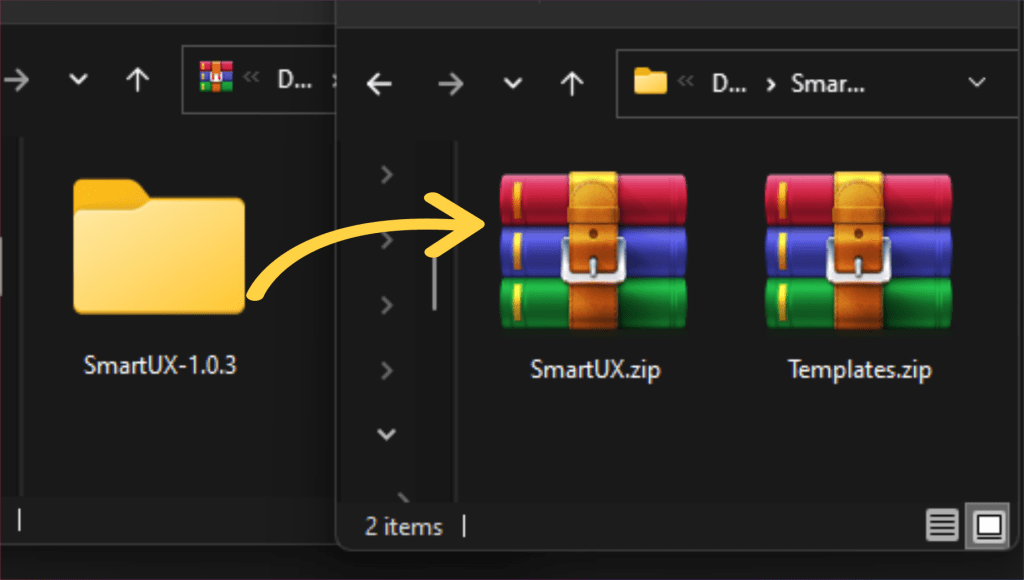
Lesson 16: Add and Design Member Selection Component

Welcome to Lesson 16 of our SmartUX Demo Application series. This guide will walk you through adding and designing the Member Selection component, covering various actions such as accessing specific elements, saving changes, and navigating to different sections within the application to enhance training.

Upon successful completion of the specified steps, the result will reflect the desired outcome as shown in the image below:


1. Add Component to SmartUX

  • Click on the Add Component.
  • This will open a Select Program window with a List of Web Client Programs from Magic xpa.

Add Component to SmartUX


2. Select a Program for the Member Selection

  • As we are adding a component for Member Selection, Select the MemberSelection Program.
  • Click on the Next button.
  • This will take you to the Component Template screen.

Select a Program for the Member Selection


3. Select the Component Template for the MemberSelection Program

  • Select Blank Template as the Component Template for the “MemberSelection” program.
  • Click on the Finish button.

Select the Component Template for the MemberSelection Program


4. Enable Expanded View and View Code and Map Form Name to Container

  • Click on the Expanded View icon to enable Expanded View.
  • Click on the View Code icon to open a section below the Canvas to see the HTML source code of dropped Widgets.
  • Select the Container widget on the Canvas.
  • Click on the gear icon associated with the Form Name property for mapping.

Enable Expanded View and View Code and Map Form Name to Container


5. Select Form Name Data Model to Container

  • Here on the Select Data Model window, select “MemberSelection” Form Data Model.
  • Click on the Save button to map.

Select Form Name Data Model to Container


6. Drag and drop two Rows

  • Drag and drop two Row widgets one after another inside the Form Container.

Drag and drop two Rows


7. Add Columns to Rows

  • Drag and drop a Column widget inside each Row widget.

Add Columns to Rows


8. Drag and drop the Table Body to Column

  • Drag and drop the Table Body widget inside the first Column widget.
  • Click on the Table on Canvas to see its properties sheet.
  • In the properties sheet of the Table, click on the gear icon associated with the Data Mapping property.
  • This will open the Select Data Model window.

Drag and drop the Table Body to Column


9. Mapping Table body

  • Select the Data Model “MemberSelectionTable” Table control.
  • Click on the “Save” button to save the Data Mapping.
  • To perform automated generation of the Table it is mandatory to map the Table widget with its correct Data Model.

Mapping Table body


10. Action Handler “Sync columns with XPA”

  • In the properties sheet of the Look for Actions section.
  • The “Sync columns with XPA” Action property is an Action handler.
  • This property is specially created to avoid manual work of end users for Table generation.
  • Once you map the Data Model for the table click on the “Sync columns with XPA”.
  • It will generate the Table for you.

Action Handler 'Sync columns with XPA'


11. Auto-generated MemberSelectionTable using “Sync columns with XPA”

  • Here you can see the “Sync columns with XPA” property has fetched all the Columns present inside the MemberSelection Table.
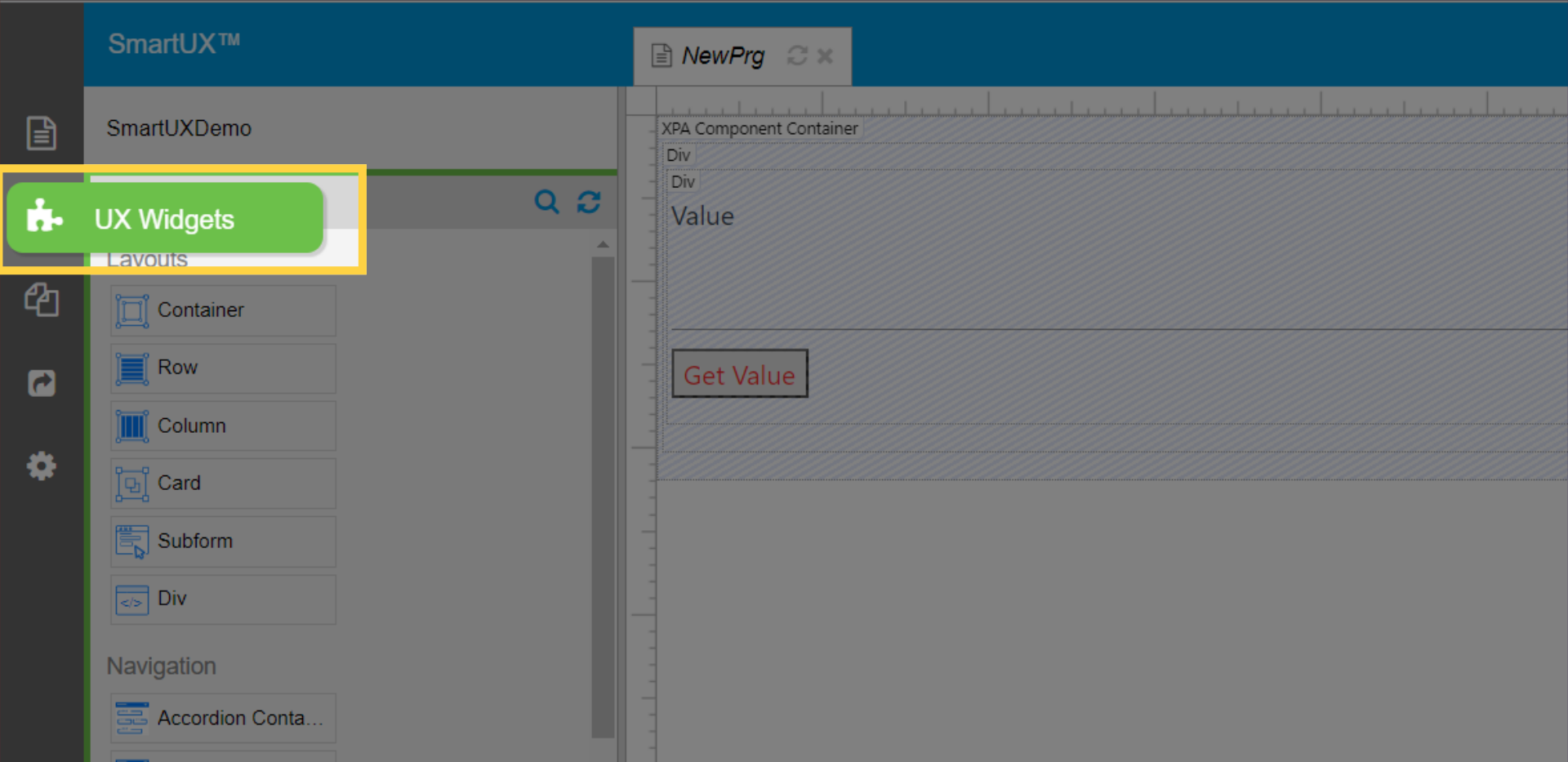
  • This Action handler also generated the widgets that are there on the Magic xpa form.
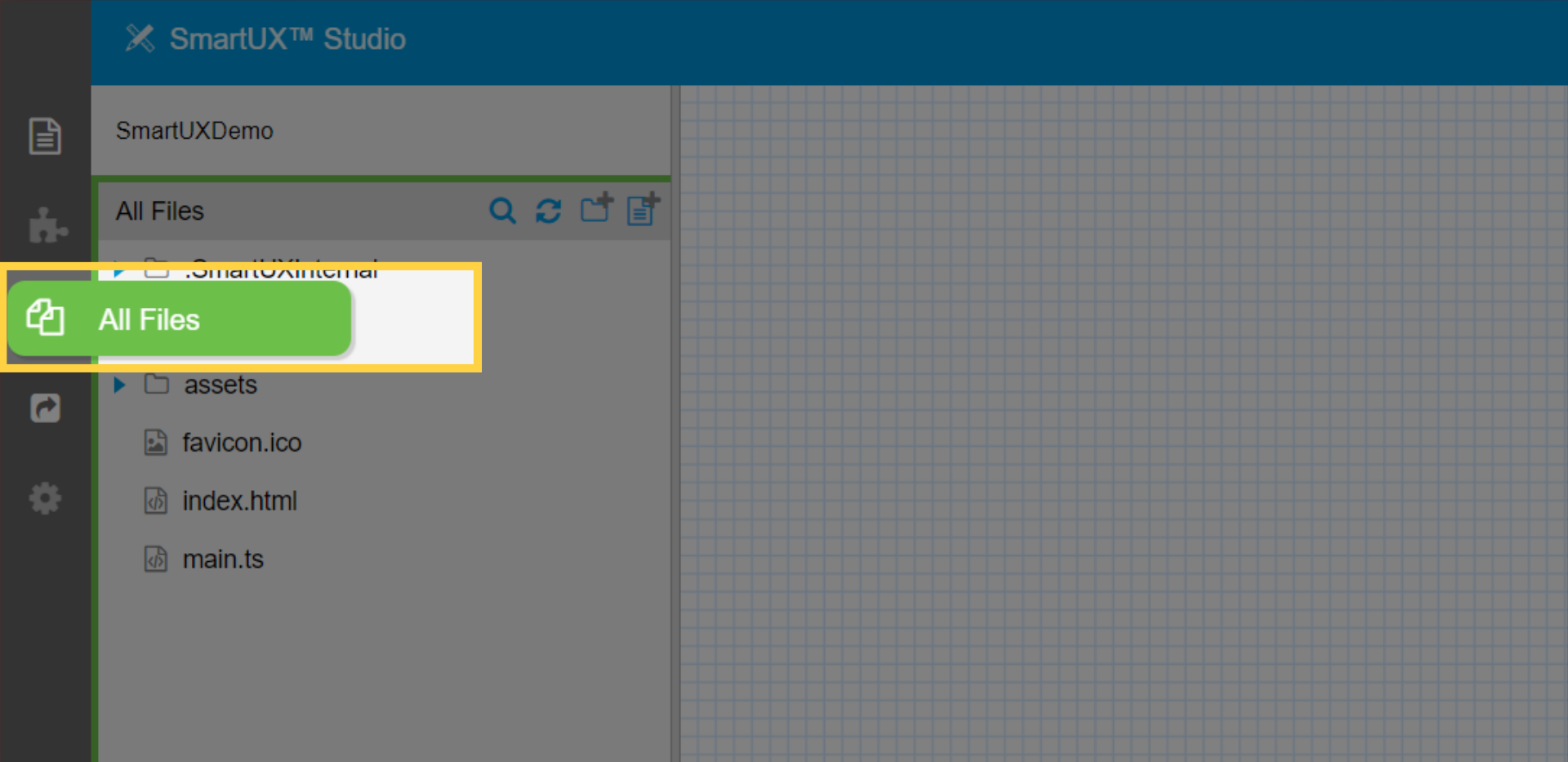
  • This reduces the manual efforts of the end user and generates a Table on one click.
  • Delete the input field from the second column as this table will be Read-Only.
  • Drag and drop the Label widget inside the Member Name column Container.
  • In the Properties Sheet of Label click on the gear icon associated with the Data Mapping property.
  • This will open a Select Data Model window.

Auto-generated MemberSelectionTable using “Sync columns with XPA”


12. Select the Data Model for the Label from the Member Name Column

  • Select “MemberName” Edit Data Model.
  • Click on the Save button to save the mapping.

Select the Data Model for the Label from the Member Name Column


13. Set Text property for Label from Member Name Column

  • In the Properties Sheet of Label click on the gear icon associated with the Text property.
  • This will open a Select Mg* Function window.

Set Text property for Label from Member Name Column


14. Select a Mg* Function to get Value for Label

  • Remove the existing text from the “Set Static HTML”.
  • In the Select Mg* Function window select Data Mapping radio.
  • Expand the MemberName (Edit).
  • Select the “mg.getValue” function for the Label widget.
  • Click on the Save button to map the function.

Select a Mg* Function to get Value for Label


15. Set Table Action properties for Label from Member Name Column

  • Now in the Properties Sheet of the Label go to Table Actions section.
  • Check the “Is Inside Table” property Checkbox.

Set Table Action properties for Label from Member Name Column


16. Drag and drop the Button widget for Select

  • Drag and drop the Button widget inside the Second Row Column.
  • In the properties sheet of the Button widget, Click on the gear icon associated with the Data Mapping property.
  • This will open the window to Select Data Model.

Drag and drop the Button widget for Select


17. Map Button widget with BtnSelect

  • Click on the BtnSelect data model to map it with the Button widget.
  • Click on the Save button to confirm mapping.

Map Button widget with BtnSelect


18. Setting Select Button properties

  • In the Properties Sheet of the Select button widget.
  • Under the “Display Logic” Section, set the “Button Style” property to “Raised Button”.
  • Under the Labels & Icons section, input the “Label” property as “Select”.
  • Fill in the Class property with the “savebutton”.

Setting Select Button properties


19. Drag and drop the Button widget for Cancel

  • Drag and drop another Button widget inside the Second Row Column.
  • In the properties sheet of the Button widget, Click on the gear icon associated with the Data Mapping property.
  • This will open the window to Select Data Model.

Drag and drop the Button widget for Cancel


20. Map Button widget with BtnCancel

  • Click on the BtnCancel data model to map it with the Button widget.
  • Click on the Save button to confirm mapping.

Map Button widget with BtnCancel


21. Setting Cancel Button properties

  • In the Properties Sheet of the Cancel button widget.
  • Under the “Display Logic” Section, set the “Button Style” property to “Raised Button”.
  • Change the “Button Color” property to “warn”.
  • Under the Labels & Icons section, input the “Label” property as “Cancel”.

Setting Cancel Button properties


22. Switch to Component tab below Canvas for TS changes

  • Switch to the Component tab below the Canvas beside Template.
  • In the Component tab, you will observe the contents of the MemberSelection.component.ts file.
  • Change to values as shown below:
      • private static readonly showTitleBar: boolean = false;
      • private static readonly width: string = “400px”;
      • private static readonly height: string = “400px”;
      • private static readonly shouldCloseOnBackgroundClick = false;

Switch to Component tab below Canvas for TS changes


23. Save performed Actions

  • Click the Save button to Save all performed actions for the Member Selection component.
  • Now enter in Live Preview.

Save performed Actions


24. Navigating through Live Preview

  • Navigate through the navigation sidebar to Event.
  • Click on Edit Event to enter in Event Card component.
  • Now Click on the Select Member button to see the designed Member Selection component.

Navigating through Live Preview


25. Member Selection overlay

  • Here you see the Member Selection component in Live Preview as an overlay to add and select Members for Event.

Member Selection overlay


The guide covers adding and designing the Member Selection component, including steps like accessing components, saving changes, and navigating within the application for effective training.